EDITS.WS

Tag: Divi Resources

  • Get a Free Saas Product Layout Pack for Divi

    Hey Divi Nation! Thanks for joining us for the next installment of our weekly Divi Design Initiative; where each week, we give away a brand new Layout Pack for Divi.

    This time around, the design team has created a beautiful Saas Product Layout Pack that’ll help you get your next Saas Product website up and running in no time!

    This layout pack includes:

    8 Premade page layouts strategically designed for any Saas Product website (including a footer design)
    – Original, royalty-free photos and graphics + customizable source file (see below)
    – Plus, a large collection of pre-designed website elements that are customizable and reusable anywhere.

    This layout pack is available right inside Divi for all Divi customers for FREE as the latest addition to our growing Divi library of hundreds of premade layout packs, thousands of page designs, and countless web design elements and resources.

    divi layout

    Check Out The Divi Saas Product Layout Pack Below

    Get it for free today!

    Saas Product layout pack

    Landing Page Design

    Saas Product Pack for Divi

    View The Live Layout Demo

    Home Page Design

    Saas Product Layout Pack for Divi

    View The Live Layout Demo

    About Page Design

    Saas Product Layout Pack for Divi

    View The Live Layout Demo

    Features Page Design

    Saas Product Layout Pack for Divi

    View The Live Layout Demo

    Pricing Page Design

    Saas Product Layout Pack for Divi

    View The Live Layout Demo

    Documentation Page Design

    Saas Product Layout Pack for Divi

    View The Live Layout Demo

    Blog Page Design

    Saas Product Layout Pack for Divi

    View The Live Layout Demo

    Contact Page Design

    Saas Product Layout Pack for Divi

    View The Live Layout Demo

    Key Features

    If you’re looking for a bold look for your Saas product website, then look no further than the Saas Product Layout Pack for Divi. With striking bright colors, eye-catching photos, and an interesting take on perspective, your potential clients will be captivated the second they land on your website.

    Live Demos

    Click the links below to see a live demo for each of the layouts included in the pack.

    1. Saas Product Landing Page (live demo)
    2. Saas Product Homepage (live demo)
    3. Saas Product About Page (live demo)
    4. Saas Product Features Page (live demo)
    5. Saas Product Pricing Page (live demo)
    6. Saas Product Documentation Page (live demo)
    7. Saas Product Blog Page (live demo)
    8. Saas Product Contact Page (live demo)

    Access This Layout Right Now
    Directly from Your Divi Builder

    Since Version 3.0.99 of Divi, you can find and import any of the layouts included in this pack (along with ALL of Divi’s Premade Layout packs) directly from the Divi Builder. They are already waiting for you.

    To access your new layout, simply activate the Visual Builder when editing a page and look for the “Load From Library” icon in the page settings bar (it looks like a plus symbol). Click this icon to launch the Load From Library popup. Under the Premade Layouts tab, you can easily find the new layout by scrolling through the list of layout packs. Once you find the Saas Product Layout Pack, click on it. You will see all the individual layouts included in the pack. Select the layout you want to use and then click the “Use This Layout” button.

    Saas Product Layout Pack for Divi

    For more, check out this video to learn how you can get this layout pack up and running today.

    Subscribe To Our Youtube Channel

    Authentication Required

    Before you can download Premade Layouts from the Divi Library you must authenticate your Elegant Themes Subscription. You can do this by navigating to Divi > Theme Options > Updates. There you can enter your username and API key and save changes.

    Saas Product Layout Pack for Divi

    You can find your API Key under your members area on the Elegant Themes site. After you enter the Username and API Key, you will gain immediate access to our library of hundreds of free layouts (including this one). If you haven’t done this, when you click to import a layout to your page, you will be prompted to enter your Elegant Themes Membership Username and API Key.

    Use Layout Images for FREE with No Licensing Restrictions

    Divi Saas Product Layout Pack for Divi

    The image assets included with these layouts (icons, illustrations, photos, etc.) have no licensing restrictions. This means you can use them in all of your commercial projects without having to worry about paying licensing fees or attributing the photographer. Use them in your commercial websites, sell them within your Divi child themes, include them in your own Divi layout packs or just use them on your blog. We know how challenging it can be to find good photos and how confusing and scary the licensing that governs those photos can be. We want to fix that problem for our users.

    Download the Full Res Image Assets

    New Layout Pack Every Week!

    We hope you enjoy this layout pack. We look forward to hearing your opinions in the comment section below. Make sure you check out next week’s layout pack as well!

    The post Get a Free Saas Product Layout Pack for Divi appeared first on Elegant Themes Blog.

  • Divi Plugin Highlight: Divi Accordions Plus

    Divi Accordions Plus is a third-party module for the Divi Builder that adds a new accordion builder. Use multiple Divi Accordions Plus Modules together on a single page and they work as a single accordion, so when one opens another one closes. Style the accordions together or individually, display icons and images, and lots more. In this post, we’ll look at Divi Accordions Plus, see what it can do, and see how easy it is to use to help you decide if it’s the right product for your needs. We’ll use the Poke Restaurant About Page Layout as a backdrop for this tutorial. So if you haven’t downloaded it already, you can grab it now with your Divi membership.

    Divi Accordions Plus Module

    Divi Accordions Plus adds a new module to the Divi Builder. Simply add the module anywhere you want within your Divi layouts.

    Adding Accordions Plus to layout

    Accordion Submodules

    The submodules create individual accordions. Add as many as you want by clicking Add New Item. You can also clone them, rearrange them, and delete them. They follow the settings in the main module, but they have specific content and design settings you’ll need to use.

    Add new item

    Content

    Add a title, subtitle (which you can disable if you want), and body content. These are the main elements of the accordions.

    Accordion content

    Item State

    Item State sets the open or closed state of the accordions when the page loads. It’s off by default, so the accordions are closed. I didn’t open the accordion in this example. It opened automatically when I enabled Item State.

    Accordion active state

    Divi Accordions Plus Accordion Submodules Design Settings

    The Design tab for the submodules controls the settings for that one accordion. You can customize them in the main module’s settings if you want them to look the same, but you’ll still need to use these settings to choose the images and icons. Let’s look at the settings that are unique to the submodule.

    Left Icon

    Left Icon controls the graphical element that appears on the left of the accordion. Enable or disable it, have it rotate on open, choose an icon or an image, and style it with the standard Divi tools. An image or icon such as a logo works great on the left. In this example, I selected an image and enabled Rotate Left Icon (Open Toggle), so the image rotated when I opened the accordion.

    Activating the left icon

    For this example, I’ve adjusted the background and icon color.

    Left icon styling

    Right Icon

    Right Icon controls the graphical element that appears on the right of the accordion. Enable or disable it, have it rotate on open, choose an icon or an image, and style it with the standard Divi tools. An icon that indicates the open or closed state of the accordion works great on the right.

    Adding the right icon

    In this example, I’ve selected a different icon, changed the icon color, the background color, and added a styled border.

    Right icon styling

    Divi Accordions Plus Content Settings

    The Content tab includes the basic Divi settings and a couple of settings that are specific to Divi Accordions Plus.

    Speed

    Speed controls how fast the toggles open and close. It’s set in milliseconds.

    Setting the accordion's toggle speed

    Mode

    Mode changes the way the accordions work.

    Accordion Mode

    Accordion Mode lets you choose between multiple active toggles and a single active toggle. Multiple Active Toggles leave all the toggles open until the user closes them. The example below shows Multiple Active Toggles.

    An example of multiple active toggles

    Single Active Toggles only allows for one open toggle at a time. It closes the open toggle when the user selects a new toggle. This example shows Single Active Toggles.

    Single active toggle mode, the standard mode of how accordions function

    Global Accordion Mode

    Global Accordion Mode is a new interesting feature. It allows for a single open toggle regardless of the number of Divi Accordion Plus Modules on the page. Enable Global Accordion Mode within every Divi Accordions Plus module on the page where you want to use the Global Accordion Mode. Any modules that do not have this mode enabled will not be affected by the mode. This is especially great for creating multi-column accordions in the same Row.

    In the example below, I’ve added another Divi Accordions Plus module and enabled Global Accordion Mode for both. When I open an accordion in one of the modules, the open accordion in the other module closes.

    Global toggle

    Divi Accordions Plus Design Settings

    The Design settings control the default styles for all the accordions. These settings are overwritten by the individual submodule settings.

    Header

    Header controls the background color, the open toggle background color, spacing, borders, and box shadow. In this example, I’ve changed the background colors for the open and closed toggle.

    Item header background colors

    Left Icon

    Left Icon controls the icon color, icon open toggle color, background color, open toggle background color, spacing, border, and box shadow for the entire accordion module. If you want to have uniformity in styling, it’s best to set up the colors of the icon here, and then individually select your icon for each toggle in the accordion. In this example, I’ve added and styled a border around the icons to make it more seamless with the background color.

    Styling the left icon

    Right Icon

    Right Icon controls the icon color, icon open toggle color, background color, open toggle background color, spacing, border, and box shadow. In the example, I’ve adjusted the open toggle colors, the border, and changed the icon color on open toggle.

    Styling the right icon

    Title

    Title controls the title background color, open toggle background color, spacing, border, and box shadow.

    Setting the title background color

    Body

    Body controls the item body, spacing, border, and box shadow. I’ve adjusted the border in this example.

    Accordion body styling

    Header Text

    Header Text controls the open toggle text and allows you to control the title and subtitle independently from the same menu. It includes all the standard text controls. I’ve adjusted the colors of the titles and subtitles, changed the title font size, and set it to bold in the example below.

    Header text styling

    Body Headings

    Body Headings includes all the standard text controls for the body headings that you’ve specified in the content area. In the example below, I’ve added both an H2 and H3 heading tag to the body content. I changed the font weights and color for both the headings within the body content.

    Body headings styling

    Body Text

    Body Text includes all the standard text controls for the body text in the content area. In this example, I’ve changed the font, made it italic, changed the color, and changed the font size.

    Body text styling

    Final Demo with Divi Poke Restaurant

    This is what the final accordion looks like within the About Us Page Layout for the Divi Poke Restaurant Layout Pack.

    Final result with header, footer and page layout

    Divi Accordions Plus Demos

    Divi Accordions Plus comes with seven demos to get you started.

    Demo 1

    The first demo includes a multi-column accordion with multi-colored icons. The accordions have a single border, and the content is bordered on all sides.

    Divi Accordions Plus Demos

    Demo 2

    Our second demo presents the accordion in a single column with blue highlights and box shadows. The icons have blue backgrounds.

    Divi Accordions Plus Demos

    Demo 3

    Our third demo uses a two-column layout and utilizes different colors for each of the accordions.

    Divi Accordions Plus Demos

    Demo 4

    The fourth demo uses a single-column accordion with warm colors and light borders.

    Divi Accordions Plus Demos

    Demo 5

    Demo five uses red titles and icons and includes tan backgrounds for the body and green backgrounds for the headers. The accordions are placed in two columns.

    Divi Accordions Plus Demos

    Demo 6

    The sixth demo uses light blue header backgrounds with a darker blue for the title text and icon background for the open accordion.

    Divi Accordions Plus Demos

    Demo 7

    Demo seven displays each of the accordion’s elements independently with box shadows for each element.

    Divi Accordions Plus Demos

    Purchase Divi Accordions Plus

    Divi Accordions Plus is available in the Divi Marketplace for $19. It includes unlimited usage, a 30-day money-back guarantee, and one year of support and updates.

    Ending Thoughts

    That’s our look at Divi Accordions Plus. This is a simple module, but it includes a lot of features for accordions. I especially like that it works with multiple modules on the same page. I found the settings intuitive and every setting I wanted to adjust was there. If you’re interested in a powerful accordion builder that’s easy to use, Divi Accordions Plus is worth a look.

    We want to hear from you. Have you tried Divi Accordions Plus? Let us know what you think about it in the comments.

    The post Divi Plugin Highlight: Divi Accordions Plus appeared first on Elegant Themes Blog.

  • Divi Plugin Highlight: Divi/Gutenberg/Woo Cross-Domain Copy Paste for Divi and Gutenberg

    The Divi/Gutenberg/Woo Cross-Domain Content Copy Paste System (CCPS) plugin allows you to easily copy and paste Divi, Gutenberg, and WooCommerce layouts across websites on different domains. This could be convenient for building a layout on one site and moving it to a different site without having to export and import the layout with the Divi Library. You could also use this plugin to create your own repository of layouts for design projects. In this plugin highlight, we will take a look at the Divi/Gutenberg/Woo Cross-Domain Content Copy Paste System (CCPS) plugin and help you decide if it’s the right plugin for you.

    Let’s get started!

    Installing Divi/Gutenberg/Woo Cross-Domain Content Copy Paste System (CCPS)

    The plugin comes as a .ZIP plugin file. To install the plugin, open the plugin page in your WordPress dashboard and click Add New. Click Choose File and select the .ZIP plugin file, then click Install Now. Once the plugin is installed, activate the plugin.

    Divi Plugin Highlight Divi/Gutenberg/Woo Cross-Domain Content Copy Paste System (CCPS) Install

    Repeat these steps to install the plugin on any website you want to be able to paste items. This plugin will need to be installed and activated in order for you to be able to copy and paste any layouts.

    Divi/Gutenberg/Woo Cross-Domain Content Copy Paste System (CCPS)

    Now let’s take a look at exactly how this plugin works.

    Settings Page

    Once the plugin is installed you will see a new settings page for the plugin appear in your WordPress dashboard menu. With these settings, you can change where the copy-paste functionality is enabled and change the button location.

    Divi Plugin Highlight Divi/Gutenberg/Woo Cross-Domain Content Copy Paste System (CCPS) Settings

    You can also change the pages that have the bulk copy and paste function enabled and restrict the plugin usage by user roles. By default, all of the settings are enabled and you shouldn’t have to make any changes before using the plugin. The page also lists some tips and instructions for using the plugin.

    Divi Plugin Highlight Divi/Gutenberg/Woo Cross-Domain Content Copy Paste System (CCPS) Settings 2

    Copy Divi Layouts

    Here I have created a layout in Divi’s visual builder that I would like to copy to another website. As you can see, now that the plugin is activated there is a green icon at the bottom left corner of the Visual Builder.

    Divi Plugin Highlight Divi/Gutenberg/Woo Cross-Domain Content Copy Paste System (CCPS) Visual Builder 1

    When you click the green icon, you have two options: whole page or individual sections.

    Divi Plugin Highlight Divi/Gutenberg/Woo Cross-Domain Content Copy Paste System (CCPS) Visual Builder 2

    If you select Whole Page, you get an option to copy the page or paste the page. Since we want to copy this layout and paste it to a different website, we’ll select the copy option.

    Divi Plugin Highlight Divi/Gutenberg/Woo Cross-Domain Content Copy Paste System (CCPS) Visual Builder Copy

    Now on my new site, I have installed and activated the plugin and added a new page. The copy and paste icon is there in the visual builder, so I’ll click the icon, then select the Whole Page option and click Paste Page.

    Divi Plugin Highlight Divi/Gutenberg/Woo Cross-Domain Content Copy Paste System (CCPS) Visual Builder Paste

    Now the layout has been loaded onto the new page! Note that pasting a whole page will replace any content you had on the page.

    Divi Plugin Highlight Divi/Gutenberg/Woo Cross-Domain Content Copy Paste System (CCPS) Visual Builder Paste Success

    Alternatively, you can choose to copy an individual section. To do so, click the copy and paste icon, then select Individual Sections.

    Divi Plugin Highlight Divi/Gutenberg/Woo Cross-Domain Content Copy Paste System (CCPS) Visual Builder Individual Sections

    When you hover over a section, it will have a green overlay with a button to copy the section and a button to paste a section. Click the copy button.

    Divi Plugin Highlight Divi/Gutenberg/Woo Cross-Domain Content Copy Paste System (CCPS) Visual Builder Copy Section

    On the new website, click the copy and paste icon and select Individual Sections. If you highlight an existing section and click paste, that section will be replaced with your copied section. If you don’t want to replace a section on your new page, you can create a new blank section and paste it there.

    Copy Gutenberg Layouts

    This plugin also allows you to copy Gutenberg layouts to a different site. To do so, open or create a layout with the default editor (Gutenberg editor, not the Divi builder). At the top of the page is a button for Layout Copy Paste. Click the button, then select whole page or individual section. I’ll copy the whole page in this example.

    Divi Plugin Highlight Divi/Gutenberg/Woo Cross-Domain Content Copy Paste System (CCPS) Gutenberg Copy Whole Page

    On the new website, open a page with the default editor. Again, you should see the Layout Copy Paste button at the top. Click the button and select whole page, then click paste page.

    Divi Plugin Highlight Divi/Gutenberg/Woo Cross-Domain Content Copy Paste System (CCPS) Gutenberg Paste Page

    Now your layout will be pasted onto the new site.

    Divi Plugin Highlight Divi/Gutenberg/Woo Cross-Domain Content Copy Paste System (CCPS) Gutenberg Paste Success

    Bulk Copy and Download Pages, Posts, WooCommerce Products, and Media Files

    A new feature added in version 2 of this plugin is the ability to bulk copy pages, posts, WooCommerce products, and media files from one site to another. You can also download an exported file of pages, posts, products, or media and upload them to another site through this feature. This is a very useful and time-saving feature to have if you’re moving lots of content from one site to another.

    Here I’m looking at my pages in the WordPress dashboard. You can see the Content Copy Paste button at the very top of the page. Select the pages you would like to copy, then click the copy button.

    On the other website, navigate to Pages, then click the paste button at the top.

    Divi Plugin Highlight Divi/Gutenberg/Woo Cross-Domain Content Copy Paste System (CCPS) Paste Pages

    Your copied pages will be pasted onto the new website.

    Divi Plugin Highlight Divi/Gutenberg/Woo Cross-Domain Content Copy Paste System (CCPS) Paste Pages Success

    If you’d rather generate a .ZIP file with your content, you can use the download button to save your content instead. Here’s what that looks like from the WooCommerce Products page.

    Divi Plugin Highlight Divi/Gutenberg/Woo Cross-Domain Content Copy Paste System (CCPS) Download Products

    Now on my new site, I can click the Content Copy Paste button from the Products page and click Upload to upload the .ZIP file with the product contents.

    Divi Plugin Highlight Divi/Gutenberg/Woo Cross-Domain Content Copy Paste System (CCPS) Upload Products

    After the success message appears, you can see the products have been uploaded to the new site.

    Divi Plugin Highlight Divi/Gutenberg/Woo Cross-Domain Content Copy Paste System (CCPS) Upload Products Success

    Divi/Gutenberg/Woo Cross-Domain Content Copy Paste System (CCPS) Tips and Updates

    There are a few things to know before you use this plugin. First, you must always save the page you are copying from or pasting to before you can copy or paste. Copying and pasting is not possible between different browsers or within incognito windows. Additionally, cross-domain copy-pasting is not supported by the Safari web browser. Finally, this plugin does not work within the Divi theme builder environment. Despite these limitations, this plugin brings some great functionality to Divi and WordPress and could be very useful if you use your own premade layouts and often work between multiple domains.

    Purchase Divi/Gutenberg/Woo Cross-Domain Content Copy Paste System (CCPS)

    Divi/Gutenberg/Woo Cross-Domain Content Copy Paste System (CCPS) is available in the Divi Marketplace. It costs $49 for unlimited website usage and 1 year of support and updates. The price also includes a 30-day money-back guarantee.

    Divi Plugin Highlight Divi/Gutenberg/Woo Cross-Domain Content Copy Paste System (CCPS)

    Final Thoughts

    Divi/Gutenberg/Woo Cross-Domain Content Copy Paste System (CCPS) is an interesting plugin that makes it easy to copy and paste Divi and Gutenberg layouts to sites on different domains. With this plugin, you can easily reuse design layouts for new projects and even create your own repository of layouts that you can effortlessly copy and paste. With new features in version 2 adding the ability to bulk copy and download pages, posts, media files, and even WooCommerce products, this plugin could be a serious time-saver when transferring content to other websites. The installation is simple and straightforward, and the plugin is very easy to use as well. If you are tired of importing and exporting Divi Builder files to new websites and want an alternative to a cloud-based layout repository like Divi Cloud, this could be a great plugin for you.

    We would love to hear from you! Have you tried Divi/Gutenberg/Woo Cross-Domain Content Copy Paste System (CCPS)? Let us know what you think about it in the comments!

    The post Divi Plugin Highlight: Divi/Gutenberg/Woo Cross-Domain Copy Paste for Divi and Gutenberg appeared first on Elegant Themes Blog.

  • How to Use Invisible Dividers to Create Space Between Divi Modules

    Divi’s Divider Module is unique among the modules available within the Divi Builder. It works to serve multiple purposes. Not only does it provide a styled line to add an interesting division between modules, but it’s also used to add whitespace. Many Divi layouts use invisible Divider Modules to create space within the layout. In this post, we’ll see how to use invisible Dividers to create space between Divi modules.

    Why Create Space with Invisible Dividers?

    Invisible dividers are a great way to add whitespace to your layouts. Without whitespace, a layout can become cluttered and visually unappealing. Elements can be easily ignored if they’re too close to other elements. They won’t stand apart, making CTAs go unnoticed.

    Whitespace can help focus attention on certain areas of the screen. When an element has lots of whitespace around it, it stands out. This is especially important for buttons, descriptions, blurbs, or anything you want your visitors to interact with. Whitespace even improves readability, so content is easier to consume.

    Divider Module Settings

    Divider Modules can create vertical and horizontal space in several ways. The amount of space the module takes can be adjusted with Sizing, Margin, and Padding. The result is essentially the same and each of the methods can be used in combination if you need to fine-tune the spacing.

    Divider Module Show Visibility

    The module can show or not show the divider. This allows us to use the module just of space if we want. The size of the space the module takes is different from the visible and invisible divider.

    To make the divider invisible, go to its Content tab. The first section is Visibility. This is enabled by default. Here’s the setting with Visibility enabled. I’ve given the Row a tan background to help visualize the Divider Module.

    Divider Module Show Visibility

    Simply disable it. The divider won’t show, and you can now use the module to add spacing within the Divi layout. All that shows now is the tan background for the Row.

    Divider Module Show Visibility

    Invisible Divider Combined with Sizing

    Like many Divi modules, the Divider Module includes several adjustments to control the size of the module. The first is the Sizing settings. When the Divi Module is set to not show the divider, the Sizing settings Only show:

    • Width
    • Max Width
    • Min Height
    • Height
    • Max Height

    The example below shows the invisible Divider Module. I’ve added a blue background to the module, so it stands out.

    Invisible Divider Combined with Sizing

    Adjusting Height is a great way to control the spacing for the invisible Divider Module. The example below shows a Divider Module with 220px of Height.

    Invisible Divider Combined with Sizing

    Invisible Divider Module Combined with Spacing

    Margin and Padding can also be used to add spacing for the invisible Divider Module. They work the same as with any Divi module.

    This example shows the invisible Divider module with no Height adjustment. I’ve added 50px Top and Bottom Margin. The module still shows the blue background as its normal size, but there’s more margin around the module, as you can tell by the tan background of the Row.

    Invisible Divider Module Combined with Spacing

    This example adds 50px Top and Bottom Padding. The Row is the same size, but the module now takes up more of the Row. The result is essentially the same, so you can try both and see which works best for each situation.

    Invisible Divider Module Combined with Spacing

    This example shows both with 50px Top and Bottom Margin and Padding. The module now takes more of the area. You can use one or the other, but this does help you fine-tune the spacing if there are any issues.

    Invisible Divider Module Combined with Spacing

    Invisble Dividers Examples

    We’ll create two examples from the same layout pack. our examples will add whitespace to give the content some focus or help with alignment. For the examples, I’ll use the landing page and the home page from the free Flower Farm Layout Pack that’s available within Divi. We’ll use a variety of adjustments to see how they work.

    Invisible Dividers Example One

    For our first example, we’ll add space between two Text Modules and a Button Module just so they take up more space in their area. We’ll use two invisible Divider Modules.

    This example uses the Landing Page from the Flower Farm Layout Pack. I’ll add whitespace to the CTA in the Service Section. For reference, here’s a look at this section before adding the invisible Divider Modules.

    Invisible Divider Example One

    First Divider

    Place a Divider Module under the first Text Module.

    Invisible Divider Example One

    Set the module’s Visibility to not show the divider.

    • Show Divider: No

    Invisible Divider Example One

    Select the Design Tab and change the Height to 120px for desktops. Set the Height for tablets and phones to Auto. Close the module’s settings.

    • Height: 120px (desktop), Auto (tablet and phone)

    Invisible Divider Example One

    Second Divider

    Next, place the second Divider Module above the Button Module.

    Invisible Divider Example One

    Set the module’s Visibility to not show the divider.

    • Show Divider: No

    Invisible Divider Example One

    Select the Design tab and scroll down to Spacing. Enter 10% for the Top and Bottom Margin for desktops. Set tablets and phones to Auto. Close the module and save your settings.

    • Margin: 10% Top and Bottom, Auto tablet and phone

    Invisible Divider Example One

    Invisible Dividers Example Two

    For our second example, we’ll use the Call-to-Action section from the layout. This section has a three-column row with a title and button on the left, an image in the middle, and a description on the right. The content for the left and right columns starts at the top of the Row. We’ll use three Divider Modules to add whitespace and center the content. The difference will be minor, but it will have a visual impact on the layout.

    This one uses the Home Page from the Flower Farm Layout Pack. For reference, here’s a look at this section before adding the invisible Divider Modules.

    Invisible Divider Example Two

    First Divider

    Place a Divider Module above the first Text Module in the left column. You might need to drag the Divider Module above the first Text Module after it’s added.

    Invisible Divider Example Two

    Set the module’s Visibility to not show the divider. Close the module’s settings.

    • Show Divider: No

    Invisible Divider Example Two

    Select the Design tab and change the Height to 102px for desktops. Set the Height for tablets and phones to auto. Close the module’s settings.

    • Height (desktop): 102px
    • Height (tablet, phone): Auto

    Invisible Divider Example Two

    Second Divider

    Place the second Divider Module under the Button Module in the left column. At first, it will seem that this one isn’t needed since won’t affect the desktop version, but it will have an impact on tablets and phones.

    Invisible Divider Example Two

    Set the module’s Visibility to not show the divider.

    • Show Divider: No

    Invisible Divider Example Two

    Select the Design Tab. Scroll down to Spacing and add 5px to the Top and Bottom Padding. Close the module’s settings.

    • Padding: 5px Top, 5px Bottom

    Invisible Divider Example Two

    Third Divider

    Finally, place the third Divider Module over the first Text Module in the right column. You might need to drag it into place.

    Invisible Divider Example Two

    Set the module’s Visibility to not show the divider.

    • Show Divider: No

    Invisible Divider Example Two

    Select the Design Tab and change the Height to 194px. Set the Height for tablets to 50px and phones to 40px. Close the module’s settings.

    • Height: 194px (desktop), 50px (tablet), 40px (phone)

    Invisible Divider Example Two

    Invisible Dividers Results

    Desktop Invisible Dividers Example One

    Desktop Invisible Divider Example One

    Phone Invisible Dividers Example One

    Phone Invisible Divider Example One

    Desktop Invisible Dividers Example Two

    Desktop Invisible Divider Example Two

    Phone Invisible Dividers Example Two

    Phone Invisible Divider Example Two

    Ending Thoughts

    That’s or look at how to use invisible dividers to create space between Divi modules. Whitespace is great for highlighting certain elements and improving the readability of a website. The Divider Module provides several options for adding space including Sizing and Spacing, and you can adjust Margin, Padding, or both. You can use any or all of the settings in any combination you want to get the results you need.

    We want to hear from you. Do you use invisible Divider Modules to add whitespace to your Divi layouts? Let us know about your experience in the comments.

    The post How to Use Invisible Dividers to Create Space Between Divi Modules appeared first on Elegant Themes Blog.

  • Get a Free Vegan Restaurant Layout Pack for Divi

    Hey Divi Nation! Thanks for joining us for the next installment of our weekly Divi Design Initiative; where each week, we give away a brand new Layout Pack for Divi.

    This time around, the design team has created a beautiful Vegan Restaurant Layout Pack that’ll help you get your next Vegan Restaurant website up and running in no time!

    This layout pack includes:

    6 Premade page layouts strategically designed for any Vegan Restaurant website (including a footer design)
    – Original, royalty-free photos and graphics + customizable source file (see below)
    – Plus, a large collection of pre-designed website elements that are customizable and reusable anywhere.

    This layout pack is available right inside Divi for all Divi customers for FREE as the latest addition to our growing Divi library of hundreds of premade layout packs, thousands of page designs, and countless web design elements and resources.

    divi layout

    Check Out The Divi Vegan Restaurant Layout Pack Below

    Get it for free today!

    Vegan Restaurant layout pack

    Landing Page Design

     Vegan Restaurant Pack for Divi

    View The Live Layout Demo

    Home Page Design

    Vegan Restaurant Layout Pack for Divi

    View The Live Layout Demo

    About Page Design

    Vegan Restaurant Layout Pack for Divi

    View The Live Layout Demo

    Menu Page Design

    Vegan Restaurant Layout Pack for Divi

    View The Live Layout Demo

    Blog Page Design

    Vegan Restaurant Layout Pack for Divi

    View The Live Layout Demo

    Contact Page Design

    Vegan Restaurant Layout Pack for Divi

    View The Live Layout Demo

    Key Features

    If you’re looking to launch a new vegan restaurant website for yourself or a client, take a look at the Vegan Restaurant Layout Pack for Divi. It incorporates large color block sections of images and text to entice your site’s visitors. Background patterns draw your eye to important call to action sections, whereas the muted colors allow the colorful imagery to shine.

    Live Demos

    Click the links below to see a live demo for each of the layouts included in the pack.

    1. Vegan Restaurant Landing Page (live demo)
    2. Vegan Restaurant Homepage (live demo)
    3. Vegan Restaurant About Page (live demo)
    4. Vegan Restaurant Menu Page (live demo)
    5. Vegan Restaurant Blog Page (live demo)
    6. Vegan Restaurant Contact Page (live demo)

    Access This Layout Right Now
    Directly from Your Divi Builder

    Since Version 3.0.99 of Divi, you can find and import any of the layouts included in this pack (along with ALL of Divi’s Premade Layout packs) directly from the Divi Builder. They are already waiting for you.

    To access your new layout, simply activate the Visual Builder when editing a page and look for the “Load From Library” icon in the page settings bar (it looks like a plus symbol). Click this icon to launch the Load From Library popup. Under the Premade Layouts tab, you can easily find the new layout by scrolling through the list of layout packs. Once you find the Vegan Restaurant Layout Pack, click on it. You will see all the individual layouts included in the pack. Select the layout you want to use and then click the “Use This Layout” button.

    Vegan Restaurant Layout Pack for Divi

    For more, check out this video to learn how you can get this layout pack up and running today.

    Subscribe To Our Youtube Channel

    Authentication Required

    Before you can download Premade Layouts from the Divi Library you must authenticate your Elegant Themes Subscription. You can do this by navigating to Divi > Theme Options > Updates. There you can enter your username and API key and save changes.

    Vegan Restaurant Layout Pack for Divi

    You can find your API Key under your members area on the Elegant Themes site. After you enter the Username and API Key, you will gain immediate access to our library of hundreds of free layouts (including this one). If you haven’t done this, when you click to import a layout to your page, you will be prompted to enter your Elegant Themes Membership Username and API Key.

    Use Layout Images for FREE with No Licensing Restrictions

    Divi Vegan Restaurant Layout Pack for Divi

    The image assets included with these layouts (icons, illustrations, photos, etc.) have no licensing restrictions. This means you can use them in all of your commercial projects without having to worry about paying licensing fees or attributing the photographer. Use them in your commercial websites, sell them within your Divi child themes, include them in your own Divi layout packs or just use them on your blog. We know how challenging it can be to find good photos and how confusing and scary the licensing that governs those photos can be. We want to fix that problem for our users.

    Download the Full Res Image Assets

    New Layout Pack Every Week!

    We hope you enjoy this layout pack. We look forward to hearing your opinions in the comment section below. Make sure you check out next week’s layout pack as well!

    The post Get a Free Vegan Restaurant Layout Pack for Divi appeared first on Elegant Themes Blog.

  • Divi Plugin Highlight: Divi Carousel Module

    Divi Carousel Module is a third-party module for Divi that creates interesting carousels. They’re great for images, products, testimonials, team members, and more. The module includes lots of design elements that make it stand out. Fortunately, it’s not difficult to use. In this post, we’ll look at Divi Carousel Module, see what it can do, and see how easy it is to use to help you decide if this is the right product for your needs. The Divi Architect Layout Pack will be the backdrop of our tutorial.

    New Divi Carousel Module

    Divi Carousel Module adds a new module to the Divi Builder. Add the module to any Divi layout the same way as any Divi Module.

    New Divi Carousel Module

    Divi Carousel Module Slides

    Each slide in the Divi Carousel Module displays slides as submodules that are added within the main module. The slides can be styled independently, or they can use the main module’s styling. To add a new slide, click Add New Item.

    Divi Carousel Module Slides

    Add as many as you want. You can set the number the carousel will display on the screen for each device type in the module’s settings, so the number you add won’t affect the design. The submodules include all the standard Divi settings and a few unique settings. Here’s a look at the unique settings for the submodule.

    Main Content

    When you add a slide, it opens to show the settings. The main content area includes the title, subtitle, and body content. Use any or all of this content you want. You can style these elements individually in the Design tab.

    Divi Carousel Module Slides

    Title & Image Link

    Add the URL and choose if it opens in a new window. This link applies to both the title and image, so it still works even if you only use one of the two elements.

    Divi Carousel Module Slides

    Button Settings

    This adds a button to the slide. Add the text, the URL, and choose how it opens. You can style the button in the Design tab.

    Divi Carousel Module Slides

    Image Settings

    Here, you can choose to use an image or an icon. An image is the default setting. It includes the image picker, alt text, and if it opens in a lightbox. The image is placed above the title by default, but you can easily change this if you want.

    Divi Carousel Module Slides

    Selecting Use Icon provides an icon selector. The icon replaces the image. It can also be styled in the Design settings.

    Divi Carousel Module Slides

    Meta

    This includes two options you can select between. You can only choose one of the two options. The first option is Use Social Media. Enabling this opens the fields to enter your URLs for four social media networks and your email address.

    Carousel Meta: Use Social Media Icons

    The second option is Use Rating. This opens a dropdown box where you can choose a rating from one to five. It displays the rating as stars.

    Carousel Meta: Use Ratings

    Submodule Design Settings

    The submodule’s Design settings include the image styles, image filter, and styles for the title, subtitle, content, button, social media, and rating. If you’ve selected an icon in place of the image, you’ll see icon settings to change its color, add a circle, change its size, and adjust its alignment. In the example below, I moved the image to the center of the slide by selecting Inside Content in the Image Position dropdown box.

    Images Styling with Image Position Settings

    Main Module Settings

    The main module settings include the slider details as well as the standard Divi settings. Let’s look closer at the slider’s settings.

    Main Module Settings

    Slider Settings

    The slider settings include width control, the number of slides to show on each of the device types, multislide, duration, loop, autoplay, arrow and dot navigation, spacing, lazy loading, hash navigation, and lots more. It’s interesting to see the number of items for different devices. One point about the number, you enter into these fields is they don’t have to be whole numbers. You can show a half slide if you want. Just enter the number as a decimal and experiment until the slides display the way you want.

    Slider Settings

    This example shows that I’ve added some arrow navigation. I also changed the way the individual carousel items appear on desktop, tablet, and mobile. In addition to the above, I’ve also added a loop feature to the module.

    An example of slider settings

    Advanced Slider Settings

    The advanced settings let you choose the slider effect. Choose between Default and Coverflow. The default setting displays the slides as normal with each card facing the user.

    Advanced Slider Settings Default

    Coverflow displays the cards tilted in 3D. Choosing Coverflow adds Rotate, which adjusts the amount each card is rotated in 3D, and Shadow, which adds to the 3D effect through shadowing. The cards show an animation as they scroll into place within the carousel.

    Advanced Slider Settings Coverflow Style

    Main Module Design Settings

    The main module’s Design settings include the image overlay, alignment, width, border, and box shadow. It also includes settings for the title text, subtitle text, body text, next and previous buttons, navigation color, z-index for the image, custom spacing for every element, and the standard Divi settings. I’ve adjusted many of the settings in the example below.

    Updated Carousel Design

    The Next and Previous arrows include several position options. You can adjust the color of the icons and backgrounds and choose custom icons for the previous and next links independently. You can also adjust the dot navigation’s colors.

    Styling for next, previous buttons and dot navigation

    The Divi Carousel Module has an impressive amount of custom spacing options. Add margin and padding to every element for both the container and the content independently. I’ve added padding to several of the elements in the example below.

    Deep spacing settings available

    Using Divi Carousel Module

    Divi Carousel Module is great for displaying lots of things including products, team members, custom blog posts and pages, services, images, testimonials, a portfolio, company logos, and lots more. The publisher’s website includes lots of downloadable templates to get you started. They’re available as JSON files. Upload them to your Divi Library and use them on any template, page, or post. Let’s look at a few of them. I’ll describe their main settings as we go.

    Divi Carousel Module Content Carousel 02_05

    Content Carousel 02_05 includes large images and styles the cards independently to create an alternating design with the image on the top or the bottom. It shows three slides at a time on desktops, 2 on tablets, and 1 on phones. It slides them automatically every second and loops.

    Using Divi Carousel Module

    Divi Carousel Module Testimonial Carousel 01_07

    Testimonial Carousel 01_07 displays two slides on desktops and one slide on tablets and phones. It includes centered arrows and dot navigation. The slides place the images to the left and include a gradient behind the text. The quote icons are images added to the background.

    Using Divi Carousel Module

    Divi Carousel Module Team Carousel 01_05

    Team Carousel 01_05 displays three slides on desktops, two on tablets, and one on phones. The slides have a unique design with social icons placed at the bottom. The backgrounds of the main content area alternate between black and white. The arrows and dots are green. Images use rounded corners and include a 4px border to make them circled.

    Using Divi Carousel Module

    Divi Carousel Module Image Carousel 01_02

    Image Carousel 01_02 displays 3.5 items on desktops and centers the slides to create the design that partially shows images on the sides of the screen. Tablets display 3 and phones display 1. It includes arrow navigation, and the slides are set to loop, so the user never has to change directions to see all the slides. The rounded corners give the images an elegant design.

    Using Divi Carousel Module

    Purchase Divi Carousel Module

    Divi Carousel Module is available in the Divi Marketplace for $29. It includes unlimited usage, a 30-day money-back guarantee, and one year of support and updates.

    Purchase Divi Carousel Module

    Ending Thoughts

    That’s our look at Divi Carousel Module. The module has a lot of features. Each element can be styled and adjusted independently, giving you lots of design possibilities. I found all the settings to be intuitive, so it felt at home in the Divi Builder. If you’re interested in a carousel module with lots of features, Divi Carousel Module is worth a look.

    We want to hear from you. Have you tried Divi Carousel Module? Let us know what you think about it in the comments.

    The post Divi Plugin Highlight: Divi Carousel Module appeared first on Elegant Themes Blog.

  • Download a FREE Header & Footer for Divi’s Leather Goods Layout Pack

    Hey Divi Nation! Thanks for joining us for the next installment of our weekly Divi Design Initiative where each week, we give away brand new freebies. We recently shared a brand new Leather Goods Layout Pack. To help you get your website up and running as soon as possible, we’re sharing a global header & footer template that matches this layout pack perfectly as well! Hope you enjoy it.

    divi layout

    Check Out The Leather Goods
    Global Header & Footer Template Below

    Get it for free today!

    Header Design

    Desktop View

    Header design for Divi Leather Goods Layout Pack, desktop view

    Tablet and Mobile View

    Header design for Divi Leather Goods Layout Pack, tablet and mobile view

    Footer Design

    Desktop View

    Footer design for Divi Leather Goods Layout Pack, desktop view

    Tablet and Mobile View

    Footer design for Divi Leather Goods Layout Pack, tablet and mobile view

    Download The Global Header & Footer Template For The Leather Goods Layout Pack

    To lay your hands on the free global header & footer template, you will first need to download it using the button below. To gain access to the download you will need to subscribe to our newsletter by using the form below. As a new subscriber, you will receive even more Divi goodness and a free Divi Layout pack every Monday! If you’re already on the list, simply enter your email address below and click download. You will not be “resubscribed” or receive extra emails.

    How to Upload The Template

    Go to Divi Theme Builder

    To upload the template, navigate to the Divi Theme Builder in the backend of your WordPress website.

    Getting started with the Divi Conference Layout Pack

    Upload Global Default Website Template

    Then, in the top right corner, you’ll see an icon with two arrows. Click on the icon.

    Importing the Header and Footer Layout into the Divi Theme Buidler

    Navigate to the import tab, upload the JSON file which you were able to download in this post, and click on ‘Import Divi Theme Builder Templates’.

    Import settings for the header and footer layout pack

    Save Divi Theme Builder Changes

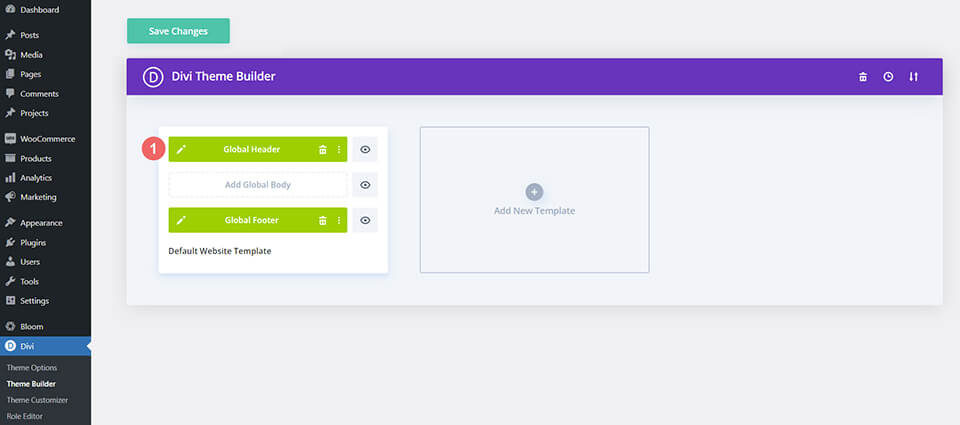
    Once you’ve uploaded the file, you’ll notice a new global header and footer in your default website template. Save the Divi Theme Builder changes as soon as you want the template to be activated.

    Save global header theme builder

    How to Modify The Template

    Open Header Template

    To modify the global header template’s elements, start by opening the template.

    Editing the global header within the Divi Theme Builder

    Select Menu of Choice

    Select your menu of choice in the Menu Module.

    Choose your main menu module for your Divi Leather Goods layout

    Update Menu Logo

    We use the Logo option in the Menu Module to show our brand logo. Upload your logo to the module. As the background is the dark, we’d recommend using a light colored logo.

    Upload a light colored logo to the menu module

    Update Primary Text CTA

    The main menu has a call-to-action created with a Text Module and the Icon Module. Update each as needed.

    Update primary column call-to-action

    To link out, we would recommend adding a link to the column itself, as opposed to the two modules separately.

    Link column for primary call-to-action

    Update Secondary Text CTA

    This header has a text call-to-action in the secondary menu. Update the text to match your needs. You can also add a link to the Text Module.

    Update Text module with your call to action text

    Update Social Media Module Networks and Links

    Update the Social Media Follow Module with your selected social media networks. Remember to also add your social media links to each icon as well.

    Update Social Media Module Networks and Links

    Open Footer Template

    Continue by opening the global footer inside the default website template.

    Editing the footer template within the Divi Theme Builder

    Update Footer Menu

    As with the primary menu, you want to update the menu in the footer with your footer menu.

    Update Footer Menu

    Update Footer Logo

    Update the Image Module in the footer with your logo.

    Update Footer Menu

    Add Your Social Media Icons and Links

    As with the Social Media Follow Module in the header, we want to ensure that we have our correct social networks with their appropriate links.

    Update footer social media links and networks

    Connect Your Email Marketing

    Our footer also has an Email Optin Module. Connect your email marketing solution of choice to collect emails from visitors to your site.

    Update your email marketing platform

    Update Static Footer Content

    You will need to go through and update the static content of the footer, including adding your own text, updating titles etc. Don’t forget about the copyright text at the bottom of the footer as well.

    Edit static footer content

    New Freebies Every Week!

    We hope you’ve enjoyed the Leather Goods Layout Pack and the Header & Footer freebie that goes along with it. We look forward to hearing your opinions in the comment section below. Make sure you check back next week for more freebies!

    The post Download a FREE Header & Footer for Divi’s Leather Goods Layout Pack appeared first on Elegant Themes Blog.

  • How to Add Google Maps to Your Divi Website

    Google Maps is a software service that allows users to present maps to their audience. It’s faster than embedded maps and, if you’ve integrated it with Divi, it’s easier to use. The Divi Builder includes two Map Modules that make presenting Google Maps a simple process. In this post, we’ll see how to add Google Maps to your website using the Google Maps API Key and the Divi Map Module.

    Let’s get started!

    Preview

    First, let’s look at what we’ll build in this post. I’ll add a Map Module to a current Divi layout and style it with elements from the layout.

    Google Maps Desktop

    Google Maps Desktop

    Google Maps Phone

    Google Maps Phone

    How Google Maps and APIs Work

    While it’s possible to simply embed a Google Map into a Divi page or template, the Google Maps API gives developers more control. Maps that use the Google Maps API load faster and you can apply custom colors, create custom markers, and more.

    To prevent unauthorized access, the Google Maps Platform utilizes API keys. Obtaining and using a Google Maps API is simple. To create a key, go to the Google Maps Platform Credentials page and select or create a project. This project will be used to contain your Google Maps API, so be sure to give it a name that’s easy to understand.

    How Google Maps and APIs Work

    Next, click Create Credentials at the top of the page and select API Key from the menu. The Credentials link won’t appear until you have a project selected.

    How Google Maps and APIs Work

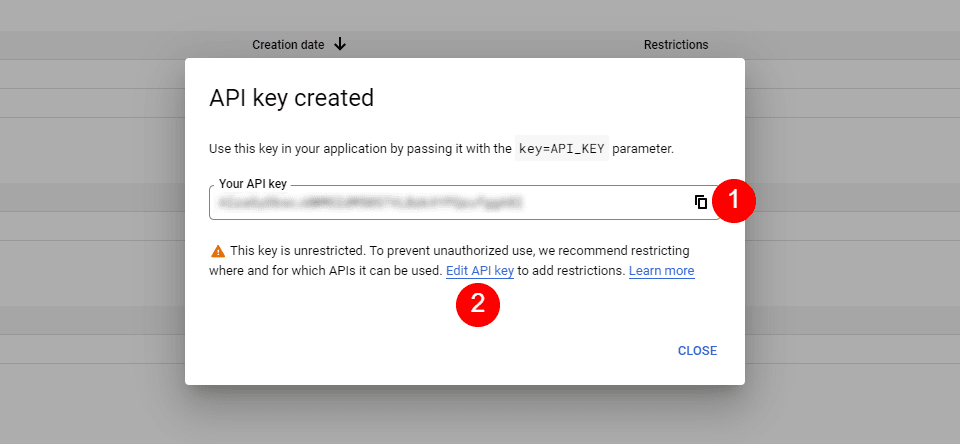
    Next, you’ll see a modal with your API Key. You can copy your API Key and close the modal. You can also restrict the key. This keeps others from using it. I recommend restricting the API Key to prevent unauthorized use. Click Edit API Key.

    How Google Maps and APIs Work

    Under API Restrictions, click Restrict Key, choose which key to restrict, and save it. Copy the key in the upper right corner of the page. You can now paste the API key into Divi.

    How Google Maps and APIs Work

    How to Integrate Google Maps in Divi

    To integrate your Google Maps API Key into Divi, go to Divi > Theme Options in the WordPress dashboard. In the General tab, you’ll see a field labeled Google API Key. Paste the key into the field and save the settings.

    How to Integrate Google Maps in Divi

    Google Maps is now integrated into Divi, and you can add a Google Map to your Divi page or template. Your Map Modules automatically access the key, so you won’t need to add it again. You will be able to replace the key for each module if you want.

    How to Add a Google Map to Your Page or Template

    You can add the Google Map to your Divi pages and templates in several ways. The best option with the most features is to use the Map Modules. Divi has two Map Modules to choose from and the process of adding the map is the same. Both include map pins and styling features.

    Since we’ve added the API to Divi’s Theme Options, the Map Modules already contain your Google Maps API. All we need to do is add an address and the pins we want.

    How to Add a Google Map to Your Page or Template

    The process is simple. Enter the address you want to show in the center of the map and select Find. The map will fill in.

    How to Add a Google Map to Your Page or Template

    Let’s add a map to a page to see how it works.

    Regular Map Module vs the Fullwidth Map Module

    We can use the regular Map Module or the Fullwidth Map Module. The work is the same. Both look amazing and the one you choose just depends on the design you want. The regular Map Module lets you style the background and easily add other modules to the Row.

    The Fullwidth Map Module uses the entire width. It’s shown here with regular sections above and below it.

    How to Add Google Maps to Your Divi Page

    Now, let’s see how to add a Google Map to a page or template. The work is the same for both pages and templates. I’ll create a page using the Contact page from the free Photography Studio Layout Pack that’s available within Divi.

    For reference, here’s the original page. I’ll add a new section for the map between the two sections using design cues from the layout pack.

    How to Add Google Maps to Your Divi Page

    Add a Regular Section and Row

    First, add a Regular Section between the two sections. This is where we’ll add the map.

    Add a Regular Section and Row

    Open the Section’s settings, go to Background, and change the Background Color to #f6f5ee. Close the settings.

    • Background Color: #f6f5ee

    Add a Regular Section and Row

    Next, add a single-column Row to the Section.

    Add a Regular Section and Row

    Add a Text Module

    Next, we’ll add a Text Module to create a title for the map.

    Add a Text Module

    Content

    Change the Content-type to Heading 4 and add the title to the body content area.

    • Content-Type: Heading 4
    • Body: Location

    Add a Text Module

    Heading Text

    Next, click on the Design tab and scroll down to Heading Text. Choose Heading Level 4 and select Inter for the Font. Set the Weight to Bold and the Style to TT.

    • Heading Level: H4
    • Font: Inter
    • Weight: Bold
    • Style: TT

    Add a Text Module

    Change the Font Color to #ff5a17, the Size to 14px, the Letter Spacing to 1px, and the Line Height to 1.4em. This is it for the title. We can now close this module.

    • Color: #ff5a17
    • Size: 14px
    • Letter Spacing: 1px
    • Line Height: 1.4em

    Add a Text Module

    Add a Map Module

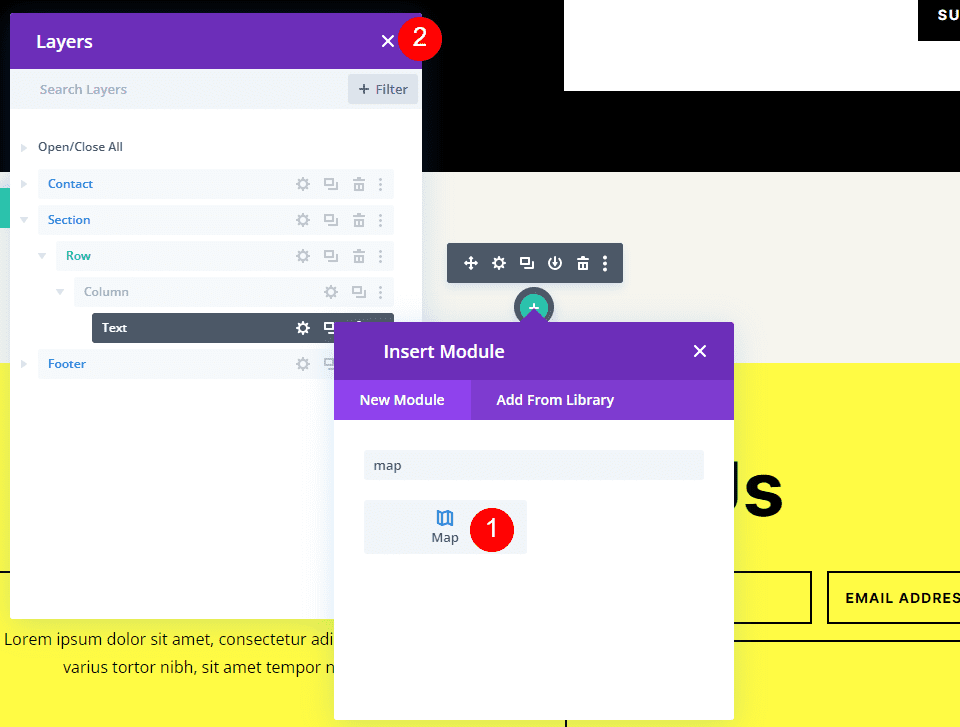
    Now it’s time to add a Map Module to our layout. Add the module in the Row under the Text Module. In my case, the icon to add a module appears under the Row icon. There’s an easy way around this. Simply right-click (for Windows users, control-click for Mac) and select Go To Layer. This opens a Layers View that’s easy to navigate and use.

    Add a Map Module

    Open the Section, Row, and Column to see the Text Module. Click the plus icon next to the Text Module to add a new module.

    Add a Map Module

    This opens the standard module modal where you can select your modules. Add the Map Module as normal and close the Layers view. The Map Module appears under the Text Module just as we wanted.

    Add a Map Module

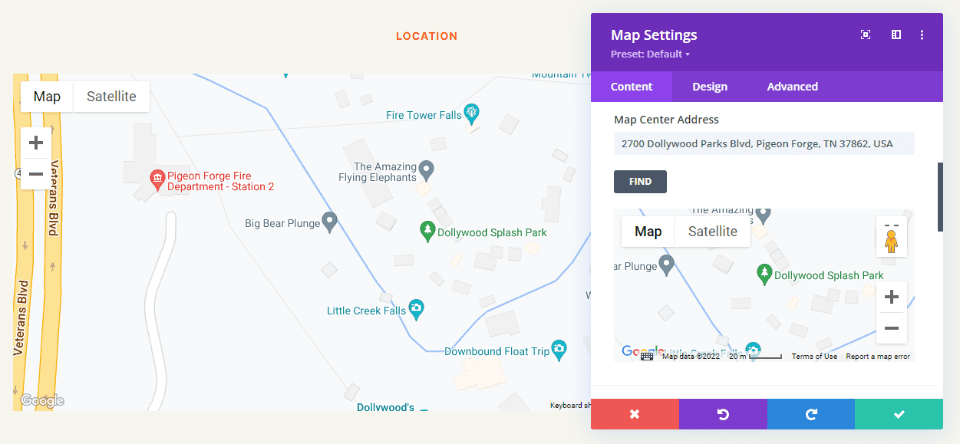
    You’ll see the Google Maps API Key already entered and ready to use. Next, enter the address you want to show in the Map Center Address field. Click the Find button to tell the module to search the map for this address. If you do need to use a different API Key than what you’ve entered as the default key in the Divi Theme Options, select Change API Key.

    • Map Center Address: the address of the location you want to display

    Add a Map Module

    The module will search for the location and display it on the map. If there’s an error, return to the Google Maps Platform to see any issues with your API Key.

    Add a Map Module

    Border

    Next, go to the Design tab and scroll down to Border. Change the Width to 2px and set the Color to black. Close the module and save your settings.

    • Width: 2px
    • Color: #000000

    Add a Map Module

    Results

    This was a simple design, but it works well with the layout.

    Google Maps Desktop

    Google Maps Desktop

    Google Maps Phone

    Google Maps Phone

    Ending Thoughts

    That’s our look at how to add Google Maps to your Divi website. The Google Maps API Key is easy to add to Divi. Once the API Key is added to Divi, every Map Module automatically accesses the key. You can even change the API Key on a per-module basis if you want. All you’ll ever need to do is add the address you want your Map Module to display. It loads faster than embedding, provides lots of styling options, and you can show any number of maps in your Divi pages and templates.

    We want to hear from you. Have you added the Google Maps API to your Divi website? Let us know about your experience in the comments.

    The post How to Add Google Maps to Your Divi Website appeared first on Elegant Themes Blog.

  • Get a Free Civil Engineering Firm Layout Pack for Divi

    Hey Divi Nation! Thanks for joining us for the next installment of our weekly Divi Design Initiative; where each week, we give away a brand new Layout Pack for Divi.

    This time around, the design team has created a beautiful Civil Engineering Firm Layout Pack that’ll help you get your next Civil Engineering Firm website up and running in no time!

    This layout pack includes:

    8 Premade page layouts strategically designed for any Civil Engineering Firm website (including a footer design)
    – Original, royalty-free photos and graphics + customizable source file (see below)
    – Plus, a large collection of pre-designed website elements that are customizable and reusable anywhere.

    This layout pack is available right inside Divi for all Divi customers for FREE as the latest addition to our growing Divi library of hundreds of premade layout packs, thousands of page designs, and countless web design elements and resources.

    divi layout

    Check Out The Divi Civil Engineering Firm Layout Pack Below

    Get it for free today!

    LMS layout pack

    Landing Page Design

     Civil Engineering Firm Pack for Divi

    View The Live Layout Demo

    Home Page Design

    Civil Engineering Firm Layout Pack for Divi

    View The Live Layout Demo

    Services Page Design

    Civil Engineering Firm Layout Pack for Divi

    View The Live Layout Demo

    Portfolio Page Design

    Civil Engineering Firm Layout Pack for Divi

    View The Live Layout Demo

    Project Page Design

    Civil Engineering Firm Layout Pack for Divi

    View The Live Layout Demo

    About Page Design

    Civil Engineering Firm Layout Pack for Divi

    View The Live Layout Demo

    Blog Page Design

    Civil Engineering Firm Layout Pack for Divi

    View The Live Layout Demo

    Contact Page Design

    Civil Engineering Firm Layout Pack for Divi

    View The Live Layout Demo

    Key Features

    If you’re looking to build a new Civil Engineering website for yourself or a client, then look no further than Divi’s Civil Engineering layout pack. It features eight beautiful pages with bold geometric shapes, complimentary colors, and striking imagery to keep your site’s visitors engaged. The Civil Engineering layout pack is designed to impress those looking for a Civi Engineering firm.

    Live Demos

    Click the links below to see a live demo for each of the layouts included in the pack.

    1. Civil Engineering Firm Landing Page (live demo)
    2. Civil Engineering Firm Homepage (live demo)
    3. Civil Engineering Firm Services Page (live demo)
    4. Civil Engineering Firm Portfolio Page (live demo)
    5. Civil Engineering Firm Project Page (live demo)
    6. Civil Engineering Firm About Page (live demo)
    7. Civil Engineering Firm Blog Page (live demo)
    8. Civil Engineering Firm Contact Page (live demo)

    Access This Layout Right Now
    Directly from Your Divi Builder

    Since Version 3.0.99 of Divi, you can find and import any of the layouts included in this pack (along with ALL of Divi’s Premade Layout packs) directly from the Divi Builder. They are already waiting for you.

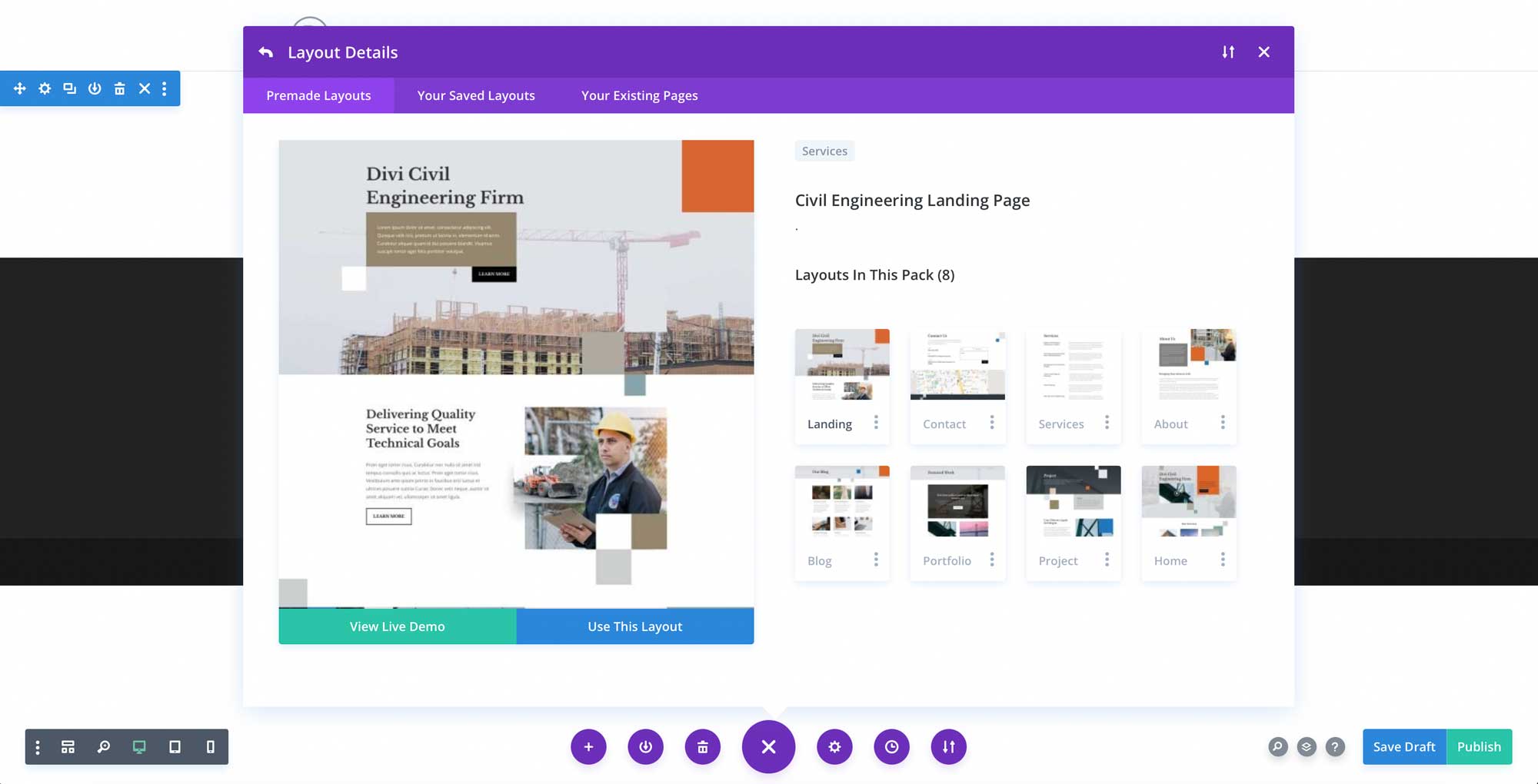
    To access your new layout, simply activate the Visual Builder when editing a page and look for the “Load From Library” icon in the page settings bar (it looks like a plus symbol). Click this icon to launch the Load From Library popup. Under the Premade Layouts tab, you can easily find the new layout by scrolling through the list of layout packs. Once you find the Civil Engineering Firm Layout Pack, click on it. You will see all the individual layouts included in the pack. Select the layout you want to use and then click the “Use This Layout” button.

    Civil Engineering Firm Layout Pack for Divi

    For more, check out this video to learn how you can get this layout pack up and running today.

    Subscribe To Our Youtube Channel

    Authentication Required

    Before you can download Premade Layouts from the Divi Library you must authenticate your Elegant Themes Subscription. You can do this by navigating to Divi > Theme Options > Updates. There you can enter your username and API key and save changes.

    Civil Engineering Firm Layout Pack for Divi

    You can find your API Key under your members area on the Elegant Themes site. After you enter the Username and API Key, you will gain immediate access to our library of hundreds of free layouts (including this one). If you haven’t done this, when you click to import a layout to your page, you will be prompted to enter your Elegant Themes Membership Username and API Key.

    Use Layout Images for FREE with No Licensing Restrictions

    Divi Civil Engineering Firm Layout Pack for Divi

    The image assets included with these layouts (icons, illustrations, photos, etc.) have no licensing restrictions. This means you can use them in all of your commercial projects without having to worry about paying licensing fees or attributing the photographer. Use them in your commercial websites, sell them within your Divi child themes, include them in your own Divi layout packs or just use them on your blog. We know how challenging it can be to find good photos and how confusing and scary the licensing that governs those photos can be. We want to fix that problem for our users.

    Download the Full Res Image Assets

    New Layout Pack Every Week!

    We hope you enjoy this layout pack. We look forward to hearing your opinions in the comment section below. Make sure you check out next week’s layout pack as well!

    The post Get a Free Civil Engineering Firm Layout Pack for Divi appeared first on Elegant Themes Blog.

  • Divi Product Highlight: DiviWP Header Sections Pack

    DiviWP Header Sections is a layout pack of 20 header modules you can use on your Divi website. It is built with the Divi builder and can be completely customized using Divi’s module options. In this product highlight, we’ll take a look at each one of the header designs and help you decide if this product is right for you.

    Let’s get started!

    Installing Divi WP Header Sections

    After purchasing the DiviWP Header Sections Pack on the Divi Marketplace, extract the ZIP file containing the header section JSON files. Then, open the Divi theme builder settings in the WordPress dashboard. Click Add New Template, then Build New Template. In the template settings, select the pages you want the header to appear on. For this tutorial, I am adding the header to a specific page.

    Divi Product Highlight: DiviWP Header Sections Pack Install

    Next, click Add Custom Header and select Build Custom Header. The header layout page will open up in the Divi builder.

    Divi Product Highlight: DiviWP Header Sections Pack Install

    To import a header layout, simply drag and drop the JSON file onto the page or use the portability function to import the layout.

    Divi Product Highlight: DiviWP Header Sections Pack Install

    Select Import Divi Builder Layout to finish importing the layout. Now the header section should appear on the page.

    Divi Product Highlight: DiviWP Header Sections Pack Install

    DiviWP Header Sections Pack

    The DiviWP Header Sections Pack comes with 20 different header layouts. Each of the layouts has a sticky and non-sticky version and is fully responsive. You can easily customize the design of each layout because it is built with the Divi Builder. Let’s take a look at each header layout now.

    Header Layout 1

    The first header layout in the pack is a right-aligned menu module with a logo on the left and shopping and search icons on the very right. It uses fade-in drop-down menu transitions for the desktop and fade-in mobile menu transitions for tablet and mobile.

    Divi Product Highlight DiviWP Header Sections Pack Layout 1 Desktop

    Divi Product Highlight DiviWP Header Sections Pack Layout 1 Tablet

    Divi Product Highlight DiviWP Header Sections Pack Layout 1 Mobile

    Header Layout 2

    Header Layout 2 is very similar to Layout 1, but the menu height is taller.

    Divi Product Highlight DiviWP Header Sections Pack Layout 2 Desktop

    Divi Product Highlight DiviWP Header Sections Pack Layout 2 Tablet

    Divi Product Highlight DiviWP Header Sections Pack Layout 2 Mobile

    Header Layout 3

    The third layout style features a split menu with a button on the very right.

    Divi Product Highlight DiviWP Header Sections Pack Layout 3 Desktop

    Divi Product Highlight DiviWP Header Sections Pack Layout 3 Tablet

    Divi Product Highlight DiviWP Header Sections Pack Layout 3 Mobile

    To achieve this design, you will need to add a custom CSS class to some of the menu items. In the WordPress dashboard, navigate to Appearance > Menus. At the top of the page, open the Screen Options and enable CSS Classes.

    Divi Product Highlight DiviWP Header Sections Pack Layout 3 Enable CSS

    Then, open the menu item you would like to display as a button and add the CSS class diviwp-menu-button.

    Divi Product Highlight DiviWP Header Sections Pack Layout 3 CSS button

    Next, add the CSS class diviwp-menu-right-align to the menu item you would like to align to the right. Anything to the right of this item will be aligned to the right of the header, and everything to the left of this item will be center-aligned.

    Divi Product Highlight DiviWP Header Sections Pack Layout 3 CSS

    Header Layout 4

    Header Layout 4 is similar to Layout 3, except with slide-in mobile menu transitions and fade-in drop-down transitions for tablet and mobile sub-menus. Additionally, the parent menu item for the sub-menu is not linked.

    Divi Product Highlight DiviWP Header Sections Pack Layout 4 Desktop

    Divi Product Highlight DiviWP Header Sections Pack Layout 4 Tablet

    Divi Product Highlight DiviWP Header Sections Pack Layout 4 Mobile

    I used Header Layout 4 to demonstrate a mega menu layout. To achieve this design, first follow the instructions to create a mega menu. Be sure to enter the CSS class mega-menu on the parent item. Each of the header sections in the DiviWP Header Sections Pack supports mega menus.

    Divi Product Highlight DiviWP Header Sections Pack Layout 4 Mega Menu CSS

    Header Layout 5

    Layout 5 is a right-aligned header with a dark background. It features fade-in mobile menu transitions.

    Divi Product Highlight DiviWP Header Sections Pack Layout 5 Desktop

    Divi Product Highlight DiviWP Header Sections Pack Layout 5 Tablet

    Divi Product Highlight DiviWP Header Sections Pack Layout 5 Mobile

    Header Layout 6

    Header Layout 6 also features a dark background section. The sub-menu also has a dark background style.

    Divi Product Highlight DiviWP Header Sections Pack Layout 6 Desktop

    Divi Product Highlight DiviWP Header Sections Pack Layout 6 Tablet

    Divi Product Highlight DiviWP Header Sections Pack Layout 6 Mobile

    Header Layout 7

    Layout 7 has a light background and has a 3/4 – 1/4 row column layout with the button on the right. The button also appears alongside the hamburger menu icon on tablet and mobile.

    Divi Product Highlight DiviWP Header Sections Pack Layout 7 Desktop

    Divi Product Highlight DiviWP Header Sections Pack Layout 7 Tablet

    Header Layout 8

    Layout 8 features social media icons on the right. On mobile and tablet devices, social media icons appear alongside the hamburger menu icon. The header also uses fade-in drop-down transitions for the tablet and mobile sub-menus.

    Divi Product Highlight DiviWP Header Sections Pack Layout 8 Desktop

    Divi Product Highlight DiviWP Header Sections Pack Layout 8 Tablet

    Divi Product Highlight DiviWP Header Sections Pack Layout 8 Mobile

    Header Layout 9

    Header Layout 9 has a dark top row with blurb modules for contact information and social media follow icons. The main menu is the same as Header Layout 1.

    Divi Product Highlight DiviWP Header Sections Pack Layout 9 Desktop

    Divi Product Highlight DiviWP Header Sections Pack Layout 9 Tablet

    Divi Product Highlight DiviWP Header Sections Pack Layout 9 Mobile

    Header Layout 10

    Header Layout 10 has a top row with a menu module and a social media follow module, allowing you to add additional menu items or links to the top menu bar. Again, the main menu is the same as Header Layout 1.

    Divi Product Highlight DiviWP Header Sections Pack Layout 10 Desktop

    Divi Product Highlight DiviWP Header Sections Pack Layout 10 Tablet

    Divi Product Highlight DiviWP Header Sections Pack Layout 10 Mobile

    Header Layout 11

    The top row of Header Layout 11 features a blurb module, social media follow icons, and a button. Again, the main menu is the same as Header Layout 1.

    Divi Product Highlight DiviWP Header Sections Pack Layout 11 Desktop

    Divi Product Highlight DiviWP Header Sections Pack Layout 11 Tablet

    Divi Product Highlight DiviWP Header Sections Pack Layout 11 Mobile

    Header Layout 12

    Header Layout 12 places social media icons on the left side of the top row and two blurb modules on the right. Once again, the layout for the main menu is the same as Header Layout 1.

    Divi Product Highlight DiviWP Header Sections Pack Layout 12 Desktop

    Divi Product Highlight DiviWP Header Sections Pack Layout 12 Tablet

    Divi Product Highlight DiviWP Header Sections Pack Layout 12 Mobile

    Header Layout 13

    Header Layout 13 features a blurb module, a menu, social media icons, and a button on the top menu. It also comes with a 2-column mega menu layout for desktop with an optional button at the bottom. To achieve this design, you will first need to create a menu with a parent menu item, two sub-menu items for the two columns (labeled Col 1 and Col 2 in the screenshot below), and the menu items below.

    Divi Product Highlight DiviWP Header Sections Pack Layout 13 Desktop

    Divi Product Highlight DiviWP Header Sections Pack Layout 13 Tablet

    Divi Product Highlight DiviWP Header Sections Pack Layout 13 Mobile

    First, add the CSS Class mega-menu two-column to the parent item.

    Divi Product Highlight DiviWP Header Sections Pack Layout 13 Mega Menu CSS

    Then add the CSS Class diviwp-menu-col-1 to the first column menu item, and diviwp-menu-col-2 to the second column menu item.

    Divi Product Highlight DiviWP Header Sections Pack Layout 13 Column CSS

    Finally, add the CSS Class fullwidth to the button menu item.

    Divi Product Highlight DiviWP Header Sections Pack Layout 13 Button CSS

    Header Layout 14

    Header Layout 14 is a 3-column mega menu variation of Layout 13. For this layout, follow the steps for Header Layout 13 and add another column.

    Divi Product Highlight DiviWP Header Sections Pack Layout 14 Desktop

    Divi Product Highlight DiviWP Header Sections Pack Layout 14 Tablet

    Divi Product Highlight DiviWP Header Sections Pack Layout 14 Mobile

    To the third column item, add the following CSS Class: diviwp-menu-col-3

    Divi Product Highlight DiviWP Header Sections Pack Layout 14 Column 3 CSS

    Finally, add the CSS class mega-menu three-column to the parent item.

    Divi Product Highlight DiviWP Header Sections Pack Layout 14 Mega Menu 3 Column

    Header Layout 15

    Layout 15 features two blurb icons on the top menu bar. The primary menu has a light background and is the same as Layout 1.

    Divi Product Highlight DiviWP Header Sections Pack Layout 15 Desktop

    Divi Product Highlight DiviWP Header Sections Pack Layout 15 Tablet

    Divi Product Highlight DiviWP Header Sections Pack Layout 15 Mobile

    Header Layout 16

    Header Layout 16 is mostly the same as Header Layout 15, except the blurb icons are on the left side of the top menu bar.

    Divi Product Highlight DiviWP Header Sections Pack Layout 16 Desktop

    Divi Product Highlight DiviWP Header Sections Pack Layout 16 Tablet

    Divi Product Highlight DiviWP Header Sections Pack Layout 16 Mobile

    Header Layout 17

    Layout 17 features two blurbs on the left side of the top menu bar and social media icons with a round white background on the right side of the top menu bar.

    Divi Product Highlight DiviWP Header Sections Pack Layout 17 Desktop

    Divi Product Highlight DiviWP Header Sections Pack Layout 17 Tablet

    Divi Product Highlight DiviWP Header Sections Pack Layout 17 Mobile

    Header Layout 18

    Layout 18 is a slight variation of Layout 17. In this design, the social media icons are on the left and the blurbs are on the right side of the top menu bar.

    Divi Product Highlight DiviWP Header Sections Pack Layout 18 Desktop

    Divi Product Highlight DiviWP Header Sections Pack Layout 18 Tablet

    Divi Product Highlight DiviWP Header Sections Pack Layout 18 Mobile

    Header Layout 19

    Layout 19 features the blurb icons on the left and the social media icons on the right, as well as a button on the very right.

    Divi Product Highlight DiviWP Header Sections Pack Layout 19 Desktop

    Divi Product Highlight DiviWP Header Sections Pack Layout 19 Tablet

    Divi Product Highlight DiviWP Header Sections Pack Layout 19 Mobile

    Header Layout 20

    The final layout, Layout 20, is a variation of Layout 19. In this design, the blurb icons are on the left and the button icon is on the right. The social media icons are on the very right.

    Divi Product Highlight DiviWP Header Sections Pack Layout 20 Desktop

    Divi Product Highlight DiviWP Header Sections Pack Layout 20 Tablet

    Divi Product Highlight DiviWP Header Sections Pack Layout 20 Mobile

    Customizing the DiviWP Header Sections Pack

    The DiviWP Header Sections Pack is completely customizable since it is built with the Divi Builder. You can easily change any of the colors, fonts, text, and icons just like you would customize any other Divi module. There is also extensive support and documentation for the DiviWP Header Sections Pack so that you can further customize the look of your header.

    Purchase the DiviWP Header Sections Pack

    The DiviWP Header Sections Pack is available in the Divi Marketplace. It costs $19 for unlimited website usage and lifetime support and updates. The price also includes a 30-day money-back guarantee.

    Final Thoughts

    The DiviWP Header Sections Pack comes with 20 premade header sections that can be completely customized to fit the design of your website. If you want to view a live demo of the different headers, you can do so here. This pack could be very useful if you don’t want to spend the time to create a custom header for your website but want to have a unique design for your header beyond the default Divi layouts.

    We would love to hear from you! Have you tried DiviWP Header Sections Pack? Let us know what you think about it in the comments!

    The post Divi Product Highlight: DiviWP Header Sections Pack appeared first on Elegant Themes Blog.