EDITS.WS

Tag: Divi Resources

  • Get a FREE Hair Salon Layout Pack for Divi

    Hey Divi Nation! Thanks for joining us for the next installment of our weekly Divi Design Initiative; where each week, we give away a brand new Layout Pack for Divi.

    This time around, the design team has created a beautiful Hair Salon Layout Pack that’ll help you get your next website up and running in no time!

    This layout pack includes:

    7 Premade page layouts strategically designed for any hair salon website (including a footer design)
    – Original, royalty-free photos and icons
    – Plus, a large collection of pre-designed website elements that are customizable and reusable anywhere.

    This layout pack is available right inside Divi for all Divi customers for FREE as the latest addition to our growing Divi library of hundreds of premade layout packs, thousands of page designs, and countless web design elements and resources.

    divi layout

    Check Out The Divi Hair Salon
    Layout Pack Below

    Get it for free today!

    hair salon website

    Landing Page Design

    hair salon website

    View The Live Layout Demo

    Home Page Design

    hair salon website

    View The Live Layout Demo

    About Page Design

    hair salon website

    View The Live Layout Demo

    Blog Page Design

    hair salon website

    View The Live Layout Demo

    Contact Page Design

    hair salon website

    View The Live Layout Demo

    Services Page Design

    hair salon website

    View The Live Layout Demo

    Service Page Design

    hair salon website

    View The Live Layout Demo

    Key Features

    If you’re looking to set up a website for a hair salon business, you’ll want to check out the Hair Salon Layout Pack for Divi! This beautiful layout pack effortlessly combines images and modern page structures. You’ll get a good amount of free images that you can use without any restrictions as well!

    Live Demos

    Click the links below to see a live demo for each of the layouts included in the pack.

    1. Hair Salon Landing Page (live demo)
    2. Hair Salon Homepage (live demo)
    3. Hair Salon About Page (live demo)
    4. Hair Salon Blog Page (live demo)
    5. Hair Salon Contact Page (live demo)
    6. Hair Salon Services Page (live demo)
    7. Hair Salon Service Page (live demo)

    Access This Layout Right Now
    Directly from Your Divi Builder

    Since Version 3.0.99 of Divi, you can find and import any of the layouts included in this pack (along with ALL of Divi’s Premade Layout packs) directly from the Divi Builder. They are already waiting for you.

    To access your new layout, simply activate the Visual Builder when editing a page and look for the “Load From Library” icon in the page settings bar (it looks like a plus symbol). Click this icon to launch the Load From Library popup. Under the Premade Layouts tab, you can easily find the new layout by scrolling through the list of layout packs. Once you find the Hair Salon Layout Pack, click on it. You will see all the individual layouts included in the pack. Select the layout you want to use and then click the “Use This Layout” button.

    hair salon website

    For more, check out this video to learn how you can get this layout pack up and running today.

    Subscribe To Our Youtube Channel

    Authentication Required

    Before you can download Premade Layouts from the Divi Library you must authenticate your Elegant Themes Subscription. You can do this by navigating to Divi > Theme Options > Updates. There you can enter your username and API key and save changes.

    webinar website

    You can find your API Key under your members area on the Elegant Themes site. After you enter the Username and API Key, you will gain immediate access to our library of hundreds of free layouts (including this one). If you haven’t done this, when you click to import a layout to your page, you will be prompted to enter your Elegant Themes Membership Username and API Key.

    Use Layout Images for FREE with No Licensing Restrictions

    hair salon website

    The image assets included with these layouts (icons, illustrations, photos, etc.) have no licensing restrictions. This means you can use them in all of your commercial projects without having to worry about paying licensing fees or attributing the photographer. Use them in your commercial websites, sell them within your Divi child themes, include them in your own Divi layout packs or just use them on your blog. We know how challenging it can be to find good photos and how confusing and scary the licensing that governs those photos can be. We want to fix that problem for our users.

    Download the Full Res Image Assets

    New Layout Pack Every Week!

    We hope you enjoy this layout pack. We look forward to hearing your opinions in the comment section below. Make sure you check out next week’s layout pack as well!

    The post Get a FREE Hair Salon Layout Pack for Divi appeared first on Elegant Themes Blog.

  • Divi Plugin Highlight: Divi Ajax Filter

    Divi Ajax Filter is a third-party plugin that adds several new modules to the Divi Builder. These modules work together to create simple or complex filters. Divi Ajax Filter works with pages, posts, projects, and custom post types such as WooCommerce products and Advanced Custom Fields. In this post, we’ll look at Divi Ajax Filter and see how it works to help you decide if this is the right product for your needs. We’ll be using the Divi Whiskey Layout Pack to showcase how you can use this plugin in the wild.

    Divi Ajax Filter Modules

    Divi Ajax Filter adds a block to the Divi Builder. Clicking this opens a submenu with the Ajax Filter Modules. The modules work together to a list of posts with a filter. You can use them to create layouts or display layouts you’ve created.

    The Divi Ajax Filter Modules

    Archive Loop – Divi Ajax Filter

    The Archive Loop Module displays any loop layout that you choose to display products or posts. In other words, it displays a list of the custom post type you choose. If you choose the product post type, it will display a list of your products. It can’t be used in the Custom Loop Layout. It’s designed to be used with archives, category pages, and general pages.

    Until you create and specify a loop layout, you’ll see a message to create one. The loop layout should be created with the Divi Ajax Modules such as the Post Title and Thumbnail. You can also choose the default WooCommerce loop.

    Module Options

    Archive Loop – Divi Ajax Filter

    You can also choose the post type such as posts, pages, media, projects, and products. Have it auto-detect your post type or set variable products as single products.

    Archive Loop – Divi Ajax Filter Post Type

    For the loop style, choose between a WooCommerce layout or a custom layout. If you choose Custom Layout, you’ll see another dropdown box where you can choose a layout from your Divi Library.

    Archive Loop – Divi Ajax Filter Loop Style

    Choose the number of posts to display. This gives you control over the number that’s displayed within the module’s area, but you can show more posts with pagination a Load More button. Setting it as the main loop makes it the list of posts the filter controls. You can also add an order by sorting option and show the number of results.

    Archive Loop – Divi Ajax Filter Show Results and Order by Menu

    The number of results still shows 1-9 results in the Divi Builder, but it will show the correct number of results on the front end as shown in the example below.

    Archive Loop – Divi Ajax Filter

    There are several options for how pagination is displayed. Choose from Load More, standard pagination, an infinite scroll, or none.

    Archive Loop – Divi Ajax Filter - Pagiation

    Have it scroll to the top after the ajax update or disable the feature. You can also fine-tune the pagination’s position.

    Archive Loop – Divi Ajax Filter - Pagination

    Disable, exclude, or include lots of elements such as products when the category has child categories, specific categories, and products. You can also set certain items to be included on load only. Enter them into the fields with commas.

    Archive Loop – Divi Ajax Filter - Pagination

    Choose the animation for the filter and the infinite scroll option. It has six animations to choose from including three lines vertical, three lines horizontal, three dots bouncing, donut, donut multiple, and ripple. The animations are smooth and give it an extra sparkle.

    Archive Loop – Divi Ajax Filter - Pagination, Scrolling

    Custom Layout Options

    The Custom Layout Options let you choose a layout that you’ve created to use as your custom taxonomy. You can also specify the custom taxonomies to include.

    Archive Loop – Divi Ajax Filter - Custom Layout Options

    Default Layout Options

    The default layout options let you choose between a grid or a classic blog layout. For the grid, choose the number of columns to display. You can also show the rating, excerpt, price, and the add to cart button.

    Archive Loop – Divi Ajax Filter - Default Layout Options

    Here’s how it looks on the front end. I’ve set it to display a grid with 4 columns. I’ve also disabled the excerpt option.

    Archive Loop – Divi Ajax Filter - Default Layout Options

    This one also includes color and padding options. Change the color of the sale badge, star ratings, and the product’s background. Use the slider to add padding to all four sides of the product. I’ve added some padding, colored the stars, and changed the color of the Sale Badge color.

    Color and Padding Options

    Here’s how it looks on the front end.

    Color and Padding Options

    Design Settings

    Design settings include detailed options for every element including fonts, colors, spacing, and the rest of the standard Divi settings.

    Pagination Color and Styling

    Filter Posts – Divi Ajax Filter

    The Filter Posts Module works with the Archive Loop Module to filter the posts it displays. It shouldn’t be used in the custom loop layout. The filter items are submodules. You can add as many as you want to create the filter.

    Filter Posts – Divi Ajax Filter

    New Filter Item

    Adding a new filter item opens its submodule. This includes lots of settings. The Main Settings let you choose what to filter between categories, tags, prices, ratings, attributes, and custom taxonomies. You can also create a search box. Choose the post types, values, exclude options, etc.

    Filter Posts – Divi Ajax Filter

    Layout lets you choose to show the filter parameters, show the label, and select the filter width.

    Filter Posts – Divi Ajax Filter

    The Select options let you enable Select2 and change the option text.

    Select Options

    Category, Tags, and Taxonomy lets you choose how the terms are ordered in the list, the display mode, the prefix, and the collapse options.

    Filter Posts – Divi Ajax Filter

    Range gives you full control over the filter’s range settings. Hide the labels, choose the value type, set the range, choose the step levels, adjust the appearance, choose before and after text, and more.

    Filter Posts – Divi Ajax Filter

    Conditional Logic lets you create logic rules for the filter. This means you can fine-tune the filter to control the filter and make it as smart as possible.

    Filter Posts – Divi Ajax Filter

    Add multiple filter items to create the exact filter you want. I’ve created a filter with a search option, categories, tags, and prices. Users can select one of the filter tools or use them together.

    Filter Posts – Divi Ajax Filter

    Main Filter Post Settings

    The Main Options include the filter update type (choose from a button click or a field change), choosing where it scrolls, adding text for the search and reset buttons, and enabling Select2.

    Filter Posts – Divi Ajax Filter

    The Layout Options determine the layout of the filter elements. Choose a side Colome or full-width column, set the sizes, the filter style between toggle and slide, and hide or show the buttons.

    Filter Posts – Divi Ajax Filter

    Mobile Options add toggles, let you choose the toggle style, change the button text, and toggle the filters individually.

    Filter Posts – Divi Ajax Filter

    Post Title – Archive Pages

    The Post Title Module displays the title and lets you choose the heading level, link to a single page, open a new tab, and enter the URL.

    Filter Posts – Divi Ajax Filter

    The Design tab includes separate settings for post titles and product titles. All the standard settings are included.

    Filter Posts – Divi Ajax Filter

    Thumbnail – Divi Ajax Filter

    The Thumbnail Module lets you choose the image size, link the image to a single page, use placeholder images with Advanced Custom Fields, open in a new tab, enable a title tag, and choose the image style.

    Filter Posts – Divi Ajax Filter

    The Thumbnail Image Sizes include lots of options.

    Filter Posts – Divi Ajax Filter

    Building a Product Filter

    Firstly, I’ll build a product filter using the Archive Loop Module and the Filter Posts Module.

    Building a Product Filter

    Next, for the Archive Loop Module, I’ve set it to Products and selected the default WooCommerce layout. This gives us the image, title, and price by default. I’ve set it as the main loop and enabled the Order By Menu and the Results Count. I selected Load More for the loading option. The Layout is set to a grid with 3 columns. I’ve also selected to show the rating, price, excerpt, and Add to Cart Button. The Sale Badge and Star Ratings have custom colors, and I’ve added some padding to the product.

    Filter Posts – Divi Ajax Filter

    Next are the design settings. I’ve adjusted the colors and styles of the individual text elements as well as the Add to Cart button.

    Filter Posts – Divi Ajax Filter

    Lastly, for the filter, I’ve added search, categories, price, and rating.  For the category filter, I selected Radio Buttons. The Price is set between $5 and $100.

    Filter Posts – Divi Ajax Filter

    For the Filter’s design settings, I’ve adjusted the font colors, button colors, etc.

    Filter Posts – Divi Ajax Filter

    Product Filter Results

    Here’s how it looks on the front end with the stylings of the Divi Whiskey Layout Pack.

    Filter Posts – Divi Ajax Filter

    Here’s the sorting feature. User’s can select the default sorting, sort by popularity, average rating, latest, price low to high, or price high to low.

    Filter Posts – Divi Ajax Filter

    Here are the results for the search option. I’m using the WooCommerce demo products. I searched for “pink” and found two results.

    Filter Posts – Divi Ajax Filter

    For the categories, I selected the “Kitchen” category radio button and found the four results.

    Filter Posts – Divi Ajax Filter

    In this example, I’ve filtered the products by price range. I’ve selected 5-30 and sorted by price from low to high.

    Filter Posts – Divi Ajax Filter

    You can also use the filters together. For this example, I’ve selected the “Kitchen” category and set the price range from $30 to $50. It shows the products in my inventory in that category and price range.

    Filter Posts – Divi Ajax Filter

    Where to Purchase Divi Ajax Filter

    Divi Ajax Filter is available in the Divi Marketplace for $97. It includes one year of support and updates and a 30-day money-back guarantee.

    Where to Purchase Divi Ajax Filter

    Ending Thoughts

    That’s our look at Divi Ajax Filter. This is a powerful set of modules for the Divi Builder that creates amazing filters for lots of WordPress post types. Divi Ajax Filter is complex. It does take some time to learn, but it’s not too difficult to understand and use once you get started. Following the demos will save you some time and reduce the learning curve considerably. If you’re interested in an advanced filter for your post types, Divi Ajax Filter is a great choice.

    We want to hear from you. Have you tried Divi Ajax Filter? Let us know what you think about it in the comments.

    The post Divi Plugin Highlight: Divi Ajax Filter appeared first on Elegant Themes Blog.

  • Download a FREE Blog Post Template for Divi’s Chocolatier Layout Pack

    Hey Divi Creators! Thanks for joining us for the next installment of our weekly Divi Design Initiative where each week, we give away brand new freebies. This time around we’re building upon the Chocolatier Layout Pack with a brand new blog post template that matches the rest of the pack perfectly. Hope you enjoy it!

    divi layout

    Check Out The Chocolatier
    Blog Post Template Below

    Get it for free today!

    Desktop View

    The Divi Chocolatier Blog Template in desktop view

    Tablet/Mobile View

    The Divi Chocolatier Blog Template in tablet and mobile view

    Download The Blog Post Template For The Chocolatier Layout Pack

    To lay your hands on the free Chocolatier Blog Post Template, you will first need to download it using the button below. To gain access to the download you will need to subscribe to our newsletter by using the form below. As a new subscriber, you will receive even more Divi goodness and a free Divi Layout pack every Monday! If you’re already on the list, simply enter your email address below and click download. You will not be “resubscribed” or receive extra emails.

    How to Upload The Template

    Go to Divi Theme Builder

    To upload the template, navigate to the Divi Theme Builder in the backend of your WordPress website.

    Opening the Divi Theme Builder to Import the Divi Conference Category Layout

    Upload Website Template

    Then, in the top right corner, you’ll see an icon with two arrows. Click on the icon.

    Importing the Header and Footer Layout into the Divi Theme Buidler

    Navigate to the import tab, upload the JSON file that you could download in this post, and click on ‘Import Divi Theme Builder Templates’.

    Import settings for the header and footer layout pack

    Save Divi Theme Builder Changes

    Once you’ve uploaded the file, you’ll notice a new template with a new body area that has been assigned to All Posts. Save the Divi Theme Builder changes as soon as you want the template to be activated.

    Save the imported blog post layout within the Divi Theme Builder

    How to Modify The Template

    Open Post Template

    To modify the template’s elements, start by opening the template.

    Begin editing the blog post body template within the Divi Builder

    Inside the Body Layout Editor, you can edit the design on the front end using the Divi Builder just like you would with a normal Divi page.

    Since this is a template that has been assigned to all posts for the site, there is a post content module that is necessary for displaying the post content. You will need to keep that module in place, but you can adjust the post content module’s design elements, which will design the post content that is displayed dynamically.

    You can edit the titles, fonts, color etc. of the Post Content Module that will affect the body text in the Divi Chocolatier Blog Page Template

    About the Layout

    This blog post template has a few dynamic elements that will work with your blog posts immediately. Our entire post header is made up of dynamic elements including a featured image, the post excerpt, the post category and the post title. This content won’t need updating, but you can tweak the design of each of those elements if needed.

    Other dynamic elements include the following:

    • Post Author Name: We use a Text Module to show the first and last name of the post author
    • Post Author Bio: Again, we use a Text Module to show the author bio
    • Post Author Photo: An Image Module is in use to bring in the author profile photo from Gravatar
    • Comments: A comment form with a comments section

    Here is a quick illustration that identifies the elements of the Divi Chocolatier blog post template.

    Divi Chocolatier Blog Post Template Breakdown

    Update Static Content Modules

    There are some elements on this post template may need your immediate attention before using it live on your own website. For this post template, you may want to consider updating the Text and  Button modules that are used as call-to-actions above the comments section.

    New Freebies Every Week!

    We hope you’ve enjoyed the Chocolatier Layout Pack and the blog post template freebie that goes along with it. We look forward to hearing your opinions in the comment section below. Make sure you check back next week for more freebies!

    The post Download a FREE Blog Post Template for Divi’s Chocolatier Layout Pack appeared first on Elegant Themes Blog.

  • 3 Eye-Catching Gradients You Can Apply to Your Fullwidth Header Module with Divi’s Gradient Builder

    Divi’s Fullwidth Header Module makes it easy to build dynamic header sections for your website without having to add multiple modules for each component. With the Fullwidth Header Module, you can add and customize the look of your text, images, background, spacing, and more — all from one module. When used in combination with Divi’s built-in background gradient settings, you can create eye-catching designs to promote your business or service.

    In this tutorial, we will show you how to create three unique fullwidth header layouts with gradient backgrounds.

    Let’s get started!

    Sneak Peek

    Here is a preview of what we will design.

    Gradient 1

    Divi Fullwidth Header Gradient Background Layout 1 Final Design

    Divi Fullwidth Header Gradient Background Layout 1 Final Design Mobile

    Gradient 2

    Divi Fullwidth Header Gradient Background Layout 2 Final Design

    Divi Fullwidth Header Gradient Background Layout 2 Final Design Mobile

    Gradient 3

    Divi Fullwidth Header Gradient Background Layout 3 Final Design

    Divi Fullwidth Header Gradient Background Layout 3 Final Design Mobile

    What You Need to Get Started

    Before we begin, install and activate the Divi Theme and make sure you have the latest version of Divi on your website.

    Now, you are ready to start!

    Let’s Get Started!

    Gradient 1

    Create a New Page with a Premade Layout

    Let’s start by using a premade layout from the Divi library. For this design, we will use the Food Recipes Home Page from the Food Recipes Layout Pack.

    Add a new page to your website and give it a title, then select the option to Use Divi Builder.

    Divi Fullwidth Header Gradient Background Layout 1 Use Builder

    We will use a premade layout from the Divi library for this example, so select Browse Layouts.

    Divi Fullwidth Header Gradient Background Layout 1 Browse Layouts

    Search for and select the Food Recipes Home Page layout.

    Divi Fullwidth Header Gradient Background Layout 1 Search Layout

    Select Use This Layout to add the layout to your page.

    Divi Fullwidth Header Gradient Background Layout 1 Use Layout

    Now we are ready to build our design.

    Recreate the Hero Section Using the Fullwidth Header Module

    First, we are going to start by recreating the hero section at the top of this layout using a Fullwidth Header Module. Add a new fullwidth section to the page, right below the current hero section.
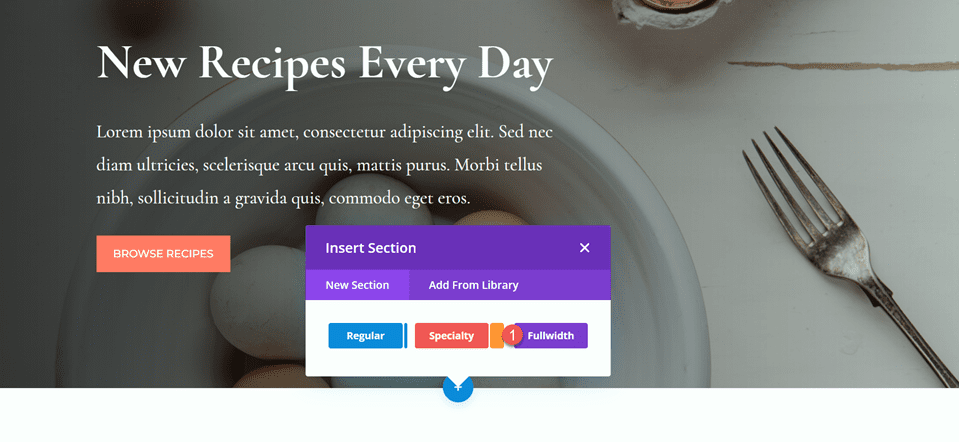
    Divi Fullwidth Header Gradient Background Layout 1 Add Fullwidth Section

    Next, add a Fullwidth Header Module to the fullwidth section.

    Divi Fullwidth Header Gradient Background Layout 1 Fullwidth Header Module

    Now that our header module is in place, let’s update the header content in the Text section of the Content tab.

    • Title: New Recipes Every Day
    • Button #1: Browse Recipes
    • Button #2: Download the Cookbook

    Divi Fullwidth Header Gradient Background Layout 1 Content

    • Text: Lorem ipsum dolor sit amet, consectetur adipiscing elit. Sed nec diam ultricies, scelerisque arcu quis, mattis purus. Morbi tellus nibh, sollicitudin a gravida quis, commodo eget eros.

    Divi Fullwidth Header Gradient Background Layout 1 Body

    Under Background, remove the default background color and add the background image.

    Divi Fullwidth Header Gradient Background Layout 1 Background Image

    Move to the design tab and open the title text settings. Customize the settings as follows:

    • Title Font: Cormorant Garamond
    • Title Weight: Bold

    Divi Fullwidth Header Gradient Background Layout 1 Title Font

    Next, set the title text size and line height.

    • Title Text Size: 64px
    • Title Line Height on Desktop: 1.5em

    Divi Fullwidth Header Gradient Background Layout 1 Title Size

    To optimize the design for mobile devices, we need to decrease the size of the title line height on mobile. Select the responsive settings, then set the mobile line height.

    • Title Line Height on Mobile: 1em

    Divi Fullwidth Header Gradient Background Layout 1 Mobile Line Height

    Now let’s customize the body font options. Here are the settings:

    • Body Font: Cormorant Garamond
    • Body Font Weight: Medium

    Divi Fullwidth Header Gradient Background Layout 1 Body Font

    • Body Text Size: 24px
    • Body Line Height: 1.8em

    Divi Fullwidth Header Gradient Background Layout 1 Line Height

    Customize Button Styles

    Next, open the button one settings. Enable custom styles, then set the text size.

    • Use Custom Styles for Button One: Yes
    • Button One Text Size: 14px

    Divi Fullwidth Header Gradient Background Layout 1 Button Styles

    Add a background color to the button.

    • Button One Background: #FF7864

    Divi Fullwidth Header Gradient Background Layout 1 Button Background

    Customize the button border settings:

    • Button One Border Width: 8px
    • Button One Border Color: #FF7864
    • Button One Border Radius: 0px

    Divi Fullwidth Header Gradient Background Layout 1 Button Border

    Next, customize the font and disable the button icon.

    • Button One Font: Montserrat
    • Button One Font Weight: Medium
    • Button One Font Style: TT (Capitalized)
    • Show Button One Icon: No

    Divi Fullwidth Header Gradient Background Layout 1 Button Font

    Next, we will customize button two. The design is mostly the same as button one but with different colors. To skip some repetitive steps, let’s copy the button one styles to button two, then customize the design from there.

    First, right-click on the button one settings and copy the button one styles.
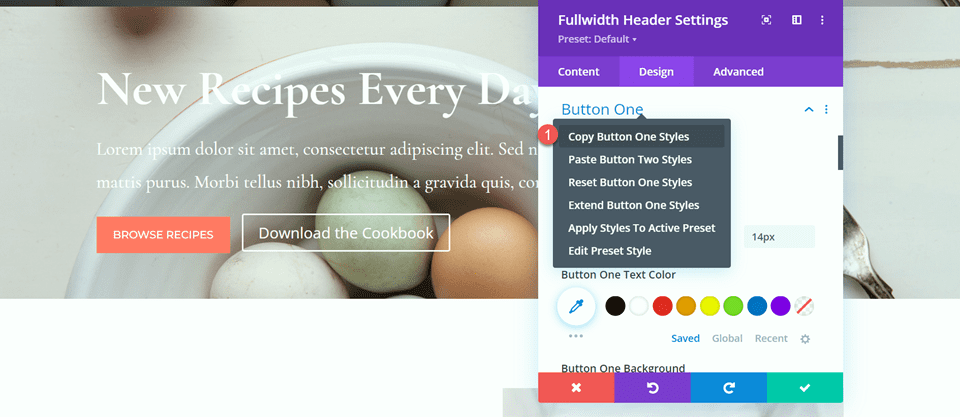
    Divi Fullwidth Header Gradient Background Layout 1 Button Styles

    Next, right-click on the button two settings and paste the button one styles.

    Divi Fullwidth Header Gradient Background Layout 1 Paste Styles

    Change the text color and background color for button two.

    • Button Two Text Color: #726D64
    • Button Two Background: #CBDBD2

    Divi Fullwidth Header Gradient Background Layout 1 Button 2 Background

    Change the button two border color as well.

    • Button Two Border Color: #CBDBD2

    Divi Fullwidth Header Gradient Background Layout 1 Button 2 Border Color

    Now that our buttons are complete, open the spacing settings and set the top and bottom padding.

    • Padding-Top: 10%
    • Padding-Bottom: 10%

    Divi Fullwidth Header Gradient Background Layout 1 Padding

    Finally, open the Custom CSS settings under the advanced tab. Select the responsive settings because we will only add the custom CSS for the desktop design. Add custom CSS to the Body CSS section.

    padding-right: 40%;

    Divi Fullwidth Header Gradient Background Layout 1 Body CSS

    Add the Gradient to the Fullwidth Header Module

    Now our fullwidth header design is complete and we can add the gradient. Navigate back to the content tab and open the background settings. Select the gradient tab and add the gradient as follows:

    • 0%: rgba(116,170,159,0.42)
    • 1%: rgba(79,127,108,0.35)

    Divi Fullwidth Header Gradient Background Layout 1 Background Gradient

    Next, customize the gradient settings:

    • Gradient Type: Elliptical
    • Gradient Position: Bottom Right
    • Repeat Gradient: Yes
    • Place Gradient Above Background Image: Yes

    Divi Fullwidth Header Gradient Background Layout 1 Gradient Settings

    Finally, delete the old header section from the original layout.

    Divi Fullwidth Header Gradient Background Layout 1 Delete Section

    Final Design

    Here is the final design for our first gradient header. As you can see, the repeated gradient with the subtle transparent colors creates an interesting background for this header section without overpowering the background image.

    Divi Fullwidth Header Gradient Background Layout 1 Full Design

    Divi Fullwidth Header Gradient Background Layout 1 Final Design Mobile

    Gradient 2

    Create a New Page with a Premade Layout

    For our next design, we will use the Nutritionist Landing Page from the Nutritionist Layout Pack.

    Add a new page to your website and give it a title, then select the option to Use Divi Builder.

    Divi Fullwidth Header Gradient Background Layout 2 Use Builder

    Since we are using a premade layout from the Divi Library, select Browse Layouts.

    Divi Fullwidth Header Gradient Background Layout 2 Browse Layouts

    Search for and select the Nutritionist Landing Page layout.

    Divi Fullwidth Header Gradient Background Layout 2 Find Layout

    Select Use This Layout to add the layout to your page.

    Divi Fullwidth Header Gradient Background Layout 2 Use Layout

    Now we are ready to build our design.

    Recreate the Hero Section Using the Fullwidth Header Module

    We are going to be recreating the existing hero section using the Fullwidth Header Module. Start by adding a fullwidth section to the page, below the existing hero section.

    Divi Fullwidth Header Gradient Background Layout 2 Fullwidth

    Next, add the Fullwidth Header Module to the section.

    Divi Fullwidth Header Gradient Background Layout 2 Add Module

    Under the content tab, add the text for the module as follows:

    • Title: Nutritionist
    • Subtitle: Specialized Food Coaching
    • Button #1: Get Started For Free
    • Button #2: Contact Me

    You can also remove the body text at this step, although we remove it later on in the tutorial.

    Divi Fullwidth Header Gradient Background Layout 2 Content

    Open the image settings. Set the logo image to the “Established 1990” image and set the header image to the graphic of the leaves.

    Divi Fullwidth Header Gradient Background Layout 2 Header Images

    Next, move to the Design tab. Set the text and logo alignment to center.

    • Text & Logo Alignment: Center

    Divi Fullwidth Header Gradient Background Layout 2 Alignment

    Customize the Title font as follows:

    • Title Font: Merriweather
    • Title Font Style: TT (Capitalized)

    Divi Fullwidth Header Gradient Background Layout 2 Title Font

    To optimize the design for tablet and mobile, we will use the responsive settings to add different title text sizes.

    • Title Text Size – Desktop: 70px
    • Title Text Size – Tablet: 50px
    • Title Text Size – Mobile: 30px

    Divi Fullwidth Header Gradient Background Layout 2 Title Text Size

    Next, set the title letter spacing and line height.

    • Title Letter Spacing: 5px
    • Title Line Height: 1.4em

    Divi Fullwidth Header Gradient Background Layout 2 Spacing Line Height

    Open the subtitle settings and customize the font.

    • Subtitle Font: Montserrat
    • Subtitle Font Weight: Medium
    • Subtitle Font Style: TT (Capitalized)

    Divi Fullwidth Header Gradient Background Layout 2 Subtitle Settings

    We will also set responsive text sizes for the subtitle. The sizes are as follows:

    • Subtitle Text Size – Desktop and Tablet: 18px
    • Subtitle Text Size – Mobile: 12px

    Additionally, set the subtitle letter spacing and line height.

    • Subtitle Letter Spacing; 5px
    • Subtitle Line Height: 1.5em

    Divi Fullwidth Header Gradient Background Layout 2 Subtitle Sizing

    Customize Button Styles

    Move on to the Button One settings. Enable custom styles and set the text size.

    • Use Custom Styles for Button One: Yes
    • Button One Text Size: 13px

    Divi Fullwidth Header Gradient Background Layout 2 Button One

    Add a background color.

    • Color 1 Background: #15C39A

    Divi Fullwidth Header Gradient Background Layout 2 Button Background

    Next, set the border width and radius, and the letter spacing.

    • Button One Border Width: 0px
    • Button One Border Radius: 100px
    • Button One Letter Spacing: 2px

    Divi Fullwidth Header Gradient Background Layout 2 Button Border

    Modify the font settings as follows:

    • Button One Font: Montserrat
    • Button One Font Weight: Medium
    • Button One Font Style: TT (Capitalized)
    • Show Button One Icon: No

    Divi Fullwidth Header Gradient Background Layout 2 Button Font

    Finally, add padding to the button.

    • Button One Padding–Top: 16px
    • Button One Padding–Bottom: 16px
    • Button One Padding–Left: 30px
    • Button One Padding–Right: 30px

    Divi Fullwidth Header Gradient Background Layout 2 Button Padding

    The styles for Button Two are largely the same as Button One, so we will copy the Button One Styles to Button Two and then make a small change to the colors.

    First, right-click on the Button One settings and copy the styles.

    Divi Fullwidth Header Gradient Background Layout 2 Copy Styles

    Then, right-click on the Button Two settings and paste the Button One styles.

    Divi Fullwidth Header Gradient Background Layout 2 Paste Styles

    Change the Button Two background.

    • Button Two Background: #BAB66F

    Divi Fullwidth Header Gradient Background Layout 2 Button 2 Background

    Next, navigate to the Spacing settings and set the padding as follows:

    • Padding-Top: 10%
    • Padding-Bottom: 0px

    Divi Fullwidth Header Gradient Background Layout 2 Spacing

    open the Animation section under the Design tab and set the module to fade.

    • Animation Style: Fade

    Divi Fullwidth Header Gradient Background Layout 2 Animation

    Add the Gradient to the Fullwidth Header Module

    Move to the content tab and open the background settings. First, remove the existing background color.

    Divi Fullwidth Header Gradient Background Layout 2 Remove Background Color

    Next, add the background image.

    Divi Fullwidth Header Gradient Background Layout 2 Background Image

    Move to the gradient tab and add the background gradient.

    • 35%: #FFC77F
    • 56%: #F2D57D
    • 90%: rgba(247,242,145,0.88)

    Divi Fullwidth Header Gradient Background Layout 2 Gradient

    Set the Gradient Type and Gradient Position.

    • Gradient Type: Circular
    • Gradient Position: Top

    Divi Fullwidth Header Gradient Background Layout 2 Gradient Type Position

    Remove the body text if you haven’t already.

    Divi Fullwidth Header Gradient Background Layout 2 Remove Body

    Finally, delete the original hero section above.

    Divi Fullwidth Header Gradient Background Layout 2 Delete Layout

    Custom CSS

    Now all of our basic settings are in place, but we need to go in with some custom CSS to complete the design and modify some of the header images. Move over to the Advanced tab and open the Custom CSS section.

    First, let’s customize the header image CSS. We will use responsive options to set different CSS for different device sizes. These settings will move the center leaf image up and behind the header text and also adjusts the size and margins. Add the following custom CSS to the desktop settings.

    transform: translateY(-22em);
    width: 25%;
    z-index: -1;
    position: relative;
    margin-bottom: -8em;
    

    Divi Fullwidth Header Gradient Background Layout 2 Header Image CSS

    Next, add the following custom CSS to the tablet settings of the header image section.

    transform: translateY(-22em);
    width: 40%;
    z-index: -1;
    position: relative;
    margin-bottom: -8em;
    

    Divi Fullwidth Header Gradient Background Layout 2 Custom CSS Tablet

    Finally, add the following custom CSS to the mobile settings of the header image section.

    transform: translateY(-24em);
    width: 75%;
    z-index: -1;
    position: relative;
    margin-bottom: -8em;
    

    Divi Fullwidth Header Gradient Background Layout 2 Header Image Mobile CSS

    We will also add custom CSS to the logo section. These settings will be responsive as well.

    First, add the following custom CSS to the desktop settings of the logo section.

    width: 40%;

    Divi Fullwidth Header Gradient Background Layout 2 Logo CSS

    Next, add the following custom CSS to the tablet settings of the logo section.

    width: 60%;

    Divi Fullwidth Header Gradient Background Layout 2 Logo Tablet CSS

    Then add the following custom CSS to the mobile settings of the logo section.

    width: 60%;

    Divi Fullwidth Header Gradient Background Layout 2 Logo Mobile CSS

    Finally, add the following custom CSS to the subtitle section.

    padding-bottom: 30px;

    Divi Fullwidth Header Gradient Background Layout 2 Subtitle CSS

    For the last step in this design, we need to add the rounded bottom divider. Open the fullwidth section settings and navigate to the design tab. Open the Dividers settings and add a bottom divider.

    • Dividers: Bottom
    • Divider Style: Curved
    • Divider Color: #FFFFFF

    Divi Fullwidth Header Gradient Background Layout 2 Divider Style

    Final Design

    And here is the final design for this header section.

    Divi Fullwidth Header Gradient Background Layout 2 Full Design

    Divi Fullwidth Header Gradient Background Layout 2 Final Design Mobile

    Gradient 3

    Create a New Page with a Premade Layout

    For our final gradient header design, we will use the SaaS Landing Page layout from the SaaS Layout Pack.

    Add a new page to your website and give it a title, then select the option to Use Divi Builder.

    Divi Fullwidth Header Gradient Background Layout 3 Use Builder

    We are using a premade layout from the Divi library, so select Browse Layouts.

    Divi Fullwidth Header Gradient Background Layout 3 Browse Layouts

    Search for and select the SaaS Landing Page layout.

    Divi Fullwidth Header Gradient Background Layout 3 Find Layout

    Select Use This Layout to add the layout to your page.

    Divi Fullwidth Header Gradient Background Layout 3 Use layout

    Now we are ready to build our design.

    Recreate the Hero Section Using the Fullwidth Header Module

    First, add a fullwidth section below the existing header section.

    Divi Fullwidth Header Gradient Background Layout 3 Fullwidth Section

    Select and add the Fullwidth Header Module to the section.

    Divi Fullwidth Header Gradient Background Layout 3 Add Module

    Open the module settings and add the following text:

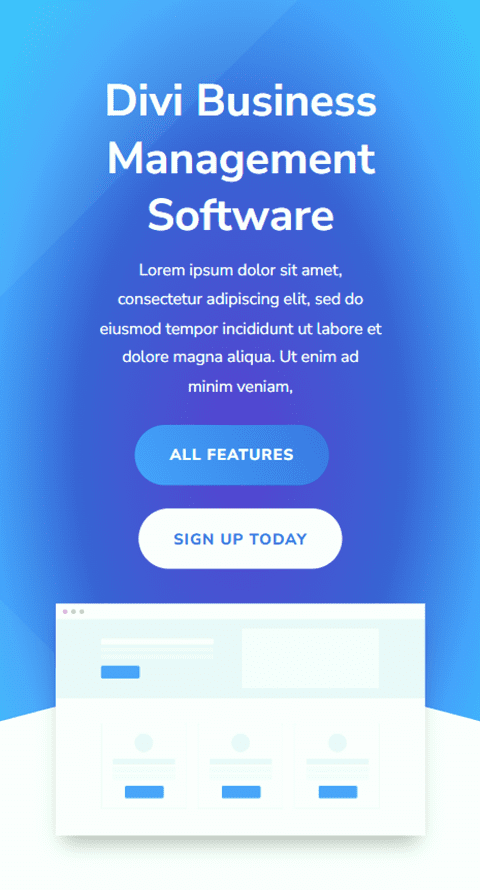
    • Title: Divi Business Management Software
    • Button #1: All Features
    • Button #2: Sign Up Today
    • Body: Lorem ipsum dolor sit amet, consectetur adipiscing elit, sed do eiusmod tempor incididunt ut labore et dolore magna aliqua. Ut enim ad minim veniam,

    Divi Fullwidth Header Gradient Background Layout 3 Content Settings

    Under the images section, add the header image.

    Divi Fullwidth Header Gradient Background Layout 3 Header Image

    We will come back to the content tab to add our background later. For now, delete the original header section above.

    Divi Fullwidth Header Gradient Background Layout 3 Delete Section

    Open the fullwidth header settings and navigate to the design tab. First, center the text and logo alignment.

    • Text & Logo Alignment: Center

    Divi Fullwidth Header Gradient Background Layout 3 Text Logo Alignment

    Open the image settings and add a box shadow to the header image.

    • Image Box Shadow: Bottom

    Divi Fullwidth Header Gradient Background Layout 3 Box Shadow

    Next, open the title text settings and customize the font.

    • Title Font: Nunito Sans
    • Title Font Weight: Bold
    • Title Text Alignment: Center

    Divi Fullwidth Header Gradient Background Layout 3 Title Font

    Change the color, size, and line height as well.

    • Title Text Color: #FFFFFF
    • Title Text Size: 45px
    • Title Line Height: 1.3em

    Divi Fullwidth Header Gradient Background Layout 3 Title Text Settings

    We want a smaller font size on mobile devices, so select the responsive settings for the Title Text Size option and add a different font size.

    • Title Text Size – Mobile: 38px

    Divi Fullwidth Header Gradient Background Layout 3 Mobile Text Size

    Move on to the Body Text section and customize the font as follows:

    • Body Font: Nunito Sans
    • Body Text Color: #FFFFFF

    Divi Fullwidth Header Gradient Background Layout 3 Body Font Color

    Set the Body Line Height.

    • Body Line Height: 1.8em

    Divi Fullwidth Header Gradient Background Layout 3 Line Height

    Customize Button Styles

    Next, let’s customize Button One. Enable custom styles then change the text size and color.

    • Use Custom Styles for Button One: Yes
    • Button One Text Size: 13px
    • Button One Text Color: #FFFFFF

    Divi Fullwidth Header Gradient Background Layout 3 Button Styles

    This button will have a gradient background. Add the gradient as follows:

    • 0%: #3d72e7
    • 100%: #53a0fe
    • Gradient Direction: 243deg

    Divi Fullwidth Header Gradient Background Layout 3 Button Gradient

    Next, change the button border settings.

    • Button One Border Width: 0px
    • Button One Border Radius: 26px
    • Button One Letter Spacing: 1px

    Divi Fullwidth Header Gradient Background Layout 3 Button Border

    Change the button font settings.

    • Button One Font: Nunito Sans
    • Button One Font Weight: Ultra Bold
    • Button One Font Style: TT (Capitalized)
    • Show Button Icon: No

    Divi Fullwidth Header Gradient Background Layout 3 Button Font

    Finally, add button padding.

    • Button One Padding-Top: 15px
    • Button One Padding-Bottom: 15px
    • Button One Padding-Left: 30px
    • Button One Padding-Right: 30px

    Divi Fullwidth Header Gradient Background Layout 3 Button Padding

    Once again, the Button Two design is very similar to the Button One design, just with different colors. We’ll skip the repetitive design steps by copying the Button One styles. To do so, simply right-click on the Button One setting and copy the Button One styles.

    Divi Fullwidth Header Gradient Background Layout 3 Copy Button

    Then, right-click on the Button Two settings and paste the Button One styles.

    Divi Fullwidth Header Gradient Background Layout 3 Paste Button Styles

    Now change the Button Two Text Color and background color.

    • Button Two Text Color: #4078ea
    • Background Color: #FFFFFF

    Divi Fullwidth Header Gradient Background Layout 3 Button Color Background

    Move to the Spacing section and add some top padding.

    • Padding-Top: 8%

    Divi Fullwidth Header Gradient Background Layout 3 Padding Top

    Next, navigate to the Animation settings and set the animation style as follows:

    • Animation Style: Zoom
    • Animation Direction: Up

    Divi Fullwidth Header Gradient Background Layout 3 Animation

    Finally, change the animation intensity and starting opacity.

    • Animation Intensity: 8%
    • Animation Starting Opacity: 100%

    Divi Fullwidth Header Gradient Background Layout 3 Animation Settings

    Add the Gradient to the Fullwidth Header Module

    Now that the basic design is complete, we can add our background gradient. Move over to the Content tab and open the Background settings. Our background will consist of a combination of a gradient, an image, and a mask. First, add the background gradient.

    • 22%: #5b40d1
    • 50%: #4161d4
    • 73%: #53a0fd
    • 100%: #4bc4fc
    • Gradient Type: Elliptical
    • Gradient Position: Center

    Divi Fullwidth Header Gradient Background Layout 3 Gradient Settings

    Next, add the background image. We will use the same background image that was used for the original header design. You should see this in your media library with the title geometric-bg-overlay-01.jpg. Use the overlay setting to blend the image with the gradient background.

    • Background Image Blend: Overlay

    Divi Fullwidth Header Gradient Background Layout 3 Background Image

    Now add the background mask.

    • Mask: Caret
    • Mask Color: #FFFFFF
    • Mask Transform: Horizontal
    • Mask Transform: Rotate
    • Mask Transform: Invert
    • Mask Aspect Ratio: Landscape
    • Mask Size: Stretch to Fill

    Divi Fullwidth Header Gradient Background Layout 3 Background Mask

    Next, use the responsive settings to customize the background mask for tablet and mobile devices. Let’s start with the tablet design.

    • Mask Aspect Ratio: Portrait
    • Mask Size: Custom Size
    • Mask Width: 100%
    • Mask Height: 60%
    • Mask Position: Bottom Center
    • Mask Vertical Offset: 140%

    Divi Fullwidth Header Gradient Background Layout 3 Tablet Mask

    Finally, modify the mobile design.

    • Mask Aspect Ratio: Portrait
    • Mask Size: Custom Size
    • Mask Width: 100%
    • Mask Height: 60%
    • Mask Position: Bottom Center
    • Mask Vertical Offset: 110%

    Divi Fullwidth Header Gradient Background Layout 3 Tablet Mobile

    Final Design

    Here is the final design for this section.

    Divi Fullwidth Header Gradient Background Layout 3 Final Design Full

    Divi Fullwidth Header Gradient Background Layout 3 Final Design Mobile

    Final Result

    Now let’s take a look at all three of our gradient header modules.

    Gradient 1

    Divi Fullwidth Header Gradient Background Layout 1 Final Design

    Divi Fullwidth Header Gradient Background Layout 1 Final Design Mobile

    Gradient 2

    Divi Fullwidth Header Gradient Background Layout 2 Final Design

    Divi Fullwidth Header Gradient Background Layout 2 Final Design Mobile

    Gradient 3

    Divi Fullwidth Header Gradient Background Layout 3 Final Design

    Divi Fullwidth Header Gradient Background Layout 3 Final Design Mobile

    Final Thoughts

    The Fullwidth Header Module is easy to customize and offers a lot of flexibility when it comes to the look and layout of your header design. When combined with unique design elements like gradients, you can create a truly stand-out design to bring your website visitors’ attention to the services that you offer. For 5 more creative Fullwidth Header tutorials, check out this article. Do you utilize the Fullwidth Header Module on your Divi website? Let us know in the comments!

    The post 3 Eye-Catching Gradients You Can Apply to Your Fullwidth Header Module with Divi’s Gradient Builder appeared first on Elegant Themes Blog.

  • Get a Free Tattoo Shop Layout Pack for Divi

    Hey Divi Nation! Thanks for joining us for the next installment of our weekly Divi Design Initiative; where each week, we give away a brand new Layout Pack for Divi.

    This time around, the design team has created a beautiful Tattoo Shop Layout Pack that’ll help you get your next Tattoo Shop website up and running in no time!

    This layout pack includes:

    7 Premade page layouts strategically designed for any Tattoo Shop website (including a footer design)
    – Original, royalty-free photos and graphics + customizable source file (see below)
    – Plus, a large collection of pre-designed website elements that are customizable and reusable anywhere.

    This layout pack is available right inside Divi for all Divi customers for FREE as the latest addition to our growing Divi library of hundreds of premade layout packs, thousands of page designs, and countless web design elements and resources.

    divi layout

    Check Out The Divi Tattoo Shop
    Layout Pack Below

    Get it for free today!

    Tattoo Shop Divi Layout Pack

    Landing Page Design

    Tattoo Shop Pack for Divi

    View The Live Layout Demo

    Home Page Design

    Tattoo Shop Layout Pack for Divi

    View The Live Layout Demo

    About Page Design

    Tattoo Shop Layout Pack for Divi

    View The Live Layout Demo

    Gallery Page Design

    Tattoo Shop Layout Pack for Divi

    View The Live Layout Demo

    Artists Page Design

    Tattoo Shop Layout Pack for Divi

    View The Live Layout Demo

    Resources Page Design

    Tattoo Shop Layout Pack for Divi

    View The Live Layout Demo

    Contact Page Design

    Tattoo Shop Layout Pack for Divi

    View The Live Layout Demo

    Key Features

    If you’re looking to get a new Tattoo Shop website, you don’t want to miss out on the Tattoo Shop Layout Pack for Divi! Each page layout is built to impress your visitors with world-class web design. And it has everything you need to promote Tattoo Shop services, and much more. Use it to get your next Tattoo Shop website up and running today!

    Live Demos

    Click the links below to see a live demo for each of the layouts included in the pack.

    1. Tattoo Shop Landing Page (live demo)
    2. Tattoo Shop Homepage (live demo)
    3. Tattoo Shop About Page (live demo)
    4. Tattoo Shop Gallery Page (live demo)
    5. Tattoo Shop Artists Page (live demo)
    6. Tattoo Shop Resources Page (live demo)
    7. Tattoo Shop Contact Page (live demo)

    Access This Layout Right Now
    Directly from Your Divi Builder

    Since Version 3.0.99 of Divi, you can find and import any of the layouts included in this pack (along with ALL of Divi’s Premade Layout packs) directly from the Divi Builder. They are already waiting for you.

    To access your new layout, simply activate the Visual Builder when editing a page and look for the “Load From Library” icon in the page settings bar (it looks like a plus symbol). Click this icon to launch the Load From Library popup. Under the Premade Layouts tab, you can easily find the new layout by scrolling through the list of layout packs. Once you find the Tattoo Shop Layout Pack, click on it. You will see all the individual layouts included in the pack. Select the layout you want to use and then click the “Use This Layout” button.

    Tattoo Shop Layout Pack for Divi

    For more, check out this video to learn how you can get this layout pack up and running today.

    Subscribe To Our Youtube Channel

    Authentication Required

    Before you can download Premade Layouts from the Divi Library you must authenticate your Elegant Themes Subscription. You can do this by navigating to Divi > Theme Options > Updates. There you can enter your username and API key and save changes.

    Tattoo Shop Layout Pack for Divi

    You can find your API Key under your members area on the Elegant Themes site. After you enter the Username and API Key, you will gain immediate access to our library of hundreds of free layouts (including this one). If you haven’t done this, when you click to import a layout to your page, you will be prompted to enter your Elegant Themes Membership Username and API Key.

    Use Layout Images for FREE with No Licensing Restrictions

    Divi Tattoo Shop Layout Pack for Divi

    The image assets included with these layouts (icons, illustrations, photos, etc.) have no licensing restrictions. This means you can use them in all of your commercial projects without having to worry about paying licensing fees or attributing the photographer. Use them in your commercial websites, sell them within your Divi child themes, include them in your own Divi layout packs or just use them on your blog. We know how challenging it can be to find good photos and how confusing and scary the licensing that governs those photos can be. We want to fix that problem for our users.

    Download the Full Res Image Assets

    New Layout Pack Every Week!

    We hope you enjoy this layout pack. We look forward to hearing your opinions in the comment section below. Make sure you check out next week’s layout pack as well!

    The post Get a Free Tattoo Shop Layout Pack for Divi appeared first on Elegant Themes Blog.

  • How to Set up WordPress Projects for Divi’s Filterable Portfolio Module

    The Filterable Portfolio Module for Divi is a great module to display your WordPress projects. Projects are easy to create and manage within WordPress. Once you’ve created them, Divi’s Filterable Portfolio Module displays any number of projects based on your selections. Your website’s visitors can easily sort them by category to see the work that interests them.

    In this post, we’ll see how to set up WordPress projects for Divi’s Filterable Portfolio module.

    Let’s get started!

    Filterable Portfoliio Module Preview

    First, let’s see what we’ll build in this tutorial.

    Desktop

    Portfoliio Preview

    Phone

    Portfoliio Preview

    Setting Up WordPress Projects

    Projects is a custom post type that’s built into WordPress. It works like any post type, but it has its own editor, list, categories, tags, etc. The Projects post type is great for creating portfolios to showcase your work. To use them properly, it’s important to know how to set them up with proper categories and tags.

    To view or create projects, go to Projects in the WordPress dashboard. You’ll see a menu with All Project, Add New, Categories, and Tags. Let’s look at each one.

    All Projects

    The Projects menu includes several options. All Projects opens when you select the Projects link. This screen lists all your projects with the title, author, categories, tags, comments, and date. You can perform edits on each project individually, do bulk edits, and create a new project.

    Setting Up WordPress Projects

    Add New

    To create a new project, select Add New in either the All Projects screen or the Projects dashboard menu. This opens the project editor. It works the same as a regular post type and includes the title, body content, categories, tags, featured image, excerpt, and the discussion options.

    Setting Up WordPress Projects

    Categories

    Categories work the same as regular post categories, except they are specific to projects. The Projects post type is the only post type that will use these categories. Existing categories for other post types are not available to the project post type. You’ll need to create them specifically for the Projects post type.

    When creating categories, be sure to use categories that are relevant to the project and provide a good overall description. Think of them as the broad topic the project would fall under. Don’t go too broad, though.

    For example, if you were creating categories for home repair, you might have separate categories for electrical, plumbing, construction, etc. Home Repair wouldn’t be the category in this case, since it’s the topic of the website. Home Repair might be a topic for a larger company that did new construction, repaired old construction, worked with both industrial and residential construction, etc. So, the categories need to fit the website.

    For my examples, I’ve created the categories to describe the types of photography this website would offer. They answer the question “what type of photography?”

    For my examples, I’ve created the categories:

    • Weddings
    • Proposals
    • Anniversary
    • Proms
    • Graduation

    Each of these categories describes the specific type of photography the client might look for. Ideally, each project would fit into one category.

    To create a category, simply fill in the fields and click Add New Category. Category fields include the name, slug, parent category, and description. You can also view and edit categories from the list.

    Setting Up WordPress Projects

    Tags

    Like categories, tags work the same way as regular post categories, but they’re created specifically for the Projects post type. Create tags that help describe the item within the category. They can help narrow down the topic.

    For our Home Repair example, you might use Appliances as a category and Gas and Electric as the tags. Use as many tags as you need.

    For my examples, I created six tags:

    • Inside
    • Outside
    • High School
    • Company
    • Church
    • Family

    These tell the client a little more about each photo shoot. We could go even further if we wanted to describe the type of crowd as large or small, the type of photos as color or black and white, and lots more.

    The tag editor includes the name, slug, and description. You can edit them from the list.

    Setting Up WordPress Projects

    Projects Example

    In this example, I’ve added a title, some body content including a description and photos, a category, a tag, and a featured image. I’ve selected Weddings as the category and Outside as the tag. I’m using the tag as a description of the wedding. I could add more tags if needed.

    Setting Up WordPress Projects

    Divi’s Filterable Portfolio Module

    Once you’ve created your projects, Divi’s Filterable Portfolio Module can display them. Users can filter the projects by categories to see the specific projects they’re interested in. You can select the categories, the number to display, and lots more. The module displays projects in fullwidth and grid layouts, so there are several designs to choose from.

    For this example, I’ve selected the grid layout, so all the projects are visible at once. It displays the filter with categories. Each project shows the featured image, title, and category.

    Divi’s Filterable Portfolio Module

    The Filterable Portfolio Module displays the filter at the top. The filter displays the categories and they’re clickable. Your visitors can view all categories or select a specific category. This example shows the Wedding category.

    Divi’s Filterable Portfolio Module

    Styling Divi’s Filterable Portfolio Module

    Next, let’s see how to style the Filterable Portfolio Module. For my examples, I’m adding a projects section to the landing page in the free Photography Studio Layout Pack that’s available within Divi.

    Alternatively, you could style your project pages as a Divi Theme Builder template that you could assign to any project you wanted. For more information, see the post How to Create a Dynamic Portfolio Project Template with Divi & ACF.

    Here are the first few sections of the layout. I’ll add the portfolio after the hero section. I’ll use design cues from the layout itself.

    Divi’s Filterable Portfolio Module

    Add a Section

    First, add a new Section under the hero section.

    Divi’s Filterable Portfolio Module

    Open the Section’s settings, scroll down to Background, and change the Background Color to black. Close the Section’s settings.

    • Background Color: #000000

    Divi’s Filterable Portfolio Module

    Add a Row

    Next, add a single-column Row.

    Divi’s Filterable Portfolio Module

    Add a Filterable Portfolio Module

    Finally, add the Filterable Portfolio Module from the list of modules.

    Divi’s Filterable Portfolio Module

    Filterable Portfolio Module Content

    For the Post Count, enter 4 into the field. Next, select the Categories you want to display in the Filterable Portfolio Module. By default, the module shows the Title, Categories, and Pagination. I’m leaving these at their default settings.

    • Post Count: 4
    • Categories: desired categories

    Divi’s Filterable Portfolio Module

    Filterable Portfolio Module Layout

    Next, go to the Design tab. The first section is Layout. The module displays in fullwidth by default, but I want to show the projects in a grid. Change the Layout to Grid. We’ll leave the image and overlay at their defaults.

    • Layout: Grid

    Divi’s Filterable Portfolio Module

    Filterable Portfolio Module Title Text

    Scroll down to Title Text. Use H2 for the Heading Level and change the Font to Inter, the Style to Bold, and the Color to #ff5a17.

    • Heading Level: H2
    • Font: Inter
    • Style: Bold
    • Color: #ff5a17

    Divi’s Filterable Portfolio Module

    Change the Size to 14px, the Letter Spacing to 1px, and the Line Height to 1.4em.

    • Size: 14px
    • Letter Spacing 1px
    • Line Height: 1.4em

    Divi’s Filterable Portfolio Module

    Filterable Portfolio Module Filter Criteria Text

    Next, scroll down to Filter Criteria Text. Change the Font to Inter, the Style to bold, and change the Color to black. This gives the filter a style that matches the layout and stands out from the portfolio.

    • Font: Inter
    • Style: Bold
    • Color: #000000

    Divi’s Filterable Portfolio Module

    Leave the Font Size at 14, which is the default setting. Change the Line Height to 1.4em.

    • Size: 14px
    • Line Height: 1.4em

    Divi’s Filterable Portfolio Module

    Filterable Portfolio Module Meta Text

    Next, scroll down to Meta Text. Change the Font to Inter and change the Color to white.

    • Font: Inter
    • Color: #ffffff

    Divi’s Filterable Portfolio Module

    Change the Line Height to 1.4em.

    • Line Height: 1.4em

    Divi’s Filterable Portfolio Module

    Filterable Portfolio Module Pagination

    Finally, scroll down to Pagination. Change the Font to Inter and the Color to white. Close the module and save your settings.

    • Font: Inter
    • Color: #ffffff

    Divi’s Filterable Portfolio Module

    Filterable Portfolio Module Results

    We now have a filterable portfolio that looks great within the layout. Here’s a look at how it looks filtered to show one category. Following this, we’ll see how it looks within the larger image of the layout.
    Divi’s Filterable Portfolio Module

    Desktop

    Portfoliio Preview

    Phone

    Portfoliio Preview

    Ending Thoughts on Setting up Divi’s Filterable Portfolio Module

    That’s our look at how to set up WordPress projects for Divi’s Filterable Portfolio Module. Creating projects is as simple as creating any content in WordPress. Once you’ve created your projects, add Divi’s Filterable Portfolio Module to any page or template to showcase your work anywhere on your website. The filter provides an extra layer of usability for your visitors as they can quickly see the types of work they’re looking for.

    We want to hear from you. Have you set up WordPress projects for your Divi Filterable Portfolio? Let us know about it in the comments.

    The post How to Set up WordPress Projects for Divi’s Filterable Portfolio Module appeared first on Elegant Themes Blog.

  • Get a Free Plumbing Layout Pack for Divi

    Hey Divi Nation! Thanks for joining us for the next installment of our weekly Divi Design Initiative; where each week, we give away a brand new Layout Pack for Divi.

    This time around, the design team has created a beautiful Plumbing Layout Pack that’ll help you get your next Plumbing website up and running in no time!

    This layout pack includes:

    7 Premade page layouts strategically designed for any Plumbing website (including a footer design)
    – Original, royalty-free photos and graphics + customizable source file (see below)
    – Plus, a large collection of pre-designed website elements that are customizable and reusable anywhere.

    This layout pack is available right inside Divi for all Divi customers for FREE as the latest addition to our growing Divi library of hundreds of premade layout packs, thousands of page designs, and countless web design elements and resources.

    divi layout

    Check Out The Divi Plumbing
    Layout Pack Below

    Get it for free today!

    Plumbing layout pack for Divi

    Landing Page Design

    Plumbing Pack for Divi

    View The Live Layout Demo

    Home Page Design

    Plumbing Layout Pack for Divi

    View The Live Layout Demo

    About Page Design

    Plumbing Layout Pack for Divi

    View The Live Layout Demo

    Service Page Design

    Plumbing Layout Pack for Divi

    View The Live Layout Demo

    Services Page Design

    Plumbing Layout Pack for Divi

    View The Live Layout Demo

    Blog Page Design

    Plumbing Layout Pack for Divi

    View The Live Layout Demo

    Contact Page Design

    Plumbing Layout Pack for Divi

    View The Live Layout Demo

    Key Features

    If you’re looking to get a new Plumbing website, you don’t want to miss out on the Plumbing Layout Pack for Divi! Each page layout is built to impress your visitors with world-class web design. And it has everything you need to promote Plumbing services, and much more. Use it to get your next Plumbing website up and running today!

    Live Demos

    Click the links below to see a live demo for each of the layouts included in the pack.

    1. Plumbing Landing Page (live demo)
    2. Plumbing Homepage (live demo)
    3. Plumbing About Page (live demo)
    4. Plumbing Service Page (live demo)
    5. Plumbing Services Page (live demo)
    6. Plumbing Blog Page (live demo)
    7. Plumbing Contact Page (live demo)

    Access This Layout Right Now
    Directly from Your Divi Builder

    Since Version 3.0.99 of Divi, you can find and import any of the layouts included in this pack (along with ALL of Divi’s Premade Layout packs) directly from the Divi Builder. They are already waiting for you.

    To access your new layout, simply activate the Visual Builder when editing a page and look for the “Load From Library” icon in the page settings bar (it looks like a plus symbol). Click this icon to launch the Load From Library popup. Under the Premade Layouts tab, you can easily find the new layout by scrolling through the list of layout packs. Once you find the Plumbing Layout Pack, click on it. You will see all the individual layouts included in the pack. Select the layout you want to use and then click the “Use This Layout” button.

    Plumbing Layout Pack for Divi

    For more, check out this video to learn how you can get this layout pack up and running today.

    Subscribe To Our Youtube Channel

    Authentication Required

    Before you can download Premade Layouts from the Divi Library you must authenticate your Elegant Themes Subscription. You can do this by navigating to Divi > Theme Options > Updates. There you can enter your username and API key and save changes.

    Plumbing Layout Pack for Divi

    You can find your API Key under your members area on the Elegant Themes site. After you enter the Username and API Key, you will gain immediate access to our library of hundreds of free layouts (including this one). If you haven’t done this, when you click to import a layout to your page, you will be prompted to enter your Elegant Themes Membership Username and API Key.

    Use Layout Images for FREE with No Licensing Restrictions

    Divi Plumbing Layout Pack for Divi

    The image assets included with these layouts (icons, illustrations, photos, etc.) have no licensing restrictions. This means you can use them in all of your commercial projects without having to worry about paying licensing fees or attributing the photographer. Use them in your commercial websites, sell them within your Divi child themes, include them in your own Divi layout packs or just use them on your blog. We know how challenging it can be to find good photos and how confusing and scary the licensing that governs those photos can be. We want to fix that problem for our users.

    Download the Full Res Image Assets

    New Layout Pack Every Week!

    We hope you enjoy this layout pack. We look forward to hearing your opinions in the comment section below. Make sure you check out next week’s layout pack as well!

    The post Get a Free Plumbing Layout Pack for Divi appeared first on Elegant Themes Blog.

  • Get a Free Construction Layout Pack for Divi

    Hey Divi Nation! Thanks for joining us for the next installment of our weekly Divi Design Initiative; where each week, we give away a brand new Layout Pack for Divi.

    This time around, the design team has created a beautiful Construction Layout Pack that’ll help you get your next Construction website up and running in no time!

    This layout pack includes:

    9 Premade page layouts strategically designed for any Construction website (including a footer design)
    – Original, royalty-free photos and graphics + customizable source file (see below)
    – Plus, a large collection of pre-designed website elements that are customizable and reusable anywhere.

    This layout pack is available right inside Divi for all Divi customers for FREE as the latest addition to our growing Divi library of hundreds of premade layout packs, thousands of page designs, and countless web design elements and resources.

    divi layout

    Check Out The Divi Construction
    Layout Pack Below

    Get it for free today!

    Construction layout pack for Divi

    Landing Page Design

    Construction Pack for Divi

    View The Live Layout Demo

    Home Page Design

    Construction Layout Pack for Divi

    View The Live Layout Demo

    Services Page Design

    Construction Layout Pack for Divi

    View The Live Layout Demo

    Service Page Design

    Construction Layout Pack for Divi

    View The Live Layout Demo

    Portfolio Page Design

    Construction Layout Pack for Divi

    View The Live Layout Demo

    Project Page Design

    Construction Layout Pack for Divi

    View The Live Layout Demo

    Blog Page Design

    Construction Layout Pack for Divi

    View The Live Layout Demo

    About Page Design

    Construction Layout Pack for Divi

    View The Live Layout Demo

    Contact Page Design

    Construction Layout Pack for Divi

    View The Live Layout Demo

    Key Features

    If you’re looking to get a new Construction website, you don’t want to miss out on the Construction Layout Pack for Divi! Each page layout is built to impress your visitors with world-class web design. And it has everything you need to promote Construction services, and much more. Use it to get your next Construction website up and running today!

    Live Demos

    Click the links below to see a live demo for each of the layouts included in the pack.

    1. Construction Landing Page (live demo)
    2. Construction Homepage (live demo)
    3. Construction Services Page (live demo)
    4. Construction Service Page (live demo)
    5. Construction Portfolio Page (live demo)
    6. Construction Project Page (live demo)
    7. Construction Blog Page (live demo)
    8. Construction About Page (live demo)
    9. Construction Contact Page (live demo)

    Access This Layout Right Now
    Directly from Your Divi Builder

    Since Version 3.0.99 of Divi, you can find and import any of the layouts included in this pack (along with ALL of Divi’s Premade Layout packs) directly from the Divi Builder. They are already waiting for you.

    To access your new layout, simply activate the Visual Builder when editing a page and look for the “Load From Library” icon in the page settings bar (it looks like a plus symbol). Click this icon to launch the Load From Library popup. Under the Premade Layouts tab, you can easily find the new layout by scrolling through the list of layout packs. Once you find the Construction Layout Pack, click on it. You will see all the individual layouts included in the pack. Select the layout you want to use and then click the “Use This Layout” button.

    Construction Layout Pack for Divi

    For more, check out this video to learn how you can get this layout pack up and running today.

    Subscribe To Our Youtube Channel

    Authentication Required

    Before you can download Premade Layouts from the Divi Library you must authenticate your Elegant Themes Subscription. You can do this by navigating to Divi > Theme Options > Updates. There you can enter your username and API key and save changes.

    Construction Layout Pack for Divi

    You can find your API Key under your members area on the Elegant Themes site. After you enter the Username and API Key, you will gain immediate access to our library of hundreds of free layouts (including this one). If you haven’t done this, when you click to import a layout to your page, you will be prompted to enter your Elegant Themes Membership Username and API Key.

    Use Layout Images for FREE with No Licensing Restrictions

    Divi Construction Layout Pack for Divi

    The image assets included with these layouts (icons, illustrations, photos, etc.) have no licensing restrictions. This means you can use them in all of your commercial projects without having to worry about paying licensing fees or attributing the photographer. Use them in your commercial websites, sell them within your Divi child themes, include them in your own Divi layout packs or just use them on your blog. We know how challenging it can be to find good photos and how confusing and scary the licensing that governs those photos can be. We want to fix that problem for our users.

    Download the Full Res Image Assets

    New Layout Pack Every Week!

    We hope you enjoy this layout pack. We look forward to hearing your opinions in the comment section below. Make sure you check out next week’s layout pack as well!

    The post Get a Free Construction Layout Pack for Divi appeared first on Elegant Themes Blog.

  • How to Boost Your Blog Post Header with a Background Mask & Pattern Design in Divi

    The new background pattern masks and patterns available in Divi allow you to add interest to your backgrounds, without using images. With a variety of options to choose from, there are tons of opportunities available to your to style your backgrounds within Divi. Today, we’ll be looking at combining both background pattern masks and patterns to upgrade your blog post header design in three unique ways.

    Let’s get to it!

    The Important of Blog Post Header Design

    Before a reader goes through your post, they will first be met by the content above the fold. The fold is the first part of the screen that is seen before scrolling begins. It’s really important for us to ensure that the section above the fold in our design is eye-catching and encourages people to keep on scrolling to read the rest of the page. In our case, we want people to keep on reading our blog posts after interacting with our blog post header. With the new Divi background features, we don’t have to spend hours in Canva and Photoshop to create awesome designs. We have all the tools that we need right within the Divi builder!

    Divi Blog Post Header Design with Background Masks and Patterns

    You can make some really cool designs out of the box with either background masks or background patterns. However, we want to take it a step further and combine the two of these new features together! Let’s see what we’ll be working towards in this tutorial.

    Background Mask and Pattern Example One

    The Divi Corporate Blog Post Template using the Divi Builder's new Background Mask and Patterns

    The header section of our Divi Print Shop Blog Page Template re-imagined Background Masks and Patterns.

    Background Mask and Pattern Example Two

    The Divi Corporate Blog Post Template using the Divi Builder's new Background Mask and Patterns

    The header section of our Divi Fashion Designer Blog Page Template updated using Background Masks and Patterns.

    Background Mask and Pattern Example Three

    The Divi Corporate Blog Post Template using the Divi Builder's new Background Mask and Patterns

    The header section of our Divi Corporate Blog Page Template redesigned with Background Masks and Patterns.

    For this tutorial, we’ll be working with three different FREE Divi Blog Post Templates that can we found on our blog. Now, let’s get into the tutorial!

    Example One: Divi Print Shop

    For this example, we’ll be attempting to keep the background close to the original. We want to imitate the look of the template, but we’ll be using the Divi Background Masks and Patterns feature to re-invent the header section a little bit. To begin this tutorial, download the Blog Page Template from the Divi Print Shop Layout Pack. This is what we’re starting with:

    The initial header layout of the Divi Print Shop Blog Post Template

    Install the Divi Print Shop Blog Post Template

    To upload the template, navigate to the Divi Theme Builder in the backend of your WordPress website.

    Getting started with the Divi Conference Layout Pack

    Upload Website Template

    Then, in the top right corner, you’ll see an icon with two arrows. Click on the icon.

    Opening the import export functionality of the Divi Theme Builder

    Navigate to the import tab, upload the JSON file that you could download in this post, and click on ‘Import Divi Theme Builder Templates’.

    Import settings for the header and footer layout pack

    Save Divi Theme Builder Changes

    Once you’ve uploaded the file, you’ll notice a new template with a new body area that has been assigned to All Posts. Save the Divi Theme Builder changes as soon as you want the template to be activated.

    Save the imported blog post layout within the Divi Theme Builder

    How to Modify The Header Design in the Template

    Open the Divi Print Shop Template

    To modify the template’s header section, start by opening the template.

    Begin editing the blog post body template within the Divi Builder

    Enter the Section Settings

    We’re going to use a combination of Background Masks and Patterns to match the Image and Gradient settings that are currently being used to create the original background for the header section. First, we’ll need to open the settings modal box to start our work. To access the settings for the section, you will click on the gear icon, which is the second icon that appears when you hover over the blue section border.

    Edit the section settings for the Blog Post Template

    Navigate to Background Settings

    We will now scroll within the Section settings modal box till we reach the Background tab. From here, we’ll be modifying the current settings and implementing our new style using Background Masks and Patterns.

    Scroll through the modal till you reach the Background section

    Remove the Background Gradient and Image

    To get started, we’ll need to remove the current background settings to make way for the new changes we’ll be making to the blog post header design. You’ll want to first hover over the Background subtitle. An icon menu will pop out. Within this new menu, click on the Reset icon to give your section’s background a new lease on life.

    Reset section background styles

    Add the Background Mask

    Now that we’re where we want to be, we’ll go in and add the Background Mask to the section. First, we’ll click on the Background Mask icon, then we’ll click Add Background Mask.

    Beginning adding the background mask to the section

    We’ve made the first step in editing our blog post header design.

    Style Your Background Mask

    After resetting the background styles, you’ll notice that your mask is white. Don’t be alarmed! We’re now going to start adding some color and styling into the blog post header design.

    Don't be alarmed by the blank Background Mask! We're going to fill it in right now.

    Select Your Mask Style

    Let’s get started on styling our Background Mask! First, we’ll click on the first dropdown. This will show us all the Background Masks available to us. We’ll be working with the Diagonal Mask.

    Select your background mask

    Assign Your Mask Color and Transformation Settings

    Next, we’ll assign it a Mask Color. Our Mask Color will match the dark blue that was a part of the original blog post design. Finally, we’re going to flip the mask horizontally, rotate it, then invert it. We’ll leave the aspect ratio as it is. Here are the settings that you’ll need to use for this:

    • Mask: Diagonal
    • Mask Color: #000645
    • Mask Transform: Horizontal, Rotate, Invert
    • Aspect Ratio: Wide

    Select your background mask settings

    Add Your Background Pattern

    With the newly added Background Mask, this is what our Blog Post Template is looking like:

    The Divi Blog Post Header Design with the Background Mask

    But we want to jazz it up even further and will add a Background Pattern to this. With the Background Mask, we are able to mimic the navy bar that was originally a part of the Divi Print Shop Layout Pack. By using the Background Mask, we’ve added some texture and interest to the header section. We’ll now be using the Background Pattern feature to hail to the dotted background image that we had within the original design.

    Choosing Your Background Pattern

    While inside the Background tab of the section modal box, we’re going to now click on the Background Pattern icon. Once we’ve clicked that, we will now click Add Background Pattern to see our options.

    Activate the Background Pattern settings within the Background tab

    Styling the Background Pattern

    For this example, we want the Background Pattern to look similar to the image that was used within the original design. We’ll be using the Tufted Background Pattern for this example. As with the Background Mask, click the dropdown to see the available Background Patterns and select Tufted.

    Selecting our option for the Background Pattern

    With our Background Pattern selected, let’s now go in and make some stylistic adjustments. We won’t be making any transformations to the Background Pattern, however we will be using the Pattern Color setting to tie the newly added pattern into the rest of our design. To do this, click on the Eyedropper Tool under Pattern Color and we’ll be using the same navy blue from the Background Mask, but with a slight transparency to it.

    • Pattern Color: rgba(0,6,69,0.3)

    Once you’ve added the Pattern Color, save your section settings by clicking the green checkmark at the bottom of the settings modal box. Finally, save your updated Blog Post Template.

    Example Two: Divi Fashion Designer

    For this example, we’ll be creating a minimalistic blog header design that references the clean lines and sharp edges used through the layout. You’ll need to download the Divi Fashion Designer Blog Post Template for the Divi Fashion Designer Layout Pack to follow along with this example.

    The process for installing and downloading the template is the same as with the Divi Print Shop example from above. You can follow those steps by going back to the start of this tutorial. Before we start on our background transformation journey, let’s take a look at what the blog header design looks like straight out of the box.

    The Divi Fashion Designer Blog Post Header Design

    Add a Background Color

    Unlike our previous example, this blog header design will be utilizing a Background Color. Open the Section Settings, and scroll down to the Background tab. Then, enter in the color details below.

    • Background Color: #fff9f2

    Assigning a background color to the section

    Adding the Background Mask

    With the Background Color we have a good base for our Background Mask. Giving a nod to the angular forms within this layout pack, we’ll be using the Chevron Background Mask for this blog header design. To select Chevron, navigate to the Background Mask icon, and then click Add Background Mask.

    Getting the Background Mask set up

    Once that’s done, click on the dropdown menu that appears and navigate to the Chevron Background Mask.

    Selecting the Background Mask

    Styling the Background Mask

    As our Background Mask has been put in place, we’ll now begin to style it. We’ll keep it the default color of white, but we’ll invert it using the Mask Transform settings.

    • Mask Color: #ffffff
    • Mask Transform: Invert

    Styling the Background Mask's color and transform settings

    Inserting the Background Pattern

    With our soft and minimal blog header design so far, we’ll be adding a Background Pattern to the Background Mask itself. Before we’re able to do this, we’ll click on the Background Pattern icon, and then Add Background Pattern to make our choice of patterns to overlay onto the Background Mask.

    Inserting the Background Pattern to overlay onto the Background Mask

     Click on the dropdown that appears after clicking Add Background Pattern. We’ll be using the Honeycomb Background Pattern to overlay onto our Chevron Background Mask.

    Selecting the background pattern of choice for our blog post header design

    Add Color to Background Pattern

    To keep in line with the design of the Divi Blog Post Layout, we’ll be changing the color of the Background Pattern to white.

    • Pattern Color: #ffffff

    Choosing the Background Pattern coor

    Remember to save your hard work by clicking the green checkmark to lock in your section settings. Also, save your blog post template by clicking on the green Save button.

    Example Three: Divi Corporate

    In the Divi Corporate blog header design, we’ll be using Background Masks and Patterns to add texture. We’ll be also using transparency to create depth within the various elements of this header design. This is what we’re starting out with after you have imported the Divi Corporate Blog Post Template which is part of the Divi Corporate Layout Pack.

    The Divi Corporate Blog Post Header Design

    Change Background Color

    For this blog header design, we want to change the default background color of the section to make the Background Pattern and Background Mask more subtle. To do this, we’ll enter into the Section Settings and scroll down to the Background tab. Once there, we’ll click on the Background Color icon, and enter in the hex code for black to replace the default dark gray share of the layout pack.

    • Background Color: #000000

    Change background color of the blog header design

    Insert Background Pattern

    With our new background color, we’ll be adding a Background Pattern to add some excitement to the plain, dark background of the default blog header design. To do this, we’ll enter into the Section Settings and scroll down to the Background tab. Next, we’ll click the Background Pattern icon and then click Add Background Pattern to pull up our list of choices.

    Selecting Background Pattern choices for a corporate blog header design

    Style Background Pattern

    We’ll be using a Background Pattern that’s similar to scanlines for this blog header design. To do this, we’ll select the Diagonal Stripes 2 from the Background Pattern dropdown menu. Then, we’ll assign a transparent white color to the pattern. Lastly, we’ll transform this pattern on the horizontal axis.

    Styling a blog header design with a scanlines inspired background pattern

    Here are the settings that you’ll need to use for the Background Pattern:

    • Pattern Style: Horizontal Stripes 2
    • Pattern Color: rgba(255,255,255,0.12)
    • Pattern Transform: Horizontal

    Add the Background Mask

    As with our other blog header design examples, we’ll be adding a Background Mask to the Background Pattern. To do this, we’ll select the Background Mask icon and click Add Background Mask. This will reveal the Background Mask dropdown where we can choose our Background Mask style.

    Adding background mask to the blog header design with a background pattern

    For this blog header design, we’ll be using the Diagonal Lines Background Mask.

    Choosing the Diagonal Lines Background Mask for the Divi Corporate blog header design

    Stylize the Background Mask

    We don’t want to leave the Background Mask as it is, so we’re now going to style it. We’ll be using a transparent version of the green that is used within the layout pack. We will also be inverting the Background Mask. To apply these styles, first, click on the Eyedropper Icon under the Mask Color title and enter in the setting below. Next, select the Invert icon under the Mask Transform setting.

    • Mask Color: rgba(76,89,76,0.54)
    • Mask Transform: Invert

    Using transparency within the background mask styling of the Divi Corporate blog header design

    In Conclusion

    We have many options when it comes to styling backgrounds for our blog posts. Playing with key design concepts like color, transparency and texture allow us to make use of the native background design tools that come with Divi. You can spend a little less time in image editing software by playing around and using our new Background Patterns and Masks on your site today!

    The post How to Boost Your Blog Post Header with a Background Mask & Pattern Design in Divi appeared first on Elegant Themes Blog.

  • Download a FREE Blog Post Template for Divi’s Online Yoga Layout Pack

    Hey Divi Creators! Thanks for joining us for the next installment of our weekly Divi Design Initiative where each week, we give away brand new freebies. This time around we’re building upon the Online Yoga Layout Pack with a brand new blog post template that matches the rest of the pack perfectly. Hope you enjoy it!

    divi layout

    Check Out The Online Yoga
    Blog Post Template Below

    Get it for free today!

    Online Yoga blog post template

    Online Yoga blog post template

    Download The Blog Post Template For The Online Yoga Layout Pack

    To lay your hands on the free Online Yoga Blog Post Template, you will first need to download it using the button below. To gain access to the download you will need to subscribe to our newsletter by using the form below. As a new subscriber, you will receive even more Divi goodness and a free Divi Layout pack every Monday! If you’re already on the list, simply enter your email address below and click download. You will not be “resubscribed” or receive extra emails.

    How to Upload The Template

    Go to Divi Theme Builder

    To upload the template, navigate to the Divi Theme Builder in the backend of your WordPress website.

    blog post template for Divi's Online Yoga Layout Pack

    Upload Website Template

    Then, in the top right corner, you’ll see an icon with two arrows. Click on the icon.

    blog post template for Divi's Online Yoga Layout Pack

    Navigate to the import tab, upload the JSON file that you could download in this post, and click on ‘Import Divi Theme Builder Templates’.

    blog post template for Divi's Online Yoga Layout Pack

    Save Divi Theme Builder Changes

    Once you’ve uploaded the file, you’ll notice a new template with a new body area that has been assigned to All Posts. Save the Divi Theme Builder changes as soon as you want the template to be activated.

    divi Online Yoga blog post template

    How to Modify The Template

    Open Post Template

    To modify the template’s elements, start by opening the template.

    divi Online Yoga blog post template

    Inside the Body Layout Editor, you can edit the design on the front end using the Divi Builder just like you would with a normal Divi page.

    Since this is a template that has been assigned to all posts for the site, there is a post content module that is necessary for displaying the post content. You will need to keep that module in place, but you can adjust the post content module’s design elements, which will design the post content that is displayed dynamically.

    Online Yoga blog post template

    About the Layout

    This blog post template has a lot of dynamic elements that will work with your blog posts immediately. For example, the entire post header is made up of dynamic elements including a featured image as the background, the post title, and the post metadata (date, categories, author, and comment count). This content won’t need updating, but you can tweak the design of each of those elements if needed.

    Other dynamic elements include the following:

    • Recent Posts Module(s) – displays the most recent posts. Sometimes multiple modules are used with offsets for unique layouts.
    • Post Content Module – displays the post content added when editing the post on the backend of WordPress.
    • Comments – a functional comment area for the post.
    • Post Navigation – provides previous and next buttons to the post.

    Here is a quick illustration that identifies the elements of the Online Yoga blog post template.

    Online Yoga blog post template

    However, some elements on a post template will need your immediate attention before using it live on your own website. For this post template, you will need to update the email opt-in module.

    Add Email Account to Email Optin Modules

    To allow the Email Optin Module to show up in your design, you’ll need to link an email account.

    Online Yoga blog post template

    New Freebies Every Week!

    We hope you’ve enjoyed the Online Yoga Layout Pack and the blog post template freebie that goes along with it. We look forward to hearing your opinions in the comment section below. Make sure you check back next week for more freebies!

    The post Download a FREE Blog Post Template for Divi’s Online Yoga Layout Pack appeared first on Elegant Themes Blog.