EDITS.WS

Tag: Divi Resources

  • Download a FREE Header & Footer for Divi’s Poke Restaurant Layout Pack

    Hey Divi Nation! Thanks for joining us for the next installment of our weekly Divi Design Initiative where each week, we give away brand new freebies. We recently shared a brand new Poke Restaurant Layout Pack. To help you get your website up and running as soon as possible, we’re sharing a global header & footer template that matches this layout pack perfectly as well! Hope you enjoy it.

    divi layout

    Check Out The Poke Restaurant
    Global Header & Footer Template Below

    Get it for free today!

    Header Design

    Desktop View

    Divi Poke Restaurant Header Template Desktop View

    Tablet and Mobile View

    Divi Poke Restaurant Header Template Tablet and Mobile View

    Footer Design

    Desktop View

    Divi Poke Restaurant Footer Template Footer View

    Tablet and Mobile View

    Divi Poke Restaurant Footer Layout Tablet and Mobile View

    Download The Global Header & Footer Template For The Poke Restaurant Layout Pack

    To lay your hands on the free global header & footer template, you will first need to download it using the button below. To gain access to the download you will need to subscribe to our newsletter by using the form below. As a new subscriber, you will receive even more Divi goodness and a free Divi Layout pack every Monday! If you’re already on the list, simply enter your email address below and click download. You will not be “resubscribed” or receive extra emails.

    How to Upload The Template

    Go to Divi Theme Builder

    To upload the template, navigate to the Divi Theme Builder in the backend of your WordPress website.

    Navigating to the Divi Theme Builder

    Upload Global Default Website Template

    Then, in the top right corner, you’ll see an icon with two arrows. Click on the icon.

    Importing the Header and Footer Layout into the Divi Theme Buidler

    Navigate to the import tab, upload the JSON file which you were able to download in this post, and click on ‘Import Divi Theme Builder Templates’.

    Import settings for the header and footer layout pack

    Save Divi Theme Builder Changes

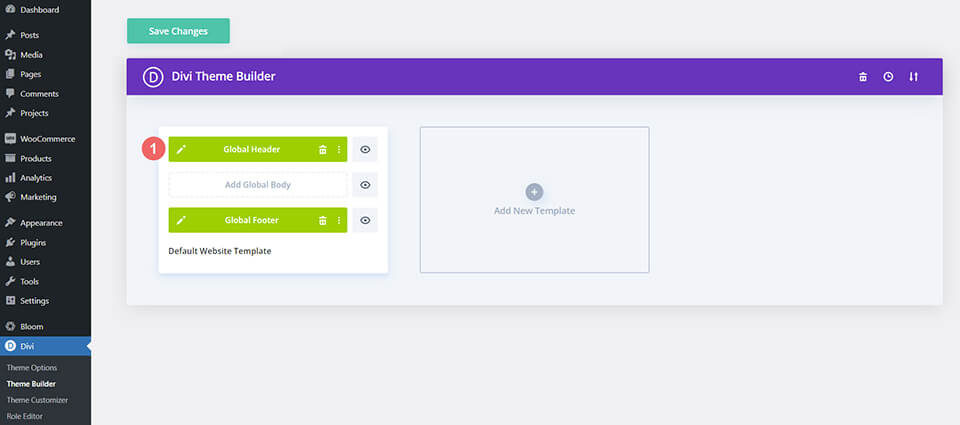
    Once you’ve uploaded the file, you’ll notice a new global header and footer in your default website template. Save the Divi Theme Builder changes as soon as you want the template to be activated.

    Save global header theme builder

    How to Modify The Template

    Open Header Template

    To modify the global header template’s elements, start by opening the template.

    Editing the global header within the Divi Theme Builder

    Select Menu of Choice

    Select a menu of your choice in the Menu Module.

    Choose a menu to use within your header

    Add Button Link URL

    This header has a button on the top right. Open it’s settings update the link URL to the destination of your choice.

    Select header button URL destination

    Update Social Media Icons and Destinations

    With our Social Media Follow Module, you have a wide variety of social media icons which you can use to send people to read various reviews about your business. Select your social media accounts and remember to link them to their respective destinations.

    Adding social media accounts and links to header

    Open Footer Template

    Continue by opening the global footer inside the default website template.

    Editing the footer template within the Divi Theme Builder

    Link Social Media Accounts

    The footer for the Divi Poke Restaurant Layout Pack has two places for social media links. The first Social Media Follow Module is for social media networks that have reviews. So if you’re using a particular website to collect reviews – think Google, Yelp or Foursquare — this will be the place to put them. The second Social Media Follow Module is for your social media pages. This would like to websites like Facebook, Twitter… even TikTok. This module is used to drive traffic to these external social media sites

    Link to different social networks for different purposes to boost sales and drive traffic

    Choose Footer Menu

    We also have a menu in the footer which you’ll need to update to meet your needs.

    Footer menu selection

    Adjust Static Divi Modules

    In addition to two Social Media Follow Modules, our footer template makes use of some static elements that will need to be updated before making your website live.

    • Blurb Module: Used as a call-to-action for reviews. Social proof as an online business is essential.
    • Text Modules: We use text modules for the address, phone number and store hours.

    Footer static elements should be modified to match your needs

    New Freebies Every Week!

    We hope you’ve enjoyed the Poke Restaurant Layout Pack and the Header & Footer freebie that goes along with it. We look forward to hearing your opinions in the comment section below. Make sure you check back next week for more freebies!

    The post Download a FREE Header & Footer for Divi’s Poke Restaurant Layout Pack appeared first on Elegant Themes Blog.

  • 25 Tips for Running a Successful Online Sale with Divi

    Running a successful online sale can be one of the best ways to boost revenue and get more customers for your business. Using Divi makes the process much easier by providing a powerful platform (and ecosystem) for building your online store from top to bottom, including hundreds of tools at your fingertips to optimize your sale for huge returns.

    In this article, we’ll be sharing some effective, time-tested tips you (or any company) can use to run a successful online sale with Divi.

    If you don’t have a Divi membership yet, you’re in luck. Right now is the best time all year to join our community. We’re currently running our Cyber Monday Sale through December 12th. Which means for a limited time you can get 25% off Divi and Divi Account Upgrades, 44% off Divi Cloud and Divi Teams, and up to 60% off on Divi Marketplace Bundles.

    Once your toolbox is full, you’ll be more than ready to follow these 25 Tips for running a successful online sale with Divi.

    1. Start Planning Far in Advance

    The first step to any well run sale is planning. If you’ve never done one before, it may surprise you just how much work goes into it. But don’t worry, we’re here to point you in the right direction.

    In many cases, creating an online sale that is simple and effective tends to yield a much higher return than trying to force marketing tactics or tools that really don’t line up with your skillset or goals. Just because it can be done, doesn’t mean it should. In general, stick to the methods that you are confident will work to meet your goals. You can always make improvements for your next sale.

    If you are just starting out, there’s no shame in using the same techniques that other similar companies in your niche have found to be successful. Our big tip here is to write it all down and create a production schedule for everything your sale entails. Then, reverse engineer a timeline to get everything done ahead of time. This can’t be done at the last minute. To do it right you’ll need to start as far in advance of your target date as reasonably possible.

    2. Determine Essential Sale Details

    There are a few essential details you’ll need to work out before you can do everything else:

    • Determine when the sale will begin and how long it will run. Many people and companies run sales in sync with the seasons of the year or with holidays. Such as a “Summer Sale” or a “Black Friday Sale” which takes place immediately after the United States’ Thanksgiving Holiday each year.
    • Determine what will be on sale and how far it will be discounted. This is likely going to look different for everyone depending on their specific business. However, if you want to grab folks’ attention you’ll want to choose products with a large margin and mark them down as low as you can afford to. Discounts of 50% and above are really eye-catching. This is where digital products with nearly no overhead per unit can really shine!

    3. Identify Technical Tasks and Challenges

    These are not easily recognized at the beginning of the process. They reveal themselves as you start working on your sale. As your vision begins to take shape, you’ll want to keep a running list of anything you need to design, write, code, or build in order to pull it off. The time and resources required to do all these things will determine how soon you need to begin production work.

    Here are a few examples (but far from a complete list):

    • Sale landing page – Divi comes with over 2,000 page layouts, hundreds of which are professionally designed landing pages. And our community has thousands more landing pages available in the Divi Marketplace!
    • Countdown timer section – For this you can of course use Divi’s own countdown timer module. However, if you want even more advanced countdown features you can once again explore the amazing variety of countdown extensions our community has created.
    • Top bar call to action – With Divi’s theme builder and built-in sticky options you can easily create a top bar call to action. Add dynamic content, conditional display rules, and more.
    • Expanding footer call to action – This too is easily doable all with out of the box Divi features!
    • Sale graphics for blog posts, emails, and social media – On our blog we release layout packs weekly. When we do, we give away free design assets like images and illustrations. All of which are free to use for anything.
    • Ads for Google, YouTube, Facebook, Instagram, and more – While this isn’t an area Divi directly helps with, you can again use any of our free design assets for whatever you want.
    • Sale assets for affiliate marketers – Same idea as the other graphics/assets points above.

    4. Design Your Sales Funnel from Start to Finish

    Featured Image via vectorpouch / shutterstock.com

    A sales funnel represents the purchasing path someone takes to get from your “top of funnel” content (such as ads or social media) to your sales page and then past the point of conversion. A sales funnel should be optimized to make buying your product(s) as easy, streamlined, and exciting as possible.

    Most sales funnels will need at least the following pages:

    • Landing Page (or Sales Page)
    • Cart Page – with upsells
    • Checkout Page
    • Upsell/downsell page (optional)
    • Thank You Page – with upsells

    With Divi, you can design all the pages needed for your sales funnel (or choose from hundreds of premade layouts). And you can use a funnel plugin like CartFlows to help streamline the process.

    Landing Page

    The landing page (or sales page) is a critical step in the sales funnel. It is your chance to wow your visitors with your amazing deals and get them to click that buy button. Divi has hundreds of premade landing page layouts included in the library you can choose from. Or take advantage of our Cyber Monday Sale and get a pack of exclusive landing page layouts optimized for conversion.

    And of course there’s plenty of community designed layouts in the Divi Marketplace. You can add these to your site in just a few clicks. We’ll have more to say about your landing page below.

    Cart Page

    Normally, in WooCommerce, visitors will visit the cart page before heading over to the Checkout Page. In some cases this isn’t an ideal user experience since it adds a seemingly unnecessary step in many cases. This is a good opportunity to include a mini cart in your header or sidebar so that users can see their cart item in real time and go straight to the checkout page.

    However, if you are going to take full advantage of the cart page, you will definitely want to include upsells. Upsells are related products that the customer may want to add to their cart. It is a great opportunity to sell more products to customers already vested in your products.

    Here is an example of a Cart Page from one the layouts included in WooCommerce Layouts for Divi. Notice the upsells featured in the right sidebar under “You may also like…”.

    Checkout Page

    The Checkout Page is the next sales funnel page that can easily be designed using Divi’s Theme Builder and WooCommerce Modules. It is important to think carefully about the elements you include on this page.

    You may want to include some testimonials to help close the deal on the checkout page. Since this is the page that most people will probably leave (maybe they’re having second thoughts), this is also a great opportunity to add a popup on exit intent that gives them a coupon code that might push them over the edge.

    Also, it is always a good idea to have a follow up plan in place for those that abandon their carts like an automated email that reminds them to come back to their cart. Or you can have a custom popup that shows up whenever they come back to the site that includes a discount if they purchase now. Divi has built-in condition options to show or hide elements based on if a user visits a cart page but hasn’t made a purchase. And there’s products like Hide & Show Pro in the Marketplace that extend these features to give you even more control over conditional content.

    Here is an example of a Checkout Page from one of our exclusive Cyber Monday Theme Builder Packs:

    Upsell/Downsell Page

    The Upsell/Downsell Page is an important step in the funnel. This is the page that users are redirected to after completing a purchase. An Upsell Page doesn’t have to have a lot of content. It just needs to feature another deal they may be interested in. For example, if a customer just purchased a basic level membership, you could offer a lifetime membership at a big discount on the upsell page.

    Building an Upsell or Downsell page in Divi is extremely easy since you would only need an image/video, a block of text, and a couple of buttons. If the customer decides to take the upsells, you should make this process seamless so that the customer doesn’t have to go through the entire checkout process again. If the customer refuses the upsell, you could have it redirect to the thank you page.

    Thank You Page

    The Thank You Page is the final step in the sales funnel. But don’t miss out on an opportunity to include more upsells or downsells on that page as well. Remember, they already like your products, so these are already qualified customers you are selling to. In fact, in many cases, you thank you page can be your main upsell page.

    Here is an example thank you page with an upsell to upgrade their membership at a discount.

    For more, check out this Free Guide Funnel Layout Pack that includes a landing page layout for a free-offer email opt-in and a thank you page with upsells.

    5. Create a Content Production Plan

    With every sale, there comes a lot of content. The content you produce needs to go through several phases, so the earlier you begin, the better. The first phase of setting up your content plan focuses on the discovery phase. Content is going to be your way of telling your audience about the sale, so you’ll want to make sure the message is as clear as possible. It’s not about bulk, but about quality. Here are some questions you can ask yourself before starting to plan your content:

    1. What is the main message of my sale?
    2. What’s the main CTA of my sale?
    3. Who am I targeting?
    4. How does each piece of content feed into or progress visitors through my sales funnel?

    These are all questions that you most likely want answered before you start creating your content. That way, you’ll know exactly what purpose each piece of content will serve.

    Once you have a clear view on your sale and how your content relates to it, you can start planning your content and begin the production. You’ll want to create a harmonized strategy across all the content formats you’re using:

    • Blog posts
    • Emails
    • Social posts
    • Ads
    • And (potentially) more

    6. Prepare Your Site for Traffic

    For any online sale to be successful, your site needs to be optimized for performance and speed. After all, you are hopefully going to be getting a massive increase in traffic. And the last thing you want to do is have a slow loading sales page or checkout page. Or, even worse, your whole site could crash because of a bad hosting environment. We offer Divi optimized hosting through our select hosting partners. While you’ll still need to make sure your plan fits the traffic you’re expecting, you can at the very least start with a hosting provider that’s meant to provide top of the line performance for Divi websites. We’ve also created a great resource for speeding up your Divi website from all angles.

    7. Involve Your Community

    It’s always a good idea to involve your community. It’s the digital equivalent of word-of-mouth marketing. People relate to people, so involving your community in your sale will spark interest. They are your audience, and the earlier you involve them the sooner your target audience becomes aware of the sale you’re planning.

    There are different ways to involve your community. Here are a few ideas:

    • Conduct a survey, either formally or informally via simple conversations, on what they’d like out of a sale. Which products they’re most interested in and why. Any insights you can gain here on what will move the needle during your sale will be helpful.
    • Incentivize community participation in your sale. This can be done with a special discount, gift, or other perk just for your existing community.
    • Incentivize sharing the sale outside your existing community. This can be done with a giveaway, contest, or something similar.

    8. Form Partnerships

    One of the best ways to make your sale better is by using partnerships to boost your offering’s value. A good example is a bundle of similar products for the price of one. It’s a win-win-win type of situation that will:

    1. Help you boost sales
    2. Help your partners boost sales
    3. Help your audience get more value out of their purchase(s)

    Partnerships make your sale stronger. People want to get the most value for their money, so the better your offer, the more organically you’ll see your sales grow. There are different types of partnerships you can create, but you’ll want to make sure that the products added by them are supplementary to your core sale.

    9. Mobilize Your Affiliates

    Affiliates are also a great way to involve your community in your sale. Affiliates make a percentage on every purchase they send your way, so it’s only logical that you’d want to inform your affiliates of the sale in advance. That way, they can use this additional incentive in their own marketing strategies.

    10. Sponsor Content from Influencers

    Featured Image via venimo / shutterstock.com

    Similar to affiliates, sponsored content allows you to reach an extended audience through content channels owned and operated by others. Even on a small scale this technique can be very effective. People with a platform that’s part of your target audience have built a certain connection with their audience, and are more likely to participate in a sale if the information is coming directly from someone they follow.

    11. Conduct a Giveaway

    Giveaways are a great way to involve your community and encourage them to share your sale with others. You’re giving them the chance to win something, while also benefiting from the requirements to enter the giveaway–such as sharing your sale on social media, subscribing to your newsletter, opting into a browser notification, and many other potential sale boosting actions.

    12. Create a Sale Specific Landing Page

    No sale is complete without a proper landing page. And to be clear, this should be a different, unique landing page, than your normal one.

    When building your landing page with Divi, you don’t have to start from scratch. We have a ton of premade landing page layouts that can serve as the base of your landing page. Or you can search through our Divi Marketplace to find even more sale specific landing pages, like this one.

    A good combination of the three above, and of course a good sales offer, is what makes a landing page effective. There are some widely-used tactics you can use. Let’s go over them.

    A/B Testing

    The effectiveness of your landing page is measurable through A/B testing. Numbers don’t lie. If Landing Page A is getting a higher conversion rate than Landing Page B, that means the UX, copy and design are doing a better job on Landing Page A.

    Divi Leads is a part of Divi and allows you to effortlessly do split testing on your landing page. It lets you change anything you want and have data at your disposal as soon as it is available.

    Social Proof Through Testimonials

    Social proof is another important part of your landing page, both design and UX wise. People tend to relate to people more than anything else. That’s why testimonials are so effective and can be a great addition to your landing page.

    Divi has a built-in Testimonial Module that you can use, but there’s also a very good Divi extension called Divi Testimonial Extended on the Divi Marketplace. This extension provides you with over 20 testimonial layouts + slider & grid view!

    Countdown Timer for Urgency

    One of the things that makes a sale so compelling is the time restriction applied to it. Whatever deal you’re offering, it’s only for a limited time. So why not highlight that? You can use a countdown timer to add urgency to your landing page.

    We have a built-in Divi Countdown Module, but there’s also a great Divi extension, called Divi Timer Pro, on the Divi Marketplace that allows you to further customize the countdown on your landing page.

    Engaging Product Images

    Another effective way to draw visitor’s attention to your products is through high quality, enhanced product images. Enhancements like image magnification, animated SVGs, hotspots, before and after sliders, and much more.

    Pricing Table Toggles

    Create a Content Toggle for Pricing Tables on your sales page for an optimal user experience. Divi Flash includes a content toggle module that is perfect for creating pricing tables with customizable toggle buttons including 5 built-in toggle types and designs, animations, badges, and more.

    13. Provide as Many Payment Gateways as Possible

    Image by Dzm1try / shutterstock.com

    When running an online sale, it’s important to give users multiple payment gateways to choose from when completing their order. But you also have to consider the quality of the payment gateways beforehand to make sure the transfers are efficient and secure. Since Divi works seamlessly with WooCommerce, here are some of the best payment gateways for WooCommerce.

    And it is always a good idea to help build trust with customers by highlighting those payment solutions on the checkout page. Customers who easily recognize a safe payment option they’ve used before will be more likely to proceed with the purchase.

    14. Optimize Your Ecommerce Features

    In general, eCommerce sites are more difficult to create because it requires much more customization, both on the back end and the front end. Thankfully Divi does a lot of the heavy lifting for. It’s compatible with WooCommerce out of the box and gives you complete control over the design of WooCommerce page layouts, including templates and dynamic content elements–no code needed. But, in some cases, it just makes sense to use a Divi eCommerce Child Theme that has all of the features you need already built-in. Or if you need to add more WooCommerce Modules, layouts, or designs, there are many products in the marketplace that have everything you need and more.

    Woo Essential comes with tons of WooCommerce layouts, templates, and unique modules to help design all the important eCommerce pages (like Shop, Cart, Checkout, Product, and more).Standout features include WooCommerce wishlist functionality, quick view product information popups, product comparisons, mini cart, and advanced filterable product grids.

    WooCommerce Extended also includes some powerful tools for optimizing your eComnmerce features. Use it to add an ajax product search bar for a better UX, a mini cart popup icon, advanced product displays, product carousels, and more. It even includes a nifty tab manager extension to add and customize new tabs to the WooCommerce product information tabs.

    15. Optimize Your Ecommerce SEO

    SEO and marketing go hand in hand. So you never want to ignore SEO when creating web content for your online sale. Ranking high in the SERPs is the most powerful free marketing you are going to get for an online store. But you can’t wait to launch a sale to start optimizing your site for SEO.

    There is a lot of competition out there so having an SEO strategy in place will set you up to rank higher in the long term so you don’t have to spend so much on paid advertising and endure sleepless nights worrying about your Cost Per Click campaigns.

    For optimal results, we would start using advanced SEO techniques and optimizing your WooCommerce SEO. Using a Divi-friendly SEO plugin like Rank Math or Yoast will help with all of the on-page SEO needs for your online store content. And, if you really want to look good in the search results (and make Google like you), you can use the Divi Schema Plugin to optimize your sale and product pages with schema markup for content like FAQs.

    16. Create Site-wide Sale Notifications and CTAs

    The Divi Theme Builder makes it easier than ever to deploy dynamic content site-wide, like a sale notification bar, pop ups, custom headers, page templates, footers, you name it.

    For site-wide email optins, simply use Divi’s email optin module that allows you customize email optin displays in creative and effective ways to get users into your email campaigns as a part of your sales funnel strategy.

    If you are looking to create even more customizable promotional popups, the Divi Overlays plugin can handle that and so much more. If you are looking for some beautiful CTA layouts, our layout packs are full of CTA designs and, with Divi Layouts Extended, you can get 25 CTA layouts and 600+ additional layouts to help design your most important pages. Plus, you can save all of these layouts and more in your Divi Cloud to deploy them anywhere with a few clicks.

    17. Create a Mega Menu for Showcasing Sale Content

    A website’s header is a great place to put some promotional content. It’s something that follows the visitors throughout their entire stay on your website, and people interact with it often. To help drive more traffic to your sale’s landing page, consider building a mega menu for your header, and dedicating a column to your sale. You can use the Divi Mega Pro extension or DiviMenus to expand the menu possibilities you have in Divi. Mega menus tend to have a lot more space than regular menus. This provides you with the opportunity to design a sales banner or other CTA.

    18. Create an Expanding Footer CTA

    While not absolutely necessary, this is something we’ve done and it’s an easy way to increase user engagement and conversions. With Divi you can use premade footer layout designs on your templates to get a stunning footer design that can easily be optimized with one or more CTAs related to your online sale. You can get over 175 footer designs if you buy the Footers Pack for Divi (which happens to be on sale at the time of this writing).

    19. Create a Special Post Template for Sale Related Blog Posts

    Divi gives you complete control over the design of your blog post template–which is the default design of your individual blog posts. This allows you to add additional sale-related content to your posts in creative ways. For example, you could create a sticky promotional CTA that floats in the sidebar as the user scrolls through the content.

    20. Use Position Options to Create Floating Banners

    Putting banners on your website is a great way to divert traffic from one part of your website to another. You can use the position options to create a floating effect as well, so you can choose where exactly the banner shows up in your design. Here’s a tutorial on how to create a floating banner, and you can even go as far as setting time restrictions on your banner, as demonstrated in this tutorial.

    21. Optimize Social Sharing Options

    During your online sale, you won’t want to miss out on the opportunity of having your visitors do some marketing for you by sharing your sale with their friends on social media. You’ll want to have a powerful, easy-to-use social sharing plugin like Monarch or Divi Social Sharing Buttons. These plugins will allow you to apply site-wide social sharing buttons (for all the popular social networks) throughout your store and product pages. You can even customize the content being shared for more targeted marketing to promote your sale.

    22. Use Conditional Options to Hide/Show Sale Content Based on Visitor Activity (or even Site Language)

    With Divi’s built-in conditional display options, not only can you control what sale content to display, but you can also choose when and under what conditions the content is visible to users. For example, you can show bonus discounts and products only for purchasers or members, show promotion popups only to new visitors, and much more. Plus, the Hide & Show Pro plugin takes conditional display to a whole new level with tons of powerful features. It even integrates with popular multilingual plugins, like WPML, to display sales copy in different translations based on the user’s selected language. This allows you to target potential customers on a global scale.

    23. Build Mailing Lists with the Email Optin Module

    In addition to site-wide email optin popups, you can also add email optins on your sales pages or product pages using the email optin module. When creating the email optin CTA, it is a good idea to offer something enticing in exchange for their email address (like a coupon code for 20% off, free shipping, or even a free gift). The email optin module integrates with 20+ email marketing platforms so you can start growing your list and adding them to your sales funnel.

    24. Optimize Everything for Mobile


    Let’s face it. People like to shop and buy stuff on their phones. So, if you want your online sale to succeed, you will have to think mobile first when it comes to designing your sales pages and product pages. The obvious reason is for a better user experience that will lead to more sales. You don’t want broken and unreadable content or popups getting in the way of a potential conversion.

    Use Divi’s responsive options to make sure your store is easy to navigate, read, and purchase products. The ultimate Divi Responsive Helper is a perfect solution for optimizing your online store for mobile including the ability to customize the column layouts of WooCommerce Product modules. And don’t forget about the importance of mobile SEO. Having a responsive site with great content optimized for search engines is even more important on mobile these days.

    25. Set Your Marketing Campaign in Motion Before the Sale Starts

    In order to get the most out of all your other efforts, make sure to begin promoting your sale days if not weeks before it starts. By the time your sale begins your community and marketing audience should be enthusiastic and ready to buy. You’ll also want to make sure your community, partners, and affiliates have time to learn about your sale and spread the word.

    In Conclusion

    A lot goes into running a sale, but a successful sale is worth the effort. Planning in advance is definitely key to making all the other components work. Plus, the more sales you plan, the better you’ll get at it. We hope this post will help you set up your next online sale, and do not hesitate to leave us any question you might have in the comments section below!

    And if you’ve made it this far but still don’t have Divi or the Divi tools you need to pull your sale off, what are you waiting for? Head over to our Divi Cyber Monday Sale right now and fill out your web design, development, and marketing tools to create the best online sale you’ve ever done!

    The post 25 Tips for Running a Successful Online Sale with Divi appeared first on Elegant Themes Blog.

  • How to Create a Scroll Container for Your Divi Comments Module

    The comments section of a blog post allows readers to engage with others. It also allows users to be able to create conversations with people who are ingesting your comment. For those special posts that drum up a lot of noise, the comments section can get pretty hectic! You may want to find a way to make a long comments section easier to navigate. Consider creating scrollable comments in Divi!

    By creating a scroll container for your Divi Comments Module, you can minimize the amount of scrolling readers of your blog need to undergo. Thus, they have a better experience with your site. It’s important to consider factors of user experience when you are building your site, and by adding a scrollable comment in Divi you’re making your readers have an easier time enjoying your site which is always a good thing.

    Why Comments Are a Good Thing

    Before we head into the tutorial, let’s take a quick look at comments in general. In Divi, we have a Comments Module. This module allows users of your site to leave a comment on a page or post. The module also allows people to read past comments that have been left behind on a post by other readers of your site. When a post is engaging, it can encourage people to want to leave their thoughts, opinions, and questions with the author (a.k.a you) under the post. This is an example of what that looks like from the Elegant Themes blog:

    A sample of the Elegant Themes comments section

    This is the comments section on the 3 Best Voice Search Plugins for WordPress post on our blog. In it, you can see that several readers have left feedback, thanks, and more. The post’s author has also taken the time to respond to readers. This kind of engagement is good for your blog and website because it shows that you are providing value to you readers. In addition, it helps you build a stronger bond with those who use and visit your site. Now that we’ve seen comments in the wild, let’s see how we can manage the comments section in our own blog posts using Divi’s Comments Module.

    Scrollable Comments in Divi: An Overview

    For this tutorial, we’ll be using the Blog Post Template from Divi’s Software Layout Pack. Here’s a quick overview of the template:

    The Software Blog Post Template... Very long!

    Notice how there are a few comments on this post? We can make this part of our blog page easier to navigate by adding a vertical scrollbar. For this tutorial, we’ll be adding a vertical scrollbar to the row that is holding the Comment Module. Then, we’ll use a little bit of CSS to style said scrollbar so it looks different than the main scrollbar for the page. Ready? Let’s get into it!

    Scrollable Comments in Divi: The Tutorial

    Before we get started on creating scrollable comments in Divi with the Comments Module, you’re going to need to install the Software Blog Post Template. Follow the instructions within that blog post to install your Blog Post Template.

    Enter the Comments Row Settings

    Once your template is installed and edited to your satisfaction, we’re going to enter into the row that is holding the Comments Module. Scroll down to the section that contains the Comments Module. Hover over the row (green outline), and click on the gear icon. This will open up the settings module for the row.

    Enter the row settings

    Set Row Max Height

    Before we begin styling or activating the scrolling, we need to adjust the max height for the row. To do this, we click on the Design tab. Next, we click on the Sizing tab. We then enter a Max Height of 550px to the Max Height option.

    Adding max height to row

    Enter Row Advanced Settings

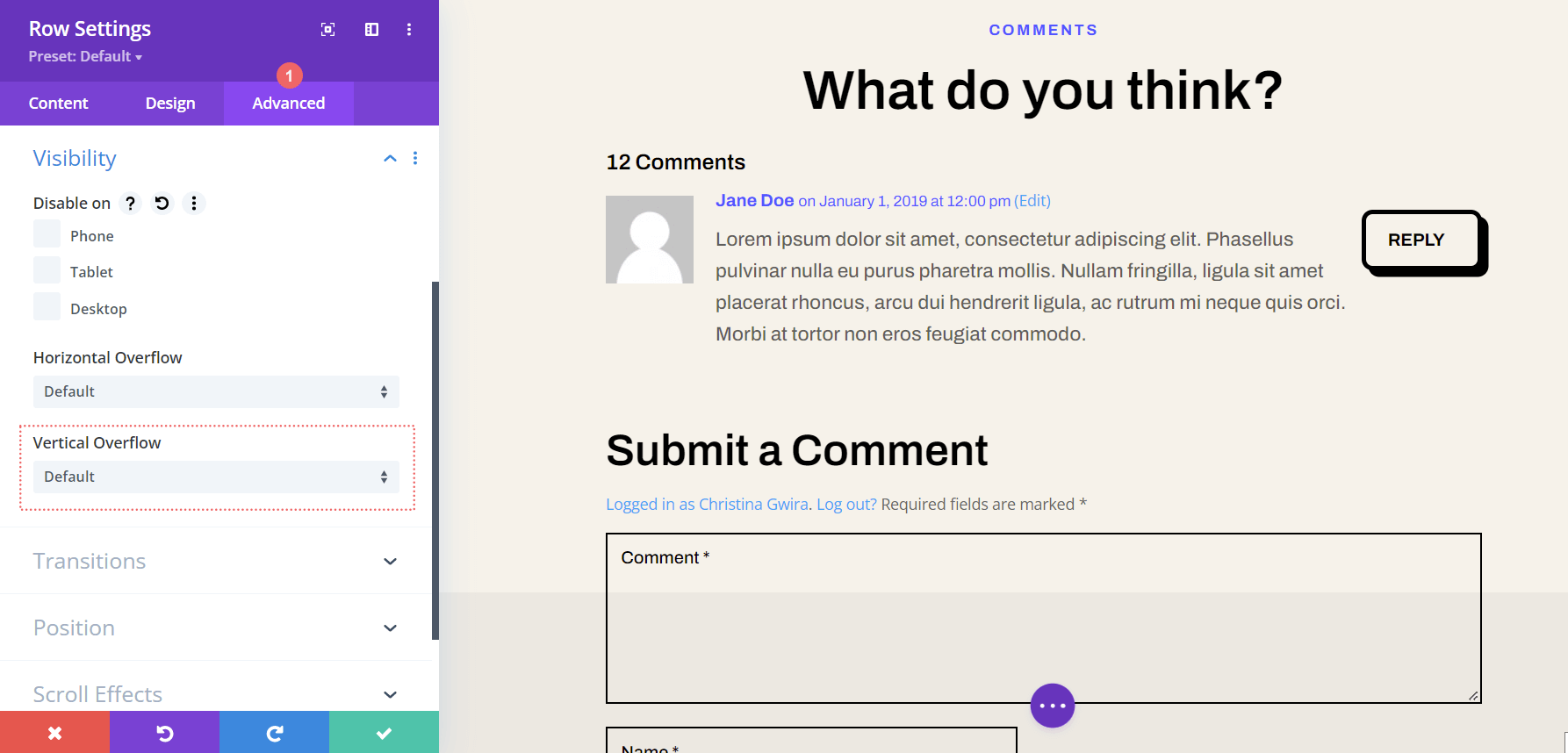
    After setting the max height of the row, we’re going to click on the Advanced tab within the modal box. It is here that the scrolling magic happens! Take note of the Vertical Overflow option which is further down the Advanced tab. We’ll be coming back to that soon.

    Enter the Advanced tab within the row settings modal box

    Activate the Vertical Scrollbar with Vertical Overflow

    Scroll down util you arrive at Vertical Overflow. Click on the dropdown and select Scroll.

    Activate vertical scrollbars by setting the Vertical Overflow to Scroll

    While we have our vertical scrollbar, we can spruce it up a bit with some almighty CSS and padding.

    Adding Padding to Prevent Overlap

    To prevent our newly added scrollbar from overlapping with our buttons within our comments section, we’re going to add some padding to the right and left-hand sides of our row. To do this, navigate to the Design tab of the Row Settings modal. Next, scroll down to Spacing. Click the link icon between the Left and Right Padding text boxes. We’re going to add a padding of 55px to each side of the row.

    Adding padding to row to prevent scrollbar from overlapping over Comments Module

    Since we’ve added some breathing space to our scrollbar, let’s now make it pretty with some custom CSS.

    Add a CSS ID to the Row

    Moving back to the Advanced tab of the row, scroll to the top. Add your CSS ID – for this tutorial, we’ll be using scrollie – that we’ll be calling within the Custom CSS section in the Body Template Settings.

    Add CSS ID to row to prepare for styling scrollable comments in Divi

    Add Custom CSS to Style Scrollbars

    Now, we’ll be entering into the Custom CSS for our Blog Post Template. This will ensure that our CSS will be active on each blog post within our website as this template is applied to All Blog Posts within the Divi Theme Builder. To enter the Custom CSS setting for our body template, click on the three dots within the purple button in the bottom center of the builder. Next, select the gear icon.

    Entering page settings for Custom CSS

    Add Custom CSS to Style Scrollable Comments in Divi

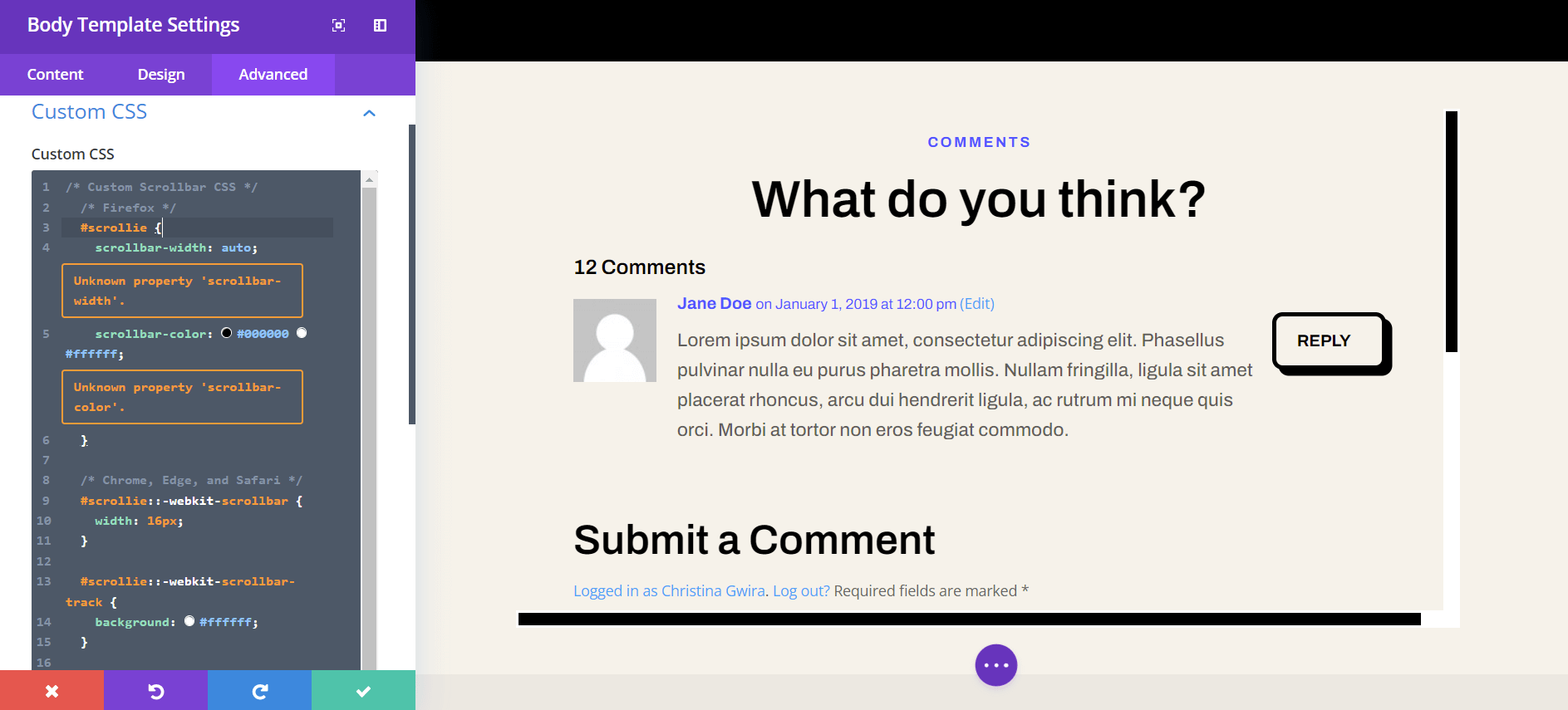
    We want to style the scrollbar for our scroll container to differentiate it’s use from the main scrollbars of our browsers window. To do this, we’ll be using some CSS. Once you are within the Body Template Settings, select the Advanced Tab. Next, scroll down to the Custom CSS tab.

    Entering the Advanced section of the Body Page Template

    Once we’re in the Custom CSS section of the Body Page Template, copy and paste the following CSS code:

    /* Custom Scrollbar CSS */
    /* Firefox */
    #scrollie {
    scrollbar-width: auto;
    scrollbar-color: #000000 #ffffff;
    }
    
    /* Chrome, Edge, and Safari */
    #scrollie::-webkit-scrollbar {
    width: 16px;
    }
    
    #scrollie::-webkit-scrollbar-track {
    background: #ffffff;
    }
    
    #scrollie::-webkit-scrollbar-thumb {
    background-color: #000000;
    border-radius: 0px;
    border: 3px solid #ffffff;
    }
    

    Custom CSS for scrollable comments in Divi

    If you used a different CSS ID, ensure that you’ve updated the code snippet within your website to reflect this. You can edit the CSS or add to it to style your borders in a way that matches your brand and website. In our case, we went with a flat design to match the styling of the Divi Software Layout Pack.

    Save Your Blog Post Template

    Once you’re happy with your CSS edits, remember to save your Blog Page Template. Click on the green Save button on the bottom right-hand side of the bottom menu within the Divi Theme Builder.

    Save your work!

    Once your settings are saved, visit your newly updated comments section on your blog!

    Styled scrollable comments in Divi

    Scrollable Comments in Divi: The Conclusion

    Creating a scroll container for Your Divi Comments Module helps your users to have a better experience with your comments section. User engagement is an important factor to nurture within your blog. By making your Comments Module scrollable, you are providing ease of use for your readers when they come to enjoy your various blog posts.

    The post How to Create a Scroll Container for Your Divi Comments Module appeared first on Elegant Themes Blog.

  • Divi Plugin Highlight: Divi Mega Pro

    Divi Mega Pro is a third-party plugin for Divi that adds the ability to create mega menus and tooltips with the Divi Builder. Since the mega menus and tooltips are created with the Divi Builder, you can use any modules you want, including third-party modules, shortcodes, and code, and style them with Divi’s tools. In this post, we’ll take a look at Divi Mega Pro to help you decide if Divi Mega Pro is the right product for your needs.

    Divi Mega Pro Builder

    Rather than adding modules to the Divi Builder, Divi Mega Pro adds a new post type created with Divi layouts that WordPress menus and Divi Modules can display. Create and add as many as you want to any page and menu. A new menu item is added to the WordPress dashboard called Divi Mega Pro. This includes the Divi Mega Pro list, editor, and settings. Here, you can create and manage your mega menus and tooltips. We’ll look at each menu item in reverse order.

    Divi Mega Pro Settings

    The settings allow you to add a slide transition to the header, content, and footer. You can enable them independently. They’re disabled by default. The transition will change the content within the menu or tooltip while keeping its container visible. This forces the mega menu and tooltips into hover mode. I recommend enabling them unless you need to use the click mode.

    Divi Mega Pro Builder

    Add New

    To create a mega menu item or a tooltip, click Add New. This opens an editor where you can create the menu or tooltip. It includes the TinyMCE editor, and you can enable the Divi Builder to create it with Divi Modules. You’ll need to create a new item for every mega menu element you want to display. For example, if you want four different links in your header to show a different mega menu layout, you’ll need to create four different items.

    The editor includes lots of tools in the right sidebar and at the bottom including the standard publishing tools and custom fields options. Let’s take a close look at each of the custom tools.

    Divi Mega Pro Builder

    Display Locations

    Choose where the mega menu can display. Select between all posts and pages, all posts, all pages, or specific pages. You can add exceptions for all posts or pages to the field. If you choose specific locations, then you can enter them into the field. You can also select to show the menu on author pages and archive pages, and force render.

    Divi Mega Pro Builder

    Mega Pro Animation

    Choose the animation the menu or tooltip will use when it’s opened. Choose Shift Away, Shift Toward, Perspective, Fade, or Scale. These give the mega menus an elegant look and feel when they’re opening and closing.

    Divi Mega Pro Builder

    Mega Pro Triggers

    Enter the CSS selector trigger into the field. It also shows the Mega Pro Unique Class that you’d enter into the CSS Class fields to display the layouts.

    Divi Mega Pro Builder

    Mega Pro Display Settings

    The settings include a lot of options. Choose the display direction, add top and bottom margin, choose the width, enter the maximum height, choose the CSS position from absolute or fixed, and enable an arrow.

    Divi Mega Pro Builder

    If you enable the arrow, you’ll see some styling tools to choose the type, color, width, and height. It shows a preview, so you’ll know how it looks on the front end.

    Divi Mega Pro Builder

    Custom Close Button Customizations

    The close button customizations allow you to enable the close button on desktops and phones independently.

    Divi Mega Pro Builder

    If you choose to customize the close button, you’ll see another set of options to adjust the colors, font size, border radius, and padding. It also includes a preview so you can see how it will look on the front end.

    Divi Mega Pro Builder

    Mega Pro Additional Settings

    The additional settings allow you to disable the menu on phones, tablets, and desktops individually. Chose the trigger type between hover and click, the exit type between hover and click, and enter the exit delay in the field.

    Divi Mega Pro Builder

    Mega Pro Background

    This one is placed under the editor. It has a color picker where you can specify the background color of the menu.

    Divi Mega Pro Builder

    Divi Mega Pro List

    This shows the list of Divi Mega Pro items that you’ve created. Each one includes the Unique Mega Pro Class. This is what you’ll copy to paste where you want the mega menu or tooltip to display. You’ll need to create and copy each menu item individually to build your mega menu.

    Divi Mega Pro Builder

    Adding the Mega Menu

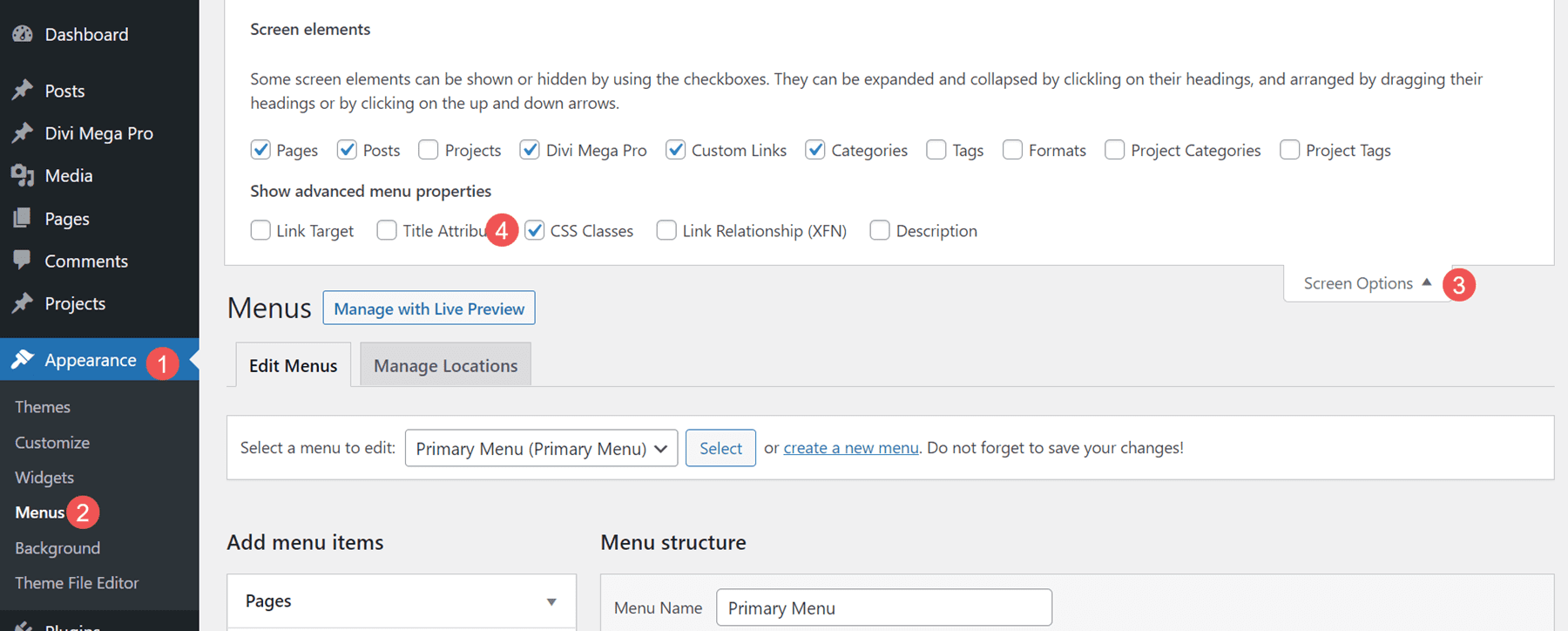
    To add the mega menu to your WordPress header and footer menus, you’ll need to have CSS Classes enabled. First, go to Appearance > Menus in the WordPress dashboard. Select Screen Options in the upper right corner of the screen and make sure CSS Classes is checked.

    Adding the Mega Menu

    Next, open the menu item that you want to display the mega menu item. Paste the Unique Mega Pro Class for the mega menu into the CSS Classes field.

    Adding the Mega Menu

    Repeat this process for every mega menu item you want to display.

    Adding the Mega Menu

    Here’s a look at this mega menu on the front end. I’ve used one of the demos that’s included, as we’ll see later.

    Adding the Mega Menu

    Adding Tooltips

    You can also use Divi Mega Pro to create mega tooltips. Simply add the CSS class to the element you want to show the tooltip. You can set the tooltip to open on hover or click. Any Divi Module can show a tooltip. Style the module as normal with the Divi tools.

    To add the tooltip, open the Divi Module you want to show the tooltip. Go to the Advanced tab and paste the Unique Mega Pro Class into the CSS Class field. Save your settings and you’re ready to display tooltips.

    Adding Tooltips

    Now when someone hovers over the element you’ve added the class to, the tooltip appears.

    Adding Tooltips

    The tooltips also work to create mega menus for headers in the Divi Theme Builder. Create the menu items with Divi Modules such as Text Modules, Button Modules, Image Modules, etc. I only recommend using Menu Modules to display standard menus as each link will either open a submenu or the page the menu points to.

    Add the Unique Mega Pro Class to the CSS Class field in each element you want to have a mega menu item. You can use this method to create custom headers and footers. In the example below, I’ve created a menu using standard Text Modules as the menu links. I’ll add a mega menu layout to each one.

    Adding Tooltips

    The menu items will work as a normal menu and display the mega menu items on hover or click, depending on your settings. In the example below, I’ve hovered over the first menu link and the mega menu for that Text Module has opened.

    Adding Tooltips

    Divi Mega Pro Templates

    Divi Mega Pro includes 15 templates to get you started. They’re provided as JSON files. Upload them to your Divi Mega Pro editor and use them to create your Divi Mega Pro layouts. They include eCommerce banners, tabs, CTA’s, contact information, a login form, blog posts, and lots more. The layouts are well-designed and work great with any style of the website.

    Divi Mega Pro Templates

    The templates are fully customizable, so you can adjust them to include your branded fonts and colors. This is template number 9, which creates eCommerce menus for featured brands. This shows the wireframe view within the back-end editor. You can also view the layouts on the front end. Mine displayed the layout with the sidebar by default, although I’m sure that can easily be disabled to show the layout in full width.

    Divi Mega Pro Templates

    Here’s how it would look on the front end. This is the back-end editor showing the desktop view.

    Divi Mega Pro Templates

    Where to Purchase Divi Mega Pro

    Divi Mega Pro is available in the Divi Marketplace for $79. It includes unlimited website usage, one year of support and updates, and a 30-day money-back guarantee.

    Where to Purchase Divi Mega Pro

    Ending Thoughts

    That’s our look at Divi Mega Pro. I found creating and using the mega menus to be intuitive. Since it uses any Divi Builder module, creating the menus and tooltips works the same as building any Divi layout. The extra features, such as animations, buttons, etc., provide even more control over the design and specify how the menus and tooltips work. It works well with pages, posts, WooCommerce products, and more. The added templates are a great way to get started. If you’re interested in creating mega menus and tooltips for your Divi websites, Divi Mega Pro is worth a look.

    We want to hear from you. Have you tried Divi Mega Pro? Let us know what you think about it in the comments.

    The post Divi Plugin Highlight: Divi Mega Pro appeared first on Elegant Themes Blog.

  • How to Add a Button to Your Divi Map Location’s Info Box

    The Divi Map module integrates with Google Maps seamlessly and is an easy way to add an interactive map to your Divi website. This is great for showing your business’s location or creating a local guide of your favorite boutiques and businesses.

    In this post, we’re going to show you how to add a button to the location info box for one of your pinned addresses.

    Design Preview

    First, let’s take a look at what we’re trying to accomplish. With some simple HTML, we’ll be able to accomplish adding a button inside the location info box for a pinned address.

    Let’s dive in!

    What You Need to Get Started

    To get started, you will need to do the following:

    1. Install Divi on your WordPress website.
    2. Add a Page, give it a title, and publish it.
    3. Enable the Visual Builder.
    4. Create your Google API Key.

    Select Build From Scratch

    Once you click the “Use Divi Builder” button the page will reload using Divi’s drag and drop builder interface. Three options will pop up – Build From Scratch, Choose A Premade Layout, and Clone Existing Page. For today’s purposes, select “Build From Scratch”. This will give us a blank slate where we can build our designs.

    Add Your Google API Key

    Before we’ll be able to fully use the map module and its functionalities, you’ll need to add your Google API Key to your Theme Options.

    1. From your WordPress dashboard, go to Divi > Theme Options and paste your Google API Key.
    2. Click “Save Changes”.

    Method 1: How to Add a Button to Your Divi Map Location’s Info Box

    Let’s get into the tutorial! Here’s how to add a button to the location info box.

    Add a Section and Row and the Map Module

    Navigate back to the page you just created and add a section and a one-column row to your page. Then load the module library and click Map. Once added, the module window will pop up with all the settings and functionalities available within the map module.

    Add  a Pin

    Click “Add New Pin” to add a pin to your map. This will bring up that pin’s settings where you can type in a title and add a description text. To add a button in the text area, add the following HTML:

    <a class="et_pb_button" href="#">Get Directions</a>

    The key here is to add the class of et_pb_button that turns a regular text link into a button. Don’t forget to replace the # sign with the URL you want this button to link to.

    Then add your pin’s location in the Map tab in the Map Pin Address field and click find.

    And there you have it! A button appears in the pin’s location info box.

    Method 2: Styling the Button with a Unique CSS Class

    There’s also another way to achieve this and it’s to add a unique CSS class to the HTML to style the button. Here is the HTML you’ll need:

    <a class="get-directions-btn" href="#">Get Directions</a>

    The unique CSS class we added was get-directions-btn. We can use this CSS class to apply unique styles to the button. You can do this by pasting on-page CSS or by using your child theme’s style sheet. In today’s example, we’re going the paste the CSS in our Page Settings.

    To achieve the button style below, copy and paste this CSS in to your Page Settings:

    .get-directions-btn {
      background-color: #1d1d1d!important;
      color: #f9f9f9;
      border-radius: 100px!important; 
      padding: 5px;}

    Final Thoughts

    Adding a button to your pin’s location box offers a clean direction button link that makes it easy for your visitors to get directions fast. You can also style the button using CSS added to your page! With that, the styling options are endless. Have fun customizing!

    The post How to Add a Button to Your Divi Map Location’s Info Box appeared first on Elegant Themes Blog.

  • Get a FREE Webinar Layout Pack for Divi

    Hey Divi Nation! Thanks for joining us for the next installment of our weekly Divi Design Initiative; where each week, we give away a brand new Layout Pack for Divi.

    This time around, the design team has created a beautiful Webinar Layout Pack that’ll help you get your next website up and running in no time!

    This layout pack includes:

    8 Premade page layouts strategically designed for any webinar website (including a footer design)
    – Original, royalty-free photos and graphics + customizable source file (see below)
    – Plus, a large collection of pre-designed website elements that are customizable and reusable anywhere.

    This layout pack is available right inside Divi for all Divi customers for FREE as the latest addition to our growing Divi library of hundreds of premade layout packs, thousands of page designs, and countless web design elements and resources.

    divi layout

    Check Out The Divi Webinar
    Layout Pack Below

    Get it for free today!

    webinar website

    Landing Page Design

    View The Live Layout Demo

    Home Page Design

    View The Live Layout Demo

    About Page Design

    View The Live Layout Demo

    Blog Page Design

    View The Live Layout Demo

    Contact Page Design

    View The Live Layout Demo

    Schedule Page Design

    View The Live Layout Demo

    Speakers Page Design

    View The Live Layout Demo

    Pricing Page Design

    View The Live Layout Demo

    Key Features

    If you’re looking to host webinars online, you’ll want to check out the Webinar Layout Pack for Divi. This layout pack provides beautiful layouts that focus on the essence of your webinars. Share your schedule, pricing, speakers, and more using the professionally-designed layouts in this layout pack!

    Live Demos

    Click the links below to see a live demo for each of the layouts included in the pack.

    1. Webinar Landing Page (live demo)
    2. Webinar Homepage (live demo)
    3. Webinar About Page (live demo)
    4. Webinar Blog Page (live demo)
    5. Webinar Contact Page (live demo)
    6. Webinar Schedule Page (live demo)
    7. Webinar Speakers Page (live demo)
    8. Webinar Pricing Page (live demo)

    Access This Layout Right Now
    Directly from Your Divi Builder

    Since Version 3.0.99 of Divi, you can find and import any of the layouts included in this pack (along with ALL of Divi’s Premade Layout packs) directly from the Divi Builder. They are already waiting for you.

    To access your new layout, simply activate the Visual Builder when editing a page and look for the “Load From Library” icon in the page settings bar (it looks like a plus symbol). Click this icon to launch the Load From Library popup. Under the Premade Layouts tab, you can easily find the new layout by scrolling through the list of layout packs. Once you find the Webinar Layout Pack, click on it. You will see all the individual layouts included in the pack. Select the layout you want to use and then click the “Use This Layout” button.

    webinar website

    For more, check out this video to learn how you can get this layout pack up and running today.

    Subscribe To Our Youtube Channel

    Authentication Required

    Before you can download Premade Layouts from the Divi Library you must authenticate your Elegant Themes Subscription. You can do this by navigating to Divi > Theme Options > Updates. There you can enter your username and API key and save changes.

    webinar website

    You can find your API Key under your members area on the Elegant Themes site. After you enter the Username and API Key, you will gain immediate access to our library of hundreds of free layouts (including this one). If you haven’t done this, when you click to import a layout to your page, you will be prompted to enter your Elegant Themes Membership Username and API Key.

    Use Layout Images for FREE with No Licensing Restrictions

    The image assets included with these layouts (icons, illustrations, photos, etc.) have no licensing restrictions. This means you can use them in all of your commercial projects without having to worry about paying licensing fees or attributing the photographer. Use them in your commercial websites, sell them within your Divi child themes, include them in your own Divi layout packs or just use them on your blog. We know how challenging it can be to find good photos and how confusing and scary the licensing that governs those photos can be. We want to fix that problem for our users.

    Download the Full Res Image Assets

    New Layout Pack Every Week!

    We hope you enjoy this layout pack. We look forward to hearing your opinions in the comment section below. Make sure you check out next week’s layout pack as well!

    The post Get a FREE Webinar Layout Pack for Divi appeared first on Elegant Themes Blog.

  • Check Out the FREE Divi Cyber Monday Template and Layout Packs

    The Divi Cyber Monday sale is going on right now. We have stellar deals on everything in the Divi Ecosystem; 25% off Divi or Divi Account Upgrades, 44% off Divi Cloud and Divi Teams, and up to 60% off Divi Marketplace bundles and products! Not only that, but we’ve reloaded our prize coffers too! Which means you’ll get a free prize with every qualifying purchase! Simply check the sales page to see which prize is currently active when you’re ready to make your purchase. And that’s not all!

    All existing Divi Lifetime Members and anyone who participates in our Cyber Monday sale this year will notice a new tab in their members’ area called “Perks.” In this tab you’ll notice two areas. The first will be a huge slate of additional deals from Divi Creators in the Marketplace. The second will be a set of free design resources you can download for FREE.

    In this post, we’ll be taking a closer look at these professionally designed Divi headers, footers, landing pages, theme builder templates, and WooCommerce product templates.

    TAKE ME TO THE SALE!

    Get These FREE Divi Layouts & Templates with ANY Cyber Monday Purchase

    If you’re looking to kickstart your new Divi build, there’s no better way to do it than with over 50 layouts and templates to get your website up and rolling. You’ll get your hands on headers and footers, page layouts and page templates, and some awesome-looking WooCommerce product pages that are absolute fire! You’d better act fast though, because once the Cyber Monday sale is over, these freebies are gone forever.

    The Full-site Theme Builder Pack

    Our exclusive Cyber Monday website templates include no less than 4 professionally-designed theme builder packs! These theme builder packs can serve as the foundation of any website you build. You can install an entire theme builder pack in one click, or pick an individual template to install. You get a variation of design styles within these beautiful theme builder packs, but they’re all highly balanced in design and work for any type of website you want to set up. With these theme builder packs, you will get:

    4 Header Templates 🎨
    4 Footer Templates 🎨
    4 Post Templates 🎨
    4 Category Templates 🎨
    4 Product Templates 🎨
    4 Cart Templates 🎨
    4 Checkout Templates 🎨
    4 Author Templates 🎨
    4 404 Templates 🎨

    Landing Page Layouts

    You don’t want to miss out on the 4 landing pages that come with this Cyber Monday deal either. These landing pages have been designed to put your product(s) in the spotlight. Throughout all 4 landing pages, there’s a great balance between copy and design, which makes it easy for you to communicate with your audience. The landing pages are also very easy to modify, which will allow you to create the ideal landing page for your own business. But these will be gone soon, so you better act fast!

    Global Headers and Footers

    We’re also providing you with 10 exclusive headers and footers! You’ll never have to struggle finding the right header and footer for your website again. These headers and footers were built with user experience in mind. We’ve provided both light and dark designs and we’ve used different design styles for each header and footer set. Each design is unique, but they’re all clean and match the 2022 design standards perfectly. You can tweak these easily to create your own variation as well! So, act fast, before they’re all gone!

    WooCommerce Product Templates

    Every online store owner knows how important it is to have a well-performing product page. That’s why we’re providing you with 10 exclusive product page templates that you can use for your next online store. These product page templates include all the dynamic content that is needed, from product images to add to cart, to descriptions, and more. We’ve used a variety of design styles on these, you’ll get to pick whatever matches your website’s aesthetic the best! Get these before they’re gone!

    How to Download and Install these Freebies from the Perks Tab

    If you’re a Lifetime Member or you’ve already made a purchase during our Black Friday and Cyber Monday sale, you can download these design assets for free, right now. Simply log-in to your Elegant Theme’s account and navigate to your members area. Click on the Perks tab and scroll down to the downloads area.

    Once you’ve downloaded everything, installation is just as easy. First, unzip or extract the json files from the zipped folder(s) you’ve downloaded. Then, upload your files to the correct location in Divi.

    Uploading Product Templates and Theme Builder Packs to Divi

    For the theme builder kits, including the WooCommerce product templates, navigate to Divi > Theme Builder. Click on the portability icon in the top right corner and import your files there.

    Uploading Headers, Footers, and Landing Pages to Divi

    For the headers, footers, and landing page layouts navigate to Divi > Divi Library. Click the “Import & Export” button in the top left and import your files there.

    Don’t Miss Out on These Amazing Freebies! Make Any Purchase During the Divi Cyber Monday Sale!

    We’ve never had a more amazing sale than the one we’re putting on right now. Not only are these the best deals we’ve ever offered, but it’s the first time we’ve included Divi Teams and Divi Cloud. When you factor in the prizes and perks, there’s something for everyone in the Divi Community. Don’t snooze on this sale, head over to elegantthemes.com/cybermonday now.

    TAKE ME TO THE SALE!

    The post Check Out the FREE Divi Cyber Monday Template and Layout Packs appeared first on Elegant Themes Blog.

  • Divi Plugin Highlight: WP and Divi Icons Pro

    WP and Divi Icons Pro is a third-party plugin that adds over 3900 icons with 11 different styles to the Divi Builder. Icons include Font Awesome, Material Design, and custom icons. You can also upload your own and use them with all the others. In this post, we’ll take a close look at WP and Divi Icons Pro to help you decide if it’s the right Divi plugin for your icon needs.

    Let’s get to it!

    About WP and Divi Icons Pro

    WP and Divi Icons Pro include over 3400 single-color icons and 500 multicolor icons. It works with the classic editor, Gutenberg, and it integrates into Divi modules so it’s always available regardless of the editor you’re using. The multicolor icons include an editor so you can specify the colors. This makes them work well with your branding.

    For Divi, it’s available within any Divi Module that includes icons or a content editor such as the Icon Module, Blurb Module, Accordion Module, Button Module, Toggle Module, Text Module, Call to Action Module, etc. We’ll see both options in this post.

    WP and Divi Icons Pro Divi Module Settings

    All the Divi modules that display icons have a new option to choose the icon type, more icons to choose from, and more options in the filter. It also includes a link to the WP and Divi Icons Pro plugin settings page (more on this later). An example of a Divi module that contains an icon is the Blurb Module. As soon as you install and activate the WP and Divi Icons Pro plugin, an entire new range of icons will appear in the icons area.

    WP and Divi Icons Pro Tutorial

    Icon Type

    The Icon Type lets you select between Single Color Icons and Multicolor Icons. With Single Color Icon selected, you’ll see the standard icon picker with search and a filter (as seen in the image above). With Multicolor Icon selected, you’ll see a new selection window called Icon Style. This has 9 options to choose from. These options divide the icons by design style.

    WP and Divi Icons Pro Tutorial

    Selecting a design style shows only that type of icon in the icon selection window. This window still includes the search and filter options. The filter has already been applied, so it only shows the options that pertain to that design style.

    WP and Divi Icons Pro Tutorial

    Colors are adjusted in the Design tab. Settings include the primary, secondary, and tertiary icon colors. The icon I’ve selected shows two colors.

    WP and Divi Icons Pro Tutorial

    If the icon has three colors, you can adjust all three. This example uses three colors. Some icons, like the one in this example, add a fourth color that’s a shade of the third color.

    WP and Divi Icons Pro Tutorial

    Icon Filter

    The icon selector includes search and filter options. The filter includes Outline, Hand Drawn, Sketch, Filled, Multicolor, and more. The filter option allows you to quickly find the icon you want in the style you like.

    WP and Divi Icons Pro Tutorial

    To search, just enter the keyword of the type of icon you’re looking for. For example, enter “tool” to find all the tool icons. You can filter these even further if you want.

    WP and Divi Icons Pro Tutorial

    Style the WP and Divi Icons Pro Icons

    The icons integrate with Divi and work the same as all Divi icons. Styling the WP and Divi Icons Pro icons is the same as styling any icon with Divi modules. In the example below, we’ve added a white background color and a 1 pixel border.

    WP and Divi Icons Pro Tutorial

    WP and Divi Icons Pro Content Editor

    All Divi modules with a content editor, such as the one found in the Text Module, Call to Action Module, Accordion Module, Blurb Module, etc., include an option in the toolbar to add an icon to your content.

    WP and Divi Icons Pro Tutorial

    This opens an icon insertion window that allows you to add an icon in-line with the content where you’ve placed your cursor. Selecting this opens the icon selector modal where you can select single or multicolor icons, choose the icon type, search, choose a color, change the icon size, see the icon title, and add a CSS class. Of course, it also includes a window with the icons you can select. You can add as many icons as you want to your content.

    WP and Divi Icons Pro Tutorial

    Multicolor icons add more color options to the editor. It will add either two or three color pickers depending on the icon you choose.

    WP and Divi Icons Pro Tutorial

    You can double-click the icon in the content to open the window again to choose a different icon or make adjustments.

    WP and Divi Icons Pro Tutorial

    WP and Divi Icons Pro Plugin Settings

    WP and Divi Icons Pro includes a settings screen with several tabs where you can make adjustments, upload icons, choose the icons you want to use, and see instructions on using the plugin.

    Performance Tab

    The Performance tab lets you disable the icons you don’t want to use. Uncheck them and they won’t appear in the icon selectors. This helps improve Divi’s performance because you’re not loading unused icons. In this example, I’ve unchecked the Font Awesome and Material Design icons.

    Multicolor Icons Tab

    Multicolor Icons let you specify color schemes for your icons. The colors you specify here appear at the end of the icon lists. At first, the multicolor icons didn’t appear in the Divi icon selector until I defined a color scheme in the WP and Divi Icons Pro plugin settings. Fortunately, this is easy to do.

    WP and Divi Icons Pro Plugin Settings

    Go to Divi > WP and Divi Icons in the dashboard menu. Select the Multicolor Icons tab. Click Add Color Scheme and select the colors to specify your own or click Save to use the default colors. You can adjust three different colors. You can add multiple color schemes and you can also remove any color scheme you don’t want to keep.

    WP and Divi Icons Pro Plugin Settings

    Custom Icons Tab

    The Custom Icons tab allows you to upload custom SVG icon sets. Once they’re added, they’re available within the Divi modules just like the others. To upload them, click Upload New Icon Set, select Choose File in the modal that opens, and select your icons. The zip file for the custom icon font must be generated with Fontello or Icomoon.

    WP and Divi Icons Pro Plugin Settings

    It does take a couple of steps, but it is simple and easy. Go to Fontello or Icomoon and upload your fonts to their platforms. Then, download the icons as a zipped file in their format. Once you have your zipped file, upload it in the Custom Icons tab. Your icons integrate with all the other icons.

    WP and Divi Icons Pro Plugin Settings

    Where to Purchase WP and Divi Icons Pro

    WP and Divi Icons Pro is available in the Divi Marketplace for $79. It includes unlimited website usage, 1 year of support and updates, and a 30-day money-back guarantee.

    Where to Purchase WP and Divi Icons Pro

    Ending Thoughts

    That’s our look at WP and Divi Icons Pro. It integrates well into the Divi Builder and provides several ways to add icons to your layouts and content. The features and settings are intuitive. I like the option to disable any icons I’m not using to save web resources. I also like the ability to upload my icons. They do have to be in a certain format, but fortunately, it isn’t difficult to create them in that format. If you’re interested in adding lots of new icons to your website, WP and Divi Icons Pro is worth a look.

    We want to hear from you. Have you tried WP and Divi Icons Pro? Let us know what you think about it in the comments.

    The post Divi Plugin Highlight: WP and Divi Icons Pro appeared first on Elegant Themes Blog.

  • Divi Plugin Highlight: Divi Shop Builder

    The Divi Shop Builder adds 14 new modules to the Divi Builder that allow you to customize the design of default WooCommerce pages with Divi. The plugin also comes with some premade shop layouts to give you a jump start on customizing your site. If you run an online store using WooCommerce and want to be able to customize WooCommerce just like you would any other Divi Module, this could be a great plugin for you! In this plugin highlight, we’ll take a close look at the features that come with Divi Shop Builder to give you an idea of what you can accomplish with this plugin.

    Let’s get started!

    Installing Divi Shop Builder

    Divi Shop Builder can be installed just like any other WordPress plugin. Open the plugins page in the WordPress dashboard and click Add New. Click Upload Plugin at the top, then select the .zip plugin file from your computer.

    Divi Plugin Highlight Divi Shop Builder Upload

    Once the plugin is installed, activate the plugin.

    Divi Plugin Highlight Divi Shop Builder Activate

    Divi Shop Builder

    To add the Divi Shop Builder modules to your website open a page with the Divi Builder. Add a new section and row, then click the grey plus button to add a new module. You will see 14 new modules added to the insert module section, which you will use to build the shop. Let’s take a look at each module below.

    Woo Shop + Module

    Start by adding the Woo Shop + module to your shop page.

    Divi Plugin Highlight Divi Shop Builder Woo Shop Module

    Here is how the shop module looks when it is first loaded.

    Divi Plugin Highlight Divi Shop Builder Shop First Load

    Content Tab

    Let’s take a look at the Woo Shop + module settings.

    Products

    The first section under the content tab is where you can choose and reorder the components displayed in the shop module. You can add a component by clicking the Add New Item button below.

    Divi Plugin Highlight Divi Shop Builder Add New

    There are 11 components to select from: Sale Badge, New Badge, Featured Image, Title, Ratings, Price, Add to Cart Quantity, Add to Cart, Categories, Stock, and Description. These options give you total control over what elements to display in the shop module, what order they are placed in, and more. When we get into the design settings, you’ll see how easy it is to completely customize the design of each of these components as well.

    Divi Plugin Highlight Divi Shop Builder Choose Component

    Here I’ve reordered the product components so that the new badge appears below the featured image.

    Divi Plugin Highlight Divi Shop Builder Component Settings

    Next in the next part, you can find the product view type setting. This allows you to change the type and order of products displayed in the module. You can select from Default (Menu ordering + name), Latest Products, Featured Products, Sale Products, Best Selling Products, Top Rated Products, and Product Category.

    Divi Plugin Highlight Divi Shop Builder Product View Type

    Below this, you can modify the number of products displayed in the module and change the order of products.

    Divi Plugin Highlight Divi Shop Builder Order

    Here I modified the product description length to 10. You can also enable or disable Ajax, enable filtering with the Woo Products Filters module, change the layout, and change the number of product columns. This is the list view using the Grid/List View Switch layout, which adds a button to the top where you can switch between grid and list view.

    Divi Plugin Highlight Divi Shop Builder Description Length

    The description content setting allows you to display a short description or a custom description. Following this, you can choose to display the product count results, product sorting, and pagination either above, below, above and below, or hide them entirely. You can also enable or disable sale flashes.

    You can change the position of the new badge with the badge position settings. The default option is don’t overlay on product image, which adds a banner that spans the width of the featured image. Alternatively, you can select an overlay position (top left, top right, bottom left, bottom right) which adds a small badge over the image. You can also change the text for the new badge. Following this are the exact same settings for the sale badge.

    Divi Plugin Highlight Divi Shop Builder Badge Position

    Last in this section are some display options. You can choose to display the add to cart button, the add to cart quantity field, change the default add to cart quantity, the product image, prices, ratings, categories, stock, and new badge.

    Divi Plugin Highlight Divi Shop Builder Display Settings

    No Products Found

    Here you can change the heading and message text for the No Products Found page.

    Default Content Tab Settings

    The Woo Shop + module also features the default content tab settings such as Link, Background, and Admin Label.

    Divi Plugin Highlight Divi Shop Builder Background

    Design Tab

    The design tab is where you can fully customize every aspect of the Woo Shop + module.

    Overlay

    First up, overlay settings. This is where you can customize the overlay that appears over the featured image on hover. In this example, I added a dark overlay and a white icon.

    Divi Plugin Highlight Divi Shop Builder Overlay

    Image

    With the image settings, you can change the padding and margin, add rounded corners, customize the border, and modify the image with any of the filter settings such as hue, saturation, brightness, and more.

    Divi Plugin Highlight Divi Shop Builder Image

    Star Rating

    Here you can customize the design of the star rating. You can change the non-active and active star rating color as well as the alignment, size, and spacing.

    Divi Plugin Highlight Divi Shop Builder Star Rating

    New Badge

    Next is the new badge settings. You can customize the padding and margin, set how many days the new tab stays, and completely customize the design with all of the background, font, and border options.

    Divi Plugin Highlight Divi Shop Builder New Badge

    Button

    The button settings group has all of the default button customization options such as background, font, border, icon, and box shadow settings. Here I customized the text color, background, font, and border radius.

    Divi Plugin Highlight Divi Shop Builder Button

    Quantity Field

    With the quantity field options you can change the background color, text color, focus background color, focus text color, spacing, font, border, and shadow. I modified the spacing options to add space between the quantity field and the button. I also changed the font and border radius.

    Divi Plugin Highlight Divi Shop Builder Quantity

    Product Container

    Here you can change the design of the product container, which surrounds each individual product listed. You can change the padding, margin, background, rounded corners, border, and shadow. I added a gray background to the section and changed the grid columns to 3, then added a white background to the product container. I also added rounded corners and a shadow to achieve this design.

    Divi Plugin Highlight Divi Shop Builder Product Container

    Product Description

    This is where you can customize the product description text. It includes settings for the description padding and margin as well as all of the default font options.

    Divi Plugin Highlight Divi Shop Builder Product Description

    Sorting Dropdown

    Next, in this section you can customize the design of the sorting dropdown for the shop module. You can change the background color, text color, focus background and text color, set the dropdown margin and padding, modify the font options, and customize the border. For this example, I kept it simple by changing the font and adding a gray border.

    Divi Plugin Highlight Divi Shop Builder Sorting Dropdown

    Results Count

    The results count options allow you to customize the font settings for this text. Here I changed the font.

    Divi Plugin Highlight Divi Shop Builder Results Count

    Pagination

    You can customize the design of the pagination here. There are options for the current page text color, current page text background, pagination color background, pagination text color, pagination font, and pagination border. In this example, I modified the current page text color, pagination text color, pagination font, pagination text size, and pagination wrapper rounded corners.

    Divi Plugin Highlight Divi Shop Builder Pagination

    View Cart Button

    The view cart button appears once a user adds a product to their cart. I enabled custom styles for the button and changed the text size, color, button background, border radius, font, icon, margin, and padding.

    Divi Plugin Highlight Divi Shop Builder View Cart

    Grid/List View Button

    The grid/list view button options allow you to change the icons, modify the icon and background colors, adjust the padding and margin, and customize the border and box shadow. I left the options default for this example.

    Divi Plugin Highlight Divi Shop Builder Grid List Button

    No Products Found

    In this settings group you can change the text and heading font, the spacing, the border, and the colors for the no products found message. I modified the text and heading font and added some bottom padding to the section.

    Divi Plugin Highlight Divi Shop Builder No Products Design

    Text

    Here you can change the text alignment and add a text shadow.

    Divi Plugin Highlight Divi Shop Builder Text

    Title Text

    Next is the title text settings, where you can customize the product title font. For this example, I changed the font and the text size.

    Divi Plugin Highlight Divi Shop Builder Title Text

    Price Text

    All of the font options are available for the price text as well. Again, I changed the font and the text size for the price.

    Divi Plugin Highlight Divi Shop Builder Price

    Old Price Text

    The old price text appears with a strikethrough effect whenever a product is on sale. You can customize the font options here. I changed the font and increased the text size to match the regular price font.

    Divi Plugin Highlight Divi Shop Builder Old Price

    Category Text

    For the category text, I used the font options to change the font and text color.

    Divi Plugin Highlight Divi Shop Builder Category

    In Stock Text

    You can customize the in stock text with all of the font options as well. I changed the font and text color.

    Divi Plugin Highlight Divi Shop Builder In Stock

    Out of Stock Text

    Next is the out of stock text. I kept it simple and changed the font for this example.

    Divi Plugin Highlight Divi Shop Builder Out of Stock

    Available On Backorder Text

    Here I changed the available on backorder font and changed the text color to orange.

    Divi Plugin Highlight Divi Shop Builder Backorder

    Sale Badge Text

    Here you can customize the design of the sale badge. I changed the font and the background color.

    Divi Plugin Highlight Divi Shop Builder Sale Badge

    Sale Price Text

    Finally, I adjusted the font for the sale price text with the font options available.

    Divi Plugin Highlight Divi Shop Builder Sale Price

    Default Design Tab Settings

    That’s it for the new settings added to the design tab. The module also comes with several of the default design tab options such as sizing, spacing, border, box shadow, filters, transform, and animation. You can use these design options to further enhance your Woo Shop + module.

    Advanced Tab

    The advanced tab is fairly standard and comes with all of the sections you would expect to find in order to customize your module with CSS and more. Under the Custom CSS section, you can add CSS to individually customize aspects of the shop module, such as product, onsale, new badge, image, and more.

    Divi Plugin Highlight Divi Shop Builder Custom CSS

    Woo Products Filter Module

    Now that we’ve taken a close look at the shop module, let’s take a look at the Woo Products Filter module. This module adds a filter to your page that you can use to modify your shop results. Click the grey plus button to insert a module and select the Woo Products Filters module.

    Divi Plugin Highlight Divi Shop Builder Filters

    Once you add the module, you may see this error message about enabling filtering.

    Divi Plugin Highlight Divi Shop Builder Filter Error

    Open your Woo Shop + module and select the option to enable filtering with the Woo Products Filters module. This will help connect the filter module and the shop module so that the shop items will change depending on the filters you select.

    Divi Plugin Highlight Divi Shop Builder Enable Filtering

    Content Tab

    Under the content tab, you can add a new item to your filter module.

    Divi Plugin Highlight Divi Shop Builder New Item

    Once you add a new item it will open up in an individual settings window where you can select the type of filter and customize many aspects of the filter. There are individual design options for each filter which you can use to individually style the look of the filter. Each of these options are also available in the filter module design tab, where you can customize the overall design of each filter type.

    There are 8 types of filters you can add: Category, Tag, Attribute, Search, Rating, Price, Stock Status, and Sale. Here I added a column to the row so that the filter can be placed to the side of the shop module.

    Divi Plugin Highlight Divi Shop Builder Filters

    Under the filter settings for the individual filter, you can select the filter type, choose to display or hide the filter title, and add custom filter title text.

    Divi Plugin Highlight Divi Shop Builder Filter Settings

    Category Filter

    The advanced filter settings for the individual filter change depending on the type of filter you have selected. For the category filter, you can choose to show parent categories only, parent categories and subcategories non-hierarchical, or parent categories and subcategories hierarchical. You can also change how the filter is displayed: checkboxes list, radio buttons list, dropdown single select, dropdown multi select, or tag cloud. For this example, I selected the dropdown multi select. Also in this section, you can enable or disable display as toggle, choose to show or hide the number of products, and change the “please select” text.

    Divi Plugin Highlight Divi Shop Builder Advanced Filter Settings

    Tag Filter

    For the tag filter, I am enabling the tag cloud display and disabling the toggle display.

    Divi Plugin Highlight Divi Shop Builder Tag Filter

    Search Filter

    Here are the search filter settings. Once again I’ve disabled the toggle view.

    Divi Plugin Highlight Divi Shop Builder Search

    Rating Filter

    The rating filter has several display options: single line stars (selected rating and up), single line stars (only selected rating), radio buttons stars, radio buttons text, checkboxes stars, checkboxes text, dropdown stars, dropdown text. I have selected the single line stars (selected rating and up) option.

    Divi Plugin Highlight Divi Shop Builder Rating

    Price Filter

    Next is the price filter. You can choose between a from-to slider, a from-to number input, or a from-to slider and number input. For this example I selected the from-to slider and adjusted the maximum amount.

    Divi Plugin Highlight Divi Shop Builder Price Filter

    Stock Filter

    You can display the stock filter as a checkbox list, a radio button list, a dropdown single select, a dropdown multi select, or a tag cloud. I selected the radio buttons list for this filter and selected to display the number of products.

    Divi Plugin Highlight Divi Shop Builder Stock

    Sale Filter

    The sale filter options are pretty simple – you can enable or disable the toggle display and change the on sale text.

    Divi Plugin Highlight Divi Shop Builder Sale

    Attribute Filter

    Finally, we have the attribute filter. I’ve chosen to use colors for the attribute example, and I have selected the checkboxes list display option.

    Divi Plugin Highlight Divi Shop Builder Attribute

    Content Tab Filters Settings

    Back in the content tab of the filter module settings, there are some additional options listed under the filters settings group.

    First, you can select to display selected filters at the top or bottom, or hide them entirely. I chose to display them at the top. You can also choose to display or hide the selected filters title and change the title text.

    Divi Plugin Highlight Divi Shop Builder Selected Filters

    Also in this section are options for the apply filters and clear filters buttons. You can choose to display them before or after the filters, or not at all. You can also change the button text. I chose to display both buttons after the filters.

    Divi Plugin Highlight Divi Shop Builder Filter Buttons

    The content tab also has a section for background settings and admin label settings.

    Design Tab

    The design tab for the filter module has an extensive amount of design options for you to completely customize the filter designs. You can customize the font, spacing, border, and background for each of the filter types. You can also customize the buttons, selected filters, sizing, spacing, border, box shadow, filters, transform, and animation options. We won’t go into much detail here, but just know that you can modify just about any aspect of the filter module to your liking.

    For this example, I modified the font, added rounded corners to the selected filters, decreased the bottom margin between filters, added a border to the dropdown filter, changed the color of the active tag, price filter, stock status, and checkmarks to match the color scheme, customized the button design, and added a rounded corner and box shadow to the filter module. Here is the final design with the filter module and shop module.

    Divi Plugin Highlight Divi Shop Builder Shop Page Design

    Cart List Module

    Now let’s move over to the cart page. First, the cart list module. This module will display the contents of your cart.

    Content Tab

    Within the module settings, you can change the content that is displayed. You can choose to show or hide certain columns such as the remove product column, the product column, the thumbnail, the product name, the price, the quantity, the subtotal, and the coupon code.

    Divi Plugin Highlight Divi Shop Builder Cart Contents

    You can also rename any of the columns with custom text.

    Divi Plugin Highlight Divi Shop Builder Cart Labels

    Additionally, you can customize the empty cart text, button text, and button URL.

    Divi Plugin Highlight Divi Shop Builder Empty Cart

    The content tab also features the default background and admin label settings.

    Design Tab

    Here you can completely customize the design of the cart module. Every aspect of the cart module can be changed, including the buttons, the text, the table, and more.

    Divi Plugin Highlight Divi Shop Builder Cart Design

    I’ve customized the design by adding a white background and rounded corners, changing the font, increasing the image thumbnail size, and customizing the buttons.

    Divi Plugin Highlight Divi Shop Builder Cart Final Design

    Cart Totals Module

    The cart totals module should also be added to the cart page. It will display the subtotal and total for the cart items and has a button to proceed to checkout.

    Content Tab

    Within the module settings, you can change the text such as the title, subtotal text, total text, and proceed to checkout button text. You can also add a background and change the admin label.

    Divi Plugin Highlight Divi Shop Builder Cart Total Content

    Design Tab

    With the design settings, you can customize every aspect of the cart totals module. For this example, I added a background, a box shadow, and rounded corners to the module. I changed the font to match the rest of the design, and also customized the proceed to checkout button.

    Divi Plugin Highlight Divi Shop Builder Cart Totals Design

    WooCommerce Notices Module

    The WooCommerce Notices module can also be placed on the cart page. This module will display any error messages or notices that may come up. I’m adding it to the top of the cart page, above the cart list module.

    Content Tab

    Under the content tab you can enable test mode, which will display all of the notices on the front end while you test the design. Here is what the three different notices look like by default.

    Divi Plugin Highlight Divi Shop Builder Woo Commerce Notices

    Design Tab

    Here you can modify the design of the notices. I changed the background colors to correspond with the type of notice, and changed the styling to match the rest of the design.

    Divi Plugin Highlight Divi Shop Builder Notices Designed

    Checkout Billing Module

    Moving on to the checkout page, first up is the billing module. This is where you can collect billing details to complete the transaction.

    Content Tab

    Under the content tab, you can change the billing title text as well as any of the field labels. You can also add a link or background and change the admin label. Here I added a background color to the layout.

    Divi Plugin Highlight Divi Shop Builder Billing Content

    Design Tab

    The design tab has options to customize everything from the heading and labels to the fields and borders. For this example, I kept the design in alignment with the other modules and added a rounded border and a box shadow, changed the spacing, and modified the font.

    Divi Plugin Highlight Divi Shop Builder Billing Design

    Checkout Coupon Module

    Next, we can add the checkout coupon module to the checkout page.

    Content Tab

    In the content tab, you can choose to show the coupon section via toggle or to have it always displayed. I chose to have it displayed. Here you can also change the text for any of the coupon module elements.

    Divi Plugin Highlight Divi Shop Builder Coupon Content

    Design Tab

    Here is the designed coupon module. I added a background, box shadow, and rounded corners. I also changed the font and customized the button.

    Divi Plugin Highlight Divi Shop Builder Coupon Design

    Checkout Order Module

    Now let’s move on to the checkout order module. This is another module for the checkout page and it displays the customer’s order information such as the selected products, the subtotal, shipping, the total cost, payment options, and a privacy policy checkbox.

    Content Tab

    In the content tab you can change the heading text and the place order button text. You can also choose to show or hide the privacy policy and terms and conditions. Of course, you can also add a background and change the admin label here as well.

    Divi Plugin Highlight Divi Shop Builder Checkout Order Content

    Design Tab

    Just like the other modules, the checkout order module can also be completely customized. Here I changed the font, added a background and rounded corners, and customized the button.

    Divi Plugin Highlight Divi Shop Builder Checkout Order Design

    Checkout Shipping Module

    The last module for the checkout page is the checkout shipping module.

    Content Tab

    In the content tab, you can change the title text, choose to have the title toggle, and show or hide order notes. You can also change any of the field labels.

    Divi Plugin Highlight Divi Shop Builder Shipping Content

    Design Tab

    Here is the customized design. Again, I added a background, rounded borders, a box shadow, and changed the font.

    Divi Plugin Highlight Divi Shop Builder Shipping Design

    And here is the full design for the checkout page.

    Divi Plugin Highlight Divi Shop Builder Checkout Page Design

    Account Content Module

    Divi shop builder also comes with some modules to customize the account page. Let’s take a look at the account content module first. There are different elements you can add to the page and you can rearrange them however you would like. These elements include dashboard, orders, subscriptions, downloads, addresses, account details, login, register, and lost password sections. Each element has its own settings page where you can customize the individual element’s design. The account content module also has design options where you can customize the overall design.

    Divi Plugin Highlight Divi Shop Builder Account Content

    Here is the styled default dashboard view, along with the notice messages at the top.

    Divi Plugin Highlight Divi Shop Builder Dashboard

    This is the styled orders page, where customers can see all of their completed and pending orders.

    Divi Plugin Highlight Divi Shop Builder Orders

    This is an example of a downloads page.

    Divi Plugin Highlight Divi Shop Builder Downloads

    As you can see, this plugin gives you total control over the design of the account page as well. Let’s take a look at a couple more modules that work with the account page.

    Account Navigation Module

    This module adds a navigation menu to the page so that users can view the different pages in their account. Just like the account content module, you can add and remove any of the pages from the menu and change their order. Here is the styled navigation module.

    Divi Plugin Highlight Divi Shop Builder Account Navigation

    Account User Image Module

    The account user image module adds the user’s profile image to the page. Here it is in action.

    Divi Plugin Highlight Divi Shop Builder Account User Image

    Account User Name Module

    Similarly, the account user name module adds the user’s username to the page. You can alternatively select to display the first name, last name, full name, or display name.

    Divi Plugin Highlight Divi Shop Builder Account Username

    Here is the full account interface on the front end. This is the account details page.

    Divi Plugin Highlight Divi Shop Builder Account Details

    Thank You Module

    The final module we’ll cover is the thank you module. This will appear after an order has been completed. You can change any of the labels using the content tab settings, and of course the entire module can be customized with its design settings. Here is the styled thank you page.

    Divi Plugin Highlight Divi Shop Builder Thank You

    Divi Shop Builder Layouts

    Divi Shop Builder also comes with several premade shop layouts that you can use to jump-start the design process. Let’s take a look at a couple of the designs.

    Woo Shop + Module Demo 1

    This is one of the shop demo layouts. It has a card-style design and features a green border that appears on hover.

    Divi Plugin Highlight Divi Shop Builder Demo 1

    Coffee Cart and Checkout Layouts

    The coffee layout comes with a cart layout and a checkout layout. Here is the cart layout.

    Divi Plugin Highlight Divi Shop Builder Coffee Cart

    And here is the checkout layout.

    Divi Plugin Highlight Divi Shop Builder Coffee Checkout

    Woo Shop + Food Layout

    This is another shop module layout with a creative “sweet or salty” split layout. This layout features a round product image with a colored border.

    Divi Plugin Highlight Divi Shop Builder Food

    Purchase Divi Shop Builder

    Divi Shop Builder is available in the Divi Marketplace. It costs $109 for unlimited website usage and 1 year of support and updates. The price also includes a 30-day money-back guarantee.

    Divi Shop Builder Tutorial

    Final Thoughts

    That was our look at Divi Shop Builder. As you can see, this plugin is jam-packed with modules and design options that give you complete control over the design of your shop, cart, checkout, account, and thank you pages. As comprehensive as this plugin is, it is also very easy to use and customize. The plugin author also has extensive documentation for the product, which is very helpful. If you are looking for a way to customize your WooCommerce shop with Divi, this is a great option. We would love to hear from you! Have you tried Divi Shop Builder? Let us know what you think about it in the comments!

    The post Divi Plugin Highlight: Divi Shop Builder appeared first on Elegant Themes Blog.

  • Download a FREE Blog Post Template for Divi’s Poke Restaurant Layout Pack

    Hey Divi Creators! Thanks for joining us for the next installment of our weekly Divi Design Initiative where each week, we give away brand new freebies. This time around we’re building upon the Poke Restaurant Layout Pack with a brand new blog post template that matches the rest of the pack perfectly. Hope you enjoy it!

    divi layout

    Check Out The Poke Restaurant
    Blog Post Template Below

    Get it for free today!

    Desktop View

    Divi Poke Restaurant Blog Post Template for Desktop

    Tablet and Mobile View

    Divi Poke Restaurant Blog Post Template for Tablet and Mobile

    Download The Blog Post Template For The Poke Restaurant Layout Pack

    To lay your hands on the free Poke Restaurant Blog Post Template, you will first need to download it using the button below. To gain access to the download you will need to subscribe to our newsletter by using the form below. As a new subscriber, you will receive even more Divi goodness and a free Divi Layout pack every Monday! If you’re already on the list, simply enter your email address below and click download. You will not be “resubscribed” or receive extra emails.

    How to Upload The Divi Poke Restaurant Blog Template

    Go to Divi Theme Builder

    To upload the template, navigate to the Divi Theme Builder in the backend of your WordPress website.

    Getting started with the Divi Conference Layout Pack

    Upload Website Template

    Then, in the top right corner, you’ll see an icon with two arrows. Click on the icon.

    Opening the import export functionality of the Divi Theme Builder

    Navigate to the import tab, upload the JSON file that you could download in this post, and click on ‘Import Divi Theme Builder Templates’.

    Import settings for the header and footer layout pack

    Save Divi Theme Builder Changes

    Once you’ve uploaded the file, you’ll notice a new template with a new body area that has been assigned to All Posts. Save the Divi Theme Builder changes as soon as you want the template to be activated.

    Save the imported blog post layout within the Divi Theme Builder

    How to Modify The Template

    Open the Poke Restaurant Blog Template

    To modify the template’s elements, start by opening the template.

    Begin editing the blog post body template within the Divi Builder

    Inside the Body Layout Editor, you can edit the design on the front end using the Divi Builder just like you would with a normal Divi page.

    Since this is a template that has been assigned to all posts for the site, there is a post content module that is necessary for displaying the post content. You will need to keep that module in place, but you can adjust the post content module’s design elements, which will design the post content that is displayed dynamically.

    Edit post content settings for the Divi Poke Restaurant Blog Post Template if you so choose

    About the Layout

    This blog post template has a lot of dynamic elements that will work with your blog posts immediately. For example, the entire post header is made up of dynamic elements including a featured image, the post title, and the post metadata (date, categories, author, and comment count). This content won’t need updating, but you can tweak the design of each of those elements if needed.

    Other dynamic elements include the following:

    • Post Content Module: Displays the post content added when editing the post on the backend of WordPress.
    • Comments: A functional comment area for the post.
    • Post Navigation: Provides the ability to navigate between previous and next buttons within the post category.
    • Post Slider: Displays the most recent posts that share the same category in a slider format.

    Here is a quick illustration that identifies the elements of the Poke Restaurant blog post template.

    Divi Poke Restaurant Blog Post Layout Breakdown Illustration

    New Freebies Every Week!

    We hope you’ve enjoyed the Poke Restaurant Layout Pack and the blog post template freebie that goes along with it. We look forward to hearing your opinions in the comment section below. Make sure you check back next week for more freebies!

    The post Download a FREE Blog Post Template for Divi’s Poke Restaurant Layout Pack appeared first on Elegant Themes Blog.