EDITS.WS

Tag: Divi Resources

  • Download a FREE Category Page Template for Divi’s Home Baker Layout Pack

    Hey Divi Nation! Thanks for joining us for the next installment of our weekly Divi Design Initiative where each week, we give away brand new freebies. This time around we’re building upon the Home Baker Layout Pack with a brand new Category Page Template that matches the rest of the pack perfectly. Hope you enjoy it!

    divi layout

    Check Out The Home Baker
    Category Page Template Below

    Get it for free today!

    Desktop View

    Category Page Template for Divi's Home Baker Layout Pack Desktop View

    Tablet and Mobile View

    Category Page Template for Divi's Home Baker Layout Pack Tablet and Mobile View

    Download The Category Page Template For The Home Baker Layout Pack

    To lay your hands on the free Home Baker Category Page Template, you will first need to download it using the button below. To gain access to the download you will need to subscribe to our newsletter by using the form below. As a new subscriber, you will receive even more Divi goodness and a free Divi Layout pack every Monday! If you’re already on the list, simply enter your email address below and click download. You will not be “resubscribed” or receive extra emails.

    How to Upload The Template

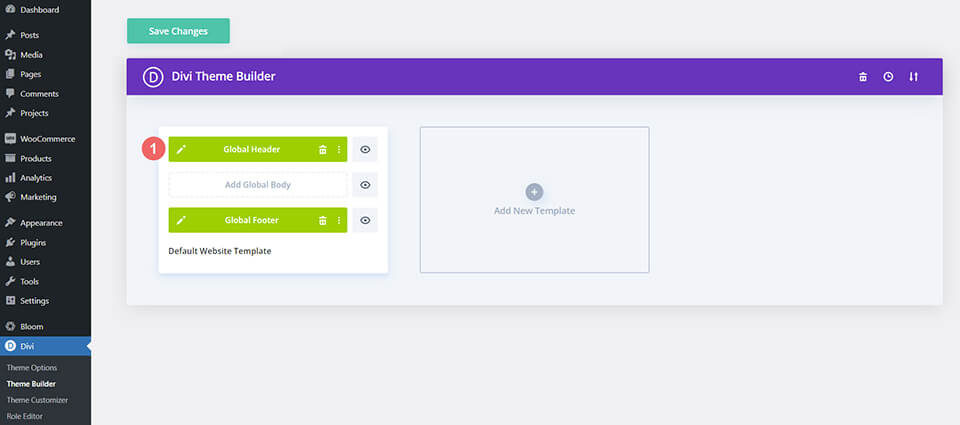
    Go to Divi Theme Builder

    To upload the template, navigate to the Divi Theme Builder in the backend of your WordPress website.

    Getting started with the Divi Conference Layout Pack

    Upload Website Template

    Then, in the top right corner, you’ll see an icon with two arrows. Click on the icon.

    Importing the Header and Footer Layout into the Divi Theme Buidler

    Navigate to the import tab, upload the JSON file that you could download in this post, and click on ‘Import Divi Theme Builder Templates’.

    Import settings for the header and footer layout pack

    Save Divi Theme Builder Changes

    Once you’ve uploaded the file, you’ll notice a new template with a new body area that has been assigned to All Category Pages. Save the Divi Theme Builder changes as soon as you want the template to be activated.

    Save the imported category page layout within the Divi Theme Builder

    How to Modify The Template

    Open Category Page Template Body Layout

    To modify the template’s elements, start by opening the template’s body layout.

    Begin the process for editing the Category Page Layout

    Inside the Body Layout Editor, you can edit the design on the front end using the Divi Builder just like you would with a normal Divi page.

    About the Template

    This category page template has a few dynamic elements that will work automatically including:

    • Category Page Post/Archive Title: This will display the name of the category.
    • Blog Module 1: This displays the two most recent posts within the current category.
    • Blog Module 2: This module has a 2 post offset that displays the next 6 posts, following the first two. This module is display in a masonry grid format and has pagination.

    Here is a quick illustration that identifies the dynamic elements of the Home Baker Category Page Template.

    Illustration of Prepopulated Modules in the Category Page Template for Divi's Home Baker Layout Pack

    Updating the Template’s Dynamic Elements

    Blog Module(s)

    Posts for Current Page

    Since this is a template that has been assigned to all category pages for the site, there are going to be one or more blog modules that are set to display posts for the current page. This is how the template displays the posts dynamically for each category page.

    Showcasing the blog posts for the specific category chosen

    You can update the rest of the settings (like post count) to adjust the module elements and design. However, make sure to keep the option Posts for Current Page set to YES.

    Post Offsets

    If more than one blog module is used on the template, the post offset option is used in conjunction with the previous blog module to preserve the order of dynamic posts by picking up where the previous blog module left off. In our case, the previous blog module had a post count of 2, the next blog module will have a post offset of 2 to display posts starting at #3.

    Understanding the post offsets for the second Blog Module

    Keep this in mind when making updates to blog modules’ post count and offsets.

    Updating the Template’s Static Elements

    Some elements on a category page template will need your immediate attention before using it live on your own website. These elements are called static because they will not update dynamically.

    Email Optin

    To allow the Email Optin Module to show up in your design, you’ll need to link an email account.

    Connect email marketing platform of choice to Email Optin Module

    Update Other Category Page Static Content

    Other content that isn’t going to change dynamically should be updated as well. These include all modules displaying text, links, social media follow icons, etc.

    New Freebies Every Week!

    We hope you’ve enjoyed the Home Baker Layout Pack and the Category Page Template freebie that goes along with it. We look forward to hearing your opinions in the comment section below. Make sure you check back next week for more freebies!

    The post Download a FREE Category Page Template for Divi’s Home Baker Layout Pack appeared first on Elegant Themes Blog.

  • How to Organize Your Templates in Divi’s Theme Builder Library

    Consider using the new Divi Theme Builder Library in your workflow as you build your next website. With its integration with the Divi Cloud, you have the power to take your templates from one site to another. It can get tricky to keep this newfound creative expression under wraps though. Before you get out of hand with loading your library, let’s learn how to organize templates in Divi’s Theme Builder Library.

    Let’s Start with the Basics: Naming Conventions

    When working on a large project, as we are working through ideas and iterations, our workspace, documents, and folders can get a little bit… disheveled…

    A real life example of a disorganized logo design folder

    It is entirely possible to bring this same mindset to your Divi Theme Builder Library items. With new layout packs released almost weekly and freebies abounding, your library can easily get swamped. As such, having a standardized way of organizing your templates through having a naming convention is advised.

    A cross-section of a Divi Theme Builder with multiple templates

    In the Divi Theme Builder example above, we notice that each template follows a similar naming convention. Firstly, the name of the template pack is written down in sentence case. Next, there is a dash. Lastly, the type of freebie or template is stated. We can take these same learnings to organize templates in Divi’s Theme Builder Library.

    An example of an organized Divi Theme Builder Library

    In this example, we see that naming conventions aren’t followed as strongly. Nevertheless, it is a far cry from our logo design folder! Notice that at the very least, a sentence case is used with each template. Also, the type of template is denoted within the name.

    Use Tags to Make Searching Easier

    The Divi Theme Builder comes with three ways to search and find your templates. These are search (with filter), categories, and tags.

    Search with filter, tags and categories

    By having a consistent naming convention, it is easier to look for items in our library. For example, by using the word header in all our header templates, when we search for “header”, all header templates will show up. This is where tags can come in. Irrespective of your naming convention, if you were to tag all your header templates with the tag header, you will get the same result when you search.

    Manage tags and categories

    It is also possible to manage your tags and categories within the Divi Theme Builder Library. If you make a typo, or want to add alternatives, you can do so.

    Organize Templates in Divi’s Theme Builder Library with Categories

    Just like categories on a WordPress website, categories in the Divi Theme Builder Library allow you to group your templates together. Perhaps you want to have a category for all your blog post templates. Maybe you want a category for all your red templates. However you’d like to organize your templates, a category will help make your life easier.

    Local categories in the Divi Theme Builder Library

    Divi Cloud Categories vs. Local Categories

    A special note needs to be made for categories. In the Divi Theme Builder Library, you can make two types of categories. These categories are Divi Cloud Categories and Categories. As the name suggests, Divi Cloud Categories allow you to save templates to the Divi Cloud. However, these categories are not available on your local Divi installation. Your local Divi categories are relegated only to the site that they were built on.

    Managing categories in Divi Theme Builder

    Should you decide to manage your categories in the Divi Theme Builder Library, you are also able to manage your Divi Cloud Categories as well.

    Using Template Sets to Organize Templates in Divi’s Theme Builder Library

    The final way in which you can organize your templates within Divi’s Theme Builder Library is via Template Sets. A Template Set is a group of templates that were created within the Divi Theme Builder.

    A preview of a Theme Builder Library Template Set

    The above screenshot shows that currently, there are a few Template Sets that are matched to different layout pack categories provided by Divi. Template Sets can help you organize your Divi Theme Builder Library by helping you to create packs of templates that speak together. Take for example the Landscaper Set. Inside this Template Set, we have all built upon the free Landscape Maintenance Layout Pack, added it’s header and footer, as well as the blog post template. Changes were also made to all of these templates to customize it for our needs. If we were to simply have all those templates within our Divi Theme Builder, you’re looking at quite a few templates. However, by putting them all within a Template Set, we keep our Divi Theme Builder neat. In addition to a neat and tidy Theme Builder, we can easily reference all the templates within the set.

    Template Sets and their categories

    It is important to note that Divi Theme Builder Template Sets have their own set of categories. These categories are different from the categories used to organize standalone Divi Theme Builder Templates. Standard Theme Builder Templates and Divi Template Sets cannot be organized in the same categories. Similar to the standard Divi Theme Builder Template, there is also a different type of category for Template Sets that reside on the Divi Cloud.

    In Conclusion

    There are a number of ways to keep your Divi Theme Builder Library organized. Adopting a naming convention for your Divi Theme Builder Library is a practice that can assist you in keeping your library organized. Following this, you may want to consider adding tags to your individual templates. Tags make it easier to filter and search through your library. Noticing that there is a difference between categories on your local Divi install and Divi Cloud is an important point to remember. Also, don’t forget that you cannot store Template Sets and Templates in the same categories. With all of these things in mind, you have the tools that you need to ensure that your Divi Theme Builder is organized for your next project.

    The post How to Organize Your Templates in Divi’s Theme Builder Library appeared first on Elegant Themes Blog.

  • Get a FREE Seafood Restaurant Layout Pack for Divi

    Hey Divi Creators! Thanks for joining us for the next installment of our weekly Divi Design Initiative; where each week, we give away a brand new, free Divi Layout Pack from our design team to you.

    This time around, the design team has created a beautiful Seafood Restaurant Layout Pack that’ll help you get your next seafood restaurant website up and running in no time!

    This layout pack includes:

    7 Premade page layouts strategically designed for any seafood restaurant website (including a footer design)
    – Original, royalty-free photos and graphics + customizable source file (see below)
    – Plus, a large collection of pre-designed website elements that are customizable and reusable anywhere.

    This layout pack is available right inside Divi for all Divi customers for FREE as the latest addition to our growing Divi library of hundreds of premade layout packs, thousands of page designs, and countless web design elements and resources.

    divi layout

    Check Out The Divi Seafood
    Restaurant Layout Pack Below

    Get it for free today!

    seafood restaurant website

    Landing Page Design

    seafood restaurant website

    View The Live Layout Demo

    Home Page Design

    seafood restaurant website

    View The Live Layout Demo

    About Page Design

    seafood restaurant website

    View The Live Layout Demo

    Contact Page Design

    View The Live Layout Demo

    Blog Page Design

    View The Live Layout Demo

    Menu Page Design

    seafood restaurant website

    View The Live Layout Demo

    Reservations Page Design

    seafood restaurant website

    View The Live Layout Demo

    Key Features

    If you’re looking to build a seafood restaurant website, you’ll want to check out the Seafood Restaurant Layout Pack for Divi! This stunning layout pack lets you put your restaurant in the spotlight by sharing your menu alongside beautiful page structures and visuals.

    Live Demos

    Click the links below to see a live demo for each of the layouts included in the pack.

    1. Seafood Restaurant Landing Page (live demo)
    2. Seafood Restaurant Homepage (live demo)
    3. Seafood Restaurant About Page (live demo)
    4. Seafood Restaurant Contact Page (live demo)
    5. Seafood Restaurant Blog Page (live demo)
    6. Seafood Restaurant Menu Page (live demo)
    7. Seafood Restaurant Reservations Page (live demo)

    Access This Layout Right Now
    Directly from Your Divi Builder

    Since Version 3.0.99 of Divi, you can find and import any of the layouts included in this pack (along with ALL of Divi’s Premade Layout packs) directly from the Divi Builder. They are already waiting for you.

    To access your new layout, simply activate the Visual Builder when editing a page and look for the “Load From Library” icon in the page settings bar (it looks like a plus symbol). Click this icon to launch the Load From Library popup. Under the Premade Layouts tab, you can easily find the new layout by scrolling through the list of layout packs. Once you find the Seafood Restaurant Layout Pack, click on it. You will see all the individual layouts included in the pack. Select the layout you want to use and then click the “Use This Layout” button.

    seafood restaurant website

    For more, check out this video to learn how you can get this layout pack up and running today.

    Subscribe To Our Youtube Channel

    Authentication Required

    Before you can download Premade Layouts from the Divi Library you must authenticate your Elegant Themes Subscription. You can do this by navigating to Divi > Theme Options > Updates. There you can enter your username and API key and save changes.

    Hostel Layout Pack for Divi

    You can find your API Key under your members area on the Elegant Themes site. After you enter the Username and API Key, you will gain immediate access to our library of hundreds of free layouts (including this one). If you haven’t done this, when you click to import a layout to your page, you will be prompted to enter your Elegant Themes Membership Username and API Key.

    Use Layout Images for FREE with No Licensing Restrictions

    seafood restaurant website

    The image assets included with these layouts (icons, illustrations, photos, etc.) have no licensing restrictions. This means you can use them in all of your commercial projects without having to worry about paying licensing fees or attributing the photographer. Use them in your commercial websites, sell them within your Divi child themes, include them in your own Divi layout packs or just use them on your blog. We know how challenging it can be to find good photos and how confusing and scary the licensing that governs those photos can be. We want to fix that problem for our users.

    Download the Full Res Image Assets

    New Layout Pack Every Week!

    We hope you enjoy this layout pack. We look forward to hearing your opinions in the comment section below. Make sure you check out next week’s layout pack as well!

    The post Get a FREE Seafood Restaurant Layout Pack for Divi appeared first on Elegant Themes Blog.

  • Download 4 FREE Blog Post Template Sets for Divi

    Over the years we’ve provided a ton of freebies for your next Divi website. With the release of the Divi Theme Builder Library and Divi Cloud, we’re rounding up some of our freebies into template sets that you can add to your next project. For today’s post, we’ll be focusing on our Blog Post Template freebies. Not sure what a Blog Post Template is? Let’s take a look and find out!

    What is a Blog Post Template?

    Blog posts are the foundation of WordPress. Before WordPress became the main website builder of the internet, it was a humble blogging platform. With the advent of pages in WordPress 1.5, WordPress began making waves as a content management system. However it has never forgotten its blogging roots. With the Divi Theme Builder, we can create templates for our blog posts. We can even assign different templates to all blog posts in a tag or category. If we wanted to, we could even assign a different template to every single blog post on our website (I wouldn’t recommend it, but you could do it!).  Markedly in Divi, we use Blog Post Templates to set a consistent style for our blog posts, whether it be a single post or all the posts on our website.

    What is a Template Set?

    In the new Divi Theme Builder Library, we can group a number of templates together. This is called a Template Set. As an example, in your current Divi Theme Builder, you may have created a template for your homepage, your blog posts and your product pages. You can add all of these templates to a template set. Then, you can add this Template Set to your Divi Cloud account so that you can access it on another site at a different time.

    Four FREE Blog Post Template Sets

    In this freebie, we’ll be providing you with four FREE Blog Post Template Sets. We’ve organized each set according to their industry. Let’s take a look at the templates included in each set.

    Art & Design Template Set

    The Art & Design Blog Post Template Set is geared toward those in creative fields like artists and creators.

    Architecture Firm Blog Post Template

    Architecture Firm Blog Post Template

    Craft School Blog Post Template

    Craft School Blog Post Template

    Creative CV Blog Post Template

    Creative CV Blog Post Template

    Film Lab Blog Post Template

    Film Lab Blog Post Template

    Freelance Writer Blog Post Template

    Freelance Writer Blog Post Template

    Home Staging Blog Post Template

    Home Staging Blog Post Template

    Interior Design Blog Post Template

    Interior Design Blog Post Template

    Renovation Blog Post Template

    Renovation Blog Post Template

    Painter Blog Post Template

    Painter Blog Post Template

    Community & Non-Profit Template Set

    Our Community & Non-Profit Template Set speaks to those who have social good as their main purpose.

    Charity Blog Post Template

    Charity Blog Post Template

    Chess Club Blog Post

    Chess Club Blog Post

    NGO Blog Post Template

    Food & Drink  Template Set

    Restaurants and food vendors this set is for you.

    Bistro Blog Post Template

    Bistro Blog Post Template

    Cooking School Blog Post Template

    Cooking School Blog Post Template

    Home Baker Blog Post Template

    Home Baker Blog Post Template

    Italian Restaurant Blog Post Template

    Italian Restaurant Blog Post Template

    Meal Kit Blog Post Template

    Meal Kit Blog Post Template

    Nutritionist Blog Post Template

    Nutritionist Blog Post Template

    Pizzeria Blog Post Template

    Pizzeria Blog Post Template

    Produce Box Blog Post Template

    Produce Box Blog Post Template

    Sushi Restaurant Blog Post Template

    Sushi Restaurant Blog Post Template

    Winery Blog Post Template

    Winery Blog Post Template

    Health & Fitness Template Set

    Finally, if you’re in the fitness industry, this set will have your blog posts looking sharp.

    Acupuncture Blog Post Template

    Acupuncture Blog Post Template

    Family Doctor Blog Post Template

    Family Doctor Blog Post Template

    Fitness Coach Blog Post Template

    Fitness Coach Blog Post Template

    Golf Lesson Blog Post Template

    Golf Lesson Blog Post Template

    Meditation Center Blog Post Template

    Meditation Center Blog Post Template

    Psychologist Blog Post Template

    Psychologist Blog Post Template

    Telehealth Blog Post Template

    Telehealth Blog Post Template

    Tennis Club Blog Post Template

    Tennis Club Blog Post Template

    Therapy Blog Post Template

    Therapy Blog Post Template

    Virtual Fitness Blog Post Template

    Virtual Fitness Blog Post Template

    Women’s Health Center Blog Post Template

    Women's Health Center Blog Post Template

    Download All 4 FREE Blog Post Template Sets for Divi

    To lay your hands on all 4 of the free Blog Post Template Sets for your Divi Layout Library, you will first need to download it using the button below. To gain access to the download you will need to subscribe to our newsletter by using the form below. As a new subscriber, you will receive even more Divi goodness and a free Divi Layout pack every Monday! If you’re already on the list, simply enter your email address below and click download. You will not be “resubscribed” or receive extra emails.

    How to Upload The Blog Post Template Sets

    Go to Divi Theme Builder

    To upload the template, navigate to the Divi Theme Builder in the backend of your WordPress website.

    Getting started with the Divi Conference Layout Pack

    Upload Template Set

    Then, in the top right corner, you’ll see a plus sign icon. Click on the icon. This will open the Template Sets Library.

    Open the Sets Library within the Divi Theme Builder

    Once you are in the Template Sets Library, click on the two arrows icon.

    Upload template set

    Locate your .JSON file from the ZIP folder. Upload it to the library by clicking No File Selected.

    Upload template set .JSON file from computer

    Once you have selected your file, it’ll display the name of the file. Next, click the blue Import Theme Builder Library Templates button.

    After successfully uploading template set .JSON file from computer

    As your Template Set is uploading, you’ll notice a modal pop-up with a progress bar letting you know how your import is doing.

    Import progress

    Please Note: Due to the number of post templates and assets within each set, it can take some time for the set to install. Please be patient.

    Using Your Template Set

    After the Template Set has been added to your library, click on the kebab menu on the library item.

    Using your new template set

    In the menu that pops up, select Use This Set. This will begin the process to add the templates within your new Template Set to your Divi Theme Builder.

    Click use this set to add the templates within the template set to your Divi Theme Builder

    An Import Templates modal box will appear. Because this template set has multiple Blog Post Templates within, we’ll uncheck the Override Existing Assignments checkbox. Remember as  you’re working on your site, to set the templates to your chosen page, post, product, etc. assignment in the Divi Theme Builder. Next, click on the Import Divi Builder Templates button in blue.

    Import template modal box

    Please Note: Due to the number of post templates and assets within each set, it can take some time for the set to install. Please be patient. Also, template thumbnails do take some time to generate.

    Save Changes

    Once your Template Set has been installed, you’ll notice that all the Blog Post Template titles are in red. This is because as they stand, they have not been assigned to a page, post, product, etc. Don’t forget to assign them once you have carried out your changes. Press the green Save Changes button to save your new template set in the Divi Theme Builder.

    Save Template Set into the Divi Theme Builder

    New Freebies Every Week!

    We hope you’ve enjoyed our very first Blog Post Template Set freebie! We look forward to hearing your opinions in the comment section below. Make sure you check back next week for more freebies.

    The post Download 4 FREE Blog Post Template Sets for Divi appeared first on Elegant Themes Blog.

  • Download a FREE Category Page Template for Divi’s Online Yoga Layout Pack

    Hey Divi Nation! Thanks for joining us for the next installment of our weekly Divi Design Initiative where each week, we give away brand new freebies for Divi. This time around we’re building upon the Online Yoga Layout Pack with a brand new Category Page Template that matches the rest of the pack perfectly. Hope you enjoy it!

    divi layout

    Check Out The Online Yoga
    Category Page Template Below

    Get it for free today!

    Category Page Template for Divi's Online Yoga Layout Pack

    Category Page Template for Divi's Online Yoga Layout Pack

    Download The Category Page Template For The Online Yoga Layout Pack

    To lay your hands on the free Online Yoga Category Page Template, you will first need to download it using the button below. To gain access to the download you will need to subscribe to our newsletter by using the form below. As a new subscriber, you will receive even more Divi goodness and a free Divi Layout pack every Monday! If you’re already on the list, simply enter your email address below and click download. You will not be “resubscribed” or receive extra emails.

    How to Upload The Template

    Go to Divi Theme Builder

    To upload the template, navigate to the Divi Theme Builder in the backend of your WordPress website.

    Online Yoga category page template

    Upload Website Template

    Then, in the top right corner, you’ll see an icon with two arrows. Click on the icon.

    Online Yoga category page template

    Navigate to the import tab, upload the JSON file that you could download in this post, and click on ‘Import Divi Theme Builder Templates‘.

    Online Yoga category page template

    Save Divi Theme Builder Changes

    Once you’ve uploaded the file, you’ll notice a new template with a new body area that has been assigned to All Category Pages. Save the Divi Theme Builder changes as soon as you want the template to be activated.

    Online Yoga category page template

    How to Modify The Template

    Open Category Page Template Body Layout

    To modify the template’s elements, start by opening the template’s body layout.

    Online Yoga category page template

    Inside the Body Layout Editor, you can edit the design on the front end using the Divi Builder just like you would with a normal Divi page.

    About the Template

    This category page template has a few dynamic elements that will work automatically including:

    • Category Page Post/Archive Title
    • Post Slider Module – displays the first three posts for the current category page.
    • Blog Module 1 – displays the first post content for the current category page.

    Here is a quick illustration that identifies the dynamic elements of the Online Yoga Category Page Template.

    Category Page Template for Divi's Online Yoga Layout Pack

    Updating the Template’s Dynamic Elements

    Category Page Title

    The Page title is added using a text module that displays the post/archive title as dynamic content. By default, the category page title is going to be the name of the current category.

    To edit the title, open the settings for the text module, click the gear icon to edit the dynamic element, then update the before and after HTML as needed.

    Category Page Template for Divi's Online Yoga Layout Pack

    Blog Module(s)

    Posts for Current Page

    Since this is a template that has been assigned to all category pages for the site, there are going to be one or more blog modules that are set to display posts for the current page. This is how the template displays the posts dynamically for each category page.

    Category Page Template for Divi's Online Yoga Layout Pack

    You can update the rest of the settings (like post count) to adjust the module elements and design. However, make sure to keep the option Posts for Current Page set to YES.

    Post Offsets

    If more than one blog module is used on the template, the post offset option is used in conjunction with the previous blog module to preserve the order of dynamic posts by picking up where the previous blog module left off. For example, if the previous blog module had a post count of 1, the next blog module will have a post offset of 1 to display posts starting at #2.

    Category Page Template for Divi's Online Yoga Layout Pack

    Keep this in mind when making updates to blog modules’ post count and offsets.

    Updating the Template’s Static Elements

    Some elements on a category page template will need your immediate attention before using it live on your own website. These elements are called static because they will not update dynamically.

    Email Optin

    To allow the Email Optin Module to show up in your design, you’ll need to link an email account.

    Category Page Template for Divi's Online Yoga Layout Pack

    Contact Form

    You’ll add your email address to the Contact Form Module to ensure you receive emails.

    Category Page Template for Divi's Online Yoga Layout Pack

    Update Other Category Page Static Content

    Other content that isn’t going to change dynamically should be updated as well. These include all modules displaying text, links, social media follow icons, etc.

    New Freebies Every Week!

    We hope you’ve enjoyed the Online Yoga Layout Pack and the Category Page Template freebie that goes along with it. We look forward to hearing your opinions in the comment section below. Make sure you check back next week for more freebies!

    The post Download a FREE Category Page Template for Divi’s Online Yoga Layout Pack appeared first on Elegant Themes Blog.

  • How to Create Template Sets Using Divi’s Theme Builder Library

    The Divi Theme Builder Library allows us to do more with the templates that we have created in the Theme Builder. We now have access to tools such as tags, categories, and search. These make the job of keeping our templates organized as we work with Divi on a day-to-day basis. Another thing we are now able to do is create template sets in the Divi Theme Builder Library. Template sets allow us to bulk-add templates to the Divi Theme Builder Library. Think of template sets in the same light as the premade layout packs that you can install in the Divi Builder. Now, not only can you save the templates that you’ve created, but you can also save each template’s assignments. Furthermore, with the Divi Theme Builder Library you can bundle all of these together into a template set.

    In this post, we’ll walk you through the process. Let’s get to it!

    What is a Template Set?

    We can learn alot about template sets from Divi’s premade layout packs.

    Divi Layout Packs Overview

    Layout packs typically come with a design for the home page, blog page, and some interior pages. Depending on the layout pack you’re installing some may come with a layout for a products page, a shop page, or even an online course. In the Landscape Maintenance Layout Pack below, we can see that there are 7 page layouts included.

    Divi Landscaper Layout Pack

    We can use this layout pack to create different templates for our site in the Divi Theme Builder. For example, we could assign the landing page layout to the homepage only. Next, we could assign the services page layout to the services pages on our website. Luckily for us, we can also download a free header, footer and blog post template from the Divi Resources section of the Elegant Themes blog.

    Equipped with our freebies, we can assign the blog post template freebie to all the blog posts on our website. We could then follow the tutorial to set up the header and footer to be global elements of our website. Let’s say that after following the tutorial, we decided to make a pretty cool edit to the header freebie template. With all of our assigned templates in place, as we are working on our site, we don’t need to think about the design of individual pages too much. This is the power that comes with using the Divi Theme Builder.

    Why Create Template Sets in the Divi Theme Builder Library?

    A friend approaches us and asks for our help with setting up a website for their pool cleaning business. They want their site to look “exactly” like ours. With template sets, we add all our handiwork together. We can gather the layouts from the layout pack, the template assignments plus our newly updated header template and create a template set. With the Divi Theme Builder Library, we can now download this template set to our friend’s Divi installation. No need to export and re-import JSON files from the Divi Theme Builder. We can simply bulk add our templates into a template set, and use the Divi Theme Library to move them to our friend’s website. Then we can make any necessary edits to our friend’s website.

    How to Create Template Sets in the Divi Theme Builder Library

    Navigate to the Divi Theme Builder Library

    First things first, we need to be in the Divi Theme Builder. From the WordPress backend, go to Divi. Then, click on Theme Builder.

    Navigate to the Divi Theme Builder Library

    As you can see able, we have our global header and footer installed. We also have our individual page and post assignments in place.

    Save Theme Builder Set

    Our templates have been customized and are ready to be added in bulk to the Divi Theme Builder. To do this, notice the new icon that has been added to the icon menu in the Divi Theme Builder.

    Begin to save the Theme Builder Set

    Click on this icon to begin the process of bulk-adding our templates to our Divi Theme Builder Library. Once we have done this, we are presented with the following popup. This is the Save Template Set modal, and this is where we’ll be able to bulk-add our templates to the Divi Theme Library.

    The Save Theme Builder Set Modal Box

    Enter in your Set Name. Because these are the only templates in our library, for the templates that we’re going to select, we’re going to check Include All Templates. If you have a library with a myriad of templates, select the appropriate templates that you’d like to bulk add to your Divi Theme Builder Library.

    A filled Save Template Set modal box

    For our case, we’ve assigned a Set Name. We also want to save this entire library as a set. We want it on the cloud because we will be using it on different sites. It’ll go in a category and a tag has been added. Once we are happy, we can go ahead and save our template set to Divi Cloud.

    Checking Our Work

    Let’s check to see if our template set bulk added all our necessary templates to the Divi Theme Builder Library. From the Divi Theme Builder icon menu, we click on the plus icon.

    Divi we correctly Bulk Add Templates to Your Divi Theme Builder Library?

    When this happens, our Divi Theme Builder Library will open. If you are logged into Divi Cloud, you will also see your Divi Cloud templates. Notice that we have our Landscaper Set here. Also, the Divi Theme Builder Library will automatically populate the thumbnail with screenshots of the templates within.

    This is how to successfully create template sets in the Divi Theme Builder Library

    Successfully Create Template Sets in the Divi Theme Builder Library

    Now, you can use template sets to bulk-add your templates to the Divi Theme Builder Library. When coupled with the Divi Cloud, you can take your beautiful designs from one site to another, easily. By streamlining your design process, you can set up sites faster, but also maintain a certain quality standard when it comes to your work. It’s always a good time being able to save your favorite design combinations is also a plus! Try creating your own template sets today and see how easy your work becomes as you build sites for clients with Divi.

    The post How to Create Template Sets Using Divi’s Theme Builder Library appeared first on Elegant Themes Blog.

  • Get a FREE Toy Store Layout Pack for Divi

    Hey Divi Nation! Thanks for joining us for the next installment of our weekly Divi Design Initiative; where each week, we give away a brand new, free Divi Layout Pack from our design team to you.

    This time around, the design team has created a beautiful Toy Store Layout Pack that’ll help you get your next Toy Store website up and running in no time!

    This layout pack includes:

    7 Premade page layouts strategically designed for any Toy Store website (including a footer design)
    – Original, royalty-free photos and graphics + customizable source file (see below)
    – Plus, a large collection of pre-designed website elements that are customizable and reusable anywhere.

    This layout pack is available right inside Divi for all Divi customers for FREE as the latest addition to our growing Divi library of hundreds of premade layout packs, thousands of page designs, and countless web design elements and resources.

    divi layout

    Check Out The Divi Interior Designer
    Layout Pack Below

    Get it for free today!

    toy store website

    Landing Page Design

    toy store website

    View The Live Layout Demo

    Home Page Design

    toy store website

    View The Live Layout Demo

    About Page Design

    toy store website

    View The Live Layout Demo

    Contact Page Design

    toy store website

    View The Live Layout Demo

    Blog Page Design

    toy store website

    View The Live Layout Demo

    Shop Page Design

    toy store website

    View The Live Layout Demo

    Product Page Design

    toy store website

    View The Live Layout Demo

    Key Features

    If you’re looking to set up a website for your toy store, you’ll want to check out the Toy Store Layout Pack for Divi. This layout pack provides you with modern-day designed layouts and beautiful images that you can use without any restrictions!

    Live Demos

    Click the links below to see a live demo for each of the layouts included in the pack.

    1. Toy Store Landing Page (live demo)
    2. Toy Store Homepage (live demo)
    3. Toy Store About Page (live demo)
    4. Toy Store Contact Page (live demo)
    5. Toy Store Blog Page (live demo)
    6. Toy Store Shop Page (live demo)
    7. Toy Store Product Page (live demo)

    Access This Layout Right Now
    Directly from Your Divi Builder

    Since Version 3.0.99 of Divi, you can find and import any of the layouts included in this pack (along with ALL of Divi’s Premade Layout packs) directly from the Divi Builder. They are already waiting for you.

    To access your new layout, simply activate the Visual Builder when editing a page and look for the “Load From Library” icon in the page settings bar (it looks like a plus symbol). Click this icon to launch the Load From Library popup. Under the Premade Layouts tab, you can easily find the new layout by scrolling through the list of layout packs. Once you find the Toy Store Layout Pack, click on it. You will see all the individual layouts included in the pack. Select the layout you want to use and then click the “Use This Layout” button.

    Interior Designer Layout Pack for Divi

    For more, check out this video to learn how you can get this layout pack up and running today.

    Subscribe To Our Youtube Channel

    Authentication Required

    Before you can download Premade Layouts from the Divi Library you must authenticate your Elegant Themes Subscription. You can do this by navigating to Divi > Theme Options > Updates. There you can enter your username and API key and save changes.

    Interior Designer Layout Pack for Divi

    You can find your API Key under your members area on the Elegant Themes site. After you enter the Username and API Key, you will gain immediate access to our library of hundreds of free layouts (including this one). If you haven’t done this, when you click to import a layout to your page, you will be prompted to enter your Elegant Themes Membership Username and API Key.

    Use Layout Images for FREE with No Licensing Restrictions

    toy store website

    The image assets included with these layouts (icons, illustrations, photos, etc.) have no licensing restrictions. This means you can use them in all of your commercial projects without having to worry about paying licensing fees or attributing the photographer. Use them in your commercial websites, sell them within your Divi child themes, include them in your own Divi layout packs or just use them on your blog. We know how challenging it can be to find good photos and how confusing and scary the licensing that governs those photos can be. We want to fix that problem for our users.

    Download the Full Res Image Assets

    New Layout Pack Every Week!

    We hope you enjoy this layout pack. We look forward to hearing your opinions in the comment section below. Make sure you check out next week’s layout pack as well!

    The post Get a FREE Toy Store Layout Pack for Divi appeared first on Elegant Themes Blog.

  • How to Edit a Template in Divi’s Theme Builder Library

    The newly arrived Divi Theme Builder Library allows us to better organize our favorite templates and template sets. When we add the power of Divi Cloud, we are able to create our beloved templates on one website and then bring them across to multiple installs of Divi. The Divi Theme Builder Library allows us to see the fruits of our labor in the form of the templates and template sets that we’ve created over time. But what happens when you want to edit a theme in Divi Theme Builder Library? Is this possible? Can we make this happen? What does that look like? We’ll discuss and walkthrough that use case in this tutorial. Follow along!

    Why Would You Want to Edit a Template in the Divi Theme Builder Library?

    Having the ability to edit your templates right in the Divi Theme Builder Library allows you to work faster. It’s really as simple as that. You have greater control over your templates and can build a solid workflow. Having a streamlined process is necessary to building better websites and by being able to edit a template in the Divi Theme Builder Library, we are saving time and energy in your design flow.

    How to Edit a Template in the Divi Theme Builder Library

    First things, first, let’s go to the Divi Theme Builder. This is where we’ll be spending our time and also where we go to access the Divi Theme Builder Library.

    Navigate to the Divi Theme Builder Library

    Move to the Divi Theme Builder in the backend of your WordPress website.

    Navigate to Divi Theme Builder

    Add a New Template

    Now that we are in the Divi Theme Builder, we will click on the Add New Template button.

    Click on the Add New Template button to access the Divi Theme Builder Library

    Next, we will click on Add From Library. This will take us to our Divi Theme Builder Library.

    We are now entering the Divi Theme Builder Library when we click on Add from Library

    Select Your Template to Edit

    Now, you will be taken to the Divi Theme Builder Library. You will see the templates that currently reside in your library. Those that are in the cloud are denoted with a blue cloud.

    A look at the Divi Theme Builder Library

    You will also notice that the library has a column where you can search your templates via Tags, Categories, Locations (This website meaning it is only locally available) and by Search.

    Begin to Edit Your Selected Template

    At the bottom right of the thumbnail of the template that you want to edit, click on the three-dots menu.

    Select the template that you want to edit in the Divi Theme Builder Library

    Once the menu has opened, select Edit with Theme Builder.

    Edit the template with the Theme Builder inside the Divi Theme Library

    Begin to Edit a Template in Divi Theme Builder Library

    You will now notice that a new tab/window/popup has opened. This is where you will now go in to edit your template.

    Edit a template in Divi Theme Builder Library

    Edit Your Template

    Once in the template, you can edit it with the Divi Builder, just as you would in the Divi Theme Builder.

    Using the Divi Builder in the Divi Theme Builder Library

    All the tools that are at your disposal in the Divi Builder and the Divi Theme Builder are also available to you as you edit your template in Divi’s Theme Builder Library.

    Save Your Changes

    When you have edited your template, you can now save your newly edited template the same way you would do in the Theme Builder. Click on the purple meatball menu icon, and then click on the green Save button. Once the button saves, you’ll then click on the white X icon to the top right. This will close the Divi Theme Builder Library Editor window.

    Exit the Divi Builder within the Divi Theme Builder Library

    You will also need to save your changes again in the main Divi Theme Builder Library.

    Save template in Divi Theme Builder Library and return to the Divi Theme Builder Library

    To go back to the library, you will then click on the green Return to Theme Builder button. This will then close the tab/pop/window where you did your editing.

    Another Way…

    There is also an alternative method to edit templates that are saved within you Divi Theme Builder. Let’s quickly explore it below. As before, we will enter the Divi Theme Builder Library.

    Click on the Add New Template button to access the Divi Theme Builder Library

    We then go ahead, and click Add from Library to go into our library.

    We are now entering the Divi Theme Builder Library when we click on Add from Library

    Now, as opposed to clicking on the three-dot menu for the template that we’d want to edit, we’re going to click on the thumbnail of the template that we want to use.

    Click thumbnail of template you'd like to edit... again :)

    Edit with Theme Builder Through Template Details

    Now, a new popup will open. This new popup will show you the details of the template. From here, you can see a lot more details about the template you are previewing. As an example, you can see that this template is in the Headers category, it’s on the Divi Cloud, and it hasn’t been added to my favorites just yet.

    Understanding the Template Details window

    We are also able to see a live preview of the template in question. Additionally, we can go right ahead and use the template as is. However, notice that we also have the option to edit the template in question. When we click on the Edit with Theme Builder button, we’ll still be able to edit our selected template.

    Edit with the Divi Theme Library Theme Builder

    In Conclusion

    The Divi Theme Builder Library powered by Divi Cloud allows us to take our work from one site to another. We can have access to sites that we’ve built since the start of our journey with Divi to the templates that we created last week. With the added benefit of being able to edit our work directly in the library, our workflow is more streamlined. With a more streamlined workflow, we are able to have a design process that can help us update our sites more effectively.

    The post How to Edit a Template in Divi’s Theme Builder Library appeared first on Elegant Themes Blog.

  • Download a FREE Header & Footer for Divi’s Home Remodeling Layout Pack

    Hey Divi Nation! Thanks for joining us for the next installment of our weekly Divi Design Initiative where each week, we give away brand new freebies. We recently shared a brand new Home Remodeling Layout Pack. To help you get your website up and running as soon as possible, we’re sharing a global header & footer template that matches this home remodeling layout pack perfectly as well! Hope you enjoy it.

    divi layout

    Check Out The Home Remodeling
    Global Header & Footer Template Below

    Get it for free today!

    Header Design

    Desktop Version

    Divi Home Remodeling Header Template Desktop View

    Tablet/Mobile Version

    Divi Home Remodeling Header Template Tablet and Mobile View

    Footer Design

    Desktop Version

    Divi Home Renovation Footer Template Desktop View

    Tablet/Mobile Version

    Divi Home Remodeling Footer Template Tablet and Mobile View

    Download The Global Header & Footer Template For The Home Remodeling Layout Pack

    To lay your hands on the free global header & footer template, you will first need to download it using the button below. To gain access to the download you will need to subscribe to our Divi Daily email list by using the form below. As a new subscriber, you will receive even more Divi goodness and a free Divi Layout pack every Monday! If you’re already on the list, simply enter your email address below and click download. You will not be “resubscribed” or receive extra emails.

    How to Upload The Home Remodeling Header & Footer Template

    Go to Divi Theme Builder

    To upload the home remodeling template, navigate to the Divi Theme Builder in the backend of your WordPress website.

    Getting started with the Divi Conference Layout Pack

    Upload Global Default Website Template

    Then, in the top right corner, you’ll see an icon with two arrows. Click on the icon.

    Importing the Header and Footer Layout into the Divi Theme Buidler

    Navigate to the import tab, upload the JSON file which you were able to download in this post, and click on ‘Import Divi Theme Builder Templates’.

    Import settings for the header and footer layout pack

    Save Divi Theme Builder Changes

    Once you’ve uploaded the file, you’ll notice a new global header and footer in your default website template. Save the Divi Theme Builder changes as soon as you want the template to be activated.

    Save global header theme builder

    How to Modify The Home Remodeling Template

    Open Header Template

    To modify the global header template’s elements, start by opening the template.

    Editing the global header within the Divi Theme Builder

    Select Menu of Choice

    Select a menu of your choice in the Menu Module.

    Choose your main menu in your home remodeling template

    Update Logo within Menu Module

    Within the Menu Module, update the Logo setting by uploading your logo to the module.

    Update logo within Menu Module for your business or brand

    Update Main Menu CTA in the Home Remodeling Template

    The main menu of this header template has a Button Module. Open the settings for this module and change the text or link destination to one that suits your needs.

    Update CTA Button Module with your links, text and more

    Update Secondary Icon Menu

    This header has a secondary menu made up of Blurb Modules. Open the settings of each to module and add the link URL, icon type etc. to your liking for your website.

    Updating secondary menu Blurb Module's icons, links and text

    Update Mobile Secondary Icon Menu

    The icon menu is make up of multiple Blurb Modules. This secondary icon menu is set to display only on tablet and mobile, providing a mobile responsive experience for your website users.

    Update the icons, links for the mobile version of the secondary menu

    Open Footer Template

    Continue by opening the global footer inside the default website template.

    Editing the footer template within the Divi Theme Builder

    Update Footer Menu Module

    Like the main menu, we need to select our footer menu from the Menu Module within the footer template.

    Select menu for footer Menu Module in your home remodeling template

    Connect Email Marketing Solution

    This footer template has an Email Optin Module. With this module, we are able to connect and collect email addresses from our website visitors. We will need to connect our email marketing program — Mailchimp, ActiveCampaign etc. — to this module so that the module works correctly.

    Connect email marketing solution of choice to Email Optin Module

    Update Footer Call-to-Action

    We have a call-to-action within the footer. Update the text and link URL for the Button Module to suit your website needs.

    Update Text and Button Module in the home remodeling template making up the footer call-to-action

    Update Static Modules

    Don’t forget to update the static modules within the footer template. This includes module titles, the copyright text and the social media icons with their subsequent links.

    Remember to update the static elements within your home remodeling template's footer

    New Freebies Every Week!

    We hope you’ve enjoyed the Home Remodeling Layout Pack and the Header & Footer freebie that goes along with it. We look forward to hearing your opinions in the comment section below. Make sure you check back next week for more freebies!

    The post Download a FREE Header & Footer for Divi’s Home Remodeling Layout Pack appeared first on Elegant Themes Blog.

  • How to Access Different Libraries in Divi

    Organization can make a huge difference in the time and effort you put into a task. Having your trusted tools on hand makes the task that you’re working on move faster. This counts when building your website too. With Divi, we make sure you can have all your design elements within reach. This is done through the Divi libraries. You can access Divi’s various libraries in a variety of ways. In today’s post, we’re going to be looking at the difference between Divi’s libraries, where to find them, and how to use them. We’ll put a special emphasis on the new Divi Theme Builder library that allows you to organize your various templates as well!

    Let’s get to it.

    What is the Difference Between Divi’s Libraries?

    Fundamentally, most of Divi’s libraries operate in the same way. When you hover over a module, row or section, you can access a library filled with your past saved elements. When you click on the plus icon within an element you have two options: Add New Element or Add From Library. 

    The Add to Library Button can be found throughout the Divi Builder

    By clicking on Add From Library, you’ll be accessing the library of saved elements. In the screenshot below, we see what that looks like when trying to access the Module Library.

    Accessing the Add from Library section within the Module Popup

    However, how do we get elements into its’s library? Let’s quickly take a look at that before we ponder the difference between Divi’s library.

    How to Add an Element to Its Respective Library

    Let’s say you’ve made an amazing layout. The page looks great, your modules are where they’re supposed to be and you want to save the layout so that you can use it exactly on another page. To do that, we’ll click on the purple icon in the middle of the screen with the three dots. This will open up the menu for the page.

    Preparing to add an element - a layout - to it's library

    From there, we’ll click on the Save to Library icon. Remember this icon, as it is used within to add Divi’s different elements to their respective library.

    Adding a layout to the Layout Library

    Once this step is complete, we see the Save to Library Modal Box. At the bare minimum, we assign a name to our layout and click the blue Save to Library button. You can further organize your library by adding it to a category, or taking your organization and – and workflow skills – up a notch by saving your layout to the Divi Cloud, so that you can use it across different websites.

    Saving our layout to the Divi Layout Library

    With our layout saved, we can now further explore the difference between Divi’s libraries

    Working with Divi’s Layout Library

    In Divi, an element is a module, row, section, and layout. Anytime we save one of these – outside of Divi Cloud – it is stored in the Divi Layout Library. Divi’s Layout Library allows us to access saved elements. It also allows us to organize our elements. We can create categories, manage tags and we can also import or export elements within the Divi Layout Library. Notice that if an element is global, it has a green globe next to it.

    An inside look at Divi's Layout Library

    Also notice how there is a column within the Divi Layout Library screen, called Type, that shows the family an element belongs to. Our new element, the Divi Choco Landing page, is denoted as a layout. Layouts may consist of multiple sections, rows, and modules. Sections can hold multiple rows and modules, but they can only be comprised of one section. Rows are encompassed of a number of columns and modules. Again, we can only have one row saved as an element within the Divi Layout Library. We can save modules can be saved separately from rows, columns, and sections within the Divi Layout Library.

    The Section Library

    To access the Section Library, we first click on the blue plus icon underneath any section within the Divi Builder.

    Accessing the Divi Section Library from the Divi Builder

    After, we immediately see the option to add a new, empty section to our page. However, we also have the option to access the sections that we have saved within the Divi Layout Library – or Divi Cloud – at our disposal.

    Divi Section Library

    If you are logged into your Elegant Themes and Divi Cloud account, you’ll see your avatar at the top right, as well as the location My Divi Cloud added to your Locations menu. By clicking on the thumbnail of our section element, we have three options. We can see a live demo of the section, use it as is, or edit it with the Divi Builder. In addition to this, we can also favorite it and move it to Divi Cloud.

    Managing the Divi Section Library

    Managing Divi’s Row Library

    We take similar steps to access the Row Library. Except, we now will click on the green Add a New Row button.

    Adding a new row via the Row Library

    Then, we’ll select Add from Library to see the rows that we have saved within our Divi Layout Library.

    The Divi Row Library within the Divi Layout Library

    Remember that you cannot save multiple rows into one element. If you want to save multiple rows, you would have to save said rows within a section. Next, you would need to add that section to the Section Library.

    Benefits of The Module Library

    The Module Library allows you to save individual modules. Personally, this is my most used library. The Module Library also allows you to save third-party modules, like those found on the Divi Marketplace, within the Module Library. Whenever you have the option to add a new module, you can also add modules from within the Module Library through the Divi Builder.

    The Divi Module Library - with Global Modules - inside the Divi Layout Library

    Notice in the screenshot above that we have a few Blurb Modules and an Accordion Module. They are all Global Modules, which we can tell by the green globe icon that is in the bottom right.

    Introducing Divi Cloud Library

    With the introduction of the Divi Cloud Library, a major difference between Divi’s libraries emerges. So far, all of our elements — modules, rows, columns, and layouts — have been local, on our web host of choice. With Divi Cloud, we can save these same elements in the cloud, and access them across multiple websites. No longer will there be a need to export and import elements between websites. By simply having a Divi Cloud account, the header you made on website A can be accessed and used on website B through Z.

    A snippet of the Divi Cloud Library

    To access elements saved onto Divi Cloud, select My Divi Cloud from the Locations menu to the left of the modal window that opens when you got to add a new element. You will also notice that a blue cloud shows up in the bottom right-hand corner of the element to show that it is an element from within your Divi Cloud Library.

    The Divi Theme Builder Library

    The new kid on the block, Divi’s Theme Builder Library adds a ton of spice to our libraries. With Divi’s new Theme Builder Library, not only can we save header, footer, and body templates, but we can also save their respective assignments as well.

    Save to the Divi Theme Builder Library

    What does this mean? If we have created a Blog Post Template that will apply to All Blog Posts across our blog, we can save this into the template that we will then save into the Divi Theme Builder Library. When we couple this now with Divi Cloud, we can take this exact same template, with it’s assignment to All Blog Posts, and add it to a completely new Divi install. This helps us save time when building websites, optimizing our workflow and saving us time and energy.

    Inserting templates into the Divi Theme Builder

    This can be taken a step further when we bring in Template Sets into the equation. This highlights a key difference between Divi’s libraries. Whereas on an element level, we could only save a single element or a group of elements into a single layout. With the Divi Theme Builder, we can create our own layout packs and also keep the pages, posts, products etc. to which they were assigned at the click of a button.

    Exporting and saving Theme Builder Sets within the Divi Theme Builder Library

    In Conclusion

    The various libraries that come with Divi allow us to organize the various elements that we use. On a day-to-day basis, we can have access to our favorite designs, layouts, and more by saving elements to their respective libraries. When we add Divi Cloud into the mix, we can take our beautiful assets to different domains and web hosts. Time is saved across our web building processes as we now have a more elegant solution to managing the assets that we have created in Divi.

    The post How to Access Different Libraries in Divi appeared first on Elegant Themes Blog.