EDITS.WS

Tag: Divi Resources

  • Divi Product Highlight: Divi Mega Menu

    Divi Mega Menu is a plugin for the Divi Builder that allows you to build Mega Menus for your website. With this tool, you can create complex mega menus with menu items, dynamic tabs, and any other Divi modules you desire. Divi Mega Menu harnesses the power of the Divi Builder, giving you complete control over the design of every element in your menu. In this plugin highlight, we will take a closer look at the Divi Mega Menu plugin to help you decide if it’s the right solution for your needs.

    Let’s get started!

    Installing Divi Mega Menu

    Divi Mega Menu comes as a .ZIP plugin file. To install the plugin, open the plugin page in your WordPress dashboard and click Add New. Click Choose File, select the plugin file from your computer, then click Install Now.

    Divi Mega Menu Mega Drop-Down Module Layout Install

    Once the plugin is installed, click activate.

    Divi Mega Menu Activate Plugin

    Before working with the Divi Mega Menu plugin, there are a few additional steps to take to ensure that the plugin works correctly on your website. First, the plugin author recommends disabling all other plugins, especially caching plugins, on your site during development. Additionally, you should remove any custom CSS that may conflict with the mega menu.

    Divi Mega Menu Deactivate Plugins

    Next, navigate to Divi > Theme Options > Builder > Advanced and disable the Static CSS File Generation option.

    Divi Mega Menu Static CSS File Generation

    Move over to the General tab, then select the Performance section. Disable the options related to dynamic JQuery, CSS, and Javascript.

    Divi Mega Menu Dynamic CSS JS

    Finally, flush your permalink structure by navigating to Settings > Permalinks and saving the settings twice.

    Divi Mega Menu Permalink Settings

    With all of the setup out of the way, let’s take a look at the Mega Menu plugin.

    Divi Mega Menu

    Divi Mega Menu adds two new modules to the Divi Builder, the Mega Drop-Down module and the Mega Tabs module. It also adds two new pages to the WordPress dashboard – Mega Menu Settings, where you can modify the plugin options, and Mega Menu, where you can add and edit all your mega menus. Additionally, there are three layout packs that you can download from the plugin website to jumpstart your design.

    Divi Mega Menu Builder

    Add a New Mega Menu

    The Mega Menu page, located under the Divi Engine section, is where you can create and modify your Mega Menus. Click Add New to get started.

    Divi Mega Menu Add New

    Set a title for your mega menu, enter a custom identifier, and click Use The Divi Builder.

    Divi Mega Menu Title and Custom Identifier

    Now you can use the Divi Builder to create a unique layout for the mega menu. With the full capabilities of the Divi Builder at hand, you can create complex designs that include the Divi Mega Menu modules as well as the default Divi Builder modules.

    Mega Menu Options

    Below the Divi Builder, there are three sections with options to style and modify the Mega Menu.

    Mega Menu Style

    In the general style options, you can set the position to default or tooltip, change the tooltip direction, and choose if the menu is activated on hover or click. You can set the open and close hover delay time, enable close on scroll, and set the entrance animation and duration.

    Divi Mega Menu Style Settings

    You can also set the menu to display full width or set a custom width. The menu relative position option allows you to set the menu dropdown relative to the menu item, and you can fine-tune the menu position from the left, the top, the top on scroll, and the top on mobile. Finally, you can disable the menu on mobile.

    Divi Mega Menu Style Settings

    Mega Menu Triangle Style

    In the Mega Menu Triangle Style settings, you can enable a triangle or underline above the mega menu and set the location, color, height, and positioning.

    Divi Mega Menu Triangle Style

    Mega Menu Close Icon Style

    Here you can enable or disable the close icon, choose the icon that appears, set the icon color, and modify sizing and positioning options.

    Divi Mega Menu Close Icon Style

    Mega Drop-Down Module

    Let’s take a closer look at the Mega Drop-Down module. This module allows you to add a vertical menu module to your mega menu. In the content tab, you can select the menu you want to display, set the maximum menu width, and choose the direction from which the menu appears. You can also set the parent and back menu icons, set a module link, and change the background.

    Divi Mega Menu Mega Drop-Down Module Layout Select Menu

    In the design tab, you can modify the icon colors and sizes, set the background color, border color, and padding for the parent menu and sub-menu items, customize the parent menu and sub-menu item text, and adjust the sizing, spacing, border, box-shadow, and other default design options.

    Divi Mega Menu Mega Drop-Down Module Design Settings

    The advanced tab features all of the typical options you would expect to find in a Divi module.

    Designing a Mega Menu with the Mega Drop-Down Module

    Now let’s design a mega menu section using the Mega Drop-Down module. This design will feature content from Divi’s City layout pack and will drop down under a “Services” menu item to feature some city services.

    Section and Row Setup

    First, open the section settings and change the following options:

    • Background: #000000
    • Width: 100%
    • Max-Width: 100%
    • Padding-Top: 0px
    • Padding-Bottom: 0px

    Divi Mega Menu Mega Drop-Down Module Layout Section Settings

    Next, add a row with five columns. Open the row settings and navigate to the Design tab, then change the spacing settings as follows:

    • Equalize Column Heights: Yes
    • Width: 100%
    • Max Width: 100%

    Divi Mega Menu Mega Drop-Down Module Layout Row Sizing

    Modify the padding:

    • Padding-Top: 0px
    • Padding-Bottom: 0px
    • Padding-Left: 30px

    Divi Mega Menu Mega Drop-Down Module Layout Row Spacing

    Finally, move to the Advanced tab and add the following custom CSS to the main element:


    align-items:center;


    Divi Mega Menu Mega Drop-Down Module Layout Row Custom CSS

    Menu Title and Divider

    Add a text module to the first column and add the text “City Services” in H3. This will be the heading text for the menu.

    Customize the styling as follows:

    • H3 Font: Roboto Condensed
    • H3 Font Weight: Bold
    • H3 Text Color: #FFFFFF
    • H3 Text Size: 27px
    • Margin-Bottom: 0px

    Divi Mega Menu Mega Drop-Down Module Layout Heading Text

    Add a divider module below the header text and modify the styles:

    • Line Color: #b1040e
    • Divider Weight: 3px
    • Width: 40%
    • Module Alignment: Left
    • Margin-Bottom: 0px

    Divi Mega Menu Mega Drop-Down Module Layout Divider Sizing

    Mega Drop-Down Module

    Add the Mega Drop-Down Module to the first column, below the divider. In the content tab, select the menu you would like to display. Additionally, set the module background to transparent.

    Divi Mega Menu Mega Drop-Down Module Options

    Move over to the design tab and open the parent menu items section. Modify the padding and border settings.

    • Parent Menu Padding Top: 6px
    • Parent Menu Padding Bottom: 6px
    • Parent Menu Padding Left: 0px
    • Parent Menu Border Color: Transparent

    Divi Mega Menu Mega Drop-Down Module Layout Parent Menu Items

    Next, modify the parent menu item text options.

    • Parent Menu Item Font: Poppins
    • Parent Menu Item Text Color: #FFFFFF
    • Parent Menu item Text Size: 18px

    Divi Mega Menu Mega Drop-Down Module Layout Parent Menu Item Text

    Finally, add some bottom padding in the spacing settings.

    • Padding-Bottom: 30px

    Divi Mega Menu Mega Drop-Down Module Layout Padding

    Blurb Modules

    Add six blurb modules to the layout, two in each of the middle columns. Add a title and an image to each blurb and customize the styling in the design tab.

    Divi Mega Menu Mega Drop-Down Module Layout Add Blurbs

    In the image and icon section, modify the following:

    • Image/Icon Background Color: #FFFFFF
    • Image/Icon Placement: Top
    • Image/Icon Width: 60px
    • Image/Icon Alignment: Center
    • Image/Icon Rounded Corners: 100px
    • Image/Icon Padding: 8px 8px 8px 8px

    Divi Mega Menu Mega Drop-Down Module Layout Blurb Icon

    Next, modify the title text options.

    • Title Font: Poppins
    • Title Font Weight: Bold
    • Title Text Alignment: Center
    • Title Text Color: #FFFFFF
    • Title Text Size: 20px

    Divi Mega Menu Mega Drop-Down Module Layout Blurb Text

    Finally, set the bottom margin to 30px.

    Divi Mega Menu Mega Drop-Down Module Layout Blurb Spacing

    Image Module

    In the last column, add an image module and set the image.

    Divi Mega Menu Mega Drop-Down Module Layout Image

    In the design tab, modify the following settings:

    • Show Space Below the Image: No

    Divi Mega Menu Mega Drop-Down Module Layout Image Spacing

    Modify the Mega Menu Style Settings

    Now our layout is complete. Scroll down to the Mega Menu Style options and modify the following options:

    • Full Width: Yes
    • Entrance Menu Animation: Slide Down
    • Adjust from Top: 30px

    Divi Mega Menu Mega Drop-Down Module Layout Style Settings

    Final Result

    Here is the final result of the mega menu with the Mega Drop-Down module.

    Divi Mega Menu Mega Drop-Down Module Layout Final Result

    Mega Tabs Module

    Now let’s take a closer look at the Mega Tabs module. This module allows you to add tabbed content to your page, either in a dropdown mega menu or elsewhere in your design. The Mega Tabs module cannot be viewed in the visual builder, but you can use the wireframe view to build the section and preview the design on the live site.

    In the content section of the module settings, you can add each of your tabs. Each tab has its own settings page where you can modify the styling for that tab, or you can modify the styles of all tabs together in the general module settings. Under the Tab Extras section, you can add links and images to each of your tabs.

    In the design tab, you can modify the body and tab text styles as well as the sizing, spacing, border, box shadow, filter, transform, and animation options.

    Divi Mega Menu Mega Tabs Design Settings

    The advanced tab also contains the typical elements to further customize the design.

    Designing a Mega Menu with the Mega Tabs Module

    For this example, we are going to design a dropdown mega tab menu to go along with the City layout pack we are using. Add a row with a single column to the Mega Menu page, then add the Mega Tabs module.

    Divi Mega Menu Mega Tabs Add Row Add Tabs

    Content Settings

    In the Mega Tabs settings, add four new tabs. Add a title to each tab, then add a left-aligned image and some text to the body.

    Divi Mega Menu Mega Tabs Tab Content

    Back in the general module settings, open the Tab Extras section and add the tab images for each tab. Rearrange the images so that the order corresponds with the tab order above.

    Divi Mega Menu Mega Tabs Tab Extras

    Next, set the module background to black.

    Design Settings

    Open the Body Text settings and modify the following:

    • Body Font: Poppins
    • Body Text Color: #FFFFFF
    • Body Text Size: 16px

    In the Tab Text options, change the following options:

    • Active Tab Background Color: #FFFFFF
    • Inactive Tab Background Color: #000000
    • Active Tab Text Color: #000000
    • Tab Text Color: #FFFFFF
    • Tab Font: Poppins
    • Tab Font Weight: Bold
    • Tab Text Size: 20px

    Divi Mega Menu Mega Tabs Text Styles

    Modify the Mega Menu Style Settings

    Now the layout is complete, scroll down to the Mega Menu Style options and change the following:

    • Entrance Menu Animation: Slide Down
    • Adjust from Top: 30px

    Divi Mega Menu Mega Tabs Style Settings

    Final Result

    Here is the completed design of the Mega Tabs menu.

    Divi Mega Menu Mega Tabs Final Result

    Divi Mega Menu Settings

    The Mega Menu settings page is where you can control some of the options relating to the plugin. Here you can select the type of navigation you are using, set the header to be fixed, stop parent menu item click through, enable a background overlay, and change the plugin removal settings.

    Divi Mega Menu Settings

    In the Mobile Settings tab, you can enable or disable the plugin on mobile, specify the mobile menu breakpoint, enable a fixed mobile menu, stop parent menu item click through, and specify a mobile menu ID.

    Divi Mega Menu Settings

    Adding the Divi Mega Menu

    There are many ways to add a mega menu layout to your site. You can set it to appear in a menu, or you can assign it to a module in your layout, such as a button or icon, where it can appear on hover or click. Additionally, you can add the Mega Drop-Down module and the Mega Tabs module to any layout you build with Divi just like any other module, so you are not limited to creating drop-down menus – you can add them throughout your layout as you like.

    Before adding the mega menu to your site, make sure the mega menu has a custom identifier set. Go ahead and copy the custom identifier as you will need this to add the mega menu to the site. Additionally, make sure the mega menu is set to published so that it appears on the front end of your site.

    Divi Mega Menu Custom Identifier

    Adding a Mega Menu to a Menu Item

    To add a mega menu layout to your menu, navigate to the Menus page under Appearance. Expand the item you want to set as the parent item for the mega menu, then paste the custom identifier you copied to the CSS Classes field. Here, I am adding the Mega Dropdown layout to the Services menu item and the Mega Tabs layout to the About menu item.

    Divi Mega Menu Add Custom Identifier to Menu

    If you don’t see the CSS Classes field, click Screen Options at the top of the page and enable CSS Classes.

    Divi Mega Menu Enable CSS Classes

    Here is what the Mega Dropdown layout looks like in the menu.

    Divi Mega Menu Services Mega Menu

    And here is the Mega Tab layout.

    Divi Mega Menu Mega Tabs Menu

    Adding a Mega Menu to a Module

    To add a mega menu to a module, simply paste the custom identifier into the CSS Class field in the Advanced tab of the module. The mega menu layout will appear on hover or on click, depending on the settings you set. Here, I am adding the mega tabs layout to the “Plan a Visit” button.

    Divi Mega Menu Button Add CSS Class

    On the front end, the mega menu appears on hover.

    Divi Mega Menu Button Hover

    Using Divi Mega Menu Modules in a Layout

    To add the Mega Drop-Down or Mega Tabs module directly to any layout, simply add a new module to the page and select the desired module.

    Divi Mega Menu Add Mega Tabs to Layout

    Here is what it looks like on the front end.

    Divi Mega Menu Mega Tabs Layout On Page

    Divi MegaMenu Examples

    Divi MegaMenu comes with access to three layout examples that have several interesting mega menu designs that you can use to jumpstart your design. Let’s take a look at the mega menu layouts that come with the Business layout pack.

    The 4 columns layout features two columns with an image, text, and a button, an empty column, and a large menu on the right.

    Divi Mega Menu Business Layout Example

    The products layout is a simple, colorful menu layout that highlights different products.

    Divi Mega Menu Business Layout Example

    This is the vertical tabs layout, which utilizes the Mega Tabs module.

    Divi Mega Menu Business Layout Example

    The Mega Drop-Down layout features four columns of drop-down menu modules with sub-menu items.

    Divi Mega Menu Business Layout Example

    The list layout features four columns with titles, dividers, and blurb modules that feature an icon.

    Divi Mega Menu Business Layout Example

    The blog menu layout displays the latest post and a post slider.

    Divi Mega Menu Business Layout Example

    The media layout has two gallery modules, an image, two video sliders, and two video modules.

    Divi Mega Menu Business Layout Example

    Finally, the contact menu layout has some blurbs with contact information, a contact form, and a map module.

    Divi Mega Menu Business Layout Example

    Purchase Divi Mega Menu

    Divi Mega Menu is available in the Divi Marketplace. It costs $46 for unlimited website usage and one year of support and updates. The price also includes a 30-day money-back guarantee.

    Divi Mega Menu Purchas

    Final Thoughts

    Divi Mega Menu adds some great functionality to the Divi Builder, allowing you to build creative and unique Mega Menu layouts with the full range of design options available in Divi. One of its advantages is the ability to incorporate native Divi modules into the Mega Menu layouts, resulting in drop-down menus that offer more than just menu items. Divi Mega Menu also makes it easy to add mega menus to the header, to a module, or directly to a layout, giving you lots of flexibility in the design and placement. If you are looking for a plugin that will allow you to easily build mega menus with complex features and layouts, Divi Mega Menu might be a great option for you.

    We would love to hear from you! Have you tried Divi Mega Menu? Let us know what you think about it in the comments!

    The post Divi Product Highlight: Divi Mega Menu appeared first on Elegant Themes Blog.

  • How to Add a Sticky Map Module to Your Divi Page

    Divi’s built-in sticky settings allow you to keep an element “sticky” or fixed on the screen while you scroll down the page. When combined with other non-sticky elements, you can achieve an eye-catching and engaging layout to bring your website design to the next level. In this tutorial, we will show you how to add a sticky map module to your Divi page. We’ll keep the map module sticky and add relevant information to scroll alongside the map.

    Without further ado, let’s get started!

    Sneak Peek

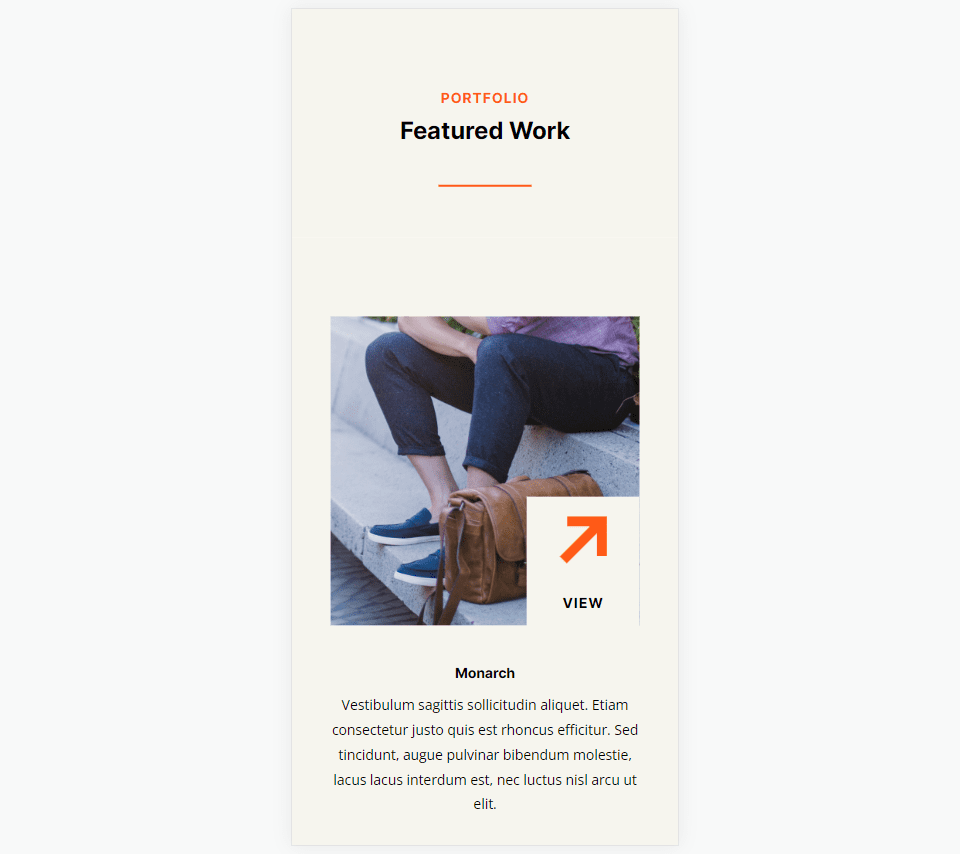
    Here is a preview of what we will design

    Divi Add Sticky Map Module Final Result Mobile

    What You Need to Get Started

    Before we begin, install and activate the Divi Theme and make sure you have the latest version of Divi on your website.

    Now, you are ready to start!

    How to Add a Sticky Map Module to Your Divi Page

    Create a New Page with a Premade Layout

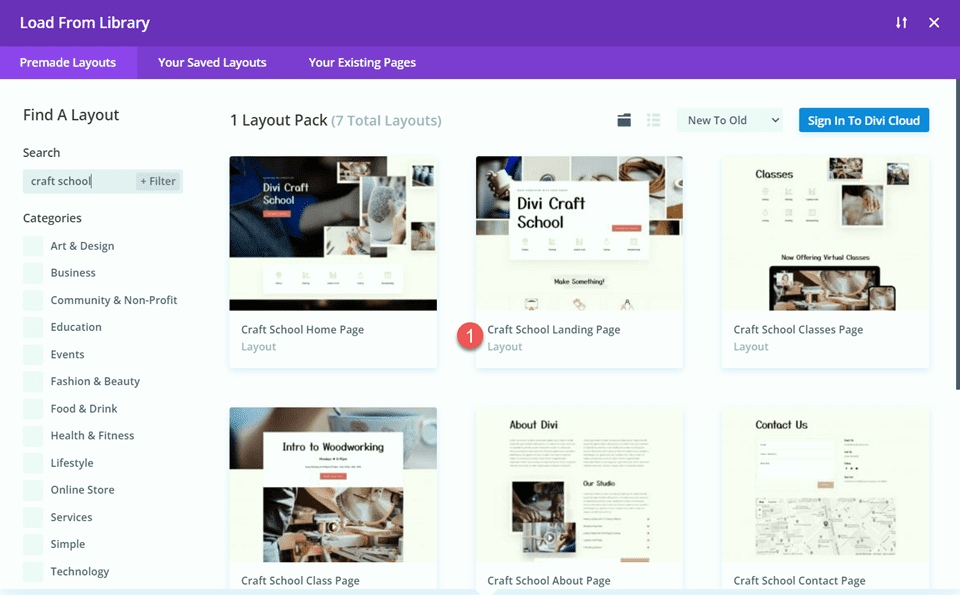
    Let’s start by using a premade layout from the Divi library. For this design, we will use the Craft School Landing Page from the Craft School Layout Pack.

    Add a new page to your website and give it a title, then select the option to Use Divi Builder.

    Divi Add Sticky Map Module Use Builder

    We will use a premade layout from the Divi library for this example, so select Browse Layouts.

    Divi Add Sticky Map Module Browse Layouts

    Search for and select the Craft School Landing Page.

    Divi Add Sticky Map Module Find Layout

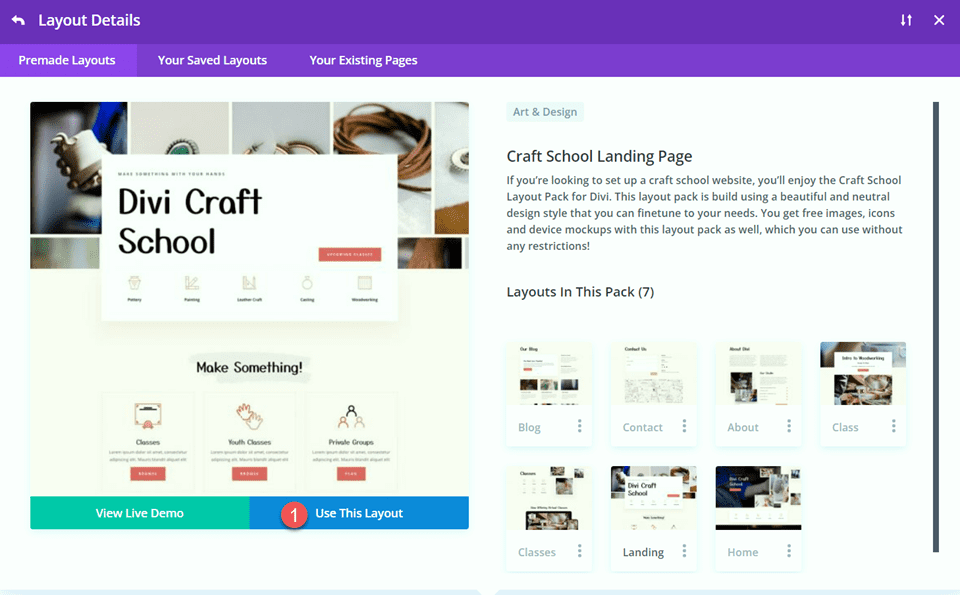
    Select Use This Layout to add the layout to your page.

    Divi Add Sticky Map Module Use Layout

    Now we are ready to build our design.

    Modifying the Layout for the Sticky Map Module

    Sign Up CTA

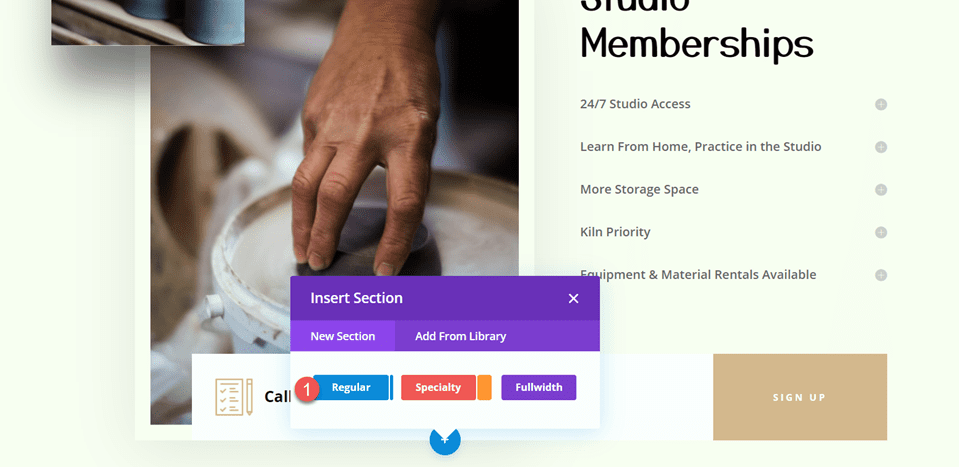
    Scroll to the “Studio Memberships” section of the page. Then, add a new section below.

    Divi Add Sticky Map Module Insert Section

    Open the section settings and add a background color.

    • Background: #fcf8f3

    Divi Add Sticky Map Module Background

    Next, move the “Call or Join Online” row to this new section.

    Divi Add Sticky Map Module Move Row

    Open the row settings and navigate to the Advanced tab. Under the Position settings, change the position from Absolute to Default.

    • Position: Default

    Divi Add Sticky Map Module Position

    “Come Visit the Studio” Section

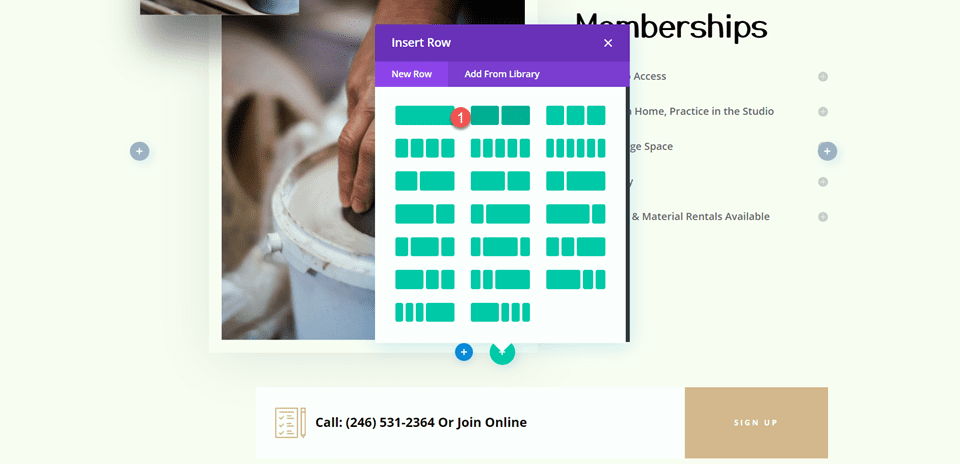
    Add a new row with two columns below the Studio Memberships section.

    Divi Add Sticky Map Module Insert Row

    Then, move that row above the Studio Memberships section.

    Divi Add Sticky Map Module Move Row

    Heading Settings

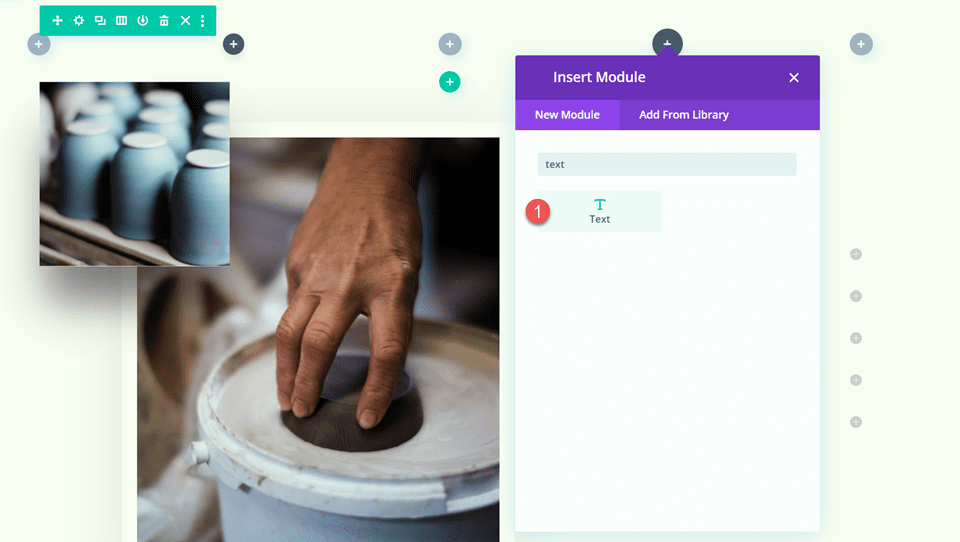
    Add a text module to the right column.

    Divi Add Sticky Map Module Insert Text

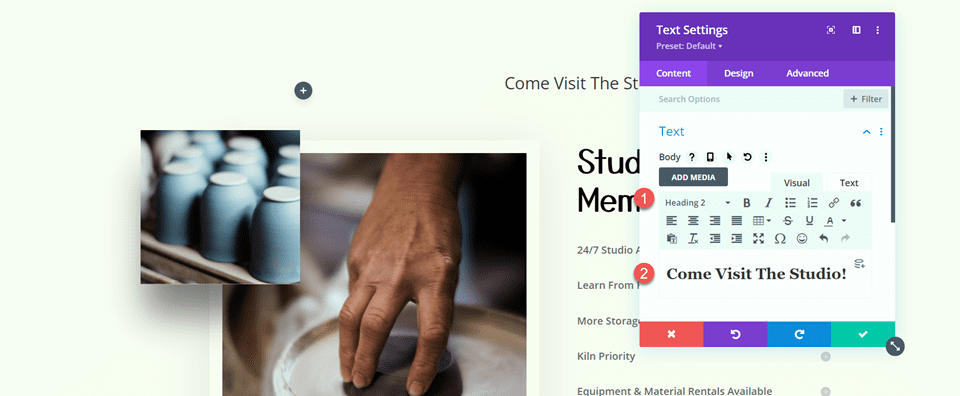
    Add the text.

    • H2: Come Visit The Studio!

    Divi Add Sticky Map Module Add Text

    Next, navigate to the Design tab and open the heading text settings. Customize the font as follows:

    • Heading 2 Font: Yusei Magic

    Divi Add Sticky Map Module Font

    Then, customize the font size and line height. Use the built-in responsive options to add different text sizes for tablet and mobile devices.

    • Heading 2 Text Size Desktop: 50px
    • Heading 2 Text Size Tablet: 30px
    • Heading 2 Text Size Mobile: 24px
    • Heading 2 Line Height: 1.2 em

    Divi Add Sticky Map Module Heading Size

    Text Settings

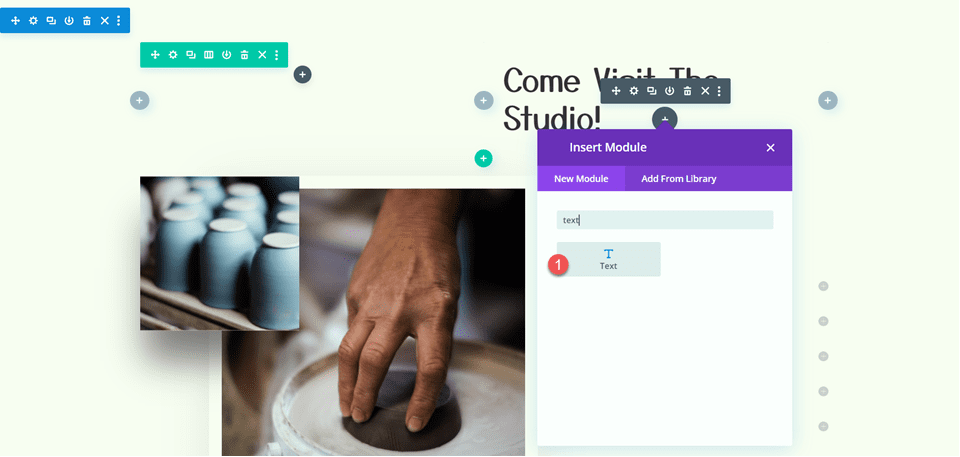
    Add another text module below the “Come Visit The Studio” text.

    Divi Add Sticky Map Module Add Text

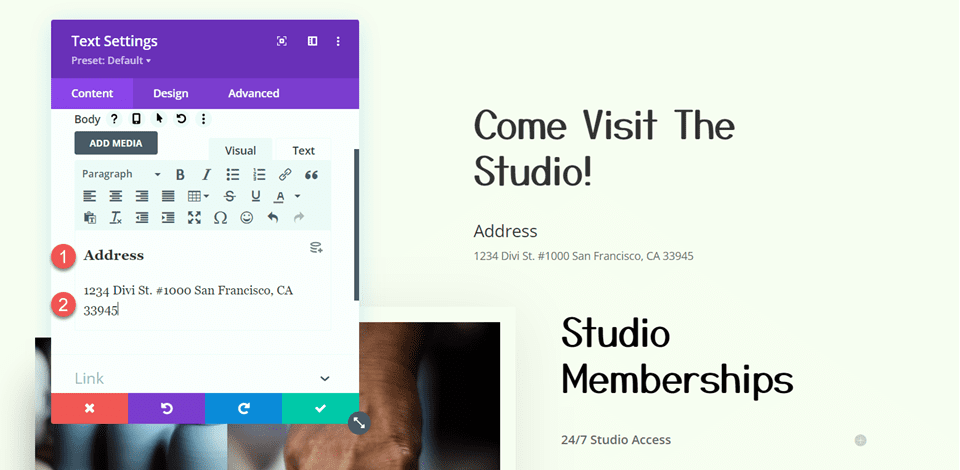
    Insert the following text.

    • H3: Address
    • Paragraph: 1234 Divi St. #1000 San Francisco, CA 33945

    Divi Add Sticky Map Module Address Text

    Under the Design tab, modify the text styles.

    • Text Font: Open Sans
    • Text Size Desktop: 16px
    • Text Size Tablet: 15px
    • Text Size Mobile: 13px

    Divi Add Sticky Map Module Text Font

    Then, modify the heading styles.

    • Heading 3 Font: Open Sans
    • Heading 3 Font Weight: Bold
    • Heading 3 Font Style: Capitalized (TT)

    Divi Add Sticky Map Module H3 Font

    Next, modify the text size and letter spacing. Once again, use the responsive settings to set different text sizes for different screen sizes.

    • Heading 3 Text Size Desktop: 14px
    • Heading 3 Text Size Tablet: 13px
    • Heading 3 Text Size Mobile: 12px
    • Heading 3 Letter Spacing: 3px

    Divi Add Sticky Map Module H3 Size

    Add another text module below the address module.

    Then, add the following content to the body:

    • Body: Lorem ipsum dolor sit amet, consectetur adipiscing elit. Mauris blandit aliquet elit, eget tincidunt nibh pulvinar a. Curabitur arcu erat, accumsan id imperdiet et, porttitor at sem. Vestibulum ac diam sit amet quam vehicula elementum sed sit amet dui. Praesent sapien massa, convallis a pellentesque nec, egestas non nisi. Curabitur non nulla sit amet nisl tempus convallis quis ac lectus. Donec rutrum congue leo eget malesuada. Donec rutrum congue leo eget malesuada. Donec sollicitudin molestie malesuada. Curabitur aliquet quam id dui posuere blandit.

    Divi Add Sticky Map Module Add Text

    Move over to the design tab and customize the font.

    • Text Font: Open Sans

    Divi Add Sticky Map Module Font Settings

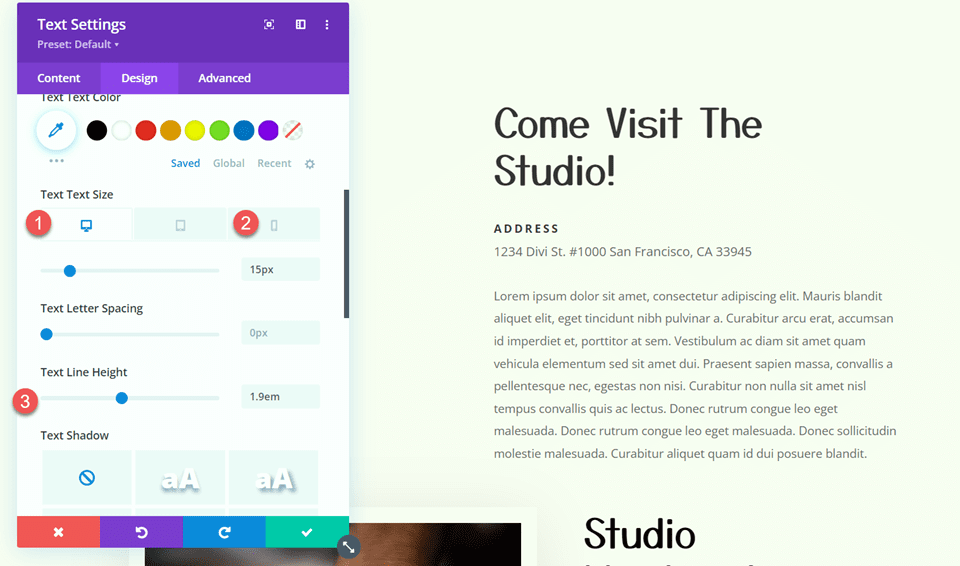
    Then, customize the text size and line height.

    • Text Size Desktop: 15px
    • Text Size Mobile: 13px
    • Text Line Height: 1.9em

    Divi Add Sticky Map Module Text Size

    Button Settings

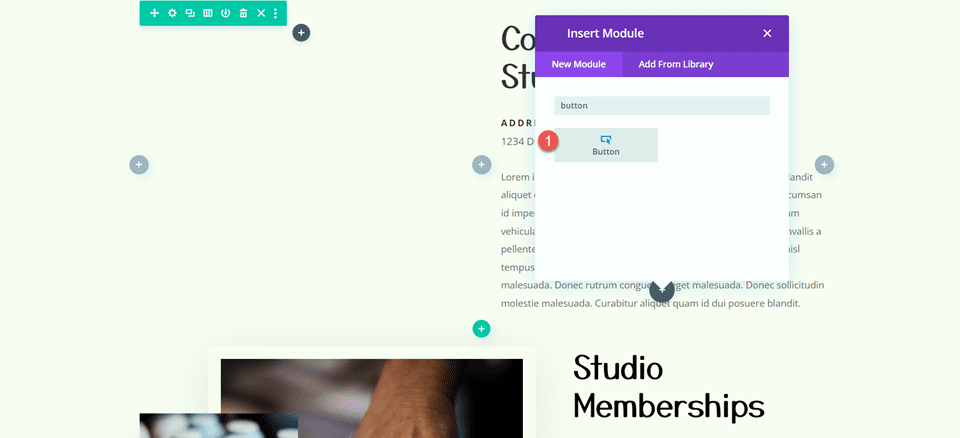
    Add a button module to the section, below the text we added.

    Divi Add Sticky Map Module Add Button

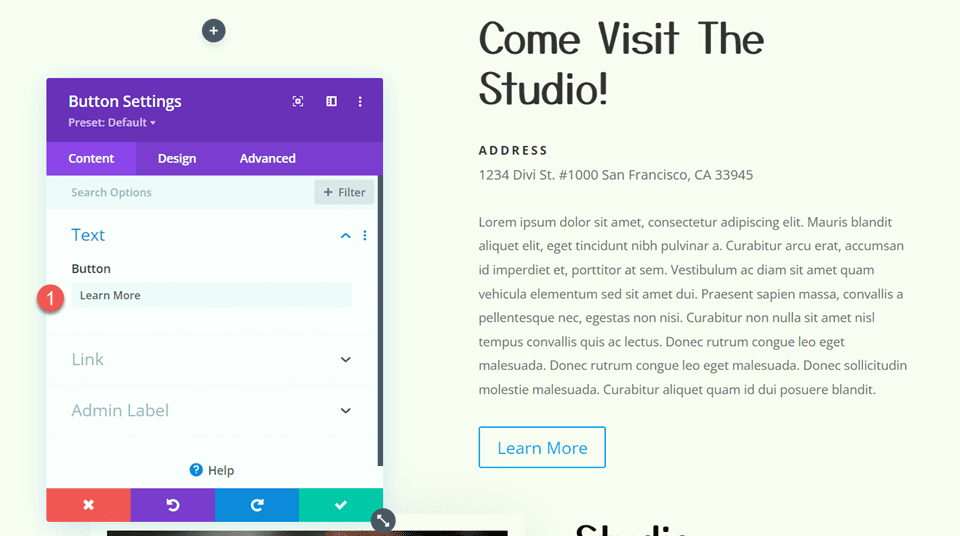
    Set the button text to “learn more”.

    • Button: Learn More

    Divi Add Sticky Map Module Buttons Text

    Next, move to the design tab and open the button settings. Enable custom styles.

    • Use Custom Styles For Button: Yes
    • Button Text Size: 12px
    • Button Text Color: #FFFFFF

    Divi Add Sticky Map Module Custom Styles

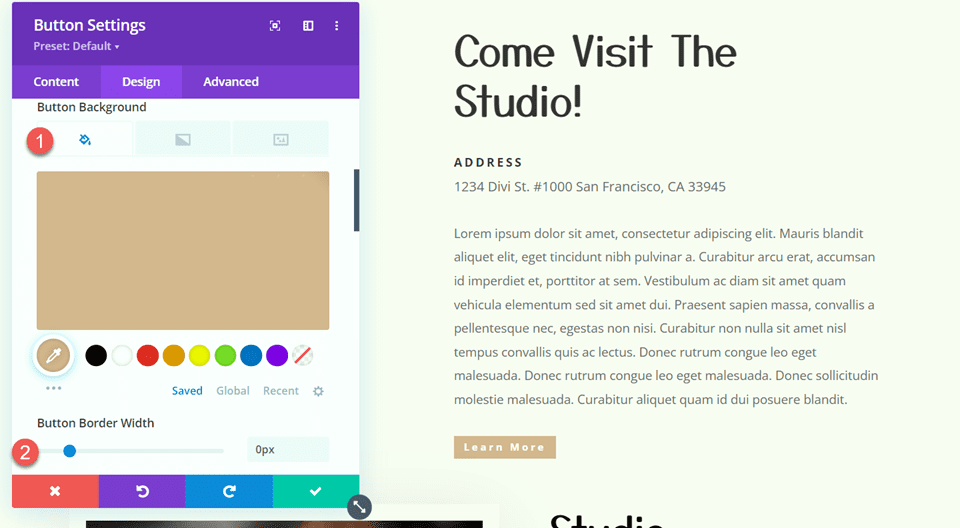
    Customize the button background and border width.

    • Button Background: #d5b38e
    • Button Border Width: 0px

    Divi Add Sticky Map Module Button Background

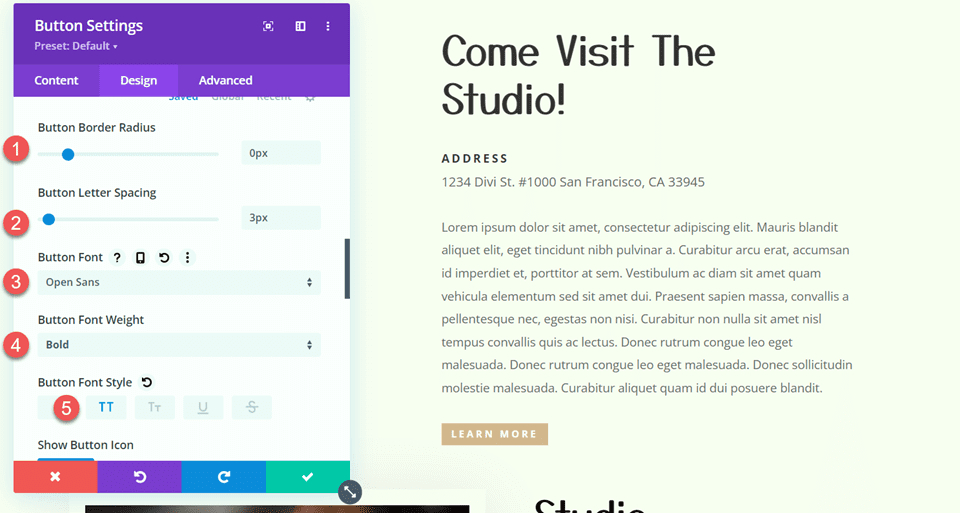
    Modify the button border radius, letter spacing, and font.

    • Button Border Radius: 0px
    • Button Letter Spacing: 3px
    • Button Font: Open Sans
    • Button Font Weight: Bold
    • Button Font Style: Capitalized (TT)

    Divi Add Sticky Map Module Button Font

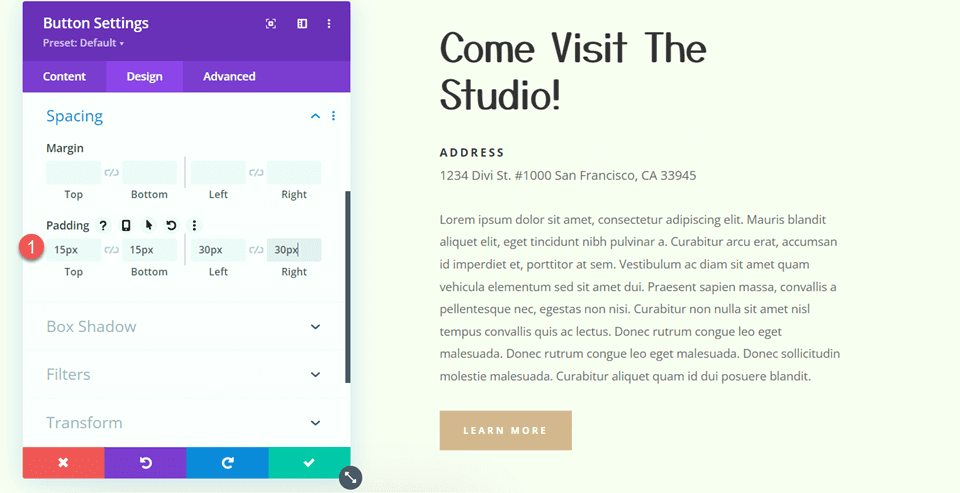
    Finally, add padding to the button.

    • Padding-Top: 15px
    • Padding-Bottom: 15px
    • Padding-Left: 30px
    • Padding-Right: 30px

    Divi Add Sticky Map Module Button Padding

    Studio Memberships Section

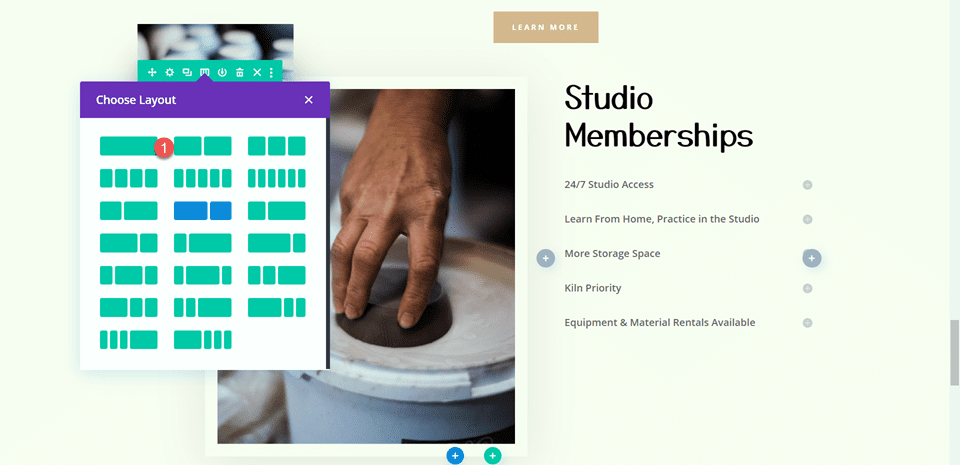
    Now we are going to modify the Studio Memberships section. First, change the row layout to two equal columns.

    Divi Add Sticky Map Module Row Layout

    Then, move the large image to the right column, above the “Studio Memberships” text module.

    Divi Add Sticky Map Module Move Image

    Scrolling Image Settings

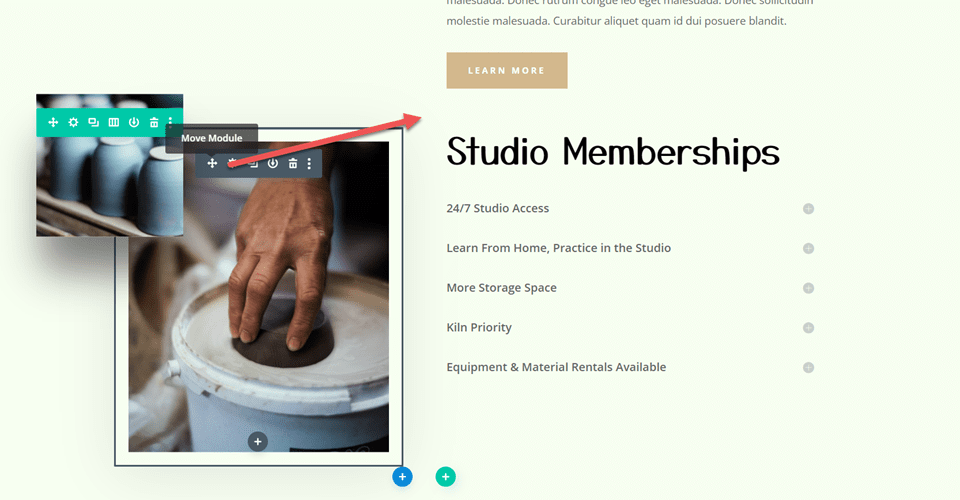
    Move the small scrolling image of the pottery to the right column, above the large image we moved.

    Divi Add Sticky Map Module Move Image

    Open the module settings for the small image. Under the Sizing settings, use the responsive settings to set a different width for mobile devices.

    • Width-Mobile: 35%

    Under the Advanced tab, open the Position settings and add some horizontal offset. This allows the small image to hang over the side of the larger image, adding dimension and creating a more unique layout.

    • Horizontal Offset: -30px

    Divi Add Sticky Map Module Horizontal Offset

    Finally, open the scroll effects and adjust the ending offset for the vertical motion.

    • Ending Offset: -1

    Divi Add Sticky Map Module Ending Offset

    Studio Memberships Text

    Open the Studio Memberships text module settings. Remove the background from the module.

    Divi Add Sticky Map Module Remove Background

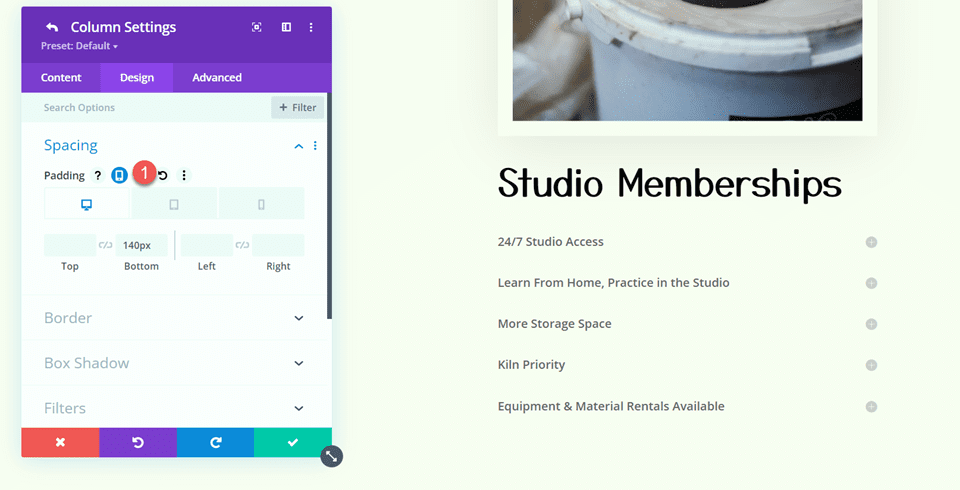
    Then, open the row settings and open the column 2 settings.

    Divi Add Sticky Map Module Column 2 Settings

    Under the Spacing settings in the Design tab, remove the existing bottom padding.

    Divi Add Sticky Map Module Remove Padding

    Section Background

    Open the section settings. Under the background settings, add a background image. Select craft-school-24.png from your media library.

    Divi Add Sticky Map Module Add Background Image

    Add the Sticky Map Module

    Now that our layout has been modified, we can add the sticky map module. The map module will be in the left column and stay in place as you scroll through the content on the right. Let’s get started.

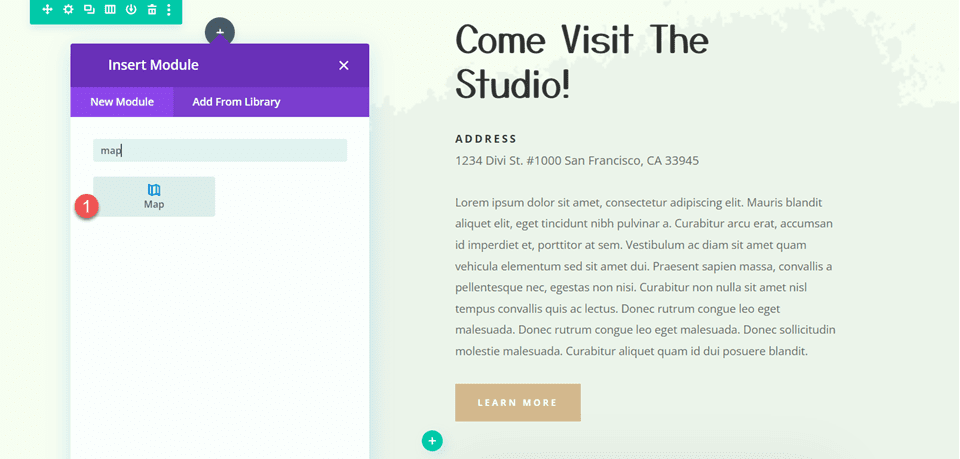
    First, add a map module to the left column of the “Come Visit The Studio” row.

    Divi Add Sticky Map Module Add Map Module

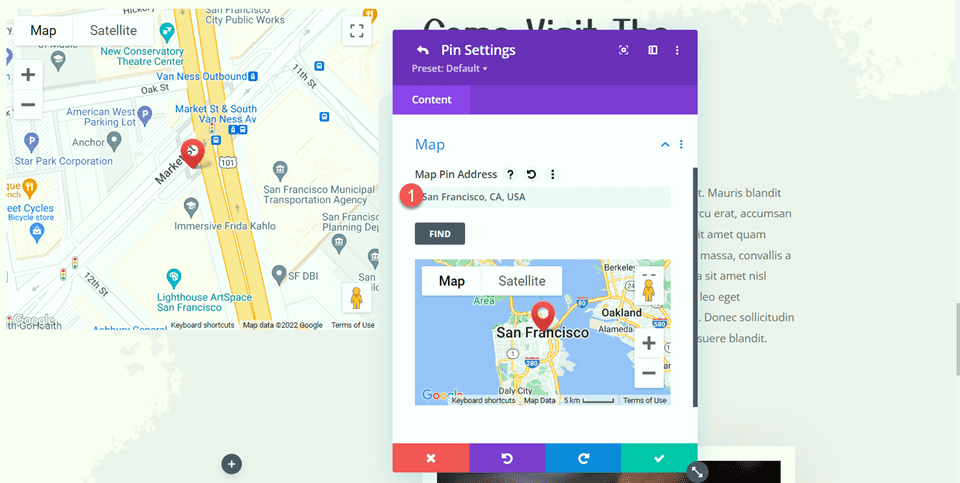
    Open the map settings and add a map center address. For this tutorial, we will center the map on San Fransisco, CA.

    Divi Add Sticky Map Module Map Center Address

    Then, add a pin to the map. We will also set this to San Fransisco, CA.

    Divi Add Sticky Map Module Map Pin

    Map Design

    Under the design tab, open the map settings. You can use these settings to completely customize the way your map appears. For this tutorial, we want the map to match the muted colors of this page, so we will modify the map saturation.

    • Map Saturation: 56%

    Divi Add Sticky Map Module Map Saturation

    Next, open the border settings and customize the border as follows:

    • Border Width: 20px
    • Border Color: #fcf8f3

    Divi Add Sticky Map Module Border Settings


    Open the Box Shadow settings and add a shadow to the map module.

    • Box Shadow: Below

    Divi Add Sticky Map Module Box Shadow

    Sticky Settings

    Now let’s add the sticky settings so the map sticks in place while you scroll. Move over to the Advanced tab and open the Scroll Effects Settings. Use responsive options to modify the sticky position settings, as the map will not be sticky on mobile devices.

    • Sticky Position Desktop: Stick to Top
    • Sticky Position Tablet and Mobile: Do Not Stick
    • Sticky Top Offset: 20px
    • Bottom Sticky Limit: Section

    Divi Add Sticky Map Module Scroll Effects

    Now go back to the Design tab and open the sizing settings. We want the map height to increase when it is in the sticky state. Use the sticky settings to set a different height.

    • Height when Sticky: 600px

    Divi Add Sticky Map Module Height

    Finally, use the responsive settings to change the map size on tablet and mobile.

    • Height Tablet and Mobile: 350px

    Divi Add Sticky Map Module Mobile Height

    Final Result

    Now let’s take a look at our sticky map module in action.

    Divi Add Sticky Map Module Final Result Mobile

    Final Thoughts

    Divi’s sticky settings allow you to create dynamic website layouts that draw your eye with the movement. With all of the customization options available, you can make any element on your website sticky and modify the design exactly to your liking. By making the map module sticky in this design, we highlight the location information for the website and add a unique design element to the page. For more tutorials on Divi’s sticky settings, check out this article on adding a sticky contact form to your page. Do you use sticky elements on your website? We would love to hear from you in the comments!

    The post How to Add a Sticky Map Module to Your Divi Page appeared first on Elegant Themes Blog.

  • Get a Free Email Marketing Layout Pack for Divi

    Hey Divi Nation! Thanks for joining us for the next installment of our weekly Divi Design Initiative; where each week, we give away a brand new Layout Pack for Divi.

    This time around, the design team has created a beautiful Email Marketing Layout Pack that’ll help you get your next Email Marketing website up and running in no time!

    This layout pack includes:

    7 Premade page layouts strategically designed for any Email Marketing website (including a footer design)
    – Original, royalty-free photos and graphics + customizable source file (see below)
    – Plus, a large collection of pre-designed website elements that are customizable and reusable anywhere.

    This layout pack is available right inside Divi for all Divi customers for FREE as the latest addition to our growing Divi library of hundreds of premade layout packs, thousands of page designs, and countless web design elements and resources.

    divi layout

    Check Out The Divi Email Marketing
    Layout Pack Below

    Get it for free today!

    Email Marketing layout pack

    Landing Page Design

    Email Marketing layout pack

    View The Live Layout Demo

    Home Page Design

    Email Marketing Layout Pack for Divi

    View The Live Layout Demo

    Services Page Design

    Email Marketing Layout Pack for Divi

    View The Live Layout Demo

    Service Page Design

    Email Marketing Layout Pack for Divi

    View The Live Layout Demo

    About Page Design

    Email Marketing Layout Pack for Divi

    View The Live Layout Demo

    Blog Page Design

    Email Marketing Layout Pack for Divi

    View The Live Layout Demo

    Contact Page Design

    Email Marketing Layout Pack for Divi

    View The Live Layout Demo

    Key Features

    Do you need an email marketing website for yourself or a client? Look no further than the Email Marketing Layout Pack for Divi, designed to skyrocket your traffic and drive sales. This incredible pack combines eye-catching movement and vibrant pops of color, blending seamlessly with compelling text, resulting in a design that will effectively showcase your email marketing business.

    Live Demos

    Click the links below to see a live demo for each of the layouts included in the pack.

    1. Email Marketing Landing Page (live demo)
    2. Email Marketing Home Page (live demo)
    3. Email Marketing Services Page (live demo)
    4. Email Marketing Service Page (live demo)
    5. Email Marketing About Page (live demo)
    6. Email Marketing Blog Page (live demo)
    7. Email Marketing Contact Page (live demo)

    Access This Layout Right Now
    Directly from Your Divi Builder

    Since Version 3.0.99 of Divi, you can find and import any of the layouts included in this pack (along with ALL of Divi’s Premade Layout packs) directly from the Divi Builder. They are already waiting for you.

    To access your new layout, simply activate the Visual Builder when editing a page and look for the “Load From Library” icon in the page settings bar (it looks like a plus symbol). Click this icon to launch the Load From Library popup. Under the Premade Layouts tab, you can easily find the new layout by scrolling through the list of layout packs. Once you find the Email Marketing Layout Pack, click on it. You will see all the individual layouts included in the pack. Select the layout you want to use and then click the “Use This Layout” button.

    Email Marketing Layout Pack for Divi

    For more, check out this video to learn how you can get this layout pack up and running today.

    Subscribe To Our Youtube Channel

    Authentication Required

    Before you can download Premade Layouts from the Divi Library you must authenticate your Elegant Themes Subscription. You can do this by navigating to Divi > Theme Options > Updates. There you can enter your username and API key and save changes.

    Email Marketing Layout Pack for Divi

    You can find your API Key under your members area on the Elegant Themes site. After you enter the Username and API Key, you will gain immediate access to our library of hundreds of free layouts (including this one). If you haven’t done this, when you click to import a layout to your page, you will be prompted to enter your Elegant Themes Membership Username and API Key.

    Use Layout Images for FREE with No Licensing Restrictions

    Email Marketing Layout Pack for Divi

    The image assets included with these layouts (icons, illustrations, photos, etc.) have no licensing restrictions. This means you can use them in all of your commercial projects without having to worry about paying licensing fees or attributing the photographer. Use them in your commercial websites, sell them within your Divi child themes, include them in your own Divi layout packs or just use them on your blog. We know how challenging it can be to find good photos and how confusing and scary the licensing that governs those photos can be. We want to fix that problem for our users.

    Download the Full Res Image Assets

    New Layout Pack Every Week!

    We hope you enjoy this layout pack. We look forward to hearing your opinions in the comment section below. Make sure you check out next week’s layout pack as well!

    The post Get a Free Email Marketing Layout Pack for Divi appeared first on Elegant Themes Blog.

  • Divi Product Highlight: Milly Child Theme

    Milly is a third-party child theme for Divi that was designed with entrepreneurs in mind. It comes with lots of pages, layouts, and styled modules to build any type of business website and create new pages with the sections. It even adds extra features to help your shop or business stand apart. In the post, we’ll take a close look at the Milly Child Theme to help you decide if it’s the right Divi child theme for your needs.

    Installing Milly Child Theme

    First, we’ll look at how easy it is to install Milly. Installing the Milly child theme was simple. Firstly, go to Appearance > Themes and select Add New.

    1. Appearance
    2. Themes
    3. Add New

    Installing Milly Child Theme

    Secondly, with Divi activated, upload the child theme as you would any theme. Select Upload Theme, Choose File, navigate to the file, select it, and click Install Now.

    1. Upload Theme
    2. Choose File
    3. Install Now

    Installing Milly Child Theme

    Thirdly, once the child theme has finished uploading, activate it.

    1. Activate

    Installing Milly Child Theme

    Fourthly, you’ll need to import the demo content. This will make your website look like the demo, but it does not include images. Instead, it shows a dummy image with the size you’ll need for that location. To import the demo content, go to Milly > Demo Import, select all the files you want to import (I recommend leaving this at the default), and Import Demo Content. It will also install and activate WooCommerce for you. WooCommerce is selected by default.

    1. Milly
    2. Demo Import
    3. Make your selections
    4. Import Demo Content

    Installing Milly Child Theme

    Fifthly, remove the demo import panel. This cleans up your dashboard so you won’t have links you no longer need.

    Installing Milly Child Theme

    Finally, the Milly child theme is ready to use. Here’s the home page after the demo content has been imported. Next, let’s take a look at what’s included.

    Milly Child Theme Pages and Layouts

    First, we’ll look at the pages and layouts. Milly includes lots of marketing templates. This includes four home pages that are built around different types of business models. It also includes an about page, a project page, a case study page, a sale page, a service landing page, resources, contact, FAQs, blog, and shop pages.

    Pages

    There are over 30 pages added to your website. They include multiple home pages, standard site pages, and lots of eCommerce pages. The home pages include a default page, one for freelancers, an eCommerce page, and one for a business agency.

    Milly Child Theme Pages and Layouts

    This is the default home page. It includes a CTA on the left and an image on the right that follows your cursor. Other sections include blurbs that show benefits, number counters, a CTA, an embedded video, a different set of blurbs with large icons, another small CTA, and a product slider. We’ll see these elements as we explore the features. It has a white color scheme with a few dark gray backgrounds.

    This is the freelancer/entrepreneur home page. This one has two CTAs on the left and a smaller image on the right. It also includes a section for a freebie, blurbs with hover effects, a testimonial slider, a project slider, and a CTA.

    Here’s the business/agency home page. Instead of a hero section with a CTA, it has blurbs with a focus on services. I’m hovering over one to show its hover effect. This home page includes a large blog section, a CTA, number counters, client logos, and a CTA with steps. It adds a section with light green for the background. This example also shows the custom icons.

    Here’s a look at the eCommerce home page. It places the hero image on the left with the CTA on the right. It also uses a large shop section to show products, benefits, a testimonial slider, and a shop CTA with two products.

    Divi Library

    There are 135 layouts added to the Divi Library. They include all the templates that are used on other pages and in the Theme Builder. They also include icons. Let’s look at a few at random. I’ll save the WooCommerce layouts for a different section.

    Milly Child Theme Pages and Layouts

    This example shows a testimonial slider. The testimonials are built as cards.

    Here’s another slider. This one shows client logos.

    This layout is a popup overlay. It’s a CTA with an image and a button.

    This layout is a promo bar. It includes a CTA to the shop. This bar is included on the shop page. On that page, it sticks to the bottom of the screen until you scroll far enough, and then it scrolls with the screen.

    Milly Child Theme Pages and Layouts

    This section shows a timeline in an alternating layout.

    This one shows a sample project. It includes a slider.

    This example shows a pricing table.

    This section includes an embedded video and lists the steps. It also includes a button to share the video.

    Here’s another overlay. This one includes a video and a button.

    This layout is a sidebar. It includes a circled image and a button to learn more.

    Theme Builder

    There are 13 layouts in the Divi Theme Builder. These include headers and footers, the body layout for posts in full width and with a sidebar, the shop page, product pages, and a 404 page. Some are not assigned, so you get to assign the layouts you want to use.

    Milly Child Theme Pages and Layouts

    The layout for all posts includes a large, featured image that overlaps the background. It also includes previous and next articles, related posts, and an email signup form.

    Milly Child Theme Pages and Layouts

    The product’s body layout displays a large product image with a gallery and description under the featured image on the left side. The right side includes all the product information and options. The right side stays in place until the end of the description. It also includes related products, testimonials, and shipping information.

    Here’s the 404 page. It includes a hover animation for the icon.

    Milly Child Theme Sales Funnels

    Milly includes three marketing kits: Webinar, Challenge, and List Building. They include pages to build marketing campaigns.

    The List Building Kit includes a freebie landing page, email signup confirmation, and freebie delivery. This example is from the demo page, so you can see how it looks with images.

    Milly Child Theme Pages and Layouts

    The Webinar Kit includes registration, confirmation, and replay. Here’s a look at its demo page.

    Milly Child Theme Pages and Layouts

    The Challenge Kit includes registration, confirmation, and inside the challenge. The image elements move independently on hover.

    Milly Child Theme Pages and Layouts

    Milly Child Theme Header

    The header includes submenus, a CTA, and custom WooCommerce icons, including a product count for the shopping cart icon. The CTA includes a hover animation to get attention. It also includes a popup. On certain pages, such as the shop page, the header is placed under the hero section. It scrolls with the page and sticks to the top of the page when it reaches that area.

    Milly Child Theme Icons

    Over 20 of the layouts in the Divi Library are custom icons. This shows several of the custom icons. Most of the icons have a green circle in the center.

    Milly Child Theme Pages and Layouts

    This example shows the rest of the icons.

    Milly Child Theme Pages and Layouts

    They’re created with Code Modules. This example shows a Dark Arrow. You can load them from the Divi Library as Modules.

    Milly Child Theme Pages and Layouts

    Milly Child Theme WooCommerce Pages and Layouts

    Next, let’s look at the WooCommerce features. Milly includes several pre-styled product pages and sliders to display your products. It also includes a custom cart, account page, and checkout page. Let’s look at a few of them.

    Shop Page

    The shop page includes a hero section with a CTA. The promo bar sticks to the bottom of the screen at first.

    Scrolling reveals the header. This section includes a product slider.

    Related products are also shown with a product slider.

    This example shows the sales slider. The promo bar has now scrolled with the page.

    Cart

    The cart page includes icons with a bar to indicate where you are in the process.

    Milly Theme Options

    Finally, we’ll look at the theme options. Milly adds a tab to the Divi Theme Options. Here, you can choose and adjust several options.

    Colors

    The colors tab lets you select colors for dark elements and headings, dark elements and body text, and three different accent colors. Clicking on a color opens a color picker where you can select the color you want.

    Milly Theme Options

    Overlays

    Milly can use any section as a popup. They’re triggered by a click. Just add the CSS class to the section and the element you want your visitors to click. This means you can build a popup with the Divi Builder with any layout or custom design you want. The overlays tab includes settings for the background color, blur the background, close on click, close with the escape key, close icon, close icon color, and hide the overlays in the builder.

    Milly Theme Options

    Preloader

    The preloader tab lets you enable the preloader and choose its options. The options include animation, color, and background color.

    Milly Theme Options

    Options

    The options tab lets you enable the parallax effect and enable carousels and sliders.

    Milly Theme Options

    Milly CSS Classes

    Also, there are 11 other CSS Classes designed for the Milly child theme that lets you customize the way it works. You can find the list in the documentation. Place the CSS Class in the advanced tab of the section where you want to use it.

    Where to Purchase Milly Child Theme

    Milly Child Theme is available in the Divi Marketplace. It’s regularly $97 and includes unlimited website usage, a 30-day money-back guarantee, and one year of support and updates.

    Where to Purchase Milly Child Theme

    Ending Thoughts on the Milly Child Theme

    That’s our look at the Milly Child Theme for Divi. The design is clean, and I found Milly to be easy to use. The features have a strong focus on sales, making it ideal for anyone wishing to run an eCommerce website or capture leads and guide them through a sales funnel. I was impressed with the number of pages and features. I especially like the preloader and popup overlays. If you’re interested in a child theme for business, the Milly child theme is worth a look.

    We want to hear from you. Have you tried Milly Child Theme for Divi? Let us know what you think about it in the comments.

    The post Divi Product Highlight: Milly Child Theme appeared first on Elegant Themes Blog.
  • How to Create Gradient Dividers with Divi’s Divider Module

    Divi’s Divider Module provides several methods to create interesting dividers. One of the most interesting and unique is the ability to create gradient dividers. In this post, we’ll discuss how to create gradient dividers with the Divi Divider Module. We’ll look at how the gradient dividers work and see three examples to help you create your own.

    Let’s get started!

    Preview

    Desktop Gradient Divider Example One

    Desktop Gradient Divider Example One

    Phone Gradient Divider Example One

    Phone Gradient Divider Example One

    Desktop Gradient Divider Example Two

    Desktop Gradient Divider Example Two

    Phone Gradient Divider Example Two

    Phone Gradient Divider Example Two

    Desktop Gradient Divider Example Three

    Desktop Gradient Divider Example Three

    Phone Gradient Divider Example Three

    Phone Gradient Divider Example Three

    How to Create Gradient Dividers with Divi’s Divider Module

    There are several ways to create a divider with Divi’s Divider Module. By default, the module displays a divider line. We can disable this and use the module’s Background settings to create a divider that we can style with the module’s Background options. This includes colors, gradients, images, etc. Rather than showing the divider, we’ll style the divider’s container and create a styled divider.

    Hide Divider

    The process is simple. First, add a Divider Module to your layout and then hide the divider in the content tab.

    How to Create Gradient Dividers with Divi’s Divider Module

    Divider Background

    Next, select the type of background you’d like to display in the Background settings in the Content tab. For this post, we’ll focus on the Background Gradient settings.

    How to Create Gradient Dividers with Divi’s Divider Module

    Add Sizing and Spacing

    Use the Sizing and Spacing options in the Design tab to control the height and width of the divider’s container to create a styled divider in just about any size or shape. Utilize width and height, max width and max height, module alignment, and top and bottom padding to create the size you want.

    How to Create Gradient Dividers with Divi’s Divider Module

    Add Border Radius

    Add Border options, such as Border Radius, to further style the shape. You can adjust the corners together or independently to create interesting shapes. You can also add Border Width, Styles, etc., to create a unique design.

    How to Create Gradient Dividers with Divi’s Divider Module

    Gradient Divider Examples

    Now, let’s create three gradient dividers using the concepts we just discussed.

    Gradient Divider Example One

    For our first gradient divider, we’ll use the landing page from the free Home Baker Layout Pack that’s available within Divi. The artwork in this layout pack has strong dark outlines with sharp gradients, all in shades of brown. We’ll mimic this with our gradient using colors from the layout pack.

    For our first example, we’ll use the Divider Module that is already in place in the hero section. This one is simple, but it adds a lot visually.

    For reference, here’s the layout before we add the Divider Module.

    Gradient Divider Example One

    Visibility

    In the Divider Module’s Visibility settings, select No for Show Divider.

    • Show Divider: No

    Gradient Divider Example One

    Gradient

    Scroll down to Background and select the Background Gradient tab. For this one, we’ll add five Gradient Stops. We’ll leave the rest of the gradient settings at their defaults. Here are the settings for each Gradient Stop.

    Set the first Gradient Stop to 0px and its Color to #dcc087.

    • First Gradient Stop: 0px, #dcc087

    Gradient Divider Example One

    Place the second Gradient Stop at 16px and its Color to #e6b060.

    • Second Gradient Stop: 16px, #e6b060

    Gradient Divider Example One

    Place the third Gradient Stop at 22px and its Color to #f19d33.

    • Third Gradient Stop: 22px, #f19d33

    Gradient Divider Example One

    The fourth Gradient Stop almost sits on top of the third Gradient Stop. Place it at 31px and set its Color to #f49826.

    • Fourth Gradient Stop: 31px, #f49826

    Gradient Divider Example One

    Set the last Gradient Stop at 48px and its Color to #3b261e.

    • Fifth Gradient Stop: 48px, #3b261e

    Gradient Divider Example One

    Change the Gradient Unit to Pixels. We now have the colors we’re looking for. Now, we just need to optimize the size.

    • Gradient Unit: Pixels

    Gradient Divider Example One

    Sizing

    Next, go to the Design tab. Under Sizing, set the Width to 100%. Set the Height to 40px for all three device sizes. Close the module and save your settings.

    • Width: 100%
    • Height: 40px

    Gradient Divider Example One

    Gradient Divider Example Two

    For our second gradient divider, we’ll use the landing page from the free Online Course Layout Pack that’s available within Divi. This one includes lots of rounded edges and even has a circle with a gradient that overlaps an image.

    We’ll use this as our starting point for the design and create a new gradient divider. We’ll add a new Divider Module to the Chapter 1 section just to add a graphic.

    For reference, here’s the layout before we add the Divider Module.

    Gradient Divider Example Two

    Right Column Spacing

    First, open the Column settings that contain a description of the first chapter. This is the Right Column in the Row. Go to the Design settings and scroll down to Spacing. Change the Top Padding from 100px to 50px.

    • Top Padding: 50px

    Gradient Divider Example Two

    Add a Divider Module

    Next, add a new Divider Module under the Button Module for the chapter description.

    Gradient Divider Example Two

    Visibility

    Open the Divider Module’s Visibility settings and select No for Show Divider.

    • Show Divider: No

    Gradient Divider Example Two

    Gradient

    Next, scroll down to Background and select the Background Gradient tab. This one has two Gradient Stops. Change the Gradient Direction to 145deg.

    • First Gradient Stop: 0px, #26ff5c
    • Second Gradient Stop: 100px, #2981b6
    • Gradient Direction: 145deg

    Gradient Divider Example Two

    Sizing

    Next, select the Design tab. Under Sizing, change the Width for desktops to 45%. Change tablets to 24vw and phones to 40vw. Change Module Alignment to Center. Set Height to 200px for all devices.

    • Width: 45% desktop, 24vw tablet, 40vw phone
    • Module Alignment: Center
    • Height: 200px

    Gradient Divider Example Two

    Border

    Next, scroll down to Border. We’ll create an arched shape that mimics the images in the layout. Change the Rounded Corners to 400px for the Left and Right Top and 0px for the Left and Right Bottom. Close the module and save your settings.

    • Rounded Corners top left, top right: 400px
    • Rounded Corners bottom left, bottom right: 0px

    Gradient Divider Example Two

    Gradient Divider Example Three

    For our third gradient divider, we’ll use the landing page from the free Podcaster Layout Pack that’s available within Divi. This one has lots of gradient shapes throughout the layout that are made with images and dividers.

    We’ll create a gradient divider with the design cues from those images and other elements. It will combine multiple gradients into one. Our divider will separate the featured episodes from the recent episodes.

    For reference, here’s the layout before we add the Divider Module.

    Gradient Divider Example Three

    New Row

    First, add a new Row above the title. This is where we’ll add the Divider Module.

    Gradient Divider Example Three

    Add Divider Module

    Next, add a Divider Module to the Row.

    Gradient Divider Example Three

    Visibility

    In the Visibility settings, select No for Show Divider.

    • Show Divider: No

    Gradient Divider Example Three

    Gradient

    Scroll down to Background and select the Background Gradient tab. For this one, we’ll use four Gradient Stops. Set the Direction to 90deg.

    • First Gradient Stop: 0px, #f52791
    • Second Gradient Stop: 38px, #3742fb
    • Third Gradient Stop: 70px, f7d043
    • Fourth Gradient Stop: 100px, #fe386f
    • Direction: 90deg

    Gradient Divider Example Three

    Sizing

    Next, go to the Design tab. Under Sizing, set the Height to 60px for desktops, 50px for tablets, and 40px for phones.

    • Height: 60px desktop, 50px tablet, 40px phone

    Gradient Divider Example Three

    Border

    Next, scroll down to Border. Set the Rounded Corners to 0px Top Left, 30px Top Right, 30px Bottom Left, and 0px Top Right. This creates a style that matches the email optin section. Close the module and save your settings.

    • Top Left: 0px
    • Top Right: 40px
    • Bottom Left: 40px
    • Bottom Right: 0px

    Gradient Divider Example Three

    Results

    Desktop Gradient Divider Example One

    Desktop Gradient Divider Example One

    Phone Gradient Divider Example One

    Phone Gradient Divider Example One

    Desktop Gradient Divider Example Two

    Desktop Gradient Divider Example Two

    Phone Gradient Divider Example Two

    Phone Gradient Divider Example Two

    Desktop Gradient Divider Example Three

    Desktop Gradient Divider Example Three

    Phone Gradient Divider Example Three

    Phone Gradient Divider Example Three

    Ending Thoughts

    That’s our look at how to create gradient dividers with Divi’s Divider Module. The gradient option in the Divider Module works great for creating unique gradient dividers. Utilizing the sizing, spacing, and border corner options provides us with the tools to create gradient dividers in many sizes and shapes. With just a few simple settings, we can create unique gradient dividers that are sure to stand out from the crowd.

    We want to hear from you. Do you create gradient dividers with Divi’s Divider Module? Let us know about your experience in the comments.

    The post How to Create Gradient Dividers with Divi’s Divider Module appeared first on Elegant Themes Blog.
  • Divi Product Highlight: Divi Footers Pack

    Divi Footers Pack is a third-party plugin for Divi with over 80 custom footer designs. The footer is often an overlooked area of any WordPress website. A layout pack such as this one can ease the footer design process. In this post, we’ll take a look at Divi Footers Pack to help you decide if it’s the right Divi product for your needs.

    Uploading Divi Footers Pack Layouts

    The Divi Footers Pack layouts are JSON files that can be uploaded to your Divi Library. First, download and unzip the file. You’ll see 82 JSON files in your unzipped folder.

    1. Download
    2. Unzip

    Uploading Divi Footers Pack Layouts

    Next, go to your Divi Library and import the file you want to use. You can preview them from the product page. This is the only way to know which layout to use before uploading them. Fortunately, you can upload all of them at once if you want, or you can just upload the specific footer layout you want. I’ve selected to upload all the files in this example. To upload them, go to:

    1. Divi
    2. Divi Library
    3. Import and Export
    4. Import
    5. Choose File
    6. Import Divi Builder Layouts

    Uploading Divi Footers Pack Layouts

    Once they’ve uploaded, you’ll see them in your Divi Library. The layouts are now ready to use in the Divi Builder and Divi Theme Builder. Once the upload was completed, I had 162 files in my library. This includes the layouts with and without a fixed setting. The regular footers scroll with the page while the fixed footers remain in place and are revealed as the user scrolls. They’re labeled, so it’s easy to know what the variation is.

    Uploading Divi Footers Pack Layouts

    Divi Footers Pack Layouts

    Here’s a look at a few of the footer layouts. I’ve selected those that stood out to me the most. I’ll describe them and point out what I like the most about them. We’ll see how they look on the front end with a Divi layout. I’ll show wireframes and the mobile view for a few of them. I’m using the landing page from the free Coworking Layout Pack for all the examples.

    Divi Footers Pack Footer Design 1

    Footer Design 1 is the first footer layout in the Divi Footers Pack. It displays the footer menu on the left with a copyright notice under it. On the right are social media icons. Everything is in red.

    Divi Footers Pack Layouts

    Here’s how it looks on the front end.

    Divi Footers Pack Layouts

    Footer Design 2

    This is the second footer in the layout pack. It has a simple and clean layout with colors that work great together.

    Divi Footers Pack Layouts

    Footer Design 7

    Footer Design 7 includes a blue gradient background and adds buttons for the app stores above the rest of the footer content. This one is still fairly small and doesn’t overwhelm the layout with too much content in a small space.

    Divi Footers Pack Layouts

    Footer Design 12

    Many of the footer layouts include Code Modules to add custom styling. This is Footer Design 12. It also includes a gradient background and adds a large email form.

    Divi Footers Pack Layouts

    Footer Design 14

    Footer Design 14 displays four columns with links, a menu, and a blog. This one also includes a Code Module for styling. Here’s the wireframe with the Code Module open.

    Divi Footers Pack Layouts

    Here’s how it looks on the front end. There is a lot of white space around the columns. The blog shows two posts with small thumbnails. The white background and small text give this one an elegant look and feel.

    Divi Footers Pack Layouts

    Footer Design 16

    Footer Design 16 adds multiple rows in various columns. This one also includes a custom code. Here’s the wireframe.

    Divi Footers Pack Layouts

    Here’s how it looks on the front end. It adds clickable contact information at the bottom with bold colors that stand out.

    Divi Footers Pack Layouts

    Footer Design 18

    Footer Design 18 adds a background image and overlay to the section. It also includes four columns with lots of extras, including a CTA button, Opening Hours, and a Gallery.

    Divi Footers Pack Layouts

    Here’s the layout on the front end. This is one of my favorites. It adds icons to the contact information, the gallery includes small thumbnails. The colors work perfectly over the background image.

    Divi Footers Pack Layouts

    Footer Design 25

    Footer Design 25 is another layout with a background image. This one adds a lot of space under the links to give room for the background image to show.

    Divi Footers Pack Layouts

    Footer Design 26

    Footer Design 26 uses a Specialty Section to create a multi-column layout. Here’s the wireframe.

    Divi Footers Pack Layouts

    It makes interesting use of negative space. I like the large text and colors for this one. The orange text is easy to read over the brown background.

    Divi Footers Pack Layouts

    Footer Design 30

    Footer Design 30 displays contact information within large blocks with white borders. The backgrounds of the blocks match the background of the section. This one is simple and clean, providing only limited information.

    Divi Footers Pack Layouts

    Footer Design 34

    Footer Design 34 uses a brown background with white text. The layout includes three columns with clickable contact information. Backgrounds for social icons stand out just enough to get attention.

    Divi Footers Pack Layouts

    Footer Design 37

    Footer Design 37 includes a background image with a contact form and contact information in the foreground. This one divides the elements into segments with yellow borders around each segment. The icons, the submit button, and the background of the social media segment are yellow. The background behind the contact information is more opaque, making it stand apart from the rest of the footer’s content.

    Divi Footers Pack Layouts

    Footer Design 38

    Footer Design 38 displays the content in the center of a large circle with an even darker background behind it. The centered content has enough separation that nothing gets lost in the layout. The font and icon colors work great against the dark gray background.

    Divi Footers Pack Layouts

    Footer Design 41

    Footer Design 41 also uses a Specialty Section to create a layout with multiple columns. This is the wireframe view.

    Divi Footers Pack Layouts

    Here’s how it looks on the front end. It includes a dark blue/gray background with white text that stands out. The email form is small and fits the area well. The information area has a lighter background, so it stands apart from everything else.

    Divi Footers Pack Layouts

    Footer Design 43

    Footer Design 43 provides a background image with a dark green overlay that stands out. The menu and address take the center and stand out from each other. The social media icons are bold gold that makes the small icons pop. I like the white text and gold icons against the green background.

    Divi Footers Pack Layouts

    Divi Footers Pack Footer Design 46

    Footer Design 46 includes a two-column layout for the main portion of the footer. It includes a larger column with a contact form that blends with the footer’s design. The button, titles, and icons are in green and stand out well against the beige background, drawing attention away from everything else.

    Divi Footers Pack Layouts

    Footer Design 52

    Footer Design 52 includes a dark gray background with multiple sections and columns to present the contact information and menu links. The text is white and includes large titles and small links. This one also includes icons with contact information.

    Divi Footers Pack Layouts

    Footer Design 55

    Footer Design 55 is simple, and it just works. The main focus is a CTA with large text and a clickable email address. It has plenty of negative space to draw attention to the CTA. It also includes a menu and copyright notice.

    Divi Footers Pack Layouts

    Footer Design 59

    Footer Design 59 includes a two-column layout with text on the left and a contact form on the right. A vertical line separates them. It includes a black background with bright blue highlights for the titles, a contact form button, and social media icons. A bottom bar with the same bright blue background displays the copyright notice.

    Divi Footers Pack Layouts

    Divi Footers Pack Footer Design 63

    Footer Design 63 includes a three-column layout with two CTA buttons on the left, contact information in the center, and an email form on the right with a design that matches the CTA buttons. The buttons and email form give the footer a well-balanced symmetry. The purple and plumb colors work great against the brownish-gray background. Both the phone number and email address are clickable. All the buttons include hover effects.

    Divi Footers Pack Layouts

    Footer Design 67

    Footer Design 67 has an interesting layout. The wireframe shows multiple columns, but some are intentionally not used.

    Divi Footers Pack Layouts

    On the front end, this creates elegant spacing for the footer elements. It includes a purple (technically a dark blue/magenta) background with white text. The extra-large text for the clickable phone number draws attention as a CTA.

    Divi Footers Pack Layouts

    Footer Design 69

    Footer Design 69 is one of the largest footers in the Divi Footers Pack. It includes two large sections. Both have blue backgrounds and gold text. The top section displays a full-width image. This section creates a CTA. The second section includes the standard footer elements with contact information, links, and an email form. The white and gold text works perfectly with the blue backgrounds.

    Divi Footers Pack Layouts

    Footer Design 77

    Footer Design 77 also includes two sections. The top section displays contact information in large boxes with clickable text and icons. Their backgrounds contain different colors, and they stand out from everything else. The bottom section includes four columns with the standard footer content in white against a blue background. Social media icons sit under the email form.

    Divi Footers Pack Layouts

    Here’s a look at how this footer works on mobile. The contact information blocks, as well as all of the footer elements, stack.

    Divi Footers Pack Layouts

    Divi Footers Pack Footer Design 81

    Footer Design 81 includes a large blue background with styled contact information in the center with rounded corners. Contact information includes a two-color design with an image that overlaps the colors. The top portion shows the phone number in large text over a blue background. The bottom portion includes a white background with an email link and social media links under the image, and a contact form on the other side. I like the square border for the social icons.

    Divi Footers Pack Layouts

    Here’s how this one looks on mobile. All the columns stack. The contact form fits the width of the screen.

    Divi Footers Pack Layouts

    Where to Purchase Divi Footers Pack

    Divi Footers Pack is available in the Divi Marketplace for $19. It includes unlimited website usage, one year of support and updates, and a 30-day money-back guarantee.

    Where to Purchase Divi Footers Pack

    Ending Thoughts on Divi Footers Pack

    That’s our look at Divi Footers Pack for the Divi Builder. There are a lot of pre-made footer designs in this pack. We’ve only looked at a few of the layouts in this post, but this should provide a good idea of how well they work with any Divi layout. They are easy to use, but I recommend uploading all of them at once if you want to use more than a few of the layouts. All the layouts look professional, and they have a wide range of designs to choose from.

    We want to hear from you. Have you tried Divi Footers Pack? Let us know what you think about it in the comments.

    The post Divi Product Highlight: Divi Footers Pack appeared first on Elegant Themes Blog.
  • Download a FREE Header & Footer for Divi’s Seafood Restaurant Layout Pack

    Hey Divi Nation! Thanks for joining us for the next installment of our weekly Divi Design Initiative where each week, we give away brand new freebies. We recently shared a brand new Seafood Restaurant Layout Pack. To help you get your website up and running as soon as possible, we’re sharing a global header & footer freebie that matches this Seafood Restaurant Layout Pack perfectly as well! Hope you enjoy it.

    divi layout

    Check Out The Seafood Restaurant
    Global Header & Footer Template Below

    Get it for free today!

    Header Design

    Desktop View

    Divi Seafood Restaurant Header design desktop view

    Tablet and Mobile View

    Divi Seafood Restaurant Header design tablet and mobile view

    Footer Design

    Desktop View

    Divi Seafood Restaurant Header design footer view

    Tablet and Mobile View

    Divi Seafood Restaurant Header design tablet and mobile view

    Download The Global Header & Footer Template For The Seafood Restaurant Layout Pack

    To lay your hands on the free global header & footer template, you will first need to download it using the button below. To gain access to the download you will need to subscribe to our Divi Daily email list by using the form below. As a new subscriber, you will receive even more Divi goodness and a free Divi Layout pack every Monday! If you’re already on the list, simply enter your email address below and click download. You will not be “resubscribed” or receive extra emails.

    How to Upload The Seafood Restaurant Template

    Go to Divi Theme Builder

    To upload the template, navigate to the Divi Theme Builder in the backend of your WordPress website.

    Open Divi Theme Builder

    Upload Global Default Website Template

    Then, in the top right corner, you’ll see an icon with two arrows. Click on the icon.

    Import the template into the Divi Theme Builder

    Navigate to the import tab, upload the JSON file which you were able to download in this post, and click on ‘Import Divi Theme Builder Templates.

    Finish importing the template into the Divi Theme Builder

    Save Divi Theme Builder Changes

    Once you’ve uploaded the file, you’ll notice a new global header and footer in your default website template. Save the Divi Theme Builder changes as soon as you want the template to be activated.

    Save Divi Theme Builder Changes

    How to Modify The Template

    Open the Header of the Seafood Restaurant Template

    To modify the global header template’s elements, start by opening the template.

    Open Header Template

    Upload Your Logo

    Change the default logo to your own logo.

    Upload your logo for the tablet and mobile version of this header

    Update Your Logo for Tablet and Mobile

    For this header, we use a separate section with another menu module for tablet and mobile devices. Remember to also update your logo for tablet and mobile view. Select your logo for this module as well by switching to tablet view, then uploading your logo.

    Select Menu of Choice

    Choose your menu for the desktop Menu Module.

    Select a menu for the menu module

    Select a Menu of Choice for Tablet and Mobile

    Select your menu for this menu module as well by switching to tablet view, then selecting your menu.

    Select a menu for tablet and mobile

    Add CTA Link URLs and Update Text

    This header has a text call-to-action on the top left. It also has a button on the top right. Open the settings of each module and update as necessary. Add your own text for the call-to-action.

    Update the header text module

    Remember to also update the text on your button. Also, update the link URL to the destination of your choice for the button.

    Update button URL destination and text

    Open Footer Template

    Continue by opening the global footer inside the default website template.

    Open Footer Template

    Connect Email Marketing Account

    We have an Email Optin Module in the footer of this template. Connect your email marketing service provider. This ensures that when people use your email optin, they are added to your email newsletter.

    Connect email marketing account

    Update Copyright Information

    The text that comes in the copyright Text Module of the footer should be updated.

    Update copyright information text

    Add Social Media Networks

    We have a Social Follow Module that you can update. Add your own active social media networks with links to gain additional followers.

    Update Social Follow Module

    Update Static Footer Content within the Seafood Restaurant Template

    You will need to go through and update the remaining static content of the footer. This includes adding in your own text, updating links, titles etc.

    Edit static content within other footer modules

    New Freebies Every Week!

    We hope you’ve enjoyed the Seafood Restaurant Layout Pack and the Header & Footer freebie that goes along with it. We look forward to hearing your opinions in the comment section below. Make sure you check back next week for more freebies!

    The post Download a FREE Header & Footer for Divi’s Seafood Restaurant Layout Pack appeared first on Elegant Themes Blog.

  • Divi Product Highlight: Divi Block

    Divi Block is an online tool to mix and match premade blocks. It simplifies layout design and provides a file to upload and customize even further. In this post, we’ll look at Divi Block to see what it can do to help you decide if it’s the right Divi building tool for your needs.

    What is Divi Block

    Divi Block is an online drag-and-drop tool that lets you build layouts with close to 480 pre-designed blocks. Once you’ve created the layout, you can download it as a JSON file and upload it to any Divi website.

    Divi Block includes:

    • Header Builder
    • Layout Builder
    • Footer Builder
    • Section headings
    • Special module designs
    • Light and dark versions
    • Color schemes

    You can preview your layouts on a real Divi website.

    Divi Block Online Tool

    The Divi Block layout includes 4 areas. I’ve named them by their function:

    1. Page menu – the first menu lets you add and edit blocks, manage pages, export to Divi, see the documentation, see the support forum, zoom in and out, undo and redo, and preview the page on a live Divi website.
    2. Block menu – the second menu opens when you hover over it. It includes all the blocks you can add to your page. Clicking on one of the blocks opens a submenu with all the designs for that block.
    3. Editing area – this is the canvas where you’ll drag the blocks to and arrange them in any order you want.
    4. Color scheme – this is the color selector to change the color scheme for the layout.

    Divi Block Online Tool

    Page Menu

    The first menu controls the pages. Here, you can edit and export the page, create new pages, save your work, load a page, etc. When you save your work, it will download a file to your computer. You can load this file to pick up where you left off. You can also preview and export the layout from here.

    In the example below, I’ve clicked the Manage Pages & Export to Divi icon and selected to edit the page settings. It has opened a modal where I can enter a title and apply it to the new page.

    Page Menu

    Block Menu

    The block menu includes all of the blocks and elements you can add to the page. Hover over any element to see all the designs for that element. It includes headers, page layouts, footers, and custom modules. Many of them include features that are added without plugins. Click the element to add it to the page. In the example below, I’ve selected to see the hero headers. I clicked on the third hero header and added it to the page.

    Block Menu

    Editing Area

    When you click on any of the blocks, they’re added to the editing area. You can then edit the layout further. Hovering over a block shows a small window with some editing tools. You can move the block up or down, change it to a light or dark version of the block, and delete the block from the layout. You can’t make changes to the layouts such as colors, text, etc. Those changes will be shown in the preview and in the layout on your website.

    For this example, I’ve added three blocks: a card carousel, a page header, and a CTA. They were placed on the page in the order that I selected them.

    Editing Area

    Header Builder Examples

    In this example, I’ve moved the blocks to different locations within the layout. I’ve also changed two of the blocks. The CTA is now light, and the card carousel is now dark. The blocks moved and changed extremely fast. I didn’t have to wait to see the new layout.

    Header Builder Examples

    The header builder has 6 options that include pre-made headers, effects, sub-menus, mobile menus, mega menus, and preloaders. The effects show in the previews when you hover over them. In this example, I’m hovering over the Header and Navigation options, which include the pre-made headers. I’ve added a preloader and a mega menu to the layout.

    Header Builder Examples

    Layout Examples

    The layouts include hero sections, headers, about us pages, services, CTAs, FAQs, pricing tables, testimonials, team members, blogs, clients, galleries, numbers, processes, portfolios, email forms, contact forms, and footers. The example below shows a section heading, a hero header, and a page header.

    Header Builder Examples

    This example shows sections for About Us and Services.

    Header Builder Examples

    This example shows a CTA, an FAQ, and a pricing table.

    Header Builder Examples

    Here are examples of a testimonial and a team layout.

    Header Builder Examples

    This one shows a blog layout and client logos.

    Header Builder Examples

    This example shows a gallery, a number section, and a process section, which shows the steps of a process.

    Header Builder Examples

    Here are examples of a portfolio and an email optin form.

    Header Builder Examples

    This example shows a contact form.

    Header Builder Examples

    This example shows a footer.

    Header Builder Examples

    Special Module Design Examples

    The last portion of layouts includes special modules that add features without using plugins. Some of these are seen in the other layouts, but I’ll show a few of them. This one shows the before and after slider options.

    Here’s the masonry gallery.

    Special Module Design Examples

    This example shows a promo bar, dynamic background, and a content toggle.

    Special Module Design Examples

    For this example, I’ve selected a floating button and a slide-in bar.

    Special Module Design Examples

    This example shows a horizontal timeline and gradient text.

    Special Module Design Examples

    Color Scheme

    Clicking the color square in the lower right corner opens the color picker. This controls the color scheme for the elements on the page. The default is red, hex code 229, 27, 35. You can change it by moving the circle on the color area, moving the circle in the color slider, or adding the RGB values you want. When you change it, you won’t see the colors in the pre-made layouts change, but you will see them in your JSON files when you upload them and in the preview if you choose to view them.

    Here’s the layout showing the original color. I’ve changed it to blue in the color scheme tool.

    Color Scheme

    Here’s the layout on my website. It shows the blue that I chose. Next, we’ll see how to get the layout from Divi Block to your website and what you can do with it once you get it there.

    Color Scheme

    Designing a Layout with Divi Block

    I’ll use Divi Block to create a header, home page, and footer. I’ll then upload them as templates in the Divi Theme Builder.

    Header

    For the header, I’ve used a header with effects, submenu styling, and a mobile menu. I’ve used a brown color for the color scheme. I’m exporting the JSON file. It downloads as a zipped file, which I’ll unzip on my computer.

    Designing a Layout with Divi Block

    Next, I’ll build a global header from scratch in the Divi Theme Builder.

    Designing a Layout with Divi Block

    Next, I’ll import the layout.

    Designing a Layout with Divi Block

    Finally, I can now make any adjustments I want to the layout. I’ll add my primary menu, contact information, social links, and logo. Once I save it, the header appears on my site.

    Designing a Layout with Divi Block

    All the CSS is added to code blocks. The mobile menu is grayed out, as normal.

    Designing a Layout with Divi Block

    Here’s the header on the front end. The menu is sticky, so it remains at the top of the page when the user scrolls.

    Designing a Layout with Divi Block

    Homepage

    For the homepage layout, I’ve added a hero section and a CTA. I’ve used a light orange for the color scheme. I’m exporting the JSON file, which I’ll unzip on my computer.

    Designing a Layout with Divi Block

    Next, I’ll build a homepage template from scratch in the Divi Theme Builder and add a custom body.

    Designing a Layout with Divi Block

    Next, I’ll import the layout.

    Designing a Layout with Divi Block

    Finally, I can now make any adjustments I want to the layout. I’ll add my text and images. Once I save it, the layout appears on my home page. This is the hero section.

    Designing a Layout with Divi Block

    Here’s a portion of the CTA.

    Designing a Layout with Divi Block

    Here’s the hero section on the front end. I’ve scrolled down to show the menu sticking to the top of the screen.

    Designing a Layout with Divi Block

    Footer

    For the footer, I’ve used a layout with contact information. I’ve used a brown color for the color scheme. Now, I’m exporting the JSON file. I’ll unzip it on my computer.

    Designing a Layout with Divi Block

    Next, I’ll build a global footer from scratch in the Divi Theme Builder.

    Designing a Layout with Divi Block

    Next, I’ll import the layout.

    Designing a Layout with Divi Block

    Finally, I can now make any adjustments I want to the layout. I’ll add my contact info. Once I save it, the footer appears on my site.

    Designing a Layout with Divi Block

    Here’s the footer on the front end.

    Designing a Layout with Divi Block

    Where to Get Divi Block

    Where to Get Divi Block

    Divi Block is available on the publisher’s website. The free version is available for anyone to use. The Pro version of Divi Block is only available as part of their Divi.Help Pro membership. Subscribers gain access to all of their Divi-related products, including the Divi Block Pro version, premium plugins, child themes, and layout packs. The Pro membership is $49 per year.

    Ending Thoughts

    That’s our look at Divi Block. This is an interesting drag-and-drop builder. Rather than moving modules and other elements around, we’re working with full elements as pre-rendered blocks. This makes it easier to create layouts without getting bogged down with where everything should go on the page. It also simplifies full layout design because we can mix and max pre-made sections. You won’t see the custom colors while you’re working in Divi Block, but since the blocks are pre-rendered, it makes sense. We can preview it and adjust everything once the files are imported into the Divi Builder. I found Divi Block easy to use and it makes Divi layouts quickly and easily.

    We want to hear from you. Have you tried Divi Block? Let us know what you think about it in the comments.

    The post Divi Product Highlight: Divi Block appeared first on Elegant Themes Blog.
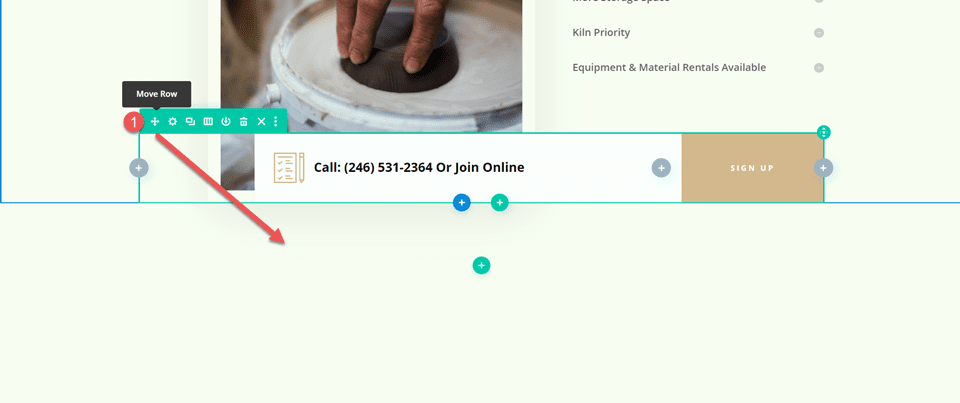
  • An Overview of Line Styles in Divi’s Divider Module & How to Style Them

    The divider line in Divi’s Divider Module is a great way to separate elements or add some visual flair to your Divi layouts. The module is easy to use and surprisingly versatile. In this post, we’ll see an overview of the line styles in Divi’s Divider Module and see how to style them. We’ll create six examples to help spark your imagination to style your Divi Divider Module.

    Let’s get started.

    Preview

    Desktop Divider Module Line Style Example One

    Desktop Divider Module Line Style Example One

    Phone Divider Module Line Style Example One

    Phone Divider Module Line Style Example One

    Desktop Divider Module Line Example Two

    Desktop Divider Module Line Example Two

    Phone Divider Module Line Example Two

    Phone Divider Module Line Example Two

    Desktop Divider Module Line Example Three

    Desktop Divider Module Line Example Three

    Phone Divider Module Line Example Three

    Phone Divider Module Line Example Three

    Desktop Divider Module Line Example Four

    Desktop Divider Module Line Example Four

    Phone Divider Module Line Example Four

    Phone Divider Module Line Example Four

    Desktop Divider Module Line Example Five

    Desktop Divider Module Line Example Five

    Phone Divider Module Line Example Five

    Phone Divider Module Line Example Five

    Desktop Divider Module Line Example Six

    Desktop Divider Module Line Example Six

    Phone Divider Module Line Example Six

    Phone Divider Module Line Example Six

    Divider Module Features

    To give the screenshots some color and reference, I’ve added the Text Modules and a colored background from the Portfolio page of the free Photography Studio Layout Pack that’s available within Divi.

    Divi Module Content Tab

    The Divider Module’s Content tab includes the option to display the divider line or not and to give the divider a background color.

    Divi Module Content Tab

    The Background options are the standard options for other Divi modules. It includes a background color, gradient, image, video, pattern, or mask. For this example, I’ve added a pink background color to make it easy to see the space the divider uses. The divider is placed at the top of this space by default.

    Divi Module Content Tab

    Divider Module Design Tab

    The Divider Module Design tab options include Line Color which also includes the Line Style options. Other options include Sizing, Spacing, Border, Box Shadow, Filters, Transform, and Animation.

    Divider Module Design Tab

    Line Color

    The Line Color setting includes the standard color picker, allowing Divi users to fully customize the color of the divider line.

    Divider Module Design Tab

    Line Style

    The Line Style setting determines the shape of the line. It has 9 options.

    Divider Module Design Tab

    Line Position

    Line Position places the line at the top, middle, or bottom of the divider’s space.

    Divider Module Design Tab

    Divider Module Line Style Options

    The Line Style options work with Sizing (Weight, Width, etc.) to create some interesting dividers. Here’s a look at each Style with a Weight of 20px so they stand out in my images.  After this, we’ll style the divider with various Color, Style, and Size combinations.

    Solid

    Solid displays the divider as a solid line.

    Divider Module Line Style Options

    Dashed

    Dashed cuts the divider line into small dashes.

    Divider Module Line Style Options

    Dotted

    Dotted displays the divider line as dots.

    Divider Module Line Style Options

    Double

    Double displays two divider lines in parallel.

    Divider Module Line Style Options

    Groove

    Groove cuts into the top of the line and makes the top a darker shade of the color we selected.

    Divider Module Line Style Options

    Ridge

    Ridge cuts into the bottom of the line and makes the bottom a darker shade of the color we selected.

    Divider Module Line Style Options

    Inset

    Inset cuts into the top and bottom of the line, making the entire line a darker shade of the color we selected.

    Divider Module Line Style Options

    Outset

    Outset doesn’t cut into the line, essentially giving the same look as Solid.

    Divider Module Line Style Options

    None

    None makes the divider line invisible, showing only its background color.

    Divider Module Line Style Options

    Divider Module Line Sizing Settings

    The Sizing options determine the divider’s weight, height, width, and alignment. Here’s a look at the main settings.

    Divider Weight

    Divider Weight specifies the thickness of the divider line.

    Divider Module Line Sizing Settings

    Width

    Width specifies the width of the divider line. It can be used in combination with Module Alignment to place the line on the left, center, or right of its area.

    Divider Module Line Sizing Settings

    Module Alignment

    Module Alignment places the line on the left, in the center, or on the right of the module’s area.

    Divider Module Line Sizing Settings

    Height

    Height determines the height of the module’s area. The line remains the same size, but the background fills in to take up the space.

    Divider Module Line Sizing Settings

    Divider Module Line Style Examples

    Now, let’s see some examples of these settings working together. For our examples, I’ve added the Divider Module to various locations within the Portfolio page and the Landing page of the free Photography Studio Layout Pack. I’ll use the colors from the layout pack and style the module to fit the area.

    Divider Module Line Style Example One

    For our first example, we’ll place a solid divider line under the page title of the portfolio page. Add the Divider Module under the Text Module.

    Change the Line Color to #ff5a17 and leave the Line Style at the default setting (Solid). Set the Divider Weight to 4px for desktops and tablets and change it to 2px for phones. Set the Width to 30% and the Module Alignment to Center.

    • Line Color: #ff5a17
    • Line Style: Solid
    • Divider Weight: 4px desktop, 2px phone
    • Width: 30%
    • Module Alignment: Center

    Divider Module Line Style Example One

    Divider Module Line Style Example Two

    We’ll place the second divider between portfolio projects under Featured Work. This requires adding a new Row for the Divider Module. The divider will be offset, just to make it look different.

    Change the Line Color to #ff5a17 and the Line Style to Ridge. Set the Divider Weight to 24px for desktops and tablets and to 20px for phones. Change the Width to 76%.

    • Line Color: #ff5a17
    • Line Style: Ridge
    • Divider Weight: 24px desktop and tablet, 20px phone
    • Width: 76%

    Divider Module Line Style Example Two

    Set the Height to 40px to add more space between the next Row.

    • Height: 40px

    Divider Module Line Style Example Two

    Divider Module Line Style Example Three

    We’ll place the third divider line next to the Call-to-Action button for a section labeled Let’s Work Together. This one changes the Row to three columns with a ½ column on the left and two ¼ columns on the right. The Divider Module is placed between the Text Modules and the Button Module. The divider line connects to the button, following design cues from other sections of this layout.

    This one uses the Solid Line Style. Change the Line Color to black and set the Divider Weight to 2px. Set the Width to 128% for desktops, 112% for tablets, and Auto for phones.

    • Line Color: #000000
    • Line Style: Solid
    • Divider Weight: 2px
    • Width: 128% desktop, 112% tablet, Auto phone

    Divider Module Line Style Example Three

    Divider Module Line Style Example Four

    The next three examples use the Photography Studio Landing Page. Our fourth example places a Divider Module under the Button Module in a CTA called Turning Moments Into Art. This one will use the module’s settings to add dots to the area to draw attention.

    Change the Line Color to #ff5a17 and choose Dotted for the Line Style. Set the Divider Weight to 30px. Change the Width to 45% for desktops, 30% for tablets, and 28% for phones.

    • Line Color: #ff5a17
    • Line Style: Dotted
    • Divider Weight: 30px
    • Width: 45% desktop, 30% tablet, 28% phone

    Divider Module Line Style Example Four

    Scroll down to Spacing and add 42px of Left Padding for phones. Leave the Padding for desktops and tablets at the default.

    • Left Padding: 42px phone

    Divider Module Line Style Example Four

    Divider Module Line Style Example Five

    Our fifth example will add a dashed line to a section called Recent Work. Add the Divider Module to the empty column in the top Row.

    Change the Line Color to black and the Line Style to Dashed. Set the Divider Weight to 24px.

    • Line Color: #000000
    • Line Style: Dashed
    • Divider Weight: 24px

    Divider Module Line Style Example Five

    Change the Height to 45px for tablets and phones. Alternatively, you can set the Height to 45px for all devices. Desktops will look the same either way.

    • Height: 45px

    Divider Module Line Style Example Five

    Divider Module Line Style Example Six

    For our last example, we’ll add a Divider Module with a double line under the description in a section called Case Study.

    Change the Line Color to white and the Line Style to Double.

    • Line Color: #ffffff
    • Line Style: Double

    Divider Module Line Style Example Six

    Set the Divider Weight to 6px. Change the Width to 48% for desktops, 22% for tablets, and 36% for phones. Change the Module Alignment to Center.

    • Divider Weight: 6px
    • Width: 48% desktop, 22% tablet, 36% phone
    • Module Alignment: Center

    Divider Module Line Style Example Six

    Results

    Desktop Divider Module Line Style Example One

    Desktop Divider Module Line Style Example One

    Phone Divider Module Line Style Example One

    Phone Divider Module Line Style Example One

    Desktop Divider Module Line Example Two

    Desktop Divider Module Line Example Two

    Phone Divider Module Line Example Two

    Phone Divider Module Line Example Two

    Desktop Divider Module Line Example Three

    Desktop Divider Module Line Example Three

    Phone Divider Module Line Example Three

    Phone Divider Module Line Example Three

    Desktop Divider Module Line Example Four

    Desktop Divider Module Line Example Four

    Phone Divider Module Line Example Four

    Phone Divider Module Line Example Four

    Desktop Divider Module Line Example Five

    Desktop Divider Module Line Example Five

    Phone Divider Module Line Example Five

    Phone Divider Module Line Example Five

    Desktop Divider Module Line Example Six

    Desktop Divider Module Line Example Six

    Phone Divider Module Line Example Six

    Phone Divider Module Line Example Six

    Ending Thoughts

    That’s our overview of line styles in Divi’s Divider Module and how to style them. The various line styles and options provide lots of design possibilities. With just a few settings, Divi users can create small or large dividing lines, add shapes, and lots more. Divi’s Divider Module is a great way to add some visual flair to any Divi website.

    We want to hear from you. Do you style the divider line in your Divi Divider Module? Let us know in the comments.

    The post An Overview of Line Styles in Divi’s Divider Module & How to Style Them appeared first on Elegant Themes Blog.
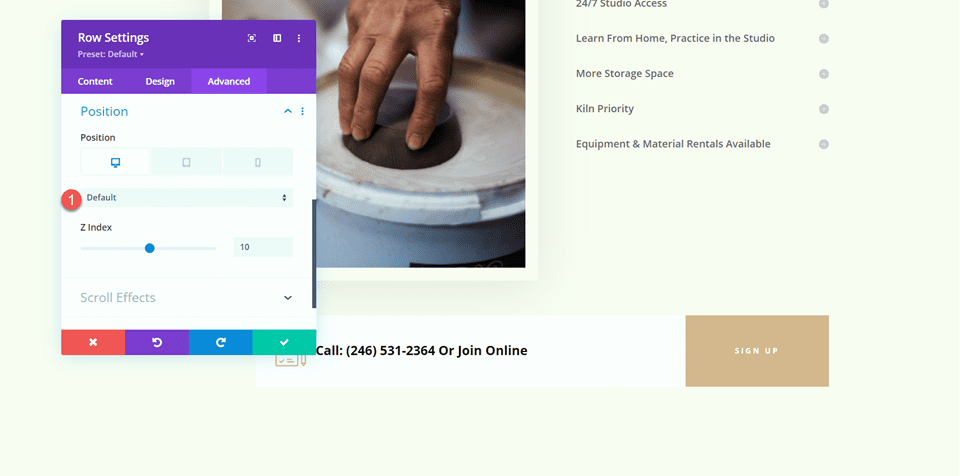
  • Get a Free Transport Company Layout Pack for Divi

    Hey Divi Nation! Thanks for joining us for the next installment of our weekly Divi Design Initiative; where each week, we give away a brand new Layout Pack for Divi.

    This time around, the design team has created a beautiful Transport Company Layout Pack that’ll help you get your next Transport Company website up and running in no time!

    This layout pack includes:

    7 Premade page layouts strategically designed for any Transport Company website (including a footer design)
    – Original, royalty-free photos and graphics + customizable source file (see below)
    – Plus, a large collection of pre-designed website elements that are customizable and reusable anywhere.

    This layout pack is available right inside Divi for all Divi customers for FREE as the latest addition to our growing Divi library of hundreds of premade layout packs, thousands of page designs, and countless web design elements and resources.

    divi layout

    Check Out The Divi Transport Company
    Layout Pack Below

    Get it for free today!

    Transport Company layout pack

    Landing Page Design

    Transport Company layout pack

    View The Live Layout Demo

    Home Page Design

    Transport Company Layout Pack for Divi

    View The Live Layout Demo

    Services Page Design

    Transport Company Layout Pack for Divi

    View The Live Layout Demo

    Service Page Design

    Transport Company Layout Pack for Divi

    View The Live Layout Demo

    About Page Design

    Transport Company Layout Pack for Divi

    View The Live Layout Demo

    Blog Page Design

    Transport Company Layout Pack for Divi

    View The Live Layout Demo

    Contact Page Design

    Transport Company Layout Pack for Divi

    View The Live Layout Demo

    Key Features

    If you’re looking for a sleek new design for your transport company, look no further than the Transport Company Layout Pack for Divi. This high-contrast design has subtle movement, bold headlines, and gorgeous photography to showcase your company’s services, customer testimonials, and blog. Take your transport company to the next level with this effective and beautiful design.
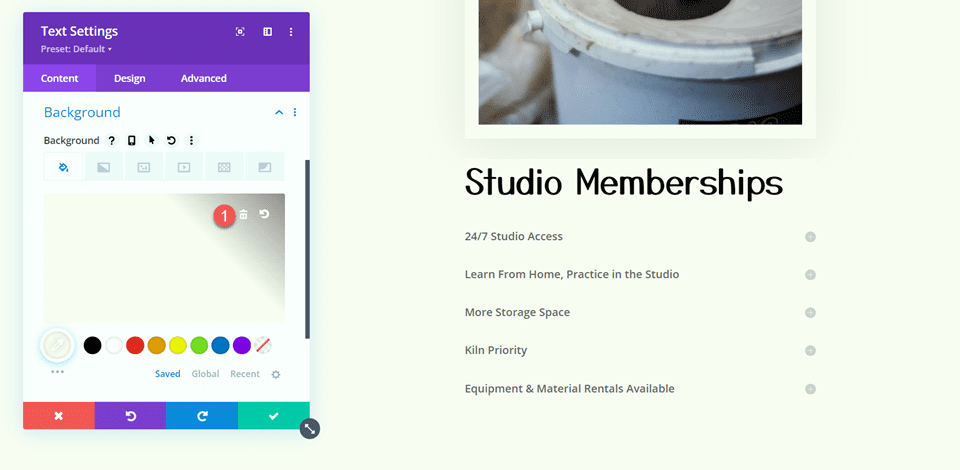
    Live Demos

    Click the links below to see a live demo for each of the layouts included in the pack.

    1. Transport Company Landing Page (live demo)
    2. Transport Company Home Page (live demo)
    3. Transport Company Services Page (live demo)
    4. Transport Company Service Page (live demo)
    5. Transport Company About Page (live demo)
    6. Transport Company Blog Page (live demo)
    7. Transport Company Contact Page (live demo)

    Access This Layout Right Now
    Directly from Your Divi Builder

    Since Version 3.0.99 of Divi, you can find and import any of the layouts included in this pack (along with ALL of Divi’s Premade Layout packs) directly from the Divi Builder. They are already waiting for you.

    To access your new layout, simply activate the Visual Builder when editing a page and look for the “Load From Library” icon in the page settings bar (it looks like a plus symbol). Click this icon to launch the Load From Library popup. Under the Premade Layouts tab, you can easily find the new layout by scrolling through the list of layout packs. Once you find the Transport Company Layout Pack, click on it. You will see all the individual layouts included in the pack. Select the layout you want to use and then click the “Use This Layout” button.

    Transport Company Layout Pack for Divi

    For more, check out this video to learn how you can get this layout pack up and running today.

    Subscribe To Our Youtube Channel

    Authentication Required

    Before you can download Premade Layouts from the Divi Library you must authenticate your Elegant Themes Subscription. You can do this by navigating to Divi > Theme Options > Updates. There you can enter your username and API key and save changes.

    Transport Company Layout Pack for Divi

    You can find your API Key under your members area on the Elegant Themes site. After you enter the Username and API Key, you will gain immediate access to our library of hundreds of free layouts (including this one). If you haven’t done this, when you click to import a layout to your page, you will be prompted to enter your Elegant Themes Membership Username and API Key.

    Use Layout Images for FREE with No Licensing Restrictions

    Transport Company Layout Pack for Divi

    The image assets included with these layouts (icons, illustrations, photos, etc.) have no licensing restrictions. This means you can use them in all of your commercial projects without having to worry about paying licensing fees or attributing the photographer. Use them in your commercial websites, sell them within your Divi child themes, include them in your own Divi layout packs or just use them on your blog. We know how challenging it can be to find good photos and how confusing and scary the licensing that governs those photos can be. We want to fix that problem for our users.
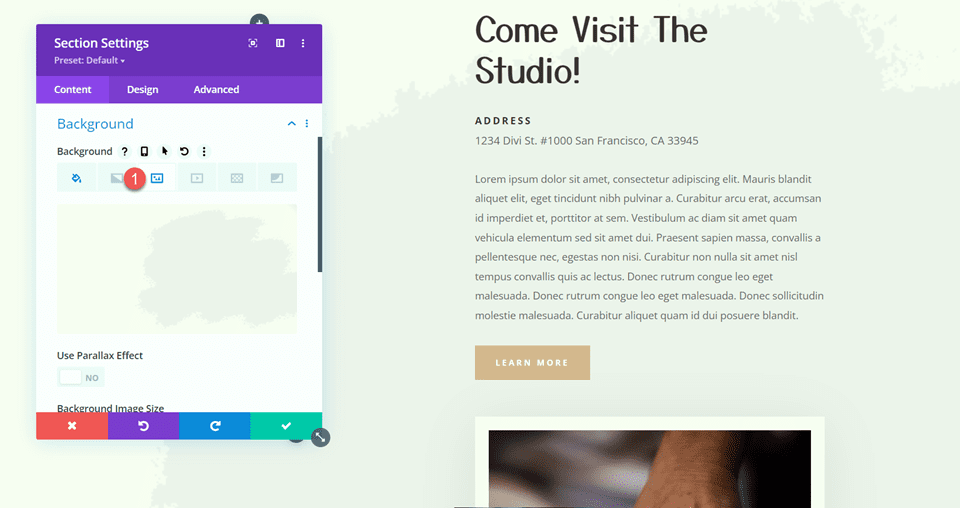
    Download the Full Res Image Assets

    New Layout Pack Every Week!

    We hope you enjoy this layout pack. We look forward to hearing your opinions in the comment section below. Make sure you check out next week’s layout pack as well!

    The post Get a Free Transport Company Layout Pack for Divi appeared first on Elegant Themes Blog.