EDITS.WS

Tag: easy digital downloads

  • How to Sell Photos Online in 2023 (Beginner’s Guide)

    Do you want to learn how to sell your photos online?

    No matter whether you are a professional photographer or an enthusiastic hobbyist, you can make money by selling your photography. You can sell your work to businesses that need beautiful stock photos for their projects or even to individuals who are simply looking for a nice photo.

    In this article, we will show you how to start selling your photos online using WordPress.

    How to sell photos online (beginner’s guide)

    Why Sell Your Photos Online?

    Stock photography websites are very popular with businesses, organizations, and even individuals who need professional images for their projects. If you are looking for an online side business, then selling photos online is a great way to make money.

    By selling your photos as downloadable files, you can make money without having to pay for shipping or professional printing. You can also sell the same file countless times. You will just need to create your website, upload your files, and make extra income without a lot of day-to-day effort.

    If you are a professional photographer, then selling your work online can also introduce your brand to a wider audience. As a result, people who like your work may book you for professional photoshoots and events.

    With that in mind, let’s see how you can sell photos online.

    Which Platform Should You Use to Sell Photos Online?

    First, you will need to choose an eCommerce platform that you will use to upload your photos and then sell them.

    While you can change your eCommerce platform later, it will often take a lot of time and effort and will almost certainly disrupt your business. So, it’s important to choose your eCommerce platform carefully.

    Since you want to sell photos online, it’s a good idea to use a platform that’s designed specifically to sell digital downloads.

    That’s why we recommend using WordPress and Easy Digital Downloads.

    WordPress is the best website builder in the world. According to our CMS market share report, WordPress powers over 43% of all websites on the internet, including millions of websites that sell digital downloads. WordPress gives you full control over your digital store, so you can design a beautiful website that shows off your photography.

    Meanwhile, Easy Digital Downloads is the best WordPress eCommerce plugin to sell digital products. In fact, we use the plugin ourselves to sell many of our premium WordPress plugins.

    With WordPress and Easy Digital Downloads, you can sell as many photos as you want to a worldwide audience without paying high transaction fees. This gives WordPress and Easy Digital Downloads a big advantage over other platforms like Sellfy, Gumroad, WooCommerce, and Sendowl.

    Let’s see how you can quickly and easily start selling photos online using WordPress and Easy Digital Downloads. You can use the quick links below to jump to different parts of the tutorial:

    Step 1: Setting Up Your WordPress Website

    Before you start building your WordPress website, it’s important to know that there are two types of WordPress software: WordPress.org and WordPress.com.

    For your online store, you will need WordPress.org. Also known as self-hosted WordPress, it has more features and flexibility. You can also install any WordPress plugin, including Easy Digital Downloads, which is designed for selling products online.

    For a detailed comparison, you can see our guide on the difference between WordPress.com and WordPress.org.

    To start selling digital photos with WordPress, you will need a domain name. This is the address that people will type into their browser when they want to visit your store, like shutterstock.com or stockphotos.com.

    If you don’t already have a name in mind, then you can see our guide on how to choose the best domain name.

    You’ll also need web hosting, which is where your website’s files are stored online, and an SSL certificate so that you can securely accept credit card payments.

    A domain name typically costs $14.99/year, and hosting costs start from $7.99/month. The price of an SSL certificate differs depending on where you buy the certificate, but you can expect to pay anywhere between $50-200/year.

    As you can see, the costs can really start to add up, especially if you are just getting started.

    Thankfully, SiteGround is offering a huge 73% discount on their managed hosting for Easy Digital Downloads. Their plan comes with a free SSL certificate, Easy Digital Downloads pre-installed, and all the optimization features you need to make a successful business website.

    This means you can start selling your photos for less than $4 per month.

    Let’s go ahead and show you how to easily buy a domain name, web hosting, and an SSL certificate.

    To get started, you need to go to the SiteGround website and click on ‘Get Plan.’

    SiteGround's hosting plans

    After that, SiteGround will ask you to enter a domain name for your online store and will also show some optional extras you can buy. You can add these extras at any point, so we recommend skipping this step.

    Then, simply enter your payment information to finish the purchase. After a few moments, you will get an email with details on how to log in to your SiteGround account.

    Once you log in, select the ‘Websites’ tab. Here, you will see two buttons: Site Tools and WordPress Admin.

    Site Tools is SiteGround’s hosting dashboard, where you can manage everything related to your site, such as setting up your emails.

    To log in to your new website, go ahead and click on the ‘WordPress Admin’ button.

    The SiteGround admin panel

    This will take you to a screen where you can log in to your WordPress dashboard.

    Here, simply type in the username and password you created, and then click on ‘Log In.’

    Logging into the WordPress dashboard

    Now, you are ready to start building a store to sell your digital photos online.

    Are you using a different WordPress website hosting service like Bluehost, Hostinger, HostGator, or WP Engine? Just check out our guide on how to install WordPress for detailed step-by-step instructions.

    Step 2: Setting Up Your eCommerce Plugin

    If you are using SiteGround, then Easy Digital Downloads already comes pre-installed.

    If you are using a different hosting provider, then you will need to install and activate the Easy Digital Downloads plugin. For step-by-step instructions, please see our guide on how to install a WordPress plugin.

    Upon activation, you need to go to Downloads » Settings in your WordPress dashboard and enter your license key into the ‘License Key’ field.

    How to sell photos online using Easy Digital Downloads

    You can find this information in your account on the Easy Digital Downloads website. With that done, just click on the ‘Activate License’ button.

    First, you need to set your store’s location.

    You may be selling your photos online, but Easy Digital Downloads will still use your location to auto-fill some fields when a visitor makes a purchase. It may also use your location to calculate sales tax.

    To add your location, simply open the ‘Business Country’ dropdown menu. You can then choose where your business is based.

    Adding a business location to your online digital store

    Next, find the ‘Business Region’ field.

    Here, you can open the dropdown and choose the area where your store operates from.

    Setting the business region for your online store

    When you are happy with the information you have entered, simply click on the ‘Save Changes’ button to store your settings.

    Step 3: Adding a Payment Gateway to WordPress

    When selling photos online, you will need a way to accept credit payments in WordPress. By default, Easy Digital Downloads supports popular payment gateways like Stripe, PayPal, and Amazon Payments.

    Pro Tip: Want to use a different payment gateway instead? You can add extra payment options using the Easy Digital Download extensions.

    To add payment gateways to your website, simply click on the ‘Payments’ tab.

    Adding a payment gateway to your online stock photography website

    If you want to accept payments with Stripe or PayPal, then click on either the ‘Stripe’ or ‘PayPal’ tab.

    You can then follow the onscreen instructions to set up Stripe or PayPal for your website.

    Adding a Stripe payment gateway to a stock photo website

    When done, go ahead and click on the ‘General’ link.

    In the Active Gateways section, check the box for each of the gateways that you want to add to your digital product marketplace.

    How to accept payments online with Easy Digital Downloads

    If you check more than one payment method, then you will need to open the ‘Default Gateway’ dropdown and choose the payment method that will be selected by default.

    You can use any gateway you want, but Stripe can accept credit cards as well as Google Pay and Apple Pay. With that being said, you may want to use Stripe as your site’s default payment gateway.

    Setting a default gateway in Easy Digital Downloads

    After selecting one or more payment gateways, just click on the ‘Save Changes’ button.

    By default, Easy Digital Downloads shows all your prices in US dollars. Once you have set up your payment gateway, you may want to change the currency that’s used on your website.

    To show your prices in any currency other than US dollars, select the ‘General’ tab, followed by the ‘Currency’ link.

    Changing the currency settings on your online store

    Next, open the ‘Currency’ dropdown and choose the currency you want to use.

    Just be aware that some payment gateways may not accept every currency. If you are not sure, then you can always check your chosen payment gateway’s website. Most have a list of currencies that they support.

    When you are happy with how the plugin is set up, click on the ‘Save Changes’ button to store your settings.

    Step 4: Turning Individual Photos Into Downloadable Products

    Once you have set up at least one payment gateway, you are ready to create your first digital product. This can be any photo or digital file that you want to sell online.

    To create a digital product, simply go to Downloads and then select the ‘Add New’ button.

    How to add a digital product to your website

    You can now type a name for the product into the ‘Enter download name here’ field.

    This will be shown on the product’s page, so you will want to use something that catches the visitor’s attention and accurately describes your photo.

    Adding a title to a downloadable photo product

    Next, type out the description that will appear on the product page. You will want to give visitors all the information they need to decide whether they want to buy this photo.

    For example, you might include the image’s dimensions and resolution or your camera’s technical specifications. You could also talk about the product’s licensing and how the customer can use the photo after buying it.

    Adding a description to a digital product

    Many online stores use product categories and tags to help shoppers find what they are looking for. These categories and tags can also encourage visitors to explore related photos, which can get you more sales.

    You can create new categories and tags in the Download Categories and Download Tags boxes. To learn more, please see our step-by-step guide on how to add categories and tags for WordPress pages.

    Adding tags and categories to a photography product

    Next, you will want to set a price by scrolling to the Download Prices section.

    Here, type in how much visitors will need to pay to download this photo.

    Adding a price to a digital product

    Easy Digital Downloads also supports variable pricing. For example, you might sell the same photo in multiple resolutions or sizes.

    If you want to offer variable pricing, then just select the ‘Enable variable pricing’ checkbox. This adds a new section where you can type in a name for each digital download and set the price.

    Creating a product with variable pricing using Easy Digital Downloads

    To create more pricing variations, simply click on the ‘Add New Price’ button.

    You can then type in a title and price for each variable.

    Creating variable pricing in WordPress

    After adding all the options, you will need to set the default option. This will be selected automatically when the shopper arrives at the product page.

    Simply find the option you want to use, and click its ‘Default’ button.

    Setting a default price variation using Easy Digital Downloads

    You are now ready to upload the image file that you want to sell. When it comes to images, WordPress supports gif, heic, jpeg, png, and webp formats.

    Pro Tip: If you want to sell photos in a file type that WordPress doesn’t support, then see our guide on how to allow additional file types in WordPress.

    To get started, click on the ‘Upload a File’ icon.

    Uploading downloadable files to an online store

    You can now choose any image from the WordPress media library or upload a new file from your computer.

    Easy Digital Downloads will generate a file name automatically. However, you can change the file name by typing into the ‘File Name’ field.

    Adding a filename to a digital product such as an ebook, photo, or digital artwork

    If you have enabled variable pricing, then you need to open the ‘Price Assignment’ dropdown.

    Then, choose a price from the list.

    Adding a pricing assignment to a product on an online marketplace

    After that, just click on the ‘Add New File’ button.

    This adds a section where you can upload a file, add a title, and choose a price assignment.

    Offering variable pricing on an eCommerce store

    Simply repeat these steps for each pricing variation you want to offer.

    Once you have uploaded your photo files, the next step is adding a product image.

    When you are selling photos online, you don’t want people to steal your work without paying. For this reason, we do not recommend using the original photos as your product image.

    Instead, you can use a lower-resolution version of the original photo or add a watermark.

    If you create a watermark using web design software, then make sure you show this watermark in a location that isn’t easy to crop out. Many photographers place their watermark in the center of the image, or they use the watermark in a repeating pattern that covers the entire photo.

    To add a product image, simply scroll to the Download Image section and then click on ‘Set Download Image’.

    Adding product images to an e-Commerce store

    This launches the WordPress media library, where you can choose an image or upload a new file from your computer.

    When you are happy with your digital download, simply click on the ‘Publish’ button to make it live. You can now repeat these steps to add more digital downloads to your WordPress website.

    Step 5: Creating Downloadable Photo Packs (Optional)

    Once you have uploaded all your individual photos, you may want to create bundled photo packs that shoppers can buy.

    For example, you could add all your foodie-themed photos to a pack that people can use on their restaurant websites or create packs showing a particular workplace or location.

    An example of a bundled product on an online store

    This can save your customers time since they don’t have to search through your entire catalog and buy each photo they want to use.

    You may also want to offer these photo bundles at a discount compared to buying each photo individually. In this way, you can get more conversions and increase the average order value.

    To add multiple photos to the same bundle, simply create a new digital product following the same process described above. Just like before, you can add a title, description, categories and tags, a price, and more.

    Creating a bundled stock photo product using Easy Digital Downloads

    Next, under ‘Download Files’, you will need to open the ‘Product Type Options’ dropdown and choose ‘Bundle’.

    This adds a new ‘Bundled Downloads’ section.

    Creating a bundle product using Easy Digital Downloads

    You can now open the dropdown that shows ‘Choose a Download’ by default.

    In the dropdown, start typing in the name of the first photo you want to add to the bundle. When the photo name appears, just click to select it.

    Offering multiple photos as a downloadable product

    With that done, you need to click on ‘Add New File’.

    You can now add a second photo to the bundle.

    How to create a multiple-file downloadable product using Easy Digital Downloads

    Simply repeat these steps to add all the photos you want to offer as part of this bundle.

    When you are happy with how the bundle is set up, click on ‘Publish’ to make it live. You can now repeat these steps to create as many photo bundles as you want.

    Step 6: Customizing Your Digital Download Emails

    Every time someone buys a photo from your website, Easy Digital Downloads will send them an email with a link to download their product.

    The default Easy Digital Downloads purchase receipt

    While this default email has everything the customer needs to download their file, we still recommend customizing it with your own logo, branding, and messaging.

    To customize the default email, simply go to Downloads » Settings. Then click on the ‘Emails’ tab.

    Customizing the default purchase email in Easy Digital Downloads

    You may want to start by adding your own logo.

    This branding appears at the top of your purchase receipt emails, so customers can clearly see who the email is from.

    Adding a logo to a purchase confirmation email

    To add a logo, click on the ‘Attach File’ button.

    You can now either choose an image from the WordPress media library or upload a file from your computer.

    Adding a logo to the purchase receipt email

    You can also add a ‘From Name’.

    This name will appear in the customer’s inbox, so you will want to use something that the customer will recognize, like the name of your website, business, or photography studio.

    Creating a custom email for your online store

    You will also need to add a ‘From Email’, which will act as the ‘from’ and ‘reply-to’ address.

    Some customers may reply to the purchase receipt email. For example, if they are having problems downloading the file, then they might reach out by clicking ‘Reply’. With that in mind, you will want to use a professional email address that you check frequently.

    After making these changes, just click on the ‘Purchase Receipts’ tab.

    Customizing the purchase receipts email

    On this screen, you can type in an email subject, add a heading, and also change the email’s body text.

    You could simply type in the text that you want to send to every customer. However, you can create more helpful and personalized emails by using the Conditional Emails feature.

    Conditional Emails use ‘template tags’ to personalize your content. Every time it sends an email, Easy Digital Downloads will replace these tags with real values, such as the customer’s name and how much they paid for the digital download.

    To see all the available tags, simply scroll to the bottom of the ‘Purchase Receipts’ screen.

    How to create a personalized purchase receipt using Easy Digital Downloads

    When you have finished making changes, you may want to send a test email to see how the message will look to your customers.

    To do this, simply click on the ‘Send Test Email’ button, and Easy Digital Downloads will send an email to your WordPress admin email address.

    Sending a test email using Easy Digital Downloads

    Have you clicked on the ‘Send Test Email’ button but didn’t get a test email? Your WordPress website may not be sending emails properly, which can be a big problem. If customers don’t get purchase confirmation emails, they won’t be able to download your photos.

    With that in mind, you can follow our guide on how to fix the WordPress not sending email issue to make sure your emails reach your customers. You can also check out WP Mail SMTP, which is the best WordPress SMTP plugin.

    When you are happy with the purchase receipt email, go ahead and click on the ‘Save Changes’ button.

    Step 7: Testing Your Digital Download

    Once you have created your first Easy Digital Downloads product and customized the purchase emails, it’s a good idea to check that visitors can buy your photos without any issues.

    To test your download, you will need to put your site into test mode. This allows you to test the purchasing process without typing in your credit or debit card information.

    To put your store into test mode, go to Downloads » Settings and then click on the ‘Payments’ tab.

    Under ‘Active Gateways’, you must check the box next to ‘Store Gateway’.

    Putting your online store into testing mode

    After that, scroll to the bottom of the screen and click on ‘Save Changes’.

    Now that you are in test mode, go to Downloads » All Downloads and hover over the product that you want to test. When it appears, click on the ‘View’ link.

    How to sell photos online using WordPress and Easy Digital Downloads

    This opens the product page where shoppers can buy the photo or photo pack.

    To make a test purchase, simply click on the ‘Purchase’ button.

    How to sell stock photos online using WordPress and Easy Digital Downloads

    Easy Digital Downloads will now add this item to your cart.

    After that, it’s time to click on the ‘Checkout’ button.

    Testing the purchasing process for your online store

    You can now type in your email address and name and then click on ‘Purchase’.

    Since you are in test mode, you don’t need to enter any payment information.

    Testing the purchasing process on an e-Commerce store

    After a few moments, you will get a purchase confirmation email containing a link to download the individual photo or all the files in a stock photo pack.

    Once you have completed the test, you are ready to take your store out of test mode and start accepting payments from visitors.

    To do this, head over to Downloads » Settings » Payments. You can then uncheck the ‘Store Gateway’ box.

    How to accept credit and debit cards in WordPress

    Step 8: Selecting and Customizing Your WordPress Theme

    Themes control how your WordPress website looks, including the colors, layout, fonts, and widget-ready areas. The right WordPress theme will make a good first impression on visitors and make them want to explore more of your site.

    With that in mind, you will want to choose a design that looks great and has exactly the features you need.

    To help you make the right choice, we have put together a list of the most popular WordPress themes. Our top pick is the Astra Theme since it’s fully compatible with Easy Digital Downloads, free, and completely customizable.

    After choosing your theme, you can see our guide on how to install a WordPress theme.

    Another option is to create your own custom page designs with SeedProd. It’s the best drag-and-drop WordPress theme builder on the market and comes with more than 180 ready-made, professionally designed templates.

    SeedProd's collection of ready-made templates

    You can use SeedProd to design landing pages and sales pages where you promote your photographs and photo packs.

    This can get you more conversions and boost your profits.

    Creating a sales page using SeedProd

    If you want complete control over your store, then you can even use SeedProd to design your own theme without writing a single line of code. Simply find the blocks you want to use, and then drag them onto your page designs in the SeedProd editor.

    For more details, you can check out our guide on how to create a custom WordPress theme (no coding needed).

    Step 9: Promoting Your Digital Downloads

    If you are going to actually sell your photos, then you need to encourage people to visit the different product pages.

    A good first step is adding your store to your website’s menu.

    Another option is writing great blog posts about industry topics. You can then include links to a few relevant products that readers may want to buy.

    An example of a blog post, on a stock photography website

    You can also build an email list and then send your subscribers updates about new photos you have just added to your site, your latest blog posts, or other interesting content that will make them want to visit your store.

    No matter how you promote a product, you will need to know its URL.

    To find this link, simply go to Downloads » Downloads. You can then find the product you want to link to and click on its ‘Edit’ link.

    Getting a purchase link for a digital product

    You will find the URL in the right-hand menu.

    You can now link to this product page from any area of your website using its URL. To learn more, see our step-by-step guide on how to add a link in WordPress.

    Getting the URL for a downloadable product

    Easy Digital Downloads also creates a unique ‘Purchase’ button for each photo. You can add this button to any page, post, or widget-ready area.

    Visitors can simply click this button to add the photo to their shopping cart. In this way, you can start the purchasing process from any page on your website, including landing pages, sales pages, and any ads you show on your WordPress blog.

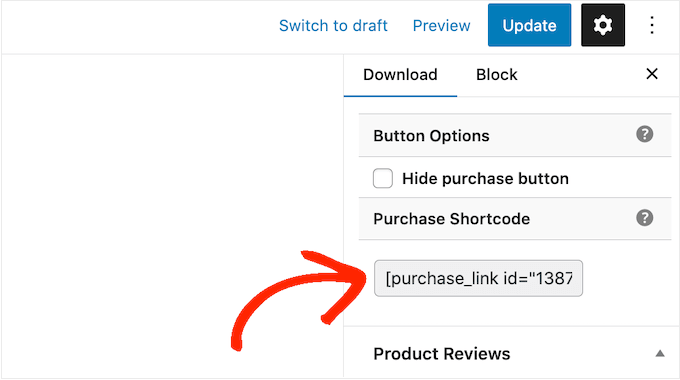
    You can add this button to any page, post, or widget-ready area using a shortcode that Easy Digital Downloads creates automatically.

    To get a product’s shortcode, simply scroll to its Download Settings section. You can then copy the text in the ‘Purchase Shortcode’ field.

    Adding a 'purchase' button using shortcode

    For more details on how to place the shortcode, you can see our guide on how to add a shortcode in WordPress.

    After adding the shortcode to your website, you will see a new ‘Purchase’ button.

    An example of a landing page, created using the SeedProd page builder

    BONUS – How to Sell More Photos Online

    To make more sales, you will need to get as many visitors as possible and then convince those people to buy your photos.

    This is where WordPress plugins can make things easier.

    Here are some of our top picks for plugins that can help you sell more photos online:

    FAQs About Selling Photos Online

    In this guide, we showed you how to sell photos online using WordPress. If you still have questions, then here are our FAQs about running an online photography business.

    Where Can I Sell My Photos Online?

    There are lots of platforms, stores, and digital marketplaces where you can upload your photos and sell them to an existing audience.

    Some popular choices among photographers include Adobe Stock, Shutterstock, and Alamy. These popular platforms already have lots of users, so you can reach a large audience and introduce your photography to people who may not know about your brand.

    However, many of these stock photography marketplaces and websites take a percentage of every sale you make, and some even charge upfront fees.

    To build a successful photography business, we recommend creating your own website instead. This gives you complete control over your brand, and you get to keep all the profits from every sale.

    How Much Does It Cost to Sell Photos Online?

    We always recommend a business model where you start small. That way, you can spend more money as you build your audience and start selling more products.

    The good news is that selling photos online is already a low-cost and easy online business. To further reduce your startup costs, we recommend taking advantage of SiteGround EDD Hosting and using free WordPress themes and plugins.

    By using Easy Digital Downloads to sell your photos directly to customers, you can avoid many of the upfront costs and middleman fees of selling via third-party marketplaces like iStock and Getty Images.

    For more information, see our article on how much it costs to build a WordPress website.

    Once you have created a website, you can use free business tools to grow your small business and get more sales, even if you have a limited budget.

    How Can I Make Money From My Photos?

    The easiest way to make money from your photos is by selling them online. You can either sell your photographs for a one-time fee or sell licenses that control how customers can use those photos.

    Another option is to create a membership website and sell subscriptions. For example, you might allow members to download and use as many photos as they want or create membership tiers where your most popular photos are reserved for the highest-paying members. Another option is selling group memberships for corporate teams.

    Can I Also Sell Physical Products Using Easy Digital Downloads?

    At some point, you may want to sell physical products. For example, you might create merchandise featuring your most popular photos or sell your photographs as framed prints.

    Despite the name, you can also use Easy Digital Downloads to sell physical products. There’s even a Simple Shipping addon that adds shipping features to the Easy Digital Downloads plugin. In this way, you can ship your branded merchandise, framed prints, or other physical products to customers using the tools you’re already familiar with.

    We hope this article helped you learn how to sell photos online. You may also want to see our guide on how to choose the best website builder and our expert picks for the best WordPress portfolio plugins for designers and photographers.

    If you liked this article, then please subscribe to our YouTube Channel for WordPress video tutorials. You can also find us on Twitter and Facebook.

    The post How to Sell Photos Online in 2023 (Beginner’s Guide) first appeared on WPBeginner.

  • How to Sell Videos Online With WordPress (Step by Step)

    Are you looking to sell video downloads online? Maybe you are wondering whether you can sell videos using a WordPress website.

    The answer is yes. Selling videos with WordPress is easy and gives you the most control over your content and earnings. You’ll be able to sell the same video files countless times.

    In this article, we will show you how to start selling video files online with WordPress.

    How to Sell Videos Online With WordPress

    Why Sell Videos Online?

    If you are into making videos, then there are a lot of ways to sell your work online.

    Video on the web grows in importance every year, with 86% of businesses using video as a marketing tool and the average person watching 100 minutes per day watching videos.

    Selling your video content online will let you make money while helping others.

    You can sell video assets that other creatives can download and use in their own projects. These include stock footage, drone footage, motion graphics, logos, openers, and more.

    Or you might want to sell your own finished videos, such as training videos, music videos, product reviews, or video gameplay.

    One way to make money from your videos is to create a membership site like our own WordPress 101. Members pay a subscription or create free accounts to watch your content from your website.

    We show you how to do this in our guide on how to create a video membership site in WordPress.

    You can also sell your videos as digital downloads, and this article will teach you how.

    Which Platform Should You Use to Sell Videos?

    You’ll want to choose your eCommerce platform carefully.

    Some are better suited to physical products than digital downloads like video files. Moving platforms in the future can be complicated and take a lot of time and effort.

    We recommend using WordPress + Easy Digital Downloads.

    easy digital downloads

    WordPress is the best website builder on the market, used by over 43% of all websites.

    Now, it’s important to know that there are two types of WordPress software, and you don’t want to choose the wrong one.

    First, there is WordPress.com, which is a blog hosting platform. Then, there is WordPress.org, which is also known as self-hosted WordPress. For a detailed comparison, you can see our guide on the difference between WordPress.com and WordPress.org.

    You need to use the self-hosted WordPress.org platform because it gives you full control over your website. It provides complete freedom to sell any type of digital product using a plugin like Easy Digital Downloads.

    Easy Digital Downloads (EDD) is the best WordPress eCommerce plugin for selling digital products and is built specifically with the features you need to promote, sell, and distribute video files online.

    In this way, you don’t have to waste time configuring features that aren’t necessary for selling digital products, such as shipping and inventory management settings.

    With that being said, let’s take a look at how you can easily sell video files in WordPress. You can use the quick links below to jump to different parts of the tutorial:

    Step 1: Setting Up Your WordPress Website

    To start selling digital downloads with WordPress, you will need a domain name, web hosting, and an SSL certificate.

    • domain name is your website’s address on the internet. This is what visitors will type into their browsers to reach your website, such as ‘wpbeginner.com’.
    • Web hosting is a service that will store your website files and digital downloads. To help you out, we have hand-picked some of the best WordPress hosting that you can buy.
    • An SSL certificate creates a secure connection between your website and users so that you can safely accept online payments.

    One of our top recommended hosting providers, SiteGround, offers managed WordPress hosting for Easy Digital Downloads. Their plans come with a free SSL certificate, EDD preinstalled, and optimization features. Plus, you get a huge 73% off!

    Basically, you can create and run your website for less than $5 per month.

    Let’s walk through how to purchase your domain, web hosting, and SSL certificate.  

    Go ahead and open the SiteGround website in a new tab so that you can follow along. The first thing you need to do is click on the ‘Get Plan’ button.

    SiteGround Managed EDD Hosting

    After that, SiteGround will ask you to enter a domain name for your website. If you don’t have a name in mind, then you can see our guide on how to choose the best domain name.

    Finally, you will need to add your account information.

    You will also be able to purchase some optional extras. You can always add these at a later date if you need them. If you are not sure, then we recommend skipping this step. 

    After entering your payment details, SiteGround will send you an email with instructions on how to log in to your hosting account. This is a web hosting control panel where you can manage your new website. 

    Simply log in to your SiteGround account, and you will see that SiteGround has already installed WordPress for you. It has also preinstalled Easy Digital Downloads.

    SiteGroud Login to WordPress

    You can then click on the ‘WordPress Admin’ button. This will take you to your WordPress site’s dashboard.

    If you prefer not to use SiteGround for some reason, then you can install WordPress on other hosting companies like BluehostHostinger, and WP Engine by following a similar process.

    You can also see our complete beginner’s guide on how to create a WordPress website.

    Step 2: Creating an Online Store With Easy Digital Downloads

    By default, WordPress doesn’t include eCommerce functionality out of the box, so you will need a plugin to sell digital downloads.

    Plugins for WordPress sites are like apps for your phone. They add all kinds of different features and functionality to your website.

    If you claimed our SiteGround EDD hosting deal in the previous step, then Easy Digital Downloads is already installed on your website. You can move on to the ‘Entering Your Business and Location Information’ section below.

    But if you are using another hosting provider, then you first need to install and activate the free Easy Digital Downloads plugin. For more details, see our step-by-step guide on how to install a WordPress plugin.

    Note: For this tutorial, we will be using the free version of EDD. However, you may want to purchase Easy Digital Downloads Pro to access premium extensions like Dropbox File Store and Amazon S3, which are recommended for storing large files online.

    Entering Your Business and Location Information

    Upon activation, you need to visit the Downloads » Settings page in your WordPress admin area. This will start the Easy Digital Downloads setup wizard.

    On the setup wizard’s first page, you will be asked to enter your business name and location.

    You might wonder why your location is needed when you are selling online. This is because when a customer makes a purchase, Easy Digital Downloads will use the country and state information to auto-fill some fields. Also, your location may be used to calculate sales tax.

    To add your location, open the ‘Business Country’ dropdown menu. You can now choose the country where your business is based.

    Easy Digital Downloads Setup Select a Country

    Next, find the ‘Business Region’ field. Here you can type the state or province where your store operates from.

    Depending on your location, you may also want to customize the currency used on your website. By default, Easy Digital Downloads shows all of your prices in US dollars. It also places the dollar sign before the price, so five dollars is shown as ‘$5’.

    To change the default currency settings, scroll down to the Currency section and open the ‘Currency’ dropdown. You can now choose a new currency. 

    Easy Digital Downloads Setup Select Currency

    Just be aware that some payment gateways may not accept every currency. If you are not sure, then it’s a good idea to check the website for your chosen payment gateway. Most payment gateways have a list of the currencies that they support. 

    Once you are finished, you will need to click on the ‘Save & Continue’ button. This will bring you to the next page, where you can set up your payment methods.

    Setting Up Your Payment Methods

    Next, you need to set up a way to collect online payments.

    Stripe is one of the top payment companies that does not require going through a long process to sign up for a merchant account. They allow anyone with a legitimate business to accept credit card payments online.

    To quickly get started with Stripe, simply click on the ‘Connect with Stripe’ button.

    Easy Digital Downloads Setup Connect With Stripe

    This opens a setup wizard, which will help you connect your website to Stripe.

    If you need, you can add more payment gateways later. Simply take a look at the options on the Easy Digital Download extensions page, such as PayPal, Braintree, and Authorize.net.

    When you are done, just click the ‘Save & Continue’ button at the bottom of the screen.

    Configuring Your Receipts

    Every time someone buys a video file, Easy Digital Downloads will send them an email.

    This email has a link that the customer can use to download the file they just purchased.

    The Easy Digital Downloads purchase receipt email

    You can change that email by adding your own text and branding. Strong branding can make your business look more professional and inspire customer loyalty.

    To add a logo to your emails, click on the ‘Attach File’ button and upload or choose an existing image from your WordPress media library.

    Easy Digital Downloads Setup Configure Your Receipts

    You can also add a ‘From Name’. This name will be shown in the customer’s inbox. You will want to use something that immediately lets customers know who you are, likes your website’s name.

    You will also need to add a ‘From Email’. This email will act as the ‘from’ and ‘reply-to’ address. Since customers may reply to your messages, you will want to use a professional email address that you check frequently.

    Once you are happy with your email branding, you might like to edit the contents of the email receipt. Keep in mind that the default message will work well for most marketplaces. 

    Finally, make sure to click the ‘Save & Continue’ button.

    Selecting Conversion and Optimization Tools

    The setup wizard will now offer to install some free tools to help boost conversions and optimize your digital store.

    Easy Digital Downloads Setup Conversion and Optimization Tools

    These tools include:

    We recommend keeping all of the boxes checked. However, you can uncheck the boxes of any tools you don’t want to install.

    You will also find a toggle button where you can help improve Easy Digital Downloads by sharing anonymous usage data with the developers. You can learn more in our guide on giving permission for WordPress plugins to collect data.

    Easy Digital Downloads Setup Join the EDD Community

    Once you have made your selections, just click the ‘Save & Continue’ button at the bottom of the page.

    Adding Your First Product

    You are now on the last page of the Easy Digital Downloads setup wizard. Here you can add your first product to your website.

    Easy Digital Downloads Setup What Are You Going to Sell?

    If you are ready to add a new product now, then you can enter its details into the form and then click the ‘Save & Continue’ button.

    Otherwise, feel free to click the ‘Skip this step’ button to finish the Easy Digital Downloads setup wizard. We will show you how to add your videos to your online store in the next section.

    Congratulations, you have now completed the initial setup of your online store.

    Step 3: Adding Downloadable Video Products to Your Online Store

    Once you’ve set up your online store, you are ready to start adding video files as products. Easy Digital Downloads refers to digital products as ‘downloads’.

    To add a product to your store, you need to select Downloads from the WordPress admin menu. After that, just click the ‘Add New’ button to add a new video.

    Adding a New Downloadable Product in EDD

    This will open a page where you can type a title, description, pricing, and other details for your video.

    Adding a Title and Description

    You can type a title and description using the WordPress content editor. If you are familiar with creating a new blog post, then this works the same way.

    Adding a Title and Description for a Downloadable Product

    Make sure you give shoppers all the information they need to decide whether the product is right for them. For example, you might include licensing information, the video’s duration, resolution, file size, frame rate, and whether the video can be looped.

    You might also want to display customer reviews and a star rating to show that other customers have benefited from buying the video.

    Setting a Price or Variable Pricing

    Under that, you will see the pricing options. If you will be charging a fixed amount for the video, then simply type the price of the video in the field. For free downloads, you can leave the amount at ‘0.00’.

    Adding Fixed Pricing to a Downloadable Product

    Easy Digital Downloads also supports variable pricing. This allows you to charge more for a higher-resolution video, for example.

    If you want to sell variations, then select the ‘Enable variable pricing’ checkbox. This adds a new section where you can start to build your variations.

    You can type in an option name and price for each variation. You can add more variations by clicking the ‘Add New Price’ button.

    Adding Variable Pricing to a Downloadable Product

    With that done, you’ll need to set the default variation, which will be selected when the visitor first lands on the product page. Simply check the ‘Default’ radio button next to the variation you want to use.

    Adding Categories and Tags

    Categories and tags can help shoppers find what they are looking for more easily.

    For example, you can use categories to organize the different types of videos in your store and tags to describe the locations, subject matter, and more, like an index.

    Adding Categories and Tags to a Downloadable Product

    You can create new categories and tags in the Download Categories and Download Tags box. To learn more, please see our step-by-step guide on how to add categories and tags for WordPress pages.

    Adding a Thumbnail Image

    A helpful thumbnail image will give your customers an accurate idea of what your video contains. It can also help increase sales.

    You need to scroll down the page until you find the Download Image section on the right. Clicking on ‘Set Download Image’ launches the WordPress media library, where you can choose an image or upload a new file from your computer.

    Adding a Thumbnail to a Downloadable Product

    Uploading Your Video File or Files

    You’re now ready to start uploading your video files. This is what your customers will receive after purchasing the product.

    Before you upload the files, we recommend you zip them first. These compressed files will take up less storage, be faster to download, and work for individual videos or bundles.

    To zip an individual video, simply right-click the file. Then, on Windows, you choose ‘Compress to ZIP file’, and on Mac, choose the ‘Compress’ option. To zip a video bundle, simply select all of the files in the bundle before right-clicking.

    Note: To allow zip files to be uploaded to your WordPress site, you will need to follow our guide on how to add additional file types to be uploaded in WordPress. If your zip files are larger than your hosting provider’s limit, then you’ll also need to see our guide on how to increase the maximum upload size in WordPress.

    Once your zip files are ready to upload, you need to scroll down to the Download Files section at the bottom of the page.

    If you are selling the product with a fixed price, then you need to click the link icon under File URL. This will open the WordPress Media Library, where you can upload your zip file or select it if you have already uploaded it.

    Adding a File to a Single Product With a Fixed Price

    The file name field is the clickable link text that will be used on the confirmation page and email. This will be filled in automatically with the file name, and you can update it with a more descriptive name if you like.

    For example, you could type ‘Download my video’ or ‘Download the HD version’.

    If you are using variable pricing, then the steps are similar, and you need to upload the file by clicking the link icon under File URL.

    After that, you’ll also need to choose the correct pricing option under Price Assignment. In our example below, if you were uploading the high-def file, then you would choose the ‘Coba Pyramid High Def’ option.

    Adding Files to a Single Product With Variable Pricing

    You can click the ‘Add New File’ button to add more uploads as required.

    There is also a Bundle option where you can select multiple files, but we recommend you compress multiple files into a single zip file and use the Single Product option instead.

    After the purchase, the customer will get an auto-expiring link on their purchase confirmation page and the confirmation email. This link will also be protected from search bots and unauthorized users to help prevent piracy.

    Creating a Refund Policy

    Hopefully, everyone who buys your videos will be happy with their purchase. However, it’s still smart to think about how you’ll handle refunds.

    If you scroll to the ‘Refunds’ section in the left-hand menu, then you’ll see that Easy Digital Downloads offers your customers a 30-day refund by default.

    Configuring a Refund Policy in EDD

    You can change the settings here to change the refund period to a different number of days or make the product non-refundable.

    We recommend offering refunds wherever possible. It’s an important part of good customer service, and an easy refund process will encourage more people to buy.

    Step 4: Testing Your Digital Download

    It’s a good idea to test the digital download to see whether there are any problems or anything you want to change.

    Enabling Test Purchases

    To start, you’ll need to put Easy Digital Downloads into test mode so that you can buy products without having to enter any payment information.

    In the WordPress dashboard, go to Downloads » Settings and then click on ‘Payments.’

    Adding a payment gateway to Easy Digital Downloads

    On this screen, check the box next to ‘Test Mode’.

    Next, select ‘Store Gateway’, as this allows you to make a purchase without typing in any credit or debit card information.

    Adding payment gateways to WordPress

    After that, click on ‘Save Changes’ to store your settings.

    Make a Test Purchase

    Now you are in test mode, you need to go to Downloads » Downloads and hover your mouse over the product you want to test.

    When it appears, click on the ‘View’ link.

    Click the Product's View Link

    This opens the item’s product page on your online store.

    To go ahead and make a test purchase, click on the ‘Purchase’ button.

    Making a Test Purchase in EDD

    Easy Digital Downloads will now add this product to your shopping cart.

    To keep going, click on the ‘Checkout’ button.

    Making a Test Checkout in EDD

    On the checkout page, you can type in your name and email address. Easy Digital Downloads will send the purchase receipt to this address, so you’ll need to use a real email address that you have access to.

    Under ‘Select payment method’ make sure that ‘Store Gateway’ is selected. After that, just click on the ‘Purchase’ button at the bottom of the page.

    Select Store Gateway Then Click the Purchase Button on the Checkout Page

    After a few moments, you will see the purchase confirmation page and also get a purchase confirmation email. Both of these contain download links.

    You should click the link to make sure the file downloads successfully.

    Click the Link to Make Sure the File Downloads Correctly

    If everything works as expected, then you can take Easy Digital Downloads out of test mode and start accepting payments from real customers.

    You just need to go back to Downloads » Settings and select the ‘Payments’ tab. Here, uncheck the box next to ‘Test Mode’ and the box next to ‘Store Gateway’.

    How to accept payments online using WordPress

    With that done, click on ‘Save Changes’ to store your settings. You are now ready to accept credit card payments in WordPress.

    Step 5: Selecting and Customizing Your WordPress Theme

    WordPress theme controls the appearance of your online store, including its layout, typography, color, and other design elements.

    You might like to use the Vendd theme for your digital goods marketplace because it is designed for digital downloads. This free theme works together with Easy Digital Downloads to give you a lot of options and features for your online marketplace.

    Vendd Theme

    If you purchased SiteGround EDD hosting as we recommended earlier, then Vendd was installed and activated automatically when you installed WordPress.

    Otherwise, you will need to install and customize the theme yourself. For more information, see our beginner’s guide on how to install a WordPress theme.

    However, there are thousands of other WordPress themes available. For example, both the Astra theme and the Coaching Pro theme are fully compatible with EDD.

    Another option is to create your own custom theme from scratch. To create a custom theme, you can use SeedProd.

    It is the best website builder plugin on the market and is used by over 1 million websites. You can use SeedProd to create beautiful website layouts that are professionally designed and optimized for conversions and sales.

    SeedProd also comes with lots of ready-made templates. These include designs that are perfect for promoting digital downloads like eBooks or videos. 

    SeedProd ebook digital marketplace theme

    For more details, check out our guide on how to create a custom WordPress theme (no coding needed).

    Step 6: Promoting Your Digital Downloads

    At this point, you have created one or more digital video products, but you still need to drive potential customers to your product pages so they can buy your videos.

    Promotion can involve creating a sales page where you advertise your most recent video files, adding a particular product page to your website’s menu, or even highlighting your favorite video on a custom home page.

    You could even write a WordPress blog where you talk about how other creatives can use your video products in their own projects.

    No matter how you promote a product, you will need to know its URL.

    To find this link, head over to Downloads » Downloads. You can then hover your mouse over a product and click on its ‘Edit’ link.

    Click the Edit Link Under the Product

    You will find the URL under ‘Summary’ in the right-hand menu.

    You can now link to this product page from any area of your website simply by using its URL. To learn more, see our step-by-step guide on how to add a link in WordPress.

    Find the Product URL on the Left of the Screen

    Easy Digital Downloads also creates a ‘Purchase’ button for each digital download. Visitors can click this button to add your video to their shopping cart.

    You can add this button to any page, post, or widget-ready area. This allows visitors to start the purchasing process without visiting the product’s page.

    The Shortcode Adds a Purchase Button to the Post or Widget

    To get the button’s shortcode, simply scroll to the product’s Download Settings section. You can then copy the text in the ‘Purchase Shortcode’ field.

    For more information on placing the shortcode, please see our guide on how to add a shortcode in WordPress.

    How to add a digital down to WordPress using shortcode

    Bonus: Tools to Sell More Videos Online

    To sell your videos online, you will need to get more visitors to your WordPress website and convince them to buy your downloads.

    This is where WordPress plugins can help.

    Here are some great WordPress plugins that can help you get more visitors to your website and turn them into customers:

    • All in One SEO: The best WordPress SEO plugin that can help you optimize your website to get more search engine traffic.
    • MonsterInsights: The best WordPress analytics plugin. It helps you learn where your customers come from and what they do when they reach your website.
    • OptinMonster: This plugin allows you to create popups and optins to grow your email list and turn visitors into customers. It can also help you reduce shopping cart abandonment.
    • PushEngage: The best push notifications plugin. It allows you to reach visitors after they have left your website and encourage them to return to your online store.
    • TrustPulse: This social proof plugin can help you increase video sales by increasing customer trust.

    FAQs About Selling Videos Online

    In this guide, we showed you how to videos online using Easy Digital Downloads. If you still have questions, then these FAQs may help.

    Where can I sell my videos online?

    There are lots of platforms, stores, and digital marketplaces where you can upload your digital art and sell it. Some popular choices include Sellfy, Vimeo, and Uscreen.

    Many of these platforms already have a large audience. By uploading your files to these sites, you can promote your work to an existing audience.

    However, many of these marketplaces and websites take a percentage of every sale you make, and some even charge upfront fees. To boost your profits, we recommend creating your own website instead.

    In this way, you will have complete control over your brand and get all the profits from each digital sale.

    How much does it cost to create a website to sell my videos?

    We always recommend a business model where you start small. That way, you can spend more money as you build your audience and start to sell more digital art and graphics.

    The good news is that setting up a digital store is much easier and cheaper than opening a physical shop. You can start with SiteGround EDD Hosting for around $5 per month and use free plugins and themes to limit your costs.

    By using Easy Digital Downloads to sell your artwork, you can avoid many of the upfront costs and middleman fees you can expect when selling via an online marketplace such as Sellfy. Instead, you just have to pay industry-standard credit card transaction fees.

    For more information, see our article on how much it costs to build a WordPress website.

    Can I also sell physical products with Easy Digital Downloads?

    At some point, you may want to sell physical products, such as DVDs or some other type of physical storage containing your video assets. Despite the name, you can also use Easy Digital Downloads to sell physical products.

    There’s even a Simple Shipping addon that adds shipping features to the Easy Digital Downloads plugin. This allows you to ship your branded merchandise, framed prints, or other physical products to customers using the tools you are already familiar with.

    We hope this tutorial helped you learn how to sell videos online with WordPress. You may also want to see our guide on how to start a video blog (vlog) and make money or our expert picks for the best video editing software.

    If you liked this article, then please subscribe to our YouTube Channel for WordPress video tutorials. You can also find us on Twitter and Facebook.

    The post How to Sell Videos Online With WordPress (Step by Step) first appeared on WPBeginner.

  • How to Add Free Trial Subscriptions in WordPress (4 Methods)

    Do you want to add free trial subscriptions in WordPress?

    Subscriptions are a great way to get consistent, recurring revenue for your business. However, it can be difficult to convince people to sign up for long-term subscriptions.

    In this guide, we’ll show you how to get more signups by adding free trial subscriptions to your WordPress website.

    How to add free trial subscriptions in WordPress

    Why Add Free Trial Subscriptions in WordPress?

    By adding subscriptions to your website, you’ll have a more consistent cash flow, fewer payment errors, and fewer payment delays. However, customers often want to try before they buy, especially if you’re selling longer-term or more expensive subscriptions.

    With that being said, it’s a good idea to offer free trials for all your subscriptions. For example, you might give customers a free month’s trial of your subscription box service or create a free one-week pass for your online yoga classes.

    An example of a subscription box with a free trial

    If customers enjoy the free trial, then they might pay for a premium subscription. Even if shoppers don’t sign up straight away, you can still use their contact information to do lead generation. For example, you might send them exclusive coupon codes or target them with web push notifications.

    With that being said, let’s see how you can add free trial subscriptions in WordPress. Simply use the quick link below to jump straight to the method you want to use.

    Method 1: Easy Digital Downloads (Free Trial For Software and Digital Products)

    Do you want to offer a free trial subscription for digital products? Maybe you’re planning to sell subscriptions for online courses, a stock photography website, a digital music store, or something else.

    The easiest way to offer free trial subscriptions for digital products is by using Easy Digital Downloads. This plugin lets you easily sell ebooks, PDF files, audio files, videos, and any other type of digital product.

    Even better, if you’re a SiteGround customer then the Easy Digital Downloads plugin comes pre-installed, so you can start selling subscriptions and digital products straight away.

    In this guide, we’ll show you how to create a free trial for an all-access pass. This pass will look just like any other digital product on your online store.

    An example of an all access pass created using Easy Digital Downloads

    After signing up for the free trial, customers will be able to view, access, and download different products on your online store.

    Customers can simply click on a link inside their account, to see all the products that are included in their free pass.

    An example of an unlimited pass created using Easy Digital Downloads

    To stop customers from abusing their trial, you can set daily download limits, limit the free pass to specific product categories, and more.

    With all that in mind, we’ll be using three extensions to create a user-friendly ‘all access’ free trial. You’ll need to buy the Extended or higher license for Easy Digital Downloads in order to download these three extensions.

    For step-by-step instructions on how to set up Easy Digital Downloads, please see our guide on how to sell digital downloads on WordPress.

    Install Easy Digital Downloads Extensions

    After setting up Easy Digital Downloads, it’s time to install the extensions by going to Downloads » Extensions.

    Installing Easy Digital Downloads extensions

    On this screen, find the All Access, Free Downloads, and Recurring Payments extensions.

    For each extension, click on the ‘Install’ button.

    Installing Easy Digital Downloads addons

    Create a Free Trial Subscription in WordPress

    With that done, you’re ready to create a free all access trial. To get started, head over to Downloads » Downloads in the WordPress dashboard.

    On this screen, click ‘Add New.’

    Adding a new digital download using WordPress

    You can now type in a name for the subscription.

    This will be visible to customers, so it’s a good idea to use something descriptive.

    Creating a free trial subscription using Easy Digital Downloads

    After that, scroll to the ‘Download Options’ section. Under ‘Pricing Options,’ type in 0.

    Next, check the box next to the following option: ‘Enable free trial for subscriptions.’

    Enabling a free trial in Easy Digital Downloads

    Now, it’s time to turn this subscription into a free all-access pass that customers can use across your entire online store.

    To do this, simply scroll to the ‘All Access’ section and check the following option: Convert this product into an “All Access” pass.

    Creating an all access pass for an online store

    Limit the Trial to Specific Product Categories (Optional)

    By default, the free trial gives customers access to all your products. However, you can restrict the free trial to specific product categories. For example, if you create and sell ebooks then you might include some books in the free trial, and keep others for paid subscribers.

    To restrict the free trial to specific categories, simply click on the ‘x’ next to ‘All Products.’

    Limiting a free trial to specific product categories

    After that, you can click on the ‘Type to search categories’ dropdown and start typing in the category you want to include in the free trial.

    When the right category appears, click to select it.

    Creating a free trial subscription for specific product categories

    Set a Time Limit

    With that done, you can choose whether to make the free trial permanent or to set a time limit.

    If you’ve restricted the free trial to specific product categories, then it may make sense to choose ‘Never Expires.’ For example, if you sell digital art and graphics then you might allow customers to download as many watermarked images as they want, forever. However, they’ll need to buy a subscription in order to remove the watermark.

    Just be aware that Easy Digital Downloads also allows you to set a download limit. This means you can use ‘Never Expires’ while also limiting how many items the customer can download.

    To create a never-ending free trial, open the ‘All Access Duration’ dropdown menu and choose ‘Never Expires.’

    How to create a permanent free trial

    Another option is to set a time limit. This works particularly well for digital products that take a while to get through or for products the customer will want to access over and over again.

    For example, if you create and sell online courses then you could offer a two-day free trial, so customers will need to buy a subscription to finish their training.

    To set a time limit, open the ‘All Access Duration’ dropdown and choose from years, months, weeks, or days. You can then type a number into the field that appears.

    Changing the duration of an all access pass in WordPress

    Add a Daily, Weekly, Monthly, or Yearly Download Limit

    You can also type in a Download Limit. This can protect your site from customers who might try to abuse the free trial. For example, if you sell Excel or Google Spreadsheets in WordPress, then you might set a download limit so customers can’t download your entire product catalog while on a free trial.

    By default, Easy Digital Downloads has a download limit of 0, which means the customer can download as many products as they want. To change this, type a number into the ‘Download Limit’ field.

    You can then make this limit per day, week, month, or per year using the dropdown that appears.

    Adding a download limit for your free trial

    Adding Variable Pricing to Your Free Trial (Optional)

    Are you using variable pricing on your online marketplace? Then you may want to include specific price variations in the free trial.

    For example, if you’ve created Standard and Deluxe price variations, then you may want to include Standard in the free trial, while keeping the Deluxe version for paying users only.

    Creating variable pricing using Easy Digital Downloads

    If you’ve enabled variable pricing, then Easy Digital Downloads includes all variations in its free trial by default.

    To change this, find ‘Total Price Variations’ and type in how many variations you want to include in the free trial. Depending on the number you use, you’ll see a list of the different variations on your online store.

    Digital products with variable pricing

    Simply check the box next to each variation you want to include in the free trial.

    Customizing the Purchase Confirmation Page and Email

    When a customer downloads a product using their free trial pass, Easy Digital Downloads will show them a Purchase Confirmation page.

    An example of a purchase confirmation screen on an online store

    It will also send a confirmation message to their email address.

    By default, both the Purchase Confirmation page and email contain the following link: Click here to use your All Access Pass. This takes the customer to a page where they can download their free products.

    To change the link text, type into the ‘Receipts: All Access Link Message’ box.

    How to customize a purchase receipt using Easy Digital Downloads

    You can also change the page where Easy Digital Downloads will send customers when they want to download their free products.

    To do this, simply create a new page in WordPress and then add the following shortcode:

    [downloads all_access_customer_downloads_only="yes"]
    

    This will show all the products the customer can download while on a free trial. You can then add other content, such as text, images, a contact form, or anything else you want to include.

    How to offer a free trial subscription using WordPress

    For more information on how to place the shortcode, please see our guide on how to add a shortcode in WordPress.

    After publishing the page, simply add its URL to the ‘Receipts: Link URL’ field.

    Customizing the purchase receipts link for a digital download

    When you’re happy with how the free trial is set up, click on the ‘Publish’ button.

    Create a Premium Subscription

    With that done, you may want to create a premium ‘all access’ subscription. When their free trial expires, customers can upgrade to this subscription and continue enjoying your content.

    To create a premium subscription go to Downloads » Add New.

    You can then type in a name for the subscription and set the price, by typing into the ‘Pricing Options’ field.

    Adding pricing options to a digital product in WordPress

    You can also make this a recurring subscription, add an optional sign-up fee, and more using the settings under ‘Download Prices.’

    With that done, scroll to the ‘All Access’ section. At this point, you can turn the subscription into an all-access pass, add a download limit, and more by following the same process described above.

    When you’re happy with how the premium all-access subscription is set up, don’t forget to click on ‘Publish’ to make it live.

    Remove the Checkout for Free Trial Users

    After creating the free trial subscription, you’ll want to get as many signups as possible. With that being said, it’s a good idea to allow customers to start the free trial without going through the checkout screen.

    Easy Digital Downloads can hide the checkout screen when a customer is claiming a free product, including your free trial subscription.

    To do this, simply go to Downloads » Settings, and then select the ‘Marketing’ tab. Next, click on ‘Free Downloads’ to hide the checkout.

    How to hide the checkout for free trial signups and free downloads

    After that, you can use ‘Button Label’ to specify the text you’ll show when products are available for free download.

    By default, this is ‘Download Now.’

    How to customize the all access download pass

    You can replace this with your own custom messaging.

    Simply go ahead and type into the ‘Button Label’ field.

    Customizing the free download and free trial subscription CTA

    There are more settings that can help you do lead generation like a pro. For example, you can collect the person’s name and email address, even when they’re signing up for a free trial or downloading a free product. However, we recommend keeping things simple, as this will often get you the most signups.

    When you’re happy with the changes you’ve made, click on ‘Save Changes.’ Now, if you visit the free trial product page, you’ll see the new button text in action.

    How to add a free trial subscription to a website

    Create Expiration Reminder Emails

    Free trials can generate leads, but the goal is to convert those people into paying customers.

    With that in mind, you may want to email people when their free trial is about to expire. This will encourage them to buy a premium subscription, so they can continue accessing your digital content.

    ​​Easy Digital Downloads integrates with all the best email marketing services. However, you can also create reminder emails using the Recurring Payments extension you installed earlier.

    To use this extension, go to Download » Settings. Then, select the ‘Emails’ tab followed by the ‘Recurring Payments’ link.

    How to set up recurring payments for online subscriptions

    On this screen, check the box next to ‘Send Expiration Reminders.’

    After that, select ‘Add Expiration Reminder.’

    How to create an expiration reminder for an online subscription

    This takes you to a screen where you can type in an email subject and a message.

    To make the email more personal, it’s a good idea to use template tags. Easy Digital Downloads will replace these tags with real values such as the customer’s name, the expiration date, and the name of their subscription.

    You can see all the available template tags underneath the small text editor.

    Create personalized emails using template tags

    Just be aware that Easy Digital Downloads will send the message to all customers, and not just the people on your free trial.

    When you’re happy with the information you’ve typed in, click on Add Reminder Notice.

    How to add a reminder notice using Easy Digital Downloads

    Now, Easy Digital Downloads should notify customers when their subscription is about to expire. However, sometimes your WordPress hosting server may not be properly configured or email providers such as Gmail might use filters that wrongly flag your emails as spam.

    To get more conversions, your emails need to arrive in the customer’s inbox and not in the spam folder. For that reason, we recommend using a WordPress SMTP plugin and provider to improve your email deliverability

    WP Mail SMTP is the best WordPress SMTP plugin on the market. It allows you to connect your WordPress site with a mailer service. This means your expiration reminder and other messages will always arrive safely in the customer’s inbox.

    Method 2. MemberPress (Free Trial For Memberships or Courses)

    A membership website allows users to pay for premium content, online courses, features, and access to a community. However, these members-only features are usually hidden behind a paywall in WordPress, so visitors can’t see what the membership includes.

    With that in mind, you may want to offer visitors a free trial so they can try before they buy. The easiest way to do this is by using MemberPress.

    MemberPress is an all-in-one membership plugin that allows you to accept payments, add unlimited membership levels, create gated content, restrict access based on different membership levels, and much more. It also lets you create as many free trials as you want, including different trials for different membership levels.

    First, you’ll need to install and activate the plugin. If you need help, then please see our guide on how to install a WordPress plugin.

    You can now add payment methods, create members-only content, design a pricing page, and more. For step-by-step instructions, please see our ultimate guide to creating a WordPress membership site.

    Once your site is set up, you’re ready to create a membership plan with a free trial.

    Create a New Membership Level

    To get started, head over to MemberPress » Memberships in the WordPress dashboard. Here, click on the ‘Add New’ button.

    Adding a new membership subscription to WordPress

    You can now type in a title for the membership plan, add an optional description, upload a featured image, and more.

    For more information, please see our ultimate guide to creating a WordPress membership site.

    Adding a membership level to a website using MemberPress

    With that done, you can set the price by typing into the ‘Price’ box.

    This is how much members will pay once the free trial expires.

    Creating a paid membership subscription using MemberPress

    You can only create a free trial for recurring memberships. However, if you want to charge members a one-time fee then there’s a workaround, which we’ll be covering shortly.

    With that being said, open the ‘Billing Type’ dropdown and choose ‘Recurring.’

    How to create a recurring membership using WordPress

    Next, you need to set the billing interval for the recurring payment. This is how often your members will be charged once the free trial expires.

    Simply open the ‘Interval’ dropdown and choose an option from the list, such as monthly or yearly billing.

    How to set a billing interval for a membership subscription

    Want to use a different interval? Then select ‘Custom’ instead.

    You’ll now see some new controls where you can set a custom interval.

    Setting a custom billing interval for your membership site

    Create a Free Trial Membership Subscription

    With that done, check the box next to ‘Free Trial.’

    You can now specify how many days the free trial will last, by typing into the ‘Trial Duration’ field. For example, if you want to offer a one-month trial then you would type in ‘30.’

    Changing the duration of a free membership trial

    After that, you’ll need to type in the ‘Trial Amount,’ which is the total cost of the subscription trial period before tax. You’ll typically want to type ‘0’ into this box.

    Finally, you can choose whether to limit customers to one free trial by checking or unchecking the ‘Allow Only One Free Trial’ box. If you check this box, then customers who cancel their subscription and then re-subscribe won’t get another free trial.

    You’ll typically want to leave the box checked, so customers can’t abuse the free trial. However, if you only offer a very short trial then you may want to allow customers to have multiple free trials.

    Choose whether to allow multiple free trials per member

    Just be aware that coupons will override this setting, so it’s still possible to offer multiple free trials to the same customer.

    Create a Lifetime Membership (Optional)

    As already mentioned, you can only offer a free trial for recurring memberships. However, it is possible to create a trial for lifetime memberships, by changing a few MemberPress settings.

    To do this, check the ‘Limit Payment Cycles’ box and set the ‘Max # of Payments’ to 1.

    Limiting the payment cycles using MemberPress

    After that, open the ‘Access After Last Cycle’ dropdown and select ‘Lifetime Access.’

    Now, once the trial expires customers will need to pay a one-time fee for lifetime membership.

    Creating a one-time payment membership

    Publish the Free Trial Membership Subscription

    With that done, you can make any other changes to the membership level.

    When you’re happy with how the membership is set up, it’s time to make it live by clicking on the ‘Publish’ button.

    Publishing a membership level with a free trial

    To see how the membership looks to potential customers, go to MemberPress » Memberships. On this screen, you’ll see the membership level you just created.

    Here, just hover your mouse over the membership level and click on the ‘View’ link.

    Previewing a membership level in WordPress

    WordPress will now show the membership signup form in a new tab.

    Do you want to add a free trial to more membership levels? Then simply follow the same process described above.

    Once you’ve added a free trial to your membership site, you’ll want to encourage visitors to sign up for the free trial. This might mean mentioning the free trial in your email newsletter, creating popups using a WordPress popup plugin, promoting it on social media, and more.

    Method 3. WooCommerce Subscriptions (Free Trial For Physical Products)

    If you want to sell digital products online, then we recommend using Easy Digital Downloads. However, if you want to sell physical products, then WooCommerce is the world’s most popular eCommerce platform.

    By default, WooCommerce doesn’t allow you to offer free trial subscriptions. However, it’s easy to add this missing feature using WooCommerce Subscriptions.

    This plugin adds a new ‘simple subscription’ product type to your WooCommerce store. You can add this product type to any existing item, or create new subscription products. For example, you might let shoppers try a product before they buy it, or maybe you will send them a sample subscription box from your online boutique shop.

    When a customer visits a subscription product, they’ll see a ‘Sign up now’ button instead of the standard ‘Add to cart’ call to action button.

    A free trial subscription, created using WooCommerce

    The WooCommerce checkout page will also show some information about the subscription.

    This includes the length of your free trial.

    An example of a free trial subscription on a WooCommerce store

    Customers can manage all their subscriptions by logging into their WooCommerce account, and then visiting the new ‘My Subscriptions’ section.

    Here, they can see when the subscription started, how much it costs, the subscription status, and more. The customer can also cancel, reactivate, and renew their subscriptions directly from this page, without having to contact you directly.

    How to manage WooCommerce subscriptions

    In this way, a customer who is enjoying a free trial can quickly and easily upgrade to a premium subscription.

    In this guide, we’re going to assume you’ve already set up a WooCommerce store. If you haven’t, then you may want to check out our complete guide to WooCommerce made simple.

    After that, you’ll need to install and activate the WooCommerce Subscriptions plugin. If you need help, then please see our guide on how to install a WordPress plugin.

    As soon as the plugin is active, you’re ready to add free trial subscriptions to WooCommerce. Simply go to Products » Add New.

    How to add a new product in WooCommerce

    You can now create this product in exactly the same way you create any WooCommerce product. For example, you can type in the product’s title, add a description, or create a WooCommerce product gallery.

    After entering all this information, scroll to the ‘Product Data’ box.

    Adding product data to WooCommerce

    Here, open the dropdown menu and choose ‘Simple subscription.’

    This adds some new settings that you can use to create a subscription and add a free trial.

    The new Simple Subscription WooCommerce product type

    To start, type in the ‘Subscription price.’

    Then, use the dropdown menus to choose how long the subscription will last. In the following image, the subscription will cost $20 per month once the free trial expires.

    Setting the WooCommerce subscription price

    You can now choose whether the subscription will last forever, or expire after a set amount of time. Just be aware that the expiration length doesn’t include the free trial. This means that if the subscription expires in 1 month and you offer a one-month free trial, then the subscription will last for 2 months.

    Another option is to give the customer lifetime access. To do this, open the ‘Expire After’ dropdown and choose ‘Never expire.’

    Setting an expiration date for a WooCommerce subscription

    Next, you may want to add a sign-up fee.

    Just be aware that WooCommerce will charge this fee no matter whether the customer is buying a subscription or signing up for a free trial. With that in mind, we don’t recommend adding a sign-up fee to products that have a free trial subscription.

    Adding an optional signup fee in WooCommerce

    With that done, you can specify how long the free trial will last by opening the dropdown that shows ‘days’ by default, and then choosing an option from the list.

    After that, just type in how many days, weeks, months, or years the free trial should last. Note that the free trial can’t last longer than 90 days, 52 weeks, 24 months, or 5 years.

    Creating a free trial in WooCommerce

    You can now make any other changes to the product. When you’re happy with how the product and subscription are set up, either click on ‘Update’ or ‘Publish’ to make the trial live.

    You can now create free trial subscriptions for other products, by following the same process described above.

    Once you’ve added one or more subscriptions to your WooCommerce website, you’ll want to get as many signups as possible. With that in mind, you should allow visitors to use their preferred payment method.

    By adding the free Stripe Payment Gateway for WooCommerce plugin to your website, you can collect payments through Visa, MasterCard, Google Pay, Apple Pay, and more.

    Simply install the plugin and the onboarding wizard will guide you through the process of adding more payment methods and enabling express checkout.

    The Stripe Payment Gateway for WooCommerce plugin

    Method 4. WP Simple Pay (Free Trial For Custom Services)

    Many freelancers, consultants, trainers, and other business owners sell their services as a subscription. For example, if you run a yoga studio then you might offer a one month free trial of your personalized training program.

    The best way to offer a free trial for custom services is by using WP Simple Pay. It’s the best Stripe payment plugin for WordPress and lets you accept payments, manage invoices, and offer free trials without having to set up a shopping cart, or add products to an online store.

    Note: There is a free version of WP Simple Pay that allows you to accept credit cards, Apple Pay, iDEAL, and other payment methods. However, in this guide we’ll be using the premium plugin as it allows you to offer free trials.

    Set Up the WP Simple Pay Plugin

    First, you’ll need to install and activate the WP Simple Pay plugin. If you need help, then please see our guide on how to install a WordPress plugin.

    Upon activation, the plugin will automatically launch the setup wizard. Go ahead and click the ‘Let’s Get Started’ button.

    The WP Simple Pay setup wizard

    After that, you’ll need to enter the license key. You can find this information under your account on the WP Simple Pay website.

    With that done, click the ‘Activate and Continue’ button.

    Adding a license to a WordPress plugin

    Connect WordPress to Your Stripe Account

    In the next step, you’ll need to connect your Stripe account to WP Simple Pay. Stripe is a popular payment gateway, and it’s the easiest way to accept credit card payments in WordPress, so it’s a great way to sell custom services online.

    To get started, simply click the ‘Connect with Stripe’ button. You can then either log into your Stripe account, or create a new account if you haven’t already registered with Stripe.

    Connecting your WordPress website to Stripe

    After connecting WP Simple Pay with Stripe, the setup wizard will ask you to configure its emails. You can choose whether to receive emails for payment receipts, upcoming invoices, and payment notifications.

    You’ll also need to enter the email address where WP Simple Pay will send the messages.

    Configuring WP Simple Pay's emails

    Simply click the ‘Save and Continue’ button when you’re done.

    Create a Subscription Form With a Free Trial

    Now, you’re ready to create a subscription form that offers a free trial. Go ahead and click on the ‘Create a Payment Form’ button.

    Completing the WP Simple Pay setup

    WP Simple Pay comes with a ton of ready-made templates that you can use to create ‘buy now pay later’ payment plans, get donations, accept Google Pay in WordPress, and more.

    To offer a free trial, hover over the ‘Recurring Services with Trial Period Form’ template. When it appears, click on the ‘Use Template’ button.

    The WP Simple Pay's subscription and free trial template

    This will take you to the payment form editor.

    To start, you can rename the form and type in an optional description. By default, the description is ‘Try our service free for 30 days,’ but you can change this to anything you want.

    Adding a title and description to a subscription form

    By default, WP Simple Pay will create an on-site payment form. However, you may want to show a payment button instead. When the visitor clicks the button, they’ll see the payment form in a popup.

    To create a popup, check the box next to ‘Open in an overlay modal’ box.

    Opening a subscription form in a popup

    Another option is to host the payment form on Stripe’s site, by opening the ‘Type’ dropdown.

    Here, select ‘Off-site Stripe Checkout form.’

    Hosting a subscription and payment form on the Stripe website

    When a customer buys a subscription, WP Simple Pay will redirect them to its built-in Payment Success Page. If you want to send visitors to a different page, then select either ‘Specific Page’ or ‘Redirect URL.’

    You can then either type in the URL or select the page you want to use instead. For example, you might send subscribers to a custom thank you page, or a page where they can manage their free trial.

    Changing the payment success page in WordPress

    Add a Price to Your Subscription Form

    When you’re ready, select the Payment tab.

    Here you can set the payment mode to either live or testing. Testing mode allows you to complete the purchasing process without getting charged, so it’s perfect for testing new subscriptions on your website.

    Creating a subscription form in testing mode

    If you do select ‘Test Mode,’ then remember to come back to this page and change the mode to ‘Live’ when you’re finished testing.

    Next, you can set the price of your subscription and the currency using the ‘Amount’ settings.

    Adding a price to a subscription form with a free trial

    With that done, you can choose how often WP Simple Pay should charge subscribers.

    Simply open the ‘Billing Period’ dropdown and choose day, week, month, or year. Then, type a number into the field next to the dropdown menu.

    Setting a billing period for a subscription form in WordPress

    By default, WP Simple Pay offers customers a 30 day free trial.

    If you want to make the free trial longer or shorter, then simply type a number into the ‘Free Trial’ field.

    Setting the free trial duration

    Sometimes, you may want to charge subscribers a set up fee. For example, if you’re a life coach then this extra fee may cover the time and effort required to add new clients to your admin system.

    To charge an additional fee, simply type an amount into the ‘Setup Fee’ field.

    Adding a set up fee to a subscription form with a free trial

    With that done, scroll to the ‘Payment Methods’ section.

    Here, you can check the box next to any additional payment methods you want to offer, such as Klarna payments or ACH payments.

    Adding more payment methods to your website

    By offering visitors a choice of payment methods, you may be able to get more subscribers. However, try not to offer too many options, as this can become confusing.

    Depending on the payment methods you select, you may see a ‘Configure’ link. In this case, click on ‘Configure’ and then follow the onscreen instructions to set up the payment gateway or method.

    Adding more payment methods to WP Simple Pay

    Customize the WP Simple Pay Subscription Form

    With that done, you’re ready to build the subscription form.

    Simply click on ‘Form Fields’ to open WP Simple Pay’s form builder.

    Customizing the WP Simple Pay subscription template

    The template already collects some basic information about the customer, such as their email address and credit card information.

    The following image shows how the default form will look on WordPress.

    An example of a subscription form, created using WP Simple Pay

    To customize any of the default fields, simply click select it.

    The section will expand to show all the settings you can customize, such as changing the field’s label or adding some placeholder text.

    Customizing the recurring payment form

    You can also remove fields from the subscription form.

    Simply click to expand the field, and then select ‘Remove.’

    Deleting fields from a subscription form

    Do you need to collect more information from your new subscribers? For example, you might need their tax ID or phone number.

    Just click on the ‘Form Fields’ dropdown and then choose a field from the list. After that, click on ‘Add Field.’

    Adding WP Simple Pay fields to a subscription form

    Finally, you can change the order the fields appear in your form using drag and drop.

    As you’re customizing the form, you can click on ‘Preview’ to see how it will look on your blog or website.

    Previewing how a subscription form and free trial will look on your WordPress website

    When you’re happy with the form, click ‘Publish’ to store your settings.

    Add the Subscription Form to Your WordPress Website

    Now, you’re ready to add the form to your WordPress blog using either a block or shortcode.

    The easiest method is to use a block, so open the page or post where you want to show the subscription form.

    Then, click on the plus (+) sign and type in ‘WP Simple Pay.’

    Adding a block using the page or post editor

    When the right block appears, click to add it to the page or post.

    With that done, open the dropdown menu in the WP Simple Pay block, and choose the form you want to display.

    Adding a WP Simple Pay form to your website using blocks

    When you’re finished, click on either ‘Update’ or ‘Publish.’

    Now, if you visit your website you’ll see the subscription form live.

    An example of a subscription form, on a WordPress website

    Another option is to add the subscription form using shortcode. To get the shortcode, head over to WP Simple Pay » Payment Forms in the WordPress dashboard.

    Here, just find the subscription form and click on its ‘Copy Shortcode’ button.

    Adding a subscription form to your website using shortcode

    Now you just need to paste the shortcode into any page, post, or widget-ready area. For step-by-step instructions on how to place the shortcode, please see our guide on how to add a shortcode in WordPress.

    We hope this article helped you learn how to add free trial subscriptions in WordPress. You may also want to check out our guide on how to run a giveaway / contest in WordPress, and the best live chat software for small businesses.

    If you liked this article, then please subscribe to our YouTube Channel for WordPress video tutorials. You can also find us on Twitter and Facebook.

    The post How to Add Free Trial Subscriptions in WordPress (4 Methods) first appeared on WPBeginner.

  • How to Write a Great Blog Post (Structure + Examples)

    Do you want to write a great blog post, but aren’t sure how to structure it?

    You can write a compelling and helpful blog post, but without the right structure, only a few people may read it. The people who do visit your blog might even get lost and give up without finishing the post.

    In this article, we will show you how to write a great blog post, even if you’re a beginner.

    How to write a great blog post (structure + examples)

    Why is Structure So Important in Blog Posts?

    According to our blogging statistics research, there are over 600 million blogs. With so much competition, you’ll need to do everything in your power to make your blogs stand out, including using the right structure.

    A well-structured blog leads the reader from one point to the next in a logical way that’s easy to follow and understand. Many people simply skim blogs, so the right structure also helps people find the parts they’re interested in reading.

    A clear structure doesn’t just help visitors understand your content. Search engine bots will also find it easier to crawl your blogs and then show them to the right people. This will improve your search engine rankings and get more visitors to your WordPress blog.

    How to Write a Great Blog Post (Structure + Examples)

    You might be a world-class writer, but without a clear structure your blog posts may still be difficult to read.

    With that in mind, let’s look at how you can write a well-structured blog post, even if you’re a complete beginner. Simply use the quick links below to jump straight to the topic you want to read about.

    Create a Descriptive and Compelling Headline

    Your post’s headline is usually the first thing people see. No matter how good your blog’s content is, you’ll struggle to get readers with a boring title.

    A compelling headline will catch a person’s attention no matter whether they spot it on social media, an RSS feed, in their search engine results, or some other location.

    That said, the headline should describe what the post is about, while also making people want to read it.

    With countless blogs on the internet, it’s hard to cut through the noise. While there’s no magic formula for creating the perfect headline, BuzzSumo analyzed over 100 million articles and concluded that the ideal headline length is between 11 words and 65 characters.

    If you include numbers in your headlines, then research suggests people prefer to share headlines that have single-digit numbers.

    An example of a great number-based headline

    BuzzSumo also found that more people engage with headlines that include the current year.

    Even simply adding a year to the end of a title may be enough to increase your blog traffic.

    An example of a great blog headline

    People are also more likely to share headlines that suggest newness, so you may want to try including phrases like ‘for the first time.’

    Another trick is teasing must-have information by saying things like ‘need to know,’ ‘you need to,’ or ‘the best.’

    How to write a great blog post, with examples

    If you’re writing a ‘how to’ post, then think about the problem your blog solves. What might someone type into a search engine when they’re facing this problem? This is often a great starting point for a compelling ‘how to’ headline.

    After drafting a title, you can enter it into a headline analyzer such as AIOSEO. This plugin will use real data to score your headline and suggest ways to improve it. In this way, even beginners can write a compelling blog headline.

    The AIOSEO headline analyzer

    If you don’t want to install a plugin, then you can use WPBeginner’s free Headline Analyzer.

    For more information, please see our guide on how to use a headline analyzer in WordPress to improve SEO titles.

    Write a Clear and Concise Introduction

    Every great blog post needs a clear introduction that tells visitors what the post is about. This helps people decide whether they’re interested in the topic.

    Just like the headline, it’s not enough to simply state what the blog is about. You also need to make the visitor want to carry on reading.

    People don’t want to waste time on blogs they’re not interested in. Having said that, your introduction should be short and to the point. Ideally, you should aim for 1-3 paragraphs.

    When it comes to creating a tight, focused introduction, a good trick is to try and include your blog’s keyword as early as possible. By sticking to this goal, you’ll be less likely to go off-topic.

    Depending on the kind of blog you’re writing, you may get good results by sharing interesting or surprising statistics in the introduction. This example from MonsterInsights is guaranteed to catch the attention of any online store owner who wants to get more sales.

    An example of a great blog intro

    Another option is to talk about a problem and promise a solution.

    This RafflePress post discusses a problem the user may have: promoting your business on Instagram can be expensive and not everyone has a big budget.

    It then promises a solution: get noticed on Instagram for free.

    An introduction, on the RafflePress website

    Many introductions also use FOMO, or fear of missing out. By adding time pressure, you can make people want to read the post now, rather than risk missing out on a giveaway, event, trip, or anything else the post is talking about.

    This travel blog takes a pretty standard ‘Top Places to Visit’ listicle and turns it into a race against time.

    A time-sensitive blog introduction

    We’ve also seen blogs draw the reader in by sharing a humorous personal story. If this anecdote resonates with the target audience, then it can be a powerful hook.

    For example, this introduction makes it very clear that the author knows exactly what the reader is going through.

    An introduction, with a humorous introduction

    No matter what approach you take, if you’re going to hook your audience, then you need to know all about them. The best way to learn about your audience is by using Google Analytics.

    For step-by-step instructions, please see our guide on how to install Google Analytics. If you’re already a GA user, you may also want to see our ultimate guide to Google Analytics 4.

    Break Up Content with Headings

    A 2022 study by the Policy Institute and Centre for Attention Studies found that most people feel their attention span is shorter than it used to be.

    No matter how good your writing is, all your hard work will go to waste if readers can’t concentrate on more than a few paragraphs.

    That’s why we recommend using headings to break your post into bite-sized chunks.

    Headings help readers skim the post and find the content they’re interested in reading. It also makes it easier for them to revisit sections they want to read again.

    Before you start writing, it’s a good idea to map out all the headings you’ll use and the content you’ll add to each section. This will keep you focused as you write the post.

    Ideally, your headings should summarize each major point you want to make. In fact, readers should be able to understand the flow of your blog simply by scanning the headings.

    Let’s look at an example. Here, we have some tips on how to store coffee beans correctly. Although each paragraph provides useful extra information, you can get all the tips just by reading the headings.

    An example of headings and subheadings in a blog

    After creating your headings, organize them so your content flows logically. For example, if you’re writing a fitness blog then you shouldn’t tell readers how many times to repeat an exercise before showing them how to do it.

    When it’s time to add these headings to your WordPress website, there are six built-in heading tags that you can use.

    The built-in WordPress header styles

    Similar to bullet points and numbered lists, you can use these headings to create a nested structure of headings and subheadings.

    However, we recommend keeping the heading hierarchy as simple as possible, to avoid confusing your readers. This means using H2 headings for main sections, and then H3 for subsections, and so on.

    Add a Table Of Contents

    A table of contents lists the post’s main points and provides links to specific sections. This gives visitors an overview of what the blog covers while allowing them to jump straight to the content they’re interested in.

    An example of blog's table of contents

    This can keep visitors on your website for longer, even if they’re only interested in part of a blog post.

    A table of contents can even improve your WordPress SEO, as Google often uses the table to automatically add ‘jump to section’ links in search results.

    Table of contents links in Google search results

    The easiest way to add a table of contents to your WordPress blog is by using AIOSEO.

    AIOSEO is the best WordPress SEO plugin and comes with a built-in table of contents block.

    The AIOSEO table of contents block

    This block saves you a ton of time by automatically generating a table of contents based on the post’s headings, while also allowing you to customize the table.

    For complete step-by-step instructions, please see our guide on how to create a table of contents in WordPress posts and pages.

    Keep Paragraphs and Sentences Short

    Imagine opening a blog post just to find a wall of text. Chances are, you’d leave the page immediately. That said, it’s important to break your blog into short paragraphs and sentences. These are easier to skim and look much less daunting, especially on mobile devices.

    A good trick is to avoid long and complicated words, intricate metaphors, and flowery language. All of that to say: keep it simple. You’ll lose people if you try to be too clever.

    Ideally, you should aim to make a single point per sentence, using as few words as possible.

    Often, you can break grammatical rules if it gets your point across in fewer words. This may mean starting sentences with things like ‘Or,’ ‘And,’ or ‘But,’ or using more casual language and fragments rather than full sentences.

    How to write a great blog post

    You should also organize your sentences and paragraphs to give the reader the most important information first, and then go into finer detail from there. This makes it easier for the reader to skip sections they’re not interested in.

    In this TrustPulse blog, the writer starts by explaining what eCommerce email marketing is. Then, they give Mailchimp and ActiveCampaign as examples of popular email providers.

    How to write a blog post for beginners

    The next paragraph talks about why email marketing is important, before exploring specific features. As you can see, the section starts with the most important point and then gets more and more detailed.

    Add Images, Video, and Other Media

    Visitors don’t want to feel like they’re reading a novel when they visit your blog. With that in mind, it’s a good idea to add visual content like photos, infographics, screenshots, graphs, and diagrams.

    Immediately, this breaks up your text, but it also helps visitors see what each section is about, at a glance. Each piece of visual content is also another opportunity to grab the reader’s attention as they scroll through your post.

    It even seems like blogs with visual content are more popular. According to our blogging statistics research, posts with more than seven images get 116% more organic traffic compared to posts that have no images. Similarly, blogs with videos get 83% more traffic than those without video.

    If you’re writing ‘how to’ blogs, then images help visitors understand what they need to do. For example, this PushEngage blog uses screenshots to show readers what to click next in order to create a landing page in WordPress.

    How to write a blog post for beginners, with examples

    If you’re promoting an affiliate product, then visuals like images and videos are a great way to show that product in action. This can often get you more affiliate revenue.

    Let’s look at an example. This post about soil-less indoor garden kits shows lots of photos of the different kits available to buy on Amazon, complete with Amazon affiliate links.

    Adding affiliate links to a blog

    Just be aware that lots of high-resolution media can add to your site’s loading time, so it’s important to optimize your images and other media. Readers will also need to scroll past any media they’re not interested in, which can be particularly frustrating for smartphone and tablet users.

    With that being said, all visuals should add value for the reader.

    Wrap Up Blog Posts With a Conclusion

    A good conclusion summarizes all the points you’ve made throughout the blog, without introducing any new information.

    Depending on the topic, you may sometimes want to suggest an actionable solution or share your top pick of all the products, WordPress plugins, travel destinations, and anything else you’ve compared or reviewed throughout the blog.

    However, as a general rule conclusions tend to be pretty short, so don’t worry if your conclusion is one or two sentences.

    End With a Compelling Call To Action (CTA)

    When the reader reaches the end of the post, you need to tell them what to do next. This should be an action that keeps them engaged with your blog or gets them to convert, which is known as a call to action.

    In the following Easy Digital Downloads post, you can see several calls to action on the page.

    An example of a call to action

    A good call to action is clear, asks for the user to take a precise action, and has a sense of urgency. For example, you might ask them to download a PDF or subscribe to your email newsletter.

    Even if you use the same call to action, it’s a good idea to customize it for the individual post. In the following image, interior design blog Decorilla is using its standard call to action, which encourages readers to schedule a free consultation using a booking form.

    However, they’ve tweaked the messaging to suit the blog’s topic, which is how to decorate a child’s bedroom.

    An example of a compelling CTA at the end of a blog

    If you’re not sure what call to action to use, then ask yourself why you’re writing this blog. If you want to get more comments, then you might ask readers to share their opinion or answer a question by posting it in the comment section.

    You might even offer a reward for commenting, such as entering the reader into a giveaway or contest. For example, the example below gives readers a list of books and asks them to comment on which one they want to win.

    An example of a blog, with a competition CTA

    Another option is to suggest some posts the visitor might want to read next.

    For the best results, include links that relate to the current blog in some way, which is exactly what AffiliateWP does on their affiliate marketing blog.

    The AffiliateWP blog

    We hope this tutorial helped you learn how to write a great blog post. You may also want to learn how to make money online blogging, or check out our list of the best SEO plugins and tools you should use.

    If you liked this article, then please subscribe to our YouTube Channel for WordPress video tutorials. You can also find us on Twitter and Facebook.

    The post How to Write a Great Blog Post (Structure + Examples) first appeared on WPBeginner.

  • How to Create a Digital Product Marketplace in WordPress

    Do you want to create a digital product marketplace in WordPress?

    A digital marketplace is a website where other people can sell their photos, artwork, music, ebooks, spreadsheets, online courses, or other digital downloads. Luckily, WordPress makes it easy to create a secure online marketplace for multiple vendors.

    In this article, we will show you how to easily create a digital product marketplace using WordPress without hiring a developer.

    How to Create a Digital Product Marketplace in WordPress

    What Platform Should You Use for Your Digital Product Marketplace?

    A digital product marketplace is a website where users can sign up to sell ebooks, images, videos, and other downloadable content.

    If you want to create a digital marketplace, you will first need to choose your eCommerce platform. Some platforms are better suited for selling physical goods than digital ones.

    Plus, some don’t have the features you need for a multi-vendor marketplace. Moving to a different platform in the future can be hard and time-consuming.

    That means you want to be sure you are choosing a solution with features that protect your digital downloads, including proper licensing and subscriptions.

    We recommend using WordPress + Easy Digital Downloads.

    easy digital downloads

    WordPress is the best website builder on the market, used by over 43% of all websites on the internet.

    Now, it’s important to know that there are two types of WordPress software, and you don’t want to choose the wrong one.

    First, there is WordPress.com, which is a blog hosting platform. Then, there is WordPress.org, which is also known as self-hosted WordPress. For a detailed comparison, you can see our guide on the difference between WordPress.com and WordPress.org.

    You need to use the self-hosted WordPress.org platform because it gives you full control over your website. It provides complete freedom to sell any type of digital product by using a plugin like Easy Digital Downloads.

    Easy Digital Downloads (EDD) is the best WordPress eCommerce plugin for selling digital products, and it has all the features you need to set up a multi-vendor marketplace.

    In fact, we use this plugin ourselves to sell many of our premium WordPress plugins, which are downloadable files restricted to members only. Easy Digital Downloads also comes with license keys built-in.

    If you just want an online store where you can sell digital products yourself, then please see our guide on how to sell digital downloads on WordPress.

    However, in this article, we will show you how to set up a multi-vendor marketplace where other people can sell digital goods on your WordPress website.

    That being said, let’s look at how to easily set up your WordPress digital marketplace site with Easy Digital Downloads.

    Step 1: Setting Up Your WordPress Website

    To start selling digital downloads with WordPress, you will need a domain name, web hosting, and an SSL certificate. 

    • A domain name is your website’s address on the internet. This is what visitors will type into their browsers to reach your website, such as ‘wpbeginner.com’.
    • Web hosting is a service that will store your website files and digital downloads. To help you out, we have hand-picked some of the best WordPress hosting that you can buy.
    • An SSL certificate is needed to create a secure connection between your website and users so that you can accept online payments.

    One of our top recommended hosting providers, SiteGround, offers managed WordPress hosting for Easy Digital Downloads. It comes with a free SSL certificate, EDD preinstalled, and optimization features. Plus, you get a huge 73% off!

    Basically, you can create and run your website for less than $5 per month.

    Let’s walk through how to purchase your domain, web hosting, and SSL certificate.  

    Go ahead and open the SiteGround website in a new tab so that you can follow along. The first thing you need to do is click on the ‘Get Plan’ button.

    SiteGround Managed EDD Hosting

    After that, SiteGround will ask you to enter a domain name for your website. If you don’t already have a name in mind, then you can see our guide on how to choose the best domain name.

    Lastly, you will need to add your account information.

    You will also be able to purchase some optional extras. You can always add these at a later date if you need them. If you are unsure, then we recommend skipping this step. 

    After entering your payment details, SiteGround will send you an email with instructions on how to log in to your hosting account. This is a web hosting control panel where you can manage your new website. 

    Simply log in to your SiteGround account, and you will see that SiteGround has already installed WordPress for you. It has also preinstalled Easy Digital Downloads.

    SiteGroud Login to WordPress

    You can then click on the ‘WordPress Admin’ button. This will take you to your WordPress site’s dashboard.

    If, for some reason, you don’t want to use SiteGround, then you can also install WordPress on other hosting companies like BluehostHostinger, and WP Engine by following a similar process.

    Step 2: Creating an Online Store With Easy Digital Downloads

    By default, WordPress doesn’t include eCommerce functionality out of the box, so you will need a plugin to sell digital downloads.

    Plugins for WordPress sites are like apps for your phone. They add all kinds of different features and functionality to your website.

    We will be using the Easy Digital Downloads plugin to add the multi-vendor eCommerce features we need.

    If you claimed our SiteGround EDD Hosting deal in the previous step, then Easy Digital Downloads is already installed on your website. You can move on to the ‘Entering Your Business and Location Information’ section below.

    But if you are using another hosting provider, then you first need to install and activate the Easy Digital Downloads plugin. For more details, see our step-by-step guide on how to install a WordPress plugin.

    Note: Although you can use the free Easy Digital Downloads plugin for selling digital products online, you will also need a Professional Pass or higher to turn your website into a digital product marketplace. Later in this tutorial, we will show you how to set this up.

    Entering Your Business and Location Information

    Upon activation, you need to visit the Downloads » Settings page in your WordPress admin area. This will start the Easy Digital Downloads setup wizard.

    On the setup wizard’s first page, you will be asked to enter your business name and location.

    You might wonder why your location is needed if you are not selling physical products. This is because when a customer makes a purchase, Easy Digital Downloads will use the country and state information to auto-fill some fields.

    Also, your location may be used to calculate sales tax.

    To add your location, open the ‘Business Country’ dropdown menu. You can now choose the country where your business is based.

    Easy Digital Downloads Setup Select a Country

    Next, find the ‘Business Region’ field. Here you can type the state or province where your store operates from.

    Depending on your location, you may also want to customize the currency used on your website. By default, Easy Digital Downloads shows all of your prices in US dollars. It also places the dollar sign before the price, so five dollars is shown as ‘$5.’

    To change the default currency settings, scroll down to the Currency section and open the ‘Currency’ dropdown. You can now choose a new currency. 

    Easy Digital Downloads Setup Select Currency

    Just be aware that some payment gateways may not accept every currency. If you are not sure, then it’s a good idea to check the website for your chosen payment gateway. Most payment gateways have a list of the currencies that they support. 

    Once you are finished, you will need to click on the ‘Save & Continue’ button. This will bring you to the next page, where you can set up your payment methods.

    Setting Up Your Payment Methods

    If you want to sell digital products, then you will need a way to collect online payments.

    Stripe is one of the top payment companies that does not require going through a long process to sign up for a merchant account. They allow anyone with a legitimate business to accept credit card payments online.

    To quickly get started with Stripe, simply click on the ‘Connect with Stripe’ button.

    Easy Digital Downloads Setup Connect With Stripe

    This opens a setup wizard, which will help you connect your website to Stripe.

    If you need, you can add more payment gateways later. Just take a look at the options on the Easy Digital Download extensions page, such as PayPal, Braintree, Authorize.net, and more.

    When you are done, just click the ‘Save & Continue’ button at the bottom of the screen.

    Configuring Your Receipts

    Every time someone buys a digital download, Easy Digital Downloads will send them an email.

    This email has a link that the customer can use to download the file they just purchased.

    The Easy Digital Downloads purchase receipt email

    You can configure that email by adding your own text and branding. Strong branding can make your business look more professional and inspire loyalty.

    To add a logo to your emails, click on the ‘Attach File’ button and upload or choose an existing image from your WordPress media library.

    Easy Digital Downloads Setup Configure Your Receipts

    You can also add a ‘From Name.’ This name will be shown in the customer’s inbox. You will want to use something that immediately lets customers know who you are, such as your website’s name.

    You will also need to add a ‘From Email.’ This email will act as the ‘from’ and ‘reply-to’ address. Since customers may reply to your messages, you will want to use a professional email address that you check frequently.

    Once you are happy with your email branding, you might like to edit the content of the email receipt. Keep in mind that the default message will work well for most marketplaces. 

    Once you are happy with your changes, make sure to click the ‘Save & Continue’ button.

    Selecting Conversion and Optimization Tools

    The setup wizard will now offer to install some free tools to help boost conversions and optimize your digital store.

    Easy Digital Downloads Setup Conversion and Optimization Tools

    These tools include:

    We recommend keeping all of the boxes checked. However, you can uncheck the boxes of any tools you don’t want to install.

    You will also find a toggle button where you can help improve Easy Digital Downloads by sharing anonymous usage data with the developers. You can learn more in our guide on giving permission for WordPress plugins to collect data.

    Easy Digital Downloads Setup Join the EDD Community

    Once you have made your selections, just click the ‘Save & Continue’ button at the bottom of the page.

    Adding Your First Product

    You are now on the last page of the Easy Digital Downloads setup wizard. Here you can add your first product to your website.

    Easy Digital Downloads Setup What Are You Going to Sell?

    If you are ready to add a new product now, then you can enter its details into the form and then click the ‘Save & Continue button.

    Otherwise, feel free to click the ‘Skip this step’ button to finish the Easy Digital Downloads setup wizard.

    Congratulations, you have now completed the initial setup of your online store. The next step will be to turn it into a multi-vendor marketplace.

    Step 3: Turning Your Online Store Into a Multi-Vendor Marketplace

    Now that you have created an online store using Easy Digital Downloads, you will need to add extra features to turn it into a multi-vendor marketplace.

    This includes allowing others to add digital products to your site, plus the ability to split the payments between your store and the vendor. If software will be sold on your site, then you will also need to manage license keys.

    Purchasing a Professional Pass

    To do all of these things, you will need to purchase a Professional Pass or higher and install the extensions you need. You can buy the pass from the Easy Digital Downloads website.

    Purchase an EDD Professional Pass

    Once your purchase has been completed, you will be taken to a confirmation page that displays your license key.

    You must copy this key so you can paste it into the Easy Digital Downloads plugin on your WordPress website.

    EDD License Key

    Now, simply return to your website and navigate to the Downloads » Settings page in the WordPress admin area.

    Paste EDD License Key

    You must paste the key into the ‘Paste license key’ field. After that, you will need to click the ‘Verify License Key’ button.

    On the next page, simply click the ‘Connect and Install Easy Digital Downloads (Pro)’ button to continue.

    Connect EDD and Upgrade to Pro

    The plugin’s Pro features will be unlocked, and a’ Success’ message will be displayed.

    Once you click the ‘OK’ button, you will be redirected back to the Easy Digital Downloads Settings page.

    EDD Upgrade Success Notification

    Now you are ready to configure the Pro extensions to allow multiple vendors to sell digital products on your website.

    Configuring the Frontend Submissions Extension

    The first Easy Digital Downloads extension you need to install is Frontend Submissions. This will allow multiple vendors to add their digital products to your site. It also lets you approve their products before they become available for sale.

    Just navigate to Downloads » Extensions and search for Frontend Submissions.

    EDD Frontend Submissions Extension

    Once you find it, simply click the ‘Install’ button. Once the extension is installed, it will be automatically activated.

    Now you need to navigate back to the Downloads » Settings page and then click on the ‘FES’ tab that has been added. Here, you can configure the Frontend Submissions extension.

    The terms’ vendor’ and ‘product’ will work for most digital product marketplaces. However, if you wish to use different terms, then you can type them into the first two fields on this page.

    EDD Frontend Submissions Extension Settings

    Next, you can scroll down to the Vendor Announcement field. This will be the message your vendors see when they log in to your site and land on the Vendor Dashboard page.

    Simply type the message you wish them to see into the text box.

    EDD Frontend Submissions Extension Vendor Announcement

    Make sure you click the ‘Save Changes’ button at the bottom when you are finished.

    Configuring the Commissions Extension

    Next, you need to install a second Easy Digital Downloads extension. The Commissions extension will allow you to configure what percentage of each sale goes to the vendor and what percentage goes to your store.

    You need to navigate to Downloads » Extensions and install the Commissions extension. Once the extension is installed, it will be automatically activated.

    EDD Commissions Extension

    Now, you need to head back to the Downloads » Settings page and click on the Extensions tab. In the ‘Commissions Settings’ section, you will find options for the default percentage your vendors will be paid and more.

    The first option is the ‘Default rate’ that your vendors will make from a sale. The default is 60%, but you can change this to any number you like.

    EDD Commissions Extension Settings

    The default settings for the other options will work for most digital marketplaces, so you only need to change them if you have a specific need.

    Once you have finished setting up the extension, don’t forget to click the ‘Save Changes’ button at the bottom of the screen.

    Tip: Make sure to add all the information potential vendors need to know to your website. Don’t forget to include the commission rate the vendors will be earning.

    Optional: Configuring the Software Licensing Extension

    If you are planning to allow users to sell license keys for software and other digital products in your marketplace, then you will also need the Software Licensing extension.

    This can be installed from the Downloads » Extensions page.

    Installing the Easy Digital Downloads Software Licensing Extension

    You can set up this extension by going to Downloads » Settings » Extensions.

    Then, open the the Software Licensing tab.

    Configuring the Easy Digital Downloads Software Licensing Extension

    The options you choose will depend on the needs of your marketplace and the types of downloads being sold.

    You can learn more on the Software Licensing page of the Easy Digital Downloads website.

    Step 4: Customizing Your Digital Product Marketplace Emails

    Easy Digital Downloads includes default emails for when your users sign up to become a vendor, make a sale, and more.

    While the default messages will work well for most marketplaces, you might like to customize them to match your style and branding.

    To do this, you will need to navigate to the Download » Settings page and click on the ‘Emails’ tab. You will find links along the top for different types of emails, including emails for ‘Commission Notifications’ and ‘Frontend Submissions’.

    EDD Email Settings

    When you click on the ‘Frontend Submissions’ link, you will see a list of emails.

    These include ‘Vendor Application’, ‘New Product’, ‘Edited Product’, ‘Application Received’, and more.

    EDD Frontend Submissions Emails

    You can customize each email by clicking on its title.

    For example, if you click on ‘Vendor Application’, then you can customize the notification email you will receive whenever someone applies to become a vendor.

    Customizing EDD Frontend Submissions Email

    If you would rather check for new vendor applications manually, then you can select ‘Disabled’ from the Status dropdown.

    Note: By default, all vendor applications are automatically approved, and the Vendor Application email will not be sent. You can change this setting by navigating to Downloads » Settings » FES » Permissions and unchecking the ‘Automatically Approve Vendors?’ box.

    Alternatively, you might like the email to tell you more information about the person who is applying to become a vendor. You can do this by editing the ‘Email Body’ field.

    To add personal information about the applicant, you must insert markers for their name, email address, site name, and more. Simply click the ‘Insert Marker’ button, and choose the tags from the popup.

    Inserting Markers Into an EDD Email Template

    Once you have finished customizing the email, don’t forget to click the ‘Save’ button to store your settings.

    You can also customize the email your vendors will receive when they have made a sale by clicking on the ‘Commission Notifications’ link at the top of the page.

    Disable New Sale Alerts

    The email body is blank by default, meaning the vendor will receive the default notification email.

    The default commission notification email looks like this.

    Default EDD Sale Alert

    If you wish to change the wording of the email, then simply type your content into the ‘Email Body’ field.

    You can customize the email using the template tags listed at the bottom.

    Customizing Sale Alert Email

    Make sure you click the ‘Save Changes’ button at the bottom of the screen to store any changes you have made.

    Step 5: Selecting and Customizing Your WordPress Theme

    A WordPress theme controls the appearance of your online marketplace site, including its layout, typography, color, and other design elements.

    You might like to use the Vendd theme for your digital goods marketplace because it is designed for digital downloads. This free theme works together with Easy Digital Downloads to give you a lot of options and features for your online marketplace.

    Vendd Theme

    If you purchased SiteGround EDD hosting as we recommended earlier, then Vendd was installed and activated automatically when you installed WordPress.

    Otherwise, you will need to install and customize the theme yourself. For more information, see our beginner’s guide on how to install a WordPress theme.

    However, there are thousands of other WordPress themes available. For example, both the Astra theme and the Coaching Pro theme are fully compatible with EDD.

    Another option is to create your own custom theme from scratch.

    To create a custom theme, you will need SeedProd.

    It is the best website builder plugin in the market and is used by over 1 million websites. You can use SeedProd to create beautiful layouts that are professionally designed and optimized for conversions and sales.

    SeedProd also comes with lots of ready-made templates. These include designs that are perfect for promoting your digital downloads. 

    SeedProd ebook digital marketplace theme

    For more details, check out our guide on how to create a custom WordPress theme (no coding needed).

    Step 6: Adding the Vendor Dashboard Page to the Navigation Menu

    When you installed the Frontend Submissions extension, a new page was created on your website called the Vendor Dashboard. This is an important page that you want vendors and potential vendors to find easily.

    When the user has not signed in to your website, this page will display a registration page where they can apply to become a vendor on your website. It will also show a login form where your vendors can sign in.

    Once a vendor has signed in, this page will be the dashboard where they can add new products, view their earnings and orders, and more.

    Vendor Dashboard Preview

    You can make sure that the Vendor Dashboard is easy to find by adding the page to your navigation menu.

    Head over to Appearance » Menus and make sure the right menu is selected at the top of the screen. After that, you should look for the ‘Vendor Dashboard’ page under Pages.

    Adding the Vendor Dashboard to the Navigation Menu

    Now all you need to do is click the ‘Add to Menu’ button, and the Vendor Dashboard will be added to the menu. You can drag the menu item up and down to place it where you want in the list.

    If you can’t find Appearance » Menus in the admin sidebar, then you are probably using a block theme.

    To learn how to add the Vendor Dashboard page to a block theme’s menu, see the ‘Adding Navigation Menus in Full Site Editor’ section of our beginner’s guide on how to add a navigation menu in WordPress.

    We hope this tutorial helped you learn how to create a digital product marketplace in WordPress. You may also want to see our guide on how to track website visitors on your WordPress site and our expert picks for the best WordPress popup plugins.

    If you liked this article, then please subscribe to our YouTube Channel for WordPress video tutorials. You can also find us on Twitter and Facebook.

    The post How to Create a Digital Product Marketplace in WordPress first appeared on WPBeginner.

  • How to Sell Audiobooks Online (3 Simple & Easy Ways)

    Do you want to sell audiobooks online?

    By selling your books as downloadable audio files, you can make money without having to pay for shipping or printing. You can also sell the same audio file an unlimited number of times.

    In this article, we will show you how to easily sell audiobooks online using WordPress.

    How to sell audiobooks online

    Why Sell Audiobooks Online?

    There are lots of ways to share your experiences or knowledge online. You can create an online course, record a webinar, or even start a podcast.

    Another option is recording that information as an audiobook. This is a great way to collect everything you want to say into a single, downloadable file that’s easy to distribute and sell to other people.

    Unlike traditional printed books, you don’t have to pay printing or shipping fees for your audiobooks. You also don’t have to worry about physical storage, supplies, or managing your inventory. All of this means lower costs and bigger profits, which makes audiobooks the perfect way to make money online with WordPress.

    If you have an ebook, then there are plenty of services that can help you turn it into an audiobook including ACX. Every audiobook you make on ACX will be available on Audible.com, Amazon.com, and iTunes, but it’s also a good idea to add the audiobook to your own website.

    With that in mind, let’s see how you can sell audiobooks online. Simply use the quick links below to jump straight to the method you want to use.

    Method 1. How to Sell Audiobooks With Easy Digital Downloads (Recommended)

    The easiest way to sell audiobooks online is by using Easy Digital Downloads. Easy Digital Downloads is one of the best eCommerce WordPress plugins, and it’s designed specifically to sell digital products.

    How to sell an audiobook in WordPress using Easy Digital Downloads

    Unlike general eCommerce plugins, Easy Digital Downloads has the specific features you need to promote, sell, and distribute digital products with ease. This means you don’t have to waste time and effort with unnecessary settings, such as configuring your store’s shipping.

    Even better, if you’re using SiteGround then Easy Digital Downloads already comes pre-installed on their EDD plan, so you can start using it straight away.

    If you’re using a different hosting provider, then you’ll need to install and activate the Easy Digital Downloads plugin. If you need help, then please see our guide on how to install a WordPress plugin.

    Upon activation, go to Downloads » Settings in the WordPress dashboard.

    The Easy Digital Downloads plugin's settings

    Even though you’re selling audiobooks, you’ll need to set your store’s location. This allows Easy Digital Downloads to auto-fill some fields in the order form, which will help improve the customer experience.

    Easy Digital Downloads also uses your location to calculate sales tax.

    To add your location, simply open the ‘Business Country’ dropdown menu. You can then choose where your business is based.

    Setting the location for your audiobook store

    Next, find the ‘Business Region’ field.

    Here you can open the dropdown and choose the region where your store operates from.

    Setting the region for your online audiobook store

    After making these changes, go ahead and click on Save Changes to store your settings.

    Next, you’ll need a way to accept credit card payments in WordPress by clicking on the ‘Payments’ tab. Then make sure the ‘General’ tab is selected.

    Adding payment gateways to your WordPress website

    In the Payment Gateways section, check the box next to each gateway that you want to add to your WordPress blog or website.

    If you add more than one payment method, then you’ll need to choose a default gateway.

    Adding multiple payment gateways to an online store

    You can use any gateway you want, but Stripe can accept credit cards as well as Apple Pay and Google Pay. This is why we recommend using Stripe as the default payment gateway.

    With that done, click on the ‘Save Changes’ button.

    You’ll now see some new tabs where you can configure each payment method.

    Configuring payment gateways including Stripe

    Configuring the payment gateway will be slightly different depending on which gateway you’re using, but Easy Digital Downloads will walk you through the process.

    Once you’ve set up at least one payment gateway, you’re ready to start uploading audiobooks to your WordPress website.

    To create a digital product, select Downloads from the left-hand menu. Then, click on the ‘Add New’ button.

    Adding a downloadable audiobook to your WordPress website

    You can now type a name for the product into the ‘Enter download name here’ field. This will appear on the audiobook’s page, so you’ll want to use something that catches the visitor’s attention and accurately describes the book.

    Next, type out the description that will appear on the ebook’s product page. You’ll want to give visitors all the information they need to decide whether this book is right for them.

    Adding a title to a downloable audiobook

    Many online stores use product categories and tags to help shoppers find what they’re looking for. If you’re selling lots of audiobooks, then these categories and tags help visitors find related audiobooks, which can get you more sales.

    You can create new categories and tags in the Categories and Tags boxes.

    Adding categories and tags to a downloadable ebook

    For more information, see our step-by-step guide on how to add categories and tags for WordPress pages.

    Next, you’ll want to set a price by scrolling to the Download Prices section. Here, type in how much visitors will pay to download the audiobook.

    Adding prices to an audio book in WordPress

    You’re now ready to upload the audio file that you want to sell. When it comes to audio, WordPress supports mp3, ogg, and wav. It also supports m4a, although this format may not work on all browsers.

    Pro Tip: If you want to sell audiobooks in a file type that WordPress doesn’t support, then see our guide on how to allow additional file types in WordPress.

    To add an audio file, simply scroll to the Download Files section.

    How to upload a downloadable audiobook to WordPress

    In the File Name field, type a name for the file that shoppers will get when they buy the audiobook. Then, simply click on ‘Upload a File.’

    You can now choose any audio file from the WordPress media library, or you can upload a new audiobook from your computer.

    Finally, you’ll need to add a product image, which will usually be your audiobook’s front cover. Simply scroll to the Download Image section and then click on the ‘Set Download Image’ link.

    Adding a featured image to your audiobook

    This launches the WordPress media library where you can choose an image or upload a new file from your computer.

    When you’re happy with your digital download, click on the Publish button to make it live.

    Easy Digital Downloads will now create the audiobook as a downloadable product, but visitors still need a way to access the product page.

    This might mean adding the page to your website’s menu, creating a sales page where you advertise all your audiobooks, or even adding the book to a custom home page.

    No matter what method you choose, you’ll need to know the audiobook’s URL.

    To get this link, simply go to Downloads Â» Downloads. Then, find the audiobook you just created, and click on its ‘Edit’ link.

    How to get a link to a downloadable audiobook product

    You will then find the URL directly below the product title.

    Now, you can link to this product page from any area of your website, simply by using its URL. To learn more, see our step-by-step guide on how to add a link in WordPress.

    Easy Digital Downloads also creates a ‘Purchase’ button for this particular audiobook. Visitors can click this button to add the audiobook to their cart.

    Adding an audiobook purchase button to an online store

    You can add the button for this book to any page, post, or widget-ready area. This allows visitors to start the purchasing process without even Needing to visit the individual product’s page.

    To get the audiobook’s shortcode, simply scroll to its Download Settings section. You can then copy the text in the ‘Purchase Shortcode’ field.

    Adding an audiobook to your site using a product shortcode

    For more information on placing the shortcode, please see our guide on how to add a shortcode in WordPress.

    Every time someone buys an audiobook from your website, Easy Digital Downloads will send them an email and download link.

    A purchase receipt for an audiobook

    While this email has everything the customer needs to access their download, it’s a good idea to customize it. For example, we recommend adding your own logo and branding.

    To customize the default email, simply go to Downloads » Settings. Then click on the ‘Emails’ tab.

    Customizing the Easy Digital Download emails

    When you’ve finished making changes, you may want to send a test email so you can see how the message will look to your customers.

    To do this, simply click on the ‘Send Test Email’ button and Easy Digital Downloads will send an email to your admin email address.

    Sending a test email for your downlodable audiobook

    Have you clicked on the ‘Send Test Email’ button, but haven’t got a test email? If your site isn’t sending emails correctly, then customers won’t be able to download your audiobook.

    With that in mind, you can follow our guide on how to fix the WordPress not sending email issue. You can use WP Mail SMTP to make sure the purchase confirmation emails arrive safely in the customer’s inbox.

    When you’re happy with how the email looks, you can go ahead and click on the ‘Save Changes’ button.

    This is all you need to start selling audiobooks online. However, Easy Digital Downloads has lots more advanced features that can help you sell audiobooks.

    For more information on Easy Digital Downloads, please see our guide on how to sell digital downloads on WordPress.

    Method 2. How to Sell Audiobook Memberships (Best for Recurring Revenue)

    Another option is using your audiobooks to create recurring revenue streams.

    For example, you might offer members unlimited monthly or annual access to all your audiobooks for a membership fee. In this way, you can get reliable recurring revenue over a longer period of time.

    How to add an audiobook to your site using MemberPress

    A membership site is also a great choice if you’re releasing your audiobooks as a series.

    If you want to get recurring revenue, then MemberPress is the best WordPress membership plugin. It allows you to accept payments, create an unlimited number of membership levels, restrict access to audiobook pages based on membership subscription, and more.

    First, you need to install and activate the MemberPress plugin. For more details, see our step-by-step guide on how to install a WordPress plugin.

    Upon activation, go to the MemberPress » Settings page to configure the plugin settings.

    How to configure the MemberPress plugin

    To start, you’ll need to set up a payment gateway.

    Out of the box, MemberPress supports PayPal (Standard, Express, and Pro), Stripe, and Authorize.net. You simply need to select the payment method you want to use and then type in the required credentials, such as your PayPal email address.

    Adding a payment gateway to a membership site

    You may want to add multiple methods, so members can use their preferred gateway. When that’s done, don’t forget to click on the Update Options button to save your settings.

    With the setup out of the way, it’s time to create one or more membership levels. These are the subscriptions that visitors will buy to access your audiobooks, or other content.

    MemberPress allows you to offer different content for different membership levels. For example, you might create Bronze, Silver, and Gold memberships and then give members access to different audiobooks.

    To create the first membership plan, go to the MemberPress » Memberships page and then click on the ‘Add New’ button.

    Adding a membership level to your audiobook website

    On the next screen, you’ll need to provide a title for the membership plan and then add details in the post editor.

    After that, you can set the pricing, billing type, interval, and expiration under the ‘Membership Terms’ section.

    How to sell audiobooks online using MemberPress

    Next, scroll to the Membership Options box below the editor.

    Here, you can customize the plan permissions and membership options.

    Adding a membership level to your WordPress blog or website

    When you’re happy with how the plan is set up, go ahead and click on ‘Publish.’ To create more membership levels, simply repeat the same process described above.

    Once you’ve created all the membership levels, it’s time to add some access rules. These allow you to restrict access to your audiobooks based on the user’s membership plan.

    Just go to MemberPress » Rules and then click on the Add New button.

    Adding a new rule to your WordPress membership site

    Here, you can create all kinds of access rules, but you’ll typically start by selecting the audiobook that you want to restrict access to.

    Under ‘Protected Content,’ open the dropdown menu and choose an option from the list. This might be the specific page where you embedded the audio file, content that has a particular tag, or any other option from the list.

    Creating content restriction rules in WordPress

    After that, open the ‘Access Conditions’ dropdown and choose ‘Membership.’

    In the second dropdown menu, select the membership level people will need in order to access this content.

    Creating subscriptions for your audiobooks

    There are more settings that you can configure, but this is all you need to create a simple access rule.

    When you’re happy with how the rule is set up, click on ‘Save Rule.’ To create more access rules, simply follow the same process described above.

    Now that everything is set up, you’ll need to make sure visitors can buy memberships and log into their accounts. Thankfully, MemberPress comes with ready-made forms that you can add to your site.

    We recommend adding the MemberPress login widget to a widget-ready area, so members can log in from any page.

    Simply head over to Appearance » Widgets and add the ‘MemberPress login’ widget to the sidebar or similar section.

    Adding a MemberPress login widget to WordPress

    To learn more, please see our guide on how to add and use widgets in WordPress.

    Don’t forget to click on the ‘Update’ button to save your widget settings.

    There are a few different ways to add a signup page to your website, but MemberPress automatically creates a registration page for each membership level. This means you can simply add these pages to your main navigation menu.

    In your WordPress dashboard, go to Appearance » Menus. In the left-hand menu, simply click to expand the ‘Memberships’ section.

    Adding membership subscriptions to your WordPress website

    You’ll now see a list of all the different MemberPress levels.

    To add a membership to the navigation menu, simply check the box next to it and then select ‘Add to menu.’

    How to sell audiobooks online

    For step-by-step instructions, please see our guide on how to add a navigation menu.

    When you’re happy with how the menu is set up, click on ‘Save Menu.’

    At this point, you’ve created a website where visitors can buy audiobook subscriptions. However, MemberPress has lots more settings you can use to sell audiobooks, grow your brand, and get more members.

    For more information about MemberPress, check out our ultimate guide to creating a WordPress membership site.

    Method 3. How to Sell Audiobooks With WooCommerce (Best For Online Stores)

    Easy Digital Downloads makes it easy to sell audiobooks on any WordPress blog or website, without you having to configure lots of unnecessary settings like shipping and handling.

    However, if you’ve already created a WooCommerce store, then you can sell digital products like audiobooks using this popular eCommerce plugin.

    How to sell an audiobook online using WooCommerce

    Although it’s mostly used to sell physical products, you can add support for digital products by going to WooCommerce » Settings and then clicking on the ‘Products’ tab.

    Here, click on the ‘Downloadable products’ link.

    Creating downloadable WooCommerce products

    You can now open the ‘File download method’ dropdown and choose an option from the list.

    When you’re selling digital downloads, there is a risk that customers may share the direct link with other people. This allows people to download your audiobook without paying.

    ‘Force Downloads’ helps to protect your site from direct linking, so it’s the recommended method. However, just be aware that very large files may result in a timeout, especially if your server has limited resources.

    If this happens, then you may need to change your WordPress hosting plan or select a different file download method.

    You may also want to enable the checkbox next to ‘Allow using redirect mode (insecure) as a last resort.’ If WooCommerce encounters any problems, then this setting will deliver the audiobook via an unsecured redirect link rather than showing an error.

    This is a much better customer experience.

    WooCommerce's downloadable product settings

    The second option is ‘X-Accel-Redirect/X-Sendfile,’ which serves the file directly to the customer. This protects the audiobook from unauthorized downloads without impacting your site’s performance.

    However, this method requires you to install and enable the X-Accel-Redirect/X-Sendfile module on your server, so it’s not very beginner-friendly. Depending on your plan, you may also need to speak to your WooCommerce hosting provider.

    The final option is ‘Redirect only,’ which uses a direct link to the file. This means your audiobook isn’t protected and anyone can access it using the URL. That said, we don’t recommend the ‘Redirect only’ method.

    After selecting a download method, you can choose whether visitors must be logged into an account in order to download the audiobook.

    Allowing guest checkout can get you more sales and downloads, but requiring users to register with your online store can help you do lead generation.

    To make this decision, either enable or disable the ‘Downloads require login’ checkbox.

    How to disable guest checkout for audiobooks in WooCommerce

    By default, customers can download the audiobook while their order is processing.

    If you want to wait until the order is complete, then uncheck the following box: ‘Grant access to downloadable products after payment.’

    By default, WooCommerce will download the audiobook to the customer’s computer.

    Most of the time this is the best customer experience, but you can set the file to open in a new tab instead. The customer can then decide whether they want to save the file.

    There are some use cases where this may be the better option. For example, if you’re showing the customer a free sample, or your audiobooks are short enough to enjoy in one sitting.

    In this case, you may want to check the box next to ‘Open downloadable files in the browser.’

    How to set up downloadable files in WooCommerce

    When you’re happy with the settings you’ve entered, click on ‘Save Changes.’

    With that done, you’re ready to add the audiobook as a downloadable product by going to Products » Add New. Here, you can type in a title, add a description, upload a product image, and set the price as normal.

    Creating a downloadable WooCommerce product

    Then, scroll to ‘Product Data’ and check the box next to ‘Downloadable,’ which adds some new settings.

    To start, click on ‘Add File.’

    Adding a downloadable audiobook to a WooCommerce online store

    You can now either choose the audiobook from your media library or upload a new file from your computer.

    After that, type in a filename for the audiobook.

    Adding a downloadable audiobook in WooCommerce

    By default, customers can download the audiobook as many times as they want, for as long as they want.

    If you want to limit the number of downloads per customer, then type a number into the ‘Download limit’ field.

    Adding a download limit for your audiobook

    If you want the download link to expire after a certain number of days has passed, then type a number into the ‘Download expiry’ field.

    When you’re happy with how the audiobook is set up, click on the ‘Publish’ button. The audiobook will now appear as a downloadable product on your online store.

    We hope this article helped you learn how to sell audiobooks online. You may also want to check out our expert pick of the best WordPress plugins to grow your site, and our comparison of the best email marketing services for small businesses.

    If you liked this article, then please subscribe to our YouTube Channel for WordPress video tutorials. You can also find us on Twitter and Facebook.

    The post How to Sell Audiobooks Online (3 Simple & Easy Ways) first appeared on WPBeginner.

  • How to Start a Video Blog (Vlog) And Make Money in 2023

    Do you want to start a video blog and make money?

    Vlogging is a powerful way to connect with people and build a personal brand. However, if you simply upload vlogs to third-party platforms like YouTube, then you may struggle to grow your audience, make money, and become a successful vlogger.

    In this article, we will show you how you can start a vlog and make money.

    How to start a video blog (vlog) and make money

    Which Is the Best Website Builder for Your Video Blog?

    There are many website builders that can help you create a vlog site, but we recommend using WordPress and a separate video hosting platform.

    To learn more about why WordPress is such a good choice, please see our complete WordPress review with pros and cons.

    There are two types of WordPress software: WordPress.com and WordPress.org. We recommend using WordPress.org, also called ‘self-hosted WordPress.’ This will give you full ownership and control of your site.

    Using WordPress.org allows you to install third-party plugins and themes, including plenty that are designed specifically for vloggers.

    Also, while you can upload videos to WordPress, it’s far better to use a separate video hosting platform such as YouTube or Vimeo.

    Videos take up a lot of your hosting resources, which will slow down your website. Instead, we recommend uploading your vlogs to a separate hosting platform such as YouTube or Vimeo, which has all the server resources you need.

    After uploading your vlogs to one of these sites, you can then embed your vlog in a WordPress page or post by simply copying and pasting a link. WordPress has built-in support for most major video hosting platforms.

    If you really want to save time and impress your viewers, then you can use a plugin like Smash Balloon to create a video feed that will update automatically every time you post a new vlog.

    An embedded YouTube feed, created using Smash Balloon

    If you don’t already have a video hosting platform in mind, then don’t worry. Later in this guide, we’ll help you find the perfect platform for your vlogs.

    Step 1. Setting Up Your Video Blog Website

    To create a video vlog, you’ll need a domain name and web hosting.

    Although the WordPress software is free, hosting and domain names are where the costs can really start to add up.

    A domain name typically costs $14.99/year and hosting costs start from $7.99/month. This is a lot for hobby vloggers, new creators, or anyone who is working with a tighter budget.

    Thankfully, Bluehost has agreed to offer our users over 60% off on web hosting and a free SSL certificate as part of this deal. This is absolutely essential if you plan to sell premium videos and make money from your vlogs. You will also get a free domain name when you sign up!

    Simply click the link below to create a vlogging website for as little as $2.75 per month.

    Because you get a free domain when you sign up with Bluehost, you’ll need to be sure it’s the right fit for your video blog. For expert tips, check out our guide on how to choose the best domain name.

    Once you’ve completed the purchase, you’ll get an email with instructions on how to log in to your web hosting control panel. This is your hosting account dashboard where you can manage your vlog, including setting up email notifications and asking for WordPress support if you need it.

    It’s also where you’ll install the WordPress software, so let’s do that now.

    Step 2. Install WordPress on Your Video Blog

    When you sign up with Bluehost using our link, you’ll get access to a one-click WordPress installer. Simply log into your Bluehost account and click on ‘One Click Install.’

    Installing the WordPress software

    You can now follow the onscreen instructions to set up WordPress.

    If you’re using a different WordPress website host like SiteGround, Hostinger, HostGator, or WP Engine, then you can see our complete guide on how to install WordPress for all the top hosting providers.

    Once WordPress is set up, you’re ready to start customizing your vlog site.

    Step 3. Select a Video Theme

    WordPress themes are professionally designed templates that change how your vlog looks and acts.

    There are lots of different premium and free WordPress business themes to choose from. You can generally categorize these as multipurpose WordPress themes, or niche industry themes. However, most WordPress themes are designed to show text.

    Since we’re starting a vlog, we need a theme that’s designed specifically for videos.

    A WordPress video theme

    Even if you’re using a separate video hosting platform, embedded videos still take time to load. With that in mind, it’s important to find a lightweight theme that won’t slow down your website. Wherever possible, we also recommend using a theme that has built-in lazy loading.

    On top of that, vlogs often need special features such as parallax scrolling, lightbox popups, and fullscreen video backgrounds.

    An example of a WordPress vlog theme

    That’s a lot to keep in mind, so you may want to look at our expert pick of the best WordPress video themes.

    Another option is to use a landing page builder plugin such as SeedProd. SeedProd is the best drag-and-drop WordPress page builder and comes with more than 180 templates.

    This includes an entire section of ‘Webinar’ templates that are designed specifically to show videos on your WordPress website.

    SeedProd's professionally-designed vlog templates

    SeedProd also has a ready-made ‘Video’ block that you can drag and drop onto any page.

    For more information, please see our guide on how to create a landing page with WordPress.

    The SeedProd page builder plugin

    Once you’ve chosen a video theme, please see our step-by-step guide on how to install a WordPress theme.

    After installing a theme, you may want to customize it by going to Appearance » Customize in the WordPress dashboard. This will launch the theme customizer where you can fine-tune the theme settings and see your changes in the live preview.

    Customizing a WordPress video blog theme

    If you’re using one of the newer full-site editing themes, then you’ll need to go to Appearance » Editor instead.

    Here, you can fine-tune the theme using blocks.

    Customizing a WordPress vlogging theme using the FSE

    Just remember that you can customize your theme at any point. You can even completely change your WordPress theme, if you realize it doesn’t quite meet your needs.

    This means you don’t need to finalize your site design now. In fact, it may be easier to fine-tune your vlog once you’ve added some content.

    Step 4. Create a Custom Homepage

    WordPress comes with two content types called posts and pages.

    You’ll typically use posts to create articles and blogs, while pages are static “one-off” types of content. For example, you might publish an about page, a privacy policy, or a custom archive page.

    There are a few different ways to show videos in WordPress. However, since we’re creating a video vlog you’ll typically embed one or more videos in a blog post.

    By default, the WordPress homepage shows your posts in reverse chronological order, so your latest vlog appears at the top of the homepage.

    A custom homepage on a WordPress vlog

    However, you may want to move this blog list to another page, and use a custom homepage instead. This custom homepage can introduce your vlog to visitors and let them know what you have to offer.

    You might even create a YouTube gallery of all your best videos, which is a great way to catch a visitor’s attention and make them want to watch more of your content.

    Smash Balloon allows you to create all kinds of galleries, including showing a specific YouTube playlist or favorites feed, a single video, or even your latest live stream.

    Adding a YouTube vlog feed to your WordPress website

    For step-by-step instructions on how to create an attention-grabbing homepage for your video blog, please see our guide on how to create a custom homepage in WordPress.

    Once you’re happy with the design, it’s time to set it as your homepage. To do this, go to Settings » Reading in the WordPress dashboard.

    How to set a custom homepage in WordPress

    Here, scroll to ‘Your homepage settings’ and select ‘A static page.’

    Next, open the ‘Homepage’ dropdown and choose the page that you want to use.

    Changing the homepage on a WordPress video blog

    After that, simply scroll to the bottom of the screen and click on ‘Save Changes.’ Now, if you visit your website you’ll see the new homepage in action.

    With that done, make sure you create a separate blog page to display your vlogs.

    Step 5. Set Up Your Video Hosting Platform

    Before you can start adding videos to your WordPress website, you’ll need to upload them to a separate video hosting platform. In this way, you can show countless high-resolution videos on your website without affecting its performance.

    For more on this topic, see our post on why you should never upload a video to WordPress.

    There are lots of different video hosting platforms that you can use, but we recommend YouTube as it’s the most popular choice.

    It’s free to create a YouTube account and you can upload as many videos as you want.

    Uploading videos to YouTube

    YouTube even has a Partners Program that you can join to make money from your videos. This program also offers more benefits like analytics, longer videos, and editing tools.

    Since it’s such a popular platform, there are lots of great WordPress plugins for YouTube. For example, you can use plugins to quickly and easily embed a YouTube playlist in WordPress.

    Adding a YouTube playlist to a vlog using Smash Balloon

    If you don’t want to use YouTube, then there are many other popular platforms including Vidyard, Wistia, and SproutVideo. For a closer look at all the top video sites, please see our expert pick of the best video hosting sites for bloggers.

    After choosing a platform, you’ll need to create an account and upload all the vlogs that you want to show on your WordPress website.

    For instructions on how to do this, check out the online documentation for your chosen video hosting platform.

    Step 6. Create Your First Vlog

    To create your first vlog, simply go to Posts » Add New in your WordPress dashboard.

    WordPress has a block-based editor that allows you to create beautiful content layouts for your vlogs. Here, you can add text, images, audio clips, and more.

    How to create a new vlog post

    For an in-depth look at the editor, please see our WordPress block editor tutorial.

    The easiest way to add vlogs to WordPress is by using the built-in auto-embed feature. If you’re using one of the big video hosting platforms, then you can simply paste the video’s URL into the WordPress content editor, and WordPress will handle the rest.

    Just head over to your chosen video hosting platform and find the vlog that you want to show on your WordPress blog. You can then simply copy the video’s URL.

    After that, switch back to the WordPress dashboard and paste the URL in the content area. If you paste it into a standard Paragraph block, WordPress will automatically try to place it in the correct block, such as the YouTube block.

    Embedding a YouTube video in WordPress

    Even if you don’t see the platform-specific block, it will use the Embed block and display the video inside the content editor.

    For more information, please see our detailed guide on how to easily embed videos in WordPress blog posts.

    How to show a YouTube vlog in WordPress

    As you’re working on the vlog, you can see how it’ll look to visitors by clicking on ‘Preview.’

    This will open the page in a new tab.

    How to preview a vlog in WordPress

    The WordPress post editor also has sections for Categories and Tags. You can use these to organize your vlogs so it’s easier for visitors to find interesting content. To learn more, please see our guide on how to add categories and tags in WordPress.

    When you’re happy with how the vlog looks, go ahead and click on the ‘Publish’ button in the top-right corner of the screen.

    To add more vlogs to your website, simply follow the same process described above.

    Step 7. Add a Contact Form to Your Vlog

    Some viewers might want to contact you directly. This may include affiliate marketers, sponsors, advertisers, and other brands who are looking to build relationships with creators, or other vloggers who want to collaborate.

    These people could ring your phone number or send a message to your business email address, but we always recommend adding a contact form to your website.

    This makes it easier for potential partners to contact you, so you don’t miss out on any opportunities to grow your brand and make money from your vlogs.

    The easiest way to add a contact form to your WordPress website is by using the free WPForms plugin. WPForms comes with a built-in Simple Contact Form template that you can customize using the drag-and-drop editor.

    Adding a contact form to a WordPress vlogging site

    You can then add the form to any page, post, or widget-ready area using the ready-made WPForms block.

    For detailed instructions, see our guide on how to create a contact form in WordPress.

    Step 8. Help Visitors Find Interesting Vlogs

    Once you’ve added some content to your vlog, it’s a good idea to add a navigation menu so visitors can find their way around the different videos.

    Adding a navigation menu to a video blog (vlog)

    The exact location of your menu will depend on your WordPress theme. Most themes have several options, so you can create multiple menus and then show them on different areas of your vlog.

    Whether you create a single menu or multiple menus, it’s easy to add navigation to your vlog. For a complete guide, please see our post on how to add a navigation menu.

    Adding a navigation menu to a WordPress vlog

    Menus encourage people to explore your site, but sometimes visitors may want to search for a specific vlog. WordPress comes with a built-in search feature, but it’s quite basic and not very good at finding relevant content.

    That’s why we recommend using SearchWP, which is the best search plugin for WordPress.

    It is very easy to use and gives much more accurate search results. It allows visitors to search for a keyword in the post or page title, content, URL slug, categories, tags, taxonomies, WordPress excerpts, and even comments.

    All of this can help visitors find interesting vlogs, fast.

    How to improve WordPress search with SearchWP

    For step-by-step instructions on SearchWP, please see our guide on how to improve WordPress search.

    Step 9. Optimize Your Vlog for SEO

    If you want to get more viewers, then you’ll need to optimize your vlog for SEO. This will help search engines understand your content and show it to people who are looking for videos just like yours.

    WordPress SEO is a huge topic that can be confusing for new vloggers. With that in mind, we recommend using All in One SEO for WordPress (AIOSEO).

    The AIOSEO SEO plugin

    AIOSEO is the best WordPress SEO plugin on the market and has everything you need to get your vlogs onto the first page of Google, without having to learn any complicated SEO jargon.

    AIOSEO comes with the easiest setup wizard that helps you choose the best SEO settings for your business. AIOSEO will even scan your vlogs and show an actionable checklist on how you can optimize that specific vlog.

    An actionable checklist for improving SEO

    Additionally, AIOSEO has a video sitemap feature that you can use to show search engines what’s the most important content to index.

    To help you get started, please see our ultimate guide on how to set up All in One SEO for WordPress correctly.

    Step 10. Notify Users About New Vlogs

    Did you know that 70% of people who leave your site will never come back? Thankfully there are lots of ways to turn abandoning visitors into loyal viewers.

    To start, it’s smart to create an email newsletter so people who enjoy your vlogs can subscribe. After that, you can email these subscribers every time you post a new vlog.

    You can also keep them engaged with your brand by sending them fun surveys and polls, notifying them about any giveaways and contests you’re running, or even simply asking them for feedback on your latest vlog.

    An example of an online giveaway or contest

    All of this can help you create a sense of community and build a stronger relationship with your viewers.

    If you do build an email list, then you’ll want to make sure your messages arrive safely in the subscriber’s inbox and not in their spam folder. With that in mind, we recommend using an SMTP service provider to improve your email deliverability rates.

    Another option is to use push notifications with software like PushEngage to send targeted, personalized messages to viewers after they leave your vlog.

    Push notifications are short, clickable notifications that appear as a popup on the user’s desktop or mobile devices. Some of the biggest websites in the world use push notifications to keep users engaged, including Facebook.

    These notifications go directly to the user’s web browser or mobile device so they have a high chance of getting the person’s attention, which makes them perfect for notifying viewers when you post a new vlog.

    To learn more, see our guide on how to add web push notifications to WordPress.

    Step 11. How to Make Money From Your Video Vlogs

    Creating lots of quality, engaging vlogs takes a lot of time and effort, so you may want to make money from your videos.

    If you’ve created a contact form, then potential sponsors and partners already have a way to contact you, which is a great start. However, there are lots more ways to make money online with WordPress.

    Here are some of the best ways to make money from your vlog.

    1. Google AdSense

    There are many reasons why it’s smart to embed videos on your own website, rather than simply uploading them to platforms like YouTube.

    One major benefit is that you can show Google AdSense ads next to your videos.

    Google AdSense

    When you sign up for Google AdSense, Google acts as a middleman between you and the advertiser. Instead of you having to find the right partners for your vlog, Google allows advertisers to bid for keywords matching your content. This allows you to get the best possible rates for the ads on your vlogging website.

    For more details, please see our article on how to properly add Google AdSense to your WordPress blog.

    1. Affiliate marketing

    Many vloggers make money by recommending products and services to their viewers. For example, many lifestyle vloggers film daily routine videos showing off their favorite skincare or fitness products.

    By using affiliate links, you can earn money every time a viewer buys a product or service based on your recommendation.

    For the best results, it’s a good idea to only recommend quality items that you already use and trust. If you encourage viewers to buy poor-quality or scammy products, then you’ll damage your band and almost certainly lose viewers.

    There are plenty of affiliate marketing plugins and tools for WordPress that can help you make money by promoting affiliate products, but we highly recommend PrettyLinks or ThirstyAffiliates to all vloggers.

    To get started, please see our step-by-step affiliate marketing guide for beginners.

    1. Ask for Tips and Donations

    If you build a strong, positive relationship with your viewers then they may want to support your work as a vlogger. This is particularly true if you’re a hobby vlogger or someone who is just starting out.

    Although they’re mostly used by non-profits, some vloggers use donation forms so that viewers can support their work. These forms are often presented as ‘buy me a coffee’ or ‘buy me a beer.’

    An example of a donation form

    To learn more, please see our guide on how to create a donate form in WordPress.

    1. Create a Membership Site

    Most of the time, you’ll want your vlogs to be publicly available so you can get as many views as possible and build your audience.

    However, some vloggers may want to create a video membership site in WordPress. This allows people to pay for different perks, such as early access to the latest vlogs, exclusive live streams, or premium members-only videos.

    You can also offer perks that don’t involve videos, such as a members-only forum, blog posts, or the ability to chat with you directly on channels like Discord.

    The easiest way to create a membership site is by using MemberPress. It is the best WordPress membership plugin on the market and allows you to accept payments, create unlimited subscription levels, restrict access to video pages based on levels, and more.

    Creating video memberships with the MemberPress plugin
    1. Sell Your Videos as Digital Downloads

    Depending on the kind of vlogs you create, you may decide to sell some of your premium videos as digital downloads. For example, if you’re a health and fitness vlogger then you might create videos teaching your followers different exercise routines.

    For some niches, this can be a way to monetize the audience you’ve built from your vlogs.

    Easy Digital Downloads is the best platform to easily sell digital products. You can get started in minutes and accept credit card payments with Stripe, PayPal, Google Pay, and Apple Pay.

    The Easy Digital Downloads WordPress eCommerce plugin

    With Easy Digital Downloads, you have complete control over how you distribute your videos. You can allow customers to download files as many times as they want or restrict file downloads by time or attempt.

    To start selling your premium videos, please see our complete guide on how to sell digital downloads on WordPress.

    We hope this tutorial helped you learn how to start a video vlog and make money. You may also want to learn how to increase your blog traffic or check out our list of the best email marketing services.

    If you liked this article, then please subscribe to our YouTube Channel for WordPress video tutorials. You can also find us on Twitter and Facebook.

    The post How to Start a Video Blog (Vlog) And Make Money in 2023 first appeared on WPBeginner.

  • 7 Best Multi Currency WordPress Plugins (Free + Paid)

    Do you want users to easily change the currency on your WordPress website?

    A multi-currency WordPress plugin lets you show different currencies on your website and automatically apply the exchange rate. This way, customers can switch their local currency when purchasing a product.

    In this article, we’ll share the best multi-currency WordPress plugins that you can use on your site.

    Best multi currency WordPress plugins

    Why Use a Multi Currency WordPress Plugin?

    A multi currency plugin allows you to offer multiple currencies on your WordPress website. Your customers can switch currencies from the US dollar to their native currency with a click of a button.

    If you’re running an online store, then having a currency switcher plugin can come in handy.

    You can reach a wider audience and target users from around the world. Customers from other countries can easily convert the product prices into their local currency without leaving your website.

    It also improves the overall shopping experience for customers. The plugin removes any pricing confusion that people may have. As a result, you get to keep customers on your website and boost sales.

    That said, let’s look at the best multi-currency plugins for WordPress.

    1. Easy Digital Downloads

    The Easy Digital Downloads WordPress plugin

    Easy Digital Downloads is the best eCommerce plugin for WordPress that lets you sell digital products like ebooks, digital art, music files, software, and more.

    It offers multi-currency support and lets you show prices in different currencies. You can select from over 200 currencies and have complete control over the exchange rate.

    There is an automatic option where the plugin will auto-update the exchange rate and convert the price from USD to the customer’s local currency. On the other hand, you can also manually set the exchange rate.

    Multi currency settings in EDD

    Besides that, Easy Digital Downloads lets you sell digital downloads with ease. It offers unlimited file downloads, full data reporting, a shopping cart, and more. It also easily integrates with payment gateways like Stripe, PayPal and third-party tools like AWeber, ConvertKit and Slack.

    Pricing: Easy Digital Downloads is a premium plugin with prices starting from $99.50 per year.

    2. YITH Multi Currency Switcher for WooCommerce

    YITH multi currency switcher for WooCommerce

    YITH Multi Currency Switcher for WooCommerce is the next multi-currency WordPress plugin on our list.

    It is super easy to use and lets you add unlimited currencies to your WooCommerce store. You can show a currency switcher anywhere on your website and let customers choose their local currency.

    Besides that, the plugin also automatically detects users’ geolocation and displays prices in their native currency. It integrates with APIs of the European Central Bank, Google Finance, and other providers to automatically update exchange rates.

    You can also control the frequency of exchange rate updates. For example, the plugin can check it daily, twice daily, weekly, monthly, or every 15 days.

    Other than that, you get options to customize the currency switcher, display different payment methods for specific countries, and more.

    Pricing: YITH Multi Currency Switcher for WooCommerce is a premium plugin that will cost you $99.99 annually.

    3. WP Simple Pay

    WP Simple Pay

    WP Simple Pay is the best Stripe plugin for WordPress that lets you accept one-time or recurring payments on your website. The best part, you don’t have to set up a shopping cart to collect payments.

    WP Simple Pay lets you select from 135+ different currencies supported by Stripe. It also lets you choose your site’s region’s default currency, format, and tax rate. This way, you can charge customers in their native currency and receive funds in your preferred currency.

    With WP Simple Pay, you get a drag-and-drop payment form builder and over 10 different payment methods. For example, you can collect payments through credit and debit cards, Apple Pay, Google Pay, ACH direct debit, and more.

    Pricing: WP Simple Pay prices start from $49.50 per year. There is also a free version you can use to get started.

    4. CURCY – Multi Currency for WooCommerce

    CURCY

    CURCY is a free WooCommerce multi currency plugin. It lets you accept payments in different currencies and helps customers to switch to their preferred currency.

    The plugin is easy to use and set up. It automatically detects users’ location on your WooCommerce store and displays products in the native currency.

    You can also allow the plugin to set the exchange rate automatically. However, there are different options for controlling the exchange rate. For example, you can manually set the rate, keep the product prices fixed in other currencies, and manage the exchange rate fee.

    Pricing: CURCY is a free WordPress plugin.

    5. WooCommerce Multi-Currency

    WooCommerce multi currency

    WooCommerce Multi-Currency is a premium WooCommerce extension that allows you to show product prices in the customer’s country’s currency.

    Like many other plugins on our list, you can choose between automatic or manual exchange rate settings. The plugin supports different exchange rate providers’ APIs, such as Open Exchange Rate, Abstract, Exchange Rate API, and more.

    Using a shortcode, you can display the currency switcher anywhere on your WooCommerce store. It also has a sidebar widget and helps customers quickly convert prices into their local currency.

    Pricing: WooCommerce Multi-Currency prices start from $99 per year.

    6. Currency Switcher for WordPress

    Currency switcher plugin

    Currency Switcher for WordPress is another free and beginner-friendly plugin you can use to show different currencies on your website.

    It works with Open Exchange Rate API and allows you to automatically convert the prices into different currencies depending on the exchange rate. There is also an option to manually control the exchange rate.

    Currency Switcher for WordPress supports currency conversion for visitors from the United States, Australia, Europe, and India.

    You can easily add the currency switcher to any page using shortcodes. Plus, the plugin easily integrates with WordPress page builders like Elementor and Beaver Builder.

    Pricing: Currency Switcher for WordPress is free to use plugin.

    7. Currency Converter Widget

    Currency convertor widget

    Currency Converter Widget is a premium WooCommerce plugin that you can use on your store. The multi-currency plugin offers a dynamic widget that converts product prices in real-time.

    It automatically grabs the latest exchange rate and applies it to the products. You can add and convert as many currencies as you want.

    The best part is that the plugin saves the converted total at checkout. This way, you can see the prices customers saw on your WooCommerce store.

    Pricing: Currency Converter Widget will cost you $49 per year.

    Which is the Best Multi Currency WordPress Plugin?

    Based on our research, the best WordPress multi-currency plugin are Easy Digital Downloads, YITH multi currency switcher for WooCommerce, and WP Simple Pay.

    The choice of picking the best multi-currency plugin depends on the type of website you’re running.

    For instance, if you’re selling digital products, then Easy Digital Downloads is the best choice. It is super easy to use and lets you select from over 200 different currencies. You get full control over the exchange rate and can add as many currencies as you want.

    On the other hand, YITH Multi Currency Switcher for WooCommerce is the best multi-currency plugin to use if you have a WooCommerce store. It automatically detects the user’s location and converts product prices. Plus, you can choose from different providers to set the exchange rate.

    Lastly, you can also use WP Simple Pay to collect online payments without setting up a shopping cart. It is the best Stripe plugin and supports over 135 currencies.

    We hope this article helped you pick the best multi-currency WordPress plugin. You may also want to see our comparison of the best live chat software and best business phone services for small business.

    If you liked this article, then please subscribe to our YouTube Channel for WordPress video tutorials. You can also find us on Twitter and Facebook.

    The post 7 Best Multi Currency WordPress Plugins (Free + Paid) first appeared on WPBeginner.

  • 15 Most Popular Digital Products You Can Sell Online in 2023

    Are you looking for popular digital product ideas to sell online?

    In today’s creator economy, there are many opportunities to make money online. You can sell items like music files, videos, blog posts, eBooks, software, apps, podcasts, premium content, and more.

    In this article, we will share the most popular digital products that you can sell online.

    Most popular digital products you can sell online

    What are Digital Products?

    A digital product is essentially anything that you can buy, download, and use on a device such as a computer or mobile phone. For example, ebooks, software, videos, music, online courses, and more can be digital products that you can purchase at an online store.

    They are delivered to you electronically, usually through a direct download in your user dashboard or in an email with a download link inside. In general, you can easily access them anytime or anywhere.

    Why Sell Digital Products Online?

    Digital products have a lot of advantages compared to selling physical products.

    First, you don’t have to worry about keeping inventory and meeting supply or demand requirements. Once you create a digital product, you can sell it again and again.

    This also relieves you of any storage issues. Some physical products need to be kept at a warehouse and may require special storage conditions like refrigeration, which can be costly. On the other hand, you don’t have to worry about storing your digital products.

    Besides that, you get to generate a passive income stream with digital goods and easily grow your sales. They also help reach a wider audience across the globe, as people from around the world can buy your digital products.

    That said, let’s look at some of the most popular digital products you can sell online today.

    1. eBooks

    Sell ebooks online

    eBooks are a great digital product to have, and you can write about any topic you like. The best part, once you’ve created an ebook, you can simply market it and earn passive income.

    Now, if you have a WordPress blog or write articles regularly on any other platform, then you can repurpose the content for your ebook.

    For instance, your most popular guides would already have enough content to be converted into an ebook. Or you can combine several blog posts into an ebook about a particular topic.

    Once you’re done with the writing part, you can then add the ebook to your WordPress site so people can download it.

    You can follow our guide on how to create and sell ebooks in WordPress from start to finish.

    2. Online Courses

    Online course digital product

    The next most popular digital product you can sell is online courses. People are always looking to improve their skillset and learn new things.

    You can use this opportunity to share your expertise and teach other people through a virtual classroom. For example, if you’re a fitness instructor, then you can create an online course and teach people different exercises.

    The best part, you need very little investment and no technical knowledge to create online courses.

    There are many tools in the market that can help you get started in no time. All you need is a domain name for your site, WordPress website hosting, and a learning management system (LMS) plugin.

    LMS software like MemberPress or Thrive Apprentice makes it super easy to create interactive courses without editing code. Plus, you can manage students and course material, offer quizzes, and more.

    You can learn more by following our guide on how to create and sell online courses in WordPress.

    3. Premium Memberships

    Create a membership site

    Just like ebooks and online courses, a membership website is another simple way of making money online. You can sell premium memberships with access to exclusive content and community features.

    For example, you can lock specific guides, cheat sheets, interviews, videos, podcasts, newsletters, and other content behind premium memberships.

    On the other hand, you can offer exclusive entry to different communities, like a forum, Slack channel, or Facebook group, through a membership site.

    What’s great about memberships is that you don’t have to rely on advertising revenue. You can allow your website visitors to support your site and generate continuous income.

    There are many membership plugins and tools you can use to get started. For instance, MemberPress lets you restrict access to content, integrate different payment services, create unlimited membership levels, allow drip content, and more.

    To start selling memberships, you can see our step-by-step guide on creating a WordPress membership site.

    4. Tutorials and Guides

    Tutorial and guides

    You can also sell individual guides and tutorials as digital products. This is a great way to earn more money if you have long articles or multiple blog posts on a particular topic.

    Simply turn your guides into a downloadable file like a PDF document. You can then charge a fee to visitors who are willing to purchase your content.

    For example, let’s say you have a detailed guide on email marketing. You can turn that guide into a PDF file and sell it as a digital product.

    There are many WordPress eCommerce platforms you can use to sell digital products. We recommend using Easy Digital Downloads because it is beginner friendly, offers a shopping cart, easily integrates with payment gateways, and more.

    You can learn more by going through our guide on how to sell digital downloads on WordPress.

    5. Spreadsheets

    Spreadsheets and cheatsheet

    Spreadsheets are another type of digital product you can sell on your website and generate revenue. You can create all types of useful spreadsheets for your audience.

    For example, let’s say you have expertise in search engine optimization (SEO). You can create a technical SEO checklist for beginners and offer that as a paid spreadsheet. Similarly, you can create checklists, templates, calculators, lists, and other types of spreadsheets.

    The best part is that you don’t need any investment to create a spreadsheet. Plus, it helps offer evergreen content that can you use to generate leads and a passive income stream.

    You can check out our guide on how to sell spreadsheets online for more details.

    6. WordPress Plugins

    Create WordPress plugins

    You can also create WordPress plugins and sell them as digital products.

    WordPress is open-source software, and it powers over 43% of the website on the internet. There are over 60,000 WordPress plugins that include free and paid options. This shows that there is a huge potential to create a plugin that generates revenue.

    Usually, you need basic coding knowledge like PHP, CSS, HTML, and JavaScript to write a plugin. For more details, you can see our step-by-step guide on how to create a WordPress plugin.

    You can also hire a developer to help you create a plugin. There are many WordPress developer job websites where you can post an opening and hire the right talent for a specific project.

    If you’re willing to take on a DIY project, then you can also use a plugin called Pluginception. It lets you create a WordPress plugin from the WordPress dashboard. To learn more, please follow our guide on how to create a WordPress plugin using a plugin.

    7. Software and Mobile Apps

    Build an app and software

    Just like WordPress plugins, you can also create software and mobile apps. There are many SaaS (software as a service) products that you can create for any niche. It can be productivity software, workout apps, games, and more.

    Usually, SaaS products have a recurring subscription. This means that you’ll need to generate income on a monthly or annual basis.

    Since creating such software and apps requires specific skills, you might need to hire developers. This process can be expensive because you’ll need investment for creating software or purchasing an existing one ($15,000 and upwards).

    As an alternative, you can convert your WordPress websites into mobile apps and monetize them. There are tools and plugins that can turn your site into an app. For example, let’s say you have a membership site. Converting it into an app will help you attract mobile users and sell it as a digital product.

    On the other hand, you can also join affiliate programs and earn a commission on each sale. You can create a WordPress blog to review different software and apps and promote them as affiliates. Or you could create an online store using affiliates.

    For more information, check out our ultimate guide to affiliate marketing for beginners.

    8. Website Themes

    Website themes

    Similarly, you can make WordPress themes and sell them online. Themes are necessary for every WordPress user, and often users look for themes that offer specific features and customization options.

    There are many platforms where you can sell website themes. Some of these include Enavto, Themeforest, CodeCanyon, and Creative Market.

    You can also list a free version of your theme on the WordPress.org theme directory. From here, you can encourage users to upgrade to a premium version to unlock more features.

    We recommend selling the digital products on your own websites instead of a marketplace like Envato because they charge a large commission on every sale without much benefit.

    You can use an eCommerce solution like Easy Digital Downloads to create your own digital store.

    9. Digital Art and Graphics

    Digital art

    If you’re a graphic designer or an artist, then you can create a variety of digital products and sell them online.

    For example, you can create logos, design templates, original digital artwork, clip art, patterns, brushes, backgrounds, icons, fonts, shapes, and more.

    Besides that, creating assets for different photo editing software like Adobe PhotoShop, Canva, Affinity Designer, and Affinity Photo can also help you make money online.

    To get started, please follow our guide on how to sell digital art and graphics online.

    10. Photographs

    Photography

    Another great digital product you can sell online is photography. Many people look for images that they can use for their WordPress websites and blogs.

    There are different types of photos you can sell. Some of these include stock photos, event pictures, portraits, drone images, backgrounds, and more.

    Now, you can sell your images to different stock photo sites, like Shutterstock, 500px, iStock Photo, Adobe Stock, and more. Each of these websites has a payment structure where they’ll share a percentage of direct sales or give you a royalty fee.

    On the other hand, you can create your own photography website and sell your images there. This way, you don’t have to share the profits with another third party and have more control over your images.

    To help you get started, check out some useful WordPress plugins for photographs.

    11. Videos

    Create videos

    Videos are the next digital products on our list that you can sell online.

    For example, videos like drone footage, stock videos, online training, product reviews, video game reviews, and gameplay footage are some of the ideas you can use to create a video-based digital product.

    One of the easiest ways of monetizing your videos is by creating a video membership site. This way, you don’t have to rely on ad revenue from other platforms and get recurring payments from users who pay to access your content.

    12. Recipes

    Create recipes and cookbook

    Are you a chef, a home cook, or a food blogger? If you do, then you can sell recipes as digital products.

    The food industry is worth trillions of dollars and is very competitive. However, you can find a niche that your audience likes and share recipes to earn money.

    For instance, you can start a food blog and offer premium recipes for subscribers. Or you could combine multiple recipes into an ebook and sell that as a digital product.

    Plus, you can offer cooking courses and other premium content by creating a membership site. We recommend MemberPress for this sort of site, as it’s the best plugin for that on the market.

    13. Podcasts

    Podcast

    Podcasts are audio shows that users can subscribe to. They are generally made up of audio files that listeners can download or stream to listen to.

    There are many topics you can create a podcast on. For example, if your topic is music, then you can narrow it down to a specific genre. Similarly, if you’re into sports, then you can create a podcast on football.

    Another great way of selling podcasts is by inviting industry experts and serving it as a masterclass. You can charge a premium or only offer these podcasts to members to generate income.

    Many podcasters rely on their communities supporting them, whether that’s through a service like Patreon or creating their own membership site.

    For more details, you can follow our guide on how to start a podcast and make it successful.

    14. Professional Services and Coaching

    Professional services

    You can also sell your expertise as a digital product and help other businesses.

    For example, if you’re a copywriter, graphic designer, social media expert, developer, fitness coach, legal professional, translator, SEO expert, offer technical support through live chat, or any type of consultant, then you can offer your services to others for a fee.

    Now, you can sign up for different freelancing websites like Upwork, or create your own site. From here, simply market your expertise on social media platforms and build a following to get more projects and clients.

    15. Research and Data

    Research data

    Do you conduct industry-wide surveys, polls, and research? If yes, then you can create digital products and sell the research data.

    Many businesses are looking for insights into their industry. They want to better understand their audience and find out what they like or don’t like.

    You can carry out research on popular topics, collaborate with companies, or simply run a survey to gather data. After that, you can create a report, add it to your website, and sell it to consumers.

    If you have a membership website, then you can also offer research and data to subscribers.

    For examples, see some of our research articles we offer for free here at WPBeginner:

    Bonus: Plugins and Tools to Market Your Digital Products

    Now that you know some of the most popular digital products to sell online, you’ll also need to market them to your customers.

    Here’s a list of WordPress plugins and tools that you can use to promote your product and boost conversions:

    • OptinMonster – It is the best lead generation and popup plugin for WordPress. You can create different campaigns and use smart targeting rules to promote digital products and increase conversions.
    • WPForms – This is the best WordPress form plugin. You can use it to create an order form, payment form, and more.
    • All in One SEO (AIOSEO) – The plugin helps you optimize your website for search engines. This way, you get to improve search engine rankings, attract more organic visitors to your site, and boost sales of your digital products.
    • MonsterInsights – It is the best Google Analytics plugin for WordPress. Using the plugin, you can track your digital products performance, which files get the most downloads, uncover the most popular products, and track eCommerce revenue without editing code.
    • PushEngage – This is a push notification software for WordPress and allows you to send personalized web notifications to customers about new products, promotions, sales, etc.
    • WP Simple Pay – You can collect online payments on your website using this plugin. The best part, you don’t have to set up a shopping cart to sell digital products while using WP Simple Pay.

    We hope this article helped you find the most popular digital products to sell online. You may also want to see our guide on low-cost and easy online business ideas that make money and the best email marketing tools to promote your digital products.

    If you liked this article, then please subscribe to our YouTube Channel for WordPress video tutorials. You can also find us on Twitter and Facebook.

    The post 15 Most Popular Digital Products You Can Sell Online in 2023 first appeared on WPBeginner.