EDITS.WS

Tag: ecommerce

  • WordPress vs Web.com

    WordPress and Web.com both offer viable platforms for building a website. WordPress is the most popular content management system (CMS) for building websites and has been for long time. Web.com is a popular website builder that provides an all-in-one website solution. Similiar to Squarespace and Bluehost, site builders like Web.com usually offer less customization options in order to keep things more streamlined and secure for users. A CMS like WordPres may not be as easy to get things up and running initially, but it offers a attractive balance of simplicity and extendability.

    Both WordPress and Web.com have unique platforms for building a website. In this post, we’ll walk through a WordPress vs Web.com comparison to help you decide which platform will work best for your needs. We’ll discuss important comparisons including ease of use, customization, security, built-in features, and more.

    WordPress vs Web.com Who are They For?

    When comparing WordPress vs Web.com, it is helpful know the difference between a CMS vs a Website Builder. Both can get you a website, but they are different usually when it comes to complexity and features.

    WordPress CMS

    WordPress is highly customizable, which makes it great building all types of websites using premade themes, plugins, and integrations. Additionally, WordPress is great for developers who like to code their own templates and themes. Those who are comfortable with CSS, HTML, and PHP will be right at home with WordPress. That being said, building websites with the WordPress Editor is relatively easy, so beginners won’t have issues learning the platform. WordPress has been around for nearly two decades, so there are plenty of resources and WordPress articles for new and seasoned users to fall back on when they can’t figure something out. What started out as a blogging software has quickly evolved into a multi-featured platform where users can build a website that has its own unique look and feel.

    Web.com builder

    Web.com got its start in 1999 as a domain provider. Over the years, they expanded their offerings from domains to include hosting and an online website builder. Like WordPress, they offer the ability to customize your website with ease, and offer templates to build upon. That being said, if you want more functionality, be prepared to pay. They charge additional fees for offerings such as security and additional domains. Web.com wants to attract all businesses — large or small. They target individuals who seek an easy way to customize their site without the need for coding. One of the best things about them is they give their customers a pretty nice drag and drop builder. The builder takes little time to learn, making it a solid choice for beginners.

    WordPress vs Web.com Ease of Use

    Having a simple interface is a huge factor when considering a CMS. WordPress and Web.com both have a different learning curve. Let’s see how they compare.

    WordPress

    One of the best things about WordPress is how easy it can be to build a website. Beginners can pick up the ins and outs of WordPress in a short period of time. The tools are laid out in the dashboard in a simplistic way. Posts, pages, plugins, and media are all easily accessible and identifiable with labels.

    WordPress dashboard

    The WordPress community is huge. Thousands of sources are available, making learning WordPress a snap. Additionally, with the release of WordPress 5.0, users were introduced to the Gutenberg block editor. Blocks enhances WordPress by enabling users to build responsive pages and posts with columns, then add content with more than 25 additional blocks. Plus, WordPress 5.8 introduced full site editing which has given users even more control over there entire website design.

    WordPress block editor

    Web.com

    One of Web.com’s main selling points is being user friendly. The interface is simple, and signing up is easy. Users can opt for an advanced SSL certificate for an additional $99 per year. Otherwise, your total cost to get started is a paltry $1.95 per month, which is billed monthly. There are no contracts, so you can cancel at any time.

    Once you start a plan, you’re automatically forwarded to the dashboard. You’ll be able to choose from over 150 templates to jumpstart your site design. Once you choose, editing is stunningly simple. Web.com uses a drag and drop website builder, so making changes to the template you choose is also a breeze.

    Editing

    WordPress vs Web.com: Customization

    Both WordPress and Web.com are customizable, but there are limitations.

    WordPress

    WordPress is well known for its customization capabilities. Depending on the amount of effort put in, users can create a one-of-a-kind website that can compete with any platform on the internet. Users can change themes, add plugins, or write custom code to make WordPress what they want it to be.

    When users want to change the functionality of their website, they can choose from tens of thousands of plugins on the WordPress repository. Plugins such as Yoast SEO, WooCommerce, Gravity Forms, Divi Page Builder, and other useful plugins allow WordPress to excel in the customization realm.

    WordPress vs Web.com customizations

    Web.com

    Since Web.com is an all-in-one platform, there aren’t any plugins. That being said, there are still plenty of customization options. In the site editor, there are options for adding blocks such as text, icons, social media, and galleries, amongst others. Additionally, they’ve made it easy to integrate google analytics, SEO, and custom scripts.

    Site editor

    Under advanced options, you can turn on the block editor, which gives you the capability to customize the template you choose at signup. By doing this, you expand on the already highly functional site editor. Users can add galleries, testimonials, banners, and much more.

    Advanced editor

    WordPress vs Web.com: Themes and Templates

    Both WordPress and Web.com have free templates to choose from. Let’s explore the options on each platform.

    WordPress

    WordPress is clearly the winner when it comes to choice of templates. With over 59,000 templates, WordPress is hard to beat. WordPress offers free themes as well. Users won’t have any problems finding a template to suit their needs. In addition, there are many premium themes available, such as our own Divi. Customization and choices are abundant should you choose to go the WordPress route.

    WordPress vs Web.com templates

    It’s important to note that some premium themes don’t just enhance the look of your site. They can enhance the functionality as well. Premium themes such as Divi offer much more than a pretty face. The modules available In Divi are geared towards improving the capability of WordPress, and integrate with other software such as learning management system (LMS) software, and Toolset, which allows you to create custom post types, taxonomies, and field groups.

    Web.com

    Web.com doesn’t have thousands of templates, but they do have solid choices. With over 150 templates to choose from, it’s likely you’ll find the right look for your website. The templates are more business-centric, which seems to be Web.com’s target audience. After you choose a template, you have the ability to add additional blocks and modules to customize it to suit your needs.

    Web.com templates

    Web.com categories its templates based on business type. You’ll find options for business, blog, services, personal, health, beauty, restaurants, and portfolios. Once you pick a template, you can feasibly have your site up in a few minutes — that is if you only want to change out text modules.

    WordPress vs Web.com: Ecommerce

    Both WordPress and Web.com have eCommerce options. Let’s dive into both platforms to get a better idea of how each platform works.

    WordPress

    WordPress integrates quite well with several ecommerce platforms including WooCommerce which is comparable to Shopify. This allows you to build out a full-featured online store with unlimited products, reporting, and shipping options. That being said, WooCommerce is pretty bland out of the box. If you require the ability for advanced reporting, tax and shipping calculations, or subscription based products, you’ll need to purchase add-ons from the WooCommerce store. Although WooCommerce is a free plugin, it’s only intended for the most basic shop setup.

    WooCommerce

    Web.com

    Web.com offers its users the ability to host an online store, but it is sold separately from the business site builder. The concept is the same, with the builder resembling the business site builder, only with product capability. Monthly plans begin at $1.95 for the most basic online shop. You’ll get the ability to create products, get reporting, easy shipping tools, and purchase order options. In addition to that, you can easily sell your products by integrating with Amazon, eBay, and Etsy marketplaces.

    Web.com eCommerce

    WordPress vs Web.com: Publishing Tools

    Publishing tools are at the forefront of any content management system. Both WordPress and Web.com have these options standard, and they are quite similar.

    WordPress

    WordPress began primarily as a blogger’s best friend. Publishing pages and posts is basically the meat of WordPress. There are two ways to insert content into the editor – either with the classic editor or Gutenberg blocks. The classic editor functions very much like Microsoft Word, Google Docs, or Apple pages. Creating a post with the classic editor is simple, and can be accomplished in only a few minutes.

    Classic editor

    The WordPress Block editor steps things up a notch. It functions the same as the classic editor, but gives users added functionality. Images, social media links, videos, and more are easily added as blocks of content in blocks.
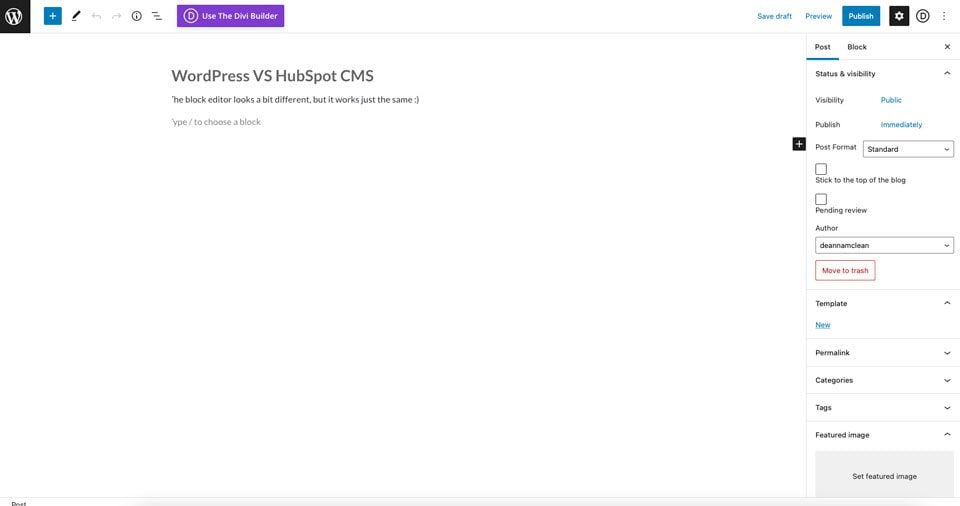
    Gutenberg editor

    Web.com

    In order to publish posts, Web.com requires you to enable the blog. The process is easily done with the click of a button.

    Enable blog

    From there, users can add their first post. The post editor looks a lot like Gutenberg’s editor. You can simply start typing. You can add images, links, and text, just like in any other post editor. Publishing is easy, too. Pushing your content out to the world is one button click away.

    Web.com publishing

    WordPress vs Web.com: Security

    Website security is one of the most important issues one must consider when creating a website. In recent years, cyber crimes have increased exponentially. With ransomeware, malware, bot intrusion, and denial of service attacks (DDoS) rampart, you’re setting yourself up for major problems if your site and customers aren’t protected. Thankfully, both WordPress and Web.com are capable of fending off such attacks.

    WordPress

    As previously mentioned, WordPress is highly customizable. And depending on your themes and plugins, your website can be vulnerable to security threats. That’s why it is important to understand WordPress security beforehand. There are a number of free security plugins available to WordPress users that help protect their website. Plugins such as WordFence and Sucuri are good options. Plus, all hosting providers offer security features that help to protect WordPress sites. Some hosts, such as Divi Hosting by Cloudways, offer bot protection, a dedicated firewall, SSL certificates, and malware protection in their hosting plans. In addition to that, most WordPress hosting providers have bumped up their TLS security by making versions 1.2 and 1.3 standard practice.

    Cloudways Divi Hosting

    Web.com Security Options

    Web.com gives its customers an SSL certificate with every plan. Unlike WordPress, Web.com doesn’t offer free security plugins that you can add on to your website. If you require additional security, and most people will, you’ll need to upgrade your Web.com plan with their security add-on service. For $4.99 per month, Web.com will scan your site for any problems that may arise. Additionally, users will give their customers peace of mind with identity theft protection, and a built-in VPN client. Plus, there are product updates and training resources available to help you get the most of your security package.

    WordPress vs Web.com security

    Web.com WordPress Hosting

    Web.com does offer WordPress Hosting for those who want to host, manage, and design a WordPress site on Web.com. This might be a good option for those who need more customization capabilities that come with WordPress plugins, but also enjoy using the Web.com platform.

    Conclusion

    Now that we’ve explored some of the features of both WordPress and Web.com, one thing is clear. They are very different products. While Web.com does offer a very nice site builder, their customization options are pretty limited. On the security front, both WordPress and Web.com have good options to ensure your site is protected. However, with so many WordPress hosting companies to choose from, you’ll have plenty of research to do on who to choose and how much you should pay, should you decide to go with WordPress. If you’re looking for a WordPress hosting provider, we suggest taking a look at Cloudways or SiteGround. Both offer excellent features that will give you all of the security features that you need.

    In regards to publishing tools, options are comparable when we look at WordPress vs Web.com. Both are easy to use, and only take a few minutes to send your content out into the world. When choosing between WordPress and Web.com, it all depends on what your needs are. Beginners will be right at home with either platform, although the learning curve is a bit steeper with WordPress.

    Have you used Web.com? How do you feel it stacks up against WordPress? Let us know in the comments section below.

    The post WordPress vs Web.com appeared first on Elegant Themes Blog.

  • WooCommerce Pricing: How Much Will You Spend When Creating an Online Store?

    WooCommerce pricingWhat’s the pricing for WooCommerce? I mean, really, what does it cost to design, launch, and manage a WooCommerce store? It’s not free, like how WooCommerce marketing content, and many bloggers, make it seem.

  • How to Sell Digital Products on Your Website (From Plan-to-Launch in 4 Steps)

    how to sell digital productsWondering how to sell digital products on your website? Many people do. Setting up an online store has never been easier. Even if you don’t have any physical goods to sell, you can create a virtual item and market it to your audience.

  • How to Back Up Your WooCommerce Store (Orders, Products, and Database)

    There’s a lot of work that goes into building and maintaining an online store. Therefore, it’s important to make sure that you know how to back up your WooCommerce store to avoid losing critical data, like your orders, products, and database.

    The good news is that there are multiple solutions you can use for backing up WooCommerce. The best option will depend on a handful of factors, like whether you want to use a plugin and the type of backups you want to create. 

    In this post, we’ll discuss the importance of backing up your WooCommerce store and how often you should do it. Then, we’ll walk you through the methods you can use to back up your store and restore it. Finally, we’ll answer some common questions about this process. 

    Why back up your WooCommerce store?

    There are a number of reasons why you should regularly back up your WooCommerce store. For starters, it will help you protect your data in case of a technical issue or human error. 

    If you’re updating your site, installing a new plugin, or making any other changes to your content, there’s a chance that something will go wrong. If it does, it’s important that you have a current version to restore. 

    The same is true for cyber attacks. You’ll want to have a safe copy of your website to roll back to in the event that a hacker infiltrates and infects your site with malicious code or malware. 

    Another reason to back up your store is to keep a record of your data. This can be useful for auditing purposes, or if you need to reference past orders when dealing with queries and complaints. 

    In summary, backups help ensure that you can always access your data, even if your WooCommerce site goes down and you’re unable to log in. Hosting issues, cyberattacks, and unexpected outages are all things that can cause downtime.

    How often should I back up WooCommerce?

    How frequently you back up a WordPress site depends on how often you add or change data. Static or small websites may only require backups periodically — daily is a good option. 

    But WooCommerce sites are a different story. Not only is there usually a lot more activity, it’s all the more important to protect data like orders and customer submissions. You don’t want to lose a single one. 

    For this reason, WooCommerce stores shouldn’t really settle for anything less than real-time backups, which save a new copy every single time an order is placed, a product is updated, or anything else happens on the site. 

    You can manually back up a WordPress site at regular intervals. It’s not the most efficient process, but does allow you to avoid using a plugin. But for real-time backups, you’ll want to use a tool like Jetpack Backup.

    Jetpack Backup homepage

    Jetpack continuously monitors your WooCommerce store for changes. Whenever you update your content, a snapshot of this change will be safely stored. These happen automatically, so you never have to remember to take a backup. And if you ever need to restore a copy, you can do so in just a few clicks — no code or server edits required!

    What should I include in a WooCommerce backup?

    When it comes to creating a WooCommerce backup, there are two main areas you’ll need to consider: your database and your files. The database contains all of your critical data — if you lose this, you’ll lose your entire store. 

    Your WooCommerce database contains:

    • Products
    • Customers
    • Orders
    • Tax information

    Meanwhile, your files contain all of your media. If you lose these files, you’ll lose all of your product images and videos. 

    Another important area is your settings, which include your shipping methods and payment gateways. Your store’s settings will typically be included in your database and files, so you won’t need to create a separate backup for them.  

    How to back up your WooCommerce database

    There are several methods that you can use to back up your WooCommerce database. The best solution will depend on a handful of factors, like your experience level and the type of hosting plan you use. Let’s take a close look at each option. 

    1. Back up WooCommerce in real-time with a plugin

    The quickest and easiest method for backing up your WooCommerce database is to use a plugin like Jetpack Backup, which includes:

    • Automated real-time backups
    • 10GB of storage space (1TB option also available)
    • One-click restores
    • A 30-day backup archive 
    • Easy setup
    • Off-site storage

    Once installed and activated on your website, you can access the tool by navigating to Jetpack → Backup from your WordPress admin area.

    Here, you can manage all of your backups. You can also restore your site to any past state while keeping your customer data and orders current. 

    2. Back up WooCommerce using your web host

    If you don’t want to install a plugin on your website, you can back up WooCommerce through your web host. The options that are available to you will depend on your hosting plan.

    Many providers offer backups as part of their packages, while others make them available as a premium add-on. It’s best to check with your web host to see which options are included with your plan and upgrade your service if necessary. 

    The actual steps involved in backing up your WooCommerce store will depend on your host, but the process will be similar. You can start by logging into your hosting control panel. 

    If your web host uses cPanel, navigate to the Files section and select the Backup application.

    finding backups in cpanel

    On the next screen, you’ll see some backup options:

    backup options in cpanel

    If you want to back up your entire site, select the Download a Full Account Backup button. Note that you might want to save it to your local device, as some providers will automatically delete backups after 48 hours. 

    Alternatively, you can scroll down to the Download a MySQL Database Backup section.

    downloading a database backup in cpanel

    Here, you can locate your WooCommerce database from the list. Then, select the link to begin the download process. The backup will be stored as an .sql file on your computer. 

    If your hosting provider doesn’t use cPanel, you may still have options for backing up your WooCommerce database. Let’s use SiteGround as an example.

    To get started, log into your account and navigate to Websites. Next to your domain name, select Site Tools. Then, go to Security → Backups.

    creating a backup in Siteground

    After naming your backup, click on the Create button. Once your backup is complete, you can view it from the Manage Backups log located on the same page. 

    Keep in mind that, by choosing this option, you’re relying completely on your host. It’s very possible that something goes wrong and your backups aren’t stored or completed correctly. Hosting providers typically only back up your site on a daily or weekly basis, and only store backups for a certain period of time. If something goes wrong, this could mean that you don’t have what you need to get back up and running.

    And, if your store goes down because of a hosting issue, you don’t have an alternative option for accessing and restoring your backups.

    3. Back up WooCommerce manually

    A third option for creating a WooCommerce backup is to use the manual approach. This method can be a little tedious and time-consuming. As such, we only recommend it as a last resort. 

    You’ll need to back up your WooCommerce files and database separately. You can do this using a cPanel File Manager or File Transfer Protocol (FTP) client, and phpMyAdmin. 

    In the following tutorial, we’ll cover FTP and phpMyAdmin, since we’ve already discussed how to back up your site via cPanel. 

    Backing up WooCommerce files via FTP

    To get started, you’ll need to download an FTP client like FileZilla.

    FileZilla download page

    Once you launch the FTP client, log in to connect to your site. You can find your FTP credentials in your web hosting account. You’ll need your hostname, username, password, and port number. 

    After you successfully connect to your site, navigate to the public_html folder, right-click on it, and select Download.

    downloading site files via FileZilla

    You can store and save your files as a ZIP folder on your device. The next step is to back up your database.

    Backing up your WooCommerce database

    You can use phpMyAdmin to manually back up your WooCommerce database. To get started, log into your hosting account and navigate to phpMyAdmin under Databases.

    finding phpMyAdmin in cpanel

    On the next page, you can find a list of databases. Choose your database, then select all of the tables and click on the Export tab.

    exporting a database via phpmyadmin

    Next, you’ll need to choose a backup format. You can keep it as the default SQL. 

    When you’re done, click on the Go button to download the database. Then, you can move the database backup to the folder that contains the site files you downloaded earlier. 

    Beyond the time required, manual backups run the risk of human error. If you find yourself needing to restore a backup, the last thing you want is to realize that your backup is faulty. Plus, manual backups mean you may not have a copy of the most recent site changes or store orders. It’s for these reasons that we generally don’t recommend relying on manual backups.

    How to restore your WooCommerce backup

    Regardless of the method that you used to create your WooCommerce backup, you should be able to restore it in a few simple steps. The best option will depend on the solution you used to back it up. 

    Let’s take a look at how to restore your WooCommerce backup based on the three main methods we’ve discussed in the last section. 

    1. Restore a backup with one click using Jetpack

    If you have Jetpack Backup installed and activated on your site, you can restore your WooCommerce backup in just one click. The great thing about using Jetpack Backup is that all of your orders will be saved — regardless of the point you restore to. There are two main options to choose from. 

    The first is to restore it to a particular event. To do this, navigate to your WordPress.com account (which you can do even if your site is down!) and go to your Activity Log. On this screen, you can use the filters to search by date or activity type. 

    Once you find the event you’re looking for, you can select the Actions button next to it, followed by Restore to this point.

    restoring a backup with Jetpack

    This will open the Restore Site panel. Here, you can select any items you don’t want to restore. If you want to retrieve all of the content, you can simply click on Confirm Restore

    A progress bar will appear, showing you the current status of the process. Once the restoration is complete, you’ll receive a notification via email. 

    The second option is to restore your site to a specific day. In the WordPress dashboard navigate to Jetpack → Backup

    Here, you’ll see the latest backup of your site. To choose a particular day, you’ll need to click on Select Date from the calendar at the top of the page.

    Once you find your preferred date, you can select Restore to this point.

    restoring a backup to specific day with Jetpack

    On the next screen, leave the selected options as-is. If you want to exclude certain items, you can uncheck the accompanying boxes. When you’re done, click on the Confirm restore button.

    options for restoring a backup with Jetpack

    Once again, a progress bar will appear. When the process is complete, you’ll see a confirmation message.

    2. Restore a backup from your web host

    If you backed up your site via your web host, you can usually restore it in the same way. If your provider uses cPanel, log into your site and navigate to Files → Backup.

    This is the same page you used to back up your site, but this time you’ll need to click on the Choose File button under Restore a MySQL Database Backup.

    restoring a database backup via cpanel

    Select the .sql file that you downloaded as your backup, and click on the Upload button to restore it.

    uploading a database backup file

    Once the process is complete, you should see a message informing you that the database was successfully restored. 

    3. Restore a manual backup of your store

    As we mentioned earlier, you can use the Backup application in cPanel (if your hosting provider offers it) to restore your content. Since this is not always an option, we’ll show you how to manually restore your store using FTP and phpMyAdmin.

    Let’s start by restoring your WooCommerce files. Connect to your server via FTP, using the credentials offered by your hosting provider.

    Once you’re connected to your server, the remote site panel will display your site directory. Navigate to your public_html folder, then drag and drop the files from the local site panel to your remote site panel.

    connecting to your site via cpanel

    If you stored your files in a ZIP folder when backing them up, you’ll need to extract them before restoring them. This can take some time, depending on the size of your WooCommerce store. 

    Next, you can manually restore your database using phpMyAdmin. To get started, log into your hosting cPanel account, then navigate to phpMyAdmin from the Database section. 

    From the list on the left, select your database, then the Import tab.

    importing a database via phpMyAdmin

    On the next screen, you’ll need to click on the Choose File button and select the file that you backed up from your local device or server. Next, make sure that the format is the same as the backup you downloaded (SQL by default). 

    When you’re done, click on the Go button. As with the files, this restoration process can take some time. 

    Tips and best practices for creating WooCommerce backups

    Creating backups in WooCommerce is fairly straightforward. To ensure that the process goes as smoothly as possible, there are some tips and best practices that you can use.

    The first is to create a backup schedule that suits your needs. Ideally, you’ll want to choose real-time backups so that you have a stored version every time you make changes to your site.

    Another tip is to create offsite backups. Why? Because keeping your backups on the same server as your store can create a singular point of failure. If something happens to your store or server, you may also lose your backups. 

    To prevent this, we recommend keeping copies of your site on a third-party platform. Some popular options include Google Cloud Storage, Amazon S3, and Dropbox. Keep in mind that if you use Jetpack, the plugin will automatically store your backups in a separate, secure location.

    If you have to retrieve a backup of your WooCommerce site, you might also want to restore it to a staging environment before moving it to your live site. This way, you can test the restored version to make sure that everything looks and functions as it should. 

    Finally, you might want to periodically test your backup solution to verify that it’s working properly. If you’re using a plugin, you’ll want to make sure that you’re keeping it up to date. Not only can this help strengthen your security, but it minimizes the chances of compatibility issues.

    Frequently asked questions about WooCommerce backups

    So far, we’ve looked at how to create and restore WooCommerce backups, but you might still have some questions about the process. Let’s answer some of them. 

    Where are WooCommerce backups stored?

    The location of your WooCommerce backups will depend on the method you used to save them.  If your hosting plan includes backups, you can access them via cPanel (or a control panel equivalent). These backups are stored on your server. 

    If you manually back up your WooCommerce store or use a plugin, you can usually access your backups from your local device and/or off-site locations of your choice. For instance, if you use an FTP client, you can store backups on your computer, and then upload them to a third-party platform like Google Drive or Dropbox.

    Backups from Jetpack are stored on dedicated servers — the same world-renowned infrastructure used for WordPress.com — so you never have to worry about their security.

    You can also use the plugin to create manual backup so that you always have a safe and updated copy in an additional location.

    What is the best WooCommerce backup solution?

    If you’re looking for the best backup solution, you might want to consider using Jetpack Backup. This premium tool automatically backs up your WooCommerce site so you don’t have to worry about handling it yourself. It also performs real-time backups every time you make changes to your store.

    Can I only back up products in WooCommerce?

    There may be times when you just want to back up a certain section of your store. Perhaps you don’t want to take up more storage space than necessary or you don’t have enough time to do a complete backup.

    Fortunately, you can just back up your WooCommerce products. You can do this manually or by using a plugin.

    To do it manually, navigate to the Products tab of your admin dashboard. Next, select all of the products and click on the Export button located at the top of the screen:

    exporting products from WooCommerce

    This will take you to the Export Products screen. Here, you can select the columns, product types, and product categories that you want to export. If you want to include all of the data, you can leave it as-is. 

    When you’re done, click on the Generate CSV button.

    exporting WooCommerce products to a CSV

    The CSV file will be downloaded to your computer. You can then move this file to an off-site storage location. 

    Another option is to use a plugin like Product Import Export for WooCommerce. With the free version, you can export products based on simple, grouped, or external/affiliate types. 

    Can I back up orders in WooCommerce?

    By default, WooCommerce does not let you export orders. Fortunately, you can use a plugin like Advanced Order Export for WooCommerce to do this. 

    This plugin lets you export any custom field that’s assigned to your WooCommerce orders and products. You can also choose from multiple data export format options, including CSV, XML, and JSON.

    Additionally, you can rename labels, reorder columns, and apply filters. The tool lets you export order data, a summary of order details, and customer information, which you can then save to the location of your choice. 

    After you install and activate the plugin, you can navigate to WooCommerce→ Export Orders. Then, click on the Export now tab to configure your settings.

    configuring settings to export WooCoommerce orders

    You can filter orders by data type and enter certain date ranges. You can also name your export file and select a format. On the right-hand side, you can choose to apply a wide variety of filters for your products. For instance, you can base it on order statuses, custom fields, and more. 

    When you’re happy with your changes, you can select the Save settings button at the bottom, followed by Export. This will download a file in the format that you selected. 

    Start backing up your WooCommerce store

    Your WooCommerce store is packed with data, including orders, customer information, and product details. With so many potential threats putting your WordPress site at risk, it’s important to know how to perform a WooCommerce backup. 

    As we discussed in this post, there are several ways to back up and restore your WooCommerce store. The easiest option is to use a plugin like Jetpack Backup. You can also perform manual backups, though this can be very time-consuming and therefore is not ideal. 

    Are you looking to create regular WooCommerce backups without much effort? Download Jetpack Backup today!

  • Studiocart Review: Optimized WordPress Checkout and Funnels

    Studiocart is a standalone tool that helps you create optimized checkouts and sales funnels for WordPress. Read our hands-on Studiocart review to learn more!

    The post “Studiocart Review: Optimized WordPress Checkout and Funnels” first appeared on WP Mayor.