EDITS.WS

Tag: EDD

  • How to Add Free Trial Subscriptions in WordPress (4 Methods)

    Do you want to add free trial subscriptions in WordPress?

    Subscriptions are a great way to get consistent, recurring revenue for your business. However, it can be difficult to convince people to sign up for long-term subscriptions.

    In this guide, we’ll show you how to get more signups by adding free trial subscriptions to your WordPress website.

    How to add free trial subscriptions in WordPress

    Why Add Free Trial Subscriptions in WordPress?

    By adding subscriptions to your website, you’ll have a more consistent cash flow, fewer payment errors, and fewer payment delays. However, customers often want to try before they buy, especially if you’re selling longer-term or more expensive subscriptions.

    With that being said, it’s a good idea to offer free trials for all your subscriptions. For example, you might give customers a free month’s trial of your subscription box service or create a free one-week pass for your online yoga classes.

    An example of a subscription box with a free trial

    If customers enjoy the free trial, then they might pay for a premium subscription. Even if shoppers don’t sign up straight away, you can still use their contact information to do lead generation. For example, you might send them exclusive coupon codes or target them with web push notifications.

    With that being said, let’s see how you can add free trial subscriptions in WordPress. Simply use the quick link below to jump straight to the method you want to use.

    Method 1: Easy Digital Downloads (Free Trial For Software and Digital Products)

    Do you want to offer a free trial subscription for digital products? Maybe you’re planning to sell subscriptions for online courses, a stock photography website, a digital music store, or something else.

    The easiest way to offer free trial subscriptions for digital products is by using Easy Digital Downloads. This plugin lets you easily sell ebooks, PDF files, audio files, videos, and any other type of digital product.

    Even better, if you’re a SiteGround customer then the Easy Digital Downloads plugin comes pre-installed, so you can start selling subscriptions and digital products straight away.

    In this guide, we’ll show you how to create a free trial for an all-access pass. This pass will look just like any other digital product on your online store.

    An example of an all access pass created using Easy Digital Downloads

    After signing up for the free trial, customers will be able to view, access, and download different products on your online store.

    Customers can simply click on a link inside their account, to see all the products that are included in their free pass.

    An example of an unlimited pass created using Easy Digital Downloads

    To stop customers from abusing their trial, you can set daily download limits, limit the free pass to specific product categories, and more.

    With all that in mind, we’ll be using three extensions to create a user-friendly ‘all access’ free trial. You’ll need to buy the Extended or higher license for Easy Digital Downloads in order to download these three extensions.

    For step-by-step instructions on how to set up Easy Digital Downloads, please see our guide on how to sell digital downloads on WordPress.

    Install Easy Digital Downloads Extensions

    After setting up Easy Digital Downloads, it’s time to install the extensions by going to Downloads » Extensions.

    Installing Easy Digital Downloads extensions

    On this screen, find the All Access, Free Downloads, and Recurring Payments extensions.

    For each extension, click on the ‘Install’ button.

    Installing Easy Digital Downloads addons

    Create a Free Trial Subscription in WordPress

    With that done, you’re ready to create a free all access trial. To get started, head over to Downloads » Downloads in the WordPress dashboard.

    On this screen, click ‘Add New.’

    Adding a new digital download using WordPress

    You can now type in a name for the subscription.

    This will be visible to customers, so it’s a good idea to use something descriptive.

    Creating a free trial subscription using Easy Digital Downloads

    After that, scroll to the ‘Download Options’ section. Under ‘Pricing Options,’ type in 0.

    Next, check the box next to the following option: ‘Enable free trial for subscriptions.’

    Enabling a free trial in Easy Digital Downloads

    Now, it’s time to turn this subscription into a free all-access pass that customers can use across your entire online store.

    To do this, simply scroll to the ‘All Access’ section and check the following option: Convert this product into an “All Access” pass.

    Creating an all access pass for an online store

    Limit the Trial to Specific Product Categories (Optional)

    By default, the free trial gives customers access to all your products. However, you can restrict the free trial to specific product categories. For example, if you create and sell ebooks then you might include some books in the free trial, and keep others for paid subscribers.

    To restrict the free trial to specific categories, simply click on the ‘x’ next to ‘All Products.’

    Limiting a free trial to specific product categories

    After that, you can click on the ‘Type to search categories’ dropdown and start typing in the category you want to include in the free trial.

    When the right category appears, click to select it.

    Creating a free trial subscription for specific product categories

    Set a Time Limit

    With that done, you can choose whether to make the free trial permanent or to set a time limit.

    If you’ve restricted the free trial to specific product categories, then it may make sense to choose ‘Never Expires.’ For example, if you sell digital art and graphics then you might allow customers to download as many watermarked images as they want, forever. However, they’ll need to buy a subscription in order to remove the watermark.

    Just be aware that Easy Digital Downloads also allows you to set a download limit. This means you can use ‘Never Expires’ while also limiting how many items the customer can download.

    To create a never-ending free trial, open the ‘All Access Duration’ dropdown menu and choose ‘Never Expires.’

    How to create a permanent free trial

    Another option is to set a time limit. This works particularly well for digital products that take a while to get through or for products the customer will want to access over and over again.

    For example, if you create and sell online courses then you could offer a two-day free trial, so customers will need to buy a subscription to finish their training.

    To set a time limit, open the ‘All Access Duration’ dropdown and choose from years, months, weeks, or days. You can then type a number into the field that appears.

    Changing the duration of an all access pass in WordPress

    Add a Daily, Weekly, Monthly, or Yearly Download Limit

    You can also type in a Download Limit. This can protect your site from customers who might try to abuse the free trial. For example, if you sell Excel or Google Spreadsheets in WordPress, then you might set a download limit so customers can’t download your entire product catalog while on a free trial.

    By default, Easy Digital Downloads has a download limit of 0, which means the customer can download as many products as they want. To change this, type a number into the ‘Download Limit’ field.

    You can then make this limit per day, week, month, or per year using the dropdown that appears.

    Adding a download limit for your free trial

    Adding Variable Pricing to Your Free Trial (Optional)

    Are you using variable pricing on your online marketplace? Then you may want to include specific price variations in the free trial.

    For example, if you’ve created Standard and Deluxe price variations, then you may want to include Standard in the free trial, while keeping the Deluxe version for paying users only.

    Creating variable pricing using Easy Digital Downloads

    If you’ve enabled variable pricing, then Easy Digital Downloads includes all variations in its free trial by default.

    To change this, find ‘Total Price Variations’ and type in how many variations you want to include in the free trial. Depending on the number you use, you’ll see a list of the different variations on your online store.

    Digital products with variable pricing

    Simply check the box next to each variation you want to include in the free trial.

    Customizing the Purchase Confirmation Page and Email

    When a customer downloads a product using their free trial pass, Easy Digital Downloads will show them a Purchase Confirmation page.

    An example of a purchase confirmation screen on an online store

    It will also send a confirmation message to their email address.

    By default, both the Purchase Confirmation page and email contain the following link: Click here to use your All Access Pass. This takes the customer to a page where they can download their free products.

    To change the link text, type into the ‘Receipts: All Access Link Message’ box.

    How to customize a purchase receipt using Easy Digital Downloads

    You can also change the page where Easy Digital Downloads will send customers when they want to download their free products.

    To do this, simply create a new page in WordPress and then add the following shortcode:

    [downloads all_access_customer_downloads_only="yes"]
    

    This will show all the products the customer can download while on a free trial. You can then add other content, such as text, images, a contact form, or anything else you want to include.

    How to offer a free trial subscription using WordPress

    For more information on how to place the shortcode, please see our guide on how to add a shortcode in WordPress.

    After publishing the page, simply add its URL to the ‘Receipts: Link URL’ field.

    Customizing the purchase receipts link for a digital download

    When you’re happy with how the free trial is set up, click on the ‘Publish’ button.

    Create a Premium Subscription

    With that done, you may want to create a premium ‘all access’ subscription. When their free trial expires, customers can upgrade to this subscription and continue enjoying your content.

    To create a premium subscription go to Downloads » Add New.

    You can then type in a name for the subscription and set the price, by typing into the ‘Pricing Options’ field.

    Adding pricing options to a digital product in WordPress

    You can also make this a recurring subscription, add an optional sign-up fee, and more using the settings under ‘Download Prices.’

    With that done, scroll to the ‘All Access’ section. At this point, you can turn the subscription into an all-access pass, add a download limit, and more by following the same process described above.

    When you’re happy with how the premium all-access subscription is set up, don’t forget to click on ‘Publish’ to make it live.

    Remove the Checkout for Free Trial Users

    After creating the free trial subscription, you’ll want to get as many signups as possible. With that being said, it’s a good idea to allow customers to start the free trial without going through the checkout screen.

    Easy Digital Downloads can hide the checkout screen when a customer is claiming a free product, including your free trial subscription.

    To do this, simply go to Downloads » Settings, and then select the ‘Marketing’ tab. Next, click on ‘Free Downloads’ to hide the checkout.

    How to hide the checkout for free trial signups and free downloads

    After that, you can use ‘Button Label’ to specify the text you’ll show when products are available for free download.

    By default, this is ‘Download Now.’

    How to customize the all access download pass

    You can replace this with your own custom messaging.

    Simply go ahead and type into the ‘Button Label’ field.

    Customizing the free download and free trial subscription CTA

    There are more settings that can help you do lead generation like a pro. For example, you can collect the person’s name and email address, even when they’re signing up for a free trial or downloading a free product. However, we recommend keeping things simple, as this will often get you the most signups.

    When you’re happy with the changes you’ve made, click on ‘Save Changes.’ Now, if you visit the free trial product page, you’ll see the new button text in action.

    How to add a free trial subscription to a website

    Create Expiration Reminder Emails

    Free trials can generate leads, but the goal is to convert those people into paying customers.

    With that in mind, you may want to email people when their free trial is about to expire. This will encourage them to buy a premium subscription, so they can continue accessing your digital content.

    ​​Easy Digital Downloads integrates with all the best email marketing services. However, you can also create reminder emails using the Recurring Payments extension you installed earlier.

    To use this extension, go to Download » Settings. Then, select the ‘Emails’ tab followed by the ‘Recurring Payments’ link.

    How to set up recurring payments for online subscriptions

    On this screen, check the box next to ‘Send Expiration Reminders.’

    After that, select ‘Add Expiration Reminder.’

    How to create an expiration reminder for an online subscription

    This takes you to a screen where you can type in an email subject and a message.

    To make the email more personal, it’s a good idea to use template tags. Easy Digital Downloads will replace these tags with real values such as the customer’s name, the expiration date, and the name of their subscription.

    You can see all the available template tags underneath the small text editor.

    Create personalized emails using template tags

    Just be aware that Easy Digital Downloads will send the message to all customers, and not just the people on your free trial.

    When you’re happy with the information you’ve typed in, click on Add Reminder Notice.

    How to add a reminder notice using Easy Digital Downloads

    Now, Easy Digital Downloads should notify customers when their subscription is about to expire. However, sometimes your WordPress hosting server may not be properly configured or email providers such as Gmail might use filters that wrongly flag your emails as spam.

    To get more conversions, your emails need to arrive in the customer’s inbox and not in the spam folder. For that reason, we recommend using a WordPress SMTP plugin and provider to improve your email deliverability

    WP Mail SMTP is the best WordPress SMTP plugin on the market. It allows you to connect your WordPress site with a mailer service. This means your expiration reminder and other messages will always arrive safely in the customer’s inbox.

    Method 2. MemberPress (Free Trial For Memberships or Courses)

    A membership website allows users to pay for premium content, online courses, features, and access to a community. However, these members-only features are usually hidden behind a paywall in WordPress, so visitors can’t see what the membership includes.

    With that in mind, you may want to offer visitors a free trial so they can try before they buy. The easiest way to do this is by using MemberPress.

    MemberPress is an all-in-one membership plugin that allows you to accept payments, add unlimited membership levels, create gated content, restrict access based on different membership levels, and much more. It also lets you create as many free trials as you want, including different trials for different membership levels.

    First, you’ll need to install and activate the plugin. If you need help, then please see our guide on how to install a WordPress plugin.

    You can now add payment methods, create members-only content, design a pricing page, and more. For step-by-step instructions, please see our ultimate guide to creating a WordPress membership site.

    Once your site is set up, you’re ready to create a membership plan with a free trial.

    Create a New Membership Level

    To get started, head over to MemberPress » Memberships in the WordPress dashboard. Here, click on the ‘Add New’ button.

    Adding a new membership subscription to WordPress

    You can now type in a title for the membership plan, add an optional description, upload a featured image, and more.

    For more information, please see our ultimate guide to creating a WordPress membership site.

    Adding a membership level to a website using MemberPress

    With that done, you can set the price by typing into the ‘Price’ box.

    This is how much members will pay once the free trial expires.

    Creating a paid membership subscription using MemberPress

    You can only create a free trial for recurring memberships. However, if you want to charge members a one-time fee then there’s a workaround, which we’ll be covering shortly.

    With that being said, open the ‘Billing Type’ dropdown and choose ‘Recurring.’

    How to create a recurring membership using WordPress

    Next, you need to set the billing interval for the recurring payment. This is how often your members will be charged once the free trial expires.

    Simply open the ‘Interval’ dropdown and choose an option from the list, such as monthly or yearly billing.

    How to set a billing interval for a membership subscription

    Want to use a different interval? Then select ‘Custom’ instead.

    You’ll now see some new controls where you can set a custom interval.

    Setting a custom billing interval for your membership site

    Create a Free Trial Membership Subscription

    With that done, check the box next to ‘Free Trial.’

    You can now specify how many days the free trial will last, by typing into the ‘Trial Duration’ field. For example, if you want to offer a one-month trial then you would type in ‘30.’

    Changing the duration of a free membership trial

    After that, you’ll need to type in the ‘Trial Amount,’ which is the total cost of the subscription trial period before tax. You’ll typically want to type ‘0’ into this box.

    Finally, you can choose whether to limit customers to one free trial by checking or unchecking the ‘Allow Only One Free Trial’ box. If you check this box, then customers who cancel their subscription and then re-subscribe won’t get another free trial.

    You’ll typically want to leave the box checked, so customers can’t abuse the free trial. However, if you only offer a very short trial then you may want to allow customers to have multiple free trials.

    Choose whether to allow multiple free trials per member

    Just be aware that coupons will override this setting, so it’s still possible to offer multiple free trials to the same customer.

    Create a Lifetime Membership (Optional)

    As already mentioned, you can only offer a free trial for recurring memberships. However, it is possible to create a trial for lifetime memberships, by changing a few MemberPress settings.

    To do this, check the ‘Limit Payment Cycles’ box and set the ‘Max # of Payments’ to 1.

    Limiting the payment cycles using MemberPress

    After that, open the ‘Access After Last Cycle’ dropdown and select ‘Lifetime Access.’

    Now, once the trial expires customers will need to pay a one-time fee for lifetime membership.

    Creating a one-time payment membership

    Publish the Free Trial Membership Subscription

    With that done, you can make any other changes to the membership level.

    When you’re happy with how the membership is set up, it’s time to make it live by clicking on the ‘Publish’ button.

    Publishing a membership level with a free trial

    To see how the membership looks to potential customers, go to MemberPress » Memberships. On this screen, you’ll see the membership level you just created.

    Here, just hover your mouse over the membership level and click on the ‘View’ link.

    Previewing a membership level in WordPress

    WordPress will now show the membership signup form in a new tab.

    Do you want to add a free trial to more membership levels? Then simply follow the same process described above.

    Once you’ve added a free trial to your membership site, you’ll want to encourage visitors to sign up for the free trial. This might mean mentioning the free trial in your email newsletter, creating popups using a WordPress popup plugin, promoting it on social media, and more.

    Method 3. WooCommerce Subscriptions (Free Trial For Physical Products)

    If you want to sell digital products online, then we recommend using Easy Digital Downloads. However, if you want to sell physical products, then WooCommerce is the world’s most popular eCommerce platform.

    By default, WooCommerce doesn’t allow you to offer free trial subscriptions. However, it’s easy to add this missing feature using WooCommerce Subscriptions.

    This plugin adds a new ‘simple subscription’ product type to your WooCommerce store. You can add this product type to any existing item, or create new subscription products. For example, you might let shoppers try a product before they buy it, or maybe you will send them a sample subscription box from your online boutique shop.

    When a customer visits a subscription product, they’ll see a ‘Sign up now’ button instead of the standard ‘Add to cart’ call to action button.

    A free trial subscription, created using WooCommerce

    The WooCommerce checkout page will also show some information about the subscription.

    This includes the length of your free trial.

    An example of a free trial subscription on a WooCommerce store

    Customers can manage all their subscriptions by logging into their WooCommerce account, and then visiting the new ‘My Subscriptions’ section.

    Here, they can see when the subscription started, how much it costs, the subscription status, and more. The customer can also cancel, reactivate, and renew their subscriptions directly from this page, without having to contact you directly.

    How to manage WooCommerce subscriptions

    In this way, a customer who is enjoying a free trial can quickly and easily upgrade to a premium subscription.

    In this guide, we’re going to assume you’ve already set up a WooCommerce store. If you haven’t, then you may want to check out our complete guide to WooCommerce made simple.

    After that, you’ll need to install and activate the WooCommerce Subscriptions plugin. If you need help, then please see our guide on how to install a WordPress plugin.

    As soon as the plugin is active, you’re ready to add free trial subscriptions to WooCommerce. Simply go to Products » Add New.

    How to add a new product in WooCommerce

    You can now create this product in exactly the same way you create any WooCommerce product. For example, you can type in the product’s title, add a description, or create a WooCommerce product gallery.

    After entering all this information, scroll to the ‘Product Data’ box.

    Adding product data to WooCommerce

    Here, open the dropdown menu and choose ‘Simple subscription.’

    This adds some new settings that you can use to create a subscription and add a free trial.

    The new Simple Subscription WooCommerce product type

    To start, type in the ‘Subscription price.’

    Then, use the dropdown menus to choose how long the subscription will last. In the following image, the subscription will cost $20 per month once the free trial expires.

    Setting the WooCommerce subscription price

    You can now choose whether the subscription will last forever, or expire after a set amount of time. Just be aware that the expiration length doesn’t include the free trial. This means that if the subscription expires in 1 month and you offer a one-month free trial, then the subscription will last for 2 months.

    Another option is to give the customer lifetime access. To do this, open the ‘Expire After’ dropdown and choose ‘Never expire.’

    Setting an expiration date for a WooCommerce subscription

    Next, you may want to add a sign-up fee.

    Just be aware that WooCommerce will charge this fee no matter whether the customer is buying a subscription or signing up for a free trial. With that in mind, we don’t recommend adding a sign-up fee to products that have a free trial subscription.

    Adding an optional signup fee in WooCommerce

    With that done, you can specify how long the free trial will last by opening the dropdown that shows ‘days’ by default, and then choosing an option from the list.

    After that, just type in how many days, weeks, months, or years the free trial should last. Note that the free trial can’t last longer than 90 days, 52 weeks, 24 months, or 5 years.

    Creating a free trial in WooCommerce

    You can now make any other changes to the product. When you’re happy with how the product and subscription are set up, either click on ‘Update’ or ‘Publish’ to make the trial live.

    You can now create free trial subscriptions for other products, by following the same process described above.

    Once you’ve added one or more subscriptions to your WooCommerce website, you’ll want to get as many signups as possible. With that in mind, you should allow visitors to use their preferred payment method.

    By adding the free Stripe Payment Gateway for WooCommerce plugin to your website, you can collect payments through Visa, MasterCard, Google Pay, Apple Pay, and more.

    Simply install the plugin and the onboarding wizard will guide you through the process of adding more payment methods and enabling express checkout.

    The Stripe Payment Gateway for WooCommerce plugin

    Method 4. WP Simple Pay (Free Trial For Custom Services)

    Many freelancers, consultants, trainers, and other business owners sell their services as a subscription. For example, if you run a yoga studio then you might offer a one month free trial of your personalized training program.

    The best way to offer a free trial for custom services is by using WP Simple Pay. It’s the best Stripe payment plugin for WordPress and lets you accept payments, manage invoices, and offer free trials without having to set up a shopping cart, or add products to an online store.

    Note: There is a free version of WP Simple Pay that allows you to accept credit cards, Apple Pay, iDEAL, and other payment methods. However, in this guide we’ll be using the premium plugin as it allows you to offer free trials.

    Set Up the WP Simple Pay Plugin

    First, you’ll need to install and activate the WP Simple Pay plugin. If you need help, then please see our guide on how to install a WordPress plugin.

    Upon activation, the plugin will automatically launch the setup wizard. Go ahead and click the ‘Let’s Get Started’ button.

    The WP Simple Pay setup wizard

    After that, you’ll need to enter the license key. You can find this information under your account on the WP Simple Pay website.

    With that done, click the ‘Activate and Continue’ button.

    Adding a license to a WordPress plugin

    Connect WordPress to Your Stripe Account

    In the next step, you’ll need to connect your Stripe account to WP Simple Pay. Stripe is a popular payment gateway, and it’s the easiest way to accept credit card payments in WordPress, so it’s a great way to sell custom services online.

    To get started, simply click the ‘Connect with Stripe’ button. You can then either log into your Stripe account, or create a new account if you haven’t already registered with Stripe.

    Connecting your WordPress website to Stripe

    After connecting WP Simple Pay with Stripe, the setup wizard will ask you to configure its emails. You can choose whether to receive emails for payment receipts, upcoming invoices, and payment notifications.

    You’ll also need to enter the email address where WP Simple Pay will send the messages.

    Configuring WP Simple Pay's emails

    Simply click the ‘Save and Continue’ button when you’re done.

    Create a Subscription Form With a Free Trial

    Now, you’re ready to create a subscription form that offers a free trial. Go ahead and click on the ‘Create a Payment Form’ button.

    Completing the WP Simple Pay setup

    WP Simple Pay comes with a ton of ready-made templates that you can use to create ‘buy now pay later’ payment plans, get donations, accept Google Pay in WordPress, and more.

    To offer a free trial, hover over the ‘Recurring Services with Trial Period Form’ template. When it appears, click on the ‘Use Template’ button.

    The WP Simple Pay's subscription and free trial template

    This will take you to the payment form editor.

    To start, you can rename the form and type in an optional description. By default, the description is ‘Try our service free for 30 days,’ but you can change this to anything you want.

    Adding a title and description to a subscription form

    By default, WP Simple Pay will create an on-site payment form. However, you may want to show a payment button instead. When the visitor clicks the button, they’ll see the payment form in a popup.

    To create a popup, check the box next to ‘Open in an overlay modal’ box.

    Opening a subscription form in a popup

    Another option is to host the payment form on Stripe’s site, by opening the ‘Type’ dropdown.

    Here, select ‘Off-site Stripe Checkout form.’

    Hosting a subscription and payment form on the Stripe website

    When a customer buys a subscription, WP Simple Pay will redirect them to its built-in Payment Success Page. If you want to send visitors to a different page, then select either ‘Specific Page’ or ‘Redirect URL.’

    You can then either type in the URL or select the page you want to use instead. For example, you might send subscribers to a custom thank you page, or a page where they can manage their free trial.

    Changing the payment success page in WordPress

    Add a Price to Your Subscription Form

    When you’re ready, select the Payment tab.

    Here you can set the payment mode to either live or testing. Testing mode allows you to complete the purchasing process without getting charged, so it’s perfect for testing new subscriptions on your website.

    Creating a subscription form in testing mode

    If you do select ‘Test Mode,’ then remember to come back to this page and change the mode to ‘Live’ when you’re finished testing.

    Next, you can set the price of your subscription and the currency using the ‘Amount’ settings.

    Adding a price to a subscription form with a free trial

    With that done, you can choose how often WP Simple Pay should charge subscribers.

    Simply open the ‘Billing Period’ dropdown and choose day, week, month, or year. Then, type a number into the field next to the dropdown menu.

    Setting a billing period for a subscription form in WordPress

    By default, WP Simple Pay offers customers a 30 day free trial.

    If you want to make the free trial longer or shorter, then simply type a number into the ‘Free Trial’ field.

    Setting the free trial duration

    Sometimes, you may want to charge subscribers a set up fee. For example, if you’re a life coach then this extra fee may cover the time and effort required to add new clients to your admin system.

    To charge an additional fee, simply type an amount into the ‘Setup Fee’ field.

    Adding a set up fee to a subscription form with a free trial

    With that done, scroll to the ‘Payment Methods’ section.

    Here, you can check the box next to any additional payment methods you want to offer, such as Klarna payments or ACH payments.

    Adding more payment methods to your website

    By offering visitors a choice of payment methods, you may be able to get more subscribers. However, try not to offer too many options, as this can become confusing.

    Depending on the payment methods you select, you may see a ‘Configure’ link. In this case, click on ‘Configure’ and then follow the onscreen instructions to set up the payment gateway or method.

    Adding more payment methods to WP Simple Pay

    Customize the WP Simple Pay Subscription Form

    With that done, you’re ready to build the subscription form.

    Simply click on ‘Form Fields’ to open WP Simple Pay’s form builder.

    Customizing the WP Simple Pay subscription template

    The template already collects some basic information about the customer, such as their email address and credit card information.

    The following image shows how the default form will look on WordPress.

    An example of a subscription form, created using WP Simple Pay

    To customize any of the default fields, simply click select it.

    The section will expand to show all the settings you can customize, such as changing the field’s label or adding some placeholder text.

    Customizing the recurring payment form

    You can also remove fields from the subscription form.

    Simply click to expand the field, and then select ‘Remove.’

    Deleting fields from a subscription form

    Do you need to collect more information from your new subscribers? For example, you might need their tax ID or phone number.

    Just click on the ‘Form Fields’ dropdown and then choose a field from the list. After that, click on ‘Add Field.’

    Adding WP Simple Pay fields to a subscription form

    Finally, you can change the order the fields appear in your form using drag and drop.

    As you’re customizing the form, you can click on ‘Preview’ to see how it will look on your blog or website.

    Previewing how a subscription form and free trial will look on your WordPress website

    When you’re happy with the form, click ‘Publish’ to store your settings.

    Add the Subscription Form to Your WordPress Website

    Now, you’re ready to add the form to your WordPress blog using either a block or shortcode.

    The easiest method is to use a block, so open the page or post where you want to show the subscription form.

    Then, click on the plus (+) sign and type in ‘WP Simple Pay.’

    Adding a block using the page or post editor

    When the right block appears, click to add it to the page or post.

    With that done, open the dropdown menu in the WP Simple Pay block, and choose the form you want to display.

    Adding a WP Simple Pay form to your website using blocks

    When you’re finished, click on either ‘Update’ or ‘Publish.’

    Now, if you visit your website you’ll see the subscription form live.

    An example of a subscription form, on a WordPress website

    Another option is to add the subscription form using shortcode. To get the shortcode, head over to WP Simple Pay » Payment Forms in the WordPress dashboard.

    Here, just find the subscription form and click on its ‘Copy Shortcode’ button.

    Adding a subscription form to your website using shortcode

    Now you just need to paste the shortcode into any page, post, or widget-ready area. For step-by-step instructions on how to place the shortcode, please see our guide on how to add a shortcode in WordPress.

    We hope this article helped you learn how to add free trial subscriptions in WordPress. You may also want to check out our guide on how to run a giveaway / contest in WordPress, and the best live chat software for small businesses.

    If you liked this article, then please subscribe to our YouTube Channel for WordPress video tutorials. You can also find us on Twitter and Facebook.

    The post How to Add Free Trial Subscriptions in WordPress (4 Methods) first appeared on WPBeginner.

  • How to Create and Sell Ebooks in WordPress from Start to Finish

    Did you know that you can create an ebook from your WordPress blog posts?

    Offering ebook downloads on your WordPress website is a good way to make money online or grow your email list. Writing a book is a big job, but you may discover that you’ve already written enough content for a book on your blog.

    In this article, we’ll show you a smart way on how to create an ebook from your WordPress blog posts.

    How to Create an Ebook From Your WordPress Blog Posts

    Why Create an Ebook From Your WordPress Blog Posts?

    If you publish regular blog posts on your WordPress website, then you have a lot of content that you can repurpose or monetize. One of the best ways to repurpose your content is to turn your blog into an ebook.

    Writing an ebook can build your site’s credibility. You can use it to grow your email list, offer it as exclusive content on a membership site, or sell it to make money from your blog.

    However, writing a book is difficult, and 97% of people who start to write a book never finish.

    The good news is that you may have already written a book. Your most popular blog posts may already contain enough quality content to repurpose as a successful ebook. Or you can use your blog to write a new book one post at a time.

    With that being said, let’s take a look at how to create an ebook from your WordPress blog posts. Here’s what we’ll cover in this tutorial:

    Choosing Which Blog Content to Use in Your Ebook

    Your first job is to decide which blog posts should be included in your ebook. If your blog is about a certain topic or niche, then you may just need to find your most popular blog posts. Each post will become a chapter of your ebook.

    However, if you wish to create multiple ebooks, then you should choose blog posts that cover more specific topics, such as popular posts in a specific category. You can even consider future ebook ideas when you are planning the content to write about on your blog.

    How to Find Your Most Engaging Content to Include in an Ebook

    You want to create an ebook that people actually want to read. A good starting point is to find your most engaging and popular blog posts. That way, you already know that your readers are interested in these topics.

    If you are not already tracking user engagement on your WordPress blog, then the best way to get started is by using MonsterInsights. It’s the best Analytics plugin for WordPress and helps you configure Google Analytics without writing code.

    The MonsterInsights Google Analytics plugin

    There’s also a free version of MonsterInsights that you can use as well.

    When you install and activate MonsterInsights, you will also set up Google Analytics tracking in WordPress. Once your blog has been tracked for some time, you will be able to view important user engagement metrics such as your most popular content.

    You just need to visit the Insights » Reports page in your WordPress admin area and go to the ‘Overview’ report. You can scroll down to see different reports, and you will find your most popular content under the ‘Top Posts/Pages’ section.

    Top posts and page report

    You’ll find detailed instructions about how to set up and use MonsterInsights in our guide on how to track user engagement in WordPress with Google Analytics.

    Now that you know what your most popular posts are, you need to choose which ones to include in your ebook. They should contain evergreen content that will stay fresh and also fit together logically as chapters to form a complete ebook.

    Writing a Series of Blog Posts to Create Content for an Ebook

    Another way to come up with blog content for an ebook is to write a series of articles on a particular topic. These blog posts can then be compiled into an ebook.

    We do something similar on WPBeginner, where we regularly compile a series of posts into a new article. Here are some examples of articles we have compiled with repurposed content from our existing articles:

    In fact, whenever you are writing about a complex topic, it is almost always better to write a series of posts that break the topic up into smaller parts.

    You can learn more in our guide on how to efficiently manage post series in WordPress.

    Quickly Updating the Posts You Choose for Your Ebook

    Once you have chosen the blog posts you wish to include in your ebook, take some time to quickly update them if necessary. By doing that now, you will make sure that both the blog post and ebook are free from errors and contain all of the necessary information.

    You can start by making sure there are no spelling or grammar errors in the post. Most likely you did this before publishing each post, but it’s worth checking this again in case something was missed.

    You can learn the best ways to proofread your posts in our guide on how to check grammar and spelling mistakes in WordPress.

    Also, take time to check the comments on each post. They may identify areas where the blog post isn’t clear enough or is missing important information. Take time to address those issues.

    Later in this article, you will make further edits that will be needed in the ebook but not the blog posts.

    Creating Professional-Looking Cover Art for Your Ebook

    One of the best ways to create an ebook that looks professional is to use a well-designed ebook cover. Your readers will actually judge your book by its cover.

    You could hire a graphic designer using websites such as 99designs or Fiverr. Or you can use graphic design software or web services to do it yourself even if you don’t have design skills.

    Before you create the cover art for your book, make sure you first finalize the ebook title. It should be clear and concise, grab the reader’s attention, and describe what the book is about. You may also want to create a subtitle and book description.

    One of the easiest ways to create cover art is with Canva, a free online graphic design tool. It comes with easy-to-use tools that allow you to create a book cover from a template.

    The basic Canva account is free and gives you access to dozens of ready-made templates. To get the full power of Canva, you may want to sign up for a Pro account. This lets you upload your own fonts, set your brand colors, and more.

    After creating your account, simply type ‘book cover’ into the search box and then click on the ‘Book Cover’ search result.

    Searching for Book Cover Templates in Canva

    Canva will display a list of thousands of book cover templates. These have the correct width ratio of 1.6 and also a high-quality resolution of 1410 x 2250 pixels.

    You can filter the list by clicking the genres at the top of the screen, or by checking one of the styles or themes on the left. This will help you find the most suitable templates quickly.

    Filtering the Ebook Cover Templates in Canva

    Once you find a template you want to use for your cover art, you should click it to preview it. You will also see whether it is a free, paid, or pro template. After that, you should click the ‘Customize this template’ button.

    Canva will now load its drag-and-drop editing interface. You can point and click on any item in the template to edit it. Make sure you type the correct title, subtitle, and author. You can rotate, resize, crop, and delete items.

    You can also add more text, icons, shapes, patterns, and backgrounds to your design from the left column. However, you will often get the best result by making simple changes.

    Customizing a Book Cover in Canva

    When you have finished creating your cover art, you will need to save it to your computer. Simply select File » Download from the menu at the top of the screen.

    You can select a variety of file types from the drop-down menu, including PDF, JPG, and PNG. For this tutorial, we will choose PNG and then click the ‘Download’ button.

    Downloading a Book Cover in Canva

    Method 1: Turning Blog Posts Into an Ebook Using Google Docs (Free)

    You can create an ebook from your blog posts using Google Docs. This requires a little more manual work than our second method, but it’s free and makes it easy for you to edit and customize your ebook.

    You need to start by creating a new Google Doc and naming it with your ebook’s title.

    After that, make sure that under the View menu, ‘Show Print Layout’ is checked. This will allow you to see how each page of your ebook will look.

    Inserting Your Ebook Cover Art

    The first thing you need to do is insert the cover art you created earlier.

    You can either use drag and drop to place it on the first page, or select Insert » Image from the menu and upload it to your computer.

    Inserting a Cover Image in Google Docs

    Once you’ve done that, you should select Insert » Break » Page break from the menu to start a new page.

    Creating a Title Page and Table of Contents

    On the new page, you should type the title of your ebook. Before you press enter, make sure you format it as a title by selecting ‘Title’ from the Styles drop-down menu.

    Selecting the Title Style in Google Docs

    If you wish to center the title, then you need to select Format » Align & Indent » Center.

    You can now press the Enter key several times and type the ebook’s subtitle if you have one, as well as your name or your blog’s name as the author.

    A Title Page Example in Google Docs

    You might like to format them using a larger font and center them. Don’t use a heading style, or these lines will be included in your table of contents. You can also use the enter key to space these lines appropriately down the page.

    Once you’re done, you should select Insert » Break » Page break from the menu again to start another new page.

    On the next page, you will add the table of contents. Google Docs will populate this with headings as you add content to the document.

    Start by typing the heading ‘Table of Contents’ and format it with the Heading 1 style.

    Tip: If your text is still being centered, then you will need to select Format » Clear formatting from the menu to return to the default formatting.

    Now you can press Enter and select Insert » Table of Contents from the menu. You can choose from a version with page numbers and a version with hyperlinks.

    Inserting a Table of Contents in Google Docs

    At the moment, the table of contents will be quite empty, but it will be updated as you add blog posts to your ebook.

    Pasting the Your Blog Post Contents

    Now it’s time to start pasting the content from your blog posts into Google Docs. Before you paste each blog post, make sure you insert a new page break (Insert » Break » Page break) so each ebook chapter starts on a new page.

    Then, just head to your WordPress website and navigate to your blog post.

    Simply highlight the entire post, copy it to the clipboard, and then paste it into Google Docs. After that, insert another page break and repeat until all the blog posts have been copied.

    You may also want to set the title of the posts to Heading 2 in Google Docs so they’re included as chapters in your Table of Contents and document outline.

    For our demo ebook, we pasted the contents of 7 blog posts into Google Docs to produce a 167-page ebook. Selecting Tools » Word count from the menu shows that the document contains almost 25,000 words.

    Editing Your Ebook Contents

    Now you should work through your ebook content and make any changes that are necessary. Some things that work well in a blog post won’t belong in an ebook.

    For example, you may need to tweak the title of each blog post so it works better as a chapter heading. And if you added a call to action at the bottom of each blog post, then you may need to remove it from each chapter in your ebook.

    You may need to replace references to ‘posts’ with ‘chapters’. Also, you should replace internal links to your blog with links to the chapters in your ebook if they are included.

    You should also work on the transitions between chapters so your book flows better, otherwise, it might read like a collection of separate blog posts. You might also want to add a stronger introduction and conclusion to the book.

    You might also like to add additional material to the book, such as sections on:

    • How to use this book
    • What you’ll find in this book
    • About the author
    • Contact information
    • Copyright information
    • Disclosures
    • Resources and links
    • Footnotes and sources

    Finally, make sure you correct any spelling and grammar errors you find while editing.

    Customizing Your Ebook’s Design

    Before you export your ebook from Google Docs, consider whether you can improve the design of your ebook.

    For example, you can customize the appearance of your headings or normal text.

    This is easy to do in Google Docs. You can start by changing the format of a particular heading directly. Just select the font you want, if you want it bold or underlined, or other design choices.

    After that, with that text still highlighted, select Heading 1 » Update Heading 1 to match from the drop-down menu to automatically change all other headings to match.

    Customizing Heading 1 Style in Google Docs

    You can also add a header or footer that includes your ebook title and page numbers.

    Just select Insert » Headers & Footers and then click ‘Header’ or ‘Footer’ in the menu. You can set up page numbers by clicking the ‘Options’ menu from the header.

    Adding Page Numbers to the Header in Google Docs

    When you are happy with the way your ebook is formatted, then it’s time to export it in an ebook format.

    Exporting Your Ebook as a PDF

    Now that you have finished creating your ebook, you can save it to your computer as a PDF. Simply select File » Download » PDF Document from the menu.

    Exporting a Google Doc as a PDF Document

    Tip: Before exporting your ebook, we recommend you update the table of contents to include any new chapters you have added. When you click on the table of contents, you will find a button labeled ‘Update table of contents’ at the top.

    Google Docs also allows you to download the ebook as an EPUB Publication. This format should be used if you want to make the book available in a marketplace such as Amazon’s Kindle Store.

    Method 2: Turning Blog Posts Into an Ebook Using a Plugin

    You can also create an ebook from your blog posts using a plugin. MPL-Publisher is the best ebook creator plugin because it covers everything you need to do in an easy-to-use interface.

    You will need to use the premium version to export your ebook as a PDF file. This costs $49 per WordPress site and also offers a cover editor and the ability to store the settings for multiple books. The free version can export in EPUB and Microsoft Word formats, and more.

    The first thing you need to do is install and activate the MPL-Publisher plugin. For more details, see our step-by-step guide on how to install a WordPress plugin.

    Upon activation, you will need to enter the license key that was emailed to you. Simply navigate to MPL-Publisher » Publish eBook on the admin sidebar, then click on the ‘Premium’ tab. Now you can paste the license key into the field provided.

    Entering a Premium License Key in MPL-Publisher

    Entering the Book Details

    Next, you need to enter some details about your book. Make sure you are looking at the ‘Details’ tab of the MPL-Publisher » Publish eBook page.

    From here, you can fill in the book details such as the title, subtitle, author, and description.

    Entering the Book Details in MPL-Publisher

    Next, you should click on the ‘Meta’ tab where you can enter metadata about the book.

    You will find fields where you can fill in the book’s ISBN (or some other unique identifier), language, publication date, publisher name, and copyright information.

    Entering the Book Metadata in MPL-Publisher

    You can scroll to the bottom of the page and click the ‘Save’ button to store the book details and metadata.

    Inserting Your Ebook Cover Art

    Now you can move to the ‘Cover’ tab. Here you can add the cover image that you created earlier.

    Simply click the ‘Select Image’ button and you will be taken to your site’s Media Library. From there, you can upload the cover art and then click the ‘Select’ button.

    Adding Cover Art in MPL-Publisher

    If you haven’t already created your cover art, you can use the plugin’s Cover Editor to create a book cover right from the WordPress dashboard. Note that this is one of the plugin’s premium features.

    Customizing Your Ebook’s Design

    Now you can switch to the plugin’s ‘Design’ tab to choose how your book will be formatted. Several themes are available, and you simply click on the theme you wish to use.

    Choosing a Theme in MPL-Publisher

    When you scroll down the page, you can choose whether to include the post’s featured images in the ebook and whether to insert or embed the images in the ebook.

    Make sure you choose the second or third option. We recommend you avoid the first option, which is to link the images from your website.

    Embedding or Inserting Images in MPL-Publisher

    Advanced users can also format their books using custom CSS.

    Make sure you scroll down and click the ‘Save’ button to store your progress.

    Selecting the Posts to Include in Your Ebook

    On the left of the screen, you will see a list of posts on your website. To include a post in the ebook, simply click its checkbox.

    If you have a lot of posts on your website, then you make it easier to find the posts you wish to include by filtering the list. You will find filters for type, status, category, month, and year.

    For this tutorial, we’ll filter the list to include only posts (not pages) that have been published. We’ll also filter the list by the ‘Blogging’ category.

    Simply select the desired criteria from the drop-down menus and then click the ‘Filter content’ button.

    Filtering Posts in MPL-Publisher

    Next to each post, you will see a word count and how long the chapter will take to read.

    Once you check the posts you wish to include, you can reorder them by dragging and dropping the hamburger icon. That’s the icon that looks like three horizontal lines.

    When creating your ebook, MPL-Publisher will automatically create a table of contents containing these chapters.

    Editing Your Ebook Contents

    You can edit a post by clicking the ‘Edit’ link that appears under the post when you hover your mouse over it. The changes will be seen in both your ebook and the post on your website.

    Editing or Duplicating Posts in MPL-Publisher

    If you want to edit the ebook contents only, leaving the post on your website as it is, then you need to click the ‘Duplicate and Edit’ link. This will create a duplicate of the post with the ‘Book Chapter’ custom post type.

    Once you update the book chapter, you will need to uncheck the original post, then locate and check the new book chapter you just created. Book chapters display a book icon beside the title.

    Identifying the Book Chapter Post Type in MPL-Publisher

    If you want to add a new chapter to your book that doesn’t appear on your blog, then you can click the ‘Add New Book Chapter’ button.

    This will create a new blank book chapter that will be found only in your book, and not on your blog.

    In Method 1 above, we provide a list of additional material you might like to add to your ebook, such as contact information, disclaimers, and more.

    Exporting Your Ebook as a PDF

    Once you have finished setting up the ebook, you can export it. You need to scroll down to the ‘Output format’ and choose ‘Adobe File (PDF)’ as the file type.

    Exporting Posts as a PDF in MPL-Publisher

    Alternatively, you could select ‘Microsoft Word (DOCX)’ if you plan to continue editing the book or sending it to a professional editor, or ‘EPUB 3.0’ if you plan to make the book available in an online ebook store.

    If you like, you can check the ‘Validate content before download’ box. This ensures that the ebook will not contain HTML errors.

    Finally, simply click the ‘Download eBook’ button, and MPL-Publisher will compile your ebook and download it in the format you specified.

    How to Promote and Monetize Your eBook in WordPress

    Now that you have created an ebook from your blog posts, you need a way to promote it, so more visitors can get your ebook. There are a few ways to do this.

    The method you choose depends on your business goal. You can giveaway the ebook for free to raise awareness, use ebook as a lead magnet to get more email subscribers, or sell your ebook to make money online.

    1. Allowing Free Ebook Downloads in WordPress

    You can offer your ebook as a free download using the WordPress file block.

    Simply edit the post or page where you want to add your ebook download and then add a ‘File’ block.

    add file block and click on media library

    This will allow you to upload the ebook to your site, and it will be displayed in the post in a small PDF viewer by default.

    For step-by-step instructions, see Method 1 in our guide on how to add ebook downloads in WordPress.

    Tip: Want your visitors to be able to search for your ebook’s content on your website? WordPress doesn’t do this by default, so we wrote a guide on how to add PDF indexing and search in WordPress.

    2. Using Ebook Downloads to Get More Subscribers

    If you’re using your ebook to grow your email list or capture leads, then you’ll want to make sure your visitors can’t access the ebook until they share their email addresses.

    An ebook popup, created using OptinMonster

    You can set that up using OptinMonster, the best lead generation plugin for WordPress. We use it on WPBeginner and have increased our conversions by over 600%.

    For detailed instructions, see our guide on how to add content upgrades in WordPress.

    3. Selling Ebook Downloads in WordPress

    Selling digital products like ebooks is one of the best ways to earn money from your WordPress website.

    To sell ebooks, you’ll need a plugin like Easy Digital Downloads, one of the best eCommerce WordPress plugins. This beginner-friendly plugin makes it super easy to sell any type of digital product including ebooks.

    Once installed and activated, you can easily add new downloads to your website. It’s easy to add a title and description for your ebook, as well as categories and tags.

    Adding a download to Easy Digital Downloads

    The plugin also handles pricing. You can choose variable pricing with multiple options. You may have one option to sell just the ebook and another that includes an additional product. Using EDD, they will both show on the same product page.

    You can also simply set a single price for your ebook purchase.

    Creating variable pricing for an ebook in WordPress

    After that, you can upload your ebook and add a cover image that will be displayed on your website.

    You can find more detailed instructions in Method 3 of our guide on how to add ebook downloads in WordPress.

    Bonus Tips to Promote Your Ebook

    The easiest way to promote your ebook is to your existing audience. Both email newsletters and push notifications are an excellent way to spread the word about your new ebook launch.

    You can use PushEngage to setup push notification for your blog readers. This has among the highest engagement rates.

    For email marketing services, we recommend either Constant Contact or Sendinblue since they’re affordable for new users.

    Another proven technique you can use to promote your ebook is giveaways. These help you leverage the power of social media to bring more new users to your blog.

    We recommend using RafflePress plugin to create a viral giveaway since it seamlessly connects with all major social media platforms.

    Adding actions to your Twitch giveaway

    We hope this tutorial helped you learn how to create an ebook from your WordPress blog posts. You may also want to learn how to start your own podcast, or check out our comparison of the best WordPress SEO plugins to grow your traffic.

    If you liked this article, then please subscribe to our YouTube Channel for WordPress video tutorials. You can also find us on Twitter and Facebook.

    The post How to Create and Sell Ebooks in WordPress from Start to Finish first appeared on WPBeginner.

  • How to Switch from Gumroad to WordPress (Step by Step)

    Do you want to switch from Gumroad to WordPress?

    Gumroad is an online marketplace where users can sell digital goods. From games to music to courses and videos, Gumroad used to be a good eCommerce platform for creators. However, many users are looking to switch from Gumroad to WordPress because they have raised their fees to 10% for each transaction.

    In this article, we’ll show you how to easily switch from Gumroad to WordPress, so you can grow your online business without the Gumroad tax.

    Switching from Gumroad to WordPress

    Why Do You Need to Switch From Gumroad to WordPress?

    Gumroad is a popular eCommerce platform that allows users to sell digital goods online.

    However, they now charge a 10% flat fee on each sale. This 10% does not include credit card processing or PayPal fees.

    Plus, an additional 10% fee is charged if a product is sold through the ‘Gumroad Discover’ feature, or their ‘Global Affiliates’ program. That’s a lot of fees.

    On the other hand, WordPress is free and doesn’t charge you any fee for the items you sell.

    Unlike Gumroad, WordPress gives you the freedom to sell anything online, including physical versions of your digital goods. Plus, you can use any payment gateway you want and promote your website freely.

    To learn more, see our complete WordPress review with pros and cons.

    Important: When we say WordPress, we are talking about WordPress.org aka self-hosted WordPress, and not WordPress.com which is a hosting platform. For more details, please see our article on the difference between WordPress.com vs. WordPress.org.

    That being said, here is a quick overview of the things we’ll cover to switch from Gumroad to WordPress.

    Ready? Let’s get started.

    Step 1. What Do You Need to Switch from Gumroad to WordPress?

    You’ll need the following things to switch from Gumroad to WordPress.

    • A domain name – This will be your website’s address on the internet (e.g. wpbeginner.com)
    • A web hosting account – This is where all your website files will be stored. All websites on the internet need hosting.
    • Free Easy Digital Downloads plugin for WordPress
    • 30 minutes of your time.

    Normally, pricing for a web hosting account starts at $7.99 per month.

    Luckily, the folks at SiteGround have agreed to offer WPBeginner users a generous discount on eCommerce-ready hosting.

    Basically, you can get started for $2.99 per month.

    If for some reason, you don’t want to use SiteGround, then you can also install WordPress on other hosting companies like BluehostHostinger, and WP Engine following a fairly similar process.

    Let’s go ahead and walk through how to purchase your domain, web hosting, and SSL certificate.  

    First, you need to visit the SiteGround website and choose a plan by clicking on the Get Plan button.

    SiteGround Hosting for Easy Digital Downloads and WordPress

    After that, SiteGround will ask you to enter a domain name for your website. 

    You can look up a domain name or if you already have one then you can add that as well.

    Get domain name

    If you don’t already have a name in mind, then you can see our guide on how to choose the best domain name.

    Lastly, you will need to add your account information. You will also be able to purchase some optional extras. 

    You can always add these extras at a later date if you decide that you need them. If you’re unsure then we recommend skipping this step. 

    You can now finish the setup by making the payment.

    After that, you will get an email from SiteGround with a link to log in to your hosting account control panel.

    login to WordPress admin

    From here, switch to the websites tab and click on the WordPress Admin button next to your website.

    This will take you to the WordPress admin area of your website where you’ll notice Easy Digital Downloads pre-installed on your website.

    Your WordPress admin dashboard will look like this

    Step 2. Setting up Your WordPress Website

    By default, WordPress does not come with eCommerce shopping cart functionality.

    If you followed our advice and signed up with SiteGround, then your WordPress site will now have Easy Digital Downloads installed which provides all the Gumroad features you’ll need to sell digital goods.

    On the other hand, if you are using some other WordPress hosting provider, then you’ll need to install Easy Digital Downloads first.

    Simply, install and activate the Easy Digital Downloads plugin. For more details, see our step-by-step guide on how to install a WordPress plugin.

    Note: For the sake of this tutorial, we are using the free version of Easy Digital Downloads. There is also a premium version that comes with additional features and priority support.

    Upon activation, you need to visit Downloads » Settings page in your WordPress admin area to set up your store.

    Base country

    First, you need to provide a business name and type.

    After that, enter your business address and country. This information is used for calculating taxes.

    Finally, click on the ‘Save changes’ button to store your settings.

    Next, you need to switch to the ‘Currency’ tab and select the default currency you want to use on your store.

    Select currency

    Don’t forget to Save your changes to store your settings.

    Step 3. Setting up Payment Gateway

    In order to accept payments online, you’ll need to set up a payment gateway provider.

    Easy Digital Downloads supports PayPal, Stripe, and Amazon payment gateways by default. You can also add support for additional payment gateways using add-ons.

    To set up payments, simply switch to the Payments tab under the plugin settings.

    Select payment gateways

    From here, you need to select the payment services you want to use. You can choose more than one payment service if you want.

    We recommend using Stripe since it lets you accept credit cards from anywhere in the world.

    After that, select a default payment gateway and check the payment method icons you want to display on checkout.

    Payment gateways options

    Finally, click on the Save changes button to store your changes.

    After that, you need to click on the individual payment gateway tabs to configure them.

    PayPal settings

    For instance, clicking on Paypal will show you a button to connect your PayPal account.

    Similarly, you can switch to the Stripe tab and click on the ‘Connect with Stripe’ button to set it up.

    Stripe settings

    Step 4. Importing Gumroad Products in WordPress

    The next step is to import the products from Gumroad to Easy Digital Downloads in WordPress.

    Unfortunately, Gumroad does not provide an easy way to export your product data in a WordPress-compatible format.

    You’ll need to manually move your products from your Gumroad account to Easy Digital Downloads.

    To create your first digital product, go to the Downloads page and click on the ‘Add New’ button at the top.

    Add new download

    You can now type a name for your product into the ‘Enter download name here’ field. Below that you can provide details of your item.

    Feel free to use images, videos, emojis, and text to write a compelling description. You can also just copy and paste the description from your Gumroad product.

    Add download title and description

    Tip: Learn how to use the WordPress block editor to create beautiful content layouts.

    You can also organize your downloads into categories and tags. This helps users browse and discover product downloads that interest them.

    Add categories, tags, and a download image

    You also need to provide a download image, this will be the main featured image for your download and will be displayed in different locations on your website.

    Feel free to use the image you used for your Gumroad product.

    Below the editor, you will find the Download options. First, you can set the download price.

    Download pricing and file upload

    After that, you can choose the download type. EDD supports both single downloads and bundles as download types.

    Below that, you can provide the download file name and then click on the Link button in the File URL field to upload your download file.

    If you need to add more files to a bundled product then click on the ‘Add New File’ button to add them.

    Finally, you can provide any optional download instructions or notes. These will be displayed on the purchase receipt and some plugins and themes may also use these instructions.

    download instructions

    Once you are finished, simply click on the ‘Publish’ button at the top right corner of the screen to publish your download.

    This will make your download publicly available for purchase.

    Publish download

    Once published, you can click on the ‘View Download’ button to see your download product in action.

    Here is how it looks on our test site.

    Product page

    Repeat the process to move all your products from Gumroad to your WordPress website.

    Step 5. Moving Subscription Products From Gumroad to WordPress

    Some users sold subscription-based downloads on Gumroad. Basically, customers purchased a membership plan to access downloads.

    EDD offers recurring digital subscriptions as part of their Pro plugin which you can purchase from their website.

    Alternatively, if you’re selling memberships or online courses, then the easiest way to sell these products is by using MemberPress. It is the best WordPress membership plugin on the market.

    MemberPress

    MemberPress allows you to sell membership subscriptions, file downloads, and even online courses.

    For more details, follow our guide on how to make a membership website with step-by-step instructions.

    Step 6. Choose and Customize Your WordPress Theme

    Themes are the design templates for your WordPress website. They control how your website looks to the users.

    There are thousands of free and paid WordPress themes that you can use on your website. However, this abundance can be a bit overwhelming for beginners.

    WordPress Theme Stats

    To make things easier, you can pick a theme from our expert pick of the most popular WordPress themes.

    Once you’ve chosen a theme, you can see our beginner’s guide on how to install a WordPress theme to get it live on your website.

    Each WordPress theme comes with a bunch of options that allow you to customize it to your own needs. You can change colors and layout, as well as add your own images and logo.

    After your theme is installed, you can use our guide on how to customize your WordPress theme to make it your own.

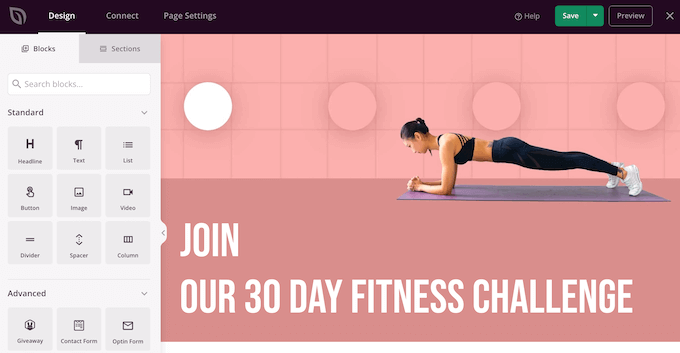
    You can also use SeedProd to create a custom WordPress theme (without coding).

    How to create a landing page in WordPress with SeedProd

    SeedProd is the best WordPress page builder on the market.

    It also allows you to easily create any type of landing page, product page, and custom login page using a drag-and-drop interface.

    Step 7. Customize Easy Digital Download Emails

    Just like Gumroad, Easy Digital Downloads also relies on emails to send users to purchase receipts, account information, and download instructions.

    However, since you are now selling on your own platform, you may want to use your own branding with those emails.

    Simply go to the Downloads » Settings page and switch to the ‘Emails’ tab.

    Customize EDD emails

    From here, you can provide a logo to be used in your emails.

    Below that, you can add a name that will be used as the sender’s name. You can also provide an email address to send the email from.

    We recommend using a business email address because it looks more professional. Your hosting provider can also offer a free business email address that you can use.

    Lastly, you will need WP Mail SMTP plugin to configure your emails. It ensures that all your emails reach users’ inboxes and not end up in spam.

    For more details, see our guide on how to set up WP Mail SMTP to improve email deliverability.

    Once you are finished, don’t forget to click on the ‘Save changes’ button to store your settings.

    Here is how a properly branded Easy Digital Downloads email would look like:

    Add brand logo

    You can also customize the text of the emails by switching the to the ‘Purchase Receipts’ tab.

    From here, you can enter a title, headline, and text for the purchase email receipts.

    Purchase receipts

    Below that you will find a bunch of tags that you can use inside the email template.

    You will be able to display dynamic information such as customer name, their downloads, and receipt by using the tags provided beneath the text field.

    Email tags

    Step 8. Growing Your Business in WordPress

    A big advantage of moving from Gumroad to WordPress is the ability to use a ton of free and paid tools to grow your business.

    Following are some of the must-have WordPress plugins that will help you sell more downloads.

    • WPForms Lite – the best WordPress contact form plugin that helps you easily add any type of form to your website.
    • All in One SEO Lite – The best WordPress SEO toolkit that helps you get more visitors from search engines.
    • OptinMonter – It is the best conversion optimization software that helps you convert website visitors into paying customers.
    • MonsterInsights Lite – Allows you to easily install Google Analytics and see how much traffic your downloads are getting.
    • PushEngage –  is the best push notification software, which allows you to send personalized notifications to users. You can announce new downloads, sale events, or special offers.
    • AffiliateWP – Run your own affiliate program and partner with marketers to help you sell more downloads with affiliate marketing.

    We hope this article helped you learn how to easily switch from Gumroad to WordPress. You may also want to see our article on growing your business on a shoestring budget or take a look at our ultimate WordPress SEO guide.

    If you liked this article, then please subscribe to our YouTube Channel for WordPress video tutorials. You can also find us on Twitter and Facebook.

    The post How to Switch from Gumroad to WordPress (Step by Step) first appeared on WPBeginner.