EDITS.WS

Tag: formidable forms

  • 5 Best Electronic Signature Software for WordPress (2022)

    Are you looking for the best electronic signature software for WordPress?

    The right digital signature software can help you save time while streamlining your workflow for creating official documents & contracts for your business.

    In this article, we’ve hand picked some of the best digital signature software for WordPress.

    Best electronic signature software for WordPress

    Why Use Electronic Signature Software?

    There are lots of reasons why you may need to get someone’s signature.

    Official documents such as contracts and terms of service agreements often require a signature. If you run an online store, then some products, services or subscriptions may need the customer’s signature.

    You might even need to collect lots of different signatures. For example, if you run a nonprofit organization, then you can use signed petitions to draw attention to a good cause.

    However, getting people to sign a physical, printed document can take a lot of time and effort. Depending on where the person is located, you may need to travel to them or post the document. This can slow down important tasks, such as onboarding new employees or selling your small business.

    Electronic signature software allows people to sign a form or document digitally from anywhere in the world. This usually involves drawing with their mouse or touchscreen, or typing in their name using their keyboard.

    By using the best electronic signature software, you can save time and money since you don’t need to print, scan, fax, or post documents. It’s also better for the environment, as you’re not using any paper or ink. You can simply email a digital copy to anyone in the world and then store the signed document on your computer, or in the cloud for extra security.

    If you want to collect signatures from the public, then the right software can help you get more signups. For example, you might publish a petition to your WordPress website and then collect signatures from supporters around the world.

    With that being said, let’s look at some of the best electronic signature software.

    1. WPForms

    The WPForms form builder plugin and signature addon

    WPForms is the most beginner friendly WordPress form builder. You can use it to build any type of form such as multi-page forms, payment forms, email subscription forms, and more.

    With over 500 ready-made form templates to choose from, this plugin makes it easy to add professionally-designed and user-friendly forms to your website. All of these templates are fully customizable, so you can fine-tune them to better suit your needs.

    Even better, the plugin has a Signature addon that lets you collect digital signatures with ease.

    Every time someone submits a form, WPForms will save their electronic signature as an image and attach it to their form submission. You can see all of these signatures simply by logging into your WordPress dashboard.

    Electronic signatures collected using WPForms

    After activating the addon, you’ll get access to some ready-made templates that already come with a built-in digital signature field.

    This includes an online petition form, a medical and health history form, and even a cattery booking form, which is perfect if you run an animal or pet website.

    An e-signature form created using WPForms

    WPForms also has a standalone Signature field that you can add to any template.

    Simply open the WPForms editor and then drag the read-made Signature field onto any form, and you’re ready to start collecting e-signatures.

    A Signature field inside the WPForms editor

    Once you’ve added the Signature field to a form, you can use the WPForms settings to customize that field.

    For example, you can mark it as mandatory so that visitors must add their digital signature before they can submit the form.

    Making the electronic signature form mandatory

    This powerful plugin also has support for conditional logic, so you can hide or show the Signature field based on the information the visitor enters into the form.

    For example, you might hide the Signature field unless the visitor opts into a particular service that requires their digital signature. In this way, you can show only relevant fields to visitors, which will reduce form abandonment in WordPress.
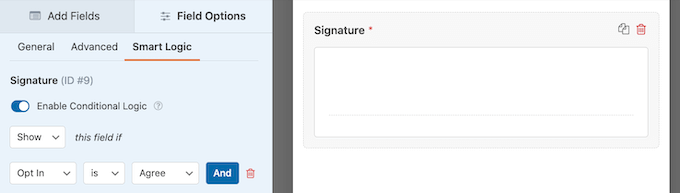
    The conditional logic settings in WPForms

    Pricing: To use the WPForms plugin and Signature addon, you’ll need to buy WPForms Pro ($199.50 per year) or Elite ($299.50 per year).

    2. signNow

    The signNow esignature software

    If you need to collect legally-binding signatures from multiple people, then signNow is a great option. It even comes with conditional logic, so you can show different fields to different people based on their user roles.

    signNow is an online service, so you don’t need to download or set up any software or tools. Simply create an account, and you can start signing documents within minutes using signNow’s user-friendly editor.

    signNow allows users to type, draw, or upload their signatures. You can also save your signatures, so it’s easier to authorize future documents.

    To save even more time, signNow allows you to save any document as a template. This is perfect for businesses that need to send the same file to multiple people or organizations.

    If you’re worried about unauthorized access, then you’ll be happy to learn that signNow has dual-factor authentication options and other advanced security features. This allows you to prove the person’s identity before giving them access to your documents and templates.

    This is particularly important if you’re working with sensitive or confidential documents.

    If you need to collect data from customers, staff, or other contacts, then you can even build online forms using the same intuitive signNow editor. This makes signNow an all-in-one solution for busy businesses.

    Unlike some other esignature solutions on this list, signNow has its own mobile app for Android and iOS. This means you can sign contracts and share documents with other people, directly from your mobile device.

    Using the mobile app, you can even work with documents, agreements, and contracts while offline. Then, simply share your work once the internet connection has been restored. This is great for anyone who travels and likes to work on the go.

    With its time-saving features, dedicated mobile application, and smart conditional fields, signNow is a great choice for businesses that need to share legally binding documents with lots of different people.

    Pricing: You can start using signNow for $8 per month, per user.

    3. Formidable Forms

    The Formidable Forms plugin and Signature addon

    Formidable Forms is an all-in-one WordPress form builder with a drag and drop interface that makes it easy to create advanced forms. This includes custom calculators, booking forms, and much more.

    This plugin also has a Signature addon that allows you to collect digital signatures.

    Visitors can sign your forms using their mouse or touchscreen. However, unlike some of the other software in this list, Formidable Forms also lets visitors type in their signature.

    Adding an electronic signature using Formidable Forms

    This can make your forms and documents accessible to people who find it difficult to sign using the mouse or trackpad.

    Every time someone signs your form, the plugin will save the signature as an image that you can see inside your WordPress dashboard.

    Viewing electronic signatures in WordPress

    After installing the addon, you can simply drop the ready-made Signature field onto any template where you want to collect digital signatures.

    Formidable Forms comes with over 170 templates, so you should have no problems finding one that perfectly suits your needs.

    Adding a signature in Formidable Forms

    Formidable Forms also comes with a ‘Signature’ category where you’ll find a selection of templates that have the e-sign field built-in.

    For example, Formidable Forms has an ‘Esthetician Consent’ template where beauticians can collect a client’s information and get their signed consent.

    An electronic signature form created using Formidable Forms

    This plugin integrates with WooCommerce, so online store owners can easily collect signatures from their customers. For example, you may want to record the customer’s written consent to collect recurring payments as part of a subscription.

    If you have an online store, then Formidable Forms also integrates with all the popular email marketing and payment platforms you may already be using to get sales.

    The Formidable Forms builder is targeted more at advanced users and developers, which means it isn’t as user-friendly as WPForms. However, it is a powerful and flexible solution that’s also very customizable.

    In fact, after configuring the Signature addon, there are lots more addons that can help you collect and manage digital signatures.

    In particular, Formidable Forms has a Visual Views addon that lets you display user-submitted information on your website. For example, if you’ve created a petition, then you can use this addon to show the names of all the people who have already signed. In this way, you can encourage more people to support your petition.

    To learn more, please see our guide on how to display WordPress form entries on your site.

    Pricing: To use Formidable Forms with the Signature addon, you’ll need to purchase Formidable Forms Business license ($199.50 per year) or higher.

    4. pdfFiler

    The pdfFiller e-sign software

    pdfFiler is a complete document management solution that allows you to create, edit and manage documents and forms online.

    You can simply upload any PDF, DOC, DOCX, RTF, PPT, PPTX, JPG, PNG, or TXT file, and pdfFiller will turn it into an interactive document. Anyone can then view, edit, and sign the document online using their desktop or mobile device.

    pdfFiller follows all of the major security laws and guidelines including GDPR, HIPAA, and CCPA. However, some customers or visitors may still be wary about signing a document hosted on an unfamiliar third-party platform. If you do use pdfFiller, then it’s important to talk about the platform in your site’s privacy policy.

    Having said that, pdfFiller’s electronic signature software is very powerful and legally binding in all 50 states. It also has some advanced features you won’t find in other electronic signature plugins, such as the option to capture a signature using a webcam.

    Pricing: The basic pdfFiller plan starts at $10 per month when purchased annually.

    5. USLegalForms

    The USLegalForms website

    USLegalForms is an online library of over 80,000 national and state-specific legal documents covering a huge range of different industries and use cases.

    On their website, you’ll find form templates covering everything from hiring to business agreements, leases, invoices, bills of sale, and much more.

    All of these legal documents are organized into categories and you can search by state, so you should have no problems finding what you’re looking for.

    With a strong focus on legally-binding documentation, this is a great electronic signature platform for businesses. It would also be useful for anyone who wants to start legal proceedings without having to pay a professional to draw up documents for you.

    You don’t need a website to use USLegalForms. If you’re looking for a solution that adds forms or signable documents to your site or blog, then we recommend using a solution such as Formidable Forms or WPForms instead.

    Price: You can buy a USLegalForms subscription for $15 per month.

    Which is the Best Electronic Signature Software?

    After evaluating various eSign software, we believe that WPForms is the best electronic signature software for WordPress. If you’re looking for a eSign software for contracts that need multiple signatures, then we recommend using signNow.

    There are dozens of other electronic signature in the market such as DocuSign, HelloSign (aka Dropbox Sign), PandaDoc, and others, but they are all unnecessarily expensive for small businesses that’s why we haven’t included them in our list.

    We hope this article helped you find the best electronic signature software for WordPress. You can also go through our guide on how to create file upload forms in WordPress, or our expert pick of the best business phone services.

    If you liked this article, then please subscribe to our YouTube Channel for WordPress video tutorials. You can also find us on Twitter and Facebook.

    The post 5 Best Electronic Signature Software for WordPress (2022) first appeared on WPBeginner.

  • How to Add Cloudflare Turnstile CAPTCHA in WordPress

    Do you want to add Cloudflare Turnstile CAPTCHA in WordPress?

    CAPTCHA and reCAPTCHA can stop spambots, but they’re also unpopular with visitors. By using a non-intrusive technology like Turnstile, you can protect your website from spambots and automated scripts without annoying your visitors.

    In this article, we will show you how to add Cloudflare Turnstile to your WordPress website.

    How to add Cloudflare Turnstile CAPTCHA in WordPress

    Why Add Cloudflare Turnstile CAPTCHA in WordPress?

    Spam is a big problem for all websites including WordPress. Spambots can use non-secure forms to send you spammy links, which will make it more difficult for you to do lead generation.

    They can also try to break into your site’s login form by using brute force attacks or flooding your site with spam comments that’ll damage the visitor experience and your WordPress SEO.

    If you run an online store, then automated scripts may even place fraudulent orders.

    Many website owners use CAPTCHA and reCAPTCHA to block scripts and bots. However, a lot of people complain that these technologies deliver a poor user experience, and some even worry about CAPTCHAs stealing their data.

    With that being said, Cloudflare has introduced Turnstile CAPTCHA. This alternative technology uses a selection of non-intrusive challenges that often run invisibly in the browser. This allows you to protect your website without asking visitors to complete complex puzzles.

    To help keep visitor information private, Cloudflare uses Apple’s Private Access Tokens to test whether the visitor is a real person without collecting extra data.

    If you’re using form builders or WooCommerce, then Turnstile also integrates with these third-party plugins. This allows you to add invisible CAPTCHAs across many different areas of your WordPress website.

    With that in mind, let’s see how you can add Cloudflare Turnstile CAPTCHA in WordPress. Simply use the quick links below to jump between the different steps.

    Install a WordPress Cloudflare CAPTCHA Plugin

    The easiest way to add Cloudflare’s CAPTCHA to WordPress is by using Simple Cloudflare Turnstile. This free plugin allows you to connect your website to the Turnstile service, and then check that it’s responding to your requests correctly.

    First, you’ll need to install and activate the plugin. If you need help, then please see our guide on how to install a WordPress plugin.

    Upon activation, go to Settings » Cloudflare Turnstile.

    Adding a site key and secret key to a WordPress website

    The plugin will now ask you to provide a site key and site secret.

    You can get these for free by clicking on the link next to ‘You can get your site key and secret from here.’

    Get a Cloudflare Turnstile Site Secret and Site Key

    The link will take you to the Cloudflare login page where you can register your domain and create a site key and site secret. This is free, but you will need to create a Cloudflare account using your email address, if you haven’t already.

    Once you’re logged into the Cloudflare dashboard, find ‘Turnstile’ in the left-hand menu and give it a click.

    The Cloudflare dashboard

    This will take you to a screen with some basic information about Cloudflare Turnstile.

    If you’re happy to go ahead, then click on the ‘Add site’ button.

    Adding a site to the Cloudflare dashboard

    On this screen, start by typing in a ‘Site Name.’

    This is just for your reference so you can use anything you want.

    Adding a WordPress website to the Cloudflare dashboard

    Next, type your website’s domain name into the ‘Domain’ field.

    The next step is choosing which CAPTCHA widget you want to create. The first choice is ‘Managed,’ which is the method recommended by Cloudflare. This is where Cloudflare analyzes the browser’s request and then decides what kind of challenge it should run.

    While this is happening, the visitor will see a loading animation.

    Adding a Cloudflare Turnstile CAPTCHA to WordPress

    Wherever possible, Cloudflare will try to run a non-interactive challenge in the background, so the visitor doesn’t have to do anything.

    In this case, the user will simply see a ‘Success’ message when their browser passes the test.

    Creating a managed Cloudflare Turnstile CAPTCHA

    Sometimes, Cloudflare may decide that it’s safer to show an interactive challenge instead. However, the visitor will simply need to check a box rather than complete a puzzle, so it’s still easier than the traditional puzzle-based CAPTCHAs.

    Unless you have a specific reason not to, it’s smart to use managed CAPTCHAs as this gives you a good level of security with minimum impact on the visitor experience.

    How to create a managed CAPTCHA for WordPress

    Don’t want to use interactive challenges on your WordPress website? Then you can choose ‘Non-interactive’ or ‘Invisible’ instead.

    Non-interactive challenges run in the browser so the visitor doesn’t have to take any action. Just like the managed CAPTCHA, visitors will see the loading animation and a ‘Success’ message when the challenge is complete.

    If you choose ‘Invisible’ instead, then the visitor won’t see the animation or success message. This setting allows you to completely hide the CAPTCHA from your visitors, which can avoid confusion and won’t add any clutter to your WordPress theme.

    After making your decision, click on the ‘Create’ button.

    As soon as you’ve done that, Cloudflare will show your site key and secret key.

    Creating a site key and secret key for your WordPress website

    You can now add this information to the plugin’s settings on your website.

    Add Cloudflare Turnstile CAPTCHA to Your WordPress Website

    In your WordPress dashboard, head back to Settings » Cloudflare Turnstile. You can now go ahead and add the ‘Site Key’ and ‘Site Secret’ to your WordPress dashboard.

    Adding the Cloudflare secret key and site secret to WordPress

    After that, you may want to customize how the CAPTCHA looks on your website, and how it acts. To start, you can open the ‘Theme’ dropdown and choose from light, dark, or auto.

    The following image shows an example of how the ‘Dark’ theme looks in the WordPress comment section.

    A Cloudflare Turnstile CAPTCHA with a dark theme

    By default, Cloudflare Turnstile shows a ‘Please verify that you are human’ message to visitors. You may want to change this. For example, you might briefly explain why the CAPTCHA is so important, or that it will only take a few seconds to complete.

    To add your own wording, simply type into the ‘Custom Error Message’ field.

    Creating a custom error message for a WordPress CAPTCHA

    After that, you can select the forms where you’ll use the Cloudflare Turnstile CAPTCHA.

    The options you see may vary depending on the plugins you’ve installed, but by default, you can use Turnstile with all the built-in WordPress forms. This includes the login page, user registration form, and password reset page.

    Enabling Cloudflare Turnstile CAPTCHA for the WordPress forms

    When you’re happy with the information you’ve entered, scroll to the bottom of the screen and click on ‘Save Changes.’

    Now, if you visit your website you’ll see the Turnstile CAPTCHA in action.

    Bonus: Add Turnstile CAPTCHA to Your WordPress Forms

    WordPress comes with different built-in forms, but you’ll often want to create custom forms. For example, you might replace the default forms with professionally-designed alternatives that better suit your website.

    You can also add forms that are missing from the core WordPress software, such as contact forms and online order forms.

    Simple Cloudflare Turnstile integrates with the best contact form plugins for WordPress including WPForms and Formidable Forms. This allows you to add the same advanced CAPTCHAs to all your forms, no matter how you created them.

    How to add a CAPTCHA to a WordPress contact form

    To add a CAPTCHA to any WPForms or Formidable Forms page, simply go to Settings » Cloudflare Turnstile in your WordPress dashboard.

    At the bottom of the page, you should see a section for either WPForms or Formidable Forms, depending on which plugin you’re using.

    Integrating Cloudflare with WPForms and Formidable Forms

    Simply click on either of these sections to expand.

    To add the CAPTCHA to all your forms, just check the ‘Enable on all…’ box.

    Enabling CAPTCHA for WPForms

    If you’re using a ‘Managed’ or ‘Non-interactive’ CAPTCHA, then you can change whether the loading and success animation appears before or after the form’s ‘Submit’ button.

    In the following image, we’re using the ‘After button’ option.

    Changing where the CAPTCHA appears in WPForms

    To make this change, simply open the ‘Widget Location’ dropdown.

    Then, choose either ‘Before Button’ or ‘After Button.’

    Changing the location of the CAPTCHA widget

    Some forms may not need a CAPTCHA. For example, you might disable the CAPTCHA for forms that aren’t getting many conversions, to see whether this improves your conversion rates. For more information, see our guide on WordPress conversion tracking made simple.

    To remove the CAPTCHA, you’ll need to type the form’s ID into the ‘Disable Form IDs’ field.

    Removing the CAPTCHA from WPForms

    If you’re using WPForms, then you can get this ID by going to WPForms » All Forms.

    The ‘Shortcode’ column shows each form’s ID. For example, in the following image the form ID is 62.

    How to disable CAPTCHAs on your WordPress website

    If you’re a Formidable Forms user, then head over to Formidable » Forms instead.

    On this screen, find the form that you want to exclude and make a note of the number in the ‘ID’ column.

    Forms, created using the Formidable Forms WordPress plugin

    You can now add these IDs to the ‘Disable Form IDs’ field.

    To remove the CAPTCHA from multiple forms, simply separate each ID with a comma.

    Disabling the Cloudflare CAPTCHA for multiple forms

    When you’re happy with how you’ve set up the integration, don’t forget to click on ‘Save Changes’ to store your settings.

    Now if you visit any form created using Formidable Forms or WPForms, you’ll see the Cloudflare Turnstile CAPTCHA in action.

    Bonus: Add Cloudflare Turnstile CAPTCHA to WooCommerce

    Scripts and bots aren’t just bad news for WordPress blogs and websites. If you run an online store, then spambots and automated scripts might try to register with your store and place fake orders.

    Every transaction comes with processing feeds, so fake orders can cost you a lot of money and make it difficult to grow your business.

    The good news is that Cloudflare Turnstile also integrates with WooCommerce. This allows you to protect all your eCommerce pages including the WooCommerce login, signup, and checkout pages.

    The Cloudflare Turnstile CAPTCHA on the WooCommerce checkout page

    To add Cloudflare Turnstile to your WooCommerce pages, simply go to Settings » Cloudflare Turnstile.

    Then, scroll to the ‘WooCommerce Forms’ section.

    Adding CAPTCHAs to your WooCommerce forms

    If it isn’t already expanded, then click on this section.

    You’ll now see all the WooCommerce pages where you can add a Cloudflare CAPTCHA. Simply check the box next to each page that you want to protect.

    Protecting your WooCommerce store with a CAPTCHA

    After that, don’t forget to click on ‘Save Changes’ to store your settings. Now, if you visit any of your WooCommerce pages, you’ll see the Cloudflare Turnstile CAPTCHA.

    We hope this article helped you learn how to add Cloudflare Turnstile CAPTCHA in WordPress. You can also go through our ultimate WordPress security guide and the best WordPress membership plugins.

    If you liked this article, then please subscribe to our YouTube Channel for WordPress video tutorials. You can also find us on Twitter and Facebook.

    The post How to Add Cloudflare Turnstile CAPTCHA in WordPress first appeared on WPBeginner.