Hey Divi Nation! Thanks for joining us for the next installment of our weekly Divi Design Initiative where each week, we give away brand new freebies. We recently shared a brand new Jewelry Designer Layout Pack. To help you get your website up and running as soon as possible, we’re sharing a global header & footer template that matches this layout pack perfectly as well! Hope you enjoy it.

Header Design
Desktop View

Tablet and Mobile View

Footer Design
Desktop View

Tablet and Mobile View

Download The Global Header & Footer Template For The Jewelry Designer Layout Pack
To lay your hands on the free global header & footer template, you will first need to download it using the button below. To gain access to the download you will need to subscribe to our newsletter by using the form below. As a new subscriber, you will receive even more Divi goodness and a free Divi Layout pack every Monday! If you’re already on the list, simply enter your email address below and click download. You will not be “resubscribed†or receive extra emails.

How to Upload The Jewelry Designer Layout Template
Go to Divi Theme Builder
To upload the template, navigate to the Divi Theme Builder in the backend of your WordPress website.

Upload Global Default Website Template
Then, in the top right corner, you’ll see an icon with two arrows. Click on the icon.

Navigate to the import tab, upload the JSON file which you were able to download in this post, and click on ‘Import Divi Theme Builder Templates’.

Save Divi Theme Builder Changes
Once you’ve uploaded the file, you’ll notice a new global header and footer in your default website template. Save the Divi Theme Builder changes as soon as you want the template to be activated.

How to Modify The Template
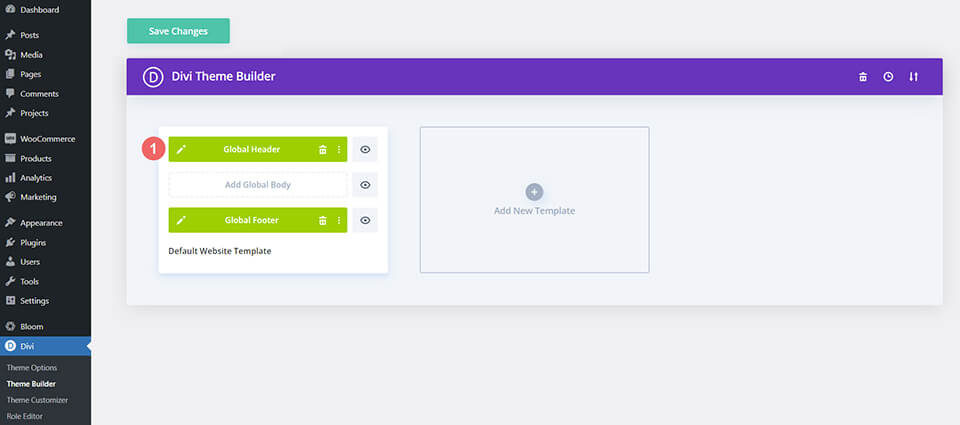
Open Jewelry Designer Layout Header Template
To modify the global header template’s elements, start by opening the template.
Select Menu of Choice for Desktop, Tablet and Mobile
Select a menu of your choice in the Menu Module.

We use two menu modules: one for desktop, and one for tablet/mobile. Ensure that the menus for both are the same as to not confuse your website users.

Update Logo with Menus
You will need to upload your own logo into the Menu Modules within this header. Logos that are horizontal/landscape work best.

Update Text Call-to-Actions
This header has three text areas that can be used as call-to-actions. Edit the text to match your brand. You can even go as far as to add links to them if you’d like, get creative!

Open Footer Template
Continue by opening the global footer inside the default website template.

Select Menu of Choice for Desktop, Tablet and Mobile
Similar to the Header Template, you will need to add your menu to the footer menu.

This will need to be done for both desktop and tablet/mobile view.

Update Footer Menu Logo
Just like the header’s Menu Module, you will need to update the logo included with our template with your own logo.

Connect Your Email Marketing Solution
Our footer has an Email Optin Module that needs to be activated. Connect your email marketing solution of choice to the module so that you can gather email addresses for your business.

Update Static Footer Content
You will need to go through and update the static content of the footer. This can include adding your own text, updating link URLs, and connecting your social media networks. Don’t forget about the copyright text at the bottom of the footer as well.

New Freebies Every Week!
We hope you’ve enjoyed the Jewelry Designer Layout Pack and the Header & Footer freebie that goes along with it. We look forward to hearing your opinions in the comment section below. Make sure you check back next week for more freebies!
The post Download a FREE Header & Footer for Divi’s Jewelry Designer Layout Pack appeared first on Elegant Themes Blog.