EDITS.WS

Tag: Google Search Console

  • What is Content Decay? (And How to Fix It)

    Are you worried about the declining performance of some of your website’s content? This could be a sign of content decay.

    Content decay is the decline in organic traffic and search rankings over time. Unless you update the content, you will continue to lose rankings and traffic.

    In this article, we will explain content decay and how to find and fix it.

    Content decay explainer for beginners

    Here is a quick overview of the topics we will cover in this guide:

    What Is Content Decay?

    ‘Content decay’ describes the decline in organic traffic and search rankings for a particular piece of content over time.

    Every time you publish new content on your WordPress website, search engines crawl it. Then, after some time, this content may start ranking for specific search terms and bring new traffic to your website.

    However, sometimes this traffic may start declining, and certain content may drop in search rankings. This can happen even if you don’t change the content itself.

    It is important to understand that content decay doesn’t necessarily mean old articles on your website. An old article may consistently rank and continuously bring traffic to your website.

    At the same time, some newer content may start decaying. This decayed content can start affecting your business, sales, and profits if left unchecked.

    What Causes Content Decay on Your Website?

    Several factors can cause content decay on a website. Here are some of the top reasons for content decay:

    • Better content from competitors – Your competitors may be targeting the same keywords with more detailed and helpful content.
    • Declined interest – The keyword is no longer searched as often as it used to be. There may be a decline in search volume for several reasons.
    • Keyword cannibalism – Your WordPress blog may have similar content targeting the same keyword, which splits your search traffic. Google might be unable to guess the search intent and match it to the right content.
    • Change in search intent – The reason why people are searching for the keyword may have changed. For instance, you might have an article about different types of solar panels, but the user intent has now changed to buying a solar panel.
    • Search features – Google is continuously changing search results to match user intent. For instance, shopping results, featured snippets, places, and other search features can divert search traffic to those snippets.

    However, before you can find out what has caused your content to decline, you will need to see which pieces of content on your website have decayed.

    How to Find Decayed Content in WordPress

    Content decay happens gradually and over time, which is why many site owners don’t notice it right away.

    However, if it is left unchecked, other articles can start decaying. Soon, you will end up with a large number of posts and pages that are all decayed, and it will take you a long time to fix them.

    With that being said, we will now show you two ways to find decayed content on your website.

    Method 1: Find Decayed Content Using All in One SEO (Recommended)

    The easiest way to find decayed content in WordPress is by using All in One SEO for WordPress. It is the best WordPress SEO plugin on the market and allows you to easily optimize your website for search engines.

    All in One SEO plugin

    All in One SEO has a Search Statistics tool that helps you connect your website to Google Search Console. It then fetches data from Google Search Console and presents it in an easily-readable format. This includes data showing how much your content has declined in search over a period of time.

    First, you need to install and activate All in One SEO for WordPress. For more details, you can see our tutorial on how to install a WordPress plugin.

    Note: You will need at least the Elite plan of the plugin to unlock the Search Statistics feature.

    Upon activation, the plugin will launch the setup wizard. Simply follow the on-screen instructions to set up the plugin with optimal settings.

    All in One SEO wizard

    Next, you will need to connect your WordPress website to your Google Search Console account. For more details, you can follow our tutorial on how to add your WordPress site to Google Search Console.

    Once you have added your website to your Search Console account, the next step is to connect All in One SEO to Google Search Console.

    You need to go to the All in One SEO » Search Statistics page and click the ‘Connect to Google Search Console’ button.

    Connecy Google Search Console

    This will take you to your Google Account, and you will be asked to give the plugin permission to access your Search Console data.

    Simply click on the ‘Allow’ button to continue.

    Allow permission

    If you have multiple websites on your Google Search Console account, then you will be asked to select a site.

    After that, just click on the ‘Complete Connection’ button to continue.

    Complete connection

    Once connected, you can view the Google Search Console data by visiting the All in One SEO » Search Statistics page in your WordPress admin dashboard.

    You will see a quick overview of your site’s performance in Google Search.

    Search Statistics overview

    Next, you need to switch to the ‘Content Rankings’ tab.

    From here, you will see a list of your content in Google Search with the loss or gain points, drop percentage, and last updated information.

    Content rankings in AIOSEO

    To find out which pieces of content have dropped the most points, you can sort the list by ‘Loss’ and ‘Drop’ values.

    The Loss value shows your content rankings in points, while Drop shows the advantages and gains as a percentage.

    Sort content by loss points or drop percentage

    You can see the content that has dropped the most in rankings during the last 12 months. Content with the most drop or loss in points is the content that has decayed the most.

    You can also see quick stats about a post or page, including internal links, outgoing links, and affiliate links. Hovering your mouse over will also show you links to edit or view a post.

    Edit post

    This allows you to view a post to see why it may have declined and edit it if needed.

    Method 2: Find Decayed Content Using Google Search Console

    This method is not as easy to use as All in One SEO. However, it will help you find content decay, and you can then manually start fixing it.

    If you haven’t already done so, then you will need to add your WordPress website to Google Search Console and give it some time to collect data. For more details, you can see our guide on how to connect your website to Google Search Console.

    After that, you need to log in to your Google Search Console dashboard and switch to the ‘Performance’ tab.

    From here, you need to click on the ‘Date Range’ label.

    This will bring up a popup. Just switch to the ‘Compare’ tab and then select a custom date range for your comparison.

    Open date range in Google Search Console performance

    For this example, we are comparing the last 6 months to the previous 6 months. You can also choose custom ranges by selecting dates.

    Simply click on the ‘Apply’ button to continue.

    Compare performance in Google Search Console

    Search Console will now show you a comparison of your site’s performance in the search results for the selected period.

    Make sure to check all the boxes at the top of the Performance overview columns so that you can see positions, impressions, clicks, and the click-through rate (CTR).

    Check all fields

    After that, scroll down to the data table section and switch to the ‘Pages’ view. This will allow you to see exactly what content has decayed.

    In the results, you can sort the ‘Position Difference’ column to find the content that has dropped the most in search rankings.

    Position difference

    Tip: If you can’t see the Position Difference column, use your keyboard’s right arrow key to scroll through the columns horizontally.

    Similarly, you can also sort content by Impressions Difference or CTR Difference. This may help you find content that appears less in search or has dropped in click-through rate.

    You can also switch to the ‘Queries’ tab to see which keywords your site rankings are decaying for.

    Find decayed keywords in Queries

    You can also click on the ‘Export’ button at the top to download this data in CSV format, which you can then open in your preferred spreadsheet software.

    How to Fix Content Decay on Your Website

    Now that you know which content has decayed on your WordPress website, it is time to fix it.

    Before you do that, you need to figure out what has caused a piece of content to fall in rankings or lose its organic click-through rate.

    You can try searching for the keywords where that content used to rank and analyze the results.

    The most common cause of content decay is newer, more detailed content outranking yours. To fix this, you need to update your content to make it better.

    Here are some quick tips to make your content more comprehensive:

    • Optimize your post for SEO – While optimizing your post for SEO, you can also update your post to add new, more helpful content that you may have missed before.
    • Embed a video – Adding images and videos is great for building user engagement.
    • Add a table of contents – This helps users easily navigate longer content. Plus, the table of contents can also be picked up by Google in the featured snippet.
    • Add FAQ schema markup – Answering general user questions in an FAQ section can help your readers and make your content show up in Google FAQ search results.

    Sometimes, the reason for content decay can be a lack of user interest or the search intent not matching your content.

    In that case, you may consider changing your content to address the new audience intent. Alternatively, you can rewrite and optimize it for a similar topic that still has search volume.

    For more on this topic, you can see our tutorial on how to do keyword research for your WordPress blog.

    We hope this article helped you learn about content decay and how to fix it on your WordPress site. You may also want to see our complete WordPress SEO guide or our expert picks for the best WordPress plugins to grow your website.

    If you liked this article, then please subscribe to our YouTube Channel for WordPress video tutorials. You can also find us on Twitter and Facebook.

    The post What is Content Decay? (And How to Fix It) first appeared on WPBeginner.

  • How to Recover a WordPress Site from a Google Search Penalty

    Are you looking to recover your WordPress site from a Google search penalty?

    Google penalties are a dreaded nightmare for any website owner. Your web pages can be removed from search results or dropped down in search rankings, causing the organic traffic to fall significantly.

    In this article, we will show you how to recover a WordPress site from a Google Search Penalty.

    How to recover a WordPress website from a Google search penalty

    What is Google Search Penalty?

    A search penalty is a punishment that Google delivers to websites that violate its guidelines.

    Google’s goal is to present the best search results to its users. However, sites that try to manipulate or cheat the system to achieve higher search rankings through unethical means are usually given search penalties.

    As a result, penalized WordPress sites might see a drop in search rankings or be de-listed from the search results in extreme cases.

    Google imposes 2 types of penalties:

    • Manual penalties – These are imposed by Google’s internal team, and you are notified of any offense. It can be for things like spam content, cloaked images, hidden text, unnatural internal and external links, and other violations against the Google Search Essentials guidelines.
    • Algorithm penalties – An algorithm penalty is when Google rolls out an update to the search algorithm to provide better search results. This type of penalty is hard to diagnose because you don’t get any notification from Google.

    Since this is a comprehensive guide, we’ve added a table of contents. You can click the links below to easily navigate to any section you’re interested in:

    How to Check for a Google Search Penalty

    If your WordPress site is hit with a Google search penalty and you’re not sure how to check it, then there are different ways you can try.

    Check for Manual Actions in Google Search Console

    First, you can log in to your Google Search Console account and look for manual penalties imposed by the search engine.

    Simply head to Security & Manual Actions » Manual actions from the Search Console menu on the left. Here, you’ll see any manual penalty given by Google.

    Look for manual action

    If you see the ‘No issues detected’ message, then you’re in the clear.

    That said, here’s a list of manual actions that Google can apply to your site:

    • Site abused by third-party spam
    • User-generated spam
    • Spammy free host
    • Structured data issue
    • Unnatural links to and from your site
    • Thin content with little or no added value
    • Pure Spam
    • Cloaking or sneaky redirects
    • Cloaked images
    • AMP content mismatch
    • Sneaky mobile redirects
    • Hidden text or keyword stuffing
    • News and Discover policy violations

    Check Google Analytics for a Drop in Organic Traffic

    Next, you can check your site’s organic traffic in Google Analytics. If there is a considerable drop, then it could be a result of a search penalty.

    This method is useful to check for algorithm penalties, especially after Google releases a new update.

    In Google Analytics 4, you can go to Reports » Acquisition » Traffic acquisition and look at the Organic Search figures.

    Look at organic search figures

    You can edit the date range at the top and compare it to a previous period to look for a decline in traffic.

    To drill down further, you can use a keyword tracker tool and see search term rankings for your website. If you notice a drop in different keyword rankings, then it could mean you’ve been hit with a search penalty.

    Search Your Website and Content on Google

    Lastly, if you’re not seeing your web pages appear in Google search results, then there is a way to check if it’s been banned or delisted.

    Simply enter ‘site: example.com’ in Google and see if your site appears. Just replace example.com with your own site URL.

    Site search operator on Google

    If you don’t see your website appearing in the search results, then it could be delisted due to a search penalty.

    You can also search for some of the text from your most important pages on Google. This will also help check for delisting or decline in search rankings for core pages.

    Having that said, let’s look at different ways you can recover a WordPress website from a Google search penalty.

    1. Perform an SEO Audit to Find Critical Issues

    An SEO audit is a process of finding out whether your WordPress website is correctly optimized for search engines.

    Running an SEO audit can help uncover critical SEO issues and errors on your site. This way, you can quickly fix them and recover your site from a search penalty.

    A simple way to conduct an SEO audit in WordPress is by using the All in One SEO (AIOSEO) plugin. It is the best SEO WordPress plugin that helps set up your site for search engines without technical knowledge.

    With AIOSEO, you can use its SEO Analysis tool inside the WordPress dashboard to run an audit. It checks your site on different parameters and highlights any critical issues. Plus, you get recommendations for fixing errors, which will help recover your site from a penalty.

    SEO analysis

    You get started by following our guide on how to set up All in One SEO in WordPress.

    One of the most common reasons why Google issues a search penalty is because of unnatural links to and from your WordPress website.

    Sites that have bought spammy links or participate in different link schemes to boost their search engine rankings are mainly penalized by Google. This could be either through a manual action or an algorithm update.

    A quick way to recover your site from such penalties is by identifying and removing spammy backlinks. However, this can be a time-consuming task, especially if you have to visit every page on your site to remove the backlink.

    An easier way to go about this is by using AIOSEO. It offers a powerful Link Assistant feature that helps you see all the internal and external links on your site.

    First, you’d need to go to All in One SEO » Link Assistant from your WordPress admin panel. After that, you can click on the ‘Domains Report’ tab at the top.

    AIOSEO Link assistant dashboard

    Next, you can view all the domains linking to your website.

    On this page, domains that look unnatural or spammy are highlighted. Next, you can select the domain, click the Bulk Actions dropdown menu, and choose the ‘Delete’ option.

    Delete spammy backlinks

    After that, you can click the ‘Apply’ button to remove links from a particular domain.

    You can also click on any of the websites to view which pages they’re linking to on your site. Next, you can click the trash can icon to remove a backlink from a particular page or post.

    Remove unnatural links

    If you are unable to remove an unnatural, spammy, or artificial link, then you can disavow them using Google’s disavow links tool.

    Do note that this method is for users with technical knowledge and is unsuitable for beginners. For more details, you read Google’s instructions on how to disavow links to your site.

    3. Perform a Content Audit

    Another way to recover your website from Google search penalties is by auditing your content.

    Here are a few things you can look into and fix on your website.

    Fix Thin and Duplicate Content

    Google will penalize sites with thin content with little or no value for users. This includes low-quality content that’s auto-generated or spun through software. Or affiliate pages with a few paragraphs and a link to promote the product.

    Similarly, if you have duplicate content or articles scraped from other websites, then Google can also hand you a search penalty.

    A simple way to fix this is by identifying pages that have relevant or thin content and then rewriting them. You can use Google Analytics to uncover pages with very low or no traffic.

    Simply head to the Reports » Engagement » Landing page in Google Analytics.

    Find pages with low traffic

    After uncovering content with thin content, you can then add more value by covering the topic in depth, making the content engaging using images and videos, and ensuring you have unique content.

    On the other hand, you can find pages that have duplicate or auto-generated content and simply remove them from your website. Simply copy some of the text and enter it on Google. The search will show all the pages and posts on your site with the same content.

    If other websites have scrapped your content, then you can use tools like Copyscape to find plagiarised content. To learn more, you may also want to see our guide on how to easily find and remove stolen content in WordPress.

    Remove Keyword Stuffing and Hidden Text

    If your site’s text doesn’t make sense and is filled with search terms to rank higher, then you can also get a search penalty for keyword stuffing. Similarly, websites with hidden text and keywords in your site’s CSS styling can also be penalized by Google.

    You can easily fix this issue by removing or editing content that has keyword stuffing. Try using variations and avoid repeating the same search terms. You can also use keyword research tools like Semrush to find different keywords to use on your content.

    Semrush also offers an SEO writing assistant tool that helps you discover LSI and related keywords, readability score, language tone, and more to help you create optimized content.

    Remove User Generated Spam

    Next, you need to check your website for spam comments. These are comments that have advertising links, spammy user names, auto-generated or off-topic comments, and other irrelevant links.

    In WordPress, you can simply go to Comments from your WordPress dashboard and then mark the comment as Spam. You can also select the Trash option and remove the comment.

    Spam or trash the comment

    To learn more, please see our guide on tips and tools to combat comment spam in WordPress.

    Review Internal Linking on Your Site

    Google’s search crawlers use links on your website to find new content and build a contextual relationship between your new and old content.

    Auditing the internal links helps recover your WordPress site from an algorithm penalty. For instance, if there are no or few internal links on a page, then you can add internal links to other relevant pages and boost their rankings.

    Using the AIOSEO link assistant, you can improve internal linking on your website. It will show you existing links and also provide new linking opportunities. Besides that, you can also highlight orphaned pages that have no internal links.

    Find internal link opportunities and orphaned pages

    For more details, please see our guide on internal linking for SEO.

    Audit Page Load Speed

    When conducting an audit, you should also check your website load time. While a slow-loading site would not lead to a Google search penalty, it will impact your search engine rankings.

    That’s because Google now uses page load speed as a ranking factor. Sites that load fast will have an advantage over slow-loading websites.

    You can use IsItWP’s free website speed test tool for auditing page load speed. The tool will show an overall score and provide suggestions for improving page speed.

    IsItWP Uptime Checker Tool

    You can find more details by following our guides on how to run a website speed test and the ultimate guide to boosting WordPress performance.

    4. Ensure Your Site is Not Hacked

    If your WordPress website is hacked and injected with malicious code that can be deceptive to Google’s guidelines, then you can get a penalty.

    Usually, hackers would add scripts or pieces of code that would create sneaky redirects on your website. Since this goes against the guidelines, your websites might be deindexed from the search results.

    You can check for security issues in Google Search Console by heading to the Security & Manual Actions » Security issues section.

    View security issues

    Besides that, you can run a WordPress security audit to uncover any issues that might result in a penalty. For example, you can scan your site for malware and other security vulnerabilities.

    We recommend using a WordPress security plugin like Sucuri to prevent an attack on your website. It also checks your site’s files for suspicious code and helps clean up your website.

    You may want to see our ultimate WordPress Security guide to make your site secure and safe.

    5. Research Recent Google Algorithm Updates 

    Lastly, if you see a drop in traffic or search rankings after a Google update, then you might be hit with an algorithm penalty.

    Unlike a manual penalty, it is very hard to diagnose the impact of an algorithm change. Google won’t tell you the reason for the drop in rankings or traffic for your site.

    However, you can research the latest Google algorithm update and see what has changed. After that, you can audit your site’s SEO, content, and security to fix any issues.

    The best way to stay updated with the latest algorithm changes and adjustments is by following WordPress blogs. There are many popular marketing and SEO blogs that share the latest news, case studies, and other information about Google’s algorithm changes.

    Aside from that, you can also follow our ultimate WordPress SEO guide for beginners and make sure your site is properly optimized for Google.

    Submit a Reconsideration Request to Lift Penalties

    After you’ve fixed an issue that led to Google search penalties, the next step is to submit a reconsideration request and lift the penalties.

    This step is fairly simple if you receive a manual penalty. You can head to your Google Search Console account, view the Security and Manual actions section, and request a review for the particle issue.

    When submitting the reconsideration request, we recommend that you cover the following things:

    • Explain that you understand Google’s guidelines and best practices in detail. You can share links to answers in Google forums, YouTube videos, and other documentation offered by Google regarding the manual action.
    • Show that you’ve done everything that you can to fix the issue, like removing unnatural links. You can include screenshots, a list of links removed, and provide other evidence to present your case.
    • Reassure that your site is made for users and not search engines, and you won’t make the same mistake again. You can also ensure that all other activities on your website are within Google’s guidelines.

    Once you’ve submitted a consideration request, Google will review it. The response time usually depends on the severity of the penalty. It can take days, weeks, and even months to hear back from Google and find out whether your penalty has been lifted or not.

    We hope this article helped you learn how to recover a WordPress site from a Google search penalty. You may also want to see our guide on how to increase your blog traffic and the best SEO checker and website analyzer tools.

    If you liked this article, then please subscribe to our YouTube Channel for WordPress video tutorials. You can also find us on Twitter and Facebook.

    The post How to Recover a WordPress Site from a Google Search Penalty first appeared on WPBeginner.

  • How to stop videos negatively impacting Core Web Vitals

    Embedded videos are an increasingly important part of websites. And it’s easy to see why. They add an engaging and interactive layer to all manner of page types. But there is one problem: video files are big. Particularly on lower bandwidth mobile connections, they can be very slow to load.

    This can be a problem from a user-experience standpoint, especially if the video is critical for the display of the page (such as with an auto-playing background video). But it can also be a challenge for SEO. Having too many big videos on a page can negatively impact your Core Web Vitals, particularly Largest Contentful Paint (LCP) & Cumulative Layout Shift (CLS). Let’s dive deeper into these two topics, and what you can do to fix it.

    Largest Contentful Paint

    If your page includes an inline embedded video, then that video is part of the Largest Contentful Paint (LCP). What does that mean? It means the video is a critical part of the page experience, both from an algorithmic and user standpoint. If your LCP time is too slow (for example, when it depends on the execution of a large amount of JavaScript), then you might receive a failed Core Web Vitals assessment in Google Search Console. Which looks like this:

    Google likes to see pages load up within 2.5 seconds on a mobile 3g connection. That’s definitely a challenge if HD video files are critical to your page experience.

    Cumulative Layout Shift

    If videos are the last to load on your page, they can cause issues with Cumulative Layout Shift (CLS). How? By forcing blocks of text or images to move around on the page as the video is loaded.

    To mitigate this, you either need to ensure your videos load with the HTML – but this may block rendering elsewhere – or ensure the frame in which the video will appear loads even before the file asset itself.

    Fix with placeholders

    The way to fix these issues isn’t to remove videos from your website! Instead, you should be smart about how JavaScript and media files are loaded. With video, this means using thumbnail image placeholders – small image files that load in advance. They can act as a trigger for the video to be played when clicked.

    If you use these thumbnails, then the Largest Contentful Paint is complete. Even without executing the JavaScript associated with video players! In addition, you have solved the Cumulative Layout Shift almost instantly.

    The solution: Yoast Video SEO plugin

    The Yoast Video SEO plugin has a number of benefits for improving your site speed and health. For example, loading thumbnail placeholders! Rather than loading each video file as soon as a page request is made, the Yoast Video SEO Plugin loads up a placeholder image in advance of the videos. While the user views the page, the plugin loads the videos in the background. The result? When a visitor clicks on the play button, your videos are ready.

    The placeholder images are also small and quick to load, which means the Largest Contentful Paint can be built out very swiftly. Plus, there’s no danger of a late Cumulative Layout Shift occurring due to a slow-loading video file. In other words: the Yoast Video SEO for WordPress plugin is an easy way to ensure your videos don’t negatively impact your Core Web Vitals!

    The post How to stop videos negatively impacting Core Web Vitals appeared first on Yoast.

  • Internal Linking for SEO: The Ultimate Guide of Best Practices

    Are you looking for the best practices to maximize the SEO benefits of internal links?

    Internal links play an important role in search engine optimization (SEO). They help search engines discover your content and rank them higher in search results.

    In this article, we’ll list the best practices to use for internal linking for SEO.

    Internal Linking for SEO: The Ultimate Guide of Best Practices

    How Does Internal Linking Improve SEO in WordPress?

    Internal links are links between posts on your own website. Having internal links is important for your WordPress SEO. They help search engines like Google crawl your website and discover new content to index and rank.

    Generally, the more links a page has pointing to it, the more likely it is to rank higher in search results. That means that you can use internal links to point to important pages on your site as a way to increase their traffic.

    Internal links also help your visitors easily find related articles and provide a better user experience overall. This can also help increase pageviews and reduce your bounce rate.

    That being said, let’s take a look at the best practices for improving SEO by adding internal links in WordPress. Since this is a comprehensive guide, we have included a table of contents for easier navigation.

    1. Make Internal Linking a Habit

    We recommend that you make a habit of linking to your older articles from your new articles.

    It’s a great way to develop a contextual relationship between your new and old posts. It also allows you to pass relevant link juice to your older articles.

    Because internal links play such an important role in SEO, we have even made it part of our pre-publish blog post checklist for WPBeginner writers.

    You can also edit your older articles to add links to your newer content whenever you publish. Many successful bloggers dedicate time to adding internal links that point to new articles on a weekly or monthly basis.

    This will help you boost your pageviews, increase the time users spend on your site, and ultimately will improve the SEO score of your individual blog posts and pages.

    WordPress makes it easy to search for your old posts right inside the post editor. Simply select the text you want to link and click on the link button in the toolbar that appears.

    A text pop-up will appear below your highlighted words. Then, you can start typing to search for the older articles you want to link to.

    Add a Link to a Post

    To learn more, see our beginner’s guide on how to add a link in WordPress.

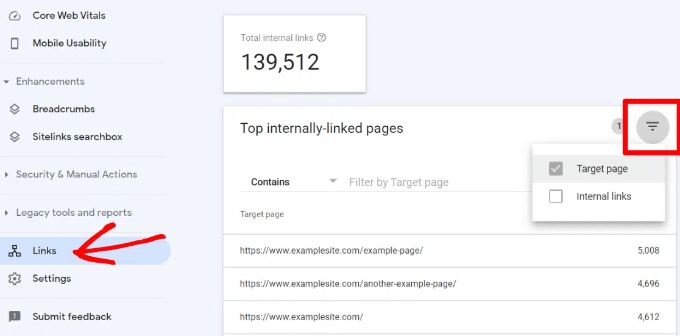
    It’s helpful to see your website’s SEO performance in terms of links by using a tool such as the Links Report in Google Search Console. This is a helpful starting point for working out how to improve internal linking on your site.

    Filter internal links

    The Links Report will show you how many pages are linking to this page. You can compare it with other pages and see whether pages with more internal links are ranking higher than posts with many internal links.

    If you find that posts with more links do rank higher, then you can go ahead and start adding internal links to pages that you want to rank higher. For the details, see our guide on using Google Search Console to effectively grow your website traffic.

    Just make sure you are only linking to the article when it makes sense. Adding links where they don’t make sense creates a bad user experience.

    Another way to monitor the impact of internal linking is to see which keywords are gaining or losing position. All in One SEO makes this extremely easy with the Search Statistics feature.

    Once you connect the plugin with Google Search Console, All in One SEO will fetch your Google Search Console data and present it under All in One SEO » Search Statistics.

    Search statistics dashboard

    The keyword positions chart shows a graph of your site’s keyword positions.

    Below this, you’ll see the Keyword Rankings overview box. This shows your top 10 keywords, and if you use them for internal links they are very likely to be clicked.

    keywords overview

    3. Improve Your WordPress Site’s Internal Linking With a Plugin

    If you’re not sure which posts you want to link to, then you will often find it faster to add internal links in WordPress using an internal linking plugin.

    We recommend using All in One SEO. It includes a unique Link Assistant feature that lets you add links to your old and new content without having to open up the post. Plus, it provides link recommendations, detailed link reports, and much more.

    To set up the plugin, see our guide on how to set up All in One SEO for WordPress correctly. After that, simply navigate to All in One SEO » Link Assistant in your WordPress dashboard.

    Link Assistant will crawl every link on your website and then show a comprehensive list report.

    Link assistant overview

    The report will show you an overview of the links with total counts for internal, external, and affiliate links. It will also show you the number of orphaned posts that have not yet been linked to from another post or page.

    You can switch to the Links Report tab for detailed information on all your links. Here you’ll see a list of all your posts and pages with columns for internal, external, and affiliate links.

    Links report

    It will also show a number of suggestions where you can add links.

    For more details, you can click on the right arrow button next to a post or page. This will show all links organized in different tabs. From the suggestions tab, you can quickly view link suggestions and add links without directly editing a post or page.

    View links details

    Link Assistant also helps you discover more internal linking opportunities.

    You can switch to the ‘Linking Opportunities’ tab to see suggestions about how to improve the internal linking on your website, and also see the list of orphaned posts so you can add links to them.

    Linking opportunities

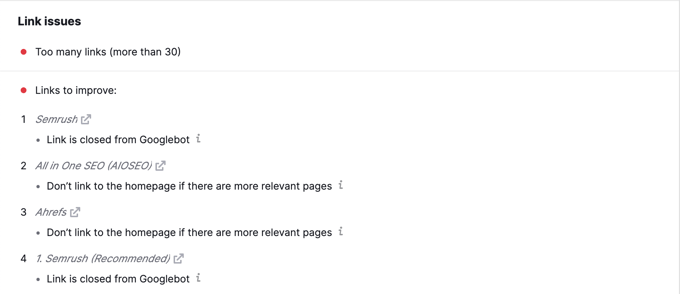
    Another plugin useful for internal linking is Semrush SEO Writing Assistant because it can help you keep track of links inside your article.

    For example, it lets you know when your article has too many or too few internal links and also suggests ways you can improve your links.

    SEO Reporting Assistant Reports Issues With Links

    This tool also comes in handy if you have other authors working on articles. Editors can quickly see if the article includes internal links to other posts on your website.

    We show you how to use this plugin step-by-step to improve your SEO in our guide on how to use the SEO Writing Assistant in WordPress.

    You can use a WordPress popular posts plugin to point users toward the articles that other users have already found helpful. These plugins automatically create a list of internal links to your most popular content.

    Popular posts are usually your most successful content, which means they are more likely to increase user engagement, conversions, and sales. They are also a good opportunity for internal linking to your other less popular articles.

    For example, MonsterInsights has a feature that allows you to show your popular articles anywhere on your WordPress site. You can use also use inline popular posts to show articles inside your content.

    MonsterInsights Inline Popular Posts

    If you want to show articles in the sidebar or at the end of your content, then you can select the Popular Post Widget. MonsterInsights even lets you display your top-performing products anywhere on your eCommerce store.

    You can learn more in our guide on how to display popular posts in WordPress.

    Another way to increase the number of internal links on your WordPress blog is to create roundups of your existing content. You do this by creating a new post that mentions your best articles on a certain subject to give a detailed overview of the topic.

    In fact, you’re reading a post like that now.

    Luckily, there are some plugins that make this job easy. For example, WP Tasty Roundups allows you to quickly repurpose your existing content into beautiful roundup posts that rank in search results.

    All you need to do is type one or two keywords into the built-in search functionality, and the plugin will automatically pull images, titles, descriptions, and links from relevant posts into your roundup list.

    WP Tasty Roundups

    Sitelinks are a feature on Google search engine results pages (SERPs) where additional sub-pages appear under a website in the search results.

    These are often internal links to the most popular pages of that website.

    Google Sitelinks Example

    The top 3 spots on Google get the most clicks. When sitelinks are shown for a website, it takes up the same amount of space as three regular search listings.

    Having this much screen space dedicated to your site significantly increases your overall click-through rate. Simply put, more visitors will visit your website from the keyword.

    While there is no guaranteed way to get Google to show sitelinks for your website, it certainly helps to create lots of internal links to your most important posts and pages.

    You can learn more in our guide on how to get Google sitelinks for your WordPress site.

    Link preloading is a browser technology that will load links in the background before a site visitor clicks them. This makes your website seem faster, which can improve SEO.

    Because loading speed is one of the top indicators for search engine rankings and user engagement, when your internal pages are preloaded, your visitors are more likely to stay on your website longer.

    They are more likely to view more pages because they’re loading instantly.

    The easiest way to preload links is by using the Flying Pages plugin. It simply adds intelligent preloading to make sure preloading won’t crash your site or even slow it down.

    Flying Links settings set the preloader delay

    We show you how to set up the plugin step-by-step in our guide on how to preload links in WordPress for faster loading speeds.

    Broken links are bad for your website’s SEO. Search engine crawlers find new content on your website by following internal links, so a broken link can stop them from indexing a new post.

    They also negatively impact user experience because broken links will return a 404 error. If a visitor clicks on a link and is unable to find a page they’re looking for, then they may leave.

    The MonsterInsights custom 404 error design

    You can easily find and fix broken links on your WordPress website using All in One SEO.

    AIOSEO offers a powerful redirection manager that helps track 404 errors on your website and lets you set up permanent 301 redirects to fix broken links.

    404 error logs in AIOSEO

    To learn more, see our detailed guide on how to find and fix broken links in WordPress.

    If you ever move your WordPress site to a new domain name, then it is important to update all internal link URLs. Otherwise, you will have lots of broken links.

    You should start by changing the WordPress address and site URL by visiting the Settings » General page from your WordPress dashboard.

    Change the WordPress Address and Site URL to Your New Domain

    But you will also need to change the URLs of every internal link added to your posts and pages.

    You’ll find the simplest way to do this in our step-by-step guide on how to easily update URLs when moving your WordPress site.

    If you want to make internal linking a habit, then it helps to use the most efficient method. Since WordPress 6.0, WordPress has supported standard MediaWiki syntax to quickly add internal links when creating or editing a post.

    You can now quickly add links by adding two square brackets followed by the post title. The animated gif below shows you how easy this feature is to use inside WordPress.

    Add link shortcut

    The link will automatically add the correct URL to the post, and use the post title as an anchor link.

    If you know the title of a post (or even just part of it), then using the double square bracket method is the fastest way of creating an internal link.

    One of the best ways to uncover how users interact with your website is to track which internal links your visitors are clicking. Tools such as MonsterInsights can help you see which internal links your visitors are the most interested in.

    You can then use these insights to improve the way you add internal links to your posts and pages.

    We offer detailed instructions on tracking different types of links in our guide on how to track link clicks and button clicks in WordPress.

    You might also like to see our guide on how to track user engagement in WordPress.

    12. Enable Breadcrumbs in WordPress or WooCommerce

    Breadcrumb navigation is a term used to describe a hierarchical navigation menu presented as a trail of links.

    It’s often used as a secondary navigation that allows users to go up in the website’s hierarchy of pages.

    Navigational links preview in WPBeginner

    Breadcrumbs are great for internal linking because they define a clean path or trail to the page you are on.

    These breadcrumbs also appear in search results giving your site an extra advantage in rankings.

    Breadcrumb Navigation Links in Search Results

    We cover two ways to add breadcrumbs in our guide on how to display breadcrumb navigation links in WordPress. Most users will find Method 1 easier, using All in One SEO.

    The AIOSEO Breadcrumbs Settings Page

    You can also use All in One SEO to enable breadcrumbs for your WooCommerce products. For details, see the fifth tip in our guide on WooCommerce SEO made easy.

    We hope this tutorial helped you learn how the best internal linking practices for SEO. You may also want to see our ultimate WordPress security guide, or check out our list of tips on how to increase your blog traffic.

    If you liked this article, then please subscribe to our YouTube Channel for WordPress video tutorials. You can also find us on Twitter and Facebook.

    The post Internal Linking for SEO: The Ultimate Guide of Best Practices first appeared on WPBeginner.

  • Check validity of structured data in Google Search Console

    Google Search Console is an essential tool for website owners. This tool shows you how your site appears in Google’s search results. It also shows you what to improve to maximize your listings in the results. One of the many cool features of Search Console is the structured data analyses found in the Enhancement reports. Let’s dive into that!

    What is Google Search Console?

    Google Search Console is like the Swiss army knife for site owners. You’ll get incredible insights into your site’s performance and inner workings at a glance. Not only that, it shows issues and helps you fix those issues by giving guidance. Google even sends you emails when it finds new issues.

    Need help getting started? Please read our Beginner’s guide to Google Search Console.

    What is structured data?

    In this post, our main focal point is structured data, so we’ll jump to the Enhancements report section of Google Search Console. Clicking on the various structured data reports — identified by the layer icon — will show you an overview of the pages with some structured data attached.

    Structured data is all the extra information you give search engines to help them understand what a page is about. For instance, as the writer of this article, I am both a Person and an Author. I work for Yoast, this is my short bio, and you can find me on social media. Yoast SEO also lets you add extra details to your profile, like your accolades and expertise. All this supports the things search engines know about me and where to find me on the web.

    If I add this data to the source code of this page, search engines can use that data to do incredible things. For instance, you can enhance your search listings with reviews, ratings, prices, and availability if you sell products. These might all become visible in the search results.

    screenshot of the author part of a schema piece from yoast.com
    Author structured data as generated by Yoast SEO

    How does Yoast SEO handle structured data?

    Yoast SEO has a very sophisticated Schema structured data implementation. Yoast SEO doesn’t just add structured data to separate parts of your site but ties everything together to create a connected graph.

    In addition, Yoast SEO has a robust, adequately documented Schema.org structured data framework, including a Schema API that developers can use to connect their structured data to ours, creating an extensive network of structured data. On the Integrations page of Yoast SEO, you’ll see which WordPress plugins integrate with it.

    screenshot showing site representation in the Yoast SEO setttings
    Helping search engines understand your site with Yoast SEO

    The SEO plugin handles most of the structured data for you; you don’t need to do anything for it. Well, not that much, anyway. You only have to select whether your site represents someone or an organization and add an image or a logo. This way, Yoast SEO knows what structured data to generate for this particular site.

    Yoast SEO generates structured data for your site and individual articles. Using the Schema settings, you can mark your Contact pages as a ContactPage or your Checkout page as a CheckoutPage. Learn how to set the Page or Article type in your Schema settings. Also, with our add-ons, it is possible to have structured data generated for locations, products, videos and news items.

    screenshot of the schema settings with allow you set the type per page
    Using the Yoast SEO Schema tab you can determine what your content represents on a per page basis

    As we said, one of the things that makes the Yoast structured data framework unique is that all this code is interconnected. That means that search engines can see and make connections between every part of your site and its contents. All this helps make your content findable and readable for search engines.

    What is the Enhancements report all about?

    The Enhancements tab in Search Console is a place to collect all the insights and improvements that could lead to rich results. You’ll find a list of items in the Enhancements tab, from breadcrumbs to videos. In addition, you can find information on your product’s structured data in the Shopping tab. All these tabs show how many valid enhancements your site has or how many have errors or warnings. The list only shows what Schema structured data Google found on your site.

    Clicking on an item, you’ll get details about the kind of errors and warnings and which URLs these are found. There’s also a trend line that shows if the number of issues is increasing or decreasing. And that’s just the start of it.

    The Enhancements reports help you find and fix issues that hinder your performance in search. By checking the issues, reading the support documentation, and validating fixes, you can increase your chance of getting rich results in search.

    For instance, if you have described your FAQs on your site with valid FAQ schema, these might appear highlighted in the search results. You can try to give search engines as much information about your site as possible — it helps them make the right connections.

    screenshot showing the structured data enhancements report in google search console
    You can find the list of structured data Enhancement reports on the left-hand side

    What can we find there?

    A lot! For every different type of enhancement, Google built a dashboard showing you how your site or page is doing. These insights help you to see how you are doing quickly and find areas to improve. The visual aspect helps make the data more concrete and easier to absorb, plus you can quickly locate the issues and on which pages these occur.

    The report shows errors and warnings

    Of course, you’d like to see structured data succeed in one go, but you’ll probably run into issues at some point. Following the guidelines and adding the required properties will be fine once you fix the issues. However, there are cases where Google asks for more input, the so-called recommended properties. Adding these will make your structured data item go from orange to green. So it boils down to this:

    Errors are problems, warnings are potential enhancements to improve the results.

    A warning is a chance to do better

    For example, some how-to posts on our site use the Yoast SEO How-To structured data blocks for WordPress. These blocks automatically generate valid how-to structured data that leads to rich results. We haven’t built in support for the recommended supply and tool types, so we see Search Console generate a warning. Our how-to, however, is still valid, and we have a rich result to prove it.

    screenshot showing valid result for  structured data test in search console
    In this case, valid with warnings still leads to rich results

    Errors mean not eligible for rich results

    If you have errors in your structured data, you’ll not be eligible for rich results. That doesn’t mean, however, that your page won’t rank well. These are separate things. Having valid structured data might make you a better fit, though.

    There are many reasons why your structured data implementation may need fixing. Sometimes, you forget to add necessary stuff correctly; sometimes, it’s an issue with code quality. For whatever reason, pages with structured data issues will not get rich results in the search results pages. So you’ll need to work on that.

    Clicking on a page with an error opens a modal with the structured data highlighted. From here, you can copy the code to start fixing it. Once you do that, mark this issue fixed, so Google knows you’ve worked on the problem. If the problem persists, the issue will come back to Google Search Console.

    screenshot showing a structured data error on a page in search console
    Search Console highlights the line where the error appears

    You can also hit Inspect in the bottom right corner to retrieve the page from the index to see what else is happening on that page. From there, you can run the live URL to do further testing.

    If Search Console can’t read your structured data due to programming errors or determine which type it’s supposed to describe, it’ll send these messages to the Unparsable structured data report. Run your code in the Schema Markup Validator, fix the errors and see if they disappear.

    Eligibility for rich results

    Green is good! These items have properly structured data attached, which might lead to a rich result. Red is an error and something you should fix if you want the whole, rich result experience. Warnings are orange and allow you to improve or extend your structured data to get the whole experience. However, it is up to you if you want to fix it. Sometimes, fixing a small thing is easier said than done.

    screenshot showing valid result in the google rich results test
    This page is eligible for articles, how-to, breadcrumbs, logos, video and sitelinks rich results

    A handy little addition to Search Console is the trend line. This helps you determine a trend in the number of items validated and error changes.

    screenshot showing trend line in errors
    Trend lines help you uncover trends in errors or validations

    Retrieve post from index to evaluate/fix

    As Search Console gives you insights into how your pages perform in Google, it would be cool to get an idea of how Google sees those pages. Luckily, you can! There are several ways to do this, but the easiest is pasting your URL in the big search bar at the top of the Search Console interface.

    screenshot showing a post getting retrieved from the google index
    Comparing indexed and live pages can lead to interesting insights

    This gives you an overview of everything index related to this URL, including how Google crawled the page. See below. You can even compare the indexed URL to the live URL by hitting Live Test URL button in the up-right corner. These should be the same, but sometimes there are errors on your live page that have yet to reach the index. From here, you can perform all kinds of tests and checks.

    screenshot showing the test live url in the top right corner of the URL inspection interface
    Sometimes, the indexed page doesn’t have errors while the live page does

    Which types are available in Google Search Console?

    Google is quickly expanding the content types we see in Search Console. There are enhancements for things like books, reviews, app listings, events, courses, movies, recipes, and many more. You can see the complete list of supported structured data in Google’s structured data documentation or an overview of the different types of rich results in the search gallery. Below is a sampling.

    Remember, when implementing, try to follow the rules, or you might not get any results. Badly implemented structured data doesn’t do you any good.

    Adding breadcrumb structured data to your site helps Google determine how your navigation works and how a specific page fits in the site hierarchy. Yoast SEO automatically generates this for your pages. You only have to add some code to your WordPress theme to activate the feature. After that, enable the breadcrumbs in Yoast SEO and set the breadcrumbs to your liking. After a while, check your Search Console to see if there are any errors in your implementation.

    Events

    Marking up your events with event structured data helps them stand out in search results. Event markup is available for every type of event. You can add dates, locations, images, performs and more to maximize your listings. In Search Console, you’ll see if your events are properly marked up with the essential items and the recommended properties that help to enhance your listing.

    FAQ: Frequently Asked Questions

    One handy piece of structured data is the FAQ, which marks up frequently asked questions pages. By implementing this, you might get a nice eye-catching dropdown in the search results. Building a valid FAQ listing is peanuts, thanks to the structured data content blocks in Yoast SEO. Pick the FAQ block, fill in the fields, and ready. Here’s how to build a structured data-powered FAQ page using Yoast SEO. Search Console will show you if your listing is valid. After that, you can check it in the Rich Results Tester to see what it will look like.

    How-to

    Next up is another handy structured data powered rich result: the how-to. You can add how-to structured data to content that describes how to do something in a couple of steps. Like the FAQ above, Yoast SEO has structured data content blocks to help you build a valid how-to. Pick the block, fill the fields, add images and publish. It’s that easy! Learn how to add HowTo Schema to your how-to article. Again, in Search Console, you’ll see if your how-tos are valid or can be improved. The free Yoast SEO How-to content block helps you add it in you WordPress posts.

    Job Postings

    Job Postings are another interesting addition. Google runs a job site that loves to present its listings in a structured way. Adding job posting structured data to your available jobs helps them enrich your job postings, which in turn leads to better visibility for your jobs. As with the previous enhancements, Search Console gives you an idea of how your listings are doing and gives you tips to further improve them.

    Logos

    Adding markup to your logo helps search engines validate your logo to use the correct one in search. Google likes to use these files in things like the Knowledge Graph-powered knowledge panels on the right-hand side of your screen. Yoast SEO automatically adds structured data to your logo so search engines can pick it up properly.

    Products

    Products are the lifeblood of many sites. Structured data can help showcase products in search. By adding relevant data, you might get highlighted in search with reviews, ratings, prices, availability, and much more. Like all the other reports here, Search Console shows you which products are valid for rich results and which aren’t. Plus, you get tips on what you should fix to get them.

    If you’re using Yoast SEO, our WooCommerce SEO add-on offers an easy way to add structured data for your products. It automatically arranges everything for you and even adds your product structured data to the rest of Yoast SEOs structured data, building a complete and interconnected overview for search engines.

    You know the search bar you see for some sites in the search results? That’s a sitelinks searchbox. This allows users to directly search on a site, without opening the site first. Yoast SEO automatically adds all the structured data necessary for sitelinks searchboxes for your site, but it’s up to Google to decide who gets one and who doesn’t. In Search Console, you’ll see which URLs on your site might get a searchbox.

    Video

    The Enhancement reports is also has a Video video section. You’ll find more information about how Google sees your embedded videos here. Also, Google also implemented a special search feature in the Search Appearance part of the Performance tab so you can see how many times your videos showed up in search and how many people clicked on them. The Yoast Video SEO add-on automatically adds the necessary code and ties everything neatly together. Here’s more information on how to get Google’s video reporting with the Yoast Video SEO plugin.

    Keep an eye on your structured data in Google Search Console

    As we mentioned several times: Google Search Console is a goldmine. It should be your go-to tool to see how your site is doing in the search engine. There’s a lot to see and do. The Enhancement reports, for instance, show you if your structured data implementation is valid for rich results. These reports help you fix errors and warnings to get the most out of your structured data.

    Need more structured data? Read our Ultimate guide to structured data with Schema.org.

    The post Check validity of structured data in Google Search Console appeared first on Yoast.

  • 14-Step Technical WordPress SEO Framework (Proven Checklist)

    Do you need a technical search engine optimization (SEO) checklist?

    Optimizing your site for search engines can be a challenge if you’re not sure what to look for. Many website owners will ensure basic SEO practices but overlook technical elements.

    In this article, we will show a WordPress technical SEO framework and share a checklist you can use for your business.

    WordPress technical SEO framework checklist

    Why Do You Need a WordPress Technical SEO Framework?

    Technical SEO is a key component of your WordPress SEO strategy. You could be creating the world’s best content, but if search engines can’t find and understand your content, then all your efforts are wasted.

    That’s why it is important to have a WordPress technical SEO framework.

    Our WordPress SEO framework checklist will ensure that search engines can easily crawl and index your content. Plus, you can also evaluate other technical aspects of your WordPress website that might be preventing you from achieving higher rankings.

    For example, your website might be taking a long time to load. This would result in poor rankings since the page load time is a ranking factor.

    Similarly, you might have mistakenly added nofollow tags and prevented search engines from crawling and indexing your content.

    How to Evaluate Technical SEO in WordPress

    There are many SEO tools that let you conduct SEO audits and find out if your site is technically optimized. However, not all tools will show details inside your WordPress dashboard.

    The easiest way to evaluate technical SEO for your WordPress site is by using All in One SEO (AIOSEO). It is the best WordPress SEO plugin that helps you optimize your website for search engines.

    It offers a free SEO Analysis tool that you can use to conduct a technical SEO audit. The tool is available in the AIOSEO Lite version, which you can use for free. There are also premium AIOSEO plans that offer more features like schema markups, sitemaps, redirection manager, and more.

    First, you’ll need to install and activate the AIOSEO plugin. For more details, please see our guide on how to install a WordPress plugin.

    Upon activation, you can go to All in One SEO » SEO Analysis from your WordPress admin panel. Under the ‘SEO Audit Checklist’, you’ll see an overall score for your website.

    SEO analysis

    Next, you can scroll down to the Advanced SEO and Performance sections.

    Here, the plugin will evaluate the technical SEO aspects of your website based on different parameters and ranking signals. It will then highlight missing elements and critical issues that could stop your site from ranking higher.

    View advanced SEO and performance

    You can use AIOSEO to continuously monitor your site’s technical SEO and fix issues. Similarly, you can also perform a competitor analysis and see what they’re doing differently for their technical SEO optimization.

    That said, let’s look at our WordPress SEO framework checklist that you can use to ensure higher rankings and organic traffic. You can click the links below to jump ahead to any section:

    1. Ensure Your Website is Visible to Search Engines

    The first thing you need to check is whether search engines are able to find your WordPress site.

    You can simply enter site:example.com in the search engine and see if your website appears in the search results. Just replace ‘example.com’ with your own domain.

    Perform site search

    If your site isn’t showing up, then you can check the visibility settings in WordPress.

    Go ahead and visit the Settings » Reading page from your WordPress admin panel. Next, scroll down to the Search engine visibility setting and be sure the ‘Discourage search engines from indexing this site’ option is unchecked.

    Search Engine Visibility Setting in WordPress

    This option is usually enabled if your website is under construction or is put in maintenance mode.

    2. Uncover Crawling and Indexing Issues

    If your website is visible to search engines, then it is important to check that your content is crawled and indexed.

    Crawling is the process where Google, Bing, and other search engines discover and understand your website. Indexing is the process where search engines collect and store information about your website.

    A simple way of checking crawling and indexing issues is using webmaster tools. For example, Google Search Console is a free tool by Google that shows your site’s performance on search results, helps uncover bugs, and allows you to submit your site to Google.

    If you haven’t connected to the webmaster tool, then see our guide on how to add a WordPress site to Google Search Console.

    In Google Search Console, you can head to the ‘Pages’ report. Here, you’ll see pages that are indexed and not indexed.

    Page indexing in search console

    Next, you can scroll down to the ‘Why pages aren’t indexed’ report.

    Google Search Console will show you crawling and indexing errors on your website and which pages are affected by them. You can then resolve these issues, so your web pages can appear in Google search results.

    Why pages are not indexed

    Besides that, you can also check indexing and crawling issues for individual URLs.

    Simply enter the page link in the URL inspection tool at the top. Google Search Console will then show you a report on whether the URL is indexed and on Google.

    URL inspection tool

    If it is not, then you’ll see a ‘URL is not on Google’ message. To fix this, you can click the ‘Request Indexing’ button so Google can crawl and index your page.

    3. Make Sure Your Website is Secure with HTTPS

    Another important thing to check from a technical SEO framework standpoint is whether your website is secure or not.

    Google and other search engines will give preference to sites that use HTTPS over those that use HTTP. To secure your site, you will need an SSL certificate to encrypt the connection between your website server and the user’s browser.

    You can check this by looking for the padlock sign in your browser’s search bar at the top.

    Look for padlock sign

    Most WordPress hosting companies now offer free SSL with all their plans. You can ask your host to see if they offer that.

    For more details, please see our guide on how to move your WordPress site from HTTP to HTTPS.

    Broken links are bad for your website’s SEO framework, and it negatively impacts your user experience. These are links that no longer exist and will return a 404 error.

    Since search engine crawlers find different pages on your website by following internal links. A broken link can stop them from discovering new content. As a result, your page might not get indexed in the search results.

    Similarly, if a visitor clicks on a link and is unable to find a page they’re looking for, then they might exit your website.

    The MonsterInsights custom 404 error design

    With All in One SEO (AIOSEO), you can easily find and fix broken links on your WordPress website.

    It offers a powerful redirection manager that helps track 404 errors on your website and lets you set up permanent 301 redirects to fix broken links.

    404 error logs in AIOSEO

    To learn more, you can follow our detailed guide on how to find and fix broken links in WordPress.

    5. Look for Duplicate Versions of Your Site

    It is important that Google and other search engines only index one version of your website.

    Your website can have different versions, but they should all point to one version. For example, you can have a site that has www and non-www version or HTTP and HTTPS version:

    https://www.example.com
    https://example.com
    http://www.example.com
    http://example.com
    

    Whether you choose a www or non-www version, all the URLs should redirect to the primary WordPress URL. Otherwise, Google will consider each version as a different website.

    This can negatively impact your overall SEO rankings. Search engines won’t know which version to index, and it could cause duplicate content issues.

    You can check the primary URL for your site by going to Settings » General from the WordPress dashboard. Next, look at the web address in the ‘WordPress Address (URL)’ and ‘Site Address (URL)’ fields.

    Look for primary URL

    With AIOSEO, you can automatically set the proper canonical URL in your site header, so search engines will know your preference.

    6. Use SEO-Friendly URL Structures

    After setting a primary URL for search engines to index, you can now check the URL structure of your website.

    URL structure plays an important role in your SEO. Having an SEO-friendly URL structure will help Google, Bing, and other search engines easily crawl your pages and understand your content.

    Here’s an example of a bad URL structure:

    https://www.example.com/category.php?id=42012
    

    Instead, you should be using URLs that describe the content, like:

    https://www.example.com/blog/how-to-start-a-wordpress-website
    

    You can create SEO-friendly URLs by making sure that they are short and descriptive. Besides that, don’t forget to include a keyword in the permalinks, use hyphens to separate words, keep all the words in lowercase, and don’t use stop words.

    Pro Tip: Don’t include numbers in your URL slugs, either. That way, you can update your content in the future

    7. Ensure Your Site is Mobile Friendly

    The next item in the technical SEO framework checklist is to ensure your WordPress site is mobile responsive.

    With Google now going mobile-first, it will now index your site’s mobile version instead of the desktop version.

    You can check your site’s mobile responsiveness by using the free Google Mobile-Friendly Test tool.

    Mobile friendly test

    Simply enter your website URL and click the ‘Test URL’ button.

    The tool will then show results for your website. You can see if it is mobile-ready or not.

    See mobile friendly test tool results

    If your site is not mobile-friendly, then you can start by changing to a responsive WordPress theme.

    You can also follow our guide on how to change your WordPress theme without losing any data or traffic.

    8. Check Your Website Speed and Improve Performance

    Your website speed is also a critical part of your WordPress technical SEO framework. Google uses page load speed as a ranking factor and will rank fast-loading sites higher compared to slow-performing websites.

    You can check website load time by running a site speed test. For instance, you can use MonsterInsights, which is the best Google Analytics plugin that shows a site speed report inside your WordPress dashboard.

    You’ll first need to install Google Analytics to your WordPress site using MonsterInsights.

    After that, you can head to the Insights » Reports page from your WordPress admin panel. Next, you can go to the ‘Site Speed’ tab. Here, you’ll see an overall score for your website speed for desktop and mobile.

    Site speed report

    The report will also show other metrics that are important for measuring your website speed.

    If you scroll down, then MonsterInsights offers recommendations and benchmark goals for each metric you should target.

    Recommendations for improving speed

    To improve website load time, you can see our ultimate guide to boost WordPress speed and performance.

    A quick tip that you can use to improve your website speed is minifying your CSS and JavaScript files.

    The term minified means reducing the size of website files by removing white spaces, lines, and unnecessary characters. When a user visits your website, different files are sent to the user’s browser, which includes CSS, HTML, and JavaScript files.

    By reducing the file size, you can significantly improve website speed and performance. There are many WordPress plugins and hosting services that allow you to minify CSS and JavaScript files, like WP Rocket and SiteGround.

    For more details, you can check out our guide on how to minify CSS and JavaScript files in WordPress.

    9. Improve Your Internal Linking Structure and Remove Orphaned Pages

    Internal links play an important role in your website’s technical SEO framework. Search engines reward websites that have a proper internal linking structure without too many orphaned pages.

    AIOSEO has a powerful SEO Link Assistant feature that makes it easy for you to discover link opportunities and even automate the process for you.

    It is the best internal linking plugin for WordPress that crawls the links on your WordPress website and provides a detailed report. You can see the number of internal links, outbound links, and affiliate links for each post and page.

    AIOSEO Link assistant dashboard

    You can see all the link suggestions in one place, and it can even automatically go back and add internal links in your older posts with a single click.

    Find internal link opportunities and orphaned pages

    10. Generate XML Sitemaps and Submit Them to Search Engines

    Another important part of technical SEO framework is making it easier for search engines to find your content. One of the ways you can do that is by creating an XML sitemap.

    It tells search engines about the important pages on your website. This way, search engine bots can crawl your site faster and index your content. While a sitemap won’t boost your rankings, it will improve the overall crawling and indexing process.

    You can create and customize the sitemap using AIOSEO. The plugin will automatically generate a sitemap upon activation. Besides, it also lets you create a video sitemap, a news sitemap, an HTML sitemap, and an RSS sitemap.

    AIOSEO sitemap options

    Once you’ve created a sitemap, you can then submit it to different search engines using their webmaster tools.

    For instance, Google Search Console gives the option to enter the sitemap URL and submit it to the search engine. To learn more, you can see our guide on how to submit your site to search engines.

    Submit sitemap to Google

    Similarly, you can also add your site to Bing Webmaster Tool and then submit an XML sitemap to improve crawling and indexing.

    11. Use Schema Markup for Rich Snippets

    The next technical SEO framework item you should check is schema markup. It helps search engines understand your content better and how it will appear on the search results.

    You can use schema markup for recipes, reviews, events, organizations, FAQs, blog posts, product pages, multiple locations for local businesses, and more.

    Search engines can use this information and display rich results. It also helps capture Google featured snippets, which can increase organic clicks and traffic.

    For example, here’s how Google shows recipes, ingredients, ratings, cooking time, and other information for blog posts that use a recipe schema markup.

    Recipe schema markup

    You can easily add a schema markup in WordPress and WooCommerce using AIOSEO.

    The plugin lets you choose the schema type depending on your content, and it takes care of the rest.

    Schema markup settings in AIOSEO

    With AIOSEO, you can also add completely custom schema markups based on your needs using the WordPress custom schema generator feature. This can help you get star ratings, and other rich snippets in Google.

    AIOSEO Custom Schema Generator for WordPress

    12. Optimize Your Robots.txt File for SEO

    Robots.txt is a text file that specifies instructions for search engine bots on how to crawl your website. You can tell which pages to crawl and which pages to skip while crawling.

    Here’s what a robots.txt file would look like for a WordPress site:

    User-Agent: *
    Allow: /wp-content/uploads/
    Disallow: /wp-admin/
    Disallow: /readme.html
    Disallow: /refer/
     
    Sitemap: http://www.example.com/post-sitemap.xml
    Sitemap: http://www.example.com/page-sitemap.xml
    

    Adding a robots.txt file helps save the crawl quota. A search engine crawler will crawl a certain number of pages during a session. If they don’t finish crawling all the pages on your site, they will resume crawling in the next session.

    This can slow down the indexing of your content, and it will appear in search results after some delay. That’s why optimizing the robots.txt file is an important component of the technical SEO framework.

    You can disallow pages unnecessary pages like the WordPress admin area, theme folder, plugin files, and more. This way, you get to save the crawl quota and allow search engine bots to crawl even more pages.

    On the other hand, you can add sitemaps and other important pages to robots.txt. This way, search engines will crawl and index them as quickly as possible.

    A simple way of optimizing the robots.txt file is by using AIOSEO. You can enable custom robots.txt using the plugin and add rules to allow or disallow search engines to crawl.

    Optimize robots txt file

    To learn more, please see our guide on how to optimize your WordPress robots.txt for SEO.

    13. Make Sure Google Doesn’t Flag Your Site for Malware

    Another important technical SEO checklist item is to ensure your site isn’t flagged by Google for malware or unwanted software.

    If your website is a security risk for users, then Google will show the following warning message:

    Google safe browsing malware warning

    This can be really bad for your WordPress SEO. It will keep people away from visiting your website, and impact your rankings, and overall website traffic.

    To scan for malicious files on your website, you can use a WordPress security scanner. At WPBeginner, we use Sucuri as it is the best WordPress firewall and security plugin. It checks for vulnerabilities like malware, spam injection, malicious code, and helps clean up the website.

    You can also take a look at our guide on how to fix ‘this site ahead contains harmful programs’ error in WordPress, if Google flags your site for malware.

    14. Use Server Side Rendering vs Client Side Rendering

    Another technical SEO best practice is ensuring that your site’s JavaScript renders on the server side and not on the client side.

    Server-side rendering is when the JavaScript files render on the website server. While client-side rendering is when the JavaScript files render in the user’s browser.

    Client-side rendering is bad for your site’s user experience and SEO. All the burden of loading your site quickly falls on the visitor. Plus, search engine bots use JavaScript resources for crawling and indexing your content. This could result in JavaScript content being missed by crawlers and not included in the search engine index.

    With server-side rendering, your website server ensures everything loads quickly. This way, you get a better user experience, faster page load speed, and reduce any risk of content being missed from indexing.

    One way of ensuring that JavaScript is rendering on your site’s server is by running a site speed test. If your website speed is low, then it could be because of this issue. You can also look at crawled pages in Google Search Console and see if Google missed any content while crawling. If it did, then it could be because of JaveScript-related SEO issues.

    That’s it. You’ve made it to the end of the list. You don’t need to go through each and every point in the technical SEO framework at once. Simply go one step at a time and work your way through the list.

    We hope this article helped you learn about WordPress technical SEO framework. You may also want to see our comparison of the best keyword research tools, and our proven tips on how to increase your blog traffic.

    If you liked this article, then please subscribe to our YouTube Channel for WordPress video tutorials. You can also find us on Twitter and Facebook.

    The post 14-Step Technical WordPress SEO Framework (Proven Checklist) first appeared on WPBeginner.

  • How to track video SEO performance using Google Search Console

    Google Search Console is the best data source for tracking the traffic you are getting to video content on your website from Google search, as it provides data directly from Google about the queries actually driving traffic, and can be segmented by video search specifically.

    In this post, we’ll provide a quick summary of how to use Google Search Console to track video SEO. We’ll also post a link to a Looker Studio Dashboard template which you can plug your search console data directly into.

    Ensure your videos are indexed

    Before you can track performance, you first need to ensure your videos are indexed and recognized by Google Search Console. If you want to know how to do this, check out our guide about how to use the video indexing report.

    Find your search results

    Navigate to search results in the performance menu. This is the report which holds the data you can use to measure the performance of your videos in search. It can be found in the sidebar of Google Search Console.

    The search results report within performance in GSC

    Measure the performance of video results in Universal Web Search

    Once the report has loaded, scroll down to the table below. Its default setting will be queries, so select the “Search Appearance” tab. You’ll see a list that shows the types of results offered in Universal Web Search.

    A list of the types of results offered in Google Web Search

    In this list, you should see “Videos”. This refers to rich video snippets shown individually or as part of a video pack within Universal Web Search. If you click on “Videos”, the graph at the top will offer a refined view.

    A graph showing traffic from video snippets in universal web search

    Note that you can only get an aggregated metric that combines traffic from all video queries and pages at the moment. While this report is useful for benchmarking, it isn’t great for a more granular analysis of your performance of video results.

    Measure the search terms driving traffic in Google Video Search

    Above the graph controls, you’ll see boxes that allow you to segment and refine the data. Click on “Search Type: Web” and select “Video”. The graph and table will now adjust to only show queries that drive traffic from video search, so the video tab in Google.

    A graph showing traffic from video-specific search

    You can then adjust the date range to compare different time periods. You’ll be able to see how traffic and impressions have changed over time.

    Scroll down the list of queries to find the terms that drive the most traffic from video search. This will be reported as “Organic Video” in Google Analytics 4. These terms can be exported and organized in a spreadsheet or database, so you can track the keyword-level performance of video content.

    Measure the pages receiving traffic from Google Video Search

    With “Search Type: Video” selected, you can navigate to the “Pages” tab in the table. It will display a list of pages that drive the most traffic from video search.

    A list of pages driving traffic from Google Video Search

    This is particularly useful if you have the same video embedded across multiple pages and wish to see which URLs are ranking most frequently. 

    Move the data to a Looker Studio report

    While the data within the Google Data Studio interface is really useful for gaining a snapshot of your video SEO performance, it becomes particularly valuable when you move it into a setting where the data can be segmented in more detail. Looker Studio (Formally Google Data Studio) is great for this. And to make it easier for you, we have created a Video SEO Performance Report Template. Simply make a copy of this template, then plug and play with your data.

    A comparison of clicks and click-through rates for queries in video search

    One of the great benefits of this report is the addition of click-through-rate analysis to query and page-level data in video searches. Click-through rate tells you how appealing your video title and thumbnail are for any given query. So what does a low click-through-rate mean? First, it’s important that you compare the rate to other pages or queries. If it’s still the lowest, that usually indicates that your thumbnail could be improved. You can then use the pages with higher click-through-rates as inspiration to understand what types of titles and thumbnails are working.

    Track your video SEO performance

    Knowing which videos perform well and drive a lot of traffic is really useful. Because it tells you what people want to see. So if you use this information when you create your content planning, you’ll be able to make more videos that your audience will love. So dive into Google Search Control and look at those numbers! And if you’re serious about using video to drive more traffic to your website, you give your videos the best chance of ranking by using the Yoast Video SEO plugin!

    The post How to track video SEO performance using Google Search Console appeared first on Yoast.

  • How to Easily Create a Multilingual Sitemap in WordPress

    Are you looking to improve the search engine rankings of your site’s multilingual pages?

    Creating a multilingual sitemap helps Google, Bing, and other search engines easily find your content and index it. You can get more international search traffic simply by giving search engines an easy way to find multilingual content on your WordPress site.

    In this article, we’ll show you how to create a multilingual sitemap for WordPress.

    How to create a multilingual sitemap in WordPress

    Why Create a Multilingual Sitemap in WordPress?

    A sitemap is a file that contains all the important content on your WordPress website. It is in the XML format and is targeted toward search engines instead of people.

    Creating an XML sitemap for your multilingual website helps search engines find and index your content faster. For instance, if you have different domains or subdomains translated into multiple languages, then you’ll need to create a sitemap for each website.

    Note: If you’re looking for an easy way to set up a website in different languages, then follow our step-by-step guide on how to easily create a multilingual WordPress site.

    A sitemap is extremely important for your WordPress SEO. Let’s say you just created a new multilingual website. Your new site won’t have many backlinks, and it can be hard for search engines to discover your new articles and pages.

    The sitemap provides a way for search engines to learn about your new content in another language. This way, your multilingual pages will start to get indexed and appear in search results.

    That being said, let’s take a look at how you can create a multilingual sitemap in WordPress.

    Creating a Multilingual Sitemap in WordPress

    By default, WordPress automatically creates an XML sitemap for new websites. You can add wp-sitemap.xml at the end of the domain, and WordPress will display the default XML sitemap.

    View default sitemap

    However, this feature is fairly limited and not very flexible. You can’t control which content to add or remove from the sitemap.

    The best way to create an XML sitemap in WordPress is by using the All in One SEO (AIOSEO) plugin. It is the best WordPress SEO plugin and helps you optimize your site for search engines.

    It also automatically creates a sitemap for a multilingual site and gives you more control over which pages and website sections you want to show in the sitemap.

    The sitemap feature is available in the AIOSEO Lite version for free. However, if you’re looking for more features like video sitemaps, news sitemaps, redirections manager, and link assistant, then we recommend using the AIOSEO Pro version.

    First, you’ll need to install and activate the AIOSEO plugin. If you need help, then please see our guide on how to install a WordPress plugin.

    Click let's get started AIOSEO setup wizard

    Upon activation, you’ll see the AIOSEO setup wizard. Simply click the ‘Let’s Get Started’ button and follow the onscreen instructions. For more details, you can visit our guide on how to set up All in One SEO plugin for WordPress.

    After that, you’ll need to go to All in One SEO » Sitemaps from your WordPress dashboard and ensure that the ‘Enable Sitemap’ option is enabled.

    AIOSEO sitemaps

    AIOSEO will automatically create a sitemap for your multilingual website.

    You can click the ‘Open Sitemap’ button to preview it or simply add ‘sitemap.xml’ to your website URL.

    XML sitemap preview

    Please note that if you’re using WPML to create multilingual sites, then AIOSEO will automatically serve sitemaps across different languages.

    For instance, your sitemap URL will be something like /nl/sitemap.xml, /de/sitemap.xml, or /fr/sitemap.xml.

    If you’re using TranslatePress to create your WordPress multilingual site, then you will need to install their SEO pack addon which is fully compatible with AIOSEO.

    Configuring Additional Multilingual Sitemap Settings

    To further customize your multilingual sitemaps, you can scroll down in AIOSEO Sitemaps settings to view more options.

    By default, the plugin lets you include all post types and taxonomies in the sitemap. It also gives the option to include date archives and author sitemaps.

    View more sitemap settings

    However, you can uncheck the ‘Post Types’ and ‘Taxonomies’ options and view more options.

    For example, let’s say you have translated content as a custom post type. You can simply check that option to include in the sitemap and exclude other post types.

    Add translations to sitemap

    Besides that, you can also add more pages from your multilingual website to the sitemap.

    For example, let’s say you’ve translated a pillar article or an evergreen content into another language. You can add the page URL to the sitemap using AIOSEO and help search engines easily find your content.

    Simply scroll down and click the ‘Additional Page’ toggle to enable the option. After that, you can add the page URL, and choose the priority and the frequency.

    Add additional pages to sitemap

    AIOSEO lets you exclude posts, pages, and specific terms from your WordPress sitemaps.

    For instance, you can add different multilingual posts and pages that you don’t to include in the sitemap. These can be contact us page, or terms of service pages translated in another language.

    First, you’ll need to enable the ‘Advanced Settings’ option. Then enter the URLs in the ‘Exclude Posts / Posts’ field and the terms in the ‘Exclude Terms’ field.

    View additional settings in sitemap

    Submitting Your Multilingual Sitemap to Search Engines

    Now that you’ve created a multilingual sitemap, the next step is to submit it to different search engines. This way, Google, Bing, and other search engines can easily find new content.

    Submit Multilingual Sitemap to Google

    Google Search Console is a free tool by Google that you can use to monitor your site’s performance on search results. It helps you see which keywords people use to find your website and resolve any errors that might prevent you from appearing on Google.

    Submitting your multilingual sitemap to the Search Console helps Google quickly discover new content.

    You can simply log in to your account and head to the ‘Sitemaps’ option from the menu on your left. Next, enter your multilingual sitemap URL under the ‘Add a new sitemap’ option and click the ‘Submit’ button.

    Submit your site to search console

    For more details, please see our guide on how to submit your website to search engines.

    Submit Multilingual Sitemap to Bing, Yahoo, and DuckDuckGo

    Similarly, you can submit the sitemap to Bing using the Webmaster Tools. The best part is that, when you submit your site to Bing, it’s also automatically submitted to the Yahoo and DuckDuckGo search engines.

    Submit sitemap in Bing

    You can see our step-by-step tutorial on how to add your website to Bing Webmaster Tools for more details.

    We hope that this article helped you learn how to create a multilingual sitemap in WordPress. You may also want to see our expert SEO tips to optimize your blog posts, and our expert pick of the best keyword research tools to improve your SEO rankings.

    If you liked this article, then please subscribe to our YouTube Channel for WordPress video tutorials. You can also find us on Twitter and Facebook.

    The post How to Easily Create a Multilingual Sitemap in WordPress first appeared on WPBeginner.

  • SEO For AI-Generated Content – What Google Says & What You Should Do?

    AI-generated content is the top buzzing topic among marketers, bloggers, and SEOs. Most of us wonder about the current usage and how the future will look with so many AI tools being launched daily. Many marketers were unhappy with the earlier version of AI writing tools, but the ChatGPT is making everyone turn their heads, …

    SEO For AI-Generated Content – What Google Says & What You Should Do? Read More »

    SEO For AI-Generated Content – What Google Says & What You Should Do? is a post from ShoutMeLoud – Shouters Who Inspires

  • How to use Google Search Console: a beginner’s guide

    Do you have a website or maintain the website of the company you work for? Of course, to do this right, you need to keep a keen eye on the performance of your website. Google offers several tools to collect and analyze data from your website. You probably have heard of Google Analytics and Google Search Console before. These tools are free for everyone maintaining a website and can give you valuable insights about your website. Here we’ll explain how to use Google Search Console for SEO!

    Table of contents

    Why everyone should use Google Search Console

    Google Search Console helps you track the performance of your website easily. You can get valuable insights from your Google Search Console account, which means you can see what part of your website needs work. This can be a technical part of your website, such as an increasing number of crawl errors that need to be fixed. This can also give a specific keyword more attention because the rankings or impressions are decreasing.

    Besides seeing this kind of data, you’ll get email notifications when Google Search Console notices new errors. Because of these notifications, you’re quickly aware of issues you need to fix. That’s why everyone with a website should learn how to use it!

    Search Console is structured around various sections

    Search Console has several sections, which keep expanding as Google adds more:

    • URL Inspection
      • The URL Inspection tool lets you get insights on specific URLs and how Google sees and indexes these. You’ll also see if the page is eligible for rich results.
    • Performance
      • In the Performance section, you’ll discover how your site is doing in the regular search results, on Discover, and on Google News, if your site is eligible for that.
    • Indexing
      • In the Indexing section, you’ll find all the insights you need to see how Google discovers and indexes your pages.
    • Experience
      • The Experience section gives you an idea of how Google values the performance of your page in the form of Page Experience, Core Web Vitals, and mobile usability.
    • Shopping
      • In the Shopping tab, you’ll find more information about how Google sees your products — if you own an ecommerce site or sell something else online.
    • Enhancements
      • The Enhancements section lists all the structured data that Google found on your site and whether or not these are eligible for rich results.
    • Security & Manual Actions
      • The Security & Manual Actions shouldn’t be a much-visited destination as this lists security issues found by Google or when it issues a manual action against your site.
    • Links
      • The Links section overviews your site’s internal and external links.

    Setting up an account

    You’ll need to create an account to start using Google Search Console. Within Google Search Console, you can click on ‘add a new property’ in the top bar:

    adding a new site property to google search console
    Add a new property to get started

    You can insert the website you want to add by clicking on the ‘Add property’ button. If you choose the new Domain option, you only need to add the domain name without www or subdomains. This option tracks everything connected to that domain. With the ‘old’ URL prefix option, you have to add the correct URL, so with ‘HTTPS’ if you have an HTTPS website and with or without ‘www’. To collect the correct data, it’s essential to add the correct version:

    Choose domain if your want to track all your URLs or URL prefix if you want to track specific URLs

    You must verify that you’re the owner when you’ve added a website. There are several options to verify your ownership. The Domain option only works with DNS verification, while the URL prefix supports different methods. You can learn more about the differences in Google’s documentation: adding a new property and verifying your site ownership. You can also use Google’s Site Kit WordPress plugin to connect Analytics and Search Console while giving you statistics in your site dashboard.

    Add to Yoast SEO

    For WordPress users who use Yoast SEO, get the verification code via the ‘HTML tag’ method from the Ownership settings in Search Console. Copy the long, random string of characters.

    See your verification methods in the Google Search Console ownership settings

    You can easily copy this code and paste it into the ‘Webmaster tools’ tab within the Yoast SEO plugin:

    Paste your code into the Google field to finish the process

    After saving this, you can return to Google Search Console and click on the ‘Verify’ button to confirm. If everything is ok, you’ll get a success message, and GSC will start collecting data for your website.

    Features in Google Search Console

    Now you’ve set up your account, what would be the next step? Well, it’s time to look at some of your data! We’ll explore some of the reports and information available in the rest of this article.

    Performance tab

    In the Performance tab, you can see what pages and keywords your website ranks for in Google. You’ll also find reports on your content’s performance in Google Discover and on Google News if you’re eligible for that. It wasn’t that long ago that you could only see the data as far back as 90 days, but today, it’s possible to see the data for up to 16 months.

    If you check the performance tab regularly, you can quickly see what keywords or pages need more attention and optimization. So, where to begin? Within the performance tab, you see a list of ‘queries’, ‘pages’, ‘countries’, or ‘devices’. With ‘search appearance,’ you can check how your rich results are doing in search. You can sort each section by the number of ‘clicks’, ‘impressions’, ‘average CTR’, or ‘average position’. We’ll explain each of them below:

    The Performance overview harbors a ton of information

    1. Clicks

    The number of clicks tells you how often people clicked on your website in Google’s search results. This number can say something about the performance of your page titles and meta descriptions: if just a few people click on your result, your result might not stand out in the search results. It can be helpful to check what other results are displayed around you to see how you can optimize your snippet.

    The position of the search result also impacts the number of clicks. If your page is in the top three of Google’s first result page, it will automatically get more clicks than a page that ranks on the second page of the search results.

    2. Impressions

    The impressions tell you how often your website or a specific page is shown in the search results. The number of impressions after this keyword shows how often our website is shown for that keyword in Google’s search results. You don’t know yet what page ranks for that keyword.

    To see what pages might rank for the specific keyword, you can click on the line of the keyword. Doing this for a keyword, the keyword is added as a filter:

    You can query the data in many ways

    Afterward, you can navigate to the ‘Pages’ tab to see what pages rank for this keyword. Are those pages the ones you’d want to rank for that keyword? If not, you might need to optimize the page you’d like to rank. Think of writing better content containing the keyword on that page, adding internal links from relevant pages or posts to the page, making the page load faster, etc.

    3. Average CTR

    The CTR – Click-through rate – tells you what percentage of the people that have seen your website in the search results also clicked through to your website. You probably understand that higher rankings mostly also lead to higher click-through rates.

    However, there are also things you can do yourself to increase the CTR. For example, you could rewrite your meta description and page title to make it more appealing. When the title and description of your site stand out from the other results, more people will probably click on your result, and your CTR will increase. Remember that this will not significantly impact you if you’re not ranking on the first page yet. You might need to try other things first to improve your ranking.

    4. Average position

    The last one on this list is the ‘Average position’. This tells you the average ranking of a specific keyword or page in the time period you’ve selected. Of course, this position isn’t always reliable since more and more people seem to get different search results. Google seems to understand better and better which results fit best for which visitor. However, this indicator still shows whether the clicks, impressions, and average CTR are explainable.

    Indexing

    The’ Indexing’ section is a more technical but treasured addition to Google Search Console. This section shows how many pages are in the index of Google since the last update, how many pages aren’t, and what errors and warnings caused difficulties for Google indexing your pages correctly. Google split this section into parts collecting your regular pages and video pages while giving a home for your XML sitemap and the removals sections.

    You can see how Google indexes your content over time

    We recommend you check this tab regularly to see what errors and warnings appear on your website. However, you also get notifications when Google has found new errors. Please check the error in more detail when you get such a notification.

    You may find that errors are caused when, e.g., a redirect doesn’t seem to work correctly or Google finds broken code or error pages in your theme. Google has a long list of possible reasons why pages aren’t indexed and what you can do to fix that.

    Clicking on one of the issues, you can analyze the error more in-depth to see what specific URLs are affected. When you’ve fixed the error, you can mark it as fixed to make sure Google will test the URL again:

    Fixed the specific error? Validate it so Google can check if it’s gone for real

    Things to look out for

    There are a few things you should always look for when checking out your indexing coverage reports:

    • If you’re writing new content, your indexed pages should steadily increase. This tells you two things: Google can index your site, and you keep your site ‘alive’ by adding content.
    • Watch out for sudden drops! This might mean that Google is having trouble accessing (all of) your website. Something may be blocking Google; whether it’s robots.txt changes or a server that’s down: you need to look into it!
    • Sudden (and unexpected) spikes in the graph might mean an issue with duplicate content (such as both www and non-www, wrong canonicals, etc.), automatically generated pages, or even hacks.

    We recommend you monitor these situations closely and resolve errors quickly, as too many errors could signal low quality (poor maintenance) to Google.

    URL Inspection

    The URL Inspection tool helps you analyze specific URLs. You retrieve the page from Google’s index and compare it with the page as it lives now on your site to see if there are differences. You can also find more technical info on this page, like when and how Google crawled it and how it looked at that moment. Sometimes, you’ll also notice several errors. This might be regarding Google’s inability to crawl your page correctly. It also gives information about the structured data found on this URL.

    The URL Inspection tool gives insights into every URL on your site

    Experience

    The experience report is an invaluable addition. This report gives a good idea of how fast your site loads on mobile and desktop and how Google grades its page experience and core web vitals. In addition, it also shows which pages have issues that keep them from performing well. The data is based on the Chrome UX report, so it’s accurate data from real users.

    Site speed, page experience, and user experience are complex topics containing many moving parts, so it’s good to learn how to think about page speed. You can find the answer here: how to check site speed.

    Find out which pages offer a bad experience and how you can fix that

    Mobile usability

    The mobile usability tab in the Experience section shows you usability issues with your website or specific mobile pages. Since mobile traffic is rising worldwide, we recommend checking this regularly. If your mobile site isn’t user-friendly, many visitors will leave it quickly.

    See if you need to improve your mobile pages

    Enhancements: rich results

    If you have structured data on your site — provided by Yoast SEO, for instance — it’s a good idea to check out the Enhancements reports in Search Console. The Enhancements tab collects all the insights and improvements that could lead to rich results. It lists all the structured data that Google found on your site. There’s an ever-expanding list of rich results, and you can find the following, among other things:

    • breadcrumbs
    • events
    • faqs
    • how-tos
    • jobs
    • logos
    • products
    • reviews
    • sitelinks searchboxes
    • videos

    All these tabs show how many valid enhancements you have or how many have errors or warnings. You get details about the kind of errors and warnings and on which URLs these are found. There’s also a trend line that shows if the number of issues is increasing or decreasing. And that’s just the start of it.

    Here’s an example of a job posting enhancement. You can overlay Impressions to get more context for the stats

    The Enhancements reports help you find and fix issues that hinder the performance of your rich results in search. By checking the issues, reading the support documentation, and validating fixes, you can increase your chance of getting rich results in search. We have a more expansive guide on the structured data Enhancement reports in Google Search Console.

    Sitemaps

    An XML sitemap is a roadmap to all important pages and posts on your website. Every website would benefit from having one. Do you run the Yoast SEO plugin on your website? Then you automatically have an XML sitemap. If not, we recommend creating one to ensure Google can easily find your most important pages and posts.

    You can find an option for XML sitemaps within the Indexing tab of Google Search Console. Here, you can tell Google where your XML sitemap is located on your site:

    Don’t forget to check your XML sitemap

    We recommend everyone enter the URL of their XML sitemap into GSC to make Google find it easily. In addition, you can quickly see if your sitemap gives errors or if some pages aren’t indexed, for instance. Checking this regularly, you’re sure Google can find and read your XML sitemap correctly.

    We recommend regularly checking the XML sitemap section in our plugin to manage which post types or taxonomies you include in your sitemaps!

    Shopping

    A recent addition is the Shopping section. Here, you can check how Google sees your products and if they get proper rich results. You’ll see if they are valid or if they are missing fields that make the product snippets more prominent. Click on a product to see which fields are missing for particular products and if these are essential parts or nice-to-haves. If you’ve added these to the structured data of your products, you validate the fix in Search Console.

    In the Shopping section, you’ll also find your Google Merchant listings and an option to enable shopping tab listings to show your products on the Shopping tab in Google Search. With these options, Google gives ecommerce site owners — and people selling stuff — more ways of checking how their listings are doing.

    Optimize your product listings in Google search

    Within the links to your site section, you can see how many links from other sites are pointing to your website. Besides, you can see what websites link, how many links those websites contain, and what anchor texts are used most in linking to your website. This can be valuable information because links still are vital for SEO.

    Find out which pages receive lots of links

    Within the internal links section, you can check what pages of your website are most linked from other spots on your site. This list can be valuable to analyze regularly because you want your most important pages and posts to get the most internal links. By doing this, you make sure Google understands as well what your cornerstones are.

    You can even see how many links individual pages get

    Manual Actions

    You don’t want to see anything in the manual actions tab. You’ll get more information if your site is penalized by Google. If your site is affected by a manual action, you’ll also get messaged via email.

    Several scenarios can lead to these kinds of penalties, including:

    • You have unnatural/bought links
      Ensure links from and to your site are valuable, not just for SEO. Preferably your links come from and link to related content that is valuable for your readers.
    • Your site has been hacked
      A message stating your site’s probably hacked by a third party. Google might label your site as compromised or lower your rankings.
    • You’re hiding something from Google
      If you’re ‘cloaking’ (that is, intentionally showing different content to users to deceive them), or using ‘sneaky’ redirects (e.g., hiding affiliate URLs), then you’re violating Google’s guidelines (now known as Google Search Essentials).
    • Plain Spam
      Automatically generated content, scraped content, and aggressive cloaking could cause Google to blocklist your site.
    • Spammy structured markup
      If you use rich snippets for too many irrelevant elements on a page or mark up content hidden from the visitor, that might be considered spammy. Mark up what’s necessary and only necessary things.

    Security issues

    Within the security issues tab, you’ll get a notification when your website seems to have a security issue.

    Search Console: an incredibly helpful tool

    Reading this post should give you a good idea of what Search Console is capable of and how to use it, so I’d like to ask you this: Do you already use Google Search Console for your website? If not, create an account to collect data about your website. Do you think something is missing? Feel free to leave a comment!

    Read more: How to make your site stand out in the search results »

    The post How to use Google Search Console: a beginner’s guide appeared first on Yoast.