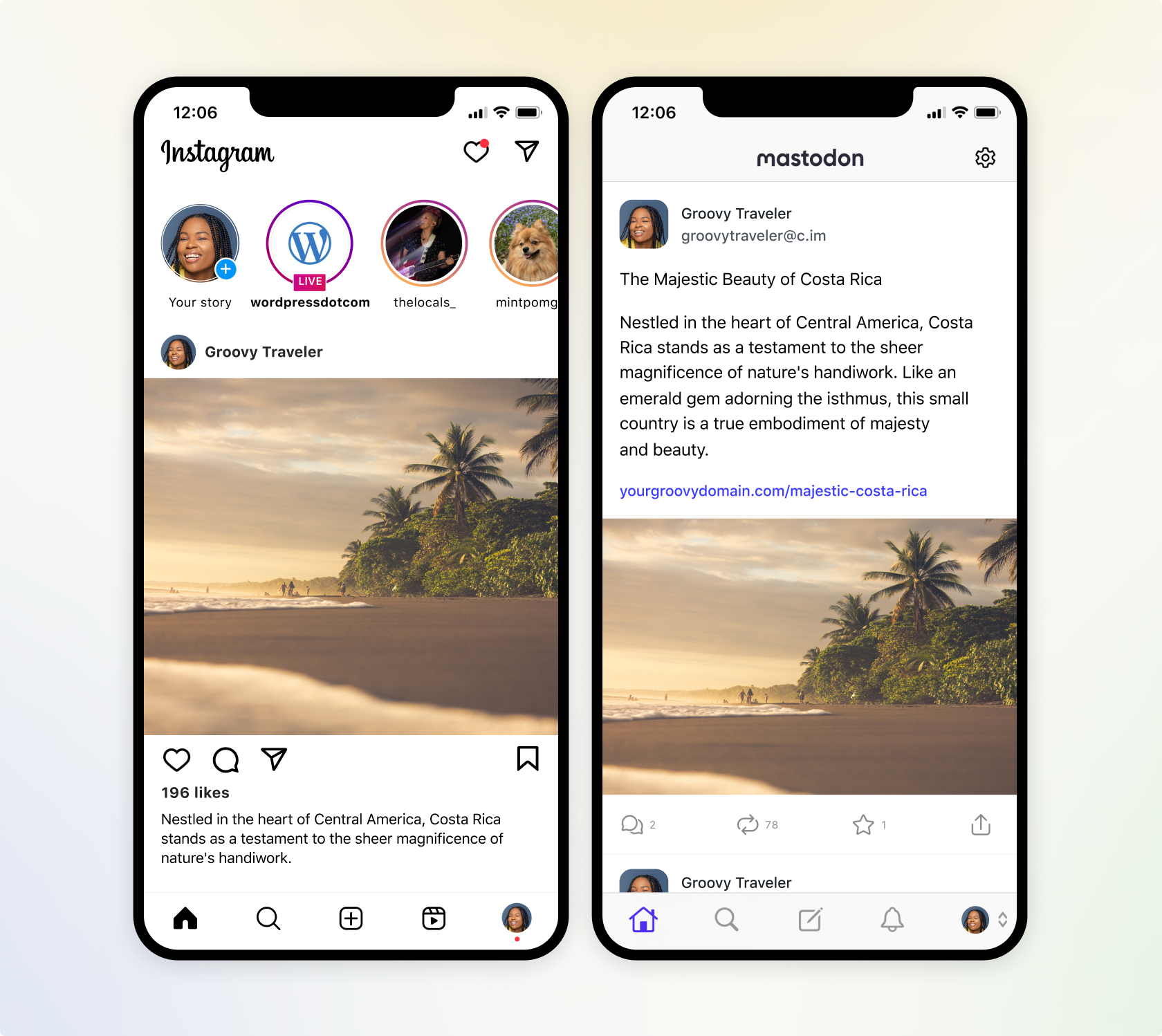
Dedicating time to publish content on all your social media platforms can be tedious and time-consuming. That’s why Jetpack has been working hard to create robust tools to help you automatically share more content across more platforms, with less effort. Now you can connect your Instagram Business & Mastodon accounts to Jetpack Social, and your content will be shared the moment you hit publish.
Jetpack Social now allows you to auto-share your WordPress content to Instagram, Mastodon, Facebook, LinkedIn, and Tumblr!
Instantly share to Instagram
Instagram has a greater reach than any other social media platform and it is now available within Jetpack Social. Engage your target audience by sharing your post featured image to your Instagram Business account, directly from the WordPress editor. Learn how to connect Jetpack to Instagram.
We’re also working on adding automatic video sharing capability, which will allow you to share the videos you’ve uploaded to your WordPress site, directly to Instagram Video Reels. That premium feature is coming soon to Jetpack Social Advanced.
Multiply your reach with Mastodon
Now you can also extend your influence to the newly popular social platform, Mastodon. Similar to Twitter, Mastodon allows you to share media and text content. Learn how to connect Jetpack to Mastodon.
Mastodon is part of a larger ecosystem known as the “Fediverse.” This interconnected network allows users on Mastodon to interact with users on other compatible platforms, such as PixelFed (for image sharing). This allows you to connect with a broader audience.
Select where you share with every post: Easily toggle which social media networks you want your content to automatically go to, with every WordPress post. Got some photos that you want to share on Instagram, but not LinkedIn? No problem.
Preview before you publish: We’ve improved the social preview tool, which allows you to see how your post will appear on all the social platforms you’re connected to, without ever leaving the WordPress editor.
Control your message: If you have long-form content, you can easily overwrite the default message and create your own custom messages to be shared amongst your social networks, alongside your media. This is also great for social media platforms that restrict character counts.
Drive more engagement with Jetpack Social Advanced
Save time creating images with our social image generator: Social image generator automatically creates a composite image from your blog title and featured image, or create your own custom image in a few clicks. Learn more about our Social Image Generator.
Automate sharing with style: Ditch the default featured image, and make your auto-shared posts truly one-of-a-kind by selecting your own images or videos and crafting engaging custom messages.
Unlimited shares: With Jetpack Social Advanced, you can auto share unlimited content to your favorite social networks and engage your followers without limits.
When you think about searching online, do you picture the Google search bar, or the TikTok search bar? If it’s the former, you might be behind on the trends. Because while you’re optimizing your content for Google, younger generations are turning to social media to search for information. Almost 40% in fact. But should this information impact your content strategy? And is this just a trend, or are social media really becoming the new search engines?
What is the appeal of social media as a search engine?
With the internet being as chaotic as it is, young people (and particularly Gen Z) use social media as a way to easily find what they’re looking for. So what are they looking for? Genuine content. Videos made by real people who share their experiences about a certain topic, product, or service.
Example of Instagram (left) and TikTok (right) influencers
But young people also love short content. Both TikTok and Instagram have a limit on how long videos can be, which means you get more relevant content in a short time. Just think about it. Would you rather comb through a wall of text that is the Google search results, or watch a video of under a minute? The latter is definitely more efficient.
How important is social media anyway?
To answer this question, we need to look at some facts. Let’s start with the most obvious one: how many people use social media anyway? The answer: around 56% of the world’s total population. Which is more than half, but not by much. The average person spends 2 hours and 25 minutes on social mediaevery day. So there’s no denying that there are benefits to being present on social media as a company. However, compared to the whopping 6 hours and 37 minutes that people spend on the internet, you might think that social media is not as valuable as having a website and optimizing for search engines.
During YoastCon 2023, SEO expert Jes Scholz also spoke about the importance of social media in today’s search landscape. During this talk, she explained why, in today’s day of age, you need to optimize beyond search. Check out a short snippet of her talk right here:
Trust goes an even longer way
But it’s not just about sales. Research has shown that brand image has become increasingly more important to consumers. In 2022, consumers stated that they would pay more to purchase from a brand they trust, and what better way to build that trust than by using TikTok or Instagram, an app that requires businesses to show the faces behind their company? So while social media might not be your main venue, it can certainly be a good one to leave a positive impression on your audience.
Search engines are no longer just for search
When you really think about it, is it so strange that social media is becoming more popular as a search engine when Google has become more like a social network? A few years ago, Google started to fundamentally change the way they work. And one of these changes was going from text to visual. Have you noticed that when you search in Google, you’re shown more visual results? Videos, images, reviews with photos attached. Instead of a wall of text that no one wants, Google now shows you authenticity.
And it makes you wonder: if Google thinks social media are a big enough threat that they changed the fundamental way Google worked, should you?
Everything is changing
Social media becoming search engines, conversational search gaining popularity, and AI tools taking over the internet… All that change can feel scary. The good news? You’re not alone in that feeling. If you’re feeling overwhelmed or tired because of the changing online world (even though many businesses use the slogan “the only constant is change†on their site, so really, what did you expect?), then so are many other people. And those people might prefer that you’re still doing things the old way.
Is changing your strategy even a choice?
But let’s be realistic: many companies will follow in Google’s footsteps. They’ll utilize social media and Google’s new functionalities to stay in the game. And those people that also felt overwhelmed or tired? They’ve gotten used to the new functionalities. So while it might not sound fun to learn a new way of doing business, it’s the only way you’ll be able to move forward. Or move at all. Luckily, you can always hire a young person to help you navigate the highly addictive landscape of social media.
Do you want to create a responsive slider for your WordPress website?
Sliders are commonly used on the front page of websites to showcase your most important products, services, testimonials or other content in an interactive way.
In this article, we will show you how to add a responsive slider to your WordPress website.
Why Add a Responsive WordPress Slider to your Website?
Some sliders autoplay, so they move between slides automatically. This allows you to display lots of information in a small space, which leaves plenty of room to show other content.
For this reason, many websites use sliders on their most important pages, such as a landing page, home page, or sales pages.
Even if a slider is set to autoplay, visitors can typically move between slides manually by clicking on navigation buttons. In this way, a slider encourages visitors to interact with your site, which makes it more engaging.
You can see in the GIF below how dynamic a slider can make a page.
With that said, let’s see how you can easily create a responsive slider in WordPress. Simply use the quick links below to jump straight to the method you want to use.
Method 1. Create a Responsive WordPress Slider Using a Plugin (Quick and Easy)
If you want to create a simple slider that looks good on desktop and mobile, then we recommend using the Soliloquy plugin.
This WordPress slider plugin lets you create slides using images from your media library and can also show videos hosted on third-party platforms like YouTube.
You can also add alt text and captions to each slide, which is great for WordPress SEO.
First, you’ll need to sign up for a Soliloquy account. After that, you can install and activate the Soliloquy plugin on your website. For more details, you can follow our guide on how to install a WordPress plugin.
Upon activation, go to Soliloquy » Settings in the WordPress dashboard and enter your license key.
You can find the key by logging into your account on the Soliloquy website. After entering this information, click on the ‘Verify Key’ button.
With that done, you can add a new slider to your WordPress website by going to Soliloquy » Add New.
You can start by typing in a title. This is just for your reference so you can use anything that helps you identify the slider in your WordPress dashboard.
Next, it’s time to add images and videos to the slider. You can either drag and drop files onto the editor, or click ‘Select Files From Other Sources.’
Meanwhile, platforms like YouTube are optimized for video, so you can show high-resolution videos in your sliders without negatively affecting your website.
After choosing a video hosting platform, you’ll need to upload all the videos you want to include in the WordPress slider. If you’re not sure how to upload videos, then we recommend reading the official documentation or user manual for your chosen video platform.
With that done, simply click on the ‘Select Files from Other Sources’ button and then select ‘Insert Video Slide.’
You can now go ahead and paste the video’s URL into the ‘Video URL’ field.
Soliloquy shows all the supported link formats along the right-hand side, so make sure your link uses one of these formats.
With that done, you can go ahead and type a title into the ‘Title’ field. This is just for your reference so you can use anything you want. You can also add alt text, which will help the search engines understand what this slide is all about.
After that, you can type an optional caption into the ‘Caption’ field. This will be shown in a grey bar along the bottom of the video before the visitor presses ‘Play.’
If you don’t want to show this bar, then simply leave the ‘Caption’ field empty.
When you’re happy with the information you’ve entered, you can create more slides by clicking on ‘Add Another Video Slide.’
To configure this new slide, simply follow the same process described above.
Once you’ve created all your slides, go ahead and click on ‘Insert into Slider.’
You’ll now see all your slides in the ‘Currently in Your Slider’ section.
Next, you can click on the ‘Configuration’ tab and change the slider display settings. For example, there are options to choose a new slider theme, change the image size, and change the position of the slider and captions.
You can also customize the slider arrows and the pause/play button, adjust the transition speed, change the delay time, and more.
Next, you’ll want to make sure your slider looks just as good on mobile devices, as it does on computers and laptops.
That said, click on the ‘Mobile’ tab and check the box next to ‘Create Mobile Slider Images.’
By default, Soliloquy will hide captions for mobile users. Often, this helps the slides fit more comfortably on the smaller screens typically used by smartphones and tablets.
For that reason, we recommend leaving this setting disabled, but you can check the box next to ‘Show Captions on Mobile’ if you prefer.
With that done, click on the ‘Misc’ tab. Here, you can add custom CSS to your slider, edit the slider title and slug, and export the slider.
When you’re happy with how the slider is set up, go ahead and click on the ‘Publish’ button.
Soliloquy will automatically create a shortcode that you can add to any page, post, or widget-ready area.
The easiest way to add the slider to your site is by using the Soliloquy block. Simply go to the page or post where you want to show the slider and then click on the ‘+’ button.
In the popup that appears, type in ‘Soliloquy.’
When the right block appears, click to add it to your WordPress blog or website.
After that, open the Soliloquy block and select the slider you just created.
You can now click on the ‘Update’ or ‘Publish’ button to make the slider live.
Method 2. Create a Responsive Slider Using a Page Builder (More Customizable)
If you want to create a simple slider, then a plugin such as Soliloquy is a good choice. However, if you want to add an advanced slider to landing pages, custom home pages, or even your WordPress theme, then we recommend using a page builder plugin instead.
It also has an Image Carousel block that you can use to create stunning sliders.
You can simply drop this ready-made block anywhere on a page and then customize it using the powerful drag-and-drop editor.
First, you need to install and activate the SeedProd plugin. For more details, see our step-by-step guide on how to install a WordPress plugin.
Note: There is a free version of SeedProd that lets you create professional designs no matter what your budget. However, we’ll be using the premium SeedProd plugin since it comes with the Image Carousel block. If you’re creating a slider to promote your products or services, then the premium plugin also integrates with WooCommerce and all of the best email marketing services.
After activating the plugin, SeedProd will ask for your license key.
All of SeedProd’s templates are easy to customize, so you can use any design you want. When you find a template you like, simply hover your mouse over it and click on the checkmark icon.
You can now type a name for your landing page into the ‘Page Name’ field. SeedProd will automatically create a ‘Page URL’ using the page name.
It’s smart to include relevant keywords in this URL wherever possible, as this will help search engines understand what the page is about. This can often improve your WordPress SEO.
To change the page’s automatically-generated URL, simply type into the ‘Page URL’ field.
When you’re happy with the information you’ve entered, click on ‘Save and Start Editing the Page.’ This will load the SeedProd page builder interface.
This simple drag-and-drop builder shows a live preview of your page design to the right. On the left is a menu with all the different blocks and sections you can add to the page.
When you find a block you want to add, simply drag and drop it onto your template.
To customize a block, just click to select that block in the SeedProd editor. The left-hand menu will now update to show all the settings you can use to customize it.
As you’re building the page, you can move blocks around your layout by dragging and dropping them. For more detailed instructions, please see our guide on how to create a landing page with WordPress.
To create a responsive slider using SeedProd, simply find the Image Carousel block in the left-hand menu and then drag it onto your layout.
Next, click to select the Image Carousel block in the page editor.
You can now go ahead and add all the images you want to show in the slider. To start, click on the ‘Image 1’ item that SeedProd creates by default.
You can now either use a photo from SeedProd’s built-in library, or click on ‘Use Your Own Image’ and choose a file from the WordPress media library.
After choosing an image, you can add a caption that will appear below that image. SeedProd doesn’t display captions by default, but we’ll show you how to enable them later in this post.
When you’re happy with how the slide is configured, click on the ‘Add Images’ button to create another slide.
To add more slides, simply follow the same process described above.
After adding all the images to your slider, it’s time to customize how that slider looks and acts.
In the left-hand menu, click to expand the ‘Carousel Settings’ section.
To start, you can switch between light and dark modes for the slider’s navigation buttons.
To try these different modes, click on the buttons next to ‘Navigation Color Mode.’ The live preview will update automatically so you can see which mode you like the best.
By default, the carousel shows a single slide, and visitors will need to use the navigation controls to see more content.
However, you may want to show multiple slides at once by opening the ‘Slide to Show’ dropdown and choosing a number from the list. This can be useful if the slider has lots of content and you’re worried visitors might not click through all the slides.
By default, visitors will need to click to see the next slide. With that in mind, you may want to enable autoplay, as this often increases how many slides a visitor sees.
To do this, click to enable the ‘Autoplay’ switch and then specify how long each slide should stay onscreen by typing a number into ‘Autoplay Speed.’
If you added captions to your images, then make sure you click on the ‘Show Caption’ slider to turn it from ‘No’ to ‘Yes.’
You can also change the caption alignment.
Depending on the background color, you may need to change the caption color before they’re visible to visitors.
To do this, click on the ‘Advanced’ tab and then use the ‘Caption Color’ settings.
You can further style the text by clicking on the ‘Edit’ button next to ‘Caption Typography.’
This adds some settings where you can change the font size, line height, spacing, and more.
When you’re happy with how the captions look, you can add different box shadows to the slides using the ‘Slider Image Styles’ dropdown.
These shadows can really make the slides stand out, so it’s worth trying different shadows to see whether they fit your page design.
In the ‘Advanced’ tab you’ll also find settings that let you add a border, change the spacing, and even create an entrance animation.
Most of these settings are self-explanatory so it’s worth looking through them to see what different kind of effects you can create.
When you’re happy with how the slider looks, you can continue working on the rest of the page. Simply drag blocks onto your design and then customize them using the settings in the left-hand menu.
If you want to delete a block, then simply hover over it and then click on the trash can icon when it appears.
When asked, go ahead and click on ‘Yes, delete it.’
When you’re happy with how the page looks, it’s time to make it live by clicking on the ‘Save’ button. Finally, select ‘Publish’ to make your slider live.
Method 3. Create a Slider Using Smash Balloon (Best For Social Posts and Reviews)
We’re more likely to try things that we see other people buying, using, or recommending. With that being said, it’s a good idea to show social proof on your website including customer reviews, testimonials, or even positive comments you’ve got on social media.
The easiest way to show social proof on your site is by using Smash Balloon. Smash Balloon has plugins that allow you to embed content from Instagram, Facebook, Twitter, and YouTube.
However, showing lots of positive comments and reviews on your online store or website can take up a lot of space.
That’s why Smash Balloon comes with built-in carousel layouts and templates that you can use to create responsive sliders. This allows you to create social media and review slideshows with just a few clicks.
Even better, Smash Balloon will fetch new content automatically so the slider will always show the latest posts.
Another option is showing the content from your own social media accounts.
If visitors like what they see, they might decide to follow you on social media.
To help you get more followers, Smash Balloon comes with ready-made call to action buttons that you can add to your sliders.
If you liked this article, then please subscribe to our YouTube Channel for WordPress video tutorials. You can also find us on Twitter and Facebook.
Do you want to display your Instagram photos in the WordPress sidebar?
Your Instagram posts make great content for your website. By creating an Instagram feed, you can keep your site fresh and interesting while also promoting your Instagram account.
In this article, we’ll show you how to display your Instagram photos and videos in the WordPress sidebar widget.
Why Add an Instagram Feed to Your WordPress Site?
With more than a billion monthly active users, Instagram is a great place to promote your products, services, and blog posts.
Depending on your industry, Instagram may even be the most important part of your social media strategy. For example, Instagram is particularly popular among top fashion blogs, cooking, lifestyle, and photography websites.
However, people won’t see your Instagram posts if they only visit your website. This can make it difficult to grow your Instagram following and get engagement on your photos and videos.
With that being said, it’s a good idea to add an Instagram feed to your WordPress website. By showing your latest posts, you can promote your Instagram account in an engaging and eye-catching way.
This will get more traffic to your Instagram page and encourage visitors to interact with your posts by leaving comments, clicking on the ‘Share’ button, and more.
The feed will also update automatically every time you make a new Instagram post, so it’s a great way to keep your website fresh.
That being said, let’s take a look at how to easily display Instagram photos in the WordPress sidebar widget.
How to Install an Instagram Photos Plugin
The best way to display Instagram photos in a WordPress sidebar or similar widget is by using Smash Balloon Social Photo Feed. This free plugin lets you show photos from one or more Instagram accounts in a fully customizable feed.
After creating a feed, you can add it to the sidebar using either a shortcode or block.
In this guide, we’ll be using the free version of Smash Balloon, as it has everything you need to embed an Instagram feed. However, there’s also a Pro version that allows you to display hashtag feeds, add Instagram shoppable images in WordPress, and more.
Before getting started, you’ll need to connect your Instagram account to a Facebook page. If you have a personal Instagram account, then you may also want to turn it into a business account, as this allows Smash Balloon to show your Instagram bio and header automatically.
For step-by-step instructions on how to do both of these things, check out our FAQ section at the end of the post.
When you’re ready, go ahead and install and activate the Smash Balloon Social Photo Feed plugin. For more details, see our guide on how to install a WordPress plugin.
How to Connect an Instagram Account to WordPress
After activating the plugin, it’s time to connect your Instagram account to WordPress. Simply go to Instagram Feed » Settings and then click on ‘Add New.’
With Smash Balloon Pro, you can create feeds from tagged posts and hashtags, or even create a social wall with content from lots of different websites, including YouTube, Facebook, and Twitter.
Since we’re using the free version, simply select ‘User Timeline’ and then click on ‘Next.’
After that, you’ll need to choose the Instagram account where you’ll get the photos from.
To get started, click on ‘Add Source.’
On the next screen, choose whether you want to display photos from a personal or business Instagram account.
If you check the box next to ‘Personal,’ then Smash Balloon won’t include the Instagram avatar and bio in your header by default. However, you can always add the avatar and bio manually in the plugin’s settings.
After choosing ‘Personal’ or ‘Business,’ go ahead and click on ‘Login with Facebook.’
You can now check the Instagram account that you want to use and click on ‘Next.’
After that, check the box next to the Facebook page that’s linked to your Instagram account.
With that done, go ahead and click on ‘Next.’
Smash Balloon will now show a popup listing all the information it will have access to and the actions it can perform.
To restrict Smash Balloon’s access to your Instagram account, click any of the switches to turn it from ‘Yes’ to ‘No.’ Just be aware that this may affect the photos and videos that you can embed on your WordPress blog or website.
With that being said, we recommend leaving all the switches enabled.
When you’re ready, click on ‘Done.’
You’ll now see a popup with the Instagram account you just linked to WordPress.
Simply check the box next to the account and then click on ‘Add.’
Smash Balloon will now take you back to Instagram Feeds » All Feeds automatically.
To create a feed, simply check the box next to your Instagram account. Then, click on ‘Next.’
The plugin will now create an Instagram photo feed for your website, and then open that feed in the Smash Balloon editor.
How to Customize Your Instagram Photo Feed
You can use the editor to fine-tune how Instagram photos look on your website.
On the right, you’ll see a preview of your Instagram photo feed. On the left-hand side are all the settings you can use to customize the photo feed.
Most of these settings are self-explanatory, but we’ll quickly cover some key areas.
To start, you can change the feed layout and add padding by selecting ‘Feed Layout’ from the left-hand menu. As you make changes, the preview will update automatically, so you can try different settings to see what works best for your Instagram photo feed.
By default, Smash Balloon shows the same number of posts on desktop computers and mobile devices.
You can preview how the Instagram feed will look on desktop computers, tablets, and smartphones using the row of buttons in the upper-right corner. By testing different layouts, you can create an Instagram feed that looks great, no matter what device the visitor is using.
Smartphones and tablets typically have smaller screens and less processing power, so you may want to show fewer photos and videos on mobile devices.
To do this, simply type a different number into the ‘Mobile’ field under ‘Number of Posts.’
By default, the Facebook feed shows fewer columns on smartphones and tablets, compared to desktop computers. This helps your photos and videos fit comfortably on smaller screens.
After testing the mobile version of your WordPress website, you may be unhappy with how the columns look on smartphones and tablets. If this is the case, then you can show fewer columns by changing the numbers in the ‘Columns’ section.
When you’re happy with the changes you’ve made, click on the ‘Customize’ link.
This will take you back to the main Smash Balloon editor, where you can explore the next settings screen, which is ‘Color Scheme.’
By default, Smash Balloon uses a color scheme inherited from your WordPress theme, but it also has ‘Light’ and ‘Dark’ themes that you can use.
By default, Smash Balloon adds a header to your feed, which is your Instagram profile picture and the name of your page. To change how this section looks, click on ‘Header’ in the left-hand menu.
On this screen, you can change the size and color of the header, and show or hide your Instagram bio.
Sometimes, you may want to show a different profile picture. For example, your Instagram avatar may clash with your WordPress theme.
To do this, simply click on ‘Add Image’ under ‘Show custom avatar.’
You can then either choose an image from the WordPress media library or upload a new photo from your computer.
Similarly, you can show a different bio. For example, you may want to introduce your Instagram feed or encourage people to follow you for more great content.
To replace the Instagram bio, simply type into the ‘Add custom bio’ box.
Smash Balloon automatically analyzes your Instagram photos and displays them at the best resolution. While we recommend using these default settings, it is possible to make the images bigger or smaller.
To change the image size, click on ‘Posts’ from the left-hand menu. Then, select the ‘Images and Videos’ option.
You can now choose between thumbnail, medium, and full-size using the dropdown menu.
If you’re unhappy with the results, then you can return to this screen at any point and select ‘Auto-detect (Recommended)’ from the dropdown menu.
By default, Smash Balloon adds a ‘Load More’ button to the bottom of your Instagram feed, which allows visitors to scroll through more of your photos and videos.
Since it’s such an important button, you may want to customize it by selecting the ‘Load More Button’ option from the left-hand menu.
Here, you can help ‘Load More stand out by changing its background color, text color, and hover state.
You can also change the button’s label by typing into the ‘Text’ field.
Another option is to remove the button completely by clicking the ‘Enable’ toggle. In this way, you can encourage people to visit your Instagram by limiting the number of posts they can see on your website.
If visitors like what they see, they may decide to follow you on Instagram using the ‘Follow on Instagram’ button that Smash Balloon adds automatically.
With that in mind, you may want to help the button stand out by selecting ‘Follow Button’ in the left-hand menu.
Here, you can change the button’s background color, hover state, and text color.
By default, the button has a general ‘Follow on Instagram’ label.
You can replace this with your own messaging by typing into the ‘Text’ field.
When you’re happy with how the Instagram feed looks, don’t forget to click on ‘Save’ to store your changes. You’re now ready to add the Instagram feed to your WordPress sidebar widget.
How to Add Your Instagram Photos in WordPress Sidebar Widget
You can add your feed to the sidebar or similar section using the Instagram Feed block.
If you’ve created more than one feed using Smash Balloon, then you’ll need to know the feed’s code.
Simply go to Instagram » All Feeds and then copy the value in the ‘Shortcode’ column.
In the following image, we’ll need to use instagram-feed feed=1.
With that done, go to Appearance » Widgets in the WordPress dashboard.
Then click on the blue ‘+’ button.
In the search bar, type in ‘Instagram Feed’ and select the right widget when it appears.
WordPress has a built-in Instagram widget, so make sure you choose the one that shows the official Instagram logo.
After that, simply drag the widget onto the area where you want to show the Instagram feed, such as the sidebar or similar section.
The widget will automatically show one of the feeds you created using Smash Balloon.
To show a different feed instead, simply type the feed’s shortcode into the ‘Shortcode Settings’ box and then click on ‘Apply Changes.’
You can now click on the ‘Update’ button to make the widget live. For more information, please see our step-by-step guide on how to add and use widgets in WordPress.
If you’re using a block-enabled theme, then you can add an Instagram feed to the sidebar using the full-site editor. To get started, simply go to Appearance »Editor.
In the editor, simply click to select the sidebar section and then click on the ‘+’ button.
You can then start typing in ‘Instagram Feed’ and select the right block when it appears.
By default, the full-site editor will show one of the Instagram feeds you created using Smash Balloon. To show a different feed, simply add the shortcode following the same process described above.
When you’re happy with how the Instagram feed looks, click on ‘Save’ to make your changes live.
How to Display a Specific Instagram Photo in WordPress
Sometimes you may want to show a specific Instagram post on your website. This might be your most popular photo, an evergreen post, or even a social media contest that you’re currently running.
In the past, you could easily embed an Instagram post in WordPress using a protocol known as oEmbed. However, Facebook changed the way that oEmbed works, so you can no longer easily embed Instagram photos in WordPress.
The good news is that Smash Balloon can fix the Facebook and Instagram oEmbed issue. This allows you to easily embed a specific Instagram post in any page, post, or widget-ready area, such as the sidebar.
To enable this feature, simply go to Instagram Feed » oEmbeds. You can then click on the ‘Enable’ button.
After that, go to Appearance » Widgets and click on the blue ‘+’ button.
In the search bar, type in ‘Embed’ to find the right block.
When the ‘Embed’ block appears, drag it onto the area where you want to show the photo.
In the ‘Embed’ field, simply paste the URL of the Instagram post that you want to show on your website. Then, click on ‘Embed.’
WordPress will now show the specific Instagram post.
If you’re happy with how it looks, then click on ‘Update’ to make it live.
Now, if you visit your website, you’ll see the Instagram post live.
If you’re using a block-enabled theme, then you’ll need to add specific Instagram posts using the full-site editor.
To do this, simply enable Smash Balloon’s oEmbed feature and get the Instagram post’s URL by following the same process described above.
After that, open the full-site editor by going to Appearance »Editor in the WordPress dashboard. Once you’re inside the full-site editor, click on the ‘+’ button in the sidebar section and then type in ‘Embed.’
When the right block appears, click to add it to the sidebar.
You can then add the URL for the post you want to embed and click on the ‘Embed’ button.
The full-site editor will now show the Instagram post.
If you’re happy with how it looks, then click on ‘Save’ to publish this photo or video to the block-enabled sidebar.
FAQs About Displaying Instagram Posts in WordPress
Smash Balloon makes it easy to create a custom Instagram feed or even display specific Instagram posts on your WordPress website.
That being said, here are some of the most frequently asked questions about showing Instagram posts on WordPress.
How Do I Create an Instagram Business Account?
Smash Balloon can display photos from either a personal or business Instagram account.
However, Smash Balloon can’t automatically fetch the Instagram avatar and bio from a personal Instagram account. Instead, you’ll need to add the avatar and bio manually in the plugin’s settings.
With that being said, you may want to check whether you have a personal or business account, and then switch to a business account if necessary.
To do this, simply visit your Instagram account and click on the lined icon in the side menu.
After that, click on ‘Settings.’
If you don’t have a business account, then this screen will show ‘Switch to professional account’ as the last option.
If you currently have a personal account and want to switch to a business account, then simply click on this link.
How Do I Connect a Facebook Page to an Instagram Account?
Before you can display Instagram photos in WordPress, you’ll first need to connect your Instagram account to a Facebook page.
To do this, head over to the Facebook page that you want to use and then click on ‘Settings’ in the left-hand menu.
Once you’ve done that, click on ‘Linked Account.’ You can now select ‘Instagram’ and click on the ‘Connect’ button.
Facebook will now show all the actions it can perform, and the information it can access.
If you’re happy with this, then click on the ‘Connect’ button.
Just be aware that the people who manage your Facebook page may be able to see your Instagram messages and respond to them. If you want to stop this and keep your messages private, then click to disable the slider.
When you’re ready to move to the next screen, click on ‘Confirm.’
This opens a popup where you can type in your Instagram username and password.
After that, click on the ‘Log in’ button.
After a few moments, you’ll see a message saying that your Instagram and Facebook accounts are now connected.
If you liked this article, then please subscribe to our YouTube Channel for WordPress video tutorials. You can also find us on Twitter and Facebook.
Do you want to learn how to fix the Facebook and Instagram oEmbed issue in WordPress?
If you’ve previously added Facebook or Instagram content to WordPress using the default oEmbed or Embed block, then this feature no longer works. This can cause errors and missing content on your WordPress website.
In this guide, we’ll show you how to fix the Facebook and Instagram embed issue, so visitors can enjoy social content on your WordPress website.
What is the Facebook and Instagram oEmbed Issue in WordPress?
In the past, you could easily embed Instagram and Facebook posts in WordPress using a protocol known as oEmbed.
However, Facebook changed the way that oEmbed works so you can no longer easily embed videos, pictures, updates, and other content from Facebook or Instagram.
Instead, you now need to register an app and use a client token to get data from the Facebook Graph API, before you can embed Facebook or Instagram content on your WordPress blog.
This would take a lot of time and effort, especially if you want to show lots of different social posts across your website. With that in mind, the people behind WordPress decided to remove the Facebook and Instagram embed feature.
If you previously added any Facebook content to your website using oEmbed, it’ll now look something like the following image.
If you embedded any Instagram posts using oEmbed, then you’ll get a similar error.
This is a bad user experience, and some visitors may assume that your website is broken, no longer maintained, or that you’re not a trustworthy or reliable business.
There are ways to fix the problem manually. For example, you might go through each page and post and delete the embedded content. However, this would take a lot of time and effort, and there’s no guarantee you’ll manage to find every broken embed.
With that being said, let’s see how you can easily fix the Facebook and Instagram oEmbed issue on WordPress.
How to Fix the Facebook & Instagram oEmbed Issue
The easiest way to fix the oEmbed issue is by using one of the free Smash Balloon plugins.
First, you need to install and activate the plugin. For more details, see our step by step guide on how to install a WordPress plugin.
After installing either plugin, simply head over to Instagram Feed » oEmbeds or Facebook Feed » oEmbeds, depending on the plugin you’re using.
We’re using the Social Photo Feed plugin in all our images, but the steps will be exactly the same no matter what plugin you’re using.
On this screen, simply click on the ‘Enable’ button.
That’s it. You can now embed Facebook and Instagram posts on your WordPress website.
How to Embed Instagram or Facebook Posts in WordPress
Whether you’re using Facebook or Instagram, you can embed a specific post in any page, post, or widget-ready area, such as the sidebar.
One option is to open the page or post where you want to show the social content. Then, click on the ‘+’ icon and type in ‘Embed.’
When the right block appears, click to add it to the page or post.
In the ‘Embed’ field, simply paste the URL of the Instagram or Facebook post that you want to show on your website.
Then, click on ‘Embed.’
WordPress will now show that specific post. When you’re ready to make the post live, simply click on ‘Update’ or ‘Publish.’
Now when you visit the page, you’ll see the social media post live.
Another option is adding the Instagram or Facebook post to a widget-ready area such as the sidebar. That way, you can promote the same post across every page of your website.
To add a Facebook or Instagram post to a widget-ready area, simply go to Appearance » Widgets and click on the blue ‘+’ button.
In the search bar, type in ‘Embed’ to find the right block.
When the ‘Embed’ block appears, drag it onto the area where you want to show the Facebook or Instagram post.
In the ‘Embed’ field, simply paste the URL of the Instagram or Facebook post that you want to show on your website. Then, click on ‘Embed.’
WordPress will now show that specific post.
If you’re happy with how it looks, then click on ‘Update’ to make it live.
Now, when you visit your website, you’ll see the Instagram or Facebook post live.
How to Add an Instagram or Facebook Feed to WordPress
With the free Smash Balloon plugins, it’s easy to fix the oEmbed issue so you can add Facebook and Instagram posts to your website.
This is great if you only want to embed a small number of posts or you want to control exactly where each social post appears on WordPress. However, you may also want to embed a Facebook or Instagram feed on your website.
By creating a feed, you can show all your latest posts in a nice layout. Even better, the feed will update automatically so visitors will always see the newest posts without you having to update your site manually.
This can keep your site fresh and interesting, even for regular visitors.
Want to add both Facebook and Instagram feeds to your WordPress website? Then you may want to look at Smash Balloon Social Wall.
This powerful plugin lets you combine any feeds you’ve created using the Smash Balloon plugins, including Facebook, Twitter, YouTube feeds, and more.
For example, if you’ve set up the Facebook Feed and Instagram Feed plugins, then you can simply go to Social Feeds »Create a Social Wall in your WordPress dashboard.
Here, you’ll see all the different feeds you’ve created so far.
Simply select each feed that you want to add to the social wall.
For example, you can combine posts from your Instagram and Facebook accounts.
Small Balloon Social Wall will then create a shortcode that allows you to add the social wall to any page, post, or widget-ready area.
If you liked this article, then please subscribe to our YouTube Channel for WordPress video tutorials. You can also find us on Twitter and Facebook.
Your social media endeavors need to be a part of your SEO strategy. Especially now that the younger generations (Gen Z) are using platforms like TikTok and Instagram instead of Google. This means your site’s popularity on social media ties into your SEO more than ever!
But which social media should you focus on? With so many platforms out there, you can feel overwhelmed with choices. Don’t worry, though! You don’t have to be active everywhere. That isn’t always sustainable. And if your most loyal customers are on Twitter, and you’re focusing on Pinterest, then you miss out on many opportunities.
Instead, decide which platform your audience uses the most, then find a rhythm that works for you and build on that. Once you’ve got your social strategy in place, it’s time to start posting! Below are some tips you can use to set up or improve your social media strategy.
1. Keep your account alive
The most crucial advice when using social media is that you need to keep your account alive. But what does this mean? You’ll see a lot of advice about posting daily, but that’s not always realistic, especially if you’re a small business owner.
Our advice: keep your account alive by posting regularly and going at your own pace. If you can only post a couple of times a week, then do it. A good starting pointing is:
People will be able to tell that you’re being genuine and fall in love with you for that. What’s more, they’ll want to continue to follow you if you’re posting genuine content that they can relate to.
Of course, everybody needs a vacation, but you don’t want to abandon your followers. That’s why we recommend scheduling posts for the time you are away or letting people know when you’ll be back. And be sure to share some photos of your vacay!
Save time by automating
If you also have a blog where you write regularly, Yoast SEO Premium can help you automate some of your postings. With our Zapier integration, you can automate your social sharing and stay in control of what your social link posts look like. This integration makes it possible to automatically post to your favorite social network whenever you publish new content to your site. It saves you time without compromising on the quality of your social posts.
For social media like Instagram and TikTok, there are also a number of platforms that you can use to stay on top of your schedule and keep all your media in one place, ready to post.
2. Write captivating excerpts
Depending on the type of content you want to share, you need to make sure the copy that goes with your posts is appealing enough to draw people in. There are a number of ways you can approach this. For instance, you can choose the most important sentence or the main point of the blog post you’re going to share. You could also share the introduction of the post if you feel that is captivating enough.
Depending on the platform, you could share a story behind a photo you’re posting or the failures you’ve had when testing new products. Or maybe you just want to jump on the latest trend and apply it to your brand.
Is it thumb-stopping?
You want this piece of copy to get people to click on the link in your bio or read the whole caption on the platform. But the basic formula is:
Hook: Something that is going to grab their attention.
Pain point: What is it that your followers are struggling with?
Solution: Well, it’s a good thing you have an answer!
CTA: Don’t forget to ask your readers to do something.
If you want to learn more about copywriting for social media, check out our article about social media writing tips.
3. Diversify your posts
Having a few solid content pillars is important. They are particularly helpful in keeping you on track with your content creation. Need some inspiration? Here are a few different types of posts you could create. Remember, you’re no longer limited to just posting photos!
To help you out, let’s look at a few examples. First, you could share your blog posts with a link post. This is one of the most basic post types you can use:
Congratulations Piermario for receiving the #YoastCareFund! Nominated by @Luisa_Ravelli because of his contributions to the #WordPress community, Piermario is also heavily involved in WordCamps and Test contributions. Read more about him here https://t.co/OIysg6osWN
But don’t be afraid to change it up. Not all your social media posts need to necessarily direct people to your website. They can also be focused on informing people about a recent piece of news or simply increasing engagement on your social media platforms themselves.
And like we said in the intro, short-form videos are huge right now. They’re a great way to give your audience a few quick tips or take your fans behind the scenes.
To decide which posts do well on social media and which content you should make more of, you need to analyze the numbers. This could be the number of views, the number of comments, and how many times a post was shared or saved. Of course, numbers won’t mean anything if you don’t have a goal in mind. However, it’s a good rule of thumb to post more of the content that received numerous views, saves and shares.
Speaking of diversifying your content
At Yoast, we believe in the importance of inclusivity. In addition to diversifying when it comes to types of posts, you should also pay attention to making your content accessible and relatable, for as many people as possible. You need to show diversity to make this happen and being as visual as it is, social media is a great place for that. That being said, the topic of diversity shouldn’t be limited to your social media presence. This is a company-wide issue that you need to take seriously and nowadays is non-negotiable in both marketing and social media. Be aware of the image that you’re currently putting out there and invest time and resources into making that relatable to everyone.
But it’s not all about visuals. You should also use inclusive language, language that avoids excluding marginalized groups of people as much as possible. You might not get all of it right in one go, but becoming aware of it and changing it as you go is a great start. Not only does inclusive language help you reach a bigger audience, but it also helps all of us move toward a more inclusive society. And you might have noticed that social media platforms are being used a lot to talk about this and create more awareness on the topics of inclusiveness and diversity. So be part of the change and use inclusive language on your socials and in your website content. If you’re not sure where to start, our inclusive language analysis in Yoast SEO gives you feedback on which words might be harmful and provides you with alternatives to use!
4. Handle comments
If you share your posts on social media, you’ll get comments. This is something many people forget about, or try to do in some cases. Because sometimes comments will be good, and sometimes they will be bad. But the comment section is also where conversations are happening. Answering questions, then following up with one of your own is a great way to keep your audience engaged.
Don’t forget to monitor your comments!
While you may get the odd troll in the comments, most of the time you’ll find your fans cheering you on and recommending you to their friends. There are some wonderful people in the comment section. Longtime followers can also become huge advocates for you and your brand, so make sure to have a chat with them.
But you should handle the trolls quickly! You don’t want your comments section to become a toxic place. Your fans won’t like it, but it can also have an effect on your mental health. So make sure your comments section is a safe space.
5. Use eye-catching photos or illustrations
Even with all the recent updates and focus on short-form video content, Adam Mosseri, Head of Instagram, said there is still a place for photo posts on Instagram. Just like on Facebook, where visual content is also essential. And let’s not forget Pinterest, which is all about images.
However, you might not have a graphic designer on staff or a photography department at your disposal. Don’t worry, though! There are plenty of online tools that can help you create your posts. Just remember to use clear images that either show your products or yourself. This could either be a crisp photo or a delightful illustration. Great quality will make your post stand out in someone’s feed, which can increase the post’s engagement, saves and shares.
Thankfully, if you’re using Yoast SEO Premium, you can check what your blog posts, product page or collections will look like before sharing them on social media. So you can easily adjust your content before posting it online. See how easy it is!
6. Be part of the community
If you’re not already part of a community, make one! Being active in a certain community or niche can help build allies, brand ambassadors, and new ideas. In any community, you’ll soon discover other interesting people. What’s more, talking to customers and end-users can be a great way for you to develop your product. And make sure to let people know that they are always welcome to join.
Additionally, you can make these people fall in love with your brand quicker by giving them exclusive access to discounts, Betas or just generally behind the scenes.
7. Add metadata
All the social platforms are becoming their own little search engines. So in order to be found, you need to make sure that you’re including some metadata in the form of hashtags. These can help your growth immensely. For instance, if you are at an event, include the hashtag for that event in your post. Everyone searching for the event will then come across it. There are also hashtags for certain interests or technology.
Some people also have bots set up that retweet everything that is posted in a certain hashtag, which is a great way to boost your post. But don’t go overboard! Nobody likes a post that is filled with all kinds of random hashtags. Keep them relevant to your post, and make sure they are accessibility-friendly!
Note that tags on social media work a lot differently than tags on your site. If you’re using tags on your site the same way you would on social media, take a look at this post to find out why that’s not good for your SEO.
Conclusion
Social media is a key aspect of every (off-page) SEO strategy. Setting up a comprehensive social media strategy can be hard. It will certainly ask for a bit of creativity, and it’ll definitely be time-consuming. But trust us when we say that it’ll be worth it! And if you think about it, social media and blogging are very similar in many aspects. You just need to get into the flow of it! Good luck!
Do you want to embed Instagram feeds in WordPress?
Showing Instagram photos and videos on your website helps keep your content fresh, increases user engagement, and builds trust. It’s also a great way to promote your Instagram account and get more followers.
In this article, we will show you how to embed Instagram in WordPress, step-by-step.
Why Embed Instagram on Your WordPress Site?
With over 1.21 billion monthly active users, Instagram is a great place to promote your products and services, build brand awareness, and grow your audience.
However, people won’t see your Instagram content if they just visit your website. With that in mind, it’s smart to embed your Instagram feed in WordPress, so everyone can see it.
This is an easy way to promote your social media page and encourage more people to follow you on Instagram. It can also keep your WordPress website fresh, since new Instagram posts will appear on your site automatically.
All of this new content can improve the search engine optimization (SEO) of your site, and encourage visitors to keep coming back to check the latest posts.
You can even display reviews in WordPress, show hashtag feeds, and embed any posts you’ve been tagged in. All of this is powerful social proof that can build trust and get you more sales.
With that being said, let’s see how you can embed an Instagram feed in WordPress.
This free plugin lets you show photos from one or more Instagram accounts, in a fully customizable feed.
In this guide, we’ll be using the free version of Smash Balloon as it has everything you need to add an Instagram feed to your WordPress website. However, there’s also a pro version that allows you to display hashtag feeds, add Instagram shoppable images, and more.
Before getting started, you’ll need to connect your Instagram account to a Facebook page. If you have a personal Instagram account, then you may also want to turn it into a business account as this allows Smash Balloon to show your Instagram bio and header automatically.
When you’re ready, go ahead and install and activate the Smash Balloon Social Photo Feed plugin. For more details, see our guide on how to install a WordPress plugin.
How to Connect an Instagram Account to WordPress
After activating the plugin, your first task is connecting your Instagram account to WordPress. Simply go to Instagram Feed » Settings and then click on ‘Add New.’
With Smash Balloon pro, you can create feeds from tagged posts and hashtags, or even create a social wall with content from lots of different social media websites.
Since we’re using the free plugin, simply select ‘User Timeline’ and then click on ‘Next.’
Now, simply choose the Instagram account where you’ll get the photo feed from.
To get started, click on the ‘Add Source’ button.
On the next screen, choose whether you want to show photos from a personal or business Instagram account.
If you check the box next to ‘Personal’ then Smash Balloon won’t include the Instagram avatar and bio in your header by default. However, you can always add the Instagram avatar and bio later in the plugin’s settings.
After choosing ‘Personal’ or ‘Business,’ go ahead and click on ‘Login with Facebook.’
You can now select the Instagram account that you want to feature on your WordPress website, and click on ‘Next.’
After that, check the box next to the Facebook page that’s linked to your Instagram account.
When you’ve done that, click on the ‘Next’ button.
You’ll now see a popup with all the information Smash Balloon will have access to and the actions it can perform.
To restrict Smash Balloon’s access to your Instagram account, just click any of the switches to turn it from ‘Yes’ to ‘No.’ Just be aware that this may affect the photos and videos that you can show on your WordPress blog or website.
With that in mind, we recommend leaving all the switches enabled.
When you’re happy with the settings, click on ‘Done.’
You’ll now see a popup with the Instagram account you just added to your website.
Simply check the box next to that account and then click on ‘Add.’
Smash Balloon will now take you back to the Instagram Feeds » All Feeds screen.
To create a feed, simply check the box next to the Instagram account that you want to use. Then, click on ‘Next.’
The plugin will now create an Instagram photo feed that you can add to any page, post, or widget-ready area.
However, before embedding the Instagram feed you may want to customize how it looks and add any missing information.
How to Customize Your Instagram Photo Feed
By default, Smash Balloon will open your feed in its editor ready for you to customize.
On the right, you’ll see a preview of your Instagram photo feed. On the left-hand side are all the settings you can use to customize the photo feed.
Most of these settings are self-explanatory, but we’ll quickly cover some key areas.
To start, you can change the Instagram photo layout and add padding by selecting ‘Feed Layout’ from the left-hand menu.
As you make changes, the preview will update automatically so you can try different settings to see what looks the best.
By default, Smash Balloon shows the same number of photos whether the users are on desktop computers or mobile devices.
You can preview how the Instagram feed will look on desktop computers, tablets, and smartphones using the row of buttons in the upper-right corner.
Smartphones and tablets typically have smaller screens and less processing power, so you may want to show fewer Instagram photos and videos on mobile devices.
To do this, just type a different number into the ‘Mobile’ field under ‘Number of Posts.’
By creating different layouts for smartphones, tablets, and desktop computers you can make sure the feed looks great, no matter what device the visitor is using.
By default, the plugin feed shows fewer columns on smartphones and tablets, compared to desktop computers. This helps your photos and videos fit comfortably on smaller screens.
To change these default settings, simply type new numbers into the ‘Columns’ settings.
After making your changes, click on the ‘Customize’ link.
This will take you back to the main Smash Balloon editor, ready for you to explore the next settings screen, which is ‘Color Scheme.’
By default, Smash Balloon uses a color scheme inherited from your WordPress theme, but it also has ‘Light’ and ‘Dark’ themes that you may want to use instead.
By default, Smash Balloon adds a header to the Instagram feed, which is your profile picture and the name of your page. To change how this section looks, click on ‘Header’ in the left-hand menu.
On this screen, you can change the size of the header, add a new color, or show your Instagram bio.
Sometimes, you may want to show a different profile picture. For example, your Instagram avatar may not stand out from your theme so you want to show a custom logo instead.
To change the profile picture, click on ‘Add Image’ under ‘Show custom avatar.’ You can then either choose an image from the WordPress media library or upload a new photo.
You can also add a different bio. For example, you might encourage people to visit your profile on Instagram or to simply follow your account.
To create a unique Instagram bio, simply type into the ‘Add custom bio’ box.
Smash Balloon automatically analyzes your Instagram photos and shows them at the best resolution. We recommend using these default settings, but you can make the Instagram images bigger or smaller if you need to.
To change the image size, click on ‘Posts’ from the left-hand menu. Then, select the ‘Images and Videos’ option.
You can now choose between thumbnail, medium, and full-size images using the dropdown menu that appears.
If you’re unhappy with how the feed looks, then you can go back to this screen at any point and select ‘Auto-detect (Recommended)’ from the dropdown.
By default, Smash Balloon adds a ‘Load More’ button to the bottom of your Instagram feed so visitors can scroll through your photos and videos.
You can change how this button looks by selecting ‘Load More Button.’
Here, you can help the ‘Load More’ button stand out by changing its background color, text color, and hover state.
You can also try adding your own messaging to the button, by typing into the ‘Text’ field. This way your visitors will be more inclined to click.
While we do recommend leaving this button enabled, you can remove it. For example, you might encourage people to visit your Instagram by limiting the number of photos they can see on your site.
To remove the button, simply toggle the ‘Enable’ slider to turn grey.
If visitors like what they see, they may decide to subscribe using the ‘Follow on Instagram’ button that appears below the embedded feed.
Since it’s such an important button, you may want to add some custom styling to help it stand out.
You can do this by selecting ‘Follow Button’ in the left-hand menu. Here, you can change the button’s background color, hover state, and text color.
By default, the button shows a ‘Follow on Instagram’ label.
You can replace this with your own call to action by typing into the ‘Text’ field.
When you’re happy with how the Instagram feed looks, don’t forget to click on ‘Save’ to store your changes.
You’re now ready to add the Instagram feed to your WordPress website.
How to Embed Instagram Feed in WordPress
You can add the Instagram feed to your website using a block, widget, or shortcode.
If you’ve created more than one feed using Smash Balloon Social Photo feed, then you’ll need to know the feed’s code if you’re going to use a widget or block.
To get this code, go to Instagram Feed »All Feeds and then look at thefeed=""part of the shortcode. You’ll need to add this code to the block or widget, so make a note of it.
In the following image, we’ll need to usefeed="1"
If you want to embed the Instagram feed in a page or post, then we recommend using the Instagram Feed block.
Note: If you’re using a block-enabled theme, you can follow the instructions below to add the block anywhere on your site using the full-site editor.
Just open the page or post where you want to embed your Instagram photo and video feed. Then, click on the ‘+’ icon to add a new block and start typing ‘Instagram Feed.’
When the right block appears, click to add it to the page or post.
The block will show one of your Smash Balloon feeds by default. If you want to show a different Instagram feed instead, then find ‘Shortcode Settings’ in the right-hand menu.
Here, simply add thefeed=""code and then click on ‘Apply Changes.’
The block will now show the photos and videos from your Instagram account. Just publish or update the page to make the feed live on your website.
If you’re using a theme that does not use full-site editing, you can add the Smashballoon Instagram Feed to any widget-ready area, such as the sidebar or similar section so visitors can see it anywhere they go on your site.
Simply go to Appearance » Widgets in the WordPress dashboard and then click on the blue ‘+’ button.
In the search bar, type in ‘Instagram Feed’ and select the correct widget when it appears.
WordPress has a built-in ‘Instagram Feed’ block, so make sure you choose the one that shows the official Instagram logo.
After that, simply drag the widget onto the area where you want to show the Instagram feed, such as the sidebar or similar section.
The widget will automatically show one of the feeds you created using Smash Balloon. If you want to show a different Instagram feed, then just type the feed’s shortcode into the ‘Shortcode Settings’ box.
As long as you are adding the shortcode to the ‘Shortcode Settings’ box, you do not need to include the brackets around it.
After that, click on ‘Apply Changes.’
You can now make the widget live by clicking on the ‘Update’ button. For more information, please see our step-by-step guide on how to add and use widgets in WordPress.
Another option is embedding the Instagram feed on any page, post, or widget-ready area using a shortcode.
Simply go to Instagram Feed »All Feeds and copy the code in the ‘Shortcode’ column. You can now add this code to any Shortcode block.
Finally, if you have a block-enabled theme, then you can use the full-site editor to add the Instagram Feed block anywhere on your site.
In the WordPress dashboard, simply go to Appearance » Editor.
By default, the full-site editor will show the theme’s home template. If you want to add the Instagram feed to a different template, then click on the arrow next to ‘Home.’
You can then choose any design from the dropdown, such as the footer template.
If you don’t see the template in the list, then click on ‘Browse all templates.’
The full-site editor will now show a list of all the templates you can edit. Simply click on the template where you want to show the Instagram feed.
After choosing a template, just hover your mouse over the area where you want to add the Instagram photo feed.
Then, click on the blue ‘+’ button.
After that, start typing in ‘Instagram Feed.’
When the right block appears, click to add it to the template. This will be the one with the official Instagram logo.
As always, Smash Balloon will show a feed by default if you do not add a specific shortcode. You can change this feed by adding a shortcode following the same process described above.
FAQs About Embedding Instagram in WordPress
Smash Balloon makes it easy to show Instagram photos and videos on your website. That being said, here are some of the most frequently asked questions about adding an Instagram feed in WordPress.
How Do I Create an Instagram Business Account?
Smash Balloon Social Photo Feed can display photos from either a personal or business Instagram account.
However, Smash Balloon can’t automatically fetch the Instagram avatar and bio from a personal Instagram account. With that in mind, you may want to check whether you have a personal or business account, and then switch to a business account so Smash Balloon can fetch your avatar and bio automatically.
To check, just visit your Instagram account and click on the three-lined icon in the side menu.
After that, select ‘Settings.’
If you don’t have a business account, then this screen will show ‘Switch to professional account’ in the left-hand menu.
If you currently have a personal account and want to switch to a business account, then simply give this link a click.
How Do I Connect a Facebook Page to an Instagram Account?
Before you can add an Instagram feed to WordPress, you’ll need to connect your Instagram account to a Facebook page.
To do this, head over to the Facebook page that you want to use and then click on ‘Settings’ in the left-hand menu.
After that, click on ‘Linked Account.’ You can now select ‘Instagram’ and click on the ‘Connect’ button.
Facebook will now show all the information it will be able to access, and the actions it can perform on Instagram.
If you’re happy to go ahead, then click on the ‘Connect’ button.
Just be aware that anyone else who manages your Facebook page will be able to see your Instagram messages, and respond to them. If you want to keep your Instagram messages private, then click to disable the option.
When you’re happy and ready to move on, click ‘Confirm.’
This opens a popup where you can type in your Instagram username and password.
After that, go ahead and click on ‘Log In.’
After a few moments, you’ll see a message saying that your Instagram and Facebook accounts are now connected.
If you liked this article, then please subscribe to our YouTube Channel for WordPress video tutorials. You can also find us on Twitter and Facebook.