Looking to save time when creating forms? Seeking actionable feedback on your posts? With Jetpack 12.5, our AI Assistant delivers solutions tailored to your needs, whether you’re new to WordPress or a seasoned vet.
Create and Customize Forms with Ease
New AI-powered functionality for the Forms Block empowers you to create and customize forms effortlessly. With a user-friendly interface and intelligent guidance, Jetpack AI Assistant turns form creation into a smooth and efficient process:
Creating a registration form for a global event? When you need a dropdown list of countries, Jetpack AI Assistant can populate all countries automatically for you.
Need to gather feedback for your newly launched product? Tell Jetpack AI Assistant your key questions, and it will design a comprehensive feedback form for you.
Hosting a workshop? Ask Jetpack AI Assistant to create a form with fields like ‘Preferred Session,’ ‘Dietary Preferences,’ and ‘Contact Info’ to streamline your attendee management.
Planning an event and need to know who’s attending? Simply ask Jetpack AI Assistant to prepare an RSVP form that includes options for meal preferences, attendance status, and plus-ones.
Just add a Jetpack Form Block and prompt the AI Assistant to create any type of form for you.
Introducing Smart Feedback for Your Posts
Jetpack AI Assistant doesn’t stop at forms. Now you can analyze your entire post before publishing it, offering insights and suggestions tailored to your content:
Posting a guide on creating handmade jewelry? The AI Assistant can help optimize your tutorial steps for clarity and user engagement.
Detailing your adventures from a recent trip? Get suggestions on clarity, ensuring all the beautiful spots and experiences stand out for readers.
Introducing a feature for your app? It will ensure your announcement is persuasive and error-free.
From tone adjustment to spelling corrections, learn how to elevate your content to perfection in just three steps:
Click Publish to open the pre-publish menu.
Click on the AI Assistant section.
Click Generate Feedback.
How to get started
Update Jetpack to the latest version and head to the editor within your wp-admin.
Simply add the AI Assistant Block to any page or post and tell Jetpack AI what to do. Pro-tip: type “/ai†to use the block shortcut.
That’s it. Jetpack will take it from there!
And More
This release also includes various other enhancements and fixes to improve the experience of Jetpack.
We’ve made My Jetpack the page you see when you click the Jetpack main menu. This is where you’ll see key information about the products and features you have available on your site. You can easily navigate around and install new features to your site from here.
We’ve elevated the Newsletter settings to their own tab to make it easier to find. We’ve also made some small improvements to the subscribe content wall, which helps you grow subscribers to your site.
A big thank you to everyone who contributed to this release!
Are you looking for the best WordPress backup plugin for your website?
Creating regular WordPress backups is the best thing you can do for your website security. Backups give you peace of mind and can save you in catastrophic situations, like when your site gets hacked or you accidentally lock yourself out.
There are several free and paid WordPress backup plugins, most of which are fairly easy to use.
In this article, we will share some of the best WordPress backup plugins for small businesses.
Important: While many WordPress hosting providers offer limited backup services, we always recommend that our users not rely solely on them. At the end of the day, it is your responsibility to keep regular backups of your website.
If you are not already backing up your WordPress website, then you should pick one of these best WordPress backup plugins and start using it right away.
Duplicator Pro is a powerful and user-friendly WordPress backup plugin used by over 1.5 million website owners. It makes it easy to back up, migrate, and clone your WordPress site, even for beginners.
You can create manual or scheduled WordPress backups and safely store them on popular cloud services like Dropbox, Google Drive, FTP, OneDrive, and Amazon S3.
You can also view all of your backups right from your WordPress dashboard, which makes backup management simple.
When you need to restore a backup, the Duplicator Recovery Wizard will walk you through restoring your backup files, step by step.
Duplicator comes with all of the backup features you need, including complete WordPress files & database backups, recovery points, archive encryption for enhanced security, and more.
It also offers advanced site migration features such as an easy migration wizard, a streamlined installer, server-to-server imports, multisite network migrations, customizable pre-configured sites, large site support, and more.
At WPBeginner, we have used Duplicator for various website migrations, and it’s super reliable, especially for complex migrations.
Pricing: Starts at $49.50 per year for unlimited backups for up to 2 sites. There’s also a free version of Duplicator that you can use to get started.
Review:Duplicator Pro is a top-rated WordPress backup and migration plugin. It has over 1.5 million active installs and an average 4.9 out of 5 star rating. The free version has everything you need to get started. But we recommend upgrading to the premium version to access features like cloud storage, scheduled backups, and more.
Besides backing up each WordPress website, UpdraftPlus also allows you to easily restore backups directly from your WordPress admin panel.
UpdraftPlus also has a premium version with add-ons to migrate or clone websites, database search and replace, multisite support, and several other features. The premium version also gets you access to priority support.
Pricing: Free (UpdraftPremium Personal costs $70 per year).
Review:UpdratPlus is one of the most loved WordPress backup plugins on the market. It has over 3 million active installs and an average 4.8 out of 5 star rating. While the free version has a lot of features, we recommend upgrading to UpdraftPlus premium to unlock all its powerful backup features.
Jetpack VaultPress Backup is a popular WordPress backup plugin by Automattic, the company created by WordPress co-founder Matt Mullenweg.
This plugin was originally launched under the name VaultPress, which is what we use on WPBeginner, but now it’s been redesigned and rebranded as Jetpack Backups. We have started to switch several of our websites to the new Jetpack backup platform because it’s more up-to-date.
The Jetpack backup plugin offers automated daily and real-time cloud backup solutions without slowing down your site. You can easily set up Jetpack backups and restore from backups within a few clicks.
The higher plans of Jetpack also offer security scans and several other powerful features.
There are a few downsides to using Jetpack backups for beginners.
First, a recurring expense can add up with multiple WordPress sites because you pay per site.
Second, the purchase flow is quite complicated, and they force you to install the Jetpack plugin to purchase a subscription. The good news is that you can manually disable all the unnecessary features of Jetpack except for backups, so they don’t slow down your site.
Lastly, backups are stored for only 30 days on the lower plans. If you want an unlimited backup archive, you will have to pay $4.95 per month per website, which is significantly more expensive for beginners when compared to other solutions listed here.
WPBeginner website still uses VaultPress (an older version of Jetpack) because we got grandfathered in at their older pricing, which was much more favorable.
However, even at the higher price, Jetpack backup is completely worth it due to the stellar reputation of Automattic. This is why we pay for higher priced real-time backup plans for our new sites like All in One SEO because it’s an eCommerce store, and we want maximum protection.
Pricing: From $14.95 per month for a daily backup plan or $59.40 if you pay for a full year in advance.
Review:Jetpack VaultPress Backup is a premium backup service with a premium price point. If you are already using JetPack for other features like JetPack CDN for photos, social media promotion, and Elastic search, then it’s good value to purchase their Complete plan bundle. If you are just after real-time cloud backups for WordPress, then you can also look at BlogVault in our list because they offer more affordable pricing for beginners.
BackupBuddy is one of the most popular premium WordPress backup plugins used by over half a million WordPress sites. It allows you to easily schedule daily, weekly, and monthly backups.
With BackupBuddy, you can automatically store your backups in cloud storage services like Dropbox, Amazon S3, Rackspace Cloud, FTP, and Stash (their cloud service) and even email it to yourself.
If you use their Stash service, you can also do real-time backups.
The biggest advantage of using BackupBuddy is that it is not a subscription-based service, so there is no monthly fee. You can use the plugin on the number of websites mentioned in your plan.
You also get access to premium support forums, regular updates, and 1GB of BackupBuddy Stash storage to store your backups. In addition, their iThemes Sync feature lets you manage up to 10 WordPress sites from a single dashboard.
You can even use BackupBuddy to duplicate, migrate and restore websites.
Pricing: $99 for Basic Plan (1 Site License).
Review:BackupBuddy is a cost-effective premium WordPress backup solution for you. It has a full set of features you will need to back up, restore, and move a WordPress site. In a nutshell, it’s a powerful UpdraftPlus and VaultPress alternative that you can use.
BlogVault is another popular WordPress backup service for WordPress. It’s a Software as a Service (SaaS) solution rather than just a WordPress plugin. It creates offsite backups independently on BlogVault servers, so there will be zero load on your server.
BlogVault creates an automatic backup of your website daily and also allows you to manually create unlimited on-demand backups. It features smart incremental backups that sync only incremental changes for minimal server load. This ensures optimal performance for your WordPress site.
Besides backups, it helps you to recover your website easily. You can store 90 days backup archive on lower plans and a 365-day backup archive on the higher plan, so you can recover your site from any mishap.
It also has a built-in staging site feature to let you test your website easily. Plus, they provide an easy option to migrate your website to another host.
BlogVault features are very promising for small businesses, and their real-time backup plan is affordable compared to Jetpack backups (half the price). However, if you compare it to self-hosted plugins like Updraft or BackupBuddy, the cost per site is more expensive.
Pricing: $89 per year for Personal Plan 1 Site License for daily backups. $299 per year for high frequency daily backups.
Review:BlogVault is an easy-to-use WordPress backup solution. It creates offsite backups, so your website server will not be overloaded with your backups. The pricing seems very affordable for small businesses that want real-time backups but don’t want to pay the premium pricing of Jetpack backups.
BoldGrid Backup offers Total Upkeep, an automated WordPress backup solution by BoldGrid.
It allows you to easily create your website backups, restore your site after it crashes, and even use it to move your site when switching hosts. You can set up automated backups or manually create backups with one click.
Total Upkeep comes with an automated fault protection feature that automatically creates a backup of your site before it updates. If an update fails, it automatically rolls back your WordPress site to the last backup. It’s a great feature that protects you against update errors.
With BoldGrid’s Total Upkeep, you can store backup archives on your dashboard and in remote storage locations like Amazon S3, FTP, or SFTP.
Pricing: $2.50 per month billed annually (Includes all of BoldGrid Premium tools & Services).
Review:BoldGrid Total Upkeep Backup is a simple WordPress backup plugin you can use to create your website backups. If you want to take advantage of their bundle plan, including other powerful tools, then you will need to purchase the BoldGrid Premium Connect Key. This plan also includes the WordPress website builder, costing $60 per year.
BackWPup is a free plugin that allows you to create complete WordPress backups for free and store them on the cloud (Dropbox, Amazon S3, Rackspace, etc.), FTP, email, or on your computer.
It is extremely easy to use and allows you to schedule automatic backups according to your site’s update frequency.
Restoring a WordPress site from a backup is also very simple. The BackWPup Pro version comes with priority support, the ability to store backups on Google Drive, and other cool features.
Pricing: Free (Premium plan is also available).
Review: Used by over 700,000 websites, BackWPup is a great alternative to other backup plugins in the list. The premium version of the plugin adds more powerful features, including easy and quick website restoration from the backend with a standalone app.
Which Is the Best WordPress Backup Plugin?
Each WordPress backup plugin in our list has pros and cons, but all plugins offer complete WordPress file backup and full database backup features.
We use Jetpack Backups for two main reasons. It is extremely easy to use, and it offers real-time incremental backups.
This means that instead of backing up all of your files every day or every hour, it only creates a backup of what has been updated literally within minutes of the update. This is ideal for a large website like ours because it allows us to use our server resources efficiently.
However, if you run a small to medium size website and hate paying high monthly fees, we recommend the popular Duplicator plugin. It has powerful features like backup encryption, scheduled backups, and many cloud storage options.
Whichever WordPress backup plugin you choose, please do NOT store your backups on the same server as your website.
By doing that, you are putting all of your eggs in one basket. If your server’s hardware fails or you get hacked, you don’t have a backup. This defeats the purpose of setting up regular backups.
We recommend storing your backups on a third-party storage service like Dropbox, Amazon S3, Google Drive, etc.
If you liked this article, then please subscribe to our YouTube Channel for WordPress video tutorials. You can also find us on Twitter and Facebook.
Are you looking for an easy way to manage multiple WordPress sites?
Monitoring multiple websites and keeping them up to date can be very time-consuming.
Luckily, there are several WordPress management tools that make it super easy to manage multiple WordPress websites from a single dashboard. This will help you save a lot of time while keeping all your WordPress installs and plugins up to date.
In this article, we will share some of the best tools to help you easily manage multiple WordPress sites from one dashboard like a pro.
Why Use a WordPress Management Tool to Maintain Multiple Sites?
WordPress management tools make it easy to manage multiple WordPress websites from a single dashboard.
You will be able to:
Quickly update WordPress software on all your websites.
Monitor theme and plugin updates across your websites and install them easily.
Manage users, comments, and other WordPress options.
Managing your sites using a multi-site management tool helps you keep an eye on all your sites without logging into each site separately.
Whether you are an individual user, freelancer, blogger, or agency, using one of these tools can help you save time while making sure that all your sites are functioning properly.
Providing website maintenance services to businesses is also a popular online business idea. You can use these WordPress site management tools to help grow your freelance business.
That being said, let’s look at the best tools to easily manage multiple WordPress sites from a single dashboard.
InfiniteWP is a powerful WordPress site management tool optimized for agencies, developers, and freelancers.
You can manage unlimited websites. However, the free version is limited to managing WordPress plugins, themes, and core updates. It also allows you to create on-demand site backups, but you will need a paid addon to store them in a remote storage location.
The real power of InfiniteWP is unlocked with their premium plan, which includes all paid features like easy website deployments, staging websites, migrations, malware scans, uptime monitoring, client reports, managing comments, publishing posts and pages, 2-factor authentication, a broken link checker, and more.
They also let you white-label the plugin with your own branding so that your clients see your logo instead of InfiniteWP.
InfiniteWP is not a SaaS application. Instead, it allows you to install the WordPress management tool directly on your own site. You can install it via an installer plugin, via cPanel, or manually upload it to your server.
Once set up, you can add websites that you want to manage and then install the InfiniteWP client plugin on those websites. This client plugin connects your websites to InfiniteWP’s admin panel. This gives you infinite control over the sites you manage.
Pricing: Paid plans start from $147/year for 10 sites.
iThemes Sync is a powerful WordPress management tool from the people behind the popular BackupBuddy plugin.
It allows you to manage WordPress updates from a single dashboard. You can also install themes and plugins from WordPress.org or manually upload them.
It also gives you access to uptime monitoring, client reports, user management, security, and integration with BackupBuddy cloud storage, Google Search Console, and more.
It comes with an easy-to-use, intuitive interface which makes site management a breeze.
Pricing: Paid plans start from $69 per year for 5 sites.
The free Jetpack plugin acts as a connector between your website and WordPress.com servers. You will be using the WordPress.com dashboard to manage all your WordPress sites.
Using the free version, you can manage WordPress plugins and core updates across all your websites. It also comes with downtime monitoring and basic brute force attack protection.
However, you will need to upgrade to their paid plans to get more features. There are plans with different features, including automated backups with Jetpack, malware scanning, security fixes, site activity logs, and more.
Pricing: Paid plans start from $3.95/month (billed annually).
CMS Commander is a paid WordPress website management tool. You will manage your websites from the CMS Commander dashboard. To connect all your websites, you will need to install a client plugin on each site.
It includes 1-click updates, backup management, 2-factor authentication, a basic malware scanner, custom branding, and more.
What makes CMS Commander a little different than other tools on the list is its content management features. It allows you to utilize third-party sources like YouTube, Flickr, Yelp, and more to add content.
It also connects with article spinning services to rewrite the content and post it to your multiple websites. For affiliate marketers, it offers integrations with popular affiliate networks like Amazon, ShareASale, Commission Junction, and more.
Pricing: Plans start from $8/month for 5 sites. Business plans for agencies and large site networks start from $30/month for 50 sites.
MainWP is a free WordPress website management tool supported by paid addons. It comes as an admin plugin that you install on a separate WordPress website.
After that, you need to install the MainWP child plugin on all the websites you want to manage.
MainWP comes with easy update management, uptime monitoring, a security scanner by Sucuri, a vulnerable plugin and theme scanner, user and content management tools, and more.
It also comes with extensions for several popular WordPress backup plugins, including UpdraftPlus, allowing you to manage your backups as you want. You can also find extensions for bulk upload articles, client reports, access control, and more.
Pricing: The core plugin is free, with paid extensions for different features. All extensions subscription starts at 17/month (billed annually).
ManageWP is a free WordPress website management tool that allows you to manage all your WordPress sites from a single dashboard.
The dashboard is hosted on ManageWP’s website, and you connect all your websites by installing the Worker plugin on each site. This plugin acts as a bridge between your websites and the ManageWP dashboard.
Using a single dashboard, you can install one-click updates for all your WordPress plugins, themes, and core WordPress files. It lets you moderate comments on all your sites from the ManageWP dashboard.
The core ManageWP functionality is free for unlimited sites. However, they also offer paid addons on a monthly subscription basis. It includes automated monthly backups and security scans for free, but you will need the paid addons for real-time backups and automated scheduled security scans.
Other notable features include performance analysis, uptime monitoring, SEO rankings, and historical logs of all activities performed by ManageWP on your sites.
If you are an agency, you will like their client reports, which you can send to your clients to keep them in the loop. ManageWP also offers a white label service, which entirely hides ManageWP branding and allows you to offer your clients a user experience with your own brand.
Pricing: Free for unlimited sites with paid addons available on a monthly subscription basis.
WP Remote offers a simple way to manage updates on all your WordPress sites. It is a basic WordPress management tool with a limited set of features than some other tools on this list.
It lets you easily install WordPress updates for core, plugins, and themes. You can also use it to create backups and download them to your computer or store them on AWS or SFTP.
Pricing: Agency plans start from $29/month for 5 sites, allowing you to add more users.
Which Is the Best Tool to Manage Multiple WordPress Sites?
Choosing the best WordPress website management tool entirely depends on your needs. An individual user with fewer WordPress sites may want an easier and cheaper solution.
On the other hand, if you are a freelancer or agency working for clients, you will want to use something more powerful and advanced.
Regarding features, ease of use, and flexibility, we found InfiniteWP to be the best WordPress management tool. It is a perfect fit for freelancers, agencies, and developers.
If you only want to manage a few sites and don’t need all the advanced features that InfiniteWP offers, then we recommend iThemes Sync or Jetpack for basic website management.
We hope this article helped you find the best tools to manage multiple WordPress sites easily. You may also want to see our ultimate WordPress security guide and our expert picks for the must have WordPress plugins to grow your website.
If you liked this article, then please subscribe to our YouTube Channel for WordPress video tutorials. You can also find us on Twitter and Facebook.
Our access to the Twitter API is currently blocked. As a result, Jetpack Social is temporarily unable to automatically share your posts directly from https://t.co/eRvNKWaolr to Twitter. We have reached out to Twitter for more information on how to get unblocked.
The API enables features like Jetpack Social’s Twitter connection. Users who rely on this Jetpack module to auto-tweet their published posts will see errors in the dashboard until this issue is resolved.
WordPress.com advised that reconnecting will not work at this time, nor will trying to establish a new connection. Connections to other social networks are still operational.
On large publishing sites some authors may not be aware that the auto-tweet functionality is broken. For the time being, the solution is to manually tweet published posts.
Jetpack users reported the issue in the plugin’s support forums 10 hours ago, as some of them are Jetpack Social paid subscribers. In October 2022, Jetpack announced a paid plan for its Social plugin and limited the free version to 30 social shares per month, a controversial monetization decision that left many users in search of alternatives.
Several users asked if refunds will be coming their way if the fix for the issue is not forthcoming, as auto-sharing to Facebook and Twitter is one of the main reasons customers subscribe to the service.
“We are aware of issue and are looking into it with Twitter, but at this stage we don’t know when it will be fixed,” a Jetpack support representative responded to customers. “We’re working with Twitter to find the best solution possible.”
Twitter launched its new API access tiers on March 29, 2023. Access to the Enterprise tier requires an application process. Over the next 30 days Twitter is deprecating its previous access tiers and is encouraging developers to migrate to the new tiers as soon as possible to avoid disruption.
Jetpack 11.9 was released this week with support for sharing posts to Mastodon. The new button allows readers to click an icon to launch a sharing window that will ask the user to enter the full URL of the Mastodon instance where they want to share the post.
Adding the URL will update the window to automatically insert the link for the post and share from your account.
Mastodon makes its usage numbers publicly accessible. As of March 8, 2023, the total user count is at 6,487,821, with 1,293,309 considered active users. Many WordPress community members who have moved over to Mastodon report having more quality interactions and higher engagement than on other social media platforms. This new sharing button gives your posts more opportunities to reach that audience. It can be enabled at Jetpack > Settings > Sharing in the admin.
The Jetpack team is also looking at adding Mastodon support to Publicize so users can have their posts automatically shared when they are published. Many people have requested this feature on GitHub and it may land in the plugin sometime in the future.
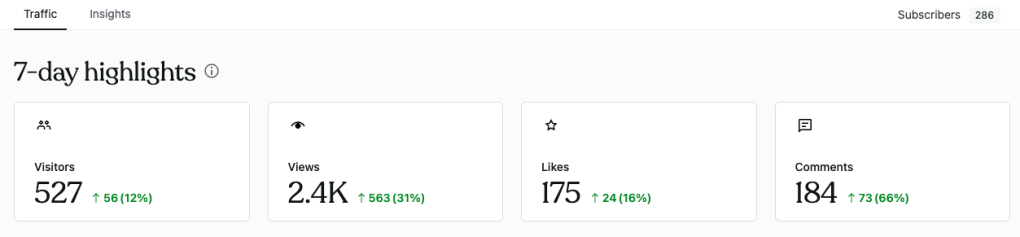
Jetpack 11.9 also updates the design of the Stats dashboard. In place of the dusty blue bar graphs and sections with referrers and top pages and posts, the updated design is now more in line with Jetpack’s green branding. It features 7-day highlights at the top and the trends shown are in comparison to the previous seven days. The UI is more modern than the previous version and provides a more mobile-friendly experience. It is enabled by default but can be disabled in the Settings for those who prefer the traditional Stats design.
Also included in version 11.9 is a new “Sync Fields” style option in the Forms block that allows users to ensure fields maintain the same style as the blocks are edited.
This release includes more than a dozen bug fixes and compatibility updates. Check out the changelog for all the details on the Development tab on the plugin’s WordPress.org page.
This month we have worked on several improvements to enhance your Jetpack experience, including further enhancements to the Social Sharing Buttons and Form Block.
Share your blog posts on Mastodon with improved Jetpack Social Sharing Buttons
We made some design and performance updates on our Social Sharing Buttons for a better user experience, including a new sharing button for Mastodon.
You can customize your Social Sharing Buttons by following these steps:
Go to the Jetpack dashboard in WP Admin.
View the Settings menu and click on Sharing page.
Enable Add sharing buttons to your posts and page option.
Click on Configure your sharing buttons.
Once you’ve activated the Sharing feature, you can also go to Settings > Sharing to enable a sharing button:
As you can see in the video above, the button does a few things:
You can pick between just the icon, icon + text, text only, or a button with a colorful logo and the text.
When sharing, your visitors will first have to enter the Mastodon instance where they’d like to share the post.
You can edit the message, but by default, the message will include the post title and URL, and tags will be added as hashtags at the end.
Field style syncing for the Form Block
We introduced a new Sync Fields Style option for the Form Block to provide you greater flexibility in customizing your forms’ designs. You can enable this option from the block settings in your editor:
Updated Stats dashboard design
We are now defaulting to an updated modern design for the Jetpack Stats dashboard to help provide valuable insights and grow your site.
If you have feedback on the updated design, please share your thoughts on this survey. And if you prefer to continue using the traditional stats for now, there is a toggle in the Traffic section of the Jetpack settings.
Automattic Certified as a Most Loved Workplace
Our parent company Automattic has been certified as a Most Loved Workplace by Best Practice Institute research and analysis. The Most Loved Workplace validation provides the most comprehensive look at workplace sentiment for organizations today. To learn more about Automattic’s certification and read why folks love working here, visit our page on Most Loved Workplace.
We continue to grow and have some exciting open positions at Automattic, including in Engineering, Product, Marketing, Business Development, HR, Customer Support, and more. Work for us, from anywhere: https://automattic.com/work-with-us/.
A big thank you to everyone who contributed to this release:
There are several popular analytics plugins for WordPress, including:
1. Google Analytics for WordPress: This plugin allows you to easily add your Google Analytics tracking code to your website and view important stats within your WordPress dashboard.
2. MonsterInsights: This plugin is a popular choice for adding Google Analytics to your website, and it also includes additional features like ecommerce tracking, event tracking, and custom dimension tracking.
3. Jetpack: This plugin includes a variety of features, including analytics and website stats, which can be accessed via the WordPress dashboard.
4. WP-Statistics: This plugin provides detailed website analytics and statistics, including page views, visitors, and search engine referrals.
5. Matomo: This is an open-source analytics platform that you can host on your own server, and then use the plugin to integrate it with your WordPress site.
These are just a few options, and the best one for you will depend on your specific needs and preferences. It’s worth trying out a few different ones to see which one works best for you.
Automattic is bringing Tumblr’s Blaze ad tool to WordPress sites with its launch today on WordPress.com and Jetpack. Blaze made its debut in April 2022, to the delight of Tumblr users who will gladly shell out cash to get people to look at their cat or promote a game they made. It’s an affordable way to attract new followers or just send out something funny into the universe, starting at $5/day.
Note To all small Twitch streamers. Tumblr Blaze is the best advertising tool out there. It has an embedding feature allowing you to embed streams. I went from 20 to 100+ live viewers rn! pic.twitter.com/aolZduCTEe
— Ian Miles Cheong's Prime Minister (@MToph91) January 3, 2023
WordPress.com users can now to go to wordpress.com/advertising, select a site, and promote content with Blaze. Jetpack users have access to the ad network inside the WordPress.com dashboard.
After selecting a post, users are taken to the design wizard where they can add an image, title, a snippet, and a destination URL. The URL can be the post or page or it can direct visitors to the main website.
When Blaze first launched on Tumblr there was no way to target the promoted content – it just displayed to random users. Now there are a few more options. When promoting content from WordPress.com or a Jetpack-enabled site, users can narrow the audience by device: mobile, desktop, or all devices, select from a few main geographic areas (continents) or serve it everywhere. There is also a dropdown with topics of interest, but they are fairly general, e.g. Arts & Entertainment, Automotive, Business, Education.
After selecting the audience, users can set the budget for the campaign, starting at $5 with a max daily budget of $50. With a minimum of $5/day for a week users can expect an estimated 5,900 – 8,000 impressions. For $25/day, users can expect 29,700 – 40,200, and up to 59,500 – 80,500 for $50/day. Site owners can monitor the success of their ads in the Campaigns tab.
Content sponsored by Blaze will be promoted across WordPress.com sites and Tumblr pages, an audience that accounts for an estimated 13.5 billion impressions per month.
Blazing has become somewhat of an art in the short time it has been available on Tumblr. It will be interesting to see how ads originating from WordPress.com and Jetpack go over with the Tumblr audience.
There's a whole code of ethics around Blaze on Tumblr basically if you use it to do anything other than shitpost people hate you, you can also buy Tumblr merch and buy fake verification (which isn't seen as a serious thing, it's just a way to support tumblr)
Creating advertising content that works across the disparate audiences between WordPress and Tumblr-powered pages may be a challenge for some site owners. Tumblr users can only target audiences by location for blazed posts. It’s possible that WordPress’ additional targeting options can help funnel the ads to sites where they will be most well-received, but the announcement says ads will be promoted across WordPress.com and Tumblr.
Blaze campaigns require approval to be in compliance with Automattic’s Advertising Policy before being published. They are currently moderated in approximately 30 minutes but this may change in the future as more users try out Blaze.
Automattic is treading new ground in creating its own ad network that any user across Tumblr and WordPress can tap into. It’s a strategic move to extend access to the world of WordPress, given that it’s such a large audience, and it will be interesting to see how the company improves the targeting options to meet the challenges of serving both audiences.
With Jetpack 11.7, we’ve made further enhancements to the Form block, along with several other improvements and bug fixes for a better Jetpack experience.
Send your leads directly to Salesforce
If you’re a Salesforce user, you can now send form submissions directly to Salesforce by choosing the “Salesforce Lead†form in the variation picker.
Export your form responses to Googe Sheets
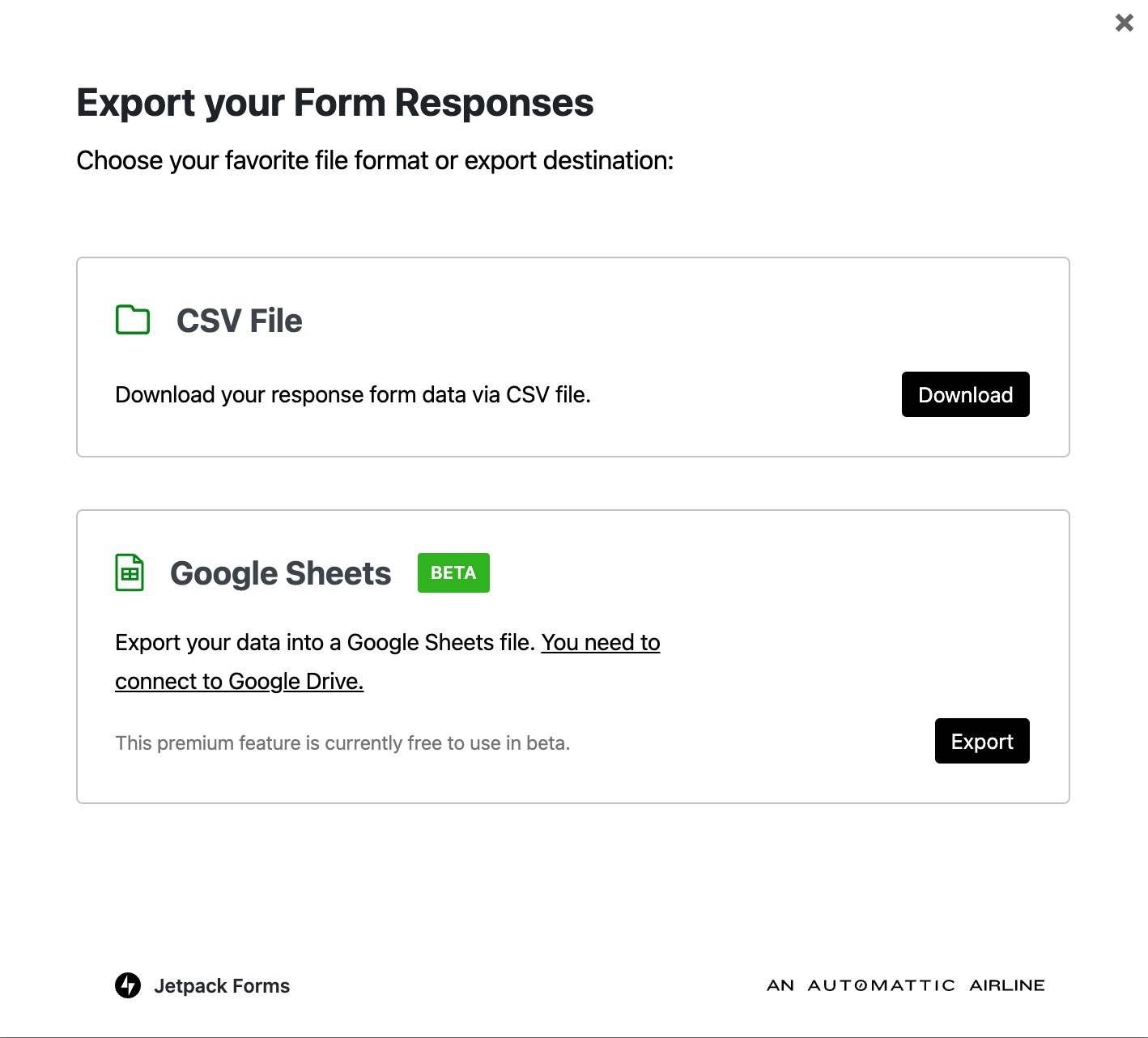
As well as enhancements to the Form block, there is now an option to export your form responses to Google Sheets.
To export your form responses to Google Sheets:
In WP-Admin, click on “Feedbackâ€
On the Feedback page, you should see a single “Export” button. Click it to open the Export modal.
From the Export modal, choose “Export†under Google Sheets. (If you haven’t connected Google Sheets already, you will be prompted to do so)
Also included in this release
In the Subscription Block’s settings, you can now choose to include your social followers in the count toward your subscriber total.
This release also includes other minor bug fixes and improvements — check the changelog for more.
A big thank you to everyone who contributed to this release:
Adnan Haque, Adrian Moldovan, Artur Piszek, Biser Perchinkov, Bogdan Ungureanu, Brad Jorsch, Brandon Kraft, Chris Jean, Christian Gastrell, Corey McKrill, Damián Suárez, Dan Roundhill, Daniel Post, Dean Sas, Derek Smart, Douglas Henri, Dylan Munson, Eru Penkman, Gabriel Demichelis, Gergely Márk Juhász, Grant Kinney, Igor Zinovyev, Ivan Ottinger, James Kenneth Guidaven, Jason Moon, Jasper Kang, Jeremy Herve, John Webb, Karen Attfield, Kev, Konstantin Obenland, Kuba Birecki, Luiz Kowalski, Maciej Grabowski, Mat Clayton, Matt Wiebe, Miguel Xavier Penha Neto, Mikael Korpela, Nate Weller, Nauris Pūķis, Osk, Paul Bunkham, Peter Petrov, Renato Augusto Gama dos Santos, Robert Sreberski, Samiff, Sergey Mitroshin, Siobhan Bamber, Steve D, Tim Broddin, Vedanshu Jain, Yaroslav Kukharuk, bindlegirl, dkmyta, dlind1, jboland88, jcheringer, nunyvega, thingalon, valterlorran
Jetpack has introduced a major update to its Form block in the latest version 11.6 release. Users can now interact with the various form templates as patterns.
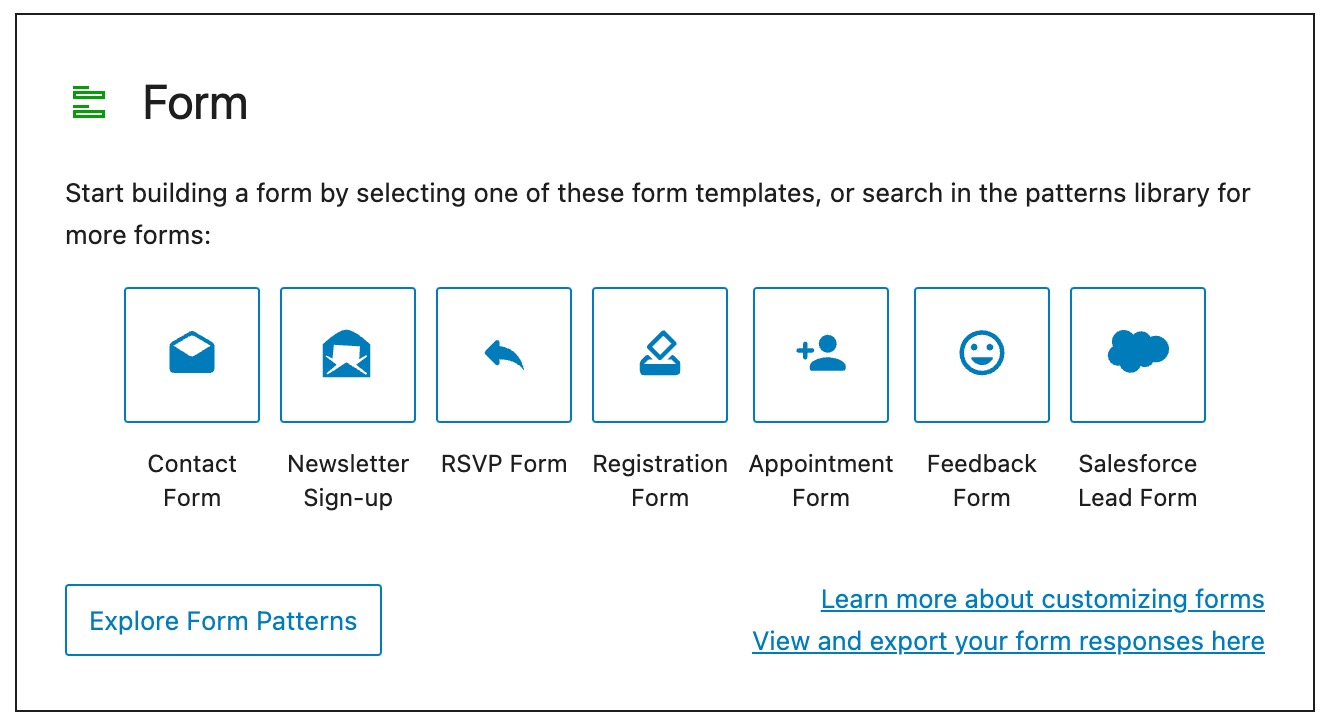
A new quick start placeholder appears anytime users invoke a new form block. It displays a selection of the most commonly used form types as icons. Clicking on any one of the form templates will instantly add it to the block. From there, users can further customize the form fields and labels. It also displays a link to documentation on customizing forms and a link to view and export form responses.
Version 11.6 also introduces a patterns explorer, similar to the one found in the block inserter. Here users can see all available patterns fully expanded to better inform their decisions during the form creation process.
After testing, I found the pattern explorer to be a somewhat clunky way to view available form templates. In the default view they appear one at a time and expand to fit the explorer’s viewport. They are also difficult to scroll. Clicking on the grid style view, the patterns are easier to see but the design could be improved to better differentiate each pattern, as they all seem to run right into the next with faint borders around each.
Although I’m eager to see Jetpack iterate on the execution of these new ways to build forms, the placeholder and pattern explorer undoubtedly help users get started faster than trying to build a form from scratch in the block editor.
Other notable updates in this release include SEO improvements that allow users to have more granular control over how their content is presented (or not presented) to search engines. In the Jetpack SEO panel, users can now exclude that specific post or page from being indexed, while allowing the content to remain publicly accessible. Users can also now set a custom SEO title for posts and pages that will show in the search snippet and browser tab.




 (@LakeUncalming)