EDITS.WS

Tag: Learn

  • The 10 Best AI Writing Tools for Content Creation

    When generative artificial intelligence (AI) technology was announced at the end of 2022, the world reacted with excitement, fear, concern, and many innovative ideas. While a lot of people have tinkered with this new technology, few have incorporated AI content writing tools into their daily work effectively and efficiently.

    In many ways, the technology is still in its infancy. Those professionals who are using AI tools for content writing are often relying on them only as a starting point, refining the output to sound more human and ensuring that all facts are correctly portrayed. That said, AI writing tools can certainly reduce the time it takes to conduct initial research and create a first draft.

    According to Forbes Advisor, 97 percent of business owners believe AI content writing tools will help their company, with one in three organizations planning to use such tools to create website content in the near future. 

    Many new AI writing tools have emerged in the market in recent months, and this guide reviews some of the best ones, along with their features, pros and cons, ease of use, and pricing details. 

    Essential features of AI writing tools

    AI writing tools for content creation are evolving at a rapid rate, so before you make a selection, take some time to consider the essential features you want. Here are a few things to look for:

    • A solid learning model. The best AI tools for content writing are trained on a specific set of data and language models. Be sure you select a tool that uses comprehensive training data to generate quality outputs.
    • Control over outputs. You’ll want to be able to specify the style, tone, voice, and language of the final output. For example, you may want to generate content with a very professional tone in English for one audience and deliver the same message in a casual style in Spanish.
    • Ease of access. To streamline your workflow, your AI content writing tool should ideally be integrated into the programs you’re already using. The last thing you want to do while you’re building a blog or website is to toggle between screens and applications, cutting and pasting AI-generated content.
    • A conversational interface. Be sure your AI content creation tool uses natural language processing so that your query stream becomes similar to a conversation with a colleague. This allows you to refine your prompts as the tool provides responses, helping you to get the best output for your needs.
    • Affordability. As this market develops, keep an eye out for pricing and feature changes. Most tools should be both powerful and affordable. 

    Top AI writing tools for content creation

    We’ve dug deep into the latest AI programs to find the best options for creators, entrepreneurs, content marketers, and anyone using WordPress to pursue their passion. Here are the top 10 AI writing tools for content creation on the market today:

    Jetpack AI Assistant homepage

    1. Jetpack AI Assistant

    If you’re a WordPress user, Jetpack AI Assistant fits perfectly into your workflow. Embedded directly into the WordPress editor, the intuitive interface invites you to engage with AI as if you were chatting with a colleague. The Jetpack AI Assistant lets you generate diverse content on command, reducing the time and effort you spend on content creation.

    Key features of AI Assistant:

    • Integrates seamlessly into the WordPress dashboard
    • Crafts high-quality, uniquely-tailored content
    • Creates text, lists, and tables
    • Adapts unique tone and brand voice
    • Integrates easily with other WordPress tools

    Pros of AI Assistant:

    • The Jetpack AI Assistant is integrated directly into WordPress, which means you don’t have to disrupt your workflow to use this tool.
    • The tool responds to your prompts with professional, customized content.
    • It’s easy to change the feeling of your writing by asking Jetpack AI Assistant to rewrite content in a casual, professional, or academic tone.
    • It’s built and maintained by Automattic, the team behind WordPress.com, for seamless and complete integration.
    • The tool not only generates text but can pull information to help you easily build lists and tables. 

    Cons of Jetpack AI Assistant:

    • While the AI writing tool offers excellent value and a 14-day money-back guarantee, the free plan is very limited and primarily acts as a test drive.
    • The Jetpack AI Assistant processes information based on only the context provided, so it may occasionally misinterpret requests.
    • If outdated training data is used, the tool may generate inaccurate responses.

    Ease of use:

    Since the Jetpack AI Assistant was built specifically to work with WordPress sites, it’s easy to use the tool while you’re writing or editing content. Simply create a prompt as needed, without needing to toggle back and forth between your site and outside tools. It’s best for anyone running a site on WordPress.

    Pricing:

    The Jetpack AI Assistant is available for $8.33 per month, billed annually, and offers a money-back guarantee. There’s a limited free plan that allows you to try the AI Assistant. 

    Rytr homepage

    2. Rytr

    Built on OpenAI’s GPT-3 API, Rytr is an AI content creation tool that was created specifically for content writers, SEO specialists, and others responsible for generating text-based materials for their organizations and clients.

    Key features of Rytr:

    • Built on an open-source platform
    • Offers multiple use cases as starting points
    • Creates unique, high-quality content
    • Allows storage of content in one location
    • Suggests optimal keywords for SEO

    Pros of Rytr:

    • Rytr offers content-generation in more than 30 languages, can generate text using more than 20 different styles and tones, and has more than 40 use cases for a quick start.
    • The tool can run plagiarism checks while the user is generating text.
    • Rytr not only delivers AI-generated written content, but can also create images from prompts.
    • The premium subscription level allows users to create custom use cases for content generation.
    • Since it’s designed specifically for content writers, it offers unique features like building a writing portfolio page.

    Cons of Rytr:

    • While Rytr works well for short-form content, it’s not as robust for longer-form pieces. It can generate outlines and ideas, but expanding on them usually results in repetitive, nonsensical content.
    • Although Rytr integrates with SERP tools for keyword optimization, this feature is weak compared with products that are geared specifically towards SEO.
    • The user interface is not as streamlined or intuitive as the best products on the market.

    Ease of use:

    Because Rytr offers dozens of pre-defined use cases, it can be very easy to work with for the most basic content-writing needs. It quickly and easily generates short-form content that can be expanded upon by writers to add a human element.

    Pricing:

    Rytr offers three pricing levels, which come with an increasing number of features: free, Saver at $9 per month, and Unlimited for $29 per month.

    Jasper homepage

    3. Jasper

    Jasper is an AI content writing tool designed specifically for marketers who want to create content for a wide variety of channels, including blog posts, advertisements, social media, product descriptions, and more.

    Key features of Jasper:

    • Generates both text and images
    • Integrates with Grammarly and Chrome
    • Provides a revision history feature
    • Allows sharing of documents with colleagues
    • Has a built-in plagiarism checker

    Pros of Jasper:

    • Jasper has a unique option entitled “explain it to me like a fifth grader” that can help simplify complex content.
    • The tool not only delivers AI-generated text but can also build images from prompts.
    • Jasper does an excellent job of generating natural-sounding content.
    • This AI writing tool can help create additional ideas for marketing promotions.

    Cons of Jasper:

    • Although Jasper does well when it’s asked to generate content on common topics, it may create incomplete, incorrect, or nonsensical content if the prompt is too niche.
    • While it can generate natural-sounding content, it has more difficulty creating a unique brand voice.
    • Like all AI content generation tools, Jasper can only generate output based on input and cannot reliably check facts.

    Ease of use:

    Jasper is easy to use, allowing businesses to mimic their own brand voice and style by training the tool on existing content, their own style guides, or other current marketing and product materials. It pulls from a cross-section of other AI tools, incorporates search results, and individual business information for a robust solution.

    Pricing:

    Jasper offers three pricing levels designed for the individual creator at $39 per month, the team at $99 per month, and the business, which requires a conversation and negotiation with the company. It does offer a free trial period.

    Frase homepage

    4. Frase

    Frase is marketed as an all-in-one AI content generator and SEO tool for both content writers and marketers. It can support individuals from research through writing and into the SEO analytics stage of their workflows.

    Key features of Frase:

    • Supports content generation at the research stage
    • Helps generate quality outlines and content briefs
    • Fleshes out longer-form content
    • Analyzes and optimizes for SEO

    Pros of Frase:

    • Frase has a very intuitive user interface, making it easy to get started without training.
    • The tool examines the top-ranking Google search results and automatically generates content briefs for users.
    • Frase can break down a website, delivering analytics that pinpoint which pages are ranking best and which need improvement.
    • The organization releases updates nearly every day for continuous improvement.

    Cons of Frase:

    • Frase is on the expensive side and offers no free trial or free version.
    • Since this tool really started in the SEO space, its AI writer is relatively new and requires a fair amount of improvement compared to others on the market.
    • The AI writing tool cannot be used on an ongoing, unlimited basis without purchasing the SEO component.

    Ease of use:

    While Frase has an intuitive, easy-to-use interface, it was originally designed for SEO-focused tasks. The company has recently added an AI content generation component but is still working on improving the entire package to meet market needs.

    Pricing:

    Frase offers three pricing levels designed for the solo creator at $14.99 per month, the basic level at $49.99 per month, and the team level at $114.99 per month. It offers a five-day trial for $1.

    Sudowrite homepage

    5. Sudowrite

    Although Sudowrite seems to be targeted toward fiction authors looking for creativity, plot twists, and fresh ideas, what company couldn’t benefit from a little better storytelling? By taking advantage of the features of this AI content tool, writers and marketers may be able to create more engaging blog posts, web content, and social media updates.

    Key features of Sudowrite:

    • Offers in-depth, creative descriptions based on a built-in thesaurus
    • Creates everything from initial outlines to long-form content
    • Delivers multiple options based on previously-set tone to help complete thoughts
    • Reads existing content and offers improvement ideas

    Pros of Sudowrite:

    • Sudowrite can generate content in several languages.
    • The tool “learns” as it interacts with the user, generating better content as the conversation continues.
    • Sudowrite can incorporate the creative, descriptive style found in fiction to liven up business copy and content.
    • The AI content generator can also review existing content and make suggestions for improvement to make copy more engaging.

    Cons of Sudowrite:

    • Since it’s designed for fiction authors and not specifically for business use, it’s not as familiar with formats such as blog posts, web content, and social media posts.
    • It has no plagiarism checker or any SEO capabilities that are more popular with business-focused tools.

    Ease of use:

    Sudowrite may be a great tool to help writers overcome writer’s block or generate creative, fresh ideas for boring corporate content. Its strength is in its creativity and storytelling ability; finding ways to use this to benefit the content writer or marketer may be a little challenging but worth the effort.

    Pricing:

    Sudowrite offers three pricing levels designed for the hobbyist or student at $10 per month, the professional at $25 per month, and the enterprise level at $100 per month. It also offers a free trial.

    Growthbar homepage

    6. GrowthBar

    Those content writers looking for an affordable tool that can help write blog posts and optimize them for SEO may want to consider GrowthBar. It quickly scans Google results to generate briefs that provide all the information needed to create high-ranking blog posts, including keywords, optimal length, both internal and external link suggestions, and more.

    Key features of GrowthBar:

    • Collaboration abilities so teams can work together to generate content
    • Builds complete blog posts quickly
    • Analyzes keyword options and delivers difficulty and revenue metrics
    • Creates content for a wide variety of channels

    Pros of GrowthBar:

    • GrowthBar is an affordable way to quickly generate SEO briefs and outlines.
    • The tool provides everything needed for a basic SEO campaign.
    • It offers unlimited domain queries and keyword research.
    • GrowthBar has a Chrome extension that allows easy SEO data access anywhere, anytime.

    Cons of GrowthBar:

    • The SEO features are basic and may not be sophisticated enough for some businesses.
    • Since GrowthBar’s strength is in generating briefs, actual AI-generated content must be closely fact checked.
    • Customer support information is difficult to access.
    • It can’t help identify or fix broken links.

    Ease of use:

    As long as individuals understand the basics of SEO, GrowthBar is a very intuitive and easy tool to use. Although SEO tools are not as robust as some, they are presented in a very easy-to-use and easy-to-access manner.

    Pricing:

    GrowthBar offers three pricing levels: standard at $29 per month, the pro at $79 per month, and the agency at $129 per month. It offers a free 14-day trial.

    Closerccopy homepage

    7. Closerscopy

    If you’re looking for a tool that can work with a lot of languages, Closerscopy supports more than 100. In addition, this AI content creation tool has a proprietary AI model that’s trained on real-world examples. It’s designed to help generate content for a wide variety of channels, including blog posts, social media updates, advertisements, customer correspondence, and more.

    Key features of Closerscopy:

    • Supports more than 100 different languages
    • Offers the ability to generate both freestyle and directed long-form content
    • Checks content for facts, emotions, and tone 
    • Downloads content in multiple formats

    Pros of Closerscopy:

    • Closerscopy offers unlimited content generation.
    • It’s good at long-form material creation, which is also unlimited.
    • The tool offers strong social media post creation tools.
    • Not only does it support the most popular languages, but it also offers translation into more than 100 different languages.
    • It has more than 800 marketing frameworks and workflows.
    • Closerscopy provides quality SEO auditing capabilities.

    Cons of Closerscopy:

    • Because it’s a more comprehensive tool, it’s harder to grasp, more complex, and somewhat slower than most AI tools.
    • Closerscopy does not offer the level of creativity, tones, and styles found in other tools.
    • Even with access to three AI platforms, the content quality is average.
    • The interface is difficult to use and still has glitches.

    Ease of use:

    Although Closerscopy’s interface is attractive to the eye, it’s more complex than other AI content generators and may be more difficult for a beginner to learn. A dashboard may help keep tasks organized for the user.

    Pricing:

    Although Closerscopy does not have a free version or trial, it does offer a 14-day money-back guarantee. Packages are the Power version at $49.99 per month, the Superpower at $79.99 per month, and the Superpower Squad at $99.99 per month. A 30 percent discount is offered if paid annually, and Closerscopy offers a lifetime package as well.

    Writesonic homepage

    8. Writesonic

    Writesonic is a powerful tool that’s particularly good for ad copy and short-form social media blog posts, although it offers long-form, blogging, and other content-generating capabilities as well. Like all AI content generation tools, it’s trained on both rules and existing content, learning to “write” human-like content in a fraction of the time.

    Key features of Writesonic:

    • Writes structured content with headlines and subheadlines
    • Paraphrases and rewrites content in seconds
    • Expands or summarizes content on demand
    • Creates SEO product descriptions

    Pros of Writesonic:

    • Writesonic has a clear, easy-to-use interface for a fast start.
    • It offers more than 50 advanced writing tools.
    • The tool generates plagiarism-free, search-optimized, grammatically-correct content in seconds.
    • Writesonic has a free trial period.
    • It offers many content types.

    Cons of Writesonic:

    • The content generated should be fact checked for accuracy and edited to ensure it meets the user’s intent.
    • The free trial only allows users to test a few features.
    • The ability to expand content to long-form articles has a maximum character limit.
    • The credit system used by Writesonic can be difficult if you require multiple versions of the same content.

    Ease of use:

    Writesonic has a straightforward interface that allows users to generate content quickly and easily.

    Pricing:

    Writesonic offers four levels of pricing and features: a free month-long trial, a business level at $12.67 per month per user, an unlimited level at $16 per month per user, and an enterprise package at a customized price starting at $1,000 per month.

    Article Forge homepage

    9. Article Forge

    Based on advanced AI and deep learning models, Article Forge was designed to generate more accurate, factually correct, SEO long-form content quickly. Its easy-to-use interface strives to let writers and marketers get started quickly and efficiently.

    Key features of Article Forge:

    • Generates long-form content of more than 1,500 words with minimal time and input
    • Uses research-augmented AI to assist with fact checking
    • It can be programmed to send new content to WordPress on a schedule
    • Adds images, videos, and custom links automatically

    Pros of Article Forge:

    • Article Forge will automatically add images and videos to text content.
    • Users can determine how frequently they want new content added to a WordPress site, which can be created and scheduled automatically.
    • The tool allows both a free trial and an unlimited number of articles.

    Cons of Article Forge:

    • Even though Article Forge uses research-augmented AI, final content should still be fact checked.
    • Generated content can vary in quality from strong to nonsensical, repetitive, and weak.
    • Sometimes, results are not related to the correct topic.
    • It’s not as good with shorter-form content, social media posts, ad copy, or other content generation.

    Ease of use:

    Article Forge is very easy to use and can spin long-form content in about one minute. It takes very little training to get started with this tool, and it has a simple interface.

    Pricing:

    Article Forge offers a free five-day trial. One user can pay $57 per month or save 51 percent by paying annually, dropping the price to $27 per month. Businesses need to contact the company for custom pricing depending on the number of users.

    WriterZen homepage

    10. Writer Zen

    Using a data-based approach and offering its “keyword golden score” metric, Writer Zen focuses on generating AI content that improves ranking on key search engines. Unlike other AI content tools, Writer Zen balances factors such as keyword competition, ranking difficulty, cost per click, and estimated traffic when generating content.

    Key features of Writer Zen:

    • Suggests keywords that have a high-traffic, low-competition ratio to improve results
    • Creates AI-generated briefs that are based on current top-ranking pages
    • Identifies keyword clusters through Google tools
    • Protects against plagiarism 

    Pros of Writer Zen:

    • Writer Zen was designed first with SEO in mind, so its keyword optimization tools are superior to others.
    • It provides above-average content that is relatively free from grammatical errors and sounds more human than some other tools.
    • The company behind Writer Zen has provided quality support and documentation to help customers maximize their use of this tool.
    • It has collaborative features that allow teams to work effectively together.

    Cons of Writer Zen:

    • The interface is a little confusing for new users, requiring some time to get up to speed.
    • With its emphasis on SEO, Writer Zen doesn’t offer an auditing feature to check existing web pages and suggest keyword improvements.
    • The plagiarism checker delivers only average results.

    Ease of use:

    The interface is not as clear-cut as some other AI-tools and may take some time to learn to use it effectively. It’s best for individuals seeking to improve SEO rankings of their content.

    Pricing:

    Writer Zen offers a free trial and four levels of features and pricing. The lite version for one user costs $19 per month, the plus version is for more dedicated solo users at $79 per month, the pro package is designed for small teams at $199 per month, and a scalable ultra package is $359 per month.

    Strong Short-form Strong Long-form Integrated with WordPress SEO Features Free version Free trial Money-Back Guarantee
    Jetpack AI Assistant Yes Yes Yes No No Yes Yes
    Rytr Yes No No Yes Yes No No
    Jasper Yes Yes No No No Yes No
    Frase No No No Yes No No No
    Sudowrite Yes Yes No No No Yes No
    GrowthBar Yes Yes No Yes No Yes No
    Closerscopy Yes Yes No No No No Yes
    Writesonic Yes No No Yes No Yes No
    Article Forge No Yes Yes Yes No Yes No
    Writer Zen No No No Yes No Yes No

    So, what is the best AI content writing tool?

    The answer to that question really depends on your individual business’ priorities and current needs. For example, companies that have an in-house writing or marketing staff may be looking for a tool that can assist their team with only idea generation and research support, but a start-up with a skeleton crew may lean on its AI content writing tool to help build out full website content and create a plethora of marketing materials.

    If you’re using WordPress to build or run your website, Jetpack AI Assistant is undeniably the clear choice, as it provides quality content, uses natural language processing, offers different styles and tones, and is completely integrated into the WordPress editor. 

    In addition, Jetpack AI Assistant joins a host of other powerful features offered by the plugin, giving you the opportunity to boost your all-around marketing, security, and performance efforts with a single tool. 

    Frequently asked questions about AI writing tools

    Still have questions? Let’s take a look at some common ones.

    What is an AI content writing tool, and how does it work?

    AI content writing tools use language rules, machine learning, and artificial intelligence to generate content. By asking a question or typing a prompt, an individual can quickly generate text, tables, or lists on a vast number of subjects.

    What makes a good AI content writing tool?

    The most important factors in a quality AI content writing tool are the datasets and models it’s trained on. This is the information it uses to generate content, so the broader and more current this information, the better.

    How much does a good AI writing tool typically cost? Are there any free options?

    Many AI writing tools are available on the market today. Some are available for free, while others range in price depending on features and access. The top tool in our review, Jetpack AI Assistant, is a cost-effective solution, especially for WordPress users, and comes with a free version.

    Can I use an AI writing tool directly in my WordPress editor?

    Jetpack AI Assistant is the only AI writing tool that can be used directly in the WordPress editor, making it the most efficient option if you regularly create content directly in WordPress.

    What are the main benefits of using AI content writing tools?

    The main benefits of using AI content writing tools are greater efficiency, broader idea generation, and easier research. Because these tools are automated, they can generate content based on much more information than a human can process in the same amount of time.

    Are there any limitations or drawbacks to using AI content writing tools?

    Yes, AI content writing tools can only respond to human-created prompts, which may vary in specificity or contextual direction. In addition, outputs are only based on the inputs provided to the tool, which may leave gaps or even generate misinformation in the outputs themselves.

    AI tools, because they can spin-up original outputs based on interpretations of the information they’ve digested, can experience hallucinations. This means that they quote factually inaccurate information in a very convincing way. It’s critical that humans fact check any articles created by AI.

    Which industries or types of content are best suited for AI-powered writing?

    If a great deal has already been written about a particular topic or industry, AI writing tools have more data to access and use to generate content. AI-powered tools would have more difficulty generating content about a brand new development, product, or idea.

    Can AI writing tools proofread content?

    AI writing tools can use spelling and grammar rules to proofread content. 

    Can AI writing tools generate content in multiple languages?

    Yes, some AI writing tools can generate content in different languages. It’s important to check and make sure the language you need is supported by the tool you select.

    Can AI writing tools translate content from one language to another?

    In some cases, AI writing tools can provide translation services. Be sure to explore the features of your chosen tool to see if they provide this capability.

    How do AI writing tools handle tone, style, and brand voice?

    Since AI tools can imitate existing content, they can “learn” common tones, styles, and voices. For example, if a user prompts an AI writing tool to generate content using a professional tone, it will use typical words, sentence structures, and phrases found in professional content in its output.

    Can I use an AI writing tool directly in my WordPress editor?

    Yes, Jetpack AI Assistant can be used directly in the WordPress editor, helping to streamline your workflow and improve efficiency.

    How fast can I start using an AI writing tool? What does the learning curve look like?

    Usually, most AI writing tools are easy to set up and learn to use. The most difficult part is to understand how to create the best prompts to generate the content you desire.

    If you’re a WordPress user and interested in setting up Jetpack AI Assistant, it’s easy to do so from your WP Admin page. Simply go to Plugins → Add New and search for Jetpack. The latest version will be in the search results, and you can click Install Now next to the AI Assistant offering.

  • CRM vs CMS: Exploring the Differences & How They Work Together

    Businesses — big and small — are constantly working to connect, engage, and build relationships with their audiences. To be effective, efforts have to span across various channels, mediums, and technologies. It’s a lot to manage!

    Amidst this flurry of activity, two tools have become indispensable: customer relationship management (CRM) software and a content management system (CMS).

    These might sound complex, but their essence is simple — they’re platforms designed to streamline specific aspects of your business operations. 

    The differences between the two, and how they can complement one another, often cause confusion. So we’re here to walk you through the world of CRMs and CMSs, exploring their definitions, benefits, and potential to drive your business forward. 

    What is a CRM? (customer relationship management system)

    A CRM is your key to customer-centric business operations. It’s a powerful tool designed to manage and analyze interactions and data throughout the customer lifecycle. The ultimate goal is to improve customer service relationships, aid in retention, and drive sales growth. With a CRM, you’re not just managing customers, you’re understanding them. 

    What are the benefits of a CRM?

    1. Centralized data. With a CRM, all your customer data — interactions, transactions, and preferences — are housed under one roof. No more rifling through spreadsheets or databases. Your customer data is organized, accessible, and ready to deliver insights. 

    2. Better customer service. CRM provides in-depth customer data, allowing you to personalize interactions and solve problems efficiently. All of your sales representatives can have access to information about each customer, allowing them to understand previous conversations instead of asking the same questions over and over.

    3. A streamlined sales process. With a clear view of the customer journey, you can identify opportunities and bottlenecks, thus refining your sales strategy and boosting conversions.

    4. Enhanced marketing efforts. CRM data can guide your marketing strategy, ensuring that your campaigns are tailored to customer behaviors, needs, and preferences. 

    Typical features of a CRM

    A CRM can pack a punch with a host of features designed to enhance your customer relationships, and Jetpack CRM is an excellent example. Features include:

    1. Contact management. A tool like Jetpack CRM allows you to capture, track, and manage customer data effectively. Everything from contact details to interaction history is neatly organized.

    2. Sales funnel visualization. A CRM provides a clear view of your sales funnel, highlighting opportunities and revealing choke points. 

    3. Task management. Assign tasks, set reminders, and follow up on pending work with a CRM. It’s about taking the right action, at the right time.

    4. Analytics and reporting. A CRM turns raw data into actionable insights with detailed analytics and reporting. 
    What is a CMS? (content management system)

    A CMS, on the other hand, is your digital publishing powerhouse. It’s a software application or set of related programs that allows you to create and manage online content. With a CMS, you can control and structure the content on your website without diving into the technical depths of web development.

    What are the benefits of a CMS?

    1. Easy content management. A CMS gives you the freedom to create, manage, and modify content on your website without any technical knowledge.

    2. A collaborative work environment. Multiple users can contribute and collaborate on the same content, ensuring smooth workflows and efficient content production.

    3. Improved search engine optimization. With built-in SEO tools, a CMS can help optimize your content for search engines, thus improving your visibility.

    4. Unlimited customization options. A CMS like WordPress provides you with numerous themes and plugins to customize your website’s look and feel, ensuring that it resonates with your brand.

    Typical features of a CMS

    A CMS comes equipped with a variety of features to streamline your content management efforts. WordPress, as the leading CMS, showcases these capabilities brilliantly, including:

    1. Content creation and management. WordPress allows you to easily create, edit, and organize your content with its powerful block editor.

    2. User management. With WordPress, you can manage user access, roles, and permissions, ensuring a safe and efficient work environment.

    3. Compatibility with additional tools. WordPress has an extensive range of plugins that enable you to add features and functionality to your website, customizing it according to your needs.

    4. A template system. A CMS like WordPress typically offers themes that can change the way your site looks without altering its underlying software. 

    The differences between a CRM and CMS

    In the simplest terms, a CRM manages your customers, while a CMS manages your content. 

    A CRM focuses on managing customer data, interactions, and relationships, driving customer satisfaction and sales growth. On the other hand, a CMS is all about creating, managing, and modifying digital content. It’s your tool for publishing and structuring the content on your website.

    In essence, a CRM works behind the scenes, shaping the way you interact with your customers, while a CMS is on the front lines, shaping the way your customers interact with you.

    Use cases of a CRM vs CMS

    Understanding the different use cases for a CRM and CMS can help you appreciate their individual strengths and collective potential.

    1. A CRM for sales and marketing

    A CRM can be your sales and marketing team’s best friend. It provides a wealth of customer data that can be used to personalize sales interactions, tailor marketing campaigns, identify sales opportunities, and evaluate marketing performance. 

    Jetpack CRM interface

    For instance, with Jetpack CRM, you can manage and track leads, nurture customer relationships, and glean insights from customer data to shape your marketing strategies.

    2. CMS for content and website management

    A CMS, like WordPress, on the other hand, is a boon for content creators and website managers. It empowers you to create and publish content, manage the look and feel of your website, and collaborate efficiently with your team. 

    the WordPress block editor in action

    CRM and CMS as standalone software

    Operating a CRM or CMS as a standalone system does come with benefits and drawbacks. 

    On the one hand, a standalone CRM, like Jetpack CRM, can provide a focused environment for managing and analyzing customer data, thereby improving customer relationships and driving sales. However, the lack of integration with your CMS could result in a disconnect between your customer data and your content strategy, potentially hampering its effectiveness.

    Similarly, a standalone CMS, like WordPress, gives you complete control over your digital content and website. Yet, without CRM integration, you’re missing out on valuable customer insights that could enhance your content’s relevance and impact.

    The need for integration: CMS and CRM together

    The real magic happens when you bring a CMS and CRM together, each amplifying the other’s strengths. 

    The right integration allows your CRM to access data from your CMS, providing a more comprehensive view of your customers. For example, it automatically pulls in information about the orders that an individual has placed, so that your customer service team can best answer their questions and so that you can segment shoppers to enhance your marketing strategy.

    contact page in Jetpack CRM

    But integration doesn’t mean just slapping the two systems together. It’s about creating a sum greater than its parts. That’s where Jetpack CRM comes into play, seamlessly integrating its powerful tools with your WordPress site.

    Jetpack CRM and WordPress: the perfect combination

    Jetpack CRM and WordPress aren’t just compatible — they’re symbiotic. Together, they marry the content and customer management, streamlining and enhancing business operations.

    Jetpack CRM was crafted specifically for WordPress. Its creators envisioned a CRM that would leverage the flexibility and power of WordPress and serve as a tool that’s easy to use, feature-packed, and capable of turning customer management into a breeze. 

    How Jetpack CRM leverages power of WordPress

    Jetpack CRM taps into the user management, content hierarchy, and plugin architecture of WordPress to streamline the customer journey. It packs a host of features that seamlessly blend with WordPress, including:

    1. WordPress user sync. Jetpack CRM allows you to automatically sync WordPress users and CRM contacts, ensuring that your data is always up-to-date.

    2. Invoices & transactions. With Jetpack CRM, you can manage invoices, quotes, and transactions right from your WordPress dashboard, providing a unified business management experience.

    3. Email and SMS marketing. Connect your CMS to your existing email service provider like MailPoet or use the Mail Campaigns extension to send unique marketing messages to specific customer segments. And add the Twilio extension to send text message marketing to your contacts. 

    4. Automated customer data sync. Sync all the data from your WooCommerce store. Gain more in-depth insights into customer information, preferences, and buying habits and market specifically to them.

    5. Online commerce without the ecommerce site. Creating your own ecommerce site is a great way for B2B and service-based businesses to streamline operations. But if all you want to do is send an invoice and collect payment, Jetpack CRM lets you do that easily and quickly.

    Pairing Jetpack CRM with WordPress isn’t just about integrating systems; it’s about creating a cohesive and effective customer-centric strategy. It’s about knowing your audience, delivering content they love, and forging relationships that endure.

    How to integrate Jetpack CRM with your WordPress site: a step-by-step guide

    Installing and setting up Jetpack CRM is simple. Just follow these steps:

    1. In your WordPress dashboard, go to Plugins → Add New. Search for “Jetpack CRM” and click Install Now → Activate.

    essential details field in Jetpack CRM

    2. You’ll now see a setup wizard that will walk you through the process of getting started. It will ask you details about your site, like the type of business you run and the currency you accept. Answer all of these questions, then click Next.

    importing contacts into Jetpack CRM

    3. On the next page, you’ll see options for importing contacts from other tools you may be using, such as Stripe, WooCommerce, and Twilio. If you want to do so, click the Connect your CRM to other services button. Otherwise, proceed on.

    optional features in Jetpack CRM

    4. Now, you’ll see options for enabling extensions and additional functionality, such as quotes, invoices, and WooSync. Turn on these as needed.

    5. Finally, you’ll have the option to subscribe to the Jetpack CRM newsletter. Click Finish and go to your CRM.

    Now, take the time to get to know your dashboard and configure your settings. For more information and detailed walkthroughs about everything Jetpack CRM, check out the documentation.

    Maximizing Jetpack CRM’s features

    Just integrating the two systems isn’t enough — you need to make them work for you.

    1. Managing contacts

    With Jetpack CRM, managing contacts is easy. You can add, edit, and categorize contacts, track customer interactions, and view all this information in a neat, user-friendly dashboard. The trick is to keep your contact data organized and updated, ensuring that you have accurate and actionable customer insights at your fingertips.

    2. Tracking customer interactions

    Jetpack CRM’s customer interaction tracking allows you to monitor activity on your WordPress site — pages visited, forms filled, downloads made, and more. You can then use this information to understand your customers better and tailor your sales and content strategy to match their needs and preferences.

    3. Optimizing marketing efforts

    Using the customer data gleaned from Jetpack CRM, you can refine your marketing campaigns, making them more personalized, targeted, and effective. Monitor campaign performance, identify what works, and tweak what doesn’t.

    4. Customizing the CRM to fit your business needs

    Every business is unique, and your CRM should adapt to meet your specific needs. Jetpack CRM allows you to customize your CRM experience with a range of extensions for email marketing, invoicing, webinars, and more. Choose the ones that suit your business needs and create a CRM that’s tailor-made for your business.

    Tips for getting the most out of your CRM-CMS integration

    1. Map your customer’s journey

    A fundamental part of successfully integrating your CRM and CMS lies in understanding the path your customers take from discovery to conversion. Map out this journey, using your CRM to capture key touchpoints and interactions. 

    This will help guide the content and messaging you develop through your CMS. Jetpack CRM, for instance, is excellent at recording customer data, while WordPress makes content publishing a breeze.

    2. Harness the power of data

    Every interaction a customer has with your website is a nugget of data that can be utilized. Your CRM system collects and organizes this data, allowing you to leverage it to tailor your content, marketing, and sales strategies. Make sure your CMS is designed to make full use of this information. For example, WordPress’s compatibility with Jetpack CRM ensures a seamless data flow, enhancing your data-driven marketing efforts.

    3. Personalize the experience

    Using the data you gather, deliver a personalized experience to each contact. While your CRM manages customer data, your CMS must be flexible and robust enough to deliver varied content. WordPress shines in this respect, with customization at its core, while a CRM like Jetpack CRM makes tailoring customer interactions effortless.

    4. Maintain CRM data quality

    Ensure the customer data stored in your CRM is regularly updated. This not only helps maintain the quality of your customer relationships, but it also guarantees that your CMS delivers relevant and engaging content.

    5. Use your CRM for content strategy

    Your CRM can provide invaluable insights for your content strategy. Use the data it provides to create content that resonates with your audience. As you feed these insights into your CMS, you’ll create more meaningful and impactful connections.

    6. Implement automation where possible

    Use automation features in your CRM to streamline tasks such as sending emails or updating customer data. This frees up your team’s time, allowing them to focus on other vital areas. Jetpack CRM, as an example, has a wealth of automation features that can save valuable time.

    7. Utilize integrations

    Make use of the integration features of your CRM and CMS to connect various aspects of your business. This helps streamline your processes and make your systems work in sync. With both WordPress and Jetpack CRM supporting a multitude of third-party integrations, the possibilities are endless.

    8. Customize your CRM to suit your needs

    Make the CRM truly yours by customizing it to align with your unique needs. Whether it’s adjusting terminologies or capturing additional information, a flexible CRM is an asset. Jetpack CRM, for instance, offers multiple customization options to fit your business model.

    9. Train your team

    Make sure your team is well-versed in how to use both the CRM and CMS. Understanding these systems and their integration can improve efficiency and make your strategies more effective.

    10. Review and optimize regularly

    Finally, keep a close eye on the performance of your CRM and CMS. Use the analytics and reporting capabilities of your CRM and the analytics of your CMS to continually review and optimize your strategies.

    By applying these strategies, you can truly harness the synergistic potential these technologies have to offer. As we’ve seen, systems like Jetpack CRM and WordPress exemplify the potential of such an integration, each bringing their unique features to the table. Remember, CRM-CMS integration isn’t about using two systems in tandem — it’s about creating a seamless system that drives business growth.

    Frequently asked questions

    Want to know more about content management systems and customer relationship management software? Let’s dive into some frequently asked questions.

    What is the primary difference between a CRM and a CMS?

    While both a CRM and CMS are pivotal tools for any business, they serve different primary functions. A CRM, or customer relationship management system, is a tool designed to manage a company’s interactions with current and potential customers. It keeps track of customer information, purchase history, interactions, and more, all in one centralized location. 

    A CMS, or content management system, is a tool that allows you to create, manage, and modify content on a website without needing any specialized technical knowledge. It handles all the basic infrastructure, allowing you to focus on the front-end parts of the website — content, design, etc.

    Can a business run efficiently using only a CRM or a CMS?

    While a business can indeed function with only a CRM or a CMS, integrating both can exponentially increase efficiency and productivity. Having both a CRM and a CMS ensures that not only is your website content managed effectively, but your customer relationships are also nurtured and improved over time. 

    For instance, you could run a blog on WordPress (CMS) to attract visitors and generate leads. Once these leads are captured into Jetpack CRM, you can then nurture these relationships, turning prospects into loyal customers.

    How does a CRM-CMS integrated system improve operational efficiency?

    When you integrate your CRM and CMS, the synergy between the two creates a unified system that boosts operational efficiency. With a CRM like Jetpack CRM integrated with a CMS like WordPress, you can ensure that your content strategies are informed by your customer insights and vice versa. 

    For instance, you can use the CRM data about your customers to personalize your CMS-driven content. Similarly, the behavior data of users interacting with your content can be captured by the CRM for further analysis and action. This circular data flow between CRM and CMS, when used correctly, can improve both the customer experience and business results.

    How does Jetpack CRM differ from other CRM systems?

    Jetpack CRM stands out from other CRM systems because of its deep integration with WordPress, ease of use, and incredible flexibility. It takes the power and scalability of WordPress and brings it to the CRM space. Furthermore, Jetpack CRM is also modular and customizable to fit your specific business needs. 

    Plus, the ability to manage everything from the same dashboard where you manage your content on WordPress provides unparalleled convenience and efficiency.

    What are some key features of Jetpack CRM that leverage the CMS capabilities of WordPress?

    Jetpack CRM comes with several features that leverage the CMS capabilities of WordPress. For instance, it allows you to manage your contacts right from your WordPress dashboard, eliminating the need to switch between platforms. It also provides features for tracking customer interactions on your WordPress site, allowing you to capture valuable behavioral data.

    Other key features include seamless integration with popular WordPress plugins, customization options to fit your business needs, and in-depth analytics and reporting capabilities to measure and improve your CRM strategies.

    How can I integrate Jetpack CRM with my existing WordPress site?

    Integrating Jetpack CRM with your existing WordPress site is a straightforward process. First, you need to install and activate the Jetpack CRM plugin from your WordPress dashboard. Once the plugin is activated, it automatically integrates with your WordPress site, adding a Jetpack CRM section to your dashboard. 

    From this section, you can manage all your CRM-related tasks — managing contacts, tracking customer interactions, optimizing marketing efforts, customizing the CRM to your needs, and much more — right from your WordPress dashboard.

    Can I customize Jetpack CRM to fit the specific needs of my business?

    Absolutely! One of the significant advantages of Jetpack CRM is its flexibility and customization options. You can customize the CRM to fit your specific business needs, whether it’s renaming fields to match your business terminology, adding custom fields to capture additional information, or customizing the layout and display of information.

    Jetpack CRM: the #1 CRM for sites using WordPress

    In the world of business, the right partnership can propel both organizations to the moon. When Jetpack CRM meets WordPress, it’s like witnessing a celestial alignment. The two don’t just coexist; they amplify each other. Together, they create a platform that’s more than just a CRM or a CMS — it’s a complete business solution. 

    Jetpack CRM was born in the WordPress universe and embodies some of the key traits of WordPress: simplicity, power, and flexibility. It takes the robustness of WordPress, infuses it with CRM functionalities, and delivers a tool that businesses of all sizes can use to drive customer relationships and business growth.

    No matter the size of your company, whether you’re a one-person show or a growing enterprise, Jetpack CRM has you covered. It’s scalable, customizable, and packed with features that make customer management seamless. From capturing leads to closing deals, Jetpack CRM turns every step into a streamlined process, right inside your WordPress dashboard.

    If your business relies on WordPress as its CMS, Jetpack CRM is the ideal choice. The two form a combination that can power your journey to the top. But don’t just take our word for it. Take it for a spin. See how the magic of CRM-CMS synergy can transform your business operations, customer experience, and bottom line.

    Get started with Jetpack CRM today: https://jetpackcrm.com/

  • ERP vs CRM Systems: Understanding the Key Differences

    Life is an assortment of choices, and the same thing goes for the business world. Every day, we’re faced with decisions that shape the trajectory of our businesses. And one of the biggest ones for a company — whether it’s a start-up or a multinational corporation — is the selection of software systems to manage operations.

    In the realm of business management software, two terms often float around: CRM (customer relationship management) and ERP (enterprise resource planning). Each of these has a role to play, and they can be as different as apples and oranges. So, let’s delve deep into these systems, understand their unique features and benefits, and most importantly, learn how to choose the right one for your business.

    Understanding CRM systems

    What is a CRM?

    A CRM, or customer relationship management system, is essentially a tool for managing all of your company’s relationships and interactions with customers and prospects. It pumps vital sales information where it needs to go, ensuring that every part of the company is on the same beat.

    Common features of CRM systems

    CRM systems are robust, with features that are as varied as the businesses they serve. However, most have a number of things in common.

    1. Customer data management

    CRM systems excel in their ability to manage customer data. They collate every piece of information about a customer, whether it’s their basic contact information, buying preferences, interaction history, or social media activity.

    2. Lead and opportunity management

    A lead is potential gold waiting to be mined. CRM systems help businesses manage these golden opportunities by tracking, scoring, and nurturing leads.

    3. Sales and pipeline tracking

    Sales can be seen as a journey. It’s the process of moving a potential customer from interest to purchase. CRM systems help map and monitor this journey, providing real-time visibility of the sales pipeline.

    4. Customer service and support

    CRM systems enable businesses to provide top-notch customer service. By maintaining a history of customer interactions, these systems allow representatives to personalize their approach and solve issues faster.

    5. Marketing automation

    Marketing automation streamlines repetitive marketing tasks, which not only frees up your time, but also ensures consistent and timely engagement with your audience.

    Key benefits of using CRM systems

    CRM systems aren’t just fancy pieces of technology. They bring tangible benefits to the table, including:

    1. Enhanced customer engagement and satisfaction

    A CRM system allows you to know your customers inside out, which in turn enables you to engage them effectively and boost satisfaction levels.

    2. More effective sales and marketing

    By providing visibility into sales processes and automating marketing tasks, CRM systems enhance the effectiveness of your sales and marketing teams.

    3. More personalized and targeted communication

    In today’s business world, personalization isn’t a luxury; it’s a necessity. CRM systems help businesses personalize their communication and target their audience more precisely.

    4. Increased customer retention and loyalty

    By helping you engage customers in meaningful ways, CRM systems play a pivotal role in increasing customer retention and loyalty.

    5. Improved cross-selling and upselling

    Since CRM systems provide insights into customer preferences and buying behavior, they enable businesses to cross-sell and upsell effectively.

    Key factors to consider when selecting a CRM

    Choosing a CRM isn’t a task that should be taken lightly. It’s an investment, both in terms of money and time. Below are some of the factors you should consider before taking the plunge.

    1. Sales and marketing features

    Since a CRM is instrumental in sales and marketing, you must ensure that the system you choose is equipped with all the necessary features for your business, like lead management, pipeline tracking, and marketing automation.

    2. Ease of use and user interface

    A tool is only as good as its usability. If your team finds it hard to navigate, your shiny new CRM will just end up gathering digital dust. So, pay attention to the ease of use and the quality of the user interface.

    3. Integration with existing tools

    Your CRM doesn’t exist in isolation. It needs to play well with other tools you use, whether it’s your email marketing software or customer service tools.

    4. Mobile accessibility and compatibility

    In the era of remote working, mobile accessibility is a must-have feature. Ensure that the CRM you choose offers mobile compatibility, so your team can access customer data on the go.

    Popular examples of CRM systems

    The CRM market is crowded, but a few names stand out, such as:

    Jetpack CRM homepage

    1. Jetpack CRM

    For businesses running their websites on WordPress, Jetpack CRM offers a seamless and robust CRM solution. More on this later.

    2. Salesforce

    Salesforce is a giant in the CRM landscape. It’s well-known for its wide array of features and cloud-based operations.

    3. HubSpot CRM

    HubSpot CRM is known for its user-friendly interface and integration capabilities. It’s especially popular among small to midsize businesses.

    4. Zoho CRM

    Zoho CRM is lauded for its affordability and the range of features it offers, making it a common choice for many small businesses.

    Understanding ERP systems

    What is an ERP?

    ERP (enterprise resource planning) is a type of software that integrates all aspects of a business into one comprehensive information system. Think of it as the brain of your business, analyzing data, making plans, and ensuring all parts of the business are working in harmony.

    Common features of ERP systems

    ERP systems are complex, and their features often span across all business operations. Below are some of the most common features you’ll find in an ERP system:

    1. Resource management

    ERP systems help businesses manage their resources more effectively. Whether it’s your employees’ time or office supplies, ERPs ensure optimal utilization.

    2. Supply chain management

    Managing your supply chain can be a tough nut to crack. ERP systems streamline this process by providing real-time visibility into inventory levels, order statuses, and demand forecasts.

    3. Inventory management

    Inventory management is a balancing act, and ERP systems help maintain this balance by tracking inventory levels and providing alerts when it’s time to restock.

    4. Financial management

    From maintaining a general ledger to managing payroll and taxes, ERP systems handle all financial aspects of a business.

    5. Human resources management

    Whether it’s recruiting new employees, managing payroll, or tracking employee performance, ERP systems help businesses manage their human resources.

    Key benefits of using ERP systems

    Just like a CRM, an ERP system brings a plethora of benefits to a business, including:

    1. Streamlined business processes

    An ERP system integrates all business operations into one single system, thereby eliminating data silos and streamlining processes.

    2. Improved operational efficiency

    By automating routine tasks and providing insights into business operations, ERP systems improve operational efficiency.

    3. Increased data visibility and accuracy

    ERP systems provide real-time visibility into business operations and ensure data accuracy, which is crucial for making informed decisions.

    4. Better decision-making capabilities

    By providing timely and accurate data, ERP systems enable businesses to make informed decisions.

    5. Enhanced scalability and growth

    ERP systems are scalable. They can handle increased workload without a significant decline in performance, making them ideal for growing businesses.

    Key factors to consider when selecting an ERP

    Choosing an ERP system is a monumental decision. Here are the factors you need to consider before making a choice:

    1. Functionality and modules

    Consider the functionalities and modules offered by the ERP system. Ensure that it meets your business needs. If your business deals with complex supply chain processes, ensure the ERP you choose excels in supply chain management.

    2. Scalability and customization options

    As your business grows, your needs increase. The ERP system you choose should be able to scale with you and offer customization options to adapt to your changing requirements.

    3. Integration capabilities

    Just like a CRM, your ERP system should seamlessly integrate with your existing tools and software to create a cohesive digital ecosystem.

    4. Vendor reputation and support

    Don’t forget to consider the reputation of the ERP vendor. Look at their track record, their customer support capabilities, and the regularity of their software updates.

    Popular examples of ERP systems

    1. SAP

    SAP is a big player in the ERP space, providing robust solutions for large enterprises.

    2. Oracle

    Oracle ERP is known for its strong financial management capabilities, making it a preferred choice for many businesses.

    3. Microsoft Dynamics

    Microsoft Dynamics provides comprehensive ERP functionalities and integrates well with other Microsoft products.

    4. NetSuite

    NetSuite, a cloud-based ERP solution, is popular among small to midsize businesses for its scalability and customization options.

    Comparing ERP and CRM systems

    What are the key differences between ERP and CRM systems?

    While CRM and ERP systems may seem similar on the surface, there are distinct differences.

    CRM systems focus on the customer. They are designed to manage customer relationships, boost customer satisfaction, and improve sales and marketing processes.

    ERP systems, on the other hand, are designed to manage business operations. They focus on streamlining processes, improving operational efficiency, and enhancing data visibility.

    In other words, while CRM systems aim to increase profitability by nurturing customer relationships, ERP systems aim to increase profitability by reducing operational costs and improving efficiency.

    Making the right choice: ERP, CRM, or both?

    Choosing between a CRM and an ERP system isn’t about picking the better one. It’s about understanding your business needs and choosing the system that best addresses those needs.

    If your business has a strong customer focus, a CRM system might be the best choice. If you’re struggling with managing business operations, an ERP system might be more suitable.

    However, many businesses can benefit from implementing both systems. CRM and ERP systems complement each other. While a CRM focuses on front-end operations (sales, customer service, marketing), an ERP takes care of back-end operations (inventory, finance, HR). When used together, they can create a powerful synergy that drives business growth.

    The role of business size and type in choosing between ERP and CRM

    The size and type of your business play a significant role in choosing between an ERP and a CRM system.

    Smaller businesses, especially those with a strong customer focus, might find more value in a CRM system. It can help them build strong customer relationships and improve sales and marketing efficiency.

    Large businesses that manage complex operations and supply chains might benefit more from an ERP system. It can help them streamline processes and improve operational efficiency.

    However, this doesn’t mean that small businesses can’t benefit from an ERP or large businesses from a CRM. It ultimately depends on your specific business needs.

    Spotlight: Jetpack CRM for WordPress

    An in-depth look at Jetpack CRM

    Jetpack CRM is a powerful CRM system specifically designed for WordPress. It offers a plethora of features, from customer data management to sales and pipeline tracking, and marketing automation.

    Jetpaack CRM list of customers

    One of the key benefits of Jetpack CRM is its seamless integration with WordPress. It allows you to manage your customer relationships right from your WordPress dashboard.

    How Jetpack CRM stands out from other CRM systems

    Jetpack CRM stands out from the crowd with its user-friendly interface and robust features. It’s designed with small to midsize businesses in mind, providing all the necessary CRM functionalities without overwhelming you with complex features that you may not need.

    Moreover, Jetpack CRM is incredibly affordable, making it an ideal choice for businesses on a tight budget.

    Steps to integrate Jetpack CRM into a WordPress site

    Integrating Jetpack CRM with your WordPress site is a piece of cake.

    1. Log into your WordPress dashboard and go to Plugins → Add New. Search for “Jetpack CRM” and click Install now → Activate.

    installing Jetpack CRM from the dashboard

    2. This will open a setup wizard that will help you get started. You’ll first answer a few questions about your site and business, such as your company name and industry. Answer these and click Next.

    details form for Jetpack CRM

    3. Now, you can import contacts from other tools, if appropriate. These include Stripe and WooCommerce. If you’d like to do so, toggle the ones you want to use, then click Connect your CRM to other services.

    importing contacts into Jetpack CRM

    4. You’ll now see a screen for turning on additional features and enabling extensions. This includes functionality like WooSync. Enable these as needed.

    optional features in Jetpack CRM

    5. Lastly, you’ll be able to subscribe to the Jetpack CRM newsletter if you’d like. Click Finish and go to your CRM.

    With the initial setup complete, you can get to know your dashboard and configure your settings. For more information and detailed walkthroughs, check out the Jetpack CRM documentation.

    How a CRM can work with an ERP system

    While a CRM system like Jetpack CRM excels in managing customer relationships, an ERP system shines in managing business operations. They complement each other and can be used together to drive business growth.

    For instance, data from certain CRMs can be fed into the right ERP systems to provide insights into customer behavior, which can help in demand forecasting and inventory management. Conversely, data from the ERP system can inform your customer service reps about product availability or delivery statuses.

    Frequently asked questions about ERPs and CRMs

    What is the main difference between an ERP and CRM?

    At the most fundamental level, the difference between ERP (enterprise resource planning) and CRM (customer relationship management) systems lie in their primary focus. ERP systems are designed to optimize and streamline internal business processes across an organization, providing a holistic view of operations from finance to human resources to supply chain management. They’re the engines that keep the business running smoothly, efficiently, and profitably.

    On the other hand, CRM systems put customers at the center. They help businesses understand and manage their relationships with customers, both potential and existing. CRM systems consolidate customer data, track interactions, and foster sales and marketing efforts, contributing to enhanced customer satisfaction and loyalty, and thus driving business growth.

    Can an organization benefit from implementing both ERP and CRM systems?

    Absolutely. While ERP and CRM systems have different focuses, together they provide a comprehensive solution for managing both internal processes and external relationships. 

    For instance, the sales department can use a CRM to track a potential deal, while the production department can use the ERP system to ensure that there’s sufficient inventory to fulfill the order. 

    So, both systems work in harmony, enabling different departments to work together seamlessly. Therefore, organizations can definitely reap substantial benefits by implementing both systems, given they have the resources and needs for both.

    How do ERP and CRM systems integrate with each other?

    The integration of ERP and CRM systems depends on the specific solutions in use. Most modern systems are designed to facilitate such integration, either natively, through third-party interfaces, or with custom-developed solutions.

    With integration, data can flow freely between the two systems, eliminating data silos and reducing the need for manual data entry. For example, customer orders captured in the CRM system can be automatically sent to the ERP system for fulfillment.

    Can ERP systems handle customer-related data and activities?

    ERP systems do have the capacity to handle some customer-related data and activities, but it’s not their primary function. Their key focus lies in the integration of all internal business operations. 

    While they can include a customer module that stores basic customer details and tracks sales orders, they lack the specialized features of a CRM system. Those features include the ability to manage customer relationships, like tracking interactions, managing leads and opportunities, and supporting targeted marketing campaigns. Therefore, for in-depth and comprehensive handling of customer data and customer-facing activities, a dedicated CRM system would be a better choice.

    Can CRM systems handle financial management and resource planning?

    While CRM systems excel at managing customer relationships, they aren’t typically designed for comprehensive financial management or resource planning. Some CRM systems might offer rudimentary features, like tracking sales revenue or basic project management, but for extensive capabilities like managing financial accounts, cash flow, supply chain, and human resources, ERP systems are the go-to choice.

    Are there industries or business sizes where one system is more suitable than the other?

    The choice of system depends more on the nature of operations rather than the size or industry of the business. A business with complex operational processes like manufacturing or distribution would likely benefit more from an ERP system.

    In contrast, a business where customer interactions are central, such as in the retail or service industry, might find a CRM system more valuable. That said, both ERP and CRM systems can be beneficial to businesses of all sizes.

    How long does it typically take to implement an ERP system? What about a CRM system?

    The implementation timeframe for both ERP and CRM systems can vary widely based on the specific system, the size and complexity of the business, and the level of customization required.

    Typically, ERP implementations are more time-intensive, often taking several months to over a year, given their extensive scope and the necessity for precise data migration. CRM implementations, being more focused, can often be completed in a few weeks to a few months. However, these timelines are general estimates and can differ from case to case.

    What are some common challenges faced during ERP or CRM system implementations?

    Implementing either of these systems can be a complex task. Common challenges include:

    • Resistance to change. Employees might resist the new system, making it crucial to manage change effectively and maintain clear, open communication about the benefits of the new system.
    • Inadequate training. Without proper training, users may not fully understand or utilize the system’s capabilities, diminishing its value.
    • Data migration issues. Moving data from old systems to the new one can be a complex and error-prone process, needing careful planning and execution.
    • Inaccurate resource allocation. Companies often underestimate the time, money, and personnel needed to implement the system, leading to overruns and frustration.

    Can ERP and CRM systems be customized to meet specific business needs?

    Yes, most modern ERP and CRM systems offer considerable flexibility and can be customized to align with the specific processes and needs of a business. However, customization should be approached judiciously. Over-customization can lead to increased complexity, longer implementation times, higher costs, and potential issues with system upgrades.

    Are there any notable differences in pricing structures between ERP and CRM systems?

    Pricing structures for both ERP and CRM systems can vary significantly based on factors such as the number of users, degree of customization, deployment model (on-premise vs. cloud), and vendor’s pricing model. However, given the more extensive scope of ERP systems, they often tend to be more costly than CRM systems.

    How do ERP and CRM systems contribute to business intelligence and analytics?

    Both ERP and CRM systems are rich sources of data that feed into business intelligence and analytics. ERP systems offer in-depth insights into operational efficiency, cost management, and resource utilization, while CRM systems reveal patterns in customer behavior, sales trends, and marketing campaign effectiveness. By analyzing this data, businesses can make informed strategic decisions to drive growth and profitability.

    Are there any best practices for successfully using ERP and CRM systems together?

    There are several best practices that can help businesses reap maximum benefits from their ERP and CRM systems:

    • Integration. Ensure that your ERP and CRM systems can communicate effectively with each other, allowing for a free flow of data and eliminating information silos.
    • Training. Invest in comprehensive user training to ensure your team can effectively utilize the systems.
    • Clean data practices. Maintain high data quality in both systems to ensure reliable insights and smooth operation.
    • Regular updates. Keep your systems up to date to benefit from the latest features and security enhancements.

    By following these best practices, businesses can ensure that their ERP and CRM systems provide the greatest possible value.

    Jetpack CRM: The #1 CRM for businesses using WordPress

    Jetpack CRM is a robust CRM system designed with WordPress users in mind. It provides all the necessary CRM functionalities right from the WordPress dashboard, allowing you to manage your customer relationships without leaving your website.

    Jetpack CRM offers powerful features such as customer data management, lead and opportunity management, sales and pipeline tracking, and marketing automation. Moreover, it’s incredibly user-friendly and affordable, making it an ideal choice for small to midsize businesses.

    With Jetpack CRM, you can enhance your customer engagement and satisfaction, improve your sales and marketing effectiveness, and increase your customer retention and loyalty. All of this, while also benefiting from the powerful capabilities of WordPress.

    In conclusion, the choice between an ERP and a CRM system depends on your specific business needs. Both systems offer valuable benefits and can drive your business growth when used properly. And if you’re a WordPress user looking for a CRM solution, look no further than Jetpack CRM.

    Learn more about Jetpack CRM and get started today: https://jetpackcrm.com/

  • How to Switch from a Classic Theme to a Block Theme in WordPress

    If you’re a WordPress developer or site owner, you’ve undoubtedly heard a lot of praise surrounding the Site Editor. This powerful tool enables users to edit every single component of their site — from headers and footers to templates — using blocks. 

    To take advantage of the Site Editor, however, you’ll need to have a block theme installed and activated on your site. The process of switching from a classic theme to a block theme may seem complicated, but will be more than worthwhile, whether you’re working on your own site or improving a client’s.

    Let’s explore why you might want to switch to a block theme and how you can do so safely and efficiently.

    What are the different theme options in WordPress?

    There are several different types of themes that are available in WordPress, and understanding the difference will help you identify the best solution for your situation.

    1. Classic themes

    WordPress classic themes have been around the longest, and are built using PHP-based templates. They’re typically not as flexible as block themes, and site owners use the Customizer and widget areas to make design changes. Classic themes are typically more difficult to customize, especially for global site elements and templates.

    If you’ve been working in the WordPress community for very long, you’re certainly familiar with classic themes.

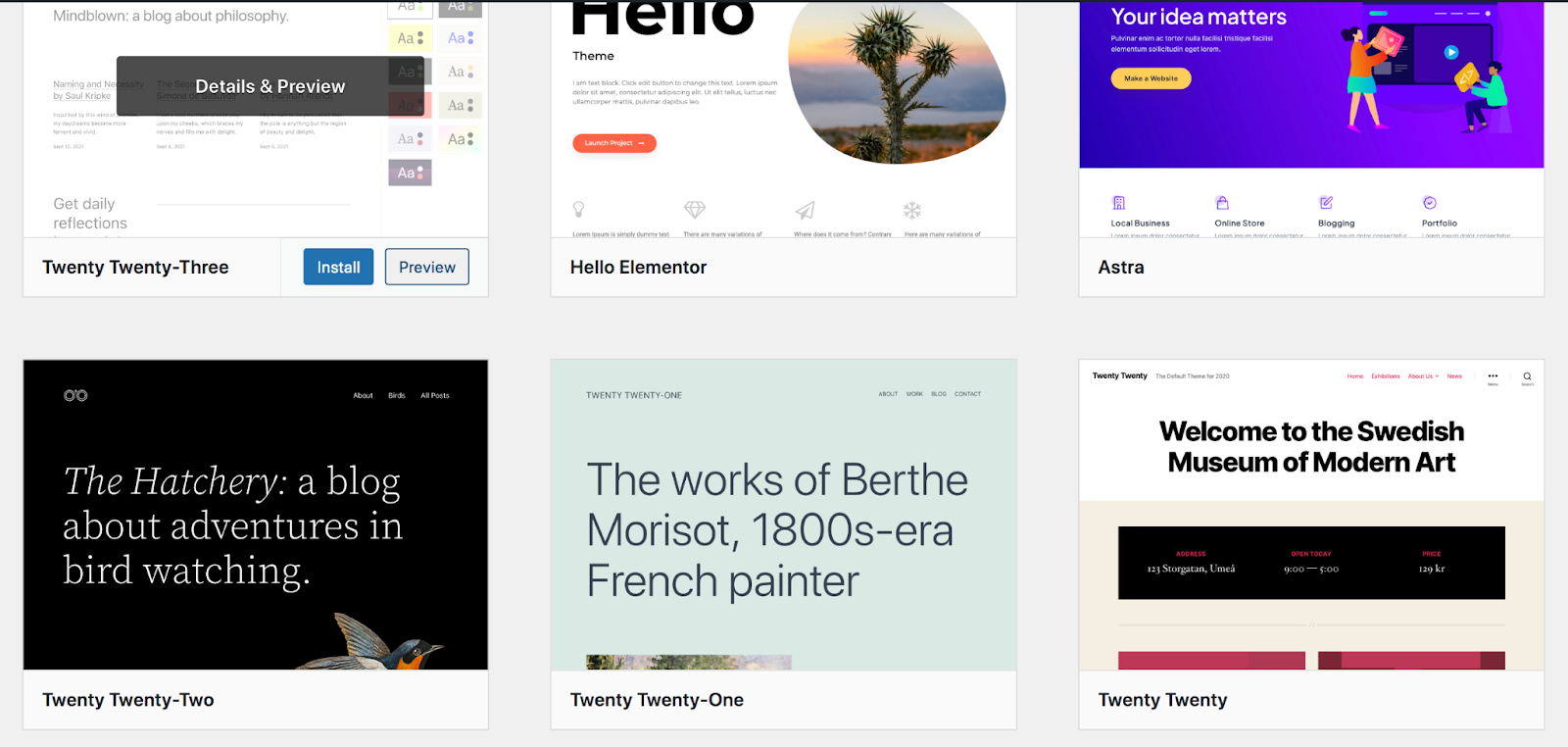
    WordPress theme repository within the WP Dashboard.

    2. Block themes

    Block themes are built with HTML templates that are entirely composed of blocks. Instead of using widgets and the Customizer, site owners employ the Site Editor to make changes. This allows for a lot more flexibility, enabling users to edit everything from headers and footers to templates with blocks. 

    WordPress has supported block themes since Version 5.9, and there are some excellent options to choose from.

    3. Hybrid themes

    A hybrid theme is exactly what it sounds like — a mix of classic and block themes. They provide some of the traditional editing experiences from classic themes, alongside more advanced tools from block themes.

    Essentially, hybrid WordPress themes are classic themes that have incorporated one or more aspects of block themes (e.g. the Site Editor or theme.json file). 

    4. Universal themes

    Universal themes allow users to take full advantage of the Site Editor, but can also be set up to use classic WordPress elements like the Customizer and widget areas. These are designed to essentially “bridge the gap” between block and classic themes.

    Why switch to a block theme?

    Now that we’ve touched on the different types of themes, we’ll look at why it’s worth switching from a classic to a block theme.

    1. Improved performance

    Performance is always top of mind when building a website since it impacts everything from user experience to conversions and search engine rankings. Block themes are typically faster than classic themes because they load styles just for the rendered blocks on the page. 

    In many cases, you can also avoid heavy plugins that weigh down your site, using built-in functionality from the WordPress block editor instead. 

    2. Ease of updating and making changes

    When you can edit absolutely everything with blocks, the design and updating process is simpler and faster. Developers can build WordPress websites and make changes for their clients in less time by dragging and dropping blocks instead of editing classic theme templates. And thanks to features like reusable blocks, you can work smarter, not harder.

    Build and make changes faster by using reusable blocks.

    Website owners can also make changes to their WordPress site — even templates for blog posts, product pages, and 404 pages — without having to work with code. This means they’re less likely to break their website and, at the same time, can avoid heavy page builder plugins.

    Website owners can also make changes to their WordPress site — even templates for blog posts, product pages, and 404 pages.

    3. The ability to keep up with the future of WordPress

    Block themes and the Site Editor are a major part of the direction that WordPress is moving. These tools open up endless online possibilities for everyone, including those who wouldn’t consider themselves to be “tech-savvy.” 

    As Matt Mullenweg said, “[It] meets our challenges and opportunities head on while simultaneously benefiting everyone who makes a living working in the WP ecosystem. It’s about a lot more than just blocks.”

    As such, these features are constantly in development and improving. With each iteration, they’re more powerful and effective for both site owners and developers. With WordPress continuing to move in this direction, don’t get left behind.

    Website owners can also make changes to their WordPress site — even templates for blog posts, product pages, and 404 pages.

    4. The ability to edit all parts of your site using blocks

    We’ve touched on this a bit so far, but flexibility is definitely one of the biggest benefits of using a block theme. In addition to building pages and posts with blocks, you can customize nearly all parts of your website, including:

    • Headers and footers
    • Page and post templates
    • Cart and Checkout pages
    • Product and archive pages
    • 404 and search pages

    This provides a much better experience for developers — who want to save time for themselves and their clients — and site owners, no matter their experience level. Plus, it enables you to craft a truly unique WordPress website design that goes beyond out-of-the-box templates without having to spend a lot of time editing code.

    5. Built-in accessibility tools

    The Site Editor was built with accessibility in mind. Accessibility features like Skip to content, keyboard navigation, and landmarks are generated automatically without developers needing to add any code at all. With these responsibilities taken out of theme developers’ hands, it’s easier for themes to be usable for all.

    6. The ability to more easily switch themes in the future if needed

    With classic themes, you’re much more dependent on theme components like static templates, widgets, and page builders. If you want to switch themes, it requires a lot of work, often involving recreating much (if not all) of your site.

    WordPress theme repository within the WP dashboard.

    However, if you go ahead and make the switch from a classic to a block theme, changing themes in the future will be much simpler. 

    Because everything — even templates and global site elements like headers and footers — will be block-based, you won’t need to recreate them each time you switch themes.

    What are the practical steps to take before switching?

    Ready to switch from a classic to a block theme? There are a few steps to take first to ensure that things go smoothly.

    1. Back up your site

    It’s always important to have a backup of your site on hand before making any major changes. If something goes wrong, or if you simply want to revert your actions, a copy of your site will be invaluable. 

    Use a real-time backup plugin like Jetpack VaultPress Backup.

    While you can do this manually, the best solution is to use a real-time backup plugin like Jetpack VaultPress Backup. This tool saves a copy of your website each time you make a change, so you always have one on hand. And you can easily and quickly restore a backup even if your website is completely down. 

    2. Test in a staging environment

    It’s critical that you switch to a block theme within a staging environment. This will give you a safe place to make all your changes and ensure that everything’s working properly while your WordPress website remains usable. Then, once you’re ready, you can easily push your website with the new theme live. 

    WP Staging - Backup, Duplicator, Migration.  Download from the Plugin Repository.

    Many hosting providers include staging environments in their hosting packages. Alternatively, you can use a plugin like WP Staging. 

    Learn more about creating a staging site.

    3. Copy your widget content

    Widgets are an important part of classic themes, but aren’t used in block themes. So, take the time to save any widget content that you’d like to keep.

    If you have a widgetized homepage template, for example, copy any text that you’d like to keep and save it for future reference. Or, perhaps you have a powerful call to action for an email newsletter in your sidebar. You’ll want to save all of this information, so you can recreate it in your block theme.

    Be sure to save content stored in Widgets when switching from a classic to a block theme.

    4. Ensure that your plugins are compatible

    Make sure that any plugins you’re using work well with the block theme you’re switching to. In many cases, this won’t be a problem. 

    But if, for example, your WordPress website is built using a theme-specific page builder, you won’t be able to use that tool with the new block theme. Or, if a plugin works using widgets, you’ll need to confirm that it also has blocks available that provide the same functionality. 

    Here are some other cases in which plugins may not work with your block theme:

    • Tools that are designed for editing the classic menus rather than the Navigation block
    • Plugins for managing comments that don’t work with the comment blocks
    • Tools that were built for using the WordPress Customizer

    However, as we mentioned earlier, the majority of established WordPress plugins are adapting to work seamlessly with block themes, the Site Editor, and the future of WordPress.

    5. Save any custom code

    Check for any custom code you might have created in your current theme files. For example, you might have added PHP to the functions.php file or CSS to the style.css file. 

    Be sure to save any custom code in your theme's code or database before switching themes.

    Also copy anything you added to the Additional CSS section of the WordPress Customizer and any tracking codes you might be using, such as the Facebook Pixel.

    How to switch from a classic theme to a block theme in WordPress

    Have everything saved and backed up? Then let’s get started!

    This process will be very dependent on the classic theme you were using, along with the block theme you switch to. Some transitions will take more work, especially if your website was built largely using widgets and custom code. 

    So, understand that the steps below are a framework, and you may need to play around within them to achieve exactly what you’re looking for.

    1. Choose and activate your new block theme

    Your first step is to install and activate your block theme. Remember, you should be doing this in a staging environment so that your live site is not affected.

    If you haven’t selected a block theme, there are great options to choose from, including a plethora of free ones in the WordPress.org theme repository. 

    Go to Appearance → Themes, then slick Add New at the top. There, you can scroll through a variety of themes, search for one by name, and even preview a theme by hovering over it and selecting Preview.

    Install and Activate a new theme in the WordPress Theme repository via the WP Dashboard.

    Simply click Activate once you’ve made your selection. For the purposes of this example, we’ll be using the Twenty Twenty-Three theme. 

    WordPress Twenty Twenty-Three theme.  Click to activate.

    2.  Set up sitewide styles 

    Your next task is to set up the styles for your theme. This allows you to choose how certain aspects of your WordPress website will look on a sitewide level. 

    To do this, go to Appearance → Editor. This will open the Site Editor. Then, click Styles in the left-hand menu.

    Choose theme styles in "Styles" via Appearance, Editor, Styles.

    Let’s take a closer look at the options that are available to you. First, you’ll see a grid of pre-built style collections that you can toggle between and preview on the right side of the page. You can implement one of these if you’d like, to give you a head start on the design of your site.

    Now, click the pencil icon next to Styles. This will open a new menu on the right side of the page. Click Typography to see all the global options for fonts and text color. You can edit settings like the font family, appearance, line height, and size for everything from paragraphs to headings and buttons.

    Edit Typography within Appearance, Editor, Styles.

    The Colors panel lets you set a color palette for your site, and make color decisions for the background, text, links, buttons, and more.

    The Colors panel lets you set a color palette for your site, and make color decisions for the background, text, links, buttons, and more.

    In the Layout section, set options like content area width and padding.

    In the Layout section, set options like content area width and padding.

    Click Blocks at the bottom of the Styles panel for options that apply to specific blocks. Remember that any changes you make here will apply to blocks on a global level.

    Let’s use the Tiled Gallery block as an example. When you click on this in the list of blocks, you’ll see settings for colors, layouts, and style variations. You can also add custom CSS that’s specific to this block. 

    Let’s use the Tiled Gallery block as an example. When you click on this in the list of blocks, you’ll see settings for colors, layouts, and style variations.

    Being able to style blocks and site elements on a global level saves you a lot of development time and ensures that you can achieve a consistent look across your site. Spend some time here to get the style settings the way you’d like, whether you’re working to emulate the original classic theme you were using or are moving on to a new design entirely.

    One of the most interesting features of the Style panel is the Style Book, which you can access by clicking on the eye icon in the top right. This allows you to preview all the design changes you make across a wide variety of elements and blocks, like headings, paragraphs, quotes, tables, and more.

    Access the Style Book by clicking on the eye icon in the top right. This allows you to preview all the design changes you make.

    3. Build the framework of your site

    Now that you have your styles in place, it’s time to build the framework of your site, including your:

    • Header and footer
    • Site navigation/menus
    • Templates for blog posts, pages, ecommerce content, etc.

    You can access all of these by going to Appearance → Editor in the WordPress dashboard. You’ll see several options, including Templates and Patterns. Templates are page layouts for site content like blog posts, archives pages, and products. In the Patterns section, you’ll find template parts, which include elements like headers and footers. These will all vary based on the theme you’re using.

    You can access all of these by going to Appearance, Editor in the WordPress dashboard.

    Let’s look at the header, for example. Click on Patterns → Header, then select your specific header. You can now edit this using blocks. In this example, the header has a Site Title Block and a Navigation block.

    You can now edit this using blocks. In this example, the header has a Site Title Block and a Navigation block.

    You’ll use the Navigation block to create your site navigation, rather than going to Appearance → Menus as you did with a classic theme. 

    When you click on the Navigation Block, options will appear in a menu on top of the block, and in the Settings panel on the right side of the page. In that Settings panel, you’ll see the pages that are in your menu listed out. Click the + icon, followed by Page Link or Custom Link to add pages to the menu.

    Click on the Navigation Block, options will appear in a menu on top of the block, and in the Settings panel on the right side of the page.

    You can use the other tabs in the Settings panel to style the menu and make other design and functionality changes to the site’s navigation.

    Then, you can add blocks to the header just as you would with the block editor that you’re already familiar with. For example, you may want to add a search bar or social media icons.

    Once you’re happy with the header, go through any other template parts — like your footer — and get those to the place you’d like them to be.

    Now, let’s take a look at a template. Go to Appearance → Editor → Templates. In our example, we’re going to choose the Single template, which is the layout for blog posts.

    Choose the Single template, which is the layout for blog posts.

    Once you open the template, you’ll see that you can edit it just as you would any other page or post that uses the block editor. You’ll have some default blocks already added, such as the Featured Image block, Post Title block, and Post Content block. You can make changes to these, move them around, and style them as you wish.

    Once you open the template, you’ll see that you can edit it just as you would any other page or post that uses the block editor.

    But you can also add blocks that will appear on all the blog posts across your website. For example, you might add a call to action that directs readers to an email newsletter signup form, a contact page, or a product for sale. 

    You can also add blocks that will appear on all the blog posts across your website.

    Edit this template, along with any others that you’d like, saving your changes as you go. 

    If your classic theme was heavily dependent on widgets, you can also use the Widget Importer tool to make the migration process easier. You can watch a full tutorial video from the Learn WordPress blog.

    Learn more about using the block editor and site editor here. 

    4. Rebuild or tweak any pages and posts, as necessary

    If your pages were built using the block editor or the classic editor, they’ll likely need little to no work when migrating to a block theme. Content created with the classic editor will automatically appear in a Classic block. You can select the Classic block, then click Convert to blocks to separate the content into blocks.

    If your pages were built using the block editor or the classic editor, they’ll likely need little to no work when migrating to a block theme.

    You may need to make some tweaks and changes to blocks here and there. Take some time to go through your pages and posts and make sure that everything is to your liking.

    5. Remove any unused plugins

    You never want to install plugins you don’t need. And if you no longer need some of the plugins you have installed already — either because you’ve replaced the functionality with that of your block theme or because they’re not compatible — make sure to deactivate and delete them. 

    Unnecessary plugins can pose a security liability and slow down your WordPress website.

    6. Test the site in full

    Once you’re happy with how things look on your site, go through and test everything. Look at your pages on various screen sizes, test functionality like forms and payments, and ensure that everything works the way that you or your client prefer.

    7. Push the new website design live

    Now, use your staging environment to push the changes and new theme live. And your migration from a classic to a block theme is complete!

    Frequently asked questions about switching from a classic theme to a block theme

    Do you have some additional questions? Here are answers to some commonly-asked ones.

    What if I’m not ready to fully switch to a block theme?

    If you’re nervous about making the switch, you can take a more gradual approach. For example, you could choose a hybrid or universal theme that ties in some elements of a block theme while still allowing for classic theme features. 

    However, block themes are the future of WordPress and are quickly becoming the norm. In most scenarios, it’s best to go ahead and adopt these themes and get to know them as soon as possible.

    How do you convert the classic editor to blocks?

    When switching to the block editor, content created with the classic editor will automatically be turned into a Classic block. When you select this block, you’ll see a menu appear with the option to Convert to blocks. This will automatically separate the content into the appropriate blocks.

    When switching to the block editor, content created with the classic editor will automatically be turned into a Classic block.

    In some cases, you may need to make some tweaks to get your content exactly the way you’d like.

    How can I change my theme without losing content?

    When you switch themes, all the content from your posts, pages, products, and other post types will remain in place. The same thing goes for your media library and any information saved in your database. Switching themes will simply change the layout and design of your site.

    That being said, it’s always best to create a full backup of your site before switching themes. You should also work in a staging environment so that your live site is not affected.

    What’s the difference between a classic theme and a block theme?

    With classic themes, site owners and developers use the WordPress Customizer and widget areas to make design and layout changes. Classic themes are built using PHP, and aren’t as flexible and easy to use as block themes.

    In contrast, block themes use HTML-based templates that are made up of blocks. To make changes, site owners use the Site Editor and Global Styles, which enables them to edit every single part of their site using blocks. This means that they can make changes to everything from headers and footers to templates without editing any code.

    What’s the difference between the Gutenberg Editor and the Site Editor?

    If you’ve heard the term “Gutenberg,” you may be wondering how that differs from words like “block editor” and “site editor.” In general, these mean the same thing — the tools that enable WordPress users to edit their site with blocks.

    However, the name “Gutenberg” was used for the specific project of developing and implementing blocks in WordPress. This name is being retired as the project nears completion, with WordPress using “block editor” and “site editor” as the permanent names for these tools.

    The Gutenberg plugin is a free plugin from WordPress that allows site owners to test features before they’re released as part of WordPress core.

    Where can I learn more about block themes?

    There are several places that you can learn more about block themes and the block editor:

    Once you’ve made the transition, maximize your site’s performance, security, and marketing potential with a free plugin with premium options like Jetpack.

  • WordPress Backup Services: How to Choose the Best Solution

    WordPress has built a strong reputation of trust, ease, and adaptability, cementing its role as the backbone of countless websites. But even the most stable platforms aren’t immune to issues.

    The reality is that site owners can make mistakes, websites can be hacked, and servers can crash. And if any of these things happen, you could experience downtime, hassle, stress, compromised data, lost sales, and more.

    But this is where a WordPress backup service can save the day. While insurance can help compensate you for a loss, it can’t change whatever hiccup caused the damage. The right WordPress backup plugin allows you to essentially go back in time and return things to the way they were before, before anything went wrong. 

    But how do you choose the best solution? 

    The importance of a reliable WordPress backup service

    We often get caught in a false sense of security — the “It won’t happen to us!” mentality. That is until, of course, it does. 

    A server crash, a cyberattack, or a simple error can turn your busy WordPress site into a ghost town. But when something goes wrong, a WordPress backup service allows you to roll back the clock, restoring your site to a time when all was well.

    A reliable backup service isn’t just a contingency plan; it’s your peace of mind. It safeguards your hard work, your customer data, and your digital presence. It’s your assurance that, despite what may come, your website will endure. 

    Working from home with the assurance that, despite what may come, your website will endure. 

    Key considerations for choosing a WordPress backup solution

    When it comes to choosing a WordPress backup solution, your unique requirements need to guide your decision-making process. But how do you know what to look for? We’ve organized the myriad of factors into eight key considerations that should help.

    1. Backup method: automated vs. manual

    You might think you’re saving money by opting for manual backups, but they’re not worth the savings. Manual backups require your time, and time, as you know, is money. Moreover, they demand constant attention and, if missed, can leave your site vulnerable.

    On the other hand, an automated backup solution ensures your site is backed up regularly without your active involvement. This allows you to focus on what really matters — growing your business.

    If you almost never create new posts or pages, accept form submissions, or update content, you may be okay to choose a manual method. For the majority of sites, however, automatic WordPress backups are the way to go. 

    2. Backup frequency: real-time vs. scheduled vs. manual

    The frequency of backups is a vital aspect to consider. Are real-time backups necessary for your business, or would daily or weekly backups suffice? Real-time backups mean that your site data is backed up immediately whenever changes are made, ensuring you never lose a bit of your work. These are absolutely critical for any website that regularly publishes blog posts, receives form submissions, or accepts ecommerce orders. 

    Scheduled backups — whether daily or weekly — provide a regular snapshot of your site. If your site isn’t updated frequently, this might be an acceptable solution. Manual backups, on the other hand, give you full control but demand the highest level of attention and are completely dependent on how often you’re available to perform the task.

    For the majority of websites, real-time backups will be the best and most secure option to safeguard your hard work.

    Server Center - the location of your backup storage can make all the difference when disaster strikes.

    3. Data storage location

    The location of your backup storage can make all the difference when disaster strikes. Backups stored on your server are certainly better than nothing, but they share the same risks as your website. If your server goes down or is compromised, you lose your backups.

    Cloud storage, on the other hand, provides an extra layer of security by storing your backups offsite. Traditionally, the choice came down to a trade-off between convenience and security. But recent tools like Jetpack VaultPress Backup are so easy to integrate that you can benefit from convenience without sacrificing security. 

    4. Storage security and data encryption

    Not all storage is created equal, especially when it comes to security. A backup solution that doesn’t offer robust security measures is like a bank without vaults. It’s essential to ensure your backup tool offers solid security measures, including data encryption, to keep your files and data away from prying eyes.

    5. Ease of restoring a backup

    When your site goes down, time is of the essence. You need a backup solution that makes restoring your site as easy as possible. Some options can get you back online with a single click, while others might require you to go through complex procedures, often under stressful circumstances. You don’t want to be waiting through a long support chat queue while your site’s in distress.

    6. Scalability for growing websites

    As your presence grows, your website will too. You’ll add more content, get more traffic, or expand your commerce activities. It’s important to choose a backup solution that can grow with your site so, once it’s set up, you don’t have to ever worry about it again.

    7. Compatibility with WordPress versions and plugins

    Imagine buying a jigsaw puzzle only to discover the pieces don’t fit together. That’s what it’s like when your backup solution isn’t compatible with your WordPress version or the plugins you use. Ensuring compatibility is crucial to avoid unexpected surprises down the road.

    For example, if you’re running WordPress Multisite, verify that the backup plugin you choose is compatible with that type of installation.  

    Review the popularity, update frequency, and reviews of potential backup plugins. This should give you an idea of how reliable the solution is and how attentive its developers are to potential conflicts between software versions. 

    Learn more about how to choose the best WordPress plugins for your site

    8. Complexity

    Some backup solutions require a level of technical expertise that goes beyond the reach of most website owners. These solutions might offer more customizability, but they could also leave you reliant on a developer for setup and management. 

    Conversely, user-friendly solutions are designed with the average person in mind, making it easy to set up and manage backups without a costly developer. 

    So, what’s the best WordPress backup solution?

    An ideal backup solution is one that combines the best of these features — a solution that offers automated, real-time backups. One that stores your data securely offsite, yet allows for easy restoration. One that’s built by reliable developers who support integrations with the majority of popular plugins and can quickly troubleshoot and resolve issues.

    Enter Jetpack VaultPress Backup: real-time, disaster-proof backups

    From the people behind WordPress.com comes a backup solution built with the same philosophy of simplicity, accessibility, and reliability — VaultPress Backup. Picture this: your own personal vault, tucked safely away in the digital clouds, holding all of your precious website data, ready to be unlocked at a moment’s notice. That’s the essence of VaultPress.

    Enter Jetpack VaultPress Backup: real-time, disaster-proof backups.

    Overview of Jetpack VaultPress Backup

    Jetpack developed VaultPress Backup with every type of WordPress site owner in mind. The goal was to provide a way to easily safeguard your WordPress site and restore it without any advanced technical knowledge.

    VaultPress Backup saves every single change that happens on your site in real time, keeping it safe on secure cloud servers, and making it readily available if you ever need to restore a backup.

    It even has an activity log, so you can identify the exact point in time that issues occurred and restore to just moments before that action took place. 

    Features and benefits of Jetpack VaultPress Backup

    1. Real-time backups

    VaultPress Backup captures every change on your site as it happens. So whether you’re updating a post or adding a new product, you can rest easy knowing that every change is safely stored. 

    This even includes WooCommerce orders. And, if you have to restore a backup, all of your orders will be saved — no matter when they took place — so things can keep running smoothly. 

    2. Ultra-secure offsite cloud storage

    With VaultPress Backup, your files aren’t just stored anywhere. They’re tucked away in secure, offsite cloud storage. The digital vault is armored against threats, ensuring your data is safe and sound.

    3. A one-click restore process

    If you ever need to restore your site, VaultPress Backup makes it as simple as a mouse click. VaultPress Backup’s one-click restore feature is your express ticket back to normalcy, minimizing downtime and keeping your digital presence intact. You can even restore a backup if your site is completely down, and take advantage of the Jetpack mobile app if you’re on the go.

    4. Cost-effective pricing options

    Jetpack believes that peace of mind shouldn’t break the bank. That’s why pricing plans were crafted with small- and medium-sized organizations in mind. With VaultPress Backup, you’re not just buying a service, you’re investing in reliability, security, and peace of mind.

    5. Built by leading WordPress experts

    Who better to trust your site with than the folks who know WordPress inside out? VaultPress Backup is built by the same team behind WordPress.com, ensuring seamless integration, top-notch compatibility, and continued updates.

    6. Easy and fast to set up

    With VaultPress Backup, you won’t need to hire a developer or spend hours reading through a complex manual. The setup process is straightforward and user-friendly. And if you ever need assistance, Jetpack’s customer support team is always ready to help.

    How to set up VaultPress Backup on your WordPress site

    Setting up VaultPress Backup is a breeze. It’s a matter of a few clicks and entering a bit of information. Here’s a simple step-by-step guide:

    1. In your WordPress dashboard, go to Plugins → Add New. Search for “Jetpack VaultPress Backup,” then click Install Now → Activate.

    Jetpack VaultPress Backup in the WordPress Plugin Repository

    2. A new screen will appear asking you to set up Jetpack VaultPress Backup. Click the Set up Jetpack button.

    Jetpack VaultPress Setup Prompt - Click the Set up Jetpack button.

    3. On the next screen, click Approve to connect your site to an existing WordPress.com account or create a new one. 

    Approve to connect your site to an existing WordPress.com account or create a new one. 

    4. Then, choose a VaultPress Backup plan based on the needs of your site. Complete the purchase process. Your first backup will begin automatically.

    Pricing - choose a VaultPress Backup plan based on the needs of your site.

    It’s as simple as that. No coding, no complex configuration — just straightforward, reliable backups.

    Comparing VaultPress Backup to other WordPress backup solutions

    In the sea of backup solutions, VaultPress Backup shines like a lighthouse, guiding you safely through the storm. But don’t just take our word for it. We invite you to compare it to other WordPress backup solutions. 

    You’ll find that when it comes to real-time backups, secure offsite storage, one-click restoration, scalability, and overall reliability, VaultPress stands tall and proud. For a detailed, side-by-side look, check our comprehensive post: A Comparison of the Best Backup Plugins for WordPress.

    Frequently asked questions about WordPress backup services.

    Frequently asked questions about WordPress backup services

    What is Jetpack VaultPress Backup, and why choose it as my WordPress backup service?

    VaultPress Backup is a real-time backup and security scanning service designed and built by Automattic, the same people who are behind WordPress.com and contribute to the WordPress open source project. Choosing VaultPress Backup means investing in a reliable, comprehensive, and easy-to-use backup solution for your WordPress site.

    How does VaultPress Backup differ from other WordPress backup solutions?

    VaultPress stands out with its real-time backup capability, secure offsite storage, one-click restore feature, and seamless WordPress integration. It’s a robust, reliable, and comprehensive solution for WordPress site backups.

    Is VaultPress Backup suitable for small and large WordPress sites?

    Absolutely. VaultPress is built to scale with your site, whether you’re running a small blog or a large ecommerce store. Jetpack offers plans that cater to different needs, ensuring you pay only for what you use.

    It’s important to note, however, that Jetpack VaultPress Backup does not currently support WordPress Multisite.

    How often does VaultPress Backup back up my WordPress site?

    Jetpack VaultPress Backup performs real-time backups, meaning it records changes to your site as they happen. You can rest easy knowing that every update, every post, every comment, and every order is backed up immediately.

    What does “real-time backups” mean?

    “Real-time backups” means that Jetpack VaultPress Backup saves changes to your site as they happen. Whether you publish a new post or receive a new comment, it’s saved immediately.

    Are my backups secure and protected with VaultPress Backup?

    Yes. VaultPress Backup stores your backups in secure, offsite cloud storage. Additionally, the storage system is built to be resilient against hardware faults and cyber threats.

    How long does VaultPress Backup store my backups?

    VaultPress Backup stores your backups based on the plan you’ve chosen, and the storage space used by your site. You can choose a plan that stores for up to 30 days or even a full year. For more information, check out our detailed documentation.

    How do I restore a WordPress backup created by VaultPress backup?

    Restoring your site from a VaultPress backup is as simple as clicking a button. You can restore your site to the time of a particular event in the activity log or to a specific day. Either way, it just requires clicking a button and waiting for the restore process to complete. You can view the full documentation here.

    Does Jetpack VaultPress Backup save only my database or files as well?

    VaultPress Backup saves both your database and the files that make your site unique. This includes everything necessary to restore your website in case you ever need to. Learn more about what VaultPress Backup does and does not save

    Will using VaultPress Backup slow down my WordPress site?

    VaultPress Backup is designed to work in the background, saving copies of your site without impacting its performance. However, to make the most of the tool, make sure that you add server credentials to your settings. This allows your backups to run as efficiently as possible, plus ensures that you’re ready to restore a backup the second you need to.

    Can an agency use VaultPress Backup to back up its clients’ WordPress sites?

    Yes, agencies can definitely use VaultPress Backup to back up client sites. Jetpack has a dedicated Jetpack Agency program designed specifically for this. Learn how one agency has streamlined their recurring maintenance programs through Jetpack. 

    Jetpack Testimonial from Author Tim Ferris - "Millions of people depend on my site, and downtime isn't an option..."

    Jetpack VaultPress Backup: The most proven backup service for WordPress

    The value of your WordPress site extends beyond the bits and bytes that form its digital structure. It’s a collection of your hard work, dedication, creative expression, and professional growth. It’s your digital home. Safeguarding it should be a priority. 

    VaultPress Backup offers real-time, cloud-based backups, making sure that every change, every update, every comment, and every order on your site is immediately backed up. And in the event of a site crash, the one-click restore feature enables you to get your site up and running again in no time. 

    VaultPress Backup is the most proven WordPress backup plugin, with over 269 million backups over the last ten years. If you want the best for your website and business, then you’ll love what VaultPress Backup has to offer: https://jetpack.com/upgrade/backup/

  • The 10 Best Managed WordPress Hosting Providers in 2023

    Choosing the right web host is one of the most important steps when launching a site. If you plan on using WordPress, you’ll want to opt for a service that’s tailored to this platform.

    Fortunately, there are many companies that offer top-notch managed WordPress hosting. When you sign up for this service, the web host will handle all essential tasks for you, including updates and software configuration. This leaves you with more time to work on your passion. 

    In this article, we’ll go through a managed WordPress hosting comparison and the service works. We’ll also show you how to pick the right web host and review some of the best providers on the market. Let’s get started!

    Servers for managed WordPress Hosting

    What is managed WordPress hosting?

    Managed WordPress hosting is a service that’s designed to offer a VIP experience. With this plan, the provider takes care of tasks that are typically handled by the website owner. 

    Some hosting providers focus specifically on WordPress websites. This means they provide features that are unique to the content management system (CMS).

    Typically, they offer some or all of the following services:

    • Increased security. Your hosting provider will handle some aspects of WordPress security to ensure that your site is protected from hackers and malware. This can include scanning for vulnerabilities and providing regular updates and patches.
    • Performance optimization. Managed hosting providers tend to use server-level caching and content delivery networks (CDNs) to enhance website performance.
    • Managed updates. Some providers take care of WordPress updates for you. This ensures that the site is always running the latest and most secure versions of software.
    • Automatic and on-demand backups. Most managed hosts will create backups of your site on a regular basis.
    • Expert WordPress technical support. This type of hosting usually comes with access to premium support from WordPress experts. They can assist with technical issues and provide guidance on best practices for WordPress sites.
    • Access to staging environments. Many managed hosting providers offer staging environments where you can test changes or updates to your site before they go live.
    • Increased scalability. Managed hosts typically handle traffic spikes better than unmanaged hosts. Depending on the plan you choose, you might get access to a virtual private server (VPS) or a dedicated server. That means that you’ll either share resources with fewer websites, or even have them all to yourself.

    The primary goal of the best managed WordPress hosting companies is to offer a hassle-free server environment. This enables you to focus on growing your business. It’s an ideal choice if you want to offload technical site tasks.

    Work from anywhere - hassle-free server environment

    The importance of choosing the best WordPress managed hosting provider

    If you don’t research web hosting providers, you might end up stuck with a poor hosting service. Of course, you could always migrate to a new web host, but this can be a time-consuming process.

    When it comes to choosing a WordPress hosting provider, you’ll want to look at as many reviews as possible. While doing so, try to pay special attention to the following:

    • Server performance. Site speed is critical to your website’s success. Your web host should offer top-of-the-line performance.
    • Uptime guarantee. These days, any decent web host offers near-perfect uptime. That means that uptime averages above 99% and, typically, close to 100%.
    • Security practices and tools. You’ll want to choose a provider that offers a variety of security measures to help protect your site against common threats. 
    • Backups and recovery solutions. Your managed hosting provider should offer automated and on-demand backups. Moreover, you should be able to restore your website from a backup directly from your hosting account.
    • Expert WordPress support. If you use a managed web host that specializes in WordPress, their support system should reflect that. Agents need to be trained in the CMS, so they can help you troubleshoot any technical issues that may arise.
    • Scalability. The web host should have several plans you can upgrade to as your site grows. Managed web hosts tend to cater to sites with higher performance needs.

    Price is also an important factor when choosing a hosting provider. With that in mind, we decided to review managed WordPress hosting options that offer great plans at decent starting prices. 

    The best managed WordPress hosting providers (10 options)

    Now, let’s look at some of the best managed WordPress hosting companies on the market. We’ll discuss the key features, pros and cons, and pricing of each one. 

    1. Bluehost

    Bluehost is one of the most popular hosting providers.

    Bluehost is one of the most popular hosting providers. The company offers a large selection of hosting plans, ranging from shared to dedicated options. You can also use Bluehost to register domains, host your email account, and find web design and development professionals to help you with your projects.

    On top of its regular plans, Bluehost offers a variety of WordPress-specific options. You have basic WordPress shared hosting, hosting for WooCommerce sites, and managed plans. 

    If you sign up for a long-term contract, you’ll benefit from very good prices. This is a common practice among hosting providers, but Bluehost offers some of the best deals on the market.

    Bluehost’s managed WordPress plans come with a free content delivery network, a collection of professionally-built WordPress themes, automatic updates, round-the-clock phone support, and free Secure Sockets Layer (SSL) certificates. Some of these plans also include automatic daily backups and malware-scanning tools.

    Key Features

    • Support for multiple websites (on some plans)
    • Free CDN integration
    • Free SSL certificate (limited to one year free for the Basic managed plan)
    • Around-the-clock phone support
    • Automatic daily backups (not available on all plans)
    • Malware scanning tools (not available on all plans)
    • Bundled premium WordPress themes
    • Bundled ecommerce plugins (with the Online Store plan)
    • Free WordPress migration

    Pros and cons

    Bluehost’s main selling point as a managed WordPress hosting company is its prices. Depending on the length of your contract, you can end up paying as little as a couple of dollars per month for hosting (due annually). Plus, you’ll get freebies like bundled premium WordPress themes and ecommerce plugins.

    On the other hand, its managed hosting features can feel pretty basic. If you’ve just launched a website, this may not be an issue for now. But if you want top-of-the-line performance or advanced security, you may need to look at other options. 

    Bluehost is one of the few web hosts on the market that offers real, around-the-clock phone support. If you want to be able to get someone on the phone at any time, this can be a good option for you.

    Pricing

    With Bluehost, you can get some of the best managed WordPress hosting deals, with plans starting at just $2.95 per month. The downside is that you only get these low prices if you lock yourself into a multi-year hosting contract. 

    2. DreamHost

    DreamHost’s line of managed WordPress hosting plans is called DreamPress.

    DreamHost’s line of managed WordPress hosting plans is called DreamPress, and it offers three options. In terms of pricing, DreamHost is in the middle of the pack, neither a budget option nor a super-expensive one.

    Every DreamPress plan comes with a trove of WordPress features. You’ll get a free domain, a pre-installed SSL certificate, unlimited email hosting, on-demand backups, and staging functionality. DreamPress will also set up Jetpack on your WordPress website.

    If you plan on using a website builder, DreamHost offers its own custom solution. It also comes with a massive library of ready-to-go themes that you can use for your website.

    In terms of support, DreamPress enables you to talk to agents through chat or email. The highest tier of DreamPress plans also offers priority support, which means faster responses.

    Key Features

    • Support for one website (on all plans)
    • One-click staging sites
    • Built-in caching
    • CDN integration
    • Free WordPress migrations
    • Custom drag-and-drop builder
    • Free SSL certificate
    • Free domain registration
    • Automatic WordPress updates
    • Free Jetpack integration
    • Automated and on-demand backups
    • SFTP, SSH, and WP-CLI support

    Pros and cons

    DreamPress offers a comprehensive set of features with its managed WordPress plans. If you want a host that comes with plenty of site templates and integrations, DreamPress is one of the few providers that offer these tools. 

    There are a few downsides to using DreamPress. First, you don’t get access to phone support (although callbacks are available). 

    Additionally, the basic tier doesn’t offer CDN integration, and some Jetpack Security features, like malware scanning, are only available with the more expensive plans. 

    Finally, each plan is limited to a single website. This means DreamPress can be an expensive option if you’re looking to host multiple sites. 

    Pricing

    DreamPress plans start at $19.95 per month and go down a bit if you pay yearly. There’s also a big difference in price between the Plus and Pro plans.

    The DreamPress Plus plan offers the best value for money. It gives you access to all managed hosting features. This starts at $24.95 per month when paid yearly. 

    3. A2 Hosting

    A2 Hosting offers almost every type of hosting plan imaginable

    A2 Hosting offers almost every type of hosting plan imaginable. The company’s managed hosting service is among the best in the industry in terms of features and price-to-performance ratio.

    Although A2 Hosting’s plans aren’t exactly budget-oriented, they’re still among the best you can find. Moreover, some of these plans support unlimited websites.

    With A2 Hosting’s managed WordPress plans, you get automated daily backups, Jetpack integration, around-the-clock support, automatic updates, site staging, and more. When it comes to support, A2 Hosting offers phone, chat, and email access to specialized agents.

    Key Features

    • Support for one or more websites
    • Jetpack integration (with more advanced tools available on the higher plans)
    • Support via phone, chat, and email
    • Daily website backups
    • Daily malware scans (available through the Jetpack integration)
    • Staging sites
    • Automatic WordPress updates

    Pros and cons

    One of the main advantages of using A2 Hosting is that you’ll find managed plans for nearly every price point. Moreover, the web host is very generous about the number of websites you can host on a single plan.

    The company’s marketing can be a little confusing, though. All the managed plans offer what’s called “Turbo Servers”, but also “A2 Optimized WordPress”. Unless you dig into the documentation, it can be hard to understand exactly what these optimizations are and how they benefit you.

    Pricing

    A2 Hosting’s prices for managed WordPress hosting vary depending on the number of websites you want to set up. More expensive plans offer support for unlimited websites as well as better Jetpack integrations and site optimizations.

    Plans start at $11.99 per month. You get the best value for money with the Jump plan, which supports up to five websites and costs $18.99 per month.

    4. Liquid Web

    Liquid Web is one of the most developer-friendly hosting providers you can find

    Liquid Web is one of the most developer-friendly hosting providers you can find. Unlike most other web hosts that offer managed plans, Liquid Web gives you full access to the server. This means you can make any changes you want to its configuration.

    This web host focuses on providing excellent performance. On top of configuring your server for optimal speed, the company also installs several plugins that can help improve your site’s performance. Among them, you have options for plugin monitoring and image optimization.

    If you use WooCommerce, Liquid Web can also set up automatic daily testing for you. This feature will help you identify any issues with your store, and you can have the support team fix any problems that come up. 

    Aside from those features, you also get some of the basic perks you can expect from most managed web hosts, including free SSL setup, staging sites, automatic daily backups, and developer tools like WP-CLI support.

    Key Features

    • Support for large numbers of websites (basically unlimited)
    • Full access to the server
    • Performance optimization plugins
    • Automatic daily testing for WooCommerce stores
    • Free SSL setup
    • Staging sites
    • Automatic daily backups
    • WP-CLI support

    Pros and cons

    Liquid Web is a fantastic option if you want a managed WordPress hosting service that gives you full control over the server. This can be a double-edged sword unless you have experience with server management, as you might undo some of the optimizations by mistake.

    You can get the most out of Liquid Web’s managed WordPress hosting if you run a WooCommerce store. The company’s automated daily testing is a fantastic tool that helps ensure your store is running perfectly at all times. 

    Automated daily testing is a fantastic tool that helps ensure your store is running perfectly at all times

    Another perk is that all the plans offer the same features, aside from the amount of storage and bandwidth you get. This makes it easy to select a plan as you’re not compromising on features if you opt for a cheaper option.

    Pricing

    Liquid Web’s pricing is very straightforward. Plans start at $19 per month with support for one website. More expensive plans offer additional resources and provide support for more sites, but the managed features you get are the same on every plan.

    5. MilesWeb

    MilesWeb offers managed WordPress hosting on top of your favorite cloud service provider.

    MilesWeb offers managed WordPress hosting on top of your favorite cloud service provider. The platform integrates with DigitalOcean, Vultr, Amazon Web Services (AWS), and Linode. You can choose which cloud service you want to use, and MilesWeb will set it up for you, including access to a custom hosting dashboard.

    Prices can vary depending on the cloud provider you want to pair with MilesWeb (although not by a lot), but you get the same features with any of them. These include staging sites, automatic backups, free SSL setup, a dedicated firewall, and support for unlimited websites.

    In terms of security, MilesWeb offers a tool that enables you to check the integrity of your site’s files. This can help you detect malicious changes to core files, and if you spot any, the support team will clean up your WordPress site for you. You can reach out to them at any time via chat, email, or phone.

    Key Features

    • Managed hosting service compatible with DigitalOcean, Vultr, AWS, and Linode
    • Support for unlimited websites
    • Staging sites
    • Automatic backups
    • Free SSL setup
    • A dedicated firewall
    • File integrity checks
    • Website cleanup services for hacking or malware removal
    • Support via chat, email, and phone

    Pros and cons

    If you want to use a cloud hosting service while also enjoying the benefits of a managed WordPress hosting provider, MilesWeb could be the right choice. The company offers support for most of the popular cloud hosting services on the web. Plus, it offers similar pricing for all of them.

    On the other hand, if you’re not interested in the cloud stack your WordPress web host uses, you’re probably better off with another provider. This is because selecting a MilesWeb plan requires you to have an idea of the kind of resources your website will need, including the number of virtual CPUs, RAM, storage, and bandwidth.

    Pricing

    MilesWeb prices vary depending on which cloud provider you want to use and the resources you need. Prices start at around $52-56 per month for every provider, which puts MilesWeb among the most expensive managed WordPress hosting providers on the market.

    6. EuroDNS

    EuroDNS offers an eclectic combination of services.

    EuroDNS offers an eclectic combination of services, ranging from domain name system (DNS) management to domain registration and managed WordPress hosting. The company’s managed hosting services are designed to be accessible for any kind of use. It offers two main plans to make your choice simpler: Basic and Advanced.

    The bulk of EuroDNS’s managed WordPress hosting perks relies on Jetpack. Thanks to its Jetpack integration, you get access to automatic backups, malware scanning, automatic WordPress updates, and CDN integration.

    EuroDNS offers support through phone and email. Your account also entitles you to priority support from Jetpack if you experience any issues.

    Key Features

    • Support for one website
    • Jetpack integration
    • Automatic backups
    • Malware scanning
    • Automatic WordPress updates
    • CDN integration
    • Support via phone or email

    Pros and cons

    EuroDNS makes your life easy by only offering two managed WordPress hosting plans. The downside is that the WordPress Basic plan offers a meager 1GB of storage, which is not enough for many sites.

    The main draw of using EuroDNS is its integration with Jetpack. If you’re a fan of Jetpack and its many features, EuroDNS enables you to get hosting for a cost that’s similar to a premium Jetpack license.

    Pricing

    As you might guess from the name, EuroDNS prices are in Euros. Prices start at €5.99 per month for the WordPress Basic plan, but you’re better off paying for the Advanced plan if you want more features and storage. This will cost €11.99 per month.

    7. IONOS

    IONOS is one of the cheapest managed WordPress web hosts on the market.

    IONOS is one of the cheapest managed WordPress web hosts on the market, with prices starting at $1-2 per month. On top of that, IONOS offers a unique onboarding experience. 

    When you sign up for an IONOS account, the company’s WP Assistant will guide you through a series of questions to help you find the right theme and connect your domain and email with the service. This works because IONOS provides free domain registration and email hosting with all its accounts.

    With IONOS, you get to enjoy backups through Jetpack. Plans come with 12 free months of Jetpack Complete, which includes backups, daily malware scanning, CDN integration, and many other features.

    Depending on the plan you choose, you’ll also get access to a caching plugin and repairs in case of malware infections. If you find yourself in a technical bind, you can contact IONOS support through phone, chat, or email.

    Key Features

    • Support for one website
    • Jetpack integration with access to the entire suite of tools and a one-year free subscription
    • Automatic backups
    • Malware scanning and cleanup (the latter is only available with the Boost plan)
    • Free domain registration
    • Website configuration wizard
    • A caching plugin
    • Support through chat, email, and phone

    Pros and cons

    Low prices are the company’s main selling point. Few web hosts can compete with the kind of pricing IONOS offers. 

    Like many providers, IONOS offers promotional pricing during the initial contract, then raises the fees upon renewal. But even the renewal prices are competitive. When you add the complimentary domain to the mix, you get a real bargain.

    The IONOS WP Assistant tool is also a big plus if you’re working on your first WordPress project. The assistant will walk you through some of the most difficult parts of setting up a website.

    IONOS doesn’t offer many perks outside of the many features available through the integration with Jetpack.

    Pricing

    As we mentioned earlier, IONOS prices are incredibly reasonable. The basic plan starts at $2 per month and goes up to $4 after the initial contract. Meanwhile, the Grow option costs $1 per month and goes up to $8 after that contract expires.

    8. Pressable

    In terms of performance, few hosting providers can match Pressable.

    In terms of performance, few hosting providers can match Pressable. This managed WordPress host focuses on providing the best possible service and combines top-of-the-line security and advanced WordPress features.

    This hosting platform is owned by Automattic (the people behind WordPress.com). When it comes to features, Pressable offers just about anything you expect from a managed service, including free SSL certificates, automatic backups and updates, a web application firewall (WAF), malware scanning, hack recovery assistance, and more. 

    Pressable also integrates with Jetpack Security. This gives your site protection against brute force attacks and spam.

    Pressable also integrates with Jetpack Security.

    Additionally, Pressable is very flexible in terms of pricing. You can choose your plan based on the number of sites you need to host, or how many visitors you expect to receive. 

    Key Features

    • Support for as many websites as you need
    • A free SSL certificate
    • Automatic backups
    • A web application firewall
    • Malware scanning
    • Hack recovery assistance
    • Integration with Jetpack Security

    Pros and cons

    Pressable is possibly the best managed WordPress hosting company if you want to get the best possible performance for your website. The web host offers a fantastic collection of managed features and some of the best support in the business.

    The only downside of using Pressable is that it’s not the best option for small projects. The pricing is flexible, but it’s geared toward websites with high traffic and is priced accordingly.

    Pricing

    Pressable offers a broad range of plans. Prices start at $19 per month for one website with support for up to 5,000 visitors per month. The company also offers custom options for those who have very specific needs.

    9. InMotion Hosting

    InMotion Hosting offers all kinds of plans, including managed WordPress hosting options.

    InMotion Hosting offers all kinds of plans, including managed WordPress hosting options. These are designed to provide the best possible performance and offer many developer-friendly features.

    One of the company’s standout features is the option to create WordPress “snaps”. These are blueprints of plugin and theme combinations that you can reuse across different websites. This is particularly useful if you want to deploy multiple WordPress projects with similar functionality.

    InMotion Hosting comes with automatic daily backups, staging functionality, and a custom WordPress hosting dashboard that makes it easy to manage multiple websites. Additionally, the managed plans offer direct billing to customers. If you run an agency and use InMotion Hosting to create and host WordPress websites, you can have clients pay for their hosting directly.

    Key Features

    • Unlimited WordPress websites
    • Free SSL setup
    • Automatic backups
    • Staging environment
    • DDoS protection
    • A web application firewall
    • Customizable WordPress updates
    • “Snaps” of themes and plugins for re-use on other sites
    • Caching plugin integration
    • Direct client billing

    Pros and cons

    InMotion Hosting offers one of the only managed WordPress hosting services geared towards agencies. If you run an agency or work with clients on WordPress websites, this can be a fantastic option for you.

    Meanwhile, the service can be a bit much for small or hobbyist websites. Most of its features are geared towards agencies and developers. If you run a personal website, you might be better off looking elsewhere.

    Pricing

    InMotion Hosting offers yearly and monthly pricing plans. Prices don’t vary whether you pay by month or by year, which is a welcome bonus. 

    Plans start at $15 per month, and they vary in terms of the resources you get. But they all provide access to the same set of managed WordPress features.

    10. WPWebHost

    WPWebHost bills itself as a beginner-friendly managed WordPress web host.

    WPWebHost bills itself as a beginner-friendly managed WordPress web host, and that label holds true. The company offers a simple selection of managed plans, all at reasonable prices and with most of the features you expect from this kind of service.

    With WPWebHost, you get automatic daily and on-demand backups, support for multiple websites (on some plans), staging sites, automatic update management tools, DDoS protection, malware scanning, and more.

    A lot of these features are powered by Jetpack Personal and Professional, which come for free with most of the WPWebHost plans. You also get a free domain with no upkeep costs for as long as you maintain your WPWebHost subscription.

    Key Features

    • Support for multiple WordPress websites (on some plans)
    • Jetpack integration (Personal or Professional plans)
    • Automatic backups
    • Staging functionality
    • WordPress update management
    • Malware scanning
    • DDoS protection
    • A free lifetime domain (as long as your WPWebHost subscription is active)

    Pros and cons

    WPWebHost is a relatively budget-friendly managed WordPress option. The company caters to beginners with simple WordPress projects, but it still offers a solid selection of managed hosting plans.

    Just like with IONOS, most of WPWebHost’s perks come from its Jetpack integration. This means you get a good bargain if you sign up for one of its cheapest plans.

    Pricing

    WPWebHost plans start at $3 per month and those numbers don’t go up upon renewal, which is great news. If you want the Jetpack integration, you’ll need to sign up for the WP Lite plan or above, which costs $7 per month. This plan comes with a Jetpack Personal license.

    Comparison of the top managed WordPress hosting providers

    Bluehost DreamHost A2 Hosting Liquid Web MilesWeb EuroDNS IONOS Pressable InMotion WPWebHost
    Number of websites Multiple (on some plans) One website Multiple (on some plans) Multiple websites Unlimited websites One website One website Multiple (on some plans) Unlimited Multiple (on some plans)
    Starting prices per month $2.95 $19.96 $11.99 $19 $52-56 €5.99 $1 $19 $15 $3
    Automatic backups On some plans Yes Yes Yes Yes Yes Yes Yes Yes Yes
    Free SSL certificate Yes Yes Yes Yes Yes Yes Yes Yes Yes Yes
    Jetpack integration No Yes No No No Yes Yes Yes No Yes
    Automatic WordPress updates Yes Yes Yes Yes (for plugins) Yes Yes Yes Yes Yes Yes
    CDN integration Yes Yes No No No Yes Yes Yes No Yes
    Staging functionality Yes Yes Yes Yes Yes No No Yes Yes Yes
    Firewall and DDoS protection No Yes Yes (on some plans) No Yes No Yes Yes Yes Yes
    Malware scanning On some plans Yes Yes Yes Yes Yes Yes Yes No Yes
    Support options Phone Email and chat Phone, chat, and email Phone, chat, and email Phone, chat, and email Phone or email Phone, chat, and email Chat Phone, chat, and email Email

    Frequently asked questions

    Do you still have questions after reading this managed WordPress hosting comparison? Let’s answer some of them.

    Is managed WordPress hosting worth it?

    Whether managed WordPress hosting is worth it or not depends on your budget and technical expertise. If you don’t mind troubleshooting technical issues, optimizing website performance, and tinkering with security settings, you don’t need managed hosting.

    If you don’t want to deal with WordPress site maintenance tasks on your own, managed WordPress hosting can be worth it. With this type of hosting, you’re paying a premium for a more VIP level of service. 

    Managed hosting is also a smart investment if you can do these tasks on your own but want to spend your time focusing on other aspects of your website. WordPress maintenance and security can eat up a decent amount of time, so there’s no shame in delegating that work if you have the budget for it.

    Jetpack's partnerships with managed WordPress hosting providers.

    How does managed WordPress hosting differ from regular shared or VPS hosting?

    Managed WordPress hosting plans don’t have anything to do with the kind of server setup that you get. Some managed providers might offer plans on shared servers (although this is very uncommon), a virtual private server (VPS), or even dedicated hardware.

    What sets managed hosting apart is the level of service and additional features that you get. Typically, when you pay for a hosting plan, you’re just about on your own. With managed hosting, you can get access to a better support system and have several maintenance and security tasks taken care of for you.

    If a hosting provider offers both managed and unmanaged plans, we recommend comparing the features they offer. You’re likely to find that the managed option includes a lot more perks.

    Do managed WordPress hosting providers keep backups of my site?

    Most managed WordPress hosting providers offer automatic backups. Plus, a lot of them handle backups through their hosting control panels. This means you have access to these copies even if you get locked out of WordPress.

    The frequency of backups will vary depending on which hosting provider you choose. Some might also offer on-demand backups, which you can use to create copies of your WordPress site before making significant changes to it.

    Top WordPress experts agree, however, that you should keep off-site backups in addition to those stored by your host. This protects your site in case an issue spurs from the host itself.

    Use Jetpack Vaultpress Backup to keep off-site backups.

    What should I look for when choosing a managed WordPress hosting provider?

    The perks you get will depend on the web host you choose. Not all of them offer the same level of features. Moreover, prices can vary a lot from one web host to another.

    Your choice should be based on your budget and the features you want. Before settling on a provider, you should compare multiple hosting companies and look for an option that fits your specific needs.

    It’s important to make sure that your chosen provider can perform regular backups for you (preferably in real-time). You’ll also want to choose a company that takes security seriously. For example, it should provide features like malware scanning and protection against brute-force attacks.

    Reduce stress - consider opting for managed hosting.

    Switch to managed WordPress hosting

    If you use WordPress, you might want to consider opting for managed hosting. There are a lot of managed WordPress hosting providers that offer competitive prices and give you access to a much better quality of service than with most non-managed options. 

    With managed hosting, your web host will take care of a variety of security and performance tasks, so you can focus on growing your website.

    Many reputable WordPress providers will automatically install Jetpack to help boost security on your website. Learn more about Jetpack Security!

    Find the best managed WordPress hosting plan for you: See Jetpack’s recommended WordPress hosting providers. 

  • Jetpack 12.5 – From Form Crafting to Content Enhancement: AI Assistant Makes it Easy

    Looking to save time when creating forms? Seeking actionable feedback on your posts? With Jetpack 12.5, our AI Assistant delivers solutions tailored to your needs, whether you’re new to WordPress or a seasoned vet.

    Create and Customize Forms with Ease

    New AI-powered functionality for the Forms Block empowers you to create and customize forms effortlessly. With a user-friendly interface and intelligent guidance, Jetpack AI Assistant turns form creation into a smooth and efficient process:

    • Creating a registration form for a global event? When you need a dropdown list of countries, Jetpack AI Assistant can populate all countries automatically for you.
    • Need to gather feedback for your newly launched product? Tell Jetpack AI Assistant your key questions, and it will design a comprehensive feedback form for you.
    • Hosting a workshop? Ask Jetpack AI Assistant to create a form with fields like ‘Preferred Session,’ ‘Dietary Preferences,’ and ‘Contact Info’ to streamline your attendee management.
    • Planning an event and need to know who’s attending? Simply ask Jetpack AI Assistant to prepare an RSVP form that includes options for meal preferences, attendance status, and plus-ones.

    Just add a Jetpack Form Block and prompt the AI Assistant to create any type of form for you.

    Introducing Smart Feedback for Your Posts

    Jetpack AI Assistant doesn’t stop at forms. Now you can analyze your entire post before publishing it, offering insights and suggestions tailored to your content:

    • Posting a guide on creating handmade jewelry? The AI Assistant can help optimize your tutorial steps for clarity and user engagement.
    • Detailing your adventures from a recent trip? Get suggestions on clarity, ensuring all the beautiful spots and experiences stand out for readers.
    • Introducing a feature for your app? It will ensure your announcement is persuasive and error-free.

    From tone adjustment to spelling corrections, learn how to elevate your content to perfection in just three steps:

    • Click Publish to open the pre-publish menu.
    • Click on the AI Assistant section.
    • Click Generate Feedback.

    How to get started

    1. Update Jetpack to the latest version and head to the editor within your wp-admin.
    2. Simply add the AI Assistant Block to any page or post and tell Jetpack AI what to do. Pro-tip: type “/ai” to use the block shortcut.
    3. That’s it. Jetpack will take it from there!

    And More

    This release also includes various other enhancements and fixes to improve the experience of Jetpack.

    We’ve made My Jetpack the page you see when you click the Jetpack main menu. This is where you’ll see key information about the products and features you have available on your site. You can easily navigate around and install new features to your site from here.

    We’ve elevated the Newsletter settings to their own tab to make it easier to find. We’ve also made some small improvements to the subscribe content wall, which helps you grow subscribers to your site.

    A big thank you to everyone who contributed to this release!

    Adnan Haque, André Kallehauge, Andrés Blanco, Biser Perchinkov, Brandon Kraft, Brent Nef, Bryan Elliott, Chris McCluskey, Christian Gastrell, Clemen, Damián Suárez, Derek Smart, Douglas Henri, Erick Danzer, Foteini Giannaropoulou, Gergely Márk Juhász, Igor Zinovyev, Jasper Kang, Jeremy Herve, Kev, Luiz Kowalski, MILLER/F, Mark Biek, Matthew Reishus, Miguel Lezama, Mikael Korpela, Osk, Panos Kountanis, Paul Bunkham, Peter Petrov, Rafael Agostini, Renato Augusto Gama dos Santos, Samiff, Sebastián Barbosa, Sergey Mitroshin, Siddarthan Sarumathi Pandian, Steve D, daledupreez, gogdzl, nelsonec87, nunyvega, thingalon, valterlorran

  • What is the Easiest & Best Way to Back Up a WordPress Site?

    You’ve heard the phrase, “Better safe than sorry”, right? It doesn’t just apply to double-checking that your car is locked or going the extra step with home maintenance. The same holds true in our digital lives as well, particularly if you run a website. 

    When you pour your heart, soul, and a great deal of time and resources into building and maintaining a WordPress site, losing it is unthinkable. But, without a backup, it really is a possibility. It could be gone in a flash.

    Fortunately, you don’t have to live with that worry. Hope exists in the form of Jetpack VaultPress Backup, a top-tier solution designed specifically for WordPress sites. When activated, it serves as a virtual time machine, giving you the ability to turn back the clock on any disaster. It reliably goes to work in the background with robust protection that you don’t have to even think about unless you need it.

    Let’s learn a bit more about WordPress backups. 

    WordPress Developer wearing a black shirt with the WordPress logo

    Why backing up your WordPress site is essential

    You wouldn’t buy a house without insurance, would you? A backup is kind of like insurance, but instead of simply compensating you for your loss, the right backup solution can actually make it like the issue never even happened. A website — whether it’s for personal use or professional — is a crucial asset that needs protection.

    1. Loss of data

    Have you ever experienced that gut-wrenching feeling of losing a document or photo? Now multiply that feeling by a hundred — that’s what losing a website feels like. And World Backup Day reports that 21% of people have never backed up their data, which is a startling statistic.

    2. Potential downtime

    Downtime is the stuff of nightmares for any online business. It can cost small businesses a few hundred dollars per hour (or more!) and larger organizations millions. That’s a steep price to pay for not having a reliable backup system in place.

    3. Financial implications

    The financial implications of a website crash can ripple out beyond just the cost of downtime. There’s the lost revenue from halted operations, not to mention the money needed to repair and restore the site. In some cases, businesses have had to start over entirely, an expense nobody is eager to pay.

    4. Loss of customer trust

    Imagine being a regular visitor to a site, only to find it vanished one day, with no explanation. You’d lose trust, wouldn’t you? Data from a survey conducted by KPMG showed that 19% of consumers would completely stop shopping at a retailer after a breach, and 33% would take a break from shopping there for an extended period.

    frustrated developer working on a laptop

    Traditional ways of backing up a WordPress site

    When it comes to protecting your WordPress site, there are a few traditional routes that developers have used time and again. They include manual backups using cPanel, FTP, and phpMyAdmin. While these methods are better than no backup plan at all, they do have their pitfalls.

    Manual backups, for example, can be labor-intensive and time-consuming. They require meticulous attention to detail. If one file is missed, the entire process could be worthless.

    cPanel backups come with storage issues, as they’re typically stored on the same server as the website. This means that if the server is compromised due to a hack or other cause, the backups could be lost too. FTP and phpMyAdmin have their merits but require a certain level of technical knowledge to use correctly, which can be daunting for many users.

    Plus, manual backups require you to remember and dedicate time to performing them. If you have an active site, this will need to be every single day. Even then, there could still be a gap in between your last backup and whenever an issue occurs. Any work, updates, new user activity, orders, etc. in between those times will be lost.

    The need for automated, real-time, off-site backups

    With an increasing reliance on digital platforms, automated, real-time, off-site backups are the new standard. You shouldn’t accept anything less. They provide peace of mind, doing all the heavy lifting while you get on with your day.

    Real-time means that your backup is always current, up to the last second. Automated means that you’re not required to constantly monitor your website and manually initiate backups. Off-site means that your backups are stored away from your primary server, shielding them from any server-wide damage or data loss.

    A trio of scalability, security, and convenience, these features are a must-have for businesses of all sizes. Why? Here are a few reasons:

    • Automated backups are scalable because, as your site grows, the backup system keeps pace, saving every bit of new data.
    • Off-site backups provide an extra layer of security, preventing a single server issue from wiping out both your site and your backups.
    • Real-time backups ensure you don’t lose recent updates or changes if disaster strikes.

    And all of this happens with little to no effort on your part.

    If you put traditional methods and automated, real-time, off-site backups side by side, the choice is as clear as day. Traditional methods might get the job done, but they can’t hold a candle to the efficiency, comprehensiveness, and peace of mind provided by their modern counterparts.

    Introducing Jetpack VaultPress Backup, the leading WordPress backup solution

    Jetpack VaultPress Backup was designed with WordPress sites in mind, boasting all the necessary features for an automated, real-time, off-site backup solution.

    VaultPress Backup sets itself apart through a variety of unique benefits. One of them is its subscription-based model, which includes not only the backup service but also access to an activity log to help you pinpoint issues and restore to the exact right moment in time. 

    Plus, if you subscribe as part of Jetpack Security, you also get a variety of the best WordPress security tools to help prevent issues in the first place and protect your users and digital assets.  

    But the real beauty of VaultPress Backup is its simplicity. It takes the complexity out of backing up a WordPress site, turning a potentially arduous process into a matter of a few clicks. Whether you’re a small business owner with no coding experience or a medium-sized company with a dedicated IT department, VaultPress Backup is crafted for your convenience.

    How to set up VaultPress Backup for your WordPress site

    Taking your first steps with VaultPress Backup is simple and straightforward. Here’s how you can set it up for your WordPress site:

    1. In your WordPress dashboard, go to Plugins → Add New. There, search for “Jetpack VaultPress Backup” and click Install Now → Activate.

    Install and activate Jetpack VaultPress Backup from the WordPress plugin repository.

    2. You’ll now see a prompt to set up Jetpack VaultPress Backup. Click the Set up Jetpack button.

    Next, setup VaultPress - Click the Set up Jetpack button.

    3. Click Approve to connect your site to WordPress.com — you can either log into an existing account or create a new one. 

    4. You’ll now see a table with several plan options. Choose the one that best fits your needs and proceed through the checkout process.

    Choose the one that best fits your needs and proceed through the checkout process.

    And that’s it! Your first backup will begin automatically.

    Once VaultPress is set up, you don’t need to worry about anything. Everything happens in the background, in real-time, and your backups are automatically stored in the ultra-secure Jetpack Cloud.

    Restoring your site with VaultPress Backup

    Nobody likes to think about worst-case scenarios, but they do happen. In such cases, VaultPress Backup is your best friend. It allows you to restore your WordPress site in a few straightforward steps:

    1. Start by going to https://cloud.jetpack.com and find your Activity Log.

    2. Here, you can filter by date range or activity type to find a specific restore point.

    You can filter by date range or activity type to find a specific restore point.

    3. Choose Actions → Restore to this point. 

    Choose Actions → Restore to this point.

    4. You’ll see a list of items that you’d like to restore. In most cases, you’ll leave them all checked. Click Confirm Restore.

    Select the components of your site that you'd like to restore.

    Now, all you have to do is wait! You can keep track of the restore progress on the same page, and you’ll also receive a notification when your site is restored.

    Whether your site has been hacked, was infected with malware, or experienced some other issue, VaultPress Backup ensures you’re never more than a few clicks away from getting things back to normal.

    Comparison of VaultPress Backup to other backup solutions

    There’s no shortage of WordPress backup solutions out there, but VaultPress Backup stands head and shoulders above the rest. This comparison of the best backup plugins puts it all into perspective.

    This comprehensive comparison clearly shows that VaultPress Backup excels in all key areas, including real-time backups, off-site storage, automated backups, ease of use, and support.

    VaultPress Backup is also part of Jetpack Security

    VaultPress Backup is also included in Jetpack Security. a complete security suite for your WordPress site. Picture a fortress, solid and impenetrable, protecting your WordPress site from threats of all kinds. That’s Jetpack Security for you.

    By opting for Jetpack Security, you get VaultPress Backup along with a web application firewall (WAF) working round the clock, automated daily malware scans, one-click fixes for most security issues and vulnerabilities, activity monitoring with a 30-day log, and robust anti-spam protection for WordPress forms and comments. It’s like having an expert security team watching over your website, every minute of every day.

    The reliability and resilience of Jetpack Security speaks for itself. More importantly, it’s a cost-effective solution for your business. With Jetpack Security, you’re not just buying a backup solution; you’re investing in the safety and longevity of your business.

    Frequently asked questions about WordPress backups

    What is Jetpack VaultPress Backup, and why choose it for my WordPress backups?

    Jetpack VaultPress Backup is a leading backup solution for WordPress sites. It offers automated, real-time, off-site backups, making it a secure and convenient choice for businesses of all sizes. 

    How does VaultPress Backup differ from other WordPress backup solutions?

    VaultPress Backup stands out with its comprehensive backup features, ease of use, and exceptional support services. You can use it as a standalone plugin, or as part of the Jetpack Security suite, which offers enhanced security and protection for your site.

    Is VaultPress Backup suitable for a small business WordPress site?

    Absolutely. VaultPress Backup is designed with companies of all sizes in mind, including small businesses. Its simple setup, automated backups, and affordable plans make it a great choice for small businesses.

    How often does VaultPress Backup back up my site?

    VaultPress Backup provides real-time backups, so every change you make on your site is instantly saved.

    What does “real-time backup” mean?

    Real-time backup means that VaultPress Backup constantly monitors your site and backs up any changes as they happen. So, every updated page, new blog post, comment, order, and more is available if something goes wrong.

    Are my backups safe with VaultPress Backup?

    Yes, VaultPress Backup stores your files off-site on secure servers. This means that, even if something happens to your primary server, your backups are safe.

    What is the process to set up VaultPress Backup on my WordPress site?

    Setting up VaultPress Backup on your WordPress site is a breeze. You just need to install the plugin, connect your website, choose a plan, and VaultPress Backup starts doing its magic automatically.

    How do I restore my WordPress site with VaultPress Backup?

    VaultPress Backup offers a simple restoration process. You just log into your dashboard, select the backup to restore, and click Restore to this point. VaultPress Backup takes care of the rest.

    Does VaultPress Backup save my database or files?

    VaultPress Backup saves both your database and your files. This includes posts, comments, media, and more.

    Will using VaultPress Backup slow down my WordPress site?

    VaultPress Backup operates in the background and doesn’t impact your site’s performance.

    Does VaultPress Backup provide support in case I encounter an issue?

    Yes. VaultPress Backup prides itself on its stellar customer support. As a subscriber, you’ll have access to expert help whenever you need it.

    How secure is my data with VaultPress Backup?

    Your data is very secure with VaultPress Backup. Not only are your backups stored off-site on secure servers, but the infrastructure employs strict security protocols to ensure your data’s safety.

    Can an agency use VaultPress Backup to back up its clients’ sites?

    Yes, and we encourage it. VaultPress is a great tool for agencies to provide secure and reliable backups for their clients’ WordPress sites. For more information, visit our Jetpack for Agencies program at https://jetpack.com/for/agencies/

    VaultPress is a great tool for agencies to provide secure and reliable backups.

    VaultPress Backup: Simply the best backup solution for WordPress

    So, there you have it. We’ve walked through the importance of WordPress backups, the pain points of traditional backup methods, the need for automated, real-time, off-site backups, and how VaultPress Backup is a solution that ticks all those boxes.

    Are you still wondering, “Is VaultPress Backup really the best backup solution for WordPress?” 

    Without a hint of hesitation, the answer is “Yes!”

    Remember, your WordPress site is like a vital organ of your business. You wouldn’t entrust the health of your heart to just anyone, would you? So, why should your WordPress site be any different?

    The beauty of VaultPress Backup lies in the incredible simplicity of use despite robust features. It doesn’t just provide a backup solution; it gives you peace of mind. You can sleep easy knowing that even if the unthinkable happens, you have a reliable recovery system at your disposal. 

    That’s the power of a solid backup solution. It does more than just store copies of your data. It guarantees that your business can bounce back from any setback, at any time. 

    In the end, what matters is not just having a backup solution, but having the right backup solution. And, as we’ve shown, VaultPress Backup is the right backup solution for WordPress.

    Are you ready to safeguard your WordPress site? Ready to trade worry for assurance? If so, then it’s time to choose VaultPress Backup. It’s time to choose peace of mind.

    Get started with VaultPress Backup today.

  • 7 Best Local WordPress Development Environments in 2023

    In many cases, a local WordPress development environment is a better choice than paying a hosting provider when starting a new WordPress project. Local WordPress development environments enable you to set up as many websites as you need on your computer, all for free.

    These environments are perfect for developing new projects and for testing purposes. Depending on what tools you use, you can launch new WordPress sites in a matter of minutes, and loading times should be near instant. Plus, no one will be able to access your local projects until you’re ready to share them.

    development team working on computers

    In this article, we’ll break down how local WordPress development environments work and how to choose one. Then we’ll introduce you to seven top picks. 

    What is a local WordPress development environment?

    A local development environment is a set of tools you can use to set up and host websites on your computer. In this scenario, the computer acts as the server. It’s also a kind of ‘sandbox’ where you can experiment with, create, and refine websites without worrying about paying for WordPress hosting or breaking anything important.

    local development site with the name "Test Site"

    Normally, WordPress runs on a web server on the internet, and you interact with it via a web browser. If you use a local WordPress development environment, you can still access the sites you set up via a browser, but they’re not accessible to people outside your local network, as every element of the site, from its files to the database, is hosted on a local machine — your computer.

    The tools that allow you to do this are called local development, own virtual machine environments, or localhost environments. Some popular examples include MAMP and XAMPP, although there are many others.

    two developers working side by side

    What are the benefits of a local development environment?

    If you work with WordPress, you probably have access to hosting where you can launch new websites and test projects. Using a local WordPress development environment requires you to customize your computer to be able to host sites (i.e., turn it into a server).

    That process is much simpler than you might expect, thanks to local WordPress development software. The most popular options will set up all the tools you need to host a WordPress site, from PHP to server and database software.

    There are a number of reasons why it makes sense to do this instead of using a typical hosting environment. Some of the benefits include:  

    A safe development environment

    With a local environment, you have the liberty to experiment without the fear of breaking your live website. Any mistakes remain confined to your local server setup, and can be easily rectified without impacting online visitors.

    Near-instant loading times

    Local environments are faster, since you don’t have to constantly upload or download files from the server. Changes are instantaneous, leading to a more efficient development process.

    Offline access

    Since the entire setup resides on your machine, you can work on your website even when you’re offline. This independence from internet connection and connectivity can be a boon for developers on the move, and those with unreliable internet connections.

    black and white image of a man working on a laptop

    Learning and testing

    These tools provide a safe platform for beginners to learn WordPress, or for more seasoned developers to try out new plugins, themes, and updates before implementing them on live websites.

    The final benefit of a local environment is that it’s free. A lot of hosting plans limit the number of websites you can set up. Instead of paying for more expensive plans, you can host sites locally. This is useful if you’re working on a lot of simultaneous projects, or if you simply like testing the limits of what WordPress can do.

    How to choose the right local WordPress development environment

    Choosing the right local development environment depends on your specific needs, skill level, and comfort. Here are some key factors to consider:

    • Ease of use: If you’re a beginner, you might prefer an environment that’s easy to set up and use. Some local development environments provide more user-friendly interfaces and straightforward setup processes, whereas others are focused on advanced users (some rely entirely on the command line, for example).
    • Compatibility. As a first step, you’ll want to ensure that the environment you choose is compatible with your operating system. Some environments are designed specifically for Windows, macOS, or Linux, while others are versatile and can operate on multiple platforms.
    • Advanced functionality. Some local environments offer features like Secure Sockets Layer (SSL) support, local email testing, support for multiple versions of PHP, plugins, and more. Pick an environment based on the features you need for your development projects.
    • Access to community and support tools. Look for environments that have strong community support and comprehensive documentation. This can be particularly helpful if you encounter issues or need help understanding certain features.

    It’s also worth noting that not all local environments are designed specifically for WordPress users. A lot of these tools are flexible, which means you can use them to set up any kind of website you want.

    If you work only with WordPress, though, you’ll likely want to opt for a local development environment configured for that content management system (CMS). Typically, this means the software will come with features to make creating and managing WordPress websites easier.

    woman working on a laptop, wearing headphones

    The top seven local development environments for WordPress

    So, how should you get started? The most important step is to choose the tool you’ll use to create your local sites. Below, we’ve included seven top options. For each one, we’ll tell you all about how it works and what WordPress-specific features it offers.

    1. XAMPP (Windows, Linux, macOS)

    XAMPP homepage with download options

    XAMPP stands for Apache, MariaDB, PHP, and Perl. This open-source tool is a wrapper that sets up that entire development stack, and provides you with a minimalist interface you can use to manage it.

    This is not a WordPress-specific local development tool. XAMPP simply sets up the stack for you and enables you to use it in any way you see fit. This approach is perfect if you’re a developer looking for a no-frills environment, but it’s not recommended if you prefer intuitive interfaces.

    Pros:

    • Lightweight software
    • Database and email management tools
    • Local FTP support
    • A Bitnami installer for easy WordPress setup

    Cons:

    • No intuitive interface
    • No WordPress-specific functionality

    Installation and setup process: 

    XAMPP comes with a simple installer for every operating system (OS) it works on. During the setup process, you can choose which components of the stack you want to install. For WordPress websites, you can skip the Perl installation, as the CMS doesn’t require it.

    Ease of use: 

    You can manage XAMPP using a dashboard that enables you to start, stop, and configure each of its components. This dashboard also gives you access to the terminal and a local file explorer for your site’s files.

    XAMPP comes with a Bitnami installer that enables you to set up WordPress without having to do so manually. But aside from a simplified WordPress installation, XAMPP doesn’t offer any extra tools for managing your website (or switching between multiple projects).

    Price: 

    XAMPP is a free open-source tool.

    2. WampServer (Windows)

    WAMP homepage with information about the tool

    WAMP stands for Windows, Apache, MySQL, and PHP. WampServer enables you to set up that full development stack locally, and it provides you with a simple management interface to interact with each component.

    WampServer is fairly similar to XAMPP in terms of functionality and ease of use. The software isn’t designed for WordPress specifically, but the development stack is perfect for the CMS anyway. If you’re a seasoned developer, WampServer’s minimal interface shouldn’t pose a problem while you’re working on WordPress projects.

    Pros:

    • Lightweight software
    • Database management tools
    • Built-in debug tools

    Cons:

    • Only works with Windows
    • Lack of website setup tools
    • No WordPress-specific functionality

    Installation and setup process: 

    WampServer comes with an installer that requires minimal configuration during the setup process. You can’t pick what elements of the stack to install, but all of them are needed to run WordPress locally.

    Ease of use: 

    WampServer sets up a start-tray menu that you can use to manage its components and start and stop the service. On the other hand, it doesn’t include any tools that will help you during the site setup process.

    Installing WordPress with WampServer is a manual process. You’ll need to download the latest version of the CMS, extract the files on the localhost folder WampServer sets up for you, create a database using phpMyAdmin, and run the official WordPress installer tool. This process is not necessarily complex, but it can be overwhelming if you’re used to web hosts that install WordPress for you.

    Price: 

    WampServer is a free tool.

    3. MAMP (Windows, macOS)

    MAMP homepage design with an orange background and elephant logo

    In many ways, MAMP is a more user-friendly version of both XAMPP and WampServer. This software enables you to set up a variable development stack, with the option of choosing between Apache or Nginx, as well as MySQL, PHP, Python, Perl, and Ruby.

    The main downside of using MAMP is that it’s not fully free software. Its free version limits you to a single local website. The premium version of MAMP gives you access to a lot of advanced development features, like cloud backups, support for multiple versions of PHP, mobile testing apps for your sites, and a built-in text editor.

    Both the free and premium versions of MAMP come with WordPress installers. The premium version also includes some Quality of Life (QoL) tools for WordPress, like options for importing sites and pushing them to production (your live WordPress site).

    Although MAMP is available on both Windows and macOS, it’s clearly designed for the latter. When you compare the premium Windows and macOS versions, the former offers less functionality. If you’re primarily a Windows user, this might not be the best option for you.

    Pros:

    • The ability to choose between Apache and NGINX
    • Access to WordPress-specific tools
    • One-click WordPress installation
    • Cloud backups
    • SSL support
    • A built-in text editor
    • Support for multiple PHP versions and extensions

    Cons:

    • Support for just one website on the free version
    • Less functionality included with the Windows version compared to the macOS version
    • No WordPress-specific functionality

    Installation and setup process: 

    MAMP comes with an installer that enables you to choose which components to set up. The software also offers one-click installation options for WordPress in both its free and premium versions.

    Ease of use: 

    The free version of MAMP comes with a management interface that’s similar to XAMPP. This interface enables you to manage and configure all the environment’s elements, including the server and PHP installation. If you use MAMP Pro, you get access to a more comprehensive management dashboard that includes WordPress-specific options.

    Price: 

    Free, with premium versions available starting at $99.

    4. LAMP (Linux)

    LAMP is not a standalone local development environment. It’s the name of a specific software stack that includes Linux, Apache, MySQL, and PHP. In other words, it has all the components you need to run WordPress.

    As the name implies, you need to use a Linux distribution if you want to set up this stack. The process involves using the terminal to install and configure each of the components. This process can be intimidating if you don’t have a background in web development or aren’t familiar with using the command line.

    example of the command line in action

    In practice, there’s little difference between using LAMP or setting up a development stack like XAMPP. The main thing to keep in mind is that, with a self-installed stack, you don’t get access to a management dashboard that enables you to control all components. Instead, you need to use the terminal or access the components through the browser (for example, by using phpMyAdmin) to make changes to the stack.

    Pros:

    • Full control over the WordPress development stack
    • The ability to set up as many local websites as you need

    Cons:

    • Familiarity with Linux and the command line is necessary
    • No central management dashboard for stack components

    Installation and setup process: 

    There’s no hand holding when it comes to installing LAMP. The process requires you to understand how to set up packages using the Linux terminal, and to be comfortable configuring them without a graphic interface. This often involves accessing and editing configuration files using a text editor.

    Ease of use: 

    If you don’t have a background working with Linux or using the command line, LAMP isn’t for you. But if you’re comfortable with both of those aspects, LAMP gives you an unparalleled degree of control over your local WordPress setup.

    You can configure the development stack in any way you need without limitations imposed by software. For a lot of developers, this freedom is much preferable to relying on wrappers like XAMPP or WampServer.

    Price: 

    LAMP is a software stack you can install for free on Linux.

    5. Vagrant (Windows, Linux, macOS)

    Vagrant homepage with the tagline, "development environments simplified"

    One disadvantage of most local site development software is that it doesn’t enable you to set up multiple environments. For example, if you set up a LAMP environment on Linux, you can’t also run an NGINX server simultaneously without things getting complicated.

    This is problematic if you need drastically different environments for WordPress projects. Vagrant solves this issue by helping you create local virtual machines where you can set up any development environments you want.

    Vagrant is incredibly lightweight, and you interact with it via the command line. Typically, virtualization software requires powerful hardware to run multiple machines. Vagrant removes a lot of the overhead for virtual machines and enables you to power them up or down as necessary.

    Moreover, there’s a large library of Vagrant “boxes” you can choose from. These boxes are pre-built environments that you can download and install for rapid WordPress setup. Typically, WordPress boxes include extras like WP-CLI, debugging tools, and more.

    One final pro of using Vagrant is that it’s relatively easy to share config files between members of a team. Virtual environment config files enable you to reproduce exact machine configurations, so you can have coworkers use the same virtual hardware to collaborate on a project. Combine this with Git support, and you have an ideal set of tools for collaborative WordPress development.

    Pros:

    • The ability to set up multiple environments using virtualization
    • Doesn’t require top-of-the-line hardware to run
    • Pre-built WordPress development boxes that make it easy to set up environments
    • The ability to share environment config files easily
    • Git support

    Cons:

    • Works solely through the command line

    Installation and setup process: 

    Vagrant offers installers for all major OSs. Alternatively, you can install the software through the terminal on either macOS or Linux. The installation process is simple, and it doesn’t offer configuration options, as you’re not setting up an entire development environment from the get-go.

    Ease of use: 

    If you’re comfortable using the command line, you’ll feel right at home with Vagrant. The software makes it easy to spin up new WordPress site installations and configure environments. But if you’re looking for a graphical user interface (GUI), you won’t find it here.

    Price: 

    Vagrant is free.

    6. Docker (Windows, Linux, macOS)

    blue background with white text saying "develop faster. run anywhere."

    In terms of functionality, Docker is fairly similar to Vagrant. You can use Docker to set “containers” and configure unique development environments on each of them. That means you can have multiple local WordPress websites, each with a unique virtual server, all cohabitating on the same computer.

    The main difference between Vagrant and Docker is that the latter doesn’t use virtual machines. Containers are standalone executable packages that contain everything you need to run an application. Unlike a virtual machine, containers don’t include a full OS. This makes Docker more flexible, and both tools can cohabitate.

    Docker works through the command line, just as Vagrant does. You can use Docker to create individual “containers”, and set up WordPress development environments by installing the stack you want to use.

    Alternatively, you can download pre-built Docker containers from the developers’ online library. This library includes hundreds of WordPress containers, each of them with a unique configuration. This means you’re free to choose containers based on the type of environment you want to use.

    Pros:

    • The ability to set up multiple development environments using virtual machines
    • Pre-built WordPress development containers that make it easy to set up environments
    • A more lightweight setup than Vagrant in terms of hardware requirements
    • The ability to run services like databases, caching layers, etc. in different containers

    Cons:

    • You need to be comfortable using the command line

    Installation and setup process: 

    Docker offers standalone installers for all the most popular operating systems. Just as with Vagrant, the installation process doesn’t require a lot of configuration. Still, you may need to enable virtualization in your device’s BIOS settings to use Docker.

    Ease of use: 

    Docker is a command line tool without a GUI, so you need to be comfortable working with commands to manage a server. If you don’t have a background as a developer or system administrator, there’s a steep learning curve involved in using this kind of tool.

    Price: 

    Docker offers a free personal version you can use for local WordPress development. Premium versions enable you to set up private repositories for your containers, starting at $5 per month.

    7. Laragon (Windows)

    purple background with white text that says "Laragon"

    Laragon is a project from users who were frustrated with environments like XAMPP and WampServer, due to their perceived lack of user-friendliness. With Laragon, you get a tool that combines command line use with a management dashboard for the development stack.

    Laragon enables you to set up containerized environments (think Docker or Vagrant) with an emphasis on being as lean as possible and easy to customize. Laragon tends to require the least amount of hardware resources when compared to similar tools.

    In terms of friendliness for WordPress sites, Laragon enables you to install popular software and tools with only a single click. You can use the Laragon management dashboard to configure your own development environment and install WordPress locally without needing to use the command line.

    The Laragon dashboard enables you to access any aspect of local WordPress projects, including databases, local files, and even SSH with a single button press. Combine that with command line access, and you have a very versatile tool on your hands.

    Pros:

    • A central management dashboard and terminal access
    • Containerized development environments
    • Configurable environments
    • One-click WordPress installation
    • Lightweight hardware requirements

    Cons:

    • Only available for Windows

    Installation and setup process: 

    Laragon comes with a Windows installer. The installer includes a handful of basic options, but none of them are related to your development environments.

    Ease of use: 

    Laragon offers both a GUI and terminal support, which makes it more user-friendly than most alternatives. You can set up and manage WordPress local websites without touching the command line, which may be a plus depending on your background. The only big downside of Laragon is that it’s only available for Windows.

    Price: 

    Laragon is free.

    Comparison of WordPress local development environments

    If you’re still on the fence about which local WordPress site development environment to use, let’s take a moment to recap all the recommended options. You’ll want to take into consideration each tool’s interface options and ease of use when making a decision.

    OS  Pros Cons Price
    XAMPP Windows, Linux, macOS Lightweight software, includes database and email management tools, local FTP support, Bitnami installer for easy WordPress setup No intuitive interface, no WordPress-specific functionality Free
    WampServer Windows Lightweight software, includes database management tools, built-in debug tools Only works with Windows, lack of website setup tools, no WordPress-specific functionality Free
    MAMP Windows, macOS Choice between Apache and NGINX, access to WordPress-specific tools, one-click WordPress installation, cloud backups, SSL support, built-in text editor, support for multiple PHP versions and extensions Free version supports one website with limited advanced features, Windows MAMP Pro offers less functionality than its macOS counterpart, no WordPress-specific functionality Free, with premium versions available starting at $99
    LAMP Linux Full control over the WordPress development stack. Set up as many local websites as you need. Familiarity with Linux and the command line is necessary, no central management dashboard for stack components Free
    Vagrant Windows, Linux, macOS Set up multiple development environments using virtualization, lightweight, pre-built WordPress development boxes, share environment config files easily, Git support Works solely through the command line Free
    Docker Windows, Linux, macOS Set up multiple development environments using virtual machines, pre-built WordPress development containers, lightweight in terms of hardware requirements, run services in different containers Requires comfort with using the command line Free, with premium versions available starting at $5 per month
    Laragon Windows Central management dashboard and terminal access, containerized development environments, configurable environments, one-click WordPress installation, lightweight hardware requirements Only available for Windows Free

    Ultimately, once you set up a WordPress site in a local environment, it will work just the same regardless of how you created that environment. That means your choice should come down to what tool you feel most comfortable using.

    two female developers working on a desktop computer

    Frequently asked questions about local development environments

    If you still have any questions about creating local websites with WordPress development environments, this section will answer them. Let’s start by talking about alternatives to local environments.

    What are the alternatives to using a local development environment?

    The best alternative to using a local WordPress development environment is to create new sites with your web host or to rely on staging functionality. But the staging functionality only works if you want to test changes to existing websites.

    For new projects, you’ll want to create entirely new websites if your hosting plan allows for it. Still, local development environments are often a cheaper, faster choice.

    Why use a local development environment instead of a live web server?

    In most cases, you shouldn’t use a live server for any significant testing purposes. Testing major changes in a production environment can lead to catastrophic errors and a lot of time spent troubleshooting them.

    Working in a local or staging environment means that if anything goes wrong, no visitors have to deal with it. You get to fix errors knowing that it doesn’t affect your live sites in any way.

    How does a local environment compare to a staging environment on a live server?

    Staging environments are copies of live websites that you can work on without affecting the original environment. With a staging site, you typically get the option to push any changes you make to “production”, which means they go live after you’re sure everything works properly.

    Local environments enable you to test new projects or copies of live websites. On the other hand, most local development tools don’t offer the option to push changes you make to a live site. 

    woman working at a table with a laptop

    Is it easy to move a site from a local environment to a live server?

    The process varies depending on what local WordPress development tool you’re using. Moving to a live server works just like migrating between two web hosts. That means you need to copy the site’s files and database, and make sure everything is pointing to the right addresses. 

    Some local WordPress development tools have partnerships with specific hosting platforms. That means you have the option of pushing local sites to a live server if you have an account with those web hosts.

    Start experimenting with local WordPress development environments

    When you work on a website or a project on a live server, it feels like the stakes are always high. On top of having to pay while testing a project, you also have to keep users away from it. Local environments make for much better testing grounds. They’re usually free (depending on which tool you use), and you can create as many sites as you want.

    Your own WordPress development environment experience will vary a lot depending on what platform you use. Some local development tools rely only on the command line, whereas others offer user-friendly GUIs, and a few are designed for WordPress specifically. It’s best to test at least a few of the options above until you find one you’re comfortable with.

  • 7 Best WordPress CAPTCHA Plugins + a Much Better Alternative

    CAPTCHAs, those annoying little tests that ask you to prove you’re not a robot, have become a ubiquitous part of the internet landscape. After all, no website owner wants to have to wade through hundreds of spam comments or try to spot genuine form submissions among a sea of spam, so they turn to a CAPTCHA (Completely Automated Public Turing test to tell Computers and Humans Apart) to try and stop the robots.

    But is asking your visitors to prove they’re not a robot really the best way to prevent spam on your WordPress website? Read on to find all you need about adding CAPTCHAs to your WordPress site and discover a better way to protect your site from spam. 

    What to know before using CAPTCHA

    While CAPTCHAs can help protect your site from spam comments and form submissions, they do come with many downsides which are impossible to ignore, including:

    1. CAPTCHAs lead to form abandonment

    Researchers from Stanford University found that CAPTCHAs can actually drive users away from your site. They found that, rather than trying to solve the challenge, 29% of users choose to leave a page when confronted with a CAPTCHA. Such a significant drop-off in user engagement could have serious implications for many WordPress websites, particularly if yours relies upon user engagement, for example, in your comment section.

    2. CAPTCHAs lower your conversion rate and cost you revenue 

    If your site relies on visitors converting in any way — for example, by signing up for a newsletter, registering for an account, or making a purchase — it’s also important to know that CAPTCHAs negatively impact your conversion rate. 

    Research has found that sites using CAPTCHAs experience an average of a 3.2% reduction in their conversion rates compared to those that do not, which could significantly impact the revenue you generate from your site.

    3. CAPTCHAs aren’t very accessible 

    CAPTCHAs can also have a significant impact on the accessibility of your site. Individuals with vision or hearing impairments often find CAPTCHAs nearly impossible to navigate, and they present a substantial barrier for visitors who use assistive technology to navigate your site. For example, visitors using screen readers are often presented with an audio CAPTCHA, which researchers have found are only solved on the first attempt half the time

    Google’s reCAPTCHA is the most commonly-used CAPTCHA solution, but even Google acknowledges that CAPTCHAs can lead to poor user experiences, increase friction, and impact conversion rates. Bots can also circumvent CAPTCHAs, including Google’s reCAPTCHA v3, meaning they may not be able to completely protect your WordPress website against spam. 

    Is there a better alternative to CAPTCHA? 

    With all the downsides of using CAPTCHAs, you may be left wondering what you can do to protect your site from spam without impacting your user experience, conversions, and revenue. 

    The great news is that frictionless spam protection is available through Akismet, which guards over 100 million websites and is used by many large brands such as Microsoft and ConvertKit.

    Meet Akismet: the non-intrusive WordPress spam blocker

    Akismet is a non-intrusive, intelligent spam blocker that integrates seamlessly with WordPress. Unlike CAPTCHAs, Akismet works silently in the background, allowing you to offer world-class spam protection without adding friction to your visitor experience.  

    Akismet is called a ‘non-intrusive’ spam blocker as it protects your website from spam without requiring any sort of manual user input. Instead, it leverages one of the world’s largest anti-spam databases to protect your site. The service is trusted by over 100 million sites, and has blocked more than a staggering 500 billion pieces of spam to date.

    Boasting an impressive 99.9% accuracy rate, Akismet is the most accurate anti-spam solution available. The service uses state-of-the-art machine learning and artificial intelligence technology to analyze all user-submitted text in real-time to see if it’s spam. 

    For example, Akismet will check if comments match known spam, have been submitted from known malicious IP addresses, or if they follow common spam patterns, like containing links to unrelated third-party sites.

    Akismet is easy to use and provides a simple dashboard that allows you to monitor what the tool is blocking as spam and what it’s allowing through. You can then intervene if any submission or comment is incorrectly classified as spam, and Akismet will learn from your feedback, further improving its accuracy.

    Most importantly, your visitors never see a CAPTCHA when you’re using Akismet. Your site remains protected and the user experience uncluttered.

    Automattic, the team behind WordPress.com and WooCommerce, is also behind Akismet, meaning it integrates seamlessly into your WordPress site. In addition to protecting your WordPress comment section from spam, Akismet offers seamless integrations with popular tools like Jetpack Comments, as well as many form builders, including Contact Form 7, Gravity Forms, and Formidable Forms. 

    So, wherever your WordPress website captures user-submitted text, there’s a high chance that Akismet will be able to protect it.

    Akismet offers an affordable spam protection solution for websites of all sizes through Jetpack for just $4.95 a month for the first year. You can also get Akismet Anti-spam as part of both the Jetpack Security or Complete plans, which offer additional Jetpack features, including backups and malware protection.

    Still want to use a CAPTCHA? Here are the best plugins for WordPress

    Whatever the reason, some sites still choose to use CAPTCHA and reCAPTCHA for spam protection. If that’s what you prefer, check out the top solutions for adding them to your site below.

    Advanced Google reCAPTCHA plugin page

    1. Advanced Google reCAPTCHA 

    Advanced Google reCAPTCHA is a WordPress plugin that enables you to integrate Google reCAPTCHA into your WordPress site. This free plugin was created by WPConcern, a team that produces a number of WordPress and WooCommerce plugins. You can use it to easily add reCAPTCHA v2 or v3 to WordPress comment forms, login, and registration forms. The plugin is compatible with various additional tools, including WooCommerce, Easy Digital Downloads, and BuddyPress.

    Key features of Advanced Google reCAPTCHA:

    • Support for Google reCAPTCHA v2 or v3
    • The ability to add CAPTCHAs to WordPress login, registration, and comment forms.
    • Integrations with a limited number of additional plugins, including WooCommerce, BuddyPress, and Easy Digital Downloads. 

    Pros of Advanced Google reCAPTCHA:

    • The plugin offers a simple way to add Google reCAPTCHA V2 or V3 to your WordPress comment, login, and registration forms. 

    Cons of Advanced Google reCAPTCHA:

    • The plugin relies on Google reCAPTCHA to protect your site from spam. As we’ve discussed above, this can add additional friction to your user journey.
    • A Google reCAPTCHA API key is required. 
    • The plugin only supports a small number of additional tools, meaning it may not be able to protect all of your site from spam.

    Ease of use:

    The plugin is easy to install and has a simple interface. Some users may find registering for their site for a Google reCAPTCHA API key confusing, and only limited guidance is provided by the plugin authors for how to do this.

    Pricing:

    Advanced Google reCAPTCHA is available free of charge from the WordPress plugin directory. 

    2. ReCaptcha Integration for WordPress

    ReCaptcha Integration for WordPress allows you to protect your comment, log in, and registration forms from spam and bots using Google reCAPTCHA. The plugin is free to use and was created by weDevs, a company that also produces a number of WordPress plugins.

    Key features of ReCaptcha Integration for WordPress:

    • The ability to secure your WordPress signup, registration, and comment forms with reCAPTCHA
    • Support for reCAPTCHA V2 and V3
    • Support for third-party plugins, including bbPress, Contact Form 7, and Ninja Forms
    • Limited WooCommerce support

    Pros of ReCaptcha Integration for WordPress:

    • The plugin supports WordPress multisite, which allows you to activate the plugin on all sites in your network with just one Google reCAPTCHA API key.
    • The plugin provides guidance for developers to integrate the tool into custom forms or third-party plugins. 

    Cons of ReCaptcha Integration for WordPress:

    • The plugin relies on Google reCAPTCHA to protect your site from spam, which can negatively impact your visitor experience. 
    • There is only limited support for WooCommerce, as the plugin is not able to protect your password reset form.

    Ease of use:

    The plugin is simple to install and has a single settings page where you can control which elements of your site are protected by reCAPTCHA and add your Google reCAPTCHA API keys. Support is offered via the plugin’s support forum.

    Pricing:

    ReCaptcha Integration for WordPress is available for free from the WordPress plugin directory. 

    reCaptcha by BestWebSoft plugin page

    3. reCaptcha by BestWebSoft

    reCaptcha by BestWebSoft is a WordPress CAPTCHA plugin that can help protect your WordPress site from spam. The plugin offers support for all current versions of Google reCAPTCHA. It was created by BestWebSoft, a company that also produces several popular WordPress plugins that integrate natively with this tool.  

    Key features of reCaptcha by BestWebSoft:

    • The ability to add Google reCAPTCHA V2 and V3 to your WordPress comment forms, as well as login, registration, and password reset forms
    • Support for invisible reCAPTCHA
    • Integration with a number of other BestWebSoft plugins
    • Has light and dark reCAPTCHA themes
    • Includes RTL language support
    • Integration with a wide range of plugins, including WooCommerce and popular contact form plugins (pro version only)
    • WordPress multisite support (pro version only)

    Pros of reCaptcha by BestWebSoft:

    • The plugin is easy to use and set up, and can protect the standard WordPress comment form with little additional configuration. 
    • It allows you to choose between dark and light reCAPTCHA themes.

    Cons of reCaptcha by BestWebSoft:

    • The plugin uses Google reCAPTCHA, which, as we have discussed in the ‘What to know before using CAPTCHA’ section, can add friction to your visitor experience.
    • Integrations with a range of popular plugins, including WooCommerce, are only available with the pro plan. 

    Ease of use:

    Once you have a Google reCAPTCHA API key, reCaptcha by BestWebSoft is simple to set up. The plugin will automatically validate your API key to help prevent any issues. Detailed documentation is available, along with email support for pro users.

    Pricing

    There’s a limited free version available in the WordPress plugin directory. The Pro version costs $24 a year per domain and offers additional features, including support for a wide range of third-party plugins.

    ReCaptcha v2 for Contact Form 7 graphic

    4. ReCaptcha v2 for Contact Form 7

    ReCaptcha v2 for Contact Form 7 is a WordPress CAPTCHA plugin that’s specifically designed to protect your Contact Form 7 forms from spam submissions using Google reCAPTCHA. 

    Key features of ReCaptcha v2 for Contact Form 7:

    • Adds support for Google reCAPTCHA v2 to Contact Form 7

    Pros of ReCaptcha v2 for Contact Form 7:

    • The plugin is a simple way to add reCAPTCHA v2 support if you use this specific type of contact form.

    Cons of ReCaptcha v2 for Contact Form 7:

    • The plugin only supports Contact Form 7 and will not protect the rest of your WordPress website from spam. 
    • The plugin relies on reCAPTCHA v2, which means your visitors will see a ‘I’m not a robot’ checkbox on all of your forms. This can negatively impact completion rates. 

    Ease of use:

    The plugin has a simple settings screen and is easy to integrate into your Contact Form 7 forms using the [reCAPTCHA] tag.

    Pricing

    The plugin is available for free from the WordPress plugin directory.

    Login No Captcha reCAPTCHA plugin pageg

    5. Login No Captcha reCAPTCHA

    Login No Captcha reCAPTCHA is a simple WordPress CAPTCHA plugin that adds the feature to your login, registration, and password reset forms.

    Key features of Login No Captcha reCAPTCHA:

    • Support for adding Google reCAPTCHA v2 to your WordPress login, registration, and “forgot password” forms
    • WooCommerce support

    Pros of Login No Captcha reCAPTCHA:

    • The plugin is a simple way to help protect your sites from bots and brute force login attempts by adding CAPTCHA to your login, registration, and password reset forms. 

    Cons of Login No Captcha reCAPTCHA:

    • The plugin only uses reCAPTCHA to protect your login and registration forms from brute force attacks. It doesn’t offer protection for WordPress comment or other forms on your site.
    • It only supports Google reCAPTCHA ‘No Captcha’ (v2), which still adds friction to your visitor experience by presenting them with a ‘I’m not a robot’ checkbox.

    Ease of use:

    No user documentation is provided. However, once you have a Google reCAPTCHA v2 API key, the plugin is simple to set up and will automatically add CAPTCHA forms to your login, registration, and password reset forms.  

    Pricing

    The plugin is available free of charge from the WordPress plugin directory. 


    Really Simple CAPTCHA plugin page

    6. Really Simple Captcha

    Really Simple Captcha is a WordPress CAPTCHA plugin that allows you to add simple text-based CAPTCHAs to forms, including those created using Contact Form 7. Unlike the other plugins in this list, which rely on a third-party provider such as Google reCAPTCHA, Really Simple Captcha generates its own CAPTCHAs for your visitors to solve.

    Key features of Really Simple Captcha:

    • Adds simple text-based CAPTCHA to Contact Form 7 forms
    • Classes and hooks that enable developers to add CAPTCHAs to custom forms and third-party plugins

    Pros of Really Simple Captcha:

    • The plugin provides a simple way to add basic CAPTCHAs to Contact Form 7 forms.

    Cons of Really Simple Captcha:

    • The plugin offers a simple text-based CAPTCHA, which does not offer the same level of protection as more advanced CAPTCHAs or Akismet
    • Text-based CAPTCHAs, such as those used by this plugin, can significantly impact conversion and form completion rates.
    • The plugin only has support for Contact Form 7. Adding CAPTCHA protection to other forms requires custom development. 

    Ease of use:

    It’s simple to add to Contact Form 7 forms, but the coding required to add support for other forms means using this plugin for anything other than Contact Form 7 is more challenging.

    Pricing:

    The plugin is available for free from the WordPress plugin directory.

    7. hCaptcha for WordPress

    hCaptcha for WordPress is a CAPTCHA plugin that helps protect your site against spam. The plugin integrates the hCaptcha service into your WordPress site, which is an alternative service to Google reCAPTCHA. It protects many different elements of your site, including your comment and login forms, as well as forms generated by other third-party plugins. 

    Key features of hCaptcha for WordPress:

    • Integrated CAPTCHA for your WordPress site
    • Support for a large number of third-party plugins, including WooCommerce
    • The ability to add CAPTCHAs via shortcode

    Pros of hCaptcha for WordPress:

    • It helps to protect both your comment forms from spam and your login forms from automated bots.
    • It supports many popular plugins, including WooCommerce, BuddyPress, and popular form plugins. 

    Cons of hCaptcha for WordPress:

    • Passive CAPTCHAs are only available with hCaptcha paid plans, meaning that the free hCaptcha service will present a challenge on every form submission, which can negatively impact your site’s usability and visitor experience. 

    Ease of use:

    Once an account has been created with hCaptcha, the plugin is easy to use and integrates automatically into your comment and login forms. 

    Pricing

    The plugin is free to download from the WordPress plugin directory. An account is required to use the plugin. Free accounts have limited features and don’t support passive CAPTCHAS. Pro accounts start at $99 per month.

    Comparison of the top anti-spam plugins

    Akismet Advanced Google reCAPTCHA ReCaptcha Integration for WordPress reCaptcha by BestWebSoft ReCaptcha v2 for Contact Form 7 Login No Captcha reCAPTCHA Really Simple Captcha hCaptcha for WordPress
    Non-intrusive  Yes No No No No No No No
    99.9% spam detection accuracy? Yes No No No No No No No
    Has the potential to negatively impact your visitors’  experience No Yes Yes Yes Yes Yes Yes Yes
    Protects your WordPress comment form from Spam Yes Yes Yes Yes No No No Yes
    Works with a wide range of form plugins Yes Limited Limited Pro only No No No Yes
    Cost $4.99 per month Free Free Limited free version. Pro version is $24 a year. Free Free Free Basic plan is free. “Passive” CAPTCHA available in the Pro plan, which starts at $99 / month.

    Factors to consider when choosing an anti-spam plugin

    What types of forms does it work on?

    It’s important to make sure the WordPress anti-spam plugin you choose can protect all the forms on your site. Some plugins offer support for only a single type of form — for example, contact forms created using a specific plugin.

    Other plugins, such as Akismet, offer support for a wide range of forms, including your WordPress comment forms, contact forms created with many popular form plugins, and WooCommerce checkout. Akismet also works perfectly alongside Jetpack’s free brute force attack protection to help protect your login and registration forms from automated bots.

    What type of CAPTCHA does it use? 

    There is a range of different CAPTCHA types, including basic text CAPTCHAs. Most WordPress CAPTCHA plugins offer a way for you to integrate Google reCAPTCHA into your WordPress website. Depending on the version of reCAPTCHA you use, this can mean that your visitors are presented with ‘I’m not a robot’ boxes to tick or may even be completely blocked from your site.

    Other WordPress anti-spam plugins protect your site without using CAPTCHAs. For example, Akismet blocks an impressive 99.9% of spam and works behind the scenes of your site, so it’ll never get in the way of your visitor’s experience.

    Price

    It’s also important to consider the price of your WordPress anti-spam solution and balance this with the features offered. Some anti-spam plugins are free but require a third-party API key, for example, from Google reCAPTCHA. Akismet offers industry-leading spam protection without adding any friction to your visitors’ experience and is available through paid Jetpack plans or from a dedicated plan

    Accessibility 

    Traditional text-based CAPTCHAs can impact the accessibility of your site and make it impossible for users who rely on screen readers. While Google reCAPTCHA works with screen readers, it can require users to complete an audio challenge which research has found has a first-time success rate of just 50%. As Akismet will never present a CAPTCHA to your visitors, it offers a completely accessible way to protect your site from spam.

    Ease of use/setup

    As well as making sure your anti-spam solution doesn’t impact your visitor’s experience, it’s also important to make sure it is simple to set up and use for your site administrators. For example, Akismet can be set up in just a few clicks and automatically protects many of your site’s forms from spam. In addition, your site administrators can monitor its performance through a handy dashboard, and you can easily provide feedback to the plugin if it has incorrectly identified any entry as spam.

    What’s the best plugin for blocking spam on WordPress?

    Akismet is undeniably the best solution for protecting your WordPress site from spam. It uses advanced algorithms and AI technology to protect your site from spam with an unbeatable 99.9% accuracy rate. 

    Akismet protects your site from spam without ever impacting your visitor’s experience or presenting them with annoying CAPTCHAs to solve. Akismet is made by Automattic, the team behind WordPress.com and WooCommerce, so it integrates seamlessly into your WordPress site with minimal setup. Akismet is also supported by many popular form plugins, so you can protect your entire site, including contact forms, from spam submissions. 

    Frequently asked questions about WordPress CAPTCHA plugins

    Can CAPTCHA affect user experience and conversion rates?

    Yes, CAPTCHAs can have a significant impact on your website’s visitor experience and conversion rates. Most types of CAPTCHAs introduce an additional step in a user’s journey on a website, which adds friction to your visitor experience and can lead to frustration or confusion. 

    They can also have a disproportionate impact on the experience of visitors who use assistive technology, as some CAPTCHA types are not solvable by screen readers. Others force visitors who use a screen reader to solve a tricky audio CAPTCHA.

    Stanford University found that 29% of users choose to leave a page when confronted with a CAPTCHA rather than solve the challenge, meaning they could have a major impact on how many visitors interact with your site. 

    Research has also shown that sites using CAPTCHA experience an average of a 3.2% reduction in their conversion rates. This shows that CAPTCHAs could reduce the revenue you’re able to earn from your site.

    Akismet vs CAPTCHA: which should I install?

    If you want to protect your WordPress site with cutting-edge spam protection that offers an astonishing 99.9% accuracy without impacting your visitor experience, then Akismet is the clear choice. Akismet is completely invisible to your website visitors and offers a simple way to protect your WordPress or WooCommerce website from spam.

    Is Akismet a reliable alternative to CAPTCHA?

    Yes, Akismet is a reliable alternative to CAPTCHA that will never get in the way of your visitors’ experience or impact your conversion rate. Akismet has caught an impressive 500 billion pieces of spam and integrates seamlessly into your WordPress site.

    Over 100 million websites around the world use Akismet’s 99.9% detection rate to protect their site from spam. So if you want to guard your site while keeping visitors happy, add Akismet’s state-of-the-art spam protection to your site today.