EDITS.WS

Tag: Learn

  • 7 Common WordPress Login Errors and How to Fix Them

    While WordPress is one of the most popular content management systems, you may encounter problems from time to time. For example, you might have issues logging into your WordPress dashboard.

    Fortunately, whether it’s a 404 message, redirect loop, or something else, there are multiple ways to fix login errors. By doing so, you’ll make your site accessible again to all members of your content and development team. 

    Below, you’ll learn about seven of the most common WordPress login errors. Then, we’ll share our best tips for fixing them. 

    1. “Cookies are blocked or not supported” error

    Cookies are small snippets of data sent to your browser when you visit certain websites. The cookies are then stored for a specified period or until your session expires.

    Websites use cookies to personalize the user experience (UX) by keeping track of your activities and preferences. Additionally, on the WordPress login page, cookies save your login credentials. 

    When you log in to WordPress and receive an error message that says, “cookies are blocked or not supported,” there are several potential causes. First, a security or caching plugin might be blocking cookies. Alternatively, if you’ve recently switched web hosts, there may be a conflict between the cookies in your browser and your new server.

    There are two main ways to fix this login error. You can either clear your browser cache or edit your wp-config.php file.

    Solution: Clear your browser cookies and cache 

    Clearing your cookies and cache is a great way to free up storage space and resolve common formatting issues and login errors. The process for clearing cookies depends on your browser.

    If you’re a Google Chrome user, click on the three dots in the upper-right corner. Then, select More Tools → Clear Browsing Data.

    clearing browser cache in Google Chrome

    Make sure that at least two of the boxes are ticked: 

    • Cookies and other site data
    • Cached images and files 

    Then, confirm the action by clicking on Clear Data. Now, try to re-access your WordPress login page.

    Solution: Edit your wp-config.php file

    If the previous method didn’t work, you’ll need to edit the wp-config.php file via File Transfer Protocol (FTP) or File Manager in your hosting dashboard. 

    Once you’ve connected to your site, open its root directory. This is usually labeled public_html. Then, scroll down until you see wp-config.php.

    wp-config.php highlighted inside of the file manager

    Open the file and scroll down until you see the line that says:

     /* That's all, stop editing! Happy publishing. */

    Before that line, paste the following code to fix the blocked or not supported cookies error:

    define(‘COOKIE_DOMAIN’,$_SERVER[‘HTTP_HOST’]);

    Now, refresh your browser and see if you can access WordPress.

    2. WordPress login is stuck in a redirect loop

    If your WordPress URL and site address differ from the permalinks registered with your hosting provider, they can create issues with the login procedure. In this case, you’ll be continually redirected back to the WordPress login page without ever gaining access to your site.

    A common cause of the redirect loop is a recent migration, like switching hosts or servers. Moving the WordPress core files to a subdirectory can also result in this WordPress error.

    As with most login errors, clearing your cookies and cache is the easiest way to start. You can check out the previous section to learn how to do this.

    If that doesn’t work, there are three main methods you can try. The first involves editing the wp-config.php file. The second requires editing your functions.php file. Finally, you can try to restore your .htaccess file.

    Solution: Edit your wp-config.php file

    If you still have access to your WordPress dashboard, verify your site address and WordPress address by going to Settings → General. Here, look at your WordPress Address (URL) and Site Address (URL).

    updating the WordPress and site addresses inside of the dashboard

    These addresses should match up. If they don’t, you can change your settings manually in wp-config.php. This method requires finding and editing wp-config.php via FTP or File Manager. 

    Once you’ve gained access to your WordPress files, head to public_html and open wp-config.php in a text editor.

    the wp-config.php file circled in green

    Now, open the file and paste the following lines of code:

    define( 'WP_HOME', 'http://example.com' );
    
    define( 'WP_SITEURL', 'http://example.com' );

    You’ll need to substitute your URL for “example.com” in both lines. Then, save your changes and refresh the WordPress login screen to see if the error has cleared. 

    Solution: Edit your functions.php file

    If you’re still unable to log in, you can edit the functions.php file to reset your WordPress address. Again, you’ll need to access the root directory of your site. Then, open your wp-content folder and locate your themes folder.

    the Themes folder circled in green

    Now, select your active theme and find functions.php.

    the functions.php file highlighted in green

    Open the file and add the following code to the bottom:

    update_option( 'siteurl', 'https://example.com' );
    
    update_option( 'home', 'https://example.com' );

    This should update your database and reset your site’s URL. Now, refresh your login screen and try again. Once you’ve gained access to your site, you can delete these lines of code from your functions.php file.

    Solution: Restore the default .htaccess file

    The final fix for the redirect loop is restoring the default .htaccess file. This is because one of the main causes of this error is a corrupted .htaccess file. It may be caused by custom changes you’ve made to the file.

    You’ll need to access your WordPress files via FTP or File Manager. Then, locate your .htaccess file.

    the .htaccess file circled in green

    The first thing to do is to rename the file, so right-click on it and call it “.htaccess-old”. 

    Next, you’re going to create a new .htaccess file. Stay within the root directory of your site and click on New File.

    creating a new .htaccess file

    Name your new file “.htaccess” and paste the following code into it:

    # BEGIN WordPress
    
    RewriteEngine On
    
    RewriteRule .* - [E=HTTP_AUTHORIZATION:%{HTTP:Authorization}]
    
    RewriteBase /
    
    RewriteRule ^index\.php$ - [L]
    
    RewriteCond %{REQUEST_FILENAME} !-f
    
    RewriteCond %{REQUEST_FILENAME} !-d
    
    RewriteRule . /index.php [L]
    
    # END WordPress

    Save your changes and exit the File Manager. Then, return to the WordPress login page and see if the error is resolved. 

    3. “HTTP 500 Internal Server” error

    A corrupted .htaccess file can cause internal server errors. Therefore, the best way to resolve the problem is to remove the file altogether.

    Solution: Replace the .htaccess file

    You’ll need access to your site files. You can do this via FTP or through your File Manager. Then, locate .htaccess within your public_html folder.

    the .htaccess file circled in green

    It can be a good idea to download a copy of the file to your computer before making any changes. If something goes wrong (or .htaccess isn’t the cause), you can re-upload the file to your database.

    Now, right-click on the file to remove it. Additionally, you might need to visit your wp-admin folder to see if there is also an .htaccess file there. If there is, go ahead and delete that too.

    Then, head back to your WordPress login screen and try to access your site. If this works, you know that your .htaccess file was the problem. 

    In this instance, you’ll need to create a new .htaccess file. You can do this within your root files by following the instructions in Section 2 of this tutorial.

    Alternatively, you can generate a new .htaccess file in your WordPress dashboard. To do this, simply navigate to Settings → Permalinks.

    updating Permalink settings in WordPress

    Then, click on the Save button without making any changes to the settings. You can see if this has worked by revisiting your database and looking for a new .htaccess file in your site’s root directory.

    4. “404 Not Found” error

    If your site is returning a 404 error, it’s important to check your wp-login.php file. To do this, you’ll need to access your site files via FTP or File Manager. Then, look inside public_html.

    If you have a backup of your wp-login.php file, you can compare it against the current one in your database and look for any differences. Essentially, you need to make sure that the file contains these two lines:

    fine (‘WP_HOME’, ‘http://example.com’);
    
    fine (‘WP_SITEURL’, ‘http://example.com’);

    If you don’t see these lines of code in your wp-login.php file, download a fresh copy of the file from a new WordPress installation

    If this doesn’t solve the problem, the 404 error may be due to software conflicts between plugins and themes.

    Solution: Deactivate your WordPress plugins 

    Since you don’t have access to your WordPress dashboard, you’ll need to deactivate the plugins from your server. Access it via File Manager or FTP and locate public_html. Then, find your wp-content folder.

    the wp-content folder outlined in green

    Open the folder and look for plugins. Then, right-click on the folder to rename it. You’ll want to rename it something like “plugins-old” or “plugins-disabled” to deactivate all plugins on your site. This tricks WordPress into thinking that your plugins no longer exist.

    Now, return to your login screen to see if you can access your site. If you can, reactivate each plugin until you find the issue. 

    If this is a common issue on your site, it’s worth sticking with reputable plugins from the official WordPress plugin repository. You’ll also want to read customer reviews and see how frequently the plugin is updated. Generally, plugins with active development are best, since you know they’ll be compatible with the latest version of WordPress.

    Solution: Replace your theme

    As we mentioned earlier, the 404 error is generally caused by conflicts within the software on your site. While plugins tend to be the main culprits, the issue may also lie with your theme.

    Therefore, you might be able to fix the 404 error by replacing your active theme with a default one.

    Since you don’t have access to your WordPress admin area, you’ll need to activate a default theme on your server. 

    Access your site’s files via FTP or File Manager. Then, open your wp-content folder and locate your themes folder.

    the themes folder outlined in green

    Rename the folder something like “themes-old” or “themes-disabled.” If all goes well, this should replace your theme with the latest default version on your website (like Twenty Twenty-Two).

    Now, head back to the login page. If you can access your site without seeing the 404 error, you know that your theme was to blame. 

    In this case, it might be best to switch themes. Additionally, it’s a good idea to stick with an official WordPress theme. If you’d prefer to use a third-party theme, make sure it comes from a developer or company that you trust.

    5. The WordPress login page is a blank screen

    The White Screen of Death (WSoD) is one of the most frustrating login errors because it’s challenging to identify its cause. When you trigger this error, all you will see is a blank white screen.

    Typically, the WSoD error is related to PHP or database errors. For instance, you may have added an incorrect line of code to one of your site’s files. If you remember making a recent change in your database, it’s a good idea to return to the file and remove the edits. You can do this quite easily by restoring a WordPress backup from just before you made the changes. If this doesn’t work, there are several solutions that you can try.

    Start by clearing your cookies and cache. Disabling your plugins and changing to a default WordPress theme can also fix the problem. We explained how to perform these fixes earlier in this troubleshooting guide.

    Solution: Restore a backup of your site

    One of the easiest ways to fix the WSoD error is to restore a backup of your site. With a plugin like Jetpack VaultPress Backup, you can easily back up your database and files.

    Jetpack VaultPress Backup homepage

    Better yet, you can restore your site from any location, even though you can’t log in. You’ll also be able to view an activity log containing all recent activity on your site. This can help you detect any potential problems.

    To restore your site using Jetpack VaultPress Backup, navigate to https://cloud.jetpack.com and open your Activity Log. There, you can either scroll through the events that took place on your site, or use the filters to find a specific one.

    Then, click Restore to this point and select the files you want to restore. And that’s it! Simply wait until the restoration process is complete and you’re good to go.

    Solution: Enable debug mode

    The WSoD is notoriously difficult to troubleshoot because you generally don’t receive any information about the error. That’s why it can be useful to enable debug mode, which can identify the specific sources of the error. 

    You can enable debug mode using a WordPress plugin like Query Monitor that will do this automatically. Alternatively, you can enable debugging manually by editing your wp-config.php file. 

    You’ll need to connect to your site’s server using FTP or File Manager. Then, locate the root directory of your site and look for wp-config.php.

    the wp-config.php file outlined in green

    Then, find this line at the bottom of the file:

     /* That's all, stop editing! Happy publishing. */. 

    Before this line, add the following code to enable WordPress debug mode:

    // Enable WP_DEBUG mode
    
    define( ‘WP_DEBUG’, true );
    
    // Enable Debug logging to the /wp-content/debug.log file
    
    define( ‘WP_DEBUG_LOG’, true );
    
    // Disable display of errors and warnings
    
    define(‘WP_DEBUG_DISPLAY’ false );

    Now, revisit your site, and you should be able to see new error messages providing information about the cause of the issue.

    Solution: Increase your server memory

    One of the most effective solutions to the WSoD error is to adjust your server’s memory limit. That’s because PHP scripts running on your site may be exceeding the maximum memory provided by your hosting plan and causing the login page to time out. 

    You may be able to contact your web host to adjust your memory limits. You can also expand your server memory manually by editing wp-config.php. 

    You’ll need to connect to your site using FTP or File Manager. Then, within your public_html folder, find wp-config.php.

    In this file, scroll to the bottom and add the following code:

    define( 'WP_MEMORY_LIMIT', 'XM' );

    Replace “X” with the amount of server memory you want in megabytes. For instance, “128M” will increase this limit to 128 megabytes. 

    Save your changes. Then, reload your site. 

    If this hasn’t worked, head back to wp-config.php and increase the memory limit even further. But it’s important to note that most web hosts will not let you exceed a certain amount (especially if you’re on a shared plan).

    To avoid this type of login error in the future, it’s best to make a new backup of your site before making important changes to its files. Alternatively, it can be a good idea to trial changes on a staging site first. That way, you can test things out in a safe area without affecting your live content.

    6. Lost or forgotten passwords

    A lost or forgotten password can also prevent you from logging in to your WordPress site. In this scenario, you’ll see a warning message that says, “invalid email address” or “lost your password?”.

    You can use the link provided to reset your password. But you might not have access to the email address where your link is sent. In this case, you can fix the login error manually.  

    If the error happens to another user (other than yourself) who can’t access your site, you can do this from your WordPress dashboard. As the site administrator, you’re able to create and manage all user accounts. Go to Users in the admin area.

    Find and select the specific user who needs their password reset. Then, scroll down to the bottom of the page where it says Account Management.

    setting a new password in WordPress

    Next, click on Set New Password → Generate Password. At this point, you can either insert a custom password or let WordPress generate one for you. Then, select Update Profile to save your changes, and then share the new credentials with the user. 

    7. WordPress login disabled (too many failed attempts)

    The last error that we’ll discuss in this article occurs when there have been too many failed attempts to gain entry to your site. Generally, you’ll only see this error message if you have a plugin that secures your WordPress login page.  

    For example, you might use a tool that limits your login attempts. Or, you might have a general security plugin installed on your site.

    In this case, the only way to fix the login error is to disable the plugin. To do this, you’ll need to access your WordPress site via FTP or File Manager. Then, open your public_html folder and select wp-content.

    wp-content folder outlined in green

    Next, click on plugins and find the security plugin within the folder. Right-click on the file to rename it. You’ll want to call it something like “example-disabled” to deactivate the individual plugin. 

    Head to your WordPress login page and see if you can access your site. If you can, then you’ll need to reactivate your plugin from your WordPress dashboard. You can do this by heading to Plugins → Installed Plugins. Then, find the plugin in question and select Activate.

    If this plugin continues to cause WordPress login errors, it’s worth looking for an alternative tool. You can also communicate with the plugin developers to see if they can fix the problem. 

    Site backups: The solution to immediately resolve login errors

    The best way to avoid login errors is to use Jetpack VaultPress Backup. If anything goes wrong on your site, it’s easy to restore an earlier version or replace individual files.

    As a result, you don’t need to work your way through a bunch of troubleshooting steps to find and fix the issue. Instead, you’ll be able to get your site back up and running in no time.

    Not only does VaultPress Backup save your site files, but you’ll also get backups of your entire database, along with WooCommerce customer and order data. What’s more, the copies of your site are stored in a secure location across multiple servers, and encrypted for extra peace of mind.

    One of the best things about Jetpack VaultPress Backup is that it’s easy to use, making it suitable for even complete beginners. You can create a backup of your site in just a few minutes. Then, you can restore your site using the mobile app

    Fix WordPress login errors

    While WordPress is a reliable content management system, you may encounter occasional login errors that stop you from accessing your website. Fortunately, you can fix all kinds of WordPress errors like 404 errors, 500 errors, redirect loops, and more.

    For example, try increasing your server memory limits if you’re faced with a blank WordPress login screen. Alternatively, you’ll need to remove some code from your wp-login.php file to fix any redirect loops. Meanwhile, if cookies are blocked, it’s worth clearing your browser cache.

  • A Comprehensive Guide to the WordPress theme.json File

    Making custom stylistic changes to your WordPress site generally means editing multiple files manually. Plus, if you switch themes, you’ll have to reconfigure all these settings from scratch. This can be a time-consuming process. 

    Fortunately, when WordPress launched version 5.8, it introduced a new theme.json file. This is a dedicated space for styling the block editor (and individual blocks) on the front and back end. As a result, it’s much easier to manage styles for your website.

    In this post, we’ll take a closer look at the theme.json file. Then, we’ll run through some key considerations before we show you how to edit your theme.json file. 

    What is theme.json in WordPress?

    The theme.json file is a mechanism that enables you to configure the Block Editor with greater control. It’s useful for making site-wide stylistic changes, since you can assign default styles to all (or some) of your blocks.

    Essentially, theme.json is a solution that enhances the capabilities of the Block Editor API. For instance, with theme.json, you’ll gain the ability to control the editor programmatically. Plus, you can integrate a block style system. This facilitates how you manage user, theme, and core preferences.

    The theme.json file was introduced at the same time as the Site Editor. In conjunction, theme.json is one of the first major steps to managing styles for future WordPress releases. It’s a great way to gain more control over your theme (and site) so that you can make changes to your menus, headers, and footers.

    example of the Site Editor in action

    In short, the Site Editor enables you to make tons of global stylistic changes while theme.json is the mechanism that lets you configure custom options for your blocks.

    For example, you can redefine the settings of the Block Editor to hide or show customization options for certain users. Additionally, you can define default colors and font sizes for your blocks while configuring a new width or alignment for the editor.

    Where is the theme.json file located?

    You can find your theme.json file inside the root of your theme directory. If you’re using the Site Editor, and you’ve activated a block-based theme like Twenty Twenty-Three, then you’ll definitely have access to a theme.json file.

    But, if your chosen theme doesn’t come with a theme.json file, you can either switch themes or create your own file. It’s important to note that some themes come with very specific CSS or style blocks that might be incompatible with changes that you make in theme.json. For instance, the dark mode in Twenty Twenty-One cannot be overridden by stylistic changes added in theme.json.  

    What to do before editing your theme.json file

    Now that you know a bit more about the theme.json file, let’s take a look at some important factors to consider before making your edits.

    1. Back up your site

    Before making any significant change, it’s important to make a backup of your site. That way, if something goes wrong, you can recover your website and start over again. 

    Using the Jetpack VaultPress Backup plugin is one of the easiest ways to back up your site.

    Jetpack VaultPress Backup homepage

    This Jetpack tool creates real-time, cloud-based backups and stores them on WordPress.com’s secure server network. Plus, the restoration process is quick and simple. 

    You’re able to take advantage of one-click restores from the mobile app, even if your site is completely down.

    2. Consider using a staging site

    A staging site is a great way to test out changes you want to make without affecting your live website. Essentially, a staging site is a copy of your website that isn’t made available to the general public. Therefore, you’ll gain privacy to test out new features or update your site. 

    This way, you won’t need to worry about things going wrong when you edit the theme.json file. Furthermore, if there’s a problem, you’ll still be able to access your live site. It also means that when you finally push any changes to your live site, you can rest assured that they won’t harm the functionality of your pages. 

    There are a variety of ways that you can set up a staging site. You can ask your web host, set up different subdomains for your site manually, or install a plugin. But it can be easier to opt for a local WordPress development tool.

    How to edit your theme.json file 

    At this point, you’re ready to access and edit your theme.json file! In this section, we’ll show you some useful ways to edit theme.json like creating a color palette and overriding the default font size for your blocks. 

    To get started, you’ll need to reach the root directory of your website. You can do this by using an SFTP client like FileZilla or visiting your File Manager. Then, simply head to the public_html directory. Within that, locate your wp-content folder.

    WordPress files and folders

    Next, go to themes and select the active theme for your site. This is where you’ll find theme.json if your theme has one. 

    1. Create a default color palette 

    You might want to establish a set color palette for the Editor. That way, you can access your colors quickly and ensure a consistent visual brand across your pages. 

    Plus, it can be helpful if you have other users who create posts and pages on your site, since they’ll only be able to access the colors that you include within your color repository. Additionally, they won’t have the ability to create their own hues and gradients.

    To get started, locate theme.json following the steps we outlined earlier. There are three factors to take into account to enable this setting:

    1. You’ll need to disable custom gradients
    2. You’ll need to disable custom color options
    3. You’ll need to add a custom palette with your brand colors

    After you’ve connected to your theme files using SFTP or your File Manager, you’ll need to copy the following code and save it in the root directory of your theme: 

    {
    “version”: 1,
    “settings”: {
    “color”: {
    “custom”: false,
    “customGradient”: false,
    “gradients”:[],
    “link”: false,
    “palette”:[
    {
    “slug”: “vivadcyanblue”,
    “color”: “#0693E3”
    },
    {
    “slug”: “vividgreencyan”,
    “color”: “#00D084”,
    },
    {
    “slug”: “white”,
    “color”: “#ffffff”
    }
    ]
    }

    Keep in mind, you’ll need to tweak the above code to reflect your preferences. Here, we’ve disabled the custom gradient and custom color options. 

    Plus, we’ve determined a set color palette of three different shades. Therefore, when users create posts and pages on the site, they’ll only be able to access these shades. 

    What’s great about creating a custom palette in theme.json is that WordPress will also rewrite all the required CSS. This way, any color changes made in the Block Editor will also be reflected on the front end.

    2. Configure custom font sizes

    It can also be useful to configure certain font sizes for the Paragraph block. Of course, the block provides a set of default font sizes, but you can use theme.json to override it with your preferences. 

    Again, you’ll need to find the root directory of your theme by visiting the themes folder in wp-content. Then, locate theme.json. Font sizes are added to theme.json under settings → typography → fontSizes. 

    Then, you’ll need to input your values. You’ll use size to add a valid CSS font size value. Meanwhile, slug is the identifier that WordPress uses in the CSS custom property. You can also add a name, but this is just for your own use since it’s what you’ll see in the editor.

    In WordPress, the default “small” font size has the value 13px, so you can base your values around this. All in all, your theme.json file will look something like this once you’ve added this code to the file:

    add_theme_support( 'editor-font-sizes', array(
    
        array(
    
            'name' => esc_attr__( 'Small', 'themeLangDomain' ),
    
            'size' => 12,
    
            'slug' => 'small'
    
        ),
    
        array(
    
            'name' => esc_attr__( 'Regular', 'themeLangDomain' ),
    
            'size' => 16,
    
            'slug' => 'regular'
    
        ),
    
        array(
    
            'name' => esc_attr__( 'Large', 'themeLangDomain' ),
    
            'size' => 36,
    
            'slug' => 'large'
    
        ),
    
        array(
    
            'name' => esc_attr__( 'Huge', 'themeLangDomain' ),
    
            'size' => 50,
    
            'slug' => 'huge'
    
        )
    
    ) );

    Simply save the changes to update your WordPress block settings.

    3. Create custom templates and template parts

    Another way to edit theme.json is to create custom templates and template parts. Since themes can list the custom templates that are present in the templates folder, you can declare the post types that can use it and the title you show your users. 

    To get started, open theme.json. You’ll need to think of a name, title, and post type, although the last setting is optional. Then, add the following code to the file:

    {
    
    “version”: 1,
    
    “customTemplates”: [
    
    {
    
    “name”: “custom-template-example”,
    
    “title”: “The Custom Template Title”,
    
    “postTypes”: [
    
    “page”,
    
    “post”,
    
    “my-cpt”
    
    ]
    
    }
    
    ]
    
    }

    At this point, you’ve created a template for your pages, posts, and custom post types. You can go one step further and create template parts for your theme. 

    This way, you can configure theme.json to declare the area term for a template part, like a header or footer block. By defining this in theme.json, you can ensure that the setting is applied across all uses of that template part entity rather than just a single block. 

    Before you get started, you’ll need to consider the name, title, and area of your template part. It’s important to note that if you don’t specify an area, it will be set to “uncategorized” and trigger no block variation. 

    To create a template part for your theme, add the following code to theme.json

    {
    
    “version”: 1,
    
    “templateParts”: [
    
    {
    
    “name: “my-template-part”,
    
    “title”: “Footer”,
    
    “area”: “footer”
    
    }
    
    ]
    
    }

    Then, be sure to save your changes before exiting theme.json. 

    Frequently asked questions about theme.json in WordPress

    Now you know how to edit theme.json, but you may still have a few doubts about it. That’s why we’ve answered some of the most common theme.json questions below!

    When was theme.json first introduced in WordPress? 

    The theme.json file was first introduced with the release of WordPress 5.8. This is when Full Site Editing (FSE) was launched, along with the ability to use block-based themes. 

    This release indicated a huge shift for the platform, since users gained the ability to make site-wide changes and got more control over stylistic settings. Later, with WordPress 5.9, theme.json evolved to a second version. 

    What can you do with the theme.json file? 

    In short, theme.json enables you to change and apply new style-related settings to all of your WordPress blocks. Therefore, you gain a finer level of control over stylistic changes. Plus, it means you can avoid the need to configure these changes individually at the block level. 

    For example, you can edit theme.json to disable/enable features like drop cap, padding, margin, and custom line-height. Additionally, you’re able to add multiple color palettes, duotones, and gradients to make it faster to apply your brand colors to elements on your page.

    What’s more, you can specify exact font sizes and apply this across your site. Or add default widths for your content and assign template parts to template part areas.

    What are the prerequisites to using the theme.json file? 

    Editing theme.json is an easy way to make site-wide stylistic changes. But, unfortunately, it isn’t an option for all users.

    First off, you’ll need to use the Block Editor. If you prefer to use page builders, you won’t be able to take advantage of this functionality. On top of that, you’ll need to have some understanding of CSS and feel comfortable editing your site files. 

    Lastly, you’ll need to be able to access theme.json. As we discussed earlier, not every theme has a theme.json file. Plus, the settings of some themes will override any changes that you make in theme.json

    If your theme does have theme.json, you’ll be able to find it in the root directory of your site. You can locate this using SFTP or visiting your File Manager. Then, find the themes folder within wp-content. This is where theme.json resides. If your theme does not have theme.json, you can either switch themes or create a theme.json file yourself.

    Use the WordPress theme.json file for streamlined web design

    Making custom, site-wide changes often means editing numerous files or completing lots of manual tasks. But, with theme.json, you’ll get a dedicated space for controlling and managing all the stylistic settings for your site.

    The theme.json file is located in the root directory of your site from WordPress 5.8 onwards. You can edit the file to make sweeping changes like apply a custom color palette to your site and override the WordPress default font sizes. 

    Before you edit your theme.json file, it’s important to make a backup of your site. Jetpack VaultPress Backup is an easy-to-use plugin that enables you to restore your site even when you’re offline. Plus, it backs up all your files, WooCommerce data, and your database!

  • WordPress Search: How it Works & How to Enhance It

    If you manage a site with lots of content or information, it’s crucial to organize it all in a way that makes sense to visitors. A well-thought-out navigation menu and intuitive design is a good start, but it’s not always enough. 

    To go the extra mile, you can turn to the WordPress search function to increase your site’s user-friendliness and navigation. You can add this feature to almost any design, or create a dedicated page for it. Then, you can customize it to meet your unique needs, and use tools like Jetpack Search to enhance its functionality.

    In this in-depth guide, we’ll talk more about WordPress search and discuss how you can add this vital function to your website. We’ll also explore some troubleshooting tips and frequently-asked questions. Let’s get started!

    What is WordPress search?

    Before we can discuss how to leverage WordPress search on your website, it’s best to have a basic understanding of what this feature is and how it works. Of course, you’ve probably used plenty of search engines before, like Google. 

    This type of search engine enables you to look for specific content anywhere on the web, using sophisticated algorithms and vast databases.

    WordPress search lets you conduct the same type of inquiry, but it targets the content on a single website. 

    example of search bar on Jetpack's website

    Typically, the search function is represented by the familiar magnifying glass symbol and is often found in the sidebar or website header. But it’s important to note that you can add a search bar virtually anywhere on your WordPress site.

    How does WordPress search work?

    WordPress search works like a search engine, only on a smaller scale. It’s included in WordPress core by default, and some themes may style it to match the rest of your theme settings. You can add it to your site using a Search block or widget, depending on the theme you’re using.

    When it was first introduced, the standard search tool simply returned results based on the terms users input. Users could then click on the links in those results, and go directly to the pages that contained the specific content they were looking for.

    Similar to the larger-scale search engines, though, WordPress has evolved its search function over the years. Initially, it could only return results that contained specific search terms, and in chronological order. Now, it can do a better job of understanding what users are looking for, and return results based on their relevance.

    Furthermore, these days, adding a WordPress search bar to your website is easier than ever. You can add one to your pages and posts using the Search Block and the Site Editor. We’ll show you how to do that shortly.

    What are the limitations of WordPress search?

    While the default WordPress search option is very useful, it does have its shortcomings. First of all, it can only scan content from “the titles and the bodies of your posts and pages.” This includes:

    • Page titles
    • Media titles (images, videos, GIFs, etc.)
    • Alternative text (alt text)
    • File names
    • Single image captions
    • Paragraph text

    This may seem like a lot, especially since it includes some elements that aren’t even visible to most users (like alt text and file names). But the fact is that this search still excludes lots of important information, including content contained in the following page and post elements:

    • Widgets
    • Comments
    • Categories
    • Gallery captions
    • Tags 

    As you can see, a portion of your site is entirely ignored when you’re using the default functionality. In particular, if you run an ecommerce store, this means that some information from product pages could be completely left out.

    Additionally, if your website contains a lot of content, it could take longer for search results to display. This may lead to a poor user experience (UX) for the searcher.

    Fortunately, there are many ways you can customize and improve the WordPress search function. But first, let’s talk a little more about why this feature is so important.

    Why should I use the WordPress search feature?

    If you’re not familiar with web design or development, you may want to keep your website as simple as possible. So you might be wondering if using the WordPress search feature is really worth it.

    The answer will depend on a few factors that are unique to your audience and content. But in most cases, you’ll likely benefit from using the WordPress search function. In particular, it can be very useful for sites with a lot of content that’s difficult to navigate, like blogs with extensive archives.

    Cookie + Kqte website, showing the search results page

    Ecommerce sites with lots of product pages and categories can also benefit from adding a search feature. This will likely result in an improved UX, and can even lead to a boost in conversions. 

    Alternatively, if your website features an extensive customer support or knowledge base page, it might be useful to add a search element there.

    Dreamhost search bar in their knowledge base

    This way, you can provide answers more quickly, and reduce the number of customers reaching out directly to your support team. As a result, customer support representatives will have more time to work on trickier cases and improve satisfaction overall.

    It’s important to note that there are some cases when you may not need to add an internal search feature to your site. For example, it might not be necessary for one-page websites and other sites with very limited content. For most websites, though, this particular function is essential.

    How to add search functionality to your WordPress site

    Now that you know a bit more about how WordPress search works and why you may want to take advantage of this feature, we’re going to show you how to add it to your site!

    1. Start by adding the default search functionality

    If you don’t need premium search capabilities, you can use the default WordPress search functionality. As we discussed, this might not be ideal since it excludes key information from elements like comments, widgets, and more. Plus, if you have a lot of content to search, it might return results rather slowly.

    However, even if you do plan to use the amazing benefits of Jetpack Search, you’ll start with this step as Jetpack Search essentially builds upon the default capabilities. 

    For this tutorial, we’ll be adding a search bar to the navigation menu in our global header. But keep in mind that the process is similar, no matter where you add your search bar, as long as you’re using WordPress blocks.

    To begin, navigate to your WordPress dashboard. Go to Appearance → Editor, and select the page element you’d like to modify. In our example, it’s the menu within the header.

    Then, click on the plus symbol (+) to find and add the Search block.

    adding a search bar to the header

    In this example, since we’re adding it to our header, you’ll find it under the Transform submenu. After you’ve added the search bar, simply save your changes or publish your page. Here’s what the final result looks like:

    example of a WordPress search bar in the header

    As you can see, by default, the search block shows a brightly-colored magnifying glass and an empty field for inputting a query. These default appearance settings might not be ideal for your site’s color scheme or theme. But don’t worry; we’ll show you how to customize these elements later.

    2. Now, install Jetpack Search for enhanced capabilities

    As we discussed, the native WordPress search function comes with its limitations, so you may want a more powerful internal search option. If that’s the case, your best choice is Jetpack Search

    Jetpack Search homepage with the text, "Help your visitors find what they need."

    This powerful tool will help you take your website’s search feature to the next level. It’s highly customizable and optimized for speed.

    Jetpack Search uses “instant search” (a.k.a. AJAX search) to deliver results as fast as possible. Thanks to its real-time indexing, users can see results as they type. 

    Plus, it allows for advanced filtering, so your visitors can find exactly what they’re looking for in record time. Jetpack Search comes in both free and premium versions. Or you can purchase it as a part of a package with other performance tools.

    Before you get started, make sure your site meets the minimum requirements for installing Jetpack Search. These are pretty straightforward. For instance, you’ll need the latest version of WordPress, a WordPress.com account, and a publicly-accessible site.

    Then, simply navigate to your WordPress dashboard. Go to Plugins → Add New and input “Jetpack Search.”

    Click Install now → Activate. 

    Jetpack Search in the WordPress plugin repository

    You’ll then be directed to a screen where you can select either a free or premium plan. 

    Next, click Approve to connect your site to WordPress.com, then complete the checkout process. 

    Another great thing about Jetpack Search is that it’s pre-configured. That means it will be ready to go after you choose your plan. You’ll be taken straight to the Customizer screen, so you can confirm that everything is working properly.

    How to improve and customize WordPress search

    After you’ve added the WordPress search function to your website, you can then customize it to your liking. Continue reading to learn how!

    1. Editing the default search functionality

    Earlier, we showed you how to add the default WordPress search function to your site. Now, here’s how you can customize your search bar using this standard feature.

    Return to the Site Editor or the page or post you want to work with. Then, select the search bar element. Make sure to highlight the embedded Search block and not the parent block, which in our example is the Navigation element.

    When you select the Search block, you should see its unique toolbar.

    toolbar for the Search block

    From left to right, you have a search tool, a drag feature, and arrows to move the search element. Then you have three more icons you can use to make adjustments. You can use the first icon to add a label to your search bar.

    Alternatively, you can modify the location of your search button.

    settings for the Search block

    Finally, you can change the magnifying glass symbol to text if you prefer.

    Next, you can explore additional settings in the Block menu on the right. For instance, you may want to change the background color of your button.

    changing the search button background color

    If you continue to scroll down, you can change other display settings like width, typography, and more. Just keep in mind that while you do get a decent level of control over your search bar’s appearance, you won’t have the ability to change how results are displayed.

    2.  Advanced customizations with Jetpack Search

    At this point, you’ve already modified the search bar to match the look of your site. Now, if you’re using Jetpack Search, you can take things a step further by customizing the user experience of search results.

    Customizing the Jetpack Search experience for advanced design and functionality is pretty straightforward. There are a few ways you can go about this, but the easiest approach is to navigate to your WordPress dashboard and go to Jetpack → Settings → Performance.

    settings for Jetpack Search

    Make sure that both of the toggle buttons are enabled (this is recommended), and then click on Customize your Search experience.

    customizing search results

    Under the Options tab, you’ll see that you can customize the Styling, Result Format, and Search settings. When it comes to Styling, you can opt for Light or Dark. You can also display images in results, modify the background color for your search field, and choose from different Overlay Trigger options.

    Further down, in the Options menu, you can exclude post types and disable additional settings like infinite scroll and the “Powered by Jetpack” message. As you can see, Jetpack Search allows you to personalize almost every detail of your search bar.

    If you want to offer your users the best search experience possible, you might consider creating a dedicated search page. Alternatively, you could include the search element on every page, as we did in our example by modifying our site-wide header. Even better, you may want to provide both options! 

    What if WordPress search isn’t working as intended? 

    Once you’ve added and customized your internal WordPress search bar, chances are you won’t have to worry about it any further. But occasionally, your WordPress search tool may not work as intended. 

    In case this happens to you, let’s go over some common issues and how to resolve them. 

    1. WordPress search is not returning any results

    When you use the native WordPress search function, you may occasionally encounter a 404 error. That means your searches won’t return any results.

    If this happens, you may need to regenerate your site’s permalink structure. Fortunately, this can be done in just a few steps within your WordPress permalink settings.

    2. WordPress search is not showing all possible results

    As we’ve discussed previously, when you add the default WordPress search bar to your site, it only scans certain types of content.

    This means that some relevant content may not show up in the search results. You can avoid this by upgrading to Jetpack Search, so visitors can find what they need, no matter where it’s located.

    3. WordPress search is very slow

    Unfortunately, another common issue with WordPress search is results that take a long time to display. This most often affects larger websites with lots of content and pages, like blogs with lots of posts and sizable online stores. 

    If this occurs, you can use a WordPress search plugin instead of the default functionality. Jetpack Search is designed for speed, and uses real-time search that allows users to view results as they type.

    Frequently asked questions about WordPress search 

    Hopefully, by now you have a good understanding of WordPress search. But just in case you still have lingering questions, we’re going to cover some frequently-asked questions about this feature.

    Why is internal search important for a website?

    As we discussed previously, internal search can greatly benefit most websites. This is particularly true for larger sites with lots of information. 

    For example, blogs with extensive archives and ecommerce sites with many product pages will definitely need a search tool. Otherwise, visitors may wind up frustrated when they can’t find what they want quickly, and could abandon your website as a result.

    While robust and user-friendly navigation menus can help organize larger sites, the WordPress search feature greatly enhances UX and ultimately boosts your business goals.

    How can I make WordPress search faster?

    While WordPress search can be a valuable tool, if your website houses lots of content and you’re using the default functionality, your users could end up waiting longer than they need to for results. 

    To make WordPress search faster, you can install and customize a plugin specifically designed for this purpose, like Jetpack Search. Additionally, you may want to implement a caching solution.

    Can I customize WordPress’ default search options?

    The short answer is yes: you can customize WordPress’ default search options. There’s a lot you can do to alter the search bar’s appearance. If you want more advanced customization options, though, you’ll need to upgrade to a WordPress search plugin.

    What is the best plugin to improve WordPress site search?

    There are a handful of high-quality WordPress search plugins that you might want to consider. But if you’re looking for a trustworthy, all-in-one solution, Jetpack Search is hands-down the best option. 

    It comes with advanced filtering, real-time search, and performance optimization. Plus, you can easily pair it with other Jetpack tools to ensure that your WordPress site is always functioning as it should.

    Elevate your website with WordPress search

    If you manage a large WordPress website with lots of valuable content, you may struggle to present it to visitors in an accessible way. While proper site structure and robust navigation can help with this, they might not be enough. That’s where the WordPress search function comes in handy.

    You can easily add a WordPress search bar almost anywhere on your site. You can use the Search block to access the default functionality. But this basic feature may not be ideal for some sites, as it can’t scan certain page elements like widgets, comments, categories, and more. To ensure that your users get lightning-fast results, you can upgrade to Jetpack Search. This tool also unlocks advanced features like powerful filters to help people find what they’re looking for more easily.

    Are you looking for additional ways to improve your site’s performance and security? Check out the rest of the Jetpack products!

  • How to Edit & Customize Your WooCommerce Product Pages

    The product page is crucial to the sales process. It’s where the shopper decides to proceed and purchase the item or leave with no guarantee of return. Your goal as an online store owner is to get site visitors to your product pages, then have them take the final steps of Add to Cart and Checkout. 

    To that end, it’s essential that your product pages do the best possible job of promoting the item being sold. The WooCommerce default product template is clean and professional, giving you a solid foundation for your page that you can build upon using the methods below.

    How to optimize your WooCommerce product page template

    There are a number of ways you can customize your WooCommerce product pages or template. Some methods are included within WooCommerce. For others, you’ll need an extension. You can also use the Site Editor or make customizations manually. Let’s take a closer look at each option. 

    How to customize your WooCommerce product page using built-in features

    Many product page optimizations can be done without any add-ons or coding. High-quality photos, informative descriptions, and key product info make it easier for the visitor to feel comfortable buying the product. 

    Enable reviews and ratings to build confidence. Set up related products, cross-sells, and upsells to increase average order size and make it easier for customers to discover new items. Include customer testimonials in your product descriptions or tabs for social proof.

    Once you’ve optimized your page content, you can further enhance your product pages by using WooCommerce extensions, editing your product page template with the Site Editor, and manually customizing them with code and hooks.

    How to customize your product page using WooCommerce extensions

    An extension is a WordPress plugin built specifically to provide additional functionality to WooCommerce stores. Below are some WooCommerce extensions that you can use to provide extra product information, upgrade the shopping experience, and extend your page beyond its default features. You can find even more extensions for further customization in the official WooCommerce extension library.

    1. Advanced Product Variation for WooCommerce

    Variable products are items with options like size and color — choices that the shopper makes before checking out. On the front end, WooCommerce displays a dropdown for each attribute (like size or color) with a list of available variations below (like Small, Medium, or Large).

    example of variable product

    For a more visual approach, Advanced Product Variation for WooCommerce lets you showcase product variations with swatches (colors, images, and text), galleries, and tables. You can even include videos in your swatches.  

    adding swatches to product variations

    Variation swatches show on the Product page or the main Shop page, based on the settings you configure. You can create swatches by leveraging existing product images and featured images. 

    example of product page with variation swatches

    You can also customize the product gallery layout, moving it from its default position below the featured image over to the left side.

    options for gallery position

    Learn more about Advanced Product Variation for WooCommerce.

    2. WooCommerce Tab Manager

    WooCommerce product page tabs appear beneath the Add to cart button, and allow you to showcase additional information while keeping key elements like title and price above the fold.

    example of tabs in WooCommerce

    This additional information can include product materials and ingredients, weights and dimensions, size charts, pricing tables, delivery times, shipping fees, how-to videos — anything that will help the customer feel confident making their purchase.

    With WooCommerce Tab Manager, you can rename, reorder and remove the default tabs  — Long Description, Additional Info, and Reviews â€” and customize this section by creating your own global, category-wide, and product-specific tabs. 

    example of custom tabs in WooCommerce

    Use the plugin to set a default tab order that can be overridden at the product level. With a drag-and-drop interface, there’s no need for you to modify theme files or get into the code.

    backend interface for creating new tabs

    If you already have custom tabs through other plugins, WooCommerce Tab Manager detects them, giving you the option to show or hide them. A major benefit of this plugin is that the content in your tabs is included in your site search results.

    Learn more about WooCommerce Tab Manager.

    3. Product FAQs

    Frequently asked questions, or FAQs, are a user-friendly way to organize and present product information to your visitors. With the Product FAQs extension, you can add a dedicated FAQ tab for each product with unlimited questions and answers. 

    The plugin works with all product types, and adds an FAQ section when you’re creating or editing a product page. 

    FAQ box for an individual product

    On the front end, the FAQs are displayed in accordion style with animation. 

    Learn more about Product FAQs.

    4. Composite Products

    With Composite Products, your customers can build kits or configurable products.

    For each composite product, you’ll allow customers to choose between pre-determined selections from existing inventory. You can assign extra fees to specific selections and allow certain categories to be optional. 

    example of configurable product kit

    For example, a necklace might contain options for the chain (silver, gold), the stone (ruby, garnet, emerald), and an optional charm (multiple shape choices).

    For each of the kit’s building blocks — chain, stone, and charm — you can select SKUs the customer may choose from or let them pick any option from an entire product category.

    Conditional logic lets you show or hide options based on previous choices (e.g. the red shirt is not available in specific sizes), and component-level tracking supports advanced inventory management. If you have a massive number of options, you can create views with sorting, filtering, and pagination for easier shopping.

    Learn more about Composite Products.

    5. Product Add-Ons

    The Product Add-Ons extension lets your shoppers customize and upgrade their purchases through free and paid extras. 

    Add-ons could include warranties, higher-quality materials, priority shipping options, or personalizations like custom monogramming and engraving. If people often buy your products as gifts, you could add a wrapping option or gift message field.

    Nonprofits could allow shoppers to include a donation with their purchase and make the donation in honor of someone by adding a name and message.

    If you have WooCommerce Bookings, Product Add-Ons lets you create options for extra services (hair rinse after haircut), or VIP upgrades for special seating and access. It also works with WooCommerce Subscriptions so that you can offer add-ons to your subscription products.

    Your add-ons can include custom fields displayed as text boxes, dropdowns, checkboxes, image-based selections, and custom price inputs for items like tips and donations. These fields can be applied to your entire catalog or assigned to specific products.  

    adding additional fields to a product page

    Once you’ve set up your add-ons, they appear on product pages above the Add to Cart button in the order you choose.

    beanie product page with the option to add gift wrapping

    Learn more about Product Add-ons.

    Customize your product page using the Site Editor

    With block themes, you can customize your product page’s appearance by editing the Single Product page template in the Site Editor. In the WordPress admin, go to Appearance → Editor. 

    Choose “Browse all templates” from the dropdown menu at the top center of the page. Choose the Single Product template from the list that appears. 

    finding the single product template

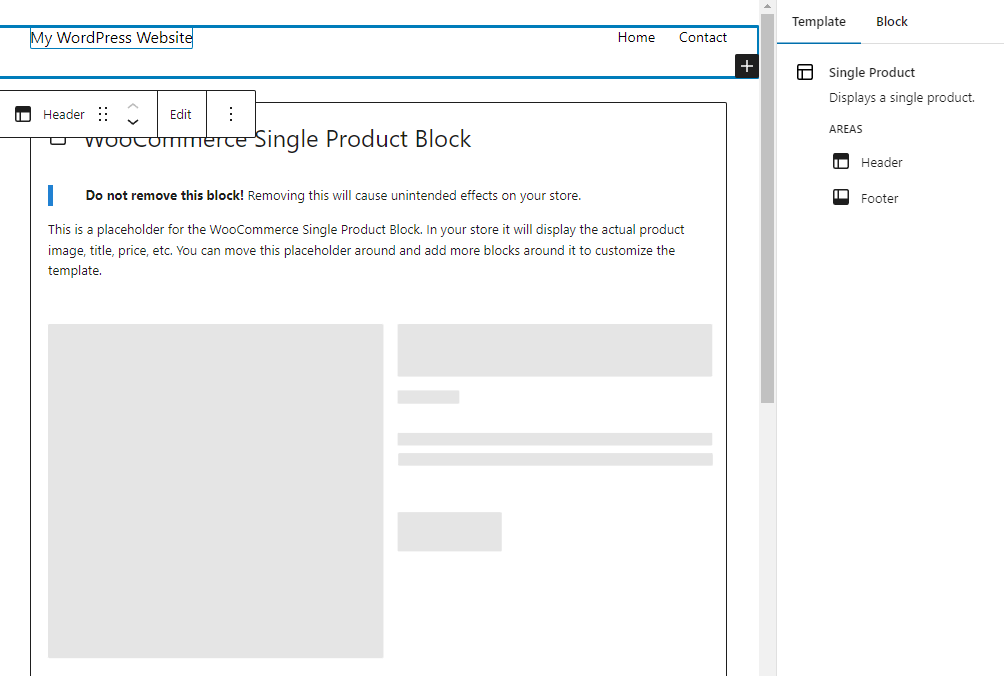
    The default page layout contains the header, footer, and WooCommerce Single Product block, which displays product info, price, and image elements. 

    You should back up your site before making edits to your product page template. Certain changes — for example, accidentally deleting the Single Product block and saving — will make it impossible for your visitors to shop or buy.

    WooCommerce single product template shown with default blocks

    How to edit the Single Product page header and footer templates 

    The Template tab under Settings (the gear icon in the top right) contains links to manage the Header and Footer. Click either option to manage that part of the page template. You can also click into an area of the template directly to start editing. Remember that any changes made here will be applied to all products using the template. 

    In the header, you can edit the Site Title and the links in your main navigation menu, and even add new blocks to customize your product page specifically. Use this space to add images, text, and more to enhance the selling power of your product page. You could add a promotional or policy note or banner to let shoppers know about a current sale or how to get free shipping on orders over a certain amount. 

    You can do something similar with the product page footer. For instance, add a customer testimonial or information about a Satisfaction Guarantee policy.

    How to customize the Single Product body

    The Single Product block displays a bold warning at the top, “Do not remove this block! Removing this block will cause unintended effects on your store.” Take this message seriously!

    WooCommerce Single Product block

    However, you can add new blocks around the Single Product block to completely customize your product page design.

    Use the + icon to add elements above or below the Single Product block, then include whatever blocks you’d like to customize the page. 

    Use a Paragraph block to include current offers (“Spend $100 or more for free shipping”), a satisfaction guarantee, or anything that will help visitors make the decision to purchase. Add a Video block that gives a behind-the-scenes look at your processes. Or include specific recommended products that you’d like to promote. The sky’s the limit here!

    adding extra blocks to the individual product page

    And for each block, you can edit settings like background color, typography, and spacing to make it truly your own.

    Customize your product page manually (using code and hooks)

    For advanced options — without the cost or maintenance of plugins — you can edit and customize your product page manually using code and hooks.

    Before you make any changes to your files, it’s important that you take the time to back up WooCommerce. If you’re using Jetpack VaultPress Backup, this is done for you automatically, in real time. So if any of your changes cause your site to go down, you can restore a backup in just a few clicks, even if you don’t have access to your WordPress dashboard.

    And you’ll also want to use a child theme to make these changes. Otherwise, when you update your theme or WooCommerce down the road, you might lose all of your customizations. Another option is to use a plugin like Code Snippets, which lets you add custom code to your site in snippets that you can turn on and off as needed. 

    Customize WooCommerce product pages using hooks 

    Hooks allow site owners to add code and customize pages without the dangers associated with editing core files. There are two types of hooks: actions and filters. Actions allow you to insert code at specific points, while filters allow you to manipulate and return a variable. 

    For example, you can use actions to add a new checkout field, then use filters to change the labels or placeholders of existing checkout fields. You can find the list of available WooCommerce hooks here.

    Here are a few more examples of changes you can make to your product pages using hooks:

    Customize WooCommerce product pages using CSS

    CSS is a coding language used to control design elements (as opposed to JavaScript, which controls actions). You can use it to modify the design of your product pages. Once you’ve learned the basics of CSS, you can customize everything from colors and fonts to sizes of individual elements. 

    You can easily add CSS code by going to Appearance → Customize → Additional CSS in your WordPress dashboard. For example, if you wanted to change the font color of your product titles, you would use the following code, replacing the color’s hex code with your own:

    .woocommerce div.product .product_title {
    
    color: #222222;
    
    }

    If you wanted to change the color of the Buy Now button, you would use this code, again replacing the hex code with your color of choice:

    .woocommerce div.product .button {
    
       background: #000000;
    
    }

    You can see more examples in this article from WooCommerce.

    How to boost your product page loading speeds

    Fast loading sites are important to both visitors and search engines. People don’t want to wait around and search engines don’t want to send people to underperforming sites.

    Literally every second counts — a one second delay in loading times can reduce conversion rates by 20%! 

    Jetpack Boost is the top website speed and performance optimization solution for WordPress. It has a quick and easy setup process — no developer needed — and boasts results that beat the top five performance plugins in a head-to-head test.

    After you install the free plugin, you can run an audit and get a report on your current site performance scores. These will serve as benchmarks you can use to measure improvements to your Core Web Vitals, metrics that Google uses to gauge your site’s user experience and technical performance.  

    A simple dashboard makes it simple to configure optimization options via one-click activations. This gives you the flexibility to test the performance modules individually and configure Jetpack Boost to fit perfectly into any scenario.

    Jetpack Boost settings

    For more ways to speed up your product pages, check out Nine Ways to Speed Up a WooCommerce Store.

    Frequently asked questions about customizing product pages

    Still have questions? Take a look at the answers to some common ones below.

    What is the best way to customize a WooCommerce product page?

    There is no single best way. The best way for you depends on your comfort level with the various approaches. 

    The Site Editor puts all the power in your hands, letting you drag and drop elements to create your own, personalized product page without having to edit any code at all. This is an excellent solution for beginners and advanced users alike!

    If you’re looking for specific additional functionality, WooCommerce extensions are a great option. They’re vetted and approved by WooCommerce, and give merchants advanced customization options without custom code

    Manual customization and coding offer the greatest flexibility, but also require the most technical knowledge. Compared to using blocks or extensions, this method has the greatest chance of causing an issue or even breaking the site. 

    Should I back up my site before editing the product page template?

    Yes. Unlike pages and posts, site templates don’t have a revision history. Back up your site before making any updates to your product page template, so you can do a quick restore if there’s any issue. 

    Jetpack VaultPress Backup is a real-time WordPress backup plugin, which means that your site isn’t just backed up on a daily schedule or when you make a manual copy. Instead, it’s saved automatically every time you make a change to your site, a customer places an order, or a visitor leaves a comment. Any time something important happens? It’s saved! 

    Ecommerce stores can’t afford to lose data, especially when that data represents real-world customer orders. Don’t settle for solutions that only save your site occasionally or require a lengthy customer service interaction to restore things when there’s an issue.

    With Jetpack VaultPress Backup, you can restore your site with one click and get back online quickly. With the Jetpack mobile app, you can restore any time, anywhere, even if the site is completely down. 

    The best part for store owners? All of your customer data and orders are protected and stay current.

    What are some best practices for customizing a WooCommerce product page?

    Regardless of the method you use to edit and customize your WooCommerce product page, follow these best practices to protect yourself, your site, and your customers.

    Back up your site first, every time. When you add or update site code, a single error can cause issues. You need to be ready to restore the site ASAP, without losing a single order. Jetpack VaultPress Backup is the best real-time, automatic backup solution for WordPress.

    It’s done for you, so you don’t even have to worry about saving your site before experimenting with changes. 

    Make your code changes outside of your parent theme files. When you edit a theme or  plugin file, those changes will be overwritten and undone the next time that the theme or plugin is updated. 

    There are multiple ways to add code to your site without editing the theme or plugin files directly. You can use the Code Snippets plugin to add, edit or remove elements on a page, and style your site via the Additional CSS field in the Theme Customizer. You can also create a child theme. The important thing is to make your changes where they won’t be affected by theme or plugin updates.

    Keep an eye on speed. No matter how you customize your product pages, you want to make sure that your site speed doesn’t suffer. With Jetpack Boost, you can instantly improve key areas that improve both user experience and Google’s perception of your site quality. A faster site means customers will be more likely to stay and Google will be more likely to recommend you in the search results. A quick boost can go a long way. 

  • 5 Best WordPress Search Plugins for Better & Faster Site Search

    Search functionality is essential for most websites as it helps visitors locate the information, content, or products they need. WordPress comes with a native search system, but this can only perform basic lookups, and it can be slower than users expect, especially if your website contains a lot of content.

    Luckily, there’s a wide range of advanced search plugins for WordPress that enable you to offer a speedy experience. These plugins often come with useful features such as instant search results, ecommerce product support, and spelling correction that help ensure your visitors can quickly find the information they’re looking for.  

    There are a lot of WordPress search plugins out there, so to help you find the perfect one for your site, we’ve put together this handy guide. Read on to explore the features you should be looking for in a WordPress search plugin, and then see our reviews of five of the best options. 

    Features to look for in a WordPress search plugin

    Some of the top features to look out for in site search plugins include:

    Accurate search results

    Of course, the top thing to look for when choosing a WordPress search plugin is the accuracy of its search results. The accuracy of a WordPress search plugin largely depends on a combination of:

    • The plugin’s index – While the default WordPress search function works by querying your database each time a user searches, most search plugins build their own index of your site, which it then searches against. Therefore, the accuracy of this index is essential. You should also ensure your WordPress search plugin automatically updates its index every time you add or change content and that it can index all the types of content you want your visitors to be able to discover.
    • The plugin’s algorithm – The algorithm used by your search plugin influences how it determines which results to return for your visitors’ search queries. You should look for a WordPress search plugin that allows you to customize its algorithm to meet the needs of your site — for example, you may decide that the plugin should give a higher priority to products in your online store than to images in your site’s media library. 

    Over 80% of search queries are made up of more than one word, so you should also make sure your WordPress search plugin can deliver accurate results if a phrase or question is entered. For example, Jetpack Search can instantly respond to complex, multi-faceted searches, which helps your visitors find the information they’re looking for without rephrasing their query. 

    Speed

    It’s vital that a WordPress search plugin quickly responds to queries.

    Some WordPress plugins offer instant search, so your visitors start seeing results as soon as they enter their query, rather than waiting for a search results page to load.  

    It’s also important to consider what resources the search plugin uses to index your site and process your visitors’ queries. Most WordPress search plugins use your website’s server, which can work well for small sites, but as your site grows, this can put a strain on your web server, and you may notice it takes longer to process search requests and index new content. But other plugins, such as Jetpack Search, take the strain away from your host by using powerful cloud servers to deliver lightning-fast results regardless of the size of your site. 

    Powerful filtering

    Filters can help your visitors narrow their search results to find exactly what they are looking for. You should look for a WordPress search plugin that allows your visitors to filter their search results based on tags, categories, or product attributes. It’s also important to consider how quickly the search plugin can apply those filters. Some can instantly filter results without reloading the page, while others need to refresh the page to apply filters. 

    Jetpack’s WordPress search plugin, for example, supports more than 1,000 custom taxonomies.

    Ecommerce support

    Customers are two times more likely to make a purchase online after searching on a retailer’s website, so a great search function is essential for any ecommerce store. If you run an online store, your WordPress search plugin should offer full support for your ecommerce platform and allow your visitors to search and filter by product attributes so that they can find the product they are looking for.  

    Jetpack’s WordPress search plugin, for example, has a special mode for ecommerce sites that can display results in a grid style.  

    A review of the best site search plugins for WordPress

    But how do you find the best search plugin for your WordPress site? To help, we’ve examined some of the top WordPress search plugins and compared them based on their features, pros and cons, ease of use, and pricing.

    Jetpack Search homepage with the text, "Help your visitors find what they need."

    1. Jetpack Search

    Jetpack Search is one of the best WordPress search plugins that offers a wide range of advanced tools to help your visitors instantly find the right content or product.

    The plugin offers instant search and will start displaying results as soon as a visitor begins to type in your search box. This means that they don’t have to wait for search results to load. In addition, Jetpack Search is highly customizable and offers a wide range of features and options, enabling you to create an outstanding search experience that blends seamlessly with your site design. Plus, Jetpack Search offers instant spelling correction, so a typo won’t get in the way of your visitors finding what they’re looking for. 

    Jetpack Search fully integrates with WooCommerce to help your customers find the perfect product for them. The plugin supports complex faceted search requests — for example, “A red and white men’s polo shirt in large for under $25.” In addition, Jetpack Search displays product pictures in search results and allows customers to instantly filter their results by product attributes, so they can quickly find the item they’re looking for.  

    The plugin can deliver its lightning-fast speed without putting extra strain on your server as it uses Automattic’s powerful cloud servers to index your site and conduct searches. Jetpack Search was made by the experts at Automattic — the same people behind WordPress.com and WooCommerce. This means that Jetpack Search should integrate seamlessly with your WordPress website.

    Features of Jetpack Search

    • Instant search and filtering without reloading the page
    • Advanced customization options, which allows you to create a bespoke search experience
    • Advanced ranking algorithms that help you deliver highly-relevant results
    • Integration with Jetpack Stats to help you see what visitors are searching for
    • Prioritized results based on your site’s most popular pages
    • Faceted searches and instant filtering (by tags, categories, dates, custom taxonomies, and post types)
    • Real-time indexing, meaning your search index will update within minutes of changes to your site
    • Support for multiple languages
    • Highlighted search terms in comments and post content
    • Spelling corrections

    Pros of Jetpack Search

    • Jetpack Search helps your visitors quickly find what they want by instantly providing search results as soon as they start typing.
    • The plugin supports complex search queries and allows visitors to instantly filter their search results, including by product attributes.
    • Unlike most of the other plugins in this list, Jetpack Search is a cloud-based service. This means it can deliver highly accurate search results without using your server resources.

    Cons of Jetpack Search

    • Jetpack Search doesn’t index the content of PDFs or documents that you’ve uploaded to your WordPress site. 

    Who is Jetpack Search most suitable for?

    Jetpack Search is a great search solution for any WordPress site. As it uses cloud servers to index and search your website, it can effortlessly deliver results regardless of the size of your site. Its deep integration with WooCommerce also makes it ideal for store owners. 

    Ease of Use

    Jetpack Search is easy to install and will automatically start indexing your site. While the plugin offers powerful customization options, these are easy to understand, and detailed documentation is available. Jetpack’s team of WordPress Happiness Engineers also provides email support to all users. 

    Pricing

    The free version of Jetpack Search allows you to index up to 5,000 records and process 500 search requests per month. The paid plan costs $8.25 per 10,000 records or search requests a month.

    ElasticPress.io homepage design

    2. ElasticPress.io

    ElasticPress.io is a powerful WordPress search service. To enable ElasticPress.io on your site, you must install and configure the ElasticPress WordPress search plugin. Then ElasticPress.io will use its servers to index your site and deliver results. This means your visitors get instant search results that are not limited by the speed or capacity of your website server. 

    ElasticPress.io integrates with WooCommerce to allow your visitors to search for products using product attributes and filter their results so they can find the perfect item. Using ElasticPress.io, you can customize your search algorithms and control the results visitors receive for your most popular search terms. ElasticPress.io also offers auto suggestions based on common search terms, and automatically corrects spellings, so your visitors can easily find the content they’re looking for. 

    Features of ElasticPress.io

    • Hosted search, which takes the load off your servers 
    • Instant search, which shows results as soon as users start typing
    • WooCommerce integration
    • Auto-suggest search terms 
    • Spelling correction
    • Search capabilities within documents and PDFs 
    • Search filters that allow users to narrow down results 
    • A custom results editor to help ensure popular search terms return pre-determined content or products
    • Custom search weighting 

    Pros of ElasticPress.io

    • Like Jetpack Search, ElasticPress is a hosted service that offers a very fast WordPress search experience for your visitors, which doesn’t use your server storage or resources. 
    • ElasticPress.io offers a wide range of advanced features that enable you to fully customize your visitors’ search experience.

    Cons of ElasticPress.io

    • Although there’s a 14-day free trial, there is no free version of ElasticPress.
    • ElasticPress is more expensive than the other hosted, highly-customizable solution on this list: Jetpack Search. 

    Who is ElasticPress.io most suitable for?

    ElasticPress.io is best suited to large WooCommerce sites because it offers fast and accurate product searching, but has a significantly higher cost than the other plugins on this list. 

    Ease of use

    Enabling ElasticPress.io on your WordPress website requires some configuration, and the number of options available may be confusing for some users. However, documentation is provided, along with email support for all subscribers. 

    Pricing

    ElasticPress.io Essential costs $79 per month for up to 20,000 records and 100,000 requests. Additional requests and records are available with the ‘Extended’ plan, which costs $299 per month. 

    Relevanssi listing in the WordPress repository

    3. Relevanssi

    Relevanssi is a popular WordPress search plugin that orders results by relevance. A single WordPress developer, Mikko Saari, is responsible for developing Relevanssi. The plugin replaces WordPress’s built-in search functionality and indexes every part of your site to allow users to search pretty much anything. You can also configure Relevanssi Premium to work with WooCommerce and enable customers to easily search for products on your online store.  

    Relevanssi uses a partial-relevance algorithm to deliver search results to your visitors, which means that if their complete search term doesn’t turn up an exact result, it will display the results that are the closest match. The plugin also offers ‘Did you mean?’ suggestions to your visitors to help them find the content they’re looking for.

    Features of Relevanssi

    • The ability to index any content on your WordPress site, including posts, pages, titles, and products
    • The ability for visitors to search PDFs, documents, and taxonomy terms (premium plan only) 
    • Search results ordered in terms of relevance
    • Highlighted search terms in your posts and pages
    • Customizable weighting for different types of content (premium plan only)
    • Search logs to show the most popular queues and searches that returned no results
    • Google-style “Did you mean?” suggestions based on user searches
    • Spelling corrections (premium plan only) 
    • Keyword stemming (premium plan only)

    Pros of Relevanssi

    • A free version of Relevanssi is available, including many core features, like relevance-based results. 
    • Relvanssi’s premium version supports indexing a wide range of content types, including PDF documents, taxonomy terms, and shortcode-generated content.  

    Cons of Relevanssi

    • Relevanssi uses your own site’s storage and servers, meaning it could impact the speed of your site and take up space on your server. The plugin requires around three times the amount of space as the size of your wp_posts database table. 
    • Taxonomy searching is only possible in the premium version, so if you run an ecommerce store, the free version won’t allow visitors to search by product category or attribute. 
    • Live Ajax searching is only possible with the use of an additional plugin
    • Relevanssi has compatibility issues with popular WordPress plugins, including BuddyPress and NextGen Gallery. 

    Who is Relevanssi most suitable for?

    Relevanssi uses your server space and bandwidth to store its index and perform searches, making it best suited for relatively small websites. The premium version is also suitable for ecommerce site owners. 

    Ease of use

    Relevanssi is easy to use and requires minimal setup. The plugin offers a comprehensive knowledge base, and the developer is active on the plugin’s support forum. In addition, email support is provided to premium subscribers. 

    Pricing

    The plugin is available for free. A premium version that includes additional features, like full WooCommerce support, costs $109 per year. 

    Better Search listing in the WordPress repository

    4. Better Search

    Better Search is a free WordPress search plugin that aims to provide your website visitors with more relevant search results. The plugin allows visitors to search most content on your WordPress site, including posts, pages, and custom post types. It also provides a wide range of options to allow you to customize its search outputs, including adjusting the weighting placed on different content types. Better Search logs the queries made by your visitors to generate a heat map to help you visualize the popular searches on your site. 

    Features of Better Search

    • An index of the titles and content of posts, pages, and custom post types 
    • Relevance-based results 
    • Customizable search outputs 
    • Search term logs

    Pros of Better Search

    • The plugin offers relevance-based searching for WordPress at no cost.

    Cons of Better Search

    • Better Search cannot index taxonomies, meaning your visitors cannot search based on category or product attributes.
    • Visitors can’t instantly see search results, as live searching isn’t supported. 
    • Spelling correction and suggested searches are not offered.

    Who is Better Search most suitable for?

    Better Search is a good choice for site owners on a budget who want to provide more relevant search results but who don’t need the advanced features offered by premium plugins. However, as Better Search does not support taxonomy searching, it provides limited benefit to ecommerce store owners.

    Ease of use

    The plugin is easy to install, and will automatically replace the default WordPress search functionality. However, the advanced options offered by Better Search could be confusing for some users. Limited documentation is provided, but the developers are active on the plugin’s WordPress support forum.

    Pricing

    Better Search is available for free from the WordPress plugin repository. 

    Ivory Search listing in the WordPress repository

    5. Ivory Search

    Ivory Search is a WordPress search plugin that offers free and premium versions. The plugin replaces the default WordPress search functionality and allows visitors to scour most of your WordPress site, including posts, pages, titles, and taxonomies. Ivory Search also offers live search, so visitors can see search results as soon as they start typing their query.

    Ivory Search also supports WooCommerce, so your customers can search and see results from your product names, descriptions, and attributes. The plugin’s Pro Plus plan includes deeper support for WooCommerce, allowing you to exclude out-of-stock products from search results and for customers to search by product SKU. 

    Features of Ivory Search

    • Indexing for posts, pages, titles, taxonomies, and WooCommerce products 
    • Ajax-powered live searching
    • The ability to create multiple search forms and place them anywhere on your site via shortcodes 
    • Keyword stemming (premium only)
    • Control over the order of search results (premium only)
    • The ability to remove password-protected posts from search results (premium only)
    • The ability to search by WooCommerce SKU (premium only)
    • Search analytics via Google Analytics integration 

    Pros of Ivory Search

    • The ‘starter’ version of Ivory Search is free and includes many advanced features, including support for WooCommerce product attributes. 

    Cons of Ivory Search

    • While Ivory Search Pro Plus will allow you to index uploaded file names, it cannot index the content of PDFs or documents. 
    • Some features that help your visitors receive the most accurate search results, such as keyword stemming, are only available in the premium versions of the plugin. 
    • Ivory Search uses your server’s storage and resources to index your site and process requests, so its performance can be limited by the resources available within your hosting package.

    Who is Ivory Search most suitable for?

    Ivory Search’s free ‘starter’ plan would be a good choice for small to medium size WooCommerce store owners who want a free search plugin that improves their customers’ search experience. The plugin’s premium plans are most suited to site owners who want increased control over their visitors’ search experience but don’t want advanced features, such as native search analytics, instant filtering, spelling correction, and indexing of document content.

    Ease of use

    Ivory Search’s many options could confuse some users, and the search form and results pages have to be styled via CSS. However, the developer provides detailed documentation alongside support on the plugin’s support forum. Email support is also offered to users of Ivory Search’s paid plans. 

    Pricing

    The ‘starter’ version of Ivory Search is available for free in the WordPress plugin directory. Ivory Search also offers two paid plans. Its Pro plan offers additional features, including advanced ordering and post exclusion settings, for $19.99 a year. Its Pro Plus plan includes indexing of documents, PDFs, and WooCommerce SKUs for $49.99 a year.  

    Comparison of the top WordPress search plugins

    Jetpack Search ElasticPress Relevanssi Better Search Ivory Search
    Live search Yes Yes No No Yes
    Spelling correction Yes No Yes No No
    Instant filtering Yes Yes No No No
    Support for faceted search queries Yes Yes Limited No No
    Customizable algorithm Yes Yes Premium only Limited Limited
    Hosted service to remove strain from your servers Yes Yes No No No
    Full WooCommerce support Yes Yes Premium Only No Pro Plus Only
    Cost Free for up to 500 records. $8.25 a month per 10,000 records $79 a month per 20,000 records.  Limited free version. $109 a year for the premium version.  Free Starter – FreePro – $19.99/yearPro Plus- $49.99/year

    Factors to consider when choosing the best WordPress search plugin

    Does it offer the features you need?

    WordPress site search plugins offer a wide variety of features, and we’ve outlined some of the key features to consider at the start of this article. When choosing a search plugin, it’s important to ensure it has all the features you need to give your visitors a great experience. 

    Is it easy to use?

    You should consider how easy the WordPress site search plugin is to use and how easy it is to customize the plugin’s settings to meet your site’s needs. Some plugins, such as Jetpack Search, are simple to use with minimal setup but still offer high levels of customization so that you can create a bespoke search experience for your site. 

    Could it slow down your site?

    Most WordPress search plugins use your web server to index your site and carry out visitor search requests. Depending on the size of your site and your web hosting package, this could slow down your site. But, some plugins, such as Jetpack Search, use powerful cloud servers to index and search your site, meaning that you can consistently offer a lightning-fast experience to your visitors. 

    Does it work with WooCommerce? 

    If you run an online store using WooCommerce, you must ensure your WordPress search plugin allows your customers to find the products through search. Some search plugins only allow customers to search by product title. But other advanced search plugins, including Jetpack Search, allow your customers to perform faceted searches and filter by product attribute so they can quickly find the product they’re looking for. 

    Conclusion: What is the best search plugin on WordPress?

    The best WordPress search plugin will depend on several factors, including the size of your site, your experience with WordPress, and if you need the plugin to offer advanced features such as instant search. 

    But it’s clear from the comparison table above that Jetpack Search is the best search plugin for WordPress. Jetpack Search is an affordable hosted search solution that offers a wide range of features, including instant search, powerful filtering, and full support for WooCommerce. It’s simple to set up, and works automatically to keep your site’s search index up to date. Plus, it delivers lightning-fast results to your visitors without using valuable server resources. As it’s made by the people behind WordPress.com and WooCommerce, it integrates seamlessly with your site to help your visitors instantly find content or products. 

    Frequently asked questions about WordPress search plugins

    How much does an advanced site search plugin cost on WordPress?

    WordPress search plugins vary in price. Some plugins are free, but offer fewer features than their premium counterparts. The top plugin in this article, Jetpack Search, provides a powerful free version perfect for smaller sites, and its paid version offers advanced features at a much lower cost than other hosted search solutions in this review. 

    Is it easy to configure a site search plugin on WordPress?

    This varies by plugin and the amount of customizations made by the site owner. However, most can be set up and working in a few clicks and advanced customizations can be made over time. 

    What makes a good WordPress site search plugin?

    WordPress site search plugins should be quick to set up, easy to use, and offer lightning-fast results while minimizing strain on server resources. And that’s why cloud-based solutions like Jetpack Search are often the go-to option for site owners. 

    Search plugins should also offer customization options that guide visitors along paths that help you meet your site goals. Finally, solutions are only helpful if they offer accurate results. Ideal plugins will provide automatic spelling corrections and work to constantly keep the results index up-to-date and relevant. 

  • How to View WordPress Site Analytics in Your Dashboard

    If you want to grow your site or business, the ability to review analytics and stats is pretty important. With the right tools, you can learn how many people visit your site, what pages are most popular, where traffic comes from, and other metrics that can help you optimize site performance and create more targeted content for your audience.

    WordPress connects with multiple plugins and tools that generate statistics about your website. However, services like Google Analytics are complicated and provide extra data that you don’t always need. 

    Jetpack Stats, on the other hand, generates simple data, graphs, and charts about visitors and traffic, making it the go-to plugin to help you understand the basics. 

    Does WordPress have a built-in analytics dashboard?

    Two out of every five sites on the internet use WordPress, making it the most popular website creation platform. But the tool doesn’t come with any in-built analytics and stats, meaning you can’t automatically view data about visitors and traffic. 

    One way to analyze information about your WordPress website is to use Google Analytics, which is free. But this service is complicated for small business owners and other people who have just created their first site. That’s because the tool has advanced features like custom dimensions and event tracking. These provide little value to those who just want to understand essential aspects of how their site is performing. 

    Installing and downloading Google Analytics for WordPress is also complicated. Most people use a third-party plugin or manually add JavaScript code to their site. Jetpack solves these problems by seamlessly connecting Google Analytics with WordPress (more on that later.) 

    What is the easiest and fastest way to view WordPress analytics and stats?

    Using Jetpack Stats is a simple and quick way to view information about your WordPress website. Unlike Google Analytics, you won’t need to use something outside the WordPress ecosystem for this service. You download and install this tool just like any other plugin. All you need is a free account on WordPress.com and the latest version of WordPress. It’s that simple! 

    Automattic, the company behind WordPress.com, created Jetpack Stats. This feature lets you track the number of people who visit your website and what posts and pages generate the most traffic. You can also view other valuable insights about your site without trying to decipher complicated charts and graphs.

    Another great thing about Jetpack Stats is its flexibility. As well as viewing simple analytics and stats about your site, with a paid upgrade to Jetpack Security or Jetpack Complete, you can connect Google Analytics to WordPress for more advanced metrics. So, when you’re ready to take things a step further, there’s nothing else you need to install.

    Once you download and install the Jetpack plugin, you can start analyzing information about your WordPress site on your desktop computer or mobile device. 

    Why do you need to learn how to view WordPress site analytics?

    There are various reasons you need to use an analytics service like Jetpack Stats. As a site owner, you can learn what content is most popular with visitors. Then you can use this information to plan future content or make informed decisions about your endeavor. If you’re a hobbyist, it’s always fun to know how many people are reading your website and where those individuals come from. If you run a business, understanding real-world stats can guide you towards growth and profitability. 

    Here are some of the things you will discover about your website when you use a service like Jetpack Stats:

    • How many visitors view a particular page or post over time
    • How long someone watches a video on your website
    • How many likes and comments your website receives
    • The search terms people use to find your WordPress site
    • How many digital files individuals download from your pages
    • What countries and regions visitors come from
    • How many times readers click on external links in your content
    • Which websites, blogs, and search engines link to your posts

    Jetpack Stats lets you better understand your website visitors. You can also make statistics reports available to other WordPress users. 

    How to add site analytics to your WordPress dashboard

    The easiest way to add analytics and statistics to your WordPress dashboard is with the Jetpack plugin, which gives you access to Jetpack Stats. You can download and install it with a few clicks. Before you do, make sure that:

    • You have a WordPress host that meets WordPress hosting requirements. Examples are Bluehost, Liquid Web, and Pressable, but there are many different ones you can choose from. 
    • You’ve downloaded the latest version of WordPress.
    • You’ve signed up for a WordPress.com account. 
    • Your WordPress site is publicly accessible. That means visitors don’t need to enter a password to use your website. 

    A step-by-step guide to adding site analytics for WordPress

    Follow these steps to learn how to view WordPress site analytics with the Jetpack plugin:

    1. Install the Jetpack plugin

    Install the Jetpack plugin from the WordPress admin dashboard (WP Admin). This is where you create and manage content on your website and choose different themes, so you should already be familiar with it. 

    Once you’ve logged in to WP Admin, follow these simple steps:

    • Click on Plugins, then click Add New.
    • Search for “Jetpack” in the search bar. The latest version of Jetpack will pop up.
    • Click on Install Now.
    Jetpack plugin in the WordPress repository

    Depending on your internet connection, the Jetpack plugin will take a few seconds to install. 

    2. Activate Jetpack 

    After downloading Jetpack, follow these steps:

    1. Click on Activate.
    2. Wait for Jetpack to activate.
    3. Click on Set up Jetpack.
    setup screen for Jetpack

    3. Connect your website to WordPress.com

    Jetpack will now prompt you to connect your website to WordPress.com. You need to carry out this step to use Jetpack’s incredible features. 

    By connecting your site with WordPress.com through Jetpack, you’ll benefit from enhanced website security and performance. That’s because Jetpack syncs your site with the WordPress.com cloud. 

    • Click on Approve to connect your website with WordPress.com.
    • Wait for Jetpack to finish setting up.
    Jetpack setup screen

    You can always check your website has connected to WordPress.com by heading to Jetpack → Dashboard → Connections

    checking Jetpack connection in WordPress

    4. Choose a Jetpack plan

    Jetpack has different plans depending on your specific needs. Jetpack Stats is included by default for free, and you can access its benefits as soon as you have the plugin installed. However, if you want to use Jetpack to connect to Google Analytics, you’ll need a paid plan. Paid plans also come with additional security, performance, and growth tools that you may want to take advantage of. If you’re interested in one of these, follow the instructions below. Otherwise, skip to Step 6.

    Now, you’ll need to enter the WP-Admin credentials for your WordPress website. Jetpack doesn’t store this information and only uses it to install its plugin on your site securely. 

    Remember to add the WP-Admin credentials for the user account you want to connect to Jetpack, not the details of any other accounts you might have.

    Complete the checkout process by entering your payment information.

    5. Enable recommended features

    After choosing and paying for a plan, Jetpack will prompt you to enable recommended features that will benefit you. You can select the ones you like or manage them later.

    6. Complete the installation process

    At this point, you should have successfully installed Jetpack. 

    • Click Return to WP Admin to head to your website’s dashboard.
    • Turn on Jetpack Stats by going to Jetpack, clicking on Settings, and then clicking on the Traffic tab. Scroll down this page and then click on Activate Site Stats.

    7. View stats in your dashboard

    Navigate to your WordPress Dashboard, then go to Jetpack → Dashboard.

    Here, you’ll see an in-depth view of how much traffic your website receives.

    site stats in the WordPress dashboard

    For even more stats, click on the View detailed stats button on the traffic screen.

    Here, you’ll see information about referrers, clicks, subscriptions, top posts and pages, and search engine terms.

    Click on the View more stats on WordPress.com button on the traffic screen.

    This will take you to more information like unique views and views by country. 

    Now you know how to view WordPress site analytics!

    Check out this troubleshooting guide if you have trouble installing or connecting the Jetpack plugin or using Jetpack with WordPress. 

    Final word about how to view WordPress site analytics

    WordPress doesn’t come with built-in statistics, so you’ll need to find your own preferred tool to generate insights about page views, visitors, and traffic sources. Follow the steps above to learn how to view WordPress site analytics with the Jetpack plugin — the easiest and fastest way to analyze information about your site. 

    Frequently asked questions 

    What is the best analytics plugin for WordPress? 

    Jetpack Stats is the easiest and quickest analytics plugin to use for WordPress. You install it in a few simple steps and can start viewing incredible insights about your website right away. Google Analytics is another popular service, but it’s challenging to navigate for beginners. Learning how to view WordPress site analytics is easy with Jetpack Stats.

    Is Jetpack Stats free to use?

    Jetpack Stats comes in a free version that provides essential website statistics. However, Jetpack has additional premium tools that can help you improve performance, secure your site, and grow your stats.

    Do I need Google Analytics to use Jetpack Stats?

    No, Google Analytics is a separate service from Jetpack Stats. However, you can use the Jetpack plugin (with a paid plan) to quickly connect Google Analytics to your WordPress dashboard if you need more advanced data. 

    Can I access Jetpack Stats on my mobile device? 

    Yes! The Jetpack mobile app lets you view analytics about your WordPress website on your smartphone or mobile device. You can also create, design, and manage your site and receive notifications about visitors, subscribers, and comments. You can download this app from Google Play and the App Store. 

    How do I turn Jetpack Stats on?

    After downloading and installing the Jetpack plugin, you can turn Jetpack Stats on by going to Jetpack, clicking on Settings, and then clicking on the Traffic tab. Scroll down this page and then click on Activate Site Stats. For more information, check out our Jetpack Stats documentation.

    How can I view WooCommerce analytics?

    Jetpack Stats does include information specifically for WooCommerce stores, like order data and trends. If you want more advanced, ecommerce-specific data, you can use the built-in analytics tools included with WooCommerce.

    To access these, go to Analytics in your WordPress dashboard. There, you’ll find reports that cover things like revenue, orders, coupons, taxes, and more.

  • How to Embed a Video in WordPress: YouTube, Facebook, Vimeo, TikTok

    Video is one of the most valuable assets in a website owner’s toolkit. Adding videos to your site can help build visitor confidence, improve conversion rates, and make your site more attractive to search engines. 

    In this article, you’ll learn how to add videos to your WordPress site by embedding them from offsite sources like YouTube, Vimeo, TikTok, Instagram, and Facebook, and by uploading them directly to your site using WordPress blocks.

    Let’s start by looking at some key reasons why you should include video on your site.

    What are the advantages of including videos on my site?

    Successful websites are optimized for both human and nonhuman (search bot) visitors. The goal is for your site to serve both audiences, via well-organized, accessible, and helpful content. Video can be useful here in many ways. 

    How videos can help your visitors 

    Humans use information to make decisions, like “Should I buy this product?” and “Is this a good organization for me to support?” So giving them the information that they need to feel comfortable moving ahead with a purchase or sign-up leads to increased conversions.

    A video showing your offer or mission in action lets people better imagine the potential impact to their own life. “Meet the Owners” and “Meet the Team” videos build a human connection with the people behind your brand. How-to and educational videos position you as a trustworthy expert and authority within your category.

    Videos, when paired with written content, also give site owners the chance to appeal to a variety of learning styles and cognitive needs. With more options to digest your content, you’ll make an impact on a wider audience and expand your reach. 

    How videos can help your search results

    Adding video content can open up a new avenue for people to find your site. It gives your content another chance to attract visitors via video search results. And if you host your video on a platform like YouTube, you may also attract attention to your videos from YouTube’s existing audience. 

    Beyond attracting eyes to the videos themselves, search engines may be more likely to rank your existing pages when you add video content. Videos tend to improve the amount of time visitors spend on a page — a signal to Google that people are enjoying the content they found. And if Google believes visitors are having a valuable experience, they’ll be more likely to move the page higher up the rankings. 

    Plus, Google likes a steady stream of fresh content — video or otherwise. So adding rich media to your pages can positively impact your results.

    How to embed a video in WordPress

    You can easily embed videos from a wide variety of sources on your WordPress site. Let’s see how.

    Embed a YouTube video by pasting a URL

    If you paste your YouTube video URL into a paragraph block on its own line, WordPress automatically creates a YouTube Video block, which you can then customize using the Block Toolbar.

    embedding a YouTube video in WordPress by pasting a URL

    Copy the URL for your video from the address bar on the YouTube page, or click the Share button for the video and copy the link from the popup window. Use the Start at checkbox to choose a custom starting point if you’d like. This option will update the link, so make sure you copy the URL AFTER setting the start time.

    copying the URL from YouTube

    Embed a YouTube video using the YouTube block 

    Click the + icon or type /y to launch the block search window with YouTube as the first option. Choose the YouTube block, enter the video URL, and click Embed.

    Or, if you paste a YouTube link into a Video block, WordPress will automatically convert it into a YouTube block.

    adding a YouTube block in WordPress

    You can learn more about the YouTube block, and its settings on the WordPress.org support page for YouTube embeds

    Embed a Facebook video by pasting a URL

    This is the quickest way to embed a Facebook video in WordPress. If you paste your Facebook video URL into a paragraph block on its own line, WordPress automatically creates an Embed block, which you can customize using the Block Toolbar.

    Get the URL for the video by clicking on the timestamp for the post on Facebook. It’s located next to the Post Visibility icon, which shows you whether the video is public — you’ll see the globe icon — and available for sharing. The post and the person or page’s timeline must be set to public for the embed to work.

    globe icon on Facebook

    You will then be on the video page with a direct URL like this one.

    Embed a Facebook video using the Facebook block 

    Click the + icon or type /fa to launch the block search window with Facebook as the first option. Choose the Facebook block type, enter the URL, and click Embed.

    adding a Facebook block to WordPress

    Embed a Facebook Live video 

    Click on the video’s Share link in Facebook, then choose Embed

    finding the Share button for a Facebook Live video

    Among the customization options is a checkbox to include the full post and a field to select a specific start time. Make those choices before clicking the Copy Code button, as your selections will update the code.

    embedding a Facebook iframe in WordPress

    Click the Advanced settings link to customize your video player using the Embedded Video Player Configurator. You can use this tool for both Facebook videos and Facebook Live videos. 

    embedded video player confiigurator

    Paste in your Facebook Live video URL, choose your configuration options, click Get Code, and copy the HTML snippet. Use the iFrame code for easier implementation, as the JavaScript SDK method requires you to add custom code to your WordPress theme files.

    Facebook iFrame code

    For additional customization of items, including autoplay, lazy load, and captions, you can manually customize the embed code using the settings described on the Meta for Developers page for the Embedded Video & Live Video Player

    Once you’ve copied the iFrame code, paste it into a Custom HTML block. Click the Preview link to see the embedded video before publishing the page.

    previewing an HTML block

    Embed an Instagram video by pasting a URL  

    This is the quickest way to embed an Instagram video in WordPress. If you paste your Instagram video/reel URL into a paragraph block on its own line, WordPress automatically creates an Embed block, which you can customize using the Block toolbar.

    adding an Instagram URL to WordPress

    In Instagram, copy the URL for your video by clicking the three-dot menu icon on the top right of the window and choosing Copy link. The link will automatically be copied to your clipboard.

    copying a video link in Instagram

    Embed an Instagram video using the Instagram block

    Click the + icon or type /ins to launch the block search window with Instagram as the first option. Choose the Instagram block type, enter the video URL, and click Embed.

    Embed an Instagram video with Instagram’s embed code

    In Instagram, click the three-dot menu icon on the top right of the window and choose Embed. A window will open with the embed code and a button for “Copy Embed Code.” A checkbox will give you the option to “Include caption.” If you use that option, make sure to check it before copying, as your selection will update the code.

    copying an Instagram embed code

    Once you’ve copied the Instagram embed code, paste it into a Custom HTML block. Click the Preview link to see the embedded video before publishing the page.

    Embed a TikTok video by pasting a URL

    This is the quickest way to embed a TikTok video in WordPress. If you paste your TikTok video URL into a paragraph block on its own line, WordPress automatically creates a TikTok block, which you can customize using the Block toolbar.

    adding a TikTok URL to WordPress

    To get the TikTok video URL, go to the TikTok page for the video and click Copy Link. 

    copying a TikTok video URL

    Embed a TikTok video using the TikTok block

    Click the + icon, or type /tik to launch the Block Library search window with TikTok as the first option. Choose the TikTok block type, enter the URL, and click Embed.

    previewing an HTML block with an embedded video

    Embed a Vimeo video by pasting a URL

    This is the quickest way to embed a Vimeo video in WordPress. If you paste your Vimeo video URL into a paragraph block on its own line, WordPress automatically creates a Vimeo block, which you can customize using the Block toolbar.

    adding a Vimeo video to WordPress

    Copy the URL for your video from the address bar on the Vimeo page, or click the Share icon on the page and copy the link from the popup window. Use the Start video at checkbox to choose a custom starting point for the video. This option will update the link, so make sure to copy it after setting the start time.

    getting the embed code from Vimeo

    Embed a Vimeo video using the Vimeo block

    Click the + icon, or type /vim to launch the block search window with Vimeo as the first option. Choose the Vimeo block type, enter the video URL, and click Embed.

    If you paste a Vimeo link into a Video block, WordPress will automatically convert it into a Vimeo block.

    adding a Vimeo video URL to WordPress

    You can learn more about how to embed Vimeo videos on the WordPress.org support page for Vimeo embeds

    The best video hosting and embedding solution for WordPress 

    Jetpack VideoPress is video hosting built for WordPress. With Jetpack VideoPress, when you add a video to a page or post, it’s automatically uploaded to the WordPress.com cloud and is manageable via the Media Library. The video is converted to streaming video and hosted on WordPress.com servers, leveraging a global content delivery network (CDN) for a fast user experience.

    Jetpack VideoPress is responsive and has advanced customization options to match your site’s branding (it can even adapt automatically to match the color scheme of video content). Plus, it offers an ad-free experience for viewers, picture-in-picture video capabilities, and more. 

    Embed a Jetpack VideoPress video by dragging and dropping

    Once you’ve either installed Jetpack and purchased a plan that includes Jetpack VideoPress, or installed the dedicated Jetpack VideoPress plugin, you can simply drag a video file from your desktop into a Paragraph block. Then, WordPress will automatically create a VideoPress block, which you can customize using the Block toolbar.

    adding a video to VideoPress

    Click on the three-dot menu and choose “More Settings” to access a wide variety of player and video settings. Learn more about the multiple setting options in the article Add a Video Using the Block Editor.

    settings for the VideoPress block

    When you click on a video in your Media Library, in addition to the standard Title, Description, and Caption fields, you can also manage the video file compression level and its sharing, download, and privacy settings.

    editing details for a VideoPress video

    Embed a Jetpack VideoPress video using the VideoPress block

    Click the + icon, or type /videop to launch the block search window with VideoPress as the first option. Choose the VideoPress block type, enter the video URL, and click Embed.

    If you want to use the Video block instead, but have your videos hosted on Jetpack VideoPress — instead of on your site or a platform like YouTube — you can simply paste the VideoPress link into the Video Block, and it will not automatically convert it to the VideoPress block. 

    The VideoPress and Video blocks have different options available through their More Settings panels. Get more info on the Video Block options from the WordPress.org support page, and on the VideoPress Block options from this Jetpack article.

    How to upload a video to WordPress

    Uploading a video to WordPress is as simple as dragging and dropping a video file into a paragraph block in the Block Editor. WordPress generates a Video block and automatically adds your video to the Media Library.

    adding a Video block to WordPress

    For more information on how to add a video, see How to Upload a Video to WordPress & Add it to a Page or Post.

    The potential issue with uploading your video instead of embedding it is that many standard web hosting servers are not optimized for streaming, leading to slow load times and video buffering. They may have file size upload limits, preventing you from uploading video files over 250MB or 500MB. You can also incur extra costs for resource overages.

    With Jetpack VideoPress, you can upload a video directly to the WordPress.com cloud via your site admin and avoid file upload or site size limitations imposed by your web host. Read about the benefits of using Jetpack VideoPress below. Get more information on how to upload videos, including video file specification recommendations, on the Jetpack support page for uploading your videos.

    Frequently asked questions about embedding videos in WordPress

    What is the easiest way to embed a video on WordPress?

    The easiest way to embed a video on WordPress is to paste the URL of the video into a paragraph block on its own line. WordPress will auto-convert the link into the appropriate block type, and you can customize it from there. 

    The next easiest method is to use a Video block, either the standard Video block or a dedicated block like the YouTube, Vimeo, or TikTok blocks. This approach adds the step of launching the selection window and selecting a block type.

    Between the WordPress blocks and the embed codes provided by the video platforms, no additional plugins are needed to embed a video. The main reason to use a plugin is when you want advanced capabilities like greater control over the player, the elimination of ads, the ability to control post-roll recommendations, and custom viewing permissions. In this case, the best option is Jetpack VideoPress

    What if my embedded video URL is not working?

    There are several potential causes for a video embed to fail. The first thing to check is the video or post’s privacy settings. The page or channel you’re trying to share the video from may be set to private or have that specific video set to only display on specific sites.

    In these cases, you’ll need to link to the video instead of embedding it. If it’s your video that you’re trying to embed, adjust the channel and video privacy settings to make it shareable.

    Other potential causes include WordPress security plugins or issues with a browser extension. For example, the DuckDuckGo privacy extension blocks Facebook videos and other video embeds that track viewer/visitor data.

    What about linking to the video instead of embedding it in WordPress?

    There are times when you may want to link to a video instead of embedding it. Some videos can’t be embedded on your site due to privacy and sharing settings. If you want your viewers to see them, you need to link to those videos. Set the links to open in a new tab so that after they watch a video and close the tab, they’ll still have your site open.

    What’s the difference between embedding and uploading videos to WordPress?

    Embedding 

    When you embed a video on your site, the source site handles the storage and streaming, saving the site owner disk space and bandwidth. Large video and social sites have servers and networks built for speed, so videos start fast and play without buffering. 

    The downsides to embedding include losing control over branding, plus the insertion of ads and related videos that can distract your viewers and even take them off your site.

    Uploading

    When you upload a video to WordPress, you have greater control over the player’s look and controls, with no co-branding.

    The downside to uploading your videos includes potential issues with slower video load times and streaming speeds, plus hosting limits on maximum file size and overall storage that can get costly when exceeded.

    You can get around these issues by using Jetpack VideoPress.

    What is the best solution for uploading videos to WordPress?

    Here are some key reasons Jetpack VideoPress is the best solution for uploading videos to your WordPress site:

    • It keeps the focus on your content. The VideoPress player has no co-branding, no distracting ads, and no offsite links to take the visitor away. The player is customizable to match your brand and site colors and features an “adaptive seekbar” option that adjusts its display to match the colors of your video.
    • It’s designed and built specifically for WordPress. Jetpack VideoPress is fully integrated within your WordPress admin, making it easy to implement and use.
    • It offers high-quality (HD) video playback in 4k resolution up to 60FPS. Visitors can use the player’s Quality Selector to choose the format they want to watch, from 480p through 4k.
    • Great performance speeds mean fast-loading videos. Jetpack VideoPress subscriptions include high-speed streaming with adaptive bitrates and a global CDN. 
    • It includes 1TB of video hosting in the WordPress.com cloud and file uploads up to 5GB. Take advantage of WordPress.com’s reliable infrastructure while avoiding potential issues and extra fees due to upload, storage and bandwidth limits.

    Additional features include:

    • A picture-in-picture button that opens the video in its own window for convenient viewing 
    • Options for visitors to increase or decrease their playback speed
    • Tools that allow admins to pause and resume video uploads when needed 
    • Privacy options to restrict views to visitors of your site
    • The option to make your videos available for download
    • Video stats via Jetpack, accessible through your WordPress dashboard
    • The ability to add subtitles, captions, and chapters to a video

    Where can I learn more about Jetpack VideoPress?

    VideoPress is part of the Jetpack suite. It’s included with the Jetpack Complete plan, or you can get the Jetpack VideoPress plan separately. Install the plugin to test out the free version, which gives you video hosting for one video up to 1GB in size.

    Learn more at Jetpack.com/videopress/.

  • How to Export and Import a WordPress Site (3 Best Methods)

    Are you looking to export a WordPress site? Perhaps you want to create a full site backup or move your content to a new server or web host. If you’re not an experienced developer, this process might seem challenging.

    Fortunately, exporting your WordPress website isn’t too complicated. Tech-savvy users can get the job done with Secure File Transfer Protocol (SFTP) and phpMyAdmin. Beginners, and really anyone looking to save time and effort, can handle the export and import process quite easily using a tool like Jetpack VaultPress Backup.

    Let’s look at why you might want to export and import a WordPress site. Then, we’ll show you three different methods you can choose between. 

    Why you might want to export a WordPress site

    There are many reasons you might consider exporting a WordPress site. For starters, it’s a great way to make a full backup of your site

    Then, you can store your backup securely in a remote location separate from the server where you host your site. Here, your backup will remain safe and intact even if the server is attacked or goes down. Plus, you won’t be using any more of your server resources. If you run into any problems with your WordPress website, you’ll be able to restore a functional version to keep things up and running.

    Additionally, you might migrate a WordPress site to a new web host. Or, you may want to move from a localhost to a live server

    It’s always a good idea to check whether your new host offers migration assistance as part of their services. That way, the host can take care of the entire process, and you can simply log in to your new site when it’s ready. Otherwise, you’ll need to perform a manual migration (we’ll explain this later in the tutorial). 

    What is the easiest way to export a WordPress site?

    In the tutorial section of this article, we’re going to discuss three ways to export a WordPress site. Firstly, you can use the built-in WordPress export tool. This approach is simple enough to use, but it doesn’t transfer theme, plugin, or database files.

    You also have the option to export your site manually using phpMyAdmin. But this is not a beginner-friendly method, requiring at least some technical knowledge.

    Overall, the easiest way to export a WordPress site is to use Jetpack VaultPress Backup. It’s a simple, fast solution developed by Automattic (the people behind WordPress.com). Since it’s built on the same infrastructure as WordPress.com, you can expect smooth, reliable performance without plugin or host conflicts.

    What to consider before exporting your site

    With any significant change to your site, there’s a slight risk involved. Preparing for the export process can minimize the chance of something going wrong and put your website in a better position to recover. 

    Here are some main factors to consider before exporting your WordPress site:

    • The type of export. Whichever method you choose, you’ll need to ensure that it enables you to export the content you need. For instance, some approaches don’t allow you to export theme files, database files, or plugins. You might also utilize this opportunity to streamline your website by reducing the number of plugins you use.
    • The time of day. It’s important to consider what time of day you’ll carry out the export. This is especially relevant for high-traffic websites since you don’t want to disrupt your visitors. Therefore, it’s a good idea to avoid peak traffic and schedule the import/export for a slow period. 
    • Conflicts. The best way to avoid conflicts during your export is to upgrade to the latest PHP version. Using a well-coded backup plugin like Jetpack to handle the export can also ensure that the software is compatible and prevent glitches.

    By following the tips above, you can give your WordPress website a better chance of a smooth, successful export.

    How to export and import your WordPress site (3 best methods)

    Now let’s discuss three different ways to export a WordPress site. We’ll start with the simplest solution and end with the method that requires the most technical experience.

    1. Use a tool like Jetpack VaultPress Backup

    Jetpack VaultPress Backup takes the hassle out of migrations. As a tried-and-tested solution, it offers easy restores, remote storage, and stellar support.

    Jetpack VaultPress Backup homepage

    Better yet, backups can include website files, database tables, and customer and order data. This makes it an excellent choice for many types of sites, particularly ecommerce stores.

    To get started, you’ll need to install and activate the Jetpack plugin in WordPress. Navigate to Plugins → Add New and then search for “Jetpack.”

    Jetpack plugin listed in the WordPress dashboard

    This free version of Jetpack provides a number of security and optimization features. Hit Install → Activate. Then, you’ll need to approve the connection to your WordPress site. You can use an existing WordPress.com account or create one once the plugin is active.

    To get Jetpack VaultPress Backup, you’ll need to upgrade to the Jetpack plan that best suits your needs. For instance, you might opt for Jetpack Security or Jetpack Complete, which give you access to a variety of performance and security tools. But, for exporting a WordPress site, you’ll only need the VaultPress Backup plan. 

    Once you’ve found a plan and activated VaultPress Backup, head to Settings → General in your WordPress.com account. Here, scroll down to the bottom of the page and select Clone.

    option to clone your WordPress site

    Check that all your website details are correct. If so, hit Continue

    confirming the WordPress clone settings

    Enter your new destination site title and URL. This is the place you’re moving your site

    setting the destination site URL

    Next, enter your new server credentials. These include your username, password, and port.

    entering server credentials

    You can often find these server credentials yourself by logging into your hosting provider’s control panel. If you’re unsure about what these are, you can check with your web host. We’ve created a pre-written email that you can share with your host to make this easier.

    Now, enter the destination WordPress path. This is where your site files will be stored. Generally, it will look something like public_html. Again, if you’re unsure, check with your new web host.

    Then, hit Save.

    To use your most recent backup, select Clone current state, or you can use an earlier backup if you wish. When you’re ready to begin the cloning process, click on Yep! Begin Cloning. Once the process is finished, you’ll see a confirmation message.

    successful clone message

    Before pointing your domain name to your new host, you’ll need to verify that the content loads correctly and that all functionality works as it should. Otherwise, you risk losing traffic and/or sales if your site is glitchy or doesn’t load.

    To do this, you’ll need to change your hosts file. This exact process will vary based on your operating system, but it will enable you to test out functionality and design elements before pointing your domain name.

    If everything looks as it should, you can go ahead and update your DNS settings!

    2. Use the built-in WordPress export tool

    This method doesn’t require adding any new tool or plugin to your WordPress dashboard. Unfortunately, it doesn’t export theme files, plugins, or database tables. Therefore, it’s only viable if you want to move content to a different WordPress site, or back up your posts and pages. 

    To begin, navigate to your WordPress admin area. Once here, select Tools → Export. You’ll be taken to a new screen that looks like this.

    choosing the elements to export in WordPress

    Select All content to export your entire website. Or, you can choose specific types of content, like pages, posts, comments, or menus. 

    Then, hit Download Export File to download the file to your computer. This creates a copy of your site without affecting your existing website. 

    Next, switch to the WordPress site where you want to import your file. Log in to your new dashboard and go to Tools → Import.

    import options in WordPress

    If your exported file comes from WordPress, head down to the bottom of the page to find the relevant section. You’ll notice that you can also import files from other platforms like LiveJournal, Tumblr, and WooCommerce. 

    Once you’re here, click on Install Now and then Run Importer.

    option to run WordPress Importer

    This will take you to a new page where you can upload your exported file.

    settings for importing into WordPress

    Choose the file from your computer and hit Upload file and import to start the import process. This should take just a few minutes. 

    3. Use phpMyAdmin and SFTP to export your site manually 

    This is the most difficult of the three methods. Therefore, it’s only recommended for experienced WordPress users. You might use this method if you don’t have access to WordPress, in special circumstances like having files stored outside the standard WordPress installation, or if you encounter an unexpected issue with another method.

    Note: If you have the Jetpack plugin installed on your site, you’ll want to either disconnect Jetpack from your current WordPress installation or exclude the Jetpack plugin files when migrating. Otherwise, you might end up with an Identity Crisis. If you choose the second option, you’ll just want to reinstall and reconnect Jetpack in your WordPress dashboard after the migration.

    To start, you’ll need to connect to your existing hosting account using an SFTP client like FileZilla

    You’ll need your SFTP credentials like your host, username, password, and port. You should be able to find these details in your hosting account.

    Once you’ve connected to your site with SFTP, locate the root folder of your website. Typically, this is labeled public_html, although sometimes, it may be named after your site’s domain.

    viewing the public_html folder in an FTP client

    Drag the files in this folder from the right panel (your server) to a selected folder in the left panel (your computer). This will download all the files to your device, and could take a little while if your website contains a lot of data.

    At this point, log in to your hosting provider’s control panel and access phpMyAdmin. The interface will look different depending on your web host, but it’s typically found under Databases.

    opening phpMyAdmin from a hosting account

    Next, click on Export to download a file to your computer. You’ll also need to choose SQL as the format.

    Then, head back to FileZilla and connect to your new server using your new SFTP credentials. Again, you can get these from your host if you’re not sure where to find them. 

    This time, you’ll drag the files from your computer (left panel) to the new server (right panel). Wait for the file migration process to finish.

    You’ll now need to create a new, blank database. This process can vary a bit depending on your hosting provider, but you’ll need to establish a database name, username, and password. Make sure to save this information, as you’ll need it in a minute.

    Navigate to your database in phpMyAdmin, click on the Import tab, then upload the SQL file you downloaded earlier.

    importing a database file

    Click the Go button. Now, all you need to do is tell your migrated WordPress site how to access the new database. You’ll do this through the wp-config.php file.

    Navigate to this file using your hosting control panel or via FTP, then look for the following lines of code:

    /** The name of the database for WordPress */
    
    define( 'DB_NAME', 'sample1234' );
    
    /** Database username */
    
    define( 'DB_USER', 'user1234' );
    
    /** Database password */
    
    define( 'DB_PASSWORD', 'password1234' );

    Change the information for DB_Name, DB_User, and DB_Password based on the data you saved earlier, then save the file. 

    Finally, point your nameservers to your new hosting provider. And you’re done!!

    Frequently asked questions

    By now, you should hopefully have a good understanding of the WordPress export and import process. If you have any remaining questions, we’ll tackle them here!

    Is a WordPress export necessary when changing domains?

    No, you won’t typically need to export your WordPress site when switching domain names. You’ll only need to do this if moving to a different host or server.

    Are there any extra steps when exporting a WooCommerce site?

    Generally, no. If you export your site using Jetpack VaultPress Backup or FTP, all the WooCommerce information will be included. You can follow the steps above as written.

    However, if you’re using the WordPress built-in tool, you’ll see some additional options to manually export products, variations, orders, refunds, and coupons.

    extra export options for WooCommerce

    Export your WordPress site quickly and easily

    Exporting your WordPress site is helpful if you want to move it to a new server or web host. It’s also beneficial if you need to back up your files. Although this process may seem intimidating, it’s much easier when you use a plugin to take care of the process.

    To recap, here are three methods to export and import a WordPress site:

    1. Use a tool like Jetpack VaultPress Backup.
    2. Use the built-in WordPress export tool.
    3. Use phpMyAdmin and SFTP to export your site manually.

    Jetpack VaultPress Backup will create real-time backups of your website and enable you to easily restore them. Better yet, you can back up all your site files, including customer data and database files. Get started with Jetpack today!

  • How to Install WordPress the Right Way: 4 Methods Explained

    WordPress is the most popular Content Management System (CMS), used by more than 40 percent of all known websites. If you’re interested in its user-friendly interface, open-source philosophy, and extensive customization options, you might be considering installing and using WordPress for your new website. 

    There are a few different ways to install WordPress. These methods range from choosing a hosting provider that will handle the process for you, to manually installing the software and configuring it yourself. 

    In this article, we’ll explain how to install WordPress in four different ways. We’ll also answer some frequently asked questions you might have about the installation process. Let’s get started!

    Why should you consider installing WordPress?

    As we mentioned before, WordPress is the most popular CMS available. There are a few reasons for its popularity. Some of these include:

    • User-friendliness: WordPress is pretty easy to learn and use. You’ll manage everything from a centralized dashboard, and you can use the intuitive block editor to build all of your pages. Moreover, you won’t need to touch a single line of code (unless you want to). 
    • Customization options: WordPress is built using open-source software. That means you’re free to customize your site as you see fit. Plus, you’ll have access to plenty of free and paid plugins and themes to further extend your website and adjust its appearance. 
    • Support: WordPress has an active community of users who provide support in official forums and tutorials (like this one!), along with developer-specific assistance for themes and plugins. Additionally, many hosting providers offer WordPress expertise and help for your individual needs. 
    • Affordability: The WordPress core software is completely free, meaning you’ll only need to spend money on hosting, a domain, and any premium plugins or themes you’d like for your site. 

    WordPress is such a diverse CMS that you can use it for all kinds of websites, from simple blogs to enterprise business sites. It also makes it easy to monetize your content, including creating an ecommerce store, membership website, online courses, and more.

    What are the requirements to install WordPress?

    Firstly, you’ll need a server to install and run WordPress. In most cases, it makes sense to partner with a hosting provider that will supply server space and other resources to put your site online. Alternatively, you could opt for hosted WordPress (WordPress.com), which we’ll explore later in this post. 

    You will also need a domain name for your WordPress website. Typically, your hosting provider (or WordPress.com) can help you purchase a domain

    Before installing WordPress, you’ll need to make sure that your server (or hosting provider’s server) supports the software. Otherwise, the CMS may not run as it should.

    These are the official requirements for running WordPress:

    • PHP 7.4 or higher. PHP is the programming language that WordPress is built on. It also requires frequent updates and security patches to run smoothly, which is why you should consider opting for the latest version of PHP
    • MySQL 5.7 or higher (alternatively, you can use MariaDB 10.3 or higher). This database management system processes all the data contained within your WordPress installation. 
    • Support for HTTPS. This secure data transfer protocol ensures data protection between browsers and your WordPress website. 

    You’ll also want to ensure your chosen server provides the following resources, at a minimum:

    • 1 GB disk space
    • 512 MB RAM
    • 1.0 GHz CPU

    In most cases, an Apache or Nginx server will be your best bet for running WordPress. Still, you can theoretically use any server software as long as it supports both PHP and MySQL. 

    How to install WordPress

    There are a few different ways to install WordPress. The best choice will depend on your experience level and chosen hosting solution. Let’s start by exploring the manual installation approach. 

    Method 1: Install WordPress manually

    The WordPress manual install method is the most time-intensive one. The upside is that you can control everything during the process. 

    Keep in mind that you’ll need a File Transfer Protocol (FTP) client to follow this part of the tutorial. If you don’t yet have one installed on your computer, FileZilla is a straightforward (and free!) option you might consider using. 

    Before you get started, you’ll also need to know your web server’s FTP credentials. If you can’t find these details within your hosting dashboard, it’s worth reaching out directly to your hosting provider or consulting its official documentation. 

    Step 1: Download and extract the WordPress package

    The first step in this WordPress manual install tutorial is downloading the WordPress package. This is a collection of the core files that make up a WordPress installation.

    To begin, head to the WordPress download page, and click on the Download button beneath the Download and install it yourself heading. By default, WordPress will provide the latest version of its core software here:

    downloading WordPress from the WordPress.org website

    This should start downloading WordPress as a .zip file onto your computer. Once that’s done, extract the files before moving on to the next step.

    Step 2: Create a database and a user

    If you’ve signed up for a WordPress hosting provider, you may already have a database associated with your website. So, start by opening your hosting control panel to see if a database is available. If you’re not sure how to access your control panel, you can reach out to your web host for instructions.

    Once you’ve logged into your control panel, scroll down to Databases and click on MySQL Databases.

    MySQL Databases option in cpanel

    Now type a name for your database into the box provided and hit Create Database.

    You also need to make a user account for your WordPress database. Scroll down to Add New User and enter a username and password. You can also use the password generator to create secure credentials.

    creating a new database user

    Hit Create User when you’re ready. This will create a new user profile for your database, but the user won’t automatically have access to the database and associated permissions. You’ll need to set this up manually.

    To do this, navigate to Add User To Database and select both the new database you created and the user profile from the dropdown menus.

    adding a user to your database

    Once you’ve made your selections, click on the Add button. You’ll now be prompted to choose privileges for this user role. Enable all of them and hit Make Changes to apply your settings. 

    You should now be able to see the MySQL database name and password. Make a note of these details because you’ll need them later in the tutorial. 

    Step 3: Edit the wp-config.php file

    The wp-config.php file contains all the essential configuration settings for your WordPress website. These include your database name, username, password, and host.

    By default, there is a wp-config-sample.php file in the WordPress package you downloaded earlier, but it doesn’t contain the specific database details for your site. So, we recommend renaming it to “wp-config.php” and updating its content. 

    Open the file in a text editor and update the following values with the details from your new WordPress database:

    • DB_NAME: The database name. 
    • DB_USER: The database username.
    • DB_PASSWORD: The database password. 
    • DB_HOST: The database hostname (this is typically “localhost”).

    It’s also worth adding new secret keys and salts to this file. These encryption tools make it harder for hackers to decode your login information and potentially break into your site. You can generate them using the WordPress Security Key Generator. Simply replace any existing values within your wp-config.php file. 

    Make sure to save all changes when you’re done. Note that if you don’t follow this step, WordPress will attempt to create its own wp-config.php file during installation. But you’ll still need to supply your database details, so it could be worth doing this from the outset. 

    Step 4: Upload the files to your website directory or subdirectory

    Now, it’s time to add the WordPress package files to your website. You’ll be using the FTP client for this part of the tutorial, so make sure you’ve opened it and connected to your database using your FTP credentials.

    You have two options here:

    • Upload the files to your directory. This will install WordPress on your main domain (e.g., http://www.examplesite.com). In this case, you will need to add the files to your root directory, which is usually called /public_html/
    • Upload the files to a subdirectory. This option will install WordPress in a subfolder (e.g., http://www.examplesite.com/blog/). In this scenario, add the files to your subdirectory folder. 

    Simply add the files to your chosen folder and wait for the process to finish. Then it’s time to move on to the final step!

    Step 5: Run the WordPress install script

    Finally, you’ll need to run the WordPress install script to finish the entire process. If you uploaded the files to your root directory in the previous step, type this address into your browser, replacing the example with your domain name: “http://examplesite.com/wp-admin/install.php”. 

    Alternatively, if the files are in a subdirectory, substitute your domain name and folder within this address: “http://examplesite.com/blog/wp-admin/install.php”. 

    If you didn’t update the wp.config.php file in step three, you should now see a welcome screen asking you for your database details. Click on Let’s go, and enter the information into the following form:

    entering WordPress database details

    Select Submit, and you should see a welcome screen where you can add your WordPress website’s title, username, password, and email address. You’ll use these details to log in to your admin dashboard.

    setting up WordPress login details

    You can also discourage search engines from indexing your site. People may not be able to find your content online if you choose this option.

    Finally, click on Install WordPress and wait for the process to finish. You should see the admin login form to access your website if you’ve completed the installation correctly. 

    Method 2: Install WordPress in cPanel

    Many hosting providers use cPanel for their hosting dashboards. This tool can manage your website’s database, site files, associated email accounts, and more. Additionally, some hosting providers include WordPress installers within their cPanels. 

    Softaculous is auto-installer software that you can use to launch different applications, including WordPress, cPanel, and DirectAdmin. It has a user-friendly and straightforward interface that walks you through the installation process in just a few steps.

    You can find the Softaculous installer in cPanel by navigating to Software or Auto Installers. The name of this section may be slightly different, depending on your hosting provider. Then, select WordPress Manager by Softaculous.

    WordPress Manager option in cpanel

    Now select Install from the top menu.

    Install option for WordPress

    Under Software Setup, you’ll need to enter your website’s URL, subdirectory (if applicable), and the version of WordPress you’d like to install.

    setting WordPress configuration details

    Under Site Settings, enter your website’s name and description. You can also enable WordPress multisite or disable WordPress Cron. Then, add your admin username, password, and email address under Admin Account.

    creating admin user details

    Now, choose the language for your WordPress website and select any plugins you’d like to install automatically.

    choosing installed plugins and WordPress language

    Finally, under Advanced Options, you can change the name of your database, select a backup location, and enable or disable auto upgrade.

    advanced WordPress installation options

    When you’re happy with your selections, click on Install at the bottom of the page. Softaculous will now take a few minutes to set up your WordPress installation. You should see a success message when it’s done, along with links to log in to your new WordPress site!

    Method 3: Build your site on WordPress.com

    WordPress.com is the hosted version of WordPress. Essentially, with this option, you’ll have access to a very similar dashboard and interface as WordPress.org, but you won’t need to find third-party hosting. A lot of the “heavy lifting” is taken care of for you, automatically. There are several plans you can choose from, which include various features.

    Step 1: Choose a domain name

    The first step is to choose a domain name. To begin, navigate to the WordPress.com homepage and click on Get Started.

    Get Started button on WordPress.com

    You’ll now be prompted to create a new WordPress.com account or log in with an existing one.

    creating a WordPress.com account

    You’ll need to enter the email address, username, and password you’d like to associate with this account. Then, hit Create your account

    WordPress.com will now ask you to choose a domain name for your new website. Start by typing some keywords into the box, and you should see a variety of paid and free options.

    selecting a domain name

    Since you receive a free domain name for a year with any paid plan, you might see Free for the first year next to some options. Remember that you’ll have to start paying an annual fee once the first year has expired, though. 

    You should also see a completely free option with a WordPress.com URL extension. Keep in mind that if you opt for a free plan, this extension will be your only choice. 

    When choosing a domain name, it’s worth spending some time making the decision. After all, it will tell visitors about your site’s content and influence your branding. It’s recommended to choose a domain name that is short, descriptive, memorable, and easy to spell so that users can find your content more easily. 

    Step 2: Choose a WordPress.com plan

    You’ll now be asked to choose a WordPress.com plan.

    choosing a WordPress.com plan

    WordPress.com enables you to create a free website or opt for one of the paid plans. With a paid subscription, you’ll get access to features like a free domain for one year, support for plugins, Search Engine Optimization (SEO) tools, ecommerce features, and more.

    Hit Select under the plan you’d like to use, or click on start with a free site at the top of the page. WordPress.com will then take a couple of seconds to process your request. 

    Step 3: Add information about your site

    Now, you can enter some goals for your website, like selling products online, publishing content, or promoting your business. Checking boxes next to any applicable goals will help WordPress.com personalize the setup process for your site.

    questions about website goals

    Hit Continue to go to the next screen. Then, choose a category for your WordPress site by typing in the box or opening the dropdown menu.

    list of website topics and industries

    Next up, it’s time to name your website and give it a tagline. The text you enter here will appear at the top of your site as a header. Keep in mind that you can change it later.

    deciding on a blog title and tagline

    Click on Continue when you’re finished. You should now see a screen directing you to write your first blog post, watch videos about blogging, and choose a design for your website.

    next step options in WordPress

    You may want to explore one of these choices. Otherwise, hit Skip to dashboard to go to your WordPress.com dashboard. Now it’s just a matter of learning the interface, creating content, and designing your dream website!

    Method 4: Choose a host with WordPress pre-installed

    This method is by far the easiest one. If you choose a hosting provider with WordPress pre-installed, you can have your new site up and running in just minutes.

    For instance, the WordPress installation process is very straightforward with Bluehost. Once you’ve signed up for a hosting plan and chosen your domain name, click on My Sites → Add site → Create New Site.

    option to create a new site with Bluehost

    You’ll be prompted to enter a name and tagline for your WordPress website,

    adding a site name and tagline

    When you’re ready, hit Next. Now, choose your domain from the dropdown menu and enter your subdirectory (if relevant). You can also opt to auto-install a few handy plugins like WP Forms or Monster Insights.

    choosing a domain name and plugins to install

    Finally, click on Next. Bluehost will now install WordPress and show you a success message when the process is complete.

    You can access your new WordPress installation by heading to My Sites → Manage site. Now, simply click on Log into WordPress, and you’ll be taken to the login form.

    option to log in to WordPress with Bluehost

    It’s that easy! The process may differ slightly if you’re using one of the other recommended WordPress hosts, but should still be very straightforward. 

    Common WordPress installation problems

    Occasionally, things can go wrong during the WordPress installation process. Here are some problems you might encounter and how to fix them!

    You can see a directory listing instead of your website

    If you can see a directory listing instead of your WordPress website, you’ll need to add a directive to your web server. This will tell it to view index.php and, consequently, display your site.

    You can do this with Apache servers by creating a file named .htaccess and then adding the following directive:

    DirectoryIndex index.php

    Make sure to save your changes and reupload this file via FTP. You can also add the directive to your web server’s configuration file.

    There are “Headers already sent” errors

    If you incorrectly edited the wp-config.php file when installing WordPress, you might see “Headers already sent” errors. These messages indicate you made some syntax errors within the file.

    In this case, open up the wp-config.php file with your text editor and check for the following mistakes:

    • Text or whitespace before the opening <?php
    • Text or whitespace after the closing ?>
    • Byte order marks (BOM)

    Additionally, both <?php and ?> should be alone on their respective first and final lines, with no other content. Make sure to save any changes within the file, re-upload it to WordPress, and refresh the browser to see if the issue has been fixed. 

    The page contains a lot of “<?php ?>” tags

    When you complete the WordPress installation process, you should see the login form for the dashboard. But, in some cases, you might see a page that looks like gibberish with multiple <?php ?> tags. 

    This indicates that PHP is not running correctly on your server. In a nutshell, it’s not executing before sending the HTML file to the browser.

    In this scenario, your server may not be capable of running PHP. Alternatively, it may be incorrectly installed or misconfigured. You’ll need to reach out to your hosting provider and ask for assistance. 

    You can see an “Error connecting to database” message

    If you keep seeing an “Error connecting to database” message, your database credentials don’t match those needed to log in. If you’ve verified that the username is correct, it could be worth changing your MySQL database password.

    Open up phpMyAdmin in your hosting dashboard. Then, open your database, and navigate to SQL.

    SQL option in phpMyAdmin

    Now, type in the following command as a SQL query:

    SET PASSWORD FOR 'wordpressusername'@'hostname' = OLD_PASSWORD('password');

    Make sure to switch out the generic names with the ones that correspond to your database. Then click on Go in the bottom-right corner of the user interface. 

    Alternatively, you can change your password manually if you prefer not to use a command. In cPanel, open MySQL Databases and scroll down to Current Users.

    list of current users

    Select Change Password and enter or generate a new value. Make sure to copy the new password because you’ll need to update the value in your wp-config.php file.

    Then, open wp-config.php and replace the value under DB_PASSWORD with the new password. Remember to save and re-upload it via FTP, and check to see if you can now access the WordPress admin area. 

    There is a “Your PHP installation appears to be missing the MySQL extension which is required by WordPress” message 

    If you can see “Your PHP installation appears to be missing the MySQL extension which is required by WordPress,” there is a problem with the MySQL plugin. 

    In this case, you’ll need to verify that MySQL is installed and configured correctly on your web server. In most cases, it’s worth reaching out to your hosting provider for technical support. We also created a guide on how to fix this PHP missing MYSQL extension error

    You see a 403 error

    At the end of the WordPress installation process, you might see a message similar to this one:

    You are not authorized to view this page. You might not have permission to view this directory or page using the credentials you supplied. If you believe you should be able to view this directory or page, please try to contact the website by using any e-mail address or phone number that may be listed on the examplewebsite.com home page. You can click Search to look for information on the Internet. HTTP Error 403 – Forbidden

    The 403 error is most common with Apache servers. It can indicate that you don’t have sufficient permissions to execute this request on your server. Alternatively, Apache may be unable to access WordPress files.

    In this scenario, it’s best to contact your host. Unless you have root access to your server, you may not be able to fix this problem on your own.

    Frequently asked questions

    As we’ve seen in this tutorial, installing WordPress is relatively easy. If you have any questions left about the process, we’ll answer them here!

    Is WordPress free to download and install?

    Yes, WordPress is completely free to download and install! Still, you will need to pay for a hosting provider and domain name to put your website online. 

    Alternatively, you can create a WordPress.com site. With this platform, you can launch and maintain a basic website completely free. There are also plenty of paid plans available when you’re ready to upgrade for more advanced features. 

    Is PHP required for WordPress?

    WordPress is written using the PHP (Hypertext Preprocessor) programming language. Therefore, you cannot install and run the CMS without PHP. Fortunately, many servers and hosting providers are compatible with PHP, enabling you to set up a WordPress installation in no time.

    Can I install WordPress on an existing database?

    Yes, you can install WordPress using an existing database. You’ll just need to import a database backup in place of your ‘new database’ during the installation process. You will also need access to the old database’s credentials.

    Can I install WordPress locally on my computer?

    Yes, you can install WordPress locally on your computer. This setup will store all the website’s files on your device instead of an online database.

    With a local installation, you’ll have a development environment entirely powered by your computer. You won’t need access to the internet or hosting provider, enabling you to develop and perfect your site on a localhost before moving it to a live server.

    There are multiple local server environments available for WordPress development. Some popular options include WAMP and MAMP

    Can I install WordPress on an Ubuntu server?

    You can install WordPress on an Ubuntu server (and many other operating systems). Fortunately, the process is also pretty straightforward, with automated scripts to speed things up.

    Additionally, some hosting providers provide one-click WordPress installs for Ubuntu systems. For more information, check out the complete guide to installing WordPress on Ubuntu.

    What should I do after installing WordPress?

    Once you’ve installed WordPress, it’s time to build your website! You’ll first need to log in to your site’s admin dashboard. Then, spend time familiarizing yourself with the interface and learning where all the different settings are located.

    After that, you can start personalizing your site’s design and functionality. Your website will be set up with a default WordPress theme, but you’re free to change this. The WordPress Theme Repository is a great place to browse free themes for all kinds of websites, from online stores to personal blogs.

    WordPress theme respository

    You might also want to install a few WordPress plugins. These add-ons can bring new features to your site, including performance enhancements, extra security, design tools, and more. You can check out a list of must-have WordPress plugins to find the best tools for your website. 

    Once you have a handle on how to use WordPress, you can start creating and editing your site’s pages. Consider adding a homepage, contact form or page, blog, About page, and online store if you’re planning to sell products online. Then, it’s just a matter of writing content, adding images, and sharing your website with the world!

    Start using WordPress today

    WordPress is the most popular Content Management System (CMS), and for good reason. It lets you create and manage a personalized blog or website from a user-friendly dashboard. What’s more, it’s relatively easy to install WordPress.

    You can install WordPress manually using File Transfer Protocol (FTP). Alternatively, your hosting dashboard may provide a one-click install option or access to installation tools like Softaculous. Finally, WordPress.com is an option that simplifies the installation and website management process. 

    Once your WordPress website is up and running, you’ll want to ensure it’s functioning at its full potential. With the Jetpack suite of tools, you can boost your site’s performance, protect it against security threats, back up your content, and more. 

  • What Are WordPress Plugins? How to Use and Install Them

    If you use WordPress to build and manage your website, you know about its powerful built-in features and ease of use. But did you know that you can add extra functionality and power up your website by using plugins?    

    We’ve put together this comprehensive guide to help you navigate the world of plugins. Read on as we explore what WordPress plugins are and answer common questions about how to find, use, and install the perfect ones for your site. 

    What are plugins in WordPress?

    Plugins are pieces of software that work on top of WordPress to extend its functionality. Anyone from a single talented developer to a large organization or WordPress.com-backed team can create and submit a plugin to the WordPress repository. It’s a community-wide effort to share newly-developed features with others. 

    There are tens of thousands of plugins available, and you can use them to add a wide range of features and extend your WordPress experience. For example, you can use plugins to speed up your site, block spam, increase your site’s security, and add a fully-functional ecommerce store to your website. 

    Are WordPress plugins free, or do they have a cost?

    There are both free and premium WordPress plugins available. Some premium plugins also offer free versions of their software with limited features. While free plugins are often useful, premium plugins tend to offer the best reliability, usability, and security, as a dedicated team of developers typically works full-time on creating, maintaining, and supporting the tool.

    Is there a directory or list of WordPress plugins?

    The WordPress repository is the largest directory of open-source WordPress plugins, currently holding more than 60,000 options. This makes it the perfect place to start when searching for a plugin to add a feature or tool to your site. Any developer can submit their plugin for inclusion in the directory, and the WordPress team manually reviews each submission. All plugins in the WordPress.org directory are free to download, but some may offer additional premium features or functions.

    You can access the directory and add plugins to WordPress from within your admin dashboard by clicking on Plugins → Add New. You can also visit the directory and download a plugin that you can then upload to your site.

    Where are plugins located in the WordPress dashboard?

    You can see the plugins that are currently installed on your WordPress site by clicking on Plugins → Installed Plugins in your WordPress dashboard.

    Any plugin highlighted in blue is currently active.

    list of installed plugins in the WordPress dashboard

    You can change the view to see only active, inactive, or recently active plugins by using the filters at the top of the page. 

    filters available for WordPress plugins

    How to check if a WordPress plugin is safe

    One of the best ways to ensure you use safe WordPress plugins is by always finding and downloading them from reputable sources, like the official WordPress plugin directory. All plugins are manually reviewed before being listed. You should also make sure the plugin is regularly updated and compatible with your version of WordPress, so you know the developers will quickly address any security vulnerabilities or issues that may arise in the future.

    Using a WordPress security plugin like Jetpack Protect also helps ensure that your plugins are safe by automatically scanning your installed plugins each day for any known malware or security vulnerabilities. 

    Learn more: How to Choose the Best WordPress Plugins

    How to install and activate a plugin on WordPress

    There are four main ways to add a plugin on WordPress:

    1. Add a plugin through the WordPress admin dashboard

    One of the quickest and easiest ways to install a plugin on WordPress is from within your site’s admin dashboard.  

    First, click on Add New under Plugins in the dashboard. Or, click on Add new at the top of the Plugins screen.

    You can then search for and install a plugin or upload a plugin that you’ve downloaded to your computer. Let’s look at both options.

    How to find and install a plugin from the WordPress plugin directory.

    You can use the search box on the Add Plugins screen to find the perfect tool for your WordPress website. 

    list of plugins when searching for "Jetpack" in the WordPress dashboard

    To add the plugin to your WordPress site, click on the Install Now button next to the plugin’s name. 

    Install Now button next to the Jetpack plugin

    The Install button will then change to show the text “Installing.” Once the plugin is installed, click on Activate to ‘turn on’ the plugin.

    After you’ve activated the tool, you might see a setup wizard that walks you through initial settings. For example, Jetpack looks like this after installation:

    setup wizard for Jetpack plugin

    How to upload a plugin to your WordPress website

    You can also use your WordPress admin panel to upload plugins that you’ve downloaded from the WordPress plugin directory or directly from a developer.

    First, click on Upload Plugin. Then click on Choose file and select the .zip file that contains the plugin you want to upload. 

    uploading a plugin in the WordPress dashboard

    Next, click on Install Now to upload and install the plugin to your WordPress site. 

    Once the installation is complete, you can activate it by clicking on Activate Plugin.

    activate plugin button highlighted when the plugin is being installed

    2. Add a plugin using an FTP client

    You can also use an FTP client to add a plugin to WordPress.

    You’ll need to download the plugin to your computer. You can do this by downloading the plugin directly from the developer or by finding a plugin in the WordPress directory and clicking on Download.

    download options for Jetpack

    Next, unzip the folder. Then, connect to your WordPress website using an FTP client such as FileZilla.

    Next, navigate to your site’s /public/wp-content/plugins directory and upload the plugin’s folder. 

    To activate the plugin, login to your WordPress admin dashboard and click on Plugins.

    You’ll see the plugin you just uploaded within the list of plugins installed on your website. Click on Activate to begin using its features. 

    3. Add a plugin using your cPanel

    You can also add a plugin to WordPress by using your hosting provider’s cPanel. 

    Log in to cPanel. Then navigate to the Files section and click on File Manager.

    File Manager option in cPanel

    Select the root directory for your WordPress website and click on the wp-content folder.

    wp-content folder highlights in cPanel

    Click on the plugins folder.

    Choose Upload and select the .zip file that contains the plugin you want to add to your site. 

    Upload button highlighted in cPanel

    Once the plugin is uploaded, reload your plugins directory, right-click on the .zip file you just uploaded, and select Extract → Extract Files.

    extracting a plugin in cPanel

    Reload your ‘plugins’ folder and check that you can see a folder with the same name as the plugin you just uploaded.

    Jetpack plugin circled in file manager

    To begin using the plugin, you need to activate it by logging in to your WordPress admin dashboard and clicking on Plugins → Installed Plugins.

    Find the plugin you just uploaded within the list and click Activate.

    4. Add a plugin using WP-CLI

    You can also install a WordPress plugin using the WordPress Command Line Interface (WP-CLI). To do this, you need to know the plugin’s name in the WordPress plugin directory. You can find this by looking at the URL of the plugin’s page — for example, the Jetpack Boost plugin is called jetpack-boost

    jetpack-boost URL end

    To install a plugin, open your terminal and enter:

    wp plugin install [plugin name]

    For example, to install Jetpack Boost, you would enter:

    wp plugin install jetpack-boost 

    You can then activate the plugin by entering:

    wp plugin activate [plugin name]

    How to access and customize a plugin’s settings

    To begin using a plugin on your WordPress site, you need to install and activate it. Most plugins then add a menu item to your WordPress admin menu or within the Settings, Tools, or Appearance menu of your WordPress dashboard. This allows you to access the plugin and customize its settings. 

    You can usually find instructions on how to access and customize the plugin on its page in the WordPress plugin directory or within the plugin’s documentation. 

    For example, you can follow these steps to keep your site one step ahead of security threats and malware with the Jetpack Protect plugin: 

    1. Click on Add New at the top of your WordPress admin dashboard’s Plugins page.
    2. Enter ‘Jetpack Protect’ into the search bar. 
    3. Find the Jetpack Protect listing and click Install Now.
    4. Once the plugin has been installed, click on Activate.
    activating the Jetpack Protect plugin
    1. Jetpack Protect makes setup easy by automatically showing you the configuration screen after it’s been activated.

    Select whether you want to use Jetpack Protect for free or enhance your site security with backups and additional real-time malware scanning by upgrading to Jetpack Security. 

    plan options for Jetpack Protect
    1. That’s it! Your site is now protected against malware. Jetpack Protect automatically starts your first security scan and takes you to the scan results page. 
    scanning a WordPress site for malware
    1. You can access Jetpack Protect anytime and see your latest scan results by selecting Jetpack → Protect from your WordPress dashboard. 

    How to update a WordPress plugin 

    Most WordPress developers regularly update their plugins to add new features, fix bugs, and ensure the tool works with the latest version of WordPress. These updates often address newly-discovered vulnerabilities or security issues, so it’s essential that you help keep your site secure by always using the most up-to-date version.

    The best way to do this is by enabling automatic plugin updates. To do this, load the Plugins screen in the WordPress dashboard. 

    You can click on Enable auto-updates next to each plugin.

    option to enable auto-updates for WordPress plugins

    Or, you can select multiple plugins by clicking the checkbox next to each name and then selecting Enable Auto-Updates from the Bulk Actions drop-down menu. 

    enabling auto-updates for plugins in bulk

    You can manually update plugins by clicking on Updates on the WordPress admin dashboard menu. The number displayed in the orange circle next to “Updates” shows how many of your plugins and themes have new versions available. 

    Select the plugins you wish to update and click on Update Plugins.

    list of plugins with updates available

    Alternatively, you can update plugins from the WordPress dashboard Plugins page, which you can access by clicking on Plugins.

    Any plugin that needs updating will display a yellow bar, and you can click on Update now.

    notice that a plugin has an update available

    You can also bulk update plugins from the Plugins page by selecting the plugins you wish to update and clicking Update from the Bulk actions dropdown.

    How to deactivate and uninstall a WordPress plugin

    Sometimes it’s necessary to stop using a plugin that you’ve installed on your WordPress site. For example, you may no longer want the features the plugin offers, or you might need to deactivate plugins to troubleshoot WordPress errors

    To deactivate a plugin, head to the Plugins page in your WordPress dashboard. Then, select Deactivate underneath the plugin you want to turn off.

    deactivating a plugin in WordPress

    You can also deactivate plugins in bulk by selecting the plugins and selecting Deactivate from the Bulk actions dropdown. 

    The files for deactivated plugins remain on your server, and you can reactivate the plugin at any time by finding it on the Plugins page and clicking Activate underneath its name. 

    If you don’t intend to use the plugin again, you should uninstall it from your website by deleting it. Here’s how to do this:

    After deactivating the plugin, reload the Plugins page in your WordPress dashboard and click Delete underneath the plugin’s name. You can also use the Bulk actions dropdown to delete multiple plugins at once. 

    Five essential plugins every WordPress site should install

    1. A security plugin like Jetpack Protect

    You can keep your site secure by installing a plugin such as Jetpack Protect. 

    Jetpack Protect is a free security and malware scanner that’s easy to use. It will help you stay one step ahead of risks by automatically scanning your site each day. The plugin will then let you know if it finds any vulnerabilities associated with your plugins, themes, and WordPress software, so you can take action to secure your site. 

    Jetpack Protect leverages a robust database of known malware and security vulnerabilities which contains over 25,000 entries. WordPress security experts update the data as soon as new information becomes available, meaning its daily scans can spot the latest attacks and vulnerabilities. 

    Jetpack Protect is made by Automattic, the team behind WordPress.com, so it seamlessly integrates with your WordPress site and is guaranteed to work with any future updates. You can download Jetpack Protect for free from the WordPress plugin directory and start protecting your site with one click. 

    Yoast SEO plugin hero image

    2. An SEO plugin like Yoast

    SEO plugins like Yoast SEO can help your website rank higher on search engines by analyzing your content and providing guidance on improving it in line with SEO best practices. 

    Yoast SEO is one of the most popular WordPress SEO plugins, providing many features that ensure your pages are optimized for search engines. Once you activate the plugin, its default settings automatically implement SEO best practices on your site. Yoast SEO also analyzes your posts and pages for readability and keyword usage, displaying tips to help you improve your content.  

    A free version of Yoast SEO is available in the WordPress plugin directory. A premium version, which includes advanced features and allows you to analyze each page for multiple keywords, starts at $99 a year. 

    Contact Form 7 hero image

    3. A form plugin like Contact Form 7

    You can add forms to your website using a plugin like Contact Form 7

    Contact Form 7 is a popular WordPress plugin with over five million active installations. It’s quick to install and comes with default templates you can use to help your visitors easily get in touch with you. You can also use Contact Form 7 to create your forms, which can include a wide range of fields like drop-down menus, quizzes, and file uploads, and the plugin will email you every time a visitor submits a form. 

    Contact Form 7 also integrates with Akismet to help guard your site against spam form submissions. A range of third-party add-ons is available to add additional features, such as storing form responses and helping you change the appearance of your forms. You can download and add the plugin to your website for free from within your WordPress admin dashboard or from the WordPress plugin directory.

    Akismet illustration demonstrating its functionality

    4. An anti-spam plugin like Akismet

    Anti-spam plugin, Akismet, can guard your site against spam in your comments and form submissions. Akismet keeps your WordPress comment section free of spam by automatically analyzing comments, discarding the most ‘spammy’ ones, and flagging questionable entries for you to review. 

    Akismet is one of the most popular WordPress plugins — it comes installed on every WordPress.com site and is included in many one-click WordPress installations. The plugin is made by Automattic, the team behind WordPress.com, meaning Akismet works seamlessly alongside the WordPress comment system and many other plugins, including Jetpack Comments. 

    Akismet helps block an astonishing 3,500,000 pieces of spam on average per hour, and this unbeatable spam protection is free for personal websites. Plans for business sites start at just $8.33 a month.

    Jetpack Backup homepage

    5. A backup plugin like Jetpack Backup

    A backup plugin like Jetpack Backup can help you when your website suffers a problem or goes offline by getting it up and running again in minutes. Jetpack Backup is a comprehensive backup solution built specifically for WordPress by Automattic.

    Because it utilizes real-time backups, which save every change you make, you never have to worry about losing a single thing — post update, page edit, visitor comment, or customer order.  

    In addition, Jetpack keeps your backups safe by storing them on multiple servers around the world, and you can even restore your site if it’s offline.  

    Jetpack Backup also includes a WordPress activity log that stores a complete record of everything on your site. You can select a specific time to restore your website to, and you’ll have your site back in one click. 

    With over 269 million site backups, Jetpack Backup is a proven choice for site owners. It’s available on a range of affordable plans, with 10 GB storage space, costing just $5 per month for the first year.

    Frequently asked questions

    Can WordPress work without plugins?

    Yes, WordPress can work without plugins. WordPress has all the features necessary to create a website and publish content without a plugin. But plugins add helpful functionality and features to your WordPress website and can help keep your site secure and free of spam

    Can WordPress plugins contain viruses or malware?

    WordPress plugins are generally safe, but just like any other software, malicious developers can create plugins containing viruses or malware that could harm your site. In addition, plugins may also contain vulnerabilities that allow hackers access to your site. 

    You can help protect your site against the risk of viruses and malware by:

    • Downloading plugins from reputable sources, like the WordPress plugin directory
    • Regularly scanning your site for malware by using a security plugin such as Jetpack Protect.
    • Keeping your plugins up to date.
    • Making sure you have regular backups of your site, so you can restore it to a working version if it is ever infected by a virus or malware. 

    Why do plugins need to be updated on WordPress?

    It’s essential to update your WordPress plugins to improve the security and stability of your site. Plugin updates often address security vulnerabilities, fix bugs, and make changes to improve performance and ensure they keep working with the latest version of WordPress. Updating your plugins also ensures you benefit from any new or improved features, and you should make sure you update your plugins as soon as one becomes available.

    What should you do if a plugin installation fails?

    Plugins installed using the Add new page of the Plugins section of your WordPress dashboard will normally install without any issues. However, sometimes plugin installations fail, which is more common if you manually upload a plugin to your WordPress site. To help resolve failed plugin installations, you can:

    • Make sure you download your plugins from a trusted source like the WordPress plugin directory.  
    • Make sure you’ve selected the correct file and that it’s in .zip file format. 
    • Try uploading the plugin by using FTP or cPanel.
    • Increase your WordPress memory limit.
    • If the plugin is in the WordPress plugin directory, install it directly from your WordPress dashboard. 

    What should you do if a plugin won’t activate?

    If your WordPress plugin won’t activate, you can try:

    • Eliminating any theme conflicts by switching to a default WordPress theme like Twenty Twenty-Three
    • Checking that the plugin is compatible with your version of WordPress.
    • Minimizing plugin conflicts by using tools that offer several of the features you need in one place, such as Jetpack.

    What should you do if a plugin won’t update?

    If a plugin won’t update, try to solve the issue by:

    • Checking if you have sufficient storage space on your server to update the plugin. 
    • Manually downloading an updated version of the plugin and uploading it to your WordPress dashboard. 
    • If you’re trying to update a premium plugin, checking if you hold a valid license key.
    • Checking if your WordPress installation is up to date.
    • Using a tool like cPanel file manager to make sure the plugin’s files have the correct permissions.

    How can I roll back a plugin to its previous version?

    If a plugin update causes issues with your site, you may need to temporarily revert to a previous version of a plugin. You can do this in three ways:

    1. If you’re using Jetpack Backup, head to the activity log, navigate to a time you know the plugin was functioning as expected, and select Restore. Note that any other changes you made since the iteration you restore to will be lost.
    2. Connect to your site via SFTP and add ‘-deactivated’ to the end of the plugin folder’s name. Then download a previous version of the plugin from the developer or WordPress plugin directory and manually upload and activate it.
    3. Using WP Rollback to revert any theme from the WordPress plugin directory to its previous version.

    How many WordPress plugins are there?

    There is no definitive list of every WordPress plugin, so it isn’t easy to know precisely how many plugins there are. This is because WordPress is open source, meaning any developer can create and publish plugins. But, WordPress.org hosts the largest WordPress plugin directory, which contains over 60,000 free plugins — so there’s bound to be one that adds the feature you need.

    How many plugins should I use on my site?

    The number of WordPress plugins you should use depends on what type of site you’re creating and the features and functionality you want it to have. 

    It’s good practice to ensure you only use the essential plugins you need, as each plugin you install increases the chances of:

    • Security risks from malicious code or vulnerabilities. 
    • Plugins conflicting with each other and causing your site to break.
    • Your site slowing down.

    Installing a plugin like Jetpack, which offers multiple valuable features, allows you to reduce the number of plugins you need to install and learn how to use. 

    How many plugins can be considered too many?

    There isn’t a set number of plugins that is considered too many. It depends on various factors, including the quality of the plugins, their impact on your site’s performance, and your hosting provider.