EDITS.WS

Tag: mailchimp

  • How to Create a Mailchimp Subscribe Form in WordPress With Custom Fields

    Are you looking to add a Mailchimp subscribe form to your WordPress website?

    Mailchimp is a popular email marketing tool that offers a form builder. However, this builder has limited features and customization options. Adding a custom subscribe form gives you more flexibility and helps grow your email list.

    In this article, we will show you how to create a Mailchimp subscribe form in WordPress with custom fields.

    How to create Mailchimp subscribe form in WordPress

    Why Add a Custom Mailchimp Subscribe Form in WordPress?

    Adding a subscription form to your WordPress website is a great way of communicating with your users.

    You can send newsletters, new product releases, announcements, and other information while creating a direct connection with your audience.

    Mailchimp is one of the most popular email marketing services. It helps you build an email list, send emails, and set up automated email campaigns. Plus, it also offers a form builder that you can use to create a subscription form and embed it on your website.

    However, Mailchimp’s form builder is very basic and doesn’t offer a lot of customization options. You get limited form fields to choose from, and there are no settings to change color, font, and more. It also adds Mailchimp branding at the bottom.

    Mailchimp subscribe form preview

    Creating a custom Mailchimp subscribe form gives you more flexibility and control. You can add all types of form fields, edit their appearance, add conditional logic to show fields based on the user’s responses, and more.

    That being said, let’s look at how you can create a Mailchimp subscription form with custom fields.

    How to Create a Mailchimp Subscribe Form in WordPress

    The easiest way of adding a Mailchimp subscribe form in WordPress is by using WPForms. It is the best contact form plugin for WordPress that’s used by over 5 million professionals.

    WPForms is a beginner-friendly plugin that offers a drag-and-drop form builder, prebuilt templates, and lots of customization options. The best part is it easily integrates with Mailchimp.

    Note: For this tutorial, we will be using the WPForms Pro version because it includes the Mailchimp addon and custom form fields. There is also the WPForms Lite version that is available for free, but it doesn’t offer a Mailchimp integration.

    Step 1: Connect Mailchimp With WPForms

    First, you will need to install and activate the WPForms plugin. If you need help, then please see our guide on how to install a WordPress plugin.

    Upon activation, you will need to go to WPForms » Settings and add the license key. You can find the key in your WPForms account area.

    After entering the license key, go ahead and click the ‘Verify Key’ button.

    Adding a license key to the WPForms form builder plugin

    Next, you will need to install the Mailchimp addon.

    You can do that by going to WPForms » Addons from the WordPress admin panel. From here, navigate to the Mailchimp addon and click the ‘Install Addon’ button.

    Install Mailchimp addon

    The addon should now install and activate.

    Once that’s done, simply go to WPForms » Settings from your WordPress dashboard and switch to the ‘Integrations’ tab.

    Integrate MailChimp with WPForms

    Next, you can expand the Mailchimp settings and then click the ‘+ Add New Account’ button under Mailchimp.

    As soon as you do that, you will see more options. To integrate Mailchimp, you must enter the API key and account nickname. This will allow WPForms to communicate with your Mailchimp account.

    See more Mailchimp integration options

    Creating Mailchimp API Keys for WPForms Integration

    To create an API key to connect WPForms, you will first need to log in to your Mailchimp account.

    Once you are logged in, simply click on your avatar in the top right corner and select the ‘Account & billing’ option.

    Click your Mailchimp avatar

    On the next page, you will see different account settings.

    Simply click the ‘Extras’ dropdown menu and then select the ‘API keys’ option.

    Open API keys page

    Next, you can copy an existing API key to use for your WPForms integration.

    If you haven’t generated a key previously, then simply click the ‘Create A Key’ button.

    Create a new key

    After that, you can enter a name for your new API key.

    Once that’s done, just click the ‘Generate Key’ button.

    Enter a name for API key

    Next, you will see the new API key.

    Go ahead and copy the key and click the ‘Done’ button.

    Copy the API key

    You can now return to the browser tab or window with your WPFroms integration settings.

    From here, simply paste the key into the ‘API Key’ field. You can also add a Mailchimp account nickname to remember which account you are connected to.

    Enter your Mailchimp API key

    After entering the key, go ahead and click the ‘Connect to Mailchimp’ button.

    You should now see a green ‘Connected’ button next to the Mailchimp settings, showing that the email marketing tool is successfully integrated with WPForms.

    See Mailchimp connection

    Step 2: Design a Mailchimp Subscribe Form With Custom Fields

    Now that you have integrated Mailchimp with WPForms, the next step is to create a subscription form with custom fields.

    First, you will need to go to WPForms » Add New from the WordPress dashboard. Next, you can enter a name at the top and select a form template.

    Select a form template

    WPFomrs offers lots of prebuilt form templates, so you can quickly pick one and customize it.

    It even offers form templates for Mailchimp. For instance, you can create a signup contact form, newsletter signup form, or email marketing form.

    Mailchimp form templates

    For this tutorial, we will choose the Mailchimp Newsletter Signup Form template.

    On the next screen, you will see the WPForms drag-and-drop form builder. Here, you can customize the form and add custom fields from the menu on the left.

    Add custom form fields

    The default form template will come with a Name and Email field.

    However, you can simply drag any form field and drop it onto the template. There are fields to add text, dropdown options, multiple choice, phone number, address, date and time, website, password, and more.

    For instance, if you are using a business phone service, then you can add a Phone field. This will help you send SMS messages or reach out to subscribers via phone calls.

    Adding custom form fields

    You can add a checkbox field and allow users to select their interests. This way, you can segment your subscribers and send them targeted emails.

    Next, you can further edit each form field in the template. Simply choose a field, and you will see more options in the left panel.

    For example, we changed the options in the Checkboxes form field.

    Customize each form field

    You can also edit the label of the form field, make it a required field, add images to the checkbox options, and more.

    Once you have finished adding custom form fields, switch to the ‘Settings’ tab from the left menu. In the General settings, you can change the form’s name and description, add tags, edit the submit button text, and more.

    General form settings Mailchimp

    Next, you can switch to the ‘Confirmations’ tab and choose what subscribers will see once they submit a form.

    WPForms lets you show a message, a specific page like a thank you page, or redirect users to a URL.

    Confirmation settings Mailchimp form

    After that, you can go to the ‘Marketing’ tab from the left panel and then select Mailchimp.

    From here, simply click the ‘Add New Connection’ button.

    Add new Mailchimp connection

    Next, a small popup will open where you will need to enter the Mailchimp nickname.

    After entering it, go ahead and click the ‘OK’ button.

    Enter connection nickname

    Next, you can pick the Mailchimp account that you connected to earlier.

    Simply click the ‘Select Account’ dropdown menu and choose your account.

    Select your Mailchimp account

    After that, more options will appear.

    You can go ahead and select the audience from the dropdown menu to which the new subscribers will be added.

    Select audience and action

    There are different actions to choose from, but we will select the ‘Subscribe’ option for this tutorial. This will add the user as a new contact to your Mailchimp account.

    Next, you can scroll down to see additional settings. For instance, there is an option to choose the WPForms field where users can enter their email addresses.

    Additional Mailchimp settings in WPForms

    You also have options to add tags to new subscribers and a note to the user’s profile.

    If you scroll down further, then you will see more optional settings. For instance, you can enable double opt-in, mark the subscriber as VIP, update their profile if the contact is already in an audience, and more.

    More Mailchimp settings in WPForms

    Now, you are ready to add your Mailchimp subscribe form to your WordPress blog or website.

    In the WPForms form builder, you will see an ‘Embed’ option at the top. Go ahead and click on the ‘Save’ button to store your changes, and then click the ‘Embed’ button.

    Save and embed your form

    Next, a popup will open where you will need to select an existing page or create a new page.

    For this tutorial, we will use the ‘Create New Page’ option.

    Embed a form in page

    After that, you will need to enter a name for your new page.

    Once that’s done, simply click the ‘Let’s Go!’ button.

    Enter name for form embed page

    Next, you will see a preview of your form in the WordPress content editor.

    You can then click the ‘Publish’ button at the top to make your Mailchimp subscribe form live.

    View preview of subscribe form

    You have now successfully created a Mailchimp subscribe form with custom fields.

    You can go ahead and visit your website to see the form in action.

    Mailchimp subscribe form with custom fields preview

    You can also do a lot more with Mailchimp and WordPress. For instance, you can integrate it with OptinMonster and show your subscribe forms in popup campaigns.

    To learn more, please see our ultimate guide to using Mailchimp and WordPress.

    We hope this article helped you learn how to create a Mailchimp subscribe form in WordPress with custom fields. You may also want to see our guide on easy ways to grow your email list faster and our expert picks for the must have WordPress plugins to grow your website.

    If you liked this article, then please subscribe to our YouTube Channel for WordPress video tutorials. You can also find us on Twitter and Facebook.

    The post How to Create a Mailchimp Subscribe Form in WordPress With Custom Fields first appeared on WPBeginner.

  • 7 Best Mailchimp Alternatives in 2023 (Free and Paid)

    Mailchimp alternatives abound, and each specializes in a unique use case. Mailchimp has outstanding market saturation among small and medium-sized businesses, and in the mind of many people, they are the service to beat. Millions of customers use and love their email and digital marketing suite. This article will cover details about Mailchimp and the best email marketing services you can use to replace Mailchimp if you are looking elsewhere. You’ll probably find something you’ll be able to use for years.

    Why You Should Consider Mailchimp Alternatives

    Email and digital marketing have grown up. Niche providers are stepping up to offer small businesses appealing and valuable solutions in ways that Mailchimp may lag in because of their status as a “general” service provider. Just because it is the industry giant doesn’t mean you have to feel stuck with it. It offers a lot of great tools but may not be the best for your situation based on price and features.

    About Mailchimp

    Mailchimp got its start in 2001. Known for its popular marketing campaigns in the mid-2010s and generous free tier for new customers, Mailchimp quickly grew to hold the most market share among email marketing platforms.

    Intuit Mailchimp Logo

    In 2021, Intuit, the personal and business financial mega-corporation, purchased Mailchimp for ~$12 billion—demonstrating the value Mailchimp brings to its customers and the vast amount of small business data that Mailchimp brings to the table for Intuit.

    Some have felt that Mailchimp’s gotten too generic and does too much for too many people. Others are uncomfortable with the new ownership and prefer a different provider instead. Whatever the reason or rationale, there are alternatives to Mailchimp worth looking into.

    In this article, we’re exploring all the best Mailchimp alternatives. This means we’ll be focusing on email marketing a lot. But Mailchimp offers more than just email marketing, so there will be other digital marketing tools that are handy replacements for Mailchimp. If you have any questions about the services listed here, leave and comment and come back later for helpful thoughts and answers.

    Best Mailchimp Alternatives

    Lots of businesses use email marketing services differently, so there isn’t just one de facto alternative for Mailchimp. Here are 7 of the best:

    1. Mailpoet

    MailPoet WordPress Email Marketing

    If you love WordPress, then you know why it’s unique. Having an infinitely extendable platform has its perks. And with MailPoet, WordPress just got a lot more power.

    Competitively priced and as powerful as you’d expect your WordPress site to be, MailPoet is a genuine contender for your email marketing attention, especially if you like to keep things in-house as much as possible.

    With MailPoet, you can manage your lists, craft beautiful emails, and set up segmentation—all on your WordPress installation. We love WordPress, so we love recommending MailPoet. It’s the best email marketing for WordPress websites.

    Key Features:

    • Option for SMTP mail service or from your server on the creator level
    • Send emails when you publish new blog articles
    • 50+ pre-designed templates
    • WooCommerce integration to handle Woo emails
    • Include dynamic content within your emails
    • GDPR compliant

    MailPoet Campaign Types in WP Dashboard

    Best For:

    If you are searching for an email marketing solution that operates within your WordPress installation, MailPoet is the ideal option. WordPress gives you the flexibility to create the solution you need and Mailpoet performs well.

    Price: Plans start free for 1000 contacts, with paid plans starting at $10 a month

    Get Mailpoet

    2. ActiveCampaign

    Active Campaign - Homepage April 2023

    ActiveCampaign is a “Customer Experience Automation” (CXA) platform and software company. The company empowers businesses of all sizes to automate their customer experience through marketing automation, sales automation, and CRM. ActiveCampaign is often mentioned because of its powerful automation capabilities. And that automation extends beyond email marketing—while certainly including it. ActiveCampaign rightfully is named one of the best email marketing services out there.

    The “Customer Experience” part of their description comes from the fact that ActiveCampaign’s tools are built for more than marketing. Its tools also empower sales with sale pipeline, lead scoring, and lead automation workflows. ActiveCampaing also helps support teams through CRM automation that helps keep tabs on customers and their needs. Automation plays a huge role in marketing where ActiveCampaign’s automations power email, SMS, website chat, and website personalization.

    ActiveCampaign gives you a full-fledged CRM + Automation suite to power your business. If your head is spinning—it should be. It is big, and it is powerful. Startups and inexperienced marketers might have a long road ahead if they start with ActiveCampaign and are expected to utilize the full potential beyond the login portal.

    See our full review of ActiveCampaign if you’re interested.

    Key Features:

    • Powerful integrations to unite your tech stack
    • Website and behavior automation
    • Automations and A/B tests
    • Leverage an email builder with hundreds of free templates
    • CRM and Sales Tools

    ActiveCampaign Workflow Automation Builder

    Best For:

    ActiveCampaign is a great option for businesses needing an all-in-one email marketing solution with excellent integration capabilities. It’s marketing automation, and CRM components are ideal for creating personalized campaigns and building strong customer relationships.

    Price: Marketing plans start at $49 a month

    Get ActiveCampaign

    3. Constant Contact

    Constant Contact Email Marketing Homepage

    Constant Contact is a worthy alternative to Mailchimp. They’ve been rivals since the beginning, and both command a lot of brand recognition. Constant Contact is a great platform for email marketing, offering pre-made templates, campaign reporting, and automation features. It integrates with WooCommerce and can segment customers based on purchase activity.

    Using Constant Contact, you can send abandoned cart emails, collect online donations, and manage contacts with an ultra-simple UI. The service also includes ad functionality for multiple platforms, including Google Ads, Facebook, and Instagram.

    Although their Core plan lacks some functionality, such as automated emails, those features are available in Plus. Constant Contact starts at only $9.99 per month after a free trial.

    Key Features:

    • Integrates with WooCommerce and other eCommerce solutions
    • Enables you to send emails based on customer behavior
    • Integrates with tons of website platforms, including a Divi integration
    • Integrates with Google Ads, Facebook, and Instagram
    • Generative AI writing for email copy and subject lines
    • Phone support for all customers

    Constant Contact Email Reporting

    Best For:

    Constant Contact is an excellent email marketing platform for businesses seeking a user-friendly and straightforward solution that provides phone support from customer service agents. If you’re unsure which email marketing platform to use, Constant Contact is worth considering and is used by hundreds of thousands of small businesses.

    Check out our dedicated article comparing Constant Contact vs Mailchimp.

    Price: Plans start at $12 a month

    Get Constant Contact

    4. ConvertKit

    ConvertKit Email Marketing for Creators

    ConvertKit stands as an excellent alternative to Mailchimp for Creators and Solopreneurs. The toolset within is perfect for a one-person band with its hands in many things.

    With ConvertKit, you can create landing pages, sell digital products, and sign up users to your email list. The platform provides all the tools for someone trying to make cash with a side hustle or one-person business. Its free account includes landing pages, forms, broadcasts (email campaigns), segmentation, and eCommerce (digital downloads). Paid tiers introduce 3rd party integrations, automations (including a visual builder), and customer support.

    Although ConvertKit offers a free tier, you won’t get the most out of the service unless you opt for the Creator plan or higher. That option starts at $9 a month (paid yearly) for up to 300 subscribers.

    Key Features:

    • Create landing pages that can include eCommerce functionality
    • Create email signup forms and send campaigns to your subscribers
    • Design intricate automation workflows using flowcharts

    ConvertKit Automations

    Best For:

    ConvertKit is a top choice for businesses that want an all-in-one solution for increasing conversions, including email marketing and a variety of other tools. With ConvertKit, you can build landing pages, create automated sequences, and segment your audience, all designed to help improve your overall conversion rates.

    Price: Free and premium options are available, with the latter starting at $15 a month

    Get ConvertKit

    5. Emma

    Emma Easiest Email Marketing

    This platform holds no punches back and doesn’t try to go the budget service provider route. Emma is built for medium to enterprise-sized businesses that have teams of email marketers. The cheapest plan starts at $99/mo for basic email marketing.

    For that price, you get up to 10,000 contacts on your list and unlimited emails per month. Emma is particularly appealing to teams because of its built-in approval system. Users can be assigned various roles to create a hierarchal approval process. That means no emails are sent without the proper checks and balances.

    With Emma, you get real-time reporting and analytics, segmentation, A/B testing, and dynamic content, all using its “Essentials” plan ($159/mo). They aren’t going after brand-new businesses or email marketers. But, for established brands with up to 10,000 contacts, Emme offers an exciting option.

    Key Features:

    • Easy form builder
    • Monitor your campaigns with analytics
    • Email approval workflows
    • Segment and Automate email campaigns
    • Include dynamic content within your emails
    • Email and Phone Support for all customers

    Emma Form Builder

    Best For:

    Emma might be the perfect fit for you if you want an email marketing solution that is both premium and packed with features but still easy to use. It’s not the cheapest starting price, so smaller businesses and freelancers should look below for other services.

    Price: Plans start at $99 a month

    Get Emma

    6. Buffer

    Buffer Social Media Management

    Mailchimp provides impressive social media management, given that most people only associate email marketing with them. But, Buffer stands as a better all-around experience with social media management stands as a true alternative to Mailchimp in its own right.

    With Buffer, business owners can connect their social profiles to their accounts and reap massive benefits for having everything “under one roof.” Buffer allows social managers to schedule and post to their various accounts. They can save time using the same content but tailoring it to specific platforms in a simple workflow. Buffer handles the posting.

    More than posting, Buffer pulls back social data into your account for robust reporting and analytics. This shows you what channels are performing and what types of content. The beauty is that you also get cross-channel reporting to see your combined stats—giving you a picture of the whole enchilada, as they say.

    If Buffer didn’t do enough for you yet, it handles engagement for all your channels. Reply to customers and fans that have commented on your posts. Buffer’s ML can categorize and prioritize incoming comments based on negative sentiment, questions, and purchase intent.

    Key Features:

    • Create “link in bio” web pages
    • Publish, Engage, and Report on all social efforts
    • Work in one place while working on Google My Business, Facebook, Instagram, TikTok, Twitter, and more

    Buffer Post Calendar

    Best For:

    Buffer is a great option for businesses looking for an all-in-one tool to manage their social media presence. While it doesn’t offer email marketing features, it excels at social media management, allowing you to easily schedule posts, track analytics, and engage with your followers across multiple platforms. With Buffer, you can streamline your social media strategy and save time by managing all of your accounts in one place.

    Price: Free option available with the paid plans starting at $5 a month per channel

    Get Buffer

    7. Omnisend

    Omnisend Omnichannel eCommerce Marketing

    Omnisend is one of the best email marketing automation platforms for eCommerce businesses. It allows companies to send omnichannel marketing campaigns and segment their customers. What does that mean? Well, Omnisend’s automation works across email, SMS, push notifications, and ads. Omnisend’s segmentation works across the board to power a true omnichannel marketing initiative.

    The best part is that it is an eCommerce data machine. It can pull all your product and store data and create dynamic customer segments that can be used across these various channels. Gone are the days of manually building lists and hoping you get them right.

    Key Features:

    • Omnichannel eCommerce campaigns
    • Powerful forms
    • Detailed cross-channel reporting
    • Detailed segmentation options

    Omnisend Segmentation Options

    Best For:

    Omnisend is an ideal solution for businesses running large eCommerce stores that want to increase their conversion rates and average order value. With its powerful automation features, including abandoned cart recovery and product recommendations, Omnisend helps to drive sales and improve customer engagement. Omnisend’s advanced segmentation capabilities also allow you to create highly targeted campaigns and deliver personalized messaging to your audience. Overall, if you want to optimize your eCommerce store for success, Omnisend is an excellent choice.

    Price: Free and premium options are available, with paid plans starting at $16 a month

    Get Omnisend

    Best Mailchimp Alternatives: Price Comparison

    Mailchimp is a robust tool, but it can’t be for everybody. Many people are searching for true replacements and alternatives to Mailchimp that better suits them and their businesses. Many platforms on this list have specialties that Mailchimp can’t match. Here’s our list of the best replacements for Mailchimp and how they compare in price.

    Rank Mailchimp Alternatives Starting Price Free Option
    🥇 Mailpoet $10/mo ✔️ Get
    🥈 ActiveCampaign $49/mo ❌ Get
    🥉 Constant Contact $12/mo ❌ Get
    4 ConvertKit $15/mo ✔️ Get
    5 Emma $99/mo ❌ Get
    6 Buffer $6/mo ✔️ Get
    7 Omnisend $16/mo ✔️ Get

    What is The Best Mailchimp Alternative?

    For avid WordPress users, we heartily recommend Mailpoet as being an excellent email marketing service and alternative to Mailchimp.

    For anyone looking at SaaS email marketing services, we’d have you look at ActiveCampaign, Constant Contact, and ConvertKit. Anyone running a large eCommerce operation would also do well to consider Omnisend.

    Want to grow your email list like a pro? Check out these top email opt-in plugins that work with all the popular email marketing platforms.

    Frequently Asked Questions (FAQs)

    Is there something similar to Mailchimp?

    Yes, there are several alternatives to Mailchimp that offer similar email marketing features and functionalities. Some popular options include ConvertKit and Constant Contact.

    Is there a cheaper option than Mailchimp?

    Mailpoet, ConvertKit, Buffer, and Omnisend offer more budget-friendly options than Mailchimp. These services provide affordable plans, with some even offering free plans for users to get started.

    What are cheaper alternatives to Mailchimp?

    If you’re looking for more affordable alternatives to Mailchimp, you can consider Mailpoet and ConvertKit. These platforms offer cost-effective email marketing solutions, with some even providing free plans.

    Do people still use Mailchimp?

    Yes, Mailchimp remains a widely used email marketing service, and many businesses and individuals continue to utilize its features. However, with the availability of various alternatives, such as Mailpoet, ActiveCampaign, Constant Contact, ConvertKit, Buffer, and Omnisend, users now have more options to choose from based on their specific needs and preferences.

    Featured Image via Nikolai V Titov / shutterstock.com

    The post 7 Best Mailchimp Alternatives in 2023 (Free and Paid) appeared first on Elegant Themes Blog.

  • How to Use Mailchimp for Email Marketing

    Email marketing has been a constant staple for over 20 years. Its success is because of steady consumer email behaviors and the continuous development of exceptional email marketing platforms. These platforms make it easy to send emails that get results. Mailchimp has been a leading email marketing platform used by millions to grow their audience and business. In this post, we’ll show you how to start using Mailchimp for Email Marketing step by step.

    Why Use Email Marketing?

    Marketing your website or business is an interesting challenge. Technology, strategies, and platforms constantly change, making it hard to stay on top. The fact is, email marketing remains one of the most effective ways to reach customers. It has a high return on investment (ROI), with an average of $36 for every $1 spent. Many marketers are investing a lot of time in and money building their lists and cultivating email campaigns with segmentation and automation tools to help streamline the growth of their business.

    If you’re not already using email marketing, now is the time to start.

    What is Mailchimp?

    Mailchimp Email and Marketing Platform

    Mailchimp is primarily known as an email marketing service provider. Mailchimp had its founding in Atlanta circa 2001. It now enjoys over 11 million account users who send more than 18 billion monthly emails through the platform. The service includes features like contact segmentation, opt-in forms, automation, and a digital marketing platform. Mailchimp is clearly one of the most popular email marketing platforms used by businesses of all sizes.

    WordPress users love Mailchimp because it offers easy integration with their sites with a free tier much like many plugins they use in the Repo—which allows them to scale at will. Divi even sports a built-in MailChimp integration.

    How to Use Mailchimp for Email Marketing – 8 Steps

    In order to string together a successful email marketing campaign, you need to establish a few things between Mailchimp’s marketing platform and your website. We’ll look into how to use Mailchimp for email marketing with a WordPress website.

    Get Started with Mailchimp Email Marketing Account

    The obvious first step, if you’ve not already done this, is to sign-up for a Mailchimp account. It takes less than 2 minutes to get into the actual account.

    Step 1 - Create Free Mailchimp Account

    If you have a particular pricing tier in mind, you can select that. Of course, they offer a free plan with all the basic needs included (for up to 500 contacts).

    Step 2 - Select Free Mailchimp Email Marketing Tier

    Then, you need to set up your account by providing your email, username, and password preferences for Mailchimp.

    Step 3 - Signup Mailchimp

    Mailchimp offers a smooth onboarding experience. It’ll ask you several stages of questions that will populate your account with the correct settings. Very important among these are your business information, physical business address, and the type of business/how you plan to use Mailchimp. Each of your answers creates a customized onboarding experience where they show you what they’d recommend you set up to achieve success.

    Step 4 - Account Setup Mailchimp

    Once you’ve set up your accounts, there are 2 very nice WordPress-focused integrations you can set up between Mailchimp and your website. They are:

    • WooCommerce Integartion
    • WordPress Subscriber Integration

    The WooCommerce integration connects your store information (buyers, purchases, and inventory) to your Mailchimp accounts which gives you ecommerce marketing abilities within Mailchimp (subject to Mailchimp’s pricing tiers).

    The general WordPress integration with Mailchimp brings your site’s subscriber information into Mailchimp. It essentially creates an easy import of those contacts into Mailchimp so you don’t have to export your WordPress subscribers into an Excel file and import it into Mailchimp.

    Step 5-6 - Mailchimp Optional Integrations

    At this point, your account is created and you can start diving into the depths. Next, we’ll quickly show you how to add contacts not found in WordPress or WooCommerce.

    How to Create a Contact List

    Mailchimp’s email marketing platform has multiple terms used for creating mailing lists. The big bucket term for Mailchimp is “Audiences”. Mailchimp recommends most businesses use 1 audience though you are allowed to use multiple should your needs be more advanced.

    You can categorize and separate your audience into smaller chunks using “Groups”, “Tags”, and “Segments”. Each helps organize and filter audiences with specific criteria allowing you to send specific messages/emails to the exact people you want to.

    • Mailchimp Groups: From Mailchimp, “Groups are specialized audience fields that let contacts self-categorize based on interests or preferences using uniform responses you set.” You can think of groups as Custom Fields that you can insert into contact forms for user-generated data.
    • Mailchimp Tags: From Mailchimp, “Tags are labels you create to help organize your contacts. Tagging lets you bring your own contact structure into Mailchimp and label contacts based on data you know about them.” Tags are not seen on signup forms or by your contacts. They are an internal designation that you can set up to create a customized organization structure based on your business processes and data collection practices.
    • Mailchimp Segments: From Mailchimp, “Your audience contains a lot of information about your contacts, like when they were added, where they live, and how they interact with your marketing. You can use this information to filter contacts into segments, and then target them with email, postcards, or ad campaigns.” Segments are groups of filtered contacts based on available data. These segments routinely update so you can send automated campaigns based on the platform’s conditional logic.

    So, creating a contact list involves data management. To get started, however, we can easily add contacts to our audience. If you are starting a new venture and have no contacts to add you can skip down to creating a sign-up form to use on your website to start getting contacts.

    How to Add/Import Contacts into Mailchimp

    To start, click under “Audience” in the Mailchimp sidebar or select the “Audience dashboard” sub-item. This will show an “Add Your Contacts” button that you can click on.

    Step 1 - Add Contacts to Audience

    This will bring you to a few import options you have at your disposal. You can import from:

    • Another Service
    • Contact File
    • Copy and Paste (Manual Entry)

    Step 2 - Choose Contact Import Method

    Import Contacts from another service

    Mailchimp allows you to import contacts from the following services:

    Import Contacts from File

    Mailchimp uses CSV files to import contacts into an audience. If you have a past website, CRM, or accounting software that allows contact export, you can usually bring that into Mailchimp. The only required piece of data is a unique email address for each contact.

    Once exported from your program, you can edit or clean up the contact list in a program like Google Sheets or Microsoft Excel. Simply save the list as a CSV file format and import it into Mailchimp. It should let you know if there are errors or invalid formatting of your file.

    Manually Enter Contacts

    Mailchimp also allows for a manual entry of contacts where you can copy and paste data from your various programs and files. This is a great way to collect data from random and disparate places (like email threads, text messages, and sticky notes) and add them to your account. This isn’t recommended for entering large amounts of data. You should compile large amounts of contact data into CSV files when possible.

    Create a Signup Form

    Whether or not you are starting out with contacts, adding a Signup form is very important to the continued growth and health of your email lists.

    To get started creating a signup form, under the “Audience” sidebar section, click “Signup forms”. To create a form in your account for use on your website select the “Embedded forms” option which gives you an HTML code for installation on your site.

    Step 3 - Create Mailchimp Embed Form

    There is also an option to create a Pop-up form right under the Embedded form option. Note, that popups can harm your SEO by affecting website UX which in some cases is taken into consideration for ranking by Google. Other than that, they are typically pretty effective at gathering new subscribers (up to 11% conversion rate) from frequent website visitors.

    Step 2 - Choose Contact Import Method

    Next, you will see the Embedded Form Builder page. You will have the option of editing displayed form fields (and required fields) and various form settings. At all times, you will see a live preview of your visual changes in the center of your screen.

    Step 4 - 7 - Create Mailchimp Embed Form

    Once you’re happy with your form, you can click “Copy Code” to save the form HTML code to your clipboard.

    Step 8 - Create Mailchimp Embed Form

    Add the Signup form to your WordPress Website

    You can now add the form to your website. There are a few ways of doing this that we’ll briefly go over with links out to specific instructions for deploying custom inline code on your website.

    Add Mailchimp Embeddable Form Code Using Custom HTML Block

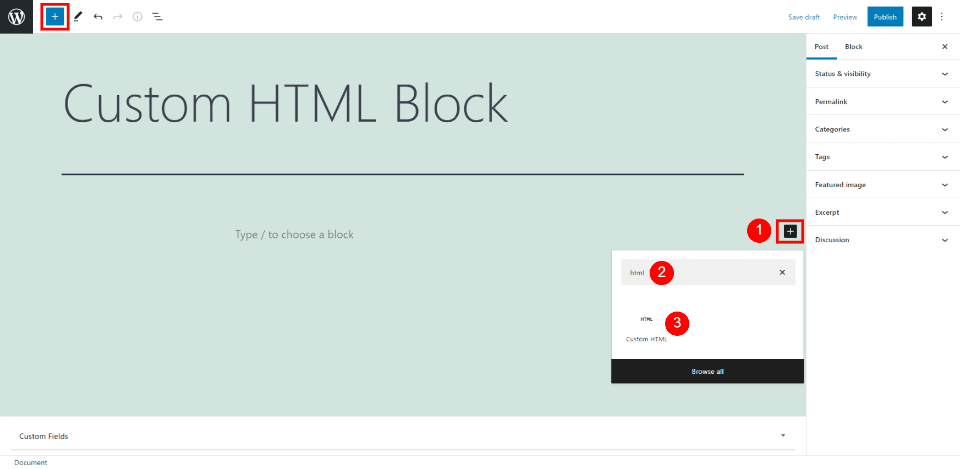
    On your preferred WordPress Page or Post, open the Block Editor. Add an HTML Block where you want it, and paste the HTML code.

    Mailchimp Embeddable Form in WP Block Editor

    For more information, learn how to use the WordPress Custom HTML Block.

    Create Opt-in Forms and Popups with Bloom that Connect to Mailchimp

    Bloom is an advanced email opt-in form builder for WordPress websites that integrates with Mailchimp. It is built by the developers of the Divi Theme so you can trust that it allows for maximum design freedom.

    Design Beautiful and Functional Email Opt-in Forms with Bloom

    To set up the Mailchimp Integration with Bloom, install the Bloom Plugin. After that, you’ll want to follow the steps in this video to set up your Mailchimp API in the Bloom plugin settings. Mailchimp set-up instruction ends at 5 minutes and 17 seconds.

    Once you’ve set up your Mailchimp account integration, you can create opt-in forms in Bloom that feed new contacts to your Mailchimp account.

    Create a Mailchimp Email Marketing Template

    Email templates can save a lot of time in your email campaign workflow. Being able to reuse or repurpose an email template means that you don’t have to start from a blank screen while creating your emails. Templates also keep your email uniform which helps build brand recognition and trust over time.

    To create a template, on the “Campaigns” section of the sidebar, select “Templates”.

    Steps 1 -2 - Create Email Template

    This will open up your first options. There are pre-made templates that you can choose from. You can choose between basic layouts and fully built templates that Mailchimp calls “themes”.

    The layouts are nice if you know what you want to build but don’t want to undo a bunch of design settings when you insert your branding into an email. The themes are nice when you are unsure of how to use the email editor and want a quick start. Sometimes you can also find something really close to your business’ branding. Either way, the time savings are massive.

    It is worth knowing that with the free tier of Mailchimp, there are limitations to which templates you are able to use.

    From there, you can go on designing your template email. If you are having trouble with the email builder or just want a quick primer, see the support doc for using the email builder.

    Once your template is designed, you can go ahead and save it and give it a name that you’ll remember.

    Steps 5 - 7 - Create Email Template

    We can now use the Mailchimp template that we created for a campaign we’ll send to our lists.

    Create a Mailchimp Email Marketing Campaign

    After you’ve created a template in Mailchimp, we can use that to create an email campaign. To do that, on the template window, find your template, click the dropdown arrow and select “Create campaign”. This will create a new campaign based on the template without altering the template.

    Steps 8 - Use Email Template

    To create a campaign, there are a few pieces of information that have to be in place before sending it to your contacts.

    1. Campaign Name
    2. To Field: Who is it that you are sending this campaign to?
    3. From Field: What display name and email address will this email look like it is coming from?
    4. Subject: What is the email subject line that your contacts will see in their email client?
    5. Campaign Design: Iterating off your template to create a campaign that is ready to send

    Steps 9 - 13 - Use Email Template

    Once you’ve completed each of these steps and have a green checkmark next to them you are allowed to schedule or send your email.

    Sending and Scheduling a Campaign

    Scheduling lets you schedule a send into the future to try and send at the perfect time. Mailchimp also has tools that can help you find your best email sending times.

    You also have the ability to send the email right away. This will let the email send to your contacts when Mailchimp servers are ready to handle the request. This usually does not take much time at all but may be longer for first-time senders.

    Steps 14 - 15 - Use Email Template

    From template to campaign, Mailchimp makes it easy to send business newsletters and marketing emails.

    Following Up On Campaign Reports

    The last thing for you to do is analyze the results of your campaign. Don’t stare at the campaign report dashboard for too long after sending your campaign because it could be hours or even upwards of 2 days for the final results of your email to come in.

    When the dust has settled, here’s what to look for:

    • Opens: Opens correspond with how many people opened your campaign. This number is growing more unreliable because of the transition away from cookies
    • Clicks: This is how many link and image clicks happened in your email.
    • Bounces: Bounces are an email delivery term indicating how many times your email went to email addresses that could not receive it. There are different types of bounces but this number reflects your overall list health.
    • Unsubscribes: This is how many times this campaign was used to unsubscribe from all your future emails. This number indicates good list growth practices, consistent branding, and content that is relevant to your audience.

    Steps 16 - Analyze mailchimp email marketing campaignCampaign

    If you have the WooCommerce integration for Mailchimp, you may see ecommerce stats populate at the bottom of the report. These numbers are those that Mailchimp can prove that this campaign helped achieve. It shows the number of orders and revenue figures for that specific campaign.

    FAQs

    Got questions about Mailchimp, WordPress, and Divi? We’ve got answers.

    Is Mailchimp Free?

    Mailchimp is a popular email marketing platform that offers a free plan for up to 500 total contacts. This makes it an excellent option for small businesses and site owners just starting out with email marketing. While the free plan does have some limitations, it is still a great way to get started with Mailchimp email marketing.

    Does Mailchimp Work with WordPress?

    Do you have a WordPress website and want to use Mailchimp to create an email marketing campaign? You’re in luck! Mailchimp is compatible with WordPress websites. You can either use the Mailchimp WordPress plugin or embed a Mailchimp signup form on your website using an embed code. Or, if you use Divi Theme, Divi’s forms can connect with the Mailchimp API for effortless integration between WordPress and Mailchimp.

    Can I integrate my email opt-in form with Mailchimp?

    Chances are, yes, you can integrate your WordPress form plugin with Mailchimp. Mailchimp by far has the most integrations of all the email marketing platforms. Divi Forms, Bloom, WPForms, Gravity Forms, Ninja Forms, and others all have easy-to-use integrations with Mailchimp.

    Does Mailchimp integrate with Divi?

    Yes, Mailchimp integrates with the Divi Theme. Simply connect the Mailchimp marketing integration with Divi to seamlessly use native forms that connect with your Mailchimp contact lists. See what else Divi can connect with to make marketing your website and business easier.

    Conclusion

    In conclusion, if you are looking for an easy way to get started with email marketing, Mailchimp is a great option. With its user-friendly interface and integrations with popular WordPress plugins, Mailchimp makes it simple to create and send newsletters, automated emails, and targeted campaigns. Plus, its affordable pricing makes it a good choice for small businesses and startups.

    Have you used MailChimp for Email Marketing? If so, share your experience in the comments below.

    Featured Image via premiumicon / shutterstock.com

    The post How to Use Mailchimp for Email Marketing appeared first on Elegant Themes Blog.

  • Achieve WordPress Automation with Thrive Automator

    Imagine if you could automatically add a customer to your mailing list. Or what if you could have WordPress create a new user when someone books an appointment with you? How about sending a frequent blog commenter a loyalty reward as soon as they comment?

    These things are all possible with a plugin from Thrive Themes called Thrive Automator.

    The post “Achieve WordPress Automation with Thrive Automator” first appeared on WP Mayor.