EDITS.WS

Tag: online store

  • How to Start an Online Store for Your Business (2023 Guide)

    Starting an online store is a great way to reach a wider audience and sell your products or services to people worldwide. WordPress and WooCommerce are the most popular platforms for creating and managing online stores.

    This article will walk you through the steps of starting an online store with WordPress and WooCommerce.

    We will cover everything from choosing a niche and target audience to setting up and marketing your store.

    1. Have a Comprehensive Plan for Your Online Business

    Before you delve into the technicalities of building your site, starting with a solid business plan is crucial. This roadmap will guide your decisions as you establish your online store.

    Let’s break down the critical components of your plan:

    Identify your Niche

    If you’re considering how to start an online store, you likely have a product in mind. If not, it’s time to figure that out before you proceed.

    Ask yourself: What will you sell, and to whom will you sell it?

    Choosing a niche that aligns with your passions can make your journey more enjoyable and sustainable. Your enthusiasm for your products will resonate with your customers, creating a unique and engaging shopping experience.

    Niche Down Your Online Store

    Image by Dragon Claws / shutterstock.com

    Next, understand your target audience and their personas. Identify their needs, preferences, and buying habits. The more you know about your audience, the better you can tailor your products and marketing strategies to them.

    Remember, choosing a profitable, searchable niche that aligns with your passion is imperative for success. This ensures a return on your investment and that there’s an active audience looking for your products or services.

    Select Your Products

    Once you’ve identified your niche, it’s time to decide on the specific product(s) you’ll sell. Clarity about your offerings, whether physical goods, digital products, or services, is key.

    Start with a limited catalog to test demand. You can always expand your product range later.

    Consider factors like demand, competition, and profitability when selecting your products. If you’re entering a popular market, consider how to differentiate your offerings.

    If you’re selling physical products, plan your inventory management strategy. Will you need custom manufacturing, drop shipping, or wholesale purchasing?

    Keyword Research

    Keyword research helps you understand what potential customers are searching for online, guiding your content creation and SEO strategy. SEO Tools like Google’s Keyword Planner and SEMrush can assist with this research.

    Semrush Keyword Magic Tool

    By conducting keyword research, you’ll uncover high-traffic search terms consumers use to find products like yours. Use these insights to optimize your site with SEO content based on the keywords your audience is searching for. You can even use AI SEO tools like Surfer SEO or Jasper to generate and optimize your content for keywords.

    Doing so will help your online store rank higher in search engine results, attracting more visitors.

    2. Register Your Domain

    Before you can create a website, you need to buy a domain. Your domain name is your online store’s address on the web. It should be easy to remember and reflect your brand.

    Purchase a Domain Name Illustration

    Image by Eny Setiyowati / shutterstock.com

    You’ll need to buy your domain from a reputable domain registrar. You want reasonable prices and easy-to-manage domain options. You can’t go wrong with Namecheap or Godaddy. Some hosting providers, like Siteground, will also allow you to pick a domain directly from their platform.

    Follow along in our dedicated, step-by-step guide for registering a new domain for a website.

    3. Choose an eCommerce Platform

    When it comes to eCommerce platforms, two options often dominate the conversation: WordPress with WooCommerce and Shopify. Website builder platforms like Shopify offer an all-in-one solution that can be a great option for many online stores. However, with WordPress powering over 40% of all online stores, it’s worth exploring why this platform, combined with WooCommerce, is a top choice for many.

    WordPress + WooCommerce: A Winning Combination

    WordPress, the best content management system (CMS) for building websites, offers one of the most flexible options for building an online store. While the platform is free, associated costs include hosting, domain registration, plugins, and themes. However, these costs are often considered a worthy investment, given WordPress’s freedom and ease of use.

    WooCommerce Logo Mark

    Even for beginners, WordPress is a straightforward platform to learn. It’s intuitive, and a wealth of tutorials and documentation are available from various sources to help you navigate any learning curve. Plus, with its comprehensive dashboards and a handy mobile app, you can stay informed about your store’s performance anytime, anywhere.

    Customizability with WooCommerce

    WooCommerce is the go-to eCommerce solution for WordPress, and it is one of many great eCommerce plugins you can use to enhance your online store. One of the standout features of WooCommerce is its customizability. Whether you’re setting up a small boutique store or a sprawling online marketplace, there are plenty of WooCommerce themes designed to help you create a unique and engaging shopping experience for your customers. You can easily tweak the layout, colors, fonts, and other design elements to match your brand’s aesthetic. There are also some great WooCommerce plugins and add-ons to add more features and functionality to your online store. For those with more technical expertise, WordPress also allows custom code snippets and webhooks for further customization.

    Scalability for Growth

    As your online store grows, the WordPress and WooCommerce combination can handle increased traffic and content. It’s a scalable solution that grows with your business, ensuring your website can handle the demands of a growing customer base.

    With WordPress and WooCommerce, you’re not just building an online store but a platform designed for growth and success.

    Comparing eCommerce Platforms

    Choosing the right eCommerce platform for your needs is crucial. To help you make an informed decision, we’ve compared WooCommerce with other top website builders and CMS solutions for eCommerce:

    4. Choose the Right Hosting Provider

    Choosing a reliable hosting provider is crucial for your online store’s performance and security. SiteGround is one of the most recommended options with optimized WordPress infrastructure.

    We’ll reference SiteGround in many of the steps below, as it is one of the most trusted providers out there for WordPress. It includes free CDN, free SSL, and email account management.

    Siteground Logo Mark - White on Dark BG

    If you want to research more, you can review the fastest WordPress hosting companies or read our take on the best hosting companies.

    5. Create Your Website

    Once you’ve chosen your platform and hosting provider, it’s time to create your website, which will be the start of your online store. This involves:

    • Installing and setting up WordPress + WooCommerce
    • Configuring your general settings
    • Choosing and setting up a theme

    Install WordPress

    Here, we’ll show you how to install WordPress using SiteGround’s Site Tools dashboard. If you’d like to learn other ways to install WordPress, read our definitive guide on installing WordPress.

    After signing up for a SiteGround account, you can easily install WordPress in just a few clicks. Start by clicking the “Set Up Site” button at your screen’s top center.

    install WordPress

    Next, choose whether to set up your site on a new, existing, or temporary domain. Select “Temporary Domain,” then click “Continue.” This will let you create a site before you purchase your domain.

    choose temporary domain

    SiteGround will assign a temporary domain to your WordPress installation. To proceed, click “Continue“.

    temporary domain

    Next, click “Start New Website.”

    start new website

    Choose “WooCommerce” to have WordPress automatically installed with all the eCommerce hardware.

    Choose-WooCommerce

    The next step allows you to create your admin login credentials. This is how you’ll log in to your WordPress dashboard when working on your site. Be sure to save your login information for reference. Click “Continue” to proceed.

    WordPress for beginners

    Finally, click the “Finish” button to install WordPress + WooCommerce.

    finish setup

    You have two choices in accessing the WordPress dashboard. Through SiteGround, you can click “Log in Admin.”

    Another way to log in to WordPress is through the CMS by navigating to www.yoursite.com/wp-admin in your browser. Be sure to replace www.yoursite.com with your unique domain or the temporary domain that SiteGround provided you.

    Configure WordPress Settings

    The WordPress settings section allows you to configure the major settings controlling your WordPress installation. They are found by clicking “Settings” in the admin sidebar.

    WordPress settings

    These settings are too granular to cover in detail here, but if you have lingering questions, you can consult these helpful mini-guides for WordPress settings:

    Choose Your WordPress Theme

    Choosing the right theme for the start of your online store can significantly impact its appearance and functionality. Divi is particularly well-suited for eCommerce websites, thanks to its integration with WooCommerce. And it’s theme builder is the easiest way to edit high-impact pages such as product and checkout pages visually.

    Here’s why Divi is the perfect theme for any online store:

    Setting up Divi

    Installing Divi is a straightforward process. First, Divi needs to be downloaded from the Elegant Themes membership dashboard after purchasing a subscription. Log into your Elegant Themes account and navigate to the “Themes & Plugins“section to get the Divi theme file.

    How to Install Divi - Steps 1

    In the WordPress dashboard of your site, go to Appearance > Themes. Click on the “Upload Theme” button and select the Divi.zip file that was downloaded from your Elegant Themes Membership dashboard. Click “Install.”

    How to Install Divi - Steps 2-5

    After WordPress uploads the Divi theme, click “Activate” to use it on your website. This will replace your existing theme with Divi.

    How to Install Divi - Steps 6

    The final step is entering your Elegant Themes API Key. This allows your Divi theme to automatically update whenever Elegant Themes releases a new version, ensuring you always have the most up-to-date Divi theme. Go to your Elegant Themes Membership and the “Account” page. Click on “API Keys,” remember your “Username,” then scroll to the bottom of the page.

    How to Install Divi - Steps 7-10

    Generate a new “API Key,” give it a label/name, and click to copy the key code.

    How to Install Divi - Steps 11-13

    To add the API Key, go to Divi > Theme Options > Updates. Enter your Elegant Themes API Key and Username into the field and click “Save Changes.”

    How to Install Divi - Steps 14-18

    You can learn more about installing a WordPress theme if you choose a different theme to start your online store.

    6. Build Your Online Store

    With your website set up, it’s time to build your online store. This involves setting up WooCommerce, adding products, and setting up preferred payment gateways.

    You’re now into the exciting part of how to build your online store!

    Setup WooCommerce

    After configuring WordPress settings and choosing a theme, you can walk through the initial setup wizard to configure key settings for your store in WooCommerce. Remember that we had our host install WooCommerce alongside WordPress, so there is no need to install the WooCommerce plugin. If your host didn’t provide that courtesy, you can view our guide to installing + configuring WooCommerce.

    The setup wizard configures your store with basic configurations and additional WooCommerce-specific plugins based on your needs. To get started, under WooCommerce, click “Home.”

    Woo Onboarding Flow - Steps 1-2

    The WooCommerce Onboarding Wizard begins with basic store information (address and email address).

    Woo Onboarding Flow - Steps 3-4

    Then select the industries that your store best fits into.

    Woo Onboarding Flow - Steps 5-6

    Choose the functionality you want with your store regarding the type of products you wish to sell. Depending on your selection, additional WooCommerce plugins will be installed to give you the necessary functionality.

    Note that WooCommerce offers plugins that have a monthly fee associated with them. You can use these solutions if you want—they are reliable! But you also have more options if you do a bit more digging. We’ve gathered the best membership, bookings, and other free WooCommerce plugins you can use.

    Woo Onboarding Flow - Steps 7-9

    Then tell WooCommerce a bit more about yourself and your store.

    Woo Onboarding Flow - Steps 10-11

    The WooCommerce ecosystem has plenty of free plugins as well. The last step will be to select which WooCommerce plugins you want to be installed (each handles a specific and essential task). If you wonder if they are worth it, see our Jetpack and MailPoet reviews.

    Woo Onboarding Flow - Steps 12-13

    WooCommerce Settings

    The nitty gritty settings of any platform can be a lot of work when starting an online store. WooCommerce has settings pages to configure and customize your online store for every single detail:

    • General Settings control currency, product types, checkout, and catalog
    • Product Settings manage options like units, visibility, and inventory
    • Shipping Settings configure delivery methods, costs, and other preferences
    • Payment Settings set up payment gateways for customer checkout
    • Account Settings configure registration, privacy, and data
    • Email Settings customize transactional emails from your store
    • Advanced Settings fine-tune advanced functions like hooks

    These settings are discussed in detail with our guide on configuring WooCommerce settings.

    Add Products to Your Online Store

    Adding products to your WooCommerce store involves creating a new product in your WordPress dashboard and filling in the product details, including the title, description, price, and product image.

    Site owners can add products in bulk to WooCommerce via CSV if they have that information in a spreadsheet. Otherwise, products can be easily added through the dashboard.

    Go to WooCommerce > Products > “Add New” in your WordPress dashboard.
    Add Products - Steps 1

    Enter the product name for your product that will be displayed to shoppers.
    Add Products - Steps 2

    Add a product description and upload your product image.
    Add Products - Steps 3-4

    Now you can choose what product type, price, manage inventory, set shipping options, and more from the individual product page.
    Add Products - Steps 5-6

    You can publish the product draft once you are happy with your product. Add as many products as you have.

    Learn more about WooCommerce inventory management to handle product stock, and visit our guide on setting up shipping in WooCommerce.

    7. Design Your Online Store

    Designing and starting your eCommerce online store is a lot of work—but it’s work that makes all the difference. Most WordPress themes lock you into a set design, but we’ll show you how to build a web store using Divi that gives you complete design freedom.

    A page builder like Divi allows you to design your website visually without coding. It will enable you to customize every part of your store using a drag-and-drop interface and a variety of modules. This includes your product pages, cart, and checkout pages.

    You can learn all about Divi’s WooCommerce modules which are the building blocks of a successful store.

    Add Products to a Page with Divi

    Divi allows you to import pre-made layouts, saving you time designing your online store.

    Open up and edit your Home Page with Divi. Choose “Browse Layouts” to see what layouts are out there that can save you time that you like.

    Product to Page with Divi - Steps 1

    Search through the hundreds of layout packs with every Elegant Themes membership. For ease, look for layout packs with a “Shop Page.” Then, import the layout into the page by clicking “Use this Layout.”

    Product to Page with Divi - Steps 2-4

    The template’s Woo Products module imported and displayed our product information on the page. This module is editable, allowing you to change the number of products displayed, the number of columns, ordering, and what elements are displayed (in addition to the design settings).

    Product to Page with Divi - Steps 5

    If we wanted to add a single product to a page from scratch, we could add a new row and place it in the “Woo Products” module from the list of WooCommerce Modules.

    Product to Page with Divi - Steps 6-7

    Design Cart Pages

    Standard pages that your store uses are included with WooCommerce. They are:

    1. Shop page (like the blog page but for products)
    2. Cart page (which shows items that customers put into their shopping carts)
    3. Checkout page (which displays what customers see as they checkout)
    4. My Account page (which helps users manage their user accounts with your store)

    Woo Shop Pages in Theme Builder - Steps 1-2

    Divi lets you edit each of these pages through the Theme Builder.

    For more details on creating these pages, visit our cart page layout tutorial, checkout page layout tutorial, and building WooCommerce pages with Divi tutorial.

    8. Add Plugins for More Features

    One of the great things about using WordPress and WooCommerce is the ability to extend functionality with plugins. Thousands of free and premium plugins add helpful features to an online store. Here we point you in the direction of WooCommerce plugin categories that you should be aware of.

    SEO Plugins

    SEO is crucial for driving traffic to your online store. Plugins like Yoast SEO and Rank Math allow you to optimize pages and content for search engines. They add schema markup, XML sitemaps, and other SEO best practices.

    We have an entire guide on WooCommerce SEO that’ll require using one of the great WooCommerce SEO plugins. You can check out these AI-based SEO tools if you are adventurous and into Generative AI.

    Security Plugins

    Security is vital for any online business. Plugins like Wordfence Security, iThemes Security, and Sucuri add protection and threat monitoring layers. If you are collecting user data, receiving a lot of traffic, and authorizing plenty of transactions—security is paramount for your store to run effectively.

    wordfence vs sucuri

    Check out our recommendations on the best WordPress security plugins and why they are essential.

    Product Filtering and Search Plugins

    Plugins that enhance product filtering, search, and navigation result in better customer experiences.

    The top options are SearchWP and the others referenced on our list of best search plugins.

    SearchWP settings

    Barn2 and Yith make some of our favorite WooCommerce plugins. There are also dozens of solid WooCommerce options in the Divi Marketplace if you want a solution that is guaranteed to work with Divi.

    9. Launch Your New Online Store

    Once your online store is built, it’s time to get the word out and attract customers. Some key marketing channels to leverage include:

    Email Marketing: Email is one of the most effective ways to market to customers. Build your list by offering an incentive to subscribe. Send regular newsletter emails showcasing new products. Use email segmentation to target different groups. Choose one of the best email marketing services like Mailchimp or one of its alternatives.

    Store SEO: Search engine optimization helps customers find your products through search. Carry out on-page optimization across your site. Choose an SEO plugin like Yoast or RankMath to optimize your content. Use advanced SEO techniques to improve rankings.

    Social Media: Promote your store through social platforms like Facebook, Instagram, and Twitter. Share products, run giveaways, and advertise through paid social campaigns. Many ways of doing social commerce can help increase exposure and sales.

    Affiliate Marketing: Open an affiliate program where other creators can reference, review, and promote your products. This is quickly done with affiliate management plugins. Also, you can consider becoming an Amazon affiliate if your online store is focused on selling others’ products with Amazon. This earns you commissions on resulting sales.

    PPC Ads: Paid search ads put your products in front of people as they search on Google and other search engines. Use AI tools to optimize your ads and copywriting to see even more outstanding results.

    Site Speed and Optimization: Fast site speed is vital for conversions. Use caching plugins and follow a Divi optimization guide to speed up your store.

    Be sure to track metrics with eCommerce analytics to optimize efforts and take an omnichannel approach.

    Conclusion

    Starting an online store is an ambitious goal that can be intimidating at first. But by following a step-by-step guide, anyone can create a thriving online store. All that’s left is driving traffic and running your business.

    Don’t let technology or self-doubt hold you back. You have what it takes to turn your retail goals into a thriving online store that realizes your entrepreneurial vision.

    If you need more help with, we create some of the best content about WordPress. You might even check out our favorite tools for productivity that may help you greatly. Let us know how your online store plans are shaping up!

    Frequently Asked Questions (FAQs)

    Before we wrap up, let’s answer some of your most common questions regarding how to create an online store. Did we miss one? Leave a question below, and we will respond!

    How do I make an online store?

    To make an online store, you must choose an e-commerce platform like WordPress/WooCommerce, create a domain name and website, design your storefront, add products, set up payment and shipping options, and launch your website. You can also market your store through social media and search engines to attract customers.

    Can I start an online store for free?

    Yes, while it is possible to start an online store for free using platforms like Shopify and, WooCommerce, remember that these platforms may have limitations on features and functionality, or you may still need to pay for services like hosting and domain.

    How much does it cost to start an online store?

    The cost to start an online store can vary depending on the platform used, website design, domain name, hosting, payment processing, and marketing. Some platforms, like  WooCommerce, are free but require hosting and additional expenses. A basic online store can cost around $500-$1,000 but can increase with additional features and customization.

    Why should I use WordPress to build my online store?

    Using WordPress to build your online store offers a range of benefits, including easy customization, a vast selection of plugins, and flexibility to scale as your business grows. With WordPress, you can completely control your store’s design and functionality and integrate with popular payment gateways and shipping options. Plus, its user-friendly interface makes managing your store a breeze.

    Which is better, Shopify or WordPress?

    WordPress offers greater flexibility and customization options than Shopify. With WordPress, users can access a wide range of plugins and themes, enabling them to customize their online store fully. Using WooCommerce with WordPress offers more affordable pricing plans, unlimited product listings, and no transaction fees. Additionally, WordPress is an established platform with a large community, providing a wealth of resources and support.

    Can I create an online store without physical products?

    Yes, it is possible to create an online store without physical products. This can be done by selling digital products such as software, ebooks, music, or courses. Alternatively, you can provide consulting, coaching, or freelancing services. Such online stores are known as digital or service-based stores.

    How do I start an online store without inventory?

    To start an online store without inventory, consider dropshipping or print-on-demand services. Drop shipping lets you partner with a supplier who ships products directly to your customers. With print-on-demand, you create designs printed on products only when ordered. Choose a platform like WooCommerce, set up your website, select products, and start marketing your store.

    What are the important pages that my online store should have?

    An online store should have essential pages such as a homepage, product pages, about us page, contact us page, FAQs page, shipping and returns policy page, and a blog page. These pages help provide an easy and engaging shopping experience for the customers and build trust and credibility for the brand.

    Where should I host my online store?

    When choosing a hosting provider for your online store, look for one that offers fast and reliable performance, secure transactions, and scalable resources to accommodate growth. Consider popular options such as SiteGround, Hostinger, Cloudways, and Pressable. You can read our detailed comparison of various hosts here.

    How do I create an online dropshipping business?

    To create an online dropshipping business, you must choose a niche, research and select products to sell, find and partner with a dropshipping supplier, develop an online store, and market your business through social media and other channels. You can use platforms like WooCommerce to set up your store and automate the ordering and shipping process.

    How do I sell digital products online?

    To sell digital products online, you need a platform to showcase your products, such as a website or e-commerce store, which you can easily make using tools such as WordPress, Divi, and WooCommerce tools. Ensure that your product is valuable and in demand. Use marketing strategies such as social media advertising, email marketing, and content marketing to attract potential customers. Set up a secure payment gateway and deliver the digital product to the customer upon successful purchase.

    Featured Image by TAW4 / shutterstock.com

    The post How to Start an Online Store for Your Business (2023 Guide) appeared first on Elegant Themes Blog.

  • How to Sell Videos Online With WordPress (Step by Step)

    Are you looking to sell video downloads online? Maybe you are wondering whether you can sell videos using a WordPress website.

    The answer is yes. Selling videos with WordPress is easy and gives you the most control over your content and earnings. You’ll be able to sell the same video files countless times.

    In this article, we will show you how to start selling video files online with WordPress.

    How to Sell Videos Online With WordPress

    Why Sell Videos Online?

    If you are into making videos, then there are a lot of ways to sell your work online.

    Video on the web grows in importance every year, with 86% of businesses using video as a marketing tool and the average person watching 100 minutes per day watching videos.

    Selling your video content online will let you make money while helping others.

    You can sell video assets that other creatives can download and use in their own projects. These include stock footage, drone footage, motion graphics, logos, openers, and more.

    Or you might want to sell your own finished videos, such as training videos, music videos, product reviews, or video gameplay.

    One way to make money from your videos is to create a membership site like our own WordPress 101. Members pay a subscription or create free accounts to watch your content from your website.

    We show you how to do this in our guide on how to create a video membership site in WordPress.

    You can also sell your videos as digital downloads, and this article will teach you how.

    Which Platform Should You Use to Sell Videos?

    You’ll want to choose your eCommerce platform carefully.

    Some are better suited to physical products than digital downloads like video files. Moving platforms in the future can be complicated and take a lot of time and effort.

    We recommend using WordPress + Easy Digital Downloads.

    easy digital downloads

    WordPress is the best website builder on the market, used by over 43% of all websites.

    Now, it’s important to know that there are two types of WordPress software, and you don’t want to choose the wrong one.

    First, there is WordPress.com, which is a blog hosting platform. Then, there is WordPress.org, which is also known as self-hosted WordPress. For a detailed comparison, you can see our guide on the difference between WordPress.com and WordPress.org.

    You need to use the self-hosted WordPress.org platform because it gives you full control over your website. It provides complete freedom to sell any type of digital product using a plugin like Easy Digital Downloads.

    Easy Digital Downloads (EDD) is the best WordPress eCommerce plugin for selling digital products and is built specifically with the features you need to promote, sell, and distribute video files online.

    In this way, you don’t have to waste time configuring features that aren’t necessary for selling digital products, such as shipping and inventory management settings.

    With that being said, let’s take a look at how you can easily sell video files in WordPress. You can use the quick links below to jump to different parts of the tutorial:

    Step 1: Setting Up Your WordPress Website

    To start selling digital downloads with WordPress, you will need a domain name, web hosting, and an SSL certificate.

    • domain name is your website’s address on the internet. This is what visitors will type into their browsers to reach your website, such as ‘wpbeginner.com’.
    • Web hosting is a service that will store your website files and digital downloads. To help you out, we have hand-picked some of the best WordPress hosting that you can buy.
    • An SSL certificate creates a secure connection between your website and users so that you can safely accept online payments.

    One of our top recommended hosting providers, SiteGround, offers managed WordPress hosting for Easy Digital Downloads. Their plans come with a free SSL certificate, EDD preinstalled, and optimization features. Plus, you get a huge 73% off!

    Basically, you can create and run your website for less than $5 per month.

    Let’s walk through how to purchase your domain, web hosting, and SSL certificate.  

    Go ahead and open the SiteGround website in a new tab so that you can follow along. The first thing you need to do is click on the ‘Get Plan’ button.

    SiteGround Managed EDD Hosting

    After that, SiteGround will ask you to enter a domain name for your website. If you don’t have a name in mind, then you can see our guide on how to choose the best domain name.

    Finally, you will need to add your account information.

    You will also be able to purchase some optional extras. You can always add these at a later date if you need them. If you are not sure, then we recommend skipping this step. 

    After entering your payment details, SiteGround will send you an email with instructions on how to log in to your hosting account. This is a web hosting control panel where you can manage your new website. 

    Simply log in to your SiteGround account, and you will see that SiteGround has already installed WordPress for you. It has also preinstalled Easy Digital Downloads.

    SiteGroud Login to WordPress

    You can then click on the ‘WordPress Admin’ button. This will take you to your WordPress site’s dashboard.

    If you prefer not to use SiteGround for some reason, then you can install WordPress on other hosting companies like BluehostHostinger, and WP Engine by following a similar process.

    You can also see our complete beginner’s guide on how to create a WordPress website.

    Step 2: Creating an Online Store With Easy Digital Downloads

    By default, WordPress doesn’t include eCommerce functionality out of the box, so you will need a plugin to sell digital downloads.

    Plugins for WordPress sites are like apps for your phone. They add all kinds of different features and functionality to your website.

    If you claimed our SiteGround EDD hosting deal in the previous step, then Easy Digital Downloads is already installed on your website. You can move on to the ‘Entering Your Business and Location Information’ section below.

    But if you are using another hosting provider, then you first need to install and activate the free Easy Digital Downloads plugin. For more details, see our step-by-step guide on how to install a WordPress plugin.

    Note: For this tutorial, we will be using the free version of EDD. However, you may want to purchase Easy Digital Downloads Pro to access premium extensions like Dropbox File Store and Amazon S3, which are recommended for storing large files online.

    Entering Your Business and Location Information

    Upon activation, you need to visit the Downloads » Settings page in your WordPress admin area. This will start the Easy Digital Downloads setup wizard.

    On the setup wizard’s first page, you will be asked to enter your business name and location.

    You might wonder why your location is needed when you are selling online. This is because when a customer makes a purchase, Easy Digital Downloads will use the country and state information to auto-fill some fields. Also, your location may be used to calculate sales tax.

    To add your location, open the ‘Business Country’ dropdown menu. You can now choose the country where your business is based.

    Easy Digital Downloads Setup Select a Country

    Next, find the ‘Business Region’ field. Here you can type the state or province where your store operates from.

    Depending on your location, you may also want to customize the currency used on your website. By default, Easy Digital Downloads shows all of your prices in US dollars. It also places the dollar sign before the price, so five dollars is shown as ‘$5’.

    To change the default currency settings, scroll down to the Currency section and open the ‘Currency’ dropdown. You can now choose a new currency. 

    Easy Digital Downloads Setup Select Currency

    Just be aware that some payment gateways may not accept every currency. If you are not sure, then it’s a good idea to check the website for your chosen payment gateway. Most payment gateways have a list of the currencies that they support. 

    Once you are finished, you will need to click on the ‘Save & Continue’ button. This will bring you to the next page, where you can set up your payment methods.

    Setting Up Your Payment Methods

    Next, you need to set up a way to collect online payments.

    Stripe is one of the top payment companies that does not require going through a long process to sign up for a merchant account. They allow anyone with a legitimate business to accept credit card payments online.

    To quickly get started with Stripe, simply click on the ‘Connect with Stripe’ button.

    Easy Digital Downloads Setup Connect With Stripe

    This opens a setup wizard, which will help you connect your website to Stripe.

    If you need, you can add more payment gateways later. Simply take a look at the options on the Easy Digital Download extensions page, such as PayPal, Braintree, and Authorize.net.

    When you are done, just click the ‘Save & Continue’ button at the bottom of the screen.

    Configuring Your Receipts

    Every time someone buys a video file, Easy Digital Downloads will send them an email.

    This email has a link that the customer can use to download the file they just purchased.

    The Easy Digital Downloads purchase receipt email

    You can change that email by adding your own text and branding. Strong branding can make your business look more professional and inspire customer loyalty.

    To add a logo to your emails, click on the ‘Attach File’ button and upload or choose an existing image from your WordPress media library.

    Easy Digital Downloads Setup Configure Your Receipts

    You can also add a ‘From Name’. This name will be shown in the customer’s inbox. You will want to use something that immediately lets customers know who you are, likes your website’s name.

    You will also need to add a ‘From Email’. This email will act as the ‘from’ and ‘reply-to’ address. Since customers may reply to your messages, you will want to use a professional email address that you check frequently.

    Once you are happy with your email branding, you might like to edit the contents of the email receipt. Keep in mind that the default message will work well for most marketplaces. 

    Finally, make sure to click the ‘Save & Continue’ button.

    Selecting Conversion and Optimization Tools

    The setup wizard will now offer to install some free tools to help boost conversions and optimize your digital store.

    Easy Digital Downloads Setup Conversion and Optimization Tools

    These tools include:

    We recommend keeping all of the boxes checked. However, you can uncheck the boxes of any tools you don’t want to install.

    You will also find a toggle button where you can help improve Easy Digital Downloads by sharing anonymous usage data with the developers. You can learn more in our guide on giving permission for WordPress plugins to collect data.

    Easy Digital Downloads Setup Join the EDD Community

    Once you have made your selections, just click the ‘Save & Continue’ button at the bottom of the page.

    Adding Your First Product

    You are now on the last page of the Easy Digital Downloads setup wizard. Here you can add your first product to your website.

    Easy Digital Downloads Setup What Are You Going to Sell?

    If you are ready to add a new product now, then you can enter its details into the form and then click the ‘Save & Continue’ button.

    Otherwise, feel free to click the ‘Skip this step’ button to finish the Easy Digital Downloads setup wizard. We will show you how to add your videos to your online store in the next section.

    Congratulations, you have now completed the initial setup of your online store.

    Step 3: Adding Downloadable Video Products to Your Online Store

    Once you’ve set up your online store, you are ready to start adding video files as products. Easy Digital Downloads refers to digital products as ‘downloads’.

    To add a product to your store, you need to select Downloads from the WordPress admin menu. After that, just click the ‘Add New’ button to add a new video.

    Adding a New Downloadable Product in EDD

    This will open a page where you can type a title, description, pricing, and other details for your video.

    Adding a Title and Description

    You can type a title and description using the WordPress content editor. If you are familiar with creating a new blog post, then this works the same way.

    Adding a Title and Description for a Downloadable Product

    Make sure you give shoppers all the information they need to decide whether the product is right for them. For example, you might include licensing information, the video’s duration, resolution, file size, frame rate, and whether the video can be looped.

    You might also want to display customer reviews and a star rating to show that other customers have benefited from buying the video.

    Setting a Price or Variable Pricing

    Under that, you will see the pricing options. If you will be charging a fixed amount for the video, then simply type the price of the video in the field. For free downloads, you can leave the amount at ‘0.00’.

    Adding Fixed Pricing to a Downloadable Product

    Easy Digital Downloads also supports variable pricing. This allows you to charge more for a higher-resolution video, for example.

    If you want to sell variations, then select the ‘Enable variable pricing’ checkbox. This adds a new section where you can start to build your variations.

    You can type in an option name and price for each variation. You can add more variations by clicking the ‘Add New Price’ button.

    Adding Variable Pricing to a Downloadable Product

    With that done, you’ll need to set the default variation, which will be selected when the visitor first lands on the product page. Simply check the ‘Default’ radio button next to the variation you want to use.

    Adding Categories and Tags

    Categories and tags can help shoppers find what they are looking for more easily.

    For example, you can use categories to organize the different types of videos in your store and tags to describe the locations, subject matter, and more, like an index.

    Adding Categories and Tags to a Downloadable Product

    You can create new categories and tags in the Download Categories and Download Tags box. To learn more, please see our step-by-step guide on how to add categories and tags for WordPress pages.

    Adding a Thumbnail Image

    A helpful thumbnail image will give your customers an accurate idea of what your video contains. It can also help increase sales.

    You need to scroll down the page until you find the Download Image section on the right. Clicking on ‘Set Download Image’ launches the WordPress media library, where you can choose an image or upload a new file from your computer.

    Adding a Thumbnail to a Downloadable Product

    Uploading Your Video File or Files

    You’re now ready to start uploading your video files. This is what your customers will receive after purchasing the product.

    Before you upload the files, we recommend you zip them first. These compressed files will take up less storage, be faster to download, and work for individual videos or bundles.

    To zip an individual video, simply right-click the file. Then, on Windows, you choose ‘Compress to ZIP file’, and on Mac, choose the ‘Compress’ option. To zip a video bundle, simply select all of the files in the bundle before right-clicking.

    Note: To allow zip files to be uploaded to your WordPress site, you will need to follow our guide on how to add additional file types to be uploaded in WordPress. If your zip files are larger than your hosting provider’s limit, then you’ll also need to see our guide on how to increase the maximum upload size in WordPress.

    Once your zip files are ready to upload, you need to scroll down to the Download Files section at the bottom of the page.

    If you are selling the product with a fixed price, then you need to click the link icon under File URL. This will open the WordPress Media Library, where you can upload your zip file or select it if you have already uploaded it.

    Adding a File to a Single Product With a Fixed Price

    The file name field is the clickable link text that will be used on the confirmation page and email. This will be filled in automatically with the file name, and you can update it with a more descriptive name if you like.

    For example, you could type ‘Download my video’ or ‘Download the HD version’.

    If you are using variable pricing, then the steps are similar, and you need to upload the file by clicking the link icon under File URL.

    After that, you’ll also need to choose the correct pricing option under Price Assignment. In our example below, if you were uploading the high-def file, then you would choose the ‘Coba Pyramid High Def’ option.

    Adding Files to a Single Product With Variable Pricing

    You can click the ‘Add New File’ button to add more uploads as required.

    There is also a Bundle option where you can select multiple files, but we recommend you compress multiple files into a single zip file and use the Single Product option instead.

    After the purchase, the customer will get an auto-expiring link on their purchase confirmation page and the confirmation email. This link will also be protected from search bots and unauthorized users to help prevent piracy.

    Creating a Refund Policy

    Hopefully, everyone who buys your videos will be happy with their purchase. However, it’s still smart to think about how you’ll handle refunds.

    If you scroll to the ‘Refunds’ section in the left-hand menu, then you’ll see that Easy Digital Downloads offers your customers a 30-day refund by default.

    Configuring a Refund Policy in EDD

    You can change the settings here to change the refund period to a different number of days or make the product non-refundable.

    We recommend offering refunds wherever possible. It’s an important part of good customer service, and an easy refund process will encourage more people to buy.

    Step 4: Testing Your Digital Download

    It’s a good idea to test the digital download to see whether there are any problems or anything you want to change.

    Enabling Test Purchases

    To start, you’ll need to put Easy Digital Downloads into test mode so that you can buy products without having to enter any payment information.

    In the WordPress dashboard, go to Downloads » Settings and then click on ‘Payments.’

    Adding a payment gateway to Easy Digital Downloads

    On this screen, check the box next to ‘Test Mode’.

    Next, select ‘Store Gateway’, as this allows you to make a purchase without typing in any credit or debit card information.

    Adding payment gateways to WordPress

    After that, click on ‘Save Changes’ to store your settings.

    Make a Test Purchase

    Now you are in test mode, you need to go to Downloads » Downloads and hover your mouse over the product you want to test.

    When it appears, click on the ‘View’ link.

    Click the Product's View Link

    This opens the item’s product page on your online store.

    To go ahead and make a test purchase, click on the ‘Purchase’ button.

    Making a Test Purchase in EDD

    Easy Digital Downloads will now add this product to your shopping cart.

    To keep going, click on the ‘Checkout’ button.

    Making a Test Checkout in EDD

    On the checkout page, you can type in your name and email address. Easy Digital Downloads will send the purchase receipt to this address, so you’ll need to use a real email address that you have access to.

    Under ‘Select payment method’ make sure that ‘Store Gateway’ is selected. After that, just click on the ‘Purchase’ button at the bottom of the page.

    Select Store Gateway Then Click the Purchase Button on the Checkout Page

    After a few moments, you will see the purchase confirmation page and also get a purchase confirmation email. Both of these contain download links.

    You should click the link to make sure the file downloads successfully.

    Click the Link to Make Sure the File Downloads Correctly

    If everything works as expected, then you can take Easy Digital Downloads out of test mode and start accepting payments from real customers.

    You just need to go back to Downloads » Settings and select the ‘Payments’ tab. Here, uncheck the box next to ‘Test Mode’ and the box next to ‘Store Gateway’.

    How to accept payments online using WordPress

    With that done, click on ‘Save Changes’ to store your settings. You are now ready to accept credit card payments in WordPress.

    Step 5: Selecting and Customizing Your WordPress Theme

    WordPress theme controls the appearance of your online store, including its layout, typography, color, and other design elements.

    You might like to use the Vendd theme for your digital goods marketplace because it is designed for digital downloads. This free theme works together with Easy Digital Downloads to give you a lot of options and features for your online marketplace.

    Vendd Theme

    If you purchased SiteGround EDD hosting as we recommended earlier, then Vendd was installed and activated automatically when you installed WordPress.

    Otherwise, you will need to install and customize the theme yourself. For more information, see our beginner’s guide on how to install a WordPress theme.

    However, there are thousands of other WordPress themes available. For example, both the Astra theme and the Coaching Pro theme are fully compatible with EDD.

    Another option is to create your own custom theme from scratch. To create a custom theme, you can use SeedProd.

    It is the best website builder plugin on the market and is used by over 1 million websites. You can use SeedProd to create beautiful website layouts that are professionally designed and optimized for conversions and sales.

    SeedProd also comes with lots of ready-made templates. These include designs that are perfect for promoting digital downloads like eBooks or videos. 

    SeedProd ebook digital marketplace theme

    For more details, check out our guide on how to create a custom WordPress theme (no coding needed).

    Step 6: Promoting Your Digital Downloads

    At this point, you have created one or more digital video products, but you still need to drive potential customers to your product pages so they can buy your videos.

    Promotion can involve creating a sales page where you advertise your most recent video files, adding a particular product page to your website’s menu, or even highlighting your favorite video on a custom home page.

    You could even write a WordPress blog where you talk about how other creatives can use your video products in their own projects.

    No matter how you promote a product, you will need to know its URL.

    To find this link, head over to Downloads » Downloads. You can then hover your mouse over a product and click on its ‘Edit’ link.

    Click the Edit Link Under the Product

    You will find the URL under ‘Summary’ in the right-hand menu.

    You can now link to this product page from any area of your website simply by using its URL. To learn more, see our step-by-step guide on how to add a link in WordPress.

    Find the Product URL on the Left of the Screen

    Easy Digital Downloads also creates a ‘Purchase’ button for each digital download. Visitors can click this button to add your video to their shopping cart.

    You can add this button to any page, post, or widget-ready area. This allows visitors to start the purchasing process without visiting the product’s page.

    The Shortcode Adds a Purchase Button to the Post or Widget

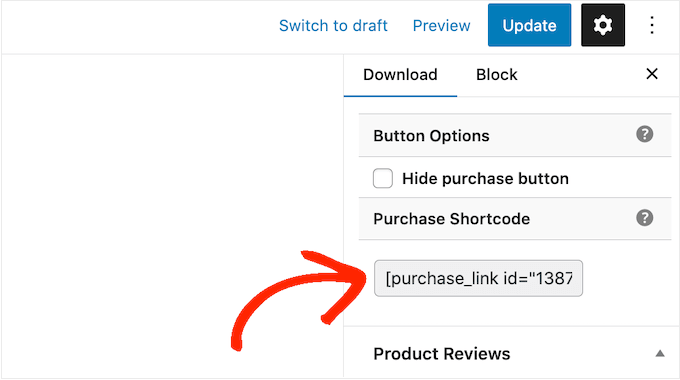
    To get the button’s shortcode, simply scroll to the product’s Download Settings section. You can then copy the text in the ‘Purchase Shortcode’ field.

    For more information on placing the shortcode, please see our guide on how to add a shortcode in WordPress.

    How to add a digital down to WordPress using shortcode

    Bonus: Tools to Sell More Videos Online

    To sell your videos online, you will need to get more visitors to your WordPress website and convince them to buy your downloads.

    This is where WordPress plugins can help.

    Here are some great WordPress plugins that can help you get more visitors to your website and turn them into customers:

    • All in One SEO: The best WordPress SEO plugin that can help you optimize your website to get more search engine traffic.
    • MonsterInsights: The best WordPress analytics plugin. It helps you learn where your customers come from and what they do when they reach your website.
    • OptinMonster: This plugin allows you to create popups and optins to grow your email list and turn visitors into customers. It can also help you reduce shopping cart abandonment.
    • PushEngage: The best push notifications plugin. It allows you to reach visitors after they have left your website and encourage them to return to your online store.
    • TrustPulse: This social proof plugin can help you increase video sales by increasing customer trust.

    FAQs About Selling Videos Online

    In this guide, we showed you how to videos online using Easy Digital Downloads. If you still have questions, then these FAQs may help.

    Where can I sell my videos online?

    There are lots of platforms, stores, and digital marketplaces where you can upload your digital art and sell it. Some popular choices include Sellfy, Vimeo, and Uscreen.

    Many of these platforms already have a large audience. By uploading your files to these sites, you can promote your work to an existing audience.

    However, many of these marketplaces and websites take a percentage of every sale you make, and some even charge upfront fees. To boost your profits, we recommend creating your own website instead.

    In this way, you will have complete control over your brand and get all the profits from each digital sale.

    How much does it cost to create a website to sell my videos?

    We always recommend a business model where you start small. That way, you can spend more money as you build your audience and start to sell more digital art and graphics.

    The good news is that setting up a digital store is much easier and cheaper than opening a physical shop. You can start with SiteGround EDD Hosting for around $5 per month and use free plugins and themes to limit your costs.

    By using Easy Digital Downloads to sell your artwork, you can avoid many of the upfront costs and middleman fees you can expect when selling via an online marketplace such as Sellfy. Instead, you just have to pay industry-standard credit card transaction fees.

    For more information, see our article on how much it costs to build a WordPress website.

    Can I also sell physical products with Easy Digital Downloads?

    At some point, you may want to sell physical products, such as DVDs or some other type of physical storage containing your video assets. Despite the name, you can also use Easy Digital Downloads to sell physical products.

    There’s even a Simple Shipping addon that adds shipping features to the Easy Digital Downloads plugin. This allows you to ship your branded merchandise, framed prints, or other physical products to customers using the tools you are already familiar with.

    We hope this tutorial helped you learn how to sell videos online with WordPress. You may also want to see our guide on how to start a video blog (vlog) and make money or our expert picks for the best video editing software.

    If you liked this article, then please subscribe to our YouTube Channel for WordPress video tutorials. You can also find us on Twitter and Facebook.

    The post How to Sell Videos Online With WordPress (Step by Step) first appeared on WPBeginner.

  • Mastering WooCommerce Setup: Unleash the Power of WordPress!

    Setting up an online store has never been easier thanks to WooCommerce, the powerful e-commerce platform that seamlessly integrates with WordPress. With WooCommerce, you can transform your WordPress website into a fully functional online store and unleash the true potential of your business. In this article, we will guide you through the process of mastering WooCommerce setup and configuration, unlocking endless possibilities for your online business.

    Setting Up WooCommerce: Harnessing the Power of WordPress!

    Setting up WooCommerce is a breeze, especially if you already have a WordPress website up and running. First, you’ll need to install the WooCommerce plugin from the WordPress plugin directory. Once installed, activate the plugin and follow the simple setup wizard. This wizard will guide you through the essential steps, such as configuring your store’s location, currency, and payment gateways. Don’t forget to set up your shipping options too, as WooCommerce offers flexible shipping methods to suit your business needs. With just a few clicks, you’ll have your online store ready to go!

    Next, customize your store’s appearance by selecting a theme that complements your business’s branding. There are numerous WooCommerce-specific themes available, designed to optimize the shopping experience for your customers. These themes offer features like product showcases, easy navigation, and mobile responsiveness. Choose a theme that best suits your needs and customize it further using WordPress’s powerful customization options. With WooCommerce and WordPress combined, you have complete control over the look and feel of your online store.

    Mastering WooCommerce Configuration: Explore WordPress Potential!

    After setting up your WooCommerce store, it’s time to dive deeper into its configuration to fully unleash the potential of WordPress. WooCommerce offers a plethora of options to fine-tune your store’s functionality. Start by exploring the settings menu, where you can configure critical aspects of your store, such as taxes, inventory management, and product reviews. Take advantage of WooCommerce’s extension marketplace to add additional functionality to your store. From payment gateways to marketing tools, there’s an extension available for every need. Experiment with different extensions to enhance your customers’ shopping experience and boost your sales.

    To maximize the effectiveness of your online store, leverage the power of WordPress plugins. With thousands of plugins available in the WordPress repository, you can easily integrate your WooCommerce store with powerful marketing tools, analytics platforms, and social media channels. Plugins like Yoast SEO can help optimize your product pages for search engines, while social media plugins enable seamless sharing of your products on various platforms. By exploring the vast array of WordPress plugins, you can take your WooCommerce store to a whole new level and stay ahead of the competition.

    Setting up and mastering WooCommerce is the key to unlocking the full potential of your WordPress-powered online store. With its easy setup process, flexible customization options, and extensive configuration settings, WooCommerce provides you with the tools you need to create a successful e-commerce business. By harnessing the power of WordPress and exploring the vast array of plugins and extensions available, you can take your WooCommerce store to new heights, attract more customers, and increase your sales. So, what are you waiting for? Dive into the world of WooCommerce and unleash the power of WordPress for your online business today!

  • How to Sell Audiobooks Online (3 Simple & Easy Ways)

    Do you want to sell audiobooks online?

    By selling your books as downloadable audio files, you can make money without having to pay for shipping or printing. You can also sell the same audio file an unlimited number of times.

    In this article, we will show you how to easily sell audiobooks online using WordPress.

    How to sell audiobooks online

    Why Sell Audiobooks Online?

    There are lots of ways to share your experiences or knowledge online. You can create an online course, record a webinar, or even start a podcast.

    Another option is recording that information as an audiobook. This is a great way to collect everything you want to say into a single, downloadable file that’s easy to distribute and sell to other people.

    Unlike traditional printed books, you don’t have to pay printing or shipping fees for your audiobooks. You also don’t have to worry about physical storage, supplies, or managing your inventory. All of this means lower costs and bigger profits, which makes audiobooks the perfect way to make money online with WordPress.

    If you have an ebook, then there are plenty of services that can help you turn it into an audiobook including ACX. Every audiobook you make on ACX will be available on Audible.com, Amazon.com, and iTunes, but it’s also a good idea to add the audiobook to your own website.

    With that in mind, let’s see how you can sell audiobooks online. Simply use the quick links below to jump straight to the method you want to use.

    Method 1. How to Sell Audiobooks With Easy Digital Downloads (Recommended)

    The easiest way to sell audiobooks online is by using Easy Digital Downloads. Easy Digital Downloads is one of the best eCommerce WordPress plugins, and it’s designed specifically to sell digital products.

    How to sell an audiobook in WordPress using Easy Digital Downloads

    Unlike general eCommerce plugins, Easy Digital Downloads has the specific features you need to promote, sell, and distribute digital products with ease. This means you don’t have to waste time and effort with unnecessary settings, such as configuring your store’s shipping.

    Even better, if you’re using SiteGround then Easy Digital Downloads already comes pre-installed on their EDD plan, so you can start using it straight away.

    If you’re using a different hosting provider, then you’ll need to install and activate the Easy Digital Downloads plugin. If you need help, then please see our guide on how to install a WordPress plugin.

    Upon activation, go to Downloads » Settings in the WordPress dashboard.

    The Easy Digital Downloads plugin's settings

    Even though you’re selling audiobooks, you’ll need to set your store’s location. This allows Easy Digital Downloads to auto-fill some fields in the order form, which will help improve the customer experience.

    Easy Digital Downloads also uses your location to calculate sales tax.

    To add your location, simply open the ‘Business Country’ dropdown menu. You can then choose where your business is based.

    Setting the location for your audiobook store

    Next, find the ‘Business Region’ field.

    Here you can open the dropdown and choose the region where your store operates from.

    Setting the region for your online audiobook store

    After making these changes, go ahead and click on Save Changes to store your settings.

    Next, you’ll need a way to accept credit card payments in WordPress by clicking on the ‘Payments’ tab. Then make sure the ‘General’ tab is selected.

    Adding payment gateways to your WordPress website

    In the Payment Gateways section, check the box next to each gateway that you want to add to your WordPress blog or website.

    If you add more than one payment method, then you’ll need to choose a default gateway.

    Adding multiple payment gateways to an online store

    You can use any gateway you want, but Stripe can accept credit cards as well as Apple Pay and Google Pay. This is why we recommend using Stripe as the default payment gateway.

    With that done, click on the ‘Save Changes’ button.

    You’ll now see some new tabs where you can configure each payment method.

    Configuring payment gateways including Stripe

    Configuring the payment gateway will be slightly different depending on which gateway you’re using, but Easy Digital Downloads will walk you through the process.

    Once you’ve set up at least one payment gateway, you’re ready to start uploading audiobooks to your WordPress website.

    To create a digital product, select Downloads from the left-hand menu. Then, click on the ‘Add New’ button.

    Adding a downloadable audiobook to your WordPress website

    You can now type a name for the product into the ‘Enter download name here’ field. This will appear on the audiobook’s page, so you’ll want to use something that catches the visitor’s attention and accurately describes the book.

    Next, type out the description that will appear on the ebook’s product page. You’ll want to give visitors all the information they need to decide whether this book is right for them.

    Adding a title to a downloable audiobook

    Many online stores use product categories and tags to help shoppers find what they’re looking for. If you’re selling lots of audiobooks, then these categories and tags help visitors find related audiobooks, which can get you more sales.

    You can create new categories and tags in the Categories and Tags boxes.

    Adding categories and tags to a downloadable ebook

    For more information, see our step-by-step guide on how to add categories and tags for WordPress pages.

    Next, you’ll want to set a price by scrolling to the Download Prices section. Here, type in how much visitors will pay to download the audiobook.

    Adding prices to an audio book in WordPress

    You’re now ready to upload the audio file that you want to sell. When it comes to audio, WordPress supports mp3, ogg, and wav. It also supports m4a, although this format may not work on all browsers.

    Pro Tip: If you want to sell audiobooks in a file type that WordPress doesn’t support, then see our guide on how to allow additional file types in WordPress.

    To add an audio file, simply scroll to the Download Files section.

    How to upload a downloadable audiobook to WordPress

    In the File Name field, type a name for the file that shoppers will get when they buy the audiobook. Then, simply click on ‘Upload a File.’

    You can now choose any audio file from the WordPress media library, or you can upload a new audiobook from your computer.

    Finally, you’ll need to add a product image, which will usually be your audiobook’s front cover. Simply scroll to the Download Image section and then click on the ‘Set Download Image’ link.

    Adding a featured image to your audiobook

    This launches the WordPress media library where you can choose an image or upload a new file from your computer.

    When you’re happy with your digital download, click on the Publish button to make it live.

    Easy Digital Downloads will now create the audiobook as a downloadable product, but visitors still need a way to access the product page.

    This might mean adding the page to your website’s menu, creating a sales page where you advertise all your audiobooks, or even adding the book to a custom home page.

    No matter what method you choose, you’ll need to know the audiobook’s URL.

    To get this link, simply go to Downloads Â» Downloads. Then, find the audiobook you just created, and click on its ‘Edit’ link.

    How to get a link to a downloadable audiobook product

    You will then find the URL directly below the product title.

    Now, you can link to this product page from any area of your website, simply by using its URL. To learn more, see our step-by-step guide on how to add a link in WordPress.

    Easy Digital Downloads also creates a ‘Purchase’ button for this particular audiobook. Visitors can click this button to add the audiobook to their cart.

    Adding an audiobook purchase button to an online store

    You can add the button for this book to any page, post, or widget-ready area. This allows visitors to start the purchasing process without even Needing to visit the individual product’s page.

    To get the audiobook’s shortcode, simply scroll to its Download Settings section. You can then copy the text in the ‘Purchase Shortcode’ field.

    Adding an audiobook to your site using a product shortcode

    For more information on placing the shortcode, please see our guide on how to add a shortcode in WordPress.

    Every time someone buys an audiobook from your website, Easy Digital Downloads will send them an email and download link.

    A purchase receipt for an audiobook

    While this email has everything the customer needs to access their download, it’s a good idea to customize it. For example, we recommend adding your own logo and branding.

    To customize the default email, simply go to Downloads » Settings. Then click on the ‘Emails’ tab.

    Customizing the Easy Digital Download emails

    When you’ve finished making changes, you may want to send a test email so you can see how the message will look to your customers.

    To do this, simply click on the ‘Send Test Email’ button and Easy Digital Downloads will send an email to your admin email address.

    Sending a test email for your downlodable audiobook

    Have you clicked on the ‘Send Test Email’ button, but haven’t got a test email? If your site isn’t sending emails correctly, then customers won’t be able to download your audiobook.

    With that in mind, you can follow our guide on how to fix the WordPress not sending email issue. You can use WP Mail SMTP to make sure the purchase confirmation emails arrive safely in the customer’s inbox.

    When you’re happy with how the email looks, you can go ahead and click on the ‘Save Changes’ button.

    This is all you need to start selling audiobooks online. However, Easy Digital Downloads has lots more advanced features that can help you sell audiobooks.

    For more information on Easy Digital Downloads, please see our guide on how to sell digital downloads on WordPress.

    Method 2. How to Sell Audiobook Memberships (Best for Recurring Revenue)

    Another option is using your audiobooks to create recurring revenue streams.

    For example, you might offer members unlimited monthly or annual access to all your audiobooks for a membership fee. In this way, you can get reliable recurring revenue over a longer period of time.

    How to add an audiobook to your site using MemberPress

    A membership site is also a great choice if you’re releasing your audiobooks as a series.

    If you want to get recurring revenue, then MemberPress is the best WordPress membership plugin. It allows you to accept payments, create an unlimited number of membership levels, restrict access to audiobook pages based on membership subscription, and more.

    First, you need to install and activate the MemberPress plugin. For more details, see our step-by-step guide on how to install a WordPress plugin.

    Upon activation, go to the MemberPress » Settings page to configure the plugin settings.

    How to configure the MemberPress plugin

    To start, you’ll need to set up a payment gateway.

    Out of the box, MemberPress supports PayPal (Standard, Express, and Pro), Stripe, and Authorize.net. You simply need to select the payment method you want to use and then type in the required credentials, such as your PayPal email address.

    Adding a payment gateway to a membership site

    You may want to add multiple methods, so members can use their preferred gateway. When that’s done, don’t forget to click on the Update Options button to save your settings.

    With the setup out of the way, it’s time to create one or more membership levels. These are the subscriptions that visitors will buy to access your audiobooks, or other content.

    MemberPress allows you to offer different content for different membership levels. For example, you might create Bronze, Silver, and Gold memberships and then give members access to different audiobooks.

    To create the first membership plan, go to the MemberPress » Memberships page and then click on the ‘Add New’ button.

    Adding a membership level to your audiobook website

    On the next screen, you’ll need to provide a title for the membership plan and then add details in the post editor.

    After that, you can set the pricing, billing type, interval, and expiration under the ‘Membership Terms’ section.

    How to sell audiobooks online using MemberPress

    Next, scroll to the Membership Options box below the editor.

    Here, you can customize the plan permissions and membership options.

    Adding a membership level to your WordPress blog or website

    When you’re happy with how the plan is set up, go ahead and click on ‘Publish.’ To create more membership levels, simply repeat the same process described above.

    Once you’ve created all the membership levels, it’s time to add some access rules. These allow you to restrict access to your audiobooks based on the user’s membership plan.

    Just go to MemberPress » Rules and then click on the Add New button.

    Adding a new rule to your WordPress membership site

    Here, you can create all kinds of access rules, but you’ll typically start by selecting the audiobook that you want to restrict access to.

    Under ‘Protected Content,’ open the dropdown menu and choose an option from the list. This might be the specific page where you embedded the audio file, content that has a particular tag, or any other option from the list.

    Creating content restriction rules in WordPress

    After that, open the ‘Access Conditions’ dropdown and choose ‘Membership.’

    In the second dropdown menu, select the membership level people will need in order to access this content.

    Creating subscriptions for your audiobooks

    There are more settings that you can configure, but this is all you need to create a simple access rule.

    When you’re happy with how the rule is set up, click on ‘Save Rule.’ To create more access rules, simply follow the same process described above.

    Now that everything is set up, you’ll need to make sure visitors can buy memberships and log into their accounts. Thankfully, MemberPress comes with ready-made forms that you can add to your site.

    We recommend adding the MemberPress login widget to a widget-ready area, so members can log in from any page.

    Simply head over to Appearance » Widgets and add the ‘MemberPress login’ widget to the sidebar or similar section.

    Adding a MemberPress login widget to WordPress

    To learn more, please see our guide on how to add and use widgets in WordPress.

    Don’t forget to click on the ‘Update’ button to save your widget settings.

    There are a few different ways to add a signup page to your website, but MemberPress automatically creates a registration page for each membership level. This means you can simply add these pages to your main navigation menu.

    In your WordPress dashboard, go to Appearance » Menus. In the left-hand menu, simply click to expand the ‘Memberships’ section.

    Adding membership subscriptions to your WordPress website

    You’ll now see a list of all the different MemberPress levels.

    To add a membership to the navigation menu, simply check the box next to it and then select ‘Add to menu.’

    How to sell audiobooks online

    For step-by-step instructions, please see our guide on how to add a navigation menu.

    When you’re happy with how the menu is set up, click on ‘Save Menu.’

    At this point, you’ve created a website where visitors can buy audiobook subscriptions. However, MemberPress has lots more settings you can use to sell audiobooks, grow your brand, and get more members.

    For more information about MemberPress, check out our ultimate guide to creating a WordPress membership site.

    Method 3. How to Sell Audiobooks With WooCommerce (Best For Online Stores)

    Easy Digital Downloads makes it easy to sell audiobooks on any WordPress blog or website, without you having to configure lots of unnecessary settings like shipping and handling.

    However, if you’ve already created a WooCommerce store, then you can sell digital products like audiobooks using this popular eCommerce plugin.

    How to sell an audiobook online using WooCommerce

    Although it’s mostly used to sell physical products, you can add support for digital products by going to WooCommerce » Settings and then clicking on the ‘Products’ tab.

    Here, click on the ‘Downloadable products’ link.

    Creating downloadable WooCommerce products

    You can now open the ‘File download method’ dropdown and choose an option from the list.

    When you’re selling digital downloads, there is a risk that customers may share the direct link with other people. This allows people to download your audiobook without paying.

    ‘Force Downloads’ helps to protect your site from direct linking, so it’s the recommended method. However, just be aware that very large files may result in a timeout, especially if your server has limited resources.

    If this happens, then you may need to change your WordPress hosting plan or select a different file download method.

    You may also want to enable the checkbox next to ‘Allow using redirect mode (insecure) as a last resort.’ If WooCommerce encounters any problems, then this setting will deliver the audiobook via an unsecured redirect link rather than showing an error.

    This is a much better customer experience.

    WooCommerce's downloadable product settings

    The second option is ‘X-Accel-Redirect/X-Sendfile,’ which serves the file directly to the customer. This protects the audiobook from unauthorized downloads without impacting your site’s performance.

    However, this method requires you to install and enable the X-Accel-Redirect/X-Sendfile module on your server, so it’s not very beginner-friendly. Depending on your plan, you may also need to speak to your WooCommerce hosting provider.

    The final option is ‘Redirect only,’ which uses a direct link to the file. This means your audiobook isn’t protected and anyone can access it using the URL. That said, we don’t recommend the ‘Redirect only’ method.

    After selecting a download method, you can choose whether visitors must be logged into an account in order to download the audiobook.

    Allowing guest checkout can get you more sales and downloads, but requiring users to register with your online store can help you do lead generation.

    To make this decision, either enable or disable the ‘Downloads require login’ checkbox.

    How to disable guest checkout for audiobooks in WooCommerce

    By default, customers can download the audiobook while their order is processing.

    If you want to wait until the order is complete, then uncheck the following box: ‘Grant access to downloadable products after payment.’

    By default, WooCommerce will download the audiobook to the customer’s computer.

    Most of the time this is the best customer experience, but you can set the file to open in a new tab instead. The customer can then decide whether they want to save the file.

    There are some use cases where this may be the better option. For example, if you’re showing the customer a free sample, or your audiobooks are short enough to enjoy in one sitting.

    In this case, you may want to check the box next to ‘Open downloadable files in the browser.’

    How to set up downloadable files in WooCommerce

    When you’re happy with the settings you’ve entered, click on ‘Save Changes.’

    With that done, you’re ready to add the audiobook as a downloadable product by going to Products » Add New. Here, you can type in a title, add a description, upload a product image, and set the price as normal.

    Creating a downloadable WooCommerce product

    Then, scroll to ‘Product Data’ and check the box next to ‘Downloadable,’ which adds some new settings.

    To start, click on ‘Add File.’

    Adding a downloadable audiobook to a WooCommerce online store

    You can now either choose the audiobook from your media library or upload a new file from your computer.

    After that, type in a filename for the audiobook.

    Adding a downloadable audiobook in WooCommerce

    By default, customers can download the audiobook as many times as they want, for as long as they want.

    If you want to limit the number of downloads per customer, then type a number into the ‘Download limit’ field.

    Adding a download limit for your audiobook

    If you want the download link to expire after a certain number of days has passed, then type a number into the ‘Download expiry’ field.

    When you’re happy with how the audiobook is set up, click on the ‘Publish’ button. The audiobook will now appear as a downloadable product on your online store.

    We hope this article helped you learn how to sell audiobooks online. You may also want to check out our expert pick of the best WordPress plugins to grow your site, and our comparison of the best email marketing services for small businesses.

    If you liked this article, then please subscribe to our YouTube Channel for WordPress video tutorials. You can also find us on Twitter and Facebook.

    The post How to Sell Audiobooks Online (3 Simple & Easy Ways) first appeared on WPBeginner.

  • 15 Most Popular Digital Products You Can Sell Online in 2023

    Are you looking for popular digital product ideas to sell online?

    In today’s creator economy, there are many opportunities to make money online. You can sell items like music files, videos, blog posts, eBooks, software, apps, podcasts, premium content, and more.

    In this article, we will share the most popular digital products that you can sell online.

    Most popular digital products you can sell online

    What are Digital Products?

    A digital product is essentially anything that you can buy, download, and use on a device such as a computer or mobile phone. For example, ebooks, software, videos, music, online courses, and more can be digital products that you can purchase at an online store.

    They are delivered to you electronically, usually through a direct download in your user dashboard or in an email with a download link inside. In general, you can easily access them anytime or anywhere.

    Why Sell Digital Products Online?

    Digital products have a lot of advantages compared to selling physical products.

    First, you don’t have to worry about keeping inventory and meeting supply or demand requirements. Once you create a digital product, you can sell it again and again.

    This also relieves you of any storage issues. Some physical products need to be kept at a warehouse and may require special storage conditions like refrigeration, which can be costly. On the other hand, you don’t have to worry about storing your digital products.

    Besides that, you get to generate a passive income stream with digital goods and easily grow your sales. They also help reach a wider audience across the globe, as people from around the world can buy your digital products.

    That said, let’s look at some of the most popular digital products you can sell online today.

    1. eBooks

    Sell ebooks online

    eBooks are a great digital product to have, and you can write about any topic you like. The best part, once you’ve created an ebook, you can simply market it and earn passive income.

    Now, if you have a WordPress blog or write articles regularly on any other platform, then you can repurpose the content for your ebook.

    For instance, your most popular guides would already have enough content to be converted into an ebook. Or you can combine several blog posts into an ebook about a particular topic.

    Once you’re done with the writing part, you can then add the ebook to your WordPress site so people can download it.

    You can follow our guide on how to create and sell ebooks in WordPress from start to finish.

    2. Online Courses

    Online course digital product

    The next most popular digital product you can sell is online courses. People are always looking to improve their skillset and learn new things.

    You can use this opportunity to share your expertise and teach other people through a virtual classroom. For example, if you’re a fitness instructor, then you can create an online course and teach people different exercises.

    The best part, you need very little investment and no technical knowledge to create online courses.

    There are many tools in the market that can help you get started in no time. All you need is a domain name for your site, WordPress website hosting, and a learning management system (LMS) plugin.

    LMS software like MemberPress or Thrive Apprentice makes it super easy to create interactive courses without editing code. Plus, you can manage students and course material, offer quizzes, and more.

    You can learn more by following our guide on how to create and sell online courses in WordPress.

    3. Premium Memberships

    Create a membership site

    Just like ebooks and online courses, a membership website is another simple way of making money online. You can sell premium memberships with access to exclusive content and community features.

    For example, you can lock specific guides, cheat sheets, interviews, videos, podcasts, newsletters, and other content behind premium memberships.

    On the other hand, you can offer exclusive entry to different communities, like a forum, Slack channel, or Facebook group, through a membership site.

    What’s great about memberships is that you don’t have to rely on advertising revenue. You can allow your website visitors to support your site and generate continuous income.

    There are many membership plugins and tools you can use to get started. For instance, MemberPress lets you restrict access to content, integrate different payment services, create unlimited membership levels, allow drip content, and more.

    To start selling memberships, you can see our step-by-step guide on creating a WordPress membership site.

    4. Tutorials and Guides

    Tutorial and guides

    You can also sell individual guides and tutorials as digital products. This is a great way to earn more money if you have long articles or multiple blog posts on a particular topic.

    Simply turn your guides into a downloadable file like a PDF document. You can then charge a fee to visitors who are willing to purchase your content.

    For example, let’s say you have a detailed guide on email marketing. You can turn that guide into a PDF file and sell it as a digital product.

    There are many WordPress eCommerce platforms you can use to sell digital products. We recommend using Easy Digital Downloads because it is beginner friendly, offers a shopping cart, easily integrates with payment gateways, and more.

    You can learn more by going through our guide on how to sell digital downloads on WordPress.

    5. Spreadsheets

    Spreadsheets and cheatsheet

    Spreadsheets are another type of digital product you can sell on your website and generate revenue. You can create all types of useful spreadsheets for your audience.

    For example, let’s say you have expertise in search engine optimization (SEO). You can create a technical SEO checklist for beginners and offer that as a paid spreadsheet. Similarly, you can create checklists, templates, calculators, lists, and other types of spreadsheets.

    The best part is that you don’t need any investment to create a spreadsheet. Plus, it helps offer evergreen content that can you use to generate leads and a passive income stream.

    You can check out our guide on how to sell spreadsheets online for more details.

    6. WordPress Plugins

    Create WordPress plugins

    You can also create WordPress plugins and sell them as digital products.

    WordPress is open-source software, and it powers over 43% of the website on the internet. There are over 60,000 WordPress plugins that include free and paid options. This shows that there is a huge potential to create a plugin that generates revenue.

    Usually, you need basic coding knowledge like PHP, CSS, HTML, and JavaScript to write a plugin. For more details, you can see our step-by-step guide on how to create a WordPress plugin.

    You can also hire a developer to help you create a plugin. There are many WordPress developer job websites where you can post an opening and hire the right talent for a specific project.

    If you’re willing to take on a DIY project, then you can also use a plugin called Pluginception. It lets you create a WordPress plugin from the WordPress dashboard. To learn more, please follow our guide on how to create a WordPress plugin using a plugin.

    7. Software and Mobile Apps

    Build an app and software

    Just like WordPress plugins, you can also create software and mobile apps. There are many SaaS (software as a service) products that you can create for any niche. It can be productivity software, workout apps, games, and more.

    Usually, SaaS products have a recurring subscription. This means that you’ll need to generate income on a monthly or annual basis.

    Since creating such software and apps requires specific skills, you might need to hire developers. This process can be expensive because you’ll need investment for creating software or purchasing an existing one ($15,000 and upwards).

    As an alternative, you can convert your WordPress websites into mobile apps and monetize them. There are tools and plugins that can turn your site into an app. For example, let’s say you have a membership site. Converting it into an app will help you attract mobile users and sell it as a digital product.

    On the other hand, you can also join affiliate programs and earn a commission on each sale. You can create a WordPress blog to review different software and apps and promote them as affiliates. Or you could create an online store using affiliates.

    For more information, check out our ultimate guide to affiliate marketing for beginners.

    8. Website Themes

    Website themes

    Similarly, you can make WordPress themes and sell them online. Themes are necessary for every WordPress user, and often users look for themes that offer specific features and customization options.

    There are many platforms where you can sell website themes. Some of these include Enavto, Themeforest, CodeCanyon, and Creative Market.

    You can also list a free version of your theme on the WordPress.org theme directory. From here, you can encourage users to upgrade to a premium version to unlock more features.

    We recommend selling the digital products on your own websites instead of a marketplace like Envato because they charge a large commission on every sale without much benefit.

    You can use an eCommerce solution like Easy Digital Downloads to create your own digital store.

    9. Digital Art and Graphics

    Digital art

    If you’re a graphic designer or an artist, then you can create a variety of digital products and sell them online.

    For example, you can create logos, design templates, original digital artwork, clip art, patterns, brushes, backgrounds, icons, fonts, shapes, and more.

    Besides that, creating assets for different photo editing software like Adobe PhotoShop, Canva, Affinity Designer, and Affinity Photo can also help you make money online.

    To get started, please follow our guide on how to sell digital art and graphics online.

    10. Photographs

    Photography

    Another great digital product you can sell online is photography. Many people look for images that they can use for their WordPress websites and blogs.

    There are different types of photos you can sell. Some of these include stock photos, event pictures, portraits, drone images, backgrounds, and more.

    Now, you can sell your images to different stock photo sites, like Shutterstock, 500px, iStock Photo, Adobe Stock, and more. Each of these websites has a payment structure where they’ll share a percentage of direct sales or give you a royalty fee.

    On the other hand, you can create your own photography website and sell your images there. This way, you don’t have to share the profits with another third party and have more control over your images.

    To help you get started, check out some useful WordPress plugins for photographs.

    11. Videos

    Create videos

    Videos are the next digital products on our list that you can sell online.

    For example, videos like drone footage, stock videos, online training, product reviews, video game reviews, and gameplay footage are some of the ideas you can use to create a video-based digital product.

    One of the easiest ways of monetizing your videos is by creating a video membership site. This way, you don’t have to rely on ad revenue from other platforms and get recurring payments from users who pay to access your content.

    12. Recipes

    Create recipes and cookbook

    Are you a chef, a home cook, or a food blogger? If you do, then you can sell recipes as digital products.

    The food industry is worth trillions of dollars and is very competitive. However, you can find a niche that your audience likes and share recipes to earn money.

    For instance, you can start a food blog and offer premium recipes for subscribers. Or you could combine multiple recipes into an ebook and sell that as a digital product.

    Plus, you can offer cooking courses and other premium content by creating a membership site. We recommend MemberPress for this sort of site, as it’s the best plugin for that on the market.

    13. Podcasts

    Podcast

    Podcasts are audio shows that users can subscribe to. They are generally made up of audio files that listeners can download or stream to listen to.

    There are many topics you can create a podcast on. For example, if your topic is music, then you can narrow it down to a specific genre. Similarly, if you’re into sports, then you can create a podcast on football.

    Another great way of selling podcasts is by inviting industry experts and serving it as a masterclass. You can charge a premium or only offer these podcasts to members to generate income.

    Many podcasters rely on their communities supporting them, whether that’s through a service like Patreon or creating their own membership site.

    For more details, you can follow our guide on how to start a podcast and make it successful.

    14. Professional Services and Coaching

    Professional services

    You can also sell your expertise as a digital product and help other businesses.

    For example, if you’re a copywriter, graphic designer, social media expert, developer, fitness coach, legal professional, translator, SEO expert, offer technical support through live chat, or any type of consultant, then you can offer your services to others for a fee.

    Now, you can sign up for different freelancing websites like Upwork, or create your own site. From here, simply market your expertise on social media platforms and build a following to get more projects and clients.

    15. Research and Data

    Research data

    Do you conduct industry-wide surveys, polls, and research? If yes, then you can create digital products and sell the research data.

    Many businesses are looking for insights into their industry. They want to better understand their audience and find out what they like or don’t like.

    You can carry out research on popular topics, collaborate with companies, or simply run a survey to gather data. After that, you can create a report, add it to your website, and sell it to consumers.

    If you have a membership website, then you can also offer research and data to subscribers.

    For examples, see some of our research articles we offer for free here at WPBeginner:

    Bonus: Plugins and Tools to Market Your Digital Products

    Now that you know some of the most popular digital products to sell online, you’ll also need to market them to your customers.

    Here’s a list of WordPress plugins and tools that you can use to promote your product and boost conversions:

    • OptinMonster – It is the best lead generation and popup plugin for WordPress. You can create different campaigns and use smart targeting rules to promote digital products and increase conversions.
    • WPForms – This is the best WordPress form plugin. You can use it to create an order form, payment form, and more.
    • All in One SEO (AIOSEO) – The plugin helps you optimize your website for search engines. This way, you get to improve search engine rankings, attract more organic visitors to your site, and boost sales of your digital products.
    • MonsterInsights – It is the best Google Analytics plugin for WordPress. Using the plugin, you can track your digital products performance, which files get the most downloads, uncover the most popular products, and track eCommerce revenue without editing code.
    • PushEngage – This is a push notification software for WordPress and allows you to send personalized web notifications to customers about new products, promotions, sales, etc.
    • WP Simple Pay – You can collect online payments on your website using this plugin. The best part, you don’t have to set up a shopping cart to sell digital products while using WP Simple Pay.

    We hope this article helped you find the most popular digital products to sell online. You may also want to see our guide on low-cost and easy online business ideas that make money and the best email marketing tools to promote your digital products.

    If you liked this article, then please subscribe to our YouTube Channel for WordPress video tutorials. You can also find us on Twitter and Facebook.

    The post 15 Most Popular Digital Products You Can Sell Online in 2023 first appeared on WPBeginner.

  • WooCommerce vs Adobe Commerce (2023) — Let’s Compare

    WooCommerce and Adobe Commerce are two popular e-commerce platforms available today. They both have their unique strengths and are suitable for different needs. While WooCommerce is a plugin for WordPress, Adobe Commerce is a standalone product, formerly known as Magento. They are supported by their strong communities, with WordPress users favoring WooCommerce and Adobe advocates supporting Magento. In this post, we’ll compare WooCommerce vs Adobe Commerce to help you decide which platform is best for your business.

    Similarities of WooCommerce vs Adobe Commerce

    WooCommerce and Adobe Commerce are both open-source products, meaning that the original code is freely available for anyone to modify or build on to create a customized product. The vast communities that support these products are due in part to the culture of sharing that open-source software fosters.

    One of the reasons WooCommerce and Adobe Commerce have such large communities is that open-source software creates an appreciation of sharing. Developers go on to share their versions of the open-source software to carry on this aspect of giving.

    WooCommerce community

    As a new business owner, using open-source products like WooCommerce or Adobe Commerce means that you can take advantage of a free initial product and the support of a large community. However, it’s worth noting that with Adobe Commerce, unless you’re willing to pay a high price or use a hosting provider with one-click installs, you’ll need a good understanding of command-line installation and coding to get the platform up and running. This is not the case with WooCommerce, which is a plugin for WordPress and can be easily installed with a few clicks.

    How Easy is Set Up and Use?

    Starting an e-commerce business can come with its own set of challenges, but you don’t want the platform you choose to be one of them. If you’re already using WordPress and want to add e-commerce functionality to your site, it makes sense to choose the WooCommerce plugin. This way, you won’t have to get used to a new interface or migrate your site to another platform.

    However, when comparing WooCommerce vs Adobe Commerce, one important factor to consider is the ease of use. While WooCommerce is easy to install and set up, Adobe Commerce may require more technical knowledge and experience, particularly when it comes to customization and advanced functionality. It’s important to evaluate your skill level and the needs of your business to determine which platform is the right fit for you.

    WooCommerce Set Up

    WooCommerce documentation

    WooCommerce is a great option for beginners, even if you don’t have a WordPress site yet. This is because WordPress is very user-friendly and WooCommerce is an extension of it. There are numerous plugins available for customization through WordPress, including options from Yith and other providers. In addition, WooCommerce provides extensive documentation to help with the setup process.

    Adobe Commerce Set Up

    Adobe Commerce e-commerce platform

    Adobe Commerce, being built on Magento, requires web development knowledge to get started. Like WordPress, it requires a hosting environment built on Apache or Nginx, as well as PHP and MySql. However, to install Magento, you’ll need to either use the command line interface, which may be overwhelming and frustrating for beginners, or research hosting providers that simplify the process.

    Once set up, Magento’s interface is user-friendly and supported by tutorial videos and documentation. It also includes a full installation wizard. However, adding extensions to your site can be challenging, and may require the expertise of a Magento-specialist developer or personal effort.

    Therefore, when it comes to ease of use, WooCommerce vs Adobe Commerce is the clear winner.

    WordPress Adobe Commerce
    Ease of Use 🥇 Winner

    WooCommerce is as simple to set up as WordPress, with a simple walk though set up wizard.

    Unless you have strong dev skills or a host that offers set up, Adobe Commerce is difficult to install, requiring command line interface.
    Choose WordPress Choose Adobe Commerce

    What are the Associated Costs of WooCommerce vs Adobe Commerce?

    Both e-commerce platforms are free to download and start building your shop but to grow your business, you may need more payment options beyond PayPal and bank transfers, which can cost additional fees.

    WooCommerce

    WooCommerce extensions

    WooCommerce has limited basic options, so you need to buy plugins and extensions, which can add up. There are many options available, including some free ones, but if you want a unique shop, you’ll need to spend money or do some coding.

    Divi by Elegant Themes

    Thanks to themes like Divi, creating a beautiful online store is easy using the Visual Builder to customize colors, fonts, and more. You can find some great child themes through the Divi Marketplace, such as Divi Ecommerce, which provides everything you need for a stunning online shop that can be set up in a matter of minutes.

    Adobe Commerce

    With Adobe Commerce, you’ll find it necessary to add extensions to both e-commerce platforms, which will require additional costs as your business grows. While WooCommerce offers a wide selection of free and paid plugins, Adobe Commerce’s extensions are pricier, and you’ll need a Magento specialist to install them correctly. Additionally, finding a Magento developer is harder than finding WordPress developers.

    Overall, WordPress is more user-friendly and easier for individuals with varying levels of experience, while Magento would require more time and expertise to set up and manage.

    Hosting Considerations

    When it comes to hosting, it’s important to consider that while WooCommerce can run on WordPress hosting, Adobe Commerce requires more advanced hosting options like dedicated servers or cloud plans. Cloudways is a recommended provider for Magento users, and their one-click install makes it easy to set up your website. If your product portfolio grows, you may need to upgrade your hosting to ensure your website runs smoothly.

    When deciding between WooCommerce vs Adobe Commerce, it’s important to consider your long-term goals and budget. While the initial costs of setting up both platforms are low, it’s important to think about your future needs. Do you require the advanced features of Adobe Commerce, or will WooCommerce suffice? If you anticipate needing those features, it may be worth investing more money upfront rather than having to migrate your site to Adobe Commerce later on. Keep in mind that Adobe Commerce hosting plans are expensive, costing over $1000 per month. However, if you’re a large company with the budget to invest in it, it could be a wise choice.

    WordPress Adobe Commerce
    Associated Costs 🏳 Draw

    WooCommerce can get pricey depending on how customized you want your online shop to be.

    🏳 Draw

    Adobe Commerce (Magento) is free, but installing extensions is expensive and may required developer assistance.

    Choose WordPress Choose Adobe Commerce

    Which is Better for Customization?

    Both WooCommerce and Adobe Commerce offer various customization options, but the level of customization needed will depend on your specific needs and preferences. For instance, to customize your website’s branding, you’ll need to unlock this ability through plugins or a developer’s time. It’s worth noting that being able to customize your site is only possible because both WooCommerce and Adobe Commerce are self-hosted.

    On the other hand, hosted solutions like Shopify allow you to quickly build an online store, but customization options are limited. Therefore, WooCommerce and Adobe Commerce are excellent options if you want to make your e-commerce shop truly unique.

    Additionally, when comparing WooCommerce vs Adobe Commerce, both platforms offer extensive customization options that allow you to tailor your online store to your specific needs. The level of customization required, however, may differ depending on which platform you choose.

    WooCommerce

    WooCommerce vs Adobe Commerce themes

    WooCommerce has many themes, both free and paid, that let you customize your site’s appearance. You can also find themes made by third-party developers, like Elegant Themes and Elementor, that are compatible with WooCommerce.

    WooCommerce supports various custom plugins, including payment and shipping provider plugins like Printify, to enhance its functionality. Developers can also use custom code and APIs to build custom integrations with third-party applications.

    Adobe Commerce

    Magento Marketplace

    Like WooCommerce, Adobe Commerce offers a variety of free and premium themes to customize your online store’s appearance. However, unlike WordPress, most of these themes are created by third-party vendors rather than Adobe itself. Additionally, the Magento Marketplace provides access to over 5,000 extensions that can enhance the functionality and appearance of your store. It’s worth noting that customization on Adobe Commerce may require more technical skill than it does on WooCommerce.

    Furthermore, with code customization, you can achieve incredible things on Adobe Commerce. Creating custom modules, extensions, and themes can add a unique flair to your online store.

    WordPress Adobe Commerce
    Customization 🥇 Winner

    With so many third-party plugins and child themes available, there are no limits to customization with WooCommerce.

    While there are extensions and themes available, they are expensive and time-consuming. Therefore, most will opt for the simple look and feel of a basic Adobe Commerce site.
    Choose WordPress Choose Adobe Commerce

    Comparing Features

    With any e-commerce platform, you’ll need a shopping cart and the ability to upload and categorize products. You get these basic features with WooCommerce and Adobe Commerce. When comparing WooCommerce vs Adobe Commerce, which has more features to offer?

    WooCommerce

    WooCommerce is user-friendly and has basic built-in features like ratings and widgets, but advanced features need add-ons. It can also work with other WordPress plugins. The navigation is not as advanced as Adobe Commerce’s as it only allows filtering by one attribute.

    WooCommerce features

    WooCommerce offers easy-to-manage extensions through WordPress plugins, some of which are free. Popular examples include Rank Math for search engine optimization, Askimet for spam filtering, and Gravity forms for creating forms.

    Adobe Commerce

    Adobe Commerce offers cross-selling, up-selling, product comparison, discount codes, and advanced filters, making it a winner in this area. It also allows you to view multiple stores on the same account, which is useful for creating localized versions of your store.

    Google Analytics Integration

    Adobe Commerce and WooCommerce provide Google Analytics for business success assessment and product portfolio strategy. However, when it comes to features, Adobe Commerce has the better basic features, but you’ll need to invest more to improve your site.

    WordPress Adobe Commerce
    Features 🏳 Draw

    WooCommerce offers plugins, custom code capabilities, and Google Analytics integration.

    🏳 Draw

    Adobe Commerce has advanced features for cross-selling, product comparisons, and discount codes right out of the box.

    Choose WordPress Choose Adobe Commerce

    WooCommerce and Adobe Commerce Alternatives

    Consider Shopify if you want an easy-to-use online store without many customization options. However, if you want more control over the looks of your store, you should check out our WordPress vs Squarespace comparison.

    WooCommerce vs Adobe Commerce: The Verdict

    Adobe Commerce is a preferred choice for larger businesses or agencies that manage e-commerce sites for their clients. It’s scalable, making it perfect for those with grand plans or an already successful online store. Adobe Commerce offers a few more basic features, and the extensions are excellent once they are installed by a developer. However, it’s worth noting that setting up this kind of store requires a significant budget.

    Final Comparison

    WooCommerce is a great choice for small businesses and those with limited development experience. As your business grows, add plugins like Rank Math and Yith to enhance customer experience on this platform with basic e-commerce functionality. WooCommerce is a simple way to sell products on your website if you’re familiar with WordPress or have an existing domain.

    WordPress Adobe Commerce
    Ease of Use 🥇 Winner

    WooCommerce is as simple to set up as WordPress, with a simple walk though set up wizard.

    Unless you have strong dev skills or a host that offers set up, Adobe Commerce is difficult to install, requiring command line interface.
    Associated Costs 🏳 Draw

    WooCommerce can get pricey depending on how customized you want your online shop to be.

    🏳 Draw

    Adobe Commerce (Magento) is free, but installing extension is expensive and may required developer assistance.

    Customization 🥇 Winner

    With so many third-party plugins and child themes available, there are no limits to customization with WooCommerce.

    While there are extensions and themes available, they are expensive and time-consuming. Therefore, most will opt for the simple look and feel of a basic Adobe Commerce site.
    Features 🏳 Draw

    WooCommerce offers plugins, custom code capabilities, and Google Analytics integration.

    🏳 Draw

    Adobe Commerce has advanced features for cross-selling, product comparisons, and discount codes right out of the box.

    Choose WordPress Choose Adobe Commerce

    WooCommerce’s integration with WordPress can benefit those familiar with the platform. Ultimately, the choice between WooCommerce vs Adobe Commerce comes down to the specific needs of your business and your budget.

    Article thumbnail image by IdeaGU / shutterstock.com 

    The post WooCommerce vs Adobe Commerce (2023) — Let’s Compare appeared first on Elegant Themes Blog.

  • 25 Tips for Running a Successful Online Sale with Divi

    Running a successful online sale can be one of the best ways to boost revenue and get more customers for your business. Using Divi makes the process much easier by providing a powerful platform (and ecosystem) for building your online store from top to bottom, including hundreds of tools at your fingertips to optimize your sale for huge returns.

    In this article, we’ll be sharing some effective, time-tested tips you (or any company) can use to run a successful online sale with Divi.

    If you don’t have a Divi membership yet, you’re in luck. Right now is the best time all year to join our community. We’re currently running our Cyber Monday Sale through December 12th. Which means for a limited time you can get 25% off Divi and Divi Account Upgrades, 44% off Divi Cloud and Divi Teams, and up to 60% off on Divi Marketplace Bundles.

    Once your toolbox is full, you’ll be more than ready to follow these 25 Tips for running a successful online sale with Divi.

    1. Start Planning Far in Advance

    The first step to any well run sale is planning. If you’ve never done one before, it may surprise you just how much work goes into it. But don’t worry, we’re here to point you in the right direction.

    In many cases, creating an online sale that is simple and effective tends to yield a much higher return than trying to force marketing tactics or tools that really don’t line up with your skillset or goals. Just because it can be done, doesn’t mean it should. In general, stick to the methods that you are confident will work to meet your goals. You can always make improvements for your next sale.

    If you are just starting out, there’s no shame in using the same techniques that other similar companies in your niche have found to be successful. Our big tip here is to write it all down and create a production schedule for everything your sale entails. Then, reverse engineer a timeline to get everything done ahead of time. This can’t be done at the last minute. To do it right you’ll need to start as far in advance of your target date as reasonably possible.

    2. Determine Essential Sale Details

    There are a few essential details you’ll need to work out before you can do everything else:

    • Determine when the sale will begin and how long it will run. Many people and companies run sales in sync with the seasons of the year or with holidays. Such as a “Summer Sale” or a “Black Friday Sale” which takes place immediately after the United States’ Thanksgiving Holiday each year.
    • Determine what will be on sale and how far it will be discounted. This is likely going to look different for everyone depending on their specific business. However, if you want to grab folks’ attention you’ll want to choose products with a large margin and mark them down as low as you can afford to. Discounts of 50% and above are really eye-catching. This is where digital products with nearly no overhead per unit can really shine!

    3. Identify Technical Tasks and Challenges

    These are not easily recognized at the beginning of the process. They reveal themselves as you start working on your sale. As your vision begins to take shape, you’ll want to keep a running list of anything you need to design, write, code, or build in order to pull it off. The time and resources required to do all these things will determine how soon you need to begin production work.

    Here are a few examples (but far from a complete list):

    • Sale landing page – Divi comes with over 2,000 page layouts, hundreds of which are professionally designed landing pages. And our community has thousands more landing pages available in the Divi Marketplace!
    • Countdown timer section – For this you can of course use Divi’s own countdown timer module. However, if you want even more advanced countdown features you can once again explore the amazing variety of countdown extensions our community has created.
    • Top bar call to action – With Divi’s theme builder and built-in sticky options you can easily create a top bar call to action. Add dynamic content, conditional display rules, and more.
    • Expanding footer call to action – This too is easily doable all with out of the box Divi features!
    • Sale graphics for blog posts, emails, and social media – On our blog we release layout packs weekly. When we do, we give away free design assets like images and illustrations. All of which are free to use for anything.
    • Ads for Google, YouTube, Facebook, Instagram, and more – While this isn’t an area Divi directly helps with, you can again use any of our free design assets for whatever you want.
    • Sale assets for affiliate marketers – Same idea as the other graphics/assets points above.

    4. Design Your Sales Funnel from Start to Finish

    Featured Image via vectorpouch / shutterstock.com

    A sales funnel represents the purchasing path someone takes to get from your “top of funnel” content (such as ads or social media) to your sales page and then past the point of conversion. A sales funnel should be optimized to make buying your product(s) as easy, streamlined, and exciting as possible.

    Most sales funnels will need at least the following pages:

    • Landing Page (or Sales Page)
    • Cart Page – with upsells
    • Checkout Page
    • Upsell/downsell page (optional)
    • Thank You Page – with upsells

    With Divi, you can design all the pages needed for your sales funnel (or choose from hundreds of premade layouts). And you can use a funnel plugin like CartFlows to help streamline the process.

    Landing Page

    The landing page (or sales page) is a critical step in the sales funnel. It is your chance to wow your visitors with your amazing deals and get them to click that buy button. Divi has hundreds of premade landing page layouts included in the library you can choose from. Or take advantage of our Cyber Monday Sale and get a pack of exclusive landing page layouts optimized for conversion.

    And of course there’s plenty of community designed layouts in the Divi Marketplace. You can add these to your site in just a few clicks. We’ll have more to say about your landing page below.

    Cart Page

    Normally, in WooCommerce, visitors will visit the cart page before heading over to the Checkout Page. In some cases this isn’t an ideal user experience since it adds a seemingly unnecessary step in many cases. This is a good opportunity to include a mini cart in your header or sidebar so that users can see their cart item in real time and go straight to the checkout page.

    However, if you are going to take full advantage of the cart page, you will definitely want to include upsells. Upsells are related products that the customer may want to add to their cart. It is a great opportunity to sell more products to customers already vested in your products.

    Here is an example of a Cart Page from one the layouts included in WooCommerce Layouts for Divi. Notice the upsells featured in the right sidebar under “You may also like…”.

    Checkout Page

    The Checkout Page is the next sales funnel page that can easily be designed using Divi’s Theme Builder and WooCommerce Modules. It is important to think carefully about the elements you include on this page.

    You may want to include some testimonials to help close the deal on the checkout page. Since this is the page that most people will probably leave (maybe they’re having second thoughts), this is also a great opportunity to add a popup on exit intent that gives them a coupon code that might push them over the edge.

    Also, it is always a good idea to have a follow up plan in place for those that abandon their carts like an automated email that reminds them to come back to their cart. Or you can have a custom popup that shows up whenever they come back to the site that includes a discount if they purchase now. Divi has built-in condition options to show or hide elements based on if a user visits a cart page but hasn’t made a purchase. And there’s products like Hide & Show Pro in the Marketplace that extend these features to give you even more control over conditional content.

    Here is an example of a Checkout Page from one of our exclusive Cyber Monday Theme Builder Packs:

    Upsell/Downsell Page

    The Upsell/Downsell Page is an important step in the funnel. This is the page that users are redirected to after completing a purchase. An Upsell Page doesn’t have to have a lot of content. It just needs to feature another deal they may be interested in. For example, if a customer just purchased a basic level membership, you could offer a lifetime membership at a big discount on the upsell page.

    Building an Upsell or Downsell page in Divi is extremely easy since you would only need an image/video, a block of text, and a couple of buttons. If the customer decides to take the upsells, you should make this process seamless so that the customer doesn’t have to go through the entire checkout process again. If the customer refuses the upsell, you could have it redirect to the thank you page.

    Thank You Page

    The Thank You Page is the final step in the sales funnel. But don’t miss out on an opportunity to include more upsells or downsells on that page as well. Remember, they already like your products, so these are already qualified customers you are selling to. In fact, in many cases, you thank you page can be your main upsell page.

    Here is an example thank you page with an upsell to upgrade their membership at a discount.

    For more, check out this Free Guide Funnel Layout Pack that includes a landing page layout for a free-offer email opt-in and a thank you page with upsells.

    5. Create a Content Production Plan

    With every sale, there comes a lot of content. The content you produce needs to go through several phases, so the earlier you begin, the better. The first phase of setting up your content plan focuses on the discovery phase. Content is going to be your way of telling your audience about the sale, so you’ll want to make sure the message is as clear as possible. It’s not about bulk, but about quality. Here are some questions you can ask yourself before starting to plan your content:

    1. What is the main message of my sale?
    2. What’s the main CTA of my sale?
    3. Who am I targeting?
    4. How does each piece of content feed into or progress visitors through my sales funnel?

    These are all questions that you most likely want answered before you start creating your content. That way, you’ll know exactly what purpose each piece of content will serve.

    Once you have a clear view on your sale and how your content relates to it, you can start planning your content and begin the production. You’ll want to create a harmonized strategy across all the content formats you’re using:

    • Blog posts
    • Emails
    • Social posts
    • Ads
    • And (potentially) more

    6. Prepare Your Site for Traffic

    For any online sale to be successful, your site needs to be optimized for performance and speed. After all, you are hopefully going to be getting a massive increase in traffic. And the last thing you want to do is have a slow loading sales page or checkout page. Or, even worse, your whole site could crash because of a bad hosting environment. We offer Divi optimized hosting through our select hosting partners. While you’ll still need to make sure your plan fits the traffic you’re expecting, you can at the very least start with a hosting provider that’s meant to provide top of the line performance for Divi websites. We’ve also created a great resource for speeding up your Divi website from all angles.

    7. Involve Your Community

    It’s always a good idea to involve your community. It’s the digital equivalent of word-of-mouth marketing. People relate to people, so involving your community in your sale will spark interest. They are your audience, and the earlier you involve them the sooner your target audience becomes aware of the sale you’re planning.

    There are different ways to involve your community. Here are a few ideas:

    • Conduct a survey, either formally or informally via simple conversations, on what they’d like out of a sale. Which products they’re most interested in and why. Any insights you can gain here on what will move the needle during your sale will be helpful.
    • Incentivize community participation in your sale. This can be done with a special discount, gift, or other perk just for your existing community.
    • Incentivize sharing the sale outside your existing community. This can be done with a giveaway, contest, or something similar.

    8. Form Partnerships

    One of the best ways to make your sale better is by using partnerships to boost your offering’s value. A good example is a bundle of similar products for the price of one. It’s a win-win-win type of situation that will:

    1. Help you boost sales
    2. Help your partners boost sales
    3. Help your audience get more value out of their purchase(s)

    Partnerships make your sale stronger. People want to get the most value for their money, so the better your offer, the more organically you’ll see your sales grow. There are different types of partnerships you can create, but you’ll want to make sure that the products added by them are supplementary to your core sale.

    9. Mobilize Your Affiliates

    Affiliates are also a great way to involve your community in your sale. Affiliates make a percentage on every purchase they send your way, so it’s only logical that you’d want to inform your affiliates of the sale in advance. That way, they can use this additional incentive in their own marketing strategies.

    10. Sponsor Content from Influencers

    Featured Image via venimo / shutterstock.com

    Similar to affiliates, sponsored content allows you to reach an extended audience through content channels owned and operated by others. Even on a small scale this technique can be very effective. People with a platform that’s part of your target audience have built a certain connection with their audience, and are more likely to participate in a sale if the information is coming directly from someone they follow.

    11. Conduct a Giveaway

    Giveaways are a great way to involve your community and encourage them to share your sale with others. You’re giving them the chance to win something, while also benefiting from the requirements to enter the giveaway–such as sharing your sale on social media, subscribing to your newsletter, opting into a browser notification, and many other potential sale boosting actions.

    12. Create a Sale Specific Landing Page

    No sale is complete without a proper landing page. And to be clear, this should be a different, unique landing page, than your normal one.

    When building your landing page with Divi, you don’t have to start from scratch. We have a ton of premade landing page layouts that can serve as the base of your landing page. Or you can search through our Divi Marketplace to find even more sale specific landing pages, like this one.

    A good combination of the three above, and of course a good sales offer, is what makes a landing page effective. There are some widely-used tactics you can use. Let’s go over them.

    A/B Testing

    The effectiveness of your landing page is measurable through A/B testing. Numbers don’t lie. If Landing Page A is getting a higher conversion rate than Landing Page B, that means the UX, copy and design are doing a better job on Landing Page A.

    Divi Leads is a part of Divi and allows you to effortlessly do split testing on your landing page. It lets you change anything you want and have data at your disposal as soon as it is available.

    Social Proof Through Testimonials

    Social proof is another important part of your landing page, both design and UX wise. People tend to relate to people more than anything else. That’s why testimonials are so effective and can be a great addition to your landing page.

    Divi has a built-in Testimonial Module that you can use, but there’s also a very good Divi extension called Divi Testimonial Extended on the Divi Marketplace. This extension provides you with over 20 testimonial layouts + slider & grid view!

    Countdown Timer for Urgency

    One of the things that makes a sale so compelling is the time restriction applied to it. Whatever deal you’re offering, it’s only for a limited time. So why not highlight that? You can use a countdown timer to add urgency to your landing page.

    We have a built-in Divi Countdown Module, but there’s also a great Divi extension, called Divi Timer Pro, on the Divi Marketplace that allows you to further customize the countdown on your landing page.

    Engaging Product Images

    Another effective way to draw visitor’s attention to your products is through high quality, enhanced product images. Enhancements like image magnification, animated SVGs, hotspots, before and after sliders, and much more.

    Pricing Table Toggles

    Create a Content Toggle for Pricing Tables on your sales page for an optimal user experience. Divi Flash includes a content toggle module that is perfect for creating pricing tables with customizable toggle buttons including 5 built-in toggle types and designs, animations, badges, and more.

    13. Provide as Many Payment Gateways as Possible

    Image by Dzm1try / shutterstock.com

    When running an online sale, it’s important to give users multiple payment gateways to choose from when completing their order. But you also have to consider the quality of the payment gateways beforehand to make sure the transfers are efficient and secure. Since Divi works seamlessly with WooCommerce, here are some of the best payment gateways for WooCommerce.

    And it is always a good idea to help build trust with customers by highlighting those payment solutions on the checkout page. Customers who easily recognize a safe payment option they’ve used before will be more likely to proceed with the purchase.

    14. Optimize Your Ecommerce Features

    In general, eCommerce sites are more difficult to create because it requires much more customization, both on the back end and the front end. Thankfully Divi does a lot of the heavy lifting for. It’s compatible with WooCommerce out of the box and gives you complete control over the design of WooCommerce page layouts, including templates and dynamic content elements–no code needed. But, in some cases, it just makes sense to use a Divi eCommerce Child Theme that has all of the features you need already built-in. Or if you need to add more WooCommerce Modules, layouts, or designs, there are many products in the marketplace that have everything you need and more.

    Woo Essential comes with tons of WooCommerce layouts, templates, and unique modules to help design all the important eCommerce pages (like Shop, Cart, Checkout, Product, and more).Standout features include WooCommerce wishlist functionality, quick view product information popups, product comparisons, mini cart, and advanced filterable product grids.

    WooCommerce Extended also includes some powerful tools for optimizing your eComnmerce features. Use it to add an ajax product search bar for a better UX, a mini cart popup icon, advanced product displays, product carousels, and more. It even includes a nifty tab manager extension to add and customize new tabs to the WooCommerce product information tabs.

    15. Optimize Your Ecommerce SEO

    SEO and marketing go hand in hand. So you never want to ignore SEO when creating web content for your online sale. Ranking high in the SERPs is the most powerful free marketing you are going to get for an online store. But you can’t wait to launch a sale to start optimizing your site for SEO.

    There is a lot of competition out there so having an SEO strategy in place will set you up to rank higher in the long term so you don’t have to spend so much on paid advertising and endure sleepless nights worrying about your Cost Per Click campaigns.

    For optimal results, we would start using advanced SEO techniques and optimizing your WooCommerce SEO. Using a Divi-friendly SEO plugin like Rank Math or Yoast will help with all of the on-page SEO needs for your online store content. And, if you really want to look good in the search results (and make Google like you), you can use the Divi Schema Plugin to optimize your sale and product pages with schema markup for content like FAQs.

    16. Create Site-wide Sale Notifications and CTAs

    The Divi Theme Builder makes it easier than ever to deploy dynamic content site-wide, like a sale notification bar, pop ups, custom headers, page templates, footers, you name it.

    For site-wide email optins, simply use Divi’s email optin module that allows you customize email optin displays in creative and effective ways to get users into your email campaigns as a part of your sales funnel strategy.

    If you are looking to create even more customizable promotional popups, the Divi Overlays plugin can handle that and so much more. If you are looking for some beautiful CTA layouts, our layout packs are full of CTA designs and, with Divi Layouts Extended, you can get 25 CTA layouts and 600+ additional layouts to help design your most important pages. Plus, you can save all of these layouts and more in your Divi Cloud to deploy them anywhere with a few clicks.

    17. Create a Mega Menu for Showcasing Sale Content

    A website’s header is a great place to put some promotional content. It’s something that follows the visitors throughout their entire stay on your website, and people interact with it often. To help drive more traffic to your sale’s landing page, consider building a mega menu for your header, and dedicating a column to your sale. You can use the Divi Mega Pro extension or DiviMenus to expand the menu possibilities you have in Divi. Mega menus tend to have a lot more space than regular menus. This provides you with the opportunity to design a sales banner or other CTA.

    18. Create an Expanding Footer CTA

    While not absolutely necessary, this is something we’ve done and it’s an easy way to increase user engagement and conversions. With Divi you can use premade footer layout designs on your templates to get a stunning footer design that can easily be optimized with one or more CTAs related to your online sale. You can get over 175 footer designs if you buy the Footers Pack for Divi (which happens to be on sale at the time of this writing).

    19. Create a Special Post Template for Sale Related Blog Posts

    Divi gives you complete control over the design of your blog post template–which is the default design of your individual blog posts. This allows you to add additional sale-related content to your posts in creative ways. For example, you could create a sticky promotional CTA that floats in the sidebar as the user scrolls through the content.

    20. Use Position Options to Create Floating Banners

    Putting banners on your website is a great way to divert traffic from one part of your website to another. You can use the position options to create a floating effect as well, so you can choose where exactly the banner shows up in your design. Here’s a tutorial on how to create a floating banner, and you can even go as far as setting time restrictions on your banner, as demonstrated in this tutorial.

    21. Optimize Social Sharing Options

    During your online sale, you won’t want to miss out on the opportunity of having your visitors do some marketing for you by sharing your sale with their friends on social media. You’ll want to have a powerful, easy-to-use social sharing plugin like Monarch or Divi Social Sharing Buttons. These plugins will allow you to apply site-wide social sharing buttons (for all the popular social networks) throughout your store and product pages. You can even customize the content being shared for more targeted marketing to promote your sale.

    22. Use Conditional Options to Hide/Show Sale Content Based on Visitor Activity (or even Site Language)

    With Divi’s built-in conditional display options, not only can you control what sale content to display, but you can also choose when and under what conditions the content is visible to users. For example, you can show bonus discounts and products only for purchasers or members, show promotion popups only to new visitors, and much more. Plus, the Hide & Show Pro plugin takes conditional display to a whole new level with tons of powerful features. It even integrates with popular multilingual plugins, like WPML, to display sales copy in different translations based on the user’s selected language. This allows you to target potential customers on a global scale.

    23. Build Mailing Lists with the Email Optin Module

    In addition to site-wide email optin popups, you can also add email optins on your sales pages or product pages using the email optin module. When creating the email optin CTA, it is a good idea to offer something enticing in exchange for their email address (like a coupon code for 20% off, free shipping, or even a free gift). The email optin module integrates with 20+ email marketing platforms so you can start growing your list and adding them to your sales funnel.

    24. Optimize Everything for Mobile


    Let’s face it. People like to shop and buy stuff on their phones. So, if you want your online sale to succeed, you will have to think mobile first when it comes to designing your sales pages and product pages. The obvious reason is for a better user experience that will lead to more sales. You don’t want broken and unreadable content or popups getting in the way of a potential conversion.

    Use Divi’s responsive options to make sure your store is easy to navigate, read, and purchase products. The ultimate Divi Responsive Helper is a perfect solution for optimizing your online store for mobile including the ability to customize the column layouts of WooCommerce Product modules. And don’t forget about the importance of mobile SEO. Having a responsive site with great content optimized for search engines is even more important on mobile these days.

    25. Set Your Marketing Campaign in Motion Before the Sale Starts

    In order to get the most out of all your other efforts, make sure to begin promoting your sale days if not weeks before it starts. By the time your sale begins your community and marketing audience should be enthusiastic and ready to buy. You’ll also want to make sure your community, partners, and affiliates have time to learn about your sale and spread the word.

    In Conclusion

    A lot goes into running a sale, but a successful sale is worth the effort. Planning in advance is definitely key to making all the other components work. Plus, the more sales you plan, the better you’ll get at it. We hope this post will help you set up your next online sale, and do not hesitate to leave us any question you might have in the comments section below!

    And if you’ve made it this far but still don’t have Divi or the Divi tools you need to pull your sale off, what are you waiting for? Head over to our Divi Cyber Monday Sale right now and fill out your web design, development, and marketing tools to create the best online sale you’ve ever done!

    The post 25 Tips for Running a Successful Online Sale with Divi appeared first on Elegant Themes Blog.