EDITS.WS

Tag: plugins

  • Icon Block 1.4.0 Adds Height Control, Improves Color Handling to Better Support Global Styles

    Nick Diego, developer advocate at WP Engine, has released version 1.4.0 of his Icon Block plugin. Diego launched it in October 2021, after struggling to find an efficient way to add SVG icons to the block editor. He is aiming for this small but useful plugin to become “the definitive SVG icon and graphic block.” In the past year, it has grown 1300%  to more than 7,000 active installs, while staying focused on a tight set of features.

    WordPress contributors have been discussing adding SVG support to core for more than a decade, but have not yet found a clear path forward that properly addresses security concerns. In July 2022, the Performance team began working on a module for SVG uploads but it’s still in progress. In the meantime, since the SVG format has nearly universal support across the web, users have relied on plugins like SVG Support (1M+ installs) or Safe SVG (700k+ installs) to upload SVG files to the media library and use them like any other image file.

    Diego’s plugin is different in that it was made for use with the block and site editors. The Icon Block registers a single block that allows users to add custom SVG icons and graphics. It also enables access to the WordPress icon library, which contains 270+ SVG icons.

    One advantage of the plugin is that users don’t need to install a whole block library if they just need SVG icons. In version 1.2.0, Icon Block added the ability for developers to register their own custom icon libraries.

    The latest release expands width control beyond what is offered in the core Image block to support %, px, em, rem, vh, vw, or whatever units are defined in theme.json. These units are also available in Global Styles, so users can control width based on how the theme author intended. Diego, who said he prefers to use native WordPress components wherever possible, updated width controls using Gutenberg’s HeightControl, which isn’t yet available in core.

    “Luckily, it is built out of components that have been in WordPress since 6.0. I ported the code from the HeightControl over to a custom DimensionControl in the Icon Block and made a few modifications to meet my specific needs,” Diego said.

    Icon height support is a new feature in the latest 1.4.0 release, another feature request from the plugin’s community of users.

    image source: Icon Block 1.4.0 release post

    “One thing to note is that I choose to exclude % from the height unit options,” Diego said in the release post. “Using % can have unexpected results based on the icon’s container height and is quite unintuitive.”

    Version 1.4.0 also improves color support to better support Global Styles. When themes define a primary and secondary colors in theme.json, icons set to use these will work seamlessly with style variation switching. This is a beautiful demonstration of how block developers can make their plugins work harmoniously with Global Styles to improve the experience of full-site editing.

    image source: Icon Block 1.4.0 release post

    In future releases, Diego said he plans to work on a way to allow users to insert custom SVG icons from an “uploaded” SVG file, as well as explore ways to integrate with third-party icon libraries. Access to Font Awesome, Boostrap icons, Ionicons, and other SVG libraries would give users a much wider selection beyond the WordPress icon library when designing their sites.

    Users can submit feature requests via the issues queue in the plugin’s GitHub repository. Since Diego is developing the plugin using native WordPress components as much as possible, users can also expect additional functionality to become available as it is added to WordPress core.

    “There are tons of great icon plugins in the WordPress ecosystem, free and premium,” Diego said. “Most have more features and functionality than the Icon Block. However, what makes this block different is its strong commitment to WordPress’ core design principles.

    “The goal was always to make the block feel like it belonged in WordPress itself. I have strived to use as many core block supports and components as possible. Version 1.4.0 stays true to this effort with much-needed enhancements.”

  • How to Auto Update Footer Copyright Year in WordPress Website

    There are a few different ways you can automatically update the copyright year in the footer of your WordPress website. One option is to use a plugin like “Easy Digital Downloads – Yearly Archive.” This plugin will automatically update the copyright year in your footer to the current year.

    Another option is to use a shortcode in your footer.php file. To do this, you will need to add the following code to your footer.php file:

    <p>Copyright [year] [site_title]</p>
    

    This will display the current year and the title of your website in the copyright footer.

    You can also use a simple PHP function to automatically update the copyright year in your footer. To do this, you will need to add the following code to your footer.php file:

    <p>Copyright <?php echo date("Y"); ?> [site_title]</p>
    

    This will display the current year in the copyright footer.

    Finally, you can use a widget to display the copyright year in your footer. To do this, go to Appearance > Widgets in your WordPress dashboard and add the “Text” widget to your footer widget area. Then, you can enter the following code in the widget:

    <p>Copyright [year] [site_title]</p>
    

    This will display the current year and the title of your website in the copyright footer.

  • Best Countdown Plugins for WordPress Site

    Here are some popular and easy-to-use countdown plugins for WordPress:

    • Countdown Timer Ultimate: This plugin allows you to create and display countdown timers on your WordPress site. It features a user-friendly interface, responsive design, and customization options such as the ability to change colors, fonts, and the countdown style.

    • Countdown WP: This plugin offers a range of customizable countdown designs, as well as the ability to set a redirect URL for when the countdown reaches zero. It also includes a widget that allows you to easily add the countdown to your sidebar or other widgetized area.

    • Easy Countdown: This plugin allows you to create and display countdown timers on your WordPress site with a simple shortcode. It includes options for setting the countdown expiration date and time, customizing the appearance, and displaying the countdown in different languages.

    • Advanced Countdown Timer: This plugin allows you to create and display a variety of countdown timers on your WordPress site, including evergreen countdown timers that reset when the user visits the page again. It includes options for customizing the appearance of the countdown, as well as the ability to set a redirect URL for when the countdown reaches zero.

    • Countdown Clock: This plugin allows you to create and display a countdown clock on your WordPress site with a simple shortcode. It includes options for customizing the appearance of the countdown, as well as the ability to set a redirect URL for when the countdown reaches zero.

    Overall, any of these plugins should provide an easy-to-use solution for adding a countdown timer to your WordPress site.

  • How to Fix SSL Error on Your WordPress Site

    There are a few different ways you can try to fix an SSL error on your WordPress site. Here are some steps you can take:

    1. Check the SSL certificate: Make sure the SSL certificate for your domain is properly installed and not expired. You can check the status of your SSL certificate by using a tool like SSL Shopper’s SSL Checker.

    2. Force SSL in WordPress: If your SSL certificate is properly installed, you can try forcing SSL on your site by adding the following code to your WordPress .htaccess file:

    RewriteEngine On
    RewriteCond %{HTTPS} off
    RewriteRule ^(.*)$ https://%{HTTP_HOST}%{REQUEST_URI} [L,R=301]
    

    This will redirect all traffic to the HTTPS version of your site.

    3. Update your WordPress site URL: If forcing SSL doesn’t work, you may need to update the WordPress site URL to use HTTPS. To do this, go to the WordPress dashboard and navigate to Settings > General. Then update the “WordPress Address (URL)” and “Site Address (URL)” fields to use HTTPS instead of HTTP.

    4. Check for mixed content: Another common cause of SSL errors is mixed content, which is when a page is loaded over HTTPS but includes resources (such as images or scripts) that are served over HTTP. To fix mixed content issues, you can use a plugin like SSL Insecure Content Fixer to automatically update your site’s URLs to use HTTPS.

    If these steps don’t help, you may need to consult your hosting provider or a WordPress developer for further assistance.

  • How to add a “favorite” feature to your WordPress site

    To add a “favorite” feature to your WordPress site, you can either use a plugin or write custom code. Here are the steps to do this using a plugin:

    1. Install and activate the WP Favorite Posts plugin. This plugin allows users to bookmark their favorite posts, pages, and custom post types.

    2. After activating the plugin, a new “Favorites” menu will appear in your WordPress dashboard. Go to “Favorites > Settings” to configure the plugin’s settings.

    3. In the plugin settings, you can choose which post types to enable the favorite feature for and customize the text and appearance of the favorite button.

    4. To display the favorite button on your site, you can use the wpfp_link function in your theme’s template files. For example, you could add the following code to your single.php file to display the favorite button on single post pages:

    if ( function_exists( 'wpfp_link' ) ) {
        wpfp_link();
    }
    

    5. Users can then click the favorite button to bookmark a post, and view their favorite posts by visiting the “Favorites” page on your site.

    Alternatively, you can write custom code to add a favorite feature to your WordPress site. This would involve creating a custom database table to store the favorite data, and writing functions to add and remove posts from the favorites list. You would then need to add a button or link to your site’s templates to allow users to favorite posts, and a page or widget to display their favorite posts.

  • Commercial and Community Categorization Is Live on WordPress.org Theme and Plugin Directories

    One of Matt Mullenweg’s announcements at the 2022 State of the Word was the addition of new taxonomies for the theme and plugin directories that will help users more quickly ascertain the purpose of the extensions they are considering.

    With nearly 60,000 free plugins available and more than 10,000 free themes, it’s not always immediately evident which extensions are officially supported by the community and which have commercial upgrades and support available.

    The new “Community” and “Commercial” designations were created to demystify the selection process and empower users to find plugins and themes that suit their needs. They were live on WordPress.org last week and plugin and theme authors were invited to opt into the categorization. The categories are visible in the sidebar of the listings.

    In the example below, Akismet, Automattic’s commercial spam plugin that is bundled with WordPress, has the new Commercial category applied, indicating it is free but offers additional paid commercial upgrades or support.

    The categories do not yet seem to be as widely applied to themes, but one example is all the default themes fall under the “Community Theme” designation, indicating that they are developed and supported by a community as opposed to being a part of a commercial endeavor.

    There are currently just two categories, but meta contributor Samuel (Otto) Wood said this effort is “the start of a broader categorization of plugins and themes.” He outlined how plugin and theme authors can opt into the new categorization feature:

    To opt in a plugin or theme, email plugins@wordpress.org, or themes@wordpress.org, and simply ask to opt into it. This is a manual process for now. In the future, we will be adding a method for plugins and themes to do it themselves.

    Once your plugin or theme is added, you will get a new feature (on the advanced tab for plugins, or at the bottom of the listing page for themes). For both cases, it’s a simple URL entry.

    For Commercial extensions the URL is a support link. Community extension URLs will be labeled as a contribute link.

    Several participants in the comments of the announcement suggested that commercial-tagged plugins and themes should also have the option to include a “contribute” link since they are open source software. Wood’s response seems to indicate the URL is more about where to direct support.

    “This is a matter of categorization,” he said. “Community plugins are those that are mainly supported by a community of users. Commercial plugins are those primarily supported by a commercial profit-seeking entity.”

    Once these categorizations are more widely adopted, it will be interesting to see if the theme and plugin directories will add the ability to filter search results using these tags. This would allow users to narrow down the results to be in line with their expectations for support.

  • Block Protocol Announces New WordPress Plugin Coming in 2023

    Block Protocol, a project that launched earlier this year that aims to build a universal block system, has announced a new WordPress plugin coming in early 2023. It will allow users to embed interactive blocks that are compatible with Gutenberg. Given WordPress’ footprint on the web (43% by W3Tech’s estimate), this plugin is a major milestone on the project’s roadmap for supporting a more interoperable and open web with blocks that can be shared through a standardized protocol. 

    The Block Protocol plugin will give users access to the global registry of interoperable blocks. These include interactive blocks for drawing, a GitHub pull request overview, a timer, calculation, and more. Once installed, users will see these blocks available in the inserter. The newest versions of the blocks are always available to users without having to update the plugin. Creators of the Block Protocol are also releasing a few new blocks alongside the plugin, including an OpenAI DALL-E-powered image generation block and a GPT-powered block for generating text.

    This announcement comes just days after Matt Mullenweg’s 2022 State of the Word address, where he was asked about Gutenberg potentially collaborating with the Block Protocol project.

    “Sometimes developers don’t like to work together on the same thing,” Mullenweg said in response to the question. “And so it’s part of why there’s like 200 CMS’s and stuff like that. Sometimes there might be a stylistic or a technical change that when you look at it, you say, ‘I can’t use this thing that exists. I’m going to start something that’s different.’ And I think that’s a little bit what’s happening with Gutenberg and the Block Protocol.”

    Mullenweg confirmed that the projects have been communicating but were not able to get onto the same page.

    “They feel like there’s some things, either choices in Gutenberg or ways we develop things, that just are incompatible with how they see it happening,” he said. “We’ll see where that goes in the future. We’ve tried to make it CMS-agnostic so it can be embedded in anything and re-skinned, like you saw with the Tumblr example, it can be totally different. Everything we’re doing is open, so I would hope that wherever they end up, Gutenberg blocks could maybe be embedded, if there’s a translation layer or something like that.”

    Mullenweg sounded optimistic about the possibility of interoperability between Gutenberg and Block Protocol’s specification where users could copy and paste blocks across applications.

    “Maybe they create something really cool, that’s open source,” he said. “And then we’re like, ‘oh, let’s bring that over to Gutenberg,’ so the innovation can flow both ways, and sometimes that’s only possible if you’re starting something from scratch.”

    Since the Block Protocol project is open source and designed to be an open protocol, Mullenweg said he considers it “like a cousin project,” and hopes that WordPress can integrate more in the future.

    “If not, that’s okay too,” he said. “Maybe this will just be an alternative ecosystem that can experiment with new ideas or maybe things we would say no to, they can try. And then we see how it’s adopted by users.” 

    The initial draft of the Block Protocol spec is being incubated by the team at HASH, an open source data, modeling, and simulation platform. HASH is using the protocol in beta. The current version of the spec will be deprecated as of v0.3, which is anticipated to arrive in February 2023 alongside the WordPress plugin.

    “I obviously can’t speak to what Automattic are officially thinking about the Block Protocol, but we’ve been energized by the community’s continued interest,” HASH CEO David Wilkinson said.

    “Thanks to WordPress’ open architecture we can prove out the Block Protocol first as a plugin, giving users today the ability to access Block Protocol blocks within WordPress, and build blocks themselves that work not only in WordPress, but in HASH and other Block Protocol embedders, as well. In time we think that the value in having a standard way to write blocks which work across apps will become self-evident.”

    Wilkinson said WordPress was the most requested CMS from Block Protocol users, as it is the most widely used, but he also has a personal connection with the software.

    “WordPress is near and dear to my heart,” he said. “I built my first websites with it, have worked with it for more than half my life (!), and have a huge amount of respect for the organization and operation behind it. It’s the obvious platform to start with.”

    The Block Protocol team has received requests for support from users of more than 50 block-based applications, and the project is currently running a poll to help identify the next one on the roadmap.

    Even though the Block Protocol and Gutenberg projects did not find an acceptable way to combine efforts, WordPress users will get the best of both worlds with the new upcoming plugin. At the moment, access to Block Protocol’s Hub of blocks doesn’t offer any functionality that is superior to what is found in core WordPress and other native block plugins. The addition of the OpenAI-powered blocks will help make it more compelling, and the protocol’s ability to work across apps may bring an influx of more interesting blocks in the future.

    The Block Protocol is currently onboarding beta testers for the new WordPress plugin. Those who are interested can sign up for early access.

  • You’re Safe! Hummingbird’s Newest Release Allows for Manual Optimization in Protected Mode

    Fine tuning your website through manual optimization can be tricky, but our new Safe Mode feature in Hummingbird puts that problem in the rearview.

    Now, you can now test optimization in a temporary area that allows for non-permanent changes, so you can work out any kinks, then push them to your live site. For free!

    Introducing Safe Mode for Manual Asset Optimization – allowing you to optimize in a private space while your users still enjoy a fully functioning site.

    In this article, we’re going to look at how Safe Mode in Hummingbird works, while touching on a few related features and settings in the plugin. Plus, we’ll take a look at an additional (surprise!) feature also included in this release.

    Continue reading, or jump ahead using these links:

    Let’s dive in.

    Asset Optimization in Hummingbird

    Hummingbird makes your website faster by optimizing site performance with fine-tuned controls. Setting enhancements make things easy and efficient, giving you new ways to boost PageSpeed Insights.

    First, it identifies files that can be optimized (HTML, Javascript, and CSS), then offers a variety of means (compress, combine, or move) to make that happen.

    The result gives you marked improvement in your website’s performance.

    There are two different modes for asset optimization in Hummingbird:

    1. Automatic – use our preset options to optimize your assets and improve page load times.
    2. Manual – configure each file yourself to achieve the setup best suited to your specific site needs.

    Drilling down even further, there are two options within Automatic Optimization mode:

    1. Speedy – compresses & auto-combines smaller files together, and optimizes your fonts for faster delivery.
    2. Basic – compresses all your files to deliver a faster version of each.

    Automatic mode allows for a quick setup, providing positive gains without the time commitment that manual adjustment requires.

    Both of the Automatic options can be configured for Files (CSS, JavaScript), and/or Fonts.

    manual asset file types
    Hummingbird lets you optimize CSS, JS, and font files.

    Manual mode allows you to tinker with any and every file individually, so you can optimize your site on a very granular level.

    It’s a good idea to test files one at a time to measure results; that way if something doesn’t work it’s easy to identify what caused it and revert back without issue.

    We’ve mapped out specific steps for what to do in each mode, so that you can easily follow along in Hummingbird and produce optimal results.

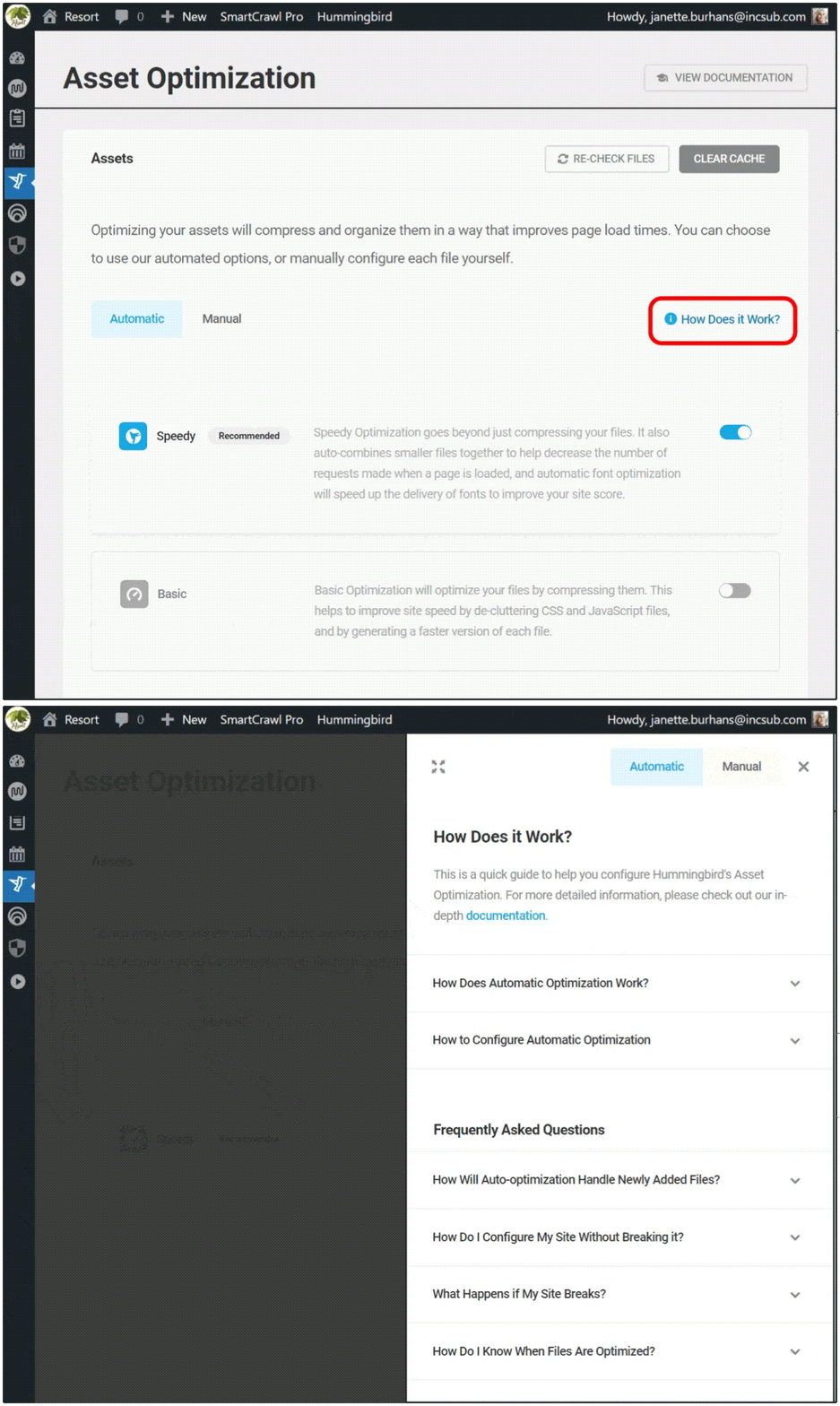
    You can see these anytime by navigating to Hummingbird > Asset Optimization > Assets, then click on the How Does it Work? text at right.

    There is a page for Automatic and one for Manual; just click on the corresponding header button that you’d like to read about.

    asset optiimz how does it work
    Get one-click access to summarized details on both modes of asset optimization.

    If you’re just starting out with Hummingbird, we recommend selecting Automatic optimization in Speedy mode to start. As you use and test your site and the plugin further, you can switch to auto basic or manual mode to check for possible improvements.

    And of course, you can always view our detailed documentation, or reach out to our customer support gurus, available 24/7/365.

    Testing Changes in Safe Mode

    We’re going to zero in today on optimization done in Manual, as that’s where the new Safe Mode lives.

    Hummingbird’s Safe Mode allows you to test different asset optimization settings in a safe environment, without affecting your website visitors’ experience.

    You’ll be able to preview your site from the frontend and check for any errors in your browser’s console, then publish your changes to go live once you’ve got everything just right.

    To enable this feature, go to Asset Optimization > Manual Asset Optimization, and click on the toggle button next to Safe Mode.

    From here, you can also click on the filter icon, which will open a panel for finding files faster. You can free type or select from the dropdown menu.

    manual safe mode+filter
    You can filter to search for files while in Safe Mode.

    When you’re in Safe Mode, clicking on any icon box will change its state.

    You will see a solid outline around it, indicating it’s been selected, and a circular info icon will also appear on the far left of the row.

    These visuals are to remind you’re in preview mode, and will remain until you click Publish, committing the changes you’ve made.

    preview mode changed state
    Visual cues will alert you to unsaved changes.

    With Safe Mode enabled, you can start tweaking your files for peak optimization.

    Each asset will have a status icon indicating its current state, and these vary based on the asset they’re attached to.

    As an example, the Compress option can have the following states:

    • Gray icon – files that are already compressed
    • White icon – indicates which files can be compressed
    • Blue icon – New assets selected for compression
    • Can’t be compressed – marks files that can’t be compressed

    Hover your mouse over any icon for a popup description of what action this change would make.

    hover popup details
    Need info on a particular icon? Just hover over it for a status popup.

    To see the effect any change makes, click the Preview button.

    preview button in safe mode
    The Preview button shows up once you turn Safe Mode on, taking the place of the Publish Changes button.

    Hitting Preview will load the frontend of your site, where you can check on the asset optimization you configured, making sure it doesn’t generate errors or break anything on your site.

    safe mode page preview
    What our Preview page looks like in Hummingbird’s Safe Mode.

    As you can see, the preview page has three clickable buttons at the top: Go Back, Copy Test Link, and Publish.

    Click on Copy Test Link if you want to gauge asset optimization you’ve made using a third-party performance test. Just paste the copied text into your preferred tool.

    Click on the Publish button if you’re content with the change(s) you made, and are ready to save.

    Click on the Go Back button if you’ve gotten an error message, a site break, or had no observable performance improvements, so you can continue to tweak your assets further.

    Once you’ve completed this exercise, turn Safe Mode OFF, as leaving it on can cause page load delays on your live site.

    And there you go! Maximum optimization achieved, which is completely changeable at any time.

    What’s The Other New Feature in Hummingbird 3.4?

    There’s another new feature in the latest release that I wanted to mention, as it’s sure to make your search experience in Hummingbird better.

    In the past, if you were working with a particular encrypted file from your performance test reports, locating it on the Manual Asset optimization tab by filename was a bit messy.

    That was because Hummingbird generates special filenames for optimized files, and there was no direct way to find them there. Until now!

    optimized filenames search in browser bar
    Copy filenames, then use Ctrl/Cmd+F to quickly find them in the browser search.

    With this release, you can copy filenames from the performance reports, then look them up directly in the browser search in the Manual Asset Optimization tab.

    This makes finding optimized files easier and faster.

    Get Your Site Humming with Optimal Performance

    Hummingbird is the ultimate performance suite for all users – whether you’re looking for simple, one-click solutions, or want to fine-tune your site performance down to the last CSS file.

    You’ll get faster loading pages and higher search rankings and PageSpeed scores with Hummingbird’s speed optimization.

    Now with Safe Mode for asset optimization, you can manually configure and test any files without worrying about a site break or interrupting the visitor experience on your site.

    Hummingbird is only one of our highly rated and multi-functional Pro plugins. You can try them all – along with WPMU DEVs membership or hosting – for free! Everything comes with our money-back guarantee, fully supported by our always on-call, 5-star support.

    We’ll help you keep your sites humming and your clients happy.

  • You’re Safe! Hummingbird’s Newest Release Allows for Manual Optimization in Protected Mode

    Fine tuning your website through manual optimization can be tricky, but our new Safe Mode feature in Hummingbird puts that problem in the rearview.

    Now, you can now test optimization in a temporary area that allows for non-permanent changes, so you can work out any kinks, then push them to your live site. For free!

    Introducing Safe Mode for Manual Asset Optimization – allowing you to optimize in a private space while your users still enjoy a fully functioning site.

    In this article, we’re going to look at how Safe Mode in Hummingbird works, while touching on a few related features and settings in the plugin. Plus, we’ll take a look at an additional (surprise!) feature also included in this release.

    Continue reading, or jump ahead using these links:

    Let’s dive in.

    Asset Optimization in Hummingbird

    Hummingbird makes your website faster by optimizing site performance with fine-tuned controls. Setting enhancements make things easy and efficient, giving you new ways to boost PageSpeed Insights.

    First, it identifies files that can be optimized (HTML, Javascript, and CSS), then offers a variety of means (compress, combine, or move) to make that happen.

    The result gives you marked improvement in your website’s performance.

    There are two different modes for asset optimization in Hummingbird:

    1. Automatic – use our preset options to optimize your assets and improve page load times.
    2. Manual – configure each file yourself to achieve the setup best suited to your specific site needs.

    Drilling down even further, there are two options within Automatic Optimization mode:

    1. Speedy – compresses & auto-combines smaller files together, and optimizes your fonts for faster delivery.
    2. Basic – compresses all your files to deliver a faster version of each.

    Automatic mode allows for a quick setup, providing positive gains without the time commitment that manual adjustment requires.

    Both of the Automatic options can be configured for Files (CSS, JavaScript), and/or Fonts.

    manual asset file types
    Hummingbird lets you optimize CSS, JS, and font files.

    Manual mode allows you to tinker with any and every file individually, so you can optimize your site on a very granular level.

    It’s a good idea to test files one at a time to measure results; that way if something doesn’t work it’s easy to identify what caused it and revert back without issue.

    We’ve mapped out specific steps for what to do in each mode, so that you can easily follow along in Hummingbird and produce optimal results.

    You can see these anytime by navigating to Hummingbird > Asset Optimization > Assets, then click on the How Does it Work? text at right.

    There is a page for Automatic and one for Manual; just click on the corresponding header button that you’d like to read about.

    asset optiimz how does it work
    Get one-click access to summarized details on both modes of asset optimization.

    If you’re just starting out with Hummingbird, we recommend selecting Automatic optimization in Speedy mode to start. As you use and test your site and the plugin further, you can switch to auto basic or manual mode to check for possible improvements.

    And of course, you can always view our detailed documentation, or reach out to our customer support gurus, available 24/7/365.

    Testing Changes in Safe Mode

    We’re going to zero in today on optimization done in Manual, as that’s where the new Safe Mode lives.

    Hummingbird’s Safe Mode allows you to test different asset optimization settings in a safe environment, without affecting your website visitors’ experience.

    You’ll be able to preview your site from the frontend and check for any errors in your browser’s console, then publish your changes to go live once you’ve got everything just right.

    To enable this feature, go to Asset Optimization > Manual Asset Optimization, and click on the toggle button next to Safe Mode.

    From here, you can also click on the filter icon, which will open a panel for finding files faster. You can free type or select from the dropdown menu.

    manual safe mode+filter
    You can filter to search for files while in Safe Mode.

    When you’re in Safe Mode, clicking on any icon box will change its state.

    You will see a solid outline around it, indicating it’s been selected, and a circular info icon will also appear on the far left of the row.

    These visuals are to remind you’re in preview mode, and will remain until you click Publish, committing the changes you’ve made.

    preview mode changed state
    Visual cues will alert you to unsaved changes.

    With Safe Mode enabled, you can start tweaking your files for peak optimization.

    Each asset will have a status icon indicating its current state, and these vary based on the asset they’re attached to.

    As an example, the Compress option can have the following states:

    • Gray icon – files that are already compressed
    • White icon – indicates which files can be compressed
    • Blue icon – New assets selected for compression
    • Can’t be compressed – marks files that can’t be compressed

    Hover your mouse over any icon for a popup description of what action this change would make.

    hover popup details
    Need info on a particular icon? Just hover over it for a status popup.

    To see the effect any change makes, click the Preview button.

    preview button in safe mode
    The Preview button shows up once you turn Safe Mode on, taking the place of the Publish Changes button.

    Hitting Preview will load the frontend of your site, where you can check on the asset optimization you configured, making sure it doesn’t generate errors or break anything on your site.

    safe mode page preview
    What our Preview page looks like in Hummingbird’s Safe Mode.

    As you can see, the preview page has three clickable buttons at the top: Go Back, Copy Test Link, and Publish.

    Click on Copy Test Link if you want to gauge asset optimization you’ve made using a third-party performance test. Just paste the copied text into your preferred tool.

    Click on the Publish button if you’re content with the change(s) you made, and are ready to save.

    Click on the Go Back button if you’ve gotten an error message, a site break, or had no observable performance improvements, so you can continue to tweak your assets further.

    Once you’ve completed this exercise, turn Safe Mode OFF, as leaving it on can cause page load delays on your live site.

    And there you go! Maximum optimization achieved, which is completely changeable at any time.

    What’s The Other New Feature in Hummingbird 3.4?

    There’s another new feature in the latest release that I wanted to mention, as it’s sure to make your search experience in Hummingbird better.

    In the past, if you were working with a particular encrypted file from your performance test reports, locating it on the Manual Asset optimization tab by filename was a bit messy.

    That was because Hummingbird generates special filenames for optimized files, and there was no direct way to find them there. Until now!

    optimized filenames search in browser bar
    Copy filenames, then use Ctrl/Cmd+F to quickly find them in the browser search.

    With this release, you can copy filenames from the performance reports, then look them up directly in the browser search in the Manual Asset Optimization tab.

    This makes finding optimized files easier and faster.

    Get Your Site Humming with Optimal Performance

    Hummingbird is the ultimate performance suite for all users – whether you’re looking for simple, one-click solutions, or want to fine-tune your site performance down to the last CSS file.

    You’ll get faster loading pages and higher search rankings and PageSpeed scores with Hummingbird’s speed optimization.

    Now with Safe Mode for asset optimization, you can manually configure and test any files without worrying about a site break or interrupting the visitor experience on your site.

    Hummingbird is only one of our highly rated and multi-functional Pro plugins. You can try them all – along with WPMU DEVs membership or hosting – for free! Everything comes with our money-back guarantee, fully supported by our always on-call, 5-star support.

    We’ll help you keep your sites humming and your clients happy.