EDITS.WS

Tag: portfolio module

  • How to Change the Column Count in Divi’s Filterable Portfolio Module

    As a designer or creative, it’s always a good idea to have a portfolio to show your work online. In the digital era that we’re living in, building a personal brand is a great way to set yourself apart from the competition. Bearing this in mind, using Divi to create your portfolio website is a great idea. Divi has two native modules that can help you build your portfolio. We have the Portfolio Module, as well as the Filterable Portfolio Module. Both allow you to showcase your portfolio in two ways. While the Portfolio Module is a good way to show your work, the Filterable Portfolio Module allows you to showcase more of your work and comes with a filter that will enable you to better present your work in a more organized way. By default, our portfolio modules showcase your work in either one or four columns, depending on the layout you choose. However, in this tutorial, we’ll be using CSS to change columns in Divi’s portfolio module.

    In this tutorial, we’ll be using Divi’s Filterable Portfolio Module within the FREE Print Designer Layout Pack. Specifically, we’ll be using the Print Designer Gallery Page Template from the layout pack. There are two layout styles within Divi’s portfolio Modules. The Grid Layout comes with four columns. The Full Width Layout comes in one column. We’ll be using the Grid Layout and CSS to change columns in Divi’s portfolio module. With CSS, we’ll change the columns within the module to 2, 3, 5, and 6 columns. The module will also be mobile responsive for both tablet and mobile devices.

    Examples of Different Columns in the Filterable Portfolio Module

    Here’s the end result of the work that we’ll be doing in this tutorial:

    Change Divi’s Filterable Portfolio Module to 2 Columns

    Change columns in Divi's portfolio module to 2 columns

    Modify Divi’s Filterable Portfolio Module to 3 Columns

    Change columns in Divi's portfolio module to 3 columns

    Update Divi’s Filterable Portfolio Module to 5 Columns

    Change columns in Divi's portfolio module to 5 columns

    Edit Divi’s Filterable Portfolio Module to 6 Columns

    Change columns in Divi's portfolio module to 6 columns

    Styling the Filterable Portfolio Module

    Before we apply CSS to change the number of columns within our Filterable Portfolio Module, we must first style it to match our template.

    Changing the Layout

    To start, we must change our module layout. To do this, we click on the gear icon to enter the module settings for our Filterable Portfolio Module.

    Edit the layout of the Filterable Portfolio Module

    Next, we click on the Design tab. When we enter this tab, we will now click on the Layout tab. Then, we will change the layout of the module from Fullwidth to Grid.

    Change the layout of the module from Fullwidth to Grid.

    Here, we can see the default Grid Layout contains four columns.

    The default Grid Layout contains four columns

    Style Portfolio Image Thumbnail

    Now that we have our Grid Layout in place, let’s style the portfolio image.

    Styling the Image Overlay

    First, we begin by styling the Overlay. Scroll down and click on the Overlay tab. Use the following settings to add a white, translucent overlay to the Image:

    Overlay Settings:

    • Zoom Icon Color: #000000
    • Hover Overlay Color: RGB(255,255,255,0.9)
    • Hover Icon Picker: Refer to the screenshot below

    Styling the Image Overlay

    Adding Image Border

    After styling the Overlay, we will add a border. To do this, scroll down to the Image tab. Use the following settings to style the border:

    Image Settings:

    • Image Border Width: 8px
    • Image Border Color: #ffffff
    • Image Border Style: Solid

    Let's style the portfolio image border

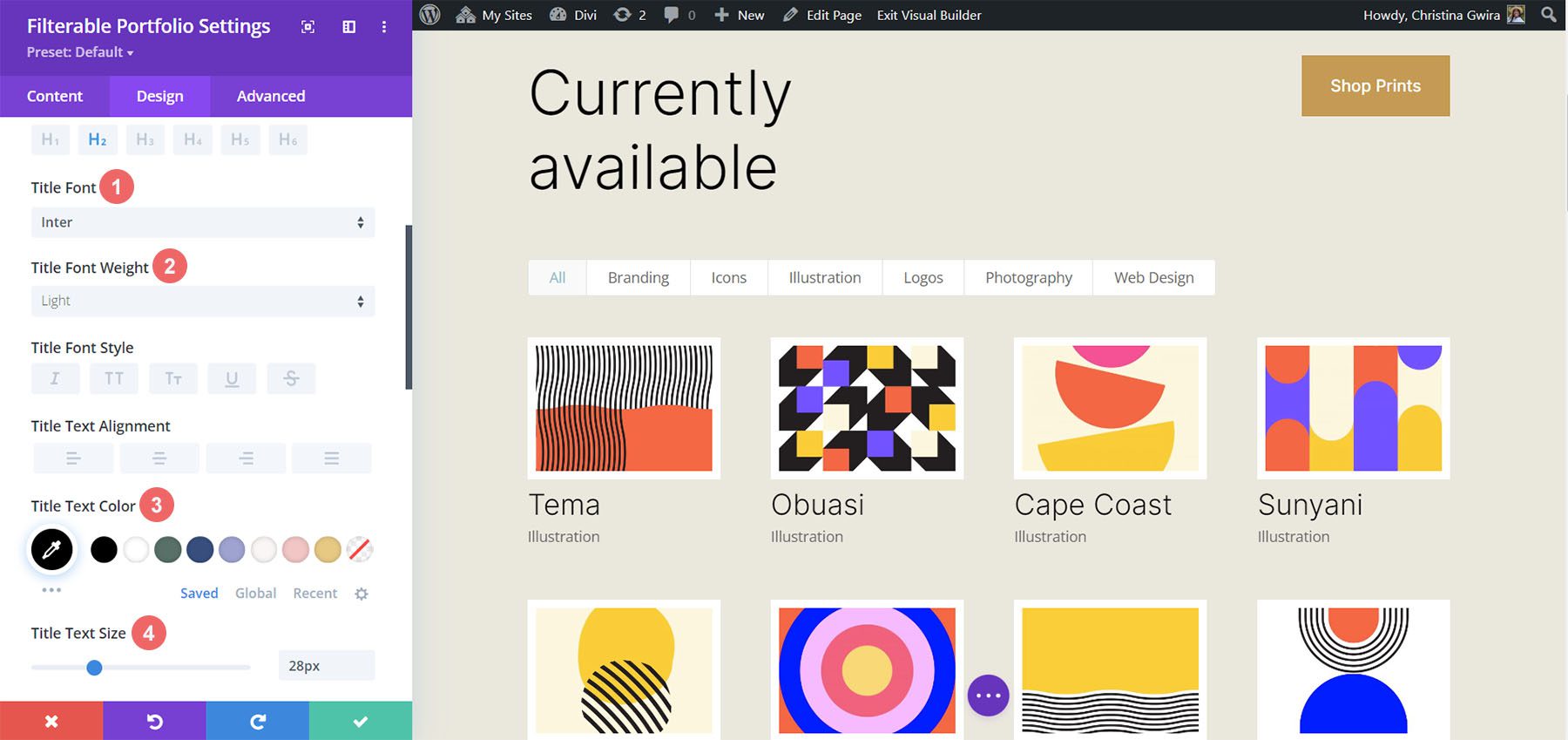
    Styling Title Text

    Next, we will style the Title Text within the module. Let’s scroll down to the Title Text tab. Next, we’ll use the following settings to style the title:

    Title Text Settings:

    • Title Font: Inter
    • Title Font Weight: Light
    • Title Text Color: #000000
    • Title Text Size: 28px

    Styling Title Text

    Notice that we are using the same font that is used through the Print Designer Layout Pack.

    Styling and Adding CSS for the Filter Criteria Text

    For the Filter Criteria Text, we’ll be using a few lines of custom CSS within the Advanced tab of the module settings. Before we add the CSS, let’s style the setting. First, we’ll apply the same font family and color to the Filter Criteria Text.

    Filter Criteria Text Settings:

    • Filter Criteria Font: Inter
    • Filter Criteria Font Weight: Light
    • Filter Criteria Font Size: 14px

    Styling for the Filter Criteria Text

    For now, we’re going to save our changes by clicking on the green checkmark of the Filterable Portfolio Module’s modal box. However, we’re not finished with the Filter Criteria Text just yet. We’re going to navigate to the Page Settings to start building the custom CSS for our project. To do this, we click on the purple circle with the meatball menu in the center of our screen.

    Entering the Page Settings

    Once we have clicked this button, we’ll be able to click on the gear icon. The gear icon will take us into the Page Settings modal box.

    Into the Page Settings modal box

    Once in the Page Settings modal, click on the Advanced tab. Next, paste the following CSS into the Custom CSS box:

    /* Change background color of filters */
    .et_pb_filterable_portfolio .et_pb_portfolio_filters li a {
    background: none;
    border: none
    }
    
    .et_pb_filterable_portfolio .et_pb_portfolio_filters li a:hover {
    background: #ffffff;
    color: #323741 !important;
    }
    

    Notice that we are commenting our CSS! Don’t forget to do so as we’ll be coming back to add to our CSS as we progress through this tutorial. Save your changes by clicking on the green tick button at the bottom of the modal box. Now, let’s move back into editing the Filterable Portfolio Module.

    Styling Meta Text

    We’ll now be styling the meta text that appears below the portfolio item’s title. We want to make it stand out a bit more from the title. To do this, we’ll navigate to the Design tab of the Filterable Portfolio module and scroll down to the Meta Text tab. As with the other text components of our module, we’ll be using the font family Inter. We’ll follow this up with the supporting design selections listed below:

    Meta Text Setting:

    • Meta Font: Inter
    • Meta Font Weight: Regular
    • Meta Font Color: #0102fa

    Style Pagination Text

    Next on the styling block will be the Pagination Text of our module. We’re going to call back our Printer Designer Layout Pack by using the same font. However, we’re going to add a hint of our blue to the hover of this aspect of the module. Also, we’re going to create some interest by making the pagination text significantly larger than its current size.

    To do this, firstly, we’re going to scroll down to the Pagination Text tab and click on it. Next, we’re going to use the following styling settings:

    Pagination Text Settings:

    • Pagination Font: Inter
    • Pagination Font Weight: Light
    • Pagination Text Alignment: Right
    • Pagination Text Color: #000000
    • Pagination Text Color (Hover): #0102fa
    • Pagination Text Size: 28px

    Style Pagination Text

    We’re going to go a step further with our Pagination Text. We want to remove the default border that appears on top of the Pagination Text. To do that, we’re going to click on the Advanced tab within our modal box. Then, we’re going to add the following line of CSS:

    Portfolio Pagiation CSS:

    border: none;
    

    Portfolio Pagiation CSS

    Once you’ve done this, we can now move on to adding some custom CSS to add the finishing touches to our module. Click on the green checkmark button to save your changes. You can go ahead and also save the page as well, just in case you weren’t saving your work along with the tutorial (don’t forget to do so!).

    Customizing the Filterable Portfolio Module with CSS

    Now that we’ve finished designing our Filterable Portfolio Module in Divi, we’ll now be using CSS to change the number of columns that we’ll have in our module. But first, we’re going to make one minor tweak. We’re going to use CSS to remove the initial transition that comes default with the module.

    To do this, we’re going to move into the Page Settings to access the Custom CSS tab.

    Entering the page settings

    Then, we’re going to add the following CSS to our Custom CSS:

    /* Remove transition */
    .et_pb_filterable_portfolio .et_pb_portfolio_item.active {
    transition: none;
    }
    
    .et_pb_portfolio_item {
    animation: none!important;
    transition: none !important;
    }
    

    We add this underneath the previous CSS that we added for the styling of the filters. This is what our Filterable Portfolio now looks like, with all our styling edits.

    Four column filterable portfolio, styled

    Now, let’s change the column number from 4 to 2.

    CSS Design Changes for Our Filterable Portfolio Module

    Firstly, one important fact to remember when using this module, is to take note of the number of posts that you want to showcase on each page. For our CSS to work correctly, remember to showcase a number of posts that is divisible by the number of columns that you have. For example, if you want to show your portfolio in 6 columns, it would be best to show a minimum of 6 posts in your post count. If you would like to show more posts, it would be best to do 12, 18, 24, etc. posts within the module.

    You can find the post count within the Content tab of the Filterable Portfolio and Portfolio Modules.

    Post Count and the portfolio modules

    Before we add our CSS, we need to attach a CSS class to our module. To do this, we’ll re-enter the module settings, click on the Advanced tab and add our CSS class to our module. We’ll use the class column-portfolio. So that we don’t get confused as we move through this tutorial, we’ll prefix this class with the number of columns that we’ll be creating.

    Add our CSS class to our module

    Changing the Filterable Portfolio Module to Two Columns

    To change the number of columns in our module from 4 columns to 2 columns, we’ll once again, go to the Page Settings. Then, we’ll add the following CSS:

    Custom CSS for a Two Column Filterable Portfolio:

    /* 2 Column Portfolio */
    @media (min-width: 981px) {
    .two-column-portfolio .et_pb_grid_item {
    width: 47.25%!important;
    margin-right: 5.5%!important;
    }
    
    .two-column-portfolio .et_pb_grid_item:nth-child(3n) {
    margin-right: 5.5%!important;
    }
    
    .two-column-portfolio .et_pb_grid_item:nth-child(2n) {
    margin-right: 0!important;
    }
    
    .two-column-portfolio .et_pb_grid_item.et_pb_portfolio_item:nth-child(4n+1) {
    clear: none!important;
    }
    
    .two-column-portfolio .et_pb_grid_item.first_in_row {
    clear: unset;
    }
    }
    

    The width of our first selector (.two-column-portfolio .et_pb_grid_item) determines the width of the column. The margin-right property that we use throughout this CSS snippet adds some padding (or gutter) around our portfolio items. Here’s what our new, two-column module looks like.

    Two column filterable portfolio

    Using CSS to Change the Filterable Portfolio Module to Three Columns

    Now, we’re going to change our module from 2 columns to 3 columns. Here’s a new CSS snippet to do this:

    /* 3 Column Portfolio */
    @media (min-width: 981px) {
        .three-column-portfolio .et_pb_grid_item {
            width: 29.66%!important;
            margin-right: 5.5%!important;  
        }
     
        .three-column-portfolio .et_pb_grid_item:nth-child(3n) {
            margin-right: 0!important;
        }
     
        .three-column-portfolio.et_pb_grid_item:nth-child(4n) {
            margin-right: 5.5%!important;
        }
     
        .three-column-portfolio .et_pb_grid_item.et_pb_portfolio_item:nth-child(4n+1) {
            clear: none!important;
        }
        .three-column-portfolio .et_pb_grid_item.first_in_row {
            clear: unset;
        }
    }
    

    Remember, after adding this CSS, we’re going to have to change the post count to a number that is divisible by 3. Let’s go with 9.

    Change the post count for 3 columns

    Change the Number of Columns within the Filterable Portfolio Module to Five Columns

    Here is the snippet for making our module have 5 columns.

    /* 5 Column Portfolio */
    @media (min-width: 981px) {
        .five-column-portfolio .et_pb_grid_item {
            width: 15.6%!important;
            margin-right: 5.5%!important;        
        }
     
        .five-column-portfolio .et_pb_grid_item:nth-child(3n) {
            margin-right: 5.5%!important;
        }
     
        .five-column-portfolio .et_pb_grid_item:nth-child(5n) {
            margin-right: 0!important;
        }
     
        .five-column-portfolio .et_pb_grid_item.et_pb_portfolio_item:nth-child(4n+1) {
            clear: none!important;
        }
     
        .five-column-portfolio .et_pb_grid_item.first_in_row {
            clear: unset;
        }
    }


    Again, remember to change the post count! We’re going to go with a higher number here… we’re going all the way up to 15!

    Change the post count for 5 columns

    Edit the Number of Columns in the Filterable Portfolio Module to Six Columns

    Finally, we’re going to change our portfolio to six columns. However, we need to make a small tweak when using the following CSS snippet. We’re going to go into the module settings one final time and add a line of CSS. This CSS will change the size of the Portfolio Image. The reason we do this is to ensure that we can fit in our padding (gutter) and border within the six column layout.

    To do this, we’re going to navigate to the Advanced tab of our Filterable Portfolio module, and add the following line of CSS to the Portfolio Image option:

    Portfolio Image Custom CSS:

    • Portfolio Image CSS: width: 90%;

    Portfolio Image Custom CSS

    Now that we have this CSS in place, we can go back to the Page Settings and add this CSS snippet to make the module have six columns:

    /* 6 Column Portfolio */
    @media (min-width: 981px) {
        .six-column-portfolio .et_pb_grid_item {
            width:16%!important;
            margin-right: 5px!important;        
        }
     
        .six-column-portfolio .et_pb_grid_item:nth-child(3n) {
            margin-right: 5px!important;
        }
     
        .six-column-portfolio .et_pb_grid_item:nth-child(6n) {
            margin-right: 0!important;
        }
     
        .six-column-portfolio .et_pb_grid_item.et_pb_portfolio_item:nth-child(4n+1) {
            clear: none!important;
        }
     
        .six-column-portfolio .et_pb_grid_item.first_in_row {
            clear: unset;
        }
    }
    

    For this snippet, you’ll notice that we’ve changed the measurement of our right margin. The reason we do this is so that we can still maintain the thick white borders that we implemented in the design phase of this tutorial. So, we reduced our margin to 5px. We also used 18 posts within our post count.

    Post count for 6 columns

    Let’s Wrap it All Up!

    As we have come to the end of your tutorial, I hope that you have been able to see how we can customize the default modules that come with Divi by using CSS. As we are living in an ever-growing digital age, it’s always a good idea to invest time in building an online presence. That could look like adding your work online in the form of a digital portfolio! We hope this tutorial will help you make your portfolio unique.

    The post How to Change the Column Count in Divi’s Filterable Portfolio Module appeared first on Elegant Themes Blog.

  • How to Style a Grid Item in Divi’s Filterable Portfolio Module

    Having an area on your website to showcase your work is important. If you’re a stylist, you could create multiple projects within your WordPress website to show your concepts. If you’re a brand designer, you can use a portfolio to showcase your past work. Furthermore, we can even go a step further and add in various categories for our projects. This is where Divi’s Filterable Portfolio Module comes into play.

    With this module, we are able to display our hard work in a way that is easy and organized. In today’s tutorial, we’ll be styling the Filterable Portfolio Module’s individual grid items. We’ll be using layouts from the Divi Conference and Divi Online Yoga Instructor free layout packs that come with every purchase of Divi. As with all things Divi, we have the ability to style this module to make it match our needs and wants. However, before we get into styling, let’s learn a bit more about the module.

    What is Divi’s Filterable Portfolio Module?

    Projects are part of a custom post type that works similarly to posts. You can find these inside your WordPress dashboard.

    The Projects custom post type that comes with every Divi install

    This is where you’ll create your individual projects that will populate your Filterable Portfolio Module. The module gives us two ways of showing our projects: in a grid format, or in a fullwidth format. For us, we’ll be using and styling the grid format. With the Filterable Portfolio Module, we will be able to showcase our most recent projects. Users of our site will be shown a filter bar on top of our portfolio grid. From there, they can cycle through the various portfolio categories that we allow to be displayed within the module.

    Here’s an example of a vanilla setup of the module with some sample projects:

    The Divi Filterable Portfolio Module with sample projects

    Areas to Consider When Styling Divi’s Filterable Portfolio

    Like all Divi modules, the Filterable Portfolio Module comes with a number of features that we can style to our needs and wants. As such, most of the features that accompany the module we are able to edit within the Design tab of the modules settings modal box. We can edit the follow areas and more:

    • Project Title
    • Project Category
    • Thumbnail
    • Filter Text
    • Thumbnail Hover
    • Pagination

    This isn’t a full list, and we haven’t even begun to talk about how CSS has add deeper customizations to this module!

    How We’ll Be Styling Divi’s Filterable Portfolio Module

    As mentioned earlier, for this tutorial we’ll be using two layouts from the Divi Conference and Divi Online Yoga Instructor. Below, you can catch a glimpse of the work that we’ll be doing during this tutorial.

    Divi Conference Event Layout

    The Divi Conference Event Layout with the Filterable Portfolio Module

    Divi Online Yoga Instructor Landing Page Layout

    The Divi Online Yoga Instructor Layout with the Filterable Portfolio Module

    You can easily download both layouts from within the Divi Builder. Now, let’s get started!

    Styling Divi’s Filterable Portfolio Module: Divi Conference Edition

    First things first, we’ll need to install the event page template from the Divi Conference Layout Pack. After you have created your new page in WordPress and activated the Divi Builder, we’re going to enter into the Divi Library.

    Enter the Divi Layout Library

    Click on the Load from Library icon to enter into the Divi Layout Library

    Load the Divi Layout Library

    Locate Layout Within the Divi Layout Library

    Using the search feature within Divi’s Layout Library, search for the Divi Conference Event Page layout.

    Search for the Divi Conference event page layout within the Divi Layout Library

    Install the Layout

    Once you have selected the layout, click the Use This Layout button to install the layout into your page.

    Install selected layout

    Remove and Replace Image Module

    We’re going to remove the Image Module pictured below to make room for the Filterable Portfolio Module that we’ll be styling. Click on the Delete icon after hovering over the image to remove the photo.

    Remove Image Module

    Insert the Divi Filterable Portfolio Module

    With the Image Module removed, we can now make space for our Filterable Portfolio Module. We will click on the Add Module Icon (the grey plus sign) and then select the module from the module modal box that pops up.

    Insert the Filterable Portfolio Module

    Setting the Post Count and Portfolio Layout

    By default, this module will showcase your work in a one column. However, we’ll be using the Grid layout which comes by default with 4 columns. As such, we recommend choosing a number that is a multiple of 4 (4, 8, 12, 16 etc.) as the Post Count for your portfolio. For this tutorial, we’ll be using 12 projects in our grid.

    Setting the Post Count and Portfolio Layout

    Begin Styling Divi’s Filterable Portfolio: Title and Meta Text

    Now that we have our projects showing up as a grid, let’s tie in some of the design elements from our selected template. In this case, we’ll be using the styling that comes with the Divi Conference Layout Pack within our new module.

    Text Styling

    • Text Alignment: Center
    • Text Color: Dark

    Title Text Styling

    • Title Heading Level:H2
    • Title Font: Krona One
    • Title Text Color: #000000

    Meta Text Styling

    • Meta Font: Default (Open Sans)
    • Meta Text Color: #ff6651

    Text styling edits for your newly added module

    Styled titles within the Filterable Portfolio Module

    Now that we have our styling in place for the titles within the portfolio grid, let’s make some edits to the actual shape of the project thumbnails themselves.

    Modify Border and Rounded Corners of Project Thumbnail

    Within our Divi Conference Layout Pack, we are using a unique combination of rounded corners to give a unique shape to some of the key images within the pack. Let’s apply this styling to the thumbnails of our module.

    Image

    • Image Rounded Corners: 50px 50px 50px 0px
    • Image Border Styles: All
    • Image Border Width: 3px
    • Image Border Color: #000000
    • Image Border Style: Solid

    Adding the corners and borders to the featured image

    Rounded corners and border styling added to portfolio list items

    This will cause our thumbnails to have a shape that matches the rest of the other images throughout the layout pack.

    Customizing the Hover Overlay

    Let’s go a step further with our styling and make a slight edit to the overlay that comes by default with this module. We’re going to change the color as well as the icon that’s used right out of the box.

    Overlay

    • Zoom Icon Color: #bcf5fd
    • Hover Overlay Color: #ff6651
    • Hover Icon Picker: Zoom

    Setting for the hover overlay effect

    As you can now see, we’ve added the brand colors of this layout into the overlay, as well as changed the icon that Divi provides by default for this module’s hover overlay feature.

    Hover styling from in effect within the Divi Conference Event Page Layout

    Styling the Pagination

    We’re now going to start using small snippets of CSS to add some further customization to our Filterable Portfolio Module. Firstly, we’re going to style the pagination of this module. Next, we’re going to remove the border that appears above with a single line of CSS

    Pagination Text

    • Pagination Font: Krona One
    • Pagination Text Alignment: Center
    • Pagination Text Color: #ff6651
    • Pagination Text Color (Hover): #000000

    Styling the pagination of the Divi Filterable Module

    For our CSS, we will be moving to the Advanced tab of our module. Secondly, we will click on the Custom CSS tab. Next, we will enter in the following code snippet to remove he border on top of our pagination, giving it a cleaner look.

    Portfolio Pagination

    border-top: 0px;

    Portfolio Pagination CSS

    Using Custom CSS & Divi Settings to Style the Filter Text

    For the Filter Text, we’ll be taking things up a notch. We are going to use CSS to change the background as well as the hover effects. We want to have a close seamlessness between the newly added module and the styling of the layout pack. First, let’s enter in our Divi settings for the font.

    Filter Criteria Text

    • Filter Criteria Font: Krona One
    • Filter Criteria Text Color: #ffffff
    • Filter Criteria Text Color (Hover): #000000

    Filter criteria text styling

    As it currently stands, our filter appears to have disappeared. This is because in its default state, it is white text on a white background. However, we’re going to change that with some custom CSS in two places. Firstly, we’re going to add a snippet of CSS within the Page Settings that’ll add a background to the filter text. Secondly, we’ll style the Active Portfolio Filter using the Advanced tab of the module.

    Access page settings

    To access the Page Settings, click on the three dots on the middle of the screen. Then, select the gear icon which will open up the Page Settings. Next, you will navigate to the Custom CSS tab, and enter in the following to add a background to the Filter Text.

    Access and enter into the page settings for adding additional CSS

    Custom CSS

    In this CSS snippet, we are targeting the background color of the filter. We are also targeting and styling its hover state. Next on the agenda, let’s add a bit more CSS to the module and showcase our Active Filter tab more prominently.

    /* Change background color of filters */
    .et_pb_filterable_portfolio .et_pb_portfolio_filters li a {
    background: #000000;
    }
    .et_pb_filterable_portfolio .et_pb_portfolio_filters li a:hover {
    background: #ffffff;
    }

    Using Page Settings to set the color of the background of the module's filters

    Styling the Active Portfolio Filter Tab

    The Active Portfolio Filter Tab draws our user’s attention to the current portfolio category that they’re visiting. Right now, this filter has white text and a light background. We’re going to go into the Advanced tab of the Filterable Portfolio Module and add some text to the default and hover states of this feature. These are the CSS properties we’ll add in a default state:

    background: #ff6651;
    color: #ffffff !important;

    Active Portfolio Filter styling

    Hover State

    On hover, we’ll change the background to black.

    color: #000000!important;

    Background styling of hover for Active Portfolio Filter

    Final Look Styling Divi’s Filterable Portfolio with Divi Conference

    Here’s the final look!

    Finished Styling Divi's Filterable Portfolio Module for Divi Conference

    And now, here’s what it looks like when we hover!

    Finished Styling Divi's Filterable Portfolio Module for Divi Conference

    Styling Divi’s Filterable Portfolio Module: Divi Online Yoga Instructor Edition

    Similarly to the Divi Conference edition, find your layout within the Online Yoga Instructor Layout Pack inside the Divi Builder. We’ll be using the Landing Page Layout for this tutorial. Scroll down to the section Classes section with the title All Upcoming Classes Section.

    Updating the Online Yoga Instructor layout

    Inserting Filterable Portfolio Module

    From here, we’re going to delete the rows with the classes. Click the purple icon with three dots on it. Next, select the Wireframe view. Lastly, you’re going to delete the two rows that have three columns within them.

    Rearranging the layout in preparation for our new module

    Next, we’ll replace them with a single column within the row within which. Then, we’ll add our Filterable Portfolio Module.

    Inserting Filterable Portfolio Module into newly created row

    Like the previous example, we will be using the Grid Layout for this module with a multiple of 4 for the Post Count. Now, let’s do something a bit different with the information that we showcase on the card. In the Content tab, let’s navigate to Elements and unselect the Show Categories. This will mean that the Portfolio Module will only show the name of the project without the name of the category that it’s in.

    Disable show categories for the module

    Style Filter Criteria Text, Project Title and Pagination Text

    Let’s set the style foundation for the text portions of our module. The body text for this layout is Open Sans and the font used for the main headings is Cinzel. Therefore we’ll be using a combination of these two fonts throughout out styling process.

    Text

    • Text Alignment: Center
    • Text Color: Light

    Title Text

    • Title Font: Cinzel
    • Title Text Color: #ffffff

    Title and Text Styling - Part One

    Filter Criteria Text

    • Filter Criteria Font Weight: Bold
    • Filter Criteria Text Color: #ffffff

    Pagination Text

    • Pagination Text Color: #ffffff

    Title and Text Styling - Part One

    This is what our Filterable Portfolio Module is looking like right now. It’s not much, but we’re slowly getting there!

    New text styling implemented into the portfolio module

    Creating a Translucent Hover Overlay

    Let’s pull some inspiration from the various modules and beautiful gradients within this layout. For this, we’re going to create a translucent hover overlay and style the icon that shows up on hover as well.

    • Zoom Icon Color: #323741
    • Hover Overlay Color: rgba(255,201,165,0.85)
    • Hover Icon Picker: Search leaf and see icon above

    Styling the hover overlay

    Adding a Border to the Portfolio Grid Items with Custom CSS

    Similar to our first tutorial, we’re now going to use some CSS to add more interest to our Filterable Portfolio Module. Now, we are going to add a border around each individual portfolio grid item. Use the CSS snippet below within the Custom CSS portion of the Page Settings to add our border. We’ll also be assigning the CSS Class border to this module.

    • CSS Class: border

    Custom CSS

    /* Border */
    .border .et_pb_grid_item {
    border: 2px solid #ffffff;
    padding: 5px;
    }

    Adding a CSS class to our module in addition to custom CSS

    Here we now have our Filterable Portfolio Module with a nice border – and soe padding – around each grid item.

    Some padding and a border for the portfolio module

    Adding CSS to Style Pagination Border

    Unlike our previous example, let’s add some color to the border for our pagination with some CSS. This will also go within the Page Settings > Custom CSS area.

    /* Pagination Styling */
    .et_pb_filterable_portfolio .et_pb_portofolio_pagination {
    border-top: 2px solid #adc6d9;
    }

    Styling the Filter Criteria Text

    Similar to our Divi Conference Portfolio Module styling, we want to add some jazz to our category filters. Again, we want to pull from the styling that is already present within the template provided to us. Here’s the CSS that we’ll be adding into our Custom CSS section to target the background and hover of our Filter bar.

    /* Change background color of filters */
    .et_pb_filterable_portfolio .et_pb_portfolio_filters li a {
    background: none;
    }
    
    .et_pb_filterable_portfolio .et_pb_portfolio_filters li a:hover {
    background: #ffffff;
    color: #323741 !important;
    }

    With these two new additions to our Custom CSS, this is what our Filterable Portfolio Module is shaping up to be.

    Filter text and border styling added to Divi's Filterable Portfolio Module

    However, notice how the Active Portfolio Filter is lost. It still has a light background with white text on top of it. Let’s go into the module’s settings and add some CSS to change this.

    Custom CSS

    Active Portfolio Filter:

    background: #ffffff;
    color: #323741 !important;

    Styling the Active Filter setting with Custom CSS

    Removing Animation From Module

    To provide a cleaner experience, we’ll be removing the default animation that comes with the Filterable Portfolio Module. For this, we’ll first need to go back into our Page Settings and add some CSS that will target the portfolio grid items and remove the slide-in transition that occurs out of the box with Divi.

    Custom CSS

    /* Remove transition */
    .et_pb_filterable_portfolio .et_pb_portfolio_item.active {
    transition: none;
    }
    </code><code>
    .et_pb_portfolio_item {
    animation: none!important;
    transition: none !important;
    }
    

    Change Portfolio Grid from Four Columns to Three

    Our final CSS addition will be to transform our Portfolio module from four columns to three. This will allow us more room to see our projects. Also, we’ll be adding an additional row to our module. Here’s the final CSS snippet that you’ll be able to use to convert your columns.

    Custom CSS

    For this last snippet, we’ll be adding the CSS ID #three-column-grid to our module. We will still be keeping our CSS class from before intact.

    /* 4 to 3 Columns */
    @media only screen and ( min-width: 768px ) {
    #three-column-grid .et_pb_grid_item {
    width: 28.333%;
    margin: 0 7.5% 7.5% 0;
    }
    
    #three-column-grid .et_pb_grid_item:nth-child(3n) {
    margin-right: 0;
    }
    
    #three-column-grid .et_pb_grid_item:nth-child(3n+1) {
    clear: left;
    }
    
    #three-column-grid .et_pb_grid_item:nth-child(4n+1) {
    clear: unset;
    }
    }

    Adding CSS ID

    Styling Divi’s Filterable Portfolio: In Conclusion

    As with most of Divi’s modules, the settings that come with Divi can be further expanded upon with CSS. Showcasing your work is an important part of running a business, blog or brand online. As such, having an organized manner in which to display your work is key. Glean from the tips that were shared today to partake in your own journey of styling Divi’s Filterable Portfolio module and show us your work in the comments or on social media!

    The post How to Style a Grid Item in Divi’s Filterable Portfolio Module appeared first on Elegant Themes Blog.