EDITS.WS

Tag: Product Reviews

  • Picsart (AI): Review (Details, Pricing & Features)

    In the past, if creatives wanted to edit photos or videos, they would need to purchase a high-end program like Adobe Photoshop or Premiere Pro to do it. With the introduction of artificial intelligence (AI), people don’t have to spend time learning complicated software or pay hundreds of dollars a year to use one. In this post, we’ll dive into the world of Picsart AI, where even beginners can create stunning photos, videos, and other creative assets for their projects.

    Let’s get started.

    What is Picsart AI?

    Picsart AI

    Picsart is a creative platform that allows you to edit photos and videos and make various enhancements. Touted as a tech unicorn by Forbes, Picsart is one of the most popular photo editing programs on the market. In 2022, Picsart joined the AI revolution by offering nearly a dozen generative AI tools that allow you to create and edit images and videos, write copy, make logos, and more. Picsart has its own research and development team whose sole purpose is to develop highly effective AI-powered programs to turn even the most novice user into a creative professional.

    Features of Picsart AI

    Picsart offers one of the most impressive AI suites on the market today. With tools to edit photos, create GIFs, create and edit videos, and more, its market share is one of the largest in the world. In addition to web-based AI tools, they also offer apps for both iPhone and Android devices, so you can take your creative programs with you on the go. Let’s take a look at the various features you’ll gain by adding Picsart to your creative portfolio.

    AI Photo Editing

    Picsart AI’s bread and butter is its image editing features. With options like AI enhance, replace, and the background generator, busy creatives can edit photos in a flash with AI.

    AI Enhance

    enhanced image

    The AI Enhance features allow users to sharpen photos, reduce noise, and increase image pixels by up to two times their original size. If you’ve ever spent hours enhancing images in other programs, you know how tedious this task can be. With Picsart AI, you can turn those grainy, low-quality images into upscaled masterpieces in seconds.

    AI Replace

    Picsart AI Replace tool

    Picsart’s AI Replace tool allows you to select a section of an uploaded photo and replace it with something else entirely. For example, in the image above, we removed the pajamas in the photo with a fluffy place for the kitty to rest her head. While this is just a basic example, you can generate and replace any aspect of your photos with a simple text prompt.

    AI Background Generator

    Picsart AI background generator

    A cool feature of Picsart AI is the AI background generator tool. With it, you can create unique photo backgrounds with a text prompt. This is a great feature for making custom backdrops for product images, eye-catching scenes for social media campaigns, and more.

    AI Style Transfer

    AI Style Transfer

    Image style transfer uses artificial intelligence to copy a photo’s style. It analyzes an uploaded image and then transfers styling to another image. This is very useful for creators who are batch-editing pictures for a project. For example, you could bulk-edit product images and apply the same style. With Picsart, that can be achieved in a few minutes.

    AI Avatar Generator

    AI Avatar Generator

    Picsart offers an app for those looking to create custom AI avatars. Available for iPhone and Android, creatives can easily create a new avatar for online forums or social media in minutes. It works by uploading 10-30 quality images of yourself (or a pet) and then choosing up to 10 styles for your avatar.

    AI Image Generator

    Picsart AI image generation

    Another helpful feature of Picsart AI is the image generation feature. Like other AI art generators, you have to describe the image you want, then sit back and watch as the AI does its magic. While you can generate decent imagery with Picsart, it could be better at hyperrealistic renders. However, it does a good job of generating animals and landscapes in various styles.

    AI Writing Assistant

    writing assistant

    If you need help crafting headlines for your social media posts, Picsart has you covered. Using their AI content generator, you can describe what you want your post to say in a few words, then watch as AI works its magic.

    AI Video Generator

    AI Video Generator

    If you want to create a quick video for use on social media, Picsart’s video creation feature comes in handy. Now, it’s not on the same level as AI video generators like Pictory, but it will work well for certain applications. For example, if you want to create quick clips for Instagram or Facebook, Picsart’s AI video generator is a good choice.

    AI video filters

    AI video filters

    After generating videos, you can use the AI video filters to add a bit of flair. They provide filter presets like Van Gogh or allow you to describe the effect you’d like to use.

    AI Gif Generator

    AI GIF Generator

    Are you looking to create the perfect meme? Picsart AI has an amazing GIF generator that allows you to develop cool animated visuals for your projects. Just describe the GIF you want with a brief text description, then incorporate other tools to add text, stickers, or other design elements to make your meme stand out.

    Sketch AI

    SketchAI

    Sketch AI is another app available through Picsart. It’s great for sketching ideas and turning them into digital art. It comes with a wide range of drawing tools to allow you to start a drawing from scratch. Alternatively, you can upload an image and have AI improve it based on your text prompt. Sketch AI is available on iPhone or Android devices.

    AI Logo Generator

    AI Logo Generator

    If you’re starting a new company or freelance venture, Picsart can help you create the logo you need to properly represent your brand. Like the other AI tools they offer, a text prompt starts the entire process. From there, you can use different effects and filters to refine your logo to suit your needs.

    Picsart Pricing Plans

    Picsart pricing

    Picsart offers standard photo and video editing tools and nearly a dozen AI tools to aid your creativity. There are three plans available: Free, Plus, and Pro. The free plan allows unlimited use of standard photo and video editing tools, free images, videos, and templates. You can even try some of the AI tools in a limited capacity.

    However, if you want to get more out of Picsart, you can sign up for Plus. It offers more image and video assets, mobile and web-based tools, and full access to hundreds of premium templates for $5 per month. Unfortunately, you won’t have access to AI tools with Plus. For that, you’ll need to sign up for Picsart Pro, which grants you access to everything on the other plans and unlimited access to their full suite of AI tools for $7 per month.

    How to Use Picsart AI

    We won’t go over every aspect of what Picsart AI can do, but we will give you a glimpse into the interface. That way, you can decide if Picsart is something you’d like to incorporate into your creative workflow. The first step is to get a feel for Picsart and the tools they offer. As previously mentioned, Picsart’s standard editing tools are free to use.

    free editing tools

    You can also try out their AI tools, such as the AI GIF, background, and image generators.

    Picsart AI tools

    However, if you want to save and export your work you must sign up for their 7-day free trial.

    Picsart free trial

    The Picsart AI Web Interface

    After choosing a tool or subscribing to a plan, you’ll get your first look at the Picsart dashboard. There are tools (1) to select your layout, edit photos, and add stickers, amongst others. Upon clicking More Tools (2), you can access the AI programs (3) mentioned in the section above. You can use any combination you wish, then add them to the pasteboard (4).

    Picsart AI dashboard

    To use a tool, click on it to reveal its interface. For example, let’s click on AI logo creator.

    select a tool

    When the screen refreshes, you’ll see a set of tools to aid you in creating your logo. You’ll enter your brand name, color scheme, and business industry to give the AI enough information to generate a logo.

    logo generator

    You can edit your chosen logo’s colors, add animations, or apply various effects to make it more impactful.

    edit logo

    Getting inspiration for branding is a good use of Picsart AI. You likely won’t get the perfect result the first time. You may not ever get the ideal result. However, it does inspire creativity and a different way of thinking. With each button click, you’ll be provided with four logo options. If you want to see more, click the generate button again. With unlimited generations with paid plans, you can tinker with it as much as you like without worrying about replenishing credits.

    Picsart App Interface

    Where Picsart shines is its mobile app. It’s a great tool for creatives who want to sketch a quick idea, generate a GIF on the fly, or create AI avatars. When you first log in to the app, you’re met with plenty of inspiration. You can check out other user’s work, follow artists, and try some example prompts to get a feel for the app.

    One of the best features of the mobile app is the AI Avatar Generator. All you have to do is upload some images of yourself, your pet, or a couple, and Picsart will generate up to 100 avatars based on the styles you choose. To create your own avatars, start by clicking the + icon (1) at the bottom center of your screen. Next, choose the avatar type (2). On the next screen, you’ll upload between 10-30 quality photos of yourself (3) in varying angles to help the AI learn your face. Next, choose up to 10 styles (4) for your avatar. Finally, generate your avatars by clicking the continue button (5).

    generate avatars

    The downside to creating your avatars is that it costs an additional $5.99 on top of the monthly Picsart subscription price. That’s per avatar set. On top of that, you’ll need to be okay with taking a break from your work while they are created. In our experience, creating an avatar set took close to 45 minutes. The upside is that it produces amazing results.

    Picsart AI avatars

    Pros and Cons of Picsart

    There is a lot to unpack with Picsart. Aside from the awesome standard photo and video editing tools, there are many AI tools to experiment with and learn. So, to help you decide whether Picsart is right for you, we added a short pros and cons list to help guide you.

    Pros of Picsart

    • It is an all-in-one creative image and video editing platform.
    • The mobile apps are amazing.
    • Free tools for the casual creator.
    • Excellent for generating GIFS, quick videos, and AI avatars.

    Cons of Picsart

    • Their writing and image tools aren’t on the same level as Jasper or Midjourney .
    • The apps (SketchAI and AI Avatar) must be purchased separately from a Picsart subscription.
    • AI Avatars can take up to 30 minutes (or more) to generate.
    • It’s not the easiest interface to master (web app).

    Final Thoughts on Picsart

    Artificial intelligence is transforming the way creatives work. With platforms like Picsart AI, creating captivating visuals no longer requires extensive knowledge of difficult programs or even a keen eye for design. Picsart AI is a great choice for aspiring creatives to learn the concepts of design while creating assets for social media and the web.

    One of the most compelling arguments for purchasing a subscription is the mobile apps and the sheer volume of tools it comes with. Some standouts include the AI Enhance, GIF generator, background generator, AI Replace, and AI Avatar generator. However, some features require additional purchases besides the monthly subscription, and some AI tools have room for improvement. Despite those minor setbacks, Picsart AI is a versatile platform that caters to casual and professional creators alike.

    The post Picsart (AI): Review (Details, Pricing & Features) appeared first on Elegant Themes Blog.

  • Murf AI: Review, Details & Pricing (2023)

    Digital creators often know the struggle of creating voiceovers for videos and other projects. The process can be time-consuming and expensive. Thanks to the latest advancements in artificial intelligence (AI), it’s now possible to create lifelike voiceovers in a fraction of the time. In this post, we’ll introduce you to Murf AI, one of the popular AI voice generators on the market.

    Let’s get started.

    What is Murf AI?

    Murf AI

    Murf AI is a powerful AI voice generator that enables you to create realistic-sounding voiceovers for your projects. It uses machine learning through generative AI to work its magic. Unlike most AI voice software, Murf’s voices sound human. They offer more than 120 of them, each with different characteristics and styles, so finding one that meets your needs is a breeze.

    That said, it’s more than just a voice generator. It can help you create videos, too. It’s not a traditional AI video generator where you generate a video from a text prompt. Instead, it provides millions of stock music, image, and video assets that you can use to create videos for the web, social media, marketing or training videos, and more.

    Benefits of Using Murf AI

    Murf AI is a powerful software that has many benefits. Whether you’re a business professional looking to save time and money or a novice marketer looking for tools to help you expand your reach, Murf AI is a solid tool for generating voiceovers for your projects.

    Some benefits include:

    • Saving time and money: You can create natural-sounding voiceovers in a few clicks, negating the need to hire professionals or spend hours editing them.
    • Choices: Murf AI provides over 120 voices available in 20 languages, so you’ll never run out of options.
    • Media assets: Murf AI offers millions of media assets you can use to create quick videos inside the editor. You can also upload your videos and other media assets for on-brand results.
    • Customization: The voice editor allows you to change the pitch, tone, and speaking style to create the perfect voice for your projects.
    • Ease of use: One of the strongest arguments for using Murf is its intuitive dashboard. There are only a few tools to learn, and the interface is simple.

    Murf AI Features

    The folks at Murf offer many features to create voiceovers for your projects. Let’s review them to better understand what you have at your disposal should you sign up for it.

    Text-To-Speech

    text-to-speech

    Murf AI’s text-to-speech feature is, in our opinion, its best feature. As previously mentioned, they offer 120 AI voices and 20 languages, so you can be certain you’ll find the perfect fit for your projects. With simple tools, you can edit your voice’s style, tone, speed, and other characteristics. It also allows you to add pauses in the right places, making voices sound incredibly human.

    Canva Add-On

    Murf AI Canva add on

    If you’re a Canva user looking to incorporate voiceovers into your projects, you’re in luck. Murf has full integration with Canva, allowing you to easily import voiceovers. They can be used in Facebook or Instagram videos, AI presentations, and more.

    AI Voice Cloning

    Voice cloning

    Another great feature of Murf AI is its voice cloning feature. However, it’s only available as a separate purchase. It works by recording your voice and then uploading the voice samples to Murf’s team so they can build a custom AI voice for you. You’ll need professional equipment for the best results, but in the end, you’ll have an exact clone of your voice to use in all your projects. This tool is great for medium to large businesses who want to streamline the process of voiceovers while saving time and money.

    Voice Over Video

    voice over video

    Suppose you have a video but need a quick and easy way to add narration. In that case, Murf AI’s voiceover video feature is the perfect solution. Whether you’re creating a catchy commercial, an engaging video tutorial, or even a comprehensive learning management system (LMS), this tool has you covered. The best part? You can unleash your creativity by accessing millions of images, music, and video assets to create video from scratch. Their AI voices range from young and old to different ethnicities, genders, and characteristics, giving you plenty of choices for your project. With that said, we found the video preview feature a bit buggy in our testing, so keep that in mind.

    Google Slides Add-On

    Google Slides add-on

    You’re in luck if you want to add voiceovers to your presentations and use Google Slides. Murf AI offers a handy add-on, allowing you to easily add spoken words to your slides. It integrates directly with GS, so you can write and edit your voiceover script as your work. The best part? You’ll have access to all of the voices in your plan – directly within the GS interface. Additionally, the AI will choose the best voice for your project based on the content within your presentation.

    Murf API

    Murf API

    Do you need AI voice integration on your application or website? With Murf API, you can do it. As with the voice cloning feature, you’ll need to request Murf to develop a custom solution. The API comes with more than 40 available voices you can use. However, you must purchase this feature separately, as it’s not part of their subscription plans. The cost of API integration is steep for smaller businesses, costing roughly $ 3,000 per year. That said, if you are part of a large business or corporation, this is a steal compared to the cost of hiring voice actors.

    Murf AI Pricing

    Murf AI pricing

    If you’re considering signing up for Murf AI, you’ll be pleased to know that the pricing is very affordable. They offer a free tier and three paid plans, so there’s something for everyone. The free plan comes with 32 AI voices, 10 minutes of voice generation, 10 minutes of transcription, and up to three users. The downside to the free plan is that you can’t download anything you generate. However, it is a great way for users to test Murf and decide if it’s the right choice.

    The Basic Plan includes unlimited downloads, 60 basic voices, access to 10 languages, 24 hours of voice generation per user per year, and over 8000 licensed soundtracks. Basic starts at $19 per user per month, billed annually. The Pro plan offers the benefits of Basic but adds access to all 120+ AI voices, 20+ languages, the AI voice changer, commercial usage rights, and high-priority support for $26 per month.

    Finally, the Enterprise plan will cost you $75 per month for 5 users. It offers all of the benefits of Pro but sweetens the deal with unlimited voice generation, transcription, and storage. You’ll also receive a dedicated account manager, advanced collaboration tools, and a security assessment. This is especially important because of the voice cloning feature. With deep fakes becoming a real concern, there is the potential for nefarious actors to gain access to your content to impersonate others.

    How to Use Murf AI

    Murf AI offers many compelling features but shines with text-to-speech. To put it plainly, they absolutely nail it. Most of its voices are really good. In most instances, it’s hard to tell the difference between human vs AI. It offers a simple interface, so you won’t get bogged down trying to learn complicated software. You can write directly in the editor or paste it from various sources, including AI writing software.

    To demonstrate how simple it is to create a voiceover, we’ll walk you through the interface and the steps needed to make your first voiceover.

    Start by navigating to the Studio Home Screen, then click the Create Project button.

    create project

    Next, give your project a name (1), select the video tab (2), choose social media as the format (3), and click the Create Project button (4).

    create new video

    Choosing a Murf AI Voice for Your Project

    On the next screen, you’ll complete a series of steps to create your video. First, you’ll need to select an AI voice for your video. For this tutorial, we’re using the free version of Murf AI, which gives us over 30 voices to choose from. Go ahead and click on Explore AI Voices (1), or click the dropdown (2) at the top of the text field.

    choose AI voice

    If you’re following along with the free version, toggle Hide Pro Voices to view the available voices.

    Hide pro voices

    When browsing, you can drill down more using the provided filters. They include US, UK, and Australian voices, sorted by gender, age group, or use case.

    Murf AI voice filters

    We’ll use Ava for our video because she has the most natural-sounding voice for our project. However, feel free to preview each one to determine which one works best for your situation. Once decided, click the select button.

    select AI voice

    Adding a Video Script

    The next step requires you to write a script for your video or use another program such as Jasper, ChatGPT, or an alternative to write it for you. We’ll ask Jasper to write a short script about 5 web design trends in 2024. Next, we’ll select the YouTube script outline tool, add our title, and set a witty tone of voice for our video.

    Jasper video script

    We’ll copy the first section of the script and paste it into Murf AI. Click the play icon on the right to generate the audio clip. Once complete, you can preview your clip using the same button.

    Generate voice-over

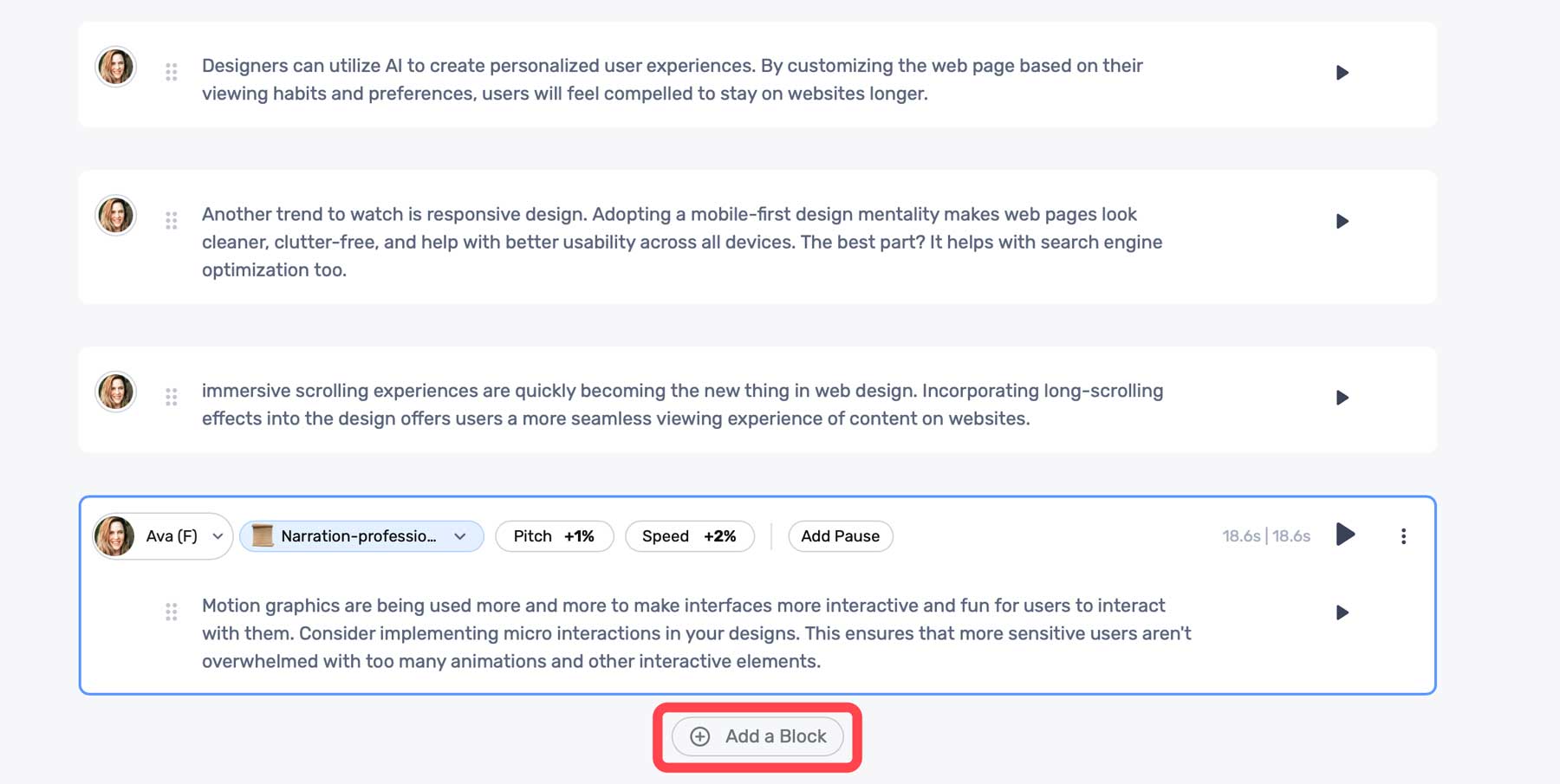
    Once your audio is generated, you can preview the audio using the same play button. Murf AI comes with a few settings to help you adjust the output. These include tone (1), pitch (2), speed (3), and the ability to add a pause (4). These come in handy if the generated voice is too computer-like, has awkward run-on sentences, or needs to be adjusted to a lower or higher sound (pitch).

    audio settings

    Click the + Add a Block button to add more text.

    Murf AI content blocks

    Adding Media To Murf AI Project

    In addition to text-to-speech, Murf AI offers its users stock media assets you can use in your projects. These include stock music, images, and videos. To add media, click the Add Media tab in the dashboard.

    Add media

    You can search the media library for assets to build your video from there.

    Murf AI stock media

    Click on any media to preview it. You can easily add it to your project by clicking the Add to Timeline button.

    Add to timeline

    Using the Voice Changer Feature

    If you prefer, you can add an audio sample and allow Murf AI to transcribe it. It’ll use its proprietary algorithms to analyze your sample and convert it to written text. Once completed, it will automatically be added to the timeline, where you can edit it. At that point, you can make audio edits as necessary for tone or pitch, choose an AI voice, and generate a voiceover in seconds.

    Murf AI voice changer

    Creating an AI voiceover with Murf AI is easy, and the voices are quite good. As an added bonus, Murf AI does an excellent job of allowing its users to customize AI models to get the most realistic sound possible. However, it’s important to mention that when using the free version, you won’t be able to export your projects. However, they are saved in your user account, should you decide to upgrade.

    Here’s a short audio clip of the AI voice model, Ava, reading a portion of our script:


    Pros and Cons of Murf AI

    To be transparent for our readers, weighing the pros and cons of subscribing to Murf AI is important. While there are a lot of pros, including the wide range of AI voices available, there are some cons that you should be aware of.

    Pros of Using Murf AI

    • Over 120+ realistic AI voices with support for 20+ languages
    • Saves time and money over hiring professional voice actors
    • Simple interface
    • Many ethnicities, tones, and styles to choose from

    Cons of Using Murf AI

    • The free plan doesn’t allow downloads
    • Customization of pitch and tone could be better
    • Potential security concerns with voice cloning
    • In our experience, the voice-over-video tool is a bit buggy at times

    Final Thoughts on Murf AI

    Murf AI is a versatile and valuable tool for creating voiceovers for presentations, videos, and more. With more than 120 natural-sounding voices and support for more than 20 languages, it saves time and resources and simplifies creating compelling voiceovers.

    However, it’s important to note that Murf AI isn’t without its flaws. There are occasional bugs with the voice-over-video tool and a need for better customization options for pitch and tone. Despite that, Murf AI stands out above its competition due to how realistic its voices are. If you need a quick way to generate natural-sounding voiceovers, you’ll be hard-pressed to find a better solution than Murf AI.

    The post Murf AI: Review, Details & Pricing (2023) appeared first on Elegant Themes Blog.

  • 11 Best AI Web Design Tools in 2023 (Compared)

    At times, the role of a web designer can be challenging. Occasionally, you may need assistance locating suitable fonts, drafting content, or finding apt images for your project. Thankfully, with the aid of artificial intelligence (AI), you can gain assistance with these difficult tasks. In this post, we’re going to share with you our top choices for the best AI web design tools intended to ignite your creativity.

    Ready to dive in? Let’s get started.

    What is an AI Web Design Tool?

    AI web design tool

    Image created with Midjourney

    AI web design tools aid creators during the web design process. You can use them to generate text, images, and code or even help you find the perfect font combination or color scheme. There are dozens of them available due to the explosion of generative AI. Some are better than others, so it’s important to find the right ones to benefit you the most.

    What You Should Look for in an AI Web Design Tool

    There are a few things to consider when looking for the perfect AI web design tools to get the most out of AI. Consider things like ease of use, the cost to implement, and how it can be used to streamline your workflow.

    Ease Of Use

    The most important factor to consider is ease of use. After all, people use tools to assist in the creative process, not to add to their workload. Choosing a tool that doesn’t take much time to master is one of the best ways to incorporate AI into your design process.

    Keep it on Budget

    Take time to research the cost of each platform so you can decide which tools are right for your situation. There are plenty of tools to choose from, all coming in at different price points. Determine what you need vs. what it will cost so you can weigh the benefits compared to the cost.

    Streamline Your Workflow

    When researching tools, look for those that will make your life easier. Use AI web design tools to provide creative inspiration, help you match fonts, or automate other mundane tasks that would typically take hours.

    Add Functionality

    A great use of AI web design tools is adding functionality to your site without needing a plugin. For example, you can use an AI coding assistant to extend the functionality of WooCommerce, debug errors in your site’s code, or help you become a more efficient coder.

    Enhance Image Assets

    Finding the right image is one of the most frustrating aspects of web design. Sometimes, as creators, we are limited to our client’s pictures. Often, these images are too small or don’t accurately depict what the site is about. In that case, you can use an image upscaling tool or AI art generator to create your own images.

    11 Best AI Web Design Tools in 2023

    There are dozens of AI tools on the market, with more popping up daily. That said, there are only a handful that we can wholeheartedly recommend. These tools are great for generating text and/or images, building complete layouts, creating wireframes, or adding functionality through custom code, to name a few. We conducted extensive testing on over a dozen tools, balancing features and cost, to bring you our picks for the best AI web design tools you can get for your websites. So, without further ado, let’s get to it.

    1. Divi AI

    Divi AI

    Up first on our list is Divi AI. Built using ChatGPT and Stable Diffusion, Divi AI integrates directly into Divi’s no-code Visual Builder. It can generate text and images, improve upon existing images, rewrite existing copy, and even make suggestions based on surrounding content. Divi AI can generate content with one click, including text, images, or modules containing both. It uses powerful features to learn from your site. Simply provide it with a bit of context and watch the magic unfold.

    Key Features of Divi AI:

    • Generate text and images
    • Improve upon existing text and images
    • Learns from your site to provide relevant, on-brand content

    Divi AI image generation

    Divi AI can even generate images automatically. You can use the generate automatically feature to create an image based on your site’s niche in the right size. For example, if you want to replace an image in one of Divi’s layout packs, you can use this tool to generate an image based on the page’s content in the correct size.

    Best For:

    Divi AI is the best AI web design assistant you can get. With the ability to generate text and images based on your site’s unique content, you can build the perfect website in a fraction of the time. If you’re a Divi user, Divi AI is a no-brainer. If not, check out all that Divi has to offer.

    Pricing: Free to try with unlimited generations for $24 per month, with 25% savings if you purchase an annual plan for $216.

    Get Divi AI

    2. Hostinger AI

    Hostinger's AI Website Builder

    Hostinger AI Website Builder is a revolutionary tool that combines the power of AI with an easy-to-use site builder to help you launch a brand-new website with amazing speed and design. Getting started takes about 1 minute. Users can enter a few details about their website and, with a single click, watch as the builder crafts a website tailored to their needs.

    To do this, the builder uses a variety of premade layouts to fit various types of websites. It uses generative AI technology like ChatGPT to fill your page layouts with unique content, images, fonts, and colors for your website design automatically.

    If you need to make customizations to polish your design, the builder has advanced design tools and AI-powered features such as an AI writing assistant, image generator, and even an AI Logo Maker, making it a comprehensive solution for both beginners and seasoned website creators.

    Key Features of Hostinger AI Website Builder:

    • Quick and easy website creation using AI
    • Responsive and customizable design with drag-and-drop functionality
    • Variety of premade templates for different categories
    • Built-in AI writer tool for content generation
    • AI Logo Maker for instant custom logo creation
    • Integrated AI Heatmap tool for user behavior analysis
    • SEO optimization tools and Google Analytics integration
    • eCommerce tools and features for online store creation

    Best For: 
    Hostinger AI Website Builder is ideally suited for individuals or small business owners seeking a quick and efficient way to establish a professional online presence. It is a user-friendly and affordable option for creating a professional website with AI and one of only a few builders that can generate an entire site based on a simple prompt. It offers AI-powered tools and customizable templates suitable for both beginners and experienced users. As an all-in-one site builder on one of the most reliable hosting platforms, it is a popular choice for many.

    Pricing: Limited free trial; Plans start at $2.99 per month

    Try Hostinger AI Website Builder

    3. Framer

    Framer AI

    Our next AI web design tool is Framer. It works much like Webflow, where you can create a design in Figma, and then import it directly into the platform. However, the difference is that Framer takes a fraction of the time, thanks to AI. Built on the React framework, Framer gives even the most novice designer the chops to create a website complete with animations, menus, and other graphic elements on a responsive framework. This means that your site will look awesome on any device.

    Key Features of Framer:

    • Built on the React framework
    • Design a fully responsive website in minutes
    • Integrates with Figma
    • Easily convert HTML-based websites

    Framer Chrome extension

    Another cool feature of Framer is its ability to transfer HTML-based websites into Framer in minutes. It uses a Chrome extension to grab the code, then import it directly into Framer, converting it to a pixel-perfect responsive design.

    Best For:

    If you’re looking for an AI tool to create a small informational website, Framer may be the right choice. Thanks to AI, it allows you to create a fully functional website in a matter of minutes. However, if you want a more robust site, you’ll likely need coding knowledge to get a finished product. For those who want more options, we suggest using Divi AI, which gives you more control over the design and integrations.

    Pricing: Free, with plans starting at $5 per month.

    Get Framer

    4. WixADI

    WixADI

    WixADI is an AI website builder that generates complete websites in a few steps, thanks to an advanced AI assistant. It works by answering a few questions about your business and your design preferences and then produces a fully functional website complete with pages, integrations, and branded results in minutes. It’s a powerful tool for those with limited time or design ability to create a website that’s attractive, functional, and capable of powering an online store.

    Key Features of Wix ADI:

    • Create websites without design experience
    • Highly customizable
    • 100% mobile-friendly
    • Built-in SEO features
    • AI text creator

    One of the best features of WixADI is that every site generated with it is fully responsive. Your website will look great on every device, regardless of screen size. Anyone who’s ever attempted web design on their own knows what a huge plus this is. Responsive websites provide mobile users a seamless experience and rank better in search engine ranking pages (SERPs), primarily because Google takes a mobile-first approach when displaying search results.

    Best For:

    WixADI is an excellent choice for beginners or small business owners who want to showcase their business online but lack the time or expertise to do it themselves. With prices starting at a mere $16 per month, people with even the smallest budget can harness the power of AI. The downside of WixADI is that it only includes some of the tools available in the standard Wix editor. If extensive customization is important, we suggest opting for Divi AI.

    Pricing: Free, with plans starting at $16 per month.

    Get Wix ADI

    5. Photoshop

    Photoshop AI beta

    Next on our list is Photoshop, the grandfather of image editing software. Adobe has worked hard in the past year, incorporating AI features into its flagship product. Among its best features is generative fill, which allows you to add visual elements to your photos with a text prompt.

    Key Features of Photoshop:

    • Generative fill – add elements with a text prompt
    • Extend the pixels of photos
    • Generate full composite images

    Photoshop AI generative fill

    Aside from generative fill, there are a couple of other things that make Photoshop AI stand out. One of which is image extension, which allows you to extend the image area of a photo with the crop tool. From there, you can draw a selection around the blank area of the canvas, click the generative fill button, and watch the magic happen. Photoshop can evaluate the existing pixels of a photo and extend it as if those pixels were already there. In addition to that, you can start with a blank canvas and generate composite images, all with a simple prompt.

    Best For:

    Photoshop is the gold standard for image editing software. With the incorporation of AI features, it’s better than ever. However, there is a steep learning curve to Photoshop, so if you’re looking for an easy way to edit images, we suggest checking out Canva.

    Pricing: Plans start at $20.99 per month.

    Try Photoshop

    6. Uizard

    Uizard AI design tool

    As a web design professional, creating the mockup is one of the process’s most time-consuming yet crucial parts. It allows you to show clients your vision for their site without spending countless hours designing a site they disapprove of. That’s where Uizard comes in. It allows you to create mockups, wireframes, and prototypes to generate UI designs with a text prompt. You can upload sketches, screenshots, or a URL to transform them into editable designs in minutes.

    Key Features of Uizard:

    • Create mockups with a text prompt
    • Generate a functional wireframe from a screenshot
    • Hundreds of pre-designed templates

    Uizard Autodesigner

    One of the best features of Uizard (currently in beta) is the Autodesigner tool. It allows you to create a design based on a series of text inputs describing the project along with design style or keywords, then pick relevant ones, such as light or dark theme, modern, corporate, etc.. Using a text prompt to generate a mockup is a great way to spark creativity and give you a head start on the design process.

    Best For:

    Uizard is an excellent tool for creating mockups from sketches, screenshots, or something simple as a cocktail napkin. It allows you to streamline the beginning of the web design process, saving hours. It’s free to use and offers tons of benefits for creatives. That said, if you want to use the Autodesigner feature, you’ll need to pay for a Pro license, which starts at a very reasonable $12 per month.

    Pricing: Free, with pro plans starting at $12 per month.

    Get Uizard

    7. CodeWP

    CodeWP

    If you’re a WordPress user, CodeWP can help you add custom functionality to your website without needing a plugin. You can add tax rates to WooCommerce, set up a custom shopping cart, or troubleshoot errors such as the WordPress white screen of death. It works by inputting a text prompt describing what you want to create, then watching as CodeWP makes custom code snippets you can use in your WordPress website.

    Key Features of CodeWP:

    • Troubleshoot WordPress coding errors
    • Integrates with page builders such as Elementor and Oxygen
    • Generate custom WP code with a text prompt

    CodeWP integrations

    One of the upcoming features of CodeWP is seamless integration with page builders, such as Elementor and Oxygen. Soon, you can insert snippets directly into the page builder for easy integration.

    Best For:

    Currently, CodeWP is great for creating PHP snippets for your WordPress website. If you’re a WooCommerce user looking to save some cash, CodeWP can create custom snippets for tax calculation, shipment tracking, detecting duplicate product attributes, and more.

    Pricing: Free, with pro plans starting at $12 per month.

    Try CodeWP

    8. Canva

    Canva home page

    Canva has been a part of many web designer’s workflow for years. It offers countless templates to easily create social media, web, and other types of graphics. Recently, Canva incorporated several AI features to make them even more popular with creators, such as magic design, magic erase, magic replace, and magic edit. With these tools, you can easily replace backgrounds, add additional design elements, and more.

    Key Features of Canva:

    • Magic design, erase, replace, and edit tools
    • Thousands of pre-made templates
    • Auto-adjust image correction

    Canva Magic Design AI

    One of the most robust features is Canva’s magic design tool, which allows you to create custom on-brand templates from an uploaded image. There’s also an AI-powered copywriting assistant that generates written content from a text prompt. This is useful for creating presentations, adding website copy, or simply creating a headline for a social media graphic.

    Best For:

    Canva is a great tool for those with limited design knowledge. You can easily create templates for any media using a simple text prompt. If you need to create infographics or other graphic elements for your website, try Canva. They have a free plan to let you try out their AI tools. However, to get the most out of Canva, you’ll need to sign up for a pro license, which will cost you around $15 per month per person.

    Pricing: Free, with plans starting at $14.99 per month per person.

    Try Canva

    9. Font Joy

    Font Joy

    This next AI web design tool, Font Joy, is a stellar choice for pairing Google fonts. As a web designer, looking for the best font pairings for your new web project is time-consuming. Thankfully, Font Joy makes that process a lot less painless. There are only a few bells and whistles with Font Joy, so what you see is what you get. However, it’s still a powerful tool for developing a good user experience with fonts.

    Key Features of Font Joy:

    • Font visualizer
    • Picks supporting fonts based on a chosen font
    • Generates font pairings automatically

    AI web design tool Font Joy

    One of the best features of Font Joy is the font visualizer tool. It allows you to choose a font and then suggests pairings based on their similarities and proximity on a 3-dimensional map. It uses a variety of factors, including font-weight, obliqueness, and X and Y axis, to determine the best font pairing for your chosen font. The best part? You can watch the magic happen in real time and then easily select a pairing that suits you.

    Best For:

    If you waste too much time figuring out what fonts to use in your web design projects, you should try Font Joy. It’s free and offers data-driven font pairings in a matter of seconds.

    Pricing: Free

    Try Font Joy

    10. Midjourney

    MidJourney AI design tool

    Midjourney is one of the most popular AI image-generating products on the market today. It’s known for its ability to create realistic images, 3D characters, and more from a text prompt. It’s also an excellent tool for generating webpage layouts, logo concepts, characters, and icon sets as well.

    Key Features of Midjourney:

    • Generate images, web page mockups, icon sets, and more from a text prompt
    • Ability to change the aspect ratio of images
    • Comes with a list of commands and parameters to improve generated results

    best AI web design tools

    One of the best features of Midjourney is how versatile it is. Using a variety of parameters, you can choose different styles, aspect ratios, and even upload a resource image for stellar results. For example, you can upload a webpage layout as a basis for your generated content and assign the –iw (image weight) parameter to tell Midjourney how heavily your image output should relate to your uploaded image. This is handy if you have a layout in mind but want to improve it.

    Best For:

    Midjourney is a great tool for inspiration for your next web design project. You can create image assets, icon sets, or use a webpage layout as a source image to improve upon. The only downside to Midjourney is the free tier, which dumps your prompt in with thousands of other users. That said, you can sign up for a pro license to create our own chat room to dialog with the bot.

    Pricing: Free, with pro plans starting at $10 per month.

    Try Midjourney

    11. AB Testing AI

    Best AI web design tool AB testing

    One of the most important aspects of a good web design is ensuring that it is optimized for conversions. Most successful web developers and designers know that gathering feedback on designs and how they perform is A/B testing. This is where AB Testing AI comes in. It allows you to input a URL and watch as AI breaks down every aspect of your landing page, offering variations to improve it.

    Key Features of AB Testing AI:

    • Works as a Javascript snippet or as a plugin for WordPress, or Wix
    • Analyzes your site with AI
    • Offers multiple variations to improve conversion rates

    AB Testing AI integrations

    One thing that makes AB Testing AI stand out is that you can run multiple A/B tests simultaneously. This reduces workload and provides actionable insights faster than other A/B testing solutions. Not only that, but it works with various platforms including WordPress, Wix, Squarespace, Shopify, and Workflow.

    Best For:

    If you’re looking for a way to test what will work best on your landing pages, AB Testing AI may be a good choice. With a button click, you can gain valuable insights into your website’s designs through integration with WordPress, Wix, and static HTML sites.

    Pricing: Free, with pro plans starting at $19 per month.

    Try AB Testing AI

    Best AI Web Design Tools Price Comparison

    While most of the entries on our list have different strengths and applications, it’s important to showcase the pricing for each of our featured AI web design tools so you can budget for the ones you are most interested in. So, look at the comparison table below to plan which ones to incorporate into your web design process.

    AI Web Design Tool Price Free Option
    🥇 Divi AI $24/month ✔️ Visit
    🥈 Hostinger AI Website Builder $2.99/month ❌ Visit
    🥉 Framer $5/month ✔️ Visit
    4 Wix ADI $16/month ✔️ Visit
    5 Uizard $12/month ✔️ Visit
    6 CodeWP $12/month ✔️ Visit
    7 Photoshop $20.99/month ❌ Visit
    8 Canva $14.99/month ✔️ Visit
    9 Font Joy Free ✔️ Visit
    10 Midjourney $10/month ✔️ Visit
    11 AB Testing AI $19/month ✔️ Visit

    What are the Best AI Web Design Tools?

    When considering which of our recommended AI web design tools are the best, we must consider their roles in the process. If you are a Divi user or pondering becoming one, we highly suggest Divi AI. With its text and image generation and ability to generate content based on your website’s niche, you won’t find a better AI page builder.

    If you are looking for an all-in-one AI web design and hosting solution, the Hostinger AI Website Builder can get your entire site up and running from start to finish with the power of AI. It has all the additional AI tools needed for optimizing your design, content, and SEO as well.

    On the other hand, if you’re looking for a way to incorporate your Figma designs, Framer is an excellent option. Either way, incorporating any AI web design tools on our list will save valuable time and inspire creativity for your next web design project.

    Need more AI tools? Check out all our articles featuring the best AI tools for your business.

    Featured Image via ProStockStudio / shutterstock.com

    The post 11 Best AI Web Design Tools in 2023 (Compared) appeared first on Elegant Themes Blog.

  • FlyingPress Review: Is It the Best WordPress Performance Plugin? (2023)

    The post FlyingPress Review: Is It the Best WordPress Performance Plugin? (2023) is written by Colin Newcomer and appeared first on WPKube.

    Searching for the best WordPress performance and caching plugin to speed up your site? In our hands-on FlyingPress review, we’ll help you decide if this speed-focused plugin is right for your site. FlyingPress aims to be pretty much an all-in-one solution for WordPress performance, with caching, code optimization, and other tweaks to speed up your site. If you combine it…. Continue Reading

  • WPX Hosting Review: Super Fast Managed Hosting for WordPress

    The post WPX Hosting Review: Super Fast Managed Hosting for WordPress is written by Joe Fylan and appeared first on WPKube.

    A fast website is vital to your online success. No matter what the purpose of your website, from blogging for fun to selling products online, your site will benefit from quick loading times. Improving website speed can help you get more visitors thanks to an increased visibility in the search engines. Faster websites also have higher conversion rates, resulting in…. Continue Reading

  • KnowAll Review (2023): A Full-Featured WordPress Knowledge Base Theme

    The post KnowAll Review (2023): A Full-Featured WordPress Knowledge Base Theme is written by Colin Newcomer and appeared first on WPKube.

    Have you ever encountered a knowledge base that was an absolute joy to use? It answered your questions, helped you get the most from the product, and eliminated the need to create a ticket. Some companies have those knowledge bases. And some…don’t. I think we all like the former companies more than the latter. KnowAll is a theme from HeroThemes…. Continue Reading

  • HostGator Hosting Review: Is It as Good as It Is Popular?

    The post HostGator Hosting Review: Is It as Good as It Is Popular? is written by Karol and appeared first on WPKube.

    In this HostGator hosting review, we show you how good HostGator really is, who should use it, and what features you can expect to get. HostGator is one of the most popular web hosting companies on the web. They’ve won users over with a couple of things. Their affordable prices are one very good reason to give them a look….. Continue Reading

  • Kinsta Hosting Review 2023: Is This WordPress Host Worth the Investment?

    The post Kinsta Hosting Review 2023: Is This WordPress Host Worth the Investment? is written by Karol and appeared first on WPKube.

    Kinsta is a recognizable brand in the WordPress hosting space. The main thing that sets them apart is that they only offer WordPress hosting setups. This means that you cannot run any other website script on their servers. This WordPress-only nature comes with its pros and cons, which we’ll discuss in this Kinsta hosting review. In the following sections, we’ll…. Continue Reading

  • Bluehost Hosting Review (2023): It Is Cheap, but Is It Good?

    The post Bluehost Hosting Review (2023): It Is Cheap, but Is It Good? is written by Karol and appeared first on WPKube.

    Bluehost is one of the most popular and, at the same time, most affordable web hosts on the market. In this Bluehost hosting review, we take a look at what’s under the hood, how good the platform really is, and whether it’s the right solution for your next website project. Here are the things we’re going to cover: What is…. Continue Reading

  • A2 Hosting Review (2023): Is Their Huge Selection of Plans Any Good?

    The post A2 Hosting Review (2023): Is Their Huge Selection of Plans Any Good? is written by Karol and appeared first on WPKube.

    Looking for an A2 Hosting review? A2 Hosting is a great alternative to many of the more expensive web hosting companies. Customers often land on A2 when looking for a reliable WordPress host or for a much more unique hosting setup (such as hosting for a billing platform or online analytics). In this A2 Hosting review, we show you what…. Continue Reading