EDITS.WS

Tag: seo

  • 40+ Best SEO Tools of 2023 (For WordPress and Beyond)

    What are the best SEO tools to use with your WordPress website in 2023? Which utilities can help you achieve high rankings and attract quality search traffic? That’s exactly what we will try to answer in this post.

    SEO has become a lot more complex over time. By now, it consists of many different aspects and it can be difficult to cover them all by manually doing the work yourself. Thankfully, there are also loads of software solutions that can assist you. They can help you optimize your site more quickly and automate parts of your SEO efforts.

    best seo tools

    To show you how, in the following, we have compiled a list of tools for all areas of search engine optimization. From the best general SEO tools over analytics, keyword research, content creation and on-page optimization, to link building, local SEO, and beyond.

    It’s going to be a long one, so let’s dive right in.

    1. Best All-in-One SEO Tools

    We are starting off with all-round SEO solutions. These are instruments that offer a wide range of functionality covering different areas of search engine optimization.

    SEMrush

    semrush is one of the best seo tools

    SEMrush is one of the most popular SEO tools out there, even among professionals, and for good reason. It offers a lot of functionality to help your site rank better, such as:

    • Keyword research
    • Backlink analytics
    • Rank tracking
    • Competitor research
    • Site audit and on-page SEO check

    For WordPress users there is also the SEO Writing Assistant, which gives you input on the readability, tone, optimization, originality, and more of your online content.

    SEMrush offers a free plan with limited functionality. After that, prices for their paid offers begin at $108.33/month for annual plans.

    Ahrefs

    ahrefs best seo tools

    Ahrefs is very similar to SEMrush and offers mostly the same functionality such as keyword suggestions and analysis, site audits, etc.

    However, where it stands out is backlink analysis. Ahrefs allows you to see which sites are linking to your competitors and the content that they rank for and you don’t. That way, it makes the tool easier to emulate and beat your competitors’ linking strategy. The tool also warns you of duplicate content and keyword cannibalization.

    You can get free access to a limited version of their webmaster tools. The cheapest paid plan is $99/month and you get two free months if you pay for a year ahead.

    Ubersuggest

    ubersuggest

    Ubersuggest allows you to analyze websites (both your own and your competitors’), track where you rank for keywords, do keyword research, and analyze backlinks. It also gives you keyword suggestions. In addition, Ubersuggest has an AI writing tool that can help you create content for the keywords you found.

    There is a free limited version and a 7-day free trial for the paid plans, which start at $29/month. However, it also has a lifetime deal where you can buy the forever version starting at $290. In addition, there is a 30-day money-back guarantee. Overall much more affordable than the other big names.

    2. Site Analysis and Analytics

    An important part of SEO is to make sure your site’s technical optimization is on point and that you track what your visitors are doing on your site. Here are some of the best SEO tools to do that.

    Google Search Console

    google search console guide performance report

    This is a free webmaster suite that Google provides. It helps you monitor your website, check if the search engine is indexing your pages correctly, lets you spot issues, learn about Core Web Vitals, and make improvements if something is wrong.

    In addition, it shows the keywords that others find you in Google for, where you rank, your click-through rate, and more. This is invaluable information to help your site rank and perform better. To get the most out of it, don’t miss our detailed Google Search Console tutorial.

    Alternative: Bing Webmaster Tools

    Google Analytics
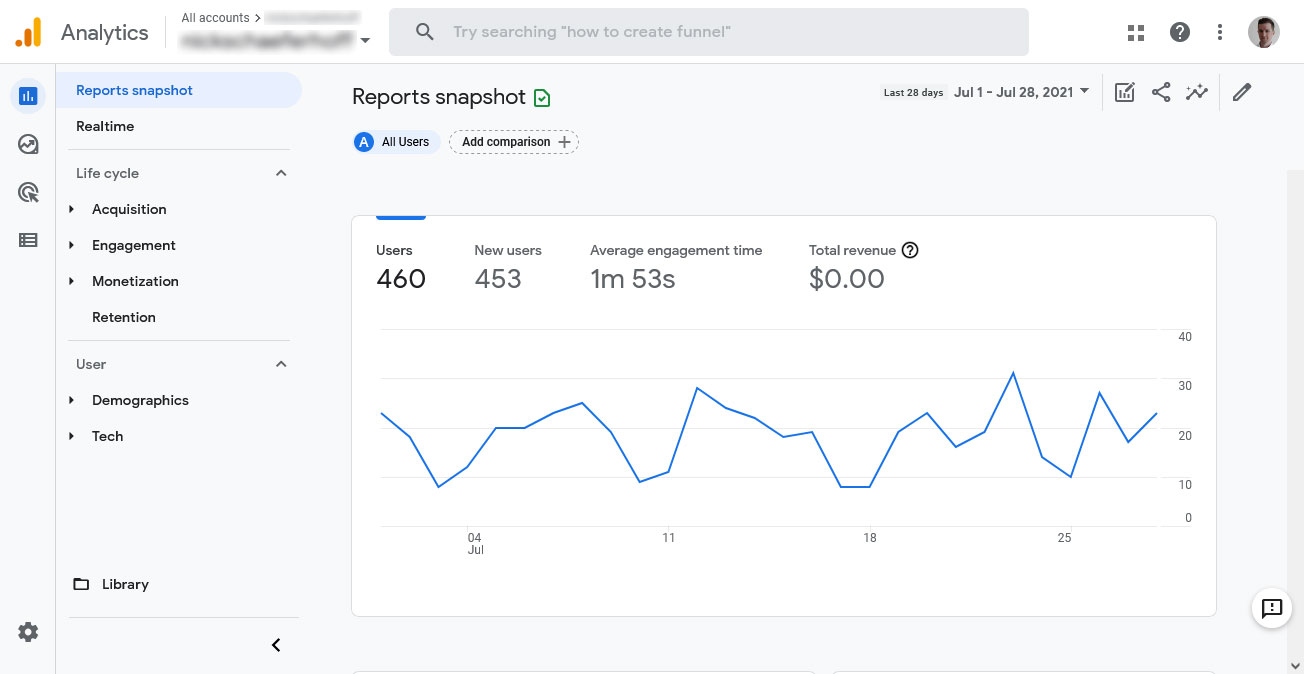
    google analytics 4 main page

    Google Analytics allows you to monitor what visitors are doing on your website. It shows you the pages they visit, how long they stay, how they found you, the countries they are from, and much more.

    Basically, it allows you to understand which of your online content is doing it’s job well and which isn’t. You can use this information to make better decisions about your content strategy.

    We have a Google Analytics 4 tutorial for you and also Google Analytics alternatives if you want to check some other SEO tools.

    3. Best SEO Tools for Keyword Research

    One of the most crucial parts of search engine optimization is keyword research. It helps you find topics that your audience is interested in and that you have a chance to rank for. There are also some excellent solutions to assist you in doing so.

    Google Keyword Planner

    google keyword planner

    Google has its own tool for this purpose. Though originally meant for picking keywords for paid ads, you can use the data it provides for organic keywords as well. This is especially good for local businesses because you can limit search to very specific localities.

    While Google Keyword Planner provides relatively basic data, you can cross reference it with other tools to get a more comprehensive idea. It’s also free, you only need to create an account and a property but you don’t have to pay anything.

    Google Trends

    google trends results

    Another tool Google provides for keyword research is Google Trends. However, instead of focusing on a snapshot of how popular topics and keywords are at the moment, it shows you how they develop over time broken down by geography.

    Simply enter a topic or keyword you are interested in and Google Trends will tell you how the rest of the world feels about it. It’s also possible to compare different topics and keywords to each other to see what trend to jump on and which to ignore. In addition, it gives you related keywords and phrases to your topic that are also en vogue.

    Finally, it’s free as well and we have a detailed article how to use Google Trends for SEO.

    KeywordTool.io

    keywordtool.io is one of the best free seo tools

    This is a great free keyword research tool. It mines the autosuggest function from sites like Google, Bing, YouTube, and Amazon to collect keywords related to your search. Simply enter a seed keyword, choose your language and search engine, then hit start.

    You will receive a list of long-tail keywords, phrases, and questions that you can use to better plan your content, come up with additional article topics, or simply find keyword ideas. On paid plans you also get information about search volume, CPC, and other data. Highly recommended!

    Alternative: Answer the Public, Mangools KWFinder

    Keywords Everywhere

    keywords everywhere

    The last of our best SEO tools for keyword research is Keywords Everywhere. It is an add-on you can install in Chrome or Firefox. When you do, it provides you with keyword data on the fly.

    For example, Keywords Everywhere shows key phrases related to what you type into Google, historical search data (from Google Trends), and keywords any website or web page ranks for as well as estimated traffic.

    It’s also super affordable. The paid edition starts at just $1/month.

    4. Solutions for Content Creation

    Content is one of main signals that Google judges websites by. In order to use it to your advantage, you need to make sure that yours is of high quality and well-optimized. Here is some helpful software to assist you in that.

    Surfer

    surfer seo best seo tools

    AI is all the rage now (so much so that people are wondering if AI will replace us all) and it’s finding more and more application in all walks of life.

    Surfer uses artificial intelligence for creating SEO-friendly content. It helps with keyword research, analyzes your existing content, and then helps you create relevant articles for your topics. The tool breaks down the content creation workflow into manageable pieces and helps you write articles quicker and easier.

    It also has a WordPress integration and plans start at $69/month.

    GrowthBar

    growthbar best seo tools

    This is a similar tool as the previous one. It, too, uses AI for scanning your existing content for keyword ideas and providing you with article outlines, including headings, internal links, and more. It can also optimize your articles already on your site and comes with other AI tools such as for writing product descriptions.

    You can have all of the above starting at $29/month. There is a free trial.

    Clearscope

    clearscope best seo tools

    While Clearscope is also AI-powered and helps you with content creation, it doesn’t do the writing for you. Instead, it creates reports for your target keyword by analyzing the existing SERPs. The tool then lists must-have and related keywords in its editor so that you know what topics and key phrases to include to beat the competition.

    It also analyzes readability, can create content briefs, and do keyword research. Plus, Clearscope integrates into your workflow with a WordPress plugin.

    However, it has its price. The lowest tier plan is $170/month.

    Grammarly

    grammarly best seo tools

    If you are one of those people who doesn’t want to outsource all of content creation to AI, there is Grammarly. Yes, it too uses artificial intelligence. Yes, it also offers generative AI for writing texts. However, Grammarly’s main function is to help you polish your content and check it for errors.

    The tool can check spelling and grammar, make suggestions for style, clarity, and tone, and even do complete sentence rewrites. It also integrates with a lot of common tools such as WordPress and Google Docs. Plus, there is a free version for basic error checking and premium plans can be as cheap as $12/month.

    5. Best WordPress SEO Plugins for On-Page Optimization

    Part of content creation is optimizing what you have written for search engine performance. That means, making sure you have the right keyword density, keywords are in the right places, and everything else that is part of on-page optimization. Luckily, the WordPress sphere offers a number of excellent tools for that purpose.

    Yoast SEO

    yoast seo wordpress plugin

    You say WordPress SEO, you think Yoast. It is the gold standard of WordPress SEO plugins.

    If you just install and activate Yoast SEO, it already improves your website. In addition, it allows you to configure everything about how your site appears in search results. You can also use it to set SEO titles and descriptions for your content as well as metadata for social media.

    The highlight is the on-page optimization guide. Just enter your main keyword and the plugin tells you how well optimized each piece of content is. It also comes with a readability analysis, XML sitemaps, and a lot more.

    The free version is enough for most sites, however, there is also a paid version with additional features.

    Rank Math

    rank math seo plugin

    Rank Math is a plugin similar to Yoast SEO and has a lot of overlap in functionality. That includes the ability to set SEO titles and meta descriptions, create an XML sitemap, etc.

    However, Rank Math also comes with an AI assistant for creating optimized content. Plus, you get full control over what user roles on your site can do what in terms of SEO and it integrates with Google Search Console so that you can see your keyword rankings in the WordPress back end. Finally you get a 404 monitor, redirection, and a lot more.

    SEOPress

    seopress wordpress seo plugin

    Another great WordPress SEO plugin. Of course, it does similar things as Yoast and Rank Math. Yet, its standout features is the clean and easy-to-use interface, which is completely free of ads. It also has heatmaps and session recordings and can automatically set image ALT tags and other data for image optimization.

    The premium version is also cheaper than many of the other SEO plugins out there, so if you want to splurge for extra functionality, it’s the most affordable option.

    6. Great Options for Image Optimization

    Speaking of optimizing images for SEO, that’s also an important area where tools can help your site perform at its best. The most important consideration here is performance since images can slow down page loading time due to their size. It’s something that Google deeply cares about for user experience reasons and take into account when ranking websites.

    Smush

    This is probably the most popular WordPress image optimization plugin. Smush can do the following things:

    • Compress images so they take up less space without altering their quality, both automatically during image upload and in bulk for existing visuals
    • Set images to lazy load so only those visible in the browser window actually load
    • Resize images and convert them to the WebP format.

    All of this aims at making images, and your site, load as quickly as possible and keep users and search engines happy.

    Alternative: EWWW Image Optimizer

    ShortPixel Image Optimizer

    shortpixel image optimizer

    Shortpixel is an an alternative to the above with similar functionality. However, it can also handle PDFs, convert images into WebP and AVIF format, has WP-CLI support, AI-powered smart cropping, and a whole lot of other features. Worth checking out.

    TinyPNG

    tinypng best seo tools

    This is an external tool for optimizing images before uploading them to your site. Simply drag and drop files into the upload field and download your optimized images in bulk.

    TinyPNG is free to use up to 20 images of 5MB or less (however, you can also use it several times in a row). If you end up taking advantage of it a lot, there is paid plan for $39/year. Plus, they even have a WordPress plugin if you want to integrate it directly on your website.

    7. Schema Structured Data

    Structured data allows you to add extra information to your web content such as images, price, rating. This can result in rich snippets being displayed in search results that include this information, which can lead to better click-through rates.

    rich snippets in serps example

    Many of the all-in-one WordPress SEO plugins above offer this functionality out of the box. However, you can also implement it manually using one of the plugins below. For more information, read our article on Schema.org structured data.

    Schema & Structured Data for WP & AMP

    schema structured data for wp amp

    This is one of the most popular WordPress plugins for implementing structured data. It supports more than 35 schema types from Blog Post over News Article to Recipe, Product, and more. The tool is also compatible with Google AMP plugins as well as easy to use.

    Structured Content (JSON-LD)

    structured content plugin

    This is an alternative for the above. While it doesn’t support as many schema types currently (FAQPage, JobPosting, LocalBusiness, Person, Event, and Course), Structured Content is Gutenberg optimized and allows you to configure Schema markup right in the block editor.

    8. Link Building and Link Analysis Tools

    If the Internet had an official currency, it would be links. They are a coveted resource since they represent a very strong ranking signal for search engines. Therefore, most successful SEO campaigns also involve a link building strategy. You can make this easier on yourself by using tools for this purpose.

    Moz Link Explorer

    moz link explorer

    First up is this semi-free tool to analyze any site’s link profile – yours or your competitors’. It allows you to see the number of links to a site, find broken links, check the link spam score, find new opportunities to earn links, see won and lost links, and a lot more. Plus, Moz can do keyword research.

    There is a free plan with limited queries per month. Paid accounts with additional features start at $79/month for yearly and $99/month for monthly plans.

    Majestic

    majestic seo

    Majestic is a link analysis tool. It shows you the number of inbound links and domains, gained and lost backlinks, and other data similar to Moz.

    Unfortunately, the free plan is even more limited than its competitor. On the other hand, premium plans are more affordable, starting at $49.99 per month.

    Internal Link Juicer

    internal link juicer large

    Links are not just important in terms of incoming links, also when it comes to links between pages on your website. Internal linking not only helps search engines and visitors navigate your site and find relevant content (notice all the internal links in this post), it also clarifies the relative importance of different pages on your site and their topics. For that reason, it should definitely be a habit of yours.

    Internal Link Juicer helps you with that by automatically inserting internal links and using anchor text according to keywords. If you struggle with adding internal links to your content, give this plugin a try.

    9. Solutions for Local SEO

    Local search optimization is especially important for businesses with brick-and-mortar locations who want to show up for local searches in Google.

    BrightLocal

    brightlocal best seo tools

    BrightLocal is a complete SEO suite for local visibility. It reports search ranking in search results and Google Maps and helps you rank for the right local keywords.

    In addition, it provides audits for your website and Google My Business listing and tools for taking care of your local business profiles. For example, it can help you generate reviews and answer them faster.

    There is a 14-day free trial, after that you need to pay $35/month for the entire suite.

    10. Best SEO Tools for Competitor Research

    Ranking number one in search results could be so easy, if it weren’t for all the other websites trying to do the same. Sometimes SEO doesn’t just come down to doing your best but also to beating the competition. In those cases, it’s good to know what you are up against.

    Besides the general SEO tools at the beginning of the page, here are some specialized solutions to spy on your contenders.

    SpyFu

    spyfu best seo tools

    SpyFu offers a lot of the same functionality as your SEMrushs and Ahrefs. That includes things like rank tracking, keyword research, etc.

    However, what it does best is help you with competitor analysis. Spyfu helps you figure out what your competition is doing better than you, understand, emulate, and beat their backlink strategies, learn their PPC keywords, do backlink outreach, see historical SEO data, and much more. This is invaluable knowledge to leave competitors in the dust.

    SpyFu plans start at $16/month and there is a 7-day free trial and 30-day money-back guarantee.

    SEOQuake

    seoquake

    SEOQuake is a browser extension that provides an entire SEO toolbox. It’s free to use and available for Firefox and Chrome. Simply install and activate, then go to any web page that you are interested in, and it will provide your with SEO data about any website.

    What kind of data? Anything from links and backlinks over estimated traffic and social shares to indexed pages and a lot more. The extension also displays this kind of information in Google search results. Great for quick overview of your own site or that of competitors.

    Similarweb Browser Extension

    similarweb browser extension

    Another browser extension that provides a lot of information about any website. Rank, visits, traffic sources, visitor locations – you name it. Another great option to spy on your competitors.

    11. Performance Plugins and Tools

    As mentioned, website speed is one of the factors that search engines like Google look at to determine website rank. For that reason, using tools that help you improve website performance is also best for SEO.

    PageSpeed Insights

    google pagespeed free seo tool

    PageSpeed Insights is a free software made by Google to speed test your website. It shows different Core Web Vitals markers for the mobile and desktop version of your website. In addition, it gives detailed input on how to best fix any issues it finds and also checks for accessibility and SEO problems in the same way.

    Alternatives: GTmetrix

    WP Rocket

    wp rocket wordpress caching plugin

    There are many free performance plugins for WordPress out there (see below), however, WP Rocket is often considered the best one, even though it is a paid extension. Simply install, activate, and you have a faster website right away. The plugin offers multiple caching layers, Gzip compression, deferring JavaScript, removing unused CSS, lazy loading and many more features.

    A single-site license is $59/year. If that is too steep for you, can also achieve great results with the alternatives below.

    Alternatives: W3 Total Cache, Autoptimize, LiteSpeed Cache, Jetpack Boost

    12. SEO Utilities

    Finally, here are some of the best random SEO tools that didn’t quite fit any of the categories above.

    Redirection

    add page redirect via wordpress plugin

    Redirecting your pages is an important tool to help your website run properly. It allows you to eliminate 404 errors for pages that no longer exist by sending people trying to visit them to other relevant parts of your site.

    This plugin not only monitors whenever someone tries to access a non-existent page on your site, it also provides you with a simple interface to create relevant redirect rules.

    Broken Link Checker

    broken link checker

    In order to fix your broken links, you first need to find them. Doing so manually can be very tedious, especially if you have a very big website. That’s where this plugin comes in.

    Broken Link Checker automatically scans your site for links that are going nowhere and reports them to you so you can solve the issues.

    Alternatives: Screaming Frog SEO Spider (free up to 500 scanned URLs)

    Really Simple SSL

    Running your site on HTTPS is something that visitors increasingly expect for security reasons and it’s also something that search engines take into account when ranking your pages. If your hosting provider does not offer it out of the box or you are having trouble implementing it, this plugin can help you switch your WordPress site to SSL encryption.

    XML Sitemap Generator for Google

    xml sitemap generator

    If you don’t use any of the SEO plugins mentioned above, which automatically create XML sitemaps for your website, you can also use a dedicated solution just for that. Doing so allows you to submit your sitemap to Google Search Console and other webmaster tools in order to give search engines a better idea about what pages exist on your site so they can index them.

    What Are Your Best SEO Tools?

    With organic search continuing to be one of the main sources of website traffic, search engine optimization remains a central tool for any website that wants to be successful. Luckily, by now there are many tools to help you ace this part of running a website.

    Above, we have discussed some of the best tools for different areas of SEO. As you could probably see, there are free tools, free limited plans, and free trials for most parts. Consequently, you don’t necessarily have to spend money to bring in traffic. We hope you find some good solutions for yourself!

    What do you consider the best SEO tools for WordPress websites and beyond? Tell us about your favorites in the comments!

    The post 40+ Best SEO Tools of 2023 (For WordPress and Beyond) appeared first on Torque.

  • How to Properly Add SEO-Friendly ‘How to’ Schema in WordPress

    Are you wondering how to add ‘how to’ schema in WordPress?

    By adding ‘how to’ schema to your content, you can show images, videos, and detailed step-by-step instructions directly in the search results. This can make your content stand out and get you more clicks and visitors.

    In this article, we will show you how to add ‘how to’ schema in WordPress.

    How to add SEO-friendly 'How to' schema in WordPress

    Why Add ‘How To’ Schema in WordPress?

    ‘How to’ schema markup is a type of HTML code that’s added to your WordPress website.

    Instead of appearing on your site, ‘how to’ schema gives search engines more information about your tutorial articles. This can include detailed step-by-step instructions, a list of tools and supplies the reader will need, and how long the tutorial takes to complete.

    This helps the search engines understand your pages and posts and show them to people who are looking for content just like yours.

    Even better, search engines such as Google may use the ‘how to’ schema to create rich snippets and results. For example, Google might show your ‘how to’ steps in an ordered list.

    An example of a rich snippet on Google

    Depending on how your schema is set up, search engines may even display this information in the ‘people also ask’ section.

    These boxes appear for many search queries and offer a list of additional questions, each linked to a website for more information.

    An example of how to schema, on a SERP

    This section appears at the very top of the search results, so they can get you even more clicks and increase your blog traffic.

    Some rich results even include useful information, such as a list of required tools or how much money readers need to spend to complete the guide. This can help people quickly decide whether your ‘how to’ guide is right for them, which will improve the user experience.

    It’s important to note that adding ‘how to’ schema in WordPress will not guarantee that your content appears as a rich result. However, it will improve your chances, especially if your website is already SEO-optimized.

    Google’s ‘How To’ Schema Guidelines

    Before adding ‘how to’ schema to your pages and posts, it’s important to understand Google’s content guidelines.

    Firstly, you can’t use the ‘how to’ schema for advertising purposes or include any content that’s obscene, explicit, or violent. You also shouldn’t add ‘how to’ schema to any content that promotes dangerous or illegal activities.

    You can only use ‘how to’ schema once per page, and all the content in your schema markup must also be visible on that page. This means you can’t type out unique instructions or add images that don’t appear in the actual ‘how to’ guide.

    Finally, you can’t use the ‘how to’ schema for recipes. For this type of content, you will get much better results by using the SEO-friendly recipe schema.

    How To Add ‘How To’ Schema in WordPress

    The easiest way to add ‘how to’ schema in WordPress is with All in One SEO (AIOSEO). It’s the best SEO plugin for WordPress, used by over 3 million sites.

    AIOSEO allows you to add a growing number of schema types to your pages, posts, custom post types, categories, tags, custom taxonomies, and more. This can help search engines understand your content and increase your chances of getting rich snippets.

    The first thing you need to do is install and activate AIOSEO. For more details, see our guide on how to install a plugin in WordPress.

    Note: There is a free version of AIOSEO that allows you to optimize your site no matter what your budget is. However, you will need the premium version to add ‘how to’ schema in WordPress.

    Upon activation, the plugin will run a setup wizard, so simply follow the onscreen instructions. If you need more detailed instructions, then you can see our guide on how to properly set up All in One SEO for WordPress.

    The AIOSEO WordPress SEO plugin

    Once you have completed the setup wizard, AIOSEO will take you back to the WordPress dashboard. Now that All in One SEO is installed and activated, simply open the page, post, custom post type, or any other content where you want to add the ‘how to’ schema.

    After that, scroll to the bottom of the WordPress content editor, where you will see a new ‘AIOSEO Settings’ section.

    Adding schema using the All in One SEO plugin

    Go ahead and click on the ‘Schema’ tab.

    Here, you will see the schema settings are enabled by default.

    Adding how to schema to WordPress using AIOSEO

    To add the ‘how to’ schema, just click on the ‘Generate Schema’ button.

    This will open AIOSEO’s Schema Catalog, where you can choose from a wide range of different schema types. For example, you can add FAQ schema in WordPress, add GTIN, ISBN, and MPN schema, and more.

    Here, simply find the ‘how to’ option and click on its ‘Add Schema’ button.

    Adding AIOSEO schema markup to a page or post

    This opens a window where you can type in all the information you want to use in the schema.

    By default, AIOSEO adds a ‘Post Title’ smart tag to the ‘Title’ field. AIOSEO automatically replaces all its smart tags with real values, so you can create unique markup without having to manually type in all the information you want to use.

    If you want to use a different title, then simply delete the ‘Post Title’ smart tag. You can then type in the information you would like to use instead.

    Adding post title to how to schema

    Next, you will need to add a description. Search engines like Google typically show the description below the post title and above the list of steps, so it’s a great way to introduce the guide to potential readers.

    You can either type this information into the ‘Description’ box or click on any smart tag you want to use. To see the full list of smart tags, click the ‘View all tags’ link.

    Adding smart tags to your schema markup

    If the reader needs any specialist equipment or resources to complete the guide, then you should type them into the ‘Supplies’ field.

    After each item, press the ‘Enter’ key on your keyboard to add it to the schema.

    Adding supply markup to your WordPress schema

    Similarly, if the reader needs any specialist tools, then just type these into the ‘Tools’ section.

    With that done, you can specify how long it will take readers to complete the ‘how to’ guide. Simply type the correct numbers into the fields marked ‘Days’, ‘Hours’, and ‘Minutes’.

    Adding time schema markup to your pages, posts, or custom post types

    Sometimes, you may want to show the finished result. For example, if you are writing about how to create an email newsletter, then you might show a professionally-designed newsletter. If readers like what they see, then they are more likely to visit your website.

    Unlike other images that must be unique, you can reuse this image in the final step of your ‘how to’ schema. However, as always, the image must appear somewhere on the page or post.

    Simply click on the ‘Upload or select image’ button and then choose an image from the WordPress media library.

    Adding schema markup to images in WordPress

    Sometimes, readers will need to spend money to complete a ‘how to’ guide. For example, if you are writing a post about how to start a WordPress blog, then readers will need to buy WordPress hosting.

    In this case, simply type the total cost into the ‘Price’ field and select the currency.

    Adding pricing information HTML markup to a blog or website

    With that done, you are ready to add each step to the ‘how to’ schema.

    According to Google’s guidelines, each step must only include the information readers need to complete that step. With that in mind, you shouldn’t include any non-step data, such as an introduction section or a list of related posts.

    To start, type in a title for the step and enter the instructions into the ‘Description’ section.

    Adding step information to the WordPress schema

    Have you added anchor links in WordPress? For example, you might help readers find their way around the page by creating a table of contents where each step is an anchor link.

    If this is the case, then you can add the step’s anchor link to the ‘URL’ field.

    Adding anchor links to a website's markup

    You may also want to add an image that represents this step. This image must be unique and be visible on the page or post.

    According to Google’s guidelines, you should never use images that don’t reflect the step’s content or use the same image for multiple steps.

    When you are happy with how the first step is set up, just click on the ‘Add Another Step’ button.

    Adding steps to an HTML schema markup in WordPress

    This creates a section where you can add a title and description, plus an optional anchor link and image. Simply repeat this process to add all the steps to your ‘how to’ schema.

    When you are happy with how the schema is set up, go ahead and click on the ‘Add Schema’ button.

    How to add 'How To' schema to your WordPress blog or website

    You can now go ahead and publish or update the page to make the schema live on your WordPress website.

    If you want to test whether your ‘how to’ schema markup is working correctly, then scroll down to our section on how to test your WordPress ‘how to’ schema.

    Optional: Create a Reusable’ How To’ Schema Template

    If you publish lots of ‘how to’ guides, then you might create your own schema template. You can then apply this template to any page, post, custom taxonomy, custom post type, or other content with the click of a button.

    Applying a custom schema template to your content

    Schema templates tend to work best when you use smart tags. For example, tags can add the post’s title, excerpt, author, publication date, and other content automatically. In this way, you can create unique schema without having to manually type in all the information.

    Sometimes, you may even use the same tools, pricing, currency, or other information on all your posts.

    For example, if you run a photography blog, then you might always recommend that readers use your favorite camera model or lens. By typing this information into the template’s ‘Tools’ field, AIOSEO will automatically apply this schema to your content, which saves you even more time.

    Even better, you can override these default settings every time you use the template, so you can still customize the template for individual pages.

    To create a reusable template, you need to open any page or post and then click on the ‘Generate Schema’ button.

    Generating SEO schema for search engines like Google

    In the popup that appears, click on the button next to ‘How to’.

    This takes you to a screen where you can build the template. By default, AIOSEO will use the post’s title as the name.

    Adding post title to how to schema

    To change this, simply delete the ‘Post Title’ tag and then click on ‘View all tags.’

    You can now choose any tag from the dropdown menu.

    Adding smart tags to your schema markup

    You can also use a combination of plain text and tags or multiple tags.

    For example, you might use ‘Post Title’ and ‘Post Date.’ AIOSEO will then replace these tags with real values every time you use the template.

    Adding smart tags to a 'how to' schema template

    When you are happy with how the title is set up, you can add a description.

    Often, it makes sense to use the ‘Excerpt’ tag so that AIOSEO will use the WordPress post’s excerpt. However, you can use any smart tags you want or even type plain text into the ‘Description’ field.

    Automatically adding a post excerpt to a schema template

    With that done, you may want to add some plain text to the other fields. For example, there may be some tools and supplies that you use in all your ‘how to’ guides.

    Using WPBeginner as an example, it might make sense to add a domain name or Bluehost WordPress hosting to the ‘Tools’ field since most of our ‘how to’ guides require a domain and web hosting.

    Adding plain text to a schema template

    Remember, you can override these settings each time you use the template.

    After typing in any extra information you want to use, it’s time to go ahead and create the template. Simply click on the ‘Save Schema as Template’ button.

    Saving a reusable schema template using AIOSEO

    You can now type in a title for the schema template. This is just for your reference, so you can use anything that helps you identify the template in your WordPress dashboard.

    With that done, click on the ‘Save Template’ button.

    Adding a title to a schema template

    To apply the template to your content, simply click on the ‘Generate Schema’ button to open the schema catalog as normal.

    Then, click on the ‘Your Templates’ tab.

    Applying a template to a page, post, or custom post type

    You will now see the template you created earlier.

    If you want to apply the template without making any changes, then click on its ‘+’ button.

    How to add How To schema to your WordPress blog or website

    However, we recommend customizing the template as it typically creates more SEO-friendly schema. This can improve your WordPress SEO and help you get valuable rich snippets in the search engine results.

    To do this, simply click on the ‘pencil’ icon.

    Applying a custom template to WordPress

    You can now make changes or type in any extra information you want to use for this specific ‘how to’ guide.

    With that done, click on ‘Add Schema’.

    Customizing a how to schema template

    Simply repeat these steps to use the same template anywhere on your online store, website, or WordPress blog.

    How to Test Your ‘How to’ Schema in WordPress

    Since the ‘how to’ schema doesn’t appear on your website, you will need to test it using a free Google tool.

    To check that the schema is formatted correctly, head over to Google’s Rich Results Test page. Here, simply type in the URL where you added the ‘how to’ schema and then click on ‘Test URL.’

    How to test your site's schema markup using Google's free tools

    Google will now analyze your page for all kinds of schema markup. With that in mind, you may see multiple results if the page uses other kinds of schema, such as local business schema and FAQ schema.

    Once the test is complete, click on the section marked ‘How to’.

    Testing your how to schema

    You should now see all the information you added to this page or post. If this data is correct, then your ‘how to’ schema is working perfectly.

    If the information is wrong or it’s formatted incorrectly, then you will need to open that page or post in the WordPress content editor. Then, scroll to the AIOSEO Settings and select the ‘Schema’ tab.

    Here, find the ‘how to’ schema you added earlier and click on its pencil icon.

    Editing your website's schema settings

    You can then edit the schema by following the same process described above.

    When you are happy with the changes you have made, just click on ‘Update Schema.’

    Updating your site's schema settings

    You can now re-test the URL using Google’s Rich Results Test page.

    If you are still seeing the wrong information, then try clearing your WordPress cache because caching plugins may show an outdated version of your content to Google.

    We hope this article helped you learn how to add ‘how to’ schema in WordPress. You may also want to check out our guide on how to make money online blogging with WordPress or see our expert pick of the best SEO plugins and tools that you should use.

    If you liked this article, then please subscribe to our YouTube Channel for WordPress video tutorials. You can also find us on Twitter and Facebook.

    The post How to Properly Add SEO-Friendly ‘How to’ Schema in WordPress first appeared on WPBeginner.

  • How to Add Dynamic Links to Divi Button Modules

    The Divi Button Module offers many design options, enabling great freedom when crafting attractive links in your designs. Whether you’re altering the background color or adding a box shadow, your creative possibilities are endless. This isn’t limited to the standard Button Module; it applies anywhere a button is active within Divi.

    The primary purpose of a button is navigation, guiding you to a different location, whether that’s within or beyond your website. Links can lead to numerous places on the internet, the options are endless. In the context of a Divi site, dynamic content streamlines linking between a variety of pages, posts, and media. To illustrate how to add dynamic links to your Divi buttons, we’ll employ the free Plumbing Layout Pack in this guide. It’s now easier than ever to enhance your Divi site’s navigability.

    Why Use Dynamic Links

    In HTML, links come in two forms: absolute or relative. An absolute link provides the exact address you aim to reach, and it typically includes either https:// or www. On the other hand, a relative link pertains to a page or directory that aligns with the current page you’re browsing. For instance, https://google.com is an absolute link. But if you were on the Elegant Themes website, and wanted to link to /modules, it would direct you to our modules gallery page. You wouldn’t be able to link from Google’s home page to the modules page on the Elegant Themes website because they are separate domains. Even if Google had a URL of /modules, it wouldn’t take you to the Elegant Themes modules page due to their unrelated nature.

    Keeping track of the URLs of the pages and posts you’ve created can become a tricky task as your website expands. Memorizing short or basic URLs is straightforward. However, you may find it increasingly challenging as you start optimizing your content for SEO and incorporating long-tail keywords into your content URLs. This approach could lead to lengthier URLs that are harder to recall. This is when dynamic links prove their value.

    Relative Links, Dynamic Links, and Divi

    In Divi, it is possible to link to a variety of destinations within your WordPress install, without having to know the URL. You can simply search for a few keywords and be able to link directly to these places on your site.

    Within dynamic links, you can link to:

    • The current page: the page you are working on
    • The author page: the page of the author of the page/post
    • Your homepage: your website’s home page
    • Posts: posts within your website
    • Pages: pages on your website
    • Media: Files that can be found in the media gallery (this doesn’t link directly to the file, but the media’s page on your site)
    • Projects: The project custom post type in Divi
    • Products: If you have WooCommerce installed, you can dynamically link to a WooCommerce product
    • Manual Custom Fields: Custom fields that you have manually created

    Dynamic content that you can link to within Divi

    As you add more custom post types to your website, they may also appear as dynamic content that you can link to within Divi.

    Adding Dynamic Links to Divi Buttons

    To demonstrate how dynamic links can work for you, let’s start by installing the Plumbing Landing Page Layout.

    Install the Layout Pack

    To start, we’ll install the page layout. We first need to create a new page in WordPress. From the WordPress dashboard, hover over the Pages menu item from the left-hand menu. Then, we click Add New.

    Add new page for Marketing Agency Landing Page

    Once inside the default WordPress editor Gutenberg, set a title for your new page. Next, click on the purple Use Divi Builder button.

    Activate the Divi Builder

    You will then be presented with three options. We’re going to click on the purple, middle button, Browse Layouts.

    Browse the free layouts provided with Divi

    This will open up Divi’s vast layout library which comes packed with pre-designed pages for you to choose from. We’ll be selecting the Plumbing Layout Pack.

    Choose the Plumbing Layout Pack

    From the Plumbing Layout Pack, select the Landing Page Layout.

    Select the Landing Page Layout from the Plumbing Layout Pack

    Then, click on the blue Use This Layout button. Wait for the layout to install on your new page. Finally, click the green Publish button to make your page and new layout live.

    We’ll work with the button found within the Header section of the layout.

    We will be using the main button within the header section of this layout

    Adding Your Links: Linking to Pages

    Now that our layout is installed, we can begin dynamically linking to various places within our WordPress install. To begin, we click on the Button Module’s gear icon. This will open the settings menu of the button.

    Open Button Module settings menu

    Next, we click on the Link tab. Notice the icon for dynamic content. This is where we’ll be able to link to various places throughout our website. Click on the Dynamic Content icon.

    Adding dynamic links to Button Module Link tab

    Since we’ll link to a page on our website, let’s click on the Page Link option.

    Link to Pages on your WordPress site

    This will reveal a list of pages on our site. If you have many pages on your site, you can use the search box to help narrow your results.

    All your pages within your WordPress site

    Once you have found the page that you are looking to link to, click on it. This will link it to your button. Then, click on the green checkmark to select your page.

    Choose your page from the list of pages on your site

    Once you have done this, you’ll notice that the Link URL textbox now shows that you have a Page Link.

    Your selected dynamic page link

    Should you need to, you can click on the gear icon to update this link, changing it to another page. Or, you can click on the trash can icon to remove the dynamic link altogether. To save your changes, click on the green checkmark at the bottom of the Button Module settings box. Now, you’ve added a dynamic page link to your button. Another added beauty of using dynamic links in Divi is that should you change the URL of the dynamically added page, you don’t need to worry about changing every instance of it. As long as the link was made dynamically, it will automatically update wherever it is being called.

    Now, let’s add a dynamic link to a blog post within our website.

    Adding Your Links: Linking to Posts

    To begin, we’re going to remove the previously added dynamic link. To start, click on the gear icon of the header button.

    Open Button Module settings menu

    Notice that because we already have a dynamic link, we see that the link textbox is filled. We will click on the trash can icon to remove this dynamic link.

    Preparing to delete added dynamic link

    Once we’ve deleted the link, we will go back and click on the Dynamic Content icon.

    Adding dynamic links to Button Module Link tab

    This time, however, we will select the Post Link as we want to link to a blog post.

    Select Post Link

    With our list of blog posts presented to us, we can select the one that we want to link to. Then, click the green check mark to save your selection.

    Select your blog post and save your choice

    Notice that the link no longer says Page Link, but Post Link as we are linking to a blog post. Finally, click on the green check mark to save your changes.

    Save your post selection

    Rounding it All Up

    With Divi’s Button Module, you can unleash your creativity with your links. This tool makes it easy to connect to various destinations on your website. Adopting dynamic links with your Button Module is a smart way to save time, eliminating the hassle of manually searching for links. Not only time but energy too – you won’t need to remember to update any altered links. With dynamic links, easily craft long-tail keyword URLs without the burden of memorizing URLs. The use of dynamic links throughout your linking and design process is highly recommended. With Divi, it’s a breeze!

    The post How to Add Dynamic Links to Divi Button Modules appeared first on Elegant Themes Blog.

  • Small Business: 8 SEO Tips to Improve Ranking

    Do you own a small business and want to boost your SEO? SEO is short for search engine optimization, which helps your website rank higher in search engine results. Improving your ranking is an efficient way to land more visitors and potential customers! More and more people want to work with local businesses rather than large corporations. Now is the perfect time to prepare your SEO strategy if you want to be found online. 

    In this guide, you will learn how to improve SEO performance for small businesses with 8 applicable techniques. 

    Let’s dive in. 

    Why SEO is Important for a Small Business

    Is SEO worth it for small businesses?

    Absolutely, yes: SEO is crucial for small businesses to be discoverable by local clients. The ultimate goal is to get your website to rank first to increase your customer base and be well-known in your community. 

    It’s a mistake to think you can’t compete with the bigger brands or large companies. When a local SEO strategy is well implemented, you can appear in the first results. Let’s see it in a real-life example. 

    An event is coming soon, and we are looking for a local caterer. We want to work with a small business from the area that knows the food specialties, so we can meet with the person and communicate easily. 

    • In Google, we put the following query: “catering near Saint-Martin-Du-Var”
    • The first Google result: a small business located in the heart of the village.
    A small business that ranks well - Source: GoogleMyBusiness
    A small business that ranks well – Source: GoogleMyBusiness

    What Are The Benefits of SEO for Small Businesses?

    Often overlooked, SEO is crucial for small businesses on many levels. The 6 main benefits of investing in an SEO strategy for your small business are:

    1. Increase traffic, which may result in major sales growth
    2. Expand your customer base from new markets
    3. Improve awareness amongst the local tribe
    4. Open your online business 24×7
    5. Rank better than your competitors
    6. Showcase your products and services online to convince customers to come to your brick-and-mortar location (greater online visibility brings more traffic to your physical shop).

    Implementing an SEO strategy is very important for a small business, and you must know where to start and which tools can be used. We’ve done the heavy lifting for you and listed the best SEO tools.

    Recommended SEO Tools for Small Businesses

    There are a few SEO tools for small businesses to improve your ranking. Here is our checklist:

    1. A crawling tool (e.g., Screaming Frog, Oncrawl, or Lumar)
    2. Google Analytics (G4)
    3. The Google Search Console
    4. An SEO plugin (e.g., Rank Math, Yoast SEO, AIOSEO)
    5. A web performance testing tool (e.g., PageSpeed Insights, GTmetrix)
    6. A caching plugin
    7. A keyword research tool (for competitor analysis and to establish a content strategy)
    Small business SEO checklist - Source: WP Rocket
    Small business SEO checklist – Source: WP Rocket

    Let’s go over each of them so you can understand how they can benefit your small business. 

    1. A Crawling Tool

    A website crawler helps small businesses improve onsite SEO by auditing their website for common SEO issues. A crawler inspects the site and reveals if any search engine indexing issues could be holding back the ranking. Crawlers provide data for technical SEO to drive increased ROI and ensure a successful business. 

    Best Recommended Crawling Tools:

    For example, let’s look at Lumar, one of the best crawlers out there that gives you an overview of the top errors to fix. 

    Lumar SEO dashboard - Source: Lumar
    Lumar SEO dashboard – Source: Lumar 

    Why We Recommend a Crawling Tool:

    • Good indicators that flag the urgent issues to fix: you’ll be able to take action on insights easily
    • Automated audits that are easy to understand
    • Perfect tools for initial SEO audits and quick validation
    • Possibility to run the tools only on the pages that will drive conversions or revenue for your small business (so you can focus your budget on what matters)

    2. Google Analytics (G4) 

    Google Analytics is a free tool that allows you to monitor your website and know how many people are visiting it, which pages perform best, and your visitors’ behavior. A few metrics need your attention if you want to track your SEO and measure if your strategies are working for your business or if they need some adjustments. 

    Example of acquisition reports to identify the organic search traffic - Source: GA
    Example of acquisition reports to identify the organic search traffic – Source: GA

    Why We Recommend GA:

    • Check if your SEO strategy works with the following KPIs:
      • Measure organic traffic 
      • Assign money values to organic traffic, so you know which pages make the most revenue
      • Check the user experience metrics: dwell time and bounce rate
      • Identify the top SEO landing pages
      • Top organic keywords and % of new visits
      • Pages per visit by organic keyword
      • Most successful keywords by goal completions (if you set up goals)
      • Site speed overview 
      • Referral report (to check who is linking to you)

    3. The Google Search Console (GSC)

    A free Google tool to constantly stay on top of your website’s SEO performance, diagnose potential SEO issues, improve rankings and security, and maintain a great user experience. The Google Search Console can help small businesses technical and content-wise.

    Overview of the Google Search Console - Source: Google Search Console
    Overview of the Google Search Console – Source: Google Search Console

    Why We Recommend Google Search Console:

    • It’s free
    • It’s an all-in-one SEO tool that tells how people engage with your website. 

    We suggest you monitor the following SEO KPIs for your business: 

    • CTR (click-through rate): High CTR means that people find what they are looking for on your site. No need to make any changes to your meta title and description, for example
    • Average position: Tells you how a page ranks compared to your competitors
    • Check the appearance of the title and meta description in the search engine results
    • Use the URL inspection tool and information about search queries, clicks, and impressions
    • Find the top search queries that lead to impressions and clicks for your website
    • Identify slow pages
    • Track index coverage and check whether Google crawlers properly index web pages 
    • Make sure page experience and Core Web Vitals are performing properly
    • Identify mobile usability issues (essential for your clients browsing on mobile)
    • Check out if some security issues from Google are marked

    4. An SEO Plugin

    If you are a WordPress user, we recommend using an SEO plugin to start your ranking optimization journey. They are powerful tools that analyze your site content-wise and provide technical reports. 

    Best Recommended SEO WordPress plugins:

    For example, Yoast SEO analyzes a page and divides the assessment into three categories: 

    • Keyphrase-based assessments
    • Readability assessments
    • Other SEO assessments

    As shown below, the audit is straightforward to understand: 

    SEO audit on a small business - Source: Yoast SEO
    SEO audit on a small business – Source: Yoast SEO

    Why We Recommend Using a WordPress Plugin:

    • Easy to use: all you need to do is activate the plugin, and the recommendations will appear automatically 
    • Their focus is to improve the visibility of your business everywhere
    • By running an audit with a WordPress plugin, you can identify areas where your SEO strategy is effective and areas where it needs changes
    • Some of them come with local SEO that helps you to gain website traffic, that’s the case of Rank Math:
    Rank Math’s Local SEO tab - Source: Rank Math
    Rank Math’s Local SEO tab – Source: Rank Math

    5. A Web Performance Testing Tool 

    Many web performance testing tools are powered by Lighthouse, a developer-oriented algorithm that collects data from audits that go over everything, from security to load speed. 

    It gives you a score between 0 and 100 for mobile and desktop. A high score means your website is optimized for speed and SEO. A low score comes with suggestions on how to improve performance.

    Best Recommended Web Performance Testing Tools:

    To run your own audit, you can use the two popular tools:

    They work similarly, simply add your URL in the search box and press the Analyze button.

    PageSpeed Insights report - Source: PageSpeed Insights
    PageSpeed Insights report – Source: PageSpeed Insights

    Why We Recommend PageSpeed Insights:

    • It’s free
    • It allows you to monitor your Core Web Vitals 
    • It comes with a detailed audit section with concrete, applicable tips, so you have a starting point when it comes to performance optimization
    Issues + solution provided by PageSpeed Insights - Source: PageSpeed Insight
    Issues + solution provided by PageSpeed Insights – Source: PageSpeed Insight

    6. A Caching Plugin

    One of the best ways to improve your website’s loading time is to use a caching plugin that saves a copy of your site on a server. As a result, all subsequent visitors will be directly served with this copy, meaning that the page will take less time to load. 

    Page speed has been part of the Google ranking algorithm for many years, so if you want to rank well, you must offer your visitors a fast website and a great user experience. This user experience is measured thanks to the Core Web Vitals, three metrics that measure loading experience, interactivity, and visual stability of content. 

    Best Recommended Cache Plugins:

    Why We Recommend A Caching Plugin Like WP Rocket:

    • Caching works out of the box just after you activate the plugin, no technical knowledge is required. 80% of the performance best practices are enabled by default, such as page and browser caching, cache preloading, and GZIP compression. 
    • You can solve most of the PageSpeed Insights issues such as “defer JavaScript”, “reduce unused CSS”, “defer offscreen images” and many more. 
    WP Rocket can address the main PSI issues for small businesses - Source: WP Rocket
    WP Rocket can address the main PSI issues for small businesses – Source: WP Rocket

    7. An SEO Tool for Keyword Research and Competitors Analysis

    You need a tool for keyword research so you know what to put inside your website. You also need to be on top of your competitors and check where they rank better than you. 

    Keyword research helps you find which keywords are best to target according to the most popular queries conducted by your audience. The insight you get from this search analysis is useful in shaping your content strategy.

    You can start with a keyword overview with a tool like Semrush to get relevant data for your SEO strategy, starting from the keyword volume, difficulty, and keyword intent.

    Keyword overview - Source: Semrush
    Keyword overview – Source: Semrush

    Another way to get some keyword ideas is to use Google Keywords Planner. You’ll see in the next section how it can come in handy.

    Best Recommended Tools for Keyword Research and Competitors Analysis:

    Here are the best online visibility management and content marketing SaaS platforms: 

    • Ahrefs
    • Semrush
    • Moz
    • Google Keyword Planner

    8 SEO Tips for Small Businesses (Checklist)

    To set up an SEO strategy for your small business and rank better, follow our tips below:

    1. Identify and Solve Technical SEO Issues
    2. Optimize Your Website for Your Customers
    3. Create Content Resonating With Your Audience Needs
    4. Run A Competitive Analysis
    5. Set Up and Optimize Your Google My Business Profile
    6. Add Schema Markup
    7. Create and Optimize Online Listings
    8. Execute a Link-building Strategy
    Technical SEO checklist and tools for small businesses - Source WP Rocket
    Technical SEO checklist and tools for small businesses – Source: WP Rocket

    Let’s explain each SEO technique so you can easily apply them to your small business as soon as possible. 

    1. Identify and Solve Technical SEO Issues

    Technical SEO is crucial for your website because it deals with all the techniques that improve your ranking. Optimizing your technical SEO makes your site easy to crawl, index, and understand for search engines.  

    Here’s our short checklist you can use to make sure the technical SEO profile doesn’t have any ongoing issues:

    📖Check our guide if you want to have a higher overview of SEO optimization.

    Now let’s run a web performance audit for “Le Point Gourmand”, a small caterer based in the South of France. This performance audit is part of the whole technical SEO analysis that starts from your website crawling.

    1. We head to PageSpeed Insights and run a first test 
    2. Our performance score is 62/100, we have a Core Web Vital in the red and one in the green. Then if we scroll down, we can see the opportunities and diagnostics section. This is where Google tells you what (and how) you should improve your website to rank better.
    Testing my web performance to improve SEO - Source: PageSpeed
    Testing my web performance to improve SEO – Source: PageSpeed

    Improving performance will benefit your ranking, so you must apply most of the PageSpeed Insights recommendations. In our example, what are the areas of improvement that this caterer could follow: 

    How to fix all the warnings?

    It looks overwhelming to address all the recommendations from above when you are a small business. Plus, you don’t necessarily have a whole team of developers at your service to optimize the code and the images. 

    Luckily, some handy WordPress plugins can do the heavy lifting for you, such as WP Rocket (one of the best caching plugins for WordPress) and Imagify (the easiest image optimization plugin). Both could easily fix our warnings and even move them to the passed audits. 

    So here’s a small recap about technical SEO and performance when you run a small business:

    1. Launch a crawling of your website and analyze data accordingly
    2. Always check your performance and your Core Web Vitals
    3. To do so, run an audit on PageSpeed Insights
    4. Check your performance results 
    5. Install the tools we mentioned (WP Rocket + Imagify) to fix most of the warnings
    6. Enjoy a faster site and a better ranking for your small business

    2. Optimize Your Website for Your Customers

    Customers need to find what they are looking for. It sounds obvious, but there are a few techniques you can follow to optimize your content, including your products:

    1. Analyze Your Current Site 
    2. Conduct Keyword Research
    3. Perform on-page Optimization for Category and Product Pages 

    Let’s start with the first essential step. 

    Analyze Your Current Site (e.g. with Rank Math SEO plugin)

    Understanding the current SEO performance of your site is the first step toward improving your ranking. You can use a WordPress plugin to run a complete audit of your website and offer some suggestions. For example, that’s how Rank Math analyzed our catering site:

    SEO reports – Source: Rank Math
    SEO reports – Source: Rank Math

    It starts with a basic SEO audit that tells you what to improve in priority. For example, more efforts can be made: no H1 on the homepage and no alt attribute on the images. Those recommendations altering SEO, the caterer could easily fix them.

    Conduct Keyword Research

    Keyword research is essential for on-page optimization. Find out which keywords are most relevant to your products and use them throughout your page, including in the title, headings, and meta tags. That will make your pages well-organized and easy to navigate. 

    Where to start? 

    Use a tool like Semrush to conduct keyword research that matches your business. For example, start with a seed keyword. We enter the term “traiteur” (meaning caterer in French). We can see two opportunities for the topic “marriage” and “Italian”. It may be worth adding to write-up two dedicated pages about both keywords. 

    Example of keyword research - Source: Semrush
    Example of keyword research – Source: Semrush

    Additionally, you can use Google Keyword Planner to discover new keywords related to your business and check estimates of the searches they receive. If you are planning a Search campaign (paid advertising), this tool also tells you the cost of targeting specific keywords. 

    Keywords from the Keyword Planner – Source: Google Keyword Planner
    📖 If you want to learn more about on-page SEO optimization, check out our complete guide!

    Conduct On-page Optimization for Category and Product Pages 

    Category pages are like home pages for a particular product category. Here’s how the wedding dress creator Laure Desagazan, created a category page dedicated to bridal shoes: 

    Example of a category page gathering all the bridal shoes- Source: lauredesagazan.fr
    Example of a category page gathering all the bridal shoes- Source: lauredesagazan.fr

    If you want your category pages to rank better in search engine results, follow these techniques to optimize them for SEO: 

    1. Improve your metadata, such as the title tag and meta description, with the relevant keywords.
    2. Use relevant headings
    3. Emphasize category navigation: makes your page easy to navigate
    4. Add internal linking for related items or “items you may like” with clear subcategories to enhance your category pages’ SEO.
    5. Add header and footer links
    6. Use featured content
    7. Use e-commerce tags and taxonomies, which allow you to classify products and services online. 
    Example of categories from Atelier de famille (a jewelry shop) that help users to navigate - Source: Atelierdefamille
    Example of categories from Atelier de famille (a jewelry shop) that help users to navigate – Source: Atelierdefamille

    Always remember that an online shopper has limited shopping time. A clear product hierarchy with the right categories (or taxonomies) will help the buyer to choose the right product quicker. 

    💡 Effective product hierarchy = improved buying experience = more sales for your small business

    Another important thing for SEO is to optimize your product pages. Follow our tips below:

    1.  Use the most important keywords in the product name and description 
    2. Use good-quality images 
    3. Add a zoom feature 
    4. A video can also be useful to improve engagement
    5. Mark up product pages with “Product” structured data to be displayed in rich snippets. 

    How to implement our suggestions:

    • Use a page builder that lets you create a custom shop page and custom header (e.g. Divi or Elementor). They make it easy to create your own categories and navigation. 
    • Use a WordPress plugin like Imagify to optimize all your image products in one click. This will boost your performance while maintaining a great image quality. 
    • Use Schema Pro to implement the product structured data. Below is an example of product structured data with the ratings, reviews, price, and stock status. 

    3. Create Content Resonating With Your Audience Needs

    One of the solutions to create content that resonates with your audience is to launch a blog. But what to write? Which topics should you cover? You can find long-tail keywords and keywords directly from the Google search box: 

    Example of topic that could be mentioned in a blog for a caterer - Source: Google Search Results
    Example of topic that could be mentioned in a blog for a caterer – Source: Google Search Results

    Once you have written your post, you can use a plugin like Yoast SEO to ensure your content is well-optimized for SEO. Add your title tag and meta description for a blog post about wedding catering. In our example below, we added the target query, SEO title, slug, and meta description. There is also a preview to see how it will look like on Google: 

    SEO settings with Yoast SEO - Source: Yoast SEO
    SEO settings with Yoast SEO – Source: Yoast SEO 

    Here are 5 tips to remember when you start a blog to connect with your local customers: 

    1. Match search intent and perform keyword research
    2. Find topics relevant to your audience
    3. Create a well-optimized title tag and meta description 
    4. Structure content to ensure readability
    5. Serve beautiful (but optimized images) to avoid performance issues

    4. Run A Competitive Analysis

    As a small business, you still need to be aware of what your competitors are doing in terms of products, services, and prices. But what’s even more important is to know how competitors are doing online: who ranks better than you and on which keywords.  

    Here are 5 techniques you can follow to start a competitive analysis:

    1. Make a list of your SEO competitors – they are websites competing for your wanted keywords in organic search (it could be a different industry) 
    2. Investigate how your competitors are getting traffic
    3. Cover content and backlinks gaps 
    4. “Spy” on competitors’ features snippets 
    5. Find your competitor’s broken pages

    You can use a tool like Ahrefs to perform a complete competitor analysis, including the 5 techniques we just mentioned. 

    For example, here’s how Ahref Site Explorer helps you to identify competitors fast: 

    • Go to Ahrefs’ Site Explorer
    • Run the search using your domain
    • Head to the Organic Competitors report 
    Finding who the SEO competitors are - Source: Ahrefs
    Finding who the SEO competitors are – Source: Ahrefs

    5. Set Up and Optimize Your Google My Business Profile

    A Google Business profile is a good start to set up SEO for your small business. And extra bonus: it’s entirely free! It helps to showcase products, give information about the opening hours, upload images, and gather clients’ testimonials. It’s a social proof that will make your business trustworthy by the search engines and potential clients. 

    💡An optimized Google Business profile helps people find your business when searching for products or services like yours in their local area. 

    A Google Business profile can significantly improve your local SEO, as you can see in our example below. 

    When we search “catering near me”, the first link coming up is the Google Business profile of our caterer “Le Point Gourmand”! We can also see the pin on Google Maps, which reinforces the idea of proximity, as the “near me” location is clearly visible.

    It’s not even the website or the social media that comes up in the first position but the Google Business profile. 

    Google My Business improving SEO for local businesses - Source: Google My Business
    Google My Business improving SEO for local businesses – Source: Google My Business

    How to Optimize Google Business Profile for Small Businesses

    Here are 9 applicable tips to optimize your Google Business profile as a small business:

    1. Add your real business name, description, and category
    2. Upload HD and clear pictures (and videos)
    3. Post regular articles
    4. Write compelling descriptions
    5. Ask your clients for testimonials
    6. Reply to existing testimonials 
    7. Make sure your opening hours are accurate
    8. List a local phone number to be reachable
    9. Activate Google Messenger 

    6. Add Schema Markup

    With Local Business (LocalBusiness) structured data, you can tell Google about business hours, products, and reviews and even mention a menu if you are a restaurant. By using this structured data, Google will retry all that information directly from your website and be more likely to present it to clients. Interesting for SEO, isn’t it? 

    Below is an example of two businesses using a different approach. The first listing looks much more attractive with a picture, a great review, and the average price. As a customer, I’m more likely to click on the first one as it looks more trustworthy. We can also conclude that structured data also improves the click-through rate, meaning more visitors coming your way!

    Example of structured data on a website to improve CTR - Source: WP Rocket
    Example of structured data on a website to improve CTR – Source: WP Rocket
    💡Use the “Local Business” schema type to give your local business a dedicated page in search engine results. 

    To implement structured data, you can do it yourself by following this local business structured data documentation. For reference, The properties to add to your website look like this: 

    Local Business property - Source: Google search central
    Local Business property – Source: Google search central

    If you don’t want to touch any piece of code, there are also WordPress plugins available like Schema Pro that can do the job for you.

    7. Create and Optimize Online Listings

    Creating online listings on directory websites is an easy way to improve your local SEO. Optimizing your on-page and technical SEO is great, but you should also make sure to be listed on directory sites such as the Yellow Pages, Yelp, TripAdvisor or Foursquare. This will boost your brand awareness and improve your online presence easily.

    How to Optimize Your Online Listings

    1. Always be consistent and accurate with the NAP (Name, Address and Phone number) and the description of your business because Google values accurate information for its users.
    2. Ask for reviews and testimonials and reply to them – this will show that you are a business that cares about customers.

    How to Identify the Directory Sites to Be Listed On? 

    Hubspot gathered the best 50 online directories you should consider to list your small business. You can contact them or sign up to add your business information. 

    There are tools like Semrush that can tell you what to improve and which directory sites you should target to expand your coverage. For example, the caterer Le Point Gourmand should also consider AroundMe, 118000.fr or Yelp. 

    Finding out which directories to target for small businesses - Source: SEMrush
    Finding out which directories to target for small businesses – Source: SEMrush

    Another way to identify the best directory sites is to run a Google search with your competitors and see where they are listed. If you are not sure about the popularity of a directory, you can take its URL to SEMrush and check two things:

    1. The domain authority
    2. The monthly organic traffic

    Why You Should List Your Business on a Directory Site

    The major benefit is that you are getting “backlinks” because most local directories allow you to add a direct link to your website. Most of the directories are websites with a high domain authority. By listing your business on these directories, you will indirectly increase your website’s domain authority by getting a “mention” from a popular site.

    💡 Pro tip: consider adding a tracking link at the end of the URL on each directory so you can check on Google Analytics to know which one brings you the most traffic. 

    That takes us to our next point: to execute a link-building strategy

    A link-building strategy means to have your website URL mentioned on other websites. It’s a powerful SEO technique that improves the trustability of your business. You can also benefit from targeted referral traffic, and Google will find new pages on your site faster, meaning a better ranking for your small business. 

    Let’s take the example of the caterer (Le Point Gourmand) and one of his competitors (Le Crystal). From the SEMrush dashboard, we go to the backlink gap and hit the Find Prospects button.

    Checking where competitors appear - Source: Semrush
    Checking where competitors appear – Source: Missing out on competitors' backlinks - Source: Semrush
    Missing out on competitors’ backlinks – Source: WP Rocket, so the only risk you take is to boost performance and improve SEO! 

    The post Small Business: 8 SEO Tips to Improve Ranking appeared first on WP Rocket.

  • How to Appear in Google Answer Boxes with Your WordPress Site

    Do you want your articles to appear in Google answer boxes?

    Google uses answer boxes to answer questions directly on the search results page. Getting featured in them can help you get more organic clicks and boost website traffic.

    In this article, we will explain how to make your WordPress website’s content appear in Google answer boxes.

    How to appear in Google answer boxes with your site

    What Is a Google Answer Box?

    The Google answer box is part of Google’s knowledge graph. It is an algorithm that tries to answer user’s questions right on the search page like a featured snippet, and it appears at the top of the page.

    Answer box example on google

    Google uses carousels, side boxes, lists, tables, and answer boxes to display the most relevant information at the top. This information is gathered from various sources, and the algorithm decides which results should be displayed inside an answer box.

    According to research done by Advanced Web Ranking, answer boxes have an average click-through rate of 32.3%. This makes them extremely important for your WordPress SEO strategy.

    How Google Displays Information in the Answer Box

    The purpose of answer boxes is to offer instant information to users. This works particularly well when people are looking for factual data like public figures, distances, conversion rates, scores, and similar information.

    Answer box for conversion rates

    If users get the exact information they need, then they can move on and search for something else. For many queries, Google can just display a sidebox from the web’s most reliable knowledge sources, like Wikipedia.

    In a way, it might sound like Google is trying to keep all the traffic for itself. However, not all users are looking for information that Google’s knowledge graph can answer with accuracy.

    If a user’s keywords require an opinionated, well-thought-out, or research-based answer, then Google relies on other web sources.

    Answer box for researches

    If you are among the top 10 results for a keyword, then you are already closer to appearing in a Google answer box.

    Google answer box results change quite often, and you can easily appear as the best answer by simply improving your WordPress website content.

    Let’s explore a number of content optimization steps that you can take to appear in the answer box. You can click the links below to jump to our different tips:

    1. Add Short and Helpful Answers in Your Content

    The purpose of answer boxes is to provide quick answers to users.

    To help grab a Google answer box, you will want to make sure that your article answers a specific question as early in the article as possible. You also need to make your answer short, concise, and easy to understand.

    You can also add a frequently asked questions (FAQ) section to your blog post and pages. This will allow you to answer as many questions as possible for a particular topic and increase your chances of getting featured in an answer box.

    Include a FAQ section

    If you are using All in One SEO for WordPress (AIOSEO), then it is super easy to add a FAQ section to your content. AIOSEO is the best SEO plugin for WordPress, and it automatically optimizes your site for featured snippets.

    Another advantage of using AIOSEO is that it lets you easily add FAQ schema in WordPress. FAQ schema is a smart markup code that allows Google to identify a FAQ section in your content.

    As a result, Google may reward you by listing your site in answer boxes, people also ask sections, and other rich results.

    FAQ schema can appear in the People Also Ask box

    2. Include Keywords in the Form of Questions

    It also helps to include your keywords in the form of a question followed by a short answer. After that, feel free to add as much detail to your answer as you want.

    Adding more information will allow you to use the keyword throughout the article. You can even use the article to answer other questions your users may have about the same topic.

    To find keywords that are in the form of a question, you can use any keyword research tool.

    For instance, we recommend Semrush as it shows a lot of information about a search term. This includes questions about the topic, which you can include while writing the article.

    View questions for a keyword

    Expert Tip: Looking for a free way to do keyword research? Our WPBeginner Keyword Generator tool can help you find hundreds of keyword ideas in just seconds.

    To learn more, please follow our guide on how to do keyword research for your WordPress blog.

    3. Use Lists, Tables, and Table of Contents

    Users love properly formatted content because it helps them quickly get the information they need. You can publish informative content in a viral listicle format that is easier for visitors to consume and share.

    For example, here’s how Google picked numbered bullets from OptinMonster’s exit-intent popup hacks article and showed it as an answer box / featured snippet in the search results.

    Include lists in your content

    Google understands that list and table formatting makes content easier to read and tends to highlight the websites that use this formatting.

    This includes:

    • Pages that use tables to list items
    • How to articles that use step-by-step instructions
    • Top lists that simply list items
    • Lengthy articles that use a table of contents
    • And more

    This does not mean that you must always use one of these formats to write your articles. However, if using formatting can help your users get to the information quickly, then it’s a good idea to use it.

    In other cases, Google will use descriptions from your list post and show them in answer boxes.

    For example, Google picks small details from our article about WordPress form plugins and displays them in the search results.

    Google answer box form plugins

    4. Optimize Content With Data-Driven Decisions

    Data is the most important thing you need if you want to create an effective content strategy. Without knowing information about your visitors, you won’t be able to write content that they want to read.

    This is where Google Analytics comes in. Its detailed data helps you understand your audience and plan accordingly.

    You will need MonsterInsights to properly track user engagement in WordPress. It is the best Google Analytics plugin on the market, and it will help you learn where your users are coming from and what they do while they are on your site.

    The MonsterInsights Google Analytics plugin

    These stats provide you with a clear picture of what’s already working on your website. You can then expand on it and make informed decisions for better SEO.

    5. Optimize Your Page’s Meta Description

    A meta description is a brief description explaining what your page is about. It is added in the <head> section of your site’s HTML. At times, Google will use it as an answer and show it in its answer boxes.

    You can easily add meta descriptions to your articles by using the All in One SEO plugin. When you are in the content editor, simply scroll down to the AIOSEO Settings meta box and enter a meta description.

    AIOSEO meta description

    Make sure that your meta description includes your target keyword. It also needs to explain what questions or topics this particular page or post will be answering.

    6. Follow SEO Best Practices

    Apart from answering user questions, you also need to make sure that Google can find your content and understand it easily.

    This means you still need to optimize your posts for SEO just like you would normally do:

    • Include your keywords in the SEO title, description, and keywords.
    • Add your focus keyword in the content and sub-headings in your article.
    • Properly use categories and tags.
    • Make sure there is enough content to cover the topic.
    • Make internal linking a habit and link to your other posts and pages.
    • Add title and alt tags to your images.

    For more details, you can see our complete guide on how to optimize your WordPress blog posts for SEO.

    Are Google Answer Boxes Worth the Effort?

    Yes, absolutely. As we mentioned earlier, the click-through rate for results in the answer box is way higher than other content. Depending on the topic and your content, it could go as high as 51.2%.

    However, we do not recommend you overthink it. The purpose of answer boxes is to help users find information quickly. If you focus on answering questions through helpful and informative content, then search results will start picking up your content.

    Google’s search features are always changing. There are no shortcuts that will help you win forever. But building your website as an authority/reliable source of useful information will help you win in the long run.

    We hope this article helped you learn how to appear in Google answer boxes. You may also want to see our list of the best WordPress SEO plugins and our guide on how to use Google Trends to improve SEO and grow your business.

    The post How to Appear in Google Answer Boxes with Your WordPress Site first appeared on WPBeginner.

  • How User-Generated Content Can Boost SEO for WordPress Sites

    How User-Generated Content Can Boost SEOThere are many factors that influence your website’s ranking in the SERPs. Naturally, one of the most important SEO factors include having a secure, accessible, mobile-friendly website – so having an optimized WordPress theme is a must. But what you might have not considered so far, perhaps due to the sheer number of other SEO […]

    The post How User-Generated Content Can Boost SEO for WordPress Sites appeared first on WPExplorer.

  • 3 Steps How to Do Keyword Research With ChatGPT

    How to do keyword research with chatgpt.Learning how to do keyword research with ChatGPT is easier than you might think. Even though the AI tool wasn’t designed with Search Engine Optimization (SEO) in mind, it can be incredibly helpful in coming up with keyword and content ideas (and even business names). In this article, we’ll show you how to do keyword research with ChatGPT including real examples. Let’s get to work!