If you want to rank well in search engines, links, specifically backlinks, are essential. They signal to Google and other search engines that others like your content and endorse it.
Besides content, they are the most important ranking factor that Google considers. The search engine uses links to gauge the relevancy of you pages for different topics and also to discover new pages to index.
Usually, Google is not super forthcoming about their algorithm and how exactly they judge websites, however, they recently published a guide for link building best practices. The earlier version only contained information about how to make sure your links are crawlable. However, the new edition also talks about making sure your links are understandable and relevant.
To make it easier for you to know what that means for your website, we have gone through the guide and summarized the most important points for you below. That way, you can get all the crucial information with examples and some extra explanations without having to do the work yourself.
1. Ensure Crawlability By Using the Right Format
This is what the original document was mainly about. For this topic, the guide says to only provide links in the form of HTML anchor tags with an href attribute. In case you don’t know that looks like, here’s an example:
<a href="https://yoursite.com">anchor text</a>
In HTML an <a> element creates a link and is called anchor tag. The href attribute defines where the link points to and the part between <a> and </a> (the opening and closing anchor tag) is called anchor text. This will become relevant soon.
For now, the important part to understand is that this is the format the Google prefers. It does not crawl links in most other styles, e.g. links created with JavaScript.
2. Anchor Text: Make It Clear and Relevant
If you are still not sure about what exactly anchor text is (because you don’t know HTML), think of it as the part of text in your content that gets highlighted when you add a link to it.
This, too, has relevance for helping Google understand what your content and the pages you link to are about.
One of the best practices Google talks about in their link guide is to use rich anchor text. That means, people and search engine should be able to guess what you are linking to from looking at the link itself.
For example, here is a bad link:
<a href="https://yoursite.com></a>
This link does not provide any information about what you might find at yoursite.com. On the other hand, here is a link with good anchor text:
<a href="https://yoursite.com/seo-services>Our SEO services</a>
Immediately, you have an idea where a click on this link would lead you, don’t you? This is both good for your visitors’ user experience and so the Google crawler can figure out the topic of the link target.
If, for some reason, you can’t add anchor text, at least provide a title attribute:
According to Google’s document, the search engine is also able to understand that.
For images that link elsewhere, and also generally for image SEO, be sure to include descriptive ALT tags with information what the visual contains, like so:
<a href="/seo-services.html"><img src="service-page-call-to-action-banner.jpg" alt="a banner image leading to the seo services page"/></a>
How to Write Good Anchor Text
Ok, so your links should contain anchor text. So far so good. But what exactly does Google consider good anchor text?
Well, besides being descriptive, the search engine asks it to be concise and relevant to both the page the link is on and the one it links to. That means, avoid generic text like “read more” or “click here”. Instead, make sure the link itself provides enough context for anyone coming across it:
One of the best practices the Google guide gives is to try and read the link out of context and think whether you would still be able to understand what it links to without the surrounding text.
In addition, use natural, precise language. That means, don’t keyword stuff your anchor text or you’ll get penalized. Google has enough technology (see BERT, RankBrain) to understand proper language these days. Simply keep the reader in mind and what kind of information they would need to decide if a link is interesting to them or not.
At the same time, don’t make your links too long, focus on what is most relevant.
Remember the part about being concise? The link above is too descriptive, a better solution would be this:
So, if you want to learn more about our SEO services including site audits, on-page optimization, link building, and performance improvements, get in touch!
So, what’s the right number of words to use in your anchor text? A good goal is to shoot for between two and five words. This allows you to find a good balance between brevity and sufficient detail.
3. Space Out Your Links
Another guideline that Google’s document on linking best practices contains is to provide enough space between individual links on your pages. Avoid having many of them in a row in the same sentence.
Google uses both internal links (to pages on your own site) and external ones (links to other websites) to understand what your page is about and should rank for. Therefore, they want you to use both kinds.
External links are also not something that takes away value from your own website. In fact, they can make it more valuable by establishing trustworthiness, such as when you use them to cite your sources.
Exceptions are links that you have been paid for. You should mark those with the sponsored or nofollow attribute. Also use nofollow when linking to pages you don’t trust or don’t want to endorse. However, avoid using them for all external links on your site, that’s not in accordance to Google link best practices.
As for internal links, all your important pages should have at least one link pointing to them. This is necessary for Google to even be able to discover them naturally. In addition, use internal links to provide additional relevant resources for the page that your visitors are on.
What’s more, be sure to follow the same practices as discussed above and include descriptive and relevant anchor text and don’t overdo it with linking. While there is no right or wrong number of internal links on a page, keep it so they don’t detract from the content and make it hard to read.
If you are not sure how to best do this, check our article on internal linking strategy (notice the anchor text?). That way, both Google and your visitors can understand better what the rest of your website is about.
In a Nutshell: Google Link Best Practices
Google is not always forthcoming when it comes to information how to better optimize your web pages. However, in their new guide on best practices for links, they provide some concrete information how they would like you to use links. Let’s summarize the main points once more:
Use HTML anchor tags to ensure crawlability
Make your anchor texts rich, meaning informative and relevant
Include both internal and external links, the same rules apply to each of them
Follow the above to provide Google with all the information it needs to better understand what your pages and links are about. Besides that, follow general best practices for linking, especially making sure that what you link to is high-quality content and relevant to what you are talking about.
What’s the most surprising lesson you have learned from Google’s new link guidelines? Let us know in the comments below!
Are you wondering how to use Google Trends to improve your WordPress website?
Google Trends is a tool that enables you to find popular keywords, identify trending topics, and research your competitors, which can help improve your website’s rankings.
In this article, we will show you how to easily use Google Trends for search engine optimization (SEO) and growing your business.
What Is Google Trends?
Google Trends is a tool that helps you analyze the popularity of a search term on the Google search engine. It gets data from Google Search, Google News, Google Images, Google Shopping, and YouTube.
Created by Google, this tool helps you find searches or keywords that are currently trending. Then, you can compare how the search volume for different keywords changes across locations.
Using Google Trends can improve the SEO on your WordPress site by helping you find target keywords, research your competition, identify trending topics, and more.
It’s a completely free Google tool that can also help you find related content ideas for your WordPress blog.
Plus, if you have an online store, then you can also use Google Trends to help you plan when to display Google Shopping Ads for your products or choose new products for your store.
That being said, let’s see how to use Google Trends to improve your website SEO and grow your business.
How to Use Google Trends to Improve Website SEO
There are many ways to use Google Trends to improve WordPress SEO, improve your website rankings, and get more customers to your website.
The tool provides you with a bird’s eye view of what’s trending in the world of search, helping you browse through the latest data and find keywords that are related to your niche.
You can use the quick links below to jump to different parts of our beginner-friendly guide on how to use Google Trends:
Google Trends makes it super easy to find search volume trends for keywords.
This lets you see how many people are searching for a particular keyword over time. In turn, this can help you decide if you want to use that keyword in your blog content.
By tracking the search volume for different keywords, you will get a sense of what people are interested in at any given time and identify topics that are currently gaining popularity.
You can also use Google Trends to research your niche and see what is popular within your industry. For example, if you are thinking of starting a WooCommerce store that sells standing desks, then you can use Google Trends to find out if people are actually interested in that product.
This way, you can avoid making decisions that won’t make you money and instead focus on niches that have more chance of success.
To find search volume trends, head over to the Google Trends website and type a keyword of your choice into the search field.
After that, just click the ‘Explore’ button to continue.
Google Trends will now display the search volume of the keyword that you typed as an ‘Interest Over Time’ graph.
From here, you can even select a region, category, or period of time for the search volume.
For example, if you want to find the search volume of the keyword ‘Paris’ in 2021 in the USA, then you can use the dropdown menus to configure the settings.
Once you do that, the search volume trends graph will adjust itself according to the settings.
You can then use this information for different keywords and target audiences from specific regions, languages, and more. This will help you decide if it’s a niche that you want to write about or not.
If the search term has a downward trend, then the niche may be irrelevant now, and it will be more difficult to sell products and services or reach users with blog posts that target that keyword.
Similarly, if the search term only peaks during specific seasons, then this means that it’s a seasonal keyword that will only make sales during a certain time of year.
2. Find Relevant Keywords
Another amazing feature of Google Trends is that it lets you find keywords that are related to the keyword that you initially searched for.
For example, if you used Google Trends to search for the Keyword ‘Beach Reads’, then the tool will also show you other relevant terms that you can use in your blog post.
This can be helpful for targeting a wider audience and improving your website’s SEO.
To find relevant keywords in Google Trends, you will first need to type a keyword into the search field and click the ‘Explore’ button.
Once the search volume for the keyword is shown on your screen, you need to scroll down to the ‘Related Queries’ section.
Here, you will see the rising related keywords to the one that you searched for.
Alternatively, if you want to see the related keywords that are currently trending for this topic, then you can select the ‘Top’ option from the dropdown menu at the top. Google Trends will then display these keywords, along with their search volume.
This can help you choose related keywords with the highest search volume and add them to your blog posts or design new content around them.
Expert Tip: Are you looking for a quick and easy way to generate new keywords and content ideas for your blog? You can use our free WPBeginner Keyword Generator Tool and Blog Post Idea Generator to create hundreds of content ideas in just seconds.
3. Compare Different Keywords
With Google Trends, you can also compare different keywords to find the one that has more search volume and is more popular with your target audience.
This can help you discover how each keyword is performing and identify the perfect one that will grab your users’ attention.
First, you will have to visit the Google Trends website and search for a keyword of your choice. Once the trends for that search term have loaded on your page, just type another related search term into the ‘+ Compare’ field.
Next, the ‘Interest over time’ graph on the page will show the search volume of the two different keywords.
You can then make a decision on which keyword to target based on the graph.
However, if you are still not sure which keyword to choose, then you can scroll down to the ‘Compared breakdown by subregion’ section, where you will see the search volume of both keywords in different subregions of the country that you chose.
You can now make a more informed decision by choosing the keyword that is more popular in the region where most of your audience lives. This can be very helpful for local SEO.
4. Find Trending Topics for Blog Content
With Google Trends, you can also find new ideas for your WordPress blog content by looking at trending topics.
By writing about topics that a lot of people are currently interested in, you may be able to increase the traffic to your WordPress website and reach new readers. This is particularly helpful if you run a news website or simply want to jump onto the latest trend.
To do this, head over to the Google Trends website and switch to the ‘Trending’ tab.
Here, the tool will display all the topics that are currently trending across the internet.
You can also choose a country from the dropdown menu to take a look at the topics that are trending in areas where most of your audience is.
5. Analyze Competitors
You can also use different features in Google Trends to analyze the growth of your competitors.
For example, you can compare your competitors with your business by typing in both business names. Google Trends will then show you a graph detailing the growth of each term over time.
You can then further analyze the countries where your competitors are more popular by using the dropdown menu at the top.
You can also see the regions where your competitors are more popular by scrolling down to the ‘Compared breakdown by subregion’ section.
You can even download this comparison as a comma-separated values file by clicking on the ‘CSV’ button.
To further analyze your competitors, just type their company or blog name into the keyword field.
Once you do that, you can scroll down to the ‘Related Queries’ and ‘Related Topics’ sections to see the topics and keywords that your competitors are associated with.
You can then start planning to create your own content that targets these keywords and topics.
6. Use Google Shopping Data to Advertise Your Products
If you run a WooCommerce store, then you may wish to submit your products to Google Shopping. This means that your items will be displayed in the Google Shopping tab and may even appear at the top of the search results for some keywords.
Google Trends can help you design your ad campaigns on Google Shopping and decide the best time to advertise particular products on that platform. The data can also tell you the best time to design your own marketing campaigns.
For example, you can get more sales by displaying a Google Shopping ad for your coats during the winter. Using a popup marketing tool like OptinMonster, you can also showcase your winter products to visitors on your website at the same time.
To see Google Shopping data, you will need to type the search term for a product into the Google Trends website. Once the search volume for the term loads on your screen, simply select the ‘Google Shopping’ option from the dropdown menu on the right.
After that, Google Trends will show the popularity of the product in Google Shopping using the ‘Interest Over Time’ graph.
You can also select different regions and time periods to collect further information about the product.
If there is a high interest in a particular kind of product during particular months, then this is a sign that you should advertise your product at that time.
7. Generate Ideas for YouTube Videos
If you have a YouTube channel for your WordPress website, then you can also use Google Trends to generate ideas for your videos. This will help you make YouTube videos for topics and keywords that are currently trending on the platform.
To do this, simply type a search term of your choice into the Google Trends website and wait for the search volume to load on the screen.
After that, simply select the ‘YouTube Search’ option from the dropdown menu on the right. Google Trends will now display the search volume of the keyword on YouTube.
This will help you figure out if the keyword you searched for is a topic that users are interested in or if the trend has died down.
You can also get new ideas for YouTube videos by scrolling down to the ‘Related Queries’ and ‘Related Topics’ sections. Here, you will find more relevant keywords and ideas that you can use to create a YouTube video.
Bonus: Use AIOSEO to Optimize Your Website for Search Engines
In this post, we showed you how you can use Google Trends to find target keywords, research your competition, and find the search volume of different topics and keywords.
However, Google Trends itself can’t actually optimize the content on your WordPress website.
We hope this article helped you learn how to use Google Trends to improve website SEO and grow your business. You may also want to see our ultimate SEO guide and our expert picks for the best analytics solutions for WordPress.
If you liked this article, then please subscribe to our YouTube Channel for WordPress video tutorials. You can also find us on Twitter and Facebook.
Do you want to learn about WordPress site settings that are most critical for SEO success?
Many different plugins can improve your search engine rankings and drive more people to your website. However, it is vital that you get your site’s foundations right by fine-tuning the WordPress site settings.
In this article, we will look at all the WordPress site settings that are critical for SEO success.
Why Are WordPress Site Settings Critical for SEO Success?
Search engines are a major source of traffic for most websites, so it’s important to optimize your site for SEO.
There are countless tips, tricks, plugins, and best practices that can boost your search engine rankings. However, the wrong site settings can completely undermine all your SEO efforts, and may even stop your WordPress blog from showing up in search results.
If you ignore some basic WordPress site settings, then you’re almost certainly missing out on easy ways to fine-tune your SEO and get more visitors to your WordPress website. Plus, these settings are built-in so you don’t need to worry about installing any extra plugins, making them an easy win even if you’re just getting started with SEO.
With that being said, let’s look at all the WordPress site settings that are critical for SEO success. Simply use the quick links to jump straight to the setting you want to learn about.
Before you start changing any WordPress site settings, it’s important to check that search engines can see your content. This is particularly important if you’ve just created a website, or previously made your WordPress blog private.
To do this, go to Settings » Reading in the WordPress dashboard. Then, find the following checkbox: ‘Discourage search engines from indexing this site.’
If the box is checked, then uncheck it. Then, click on ‘Save Changes’ to store your settings.
Now, search engines such as Google should have no problems finding your website, and showing it to people who are searching for content just like yours.
2. Set WordPress Plugins and Themes to Auto-Update
WordPress themes and plugins are a big reason why WordPress is so popular and has such a huge CMS market share. However, if you don’t keep this software up to date, then it can damage your website’s search engine rankings.
When a security vulnerability is discovered in a theme or plugin, the developer will usually release an update that fixes the issue and keeps users safe.
With that in mind, outdated themes and plugins can put your site at risk. In fact, hackers often target websites that are running older versions of themes and WordPress plugins.
If your website gets hacked, then it can have a big impact on your rankings and traffic. Search engines such as Google may even remove a hacked website from its index, so your content stops appearing in relevant search results.
Google Chrome and other browsers will even block visitors from accessing your site if they believe it has been compromised, even if it hasn’t been hit with an SEO penalty yet.
Outdated software also has a higher chance of causing crashes, conflicts, and many other common WordPress errors. It may even affect your website’s speed and performance. All of this can hurt your site’s SEO.
Categories and tags don’t directly affect your site’s SEO, but they can boost your rankings by improving the user experience and giving you internal linking possibilities. By helping visitors find relevant and interesting content, you can often increase pageviews and reduce bounce rate in WordPress.
This is a strong sign that visitors are enjoying your content. When ranking pages and posts, search engines such as Google try to show the best content first. In this way, anything that improves the user experience and keeps people on your site can indirectly boost your SEO.
Once you’ve added relevant and helpful tags to your WordPress posts, you may want to fine-tune how this information appears in the search results.
The easiest way to do this is by using AIOSEO. It is the best WordPress SEO plugin on the market and gives you complete control over your WordPress tags and categories.
AIOSEO stop can also search engines from indexing your WordPress website’s category and tag archive listings.
In this way, you can avoid duplicate content, which confuses search engines and forces them to choose which duplicate page should rank higher than the other. This is a waste of crawl budget, since the search engines will spend time analyzing and indexing identical content while ignoring your site’s unique content.
Whenever you create a category, you have the option to add a description. This will appear on the category archive page, and can introduce the content to visitors.
It can also help the search engines understand the category’s content, and show it to people who are looking for content just like yours.
You can now type in the category name, create a slug, and add an optional parent category.
To add a description, simply type into the ‘Description’ field.
When you’re happy with the information you’ve entered, click on ‘Add New Category.’
Do you want to add a description to a category that already exists? Then simply click on the ‘Edit’ link next to that category.
You can then go ahead and type in a description.
Finally, click on ‘Update’ to save your changes.
5. Optimize Your WordPress Permalink Structure
When analyzing your pages, search engines don’t just look at the page content. Instead, they use many different factors to rank and display your content including permalink structure.
By optimizing your URLs, you can help search engines understand what the page is about, so they can show it to the right people at the right time.
Note: If your site is over 6 months old, then changing the permalink structure will most likely damage your SEO. If you do decide to change the permalinks on an established website, then it’s important to setup proper redirects.
By default, WordPress uses the post name in its URL. For example, a post with the title ‘How to Install WordPress’ will usually have a URL like this:
www.wpbeginner.com/how-to-install-wordpress
This is a great start, but it’s still worth reviewing your website’s permalink structure to make sure it’s working well for your content. To do this, head over to Settings » Permalinks in the WordPress dashboard.
Here, you’ll see all the different permalink structures that you can use:
Plain (https://www.wpbeginner.com/?p=123). Sometimes also called the Ugly Permalink, this uses the post’s unique ID in the WordPress database. This ID doesn’t give search engines any information about the post’s content, so we don’t recommend using this permalink structure.
Day and name (https://www.wpbeginner.com/2016/01/22/sample-post/). This adds the month and year to the URL. This may be a good option if you post time-sensitive content, such as articles on a news website. However, this structure can create very long URLs and your content will start to look outdated very quickly. With that in mind, we don’t recommend using the day and time structure, especially if you’re trying to create evergreen content.
Numeric (https://www.wpbeginner.com/archives/123). This option uses the post ID from the row in your database’s wp_posts table. Similar to the Plain structure, this information doesn’t mean anything to the search engines, so this isn’t an SEO-friendly permalink structure.
Post name (https://www.wpbeginner.com/sample-post/). This uses the title of the page or post. Post name is a good choice for most websites, especially if you’re using a headline analyzer to improve your titles.
Custom (https://www.wpbeginner.com/%category%/%author%/%postname%/). The final option is a custom structure that uses various different tags. This is a particularly good option if you have lots of different content organized into categories. By adding the category name to the permalink structure, you can help search engines understand your content and organize it correctly in the search engine index. Adding the author to the permalink structure can help boost your site’s expertise and authority score with Google, too.
6. Install an SSL Certificate on Your WordPress Website
SSL stands for Secure Sockets Layer. It’s an internet protocol that helps you securely transfer data between a user’s browser and your website.
An SSL certificate is essential if you collect sensitive visitor data, for example if you accept credit card payments in WordPress. However, it can also improve your SEO.
With an SSL certificate in place, visitors will see a padlock next to your website’s address in their web browser. They can click on the padlock to see information about your SSL certificate, plus a confirmation that the connection is secure.
By making them feel safe, an SSL certificate can keep visitors on your site for longer, which sends positive signals to the search engines. There is also evidence that search engines such as Google use SSL certificates as a ranking factor.
If you’re just getting started and have a limited budget, then you can get a free SSL certificate for your WordPress website.
However, many of the top WordPress hosting providers offer an SSL certificate as part of their packages. For example, SiteGround, Hostinger, and Bluehost all offer free SSL certificates to their customers.
When uploading an image, it’s a good idea to add alt text. Also known as alternative text, this is an HTML attribute that WordPress adds to the image’s ‘img’ tag.
Accessibility tools such as screen readers use alt text to help visually-impaired users understand a site’s images.
Even though it’s an important accessibility feature, search engines also use alt text to understand an image’s contents. With that being said, it’s smart to use descriptive alt text and include relevant keywords wherever possible.
Google also includes the alt text in its image search, so helpful and interesting alternative text may increase your blog traffic.
Usually, alt text won’t be visible on your WordPress website, but it may appear if the image is broken or can’t be found.
In this way, alt text can help visitors understand the image’s contents, even when they can’t see the image due to an error or a poor internet connection.
When uploading an image to the WordPress media library, simply type your alternative text into the ‘Alt text’ field.
WordPress will now use this alternative text every single time you add that image to a WordPress page or post.
If you’ve already added an image to the WordPress content editor, then simply click to select the Image block.
Then, type into the ‘Alt Text’ field in the right-hand menu. Just note that adding alt text to an image through the block editor will not add it to the media library.
The longer people stay on your website, the more likely you are to rank highly in search engine results. With that in mind, it’s important to create helpful, eye-catching, and logical navigation menus.
These menus will help visitors find interesting content, which will keep them on your WordPress website for longer. It can also improve important metrics, such as the average number of pages visited.
The exact location of your menu will vary depending on your WordPress theme, but most themes have several options. This means you can create different menus and then show them in different places.
For example, most WordPress themes come with a primary menu that appears on the top of the screen. Some themes may include a secondary menu, a footer menu, or a mobile navigation menu as well.
To create a navigation menu, simply go to the Appearance » Menus page in your WordPress admin dashboard.
Here, you can create multiple menus, and add pages, posts, and even custom links to those navigation menus.
If you have lots of content, then the default navigation menu can quickly become confusing and overwhelming for visitors. If your menu is starting to look cluttered, then you can easily turn the default menu into a dropdown menu.
9. Protect Against Comment Spam
A lively comment section can keep people on your website for longer, and encourage them to pay repeat visits, which can indirectly improve your SEO. Even better, if commenters use relevant keywords then their conversations can directly boost your SEO, too.
This is all good news for your search engine rankings, but there’s still a big problem every website owner should know about: comment spam.
Spammers and spambots may try to post off-topic, low-quality comments and malicious links on your website. If you publish these comments, then it can hurt your search engine rankings. In the worst-case scenario, your site may even get blacklisted by Google.
With that being said, it’s important to moderate your comments using the WordPress site settings. To get started, go to Settings » Discussion.
Here, you’ll find lots of WordPress settings that give you more control over comments. For example, you can help combat spam by making it mandatory for comment authors to provide a name and email address.
Another option is to disable comments completely. This will make it more difficult for visitors to engage with your content, but it’s also a guaranteed way to block all spam comments.
If you do decide to disable comments, then uncheck the option that says ‘Allow people to submit comments on new articles.’
In this case, it’s important to control the actions that users can take on your site, and the information they can access.
If people have unlimited access to your WordPress dashboard, then they might make changes that affect your SEO. For example, they may change the settings in an important SEO plugin, publish a blog that’s not properly optimized for SEO, or approve spammy comments.
Thankfully, WordPress comes with built-in site settings that allow you to control what a user can and can’t do. By default, there are 5 roles to choose from: admin, editor, author, contributor, and subscriber.
To change a user’s role, simply go to Users » All Users. Here, hover over the account that you want to change, and click on the ‘Edit’ link when it appears.
With that done, scroll to the ‘Role’ section and open the dropdown menu.
You can now choose a new user role from the list.
When you’re happy with these changes you’ve made, click on the ‘Save Changes’ button.
A sitemap is a file that lists all your site’s content in a machine-readable format. This acts as a roadmap that helps search engines discover all your pages, and index them properly.
A sitemap also tells search engines which links are more important, and how frequently they get updated. In this way, you can encourage search engines to prioritize indexing your site’s best or highest-value content, so it appears in search results more quickly.
The good news is that WordPress creates a sitemap automatically. To see your sitemap in action, simply type in your domain name and then add /sitemap.xml to the end. For example, www.example.com/sitemap.xml.
The default sitemap may be a good fit for some small business websites, or sites that only have a small amount of content. However, there’s no way to customize the default sitemap, which can be a problem for many website owners.
The best way to create a powerful, fully customizable sitemap is by using AIOSEO. You can use this plugin to add or remove post types, categories and tags from your sitemap. You can also enable XML sitemaps for date-based archives and author archives.
AIOSEO even allows you to add external pages to the WordPress sitemap.
This is perfect if you have stand-alone pages like a contact form, a landing page, or Shopify store pages. With a custom sitemap, you can tell search engines to crawl this content, even if they’re not part of your WordPress website.
12. Test the Mobile Version of Your WordPress Website
More than 50% of visitors will access your site using a smartphone or tablet, so your WordPress website must be mobile-friendly. In fact, Google will most likely index your site’s mobile version rather than its desktop version.
Even if you’re using a responsive WordPress theme, it’s still important to check how your site looks on mobile.
You can preview the mobile version of your WordPress site using the WordPress theme customizer. In the dashboard, head over to Appearance » Customize.
At the bottom of the screen, simply click the mobile icon.
WordPress will now show a preview of how your site looks on mobile devices. You can use this view to locate any mobile-site issues that might cause Google or other search engines to penalize your website.
For example, if your content is unreadable or doesn’t display at all, Google will note that and potentially deem your site’s UX to be bad for visitors and move you down in search results.
In this guide, we showed you how to improve your SEO using the built-in WordPress site settings. This is a great start, but there are lots more ways to fine-tune your content for the search engines, improve your rankings, and get more visitors to your WordPress website.
If you want to take your SEO to the next level, then we recommend installing AIOSEO. AIOSEO adds a new area to the WordPress content editor where you can type in the exact post title and meta description that should appear in the search engine results.
You can also type in the focus keyphrase that you want to rank for.
AIOSEO will then scan your content and show a list of actions you can take to improve your ranking for that focus keyword.
The key to SEO success is to monitor your site’s performance, and then constantly make changes to improve that performance.
If you liked this article, then please subscribe to our YouTube Channel for WordPress video tutorials. You can also find us on Twitter and Facebook.
AI continues to dominate the headlines. Everyone is wondering how it will change the way we live and do things, including if it will replace us all. One area where it is relevant especially for website owners and online marketers to examine the impact that generative AI will have is search and SEO.
Since search engines and websites are both in the business of answering users’ search for information, it makes sense to ask if artificial intelligence will take over their job as well. In the future, if someone wants to know the birthplace of Leonardo da Vinci or how to cook a three-course gluten-free menu, won’t they just type it into ChatGPT?
To answer this and many other questions, in this post we will take a deep dive into the topic of AI in search and SEO. We will look at why artificial intelligence will likely have an impact in those areas and predict concrete ways the technology will change how we do online search and optimize our websites.
Why Would AI Impact Search and SEO?
If you haven’t been paying attention too much to this topic, you might be asking yourself how artificial intelligence and search engines are even related. Why would one affect the other?
Considerable Service Overlap
As already alluded to in the introduction, artificial intelligence and search engines intersect in major ways in what they do. Two of their main functions are answering questions and delivering information. Only that generative AI is arguably way better at it.
Think about it. When you enter a query into a search engine such as Google, it shows you the usual blue links and other SERP elements with content that relates to your query.
Depending on your question or the information you are looking for, you might even find it already answered in the results themselves.
However, especially when trying to learn more complex things, you often have to go through one or several web pages before you find all the information you’ve been looking for.
Generative AI like ChatGPT, on the other hand, directly delivers exactly the information you requested and only that.
(It also doesn’t tell you long-winded stories before giving you a recipe in order to please the Google algorithm.)
In addition, if you have follow up questions or need clarifications, you can pose those right away and have them delivered to you as well — all in the form of a conversation. It’s basically a shortcut to finding out what you want.
On Opposite Ends of the Content Equation
In addition, generative AI also dabbles in one of the other main areas that Google is interested in: content. We all know that content is one of the main ways Google ranks web pages, which is why content marketing has been one of the go-to techniques for building traffic for websites for a long time.
Content creation is also one of the main ways that humans are currently using AI. ChatGPT and other large language models (LLMs) are able to string words together and create written content faster than humans.
Therefore, it’s not unreasonable to expect a flood of new AI-written content to hit the web, creating more work for search engines to index and additional competition for those who wish to rank in them. In some corners of the Internet, the fear is that this could greatly dilute the quality of search results.
Is AI the End of Search Engines and Organic Traffic?
Understandably, many of those who depend on Google and other search engines for their website traffic look at this development with skepticism. It seems that both of of generative AI’s main functions have potentially the same outcome: less traffic from organic search for websites. That’s both because fewer people will use search engines and because they will have a harder time not drowning in the amount of content out there.
And there are good reasons to think that:
Paul Buchheit, the creator of Gmail, predicted on Twitter that ChatGPT will completely disrupt Google’s main business within two years.
When Google introduced its own AI assistant, Bard, its stock fell by seven percent (a cool $100 billion). Granted, this was mostly because the AI gave a wrong answer but it did not seem like a good sign at the time.
Their problem seems to be more about how to monetize AI and integrate it into their existing business model. If there is no more need to visit search results, how will they continue to make money? That currently seems to be the biggest impact AI has on the search engine.
These Kinds of Predictions Aren’t New
On the other hand, predictions for the end of Google and other search engines aren’t something we haven’t heard before.
When Alexa, Siri, and other voice activated assistance came out, some people predicted their ability to directly answer user questions would greatly impact the traffic that Google and other websites receive. As we know now, that didn’t happen.
When Google started answering questions directly in the search results, resulting in more zero-click searches, there were fears that it would stop sending actual traffic to websites, making them obsolete. That didn’t happen either.
Sure, both of these technologies have had an impact on how much traffic goes to websites from search. That’s especially true for those specialized in answering simple questions. However, the reality is also that Google keeps sending billions of visitors to websites every day.
In addition, in the past, the rise of new technologies simply changed the way we search instead of doing away with it. See voice search from virtual assistants, people adapted to that by doing voice SEO.
Finally, one of the the strongest arguments that the Googlepocalypse isn’t upon us right this moment is that Google’s market share remains flat. And that’s even though ChatGPT has been around for a while now.
The Future of Search and SEO With AI
However, even though the changes we are seeing might not be as drastic as some predict, it is unlikely that the emergence of generative AI will have no impact on search engines at all. So, to get a better understanding of what to expect, here are some predictions for what will change with the rise of AI.
1. Search Engines Will Offer Their Own Generative AI
One way that AI will have an impact on online search is that it will increasingly integrate with it. Microsoft, the owner of the Bing search engine, is not only one of the biggest investors into OpenAI, the company behind ChatGPT, but is already offering generative AI in their search (the downside is, you have to use the Edge browser to use it).
In addition, the Chinese search engine is Baidu apparently working on a ChatGPT competitor of their own. So, one change we can expect to search from AI is that we will interact with it on search pages.
It’s also important to note, however, that AI in search is not a new thing. Google has been using RankBrain for years in delivering search results. What’s going to be new is that AI is going to be front and center and you will directly interact with it instead of it just running in the background.
2. Easily-Answered Content Will Perform Worse
The writing’s been on the wall for quite a while but if your website only contains content about questions that are easily and quickly answered, it probably won’t survive the age of AI. There are fewer and fewer reasons for people to visit these types of websites. We can already see that with zero-click searches and Google answering questions directly in the SERPs.
This isn’t going to get any better with generative AI. Both standalone AI products and AI in search engines will answer these kinds of questions with ease. Therefore, purely informational content geared at answering singular questions is probably not a good long-term strategy for building website traffic.
Of course, you can include this type of information in your content for context and additional value. However, as standalone content it’s not really a good option and will become less so over time.
3. Quality, Above All, Remains King
Yes, generative AI makes it easier to generate content. Yes, that means we will likely see an influx of new content on the web, meaning more competition for keywords. However, for a while now, ranking hasn’t been about content quantity but quality.
Google is already pretty good at filtering out the noise and delivering quality content to its users. That means, if you want to rank well, you have to continue to create high-quality and relevant content. That also includes the usual suspects like E-A-T, structured data, and other quality markers.
Whether you use ChatGPT to do so or not doesn’t matter. What matters is the end result, if it delivers what users want and are happy to link to.
This isn’t very different from the way it has been for a while. Only the bottom has been raised now that ChatGPT allows people to write “original” articles who would otherwise simply have scraped and plagiarized existing content. To paraphrase an expert panel of copywriters I recently watched, “you are only in trouble if you were already creating content that is worse than what ChatGPT can do.”
4. Generative AI Results Will Continue to Struggle With Credibility
The problem with AI content is the extra work you need to spend on fact checking. Currently, ChatGPT does not have access to the Internet. It is relying on its training data for answers, which only goes until October 2021 at this point. After that, it doesn’t have any knowledge of current affairs.
Why don’t its makers keep it up to date? Because training it is a cost and labor-intensive endeavor and can’t be done all the time. Therefore, ChatGPT is an unreliable source of knowledge for certain information.
Apart from that, generative AI generally has a bit of a problem with delivering false information. For example, OpenAI’s flagship has been found to simply make up citations.
Why does chatGPT make up fake academic papers?
By now, we know that the chatbot notoriously invents fake academic references. E.g. its answer to the most cited economics paper is completely made-up (see image).
You also need to keep in mind that AI’s answers are highly dependent on the data it has been fed. That’s its entire horizon, it can not do additional research in order to check its statements for truth. Therefore, any biases or factual errors in the training data will be part of the output.
Finally, there is the problem of plagiarism. We don’t know where AI is getting its information from and if it’s inadvertently stealing the content elsewhere. So, until that is fixed, you still need to rely on other sources of information and fact checking before AI assistants can fully replace search engines or create flawless content. Seeing as search engines still struggle with showing irrelevant or false information, it’s probably something that won’t fully go away.
5. Originality Becomes a Big Plus
Something that’s important to keep in mind is that AI tools don’t have their own knowledge base. Instead, they get trained on content that already exists and can base their responses only on that.
As consequence, by definition, these tools can only rewrite what is already out there. They are incapable of original thought, doing their own research, or other creative tasks. Therefore, originality is always something you can use to your advantage.
That’s doubly so because of what we talked about earlier about AI training data. Because of the costs and effort involved, it’s likely going to be real-time data, at least not for a while. Therefore, if you can conduct and publish original research, it will remain exclusive to your site for quite a bit.
Again, this is not anything new. It has been relevant since E-A-T and will likely continue to be with AI in the mix.
6. Content Promotion Remains Key
Another thing to keep in mind is that content creation is just one part of the equation. Promoting your content and getting it in front of people. While organic search is the main traffic source for many websites, it’s not the only basket you should put your eggs into.
Already pre-AI, you needed a content promotion strategy to earn links and get the word out. This is not going to change with artificial intelligence in the mix.
However, what might grow in importance is platform diversity. As can you see in the Google video above, search engines of the future pull content from a lot of different sources including TikTok and YouTube. Therefore, it’s a good idea to branch out to different formats for better visibility and engagement.
What will also become an interesting question is how to get AI to use your content for their answers and possible citations. That’s very hard to answer at this point and really depends on how LLMs will evolve. In the future, they will likely become just another source of traffic that you need to try and optimize for.
7. AI Will Help With SEO
On the content end, we likely to not only see artificial intelligence on the side of search engines but also those who wish to rank in them. AI has the potential to take over many tasks related to search engine optimization. There was actually an interesting discussions at WordCamp Europe 2023 on that topic (the video below starts at the right time for it).
Tools like SEMrush already use artificial intelligence for keyword research, competitor analysis, and other SEO measures. However, it can also help with content optimization, do grunt work like filling in image ALT tags, and provide proofreading.
In addition, AI can help create visuals, including charts and graphs, to further improve the content. What’s more, in the future we will likely use AI to better understand our analytics, spot trends, and analyze user behavior and search intent. Google Analytics 4 already has some machine learning capabilities built in for that.
Finally, AI could help improve overall user experience by analyzing your site and making recommendations for how to improve it.
8. Vertical Search Will Become a Thing
One way to address the shortcomings that generative AI still demonstrates as a search tool is to use it in a more targeted fashion. That means training models in datasets for specific topics and topical areas.
This is called vertical search because it is deep rather than broad. It makes it easier to select the right sources and keep bias out of the knowledge base because of the more limited set of information. You can also more easily adhere to things like copyright, privacy laws, and other regulations.
Areas that are highly suitable for these kinds of AI assistants is medical research, finance, or even coding and development. So, while generative AI might not replace Google anytime soon, you can expect specific AI-powered search tools that are limited but highly knowledgeable in certain areas.
How Do You Think Generaitve AI Will Impact Search and SEO?
The effect of generative AI on search and SEO is hard to predict with absolute certainty. We are only at the beginning of the development. AI has only recently hit the world stage, so we don’t know where we are going from here.
Like other technologies before, it’s unlikely to eliminate search engines and leave websites without traffic. More likely, it will change the way we search online and website owners will need to find new ways to optimize their sites for that.
With search engines integrating with AI, certain types of content will likely die out. Back in the day, it was keyword-stuffed articles, now it will be content whose information can simply be answered directly. What stays the same is need for quality and fulfilling the needs of your audience in order to stand out.
Then, you have to have a solid promotion and marketing plan in place. The good news is that you will also have more and more AI tools at your disposal to help you create and execute it. And this is only the beginning. There are probably a number of other ways AI will impact search and SEO that we don’t even know yet.
What’s your prediction for the changes that artificial intelligence will bring to the areas of search and SEO? Please share your insights below!
Do you want to learn how to optimize your blog for SEO? That’s a crucial skill because, as a blogger, you want your articles to be read by your audience. SEO is about creating relevant online content and capturing the most suitable website or blog traffic through search engines. Thanks to this guide, you will learn 8 main actions to perform SEO optimization on your blog and ultimately rank better.
Why SEO is Key for Your Blog
SEO is crucial because it makes your blog more visible and increases traffic through organic (non-paid) search results. For content writers, SEO is key because it helps your content to be seen and found by an audience that is actively searching for it. What’s more, if you want to monetize your blog with advertising, affiliations, and sponsored content, then you need to be able to show impressive demographics and marketing data (such as number of visitors, average time on page) to conclude the partnership.
Most SEO tactics go under three categories: on-page SEO, off-page SEO, and technical SO. Here are the main impacts of the different SEO activities on your blog:
Technical SEO
All the elements directly impact how search engines index and crawl your site. To optimize your technical SEO, you must review the blog structure, robots directive, canonicalization, broken links, site speed optimization, XML sitemaps, duplicate content, and structured data.
On-Page SEO
To be findable by your audience and keep your reader interested, you must focus on the content and use engaging blog post structures.
Off-Page SEO
If it’s well-written and easy to read, people will be more likely to share it on social media, meaning more backlinks and mentions on other sites.
Technical SEO, on-page, and off-page optimization are interconnected and are essential strategies to improve your blog’s ranking on search engine results. It can also help you to outrank your competitors and increase brand awareness. Let’s go over 8 SEO best practices you can follow to optimize your blog for SEO.
8 Best Practices to Optimize Your Blog for SEO
Here are 8 best practices for a blog you can follow to get more organic traffic coming your way:
1. Keyword Research
Keyword research is the process of analyzing and finding the best terms and topics to include in your blog according to the most popular queries made on the web. Regarding keyword research, the first step is to identify the user’s search intent, then find a targeted keyword for each post and create a detailed outline. Let’s break down the three steps of action to add a list of useful tools to complete each.
Step 1 – Find User Intent
To find the user intent, you can use tools that gather all the Google searches made around the world, such as:
Answerthepublic.com – a powerful tool that summarizes the queries made on Google. It’s available in 16 languages for the most popular countries.
In our example, we searched for “hotels parisâ€, in the US, in English:
Checking the most asked questions around “hotels paris†on the web – Source: Answerthepublic.com
Here are the most asked questions in the US around this topic which could become some topics for a next blog post:
Best Paris hotels
Best areas to find the hotels
How much are Paris hotels
The most asked questions around “hotels Paris†on the web – Source: Answerthepublic.com
Google Trends – to identify the trending topics and see how Google is being used in specific countries. ​​
Step 2 – Find a Targeted Keyword for Each Post
Targeted keywords are usually small phrases, not individual words (as opposed to main keywords) used when searching for information. Your targeted keyword should appear in your introduction and be included in the H2/H3 of your article. To find a targeted keyword, you can use one of those tools:
Google Keyword Planner – A powerful research tool from Google that lets users discover new target keywords and get search volume and forecast for specific phrases.
SEMRush (Keywords Magic Tool) and Ahrefs– Both powerful SEO tools that (amongst other actions) help build a target keyword list that fits your website. They give invaluable tips to improve your site SEO by auditing and analyzing your website and competitors from different aspects: keywords, content ideas, backlinks, and ranking.
Look at Google’s “People Also Ask†boxes – they will help you find the best topics for your audience.
There are three main elements to pay attention to when conducting keyword research: relevance, authority, and volume.
Step 3 – Create a Detailed Outline
Based on our previous keyword research, you should create a plan from a unique angle. Your content should stand out from your competition and resonate with your audience.
For example, let’s say you want to write about how to make an apple pie like a Chef. Then, interview a famous chef to make your content stand out! Then, use this angle to show your audience that your recipe is special because it came from this famous Chef. This type of angle reinforces trust and credibility, encouraging users to click on your blog instead of the competition.
2. Focus On On-Page SEO
On-page SEO (also called “on-site SEOâ€) is the process of optimizing the content of a web page for search engines and visitors. The most popular on-page SEO practices include optimizing title tags, headings, content, internal links, and URLs, but make sure you complete all the optimization tasks below to appear higher in search results:
Identify Target KeywordsÂ
Optimize the Title TagÂ
Write Your Headline in H1
Mark Up Subheadings with Header Tags
Use Internal Links to Improve Navigation
Write a Meta Description that Makes Users Want to ClickÂ
Add Target Keywords to Your ContentÂ
Review Your Content Readability
Apply Schema Markup
Check the URL SlugÂ
Bonus: Work on your technical SEO
Make Sure Your Page is Mobile-Friendly
Make Sure Your Page is IndexedÂ
Increase Page Performance
On-Page SEO optimization checklist for your blog posts – Source: WP Rocket
3. Create an Easy-to-Read and Compelling Structure
To write an SEO-friendly blog post, it should start with a title, an introduction, paragraphs, sections, and relevant images and finish with a conclusion with a final call to action. You can create many types of articles: the how-to, the listicles, the comparison, the expert round-up, or the interview.
Also, keep in mind the pillar strategy to improve your blog SEO. A pillar page is like a hub that focuses on a key topic, with many other related articles related and links to it.
Once the structure is well-defined, don’t overlook content optimization. You should write for users and search engines. That includes the following 10 actions:
Optimize the introduction with a catchy beginning and the target keyword
Include targeted and semantically related keywords in the body content
Establish your structure with efficient keywords (low difficulty but high volume)
Manage keywords density, avoid randomly adding the keywords just for the sake of it, and try to limit the occurrence to 10/20 depending on the length of the article
Cover the topic like an expert to stand out from the competitors, what can your article cover that they don’t?
Interlink for bots crawling and visitors who want to navigate easily through your content
Update your blog post content regularly, including the title (e.g., 10 fast themes in 2023, in 2024, etc.)
Use a table of content to help visitors to jump to the topic they are the most interested in
Content optimization helps your content rank higher and generate more leads.
4. Take Advantage of Internal Linking
Internal linking is crucial to on-page SEO optimization, which helps users and search engines navigate your blog better. When implementing the strategy, always keep those 4 elements in mind:
Use descriptive anchor text (see our example below)
Link new posts to old posts
Check for broken links
Open the link on the same page
Use descriptive anchor text in your blog post content – Source: WP Rocket
To implement your internal linking strategy, you can use one of the big three plugins (Rank Math SEO, Yoast SEO, AIOSEO). They can help you by suggesting relevant pages and posts on your site that you can link to. On top of that, the Broken Link Checker plugin will help you monitor your WordPress site’s external and internal links.
5. Have Backlinks Opportunities in Mind
Backlinks are links from blogs and other online sources that you decide to add to your content on a particular blog post. But what if you want other blogs linking to your article? It’s quite simple if you follow those golden rules:
Create a blog post with data-driven studies
Design impactful infographics and powerful visuals
Write in-depth guides
Put together a “resources†page with accurate and up-to-date data
Find broken links on pages within your niche and ask webmasters to replace them with your article
Perform a link gap analysis to identify sites that link to your competitors but not to you (SEMRush is great for this)
Interview or ask for a testimonial, this person will likely share it on their own blog or social media
Write strategic guest posts
6. Include Structured Data and Get the Most out of Featured Snippets
Structured data is a standardized format for providing information about your blog post and classifying the page content. For example, a recipe blog could use schema markup to flag ingredients, instructions, cooking time, reviews, and tags like “vegan†on their recipes.
If you prefer not to code, try a WordPress plugin like Schema Pro. It helps you provide clues about the content of a blog post to Google. Use “Article Schema†to help search engines better understand the correct headline, published date & primary image
If you are good with coding, you can generate the Schema Markup with JavaScript and add it to the HTML. Below are the recommended properties by Google when using Article(Article, NewsArticle, BlogPosting) structured data in your blog. This will help Google understand more about the web page and show better title text, images, and date information for the article in search.
Since 2021, Google has officially added three Core Web Vitals to its search algorithm. They measure the user experience through three axes: loading performance, interactivity, and visual stability of the page. Anything towards improving those metrics will positively affect your users and your blog’s ranking on search results pages.
To optimize the performance of your blog post and improve your page loading speed, Google PageSpeed Insights mainly recommend you to:
To address PageSpeed Insights performance recommendations and improve your Core Web Vitals, you can use both WP Rocket and Imagify.
WP Rocket – one of the best caching plugins for WordPress that improves your blog’s Core Web Vitals (and SEO). It does all the work for you: it implements caching and GZIP compression upon its activation, optimizes your code and adds lazy loading on images in a few clicks.Â
Imagify – the easiest image optimization WordPress plugin to compress your images and make them lighter without impacting their quality. The plugin also offers WebP compression, the next-gen format Google recommends in terms of compression levels.
The best thing about Imagify is that it reduces your file size while retaining great quality for the people visiting your blog:
Quality is unchanged after compression and WebP conversion with Imagify – Source: Source: Imagify
Imagify has a clean interface showing only the most important options when it comes to image optimization:
Bulk image optimization and WebP conversion with Imagify – Source: Imagify
Here is an example of performance issues fixed thanks to Imagify and WP Rocket:
Blog optimization: passed audit with WP Rocket and Imagify – Source: PSI
If you are not familiar with performance optimization and PageSpeed Insights, you can find below a real example of a performance audit that comes with the “opportunities†and “diagnostics†sections.
Most of the issues flagged by PageSpeed Insights can also be addressed with WP Rocket and Imagify.
8. Set up Google Search Console to Track Performance and Reiterate Optimization
SEO optimization is long-term work, so tracking and monitoring your efforts is important. Google Search Console helps you to understand how Google crawls and sees your blog. It shows you how to maintain and troubleshoot your blog’s presence in the search results. The main tabs are:
URL inspection – checks if your page is well-indexed, allows you to request a new page indexing and see the crawled page
Performance tab – The Search results page tells you the impressions, CTR, position, keyword cannibalization, and mobile/desktop performance
Index tab – it helps you identify any potential issues preventing your page from being indexed on Google (see our example below)
Experience tab – measures the Page experience as the latest SEO ranking factor. It includes performance data on Core Web Vitals and information on mobile usability.
Being an excellent content writer is not enough, you also need to follow the blog SEO rules we just mentioned in our article if you want your article to rank. Keywords, content, and performance are the three areas of optimization you should focus on. Ultimately, it all comes down to serving original and structured content to the right audience on a fast website. For the performance optimization side, give WP Rocket a try! It’s a powerful WordPress plugin that implements caching and optimizes your code, fonts, and database in a few clicks. And remember, you take zero risks with our 30-day money-back guarantee.
Search Engine Optimization (SEO) is crucial to the success of your website from the very start. Website owners often make the mistake of ignoring SEO until long after their site is launched. This often leads to frustrating and costly problems down the road. That’s why it is so important to start now! Despite the perceived difficulty of SEO, beginners can benefit from simple SEO tasks that, in time, could help their site rank #1. In this step-by-step guide to WordPress SEO, we will provide a step-by-step approach to equip your site to rank higher in search engines.
What is SEO?
Millions of people use Search engines like Google daily to view the top results for their searches. SEO is the ongoing process of improving your website ranking in search results pages (SERPs). How high search engines rank your content is determined by various factors, including quality of content, keyword optimization, links, page speed, and more. SEO involves using simple and advanced techniques to address these factors to produce high-quality content relevant to users and easy for search engines to index. Of course, the ultimate goal of SEO is to get more organic traffic to your site, which can lead to many benefits.
How Do Search Engines Work (in Simple Terms)?
It is the job of search engines to serve the best relevant results for users. To determine what content is the best match for what a user types in a search bar, search engines like Google use bots that “crawl” websites for content and links to store and index that data in their database. When a search query is made, the data is analyzed to serve the most relevant content.
What are the Benefits of WordPress SEO?
You wouldn’t be reading this article if you weren’t already aware of at least some of the benefits of SEO. Here are a few of the most potent benefits of optimizing your WordPress site for search engines.
Increase Organic Traffic
Save money with less PPC Advertising
Increase leads and sales with higher conversion rates
Increase Brand Awareness/Authority
Get Featured Listings in the SERPs
Provide a better overall website for users
Investing in SEO for WordPress now is one of the most influential and cost-effective marketing tools that can pay off handsomely in the long run.
A Beginner’s Guide to WordPress SEO (Step by Step)
1. Get Reliable Hosting
Choosing the right hosting provider is a critical factor in WordPress SEO mainly because it can affect website speed and performance. So taking the time to understand WordPress Hosting and the solutions available will be worth it in the long run. The main types of WordPress Hosting include
Dedicated Hosting – Dedicated Hosting providers are best for large sites that need high performance and dedicated space.
VPS Hosting – VPS hosting providers are a good alternative to shared, offering better performance and security.
Cloud Hosting – Cloud hosting services provide more flexibility and scalability, so you can only pay for what you need.
Managed WordPress Hosting (recommended) – This is the best overall solution for most. It ensures great performance for WordPress at an affordable price. Here are our top choices.
Additional perks come with WordPress Managed Hosting providers that can help SEO. For example, with Siteground, you get a free SSL (more on this below), a Content Delivery Network (CDN), and other built-in site tools.
When looking for the right hosting platform, at minimum, you will want to ensure they support the current WordPress hosting requirements and the latest version of PHP. Ideally, using a free trial to test your site speed and performance metrics beforehand would be best. For best results, look for a fast host.
Modern browsers and Google no longer consider website URLs using HTTP or http:// (without the “S” at the end) to be secure. If you want your site URL to be protected, you need to use HTTPS (https://). This lets Google and your users know that your URL (or browser link) uses a secure (encrypted) server to share information. To use HTTPS in your URL, you’ll need to use an SSL (Secure Sockets Layer) or its more secure version, TLS (Transport Layer Security).
SSL Manager in SiteGround
An SSL certificate is often provided for free with your hosting provider, and you can also get a free SSL using a plugin or other third-party service like Cloudflare.
When choosing a theme for your WordPress site, it is vital to choose one that is SEO-friendly. Ideally, you will want a WordPress theme that is fast and lightweight. But, with the rising popularity of page builders, you will likely need to find a balance between speed and design options. Even robust page builders, like Divi, have taken strides to maximize performance by eliminating unnecessary bloat.
In addition to speed, look for themes that use proper SEO headings, have clean code, are responsive, and are updated regularly. Themes like GeneratePress will have these features built in. Also, make sure that your theme works seamlessly with popular SEO plugins that will take care of your technical SEO needs (including structured data and Schema markup).
Don’t make the mistake of skipping this small step before launching your WordPress Website. Simply navigate to Settings > Reading. Next to the option Search Engine Visibility, there is a check box that reads, “Discourage search engines from indexing this site.” Make sure this box is unchecked. If not, you are asking Google to ignore you.
Note: It may be beneficial or recommended to keep the search engines from indexing the site during development so that Google doesn’t start indexing poor or inconsistent content before it is ready.
5. Choose WWW or non-WWW
When you first install WordPress and go through the setup process, you can pick the preferred format of your website address or URL. In addition to “https://,” you can choose whether or not to include “www” in the URL.
To see what format your site is using, you can find it in your WordPress dashboard under Settings > General.
Both WWW and non-WWW versions are acceptable. Although some argue that there may be a slight edge in favor of using www over non-www, most SEO experts agree that you can use either format as long as you keep it consistent throughout your site. Google will treat www.yoursite.com and yoursite.com as separate URLs, resulting in duplicate content that may negatively affect your SEO.
Note: Do not change this if you already have a live site. This applies only to brand-new sites in development. Changing the format on an existing site will hurt your SEO.
6. Set SEO-Friendly Permalinks & Slugs
In WordPress, permalinks refer to the URL structure of your site. Setting your permalinks to the “Post Name” format is common practice for WordPress SEO. This structure provides search engines and users with more text that describes the content of your page or post. For example, if you are writing a post on “WordPress SEO,” it is better to have “wordpress-seo” in your URL instead of a number like “?p=123”, especially if you are trying to rank for that keyword/phrase.
To change your permalink setting, go to your dashboard under Settings > Permalinks. Then select Post Name.
With this structure in place, you can change your permalink slug when editing your page or post in WordPress to include your keyword phrase for better on-page SEO.
Permalinks, as the name suggests, should be considered permanent. That means you should never change the permalink settings on your live site or the permalink of a page or post. This will result in broken links and hurt your SEO. If you must change a permalink, use a proper 301 redirect.
Categories and tags are the default taxonomies in WordPress that allow you to organize posts and pages. Using them properly can positively affect user experience, allowing users to sort and filter content to find what they need within a particular topic. In general, it is best to use categories for large groups of content under a broad topic (like “WordPress,” “Business,” “Design,” etc.). Posts or pages should be kept to 1 category to avoid possible SEO drawbacks like duplicate content or unnecessary web crawling. Tags can be helpful for users to find more specific topics. You can add multiple tags to a post as long you use them purposefully and consistently.
The most significant impact that taxonomies can have on SEO is how search engines see them. Unless you have a good reason to do otherwise, we suggest you not include categories or tags in your permalinks. This makes it much easier to manage permalinks in the future and avoid possible cases of duplicate content or broken links when adding or changing categories.
You can change this setting easily using an SEO plugin like Yoast or Rank Math.
Once you have the basic WordPress SEO structure in place, it’s time to look into a quality SEO plugin. This is by far the easiest and most effective way to take your WordPress site’s SEO to the next level. Popular SEO plugins (like Rank Math or Yoast SEO) will include most of the features, tools, and flexibility you need. These plugins can help optimize your entire website. We recommend RankMath because of its powerful SEO features, tremendous community support, and seamless integration with popular WordPress themes. With its easy-to-use interface, you can use Rank Math to optimize your on-page SEO on the front or back end.
An XML sitemap is an XML file on your website that provides a structured map of all of the pages and posts throughout your site. Unlike HTML sitemaps that may help with user experience and navigation, XML Sitemaps can be submitted directly to search engines. Once submitted, search engines will have an accurate map of your site so they can more effectively read and index your content. In WordPress, you can submit your sitemap to Google directly or use a sitemap plugin.
SEO plugins like Yoast and RankMath will have a built-in feature to generate your XML sitemap.
Keywords are the terms or phrases users enter to search for content within a browser or search engine. These keywords should be a driving force that determines what content you should create. Keyword research helps you determine what keywords people are currently searching so you can find the right ones to target when planning your content. To learn how to do it the right way, check out our complete guide on how to do keyword research.
Semrush Keyword Research Tools
SEO tools can be a lifesaver when it comes to keyword research. There are tools to help with keyword grouping, mapping, tracking, and more. Some SEO tools like Semrush provide an all-in-one SEO and keyword research solution to ensure you cover the right topics and adequately address user intent.
There really is no way around this one. High-quality content is still the most essential aspect of your SEO strategy. Whether you are writing blog posts or sales copywriting, your goal is to create content that outperforms your competition and meets the needs of your visitors. You can start by following these key steps to writing quality SEO content.
Use AI SEO Tools and Plugins for Better SEO Content
With the rise of artificial intelligence (AI), many AI SEO tools are becoming more mainstream. Some of the best AI SEO tools are now using AI to help with the entire SEO content creation process. AI writing software like Jasper AI can help you generate content in seconds using simple text prompts, and SurferSEO can optimize your content for search engines. Or you can use both with an integration.
WordPress also has AI plugins that will help streamline the writing process and optimize your content for SEO.
Check out our list of the best AI writing tools to help you write high-quality with more speed and efficiency.
12. Optimize Your Post or Page Content for SEO
Writing high-quality content is only half the battle of WordPress SEO. You will also need to optimize your content for SEO. This involves several on-page SEO tasks, including optimizing HTML structure, keywords, syntax, readability, schema markup, internal/external links, images, etc. This may sound like a lot, but your SEO plugin can help streamline this process. RankMath will allow you to optimize these elements in real time while writing your post. And you can use its AI-generated suggestions based on your content to improve your SEO score for each page or post.
For example, you can start by entering your target keyword or keyphrase to let RankMath know what you are trying to rank for. (IMPORTANT: Don’t use the same focus keyphrase on any other page or post. Only use it once because you don’t want to compete against yourself for that key phrase.)
Here are a few more key suggestions to optimize our page or post:
Make sure your page title includes the keyphrase and the permalink slug includes your focus keyphrase.
Organize your heading tags properly and include your keyphrase in headings and subheadings when appropriate.
Add the focus keyphrase and other related or semantic keywords strategically throughout your page content.
Use the plugin’s SEO widget to ensure your content gets a passing score for readability and SEO.
Consider your word count compared with other top-ranking articles for the same keyword.
Add a meta description for SERPs that is concise, enticing, and includes your focus keyword.
Add schema markup to get featured/rich snippets in the SERPs with a plugin like Schema Pro.
Images can have a big impact on your SEO. However, it probably has more potential to harm your ranking than it does to improve it. Here are a few tips to help optimize your images for SEO:
Compress and Resize – Large image files can drastically slow down your website. This will turn visitors away and hurt your SEO ranking. Try to keep all images below 100kb. You’ll need to balance quality and size using lossless compression with free tools like tinypng.com or an image optimization plugin.
Use the correct file types – Webp is the best format for the web these days for the best performance. Some plugins like EWWW Image Optimizer can convert your images to Webp for you. But you can also use JPG and PNG for good results. Avoid large file types like GIFs.
Add Image Alt Text – The Alt text describes the image on your site in text form. Not only does it help with accessibility and screenreaders, but it can also allow you to add helpful keywords for better overall SEO.
Links are essential for SEO in a lot of ways. The two types of links that you can include on your website are internal links (links to other pages on your site) and external links (links to pages on a different site). The other important link type is called backlinks (or inbound links) which are links to your site from other websites. Earning quality backlinks involves a link-building strategy that is more difficult to achieve because it involves convincing other websites to link to your content. All three are important for SEO. You can learn more from our SEO Links Beginner’s Guide. But for this post, we will give you a few tips on using the two types you have more control over – internal and external links.
Ensure you add internal links to content that is relevant to the subject matter. Users and search engines will recognize when an internal link is forced or doesn’t make sense in the context.
Use various (different) internal links. Don’t keep sending the user to the same few pages.
Use proper HTML link structure.
Use keyword-rich anchor text. Avoid using less informative text like “click here” or “learn more” to make links more optimized for users and search engines.
Use “NoFollow” and “Follow” External Links
When adding external links to your post, you can choose to have that link “followed” or “not followed” by search engines. By default, all external links in WordPress will be followed. Search engines will crawl the link to help both parties rank higher. But sometimes, using “nofollow” links is beneficial to avoid negative SEO results. For example, WordPress may add the “nofollow” tag to comment links to prevent search engines from crawling spam links or other links that could harm your domain authority. They are useful for linking to sites you don’t fully trust or want to endorse. You’ll also want to use “nofollow” links when using affiliate links or if you’re receiving payment from people clicking the link.
To create a “nofollow” link in WordPress, you can add the rel=”nofollow” tag to the HTML as follows:
Managing your internal and external links can get overwhelming, especially for beginners or larger websites. Rank Math will give you some help options for how links operate on your site.
But if you need more help, using a plugin like LinkWhisper can automate the process of adding, removing, and optimizing links throughout your site. With LinkWhisper, you can add links in WordPress automatically based on your keywords and monitor them easily. This is the best way to ensure you get the most SEO link juice possible from your links sitewide.
15. Avoid Creating Duplicate Content
Duplicate content is the same (or very similar) content that can be found in multiple locations or URLs. This can often happen through the misuse of permalinks, using HTTP and HTTPS, pagination, or URL variations (like tracking code parameters). Having the same content on two different URLs can sometimes lead to Google crawling multiple versions of the same content. This can lead to each variation competing against each other in the ranks or the wrong version being indexed. Check out our guide to duplicate content and SEO for more details.
You can easily check your website for duplicate content by looking up your indexed pages in Google Console or by searching your site pages in Google (i.e., “site:elegantthemes.com”).
The number of pages should match the number of pages you created in WordPress. If not, you may have duplicate content that needs to be fixed.
Use Canonical URLs and Redirects
One way to avoid duplicate content is to use canonical URLs on your website. A canonical URL is defined by a link tag in the HTML of your header with the rel=”canonical” tag. It looks like something like this:
This suggests to search engines that this is the main URL for this content. That way, if the same content is found on a different URL, Google will know which one to index. You can add a canonical URL to any page in WordPress using an SEO plugin.
In addition to canonical URLs, you can 301 redirects to avoid duplicate content and keyword cannibalization. For example, if you change the permalink of a blog article, you will want to make sure and add a 301 permanent redirect to the new URL to avoid losing all of the organic traffic and ranking earned for that post.
16. Optimize Speed and Performance for WordPress SEO
Optimizing your website for speed and performance is essential for SEO. So, understanding how page speed affects SEO is a must for beginners. Search engines like Google use several core web vitals and metrics to determine how well your site performs, which can significantly impact your rankings. The easiest way to check your website’s speed and performance metrics is to use a free online tool like GTMetrics or Google’s PageSpeed Insights. These tools will give you an overall score and a list of improvements that can be made to improve your score.
WordPress SEO Speed and Performance Tips
Here are some best practices to improve the speed and performance of your WordPress website:
Get fast hosting – Using a Fast WordPress hosting provider can take seconds off your page load times without doing anything else.
Use reliable WordPress themes and plugins – Some WordPress themes and plugins will perform better and load faster than others. You must use a theme that performs well out of the box and integrates well with other popular WordPress plugins. Even robust themes and page builders like Divi have built-in speed optimation to give you a head start.
Use a content delivery network (CDN) – A CDN provides a cached version of your website at various servers throughout the world for faster load times. You can use CloudFlare to add a CDN to your site manually or use a plugin. Some hosting providers, like Siteground, will provide a free CDN solution.
Use Site Caching – Site caching drastically improves site speed by saving a static version of your website pages for faster delivery. You can add caching to your site easily with a WordPress cache plugin.
Keep Your Database Clean – Keep your database clean and optimized for the best performance. WP-Optimize is a top database plugin for speed optimization.
Minify Your Site Files – Minification makes your site files smaller (taking out blank spaces), reducing the time it takes to load a page. For better performance, you can use a minification plugin like Autoptimize to minify your CSS, HTML, and Javascript files.
Optimize for Mobile – How well your website performs on mobile devices sp perhaps more important than how it performs on desktop. Ensure your website is responsive and optimized for speed on mobile as well. For more, see our ultimate guide to mobile SEO.
Speed and Performance Plugins
This may seem a bit overwhelming. However, the right plugin can do a lot of this for you. If you are serious about performance, we recommend using a premium plugin like WP Rocket that provides an all-in-one solution for speed and performance. For more, check out our list of the best WordPress Speed and Performance Plugins.
Wrapping Up
You don’t have to be an SEO expert to optimize your WordPress site for search engines. There are simple steps any beginner can follow to set their site up for success. It starts with choosing the right host, theme, and SEO plugin(s) that make the process much easier. With the right tools, you can spend more time less time on SEO and more time on your business. Hopefully, the steps in this post can help you climb in the rankings to get the traffic you have always dreamed of having.
If you have a physical business, you will definitely want to create a Google My Business profile and explore local SEO.
With this chapter on Cumulative Layout Shift, we are nearing the end of our miniseries on Core Web Vitals for WordPress users. In the earlier chapters on Largest Contentful Paint and First Input Delay, we already talked about what exactly those terms mean and how to optimize your website for each of them. Now, we want to do the same for CLS.
In the following, we cover what exactly Cumulative Layout Shift is, how it’s calculated, how to test your website for its performance in this area, and what’s a good value to aim for. After that, we give you step-by-step instructions for tackling any CLS problems that might exist on your WordPress site to improve upon them.
When finished, together with the other two posts in this series, we hope that you feel ready to make your website fit for Google’s stamp of approval.
What is the Meaning of Cumulative Layout Shift?
As usual, let’s start off with a definition. In one sentence, CLS measures when something changes on a web page that causes the elements on it to move (or shift if you will) without a user interaction.
It can be that a form or an ad in the article you are reading loads late and moves down the paragraph you are reading so you have to scroll to find your place again. Or worse, it changes the position of a button or link at an inopportune moment so you end up clicking something you didn’t want to.
Consequently, it can be anything from mildly annoying to outright infuriating. Cumulative Layout Shift is the metric that captures this behavior in order to understand the problem so you can correct it.
Why Is It Important?
A jumpy website completely disrupts what you are currently doing and might even have annoying real-life consequences. As you can imagine, that’s really bad for user experience and can cause visitors to leave. This is especially true on smartphones where, due to the screen size, small shifts have a bigger impact than on desktop machines.
Because it’s so disruptive, Google puts a lot of focus on this metric, making it one of the core values that it judges websites by. So, if you want to please both your visitors and the people (I mean, robots) that decide where you appear in search results, do your best to eliminate Cumulative Layout Shift on your website.
What Causes CLS?
The cause of shifting website elements is usually because a web page’s files load at different speeds. Another factor are page elements that are added dynamically during or after page load. Typical examples include:
Visuals like images or videos without correctly defined dimensions
Third-party content like ads, banners, embeds, or iframes
Web fonts that are smaller or bigger than the initially shown fallback fonts
Another source of CLS can be conflicting CSS and JavaScript markup. When they block each other, it stalls the loading process of web pages.
How Is Cumulative Layout Shift Calculated?
In contrast to its predecessors, the calculation of Cumulative Layout Shift is a bit more complicated. To understand it, we need to settle on some terms first:
Layout shift — That’s when an element already visible on the page moves from its starting position after already being rendered. These kinds of elements are called unstable elements (creative, I know).
Expected vs unexpected layout shifts — Layout shifts are only negative if the user isn’t expecting them. There are also layout shifts that are expected and welcomed, such as after an interaction with a web page (e.g. submitting a form). CSS animations and transitions are other examples for expected layout shifts. To account for that, CLS considers all layout shifts that happen within 500ms of a user interaction to be expected.
Impact fraction — The percentage of the viewport (the visible part of the website on screen) that a moving element impacts as decimal number (e.g. 0.5 if it impacts 50% of the screen).
Distance fraction — Distance as the percentage of the screen that an unstable element moves during a shift. Also given as a decimal number.
Layout shift score — This is calculated by multiplying the impact fraction with the distance fraction (e.g. 0.4 x 0.15 = 0.06). As a consequence, large elements that move a large distance result in a higher score than small elements moving a short distance.
CLS captures the largest occurrence of unexpected layout shift scores during a five-second interval. Obviously, lower is better.
In the end, you don’t really need to know the specifics. All you need to know is how to measure CLS and what value your site should strive for.
What is a Good Layout Shift Score?
A good score is to have a CLS value of 0.1 or less. Up to 0.25 needs improvement, anything above that is bad and will likely result in reduced search performance.
How to Test Cumulative Layout Shift
In order to be able to improve the CLS score on your website, you first need to know where you stand. It’s difficult to know if it even happens, because web pages don’t always behave the same way on different devices. Therefore, you may not see it on a development site but visitors can still encounter it. For that reason, it’s best to test it.
There are several ways to check if Cumulative Layout Shift is a problem on your WordPress site. They are pretty much the same as for the other Core Web Vitals metrics. Your first port of call should always be PageSpeed Insights, which shows the metric on its results page.
Note that it uses both lab results as well as real-life data from the Chrome User Experience Report. It even shows images of the layout shifts and the source element. That way, you have a better idea what the problem is and where it occurs.
Additionally, PageSpeed Insights gives you the ratio of how much each element contributes to the CLS score. This allows you to prioritize what has the biggest negative impact.
There is also a Chrome extension called CLS Visualizer. It highlights shifting elements on your web pages. For Firefox, try SpeedVitals.
How to Reduce Cumulative Layout Shift on Your WordPress Site
If you notice that CLS is a problem on your WordPress site, you probably want to fix it. This is what the rest of this article is all about.
Provide Media Dimensions
A lot of solutions already become clear when you have a look at the causes Cumulative Layout Shift above. As mentioned, one common culprit of CLS are images and other media without defined width and height values. Without fixed dimensions, the browser doesn’t know how much space to reserve for them. That’s especially true for media appear on the page later, such as in lazy loading.
Unfortunately, it’s common practice of responsive design to not give specific image dimensions. Most often, images are set to width or max-width: 100%; and height: auto;. Then it’s up to the browser to figure out what the actual dimensions are when it downloads the image.
In the past, that often led to exactly the type of behavior we are trying to avoid. Images suddenly popped into existence, moving everything else around. Therefore, you should always provide dimensions for your visuals or at least a CSS aspect ratio.
Fortunately, if you are using WordPress, your website automatically sets image dimensions. Therefore, the problem usually does not come into play.
If that is not the case for a specific image, you can correct this in the Gutenberg editor.
Dealing With Ads, Embeds, and Similar Content
Third-party content loaded into pages is often one of the biggest sources of CLS. These are cases where you are not necessarily in control of the size of the end product. Nor do its publishers know in advance how much space is available on the site it appears on. Therefore, you need to declare its size the same way as for images.
Fortunately again for WordPress users, when using the Gutenberg editor to auto-embed content from social networks, video portals, or similar vendors into your content, the editor automatically adds appropriate width and height declarations.
That way, even if the content takes longer to load than rest of the page, it already has its correct size reserved. As a consequence, the layout doesn’t shift around when it appears.
For other types of content that you add manually, be sure to add width and height by hand. If you don’t know the exact height that an ad or other element will take, at least add a min-height property to it. That still allows for larger elements but reserves some space and can eliminate or at least reduce CLS on the page.
Another technique to minimize Cumulative Layout Shift in WordPress for third-party content is to avoid placing it high on the page. The higher up it is, the more content below it can push down, and the higher your CLS score. Therefore, if you can, place it in the middle or bottom.
Optimize Dynamic Content
Dynamic content are page elements that gets added to a page after it has already been loaded. The example before were lazy loaded images but it typically also includes stuff like banners, forms, or even related products that show up on scroll.
Naturally, if you don’t properly plan for those, it can also leads to layout shifts. Here are some ways to avoid that:
Reserve space beforehand — Similar to the above, if you have a container with a fixed size that you can load the content into, it keeps the layout steady even if it comes in later. A fixed container can also be a carousel or something similar.
Connect it with a user interaction — If content loads dynamically after a user action, it carries no penalty for CLS, even if the layout shifts. Keep in mind the 500ms cutoff though.
Load content off screen — If you load content outside of the viewport and then provide the user with a notice that it’s available and an option to scroll to it, there is also no CLS. Social media platforms like to do that for new updates.
Improve Web Font Handling
Web fonts can also cause layout shift. The two common forms are that you either see unstyled text first before the web font comes in (Flash of Unstyled Text or FOUT) or see no text at all at first and then it comes in together with the web font (Flash of Invisible Text or FOIT).
Both can lead to layout shifts and here is what you can do about it:
Use the right font format — If you load custom fonts into your WordPress website, be sure to use the WOFF2 or WOFF format. Those have the smallest footprint, load the fastest, and help avoid the problems above.
Use the right fallback font — If you are using a fallback font that is very dissimilar to your actual font, the moment the switch happens will likely to lead to layout movement. You can avoid that by using a fallout font that is close to the end product. The Font Style Matcher can help you find one.
Preload fonts — Place web font resources early in the document and add rel=preload to them. That way, browsers will prioritize them.
It also helps to host fonts locally or at least use a CDN to make them available to users as fast as possible. That way, you reduce the likelihood of switching fonts late during load and causing layout shifts.
Don’t Let Cumulative Layout Shift Throw Off Your WordPress Site
Cumulative Layout Shift is one of three metrics that Google regards as vital and the last one in this in-depth series. It’s an important indicator for user experience as it measures the stability of page layout during and even after loading.
Like the other metrics in Core Web Vitals, it not only matters to users but also counts toward search ranking and is therefore important for the success of your website.
By now, you know what it is, how it is calculated, what’s causing it, and how to test and deal with it. May your layout forever be solid, my friend.
Do you have additional tips for how to prevent Cumulative Layout Shift in WordPress? Let us know in the comments below!
Are you looking for a way to add recipe schema to your WordPress website?
If you have a food blog, then you can display your recipes as snippets in search engine results using schema markup. This can help you get more clicks and traffic to your site.
In this article, we will show you how to add SEO-friendly recipe schema in WordPress.
What Is Recipe Schema and Why Use It?
Recipe schema markup (structured data) is a special type of HTML code that’s added to your WordPress website. It offers more information about your content to search engines.
This information isn’t displayed on your website. Instead, it’s added to source code for search engine bots to read.
Google, Bing, and other search engines use the schema markup to display additional information as featured snippets. These are highlighted results with extra info that are shown at the top of the search results pages.
For example, Google may show ingredients, ratings, cooking time, nutritional value, and other information from your recipes in the featured snippets.
Google gets this extra info from the recipe schema markup on the page.
Featured snippets are a great way to get more clicks to your website from organic search results and increase your traffic.
That being said, let’s look at how you can easily add recipe schema in WordPress.
Adding SEO-Friendly Recipes With Schema in WordPress
The easiest way to add recipe schema markup in WordPress is by using the All in One SEO (AIOSEO) plugin for WordPress.
It’s the best WordPress SEO plugin on the market that helps you optimize your website for search engines without needing to hire an SEO expert.
Note: You will need the AIOSEO Pro version as it includes the Schema Generator feature, which allows you to add any type of schema markup to your content. Plus, there are other powerful features like sitemaps, redirection manager, and more. There is also a free version of AIOSEO that you can try.
First, you will need to install and activate the AIOSEO plugin on your site. If you need help, then just follow our tutorial on how to install a WordPress plugin.
Upon activation, the plugin will automatically launch its setup wizard. You can go ahead and click the ‘Let’s Get Started’ button to set up the plugin on your website.
After setting up AIOSEO on your site, you must now go to AIOSEO » Search Appearance from your WordPress admin area and then click on the ‘Content Types’ tab.
Under the Content Types section, you can edit the schema markup for posts, pages, products, groups, memberships, and all other types of content on your WordPress blog.
Go ahead and select the ‘Schema Markup’ tab for Posts. You can now click on the Schema Type dropdown menu and choose the ‘Recipe’ option.
You can do the same for pages, products, custom post types, and all other content types.
After selecting ‘Recipe’ as the schema type, don’t forget to save your changes. You can do this by clicking the blue ‘Save Changes’ button at the top right of the page.
Adding Schema Recipe Information to Posts & Pages
The next step is to add your recipe information to each WordPress post or page that you want to display in the featured snippets.
To start, go ahead and edit an existing post or add a new one. Once you are in the WordPress editor, simply scroll down to the ‘AIOSEO Settings’ meta box and select the ‘Schema’ tab. Then, click the ‘Generate Schema’ button.
The Schema Catalog will open. This is a popup where you can choose the type of schema you want to add.
Go ahead and click the ‘Add Schema’ button next to the ‘Recipe’ option.
Now, a modal will open up where you can enter details about your recipe and tell Google what it’s about.
You can start by adding the name of the dish, a description, and the author that you want to display in the search results.
You can also scroll down to add relevant keywords.
For example, you might include a season or specific holiday and the image that will display in search results.
Besides that, AIOSEO offers additional fields to add more details about your recipe. Filling out these extra fields is really useful because Google will show different information for different search terms.
You can enter details about the dish type, cuisine type, time required, number of servings, ingredients, calories, instructions, ratings, and much more.
Once you have filled out your recipe information, go ahead and click the ‘Add Schema’ button.
Then, you can publish your blog post. AIOSEO will add the recipe schema with the data you just provided.
You and your visitors won’t be able to see a difference on the front end of your website, but now search engine bots will have all the extra data they need for featured snippets.
Optimizing Your Recipes in WordPress
To optimize your recipes for even more traffic from search engines, you can use our blog post SEO checklist.
We also recommend using a plugin like WP Tasty Recipes alongside AIOSEO.
WP Tasty Recipes is one of the best recipe plugins for food bloggers. It lets you easily create customizable recipe cards to make your recipe posts look amazing.
It comes with six different recipe card themes, step-by-step video integrations, ingredient checkboxes, custom share and save buttons, ‘jump to recipe’ shortcuts, and more.
Additionally, with Nutrifox, you can create nutrition facts labels for your recipes. These will display the nutritional content of your dishes beneath your recipes so that readers can make more informed decisions.
If you liked this article, then please subscribe to our YouTube Channel for WordPress video tutorials. You can also find us on Twitter and Facebook.


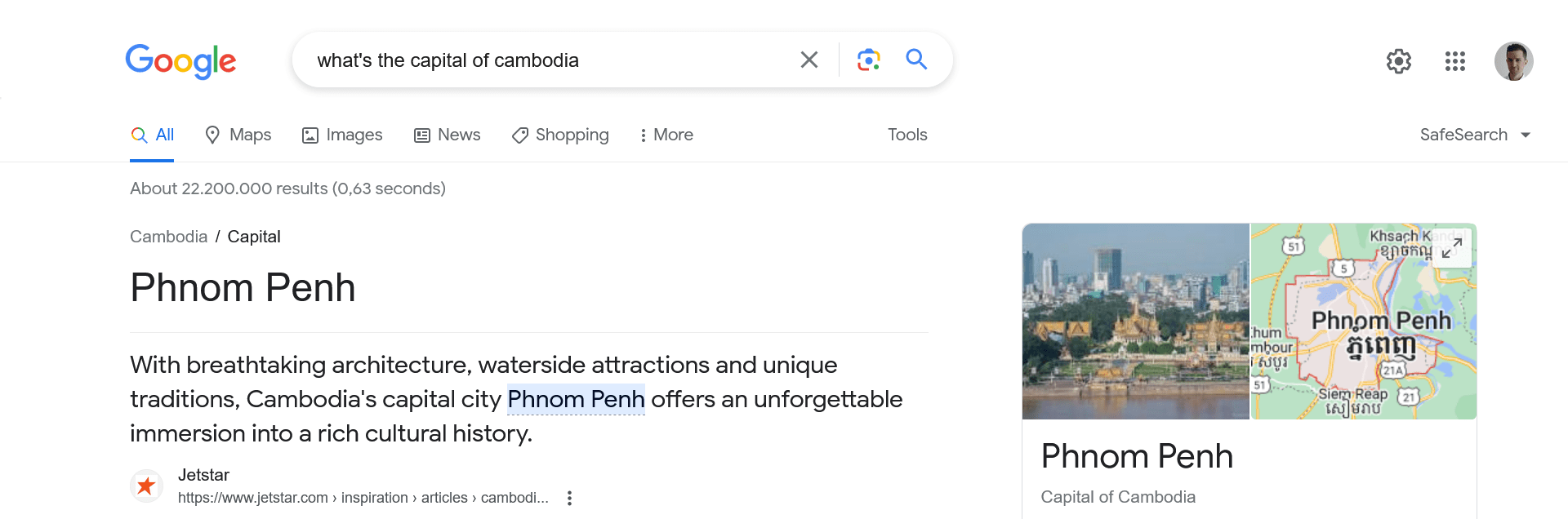


 There are three main elements to pay attention to when conducting keyword research: relevance, authority, and volume.


 Most of the issues flagged by PageSpeed Insights can also be addressed with WP Rocket and Imagify.


