EDITS.WS

Tag: Showcase

  • Evolution of WordPress User Interface (2003 – 2023)

    The WordPress user interface (UI) has evolved steadily since its first release in 2003.

    It started as a simple blogging platform, but WordPress has grown into a full-fledged CMS platform and a robust web application framework. The user interface has evolved over the years as well.

    In this article, we will take you back in time to show the different stages in the evolution of WordPress user interface from 2003 until now.

    Evolution of WordPress user interface since 2003 until now

    The Beginning of WordPress

    WordPress started out in 2003. This was mainly because the development of an already popular blogging software called b2/cafelog was discontinued by its main developers.

    Two passionate users of b2/cafelog, Matt Mullenweg and Mike Little, decided to build a new platform on top of that blogging software. This is how WordPress was first released on May 27, 2003. You can learn more about the origin story of WordPress in our article on the history of WordPress.

    Since then, there have been a lot of WordPress releases. In this article, we will highlight the releases that introduced a big change in the admin panel user interface.

    WordPress 0.71 – (June 2003)

    WordPress 0.71

    The landing page of the WordPress 0.71 admin panel was used to write blog posts directly. It didn’t really have many options outside the post-editor interface.

    It was kept simple by including fewer features. For instance, users could only assign one category to each post.

    It also had a tedious installation method where a lot of information was changed manually by editing the core files of the software.

    WordPress 1.0.1 (Miles – 2004)

    WordPress  1.0.1 - Miles

    WordPress started naming its major releases after Jazz musicians with the release of version 1.0.1. As you can see, this release was named after a famous musician, Miles Davis.

    In this version, WordPress stopped using the b2 file structure and moved toward its own style of filing structure.

    New features included multiple category selections, an SEO-friendly URL structure, comment moderation, a new installer, and several other improvements.

    WordPress 1.2 – Mingus (May 2004)

    WordPress 1.2 - Mingus

    Named after Charles Mingus, WordPress 1.2 was a monumental release. One of the most important upgrades in this version was the introduction of ‘Plugins’, which are now a staple of the WordPress ecosystem.

    Other notable changes were subcategories, custom fields, thumbnail creation, post preview, encrypted passwords, and the ability to ping more than one service at a time.

    WordPress 1.5 – Strayhorn (Feb 2005)

    WordPress 1.5

    This version of WordPress was named after Billy Strayhorn. It showed the first glimpse of a new dashboard style. It didn’t use Ajax and was way slower than the WordPress we use today.

    Another significant feature was the introduction of pages alongside posts, allowing users to create static pages not part of their blog feeds. This release also supported installing multiple themes in a single WordPress installation.

    WordPress 2.0 – Duke (Dec 2005)

    WordPress 2.0

    WordPress 2.0 brought a major overhaul of the WordPress admin interface. It had a large blue header on top and a completely reimagined admin area.

    It was way faster than previous releases, as it used Ajax to perform certain tasks. This release also included a full WYSIWYG editor.

    Akismet was introduced as a plugin to combat the growing comment spam problem. Some other notable features were image/file uploading, theme preview via thumbnail (screenshot.png), improved posting speed, new hooks for developers, and more.

    WordPress 2.1 – Ella (Jan 2007)

    WordPress 2.1

    WordPress 2.1 Ella was the first release to introduce a new admin screen to manage comments.

    The comment management process was significantly improved because users could delete or approve comments without reloading admin screens.

    WordPress 2.3 – Dexter (Sep 2007)

    WordPress 2.3 Dexter

    This release didn’t drastically change the WordPress user interface but added several significant improvements. For the first time, WordPress improved native support to add tags to your posts.

    It also introduced an update notification system, which allowed WordPress core and plugins to show notifications when a new version was available.

    This release also started auto-redirecting users to the correct WordPress URL as defined in the settings.

    WordPress 2.5 – Brecker (Mar 2008)

    WordPress 2.5

    For WordPress 2.5, the WordPress team collaborated with Happy Cog, a leading web design consultancy firm, to redesign the WordPress admin user interface.

    It was a major design improvement, and it had a huge impact on how we use WordPress today.

    Post editor in WordPress 2.5

    The dashboard got much better as they added more useful information there. This was the first version where we saw a one-click upgrade for plugins in the WordPress plugin directory.

    A much better visual editor and a built-in gallery were also included in this release.

    Many of the core components of this redesign are still a major part of the software. However, its appearance quickly changed just 10 months later.

    WordPress 2.7 – Coltrane (Dec 2008)

    WordPress 2.7

    WordPress 2.7 brought another major upgrade to the WordPress admin user interface. Users were now able to readjust WordPress dashboard elements. Screen options were introduced so that users could show and hide elements to meet their requirements.

    Other notable features included easier plugin installation through the WordPress admin panel, admins could add comment replies from the admin panel, threaded comments, sticky posts, keyboard shortcuts, comment pagination, and more.

    WordPress 2.9 – Carmen (Dec 2009)

    WordPress 2.9

    WordPress 2.9 didn’t change the user interface, but it did add several new features that integrated beautifully into the existing WordPress interface. One of these changes was a plugin update system that allowed users to update their plugins to the more recent versions with a single click.

    Another major change in the release was image editing features, which allowed users to crop, resize, rotate, scale, and flip images in WordPress.

    WordPress 2.9 image editing

    WordPress 3.0 – Thelonious (2010)

    WordPress 3.0 Thelonious was a major upgrade that truly transformed WordPress from a blogging platform to a full-fledged CMS.

    It introduced post types, taxonomies, custom backgrounds, headers, shortlinks, and navigation menus. It also came with a new default theme called Twenty Ten, which started the tradition of introducing a new default theme every year that is named after the year itself.

    Navigation menus in WordPress 3.0

    This release merged a WordPress sister project called WordPress MU into core WordPress. This feature is now known as WordPress multisite. The admin interface’s basic style could adapt to all these major changes without another significant overhaul of the admin area.

    WordPress 3.1 – Django Reinhardt (2011)

    WordPress 3.1

    WordPress 3.1 continued adding features to the robust WordPress user interface.

    With this new release, WordPress introduced the admin bar, post formats, and a better internal linking feature.

    WordPress 3.3 – Sonny (2011)

    WordPress 3.3

    Released in December of 2011, WordPress 3.3 came packed with features and improvements to the existing WordPress UI.

    It added fly-out menus for better navigation in the admin area, a revamped admin bar, drag and drop to upload media files, and tool tips. You can see more features and screenshots of WordPress 3.3.

    WordPress 3.5 – Elvin (2012)

    WordPress 3.5

    Mobile and high-resolution devices were already becoming accessible to all users. WordPress 3.5 streamlined the user interface for modern retina display devices.

    This release included upgraded icons and adaptive styles that looked great on any screen resolution. See more features and screenshots of WordPress 3.5.

    WordPress 3.8 – Parker (2013)

    WordPress 3.8 admin UI

    The appearance and the basic style of WordPress UI hadn’t been changed since 2008 and were way overdue for a major upgrade.

    This upgrade aimed to handle mobile devices more elegantly and make WordPress more accessible. After a ton of work, the new WordPress user interface was released with WordPress 3.8.

    The new user interface, which is still used (with minor enhancements), was mobile responsive, had more color schemes, had icon fonts used in the dashboard, and used the Open Sans font for typography.

    Mobile admin UI in WordPress 3.8

    WordPress 3.9 – Smith (2014)

    WordPress 3.9 made several enhancements to extend the user interface for new features.

    WordPress 3.9

    It started using flat buttons in the post editor, drag-and-drop image uploads, gallery previews, and more.

    It also added live previews when adding widgets in the theme customizer. See more features and screenshots of WordPress 3.9.

    WordPress 4.0 – Benny (2014)

    WordPress 4.0

    That very same year, WordPress 4.0 was released. There were no major changes to the UI. However, there were some cool changes that extended the existing WordPress admin interface.

    A new grid view for the Media gallery was introduced with infinite scroll and smooth editing. See screenshots and features of WordPress 4.0.

    WordPress 4.2 – Powell (2015)

    WordPress 4.2 colors

    WordPress 4.2 came with a tiny but significant improvement in the admin area color scheme.

    The grays were given a slight blue hue, and the blues were changed to pure blue with no red channel. See more features and screenshots of WordPress 4.2.

    WordPress 4.5 – Coleman (2016)

    Inline link editing

    WordPress 4.5 brought some much-needed improvements to the default WordPress post editor. A new inline link editing feature and some new inline text shortcuts were introduced.

    Responsive previews were added in the theme customizer, allowing users to preview their theme for desktop, tablet, and mobile screens without changing devices. For more features, see our article on the release of WordPress 4.5 with screenshots.

    WordPress 4.6 – Pepper (2016)

    Shiny updates and plugin installs

    With WordPress 4.6, the core team decided to start using native fonts instead of loading Open Sans from Google servers.

    This release also streamlined updates, which allowed users to install, update, and delete plugins/themes without reloading the page.

    WordPress 4.8 – Vaughan (2017)

    Media widgets in WordPress 4.8

    WordPress 4.8 introduced a new set of widgets to add media like images, audio, video, and rich text.

    It also added a new dashboard widget that displayed WordPress news and events. For more features and screenshots, see our overview of WordPress 4.8.

    WordPress 4.9 – Tipton (2017)

    Theme browsing experience in WordPress 4.9

    The last major release of WordPress for 2017 added more features to the theme customizer, including a new theme browsing and preview experience.

    It also added syntax highlighting and auto-completion to code editors for custom CSS and theme/plugin editors.

    WordPress 5.0 – Bebo (2018)

    Block Editor was introduced in WordPress 5.0

    WordPress 5.0 was released in December 2018. It was a major milestone that introduced a new block-based editor codenamed Gutenberg.

    The new block editor allowed users to easily create beautiful content layouts with an intuitive new interface. Each content element was added as a block with its own settings, and users could save and reuse blocks for much faster writing.

    The new block editor didn’t have as many features as a full-featured WordPress page builder, but it laid the groundwork to use the same block editor functionality in other areas of WordPress.

    You can see our post on Gutenberg vs. WordPress page builders for a full breakdown of the differences in the new content editor.

    It was a massive shift from the plain old TinyMCE editor to a more modern editor. Users who were not ready for the transition were able to use the old editor by installing the Classic Editor plugin.

    However, many experts, including WPBeginner, believed that it was a necessary step forward for WordPress. The old classic editor interface felt way outdated compared to the other popular website builders on the market.

    WordPress 5.2 – Jaco (2019)

    In 2019, WordPress remained focused on improving the block editor by adding new features, fixing bugs, and enhancing user experience.

    With WordPress 5.2, a recovery mode feature was introduced. Instead of showing a fatal error, WordPress displayed an error page.

    Technical difficulty error

    It also emailed website administrators with a link to access the admin area under recovery mode.

    This allowed site owners to quickly fix the issue without going through several troubleshooting steps.

    Recovery mode dashboard

    WordPress 5.4 – Adderley (2020)

    The block editor remained the most important part of WordPress development in 2020 as well. With each release, it kept improving with new blocks and tools and a much faster experience.

    With WordPress 5.4, the full-screen editor became the default setting for the block editor.

    Full screen block editor

    The block editor also introduced a new toolbar for mobile screens.

    This allowed users to have a much cleaner editing experience on smaller screen sizes.

    Mobile toolbar in 5.4

    WordPress 5.5 – Eckstine (2020)

    WordPress 5.5 introduced block patterns.

    A pattern is a set of blocks pre-arranged to quickly add commonly used design elements like headers, footers, intros, calls to action, and more.

    Block patterns

    WordPress 5.8 – Tatum (2021)

    Template editing in WordPress 5.8

    Over the last few years, WordPress has continued to improve the block editor in an effort to offer a full site editing solution.

    In WordPress 5.8, a new templates feature was introduced along with several site-wide blocks to help you easily create site-wide templates in WordPress.

    This version also introduced block-based widgets. Each widget-ready area in your WordPress theme now appeared as a tab in the block editor. Users were able to add widgets as blocks to their websites’ sidebars and widget-enabled areas.

    Block widgets

    These features laid the groundwork for future updates and prepared WordPress to use a block-based site editor.

    WordPress 5.9 – Josephine (2022)

    WordPress 5.9 arrived in January 2022, with the full site editor making its debut.

    Site Editor makes it debut appearance in WordPerss 5.9

    It replaced navigation menus, widgets, and theme customizer links from the admin sidebar with a link to the site editor.

    However, it was only visible to users with a block-based theme activated on their sites. The release came with Twenty Twenty-Two as the new default theme with full support for the site editor.

    The site editor used the block editor, so it provided the same user interface for editing websites that users were already using for writing content.

    Site editor interface

    WordPress 6.0 Arturo (2022)

    WordPress 6.0 was released in May 2022. It didn’t make any changes to the major components of the user interface, but it made significant upgrades to the site editor experience.

    This included adding support for editing more templates and adding more tools to different block settings.

    Edit more templates

    WordPress 6.1 – Misha (2022)

    WordPress 6.1 was released in November 2022 and continued with the improvements to the site editor, especially templates and template parts.

    This release didn’t make major changes to the core UI itself. However, it added several new tools and enhancements to the block editor. It also started to bring consistency to the block tools and settings.

    WordPress 6.1 block editor consistency

    WordPress 6.2 – Dolphy (2023)

    In the first half of 2023, WordPress remained focused on easier site editing and customization.

    With the release of WordPress 6.2, the new block-based site editor came out of beta. This allowed users to use the block editor to customize their WordPress themes and create layouts, templates, styles, and more.

    Style editing in WordPress 6.2

    WordPress 6.3 – Lionel (2023)

    In the second half of 2023, WordPress released 6.3 with significant updates to the site editor.

    It introduced a new navigation screen for the site editor, which provided easier access to templates, pages, patterns, styles, and navigation menus.

    WordPress 6.3 site editor navigation

    This version also introduced a ‘Command Palette’. Users can launch it with the Command+K or CTRL+K keys on their keyboards.

    The command tool also provided easier access to WordPress shortcuts and search for existing content, blocks, patterns, templates, and more.

    Command tool in WordPress 6.3

    In the upcoming releases, WordPress will be focusing on the site editor, real-time collaboration inside the WordPress editor, and multilingual capabilities.

    We hope this article helped you see the evolution of the WordPress user interface since its first release in 2003. You may also want to read the complete history of WordPress or take a look at the top WordPress companies and businesses that grew with WordPress.

    If you liked this article, then please subscribe to our YouTube Channel for WordPress video tutorials. You can also find us on Twitter and Facebook.

    The post Evolution of WordPress User Interface (2003 – 2023) first appeared on WPBeginner.

  • 11 Best Freelance Websites to Find Work (Top Picks)

    Are you looking for the best freelance websites to find work? 

    Building a reliable client roster can be a huge pain, but necessary if you want to keep your freelancing business afloat. Freelance websites let you skip the marketing efforts by bringing new clients and projects directly to you.

    In this article, we’ll share some of the best freelance websites to find work so you can build your client base and earn more money. 

    The Best Freelance Websites to Find Work 

    Why Use Freelance Websites 

    Freelance websites are online platforms that connect freelancers with businesses and clients.

    You’ll typically find two types of freelance websites: 

    1. Bid-based freelance websites: You’ll see a list of projects and roles where companies are looking to hire freelancers. Then, you apply to the ones that interest you by submitting a proposal and setting your rates. 
    2. Marketplace-based freelance websites: Freelancers make a profile and list their services for anyone to find. Clients will browse by the type of services they need. They may choose to hire you based on your profile details, such as price, experience, and past project history. 

    Unlike regular job boards, freelance websites do more than just offer paid opportunities. Many provide an all-in-one inclusive platform that allows clients to pay you directly on the website.

    Also, most freelance sites have a messaging platform that lets you communicate with your clients without giving your personal information. There’s often even a built-in history and review feature so past clients can share their experience working with freelancers. 

    These platforms do the heavy lifting by displaying your skills and helping you find paying clients and are definitely the top freelance websites to look at potential clients and find freelance opportunities. 

    Looking for Work? Awesome Motive is hiring! We are looking to grow our team of highly skilled professionals. Check out our job openings and apply!

    1. Codeable

    Codeable helps WordPress developers find work. Unlike other platforms, they carefully watch the project-to-developer ratio, ensuring that all freelancers have the opportunity to land jobs.

    That’s why Codeable often has a waitlist for new WordPress developers and programmers to join. 

    While the site offers many perks, getting your foot in the door can be tough. The site has a long vetting process, which includes a written and live test, a Skype interview, and a trial period. The 45-day trial period is where a developer works on real projects with clients and is heavily scrutinized for their performance. 

    Once you’re on board, you can expect to find projects centered around plugin development, theme development, and online store creation

    Pros: 

    • Guaranteed minimums of $80 to $120 USD per hour
    • The support team can help you navigate any tricky client relationship 
    • A private community where programmers exchange ideas and conduct skill-sharing sessions 

    Cons: 

    • Doesn’t allow freelancers to set their own rates 
    • Only accepts high-quality developers, which can be a barrier for beginners just starting out in software development

    Why we recommend Codeable: Most platforms are plagued by fierce competition, which causes a race to the bottom for prices on projects. 

    Codeable helps to address this concern by only showing one price to the client, no matter how many experts provide an estimated cost for the project. 

    This price is calculated by their special algorithm that eliminates undercutting and over-pricing. As a result, clients will hire a developer based on value, not on the lowest bidder. 

    Codeable is the best WordPress Developer job site on the market. It’s especially great for skilled WordPress developers who are tired of low-paying gigs on other freelance platforms.

    2. Toptal

    Toptal

    Toptal is advertised as an ultra-exclusive freelance platform. Unlike other sites that are bombarded with less skilled freelancers or low-paying gigs, Toptal has made a name for itself by hiring only 3% of freelance talent. 

    This platform has a more selective process to join, which allows them to keep the quality of the talent pool high. 

    If you’re a freelancer wanting to join the Toptal network, you must pass a series of exams, including skill reviews and language tests. The in-depth skill review tests each applicant’s technical knowledge, ensuring each member of the Toptal network is an expert in their field.

    Once you’ve passed the exams, you must submit your contact information and resume. A Toptal representative will contact you to discuss your skills and experience. 

    After the live screening, freelancers will receive a test project. This is their last test to prove you’re an excellent fit for the Toptal network. 

    Pros: 

    • Access to highly exclusive and high-paying gigs 
    • No project fees for freelancers 
    • Great for highly skilled professionals like designers, developers, finance experts, product management, and project managers 
    • Toptal sources quality clients, so you’ll save time from sifting through low-paying gigs.

    Cons: 

    • Must pass an extensive screening process 
    • Limited job types to choose from 

    Why we recommend Toptal: Toptal understands that freelancers deserve to get paid what they’re worth. 

    Their entire platform is designed to help freelancers find high-paying gigs. They attract well-known brands with the budget for talented freelancers, making it a win-win situation for both parties. 

    Unlike most freelance websites, Toptal doesn’t charge additional fees. Rather than taking 20% of your fee like Upwork, Toptal adds its fee on top of whatever you charges.

    For example, if you charge $100 per hour, Toptal may charge the client $120. They pay the extra, not you.

    If you’re an experienced service provider in any of their listed professions, Toptal should be at the top of your list of freelance sites to find potential clients.

    3. FlexJobs

    FlexJobs

    FlexJobs is a membership-based job site that specializes in sourcing flexible remote work options for you in the form of freelance, remote, part-time, and full-time positions. So whether you need short-term work or a whole new freelance career, Flexjobs can help.

    They offer thousands of jobs listed at any time and allow you to filter by industries, job types, recency, work flexibility, and more. 

    Flexjobs features tiered membership pricing based on duration. Here’s how their services are priced out: 

    • 1 week – $9.95 
    • 1 month – $24.95 
    • 3 months – $39.95
    • 1 year – $59.95  

    Also, FlexJobs spends over 200 hours daily researching companies and vetting jobs to ensure the site is free from scams, MLMs, and commission-only roles. 

    Pros: 

    • Offers career advice and skills testing to help launch your career 
    • Every job listing is verified, meaning you don’t have to worry about scams
    • Wide range of job opportunities 
    • Paid subscription helps filter scams and low-quality job listings

    Cons: 

    • Monthly fee even if you don’t land a job 
    • Must negotiate rates with employers and clients
    • No payment guarantee 
    • No in-platform payment processing 

    Why we recommend Flexjobs: There are several reasons why we love Flexjobs. 

    While there’s an initial upfront cost, you get unlimited access to thousands of recent job postings, and there isn’t an extensive screening process like Toptal or Codeable. 

    Also, once you land a client, you don’t have to worry about the platform taking a service fee from your payment like most freelance websites. 

    We recommend Flexjobs if you want to find clients and job search without having a third-party platform take a cut of your earnings. 

    4. Upwork

    Upwork

    Upwork is one of the largest platforms for freelancers to find work, and definitely one of the best freelance sites to start with. With over 12 million freelancers on the site and 3 million jobs posted annually, job seekers are sure to find new clients on the site.

    The best part about Upwork is that there are freelance jobs for just about every industry. It covers broad categories like finance, sales and marketing, writing, IT, design, translation services, and more. 

    Even if you have very niche skills like being a white-board animator or job description writer, there’s a job available on Upwork. With dozens of sub-specialties, finding opportunities that fit your talents won’t be hard.

    Pros: 

    • Many job opportunities 
    • There is a large selection of services and industries to choose from 
    • Easy to get paid 
    • Easy-to-use platform with a messaging app to communicate with clients 
    • Lets you charge a fixed price or an hourly rate

    Cons: 

    • Highly competitive, especially for beginners 
    • Upwork charges a flat 10% service fee on all earnings you make on Upwork
    • Must buy ‘connects,’ which are tokens used to submit proposals. Everyone starts with 10 free ones every month

    Why we recommend Upwork: Upwork is one of the best places to get started as a freelancer. It’s free to get started, and there are plenty of job opportunities available. While there’s a large number of freelancers competing, those who remain persistent should be able to land gigs. 

    5. Fiverr

    Fiverr is a marketplace-based freelance website where clients reach out to freelancers based on their profiles. Unlike Upwork, where you apply for the jobs you’re interested in, clients on Fiverr will contact you. 

    Signing up is simple, and you can build a profile and post the services you provide. You have complete control of the services you offer, the types of service packages, and price points. 

    Whether your skill set is for content writing services, data entry, design work, or something completely unique, you will likely find work in Fiverr’s freelance marketplace.

    That said, Fiverr does take a sizable 20% cut of your earnings, which is on the higher side of freelance websites.

    But as a beginner, it may be worth it for the visibility that Fiverr offers, but it is hard to maintain a full-time career using it.

    Pros: 

    • User-friendly website and mobile app 
    • Withdraw through PayPal 
    • No monthly or sign-up fees 
    • Freelancers can offer different service packages and charge their own rates 

    Cons: 

    • Lower-paying gigs 
    • High fees (20%) 
    • 14-day holding period on payments 

    Why we recommend Fiverr: Fiverr is the perfect website for those with unique talents that don’t fit into a traditional freelance category.

    For example, under the social media marketing category, you’ll find all types of services, such as people specializing in digital marketing and creating branded TikTok videos, Airbnb listings, or even growing your Instagram account. 

    Fiverr Social Media Marketing View

    You can create your own sub-niche based on your passion and talents, making Fiverr unique from most freelance websites.

    No matter how unique your talent may be, odds are, Fiverr has a place for you. 

    6. 99designs

    99designs

    99designs is an online marketplace that connects designers with clients who need design work. It allows freelance graphic designers to showcase their talents while clients can find professional designers who fit their specific project requirements. 

    The platform caters to many design projects such as websites, apps, logos, book covers, clothing, advertising, illustration, and more. 

    However, 99designs does take a good amount from your earnings. They deduct a one-time 20% introduction fee from the first $500 with a new client, with a maximum fee of $100.

    You also pay a service fee for any earnings from the platform. They reward more experienced designers by lowering their fees as they complete more successful projects on the platform. Here’s how:

    • Top-level designers pay a 5% service fee
    •  Mid-level designers pay a 10% service fee
    •  Entry-level designers pay a 15% service fee

    While service fees are high, they help you land more design work that may be otherwise harder to find on less specialized freelance platforms.

    Pros: 

    • Tailored to skilled graphic and web designers 
    • Can get paid for individual projects or through contest earnings
    • Trusted platform for businesses looking for all types of design work 

    Cons: 

    • Payment is only available through PayPal or Payoneer 
    • May only be paid when winning a contest, not simply submitting
    • It’s hard for beginners without much design experience to secure work 

    Why we recommend 99designs: What separates 99designs from others is that they offer two ways for freelancers to earn. 

    Designers can work directly with clients and get hired by businesses to work on 1-to-1 projects. They can also submit their designs to contests to earn big bucks. 

    We recommend 99designs as the go-to freelance website for graphic designers and creatives. It’s trusted by top brands, and you’re more likely to find meaningful design work through 99designs than other sites. 

    7. PeoplePerHour

    PeoplePerHour

    PeoplePerHour is a UK-based platform where employers post projects and freelancers can bid for jobs. 

    They don’t cater to any particular profession. Instead, they pool freelancers skilled in everything from design and programming to legal services and business. 

    It works similarly to Upwork, where you create a freelance profile highlighting your skills. Once your account is approved, you get 15 proposal credits each month. After that, you can pay £5.95 for every five extra proposals.

    Pros: 

    • Tools to create automated invoices
    • Payments are secure 
    • Job listings based on your location 

    Cons: 

    • No guarantee that a new account will be approved 
    • Offers only 15 free proposal submissions per month
    • New accounts are reviewed by moderators, meaning it may take some time to get started 
    • Known to have some low-quality jobs on the site

    Why we recommend People Per Hour: People Per Hour tends to fall short when compared to rivals like Upwork and Fiverr. 

    That said, there are still thousands of job opportunities available on the site. If you’re living abroad and don’t demand the high rates that US workers would charge, then People Per Hour is still a good choice.

    8. Wellfound (Formerly AngelList Talent)

    Wellfound

    Wellfound, formerly AngelList Talent, helps freelancers find positions at startup companies. 

    Working at a startup provides freelancers the opportunity to potentially make a bigger impact and have more creative input than working for an established business. 

    In fact, it’s trusted by some of the most innovative startups in the world, such as Airtable, Gusto, Nerd Wallet, Open AI, and others. With over 130,000 tech jobs available, you’re sure to find something you’re looking for. 

    The job categories include engineering, product development, design, data and analytics, sales, marketing, operations, HR and recruiting, finance, and legal jobs.  

    Pros: 

    • Opportunity to make a huge difference in a startup company 
    • Easy to set up your profile and apply 
    • Able to see info about the job you’re applying for, such as the likely salary and stock options 
    • No cover letters needed to apply

    Cons: 

    • Caters to startups, so if that’s not what you’re looking for, you may want to go elsewhere 
    • Many jobs labeled as entry-level may require a lot of experience 

    Why we recommend WellFound: Most freelancers yearn for meaningful work, which is why they left the corporate 9 to 5 in the first place. 

    But startups are different. They’re usually tight-knit companies that are adaptable to change. Working at a startup will allow you to collaborate and have a more creative say in processes and help shape a brand’s identity. 

    9. Problogger Job Board

    Problogger

    Problogger Job Board is a job site that connects freelance writers to paid remote work opportunities. 

    The site lets you use their search and filter function to find the right type of niches to work for. You’ll find all types of clients here, including affiliate marketing website owners, SEO agencies, e-commerce brands, and even mid-to-large-sized corporations. Another tip is to search for relevant blog niches so you can apply for writing jobs that fit your area of expertise. 

    One of the reasons that ProBlogger stands out is that anyone looking to hire a writer must pay to place their job listing. 

    This automatically filters out scammers and low-quality jobs that often appear on freelance sites like Fiverr or Upwork. 

    Pros: 

    • Plenty of active employers looking to hire 
    • Doesn’t cost to apply for jobs
    • Resources to help build your freelance writing career 
    • Great job site for writers 

    Cons: 

    • Doesn’t have as many job opportunities as most other freelance sites 
    • Less suited for copywriters or PR specialists

    Why we recommend Problogger Job Board: Problogger is the perfect place to find paid blogging opportunities. If you’re a wordsmith who loves to flex your creativity, this is the platform for you. 

    It’s free to apply, and you’ll find dozens of new job opportunities daily. The listing shows the employer’s website, so you can verify their company before applying. 

    10. Freelancer

    Freelancer

    Freelancer.com is the world’s largest freelance marketplace, with over 50 million freelancers possessing over 1,800 different skills

    The site is similar to Upwork in that projects can be billed either as a fixed-price or hourly. Also, freelancers bid on their projects and then wait for approval or denial. 

    Freelancer also features contests for jobs like design work that help freelancers add to their portfolios, earn extra cash, and build up a positive reputation on the platform. 

    Pros: 

    • Plenty of job opportunities
    • 24/7 customer support 
    • 39 currencies, so you can get paid in your country’s currency
    • Offers a progress tracking system that shows your growth as a freelancer 

    Cons: 

    • Potential spammers and low-quality gigs 
    • High service fees 
    • Lots of competition

    Why we recommend Freelancer: Freelancer is a great platform for international users. That’s because payments are available in 39 currencies, and they offer 24/7 customer support, making it a good option for anyone around the world. 

    11. Behance

    Behance

    Behance is the best freelance website for creative freelancers, which isn’t a surprise considering that it’s owned by Adobe, the creators of Photoshop.

    This platform serves as a social network and freelance website, allowing you to find your next gig while making all-important connections with other freelance designers. 

    When you sign up, you can choose your specialty from a broad range of fields, such as graphic design, animation, UI design, advertising, logo design, photography, and illustration. Then, you can build your portfolio and create a mood board to show off your work and artistic style. 

    They also have a job board where you can filter jobs by the hundreds of creative fields or type in relevant keywords to narrow your search. 

    Behance Jobs

    The portfolio is more dynamic than other freelance sites. You can add case studies, advertise work-in-progress posts, and even live-stream your work. 

    Pros: 

    • Great for creative freelancers 
    • Lets you follow and draw inspiration from other creators 
    • A wide range of creative job types 

    Cons: 

    • With 10 million users, competing for jobs can be hard 
    • Image sizes must be 10MB or smaller to avoid long loading times for viewers

    Why we recommend Behance: Behance is free to use, and you don’t have any limit on how many jobs you can apply for. As you build your following, it’ll allow you to establish instant credibility with employers. 

    Unlike 99designs, which focuses more on one-time gigs or contests, Behance offers more stable job opportunities. 

    How to Choose the Right Freelance Website 

    With so many sites out there, it can be tough to choose the best one for your needs. 

    Before you devote your time to any freelance site, here are some important factors to consider: 

    • Local vs. global jobs: Is your service better suited for in-person or online? Certain services like photography are best for freelance websites that offer local gigs. 
    • Types of career choices: Some platforms specialize in specific industries, while others are more broad. For example, Codeable is geared towards WordPress developers. When choosing a freelance website, make sure the freelance website offers services in your domain. 
    • Number of job offers: How many people are on the platform? The more popular the site is, the more job posts you’ll see. 
    • Service fees: Make sure you know what you’ll need to pay to use the job site. For example, both Fiverr and Upwork take 20% of your cut, while a site like Codeable only takes 10%. 

    Freelance Websites Frequently Asked Questions

    Which Website is Best for Freelance Jobs? 

    We believe Codeable is the best website to find WordPress development jobs.

    That said, you shouldn’t only limit yourself to Codeable. Consider diversifying your channels by going to similar platforms like FlexJobs, Upwork, Freelancer.com, and PeoplePerHour. 

    What are the Alternatives Freelance Websites Worth Considering?  

    There are dozens of other freelance sites that we haven’t listed.

    Here are other websites worth considering to find work that we haven’t already mentioned: 

    • Best Upwork alternatives: Guru, Hubstaff Talent 
    • Best for local service providers: TaskRabbit, Servicescape, Bark.com 
    • Best for writers: Freelance Den, Smartblogger job board
    • Best for WordPress developers: Flowremote.io., We Work Remotely
    • Best for designers: DesignCrowd, Dribbble
    • Best job recruitment sites: LinkedIn Jobs, ZipRecruiter, SimplyHired

    What Services Should I Offer on Freelance Websites? 

    There are countless different services you can offer as an independent contractor. You want to choose your service based on your strengths and what’s currently in demand. 

    That said, some of the most in-demand services across all freelance websites are: 

    • Freelance writing 
    • Content marketing 
    • Copywriting
    • Web design 
    • Web development
    • WordPress setup
    • Graphic design 
    • Social media management
    • Virtual assistant
    • Tutoring
    • Video editing 

    Even if you don’t have these skills, we recommend going to a site like Skillshare to learn the skills needed to work as a freelancer. Rather than buying courses individually, it’s a membership-based site that provides access to thousands of different courses. 

    Additionally, WP101 is a great resource to learn WordPress and kickstart your freelance WordPress career.

    Find Freelance Work on the Best Platform For You

    Whether you’re a new freelancer just starting your career or an established professional looking for more work, you can use any website on the list above to your advantage.  

    We hope this article has helped you find the best freelance website to find work. You may also want to check out our tutorial on how to make a WordPress website in 2023 or our showcase blog on the 27 best portfolio WordPress themes for your website

    If you liked this article, then please subscribe to our YouTube Channel for WordPress video tutorials. You can also find us on Twitter and Facebook.

    The post 11 Best Freelance Websites to Find Work (Top Picks) first appeared on WPBeginner.

  • What is Email Hosting and How to Find Best Email Hosting Service

    Are you looking to get an email hosting service for your business?

    Creating a custom email address for your website or organization with your brand helps build trust and credibility. With the right hosting service, you can easily manage and secure your emails.

    In this article, we will show you what email hosting is and how to find the best email hosting service.

    What is email hosting and how to find best email hosting service

    What is Email Hosting?

    Email hosting is a service you can use to have your own domain names as for email addresses, with storage for email content and attachments. You can create business email addresses by subscribing to an email hosting provider.

    The difference between using email hosting vs. free email providers like Gmail or Yahoo is that you get to use your brand name in the email address.

    For instance, a free email service will use its own domain name in the email address. It will look like this: john.doe@gmail.com.

    On the other hand, you can create branded email addresses using an email hosting service. Your emails will look like this: john.doe@example.com

    Why Use an Email Hosting Service?

    Using an email hosting service makes your emails look more professional. It helps build credibility and trust with your audience. A branded email address also leaves a lasting impression on your users and creates brand awareness.

    Besides that, you get enhanced security with email hosting. Many providers offer 2-factor authentication (2FA), spam protection, anti-phishing and anti-spoofing features, end-to-end encryption, and more.

    Another advantage of using an email hosting provider is that you get increased storage capacity. Standard email service would offer limited storage space, which can quickly run out. However, email hosting services can offer extended storage options.

    Let’s see what factors you should consider when finding the best email hosting service.

    How to Choose the Best Email Hosting Service?

    When it comes to choosing the best email hosting provider, you should consider the following things:

    • Email Storage – Each email hosting service will allot a specific storage space for your mailbox. You should choose a service that offers flexible storage options to store attachments and other email content.
    • Email Protocols – There are different email protocols like IMAP, SMTP, and POP3. They help with email deliverability and accessing emails on different devices. When you’re selecting an email hosting service, see how the provider supports these protocols.
    • Email Security Features – One of the advantages of email hosting is the advanced security features it offers. The best services should offer end-to-end encryption, spam protection, scan attachments for viruses and malware, 2-factor authentication (2FA), and anti-phishing features.
    • Email Aliases – You can create additional email addresses or aliases without creating a new account. This allows you to forward emails addressed to the alias to your main account. When picking email hosting, check if the provider lets you create email aliases.
    • Pricing – An email hosting service will cost you money, so when deciding on a provider, you should take prices into consideration. Some services offer multiple pricing plans with different features and storage limits. We recommend choosing a host that fits your budget.

    Now, let’s look at some of the best email hosting services you can choose.

    Finding the Best Email Hosting Service

    There are many email hosting providers in the market. Here are some of the best services you can choose from.

    1. Google Workspace

    Google Workspace

    Google Workspace, previously known as G Suite, is an email hosting service that offers a lot of value. It offers flexible plans that are great for all types of businesses and enterprises.

    The best part about Google Workspace is that you can use Gmail for your custom-branded emails. You won’t have to map Gmail to other email hosting providers, which saves a lot of time and complexity.

    At WPBeginner, we use Google Workspace and can honestly say it is the best email hosting provider.

    Another benefit of using Google Workspace is that you get to use multiple Google products along with setting up a professional email address in Gmail. For instance, you get Google Drive storage, Google Docs and Sheets access, Google Teams, and more.

    With Google Workspace, you get storage space from 30GB going all the way to 5TB. Plus, it offers up to 1000 participants in video meetings. Besides that, you’ll get tons of security features like 2 step verification, phishing and spam protection, an ad-free email experience, and more.

    That said, Google Workspace can be expensive for startups or small businesses. It’s more suitable for organizations that don’t have budget limitations and can explore custom plans as well.

    Pros:

    • Use a branded email address with Gmail
    • Get 30GB to 5TB of storage
    • Phishing and spam protection
    • Multiple security features
    • Access to different Google products

    Cons:

    • Expensive pricing plans, especially for small businesses
    • It doesn’t offer an unlimited storage option

    Pricing: Google Workspace prices start from $6 per user per month, and you get 30GB of storage. There are other plans that offer more storage, security options, and other features.

    2. Hostinger

    Hostinger website

    Hostinger is one of the fastest WordPress hosting services in the market. If you’re just starting a new WordPress website and selecting a web hosting provider, then Hostinger offers free email addresses with each pricing plan.

    The best part, you don’t have to pay extra for email hosting, and you get to create up to 100 email addresses. Each mailbox also gets 1GB of storage space.

    The web hosting plans also include free domain names, WHOIS protection, free SSL certificates, unlimited bandwidth, website backups, and more. This makes Hostinger great value for money.

    That said, Hostinger also offers standalone email hosting plans, which are powered by Titan. This allows you to get more storage space, up to 50GB.

    Other features include an inbuilt calendar and contacts, auto-reply, email templates, follow-up reminders, up to 10 email aliases, IMAP/POP3 support, spam and phishing protection, anti-virus and malware checker, and much more.

    Pros:

    • Get free email hosting with web hosting plans
    • Fast performance and load times
    • Up to 50GB storage space
    • 24/7 customer support
    • Free domain name and SSL certificate
    • Advanced security features

    Cons:

    • High renewal costs

    Pricing: Hostinger offers an exclusive 80% discount to WPBeginner users on web hosting plans, with prices starting from $1.79 per month. If you want more email addresses, then consider getting the WordPress starter plan for $2.69 per month.

    3. Bluehost

    Bluehost

    Bluehost is the largest WordPress hosting company in the world that lets you create professional email addresses. You can use your domain name to set up domain-specific emails.

    Just like Hostinger, you get email hosting included in the web hosting plan with Bluehost. Not to mention, you also get a free domain name, SSL certificate, and much more.

    Bluehost email hosting offers a custom inbox and calendar. You can also schedule tasks and automatically save contact information. Depending on the plan you get, Bluehost offers up to 80GB storage and 50 email aliases.

    Besides that, you get different security features like spam filters, antivirus, safe unsubscribe service, real-time anti-phishing, file encryption, and more. Bluehost also supports different email protocols, including IMAP and POP.

    Bluehost is the best solution if you’re looking to purchase a hosting plan or already using Bluehost for your WordPress website. Its email hosting plans are affordable and offer tons of features for businesses of all sizes.

    Pros:

    • Free domain name, CDN, and SSL certificate
    • 3-month free trial for email hosting
    • Advanced email security options
    • Up to 80GB storage space & 50 email aliases
    • Quick and easy setup
    • Great customer support
    • Officially recommended by WordPress

    Cons:

    • High domain renewal prices

    Pricing: Bluehost offers an exclusive 73% off for WPBeginner users on hosting plans, with prices starting from $2.95 per month. You can use our Bluehost discount coupon to get started.

    4. Microsoft Office 365

    Microsoft office 365

    Microsoft Office 365 is another popular email hosting service that is similar to Google Workspace. You can easily set up a professional business email using Office 365 and get access to a bunch of tools offered by Microsoft.

    Microsoft 365 offers up to 50GB of storage with each mailbox. Plus, you get advanced security features like spam and malware cloud-based email filtering, multifactor authentication, custom permissions, password policy creation, and more.

    Aside from that, you can use other tools like Microsoft Word, Excel, PowerPoint, Teams, OnePoint, Publisher, SharePoint, and more. You also get up to 1TB of cloud storage and real-time monitoring of online threats for your mailboxes.

    Microsoft Office 365 is a great solution for sites or organizations that are looking to use Microsoft Suite for their operations. If you’re confused about whether to pick Google vs Microsoft, then please see our comparison between Google Workspace and Office 365.

    Pros:

    • Create branded emails using Outlook
    • Get 50GB of storage for mailboxes
    • Access powerful Microsoft tools with a professional email address
    • 1TB of cloud storage
    • Advanced security features

    Cons:

    • Expensive pricing plans
    • It can be tricky to use, especially for beginners

    Pricing: Mircosoft Office 365 prices start from $6 per user per month. There are higher pricing plans that include more features and advanced security options.

    5. Namecheap

    Namecheap

    Namecheap is one of the cheapest email hosting providers on our list. It’s also a popular domain registrar and helps you find custom domain names for your business.

    With Namecheap email hosting, you get up to 15GB of email storage and up to 30GB of file storage space. It also lets you create unlimited aliases in the highest pricing plan, along with mobile sync support.

    Other than that, Namecheap supports SMPT, IMAP, and POP3 email protocols. It also offers decent security features like 2-factor authentication, anti-spam protection, and email storage security.

    Namecheap is an excellent option for startups and new website owners who are looking for a cheap email hosting service.

    Pros:

    • Affordable pricing plans
    • Unlimited aliases with the Ultimate plan
    • Offers document viewer, calendar, contacts, and other tools
    • Supports SMTP, IMAP, and POP3 protocols
    • Mobile sync support

    Cons:

    • Basic security features
    • Limited storage size, even in the Ultimate plan

    Pricing: Namecheap email hosting plans start from $1.24 per month for 1 mailbox. You also get a 60-day free trial to try the service.

    6. Rackspace Email

    Rackspace

    Rackspace Email is the next email hosting service on our list. It offers a lot of solutions to SaaS companies, including an email hosting solution for small businesses.

    The service offers a 100% uptime guarantee, which means it is highly reliable. It has data centers spread across the world and you get 24/7 support in case anything goes wrong.

    Besides that, Rackspace offers 25GB mailbox storage space and up to 30GB file storage space. You also get unlimited aliases, group lists, and email forwarding rules. It even offers free email migration from another provider.

    Pros:

    • A reliable email hosting solution
    • 24/7 customer support
    • 25GB mailbox storage
    • Easily integrates with Microsoft Office 365 tools
    • Spam and virus protection

    Cons:

    • Requires a high learning curve to use the service
    • You’ll need to pay extra for email archiving
    • Limited additional features

    Pricing: Rackspace email prices start from $2.99 per user per month. You also get a 14-day free trial to try the service.

    7. Zoho Mail

    Zoho mail

    Zoho Mail is one of the most popular email hosting services in the market. It offers a secure platform to host emails and create a branded email address.

    With Zoho, you get dedicated apps for desktop and mobile to manage and organize your emails. Other than that, it offers up to 50GB of mailbox storage, domain aliases, email forwarding, and offline access.

    One of the standout features of Zoho Mail is its SecurePass email. This allows you to send confidential information over emails using a passcode.

    Besides that, it supports IMAP and POP3 protocols, up to 1GB of email attachment options, anti-spam and malware protection, email encryption, and more.

    Pros:

    • Easy-to-use email hosting platform
    • Dedicated apps for mobile devices
    • Strong security features
    • Send password-protected emails with SecurePass

    Cons:

    • Pricing per user can be expensive for small businesses
    • Integration with third-party tools is tricky

    Pricing: Zoho Email prices start from $1 per user per month and you get 5GB of mailbox storage.

    Which Email Hosting Service Should You Choose?

    After reviewing multiple email hosting services, we believe that Google Workspace is the best solution for your email needs.

    For starters, it lets you use Gmail with your custom-branded email domain name. Plus, you get access to other powerful tools included in the Google Workspace suite.

    At WPBeginner, we also use Google Workspace and highly recommend it.

    That said, if you’re looking for a more affordable email hosting service, then you can give Hostinger and Bluehost a try. Both are perfect if you’re just starting a new website since they include email hosting in their web hosting plans.

    We hope this article helped you learn what is email hosting and how to find the best email hosting service. You may also want to see our guide on the best email marketing tools and the ultimate guide to boost WordPress speed.

    If you liked this article, then please subscribe to our YouTube Channel for WordPress video tutorials. You can also find us on Twitter and Facebook.

    The post What is Email Hosting and How to Find Best Email Hosting Service first appeared on WPBeginner.

  • How to Set Up Installment Payments in WooCommerce – 7 Plugins

    Do you want to offer installment payments on your eCommerce store?

    Offering an installment plan encourages customers to purchase more products or services. It makes it easier for them to buy expensive items and helps boost sales on your WooCommerce store.

    In this article, we will show you how to set up installment payments in WooCommerce using different plugins.

    How to set up installment payments in WooCommerce

    Why Set Up Installment Payments in WooCommerce?

    Installment payments allow customers to break up the total amount of a product or service into smaller portions. Instead of paying the price in full, users can pay a certain amount upfront and then pay the remaining amount over a period of time.

    As a WooCommerce store owner, you can select the timeframe you’d like to offer to customers for repayments. Usually, this depends on the product and niche you’re in, but you can offer anything between 6 to 24 months.

    Setting up installment payments in WooCommerce helps provide alternative payment methods to customers. It encourages your visitors to purchase more valuable and expensive items.

    You can also reduce cart abandonment by offering an installment payment option. Customers might not purchase products if they don’t have sufficient funds and would exit your site without checking out. With an option to pay in installments, you can motivate them to buy the product and boost sales.

    That said, let’s see which plugins are the best for WooCommerce installment payments.

    1. Affirm Payments

    Affirm

    Affirm Payments is a WooCommerce extension that lets you add tailored buy now pay later programs to your eCommerce store. Affirm is a payment service that helps customers pay at their own pace.

    The plugin is beginner-friendly to use. Once you install it, you’ll see the Affirm payment option in WooCommerce. Customers can then select a payment plan that works for them.

    Affirm payments preview

    Affirm offers 4 interest-free payment features, where customers can split the initial cost into 4 installments with no interest. This makes it easier to sell high-ticket items, and customers won’t have any impact on their credit scores.

    Besides that, Affirm Payments also allows customers to choose their payment terms. The best part is that it shows the exact amount that needs to be paid every month with the annual percentage rate (APR).

    Who Should Use It: Affirm Payments plugin is a great solution for anyone looking to add just a buy now pay later payment option in WooCommerce. The provider helps create installment plans for customers and also offers 4 interest-free installments every 2 weeks.

    Pros:

    • Easily add Affirm as a payment option in WooCommerce
    • Offer ‘Pay in 4’ plans with no interest (0% APR)
    • Allow customers to choose their installment plan
    • Showcase all payment plans in a single view

    Cons:

    • Limited customization options from within the WordPress dashboard
    • High-interest rate (up to 30%) for some items
    • Sometimes Affirm may require a credit check before transaction approval

    Pricing: Affrim Payments is a free WooCommerce extension.

    2. Klarna Payments for WooCommerce

    Klarna payments

    Klarna Payments for WooCommerce is a free WordPress plugin that adds Klarna payment options to your online store. Klarna is a Swedish fintech company that offers online payment solutions for website owners.

    Using the plugin, you can offer customers to pay the full amount at checkout, first try the product and then pay later, or slice the total amount into installments.

    It provides customers the flexibility of choosing when they want to pay in the installment plan. There is also an option to provide 4 interest-free payments, so customers can save costs and pay for a product in smaller portions.

    The setup process is very easy. First, you’ll need to sign up for a Klarna account. Once that’s done, simply use the plugin to add Klarna as a payment option in WooCommerce. Klarna will then approve your store, and you can start offering installment plants to customers.

    Set up Klarna payments in WooCommerce

    The best part about using Klarna is that it easily integrates with WP Simple Pay. You can use it to offer buy now, pay later payment plans in WordPress.

    WP Simple Pay comes with a built-in Klarna (Buy Now, Pay Later) Form template. This way, you let customers choose the payback period for a product.

    Select Klarna form template

    For more details, you can follow our guide on how to add Klarna payments to WordPress.

    On the downside, Klarna will work with merchant accounts and is only available in selected countries. For instance, it’s available in Sweden, Norway, Finland, Denmark, Germany, Austria, the Netherlands, Belgium, Switzerland, France, Italy, Poland, Spain, Portugal, Great Britain, Hungary, Czech Republic, Slovakia, the USA, and Australia.

    Why Should You Use It: If you’re looking for a plugin that offers flexible installment plans for your online store, then Klarna Payments for WooCommerce is perfect. It’s easy to use and also integrates with WP Simple Pay, so you can create payment forms without editing code.

    Pros:

    • A free plugin that lets you add installment plans
    • Beginner-friendly to use
    • Offer 4 interest-free installment plans
    • Let customers choose when they want to pay (up to 24 months)
    • Easily integrates with WP Simple Pay

    Cons:

    • Only available in limited countries
    • Not many customization options

    Pricing: Klarna Payments for WooCommerce is 100% free to use.

    3. Jifiti Buy Now Pay Later

    Jifiti

    Jifiti Buy Now Pay Later is the next WooCommerce installment payments plugin on our list. It adds a Jifiti payment option to your online store and offers a white-labeled buy now pay later platform for WooCommerce.

    Jifiti is a platform that connects lenders, merchants, and customers. With a white-label program, you can use your custom branding while offering installment plans. The service lets you add zero-interest split payments, pay in 3 or 4 installments, and more.

    In the background, Jifiti will connect you with leading banks and lenders like MasterCard, Credit Agricole, and Citizens Pay. This way, customers can break large payments into smaller amounts and pay them over a period of time.

    Jifiti settings in WordPress

    What makes this plugin different is that if financing is not approved by one of the lenders, it will automatically pass your customer’s financing application to the next lender in the network. As a result, you’ll see more financing and a boost in sales.

    Who Should Use It: The Jifiti Buy Now Pay Later plugin is excellent for users who want to add a white-label installment payment program to their WooCommerce store. You can work with a lender or a bank to add a buy now pay later option on your site and then customize its appearance.

    Pros:

    • Create branded installment payment plans for your store
    • Offer interest-free installment plans
    • Work with leading banks and lenders for financing options
    • Automatically pass the customer’s financing application to the next lender

    Cons:

    • Setting up white labels can be time-consuming
    • Customers would have to wait for their financing to be approved

    Pricing: Jifiti Buy Now Pay Later is a free WooCommerce plugin.

    4. WooCommerce Deposits

    WooCommerce deposits

    WooCommerce Deposits is a premium plugin that lets you set up installment plans on your online store. The plugin offers flexible payment options and allows you to offer custom schedules based on days, weeks, or months.

    You can create multiple payment plans for your WooCommerce store. It also lets you choose variable percentages and intervals for each payment. For instance, you can decide what percentage a customer should pay initially and then over time.

    Create custom payment plan

    The plugin is straightforward to use and offers a clean interface. You can easily create and manage all your installment payment schedules from the WordPress dashboard.

    Who Should Use It: From our testing, WooCommerce Deposits is a user-friendly plugin that’s perfect for creating custom payment schedules. If you’re looking to set up multiple installment plans for your WooCommerce store, then this plugin is for you.

    Pros:

    • Easily create custom payment schedules
    • Have full control over payment amount and intervals
    • Very easy to use and setup
    • Add a description to each payment schedule to guide customers

    Cons:

    • Limited customization options for changing appearance
    • There is no free version

    Pricing: WooCommerce Deposits is a paid extension and will cost you $18.25 per month.

    5. Splitit

    Splitit

    Splitit is the next WooCommerce installment payments plugin on our list. It lets you add installment payments to your online store with ease.

    In our experience, what’s different about this plugin is that it allows customers to use their existing debit or credit card to split the total amount into smaller portions. Customers don’t have to get a loan or wait for approval to purchase a product.

    As long as a customer has available credit on their card that’s equal to the price of the purchase, they can easily use it to set up installments.

    Splitit supports different card network providers, including Visa, MasterCard, American Express, Discover Global Network, and more. The plugin is also easy to use. Simply connect your merchant account and configure the settings in your WordPress dashboard.

    Splitit settings

    Besides that, Splitit also offers a white label buy now pay later feature, supports high-value orders (up to $50,000), allows installment plans up to 24 months, lets you set up interest-free payment plans, and more.

    Who Should Use It: If you’re looking for a way to allow customers to use their own credit cards for installment payments, then Splitit is the best solution. Plus, it works with popular payment network partners and also lets you create white-label buy now pay later plans.

    Pros:

    • Allows customers to use debit or credit cards for installment plans
    • Offers customization options inside the WordPress dashboard
    • No application or credit checks are needed for customers
    • Create an interest or fee-free repayment schedule

    Cons:

    • Works with limited payment providers
    • It doesn’t improve the user’s credit score

    Pricing: Splitit is a free WordPress plugin that you can use.

    6. YITH WooCommerce Deposits / Down Payments

    YITH WooCommerce deposits down payments

    YITH WooCommerce Deposits / Down Payments is a premium that allows users to pay a deposit to book or buy a product on your WooCommerce store.

    The plugin lets your customers have the flexibility to reserve a product or service and break the total amount into 2 installments. The first installment is at the time of purchase and the second installment is the remaining balance, which customers can pay at a later time.

    YITH deposit for woocommerce

    You can set the deposit amount for all the products in your store. There is an option to choose a fixed amount or a percentage value of the total amount.

    The plugin also lets you set up rules and charge different deposit amounts based on the products a user adds to the cart.

    Who Should Use It: The plugin is perfect for online stores that require an initial deposit or down payment to book or reserve a product or service. They can then collect the remaining payment on delivery or set it up for an even later time.

    Pros:

    • Simple and clean plugin to use
    • Easily collect deposits for products and services
    • Create rules to define the deposit value
    • Easily manage remaining balances for your orders

    Cons:

    • You can only set up 2 installments
    • Limited integration options
    • No free version

    Pricing: YITH WooCommerce Deposits / Down Payments will cost you $129.99 per year.

    7. Deposit & Partial Payments for WooCommerce

    Deposit and partial payments for WooCommerce

    Deposit & Partial Payments for WooCommerce is a free plugin that also lets you collect deposits or down payments for your products.

    The best part is that it works with all the payment methods that are supported by WooCommerce. You can simply choose the deposit amount or percentage customers will have to pay at the time of purchase.

    Advanced partial plugin settings

    Besides that, you’ll also see a history of all the partial payments on your WooCommerce store from the dashboard.

    While the free plugin is great for collecting deposits, you can unlock more features in its premium version. For instance, you can select the payment term, offer a zero deposit option, set up payment reminders for customers, and more.

    Who Should Use It: Deposit & Partial Payments for WooCommerce is a great plugin for anyone looking to set up down payments on their online store for free. You can also create a payment plan and set up installments in WooCommerce. It is also a great alternative to YITH WooCommerce Deposits / Down Payments.

    Pros:

    • Add a deposit or down payment option for free
    • Get multilingual support
    • Easily integrate with WooCommerce-supported payment methods
    • Set up fixed or percentage deposits

    Cons:

    • The free version of the plugin offers limited features

    Pricing: Deposit & Partial Payments for WooCommerce is a free WordPress plugin. However, it also offers a premium version with prices starting from $29 per year.

    Bonus: WP Simple Pay

    WP Simple Pay website

    WP Simple Pay is the best Stripe plugin for WordPress. It helps you collect online payments without setting up a shopping cart and is super easy to use.

    The best part, WP Simple Pay supports buy now, pay later payment plans. You can select different methods, including installment payments. Simply choose the billing time period to accept installments.

    It supports 13 payment methods in 135+ currencies from over 45 countries. You can easily add credit/debit cards, ACH debits, Klarna, Afterpay, Apply Pay, Google Pay, and other payment methods in WooCommerce.

    WP Simple Pay comes with pre-built form templates. You can simply select the Installment Plan Form template and enter your details.

    Installment plan form template

    Next, you can customize the installment plan form according to your requirements.

    WP Simple Pay lets you choose the billing period. For instance, there are options to break the actual amount into smaller portions, and you can select the billing period based on days, weeks, months, or years.

    Besides that, you can also enable recurring payment options, create customized receipts, set up purchase restrictions, automatically calculate taxes, and more.

    Why Should You Use It: WP Simple Pay is best for setting up installment plans and accepting credit card payments without setting up a shopping cart. It’s super easy to use, and you can add a purchase button anywhere on your online store without editing code.

    Pros:

    • Very easy to set up and use
    • Add a Stripe purchase button without editing code
    • No need to set up a shopping cart to collect online payments
    • Offer pre-built payment form templates, including installment plan form
    • Supports 13 payment methods
    • Easily integrates with buy now, pay later providers like Klarna

    Cons:

    • The free version offers the installment plan form but has limited features
    • 3% credit card fee per transaction when using the free version

    Pricing: WP Simple Pay offers premium plans starting from $44.55 per year. There is also a free version of WP Simple Pay you can use to get started and add installment plans to your WooCommerce store.

    Which is the Best WooCommerce Installment Payments Plugin?

    After reviewing different plugins, we believe that Affirm Payments is the best WooCommerce installment payments plugin.

    It lets you create custom installment plans for customers and also offers a 4-interest-free installment plan feature. Customers can even choose their own repayment plan and break the total amount into smaller portions.

    The best part is that you can use Affirm Payments for free.

    On the other hand, if you’re looking for a free WooCommerce plugin that lets you add a buy now pay later option, then you can also check out Klarna Payments for WooCommerce.

    FAQs about WooCommerce Installment Payments

    Here are some common questions users have about setting up WooCommerce installment payments.

    1. What is the WooCommerce plugin to pay in installments?

    Affirm Payments is the best WooCommerce plugin for setting up pay in installments. It offers multiple payment methods, allows you to add a buy now pay later option, built-in templates, and more.

    2. What are the payment options in WooCommerce?

    WooCommerce offers multiple payment options. You can allow customers to pay through their credit cards, Stripe, PayPal, Klarna, Apply Pay, and more.

    3. How do I add pay later to WooCommerce?

    You can use a plugin like WP Simple Pay to add an installment plan and pay later in WooCommerce. Other plugins like Affirm and Klarna Payments in WooCommerce are also great for setting up split payments.

    We hope this article helped you learn how to set up installment payments in WooCommerce. You may also want to see our guide to WooCommerce SEO and the best eCommerce plugins compared.

    If you liked this article, then please subscribe to our YouTube Channel for WordPress video tutorials. You can also find us on Twitter and Facebook.

    The post How to Set Up Installment Payments in WooCommerce – 7 Plugins first appeared on WPBeginner.

  • 7 Best Google Reviews Plugins for WordPress (Expert Pick)

    Are you looking to display Google reviews on your WordPress website or online store?

    Adding reviews from genuine users to your website can help win the trust of your potential customers. Google reviews are a great source of customer feedback, and you can automatically display them on your website using a plugin.

    In this article, we will share some of the best Google reviews WordPress plugins.

    Best Google Reviews Plugins for WordPress

    Why Display Google Reviews on Your Website or Online Store?

    Google reviews are feedback about businesses, services, or places that are found on Google. They are left by genuine customers and may include comments and star ratings.

    Potential customers may see Google reviews of your business or products on Google search results pages. Positive reviews and ratings can give them the confidence they need to click the link and visit your website, increasing your traffic and sales.

    Google Reviews Shown on a Search Engine Results Page

    But did you know you can also display Google reviews on your WordPress website?

    For example, you could show positive reviews on your landing pages, WooCommerce product pages, checkout page, and About page.

    These reviews will be automatically pulled from Google, saving you the work of manually adding them to your site.

    But first, you will need to choose a Google reviews plugin and create a Google API key. You can learn more in our guide on how to show Google reviews in WordPress.

    Once your customers see Google reviews on your site, they may go on to leave their own positive feedback. This can improve your Google rankings, especially in local search, and the overall star rating for your business.

    Now, let’s take a look at some of the best Google reviews plugins for WordPress.

    1. Smash Balloon Reviews Feed Pro

    Smash Balloon Reviews Feed Pro

    Smash Balloon Reviews Feed Pro is the best customer review plugin for WordPress.

    It allows you to easily display Google reviews on your website, as well as reviews from Yelp, Facebook, WordPress.org, Trustpilot, and TripAdvisor. This can save you from having to install multiple plugins.

    The reviews will be displayed in a design and format that matches your WordPress theme. This will make sure that the testimonials look like a natural part of your website.

    Smash Balloon’s easy-to-use editor allows you to customize how the reviews are displayed. You can decide what content will be displayed with each review, change the layout of the feed, and even add a call to action button asking users to leave their own feedback.

    Plus, you can use the plugin’s moderation tools to automatically filter out content you don’t want to display, such as the names of your competitors or offensive words.

    You can then add the feed to any post, page, or widget using a block or shortcode. New reviews will be pulled in automatically so that your visitors always see the latest customer feedback.

    Pros:

    • Easy to set up
    • Automatically shows the latest Google reviews
    • The reviews will match your WordPress theme
    • Also supports Yelp, Facebook, WordPress.org, Trustpilot, and TripAdvisor
    • Display reviews anywhere on your site using blocks or shortcodes
    • Moderation features allow you to filter unwanted review content

    Cons:

    Why we chose Smash Balloon Review Feeds Pro: This plugin does everything you need to display Google reviews anywhere on your site. It is easy to set up and use, and it updates the review feed automatically to always display the latest customer feedback.

    2. Widgets for Google Reviews

    Widgets for Google Reviews

    Widgets for Google Reviews is a popular and free Google reviews WordPress plugin. It doesn’t include any additional features, so it’s fast, streamlined, and easy to use.

    While the plugin is lightweight, it offers plenty of options for displaying Google reviews. The plugin has 40 widget layouts and over 25 designs, and you can display the reviews in a carousel, grid, list, and more.

    You can use filters to hide the reviews you’d prefer not to see and display them anywhere on your website using shortcodes.

    Pros:

    • Shows the latest reviews automatically
    • 40 layouts and 25 designs
    • Displays Google reviews in a carousel, grid, list, and more
    • Filters out negative reviews
    • Free

    Cons:

    • Does not support any other review platforms
    • Does not offer any additional features

    Why we chose Widgets for Google Reviews: This is a free and user-friendly plugin, making it a great choice for beginners and small business owners. It has everything you’ll need to set up a basic Google reviews feed on your website.

    3. WP Business Reviews

    WP Business Reviews

    WP Business Reviews lets you showcase your customer reviews from Google, Facebook, Yelp, and Zomato on your website. You can mix up the reviews from different platforms into a single feed or display them separately.

    You can also manually add additional reviews that you receive. This will make sure that valuable, positive reviews are not missed.

    Additionally, you are able to choose a light, dark, or transparent style to match your website’s theme. You can also display the reviews in a gallery, carousel, or list, control the length of each excerpt, and tag your best reviews to make sure they are seen.

    The plugin’s advanced filters allow you to make sure that spammy reviews are not displayed and filter out negative reviews that have a low star rating.

    You can also organize the reviews using the plugin’s tagging and grouping system. For example, you can tag your best reviews to make sure they are displayed at the top.

    Pros:

    • Shows the latest reviews automatically
    • Also supports the Facebook, Yelp, and Zomato review platforms
    • Display reviews from different platforms together or separately
    • Tag your best reviews to make sure they are displayed
    • Multiple formats, including gallery, carousel, and list
    • Filter out negative reviews

    Cons:

    • TripAdvisor and Trustpilot are not supported
    • The light, dark, and transparent styles may not look good with every theme
    • No free version

    Why we chose WP Business Reviews: This plugin can combine reviews from multiple platforms in a single feed. And the inclusion of Zomato reviews makes this plugin perfect if you run a restaurant, cafe, pub, or bakery.

    4. WP Review Slider Pro

    Review Slider Pro

    WP Review Slider Pro is a WordPress plugin that focuses on showing off your social media reviews on your website. It supports the most popular review platforms, including Google, Facebook, Yelp, TripAdvisor, Amazon, and 90+ others.

    The reviews can be displayed in a grid or slider. You can choose from 12 different templates, which can be customized to match your WordPress theme.

    You can choose which reviews are displayed using filters based on length, rating, source page, and more. This will make sure that your most positive reviews will be seen on your website.

    You can place the reviews anywhere on your site using a shortcode. The plugin will then automatically keep your reviews up to date using the WordPress Cron system.

    Pros:

    • Over 90 review platforms supported
    • Shows the latest reviews automatically
    • 12 customizable templates are available
    • Display reviews anywhere on your site using shortcode
    • WooCommerce integration
    • Free version available
    • Spam or moderation features

    Cons:

    • The included templates may not match every WordPress theme

    Why we chose WP Review Slider Pro: This plugin supports more review platforms than most other plugins. That means that besides Google reviews, you can include testimonials from other platforms that are popular in your niche.

    5. Reviews and Rating – Google My Business

    Reviews and Rating - Google My Business

    Reviews and Rating – Google My Business is a free plugin with a single goal—to help you promote reviews and ratings from your Google My Business listing.

    Google My Business is a tool that lets you add your local business information to Google and display it in search results. You can combine this with the Local SEO features from AIOSEO to further enhance your local business listings in Google.

    This plugin will collect your location’s data using your Google’s Place ID and transform it into a block of reviews that you can display on your website.

    You can show these reviews in a list, carousel, column, or tiles, selecting from a range of templates to match your website design. Then, you are able to customize your reviews using 150 variations that include dark and light versions and 14 color schemes.

    You can easily sort and filter reviews to display just the content you want. For example, star rating filtering lets you show only the most positive reviews, and you can include or exclude reviews by their word content.

    When you are ready, you can display the reviews anywhere on your website using a shortcode or widgets.

    Pros:

    • Displays Google reviews and ratings from your Google My Business account
    • Shows the latest reviews automatically
    • 250 designs and themes
    • Display reviews anywhere on your site using shortcodes or widgets
    • Control the content displayed using filters
    • Free

    Cons:

    • Does not support any extra review platforms

    Why we chose Reviews and Ratings – Google My Business: If you simply want to display reviews and ratings from your Google My Business account, then this plugin will do it without any extra complexity.

    6. Business Reviews Bundle

    Business Reviews Bundle

    Business Reviews Bundle is a highly-rated plugin that allows you to display reviews from Google, Facebook, and Yelp on your website. You are able to combine reviews from different platforms in a single feed and even merge the ratings from each platform into a single score.

    You can select from 5 different layouts to display the reviews as a slider, grid, trust badges, or list. Additionally, you can make sure your visitors see the most positive reviews by using exclude/include words and hiding reviews with lower ratings.

    A trim feature allows you to collapse very long reviews and add a ‘read more’ link so they don’t take up too much space on your site.

    You can then display the reviews on any post, page, or widget using a block or shortcode.

    Pros:

    • Shows the latest Google reviews automatically
    • Also supports the Facebook and Yelp review platforms
    • Reviews from multiple platforms can be displayed in a single feed
    • 5 layouts are available
    • You can filter reviews by rating and keywords that are included or excluded
    • You can use blocks or shortcodes to display reviews anywhere on your site
    • Free version available

    Cons:

    • TripAdvisor and Trustpilot are not supported
    • The free version only allows you to display 5 Google reviews

    Why we chose Business Reviews Bundle: This plugin could be a good fit if you are looking to show reviews from multiple platforms, including Google and Yelp.

    7. WP Review Pro

    WP Review Pro is one of the best product review plugins for WordPress. While it allows you to display reviews from Google, Facebook, and Yelp, it is primarily designed to let you add your own product reviews with star ratings.

    So, while it has useful features such as templates, a WooCommerce integration, and shortcodes, Google Reviews support is more limited than with other plugins in our list.

    In particular, the plugin will only display 5 Google reviews at a time. Besides that, you can’t control the content that is displayed, such as filtering out negative reviews.

    That means that this plugin is best for users who mostly want to add their own reviews to their websites.

    Pros:

    • Has many features for adding your own reviews to your website
    • WooCommerce integration
    • There is a free version that supports Google reviews

    Cons:

    • No spam or moderation features
    • You are limited to displaying 5 Google reviews
    • TripAdvisor and Trustpilot are not supported

    Why we chose WP Review Pro: This is the best product review plugin for online stores and integrates well with WooCommerce. It can also be used to make a niche review site in WordPress.

    What Is the Best Google Reviews WordPress Plugin?

    The best Google reviews plugin for WordPress overall is Smash Balloon Reviews Feed. It displays new reviews from Google automatically, making it a good choice for busy business owners who want to save time and create automated workflows in WordPress.

    It also supports other popular review platforms such as Yelp, Facebook, WordPress.org, Trustpilot, and TripAdvisor, and the reviews will automatically match your WordPress theme.

    On the other hand, if you need a simple free plugin that’s fast, easy to use, and doesn’t offer additional features that you don’t need, then we recommend Widgets for Google Reviews.

    Or, if you need a WooCommerce integration to display reviews on the product pages of your online store, then you can use WP Review Slider Pro instead.

    FAQs About Google Reviews WordPress Plugins

    In this guide, we compared some popular Google review plugins for WordPress. You may still have questions about adding reviews to WordPress, so here are the answers to some of our frequently asked questions.

    How do I add Google reviews to my WordPress website?

    Once you choose a Google reviews plugin for your WordPress website, you will need to install, activate, and configure it.

    The steps you need to take will depend on the plugin you choose. You can see our guide on how to show Google reviews in WordPress for more details.

    Is it possible to filter or moderate Google reviews before displaying them?

    Yes, most of the WordPress Google reviews plugins we recommend allow you to choose the types of reviews that will be displayed on your website using filters.

    For example, you might like to filter out negative reviews that have a low star rating or choose not to display reviews that mention your competitors.

    Are there any free plugins for displaying Google reviews?

    Yes, we recommend a number of free Google reviews plugins in this article, and some of the premium plugins offer free versions.

    The most popular free plugin is Widgets for Google Reviews. Another good option is Reviews and Rating – Google My Business.

    Besides Google, what are some other popular review platforms?

    Google is an excellent review platform for website owners because your reviews may appear on search engine results pages, especially when your customers are searching for local businesses.

    Other popular review platforms include Yelp, Facebook, Trustpilot, G2 Crowd (technology-related), TripAdvisor (travel-related), Angie’s List (service-related), Zomato (food-related), and Glassdoor (employment-related).

    Best WordPress Guides for Customer Reviews

    We hope this tutorial helped you find the best Google reviews WordPress plugins. You may also want to see our guides on how to use reviews, ratings, and testimonials in WordPress.

    If you liked this article, then please subscribe to our YouTube Channel for WordPress video tutorials. You can also find us on Twitter and Facebook.

    The post 7 Best Google Reviews Plugins for WordPress (Expert Pick) first appeared on WPBeginner.

  • 8 Fastest WordPress Hosting in 2023 (Performance Tests)

    Are you looking for the fastest WordPress hosting?

    Fast hosting can help your website load more quickly. Fast loading pages improve user experience, increase your pageviews, and help with your WordPress SEO.

    In this article, we will share our performance test results to help you find the fastest WordPress hosting for your website.

    Fastest WordPress Hosting (Performance Tests)

    Why Fast WordPress Hosting Is Important

    Do you want a fast WordPress website? One way to do that is to choose a reputable WordPress hosting provider that is optimized for speed.

    The most important performance indicator is your website’s speed. It not only affects user experience, but it can also hurt your site’s search engine optimization (SEO). Users may leave a slow website before it even loads.

    According to a case study that involved Amazon, Google, and other larger sites, a 1-second delay in website speed can reduce your conversions by 7%. A delay of 3 seconds can cost you 50% of your traffic.

    speed study infograph

    On top of that, Google and other search engines penalize slower websites by pushing them down in the search results.

    This means slow sites get less traffic, while a fast WordPress website will help you get more traffic, subscribers, and revenue.

    How We Tested Website Performance for the Fastest WordPress Hosting Providers

    One reason that WPBeginner is the most trusted WordPress resource site is that our reviews are based on actual data and experience.

    To find the fastest WordPress hosting providers, we actually signed up with each provider and thoroughly tested their services.

    We wanted to accurately measure performance across all WordPress hosting companies, so we created the same sample WordPress site on each hosting provider and used the default WordPress theme.

    Next, we imported dummy content for theme development, including images and media, so our test resembles an average user website.

    Then, we used independent third-party tools to test the performance of our sample website on each hosting provider:

    1. We used Pingdom, an industry-leading website speed test service, to get a performance grade for each provider and measure how long it took a page to load.
    2. We used the Load Impact (k6) service to send virtual users (VU) to each website to see how the hosting server would handle multiple connections at once, like peak traffic times of up to 100 visitors at once.
    3. We used Bitcatcha to test server response times across many geographical locations, including the United States, London, Singapore, São Paulo, India, Sydney, and Japan. This helps us decide which hosting company is best for each geographical location.

    Now that you know our testing process, let’s compare the performance of different hosting companies to see which is the fastest WordPress hosting company on the market.

    1. Hostinger

    Hostinger

    Hostinger is a popular web hosting provider with a reliable and user-friendly platform to launch websites. They offer affordable shared hosting plans with great customer support, a free domain name, a free SSL certificate, and more.

    You can learn more in our complete Hostinger review.

    Pingdom Website Speed Test

    Here are the Pingdom speed testing tool results for Hostinger.

    Hostinger speedtest results

    Our test site loading speed was a fraction of a second at 181 milliseconds, which is great. But keep in mind that this test was performed when the website had no traffic. Let’s take a look at how that speed is affected by more visitors.

    k6 Load Impact Test

    Here are the k6 performance overview results for Hostinger. To see how more visitors would impact the site’s speed, we gradually built up to 100 unique visitors at once.

    Hostinger stress test results

    As you can see, Hostinger performed really well on this test. As we increased virtual users (purple line), the response time (blue line) remained steady, with an average of 460 milliseconds.

    This means that if you have a small business website, an online store, or a growing blog, your Hostinger website will easily handle sudden traffic spikes.

    Bitcatcha Server Response Time

    The web server’s response time will vary depending on how far your visitors are from the server. The Bitcatcha test measures how fast the Hostinger server actually responds from different locations around the world without loading the web page.

    Hostinger response time

    You can see that the response times were great across the board. They were particularly fast in Europe and North America.

    Hostinger Pros and Cons

    Hostinger is a robust platform to host your website. Now that you have seen their performance test results, you might like to see some of their other pros and cons.

    Pros:

    • Most affordable hosting on the market
    • Performance-optimized hosting
    • Excellent customer support
    • 1-click WordPress install
    • Free domain and free SSL certificate
    • Many datacenters across the world

    Cons:

    • Renewal prices are a bit higher

    Why We Chose Hostinger

    Hostinger is a great option for beginners who want to start a website without spending too much money. Their low-price shared hosting options offer good value for money with great performance and an extremely easy-to-use control panel.

    Hostinger Pricing Plans

    Hostinger offers many hosting plans with different features starting at $2.99/month. These plans include shared hosting, eCommerce hosting, VPS hosting, cloud hosting, a website builder, and more.

    Pro Tip: WPBeginner users can get the best price using our Hostinger coupon code.

    2. DreamHost

    DreamHost

    DreamHost is a popular, award-winning hosting company and one of WordPress.org’s officially recommended hosts. Their plans include automatic daily backups, a free SSL certificate, a free domain name, WordPress privacy features, and more.

    Learn more in our complete DreamHost review.

    Pingdom Website Speed Test

    Here are the Pingdom speed testing tool results for DreamHost.

    Dreamhost Website Speed Test

    Our test site loaded in less than half a second with a total of 335 milliseconds, which is excellent. This test was done during low traffic, so let’s now see how DreamHost responds during peak traffic times.

    k6 Load Impact Test

    Here are the k6 performance overview results for DreamHost. We built up to 100 unique virtual visitors at once to see how the server would handle more requests and connections at the same time.

    Dreamhost Load Impact Test without Caching

    While our site remained available throughout the test, the response time went up as users increased. The average response time was 2,193 milliseconds.

    This poor result happened because we turned off DreamHost’s pre-installed WordPress caching solution. So, we tried enabling a caching plugin, and the stress test result improved dramatically. Notice how much lower the light blue line is in the graph below.

    Dreamhost Load Impact Test

    This time, our test site handled 97 requests per second (16,000 requests total), and the average response time was a very fast 77 milliseconds.

    This means that WordPress blogs, small business websites, and eCommerce stores hosted on Dreamhost can easily handle sudden traffic spikes.

    Bitcatcha Server Response Time

    Next, we used Bitcatcha to test our Dreamhost test site’s response time from different geographic locations.

    Dreamhost Server Response Time Test

    DreamHost’s response times remained consistent around the world and were fastest in North America and Europe.

    DreamHost Pros and Cons

    DreamHost has been around for 18 years and is known for making web hosting easy. Now that you have seen their performance test results, you might like to see some other pros and cons.

    Pros:

    • Award-winning hosting
    • Excellent customer support
    • Officially recommended by WordPress
    • 1-click WordPress install
    • Free domain name, SSL certificate, and privacy
    • Automatic daily WordPress backups

    Cons:

    Why We Chose DreamHost

    DreamHost is highly rated for their fast and reliable hosting, which is great for bloggers, online store owners, developers, and web designers. They have won many awards and get excellent reviews from their customers. But they may not be the right choice if you need a lot of help getting started.

    DreamHost Pricing Plans

    DreamHost’s shared hosting plans start at $2.59 per month (for a 3-year billing period). You can also pay monthly for the Shared Starter plan, which costs $4.59 per month.

    WPBeginner users can get the best price on shared hosting using our DreamHost coupon code and shared hosting using our DreamPress coupon code.

    3. WP Engine

    WP Engine Managed Hosting

    WP Engine specializes in VIP managed WordPress hosting, which is an ideal choice for people looking for hassle-free, premium WordPress hosting. They provide automatic backups, security updates, caching, WordPress security, and more.

    You can learn more in our complete WP Engine review.

    Pingdom Website Speed Test

    Here are the Pingdom speed testing tool results for WP Engine.

    WP Engine speed test result

    Our WP Engine test site loaded in less than half a second (337 milliseconds) without any performance optimizations on our end. This is a good result.

    k6 Load Impact Test

    Next, we tested how WP Engine servers respond under peak traffic using a tool called k6. Here are the results as we gradually built the test up to 100 unique visitors at once.

    WP Engine stress test result

    As you can see, our test WP Engine website maintained an incredible response rate throughout the test, with an average response time of 67.01 milliseconds. It performed really well with only minor spikes.

    Bitcatcha Server Response Time

    The Bitcatcha test measures how fast a server responds from different locations around the world. Here are the results for WP Engine:

    WP Engine response time tests

    WP Engine’s server response time was fastest on the east coast of the United States (30 milliseconds), and even its slowest speed of 235 milliseconds in Bangalore is very fast at less than one-quarter of a second.

    WP Engine Pros and Cons

    WP Engine offers fast servers, security, and peace of mind that users need from a managed WordPress host. Now that you have seen their performance test results, you might like to see some of their other pros and cons.

    Pros:

    • Fast loading times
    • 24/7 expert WordPress support
    • Advanced security tools to protect your website against DDoS attacks, SQL injections, brute force attacks, and more
    • 1-click WordPress install
    • Free SSL certificate, content delivery network (CDN), and site backups
    • WordPress staging tools
    • 36+ Premium Themes

    Cons:

    • No free domain
    • WP Engine doesn’t allow you to install some WordPress plugins

    Why We Chose WP Engine

    WP Engine can be a great option if you are looking for a completely hassle-free web host for your WordPress site. Their advanced features will save you time, and there is plenty of room to scale as your traffic increases.

    WP Engine Pricing Plans

    WP Engine only offers managed WordPress hosting, and 5 different levels are available, starting at $20/month and going up to $194/month.

    WPBeginner users can get the best price using our WP Engine coupon code.

    4. SiteGround

    SiteGround hosting

    SiteGround is one of the most recommended WordPress hosting companies, and we use them ourselves on WPBeginner. Among other features, they allow customers to choose between 6 different datacenters worldwide.

    Learn more in our complete SiteGround review.

    Pingdom Website Speed Test

    Here are the Pingdom speed testing tool results for SiteGround.

    SiteGround speed test result

    Our SiteGround test site loaded in 491 milliseconds, which is less than half a second. This speed is incredible, but the website had no traffic during this test. Let’s see how more visitors will affect the speed.

    k6 Load Impact Test

    To test how SiteGround servers would respond to increased traffic, we used a tool called k6 to gradually send up to 100 users to our test website.

    Here are the results:

    SiteGround stress test results

    This test shows that SiteGround is a good choice if you are looking for a really fast website. It performed consistently throughout the test without any hiccups, and an average response time of 249.71 milliseconds.

    This is partly because of some of the innovations they use. For example, most of their servers are hosted on the Google Cloud Platform, and they have a custom plugin for optimization called SG Optimizer.

    Bitcatcha Server Response Time
    We also ran a Bitcatcha test to see the response time around the world. Here are the results:

    SiteGround server response time from multiple locations

    The server responded in just a fraction of a second in the United States, making SiteGround a great choice if your target audience is mostly in North America.

    It responded quickly in other locations as well. Plus, SiteGround lets you choose a data center closer to your target audience so you can get the best response times in a particular region.

    SiteGround Pros and Cons

    We found SiteGround to be fast and reliable. Here are some of their other pros and cons.

    Pros:

    • Speedy servers powered by Google Cloud
    • Excellent customer support
    • 1-click WordPress install
    • Free domain name, SSL certificate, CDN, and website backups
    • WordPress staging tools
    • Free website migration

    Cons:

    • A bit more expensive than other hosting options

    Why We Chose SiteGround

    SiteGround offers fast and reliable web hosting with great customer support. They have hosting plans for every budget, and each plan comes with super fast servers and the option to pick your datacenter.

    SiteGround Pricing Plans

    SiteGround’s shared hosting packages are available in three levels to match different budgets. The Startup plan is limited to one website and costs $4.99/month. The GrowBig plan costs $7.99/month, and the GoGeek plan costs $14.99/month. These plans offer unlimited websites.

    WPBeginner users get an exclusive 70% discount and free SSL with our SiteGround coupon code.

    5. GreenGeeks

    GreenGeeks

    GreenGeeks is a web hosting provider whose goal is to be as environmentally friendly as possible. Their hosting plans also offer great performance, managed updates, a choice of 5 datacenters, and more.

    You can learn more in our complete GreenGeeks review.

    Pingdom Website Speed Test

    Here are the Pingdom speed testing tool results for GreenGeeks.

    GreenGeeks speed test results

    Without additional traffic, our test site loaded in about half a second (527 milliseconds), which is great. Next, we ran a k6 stress test to see how extra traffic affects the site performance.

    k6 Load Impact Test

    We used the k6 tool to measure how GreenGeeks performs during peak traffic, gradually building up to 100 unique visitors.

    Here are the results:

    GreenGeeks stress test results

    Unfortunately, GreenGeeks didn’t perform well during this test. Performance started to degrade after there were 30 users visiting the site. The response time became too slow, and the server started giving errors.

    This means that GreenGeeks will work well on a small website but isn’t recommended for sites with lots of visitors. Traffic spikes will significantly degrade your website performance and may cause downtime.

    Installing a WordPress caching plugin may help a little. But it won’t make a significant improvement on a slow web server.

    Bitcatcha Server Response Time

    We also tested GreenGeeks’ response time around the world using Bitcatcha. Here are the results:

    GreenGeeks response time

    Our test GreenGeeks site responded quickly for visitors in North America. It was slower in other parts of the world, such as India and the Asia Pacific region, but these times are still quite fast.

    GreenGeeks Pros and Cons

    GreenGeeks is affordable, and their plans include plenty of useful features. Now that you have seen their performance test results, you might like to see some pros and cons.

    Pros:

    • Environmentally-friendly hosting
    • A free domain name
    • Great customer support
    • 1-click WordPress install
    • Free SSL certificate, CDN, and website backups
    • Built-in performance tools, including LiteSpeed caching

    Cons:

    • Their phone support isn’t available 24/7

    Why We Chose GreenGeeks

    GreenGeeks is the most eco-friendly web hosting. It is a good hosting solution for anyone who is just starting out. For higher traffic volumes, you may need to upgrade to a high-performance plan or move to a managed WordPress hosting provider.

    GreenGeeks Pricing Plans

    GreenGeeks has a wide range of hosting plans for customers of every size, starting at $2.95/month.

    WPBeginner users can get the best price using our GreenGeeks coupon code.

    6. Rocket.net

    Rocket.net

    Rocket.net is a managed WordPress hosting company offering super-fast and fully managed WordPress hosting solutions. Their plans come with a custom, user-friendly hosting dashboard, a CDN, automated backups, and more.

    You can learn more in our complete Rocket.net review.

    Pingdom Website Speed Test

    Here are the Pingdom speed testing tool results for Rocket.net.

    Rocket.net speed test results

    Our test website loaded in 588 ms, which is just over half a second.

    k6 Load Impact Test

    We then used the k6 tool to test how Rocket.net would hold up under traffic spikes. We slowly increased the number of virtual users to 100, sending multiple page requests.

    Rocket.net stress test result

    This is an excellent result. Our test site responded quickly, regardless of the number of users and page requests. It also had an average response time of 13.91 milliseconds.

    Bitcatcha Server Response Time

    Next, we used Bitcatcha to measure response times for Rocket.net from different geographic locations.

    Rocket.net response times

    These results are incredibly fast. Our test site responded in just a couple of milliseconds for all locations.

    That’s because Rocket.net uses a CDN and cloud edge network. Users are sent to the closest server for the fastest response time.

    Rocket.net Pros and Cons

    Rocket.net offers a fast and reliable platform to host your website. Now that you have seen their performance test results, here are some of their other pros and cons.

    Pros:

    • Very fast servers
    • Excellent customer support
    • 1-click WordPress install
    • Free SSL certificate and CDN
    • WordPress staging tools
    • Integrated firewall and WordPress security features

    Cons:

    • No free domain

    Why We Chose Rocket.net

    Rocket.net’s servers are fast and highly optimized for WordPress websites. You also get peace of mind with enhanced security, automatic updates, and knowledgeable support. This is why we recommend Rocket.net as one of our best choices for a managed WordPress hosting provider.

    Rocket.net Pricing Plans

    Rocket.net offers 4 levels of managed WordPress hosting plans starting at $25/month (billed annually).

    WPBeginner users can get the best pricing using our Rocket.net coupon.

    7. HostGator

    HostGator

    HostGator is one of the largest and most popular hosting companies in the world. They offer all kinds of hosting plans, including shared, managed, and VPS hosting.

    You can learn more in our complete HostGator review.

    Pingdom Website Speed Test

    Here are the Pingdom speed testing tool results for HostGator.

    HostGator speed test result

    Our test site loaded in just 1.03 seconds. This is a great result without traffic, so we also ran a k6 stress test to see how extra users affect our site’s performance.

    k6 Load Impact Test

    We sent up to 100 users at once to our test site using the k6 tool to see how HostGator performs under load. Here are the results:

    HostGator stress test result

    The average response time of 234.99 milliseconds is particularly good for a shared hosting account.

    Bitcatcha Server Response Time

    Response time is also affected by how far your visitors are from the server. We ran a Bitcatcha test to measure response time from 10 locations around the world.

    HostGator response time test results

    In the United States, our HostGator testing site responded in just 26 milliseconds. Times from other locations were also fast, and the slowest speed in India was still a respectable 262 milliseconds.

    You can be confident that a HostGator website will load quickly around the world.

    HostGator Pros and Cons

    HostGator has grown quickly due to their great shared hosting plans, reliable web hosting, and quality customer service. Here are some of their pros and cons.

    Pros:

    • Reliable web hosting
    • Free domain and SSL certificate
    • Free business email address
    • 1-click WordPress install
    • 45-day money-back guarantee

    Cons:

    • Higher monthly pricing
    • HostGator uses a lot of aggressive upselling tactics

    Why We Chose HostGator

    Over 2 million customers trust HostGator. They offer a variety of fast hosting plans that fit all budgets and requirements, as well as the user-friendly tools you will need to build a website.

    HostGator Pricing Plans

    HostGator plans include shared hosting, VPS hosting, cloud hosting, reseller hosting, and dedicated hosting. The Hatchling plan starts at $3.75/month and allows you to host only one website.

    WPBeginner users get an exclusive 60% off with our HostGator coupon code.

    8. Bluehost

    Bluehost hosting

    Bluehost is one of the biggest web hosting companies in the world and an official WordPress-recommended hosting provider. They are a great option for beginners, and their budget-friendly plans are suitable for all kinds of websites.

    Learn more in our complete Bluehost review.

    Pingdom Website Speed Test

    Here are the Pingdom speed testing tool results for Bluehost.

    Bluehost speed test results

    Our test site loaded in well under two seconds. However, this test was performed when the site had little traffic.

    k6 Load Impact Test

    We then used the k6 tool to test how Bluehost servers respond to increased traffic. We gradually sent up to 100 visitors to the site to see how it would handle increased requests from multiple connections at once.

    Bluehost stress test results

    You can see that the blue server load time line remained stable even though traffic and page requests increased. There was an average response time of 156.45 milliseconds.

    Bitcatcha Server Response Time

    We also used the Bitcatcha server response test to see how the server response time varies around the world.

    Bluehost response time test result

    The fastest response times were for users in the United States and Canada. In other parts of the world, the time was higher, but still acceptable.

    Note that this test was performed with a Bluehost server in the United States. If your users come from other parts of the world, then you can change the server location to improve the response time.

    Bluehost Pros and Cons

    Bluehost is reliable, fast, and affordable, with friendly 24/7 customer support. Now that you have seen the Bluehost performance test results, you can check out their pros and cons.

    Pros:

    • Affordable hosting prices
    • Free domain name
    • Free CDN + SSL certificate
    • Great customer support
    • Officially recommended by WordPress
    • 1-click WordPress install

    Cons:

    • Higher domain renewal price

    Why We Chose Bluehost

    Bluehost is often ranked the #1 web hosting provider by many websites. They offer a wide range of hosting options with tons of features that help you easily build your website. All their hosting plans include expert 24/7 customer support from knowledgeable staff. Most importantly, they offer affordable starter plans that fit any budget requirement.

    Bluehost Pricing Plans

    Bluehost offers a shared hosting package suitable for starter websites. Their shared plan is available at 4 different levels starting at just $2.75/month.

    WPBeginner users can get the best price using our exclusive Bluehost coupon code.

    Which Is the Fastest WordPress Hosting Provider?

    Now that we’ve shared our performance test results for each hosting provider, let’s take a look at which services are the fastest.

    Page Load Time

    Pingdom assigned a performance grade to each service to give you an idea of how optimized the hosting is for speed. The grade is based on how well the service implemented its recommended performance optimization strategies.

    Half the services in this review were given an A, and the rest a B.

    Hosting Provider Performance Grade Page Load Time
    Hostinger B 86 181 ms
    Dreamhost A 95 335 ms
    WP Engine A 94 337 ms
    SiteGround A 94 491 ms
    GreenGeeks B 89 527 ms
    Rocket.net B 87 588 ms
    HostGator B 85 1,030 ms
    Bluehost A 91 1,480 ms

    A more important metric is the page load time. Here, Hostinger was quickest, with the page loading in just 181 milliseconds.

    Three other services, DreamHost, WP Engine, and SiteGround, had loading times of less than half a second.

    However, all providers had loading times of well under 2 seconds, which is very good.

    Response Time During Peak Times

    The page load times above were tested during low-traffic periods. So, we also tested how each provider’s response time changed when we sent multiple users to the site.

    Note that this test didn’t time how long it took the page to load, just how long it took until the server could respond. It also measured how that response time changed as we sent more and more users.

    Here are the average response times for each provider during our stress test.

    Hosting Provider Average Response Time
    Rocket.net 13 ms
    WP Engine 67 ms
    Dreamhost 77 ms
    Bluehost 156 ms
    HostGator 235 ms
    SiteGround 250 ms
    Hostinger 460 ms
    GreenGeeks 3450 ms

    Rocket.net performed especially well in the stress test, and most of the other services maintained a stable load during the test.

    However, GreenGeeks did not perform well when encountering a lot of visitors at the same time. You can address this by installing a WordPress caching plugin. However, if your web server is slow, then caching alone won’t make much difference.

    Response Time Around the World

    We also tested each provider’s response times from different locations around the world. That’s because the response time will be slower the further your users are away from the company’s web servers.

    Here are the response times (measured in milliseconds) for each provider from 8 locations around the world.

    Host US
    (W)
    US
    (E)
    UK Singapore Brazil India AU Japan CA Germany
    Hostinger 147 83 10 280 192 126 270 255 90 10
    Dreamhost 18 81 153 182 190 283 158 112 83 168
    WP Engine 56 30 95 189 140 23 190 128 30 109
    SiteGround 60 34 104 254 157 257 200 161 29 114
    GreenGeeks 50 27 89 214 147 212 185 152 20 101
    Rocket.net 2 1 3 7 4 5 1 2 2 2
    HostGator 26 71 152 189 193 262 163 128 92 159
    Bluehost 46 35 107 212 140 226 179 159 47 116

    Rocket.net recorded blazing-fast speeds around the world.

    SiteGround and Bluehost are good options anywhere in the world because you can choose a data center location where most of your users are.

    Besides these hosting providers, if most of your visitors are in the United States, then your best options include DreamHost, HostGator, and WP Engine.

    Your visitors in Europe will have the fastest experience with Rocket.net and Hostinger, and the Asia Pacific users will enjoy the fastest speeds with Rocket.net.

    Fastest Overall WordPress Hosting Providers

    Our top web hosting recommendations are:

    Based on our performance tests, these are all good choices for fast hosting.

    However, if website speed and performance are your highest priority, then you should also look carefully at Rocket.net. They have a better response time under load and around the world than any other provider.

    FAQs About WordPress Hosting

    Having helped over 400,000+ users start their websites, we have answered quite a lot of questions. Below are some of the answers to the most frequently asked questions about WordPress hosting.

    Do I need WordPress hosting to start a website?

    If you want to build a WordPress website, then you need web hosting. Your hosting server is where your website files are stored.

    Every website that you see online uses a web hosting provider.

    Are there any free WordPress hosting providers?

    Yes, there are several free website hosting companies out there, but we highly recommend that you stay away from them.

    In most cases, free WordPress hosting providers put advertisements on your website. They may even distribute malware to your users. Last but not least, they can shut down your website at any time without any notification.

    Avoid anyone who offers to give you free WordPress hosting, especially if you are serious about your site. Here are reasons why having a ‘free website’ is a bad idea.

    How much does it cost to build a WordPress site?

    The cost of building a WordPress website varies based on your needs. It can range from $100 to as high as $30,000. We have created a detailed guide explaining how much it really costs to build a WordPress website.

    How do I install WordPress on my WordPress hosting account?

    Every WordPress hosting provider that we recommend comes with a 1-click WordPress install. You can follow our step-by-step guide on how to install WordPress on your host.

    Can I switch my WordPress hosting provider later?

    Yes, you can absolutely switch if you are unhappy with your WordPress hosting company.

    Most WordPress hosting companies offer free migration services, which makes the process fairly smooth. However, if you want to do the migration yourself, then you can follow our step-by-step guide on how to move WordPress to a new host with no downtime.

    Best WordPress Guides for Web Hosting

    Want to learn more about WordPress hosting? Here are our best guides on the topic:

    If you liked this article, then please subscribe to our YouTube Channel for WordPress video tutorials. You can also find us on Twitter and Facebook.

    The post 8 Fastest WordPress Hosting in 2023 (Performance Tests) first appeared on WPBeginner.

  • 9 Best WPForms Alternatives Compared (Free and Paid)

    Are you looking for the best WPForms alternatives? 

    WPForms is the powerful drag and drop WordPress forms plugin out there. It lets you quickly create contact forms, payment forms, surveys, and more without any coding at all. However, there are a lot of other forms plugins out there, and we want to help you find the one that works best for your site.

    In this post, we’ll explore some of the best alternatives to WPForms. 

    Best WPForms Alternatives

    Is There a Free Alternative to WPForms?

    Yes, there’s a free version of WPForms! WPForms Lite gives you the most important features you need to get started with creating forms. 

    With WPForms Lite, you can access ready-made templates and create unlimited forms right in the form builder. 

    That said, let’s look at the best WPForms Pro alternatives. 

    1. WPForms Lite

    WPforms lite

    We do think that WPForms is the best form builder available, and if you’re not ready to purchase a license just yet, we suggest that you give WPForms Lite a shot.

    It is the best alternative WordPress form plugin to WPForms Pro and offers plenty of features for free. With over 6 million professionals using the product on their websites, it’s one of the most popular plugins available. 

    You can use WPForms Lite to: 

    • Build unlimited forms without writing a single line of code
    • Get unlimited responses 
    • Protect your forms against spam 
    • Receive entry notifications by mail 
    • Create payment and subscription forms with Stripe integration 

    Building forms only takes a few minutes, too. WPForms Lite lets you build many types quickly with its user-friendly drag and drop interface.

    Simply choose your template and drag any field you want from left to right. 

    WPforms drag and drop builder

    The Lite version alone has plenty of field options, including multiple choice, dropdown, reCAPTCHA, payment fields, and a GDPR agreement.

    Also, with the free version, you can email users when forms are completed for confirmation or direct them to the next steps.

    WPForms Lite can connect with Constant Contact for lead generation, too. Once users submit their information through a newsletter form, the new contact will be added to your email list. Newsletter signup and user registration forms are a powerful way to get more leads from your WordPress site

    Constant contact

    You will want to use WPForms Pro to connect with other email marketing services like Mailchimp, GetResponse, AWeber, Drip, and others. 

    WPForms Lite also easily integrates popular page builders SeedProd and Divi so that you can create and embed contact forms without complex shortcodes. 

    But what if you want to connect your forms to a service that doesn’t have an addon? WPForms Lite connects with Uncanny Automator, which allows you to send WPForms submissions to other plugins and services. 

    Unlike most free plugins which lack proper customer support, WPForms Lite provides support in the WordPress.org forums, and you can expect a typical response time of 1 to 3 business days.

    If you’re a Pro member, you get help even faster since you can open a support ticket and expect a response within 1 business day. 

    While it’s missing some advanced features like conditional logic and multi-page forms, WPForms Lite is the perfect tool for freelancers, creatives, or other business owners who only need simple forms. 

    Pricing: WPForms Lite is completely free to use. If you want to upgrade to the Pro version, WPBeginner users can enjoy an exclusive 50% OFF discount on all plans by using our WPForms coupon

    2. Formidable Forms

    Formidable forms

    Formidable Forms is an advanced WordPress form builder and a great alternative to WPForms if you’re looking to create complex forms. 

    WPForms and Formidable Forms share many similarities. For instance, both have user-friendly drop form builders to create forms. 

    That said, Formidable Forms tends to favor developers and brands requiring complex forms with advanced functionality, while WPForms specializes in powerful forms that are easy to design and embed. 

    Formidable Forms lets you create calculation forms, which is very useful for businesses like real estate or finance businesses.

    You also get unique templates like car payment, paycheck, and mortgage calculations (along with many others), making Formidable Forms really stand out. 

    Besides that, you can turn your form results into user-generated content. They create eye-catching reports, graphs, and charts using form submission data. The plugin can also export the data into many different formats, such as proposals, invoices, certifications, and more. 

    Pricing: Formidable form plans start at $39.50 per year. However, you can also use the free version of the plugin as an alternative to WPForms. 

    3. WP Simple Pay

    WP simple pay

    WP Simple Pay is a plugin that makes creating and accepting payment forms on your WordPress site super easy. 

    Your forms can capture one-time payments or recurring subscriptions to fit your needs. This is perfect for business owners, freelancers, and agency owners who want to accept payments on their site without the fuss of creating an online store

    With WP Simple Pay, you can accept over 10 different payment methods, including credit or debit cards, ACH, Google Pay, Apple Pay, and other payment methods. This is more than just any other payment form builder, including WPForms.

    If you need to take payments or donations on your site, then WP Simple Pay is a great alternative to using WPForms payment forms.

    Pricing: Pricing plans start at $49.50 per year, giving you access to unlimited payment forms and no monthly fees. Higher plans offer features like Buy Now, Pay Later installment plans, and dedicated landing pages to help boost conversions. 

    4. WP Charitable

    WPCharitable

    WP Charitable is the best plugin for building non-profit donation forms and fundraising campaigns. 

    Collecting and managing donations in WordPress can be difficult since most donation and fundraising plugins are either too pricey or too limited. Expensive platform fees can quickly add up and eat into your fundraising efforts. 

    If you’re building donation forms, WP Charitable is the best choice. Since the platform doesn’t charge transaction fees, you can be assured that your donors’ generous donations won’t be taxed on your website.

    With WP Charitable, you can create unlimited fundraising campaigns and set goals for each cause. 

    The free version of WP Charitable supports PayPal donations and offline payments. With the paid plans, you can add other payment gateways like Authorize.net and Stripe. 

    Pricing: Plans start at $99 per year with access to unlimited campaigns and donors. With higher plans, you will get addons such as recurring donations, peer-to-peer fundraising and crowdfunding, and newsletter software integration.  

    5. Typeform

    Typeform

    Typeform is a popular form builder that allows you to create forms, applications, quizzes, and even surveys or polls. 

    Like WPForms, there’s no coding involved. There are over 120+ integration options, and everything from logos to videos can be edited in the Typeform software, so you can build an appealing form. 

    You can also choose from 100+ templates based on different industries and use cases, including ecommerce sites, medical institutions, and more.

    That said, Typeform does have some drawbacks. The biggest downside is the cost. The Basic plan starts from $25 per month to create unlimited forms. That’s something WPForms Lite can do for absolutely free. 

    There’s also a cap on how many monthly responses you can receive based on the type of plan you choose. The Basic plan only captures a mere 100 responses, which isn’t enough for most small businesses. 

    Plus, the most expensive plans run $996 USD per year, which drives up the cost of running a website by a lot. 

    Also, it’s a SaaS (software as a service) tool, meaning it stores data onto external services. This can be a security threat since you’ll be leaving your customer’s personal data in someone else’s hands. 

    Pricing: Typeform’s Basic plan starts at $300 per year with a small limit of 100 responses. The most advanced plan costs $996 per year and gives you extra features like conversion tracking, custom branding, and priority support. 

    6. HubSpot Form Builder

    Hubspot form builder

    HubSpot Form Builder allows you to create simple contact forms. It is a great alternative to WPForms if you already use other HubSpot products like the HubSpot customer relationship management (CRM), email marketing, or live chat tool.

    What’s unique about HubSpot Form Builder is that you can create custom forms that meet your website need and automatically sync your new contacts collected from your forms into the HubSpot CRM.

    You can create embedded forms, popup box forms, forms as standalone pages, or as dropdown banners. As a result, you can place lead generation forms at the right time and place in the customer journey. 

    Also, the plugin has an automation feature, allowing you to send emails to the user once they’ve submitted your forms. However, it’s only available as part of paid plans. 

    One of the biggest disadvantages is that the HubSpot Form Builder is quite limited in form templates, giving users only a handful of templates to work with. So if there isn’t a template to match your needs, you’ll have to create the form from scratch. 

    HubSpot Form Builder is part of a larger ecosystem of tools, meaning you don’t have to use third-party tools like Google Analytics for insights. You will have a built-in analytics dashboard to see how your forms are performing. And best of all, you can create a HubSpot form right in WordPress.

    Pricing: The HubSpot Form Builder is free. However, if you want to access some of the other tools along with the form builder, pricing starts at $216 per year. 

    7. Gravity Forms

    Gravity forms

    Gravity Forms is a powerful solution to create custom forms in WordPress. 

    With this plugin, you can build contact forms, surveys, and quizzes for your website with ease. 

    It comes with plenty of advanced features like conditional formatting, which shows or hides certain questions based on the user’s previous answer. 

    Gravity Forms also offers many addons to help you get the most out of the plugin. You can track users by geolocation, allow signatures, and collect partial form entries. 

    That said, Gravity Forms does fall short when compared to WPForms. It only comes with 15 templates and lacks a free version. If you’re using Gravity Forms on multiple sites, the licenses still provide a decent value for money. 

    Pricing: The Basic license starts at $59 per year, providing only access to 1 site and a few integrations. 

    8. Ninja Forms

    Ninjaforms

    Ninja Forms is another WPForms alternative you can start using for free. It features a drag and drop form builder so you can build interactive online forms without coding. 

    The plugin offers a wide range of addons for purchase, such as conditional logic, file uploads, Excel export, and multi-step forms. Unfortunately, you have to buy each one separately, which can quickly rack up, especially when buying more than one or two addons. 

    Out of this list, Ninja Forms offers some of the most integrations out of any tool. For example, you can connect them with different payment apps like Stripe and PayPal, CRMs like Salesforce, and other tools like webhooks and Slack. 

    Pricing: The base plugin is free to download in the official WordPress repository. However, you can buy a subscription with additional features starting at $99 per year or purchase individual addons. 

    9. Contact Form 7

    Contact form 7

    Contact Form 7 rounds out our list because it is the oldest and most downloaded contact form plugin in the official WordPress plugin directory.

    It is a WPForms alternative, but we don’t recommend that you use it. The only real benefit of using Contact Form 7 is that it’s free to use, and you can create simple forms. WPForms Lite does everything it can and more.

    That said, Contact Form 7 is not user-friendly. There are no drag and drop builders or templates to use. Instead, you have to copy shortcodes to embed forms and toggle with dynamic merge tags to build the most basic contact forms. 

    Additionally, all forms are styled plainly. You can’t customize the style of your forms, making it hard to match the form’s design to your WordPress theme

    If you’re looking for a free WordPress contact form plugin, then WPForms Lite, Ninja Forms, and Formidable Forms Lite are all considerably better solutions than Contact Form 7. 

    Pricing: It’s a free plugin. However, it lacks many basic features, no real customization is available, and you get limited support. 

    What to Look for in an Online Form Builder 

    When you’re on the hunt for an online form builder for your WordPress website, there are many features and factors to consider. 

    Fortunately, WPForms offers all of these features and then some. This makes it the most comprehensive form builder plugin on the market.

    Let’s look at a few of them. 

    Pre-built Templates

    The best online form builders have pre-built form templates, allowing you to set up the forms you need in minutes. You never have to start from scratch as you do with plugins like Contact Form 7. 

    Instead, look for a form builder with a template gallery that includes the most popular forms needed for WordPress websites, like contact forms, newsletter signup forms, application forms, donation forms, order forms, and more. 

    In fact, the WPForms Lite version alone has 900+ form templates, meaning there’s a form to fit almost anything you could need. 

    WPforms templates

    Conditional Logic 

    In some cases, you may want to show or hide specific fields to users based on their responses. 

    That way, your visitors won’t see tons of empty fields that don’t apply to them. 

    Conditional logic

    You can use conditional logic to create dynamic forms that adapt as your visitor fills out the form. For example, you may want to: 

    • Filter your survey questions based on a demographic question
    • Process payments only when certain conditions are met
    • Provide customized support based on the type of issues your customers are experiencing  

    Surveys & Polls 

    A good form builder should also include the ability to create survey forms, polls, and quizzes. 

    Unlike most professional survey tools, WPForms Pro lets you easily embed surveys and polls onto your site. This helps you share and distribute them to a wider audience. 

    Everything is housed and stored within WordPress, meaning all your survey responses will be stored on your website, so you don’t have to log into different platforms and you can ensure your users’ data is secure.

    Also, you’ll see survey charts to visually see how responses are segmented. You can also download MonsterInsights, the best Google Analytics plugin, to measure your form completion rates as well. 

    Conversational Forms 

    Static forms can feel plain, which increases the likelihood of form abandonment. Online form builders should be able to create conversational forms. 

    This is a more interactive layout that only focuses on one question at a time rather than showing all of the questions at once. 

    Conversational forms

    Also, conversational forms can be completed using a keyboard only, making them more suitable for mobile users.

    Multi-Page Forms 

    Long forms can be overwhelming, causing users to abandon the form altogether. However, creating multi-page forms splits your single-page form into smaller sections with a progress bar to help reduce fatigue. 

    Page break

    Respondents are more likely to finish the form when separated into pages rather than seeing one long form.  

    Spam Protection 

    Online forms are vulnerable to spam bots that crawl through websites to find ways to email you through a non-secure form. 

    Since website owners often don’t give out their email addresses, forms are an easy way for hackers to add spam comments, send phishing links, and spread malware. 

    That’s why you need built-in security features in your online form builder to prevent spam emails. 

    WPForms features the latest spam defense methods. For example, you can add a CAPTCHA to bypass spambots so that only humans can submit your forms. 

    Which WPForms Pro Alternative is the Best? 

    In our experience, the best alternative to WPForms Pro is WPForms Lite. For many users, the options in the free version can get them started with their website or business.  

    It is a powerful and easy-to-use plugin that lets you build just about any type of form. The Lite version can do all of the basic functions users need without any of the bloat other contact form plugins have. 

    There simply is no other free forms plugin that has the same ease of use and number of features as WPForms Lite. 

    However, if you need direct CRM integration, HubSpot Form Builder is the way to go.

    For more complex forms or calculations, Formidable Forms is the clear winner.

    If you want to be able to choose and pay for only the features you will use the most, then we think that Ninja Forms is your best option.

    We hope this article helped you decide on the best WPForms alternative so you can create the forms you need on your WordPress site. While looking at these alternatives, you may want to check out our guide on the “must-have” WordPress Plugins & tools for business sites and the best WordPress popup plugins

    If you liked this article, then please subscribe to our YouTube Channel for WordPress video tutorials. You can also find us on Twitter and Facebook.

    The post 9 Best WPForms Alternatives Compared (Free and Paid) first appeared on WPBeginner.

  • 12 WordPress Search Plugins to Improve Your Site Search (2023)

    Are you looking for the best WordPress search plugin to improve your site search?

    The default WordPress search feature is quite limited and ignores a lot of the content on your website. Thankfully, there are several WordPress plugins that can help you improve the default search experience.

    In this article, we will highlight the best WordPress search plugins to improve your site search.

    WordPress Search Plugins to Improve Your Site Search

    Why Use a WordPress Search Plugin?

    WordPress comes with a built-in search feature that can help visitors easily find what they are looking for.

    An example of a search bar on the WPBeginner website

    However, it is quite basic and doesn’t search all your site’s content, including comments, files, and products.

    The good news is that there are several search plugins that can help you improve the built-in WordPress search feature. Some of these plugins are built for specific purposes, like searching WooCommerce products, while others improve the search experience across your entire WordPress blog or website.

    That being said, let’s take a look at some of the best WordPress search plugins. Simply use the quick links below to jump straight to the plugin you want to learn more about:

    1. SearchWP

    The SearchWP WordPress search plugin

    SearchWP is one of the best search plugins for WordPress. It is very easy to use and provides much more accurate search results compared to the built-in WordPress search.

    SearchWP can search content that WordPress ignores by default, including custom post types, WooCommerce products, comments, PDFs, and more.

    The SearchWP search plugin

    You can create a completely custom search algorithm, similar to the algorithms used by search engines such as Google. This allows you to assign a weight (importance) to each attribute.

    Content that matches an attribute with high relevancy will appear higher in the search results. By contrast, content with an attribute that has less relevancy will appear lower in the user’s search results.

    For example, if you have uploaded your menu as a PDF on your restaurant website, then this is important content, and you will typically want to show it high in the search results.

    With that in mind, you can simply assign this content a higher attribute relevance so that matches appear high in the search results.

    Creating a custom search algorithm in WordPress using SearchWP

    SearchWP also integrates with WooCommerce, so you can make a smart WooCommerce product search and even customize the product search results page.

    You can even include product attributes, tags, reviews, and custom fields and taxonomies in the WooCommerce search results.

    In the following image, we have added ‘color’ and ‘size’ as searchable custom fields and added product tags and categories in the taxonomies field.

    Searching additional content types on your WordPress website

    After creating a custom search algorithm, you can then create an unlimited number of custom search forms.

    For example, if you sell digital downloads like eBooks, then you might make a search form that searches content with the ‘ebook’ tag. In this way, you can help shoppers find new books that they may want to buy.

    For step-by-step instructions on how to set up this plugin, please see our guide on how to improve WordPress search with SearchWP.

    Pros:

    • Automatically integrates with the built-in WordPress search.
    • Looks great with any WordPress theme.
    • Built-in search statistics.
    • Integrates with many popular WordPress plugins, including WooCommerce, Easy Digital Downloads, and bbPress.

    Cons:

    • Doesn’t include live Ajax search. However, you can add this missing feature by installing the free SearchWP Live Ajax Search plugin.
    • No free plugin, so you’ll need to purchase a license to try SearchWP.

    Why we chose SearchWP: SearchWP is a complete search toolkit that integrates perfectly with the native WordPress search. Simply create a search algorithm, and all the search fields and forms across your website will use SearchWP automatically.

    Pricing: Licenses start from $199 per year.

    2. ElasticPress

    The ElasticPress WordPress search plugin

    ElasticPress is a hosted WordPress search service built on ElasticSearch.

    Instead of running on your WordPress site, it runs the search queries in the cloud and shows results at lightning speed. It is extremely easy to integrate on any WordPress site and works with all the best WordPress hosting providers.

    ElasticPress can search content that the default WordPress search ignores, including custom fields, tags, PDF files, Microsoft Office documents, metadata, and more.

    ElasticPress has built-in live Ajax search, so you can show instant results as the user is typing. It also works well with WooCommerce, so shoppers can quickly find products they are interested in buying.

    You can create your own search algorithm using the Weighting dashboard and can even customize the top search terms to display your most popular WooCommerce products or top-performing content first.

    Pros:

    • Built-in autosuggest.
    • An advanced connector that can handle almost any search query.
    • Shows related posts and document content in the search results.
    • A hosted service, so ElasticPress won’t slow down your WordPress website.

    Cons:

    • ElasticPress is a hosted service and is a lot more expensive than any other search solution on this list. This means it may not be the best choice for beginners, personal blogs, or anyone who is working with a smaller budget.

    Why we chose ElasticPress: By offloading search to an external server, you can improve your WordPress search without slowing down your website. This may not be the cheapest search plugin on our list, but it’s a great choice for business websites or enterprise sites that need lightning-fast search.

    Pricing: Licenses start at $79 per month.

    The Ivory Search WordPress plugin

    Ivory Search is another excellent WordPress search plugin that replaces the default WordPress search.

    To improve search results, Ivory Search looks at post types, image metadata, custom fields, shortcodes, attachments, and more.

    An example of a WordPress search plugin

    You can also use Ajax to show live search results without reloading the page.

    The plugin also integrates with the WordPress theme customizer, so you can change how the search form looks using the tools you are already familiar with.

    How to improve the WordPress search

    With Ivory Search, you can create an unlimited number of forms with unique settings.

    You can then add these forms to different areas of your site using a shortcode that the plugin creates automatically.

    You can also add an advanced search form to any widget-ready area, such as the sidebar, using the Ivory Search block. This makes it easy to show the same form across your entire WordPress website.

    Another option is to add the search bar to any navigation menu. In the Ivory Search settings, you can simply enable the toggle for the menu where you want to show the search field.

    Adding a search bar to any WordPress navigation menu

    Studying the way that people use your website’s search can also help you learn more about your users. This includes finding any content gaps where visitors are searching for content that you don’t already have on your website.

    To provide this data, Ivory Search integrates with Google Analytics. However, before you can use this feature, you will need to install Google Analytics in WordPress.

    Ivory works with the best WordPress translation plugins, so it’s a good choice if you want to add multilingual search in WordPress.

    Pros:

    • Live Ajax search.
    • Easily change search form colors and messaging using the WordPress Customizer.
    • Add an advanced search field to any WordPress menu with the click of a button.
    • Supports multilingual search.
    • Integrates with popular plugins, including WooCommerce, Weglot, Polylang, and WPML.

    Cons:

    • Ivory Search’s interface can be overwhelming and confusing to navigate, particularly for first-time users.

    Why we chose Ivory Search: Although there’s a premium version, the free version is where Ivory Search really shines. If you are looking for a free WordPress search plugin that has everything you need to improve the default search, then the free download is a great option.

    Pricing: The base plugin is free, while Ivory Search premium starts at $19.99 per year.

    The Advanced Woo Search WordPress plugin

    The free Advanced Woo Search plugin can look for matches in the product title, content, excerpt, categories, tags, ID, and SKU.

    This can help shoppers find what they are looking for, including products they may not have found using the built-in WordPress search.

    The Advanced Woo Search WordPress plugin

    Advanced Woo Search has a straightforward settings page where you can toggle the different settings on and off, often with the click of a button. This makes the plugin very easy to set up and use.

    Advanced Woo Search also shows some useful extra information inside the search results, including the product image and price. It also integrates the results into your current layout, so it will look great with any WordPress theme.

    Once you have set up the plugin, it will synchronize the product data automatically. This means you won’t need to spend time manually re-indexing every time you update the product catalog. You can also add the search form to any page, post, or widget-ready area using a shortcode or widget.

    Pros:

    • Supports stop words, synonyms, and plurals.
    • Supports multiple currencies and variable products.
    • Orders search results based on where they were found.
    • Easy-to-understand settings.

    Cons:

    • The free plugin is missing some of the more advanced search features, including the ability to search product attributes and custom taxonomies.

    Why we chose Advanced Woo Search: If you are looking to improve the default WooCommerce search but don’t have the budget for a premium plugin, then this is a great option. It also supports live Ajax search out of the box, so shoppers can see relevant results without waiting for the page to reload.

    Pricing: You can download Advanced Woo Search for free from the official WordPress repository.

    5. SearchWP Ajax Live

    The SearchWP Ajax live WordPress plugin

    SearchWP Ajax Live is an addon plugin for SearchWP, but it works with any WordPress search form that uses the built-in WordPress template tags.

    This addon enhances your existing WordPress search with live Ajax search results that show up as soon as the user starts typing. This provides a better user experience and can return accurate results without even reloading the page.

    An example of live Ajax search on a WooCommerce store

    Live Ajax search can improve the search experience for all visitors, but it’s particularly useful if you are selling online courses, membership subscriptions, and other digital products. By helping visitors find relevant content faster, you can often get more sales.

    After activating the plugin, every search bar on your site will use live Ajax search automatically. You can also add a live Ajax search bar to any page, post, or widget-ready area using a block provided by the plugin.

    Adding live search to a widget-ready area

    If you are using a block-based theme such as ThemeIsle Hestia Pro, then you can add live Ajax search to any part of your WordPress theme.

    This includes areas you can’t edit using the standard WordPress content editor, like your site’s 404 page template.

    Pros:

    • Works out of the box with minimal settings to configure.
    • Adds live Ajax search to your WordPress blog, website, or online store, similar to the live search feature used by search engines like Google.
    • Works perfectly with the default WordPress search or the SearchWP plugin.

    Cons:

    • This plugin works out of the box with very few settings. While this makes the plugin easy to set up, it may feel limiting if you want more advanced customization options.

    Why we chose SearchWP Ajax Lite: Live search can help visitors find what they are looking for, fast. This free plugin works out of the box and automatically adds live Ajax search to all your search fields without you having to configure any complicated settings.

    Pricing: Free to download from the official WordPress repository.

    Adding advanced search to a WooCommerce store

    YITH WooCommerce Ajax Search is a great WooCommerce product search plugin that helps customers quickly find products in your store.

    It allows customers to search products by SKU, search within specific categories, and filter the results without reloading the page.

    Advanced WooCommerce search on an online store

    This plugin can also search content that WordPress ignores by default, including the product excerpt, product categories and tags, and variable products.

    YITH WooCommerce Ajax search is highly customizable. You can include thumbnails, badges, prices, and promotions in the live search results. This can provide shoppers with useful information, which will help them decide which product pages they want to visit.

    Both the free and premium versions of the plugin also allow you to customize how the search bar looks to better suit your online store.

    An example of a WordPress search plugin

    The plugin works with WooCommerce stores in any language and is fully compatible with multilingual WordPress sites and stores.

    Pros:

    • Shows results in real time.
    • Filter the results using categories and tags.
    • Search by SKU, which is perfect for stores with big product catalogs.
    • Highlight sales and promotions inside the search results.

    Cons:

    • Although there is a free version of the plugin, it’s quite limited compared to other live Ajax plugins. For example, the free version doesn’t look for matches within product tags and categories.

    Why we chose YITH WooCommerce Ajax Search: If you run a WooCommerce store, then live search can help customers find interesting products faster. With that being said, a live Ajax search plugin is a must-have, and this plugin integrates perfectly with WooCommerce. It’s also fully compatible with multilingual websites, which is perfect if you sell to an international audience.

    Pricing: Starting from $79.99 per year.

    7. FiboSearch

    The FiboSearch WordPress plugin

    FiboSearch is another excellent WooCommerce search plugin. It allows you to instantly fetch search results using Ajax without reloading the page.

    FiboSearch can search for matches in the product description, short description, SKU, attributes, custom fields, product categories and tags, and more.

    The FiboSearch WooCommerce search plugin

    You can also exclude out-of-stock products from the search results. This can get you more sales since you are not distracting shoppers with products they can’t currently purchase.

    You can also show more content as part of the live Ajax search. For example, you might add the product image, description, and pricing to provide shoppers with detailed product information without them even having to reload the page.

    An example of live Ajax search on an online store

    When the visitor hovers over an item in the live Ajax search, you can show an add to cart button along with a quantity field and extended product description. In this way, visitors can start the purchasing process without even visiting the product’s page.

    The live Ajax search bar is also fully customizable, so you can add your own messaging, change the submit button, and choose different search bar layouts.

    As you make changes, the plugin will show a preview of how the search bar will look on your online marketplace or store. In this way, you can easily try different settings to see what looks the best.

    Improving your WordPress search using a plugin

    When you are happy with how the search bar is set up, you can add it to any page, post, or widget-ready area using either a shortcode or block.

    Another option is adding the search bar to any menu in your WordPress theme. Simply go to Appearance » Menus and then add the new ‘FiboSearch bar’ item to any navigation menu.

    Adding FiboSearch to a navigation menu

    Pros:

    • Integrates with the default WooCommerce search results page. This means that shoppers will see exactly the same results in both the live Ajax search and the standard search results page.
    • Support for many popular multilingual plugins, including WPML, Polylang, and qTranslate-XT.
    • Support for Google Analytics.
    • Advanced search settings, including synonyms and fuzzy search.

    Cons:

    • Even if you upgrade to pro, FiboSearch doesn’t offer live chat or telephone support.

    Why we chose FiboSearch: This plugin allows you to show detailed information in the live Ajax search results and even include an ‘Add to Cart’ button. In this way, you can show helpful, informative results to shoppers without them ever having to reload the page.

    Pricing: The base plugin is free. The premium version starts at $49 per year.

    8. Husky Products Filter for WooCommerce

    The Husky Products Filter for WooCommerce WordPress search plugin

    Husky Products Filter for WooCommerce is a very useful search plugin designed exclusively for WooCommerce stores.

    It allows your customers to filter products by category, attributes, tags, taxonomies, meta fields, and price.

    Adding an advanced product search to WooCommerce

    Husky’s filters generate SEO-friendly links that you can add to your sitemap file. In this way, Husky can help improve your WooCommerce SEO.

    The Husky search form is fully customizable, so you can display the different options as radio buttons, checkboxes, multi-dropdown menus, and more.

    You can add search and filtering options to any page, post, or widget-ready area using a shortcode that the plugin creates automatically. Even better, Husky supports live Ajax search, so you can show live results anywhere on your online store.

    Husky is easy for beginners to set up but also offers tons of customization options for developers who want to use the plugin in custom product templates. For example, you can create a custom woo-products loop template and html-items for the search form.

    Pros:

    • Advanced WooCommerce search.
    • Built-in live Ajax support.
    • See the products your customers are looking for with built-in search statistics.
    • Support for infinite scrolling.
    • The option for more advanced users to create custom layout templates. 

    Cons:

    • Although the plugin offers live Ajax search, according to the WordPress.org listing, this feature isn’t guaranteed to work with all WordPress themes.

    Why we chose Husky Products Filter for WooCommerce: This plugin allows you to replace the limited built-in WooCommerce search, no matter what your budget is. Although the live Ajax search isn’t guaranteed to work with all WooCommerce themes, this is still a generous feature to include in a free plugin.

    Pricing: Free.

    9. Relevanssi

    The Relevanssi WordPress search plugin

    Relevanssi is another popular WordPress search plugin that improves WordPress search by fetching more relevant results.

    Relevanssi adds PDF indexing and searching in WordPress, so visitors can search the contents of your site’s PDF files. Relevanssi can also search shortcode outputs, custom fields, user profiles, categories and tags, WooCommerce products, and more.

    An example of a WordPress search plugin

    Relavanssi also supports fuzzy matching and exact matches and can highlight the search terms in the results page.

    All of this can help visitors find what they are looking for, faster.

    Enabling fuzzy search in WordPress

    Pros:

    Cons:

    • Relevanssi has compatibility issues with some page builder plugins, BuddyPress, NextGen Gallery, and a few more. If you do run into problems, then you can see our step-by-step guide on how to properly ask for WordPress support and get it.
    • Relevanssi may take up lots of database space. With that in mind, it’s not recommended if your WordPress hosting has limited space for database tables.

    Why we chose Relevanssi: Many of the free search plugins on this list are designed for use with online WooCommerce stores. However, Relevanssi is a free plugin that’s a great fit for all kinds of WordPress blogs and websites. If you run a membership website, then Relevanssi also integrates with many of the top membership plugins.

    Pricing: The base plugin is free. You can upgrade to the premium version for $109 per year.

    The WP Extended Search WordPress plugin

    WP Extended Search is a lightweight and simple WordPress search plugin that allows you to easily extend the default WordPress search.

    You can just go to the plugin settings and select the options you want to include in the search results. For example, you can search in the author name, taxonomies, post types, meta data, and more.

    The WP Extended Search settings

    The plugin extends the default WordPress search, so you don’t need to add any shortcodes or widgets. As long as you are using the built-in WordPress search, you simply need to install and activate the plugin, and you are good to go.

    If you want to offer a more advanced search, then you can create multiple custom search forms with unique settings. You can then add these search forms to any part of your site using a widget, shortcode, PHP function, or HTML.

    Adding search forms to your WordPress blog or website

    Pros:

    • Automatically improves the default WordPress search.
    • Create an unlimited number of custom forms.
    • Optionally exclude old content from search results.
    • Show partial matches or exact matches only.
    • Compatible with WooCommerce.

    Cons:

    • Missing some more advanced features, particularly live Ajax search.

    Why we chose WP Extended Search: If you are looking for a quick and easy way to enhance the standard WordPress search, then this plugin works out of the box. Although there are some more advanced settings you can explore, this is a very lightweight plugin that’s easy to set up.

    Pricing: Free.

    The Better Search WordPress plugin

    Better Search is another free WordPress plugin that automatically replaces the default WordPress search.

    This plugin allows you to search across all post types, including custom post types. It will also look for matches in the title, post content, excerpt, meta fields, authors, tags, and comments.

    The Better Search WordPress plugin

    You can also change the weight of either the title or the content based on what better suits your website.

    This plugin has a unique search heatmap feature that shows the most popular searches. You can add this widget to an area, such as the sidebar or footer, to encourage visitors to explore your site’s most popular search terms and content.

    Pros:

    • Automatically integrates with the default WordPress search. If your WordPress theme doesn’t have a built-in search form, then you can add one by using widgets in WordPress.
    • The option to use your own template file or custom CSS.
    •  Works with caching plugins like WP Super Cache and W3 Total Cache
    • Create a list of stop words that Better Search will filter out of search queries.

    Cons:

    • No option to search based on category or product attribute.
    • Doesn’t support live Ajax search.

    Why we chose Better Search: Better Search provides a good range of features for a free plugin, plus some unique functionality. In particular, their heatmap is an innovative way to encourage visitors to explore more search terms and content and may make this a stand-out plugin for some website owners.

    Pricing: Free.

    12. Search Exclude

    The Search Exclude WordPress plugin

    Sometimes, you don’t want to include all your content in the search results. For example, if you are running an online store, then you may want to hide pages like your account page, custom checkout page, thank you page, and more.

    Search Exclude allows you to exclude content that you don’t want to show in the WordPress search results. You can simply check a box to exclude pages, posts, WooCommerce products, and more.

    The Search Exclude WordPress plugin

    Even better, this plugin doesn’t hide your content from search engine crawlers. This means the hidden content will still show up in search engines like Google.

    If you want to hide lots of different pages, posts, and other content, then this plugin also integrates with the bulk edit feature.

    Excluding multiple items from the WordPress search results

    You can go to the plugin’s settings at any point to see all the items that you have excluded from the search.

    Pros:

    • A simple plugin that allows you to exclude content from the search results.
    • Doesn’t affect your WordPress SEO.

    Cons:

    • This plugin simply hides items from the search results. This means you will likely still need to install extra search plugins.

    Why we chose Better Search: This plugin does one task, and does it well. If you are happy with the default WordPress search, but simply want to hide a few pages, then this plugin is the perfect solution.

    Pricing: Free.

    Which Is the Best WordPress Search Plugin?

    We believe that SearchWP is the best WordPress search plugin for most websites. It allows you to search all the content types that the built-in WordPress search ignores by default and makes it easy to create a custom search algorithm.

    After that, you can create an unlimited number of unique search forms and add them to any page, post, or widget-ready area.

    Although the core SearchWP plugin doesn’t offer live Ajax search, you can easily add this feature using the SearchWP Live Ajax Search.

    FAQs About WordPress Search Plugins

    In this guide, we have covered all of the best WordPress search plugins. If you still have questions, then here are our FAQs about improving the built-in WordPress search.

    Does WordPress have a search feature?

    Most WordPress themes have a built-in search feature. However, the default search is typically quite limited and doesn’t provide accurate search results.

    For that reason, we recommend installing an advanced search plugin like SearchWP.

    Is the default WordPress search good enough for my website?

    Although WordPress has a basic built-in search, we don’t recommend relying on it. By default, WordPress doesn’t search widgets, user comments, categories, tags, WooCommerce products, or PDF documents. It also doesn’t search image gallery titles, captions, or alt text.

    When creating the search results page, WordPress will start by displaying any posts that have the search term in the post title, arranged in reverse-chronological order, meaning that the newest entries will be displayed at the top of the results.

    After that, it will show any posts that have the matching term in the post content.

    This may not be a problem for blogs that only have small amounts of content. However, this ordering logic can often show inaccurate or confusing results when you have lots of content.

    For more on this topic, please see our look at how WordPress search works.

    How do I make my WordPress search better?

    The best way to improve the default WordPress search is by using an advanced search plugin like SearchWP. These plugins allow you to search content types that WordPress ignores by default and may even add useful features such as live Ajax search.

    How do I add live search to my WordPress website?

    The best way to add live search to your website is by using SearchWP Live Ajax Search. This free plugin instantly adds live search to all the forms and search bars across your entire WordPress website.

    For more information, please see our guide on how to add live Ajax search.

    How do I make my WordPress website a search engine like Google?

    You can create your own custom search algorithm using SearchWP. This allows you to assign weights to different attributes, such as the post’s title or its tags. In this way, you can control exactly where your content appears in the WordPress search results.

    After that, you can add live search to your site using SearchWP Live Ajax Search. This plugin suggests results as the visitor is typing, just like search engines such as Google.

    For more information, please see our guide on how to improve WordPress search.

    We hope this article helped you find the best WordPress search plugin for your website. You may also want to see our guide on how to create an advanced search form for custom post types and our expert list of the must-have WordPress plugins for small businesses.

    If you liked this article, then please subscribe to our YouTube Channel for WordPress video tutorials. You can also find us on Twitter and Facebook.

    The post 12 WordPress Search Plugins to Improve Your Site Search (2023) first appeared on WPBeginner.

  • 7 Best Yoast SEO Alternatives For WordPress

    Are you looking for the best alternatives to Yoast SEO?

    Yoast SEO is one of the most popular WordPress SEO plugins, but it isn’t right for every website. If you choose the wrong SEO plugin, then you’ll struggle to appear in relevant search engine results and attract visitors to your website.

    In this article, we will show you the best alternatives to the Yoast SEO plugin.

    Best Yoast SEO Alternatives For WordPress

    Why Look for a Yoast SEO Alternative?

    Search engines are a major source of traffic for most websites, so it’s important to optimize your content for the search engines. However, WordPress SEO is a big topic that can be daunting, especially if you’re just getting started.

    That’s where an SEO plugin comes in.

    A good SEO plugin allows you to optimize for the search engines, without requiring any specialist skills or knowledge. Some SEO tools can even scan your content and suggest changes you can make, in order to improve your rankings.

    With that in mind, it’s important to find the best SEO plugin for your particular website. While Yoast SEO is a good choice for many sites, it does have some drawbacks.

    Firstly, Yoast offers many important SEO features as paid addons, rather than including them in the core plugin. For example, you’ll need to buy separate Yoast addons if you want to optimize your local SEO, video SEO, or news SEO.

    The core Yoast plugin also doesn’t have any WooCommerce features, which is a big problem if you run an online store.

    You’ll also need to buy a separate Yoast SEO subscription for every website where you want to use the plugin, as there’s no option to buy a multi-website license.

    That being said, let’s take a look at the best Yoast SEO alternatives that you can install. Simply use the quick links below to jump straight to the plugin you want to learn about.

    1. AIOSEO

    The All In One SEO (AIOSEO) WordPress plugin

    All in One SEO for WordPress (AIOSEO) is the best WordPress SEO plugin on the market. Used by over 3 million users, it is the most comprehensive SEO toolkit that shows how to improve your rankings without any complicated SEO jargon.

    The free version of AIOSEO has all the essential SEO features, but the pro version gives you everything you need to outrank the competition.

    Upon activation, the user-friendly setup wizard will help you choose the best SEO settings for your website. Yoast SEO has a setup wizard with similar options, but the AIOSEO wizard has fewer steps.

    To help optimize your blog posts, AIOSEO adds a new section to the page and post editor. Here, you can type in the focus keyword and any additional keyphrases you want the content to rank for.

    Adding a focus keyphrase to AIOSEO

    Unlike Yoast SEO, AIOSEO gives your content a clear score out of 10 so you can immediately see how well the content is optimized.

    AIOSEO also creates an actionable, easy-to-understand SEO checklist showing the exact steps you should take, in order to improve your score.

    Adding a target keyword or phrase to a WordPress SEO plugin

    Simply work your way through the list, and your content will stand a good chance of appearing higher in the search results.

    AIOSEO also comes with rich snippet schema markup, which encourages search engines to add rich content to your site’s search results. For example, you can show a product’s star rating, pricing, and other information by adding schema markup in WordPress.

    Adding Product schema to an online store or marketplace

    AIOSEO also integrates with the WordPress site health feature.

    If you visit the Site Health page after activating AIOSEO, then you’ll see some extra SEO health checks.

    The WordPress site health feature

    Both Yoast SEO and AIOSEO automatically generate XML sitemaps for your website. However, AIOSEO also allows you to manage your sitemap directly in the WordPress dashboard.

    Sometimes you may create pages outside of WordPress. For example, you might build stand-alone custom landing pages or sales pages. AIOSEO makes it easy to add these external pages to your sitemap, so search engines can find them.

    The AIOSEO SEO plugin and Yoast alternative

    AIOSEO has a built-in social media integration to add Open Graph metadata, so you can easily optimize your content for social platforms like Facebook and Twitter.

    AIOSEO will automatically use your post title and description for the Open Graph title and description. However, you can manually change the title, description, and thumbnail for each page and post.

    AIOSEO's Twitter and Facebook social settings

    If you use WooCommerce, then AIOSEO comes with built-in WooCommerce SEO tools.

    This includes optimizing your product titles and slugs, creating product meta descriptions, adding SEO titles and descriptions to your product categories, and more.

    AIOSEO's WooCommerce SEO settings

    By contrast, if you’re using Yoast then you’ll need to install a separate Yoast WooCommerce SEO plugin.

    Do you have a physical store, or sell to people in the local area? Then you can set up your local business schema with just a few clicks, including your address, phone number, and opening hours. Search engines will then include this information in local search results and Google Maps.

    Adding local SEO to your website or blog

    If you manage a multi-author WordPress blog, then AIOSEO comes with permissions and user roles so you can control exactly what features users can access.

    For example, you might allow guest bloggers to optimize their own posts, without giving them access to the rest of AIOSEO.

    Controlling access to your site's SEO plugin and settings

    Unlike other SEO plugins, AIOSEO offers a Link Assistant that will automatically suggest places where you may want to add more internal links.

    In this way, you can optimize your internal linking for SEO.

    Adding internal links to a blog or website

    For a more in-depth comparison of these two plugins, please see our guide on Yoast SEO vs All in One SEO – Which is the Best WordPress SEO Plugin?

    Pros:

    • A complete SEO toolkit
    • Easy to set up and use, even for SEO beginners
    • TrustSEO on-page analysis and score
    • SEO custom user roles
    • Robotos.txt editor
    • Built-in WooCommerce SEO
    • If you have only one website, then the Yoast and AIOSEO pricing plans are quite similar. However, if you run multiple websites then AIOSEO offers multi-website licenses, unlike Yoast SEO.
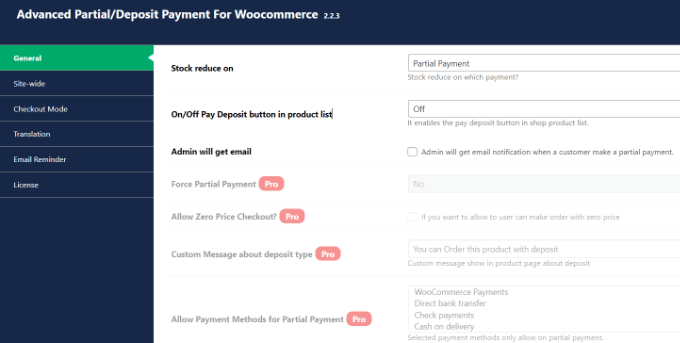
    Cons:

    • Although you can perform important SEO tasks using the free plugin, you’ll need to upgrade to unlock the most powerful features
    • If you want to track your keyword rankings, then you’ll need to buy an AIOSEO Elite plan. Another option is to invest in an analytics solution such as MonsterInsights.

    Why we chose AIOSEO: Overall, AIOSEO is the most beginner-friendly and comprehensive WordPress SEO plugin on the market. It allows you to optimize every part of your site, even if you’re new to SEO.

    Since it’s such a board and feature-packed plugin, you don’t need to install any extra plugins or software. This can save you a ton of time and money.

    Pricing: AIOSEO plans start at $124 per year. If you want to use AISEO on more than 1 website, then you’ll need to upgrade to the Plus plan ($249 per year) or higher. There’s also a free version of AIOSEO that can optimzie your site for the search engines, no matter what your budget.

    2. SEOPress

    The SEOPress WordPress SEO plugin

    SEOPress is a simple yet powerful WordPress SEO plugin. It includes all the features you would expect from an SEO plugin like meta title, description, open graph support, image and content XML sitemaps, redirects, and more. It also comes with a redirect manager, broken link checker, and 404 tracking.

    SEOPress has a straightforward setup wizard that’ll optimize your site with just a few clicks.

    SEOPress can generate news and video sitemaps, to help you get listed in Google News and Google Video search results.

    Even better, YouTube videos are added to your video XML sitemap automatically. This is perfect if you show videos from your YouTube channel in WordPress.

    Configuring your site's XML sitemap

    Similarly, SEOPress can automatically add your images to the XML sitemap to improve visibility in Google Images.

    This includes featured images, image galleries, and WooCommerce product images.

    Fine-tuning your website's image SEO

    You can also create custom XML sitemaps by adding custom post types and custom taxonomies. SEOPress will even automatically notify search engines when you publish new pages and posts, so they can rank your new WordPress content faster.

    If you’re looking to migrate away from Yoast, then SEOPress can import all your metadata from Yoast SEO, including title tags, Open Graph tags, meta robots, and more.

    Importing your SEO settings

    Unlike Yoast SEO, SEOPress uses AI to automate many of the basic SEO optimization tasks.

    For example, it can automatically generate meta titles and descriptions based on the content of your post, page, or custom post type.

    Automatically generating SEO metadata using a WordPress plugin

    If you want to connect with people and customers in your local area, then SEOPress can add local business schema to your WordPress website.

    It also has a local business widget that can show this information on your website. In this way, SEOPress can help improve your E-A-T (Expertise, Authoritativeness, and Trustworthiness).

    Pros:

    • Automatically adds WooCommerce product images and WooCommerce image galleries to your sitemap
    • Shows Google Analytics and Google Search Console data in the WordPress dashboard
    • Powerful schema generator with full support for a long list of schema including local business, product, video, event, and recipe schema
    • Set up unlimited redirects
    • Deploy SEOPress to your customers as a white-label tool complete with your own custom logo and branding
    • Integrates with Astra, Easy Digital Downloads, AMP, BuddyPress, and many other WordPress plugins, themes, and services.

    Cons:

    • The free SEOPress plugin is quite limited, compared to the free version of Yoast SEO. For example, you can edit your robots.txt file using the free version of Yoast, but you’ll need to upgrade to SEOPress Pro in order to optimize your robots.txt file for SEO.

    Why we chose SEOPress: The free plugin may be slightly lighter on features compared to some of its competitors, but the premium version has everything you need to optimize your site. This includes some features you don’t often see in SEO plugins such as AI-powered suggestions, plus integrations with both Google Analytics and the Google Search Console.

    Pricing: SEOPress licenses range from $49-$148 per year. There’s also a free plugin that you can download from the official WordPress repository.

    3. Rank Math

    The Rank Math WordPress SEO plugin

    Rank Math is another user-friendly SEO plugin.

    It comes with a setup wizard that checks your site’s settings and recommends any changes you need to make, in order to improve your SEO.

    The Rank Math setup wizard

    To get started, simply type in the focus keyword you want to rank for.

    Rank Math will then show actionable suggestions inside the WordPress content editor. In this way, you can fine-tune your content as you’re writing it.

    Adding focus keywords to your WordPress website

    You can also easily add a meta title, description, and Open Graph metadata to your WordPress blogs.

    The panel also shows how the post will look in the search engine results, and when it’s shared on social media. You can use these settings to fine-tune the preview, so you get more clicks and increase your blog traffic.

    Creating eye-catching snippets for social media and the search result pages

    To help you track the impact of your SEO activities, Rank Math shows information from Google Search Console directly in the WordPress dashboard. This includes the keywords you rank for, your sitemap status, and any indexing issues.

    Rank Math even displays Google URL Inspection API data, so you can see your site’s overall presence on Google, your content’s advanced index status, the last time your posts were crawled, and much more.

    Pros:

    • Advanced schema generator
    • Give yourself a head start by importing schema markup from any page, post, or URL
    • Check your schema markup against Google’s Rich Results validation tool
    • Build custom schemas and even add multiple schemas to a single post without having to write a single line of code
    • Integrates with Google Trends to show the latest search trends for keywords
    • Use Rank Math on an unlimited number of personal sites, even if you choose the least expensive plan

    Cons:

    • You’ll need to upgrade to a Business or higher plan if you want to use Rank Math on client sites
    • All the paid plans limit the number of keywords you can track

    Why we chose Rank Math: Rank Math shows an impressive range of tracking data and statistics inside the WordPress dashboard. This makes it a good choice if you haven’t installed Google Analytics in WordPress, or set up a similar analytics tool.

    Pricing: Rank Math Pro licenses start at $59 per year. However, if you want to use Rank Math on client websites then you’ll need to purchase a Business license ($199 per year) or higher. There’s also a free Rank Math plugin that you can download from WordPress.org.

    4. Slim SEO

    The Slim SEO WordPress plugin

    Slim SEO is a lightweight Yoast SEO alternative that aims to do all the heavy lifting for you.

    This plugin can automatically generate meta titles, meta descriptions, Open Graph, Twitter card tags, and more.

    Adding metadata to your website using a Yoast SEO alternative

    It can also generate schema types for all your content, image alt text, and XML sitemaps for search engines.

    To help visitors find interesting content on your website, Slim SEO comes with fully-customizable breadcrumb navigation that you can add to any page, post, or widget-ready area using a shortcode.

    Adding breadcrumbs to a site using a Yoast alternative

    If a third-party scrapes your site, then the duplicate content can hurt your rankings.

    To help prevent blog content scraping, Slim SEO can show excerpts in your RSS feed rather than the full content. It will also automatically add a link to each post in the WordPress RSS feed, so you’ll get a backlink even if someone successfully scrapes your content.

    If you need to set up a redirect, then Slim SEO supports 301 redirects, temporary redirects, 410 content deleted messages, and more.

    Adding a redirect to your website using a Yoast SEO alternative

    Sometimes, you may need to add third-party code to your website. For example, you might add code from Google Analytics, Google Tag Manager, Meta Pixel, or other webmaster tools.

    Unlike some other SEO tools, Slim SEO makes it easy to add custom code to WordPress. In the Slim SEO settings, simply paste the custom code into the boxes labeled header, body, or footer. Slim SEO will then go ahead and insert the code for you.

    Adding custom code to a WordPress website using an SEO plugin

    Pros:

    • Configures many important SEO settings automatically
    • Very lightweight and easy to use
    • Optimized for speed and performance
    • Automatically checks if a page needs to be indexed and will exclude it from the search results if necessary
    • Redirect broken or outdated URLs with just a few clicks
    • Integrates with many popular WordPress plugins including AffiliateWP, WooCommerce, and WPForms.

    Cons:

    • With its focus on ease of use, Slim SEO is missing some of the more advanced features you’ll find in plugins like Yoast SEO and AIOSEO.
    • While the automation can save you a ton of time, Slim SEO lacks the level of customization found in competing plugins.

    Why we chose Slim SEO: If you’re looking for a straightforward plugin that makes SEO feel effortless, then Slim SEO may be your ideal plugin. With its focus on automation, Slim SEO promises to deliver a significant SEO boost, without you having to learn complicated features and settings.

    Pricing: You can download Slim SEO for free from the official WordPress repository.

    5. SmartCrawl

    The SmartCrawl WordPress SEO plugin

    It’s easy to get started with the SmartCrawl Pro plugin, thanks to a one-click setup wizard.

    Once you’re up and running, SmartCrawl continues to make things easy with a straightforward user interface that allows you to see different modules with the click of a button.

    The SmartCrawl SEO dashboard

    The SEO Audits module is powered by Google Lighthouse and highlights any issues with your site’s SEO on both mobile and desktop devices.

    You can start a scan manually at any point, or set up an automated schedule. SmartCrawl will then email you the results, or notify you when your score drops below a certain percentage.

    SmartCrawl adds a new section to the WordPress All Posts and All Pages screens where you can see some basic information about your content. This includes the readability score and whether the title and description are within the recommended character count.

    Additional SEO data, in the WordPress dashboard

    SmartCrawl also adds a custom meta box to the post editor where you can fine-tune important content such as the SEO title and description, and OpenGraph elements.

    It also shows how easy the content is to read, based on the Flesch-Kincaid readability.

    An example of a Yoast alternative

    To save time and improve your internal linking, SmartCrawl can turn certain words or phrases into URLs automatically. For example, you may want to link to your pricing table every time you mention a particular product.

    You can also use SmartCrawl to set up redirects, edit your robots.txt file, set up breadcrumb navigation, add product schema to your WooCommerce store, and more.

    Adding breadcrumb navigation to your WordPress website or blog

    Pros:

    • Provides actionable recommendations on how to improve your content’s search engine rankings and readability
    • Automated SEO audits and sitemap crawler reports
    • Preview how your content will look in the search engine results
    • Analyze each post for up to three keywords
    • Integrates with WPML (WordPress Multi-language) so you can optimize the pages you’ve translated for search engines

    Cons:

    • No in-depth integration with WooCommerce
    • The free plugin doesn’t include many of SmartCrawl’s best features, including automated scanning, automatic linking, and built-in reports.

    Why we chose SmartCrawl: SmartCrawl is easy to set up, even if you’re just getting started with SEO. In fact, all its features are enabled automatically, so if you’re happy to use the default settings then you can set up SmartCrawl with just a few clicks.

    For advanced users, there are some more powerful features to explore, but this is a great plugin for anyone who wants to make SEO quick and easy.

    Pricing: SmartCrawl’s premium licenses start from $7.50 per month, which allows you to use the plugin on up to 10 sites. There’s also a free plugin that you can download from the official WordPress repository.

    6. Squirrly SEO

    The Squirrly Yoast SEO alternative

    Squirrly SEO is an AI-powered SEO toolkit that comes with 650 features pre-configured.

    To start, you can find the best keywords to target using Squirrly’s advanced keyword research tool, which shows important information such as the search volume data, and the level of competition for each keyword.

    The Squirrly SEO keyword research tool

    Squirrly SEO also comes with SEO AI Assistant. Simply enter the keywords you want to target, and Squirrly will use AI to create a personalized checklist on how to improve your rankings.

    Squirrly doesn’t just help you optimize for the search engines. As you create content, its Live Assistant will suggest ways to improve the article for human readers. For example, Squirrly will monitor your content for repetitiveness, keyword stuffing, and many other factors that can hurt the reader experience.

    Optimizing your WordPress website using an SEO plugin

    The Live Assistant is compatible with many popular page builder plugins including Divi, WP Bakery, and Thrive Architect. In fact, it can show complete audits and reports for pages created with these builders.

    Similar to many other SEO plugins, Squirrly lets you control exactly how your pages appear in the SERPs and on social media.

    Previewing a post in the SERPs using an SEO plugin

    When it comes to tracking the impact of your SEO activities, Squirrly SEO provides detailed audits, in-depth performance metrics, and performance scores. To provide even greater insight, Squirrly SEO integrates with Google Search Console and Google Analytics.

    Pros:

    • A complete SEO toolkit that can help you perform keyword research, content optimization, technical SEO, site audits, rank tracking, and more.
    • Track and optimize for over 113 ranking factors
    • A Master Control Board where you can quickly check if your website is SEO optimized
    • Built-in Google SERP Checker
    • WooCommerce SEO
    • Support for custom post types

    Cons:

    • A steeper learning curve compared to some SEO plugins
    • Limited keyword research that doesn’t show many long tail keywords

    Why we chose Squirrly SEO: With its built-in analytics and keyword research tools, this is a comprehensive SEO toolkit. The combination of an AI Assistant and Live Assistant also encourages you to optimize for both audiences: the search engines that index your content, and the people who visit your website.

    Pricing: Squirrly SEO licenses range from $29.99-$75.99 per month. There’s also an SEO Plugin by Squirrly SEO that you can download for free.

    7. Semrush SEO Writing Assistant

    The Semrush SEO Writing Assistant

    Semrush SEO Writing Assistant is a smart editor tool that helps you write more SEO-friendly content and improve your ranking for your focus keyword.

    This tool integrates with the WordPress post editor and offers actionable suggestions based on the top-performing content in Google’s SERPs.

    Based on this information, it gives the post an overall score, so you can easily see how well the content is optimized.

    The SEO Writing Assistant also uses the Flesch-Kincaid score to assess your content’s readability and make suggestions on how to improve the reader experience.

    Semrush's readability score

    The Semrush SEO Writing Assistant checks if your tone of voice is consistent, and also comes with an AI-powered rephraser.

    This rephraser will suggest ways to paraphrase any areas of text that are unclear, wordy, or awkward to read.

    Testing your content's tone using a Yoast SEO alternative

    When you type in a focus keyword, SEO Writing Assistant will suggest related keywords that you may also want to target.

    In this way, you can optimize your content for multiple keywords and get even more visitors.

    Semrush's recommended keyword settings

    With its focus on improving copy, SEO Writing Assistant is also a great tool for editors, proofreaders, and anyone who edits posts on their WordPress website.

    If you do allow users to submit posts on your WordPress site, then SEO Writing Assistant has a plagiarism checker. Duplicate content can hurt your site’s SEO and your reputation. In the worst-case scenario, search engines such as Google might even blacklist your website so you stop appearing in relevant search results.

    With SEO Writing Assistant, it’s easy to make sure each writer submits original content.

    Pros:

    • Features that improve the editorial workflow, including a plagiarism check and an AI-powered rephraser
    • A complete SEO toolkit that can optimize your content for search engines and human readers
    • An easy-to-understand overall SEO score
    • Identifies potential issues with links and alt tags

    Cons:

    • Limited built-in keyword research tools. If you want to research potential focus keyphrases, then you’ll need to create a separate Semrush account.
    • Depending on how you use the tool, you may also need to buy a Semrush subscription

    Why we chose Semrush SEO Writing Assistant: If you already have a Semrush subscription, then this plugin allows you to access Semrush features directly inside the WordPress dashboard.

    Pricing: You can download Semrush SEO Writing Assistant for free, but you will need to create a Semrush account before you can use any of the features. To use some of the more advanced settings, you may also need to buy a Semrush subscription (prices range from $129.95-$499.95 per month).

    The AIOSEO Broken Link Checker WordPress plugin

    There are many reasons why you might get broken links, but they commonly happen when you move a site to a new domain name, or delete a page without setting up a redirect. These broken URLs can hurt your SEO and the visitor experience, so it’s important to fix them.

    The Broken Link Checker plugin by AIOSEO is a simple tool that scans your posts, pages, and custom post types for broken links every three days.

    The AIOSEO broken link checker

    Every time it finds a broken URL, it’ll show the link’s HTTP status code, response headers, and how long the link has been broken.

    To fix the link, simply click on ‘Edit URL’ in the WordPress dashboard.

    Fixing broken URLs in WordPress using AIOSEO

    You can also simply remove the link, by clicking ‘Unlink.’

    Unlike some other plugins, Broken Link Checker is built as a SaaS service, so it won’t slow your website down. It also won’t be blocked by managed WordPress hosting companies like WP Engine because it pings for broken links using an external private server.

    Pros:

    • A simple and straightforward plugin that you can download for free
    • Automatically identifies broken links
    • Designed so it won’t slow down your website, or get blocked by managed WordPress hosting providers
    • Minimal settings to configure

    Cons:

    • This plugin is designed to do one job, and do it well. With that in mind, you’ll still need an SEO toolkit to manage all your other SEO tasks

    Why we chose Broken Link Checker: Fixing broken links is an important SEO task, but not every plugin manages broken URLs, especially if you’re using the free version of a premium plugin. If this is the case, then Broken Link Checker is a free, simple plugin that provides this missing feature.

    Pricing: You can download the Broken Link Checker by AIOSEO plugin for free.

    Conclusion: What is the Best Yoast SEO Alternative?

    If you’re looking for the best Yoast SEO alternative, then we recommend AIOSEO. Similar to Yoast, AIOSEO is a complete SEO toolkit that has everything you need to optimize your site for search engines. This means you don’t need to install any additional SEO plugins.

    Unlike Yoast SEO, AIOSEO has a range of plans including subscriptions for multiple websites. This makes AIOSEO a great option if you own more than one website, or need a plugin that you can use on multiple client websites.

    AIOSEO also supports WooCommerce SEO out of the box, without you needing to pay for an additional eCommerce SEO plugin. This is a big win if you run an online store, marketplace, or sell digital products.

    If you’re just getting started, then there’s even a free version of AIOSEO that gives you access to advanced SEO features, no matter what your budget.

    FAQs About Yoast SEO Alternatives

    In this guide, we have covered several popular Yoast SEO alternatives. If you still have questions, then here are our FAQs about choosing the right SEO plugin for your WordPress blog or website.

    What Are the Best Yoast SEO Alternatives?

    The best alternatives to Yoast SEO are AIOSEO, Rank Math, SEOPress, Slim SEO, SmartCrawl, and Squirrely SEO.

    However, we recommend AIOSEO as it’s easy to set up, easy to use, and creates a complete SEO checklist for every page, post, and custom post type across your WordPress website.

    What Is the Best Yoast SEO Alternative for WooCommerce?

    When it comes to eCommerce SEO, AIOSEO comes out on top. It has built-in support for WooCommerce, so you don’t need to install a separate plugin.

    AIOSEO allows you to optimize your product pages and automatically generates XML sitemaps for your products and product categories.

    You can also add product schema to your inventory, which encourages search engines such as Google to create rich snippets for your products. This includes showing the product’s average star rating, how many reviews it has, and its pricing.

    Is Rank Math Better Than Yoast?

    If you’re looking for a plugin that’s easy to set up and use, then Yoast is a great choice especially if you’re new to SEO. However, Rank Math has more advanced features including the ability to generate fully-customizable schema, perform detailed keyword analysis, create custom XML sitemaps, and even optimize your image SEO for smart displays and devices such as Alexa.

    For that reason, we recommend choosing Rank Math, despite the slightly steeper learning curve compared to Yoast.

    Is AIOSEO Better Than Yoast SEO?

    Both AIOSEO and Yoast SEO are powerful, user-friendly SEO plugins. However, AIOSEO offers more schema types, and gives you greater control over your XML sitemap.

    Both plugins can scan your content and create an SEO checklist, but AIOSEO tends to provide a clearer, more actionable plan thanks to its TruSEO score and Focus Keyphrase features.

    If you have multiple websites, then AIOSEO’s plans represent much better value for money. You can use AIOSEO on up to 100 websites, using a single license.

    By contrast, all of Yoast SEO’s plans are limited to a single website, so you’ll need to buy multiple licenses if you own multiple websites.

    How Do I Set up an SEO Plugin for WordPress?

    The first thing you need to do is install and activate your chosen SEO plugin. For more details, see our step-by-step guide on how to install a WordPress plugin.

    Upon activation, you’ll typically see a setup wizard that will guide you through the setup process. For example, if you’re using AIOSEO then you can simply click on the ‘Let’s Get Started’ button.

    The AIOSEO startup wizard

    You can then follow the onscreen instructions to set up the plugin and start optimizing your site. For detailed instructions, please see our guide on how to setup All in One SEO for WordPress correctly.

    We hope this article helped you find the best Yoast SEO alternative for your WordPress website. You may also want to go through our guide on how to make money online blogging with WordPress, or see our expert pick of the must-have WordPress plugins.

    If you liked this article, then please subscribe to our YouTube Channel for WordPress video tutorials. You can also find us on Twitter and Facebook.

    The post 7 Best Yoast SEO Alternatives For WordPress first appeared on WPBeginner.