EDITS.WS

Tag: Showcase

  • 6 Best Places to Hire WordPress Developers (Expert Pick)

    Are you looking to hire a WordPress developer?

    WordPress is a great platform for creating a basic website. However, if you need something more specialized, then you will need to hire a developer for help.

    In this article, we will show you some of the best places to hire WordPress developers with the right skills and experience for the job.

    Best places to hire WordPress developers

    Why and When Do You Need to Hire a WordPress Developer?

    WordPress is a popular website builder that is quite easy to use, so most people don’t need to hire anyone to create a WordPress website.

    However, as your website grows, your costs can increase as well. For more details, you may want to see our beginner’s guide on how much it really costs to build a WordPress website.

    Many small businesses can run successfully by applying the DIY approach. They can also keep the costs low by using as many free tools and plugins as possible.

    But once your website starts making money, you may want to build a custom WordPress theme or plugin for better functionality.

    This is where developers come in.

    For example, if you have an online store and want to build a customized eCommerce theme for it, then you can hire a developer to easily do it for you.

    Moreover, developers can also perform regular maintenance tasks to keep your site updated and improve WordPress security against hackers and malware.

    However, once you decide to hire a developer, you will find thousands of people on the internet offering WordPress development services.

    So how do you find the right platform to hire developers with the skill set that you need?

    For this tutorial, we have hand-picked the best places to hire WordPress developers with the right skill set, experience, and expertise.

    1. Codeable

    Codeable

    Codeable is the best outsourcing platform for WordPress-related work. They only accept the top 2% of WordPress developers to ensure that their clients get high-quality work.

    The platform allows you to fill out a form detailing your vision for your WordPress blog, and then Codeable connects you with the right developer for the job within a day.

    Pros:

    • Unlike other outsourcing platforms, Codeable pre-screens each developer and makes sure that they pass a strict vetting process.
    • It is 100% risk-free, and the platform provides a full refund if you are not satisfied with the results.
    • The estimates are free of charge.

    Cons

    • The pricing at Codeable starts at $70-$150 per hour, which can be a bit steep for some beginners.

    Why we recommend Codeable: Overall, Codeable makes it super easy to hire skilled developers to customize your website or create a plugin. These features make it our top recommendation for businesses who are looking for WordPress outsourcing help.

    2. Toptal

    Toptal

    Toptal is an exclusive network that only hires the top 3% of the freelancing talent.

    With Toptal, you can hire software developers, designers, project managers, product managers, and finance experts to build a team for your small business website.

    To hire a developer from this platform, you will simply need to fill out a form about the kind of work you need, your budget, and the duration of the project.

    Once you have done that, Toptal easily matches you with an expert with the required skill set for your work.

    Pros

    • Toptal has a rigorous screening process to ensure that only the best developers can add their portfolios to the platform.
    • You can pay a deposit for initiating a 14-day risk-free trial, after which you can either reject the candidate and ask for another or continue.
    • Toptal’s pricing is based on the developer’s hourly rate, so you know the exact price of the service before hiring an expert.
    • Toptal offers great customer support as they arrange a Skype or phone call with a representative at your convenience.

    Cons

    • Since Toptal only highlights the best talent, the rates for each expert are higher than other sites. However, we have found that several experts are also available for hire on other networks where their rates are a lot lower.
    • You will have to pay an initial fee for the platform itself.
    • The hiring process at Toptal can take several weeks, which can be a major drawback.

    Why we recommend Toptal: Toptal allows you to hire the best developers for WordPress on the market super easily. They even have a risk-free trial to see if the developer you hired is the right choice for you.

    If you are looking to create a team of developers, project managers, and designers, then Toptal is a great choice, as you can hire all the experts from one platform.

    3. WordPress Jobs

    WordPress Jobs

    WordPress Jobs is the official job listing website that is maintained by WordPress.org. It’s a completely free platform where you can easily fill out a ‘Post Job’ form and submit it for review.

    Other than developers, you can also post job listings for writers, web designers, customer support, or website migration on this platform.

    Pros

    • Once your job listing is approved at WordPress Jobs, it remains active for 21 days, giving you plenty of time to find the right developer for your website.
    • Freelancers on this platform usually offer competitive pricing, which can help save money on your project.

    Cons

    • There are many low-effort job postings on the WordPress Jobs board.
    • The platform does not have a pre-screening process for developers, which means that you will have to do the vetting yourself.
    • WordPress Jobs does not offer an escrow service, making you responsible for paying the freelancer directly.
    • The freelancing developers on this platform range from beginners to experts, so you will have to determine the right developer by yourself.

    Why we recommend WordPress Jobs: WordPress Jobs is a good choice if you are on a tight budget and need to hire a developer who can perform quality work at budget pricing. Moreover, the platform is super easy to use and offers a wider selection of freelancing developers than other platforms.

    4. WPhired

    WPhired

    WPhired is an exclusive WordPress jobs board that was launched back in 2010. This platform allows you to post job listings for WordPress-related projects for free.

    WPhired offers a large selection of freelancers ranging from beginners to experts, making it easier for you to find the right fit for your WordPress site.

    Pros

    • Developers on this platform offer competitive pricing, helping you save money on your project.
    • WPhired lets you post unlimited job listings for free.
    • WPhired also offers an escrow service, which means that your payment is held in escrow until you are satisfied with the work.
    • Freelancers on this platform have reviews and ratings, so you can get an idea about their experience and quality of work before you hire them.

    Cons

    • It can take some time to find the right developer for your project on WPhired.
    • The platform does not have any pre-screening for developers, leaving the vetting to you.
    • You can only run the free job posts for 30 days. After that, you have to pay to post your job listing for 60 days or more.

    Why we recommend WPhired: WPhired is a great choice if you are on a tight budget or want to post multiple job listings for developers. The platform offers everything you will need, including an escrow service, ratings, competitive pricing, and more.

    5. Upwork

    Upwork

    Upwork is one of the largest job marketplaces on the internet. With this platform, you can easily post a job for developers by providing a detailed description, and then prospective candidates can bid for it.

    Upwork usually has all levels of developers with varying skills and experience, meaning you can easily find the balance between your budget and the skill set you need.

    Pros

    • Each developer on the platform has a detailed profile that shows their past experience, jobs completed, ratings, skill tests, and more.
    • Upwork offers an escrow service.
    • It does not cost anything to post a job.
    • It offers competitive pricing, which can help you save money.

    Cons

    • It can be a bit time-consuming to find the right developer for the job, especially if you are looking for a specific skill set.
    • Some freelancers on Upwork can be unresponsive.
    • You have to pay a fee to use Upwork, adding to the cost of your project.
    • Upwork can be a bit overwhelming at first. There are a lot of features and options to choose from, which can be confusing for beginners.

    Why we recommend Upwork: Overall, Upwork is a great website to connect with professionals and hire developers. However, you will need to put in some leg work before making a choice.

    6. Freelancer

    Freelancer

    Freelancer is an extremely popular job marketplace that has a large community of freelancers, including WordPress developers.

    The platform asks you about your project and budget and then lets you post the job listing for free. Once you have done that, developers that fit the criteria for your job can bid on it.

    Other than developers, you can also find writers, artists, designers, and project managers on Freelancer.

    Pros

    • Freelancer maintains a detailed profile for each freelancer that you can review.
    • It allows you to directly interview and communicate with developers to learn more about their skill sets or expertise.
    • Freelancer offers an escrow service to protect you from being scammed by freelancers.
    • It is super flexible in terms of the project budget.

    Cons

    • No pre-screening process is available for developers, so you will have to do the vetting yourself.
    • It’s not ideal for long-term projects.
    • There is a fee to use Freelancer.
    • You cannot exchange contact information with candidates.

    Why we recommend Freelancer: Freelancer is a good choice if you are on a budget and don’t mind vetting WordPress developers.

    What Is the Best Platform to Hire WordPress Developers?

    In our expert opinion, Codeable is the best platform to hire developers for your WordPress website because they ensure that their clients get high-quality work by only hiring the top 2% of WordPress developers.

    However, if you want to create a team of developers, project managers, and designers, then Toptal is also a great choice, as you can hire all the experts from one platform.

    If you are on a tight budget, then you can also use WordPress Jobs or WPhired to find the right developer for your website.

    Frequently Asked Questions About Hiring WordPress Developers

    Here are some of the questions that our readers commonly ask us about hiring WordPress developers.

    When should you hire a WordPress developer?

    If you want to create a customized theme or plugin to increase the functionality of your WordPress website, then you should hire a developer to do it for you.

    Other than that, developers can also help with routine maintenance of your website and make it more secure against hackers and malware.

    You should also think about hiring a developer if your website is slow or sluggish, as a developer can help you optimize it for better performance.

    How much does it cost to hire a WordPress developer?

    The cost of hiring a developer can vary widely depending on a number of factors, including the developer’s experience, project complexity, and the platform that you choose.

    For example, if you use Codeable to hire developers, then it can cost $70-$150 per hour, which can be a bit steep for some beginners.

    However, if you are on a budget, then you can use WordPress Jobs or Upwork, which will cost $15 to $40 per hour.

    How do I choose a platform for hiring a developer?

    There are a number of factors that you should consider before choosing a platform to hire developers, including:

    • The type of project: Some platforms are better suited for specific kinds of development projects. For example, Upwork is a good choice for small, one-off projects, while Toptal or Codeable are better for larger, more complex projects.
    • Budget: The cost of hiring developers varies depending on the place you choose. For example, WordPress Jobs and Freelancer are more affordable than Toptal or WPhired.
    • Level of expertise: Some places have a larger pool of experienced developers than others. Developers on platforms like Codeable and Toptal are pre-screened and vetted, whereas developers on platforms like Upwork or WordPress Jobs have not been vetted.

    Best Guides for WordPress Development

    If you liked this article, then please subscribe to our YouTube Channel for WordPress video tutorials. You can also find us on Twitter and Facebook.

    The post 6 Best Places to Hire WordPress Developers (Expert Pick) first appeared on WPBeginner.

  • 7 Best WooCommerce Point of Sale Plugins (Easy POS Setup)

    Are you looking for a point-of-sale plugin for WooCommerce?

    WooCommerce isn’t just useful for online stores. By adding a point of sale (POS) plugin to your website, you can also sell your products in a physical store and make more profits.

    In this article, we will share the best WooCommerce POS plugins for easy point-of-sale setup.

    Best WooCommerce Point of Sale Plugins (Easy POS Setup)

    Why Do You Need a Point of Sale System?

    You can think of a point of sale (POS) system as a modern cash register that runs on software. It allows you to take payments from customers in person, like in a physical store, a mobile food truck, or when selling merchandise at an event.

    Like a cash register, you and your staff can use a POS system to ring up products, display the total cost to the customer, allow them to pay, and make a receipt or invoice.

    But most POS systems don’t stop there. You can choose a system that offers the features you need, such as automatically adjusting your stock levels as products are purchased, keeping sales statistics so that you know what is selling and what isn’t, or working offline.

    You might be thinking about purchasing one or more dedicated POS terminals for your business. However, these are expensive, and most require paying for an ongoing subscription for the software you need to run the terminal.

    A better choice is to use WooCommerce, the world’s most popular eCommerce platform. It is super-flexible, cost-effective, and easy to manage, even for beginners. It allows you to sell products online from your WordPress website and in-person using a POS plugin.

    The best part is that by installing a WooCommerce POS plugin, you have an inexpensive point-of-sale system that can be used at physical stores on any computer or tablet that runs a modern web browser.

    Now, let’s take a look at some of the best POS plugins for WooCommerce.

    1. YITH Point of Sale for WooCommerce (POS)

    YITH Point of Sale for WooCommerce (POS)

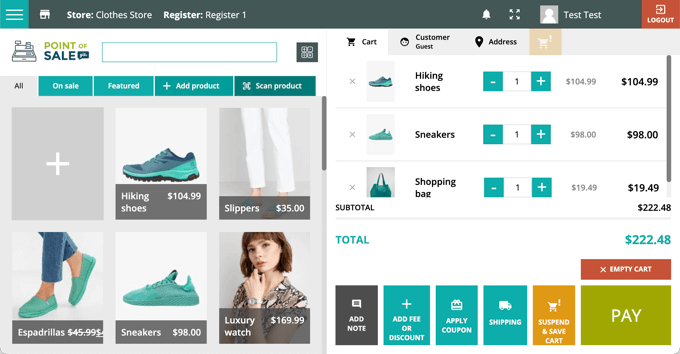
    YITH Point of Sale for WooCommerce (POS) is a premium plugin that turns your WooCommerce website into a powerful and easy-to-use cash register.

    Your cashiers can easily search for products or scan barcodes when checking out customers. They can even add new products when needed.

    If you run both an online and physical store, then the product listings, orders, and customers from both stores will be kept in sync. And if you have many stores or a franchise, then there is no limit to the number of stores and registers the plugin can handle.

    YITH Point of Sale for WooCommerce (POS) Preview

    YITH Point of Sale for WooCommerce comes with layouts for both desktop and mobile devices. Like most POS plugins, the mobile layout is suitable for iPads and Android tablets but not smartphones.

    The plugin’s dashboard lets you keep track of useful analytics such as sales trends, the revenue collected by each terminal, the payment methods used, and even the cashier with the highest number of sales.

    Pros

    • Unlimited stores and registers
    • Layouts for desktop and mobile devices
    • Useful sales statistics

    Cons

    • Free version is limited to cash payments
    • Does not work offline

    Why we recommend YITH POS: YITH makes powerful plugins that are affordable and easy to use. Their POS plugin includes the features most stores need and supports multiple stores.

    Pricing: YITH Point of Sale for WooCommerce (POS) starts at $147.99/year for a single site. There is also a free version of the plugin, but it is limited to cash payments.

    2. Oliver POS

    Oliver POS

    Oliver POS is one of the best WooCommerce POS plugins. It is designed to allow physical shops to easily sell products from their online inventory from a single system.

    This makes it perfect for people who want to combine eCommerce shops with physical stores. You can easily sync inventory between your online store, retail store, and warehouse.

    Oliver POS runs on any internet-enabled computer or device, and apps are available for iPads and Android tablets. You can also purchase hardware POS devices from the official website, including registers, tablet stands, barcode scanners, cash drawers, and printers.

    You can quickly look up your customers to see whether they have made a purchase online or in-store. You can track their total spending, order history, store credit, and more.

    You can also keep on top of in-store and online transactions. The plugin can generate reports for payments, sales, inventory, and more.

    Pros

    • Easy to set up and use
    • Can run online and physical stores together
    • Free version

    Cons

    • Limited customization options
    • Does not work offline

    Why we recommend Oliver POS: With 4.8 stars, Oliver POS is the highest-rated WooCommerce POS plugin in the WordPress Plugin Directory. It’s easy to install and use.

    Pricing: A limited free plan is available with enough features to get you started. Paid plans start from $24.99/month per register.

    3. Square for WooCommerce

    Square for WooCommerce

    Square for WooCommerce is a free WooCommerce extension that lets you accept payments using Square, a popular payment gateway that makes credit card payments easy.

    The Square extension allows your customers to pay using all major credit and debit card types. It also supports digital wallets like Apple Pay and Google Pay.

    These payments can be taken from customers both online and in person. However, credit card payments are only available in the USA, Canada, Australia, Japan, the United Kingdom, the Republic of Ireland, France, and Spain.

    Square charges a fixed transaction rate, and this varies for each country.

    Setup is easy. Your products and payments will be automatically kept in sync between your Square account and your online store. That means that when you add products to your Square account, they will be automatically added to your WooCommerce store as well.

    Square also helps protect your business. They provide a dedicated dispute management team as well as fraud protection that uses machine learning to detect fraud before it happens.

    Pros

    • Easy setup
    • Low cost of entry
    • Multiple payment options
    • Free

    Cons

    • Does not work offline
    • Accepts credit card payments in only certain countries

    Why we recommend Square for WooCommerce: Square for WooCommerce lets you easily set up a point-of-sale system without any up-front fees. For that reason, it’s one of the best free WooCommerce POS plugins.

    Pricing: The Square for WooCommerce extension is free from the WooCommerce store. However, like most payment platforms, Square charges a fee for each transaction you make.

    4. wePOS

    wePOS

    wePOS is an affordable and attractive POS solution for WooCommerce that is fast and easy to set up and use. However, it lacks some features that other POS systems offer.

    For example, wePOS doesn’t directly integrate with retail hardware such as cash drawers. However, it does support barcode readers and printers.

    Also, wePOS accepts only two payment methods: cash and credit card. When paying by credit card, the order number and receipt number will need to be inserted into wePOS manually to keep track of the sale.

    Currently, you can’t produce daily sales reports for cashiers, generate bar codes, offer gift cards, or customize the user interface.

    And like many of the other POS plugins for WooCommerce, wePOS does not work without an internet connection.

    Pros

    • Fast and easy to use
    • Affordable

    Cons

    • Does not work offline
    • Only two payment methods: cash and credit card
    • Limited hardware support
    • Limited customization
    • The free version is limited to cash payments

    Why we recommend wePOS: wePOS is a popular point of sale for WooCommerce. It will suit users who are after a fast and reliable system rather than lots of features.

    Pricing: wePOS offers a free plan with limited features, such as support only for cash payments. Premium plans start at $99/year.

    5. Hike POS

    Hike POS

    Hike POS is a full-featured, standalone retail POS cloud service that works on PCs, Macs, iPads, and Android tablets. It also offers plug-and-play compatibility with most retail hardware, including scanners and receipt printers.

    It offers lay-by sales, returns and refunds, gift cards, quotes, and credit notes. You can also see detailed sales analytics and use the software in multiple stores.

    Besides its standalone apps, the service also integrates well with WooCommerce. Your Hike and WooCommerce inventory, orders, and customer profiles are automatically kept in sync.

    Even though it’s a cloud service, it does work offline, making it more reliable than many of the other plugins in this list. Once you are connected again to the internet, all data is synced back to the cloud.

    Hike POS supports multiple payment options, letting your customers choose their preferred method. Options include PayPal, Square, Afterpay, Tyro, and many more.

    Hike POS also offers integrations with other cloud services, like Xero, MYOB, QuickBooks, Mailchimp, and Amazon.

    Pros

    • Works offline
    • Integrates with many third-party cloud services
    • Works with or without WooCommerce
    • Supports multiple stores
    • 14-day trial

    Cons

    • No free version

    Why we recommend Hike POS: Hike POS is a versatile solution that offers a point-of-sale system using WooCommerce or one of their native apps. It’s a great option if you need to work away from an internet connection.

    Pricing: A Hike POS subscription starts at $59/month when billed annually. There is a 14-day free trial and no extra charge for WooCommerce integration.

    6. Vitepos

    Vitepos

    Vitepos lets you quickly set up a point of sale system for your local store or sell from your existing online store in your physical store.

    You can choose one of three different settings for the POS mode: grocery/retail, restaurant (pay first), and restaurant (traditional). Simply pick the option that best matches your store.

    Vitepos can handle your inventory and stock management. You can add new products from vendors, transfer stock between your stores, and update prices.

    There are also helpful features to help your cashiers, including holding stock, adding discounts or fees, and taking split payments. Your team can add products by scanning their barcodes or by searching for them.

    Finally, Vitepos can run without an internet connection. Like Hike POS, once you are online again, your data will be uploaded automatically.

    Pros

    • Works offline
    • Can run an online store and a local store simultaneously
    • Free version

    Cons

    • Lacks third-party integrations

    Why we recommend Vitepos: Vitepos is an affordable and user-friendly POS plugin for WooCommerce. It gives users a lot of control over their system and works offline.

    Pricing: The Pro version starts at $79/year or $299 lifetime for a single site. Vitepos Lite is a limited free version available from the WordPress Plugin Directory.

    7. ConnectPOS

    ConnectPOS

    ConnectPOS is a point-of-sale system that works on multiple platforms, not just WooCommerce. These include Magento, Shopify, BigCommerce, and more.

    It is an award-winning POS system and has been used successfully by reputable brands like ASUS, Trinny London, Eyewa, and Lapaire.

    The company can build custom POS solutions that don’t rely on any eCommerce platform. Also, they can create custom solutions that integrate your POS with your other business systems like ERP, CRM, and accounting.

    Data is automatically updated in real time between your WooCommerce database and the POS system. This includes orders, inventory, customers, and products.

    Plus, the software is able to work offline. Data will be saved locally and updated once your internet connection is restored.

    The ConnectPOS website maintains a list of compatible hardware, including receipt printers, label printers, barcode scanners, payment terminals, card swipers, and more.

    Pros

    • Works offline
    • Can meet the needs of large companies and enterprises
    • Offers a free WooCommerce plugin

    Cons

    • Pricing is not listed

    Why we reommend ConnectPOS: ConnectPOS is a highly rated, award-winning POS solution that suits large companies and enterprises.

    Pricing: Payment is by subscription. However, pricing information has not been made available. You can request a quote for the Professional and Enterprise versions from the ConnectPOS website.

    What Is the Best WooCommerce POS Plugin?

    After reviewing all of the popular point-of-sale systems for WooCommerce, we believe that YITH Point of Sale for WooCommerce (POS) is the best POS plugin for most local stores.

    However, this choice depends on your needs and budget, so we have a few additional recommendations.

    Our top recommendation doesn’t work offline. If you need to take payments at times when there may not be an internet connection, such as on a food truck, then your best options are Hike POS, Vitepos, and ConnectPOS.

    Some users prefer to get started with a free solution that’s easy to set up, and in that case, we recommend Square for WooCommerce. But be aware that with fees for each transaction, you may pay more in the long term.

    If you have a franchise or chain of stores, then you will need YITH Point of Sale for WooCommerce (POS) or Hike POS. And if you have very specific needs and a budget for complex customizations, then it’s worth considering ConnectPOS.

    FAQs About Point of Sale Systems

    Our readers often ask us about point-of-sale systems and the best WordPress POS plugins. Here are our answers to some of the most common questions.

    Does every WooCommerce store need a POS system?

    No, if you are only making sales online, then you don’t need a POS system. They are only needed when your customers make payments in person.

    What makes WooCommerce a good eCommerce platform?

    WooCommerce is the most flexible eCommerce solution for an online store that sells physical goods. With the right plugin, it is also an excellent point-of-sale system for physical stores.

    However, if you are selling digital goods like eBooks, software, or music, then Easy Digital Downloads is a better WordPress eCommerce plugin. And BigCommerce could be the best option if you don’t want to manage all the technical stuff of building an online store.

    You can learn more in our detailed comparison of the best WordPress eCommerce plugins.

    What other plugins are needed for WooCommerce?

    Besides a POS plugin, there are plenty of other plugins you can use to add features to your WooCommerce store. Here are a few we recommend:

    You can discover more in our guide on the best WooCommerce plugins for your store.

    Best WordPress Guides for WooCommerce

    If you liked this article, then please subscribe to our YouTube Channel for WordPress video tutorials. You can also find us on Twitter and Facebook.

    The post 7 Best WooCommerce Point of Sale Plugins (Easy POS Setup) first appeared on WPBeginner.

  • How to Use AI for SEO in WordPress (12 Tools)

    Do you want to use AI for SEO in WordPress?

    Artificial Intelligence is making a significant impact on the SEO industry. There are already excellent AI SEO tools that you can use to improve your SEO rankings without much effort.

    In this article, we’ll show you how to use AI for SEO in WordPress with our hand-picked selection of tools and software.

    Using AI for SEO in WordPress with best tools and software

    Why Use AI for SEO in WordPress?

    Most AI tools for SEO use a type of artificial intelligence that uses machine learning technology to teach itself.

    These incredibly powerful computer programs are trained over a massive amount of data with access to millions of resources and websites.

    With this powerful range of knowledge, natural language capability, and lightning-fast speeds, AI SEO tools can make SEO a breeze for WordPress website owners.

    Artificial Intelligence powered SEO tools can help you with the following:

    • Research and optimize your content
    • Keyword research and finding related topics
    • Comparing your content with the competition for better search rankings
    • Understanding your audience

    With that said, let’s look at some of the best AI tools for SEO on the market and what they can help you with.

    Best AI SEO Tools for WordPress

    There are many AI SEO tools available on the market. However, not all of them are equally capable or suitable for day to day SEO tasks of a WordPress website owner.

    We looked at many of them and here is our expert pick of the best AI tools for SEO.

    1. All in One SEO for WordPress

    The AIOSEO website

    All in One SEO for WordPress is the best WordPress SEO toolkit on the market. It is the most comprehensive SEO software for WordPress, used by over 3 million websites.

    It has powerful SEO features, including some powered by artificial intelligence.

    It comes with an AI-powered title and description generator. This allows you to use AI to generate SEO-optimized titles and descriptions for your articles.

    Generate SEO title and meta descriptions

    Simply click on the robot button next to the Post Title and Meta Description fields. All in One SEO will generate up to 5 ideas based on your post’s content.

    You can then click to select the one that you want to use and then further improve it if needed.

    Choose an AI generated SEO title

    Internal links play a massive role in SEO. However, it becomes difficult to internal link to your newer articles as your website grows.

    To solve this, All in One SEO includes an AI-powered link assistant, which helps you manage internal links.

    Link assistant overview

    It crawls your website and analyzes all your links. You can then view your links reports to see the results.

    Switch to the Link Suggestions tab and you will see a list of opportunities for creating internal links.

    AI discovered internal linking opportunities

    Recommendation: Best overall for WordPress users with the most comprehensive set of SEO tools for website owners. After testing many AI tools, we feel that AIOSEO provides the most value for money as it comes with multiple tools that cost a lot more when purchased individually from other providers.

    Pricing: Starts at $49.60. A free version is also available called All in One SEO Lite.

    2. Clearscope

    Clearscope

    Clearscope is an AI powered content optimization software that helps website owners optimize their content for higher search rankings.

    You can start by typing in a keyword. Clearscope will then show you a list of relevant terms, competitors that already rank, and questions users commonly ask.

    Keyword discovery

    Clearscope’s AI-powered content optimizer allows you to edit your content for higher rankings.

    It will show you a list of relevant terms. You can sort them by importance and include them in your content. You also get questions users commonly ask under the Research tab. Including answers to these questions in your content makes it more comprehensive and useful.

    Create article outlines and briefs

    As you optimize your content, Clearscope will grade your work.

    Your aim should be to get at least an A+ grade to ensure that the content you are working on is comprehensive and covers all the relevant information your audience may be looking for.

    Content optimizer in Clearscope

    Clearscope saves all your reports and optimizations you make for your content. Next, time you are working on an article, you can compare it with the previous version and only update newer information missing from the content.

    Clearscrope also offers a Google Docs extension, which allows you to collaborate with team members in Google Docs without missing Clearscope’s optimization features.

    It also has a WordPress plugin that lets you optimize inside the default WordPress editor as you write new content or update older articles.

    Recommendation: Best for enterprise users, larger editorial teams, and anyone who needs to get to the top of highly competitive keywords.

    Pricing: Starts at $170 per month.

    3. Semrush

    Semrush website

    Semrush is an all-in-one search marketing platform for SEO professionals.

    Often ranked as one of the best SEO tools, Semrush offers a comprehensive set of content marketing tools including several tools powered by AI.

    Sermsuh includes keyword research, competition analysis, track search rankings, and AI-powered writing assistance to optimize content for specific keywords.

    Semrush dashboard

    Semrush also helps you track PPC keywords for paid marketing campaigns. You can also monitor your social media campaigns, track social postings, and manage your social media postings in an editorial calendar.

    The AI-powered writing assistant isn’t as powerful as Clearscope, but Semrush comes with many more features for the price.

    Recommendation: Best for power users and small businesses who need a suite of different tools for SEO in one place.

    Pricing: Starts at $129.95 per month. A free plan is available with limited features.

    4. ChatGPT

    ChatGPT website

    ChatGPT by OpenAI is a powerful generative AI software. It comes as a chatbox where you can enter your questions as prompts, and the AI will respond to them using natural language processing.

    ChatGPT can help you in multiple ways to improve your SEO. It can be used as a research assistant, article outline assistant, proofreader, and more.

    Many marketers and bloggers use ChatGPT to write content for their blogs. However, we don’t recommend ever simply copying and pasting content generated by AI. It is often inaccurate and not optimized for conversions and user experience.

    Responses from ChatGPT depend a lot on how good you are at writing the prompts. To help with that, we have compiled a comprehensive list of the most useful ChatGPT prompts for bloggers and marketers.

    Recommendation: Best for content analysis, article outlining, proofreading, and assistance in writing. It is not good for one-click content generation.

    Alternatives: Bing Chat and Google Bard. You can also see our list of even more ChatGPT alternatives.

    Pricing: ChatGPT Plus starts at $20 per month.

    5. Jasper

    Jasper

    Jasper is an AI-powered writing assistant for bloggers, marketers, and SEO teams. It uses GPT 3.5 and a custom natural language understanding model to train the AI.

    Jasper is trained to work for brands by adapting your brand’s voice and style to create blog post outlines, article drafts, landing pages, and more.

    It comes with a powerful template library with ready-to-use commands for writing articles, social media posts, photo captions, and more.

    Jasper templates

    It also offers tools to generate AI images, translations for content in over 30 languages, brand memory, and style training.

    Recommendation: Best for brand-conscious marketing teams and small businesses. In our opinion, the pricing for the number and quality of tools is very good.

    Pricing: Starts at $39 per month.

    6. Grammarly

    Grammarly

    Grammarly is a must-have tool for any SEO team. It started as a grammar and spelling checker and has evolved into an AI-powered writing assistant.

    Grammarly’s AI-powered writing assistance is called Grammarly Go. It allows you to choose a tone for your writing, edit it as you write, and switch tones as needed. It can help you rewrite and rephrase whole articles using AI.

    Grammarly AI powered writing assistant

    It also includes a plagiarism checker, which helps you avoid search penalties and catch plagiarized articles before they appear live on your site.

    The best part is that Grammarly works everywhere you work. It is available for all operating systems, mobile phones, browser extensions, and more.

    It also works inside the WordPress block editor and helps you improve your content as you write.

    Recommendation: In our experience, Grammarly is a tool all users can benefit from using.

    Pricing: $12 per month. A free forever plan is also available with fewer features.

    7. Surfer

    Surfer

    Surfer is an AI-powered, on-page SEO optimizer tool. It allows you to perform keyword research, generate article outlines, and optimize your content for better rankings.

    It is made for SEO professionals and editors and uses AI to generate headlines, article guides, in-depth topic research, and more.

    Surfer AI editor

    Surfer is also available as a WordPress plugin and integrates with the block editor to optimize your content as you write it.

    With the keyword research tool, Surfer can help you find topic clusters and semantically related keywords. You can then sort them by the level of difficulty, search intent, and monthly search volume.

    Once you have chosen a topic cluster or a keyword, you can launch the Surfer SEO editor to prepare your content.

    Surfer SEO Editor uses AI to analyze your content and recommends improving it. It will show you an article outline, competitors, questions to answer, and keywords to include.

    Recommendation: Useful for bloggers, content writers, editors, and SEO professionals with a medium budget.

    Pricing: Starts at $69 per month.

    Linkwhisper

    Link Whisper is a WordPress-specific, AI-powered, internal linking plugin for SEO professionals, marketers, and bloggers.

    It allows you to discover internal linking opportunities as you write. This helps you link to the newer posts that may not get as many internal links as some of your older content.

    It uses Artificial Intelligence to find relevant content and keywords. This makes link suggestions highly relevant and useful. You can also enter a keyword to find relevant internal linking opportunities.

    Link Whisper reports overview

    You can also set automatic linking for specific keywords. This ensures you can link to some of your pillar content without editing any articles.

    If you are already using a WordPress SEO plugin like All in One SEO, RankMath, or Yoast, then Link Whisper will automatically use focus keywords set for your articles to suggest relevant internal linking opportunities.

    Plus, it shows you very useful internal linking reports, where you can monitor internal links, find internal linking opportunities, and catch errors like broken links or 404 errors.

    Recommendation: Useful for optimizing and automating internal link-building tasks.

    Pricing: Starts at $75 per year.

    9. Rank Math

    RankMath

    Rank Math is a popular WordPress SEO plugin that comes with AI powered features to help automate your SEO workflow.

    Like All in One SEO and Link Whisper, RankMath has an internal linking assistant.

    However, unlike All in One SEO and Link Whisper, Rank Math doesn’t automatically add internal links. You’ll need to edit a post and manually copy and add the internal link suggested by the plugin.

    Rank Math also offers a Content AI module which offers AI-powered writing assistance on a pay-as-you-go basis.

    Rank Math content AI

    The content AI tool uses Rank Math’s proprietary algorithms that run on their own servers to analyze your content. After that, the data is stored for that particular analysis on your web hosting server.

    Besides AI-powered features, Rank Math is a good WordPress SEO plugin for day-to-day SEO tasks like adding SEO titles, descriptions, schema markup, Google Search Console integration, and more.

    Recommendation: Useful for small businesses without large budgets and writers who may not need to pay for AI assistance all the time.

    Pricing: Pricing starts at $59 per year. A free version is also available with limited features.

    10. WordLift

    Wordlift

    WordLift is another AI SEO plugin for WordPress. It allows you to easily add structured data and schema markup to your WordPress posts automatically.

    Similar to other AI-powered SEO tools, WordLift shows you suggestions inside the block editor to improve your content.

    These suggestions include schema markup, relevant sources that you can link to, images you can use, and building topical authority by building content clusters.

    WordLift also offers a product knowledge graph builder that helps your eCommerce products appear in Google Shopping results.

    Recommendation: Useful if you need to add structured data to your website without using a full-featured WordPress SEO plugin like AIOSEO.

    Pricing: Starts at €49 per month. However, the starter plan doesn’t include some of the AI-powered features, so you may want to upgrade to a higher plan.

    11. Outranking

    Outranking

    Outranking is another useful AI SEO tool for WordPress websites. It comes with content optimization, analysis, and planning features that help you improve and maintain your search rankings.

    It helps you optimize content based on search intent, incorporate semantic search terms, and perform in-depth content optimization.

    It helps you generate facts and stats to start your draft with a solid outline. With a built-in plagiarism checker, you can easily check content submitted by authors to be sure it is original and won’t hurt your search rankings.

    Recommendation: Good for in-depth on-page SEO and content optimization. Outranking is especially good for writers who need a boost with the first steps of generating content and outlines.

    Pricing: Starts at $59 per month.

    12. Frase

    Frase

    Frase is a powerful AI SEO tool designed for content marketers and writers. It helps you generate content using AI by including facts and background research from search results.

    It makes content research simplified and helps you quickly come up with great article outlines. The outline builder helps you easily drag and drop headings to plan your content.

    It also helps you discover relevant search terms to include, perform competitive analysis, and communicate with your team.

    Recommendation: Best for users who need a standalone AI-powered content writing assistant.

    Pricing: Starts at $14.99 per month.

    Which AI SEO Tools to Use in WordPress?

    We recommend using All in One SEO for WordPress as the best overall AI SEO tool for WordPress users.

    All in One SEO comes with powerful AI integrations, and it is the most comprehensive WordPress SEO plugin on the market.

    It includes schema markup support, local SEO, powerful sitemaps, a redirection manager, SEO audit, competitor analysis, AI headline writing, and more. With such a comprehensive set of features, AIOPSEO for WordPress is the best value for your money.

    You can also combine All in One SEO with other AI SEO tools.

    For instance, you can use Grammarly for proofreading, Semrush for powerful keyword tracking, and Jasper for AI-powered content writing.

    We hope this article helped you learn how to use AI for SEO with the best tools for the job. You may also want to see our complete WordPress SEO guide or take a look at how to create automated workflows in WordPress.

    If you liked this article, then please subscribe to our YouTube Channel for WordPress video tutorials. You can also find us on Twitter and Facebook.

    The post How to Use AI for SEO in WordPress (12 Tools) first appeared on WPBeginner.

  • 7 Best URL Shorteners for WordPress to Track Links

    Are you looking for a way to shorten your WordPress website links so you can track clicks when they’re shared?

    If you have long and unreadable URLs on your website, then a URL shortener can reduce them to a few characters. This makes it easier to share them on any platform. You can also track how many times they’re clicked and more.

    In this article, we will show you the best URL shorteners for WordPress to track links.

    Best URL shorteners to track links

    What is a URL Shortener and Why Use It on Your Site?

    A URL shortener is a tool that helps convert long WordPress website links into short and shareable links. It simplifies complex URLs that are hard to read by reducing a few characters and turning them into small links.

    When a user clicks the shortened URL, they’re redirected to the correct page. They use 301 redirects, which tell search engines that the link is permanent and not going anywhere. Using a 301 doesn’t affect your WordPress SEO.

    Short URLs are really useful for sharing content on social media. Some social media platforms like Twitter offer a limited number of characters that you can use. If you have a lengthy link, then it can take up a lot of space.

    Using a shortened URL helps save valuable character space that you can use to write compelling copy, get more clicks, and boost engagement. For example, on WPBeginner we use a custom short URL to share content on Twitter.

    Short URL preview

    Besides that, you can use URL shorteners to convert affiliate links into more readable links.

    Affiliate links are usually lengthy, hard to remember, and contain your affiliate ID or username. This makes them complex, and it looks something like this:

    https://www.myaffiliatesite.com/products/?product_id=12345&affiliate=123345623456

    You can convert them into shareable and branded links using a URL shortener. Some tools even let you cloak affiliate links and make them look more professional, like:

    https://wpbeginner.com/refer/productname

    The best part about using URL shortener tools is that they also track the number of clicks. This way, you can see which link gets the most clicks.

    That said, let’s look at some of the best URL shorteners for your WordPress website.

    1. Pretty Links

    The Pretty Links affiliate plugin for WordPress

    Pretty Links is the best WordPress URL shortener plugin and the most popular affiliate link management tool. It helps shrink long and complex links into shortened URLs with your brand name.

    You can use the plugin for links outside your website. For instance, you’ll be able to cloak affiliate links and turn them into readable URLs. This makes it a great tool for creating shareable links for different platforms, like social media.

    When shortening a URL, Pretty Links gives multiple options for redirection. You can select 302 and 307 temporary redirects, 301 permanent redirects, and more.

    How to cloak an affiliate link in WordPress with Pretty Links

    Using Pretty Links, you can manage all your shortened URLs from the WordPress dashboard. In the premium version, there are options to group links into categories and tags.

    The plugin offers other features as well, like an auto-linking feature. You can add affiliate links for certain keywords and the plugin will automatically insert them in the content.

    Pretty Links also helps track the number of clicks for each shortened URL. It shows a report inside the WordPress dashboard, displaying the browser, operating system, timestamp, host, URI, and other data for each link.

    Creating an affiliate report using Pretty Links

    Other than that, the plugin also integrates with MonsterInsights. You can track affiliate link clicks in Google Analytics and better understand your users’ behavior.

    Recommended For: Pretty Links is the best tool for anyone looking for a complete link management solution for their WordPress site. You can easily manage affiliate links, cloak and brand them, shorten any URL on your site, and track link clicks.

    Pros:

    • Beginner-friendly plugin for creating custom links
    • Easily manage and organize your URLs from the WordPress dashboard
    • Cloaks complex affiliates links
    • Use the auto-linking feature to automatically add links to specific keywords
    • Offers social sharing buttons to easily share short links
    • Seamless integration with other plugins like MonsterInsights

    Cons:

    • It doesn’t offer an automatic link uncloaking feature for Amazon
    • You cannot check if a link is broken before publishing it

    Pricing: Pretty Links premium version prices start from $99.50 per year. However, there is also a free version of Pretty Links you can use to get started.

    2. Bitly

    Bitly

    Bitly is one of the most popular URL shorteners in the market. It helps you create short links, QR codes, and link-in-bio pages. The tool is very easy to use, and you get started for free.

    To shorten a URL, simply enter the link, and Bitly will create a short link for you. In the free version, you will get a URL with a ‘bit.ly’ domain name, and it will look like this: https://bit.ly/3YqTCEH.

    Create a short link in Bitly

    If you upgrade to the premium version, then you add a custom domain and remove Bitly branding from the links. At WPBeginner, we also use Bitly to create custom short URLs for our site.

    Bitly makes it very easy to track individual links and get analytics inside your account dashboard. For instance, the tool will show the link clicks, the technology used by your users to click on the short URL, and the location from where you get the most clicks.

    There is also offers Bitly’s WordPress plugin. It is a free plugin that lets you shorten a link for selected post types. You can also view the number of clicks from your dashboard for each shortened URL.

    Recommended For: Bitly is perfect for free users who want to give link-shortening a try, as well as enterprises that want a robust link-shortening and tracking tool. You can easily create short links and QR codes for your business. Plus, it offers detailed analytics and reports for link clicks, QR code scans, country-level data, and more.

    Pros:

    • Create short and custom links in a few clicks
    • View link click reports from your Bitly account dashboard
    • Offers a free WordPress plugin
    • Lets you create QR codes for links
    • Offers 1 link-in bio page feature
    • You can connect a custom domain with Bitly

    Cons:

    • The free version has limited features
    • It uses Bitly branding in short links in the free plan
    • You cannot schedule or auto-link URLs to keywords

    Pricing: Bitly offers a free version that lets you create 10 short links and QR codes per month. However, there are paid plans that start from $8 per month.

    3. ThirstyAffiliates

    The ThirstyAffiliates affiliate WordPress plugin

    ThirstyAffiliates is the best link management plugin for WordPress that lets you cloak your affiliate links. You can turn long, unshareable affiliate links into beautiful short URLs that are easy to read.

    We’ve been using ThirstyAffiliates on our websites, including WPBeginner for over 5 years.

    The plugin lets you manage all your links from your WordPress dashboard. You can easily create branded links, add them to your content, and arrange and organize links into categories.

    The plugin even tracks your links and shows reports inside the WordPress admin panel. You get to see full statistics of how your shortened links are performing and see top-performing affiliates.

    ThirstyAffiliate's affiliate reporting feature

    ThirstyAffiliates also integrates with MonsterInsights, so you can track them in Google Analytics. It also tracks geolocation and shows which region you get the most clicks from.

    ThirstyAffiliates is more than just a URL shortener. You can use it to auto-insert affiliate links in the content, import links, check links with 404 errors, schedule affiliate links, and more.

    Recommended For: If you’re an affiliate marketer or a blogger using WordPress, then ThirstyAffiliates is for you. It’s very easy to use, and you can shorten any URL in just a few clicks. ThirstyAffiliates is also a great alternative to Pretty Links. You can see our comparison on Pretty Links vs ThirstyAffiliates for more details.

    Pros:

    • Very easy to use and shorten URLs
    • It lets you choose a prefix for your links
    • Easily manage all your links from a single place
    • Allows automatic keyword linking
    • Offers smart uncloaking feature for Amazon Associates links
    • It automatically checks links for 404 errors

    Cons:

    • Dashboard reports are not that detailed
    • It doesn’t integrate with eCommerce plugins like WooCommerce
    • The free version is great but offers limited features

    Pricing: ThristyAffiliates premium plans start from $79.50 per year. There is also a ThristyAffiliates free version you can use to get started.

    4. URL Shortener by MyThemeShop

    URL shortener

    URL Shortener by MyThemeShop is a free WordPress plugin that helps create short links for your website. It is a beginner-friendly plugin that’s lightweight and won’t slow down your website.

    You can easily create a short version of your URLs and share them on social media. The plugin also helps trim long links of external sources. This makes your links more readable and shareable.

    URL shortener settings preview

    URL Shortener by MyThemeShop offers multiple redirection types to choose from. It lets you select between 301, 302, and 307 reductions. You can manage all your short links from your WordPress admin panel and also organize them into different categories.

    The best part is that it also tracks all your URLs and shows the number of clicks. This is really useful if you have affiliate links and want to see which affiliate is getting the most clicks and generating revenue.

    Recommended For: If you’re just starting a new website and looking for a free WordPress plugin to shorten URLs and track them, then URL Shortener by MyThemeShop is the best choice. It lets you customize your short link, pick a redirection type, and offers multiple features for free.

    Pros:

    • User-friendly and lightweight plugin
    • Offers auto-linking feature in the free plan
    • Organize your links into categories
    • Open short links in a new tab or window
    • Add nofollow tags to your affiliate links

    Cons:

    • Click tracking report shows limited information
    • Doesn’t integrate with analytics plugins like MonsterInsights
    • You don’t get a link scheduler or broken link checker

    Pricing: URL Shortener by MyThemeShop is available for free.

    5. URL Shortify

    URL Shortify

    URL Shortify is another free WordPress URL shortener plugin and is a great alternative to URL Shortener by MyThemeShop and Bitly’s WordPress plugin.

    You can easily create short links from your WordPress dashboard, select redirection type and even group links into categories. The plugin also lets you enable the option to automatically add nofollow and sponsored tags to your links.

    URL shortify settings

    During our testing, what made URL Shortify stand out was its dashboard reports. It shows more details compared to other free options on your list.

    For instance, you’ll see click history, top locations, referrers, devices, browsers, platforms, and more. The report also shows details of each click, so you know how your short URLs are performing.

    Recommended For: URL Shortify is a good free solution for affiliate marketers, bloggers, podcasters, and anyone looking to manage links on their WordPress site. The biggest draw is for people who want detailed reports inside the WordPress admin area.

    Pros:

    • Easily customize your short links using your brand
    • Automatically create short URLs for your posts and pages
    • Manage and organize links from the WordPress dashboard
    • Track link clicks and get details analytical reports
    • Integrates seamlessly with WooCommerce and Easy Digital Downloads

    Cons:

    • There is no broken link checker in the free version
    • You cannot create QR codes in the free plan

    Pricing: URL Shortify is a free WordPress plugin.

    6. WP.me Shortlinks by Jetpack

    Jetpack WP

    WP.me Shortlinks is a URL shortener by Jetpack. It lets you create short URLs from the WordPress content editor, so you can easily share them on different platforms.

    Jetpack is a plugin suite that offers different features. However, its core focus is on performance, security, and marketing.

    You’ll need to manually activate the WP.me Shortlinks tools from Jetpack settings. Once that’s done, you can access it from the content editor by clicking the Jetpack icon and heading to the Shortlink option. The tool creates short links using the wp.me domain.

    Create shortlink using jetpack

    While the tool is straightforward to use, it doesn’t offer a lot of features that you’ll find in other plugins on our list.

    For instance, you don’t get a dashboard to manage your short links, select redirection type, add your custom domain to short links, remove wp.me branding from links, and auto-link URLs to specific search terms.

    You also don’t get built-in dashboard reports to see link click stats. You’ll need to manually set up link click tracking in Google Analytics.

    Recommended For: WP.me is a great tool if you’re already using Jetpack on your WordPress site. This way, you can quickly shorten URLs from the content editor.

    Pros:

    • It comes prebuilt in the Jetpack plugin
    • With Jetpack, you get a whole suite of plugins along with a URL shortener
    • Easy to use and can be accessed from the content editor
    • You can use it for free

    Cons:

    • It doesn’t offer a custom branding option for short links
    • No option to select the redirection type
    • You cannot set up auto-link to keywords
    • There is no dashboard to manage and organize short URLs
    • You don’t get built-in reports to track shortened URLs

    Pricing: WP.me Shortlinks is available in the free version of Jetpack. However, there are also premium plans that start from $4.95 per month.

    7. TinyURL

    TinyURL

    TinyURL is a URL shortener software you can use to create short links and QR codes. It is a great alternative if you don’t want to use a WordPress plugin or Bitly and just want to quickly condense long URLs.

    The best part about the tool during our testing is that you can create unlimited short URLs in the free version. This makes a budget-friendly option for new websites and beginners. However, your links with TinyURL branding in the URL.

    View shortened URL in TinyURL

    To add your own brand name in the links and access analytics, you’ll need to upgrade to the premium version. This will unlock reports where you can see URL click history, dashboard report, time chart of clicks over time, map of where people click your links, and more.

    Recommended For: TinyURL is a budget-friendly option for businesses looking for a premium URL shortener. You can customize links using your domain or subdomain while tracking link clicks.

    Pros:

    • Very easy to use and create short URLs
    • Short links don’t have an expiration date
    • Easily manage your links from the TinyURL dashboard
    • Affordable pricing plans

    Cons:

    • The free version has limited features and functionality
    • No integration with WordPress plugins or analytical tools
    • You cannot auto-link, auto-cloak, or schedule short links
    • Analytical reports show basic information

    Pricing: The base software is free to use. However, you’ll need a paid plan to remove TinyURL branding and view reports. The premium plans start from $9.99 per month (billed annually).

    Which is the Best URL Shortener for WordPress?

    After reviewing multiple plugins and tools, we recommend Pretty Links as the best URL shortener for WordPress.

    It is packed with features and helps convert long and complex URLs into readable and shareable links. The plugin is super easy to set up and use.

    You also get a handful of redirection types to choose from, use the auto-linking feature to automatically add links to your content, and manage all the short URLs from your WordPress dashboard.

    Besides that, Pretty Links helps track link clicks. You can integrate it with MonsterInsights to track clicks in Google Analytics as well.

    On the other hand, if you’re looking for an external tool that shortens links and also offers a WordPress plugin, then you can use Bitly.

    FAQs about Best URL Shorteners

    Here are some of the most common questions people have about URL shortener tools:

    1. Which is the best free URL shortener?

    From our testing, we recommend Pretty Links and Bitly as the best free URL shorteners. Pretty Links is great for WordPress sites looking to manage their affiliate links and track them. Bitly is great if you just want to shorten a few URLs.

    2. Are URL shorteners good for SEO?

    URL shorteners won’t impact your WordPress SEO and website visibility if they’re used wisely. Short links don’t pass the link juice entirely, so you shouldn’t use them as the main form of creating links for your website.

    3. Do short URLs expire?

    Some short URLs expire while others don’t. It usually depends on the URL shortener you’re using. For instance, custom links created using TinyURL don’t expire.

    We hope this article helped you learn about the best URL shorteners for WordPress to track links. You may also want to see our guide on the best SEO plugins and tools for WordPress and the ultimate guide to boosting WordPress speed.

    If you liked this article, then please subscribe to our YouTube Channel for WordPress video tutorials. You can also find us on Twitter and Facebook.

    The post 7 Best URL Shorteners for WordPress to Track Links first appeared on WPBeginner.

  • 14 Best Webinar Software Platform for Small Businesses (Compared)

    Are you looking for the best webinar software for your business?

    There are many webinar platforms that allow you to run live webinars and automated evergreen webinars to connect with your users and grow your business.

    In this article, we will share the best webinar software for small businesses, and compare their features so you can choose the best webinar platform to fit your needs.

    Best webinar software platforms for small businesses

    What Kind of Webinar Software is Right for You?

    There are many options for webinar platforms out there. Some that run live webinars. Some that do conference meetings, and some that run webinars as a live simulation (called automated webinars) which are often used for lead generation and sales funnels.

    When choosing a webinar software, you need to make sure that the platform you are choosing allows you to do what you have in your mind.

    A good webinar platform should have the following features:

    • Great video quality and reliable webinar hosting service that doesn’t have delays or downtime
    • Ability to do live webinars and automated webinars for lead generation
    • Real-time chat features, so you can engage with your audience and answer questions
    • Ability to have multiple presenters and hosts
    • Ability for presenters to share screen and record webinar for future webinar replays
    • Seamless integration with third-party email marketing services, marketing automation tools, and CRM software, so you can connect with users after the session
    • Smart webinar registration pages and landing pages to boost registration and attendance
    • Actionable webinar analytics that lets you see what’s working and what’s not, so you can fine-tune your webinar for maximum conversions

    Aside from these webinar features, you want a webinar software that offers great support and fair pricing options.

    Having said that, let’s take a look at the best webinar software for small businesses.

    1. RingCentral Webinar

    RingCentral

    RingCentral is a well-known business VoIP provider, trusted by 400,000+ businesses, that also offers one of the best webinar software platforms on the market.

    In minutes, anyone can easily set up a professional, engaging webinar, no technical experience required. You can manage the entire webinar setup, live event, and event analytics, all from one user-friendly app.

    RingCentral Webinar also makes the process easy for your attendees. They can quickly join your webinar from their browsers, no additional download is needed, which is proven to boost attendance.

    It comes with all of the powerful features you need to host successful webinars, including built-in webinar rehearsals, interactive chat, polling, Q&As, panelist links, lead capture forms, and more.

    To attract attendees, you can easily create beautiful registration pages using the pre-built templates and customize them with your own branding by dragging and dropping.

    You can also add trackable social media sharing links on your registration forms, which can help you measure your reach online, as well as set up automated webinar reminder and follow-up emails.

    In addition, RingCentral Webinar seamlessly integrates with popular marketing automation tools and CRM platforms like Marketo to help you convert registrations into leads.

    Pricing: Starts from $30 per month per host for up to 500 attendees when paid annually. RingCentral Webinar also offers a 30 day free trial so that you can try out the software.

    2. Livestorm

    Livestorm webinar platform

    Livestorm is a popular webinar software that offers three types of webinars: live video webinars, on-demand webinars, and automated webinars.

    They’re a fast growing webinar platform among marketers because they offer browser-based webinars. This means your users do not have to download any software to join. Frictionless joining is proven to increase webinar attendance rate.

    Livestorm web conferencing works on all web browsers including Google Chrome, Firefox, Safari, etc.

    It comes with all the powerful webinar features such as HD video, chat messaging during webinars, screensharing, live Q&As, audience polling functionality, automatic email reminders, ability to share documents, and more.

    Livestorm aims to be a comprehensive video communication platform, so you can use the webinar for live events, product demos, customer training sessions, company communication, and even teach online courses.

    You can invite teammates as moderators to help you host and better engage with your audience. Their webinar data insights allows you to analyze your performance, so you can improve your conversions.

    It connects with over 1000+ marketing platforms using built-in integrations and Zapier, so you can send customer data where you need it to improve your workflow.

    The best part is that their pricing is very affordable for small businesses.

    Pricing: Free plan comes with up to 10 registrants and a 20 minute webinar. Pro plans start at $99 for up to 100 live attendees.

    3. GoTo Webinar

    GoTo Webinar

    GoTo Webinar is one of the original and most popular webinar software platforms on the planet. It is built by the same team behind the GoToMeeting video conferencing suite.

    While it started out as a live webinar solution, they have evolved with the industry needs to add automated webinars with their Simulated Live feature, which allows you to create and schedule pre-recorded webinars.

    Being one of the original webinar platforms, they offer a wide-range of features such as live presentation, webinar templates, event management, custom registration, webinar polls & surveys, webinar recording, and more.

    They have seamless integration with all the popular marketing automation tools like Mailchimp and CRM platforms like Salesforce since it’s used by both small businesses and Enterprise companies.

    Their analytics reports are very detailed and let you see who attended, how interested they were, what questions they asked, an so much more, so you can refine your webinar strategy to grow your business.

    The best part about GoTo Webinar is their video quality and reliability. If you’re looking to host online events or virtual conferences, then they’re a leading webinar platform for that.

    Pricing: The Lite plan starts from $59 per month for up to 100 participants. Their pricing scales with the number of attendees, but it’s very affordable even for large virtual events.

    4. EasyWebinar

    EasyWebinar

    EasyWebinar is a popular webinar platform for marketers because it lets you do both live webinars as well as automated evergreen webinars.

    Their live webinars allow you to have high quality video without any delays, real-time chat, multiple presenters, ability to record and archive, screen sharing, and more.

    You can use their EasyCast feature to livestream simultaneously on multiple social media platforms like YouTube Live and Facebook Live at the same time.

    Their automated webinars allow you to easily run evergreen webinars to reach a larger audience by optimizing for user’s local time zones. You can easily repurpose any of your live webinars and convert them into automated webinars to collect more leads and build a high-converting sales funnel.

    You can use their customization options to make the webinar templates match your brand styles. Their registration embed option allows you to host a registration form on your own website, with landing page builders like SeedProd, Clickfunnels, Leadpages, and more.

    They integrate with all the popular email marketing services, so you can engage with users by sending them offers, notifications before and after the webinar, and more.

    Pricing: Starts at $78 per month with up to 100 live attendees. You can use their YouTube live integration to have unlimited live attendees on this plan.

    5. StealthSeminar

    StealthSeminar

    StealthSeminar is known as the best automated webinar platform because it’s entirely focused on helping you maximize evergreen webinars and automate your sales funnel.

    You can use StealthSeminar to run pre-recorded webinars as if they were live to better leverage user time zones, avoid tech failures such as low internet bandwidth, and remove presentation nerves.

    They also allow you to run live webinars as well with YouTube Live, or even a hybrid webinar that lets you run pre-recorded webinar with live chat for engagement.

    StealthSeminar comes with customizable pre-made templates that are designed to help you convert more leads. This includes registration templates, smart CTAs, surveys & polls, and scarcity tools like countdown timers.

    For small businesses, they do have the option to add faux attendees to make your webinar look more popular and build authority. It’s a grey hat marketing tactic that utilizes the ‘fake it till you make it’ strategy.

    Their webinar analytics shows you registration opt-in, webinar attendees, webinar conversion rate, and total sales generated. You can even see engagement reports for specific call-to-actions.

    StealthSeminar allows you to add sales pixel tracking, Google and Facebook retargeting pixels, and split testing to fine tune your strategy further.

    Pricing: Starts at $69.96 per month for 150 simultaneous attendees. Also includes worldwide SMS reminders up to 6000 a month.

    6. Zoom

    Zoom

    Zoom is the most trending video conference call company in the market right now for online meetings. However, what many don’t know is that Zoom has also gotten into the video webinar market.

    Known for their high video quality and reliable streaming, this move was a no brainer.

    Now you can use Zoom to run interactive video webinar with screen sharing, Q&A chat, and the ability to like and up-vote questions.

    Zoom also allows you to run polls, promote attendees to panelists, have whiteboarding and annotation tools, and more.

    Aside from running live webinars, Zoom lets you record webinars and even add transcripts. You can also run practice sessions for pre-event panelists as well.

    What’s unique about Zoom’s webinar platform is that it lets you have 100 panelists with over 49 viewable on screen at one time. This allows you to promote attendees to be panelists and join the conversation.

    They also allow you to live stream simultaneously to unlimited audiences on Facebook Live, YouTube Live, and other custom streaming services.

    Zoom integrates with all the popular email marketing services and CRM platforms. For WordPress website owners, you can use WPForms and the Uncanny Automator plugin to automatically register users for webinars in Zoom.

    Their built-in analytics and marketing tools aren’t as powerful as some of the other webinar software in this list, but their reliability and video quality is superb.

    Pricing: Starting at $40 per month for 100 attendees. But as it scales, it does get more expensive. For example, 3000 attendees will cost you $990 per month on Zoom vs $499 on GoTo Webinar.

    7. Demio

    Demio webinar software

    Demio is a fast growing webinar software among marketers because it offers frictionless joining, so your users can join the webinar in the browser with one click without downloading any software.

    You can use it to run live webinars with webcam video, screen sharing, and upload your presentation slides directly in Demio.

    Their user-friendly platform allows you to engage with your audience using interactive polls with stats, launch offers and call-to-actions during the event, share handout gifts or bonus downloads, organize and answer user’s questions, chat with users through public or private chat, and even bring attendees to stage.

    You can also download your live webinars and repurpose them into automated webinars to share recordings or use it in your automated sales funnel. You can also join the automated webinar and interact in the live chat to make it feel more real time.

    Pricing: Starting at $49 per month for 50 attendees.

    8. GetResponse Webinars

    GetResponse

    GetResponse is a popular email marketing service that has added a webinar feature to make it easy for users to centralize their marketing efforts.

    You can use GetResponse webinars to run both live and on-demand webinars. You can have up to 1000 live attendees, share the stage with multiple presenters, and have unlimited webinars.

    The best part is that you can automatically follow up with with your audience, run automated nurturing campaigns, add personalization with list segmentation, and promote your special offers right from their marketing automation platform, which is included in the price.

    You have all the powerful webinar features such as polls & surveys, screen sharing, call-to-actions during the webinars, interactive whiteboards, and more.

    GetResponse comes with built-in landing pages and sales funnels to help you further optimize your conversions. You can also use the OptinMonster popups integration to get more attendees and subscribers.

    Pricing: $99 per month for 300 attendees, and it includes over 1000 email subscribers and all their marketing automation features.

    9. Google Meet

    Google Meet

    Google Meet is a free webinar software that’s a part of the Google Workspace (formerly G Suite) platform.

    It offers enterprise-grade video conferencing built on top of Google’s robust infrastructure to ensure that your webinars and meetings are secure.

    Google Meet is a fully web-based platform, which means that participants aren’t required to download external third-party software. Simply set up a meeting, share the link, and participants can click to join from desktops or mobile devices.

    It also offers dial-in phone numbers so that participants can join your webinars on-the-go, even without Wi-Fi or data.

    In addition, if you’re already using Google, it will seamlessly integrate with all of your favorite tools like Gmail, Google Docs, Google Calendar, Google Forms, Chrome, and more.

    Pricing: Google Meet is free to use. Premium plans start at $6 per month per user for up to 100 participants and additional features.

    10. WebinarNinja

    WebinarNinja

    WebinarNinja is one of the best webinar tools that’s specifically built for coaches, teachers, trainers, and consultants. It’s an all-in-one platform for creating and running webinar courses.

    It comes with an easy visual builder for creating your webinar course. You can add sessions, downloadable handouts, assignments, and even on-demand videos that you can play during your webinar.

    You have the option to broadcast your webinars live in real-time, offer pre-recorded webinars, or do a hybrid of recorded content that’s hosted live.

    WebinarNinja comes with all of the interactive features you need such as group chats, private chats, questions, polls, and more.

    There’s also landing pages that you can use to convert visitors into attendees and the built-in email marketing lets you send automatic email notifications, reminders, and follow-ups.

    Pricing: Starts at $29 per month for unlimited webinars and up to 50 live attendees.

    11. BlueJeans

    BlueJeans webinar software

    BlueJeans by Verizon is another popular video conferencing software that you can use to run webinars, online events, seminars, and virtual meetings.

    It offers 1080p video, Dolby Voice audio, and powerful production tools that let you produce TV-quality webinar experiences. It also lets you customize your webinar streams with your own logos, background, colors, ticker banners, and name cards.

    You can encourage participant engagement by posting comments and reactions on screen and by using features like chat, handraising, and real-time Q&As and polls.

    Plus, you can live stream your webinars to Facebook Live, YouTube Live, and other streaming platforms simultaneously to extend your reach.

    Attendees can join your webinars from any device, no download needed, which will make your webinars easily accessible.

    Pricing: There’s a free plan for up to 25 participants. Paid plans start at $9.99 per month per host for up to 150 participants.

    12. BigMarker

    BigMarker webinar software

    BigMarker is a top-rated webinar software platform that’s used by big brands like TED, Samsung, Dell, and others. It works well for large webinars, virtual events, and hybrid events.

    You can create multiple different formats of webinars including live, Simulive (automated), recurring, on-demand, series, and even 24/7 webinar rooms.

    It comes packed with a ton of interactive features like Q&A sessions with upvoting, polls, quizzes, public and private chat, whiteboard, breakout rooms, screen sharing, and much more.

    There are also built-in call to action popups that you can add to your webinars. These can help you sell products or encourage webinar attendees to take your desired action.

    Other key features include detailed webinar metrics, sponsor banners, dial-in for presenters, customizable webinar rooms, and integrations with many popular CRM and email marketing services.

    Pricing: BigMarker pricing is only available upon request.

    13. ClickMeeting

    ClickMeeting

    ClickMeeting is another flexible browser-based webinar software platform. It lets you easily host webinars, online training courses, and online business meetings.

    You can broadcast live webinars or share on-demand, pre-recorded webinars. You can also run automated webinars, which let you set up functionalities like chat moderation and surveys ahead of time.

    It offers all of the necessary webinar features like screen sharing, whiteboard, polling, breakout rooms, waiting room, webinar statistics, and more.

    In addition, you can easily monetize your webinars. ClickMeeting integrates with PayPal to accept online payments and you can automatically send certificates to attendees after the event.

    Pricing: Starts at $26 per month for 1 host and up to 25 attendees.

    14. LiveWebinar

    LiveWebinar

    LiveWebinar is another webinar platform that you can use to improve your business’ marketing strategy. You can use this intuitive software to host webinars and collaborative business meetings.

    You’ll get interactive webinar tools like chat, screen sharing, polls and surveys, whiteboard, and calls-to-action. It also offers an easy user-interface that lets you customize your webinar sessions to match your branding.

    To boost productivity, you can connect LiveWebinar to many of your favorite tools including HubSpot, Slack, Zapier, Constant Contact, Drip, AWeber, and many more.

    Plus, you can easily sell tickets to your webinar and accept online payments using Stripe or Braintree payment gateways.

    Pricing: There’s a free plan for up to 5 attendees. Paid plans start at $14.42 per month for up to 100 attendees.

    Which is the Best Webinar Software (Expert Pick)?

    After reviewing all the popular webinar platforms, we believe that RingCentral Webinars, Livestorm, and GoTo Webinar are the best webinar software in the market.

    They offer all the powerful webinar features that you need with high-quality video streaming and affordable pricing plans.

    Their conversion tools are optimized to align with your goals whether it is lead generation, sales, running demos, or anything else. These platforms adapt to your business needs to ensure that you get maximum results.

    We hope this article helped you find the best webinar software platform for your business. You may also want to see our comparison of the best business phone services for small business and best push notification software to help you connect with visitors after they leave your website.

    If you liked this article, then please subscribe to our YouTube Channel for WordPress video tutorials. You can also find us on Twitter and Facebook.

    Disclaimer: To help our readers avoid choice paralysis, we only compared the best webinar software platforms in our expert opinion. This list doesn’t include other webinar services like WebinarJam, EverWebinar, WebEx, Zoho Meeting, Adobe Connect, MyOwnConference, etc.

    The post 14 Best Webinar Software Platform for Small Businesses (Compared) first appeared on WPBeginner.

  • 12 Clean WordPress Themes For The Minimalists

    The post 12 Clean WordPress Themes For The Minimalists is written by Tom Rankin and appeared first on WPKube.

    It makes sense, but clean WordPress themes are always popular. They give you ultra readability, plenty of negative space to fill, and the ability to showcase only what’s necessary about understanding your site. Because of this, there are plenty of themes on hand to choose from. However, don’t make the mistake of thinking that clean themes lack functionality. Sure, some…. Continue Reading

  • 5 Best Monthly Web Hosting Plans (Starts at $4.95/mo.)

    Are you looking for the best monthly web hosting plans?

    Most popular web hosting companies offer big discounts on annual, bi-annual, and multiple-year payment terms.

    These discounts may be promoted as low monthly payments, but when you go to the checkout page, you’ll pay a hefty amount upfront to buy the web hosting.

    In this article, we will share some of the best monthly web hosting plans that let you truly sign up for a month-to-month hosting service.

    Best Monthly Web Hosting Plans

    Why Choose a Monthly Web Hosting Plan?

    Many web hosting companies only offer discounts if you buy hosting for a full year or multiple years. That makes it can cost hundreds of dollars just to get started.

    Plus, if you don’t like the web hosting service, you may not be able to get a full refund, and you will lose your initial investment.

    A true monthly web hosting plan will be cheaper to get started. With a month-to-month hosting plan, you won’t commit to a hosting provider long-term, and it’s easier to move to another web hosting company.

    This allows you to choose the best hosting provider with the features you need to host your WordPress website.

    And more importantly, you will only pay a low monthly cost for the web hosting service you use.

    Without further delay, let’s look at some of the best monthly web hosting plans for small businesses.

    1. Dreamhost – $4.95/mo.

    DreamHost Web Hosting

    DreamHost is one of the most well-known web hosting companies, and they’re an official WordPress-recommended hosting provider. They offer the cheapest month-to-month web hosting plan on the market.

    They provide a custom control panel to add your domain name, manage emails, and access web hosting features.

    Moreover, DreamHost comes with automated website backups. These daily backups ensure the complete safety of your content.

    When it comes to DreamHost’s monthly pricing, their WordPress Starter or Shared plan costs $4.95/month with a free SSL certificate, free website migration, and more.

    You will have to pay for the domain name separately, which is fair.

    But if you’re willing to commit for the year, WPBeginner users can get up to a 72% discount on their Shared plan with a free domain name, website builder, SSD storage, and more.

    Our DreamHost coupon code is applicable on the 1-year and 3-year payment plans.

    DreamHost pricing plans and payment options

    DreamHost has other web hosting solutions, including VPS hosting, managed WordPress hosting, dedicated server hosting, WooCommerce hosting, and cloud hosting.

    Don’t miss our complete DreamHost review for more details on their shared hosting options and pricing plans.

    2. Hostinger – $2.69/mo.

    Hostinger website

    Hostinger is one of the leading web hosting companies on the global market. It offers WordPress website hosting, shared hosting, and cloud hosting plans.

    The month-to-month shared hosting plan from Hostinger starts at $11.99 for a single website.

    If you’re looking for a web hosting plan for multiple sites, then we recommend their WordPress Starter plan. It comes with a free domain name, a free SSL certificate, and free unlimited email accounts.

    The Hostinger WordPress Starter plan costs $11.99/month.

    You can use WPBeginner’s exclusive Hostinger coupon code to get a discount on your monthly web hosting plan. The Hostinger promo code offers more discounts on longer commitments.

    For example, if you choose to pay for up to 12 months, the cost for the WordPress basic hosting plan reduces to $2.99/month.

    And WPBeginner users get an additional discount that makes it $2.69/month.

    In short, you’ll pay $32.29 at once to get WordPress hosting for the full year.

    Hostinger Pricing and plans

    Their shared hosting plans cost similar to WordPress hosting. However, you’ll need to pay an additional setup fee.

    Hostinger also offers Virtual Private Server hosting (VPS hosting) plans, Minecraft server hosting, and other solutions.

    We ran several tests on Hostinger, and here’s our complete Hostinger review that may interest you.

    3. Bluehost – $2.75/mo.

    Bluehost offer for WPBeginner readers

    Bluehost is one of the most popular web hosting providers and an officially recommended WordPress hosting partner.

    Though they don’t offer a month-to-month web hosting plan, the initial cost is so low that we couldn’t resist adding them to this list.

    And you’ll save triple your investment with a free domain name, free SSL certificate, and a BIG discount on your web hosting package.

    So if you’re just starting out, we recommend Bluehost as the best web hosting for beginners, startups, and small businesses.

    The initial cost for your web hosting plan will be as low as $33 for the first year.

    This also includes your free domain name, free SSL certificate, and a cPanel for a one-click WordPress installation.

    Bluehost Package

    However, on the renewal, you’ll need to pay the full cost for your web hosting plan and domain name. But by then, you’ll be able to grow your business to afford the price.

    And if you still want to switch, you can easily move your WordPress site to a new web hosting company for a month-to-month hosting plan. Some web hosting providers also offer free migration services, so you’re safe anyway.

    On a side note, we thoroughly tested Bluehost for its features, speed, and uptime. And we recommend it to everyone, all the time.

    Most of our WPBeginner users start their websites with Bluehost web hosting and grow their businesses to the next level.

    4. SiteGround – $19.99/mo.

    SiteGround web hosting

    SiteGround is one of the best WordPress hosting providers. Their web hosting is optimized for speed and security. We use SiteGround to host the WPBeginner website.

    Among top features, SiteGround offers automatic WordPress updates, a free CDN network to improve page load time, a custom web application firewall to protect your web server against malware and DDoS attacks, and more.

    Their customer support team is available 24/7 to help you with any of your concerns, which you may rarely have with SiteGround web hosting.

    SiteGround has data centers all over the world since they use the Google Cloud network. It’s the reason they can provide a 99.9% uptime guarantee on their web hosting platform. Over the years of using their platform, we have never had downtime for the WPBeginner site.

    The SiteGround’s StartUp plan costs $19.99/month.

    It’s an expensive monthly web hosting plan compared to other hosting providers on the list, but it also includes functionality like free site migration, free SSL certificate, eCommerce support, basic WordPress site management, out of the box caching addons, and more.

    And WPBeginner’s exclusive SiteGround coupon code lets you buy their WordPress hosting plan with an 80% discount.

    This reduces the cost to up to $2.99/month for the StartUp plan.

    SiteGround pricing plan and payment options

    SiteGround’s discount deal is only valid when you choose to pay for up to 12 months upfront. So you’ll pay $35.88 for 12 months and get access to all their WordPress hosting features.

    The best part is that they also offer a 30-day money-back guarantee.

    Aside from WordPress, SiteGround also has cheap web hosting for other content management systems like Drupal, Joomla, Magento, and basically any other Linux based app.

    We have done a detailed SiteGround review which shared performance tests from various locations along with coverage of their additional services like Site Scanner.

    5. WP Engine – $30 / mo.

    WP Engine WordPress Hosting Homepage

    WP Engine is the most popular managed WordPress hosting company in the market. They are typically the go-to choice for large websites, enterprise customers, as well as small businesses and developers who want a fully managed web hosting platform with speed, security, and support.

    WP Engine offers monthly cloud hosting plans starting at $30 per month on a month-to-month billing which gives you access to 10GB of disk space, 50GB of bandwidth, 10 premium themes from StudioPress, free automated migration, automated website backups, and more.

    All their plans come with advanced developer tools like one-click staging, dev & prod site environments, threat blocking & security, built-in CDN for turbo website speed, transferable sites for easy client handoff, activity log, and more.

    WP Engine also offers managed hosting solutions for WooCommerce online stores starting at $50 per month as well as enterprise cloud hosting starting at $600 per month.

    But if you use the WPBeginner’s WP Engine coupon code and pre-pay for annual plans, then you will get 4 months free.

    WP Engine Pricing Page

    WP Engine also offers additional services like automated plugin updates, extra SOC2 level security with managed WAF, site monitoring, and more which can be purchased separately.

    We did a detailed performance test of their platform in our WP Engine review that we highly recommend you check out.

    BONUS: Other Popular Month-to-Month Web Hosting Options

    6. HostGator: One of the most popular web hosting providers, HostGator offers unmetered bandwidth, a 99.9% uptime guarantee, and more. Their shared hosting plan costs $7.65 for the first month (including tax) for WPBeginner readers. The plan renews at $11.95 per month from the second month.

    7. GreenGeeks: The eco-friendly WordPress hosting offered by GreenGeeks comes with multiple types of hosting, including reseller hosting, dedicated hosting for websites, and more. It has built-in caching for fast performance, which costs $11.95 per month. You also need to pay a setup fee of $15 for the first time.

    Which Month-To-Month Web Hosting Plan Should I Buy?

    If you’re looking for true monthly web hosting with no long-term commitment, then DreamHost has the best monthly web hosting packages.

    DreamHost’s top features include free website migration, free SSL, security, and a 97-day money-back guarantee.

    With that said, when you’re starting a website, you want to get the best web hosting deal because it’s highly unlikely that you’ll be switching hosting providers every month.

    Most people that choose a reliable hosting provider rarely ever switch. In over a decade of running the WPBeginner website, we have switched hosting providers only once, and that was after 10 years when we outgrew our previous provider.

    So, in that case, what’s more important is that you choose a provider that’s giving you the best deal with one-year commitment.

    We recommend Hostinger, SiteGround, or Dreamhost for those just starting out.

    Hostinger’s WordPress Starter plan ($32.29 for the first year) is the cheapest web hosting option on paying upfront for 12 months, and you get a free domain name worth $9.99/year.

    On the other hand, SiteGround’s StartUp plan on a 12-month upfront payment ($35.88/for the first year) is close to Hostinger’s pricing for the basic starter plan.

    However, SiteGround servers are blazing fast since it’s hosted on Google Cloud, and you get tons of advanced performance and security features which is why we use SiteGround for the WPBeginner website.

    If you’re looking for a more managed web hosting provider with enterprise support, then WP Engine is going to be your best bet since they offer monthly web hosting plans for cloud hosting.

    Note: At WPBeginner, we regularly look into dozens of web hosting companies that are not listed in this article, like A2 hosting, GoDaddy, InMotion Hosting, Cloudways, Namecheap, LiquidWeb (Nexcess), and others. We decided not to list them all in this article because we don’t want to cause choice paralysis. If you choose a host from our recommended list, you won’t go wrong.

    We hope this article has helped you find the best monthly web hosting plan.

    You may also want to check out our other guides on related web hosting and business growth.

    Best Web Hosting Guides for Small Businesses

    Best WordPress Guides for Small Businesses

    If you liked this article, then please subscribe to our YouTube Channel for WordPress video tutorials. You can also find us on Twitter and Facebook.

    The post 5 Best Monthly Web Hosting Plans (Starts at $4.95/mo.) first appeared on WPBeginner.

  • 24 Best WordPress Themes for Graphic Designers

    Are you looking for the best WordPress themes for graphic designers?

    For a graphic design website, you may be looking for something creative and inspiring. Typical WordPress blogs or business themes often don’t meet these criteria.

    In this guide, we will share some of the best WordPress themes for graphic designers that are both functional and creative.

    Best WordPress Themes for Graphic Designers

    Creating a Graphic Design Website With WordPress

    WordPress is the best website builder for artists, designers, and creative folks. It offers great flexibility and freedom to match your artistic expression.

    There are two different types of WordPress websites. WordPress.com is a hosting solution, and WordPress.org is a self-hosted platform. For more details, you should check out our complete comparison of WordPress.com vs WordPress.org.

    To begin with, you will need a domain name and web hosting. A domain name is your site’s address on the web, such as wpbeginner.com. Web hosting is the storage for all your website images and files.

    We recommend using Bluehost. They are an officially recommended WordPress hosting provider and one of the largest web hosting companies in the world.

    Bluehost offer for WPBeginner readers

    For WPBeginner users, Bluehost offers a free domain name, a free SSL certificate, and a huge discount on web hosting.

    Once you have purchased hosting, you should check out our guide on how to make a website to get started the right way.

    Next, let’s take a look at the best WordPress themes for graphic designers that you can use on your website.

    1. Astra

    Astra Graphic Designer Theme

    Astra is a powerful and lightweight WordPress theme. It comes with dozens of starter templates, including the Freelancer template. This is a great option for graphic designers, developers, and writers.

    It’s a great theme for SEO that will help your website rank highly in search engines. You can customize exactly how your site looks using drag and drop page builders and the WordPress live customizer.

    Astra has full compatibility with the WordPress block editor (Gutenberg editor) and also works with popular page builder plugins.

    2. SeedProd

    SeedProd WordPress Website Builder for Graphic Designers

    SeedProd is the best WordPress website and theme builder. It is not a regular WordPress theme, but you can use your creativity to make a custom theme with SeedProd for your graphic design website.

    It also comes with over a hundred ready-made site kits and templates. You can preview and import a theme layout in 1-click and then replace the content and images to launch your site.

    SeedProd is the best solution for graphic designers. It also has full WooCommerce support to sell artwork online.

    3. OceanWP

    OceanWP

    OceanWP is a free WordPress theme. It’s well-suited for any website, including graphic designers, digital agencies, web designers, and more. OceanWP is SEO-friendly to help your site rank well in search engines.

    The theme offers a 1-click demo content importer that you can use to launch your website and replace the content. OceanWP integrates with popular page builder plugins like Beaver Builder for easy customization.

    4. Divi

    Divi

    Divi is a stunning WordPress all-purpose theme for any type of website. It has powerful customization options and features that include animations, parallax effects, image filters, Google Fonts, testimonials, and more.

    Divi comes with hundreds of layouts and page templates. You can easily change these using Divi’s built-in tools without any coding knowledge. You can also add custom CSS. Divi is a great choice to quickly set up your graphic designing services website.

    Your site will look good on all devices as Divi uses responsive design.

    5. Ultra

    Ultra

    Ultra is a creative WordPress theme built for marketing and digital agencies. It works great for graphic designers, freelancers, and artists who want a ready-made solution that saves time. It’s also suitable for bloggers.

    Ultra includes premium addons to extend the features and functionality of your website. The theme options are fully accessible in the built-in Themify Builder.

    6. Hestia Pro

    Hestia Pro

    Hestia Pro is a fantastic responsive WordPress theme for graphic designers, freelancers, media agencies, and artists. It can also be used for blogging or as a one-page theme. It has a fullscreen header template to add custom images.

    The theme offers color choices, font styles, background options, and built-in widgets. It also supports popular drag and drop page builder plugins such as the WPBakery page builder for easy customization.

    7. Infinity Pro

    Infinity Pro

    Infinity Pro is a stylish WordPress theme with a fullscreen layout. It lets you add a custom logo, navigation menu, welcome text, and a call-to-action button on top of the header image.

    Built on the Genesis Framework, it has a rock-solid foundation for your graphic design website. Infinity Pro comes with eCommerce features to sell your designs online.

    StudioPress is now part of WP Engine, the most popular managed WordPress hosting company. You can get this theme and all 35+ other StudioPress themes when you sign up for WP Engine hosting to build your website.

    Bonus: WPBeginner users also get an additional 20% OFF. Get started with WP Engine today!

    8. Lense

    Lense

    Lense is a beautiful WordPress theme suitable for graphic designers, artists, and photographers. It includes 6 photo gallery layouts, including horizontal scrolling, sliders, and multi-column masonry grids.

    Despite its minimalist design, Lense gives you full control to use any colors, add widgets, and create custom layouts with a page builder. It’s super easy to use and customize using the theme options panel.

    9. Pepper+

    Pepper

    Pepper+ is a beautifully-crafted WordPress theme for graphic designers and artists. It has built-in modules that let you create any website using simple drag and drop options.

    Pepper+ ships with ready-made websites that are easy to install in one click. Other notable features include gorgeous typography, icon fonts, a contact form, and more.

    10. Kaneshon

    Kaneshon

    Kaneshon is a classic multipurpose WordPress theme built for any website, including web design and graphic design websites. It comes with full Elementor integration, meaning it’s highly customizable, even for absolute beginners.

    With Kaneshon, you get a beautiful pre-designed layout that you can use to set up your graphic design website. Other notable features include footer layout options, beautiful fonts, color options, and more.

    Kaneshon is responsive and retina-ready and supports the full site editor out of the box. It’s a lightweight theme that’s optimized for fast performance.

    11. Hellomouse

    Hellomouse

    Hellomouse is a creative WordPress theme for graphic designers, creative professionals, and artists. Designed for a great first impression, it puts your latest work at the front and center of your website.

    It’s quick to set up and easy to customize, with dozens of options in the customizer. More features include custom widgets and content discovery, full-width page templates, and support for page builders.

    12. Altitude Pro

    Altitude Pro

    Altitude Pro is a powerful agency WordPress theme perfect for graphic design agencies. It features a gorgeous fullscreen background image with your featured best work and recent posts on the homepage.

    Altitude Pro comes with built-in optimization for speed and performance. Other features include page templates, a widgetized homepage, a customizable header, and more. You can easily add a contact page, a pricing page, or any other page you want.

    13. Artist Portfolio

    Artist Portfolio

    Artist Portfolio is a free portfolio WordPress theme to build a personal portfolio or graphic design website. It features a modern homepage layout that lets you showcase your artwork and skills beautifully.

    The theme has an ‘about us’ section, custom widgets, a filterable online portfolio, a featured content slider, and WordPress customizer settings.

    14. Hamilton

    Hamilton

    Hamilton is a free WordPress minimalist theme for creative types. This elegant portfolio WordPress theme lets you display posts in a beautiful grid layout using your featured images as thumbnails.

    The homepage grid can be set up using a multi-column layout. It comes in 2 color schemes, which are light and dark. You can also use custom background colors. It’s an ideal theme if you are on a bootstrap budget.

    15. True North

    True North

    True North is a stylish WordPress theme suitable for graphic designers, illustrators, and photographers. It comes with a built-in portfolio section where you can upload your work samples with descriptions and case studies.

    Its homepage features a grid layout to display your work at the front of your website. It also includes custom backgrounds and headers, social media profiles and content discovery features, and a powerful theme options page.

    16. Peak

    Peak

    Peak is a modern WordPress theme for photographers and creatives. It has masonry-style images on the homepage to showcase your work professionally.

    It comes with a built-in portfolio post type, mega menus, slide-out widgets, page title banners, a custom 404 error page, and full WooCommerce support.

    17. Monochrome

    Monochrome Pro

    Monochrome is an ultra-minimalist WordPress theme. It uses lots of white space and beautifully displays your images.

    With Monochrome, you get a simple theme options panel and live customizer support. The homepage layout is fully widgetized, and you can drag and drop widgets to set it up. It’s also eCommerce ready, letting you easily add an online store.

    18. Mies

    Mies

    Mies is a perfect WordPress theme to showcase your graphic design portfolio and get new business online. It has an attractive and eye-catching layout with a fullscreen custom background that you can change using the theme editor.

    You can also add a fullscreen slideshow. This is followed by a welcome message and your featured projects on the homepage. With parallax effects and video support, Mies lets you engage with more users the right way.

    19. Corner

    Corner

    Corner is a great WordPress theme for designers and creative folks. It features a 2-column layout with a navigation menu and sidebar on the left.

    It includes a featured work slider, custom widgets, social media icons, unlimited colors, and eCommerce support. Corner comes with a powerful theme options panel and support for all popular page builder plugins.

    20. Inspiro

    Inspiro

    Inspiro is a gorgeous WordPress theme for graphic design and creative agency websites. It comes with fullscreen video background support to share your portfolio in a professional and unique style.

    On top of the homepage video, you can add a custom logo, navigation menu, social icons, search bar, and text. The theme lets you display your top designs in a beautiful image gallery.

    Inspiro is also multi-language ready and compatible with plugins like WPML to translate your site into another language.

    21. Neve

    Neve Graphic Designer Theme

    Neve is an elegant WordPress multipurpose theme. It has a fast and lightweight layout design that you can use to make any website, including a graphic design or digital agency website.

    It’s compatible with the top WordPress page builders like Visual Composer to customize your site. Plus, it works seamlessly with the WordPress block editor. Neve also offers starter sites that you can install in one click and make changes as you need.

    22. Pile

    Pile

    Pile is a colorful WordPress theme for graphic designers, artists, sketch makers, and digital agencies. It lets you showcase your featured portfolio in the top section of the homepage as a fullscreen slideshow.

    It also lets you link the slides to landing pages and get new customers. The theme colors are bright and attractive. You get full control of styles and layouts in the custom theme options panel.

    23. Angle

    Angle

    Angle is a WordPress multipurpose theme with a clean and professional design. It comes with a drag-and-drop builder, portfolio section, sliders, visual theme customizer, and multiple layout choices.

    It has a beautiful layout with a custom background. With attractive colors, it’s a perfect choice for a professional portfolio or graphic design website.

    24. Business3ree

    Business3ree

    Business3ree is a fantastic WordPress theme for artists and designers to create a portfolio website. The homepage has a fullscreen header background video to engage users in the first look at your site.

    It includes a filterable portfolio post type for showcasing your featured work in a portfolio layout. Business3ree comes in different color schemes, and you can also create your own.

    We hope this article helped you find the best WordPress themes for graphic designers. You may also want to see our guides to the best plugins for your business website and how to start a WordPress blog to promote your work.

    If you liked this article, then please subscribe to our YouTube Channel for WordPress video tutorials. You can also find us on Twitter and Facebook.

    The post 24 Best WordPress Themes for Graphic Designers first appeared on WPBeginner.

  • 9 Best Google Domains Alternatives for 2023 (Compared)

    Are you looking for a Google Domains alternative?

    Google Domains helps you register a domain name for your website. However, the service is shutting down and migrating to Squarespace. That has sent many customers looking for a new place to register or transfer their old and new domain names.

    In this article, we will show you the best Google Domains alternatives.

    Best Google Domain Alternatives

    Why Do You Need a Google Domains Alternative?

    Google launched a domain registration service in 2015 to help users find, buy, and manage a domain for their business.

    However, the Google Domains service will close down, and Squarespace will take over the business and assets. Squarespace is a popular website builder that also provides hosting services.

    With Google Domains ending, all the existing customers and their domains will be migrated to the Squarespace platform.

    One of the drawbacks of transitioning to Squarespace will be domain renewal costs. Squarespace has said it will honor all existing Google Domains customers’ renewal prices for at least 12 months. However, you can expect higher renewal costs after that.

    Besides that, many other domain registration services in the market offer free domain names with hosting plans. Plus, the hosting plans are often much cheaper than Squarespace.

    That said, let’s look at some of the best Google Domains alternatives you can get your hands on today.

    1. Domain.com

    The Domain.com domain registrar

    Domain.com is the best Google Domains alternative in the market and one of the most popular domain registrars. You get top-level domain name extensions (TLDs) and lots of country code top-level domains (ccTLDs).

    It makes it very easy to search for and manage a domain name. For instance, you can access tools like WHOIS privacy protection, bulk registration, private registration, DNS management, renewals, and more.

    Domain.com also easily integrates with Google Workspace (formerly known as G Suite). You can use your Gmail for business emails and access other tools like Google Drive for storage. You also get file-sharing tools and can communicate with others using Google Meet.

    Besides that, Domain.com offers web hosting services, website builder and web design services, email marketing services, and more. There are different security features, including SSL certificates, daily malware scans, DDoS protection, blacklist monitoring, and more.

    While these additional services are beneficial, Domain.com is the perfect solution for registering a domain without hosting and using it as an alternative to Google Domains.

    For WPBeginner readers, Domain.com is offering a 25% off discount on domain products. Simply use our Domain.com coupon code to get your hands on the offer.

    2. Hostinger

    Hostinger start now

    Hostinger is another popular WordPress hosting service that also offers free domain registration. You can choose from top-level domain name extensions (TLDs) and get free WHOIS privacy protection.

    What makes Hostinger a great Google Domains alternative is that you get a variety of web hosting types to choose from. For instance, you can share hosting, cloud hosting, managed WordPress hosting, and VPS hosting.

    Plus, it offers affordable hosting prices compared to Squarespace, which will be the domain hosting platform once Google Domains shuts down.

    Besides that, Hostinger offers free CDN, a 1-click WordPress install, automatic updates, enhanced security features, 24/7 live chat support, free email, free SSL, unlimited bandwidth, WordPress acceleration, and more.

    You can check out our Hostinger coupon to get exclusive discounts and also read our expert Hostinger review for complete details.

    3. GoDaddy

    The GoDaddy website builder

    GoDaddy is the next Google Domains alternative on our list. It is one of the oldest and most popular domain registrars.

    GoDaddy offers over 84 million domains to choose from, with over 500 domain extensions. It is a great place to search and register a domain.

    It is an excellent alternative to Google Domains because it is a one-stop solution. You can buy a domain of your choice, choose a web hosting plan, and start to build a WordPress website. It also offers one of the cheapest domain registration services, with prices starting from $0.99 per year.

    If you can’t find the domain you’re looking for, then GoDaddy also offers a WHOIS search feature and domain broker service. You can hire GoDaddy to find, negotiate, and purchase a domain in the broker service.

    There is also an auction section on GoDaddy where you can see domains up for sale. Simply bid for a name you’re looking for before the auction ends.

    Besides that, you get other features like beginner-friendly domain management facilities. This includes domain name changes, bulk domain renewals, and more. GoDaddy also offers WordPress hosting, website builder, email marketing service, and other tools.

    4. Network Solutions

    Network Solution

    Network Solutions is another Google Domains alternative and one of the largest domain registrars in the market, with over 7 million domains registered.

    It offers domain features such as domain transfer, forwarding, private registration, expiration protection, WHOIS search, trademark protection, and more.

    With Network Solutions, you can register a wide variety of domain extensions, like .com, .org, .net, .biz, .info, and other niche TLDs. This makes it a create Google Domains alternative as you can choose from different domain extensions.

    Aside from that, it also offers web hosting, website builder, SSL certificate, cybersecurity solution, email marketing tools, SEO tools, and more.

    5. Bluehost

    Bluehost offer for WPBeginner readers

    Bluehost is the best web hosting service and the official WordPress hosting partner. They offer fast and affordable hosting services along with domain name registration services.

    If you’re looking for a Google Domains alternative that also offers web hosting and free SSL, then Bluehost is one of the best solutions.

    With Bluehost, you get a free domain name and a free SSL certificate with each hosting plan. This means you don’t have to pay extra to purchase a domain or get an SSL certificate.

    Another benefit of choosing Bluehost is that WordPress comes pre-installed. It also has a beginner-friendly interface, and you can easily manage everything from a single dashboard. Plus, you can use Google Workspace to set up your business emails.

    WPBeginner readers can enjoy a 60% off discount on Bluehost. This means you can start with a domain name and web hosting for only $2.75 per month.

    6. Namecheap

    Namecheap

    Namecheap is another attractive Google Domains alternative. It is a popular domain registrar that offers a powerful domain search tool. Plus, Namecheap provides suggestions for different domains if the preferred name or extension isn’t available.

    Domain Name System Security Extensions (DNSSEC) is free with every purchase of a domain name. This provides an extra layer of security by checking the DNS address and keeps your domain secure from cyber threats.

    Namecheap also provides different types of hosting services. You can choose from shared, WordPress, VPS, dedicated servers, and reseller hosting.

    Besides that, you get 24/7 customer support, a free 2-month email address trial, privacy protection, domain transfer, SSL certificates, and more.

    7. Hover

    Hover

    Hover is a beginner-friendly domain name registrar service and a great alternative to Google Domains.

    It makes it very easy to find a domain name of your choice and purchase it. You can also choose from popular domain extensions and other niche TLDs. You can also transfer domains, and renew them.

    The best part of using Hover is getting WHOIS and 2-factor authentication for free with every purchase. This is something that makes it different from Google Domains and worth checking out as a replacement for the service.

    Hover also offers tools like custom emails and Realnames emails to create a personal touch for your readers. The Realnames email lets you turn your name into an email address in the format of firstname@lastname.

    8. DreamHost

    DreamHost

    DreamHost is another great Google Domains alternative. Like many other options on the list, it also helps you register a domain and get web hosting for your website.

    You get a free domain name, SSL certificate, and domain privacy with any hosting plan. However, you can purchase a domain name for your business using DreamHost.

    There are over 400 domain extensions to choose from. Besides that, DreamHost provides a variety of hosting options.

    For instance, you can select shared hosting, managed WordPress hosting called DreamPress, dedicated server hosting, cloud hosting, VPS hosting, and more. You can see our details DreamHost review to learn more.

    It also easily integrates with Google Workspace. Plus, DreamHost offers email hosting, a website builder option, custom web design, SEO marketing, social media marketing, and other website management services.

    9. HostGator

    HostGator website

    HostGator is the last Google Domains alternative on our list. It is another popular hosting provider for WordPress that offers a free domain name.

    What makes it an attractive option compared to Google Domains is the pricing plans. You get affordable plans that include free one-year domain registration, SSL certificate, easy WordPress install, and more.

    HostGator also offers a domain transfer feature. You can migrate a domain from another platform, such as Google Domains, to HostGator.

    Aside from that, the hosting service provides other features like website builder, shared and dedicated hosting, Google Workspace integration, web design facility, SEO and pay-per-click (PPC) consultation, and more.

    Which Google Domains Alternative is the Best?

    After reviewing multiple services, our top picks are Domain.com, Hostinger, GoDaddy, and Network Solutions.

    Domain.com makes it super easy to find a domain name with multiple domain extensions. It also offers some of the best domain management and security features.

    On the other hand, if you want a domain name with web hosting, we highly recommend Hostinger. With each hosting plan, you get a free domain name and SSL certificate for one year.

    If you’re in the market to just register a domain name, then GoDaddy and Network Solutions are excellent alternatives to Google Domains. Both offer powerful domain search tools.

    FAQs about Google Domains Alternatives

    Here are some frequently asked questions about choosing a Google Domains alternative.

    1. Is Google good for buying domains?

    Google launched Google Domains in 2015 to help users buy a domain name for their websites and offer competitive prices compared to other domain registration services. However, Squarespace acquired Google Domains in 2023. Once the migration is complete, you can purchase domains on Squarespace, and Google Domains will no longer be available.

    2. Why is Google Domains better than GoDaddy?

    One of the reasons why people liked Google Domains is because it offered cheaper domains compared to GoDaddy. However, with Google Domains transitioning to Squarespace, GoDaddy is a more attractive option than Squarespace. You get more features, web hosting, a website builder, and more in GoDaddy.

    3. What is the lowest cost of a domain?

    The cost usually depends on the domain name and extension you’re looking for. Domain.com offers domain names starting from $11.99. On the other hand, Hostinger offers a domain for free with its WordPress starter and higher plans. GoDaddy lets you register a domain for as low as $0.99.

    4. Can I sell my Google domain?

    Yes, you can sell your Google domain. There are many domain registrars and marketplaces where you can sell your domain. For example, GoDaddy lets you select domains from your portfolio and list them for sale. Besides that, you can also use marketplaces like Flippa and Efty to sell your domain or website.

    We hope this article helped you pick the best Google Domains alternative. You may also want to see our guide on what’s the difference between a domain name and web hosting and must-have WordPress plugins for business sites.

    If you liked this article, then please subscribe to our YouTube Channel for WordPress video tutorials. You can also find us on Twitter and Facebook.

    The post 9 Best Google Domains Alternatives for 2023 (Compared) first appeared on WPBeginner.

  • 9 Best FAQ WordPress Plugins (Expert Pick)

    Are you looking for WordPress FAQ plugins to use on your website?

    Using FAQ plugins can improve the customer experience by making it easier for users to find answers to their questions without leaving your website. It can also boost your search engine rankings and help more people find your content.

    In this article, we will share some of the best WordPress FAQ plugins that can help add an attractive FAQ section to your website.

    Best FAQ WordPress plugins

    Why Use a WordPress FAQ Plugin?

    FAQ plugins create a Frequently Asked Questions (FAQ) section on your WordPress website with a list of some commonly asked questions and their answers.

    FAQs

    This helps build trust and credibility with your customers by letting them know that you understand their questions and worries. FAQs can even increase conversion rates.

    FAQs also allow users to find an answer to their questions without needing to contact customer service. This saves time and enables your customer support team to focus on other issues.

    Additionally, using these plugins can also improve your search engine rankings because most FAQs often contain long-tail keywords that users commonly search for using search engines.

    That being said, let’s look at some of the best WordPress FAQ plugins that can help improve user experience on your website.

    1. All in One SEO for WordPress

    All in One SEO plugin

    All in One SEO is the best WordPress SEO plugin on the market. It allows you to easily optimize your website to improve search engine rankings.

    The plugin comes with an FAQ block that helps you create an attractive FAQ section in the block editor. Within the block, you can enter questions and answers for your FAQ section.

    You can also customize your FAQ section from the block panel, including its text color, background color, typography, and title wrapper.

    Add the AIOSEO FAQs block in your block editor

    Moreover, All in One SEO even allows you to add FAQ schema to your WordPress website. This schema markup can increase your visibility on Google and bring more traffic to your website.

    Note: The AIOSEO free version comes with an FAQ block. However, you will need to buy the Pro version of the plugin to unlock the FAQ schema feature.

    To activate the FAQ schema, you need to scroll down to the AIOSEO section in the block editor and switch to the ‘Schema’ tab.

    After that, click the ‘Generate Schema’ button to open up a prompt.

    Switch to the Schema tab and click the Generate Schema button

    Once the Schema Generator opens up, click on the ‘FAQ’ option to add the schema.

    Next, you can add questions and answers to the schema template. For more detailed instructions, please see our tutorial on how to add FAQ schema in WordPress.

    Choose the FAQs schema

    Apart from FAQs, AIOSEO has custom sitemaps, advanced redirects, SEO titles and descriptions, multiple keyphrases, and more. These features make it the ultimate toolkit for improving SEO on your website.

    2. Heroic FAQs

    Heroic FAQs for WordPress

    Heroic FAQs is a premium WordPress plugin that comes with a drag-and-drop interface to organize, reorder, or group related questions together.

    It offers 5 pre-designed FAQ templates and a visual editor that lets you insert images, blockquotes, lists, videos, and more into your FAQ content.

    Heroic FAQs dashboard

    You can display the FAQs in accordion or toggle format. You are also able to choose from 15 different FAQ icon styles to match your website’s design.

    Using the Heroic FAQs plugin can also improve your website visibility and search engine rankings because it has a built-in FAQ schema.

    Some of its other features include fast loading, FAQ search, analytics reports, mobile responsiveness, and page builder integrations. It is the perfect solution if you are looking for an all-in-one FAQs management kit.

    3. SeedProd

    The SeedProd page builder plugin for WordPress

    SeedProd is the best WordPress landing page builder on the market. It makes it super easy to create landing pages and custom themes in WordPress without using any code.

    It also comes with an Accordion block that lets you create FAQs by adding text sections that expand and collapse to any part of your page.

    First, you will need to choose a template and start building your page with SeedProd. For detailed instructions, you may want to see our guide on how to create a landing page in WordPress.

    Then, you can drag and drop the ‘Accordion’ block onto the landing page from the block panel on the left side of the screen.

    Add Accordion block in SeedProd

    You can now add a question and an answer in the text box to start creating an FAQ section.

    After that, you can also customize the font size, icon image, typography, text color, and background color for your FAQs.

    Configure Accordion Block settings

    You can even add custom CSS and animation effects to your FAQs.

    SeedProd also comes with built-in SEO features that will allow you to optimize your landing pages for search engines and increase visibility.

    4. Thrive Architect

    Thrive Architect page builder

    Thrive Architect is another powerful drag-and-drop page builder that helps you easily create custom landing pages, layouts, and content for your WordPress site.

    It comes with a Toggle element that lets you add an FAQ section in an accordion style to your landing pages. Once you drag and drop the Toggle onto your page, its settings will open up in the settings menu on the left.

    Add toggle element

    You can now add content to the toggle headlines. To expand the toggle and add an answer to the question, click the ‘Expand’ button in the block toolbar above each toggle.

    You are able to customize the FAQ section by adjusting the columns, width, vertical space, and dropdown animations.

    With Thrive Architect, you can also further customize the FAQs section by changing the icons, typography, layout, background color, borders, adding HMTL attributes, and more.

    Save FAQs

    For more details on how to use Thrive Architect, you can see our guide on how to create a custom page in WordPress.

    5. YITH WooCommerce Questions And Answers

    YITH WooCommerce Questions and Answers

    YITH WooCommerce Questions And Answers is not your typical FAQs plugin because it is specifically designed for WooCommerce.

    It allows you to create an FAQ section for your product pages and also enables customers to submit their own questions that can be answered by the support team.

    This can help increase user engagement in your WooCommerce store and provide a better customer experience.

    Add your answer

    It is a highly customizable plugin with a category filter and search feature to make it easier for users to find the answers to their questions.

    With YITH WooCommerce Questions and Answers, you can even implement a voting system, activate the email notification process, hide inappropriate questions, and encourage users to post their own answers in the FAQs section.

    6. Ultimate FAQ

    Ultimate FAQs

    Ultimate FAQ is a popular WordPress plugin that provides shortcodes and blocks in the Gutenberg editor to add an FAQ section to your website.

    It comes with unlimited support for categories and tags and even lets you add an unlimited number of FAQs to a single section.

    By default, the plugin comes with accordion and toggle styles. However, you can also use custom CSS to style your FAQs according to your liking.

    Other than that, it lets you import FAQs in bulk by using Google Sheets and even offers a search and filtering feature that customers can use to find the answers to their questions.

    Ultimate FAQs dashboard

    The plugin is super easy to use and helps create SEO-friendly FAQs to improve your search engine rankings.

    Moreover, Ultimate FAQ also integrates with WooCommerce, so you can easily add an FAQ section for your online store.

    Some of its other features include email support, social sharing, custom fields, multiple FAQ layouts, video/image support, and more.

    7. Easy Accordion

    Easy Accordion

    Easy Accordion is a powerful FAQ builder plugin that provides a drag-and-drop interface to create an accordion-style FAQ section.

    It’s lightweight, fast, and SEO-friendly, helping you quickly optimize your website content for search engines.

    The plugin offers more than 16 pre-designed templates and other customization options, including typography, icon sets, font colors, themes, animation effects, padding, color schemes, and more.

    Easy Accordion customization settings

    This makes it the perfect choice if you want to create a highly customizable FAQ section.

    Besides that, Easy Accordion has a responsive layout that works on various devices, including mobile phones, iPads, desktops, and tablets.

    8. Helpie FAQ

    Helpie FAQ

    Helpie FAQ comes with a user-friendly interface that allows you to easily create and manage FAQ pages.

    It also offers a built-in FAQ schema that increases your search visibility and can improve your website rankings.

    The plugin provides you with complete flexibility to add an FAQ section to your pages, posts, or WordPress sidebar.

    Helpie FAQ dashboard

    Some of the other features of Helpie FAQ include an AJAX search feature, basic sorting, color themes, import/export, user submissions, and more.

    You can also integrate this plugin with WooCommerce to create an FAQ section for your online store.

    9. WP Responsive FAQ With Category

    WP Responsive FAQ with Category

    WP Responsive FAQ with Category is a simple WordPress plugin that uses shortcodes to add FAQ sections to your pages or posts.

    If you are looking for a beginner-friendly and easy-to-use solution to create FAQs, then this plugin is for you.

    It comes with a drag-and-drop interface and 15+ pre-designed templates that will help you create an aesthetically-pleasing FAQ section for your website.

    WP Responsive FAQ with Category dashboard

    Other than that, WP Responsive FAQ also offers WooCommerce support and makes it super easy for you to display an FAQ section in your online store.

    Some of its other features include image/video support, customization settings, accordion animation adjustments, and more.

    Which Is the Best WordPress FAQ Plugin?

    In our expert opinion, All in One SEO is the best WordPress FAQ plugin because it allows you to easily add FAQ sections and schema to your pages and posts.

    However, if you want to create an FAQ section on a landing page, then you can also use SeedProd or Thrive Architect. They are the best WordPress page builders on the market that come with built-in features to help create an attractive FAQ section.

    You can also use the Heroic FAQs plugin if you are looking for an all-in-one solution. Its user-friendly, drag-and-drop interface allows you to easily build FAQs and FAQ schema.

    If you have an online store, then we recommend using YITH WooCommerce Questions and Answers or the Ultimate FAQ plugin because they are designed to integrate with WooCommerce.

    We hope this article helped you find the best WordPress FAQ plugins for your website. You may also want to see our beginner’s guide on how to choose the best domain registrar in WordPress and our top picks for the best accordion plugins.

    If you liked this article, then please subscribe to our YouTube Channel for WordPress video tutorials. You can also find us on Twitter and Facebook.

    The post 9 Best FAQ WordPress Plugins (Expert Pick) first appeared on WPBeginner.