EDITS.WS

Tag: siteground

  • How to Sell Photos Online in 2023 (Beginner’s Guide)

    Do you want to learn how to sell your photos online?

    No matter whether you are a professional photographer or an enthusiastic hobbyist, you can make money by selling your photography. You can sell your work to businesses that need beautiful stock photos for their projects or even to individuals who are simply looking for a nice photo.

    In this article, we will show you how to start selling your photos online using WordPress.

    How to sell photos online (beginner’s guide)

    Why Sell Your Photos Online?

    Stock photography websites are very popular with businesses, organizations, and even individuals who need professional images for their projects. If you are looking for an online side business, then selling photos online is a great way to make money.

    By selling your photos as downloadable files, you can make money without having to pay for shipping or professional printing. You can also sell the same file countless times. You will just need to create your website, upload your files, and make extra income without a lot of day-to-day effort.

    If you are a professional photographer, then selling your work online can also introduce your brand to a wider audience. As a result, people who like your work may book you for professional photoshoots and events.

    With that in mind, let’s see how you can sell photos online.

    Which Platform Should You Use to Sell Photos Online?

    First, you will need to choose an eCommerce platform that you will use to upload your photos and then sell them.

    While you can change your eCommerce platform later, it will often take a lot of time and effort and will almost certainly disrupt your business. So, it’s important to choose your eCommerce platform carefully.

    Since you want to sell photos online, it’s a good idea to use a platform that’s designed specifically to sell digital downloads.

    That’s why we recommend using WordPress and Easy Digital Downloads.

    WordPress is the best website builder in the world. According to our CMS market share report, WordPress powers over 43% of all websites on the internet, including millions of websites that sell digital downloads. WordPress gives you full control over your digital store, so you can design a beautiful website that shows off your photography.

    Meanwhile, Easy Digital Downloads is the best WordPress eCommerce plugin to sell digital products. In fact, we use the plugin ourselves to sell many of our premium WordPress plugins.

    With WordPress and Easy Digital Downloads, you can sell as many photos as you want to a worldwide audience without paying high transaction fees. This gives WordPress and Easy Digital Downloads a big advantage over other platforms like Sellfy, Gumroad, WooCommerce, and Sendowl.

    Let’s see how you can quickly and easily start selling photos online using WordPress and Easy Digital Downloads. You can use the quick links below to jump to different parts of the tutorial:

    Step 1: Setting Up Your WordPress Website

    Before you start building your WordPress website, it’s important to know that there are two types of WordPress software: WordPress.org and WordPress.com.

    For your online store, you will need WordPress.org. Also known as self-hosted WordPress, it has more features and flexibility. You can also install any WordPress plugin, including Easy Digital Downloads, which is designed for selling products online.

    For a detailed comparison, you can see our guide on the difference between WordPress.com and WordPress.org.

    To start selling digital photos with WordPress, you will need a domain name. This is the address that people will type into their browser when they want to visit your store, like shutterstock.com or stockphotos.com.

    If you don’t already have a name in mind, then you can see our guide on how to choose the best domain name.

    You’ll also need web hosting, which is where your website’s files are stored online, and an SSL certificate so that you can securely accept credit card payments.

    A domain name typically costs $14.99/year, and hosting costs start from $7.99/month. The price of an SSL certificate differs depending on where you buy the certificate, but you can expect to pay anywhere between $50-200/year.

    As you can see, the costs can really start to add up, especially if you are just getting started.

    Thankfully, SiteGround is offering a huge 73% discount on their managed hosting for Easy Digital Downloads. Their plan comes with a free SSL certificate, Easy Digital Downloads pre-installed, and all the optimization features you need to make a successful business website.

    This means you can start selling your photos for less than $4 per month.

    Let’s go ahead and show you how to easily buy a domain name, web hosting, and an SSL certificate.

    To get started, you need to go to the SiteGround website and click on ‘Get Plan.’

    SiteGround's hosting plans

    After that, SiteGround will ask you to enter a domain name for your online store and will also show some optional extras you can buy. You can add these extras at any point, so we recommend skipping this step.

    Then, simply enter your payment information to finish the purchase. After a few moments, you will get an email with details on how to log in to your SiteGround account.

    Once you log in, select the ‘Websites’ tab. Here, you will see two buttons: Site Tools and WordPress Admin.

    Site Tools is SiteGround’s hosting dashboard, where you can manage everything related to your site, such as setting up your emails.

    To log in to your new website, go ahead and click on the ‘WordPress Admin’ button.

    The SiteGround admin panel

    This will take you to a screen where you can log in to your WordPress dashboard.

    Here, simply type in the username and password you created, and then click on ‘Log In.’

    Logging into the WordPress dashboard

    Now, you are ready to start building a store to sell your digital photos online.

    Are you using a different WordPress website hosting service like Bluehost, Hostinger, HostGator, or WP Engine? Just check out our guide on how to install WordPress for detailed step-by-step instructions.

    Step 2: Setting Up Your eCommerce Plugin

    If you are using SiteGround, then Easy Digital Downloads already comes pre-installed.

    If you are using a different hosting provider, then you will need to install and activate the Easy Digital Downloads plugin. For step-by-step instructions, please see our guide on how to install a WordPress plugin.

    Upon activation, you need to go to Downloads » Settings in your WordPress dashboard and enter your license key into the ‘License Key’ field.

    How to sell photos online using Easy Digital Downloads

    You can find this information in your account on the Easy Digital Downloads website. With that done, just click on the ‘Activate License’ button.

    First, you need to set your store’s location.

    You may be selling your photos online, but Easy Digital Downloads will still use your location to auto-fill some fields when a visitor makes a purchase. It may also use your location to calculate sales tax.

    To add your location, simply open the ‘Business Country’ dropdown menu. You can then choose where your business is based.

    Adding a business location to your online digital store

    Next, find the ‘Business Region’ field.

    Here, you can open the dropdown and choose the area where your store operates from.

    Setting the business region for your online store

    When you are happy with the information you have entered, simply click on the ‘Save Changes’ button to store your settings.

    Step 3: Adding a Payment Gateway to WordPress

    When selling photos online, you will need a way to accept credit payments in WordPress. By default, Easy Digital Downloads supports popular payment gateways like Stripe, PayPal, and Amazon Payments.

    Pro Tip: Want to use a different payment gateway instead? You can add extra payment options using the Easy Digital Download extensions.

    To add payment gateways to your website, simply click on the ‘Payments’ tab.

    Adding a payment gateway to your online stock photography website

    If you want to accept payments with Stripe or PayPal, then click on either the ‘Stripe’ or ‘PayPal’ tab.

    You can then follow the onscreen instructions to set up Stripe or PayPal for your website.

    Adding a Stripe payment gateway to a stock photo website

    When done, go ahead and click on the ‘General’ link.

    In the Active Gateways section, check the box for each of the gateways that you want to add to your digital product marketplace.

    How to accept payments online with Easy Digital Downloads

    If you check more than one payment method, then you will need to open the ‘Default Gateway’ dropdown and choose the payment method that will be selected by default.

    You can use any gateway you want, but Stripe can accept credit cards as well as Google Pay and Apple Pay. With that being said, you may want to use Stripe as your site’s default payment gateway.

    Setting a default gateway in Easy Digital Downloads

    After selecting one or more payment gateways, just click on the ‘Save Changes’ button.

    By default, Easy Digital Downloads shows all your prices in US dollars. Once you have set up your payment gateway, you may want to change the currency that’s used on your website.

    To show your prices in any currency other than US dollars, select the ‘General’ tab, followed by the ‘Currency’ link.

    Changing the currency settings on your online store

    Next, open the ‘Currency’ dropdown and choose the currency you want to use.

    Just be aware that some payment gateways may not accept every currency. If you are not sure, then you can always check your chosen payment gateway’s website. Most have a list of currencies that they support.

    When you are happy with how the plugin is set up, click on the ‘Save Changes’ button to store your settings.

    Step 4: Turning Individual Photos Into Downloadable Products

    Once you have set up at least one payment gateway, you are ready to create your first digital product. This can be any photo or digital file that you want to sell online.

    To create a digital product, simply go to Downloads and then select the ‘Add New’ button.

    How to add a digital product to your website

    You can now type a name for the product into the ‘Enter download name here’ field.

    This will be shown on the product’s page, so you will want to use something that catches the visitor’s attention and accurately describes your photo.

    Adding a title to a downloadable photo product

    Next, type out the description that will appear on the product page. You will want to give visitors all the information they need to decide whether they want to buy this photo.

    For example, you might include the image’s dimensions and resolution or your camera’s technical specifications. You could also talk about the product’s licensing and how the customer can use the photo after buying it.

    Adding a description to a digital product

    Many online stores use product categories and tags to help shoppers find what they are looking for. These categories and tags can also encourage visitors to explore related photos, which can get you more sales.

    You can create new categories and tags in the Download Categories and Download Tags boxes. To learn more, please see our step-by-step guide on how to add categories and tags for WordPress pages.

    Adding tags and categories to a photography product

    Next, you will want to set a price by scrolling to the Download Prices section.

    Here, type in how much visitors will need to pay to download this photo.

    Adding a price to a digital product

    Easy Digital Downloads also supports variable pricing. For example, you might sell the same photo in multiple resolutions or sizes.

    If you want to offer variable pricing, then just select the ‘Enable variable pricing’ checkbox. This adds a new section where you can type in a name for each digital download and set the price.

    Creating a product with variable pricing using Easy Digital Downloads

    To create more pricing variations, simply click on the ‘Add New Price’ button.

    You can then type in a title and price for each variable.

    Creating variable pricing in WordPress

    After adding all the options, you will need to set the default option. This will be selected automatically when the shopper arrives at the product page.

    Simply find the option you want to use, and click its ‘Default’ button.

    Setting a default price variation using Easy Digital Downloads

    You are now ready to upload the image file that you want to sell. When it comes to images, WordPress supports gif, heic, jpeg, png, and webp formats.

    Pro Tip: If you want to sell photos in a file type that WordPress doesn’t support, then see our guide on how to allow additional file types in WordPress.

    To get started, click on the ‘Upload a File’ icon.

    Uploading downloadable files to an online store

    You can now choose any image from the WordPress media library or upload a new file from your computer.

    Easy Digital Downloads will generate a file name automatically. However, you can change the file name by typing into the ‘File Name’ field.

    Adding a filename to a digital product such as an ebook, photo, or digital artwork

    If you have enabled variable pricing, then you need to open the ‘Price Assignment’ dropdown.

    Then, choose a price from the list.

    Adding a pricing assignment to a product on an online marketplace

    After that, just click on the ‘Add New File’ button.

    This adds a section where you can upload a file, add a title, and choose a price assignment.

    Offering variable pricing on an eCommerce store

    Simply repeat these steps for each pricing variation you want to offer.

    Once you have uploaded your photo files, the next step is adding a product image.

    When you are selling photos online, you don’t want people to steal your work without paying. For this reason, we do not recommend using the original photos as your product image.

    Instead, you can use a lower-resolution version of the original photo or add a watermark.

    If you create a watermark using web design software, then make sure you show this watermark in a location that isn’t easy to crop out. Many photographers place their watermark in the center of the image, or they use the watermark in a repeating pattern that covers the entire photo.

    To add a product image, simply scroll to the Download Image section and then click on ‘Set Download Image’.

    Adding product images to an e-Commerce store

    This launches the WordPress media library, where you can choose an image or upload a new file from your computer.

    When you are happy with your digital download, simply click on the ‘Publish’ button to make it live. You can now repeat these steps to add more digital downloads to your WordPress website.

    Step 5: Creating Downloadable Photo Packs (Optional)

    Once you have uploaded all your individual photos, you may want to create bundled photo packs that shoppers can buy.

    For example, you could add all your foodie-themed photos to a pack that people can use on their restaurant websites or create packs showing a particular workplace or location.

    An example of a bundled product on an online store

    This can save your customers time since they don’t have to search through your entire catalog and buy each photo they want to use.

    You may also want to offer these photo bundles at a discount compared to buying each photo individually. In this way, you can get more conversions and increase the average order value.

    To add multiple photos to the same bundle, simply create a new digital product following the same process described above. Just like before, you can add a title, description, categories and tags, a price, and more.

    Creating a bundled stock photo product using Easy Digital Downloads

    Next, under ‘Download Files’, you will need to open the ‘Product Type Options’ dropdown and choose ‘Bundle’.

    This adds a new ‘Bundled Downloads’ section.

    Creating a bundle product using Easy Digital Downloads

    You can now open the dropdown that shows ‘Choose a Download’ by default.

    In the dropdown, start typing in the name of the first photo you want to add to the bundle. When the photo name appears, just click to select it.

    Offering multiple photos as a downloadable product

    With that done, you need to click on ‘Add New File’.

    You can now add a second photo to the bundle.

    How to create a multiple-file downloadable product using Easy Digital Downloads

    Simply repeat these steps to add all the photos you want to offer as part of this bundle.

    When you are happy with how the bundle is set up, click on ‘Publish’ to make it live. You can now repeat these steps to create as many photo bundles as you want.

    Step 6: Customizing Your Digital Download Emails

    Every time someone buys a photo from your website, Easy Digital Downloads will send them an email with a link to download their product.

    The default Easy Digital Downloads purchase receipt

    While this default email has everything the customer needs to download their file, we still recommend customizing it with your own logo, branding, and messaging.

    To customize the default email, simply go to Downloads » Settings. Then click on the ‘Emails’ tab.

    Customizing the default purchase email in Easy Digital Downloads

    You may want to start by adding your own logo.

    This branding appears at the top of your purchase receipt emails, so customers can clearly see who the email is from.

    Adding a logo to a purchase confirmation email

    To add a logo, click on the ‘Attach File’ button.

    You can now either choose an image from the WordPress media library or upload a file from your computer.

    Adding a logo to the purchase receipt email

    You can also add a ‘From Name’.

    This name will appear in the customer’s inbox, so you will want to use something that the customer will recognize, like the name of your website, business, or photography studio.

    Creating a custom email for your online store

    You will also need to add a ‘From Email’, which will act as the ‘from’ and ‘reply-to’ address.

    Some customers may reply to the purchase receipt email. For example, if they are having problems downloading the file, then they might reach out by clicking ‘Reply’. With that in mind, you will want to use a professional email address that you check frequently.

    After making these changes, just click on the ‘Purchase Receipts’ tab.

    Customizing the purchase receipts email

    On this screen, you can type in an email subject, add a heading, and also change the email’s body text.

    You could simply type in the text that you want to send to every customer. However, you can create more helpful and personalized emails by using the Conditional Emails feature.

    Conditional Emails use ‘template tags’ to personalize your content. Every time it sends an email, Easy Digital Downloads will replace these tags with real values, such as the customer’s name and how much they paid for the digital download.

    To see all the available tags, simply scroll to the bottom of the ‘Purchase Receipts’ screen.

    How to create a personalized purchase receipt using Easy Digital Downloads

    When you have finished making changes, you may want to send a test email to see how the message will look to your customers.

    To do this, simply click on the ‘Send Test Email’ button, and Easy Digital Downloads will send an email to your WordPress admin email address.

    Sending a test email using Easy Digital Downloads

    Have you clicked on the ‘Send Test Email’ button but didn’t get a test email? Your WordPress website may not be sending emails properly, which can be a big problem. If customers don’t get purchase confirmation emails, they won’t be able to download your photos.

    With that in mind, you can follow our guide on how to fix the WordPress not sending email issue to make sure your emails reach your customers. You can also check out WP Mail SMTP, which is the best WordPress SMTP plugin.

    When you are happy with the purchase receipt email, go ahead and click on the ‘Save Changes’ button.

    Step 7: Testing Your Digital Download

    Once you have created your first Easy Digital Downloads product and customized the purchase emails, it’s a good idea to check that visitors can buy your photos without any issues.

    To test your download, you will need to put your site into test mode. This allows you to test the purchasing process without typing in your credit or debit card information.

    To put your store into test mode, go to Downloads » Settings and then click on the ‘Payments’ tab.

    Under ‘Active Gateways’, you must check the box next to ‘Store Gateway’.

    Putting your online store into testing mode

    After that, scroll to the bottom of the screen and click on ‘Save Changes’.

    Now that you are in test mode, go to Downloads » All Downloads and hover over the product that you want to test. When it appears, click on the ‘View’ link.

    How to sell photos online using WordPress and Easy Digital Downloads

    This opens the product page where shoppers can buy the photo or photo pack.

    To make a test purchase, simply click on the ‘Purchase’ button.

    How to sell stock photos online using WordPress and Easy Digital Downloads

    Easy Digital Downloads will now add this item to your cart.

    After that, it’s time to click on the ‘Checkout’ button.

    Testing the purchasing process for your online store

    You can now type in your email address and name and then click on ‘Purchase’.

    Since you are in test mode, you don’t need to enter any payment information.

    Testing the purchasing process on an e-Commerce store

    After a few moments, you will get a purchase confirmation email containing a link to download the individual photo or all the files in a stock photo pack.

    Once you have completed the test, you are ready to take your store out of test mode and start accepting payments from visitors.

    To do this, head over to Downloads » Settings » Payments. You can then uncheck the ‘Store Gateway’ box.

    How to accept credit and debit cards in WordPress

    Step 8: Selecting and Customizing Your WordPress Theme

    Themes control how your WordPress website looks, including the colors, layout, fonts, and widget-ready areas. The right WordPress theme will make a good first impression on visitors and make them want to explore more of your site.

    With that in mind, you will want to choose a design that looks great and has exactly the features you need.

    To help you make the right choice, we have put together a list of the most popular WordPress themes. Our top pick is the Astra Theme since it’s fully compatible with Easy Digital Downloads, free, and completely customizable.

    After choosing your theme, you can see our guide on how to install a WordPress theme.

    Another option is to create your own custom page designs with SeedProd. It’s the best drag-and-drop WordPress theme builder on the market and comes with more than 180 ready-made, professionally designed templates.

    SeedProd's collection of ready-made templates

    You can use SeedProd to design landing pages and sales pages where you promote your photographs and photo packs.

    This can get you more conversions and boost your profits.

    Creating a sales page using SeedProd

    If you want complete control over your store, then you can even use SeedProd to design your own theme without writing a single line of code. Simply find the blocks you want to use, and then drag them onto your page designs in the SeedProd editor.

    For more details, you can check out our guide on how to create a custom WordPress theme (no coding needed).

    Step 9: Promoting Your Digital Downloads

    If you are going to actually sell your photos, then you need to encourage people to visit the different product pages.

    A good first step is adding your store to your website’s menu.

    Another option is writing great blog posts about industry topics. You can then include links to a few relevant products that readers may want to buy.

    An example of a blog post, on a stock photography website

    You can also build an email list and then send your subscribers updates about new photos you have just added to your site, your latest blog posts, or other interesting content that will make them want to visit your store.

    No matter how you promote a product, you will need to know its URL.

    To find this link, simply go to Downloads » Downloads. You can then find the product you want to link to and click on its ‘Edit’ link.

    Getting a purchase link for a digital product

    You will find the URL in the right-hand menu.

    You can now link to this product page from any area of your website using its URL. To learn more, see our step-by-step guide on how to add a link in WordPress.

    Getting the URL for a downloadable product

    Easy Digital Downloads also creates a unique ‘Purchase’ button for each photo. You can add this button to any page, post, or widget-ready area.

    Visitors can simply click this button to add the photo to their shopping cart. In this way, you can start the purchasing process from any page on your website, including landing pages, sales pages, and any ads you show on your WordPress blog.

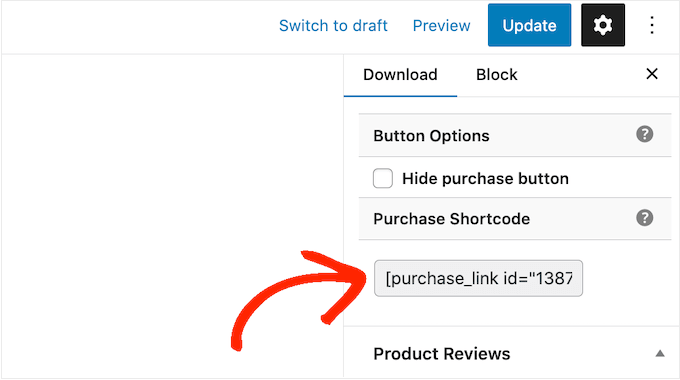
    You can add this button to any page, post, or widget-ready area using a shortcode that Easy Digital Downloads creates automatically.

    To get a product’s shortcode, simply scroll to its Download Settings section. You can then copy the text in the ‘Purchase Shortcode’ field.

    Adding a 'purchase' button using shortcode

    For more details on how to place the shortcode, you can see our guide on how to add a shortcode in WordPress.

    After adding the shortcode to your website, you will see a new ‘Purchase’ button.

    An example of a landing page, created using the SeedProd page builder

    BONUS – How to Sell More Photos Online

    To make more sales, you will need to get as many visitors as possible and then convince those people to buy your photos.

    This is where WordPress plugins can make things easier.

    Here are some of our top picks for plugins that can help you sell more photos online:

    FAQs About Selling Photos Online

    In this guide, we showed you how to sell photos online using WordPress. If you still have questions, then here are our FAQs about running an online photography business.

    Where Can I Sell My Photos Online?

    There are lots of platforms, stores, and digital marketplaces where you can upload your photos and sell them to an existing audience.

    Some popular choices among photographers include Adobe Stock, Shutterstock, and Alamy. These popular platforms already have lots of users, so you can reach a large audience and introduce your photography to people who may not know about your brand.

    However, many of these stock photography marketplaces and websites take a percentage of every sale you make, and some even charge upfront fees.

    To build a successful photography business, we recommend creating your own website instead. This gives you complete control over your brand, and you get to keep all the profits from every sale.

    How Much Does It Cost to Sell Photos Online?

    We always recommend a business model where you start small. That way, you can spend more money as you build your audience and start selling more products.

    The good news is that selling photos online is already a low-cost and easy online business. To further reduce your startup costs, we recommend taking advantage of SiteGround EDD Hosting and using free WordPress themes and plugins.

    By using Easy Digital Downloads to sell your photos directly to customers, you can avoid many of the upfront costs and middleman fees of selling via third-party marketplaces like iStock and Getty Images.

    For more information, see our article on how much it costs to build a WordPress website.

    Once you have created a website, you can use free business tools to grow your small business and get more sales, even if you have a limited budget.

    How Can I Make Money From My Photos?

    The easiest way to make money from your photos is by selling them online. You can either sell your photographs for a one-time fee or sell licenses that control how customers can use those photos.

    Another option is to create a membership website and sell subscriptions. For example, you might allow members to download and use as many photos as they want or create membership tiers where your most popular photos are reserved for the highest-paying members. Another option is selling group memberships for corporate teams.

    Can I Also Sell Physical Products Using Easy Digital Downloads?

    At some point, you may want to sell physical products. For example, you might create merchandise featuring your most popular photos or sell your photographs as framed prints.

    Despite the name, you can also use Easy Digital Downloads to sell physical products. There’s even a Simple Shipping addon that adds shipping features to the Easy Digital Downloads plugin. In this way, you can ship your branded merchandise, framed prints, or other physical products to customers using the tools you’re already familiar with.

    We hope this article helped you learn how to sell photos online. You may also want to see our guide on how to choose the best website builder and our expert picks for the best WordPress portfolio plugins for designers and photographers.

    If you liked this article, then please subscribe to our YouTube Channel for WordPress video tutorials. You can also find us on Twitter and Facebook.

    The post How to Sell Photos Online in 2023 (Beginner’s Guide) first appeared on WPBeginner.

  • 5 Best Monthly Web Hosting Plans (Starts at $4.95/mo.)

    Are you looking for the best monthly web hosting plans?

    Most popular web hosting companies offer big discounts on annual, bi-annual, and multiple-year payment terms.

    These discounts may be promoted as low monthly payments, but when you go to the checkout page, you’ll pay a hefty amount upfront to buy the web hosting.

    In this article, we will share some of the best monthly web hosting plans that let you truly sign up for a month-to-month hosting service.

    Best Monthly Web Hosting Plans

    Why Choose a Monthly Web Hosting Plan?

    Many web hosting companies only offer discounts if you buy hosting for a full year or multiple years. That makes it can cost hundreds of dollars just to get started.

    Plus, if you don’t like the web hosting service, you may not be able to get a full refund, and you will lose your initial investment.

    A true monthly web hosting plan will be cheaper to get started. With a month-to-month hosting plan, you won’t commit to a hosting provider long-term, and it’s easier to move to another web hosting company.

    This allows you to choose the best hosting provider with the features you need to host your WordPress website.

    And more importantly, you will only pay a low monthly cost for the web hosting service you use.

    Without further delay, let’s look at some of the best monthly web hosting plans for small businesses.

    1. Dreamhost – $4.95/mo.

    DreamHost Web Hosting

    DreamHost is one of the most well-known web hosting companies, and they’re an official WordPress-recommended hosting provider. They offer the cheapest month-to-month web hosting plan on the market.

    They provide a custom control panel to add your domain name, manage emails, and access web hosting features.

    Moreover, DreamHost comes with automated website backups. These daily backups ensure the complete safety of your content.

    When it comes to DreamHost’s monthly pricing, their WordPress Starter or Shared plan costs $4.95/month with a free SSL certificate, free website migration, and more.

    You will have to pay for the domain name separately, which is fair.

    But if you’re willing to commit for the year, WPBeginner users can get up to a 72% discount on their Shared plan with a free domain name, website builder, SSD storage, and more.

    Our DreamHost coupon code is applicable on the 1-year and 3-year payment plans.

    DreamHost pricing plans and payment options

    DreamHost has other web hosting solutions, including VPS hosting, managed WordPress hosting, dedicated server hosting, WooCommerce hosting, and cloud hosting.

    Don’t miss our complete DreamHost review for more details on their shared hosting options and pricing plans.

    2. Hostinger – $2.69/mo.

    Hostinger website

    Hostinger is one of the leading web hosting companies on the global market. It offers WordPress website hosting, shared hosting, and cloud hosting plans.

    The month-to-month shared hosting plan from Hostinger starts at $11.99 for a single website.

    If you’re looking for a web hosting plan for multiple sites, then we recommend their WordPress Starter plan. It comes with a free domain name, a free SSL certificate, and free unlimited email accounts.

    The Hostinger WordPress Starter plan costs $11.99/month.

    You can use WPBeginner’s exclusive Hostinger coupon code to get a discount on your monthly web hosting plan. The Hostinger promo code offers more discounts on longer commitments.

    For example, if you choose to pay for up to 12 months, the cost for the WordPress basic hosting plan reduces to $2.99/month.

    And WPBeginner users get an additional discount that makes it $2.69/month.

    In short, you’ll pay $32.29 at once to get WordPress hosting for the full year.

    Hostinger Pricing and plans

    Their shared hosting plans cost similar to WordPress hosting. However, you’ll need to pay an additional setup fee.

    Hostinger also offers Virtual Private Server hosting (VPS hosting) plans, Minecraft server hosting, and other solutions.

    We ran several tests on Hostinger, and here’s our complete Hostinger review that may interest you.

    3. Bluehost – $2.75/mo.

    Bluehost offer for WPBeginner readers

    Bluehost is one of the most popular web hosting providers and an officially recommended WordPress hosting partner.

    Though they don’t offer a month-to-month web hosting plan, the initial cost is so low that we couldn’t resist adding them to this list.

    And you’ll save triple your investment with a free domain name, free SSL certificate, and a BIG discount on your web hosting package.

    So if you’re just starting out, we recommend Bluehost as the best web hosting for beginners, startups, and small businesses.

    The initial cost for your web hosting plan will be as low as $33 for the first year.

    This also includes your free domain name, free SSL certificate, and a cPanel for a one-click WordPress installation.

    Bluehost Package

    However, on the renewal, you’ll need to pay the full cost for your web hosting plan and domain name. But by then, you’ll be able to grow your business to afford the price.

    And if you still want to switch, you can easily move your WordPress site to a new web hosting company for a month-to-month hosting plan. Some web hosting providers also offer free migration services, so you’re safe anyway.

    On a side note, we thoroughly tested Bluehost for its features, speed, and uptime. And we recommend it to everyone, all the time.

    Most of our WPBeginner users start their websites with Bluehost web hosting and grow their businesses to the next level.

    4. SiteGround – $19.99/mo.

    SiteGround web hosting

    SiteGround is one of the best WordPress hosting providers. Their web hosting is optimized for speed and security. We use SiteGround to host the WPBeginner website.

    Among top features, SiteGround offers automatic WordPress updates, a free CDN network to improve page load time, a custom web application firewall to protect your web server against malware and DDoS attacks, and more.

    Their customer support team is available 24/7 to help you with any of your concerns, which you may rarely have with SiteGround web hosting.

    SiteGround has data centers all over the world since they use the Google Cloud network. It’s the reason they can provide a 99.9% uptime guarantee on their web hosting platform. Over the years of using their platform, we have never had downtime for the WPBeginner site.

    The SiteGround’s StartUp plan costs $19.99/month.

    It’s an expensive monthly web hosting plan compared to other hosting providers on the list, but it also includes functionality like free site migration, free SSL certificate, eCommerce support, basic WordPress site management, out of the box caching addons, and more.

    And WPBeginner’s exclusive SiteGround coupon code lets you buy their WordPress hosting plan with an 80% discount.

    This reduces the cost to up to $2.99/month for the StartUp plan.

    SiteGround pricing plan and payment options

    SiteGround’s discount deal is only valid when you choose to pay for up to 12 months upfront. So you’ll pay $35.88 for 12 months and get access to all their WordPress hosting features.

    The best part is that they also offer a 30-day money-back guarantee.

    Aside from WordPress, SiteGround also has cheap web hosting for other content management systems like Drupal, Joomla, Magento, and basically any other Linux based app.

    We have done a detailed SiteGround review which shared performance tests from various locations along with coverage of their additional services like Site Scanner.

    5. WP Engine – $30 / mo.

    WP Engine WordPress Hosting Homepage

    WP Engine is the most popular managed WordPress hosting company in the market. They are typically the go-to choice for large websites, enterprise customers, as well as small businesses and developers who want a fully managed web hosting platform with speed, security, and support.

    WP Engine offers monthly cloud hosting plans starting at $30 per month on a month-to-month billing which gives you access to 10GB of disk space, 50GB of bandwidth, 10 premium themes from StudioPress, free automated migration, automated website backups, and more.

    All their plans come with advanced developer tools like one-click staging, dev & prod site environments, threat blocking & security, built-in CDN for turbo website speed, transferable sites for easy client handoff, activity log, and more.

    WP Engine also offers managed hosting solutions for WooCommerce online stores starting at $50 per month as well as enterprise cloud hosting starting at $600 per month.

    But if you use the WPBeginner’s WP Engine coupon code and pre-pay for annual plans, then you will get 4 months free.

    WP Engine Pricing Page

    WP Engine also offers additional services like automated plugin updates, extra SOC2 level security with managed WAF, site monitoring, and more which can be purchased separately.

    We did a detailed performance test of their platform in our WP Engine review that we highly recommend you check out.

    BONUS: Other Popular Month-to-Month Web Hosting Options

    6. HostGator: One of the most popular web hosting providers, HostGator offers unmetered bandwidth, a 99.9% uptime guarantee, and more. Their shared hosting plan costs $7.65 for the first month (including tax) for WPBeginner readers. The plan renews at $11.95 per month from the second month.

    7. GreenGeeks: The eco-friendly WordPress hosting offered by GreenGeeks comes with multiple types of hosting, including reseller hosting, dedicated hosting for websites, and more. It has built-in caching for fast performance, which costs $11.95 per month. You also need to pay a setup fee of $15 for the first time.

    Which Month-To-Month Web Hosting Plan Should I Buy?

    If you’re looking for true monthly web hosting with no long-term commitment, then DreamHost has the best monthly web hosting packages.

    DreamHost’s top features include free website migration, free SSL, security, and a 97-day money-back guarantee.

    With that said, when you’re starting a website, you want to get the best web hosting deal because it’s highly unlikely that you’ll be switching hosting providers every month.

    Most people that choose a reliable hosting provider rarely ever switch. In over a decade of running the WPBeginner website, we have switched hosting providers only once, and that was after 10 years when we outgrew our previous provider.

    So, in that case, what’s more important is that you choose a provider that’s giving you the best deal with one-year commitment.

    We recommend Hostinger, SiteGround, or Dreamhost for those just starting out.

    Hostinger’s WordPress Starter plan ($32.29 for the first year) is the cheapest web hosting option on paying upfront for 12 months, and you get a free domain name worth $9.99/year.

    On the other hand, SiteGround’s StartUp plan on a 12-month upfront payment ($35.88/for the first year) is close to Hostinger’s pricing for the basic starter plan.

    However, SiteGround servers are blazing fast since it’s hosted on Google Cloud, and you get tons of advanced performance and security features which is why we use SiteGround for the WPBeginner website.

    If you’re looking for a more managed web hosting provider with enterprise support, then WP Engine is going to be your best bet since they offer monthly web hosting plans for cloud hosting.

    Note: At WPBeginner, we regularly look into dozens of web hosting companies that are not listed in this article, like A2 hosting, GoDaddy, InMotion Hosting, Cloudways, Namecheap, LiquidWeb (Nexcess), and others. We decided not to list them all in this article because we don’t want to cause choice paralysis. If you choose a host from our recommended list, you won’t go wrong.

    We hope this article has helped you find the best monthly web hosting plan.

    You may also want to check out our other guides on related web hosting and business growth.

    Best Web Hosting Guides for Small Businesses

    Best WordPress Guides for Small Businesses

    If you liked this article, then please subscribe to our YouTube Channel for WordPress video tutorials. You can also find us on Twitter and Facebook.

    The post 5 Best Monthly Web Hosting Plans (Starts at $4.95/mo.) first appeared on WPBeginner.

  • How to Sell Videos Online With WordPress (Step by Step)

    Are you looking to sell video downloads online? Maybe you are wondering whether you can sell videos using a WordPress website.

    The answer is yes. Selling videos with WordPress is easy and gives you the most control over your content and earnings. You’ll be able to sell the same video files countless times.

    In this article, we will show you how to start selling video files online with WordPress.

    How to Sell Videos Online With WordPress

    Why Sell Videos Online?

    If you are into making videos, then there are a lot of ways to sell your work online.

    Video on the web grows in importance every year, with 86% of businesses using video as a marketing tool and the average person watching 100 minutes per day watching videos.

    Selling your video content online will let you make money while helping others.

    You can sell video assets that other creatives can download and use in their own projects. These include stock footage, drone footage, motion graphics, logos, openers, and more.

    Or you might want to sell your own finished videos, such as training videos, music videos, product reviews, or video gameplay.

    One way to make money from your videos is to create a membership site like our own WordPress 101. Members pay a subscription or create free accounts to watch your content from your website.

    We show you how to do this in our guide on how to create a video membership site in WordPress.

    You can also sell your videos as digital downloads, and this article will teach you how.

    Which Platform Should You Use to Sell Videos?

    You’ll want to choose your eCommerce platform carefully.

    Some are better suited to physical products than digital downloads like video files. Moving platforms in the future can be complicated and take a lot of time and effort.

    We recommend using WordPress + Easy Digital Downloads.

    easy digital downloads

    WordPress is the best website builder on the market, used by over 43% of all websites.

    Now, it’s important to know that there are two types of WordPress software, and you don’t want to choose the wrong one.

    First, there is WordPress.com, which is a blog hosting platform. Then, there is WordPress.org, which is also known as self-hosted WordPress. For a detailed comparison, you can see our guide on the difference between WordPress.com and WordPress.org.

    You need to use the self-hosted WordPress.org platform because it gives you full control over your website. It provides complete freedom to sell any type of digital product using a plugin like Easy Digital Downloads.

    Easy Digital Downloads (EDD) is the best WordPress eCommerce plugin for selling digital products and is built specifically with the features you need to promote, sell, and distribute video files online.

    In this way, you don’t have to waste time configuring features that aren’t necessary for selling digital products, such as shipping and inventory management settings.

    With that being said, let’s take a look at how you can easily sell video files in WordPress. You can use the quick links below to jump to different parts of the tutorial:

    Step 1: Setting Up Your WordPress Website

    To start selling digital downloads with WordPress, you will need a domain name, web hosting, and an SSL certificate.

    • domain name is your website’s address on the internet. This is what visitors will type into their browsers to reach your website, such as ‘wpbeginner.com’.
    • Web hosting is a service that will store your website files and digital downloads. To help you out, we have hand-picked some of the best WordPress hosting that you can buy.
    • An SSL certificate creates a secure connection between your website and users so that you can safely accept online payments.

    One of our top recommended hosting providers, SiteGround, offers managed WordPress hosting for Easy Digital Downloads. Their plans come with a free SSL certificate, EDD preinstalled, and optimization features. Plus, you get a huge 73% off!

    Basically, you can create and run your website for less than $5 per month.

    Let’s walk through how to purchase your domain, web hosting, and SSL certificate.  

    Go ahead and open the SiteGround website in a new tab so that you can follow along. The first thing you need to do is click on the ‘Get Plan’ button.

    SiteGround Managed EDD Hosting

    After that, SiteGround will ask you to enter a domain name for your website. If you don’t have a name in mind, then you can see our guide on how to choose the best domain name.

    Finally, you will need to add your account information.

    You will also be able to purchase some optional extras. You can always add these at a later date if you need them. If you are not sure, then we recommend skipping this step. 

    After entering your payment details, SiteGround will send you an email with instructions on how to log in to your hosting account. This is a web hosting control panel where you can manage your new website. 

    Simply log in to your SiteGround account, and you will see that SiteGround has already installed WordPress for you. It has also preinstalled Easy Digital Downloads.

    SiteGroud Login to WordPress

    You can then click on the ‘WordPress Admin’ button. This will take you to your WordPress site’s dashboard.

    If you prefer not to use SiteGround for some reason, then you can install WordPress on other hosting companies like BluehostHostinger, and WP Engine by following a similar process.

    You can also see our complete beginner’s guide on how to create a WordPress website.

    Step 2: Creating an Online Store With Easy Digital Downloads

    By default, WordPress doesn’t include eCommerce functionality out of the box, so you will need a plugin to sell digital downloads.

    Plugins for WordPress sites are like apps for your phone. They add all kinds of different features and functionality to your website.

    If you claimed our SiteGround EDD hosting deal in the previous step, then Easy Digital Downloads is already installed on your website. You can move on to the ‘Entering Your Business and Location Information’ section below.

    But if you are using another hosting provider, then you first need to install and activate the free Easy Digital Downloads plugin. For more details, see our step-by-step guide on how to install a WordPress plugin.

    Note: For this tutorial, we will be using the free version of EDD. However, you may want to purchase Easy Digital Downloads Pro to access premium extensions like Dropbox File Store and Amazon S3, which are recommended for storing large files online.

    Entering Your Business and Location Information

    Upon activation, you need to visit the Downloads » Settings page in your WordPress admin area. This will start the Easy Digital Downloads setup wizard.

    On the setup wizard’s first page, you will be asked to enter your business name and location.

    You might wonder why your location is needed when you are selling online. This is because when a customer makes a purchase, Easy Digital Downloads will use the country and state information to auto-fill some fields. Also, your location may be used to calculate sales tax.

    To add your location, open the ‘Business Country’ dropdown menu. You can now choose the country where your business is based.

    Easy Digital Downloads Setup Select a Country

    Next, find the ‘Business Region’ field. Here you can type the state or province where your store operates from.

    Depending on your location, you may also want to customize the currency used on your website. By default, Easy Digital Downloads shows all of your prices in US dollars. It also places the dollar sign before the price, so five dollars is shown as ‘$5’.

    To change the default currency settings, scroll down to the Currency section and open the ‘Currency’ dropdown. You can now choose a new currency. 

    Easy Digital Downloads Setup Select Currency

    Just be aware that some payment gateways may not accept every currency. If you are not sure, then it’s a good idea to check the website for your chosen payment gateway. Most payment gateways have a list of the currencies that they support. 

    Once you are finished, you will need to click on the ‘Save & Continue’ button. This will bring you to the next page, where you can set up your payment methods.

    Setting Up Your Payment Methods

    Next, you need to set up a way to collect online payments.

    Stripe is one of the top payment companies that does not require going through a long process to sign up for a merchant account. They allow anyone with a legitimate business to accept credit card payments online.

    To quickly get started with Stripe, simply click on the ‘Connect with Stripe’ button.

    Easy Digital Downloads Setup Connect With Stripe

    This opens a setup wizard, which will help you connect your website to Stripe.

    If you need, you can add more payment gateways later. Simply take a look at the options on the Easy Digital Download extensions page, such as PayPal, Braintree, and Authorize.net.

    When you are done, just click the ‘Save & Continue’ button at the bottom of the screen.

    Configuring Your Receipts

    Every time someone buys a video file, Easy Digital Downloads will send them an email.

    This email has a link that the customer can use to download the file they just purchased.

    The Easy Digital Downloads purchase receipt email

    You can change that email by adding your own text and branding. Strong branding can make your business look more professional and inspire customer loyalty.

    To add a logo to your emails, click on the ‘Attach File’ button and upload or choose an existing image from your WordPress media library.

    Easy Digital Downloads Setup Configure Your Receipts

    You can also add a ‘From Name’. This name will be shown in the customer’s inbox. You will want to use something that immediately lets customers know who you are, likes your website’s name.

    You will also need to add a ‘From Email’. This email will act as the ‘from’ and ‘reply-to’ address. Since customers may reply to your messages, you will want to use a professional email address that you check frequently.

    Once you are happy with your email branding, you might like to edit the contents of the email receipt. Keep in mind that the default message will work well for most marketplaces. 

    Finally, make sure to click the ‘Save & Continue’ button.

    Selecting Conversion and Optimization Tools

    The setup wizard will now offer to install some free tools to help boost conversions and optimize your digital store.

    Easy Digital Downloads Setup Conversion and Optimization Tools

    These tools include:

    We recommend keeping all of the boxes checked. However, you can uncheck the boxes of any tools you don’t want to install.

    You will also find a toggle button where you can help improve Easy Digital Downloads by sharing anonymous usage data with the developers. You can learn more in our guide on giving permission for WordPress plugins to collect data.

    Easy Digital Downloads Setup Join the EDD Community

    Once you have made your selections, just click the ‘Save & Continue’ button at the bottom of the page.

    Adding Your First Product

    You are now on the last page of the Easy Digital Downloads setup wizard. Here you can add your first product to your website.

    Easy Digital Downloads Setup What Are You Going to Sell?

    If you are ready to add a new product now, then you can enter its details into the form and then click the ‘Save & Continue’ button.

    Otherwise, feel free to click the ‘Skip this step’ button to finish the Easy Digital Downloads setup wizard. We will show you how to add your videos to your online store in the next section.

    Congratulations, you have now completed the initial setup of your online store.

    Step 3: Adding Downloadable Video Products to Your Online Store

    Once you’ve set up your online store, you are ready to start adding video files as products. Easy Digital Downloads refers to digital products as ‘downloads’.

    To add a product to your store, you need to select Downloads from the WordPress admin menu. After that, just click the ‘Add New’ button to add a new video.

    Adding a New Downloadable Product in EDD

    This will open a page where you can type a title, description, pricing, and other details for your video.

    Adding a Title and Description

    You can type a title and description using the WordPress content editor. If you are familiar with creating a new blog post, then this works the same way.

    Adding a Title and Description for a Downloadable Product

    Make sure you give shoppers all the information they need to decide whether the product is right for them. For example, you might include licensing information, the video’s duration, resolution, file size, frame rate, and whether the video can be looped.

    You might also want to display customer reviews and a star rating to show that other customers have benefited from buying the video.

    Setting a Price or Variable Pricing

    Under that, you will see the pricing options. If you will be charging a fixed amount for the video, then simply type the price of the video in the field. For free downloads, you can leave the amount at ‘0.00’.

    Adding Fixed Pricing to a Downloadable Product

    Easy Digital Downloads also supports variable pricing. This allows you to charge more for a higher-resolution video, for example.

    If you want to sell variations, then select the ‘Enable variable pricing’ checkbox. This adds a new section where you can start to build your variations.

    You can type in an option name and price for each variation. You can add more variations by clicking the ‘Add New Price’ button.

    Adding Variable Pricing to a Downloadable Product

    With that done, you’ll need to set the default variation, which will be selected when the visitor first lands on the product page. Simply check the ‘Default’ radio button next to the variation you want to use.

    Adding Categories and Tags

    Categories and tags can help shoppers find what they are looking for more easily.

    For example, you can use categories to organize the different types of videos in your store and tags to describe the locations, subject matter, and more, like an index.

    Adding Categories and Tags to a Downloadable Product

    You can create new categories and tags in the Download Categories and Download Tags box. To learn more, please see our step-by-step guide on how to add categories and tags for WordPress pages.

    Adding a Thumbnail Image

    A helpful thumbnail image will give your customers an accurate idea of what your video contains. It can also help increase sales.

    You need to scroll down the page until you find the Download Image section on the right. Clicking on ‘Set Download Image’ launches the WordPress media library, where you can choose an image or upload a new file from your computer.

    Adding a Thumbnail to a Downloadable Product

    Uploading Your Video File or Files

    You’re now ready to start uploading your video files. This is what your customers will receive after purchasing the product.

    Before you upload the files, we recommend you zip them first. These compressed files will take up less storage, be faster to download, and work for individual videos or bundles.

    To zip an individual video, simply right-click the file. Then, on Windows, you choose ‘Compress to ZIP file’, and on Mac, choose the ‘Compress’ option. To zip a video bundle, simply select all of the files in the bundle before right-clicking.

    Note: To allow zip files to be uploaded to your WordPress site, you will need to follow our guide on how to add additional file types to be uploaded in WordPress. If your zip files are larger than your hosting provider’s limit, then you’ll also need to see our guide on how to increase the maximum upload size in WordPress.

    Once your zip files are ready to upload, you need to scroll down to the Download Files section at the bottom of the page.

    If you are selling the product with a fixed price, then you need to click the link icon under File URL. This will open the WordPress Media Library, where you can upload your zip file or select it if you have already uploaded it.

    Adding a File to a Single Product With a Fixed Price

    The file name field is the clickable link text that will be used on the confirmation page and email. This will be filled in automatically with the file name, and you can update it with a more descriptive name if you like.

    For example, you could type ‘Download my video’ or ‘Download the HD version’.

    If you are using variable pricing, then the steps are similar, and you need to upload the file by clicking the link icon under File URL.

    After that, you’ll also need to choose the correct pricing option under Price Assignment. In our example below, if you were uploading the high-def file, then you would choose the ‘Coba Pyramid High Def’ option.

    Adding Files to a Single Product With Variable Pricing

    You can click the ‘Add New File’ button to add more uploads as required.

    There is also a Bundle option where you can select multiple files, but we recommend you compress multiple files into a single zip file and use the Single Product option instead.

    After the purchase, the customer will get an auto-expiring link on their purchase confirmation page and the confirmation email. This link will also be protected from search bots and unauthorized users to help prevent piracy.

    Creating a Refund Policy

    Hopefully, everyone who buys your videos will be happy with their purchase. However, it’s still smart to think about how you’ll handle refunds.

    If you scroll to the ‘Refunds’ section in the left-hand menu, then you’ll see that Easy Digital Downloads offers your customers a 30-day refund by default.

    Configuring a Refund Policy in EDD

    You can change the settings here to change the refund period to a different number of days or make the product non-refundable.

    We recommend offering refunds wherever possible. It’s an important part of good customer service, and an easy refund process will encourage more people to buy.

    Step 4: Testing Your Digital Download

    It’s a good idea to test the digital download to see whether there are any problems or anything you want to change.

    Enabling Test Purchases

    To start, you’ll need to put Easy Digital Downloads into test mode so that you can buy products without having to enter any payment information.

    In the WordPress dashboard, go to Downloads » Settings and then click on ‘Payments.’

    Adding a payment gateway to Easy Digital Downloads

    On this screen, check the box next to ‘Test Mode’.

    Next, select ‘Store Gateway’, as this allows you to make a purchase without typing in any credit or debit card information.

    Adding payment gateways to WordPress

    After that, click on ‘Save Changes’ to store your settings.

    Make a Test Purchase

    Now you are in test mode, you need to go to Downloads » Downloads and hover your mouse over the product you want to test.

    When it appears, click on the ‘View’ link.

    Click the Product's View Link

    This opens the item’s product page on your online store.

    To go ahead and make a test purchase, click on the ‘Purchase’ button.

    Making a Test Purchase in EDD

    Easy Digital Downloads will now add this product to your shopping cart.

    To keep going, click on the ‘Checkout’ button.

    Making a Test Checkout in EDD

    On the checkout page, you can type in your name and email address. Easy Digital Downloads will send the purchase receipt to this address, so you’ll need to use a real email address that you have access to.

    Under ‘Select payment method’ make sure that ‘Store Gateway’ is selected. After that, just click on the ‘Purchase’ button at the bottom of the page.

    Select Store Gateway Then Click the Purchase Button on the Checkout Page

    After a few moments, you will see the purchase confirmation page and also get a purchase confirmation email. Both of these contain download links.

    You should click the link to make sure the file downloads successfully.

    Click the Link to Make Sure the File Downloads Correctly

    If everything works as expected, then you can take Easy Digital Downloads out of test mode and start accepting payments from real customers.

    You just need to go back to Downloads » Settings and select the ‘Payments’ tab. Here, uncheck the box next to ‘Test Mode’ and the box next to ‘Store Gateway’.

    How to accept payments online using WordPress

    With that done, click on ‘Save Changes’ to store your settings. You are now ready to accept credit card payments in WordPress.

    Step 5: Selecting and Customizing Your WordPress Theme

    WordPress theme controls the appearance of your online store, including its layout, typography, color, and other design elements.

    You might like to use the Vendd theme for your digital goods marketplace because it is designed for digital downloads. This free theme works together with Easy Digital Downloads to give you a lot of options and features for your online marketplace.

    Vendd Theme

    If you purchased SiteGround EDD hosting as we recommended earlier, then Vendd was installed and activated automatically when you installed WordPress.

    Otherwise, you will need to install and customize the theme yourself. For more information, see our beginner’s guide on how to install a WordPress theme.

    However, there are thousands of other WordPress themes available. For example, both the Astra theme and the Coaching Pro theme are fully compatible with EDD.

    Another option is to create your own custom theme from scratch. To create a custom theme, you can use SeedProd.

    It is the best website builder plugin on the market and is used by over 1 million websites. You can use SeedProd to create beautiful website layouts that are professionally designed and optimized for conversions and sales.

    SeedProd also comes with lots of ready-made templates. These include designs that are perfect for promoting digital downloads like eBooks or videos. 

    SeedProd ebook digital marketplace theme

    For more details, check out our guide on how to create a custom WordPress theme (no coding needed).

    Step 6: Promoting Your Digital Downloads

    At this point, you have created one or more digital video products, but you still need to drive potential customers to your product pages so they can buy your videos.

    Promotion can involve creating a sales page where you advertise your most recent video files, adding a particular product page to your website’s menu, or even highlighting your favorite video on a custom home page.

    You could even write a WordPress blog where you talk about how other creatives can use your video products in their own projects.

    No matter how you promote a product, you will need to know its URL.

    To find this link, head over to Downloads » Downloads. You can then hover your mouse over a product and click on its ‘Edit’ link.

    Click the Edit Link Under the Product

    You will find the URL under ‘Summary’ in the right-hand menu.

    You can now link to this product page from any area of your website simply by using its URL. To learn more, see our step-by-step guide on how to add a link in WordPress.

    Find the Product URL on the Left of the Screen

    Easy Digital Downloads also creates a ‘Purchase’ button for each digital download. Visitors can click this button to add your video to their shopping cart.

    You can add this button to any page, post, or widget-ready area. This allows visitors to start the purchasing process without visiting the product’s page.

    The Shortcode Adds a Purchase Button to the Post or Widget

    To get the button’s shortcode, simply scroll to the product’s Download Settings section. You can then copy the text in the ‘Purchase Shortcode’ field.

    For more information on placing the shortcode, please see our guide on how to add a shortcode in WordPress.

    How to add a digital down to WordPress using shortcode

    Bonus: Tools to Sell More Videos Online

    To sell your videos online, you will need to get more visitors to your WordPress website and convince them to buy your downloads.

    This is where WordPress plugins can help.

    Here are some great WordPress plugins that can help you get more visitors to your website and turn them into customers:

    • All in One SEO: The best WordPress SEO plugin that can help you optimize your website to get more search engine traffic.
    • MonsterInsights: The best WordPress analytics plugin. It helps you learn where your customers come from and what they do when they reach your website.
    • OptinMonster: This plugin allows you to create popups and optins to grow your email list and turn visitors into customers. It can also help you reduce shopping cart abandonment.
    • PushEngage: The best push notifications plugin. It allows you to reach visitors after they have left your website and encourage them to return to your online store.
    • TrustPulse: This social proof plugin can help you increase video sales by increasing customer trust.

    FAQs About Selling Videos Online

    In this guide, we showed you how to videos online using Easy Digital Downloads. If you still have questions, then these FAQs may help.

    Where can I sell my videos online?

    There are lots of platforms, stores, and digital marketplaces where you can upload your digital art and sell it. Some popular choices include Sellfy, Vimeo, and Uscreen.

    Many of these platforms already have a large audience. By uploading your files to these sites, you can promote your work to an existing audience.

    However, many of these marketplaces and websites take a percentage of every sale you make, and some even charge upfront fees. To boost your profits, we recommend creating your own website instead.

    In this way, you will have complete control over your brand and get all the profits from each digital sale.

    How much does it cost to create a website to sell my videos?

    We always recommend a business model where you start small. That way, you can spend more money as you build your audience and start to sell more digital art and graphics.

    The good news is that setting up a digital store is much easier and cheaper than opening a physical shop. You can start with SiteGround EDD Hosting for around $5 per month and use free plugins and themes to limit your costs.

    By using Easy Digital Downloads to sell your artwork, you can avoid many of the upfront costs and middleman fees you can expect when selling via an online marketplace such as Sellfy. Instead, you just have to pay industry-standard credit card transaction fees.

    For more information, see our article on how much it costs to build a WordPress website.

    Can I also sell physical products with Easy Digital Downloads?

    At some point, you may want to sell physical products, such as DVDs or some other type of physical storage containing your video assets. Despite the name, you can also use Easy Digital Downloads to sell physical products.

    There’s even a Simple Shipping addon that adds shipping features to the Easy Digital Downloads plugin. This allows you to ship your branded merchandise, framed prints, or other physical products to customers using the tools you are already familiar with.

    We hope this tutorial helped you learn how to sell videos online with WordPress. You may also want to see our guide on how to start a video blog (vlog) and make money or our expert picks for the best video editing software.

    If you liked this article, then please subscribe to our YouTube Channel for WordPress video tutorials. You can also find us on Twitter and Facebook.

    The post How to Sell Videos Online With WordPress (Step by Step) first appeared on WPBeginner.

  • How to Setup Cloudflare Free CDN in WordPress (Step by Step)

    Do you want to use the free Cloudflare CDN on your WordPress site?

    Cloudflare is one of the best WordPress CDN services available in the market. They offer a free CDN that speeds up your website along with a suite of powerful security features for small business websites.

    The challenge is that many entry-level users are not able to use Cloudflare because they think it is hard to set up.

    In this guide, we will walk you through a complete Cloudflare setup in WordPress to help you improve your website speed.

    How to Setup Cloudflare Free CDN in WordPress (Step by Step)

    What Is a CDN?

    A CDN or content delivery network is a system of distributed servers that helps deliver your website files faster to users based on their location.

    Typically, a web hosting service serves your website visitors from a single location. All the users access the same server, no matter where they are located.

    This can cause a delay in content delivery for users living further away from your website’s central hosting server.

    That’s why CDNs set up multiple edge servers in different locations around the globe.

    These CDN servers cache static content from your website’s origin server and present it to users when they visit your WordPress website.

    Content Delivery Network (CDN)

    When there is a user request, the CDN server closest to the user’s location will handle it.

    For example, if someone in the USA wants to access a UK-hosted website, then a CDN server in the USA will serve that request, not the main server in the UK.

    With a CDN, all the user requests are handled by the nearest CDN servers. This reduces the physical distance between the visitors and your website’s server.

    As a result, a CDN improves your website performance and speed for all users regardless of their geographic location.

    A faster website also improves the user experience and can give your website a slight boost in SEO rankings. Using a CDN also reduces the load on your primary server and protects it from crashing during traffic spikes.

    If you want to learn more, then see our guide on why you need a CDN for your WordPress blog.

    What Is Cloudflare CDN?

    Cloudflare CDN

    Cloudflare is one of the most popular free CDN providers available on the internet. It is a large network of globally-distributed servers that automatically cache static content and deliver dynamic content quickly.

    On top of a CDN service, Cloudflare is also a cloud-based website firewall and a distributed proxy server. It monitors all incoming traffic to your website and blocks suspicious traffic even before it reaches your server.

    They offer a free basic plan that’s suitable for small business websites and blogs. They also offer paid plans starting at $20 per month.

    Cloudflare is an excellent choice for small businesses looking for a free CDN. However, if you want to fully utilize all of Cloudflare’s features, then you will need the Business plan, which costs $200 per month.

    Note: We do not use Cloudflare on WPBeginner. Instead, we use Sucuri as a website firewall and CDN. This firewall has the double benefit of improving speed and security. You can learn more in our comparison of Sucuri vs. Cloudflare.

    With that being said, let’s take a look at how to set up Cloudflare Free CDN in WordPress. You can use the quick links below to jump to the different parts of the tutorial:

    Setting Up Cloudflare CDN in WordPress

    To begin, you need to visit the Cloudflare website and click on the ‘Sign Up’ button.

    Visit Cloudflare website

    On the next page, you need to enter your email address and password to create a Cloudflare account.

    Simply enter the information required, and then click on the ‘Sign up’ button.

    Create Cloudflare account

    When you finish signing up, you will see a thank you page confirming that your Cloudflare account has been set up.

    The next step is to add your website to Cloudflare. You should click the ‘Add a website or application’ button to get started.

    The Cloudflare Thank You Page

    You can now enter your website into the ‘Enter your site’ field.

    Make sure you only type your site’s domain name, such as example.com. You don’t need to type the full URL or any extra characters.

    Enter Your Website's Domain Name

    On the next screen, you will be asked to choose the type of Cloudflare plan you want.

    For this tutorial, we will choose the free Cloudflare plan. Then, click the ‘Continue’ button.

    Select Cloudflare free plan

    After that, Cloudflare will show you a list of all DNS records their systems found. These will include your subdomains as well.

    The DNS records you want to be passed through Cloudflare should have an orange cloud icon. The DNS records that will bypass Cloudflare will have a gray cloud icon.

    You need to review the list to make sure that your primary domain is active on Cloudflare with an orange cloud icon. Simply click the ‘Proxy status’ toggle to change the status.

    Verify DNS Records to Set up Cloudflare

    Once you have verified your DNS records, just click on the ‘Continue’ button at the bottom.

    During the next step of your setup, Cloudflare will ask you to update your nameservers. You will be asked to change your nameservers and point them to Cloudflare nameservers.

    Change to Cloudflare nameservers

    Note: Changing nameservers can take some time to propagate throughout the internet. During this time, your website may become inaccessible to some users.

    You can change nameservers from your domain registrar account, like Domain.com.

    Or, if you got a free domain from your web hosting provider like Bluehost, then you will have to change the name server by logging in to your hosting account.

    For the sake of this tutorial, we will be showing you how to change the nameservers from the Bluehost control panel.

    While the process is similar across hosting companies, you can always ask your hosting provider for detailed instructions for their control panel.

    Once you are logged in to your Bluehost cPanel dashboard, go to the ‘Domains’ section, and select your domain name. After that, click on the ‘Name Servers’ tab and the ‘Edit’ button.

    Edit nameservers in hosting cPanel

    Next, you need to select ‘Custom’ and enter the nameservers provided by Cloudflare.

    Then, click the ‘Save’ button.

    Save new Cloudflare nameservers

    After that, you need to go back to the Cloudflare setup page, and click the ‘Done, check nameservers’ button to finish the setup.

    It will now check your new nameservers automatically.

    Check Cloudflare nameservers

    That’s it! It will take a few minutes to update your domain nameservers and activate Cloudflare.

    Once activated, you will see the success message in your Cloudflare dashboard.

    Cloudflare success message

    In the meantime, the Cloudflare Quick Start Guide will open automatically, and you can use it to customize your Cloudflare settings. We will show you how in the next section.

    Note: The above screenshots show the Bluehost control panel. Your nameserver settings may look different if you are using a different hosting provider.

    Configuring Cloudflare With the Quick Start Guide

    The Cloudflare Quick Start Guide should have opened automatically after you clicked on the ‘Done, check nameservers’ button above. This setup wizard will help you improve the security and performance of your website.

    The first setting is ‘Automatic HTTPS Rewrites’.

    Cloudflare Automatic HTTPS Rewrites

    This will help you avoid the mixed content error in WordPress. It does this by automatically changing ‘http’ to ‘https’ in the URLs of all resources and links on your site that can be served with a secure ‘https’ URL.

    This setting is on by default. We recommend you leave it on and click the ‘Save’ button.

    The next setting is ‘Always Use HTTPS’.

    Always Use HTTPS

    Some users have reported issues when using this setting with Cloudflare. This setting is disabled by default, and we recommend you leave it that way. We will show you how to redirect from HTTP to HTTPS using the All in One SEO plugin later in this article.

    Now you can click the ‘Save’ button to move on to the next option.

    The next setting is Brotli compression.

    Brotli Compression

    Cloudflare can use Brotli compression to unlock 15-20% speed improvements. This setting is on by default, and we recommend you leave it on.

    Make sure you click the ‘Save’ button to store this setting.

    Now you will see a summary of what you have configured with the Quick Start Guide.

    Cloudflare Quick Start Summary

    You should see:

    • Automatic HTTPS Rewrites: ON
    • Always Use HTTPS: OFF
    • Brotli: ON

    You have now completed the Quick Start Guide and can click the ‘Finish’ button. However, there are still some additional important settings that need to be configured.

    Configuring Additional Important Cloudflare Settings

    Your basic Cloudflare setup is complete, but there are a few essential settings you need to configure to keep your WordPress site secure.

    1. Secure Your WordPress Login Page

    You can set up page rules to customize how Cloudflare works on specific pages on your site. This is especially useful for securing critical pages such as the login page and wp-admin area.

    The Cloudflare free account allows you to set up 3 page rules. If you want to add more page rules, then you need to pay $5 per month for 5 extra rules.

    First, you need to click the ‘Rules’ option in the menu on the left of the page. After that, you can click the ‘Create Page Rule’ button.

    Cloudflare Page Rules

    Now you can set up 3 different page rules. You can start by creating a rule that secures your WordPress login page.

    Simply add the following settings below to secure your website:

    • Page URL: example.com/wp-login.php*
    • Settings: Security Level – High
    Secure WordPress login page

    When you are done, just click ‘Save and Deploy’ to store and activate the rule.

    2. Exclude the WordPress Dashboard from Cloudflare

    You will be returned to the Page Rules page, where you can see your first rule listed.

    Now you can create a second rule to exclude the WordPress dashboard from Cloudflare caching and enable high security.

    Click the Create Page Rule Button

    You’ll need to click on the ‘Create New Rule’ button to create your second rule.

    After that, you need to type the following settings into the rule. You can click the ‘+ Add a Setting’ button to add new rows for additional settings:

    • Page URL: example.com/wp-admin*
    • Settings: Security Level – High
    • Cache Level – Bypass
    • Disable Performance
    • Disable Apps
    Exclude WordPress dashboard

    When you are done, make sure you click ‘Save and Deploy’ to add the new rule.

    3. Configure SSL Certificate Settings

    Another important setting is the SSL certificate available in the ‘SSL/TLS’ menu on the left.

    Set SSL certificate settings

    Make sure to click the ‘Full’ radio button if you are already using SSL.

    If you don’t have an SSL certificate, then see our guide on how to get a free SSL certificate for your website.

    Once you are done, Cloudflare will provide the essential green padlock in your visitors’ address bar to signify that your website is secure.

    4. Redirect from HTTP to HTTPS Using All in One SEO

    We mentioned earlier that we don’t recommend using Cloudflare’s ‘Always Use HTTPS’ feature. A great alternative is to use the All in One SEO plugin. It’s the best SEO plugin for WordPress, used by over 3 million sites.

    The first thing you need to do is activate and install the All in One SEO plugin. For more details, see our guide on how to install a WordPress plugin.

    After that, navigate to All in One SEO » General Settings and then enter your license key into the ‘License Key’ box and click ‘Connect’.

    Enter AIOSEO license key

    You can find your license key in your account profile on the All in One SEO website.

    Next, navigate to All in One SEO » Redirects and then click the ‘Full Site Redirects’ menu navigation option.

    AIOSEO Full Site Redirect

    You will need to scroll down the page until you find the ‘Canonical Settings’ toggle. You should click this toggle so that it turns blue.

    Next, turn on the ‘Redirect from HTTP to HTTPS’ toggle. This will create a redirect from HTTP to HTTPS, making sure that your visitors always have a secure connection to your website.

    Using AIOSEO to Force HTTPS

    When you are done, make sure to click the ‘Save Changes’ button at the bottom or top of the screen to store this setting.

    Optimizing Cloudflare for WordPress Using a Plugin

    Cloudflare offers a dedicated WordPress plugin for one-click WordPress-optimized settings.

    The plugin lets you quickly set up Cloudflare on your WordPress site, add web application firewall (WAF) rulesets, automatically purge the cache, and more.

    To get started, install and activate the Cloudflare plugin on your website. For more details, see our step-by-step guide on how to install a WordPress plugin.

    Once done, you need to visit Settings » Cloudflare in your admin panel to configure the Cloudflare settings.

    On the settings page, you will see a ‘Create Your Free Account’ button and a sign-in option for existing accounts. Simply click the ‘Sign in here’ link.

    Cloudflare plugin settings

    On the next screen, you will need to enter your Cloudflare email and API key.

    Click the ‘Get your API key from here’ link.

    Entering API Credentials Into the Cloudflare Plugin

    This will bring up a popup for your account area on the Cloudflare website.

    Make sure you are on your ‘My Profile’ page, and then click on the ‘API Tokens’ tab in the left sidebar.

    After that, go to the ‘Global API Key’ section and click on the ‘View’ button.

    Get global API key

    This will open a popup and display your API key.

    Simply click on the key to copy it.

    Click to Copy the Global API Key

    Next, you need to come back to your WordPress dashboard and enter your email address and API key.

    Then, click the ‘Save API Credentials’ button.

    Save Cloudflare API Credentials in WordPress

    After that, the Cloudflare settings will appear on your dashboard.

    From here, you can apply a single-click WordPress optimization, purge the cache, enable automatic cache, and more.

    To optimize your WordPress site, just click the ‘Apply’ button next to ‘Apply Default Settings’.

    Apply to optimize WordPress

    Next, click on the ‘Settings’ menu option.

    Here you will find more site optimization settings.

    Cloudflare for WordPress Settings

    You can scroll down on this screen to find the ‘Security’ section.

    By default, the security level is medium. To improve your website’s security, you can select ‘High’ from the dropdown list.

    Change WordPress security level

    We hope this article helped you to learn how to set up Cloudflare free CDN in WordPress. You may also want to see our ultimate WordPress security guide and our expert picks for the best WordPress security plugins to further protect your website.

    If you liked this article, then please subscribe to our YouTube Channel for WordPress video tutorials. You can also find us on Twitter and Facebook.

    The post How to Setup Cloudflare Free CDN in WordPress (Step by Step) first appeared on WPBeginner.

  • How to Set Up WP Mail SMTP with Any Host (Ultimate Guide)

    Do you want to set up WP Mail SMTP on your WordPress site?

    WP Mail SMTP is the best WordPress SMTP plugin that allows you to easily send WordPress emails using a secure mail transfer protocol (SMTP). It makes sure your emails go to the inboxes of your users and not to the spam folder.

    In this article, we will show you how to easily set up WP Mail SMTP with any host or third-party SMTP service.

    Setting up WP Mail SMTP with any WordPress host

    This is a lengthy article, so we have added a table of contents. If you know what you are looking for, then you can click the link to jump to that section:

    What Is WP Mail SMTP, and Why Do You Need It to Send WordPress Emails?

    WP Mail SMTP is the best WordPress SMTP plugin on the market. It allows you to send all your WordPress emails using an SMTP server.

    Once you set up your WordPress site, you may notice that you are not getting any emails from WordPress. These include WordPress notification emails and emails from your WordPress contact form plugin.

    The reason you are not getting emails is usually that WordPress uses the PHP mail() function to send them.

    Most WordPress hosting companies do not configure this function properly, and some simply disable it to prevent abuse.

    The easiest fix for this issue is to use SMTP to send WordPress emails.

    SMTP stands for ‘secure mail transfer protocol’, and it is pretty much the standard way to send emails. It requires you to log in to a mail server to send emails. This prevents the abuse of the hosting server and improves email deliverability, which means that you and your users will receive all WordPress emails.

    Hosting SMTP Server vs. Third-Party SMTP Server – Which One Should You Use?

    Most WordPress hosting companies offer free business email addresses that you can use with your own domain name.

    We recommend setting up a separate email address for your WordPress website. It can be anything like support@example.com or info@example.com.

    However, your WordPress hosting provider does not specialize in sending emails. Their SMTP servers are basic and have strict limits on the number of emails you can send.

    If you run a small business website or a blog, then you will probably be fine with your hosting provider’s SMTP servers.

    On the other hand, if you run an online store or a membership website, then emails become mission-critical for your business. You want to make sure that your customers get important email notifications delivered to their inboxes.

    This is where you need a third-party SMTP service provider. These companies specialize in securely sending large numbers of emails without triggering spam filters.

    We recommend using SendLayer, Brevo (formerly Sendinblue), or SMTP.com for most online businesses. They are reasonably priced and can scale as your business grows.

    For more information, you can see our article on the top SMTP service providers.

    Once you have chosen an email delivery method, the next step is to connect your WordPress website to your mail server.

    This is where the WP Mail SMTP plugin comes in. It allows you to send WordPress emails via SMTP by entering your SMTP credentials.

    WP Mail SMTP is the most popular SMTP solution for WordPress, currently used by over 3 million websites. It’s maintained by the same team as WPForms.

    There is also a free WP Mail SMTP lite version that is fully functional and can be used with any WordPress hosting company or third-party SMTP service provider.

    The premium version of the WP Mail SMTP plugin supports all the top SMTP service providers and works with any WordPress hosting company that offers email accounts.

    It also comes with powerful features like email logs, email controls, priority support, and a white glove setup.

    Installing and Setting Up WP Mail SMTP

    The first thing you need to do is install and activate the WP Mail SMTP plugin. For more details, see our step-by-step guide on how to install a WordPress plugin.

    Upon activation, you will see the setup wizard. You can skip it as we will show you how to set up WP Mail SMTP manually.

    WP Mail SMTP Launch Wizard

    Just click on ‘Go back to the Dashboard’.

    Next, you need to visit the WP Mail SMTP » Settings page to configure the plugin settings.

    WP Mail SMTP Settings

    You need to enter your SMTP settings to use WP Mail SMTP. The first part of the settings will be similar regardless of your hosting company. It includes the following fields:

    • From Email – This email address will be used to send all WordPress emails.
    • From Name – This name will be used to send emails. We recommend using your website’s title.
    • Return Path – Check this box to receive delivery notifications or bounced messages.
    • Mailer – You need to select ‘Other SMTP’ here as you will be sending emails using your host’s SMTP server

    Note: If you want to use third-party mailers, follow this guide to send WordPress emails via Gmail SMTP. We also have a similar guide for the Brevo (formerly Sendinblue) SMTP setup.

    WP Mail SMTP return path and mailer settings

    If you want to continue using your host, you need to select ‘Other SMTP’ and enter the SMTP server settings provided by the hosting company.

    • SMTP Host – The SMTP host address provided by your hosting company.
    • Encryption – The encryption method used by your mail server to send emails. Usually, it is TLS.
    • SMTP Port – The port used by the outgoing mail server.
    • Auto TLS – This setting should be set to On.
    • Authentication – Needs to be On.
    • SMTP Username – Usually the email address you are using to send emails.
    • SMTP Password – The password for the email account you are using to send emails. We don’t recommend saving SMTP passwords here. Instead, you need to store your password in the wp-config.php file.
    Other SMTP

    These settings are required to connect with any SMTP server. However, their values may differ from one WordPress hosting company to another.

    Let’s see how to set up the WP Mail SMTP plugin with different hosting companies.

    Setting Up WP Mail SMTP on Bluehost

    Bluehost is one of the biggest hosting companies in the world and an officially recommended WordPress hosting provider.

    We recommend Bluehost to all users who are starting a WordPress blog or making a small business website.

    Here are the SMTP settings you will be using to connect WP Mail SMTP to the Bluehost SMTP server:

    • SMTP Host – mail.example.com
    • Encryption – TLS
    • SMTP Port – 587
    • SMTP Username – Your email address (e.g. wordpress@example.com)
    • SMTP Password – Your email account password

    Don’t forget to replace example.com with your own domain name.

    Bluehost SMTP

    Setting Up WP Mail SMTP on SiteGround

    SiteGround is another popular WordPress hosting company. They offer excellent shared, managed, and WooCommerce hosting services.

    Here are the SMTP settings you will be using to connect WP Mail SMTP with SiteGround servers:

    • SMTP Host – mail.example.com
    • Encryption – TLS
    • SMTP Port – 587
    • SMTP Username – Your email address (e.g. wordpress@example.com)
    • SMTP Password – Your email account password
    SiteGround SMTP

    Setting Up WP Mail SMTP on HostGator

    HostGator is another popular WordPress hosting company. WPBeginner is hosted with HostGator, and we have been using them for over a decade.

    Here are the SMTP settings you will be using to connect WP Mail SMTP with HostGator servers:

    • SMTP Host – full.servername.com
    • Encryption – SSL
    • SMTP Port – 465
    • SMTP Username – Your email address (e.g. wordpress@example.com)
    • SMTP Password – Your email account password
    HostGator SMTP settings for WordPress

    You will notice that instead of using your domain as the SMTP Host, it uses the server name. You can find the server name in your cPanel hosting dashboard.

    Simply log in to your cPanel, and you will see the full server name in the right column towards the bottom.

    HostGator server hostname

    Setting Up WP Mail SMTP on DreamHost

    DreamHost is a popular WordPress hosting company. They have been around since 1997 (way before WordPress, Google, or Facebook) and offer shared WordPress hosting, managed, and VPS hosting plans.

    Here are the SMTP settings you will be using to connect WP Mail SMTP with DreamHost servers:

    • SMTP Host – full.servername.com
    • Encryption – SSL
    • SMTP Port – 465
    • SMTP Username – Your email address (e.g. wordpress@example.com)
    • SMTP Password – Your email account password
    DreamHost SMTP

    You will notice that Dreamhost doesn’t use your domain name as the mail server. Instead, they use different servers to manage emails, and you will need to find out which one is used by your hosting account.

    You can do this by logging in to your DreamHost hosting panel and then going to the Support » Data Centers page. From here, you need to scroll down to the Mail service section.

    DreamHost Mail Service

    You will find the name of the email cluster under the Details column next to your domain name.

    Next, you need to visit DreamHost’s email configuration page and scroll down to the ‘Where to find your mail hostname (cluster) name’ section.

    Here, you can match your email cluster with the names in the table and copy the outgoing server address next to it.

    SMTP server DreamHost

    Setting Up WP Mail SMTP on InMotion Hosting

    Here are the SMTP settings you will be using to connect WP Mail SMTP with InMotion Hosting servers:

    • SMTP Host – server##.inmotionhosting.com
    • Encryption – SSL
    • SMTP Port – 465
    • SMTP Username – Your email address (e.g. wordpress@example.com)
    • SMTP Password – Your email account password
    InMotion Hosting SMTP settings for WordPress

    In the SMTP host field, you need to replace ## with your server number.

    You can find this by logging in to your cPanel dashboard and then clicking on the ‘Account Technical Details’ icon.

    Finding your InMotion Hosting server number

    Setting Up WP Mail SMTP on GoDaddy

    GoDaddy is the world’s most popular domain name registrar, managing more than 76 million domain names for over 17.5 million customers. They also offer different hosting plans (For details, see our article on the difference between a domain name and web hosting).

    Here are the SMTP settings you will be using to connect WP Mail SMTP with GoDaddy shared hosting plans:

    • SMTP Host – mail.example.com
    • Encryption – TLS
    • SMTP Port – 587
    • SMTP Username – Your email address (e.g. wordpress@example.com)
    • SMTP Password – Your email account password
    GoDaddy SMTP settings for WP Mail SMTP

    Setting Up WP Mail SMTP on iPage

    Here are the SMTP settings you will be using to connect WP Mail SMTP with iPage hosting servers:

    • SMTP Host – smtp.ipage.com
    • Encryption – TLS
    • SMTP Port – 587
    • SMTP Username – Your email address (e.g. wordpress@example.com)
    • SMTP Password – Your email account password
    iPage SMTP settings for WP Mail SMTP

    Setting Up WP Mail SMTP on GreenGeeks

    Here are the SMTP settings you will be using to connect WP Mail SMTP with GreenGeeks:

    • SMTP Host – mail.example.com
    • Encryption – SSL
    • SMTP Port – 465
    • SMTP Username – Your email address (e.g. wordpress@example.com)
    • SMTP Password – Your email account password
    GreenGeeks SMTP settings for WP Mail SMTP

    Setting Up WP Mail SMTP on JustHost

    Here are the SMTP settings you will be using to connect WP Mail SMTP with JustHost:

    • SMTP Host – mail.example.com
    • Encryption – SSL
    • SMTP Port – 465
    • SMTP Username – Your email address (e.g. wordpress@example.com)
    • SMTP Password – Your email account password
    JustHost SMTP settings for WP Mail SMTP

    Setting Up WP Mail SMTP With Third-Party Email Services

    Some managed WordPress hosting companies do not offer email services as part of their hosting plans. So, you will need to use a third-party SMTP service provider to send emails.

    WP Mail SMTP supports multiple popular mailing services, including SendLayer, Gmail/Google Apps for Work, Microsoft Outlook and Office 360, Brevo (formerly Sendinblue), SMTP.com, and more.

    Simply click on the mailer service, and the plugin will show you the information required to use that mailer.

    Mailers in WP Mail SMTP

    For details, you can see our tutorial on how to use a free SMTP server to send WordPress emails.

    We hope this article helped you learn how to set up WP Mail SMTP with any host. You may also want to see our guide on why you should never use WordPress to send your newsletter emails and our expert picks for the best newsletter plugins.

    If you liked this article, then please subscribe to our YouTube Channel for WordPress video tutorials. You can also find us on Twitter and Facebook.

    The post How to Set Up WP Mail SMTP with Any Host (Ultimate Guide) first appeared on WPBeginner.

  • 7 Best Managed WordPress Hosting Options in 2023 (Compared)

    There’s no shortage of managed WordPress hosting companies on the market. However, features and prices vary significantly from one web host to another. If you haven’t used managed hosting before, it can be hard to determine which companies offer the best services for your money.

    In this post, we’ll introduce you to some of the best managed WordPress hosting companies. We’ll discuss the features they offer, their prices, and why you should consider using each host. Let’s get to it!

    What is Managed WordPress Hosting?

    Before we get to business, let’s briefly recap what managed WordPress hosting is. Managed hosting plans offer in-house services to maintain, optimize and secure your website for better performance.

    With most managed hosting plans, you get access to features such as:

    Those are just some of the features that most managed WordPress web hosts offer. Some companies might provide you with more advanced functionality and performance, usually at higher prices.

    Overall, managed WordPress hosting focuses on giving you the best possible performance for the CMS (content management system). If you’re a WordPress enthusiast, you can optimize and maintain your websites yourself on any sort of host out there. However, managed plans take care of most maintenance and security tasks and let you focus on growing your site.

    7 Best Managed WordPress Hosting Companies

    This section will introduce you to the best managed WordPress hosting companies on the market. We’ll evaluate each company according to its performance, features, and price. We’ll break down what makes each web host unique and who should consider using it!

    1. SiteGround

    best managed wordpress hosting

    SiteGround is well-known for offering some of the cheapest managed WordPress hosting plans. It has packages starting at $3.99 per month, drastically lower than what most competitors offer.

    Although SiteGround tends to score well in performance, it has mixed reviews for WordPress support. If you can look past that or have experience fixing issues with WordPress, SiteGround offers an impressive list of features for its price point.

    SiteGround is another one of the web hosts that we recommend for Divi users. That means you can sign up for a plan and launch WordPress websites with Divi pre-installed.

    Key Features for SiteGround:

    • Base plans start with 10 GB of storage space and unmetered* traffic
    • Daily backups
    • Free CDN integration
    • Free SSL certificates
    • WP-CLI support
    • Custom caching configuration
    • Automatic WordPress updates

    *We do want to note that there’s usually no such thing as unmetered traffic. There are always bandwidth restrictions (even if they’re not explicitly laid out).

    SiteGround is for you if…

    • You want to test what a managed WordPress hosting service can offer before committing to a lengthy contract.
    • You’re on a budget.
    • You’re comfortable troubleshooting WordPress issues on your own.

    ➡️ Read Our Complete SiteGround Hosting Review.

    SiteGround
    Starting Price $12.99/mo
    Storage 10 GB
    Bandwidth 10 GB
    Monthly Visitors 10,000
    Free Domain ✔️
    24/7 Support ✔️
    Trustpilot Rating ⭐⭐⭐⭐⭐
    Read the reviews
    Visit Siteground

    2. Flywheel

    best managed wordpress hosting

    Flywheel offers several types of WordPress plans, including managed options. With Flywheel, you can choose from various packages geared toward personal projects, business websites, and web development/design agencies.

    One of Flywheel’s key selling points is its fantastic hosting control panel. In our experience, the Flywheel admin dashboard is one of the most user-friendly options available. That feature can be handy if you manage a large number of sites.

    When it comes to agencies, Flywheel offers intuitive tools for handing off websites and billing clients directly for hosting. You can even create WordPress “blueprints,” which are backups for spinning up new websites.

    Flywheel is one of the web hosts we recommend for Divi users. With Flywheel, you can launch new WordPress sites with Divi pre-installed and connected to your Elegant Themes account. That way, you can get right to work on building your next website.

    Flywheel also offers one of the best local WordPress development tools. Local by Flywheel is free to use, and it can connect with your Flywheel account (if you have one).

    Key Features for Flywheel:

    • Base plans start with 5 GB of storage and 20 GB of bandwidth
    • Custom caching configurations
    • Integrated Content Delivery Network (CDN)
    • Free access to a collection of StudioPress themes
    • Free SSL certificates
    • Staging functionality
    • Daily backups
    • Free website migrations
    • Automatic plugin updates

    Flywheel is for you if…

    • You prioritize features, ease of use, and an intuitive hosting control panel.
    • You’re hosting a single site or have a generous budget for multiple websites.
    • You work as a developer or in an agency.

    ➡️ Read Our Complete Flywheel Hosting Review.

    Flywheel
    Starting Price $13.00/mo
    Storage 5 GB
    Bandwidth 20 GB
    Monthly Visitors 5,000
    Free Domain ❌
    24/7 Support ✔️
    Trustpilot Rating ⭐⭐⭐
    Read the reviews
    Visit Flywheel

    3. Cloudways

    best managed wordpress hosting

    One of the biggest challenges of using Virtual Private Servers (VPSs) is that, usually, they’re not very user-friendly. Configuring a VPS can be challenging if you don’t have server management experience. That applies even to providers that offer one-click setup options for WordPress and other software.

    Cloudways bypasses that problem by offering a managed WordPress hosting layer on top of the most popular VPS providers. With Cloudways, you can spin up servers on Digital Ocean, Amazon Web Services, Vultr, Google Cloud, and Linode.

    With a Cloudways plan, you get expert WordPress support, automatic backups, easy scaling options, and server optimization. Plus, you won’t have to interact with VPSs using the command line since Cloudways offers a user-friendly hosting control panel.

    If you want to use Divi with Cloudways hosting, you can easily. Our partnership with Cloudways means that you can create WordPress websites with Divi in a matter of minutes.

    Key Features for Cloudways:

    • Base specifications vary depending on which cloud provider you use
    • Automated backups
    • Custom caching configuration
    • Staging functionality
    • Team management tools
    • Application monitoring
    • CDN add-on available
    • Free migrations

    Cloudways is for you if…

    • You like the fantastic performance that VPSs offer but are not comfortable with server management.
    • You’re on a budget.
    • You value high performance.

    Price: Cloudway prices vary depending on which VPS provider you use alongside the platform. For Digital Ocean, Linode, and Vultr, you have plans starting at $12-13 per month that offer 1 GB of RAM, 1 core CPU, 32 GB of storage, and 1 TB of bandwidth.

    If you want an AWS or Google Cloud server, base prices rise to around $33-36 per month for roughly double the resources (2 GB of ram, 1 core CPU, 20 GB of storage, and 2 GB of bandwidth).

    ➡️ Read Our Complete Cloudways Hosting Review.

    Cloudways
    Starting Price $12.00/mo
    Storage 25 GB
    Bandwidth 1 TB
    Monthly Visitors N/A
    Free Domain ❌
    24/7 Support ✔️
    Trustpilot Rating ⭐⭐⭐⭐⭐
    Read the reviews
    Visit Cloudways

    4. Pressable

    best managed wordpress hosting

    Pressable is run by Automattic, the same company behind WordPress. It’s worth noting Pressable isn’t the only WordPress hosting venture by Automattic, as the company also created WordPress VIP.

    With Pressable, you can host your WordPress website on the same servers that support WordPress.com. That means you get access to top-of-the-line performance without the limitations of using self-hosted WordPress.

    On top of all the perks that managed web hosts usually offer, most Pressable plans come with a premium Jetpack license. That means you’ll get automated plugin updates, malware scans, backups powered by VaultPress, and more.

    Pressable is a Divi partner. That means you can launch WordPress websites with Divi pre-installed, and you get discounts if you sign up through our Pressable partner page.

    Key Features for Pressable: 

    • Base plans start with 5 GB of storage and support for 5,000 visitors
    • Free Jetpack premium license (starting with the Personal plan)
    • Daily backups
    • Integrated CDN
    • Free WordPress migrations
    • Free access to the WP101 library
    • Staging functionality
    • Automatic WordPress updates
    • Hack recovery assistance
    • Free SSL certificates

    Pressable is for you if…

    • You want an all-around solid managed WordPress hosting option.
    • You’re a fan of Jetpack or want access to WP101.
    • You want a hands-off approach to running your site.

    ➡️ Read Our Complete Pressable Hosting Review.

    Pressable
    Starting Price $19.00/mo
    Storage 10 GB
    Bandwidth N/A
    Monthly Visitors 5,000
    Free Domain ❌
    24/7 Support ✔️
    Trustpilot Rating ⭐⭐⭐⭐⭐
    Read the reviews
    Visit Pressable

    5. WP Engine

    best managed wordpress hosting

    WP Engine isn’t only the most popular managed WordPress hosting platform globally. It also owns Flywheel. Whereas Flywheel is geared toward agencies and personal projects, WP Engine focuses on medium and large business solutions.

    With WP Engine, you’ll get some of the best WordPress performance that you can find. The platform also offers many plans, with regular and “plus” managed hosting categories. WP Engine also provides “security-enhanced” and e-commerce-managed plans.

    One downside to WP Engine is that its plan selection can be confusing. However, picking the right WP Engine subscription shouldn’t be a problem with the proper guidance.

    Key Features for WP Engine:

    • Base plans offer 10 GB of storage and 50 GB of bandwidth
    • Custom caching configuration
    • Free CDN integration
    • Free migrations
    • Daily backups
    • Free SSL certificates
    • Staging functionality
    • Automated plugin updates*
    • Automatic roll-backs if the platform detects security issues*
    • DDoS protection*

    *These features are only available with the Managed Hosting Plus and Secure Hosting tiers.

    WP Engine is for you if…

    • You plan to host multiple WordPress websites.
    • You have a larger budget.
    • Your business is medium to large.

    Price: If you look at WP Engine’s plans, you’ll notice they’re divided into four categories. Starting at $20 per month, the base managed hosting plans don’t offer the functionality we like to see in a provider at this price point.

    ➡️ Read Our Full WP Engine Hosting Review.

    WP Engine
    Starting Price $20.00/mo
    Storage 10 GB
    Bandwidth 50 GB
    Monthly Visitors 25,000
    Free Domain ❌
    24/7 Support Chat Only
    Trustpilot Rating ⭐⭐⭐⭐⭐
    Read the reviews
    Visit WP Engine

    6. Kinsta

    best managed wordpress hosting

    Kinsta is a managed WordPress web host that uses the Google Cloud infrastructure for client websites. With Kinsta, you get access to some of the best-managed hosting performance on the market.

    One of the most significant selling points of using Kinsta is that every plan can access the same features. You get all of the perks of managed WordPress hosting and integration with Cloudflare Enterprise. Kinsta also offers its own local WordPress development tool, called DevKinsta.

    Kinsta’s prices are on the expensive end. The web host offers a “budget” option for personal and small business sites. However, most of Kinsta’s plans are geared toward enterprises, and they offer ten different tiers and custom options.

    Key Features for Kinsta:

    • Base plan offers 10 GB of storage and support for 25,000 visits
    • Free integration with Cloudflare Enterprise CDN
    • SSL setup
    • Staging functionality
    • Free migrations
    • Automatic daily backups
    • Malware removal
    • White-labeled caching plugin

    Kinsta is for you if…

    • You plan to host multiple WordPress websites.
    • Your budget is larger.
    • You run a large business or enterprise.

    Price: Kinsta’s Starter plan costs $30 per month. If you plan on hosting a single website, there are far cheaper options available that offer similar features and performance.

    ➡️ Read Our Complete Kinsta Hosting Review.

    Kinsta
    Starting Price $35.00/mo
    Storage 10 GB
    Bandwidth 100 GB
    Monthly Visitors 25,000
    Free Domain ❌
    24/7 Support Chat Only
    Trustpilot Rating ⭐⭐⭐⭐
    Read the reviews
    Visit Kinsta

    7. WPX

    best managed wordpress hosting

    WPX is a managed WordPress hosting provider known for its exceptional speed and reliability. The company offers a range of plans tailored to different needs, including shared and dedicated hosting options.

    One of the standout features of WPX is its lightning-fast load times, thanks in part to its use of the latest hardware and software technologies. The platform also includes free CDN integration and custom caching configuration, which further boosts website speed and performance.

    WPX offers several hosting plans to choose from, with the most affordable starting at $20.83 per month. Despite its low cost, this plan includes unlimited storage and bandwidth, making it a great option for small to medium-sized websites.

    One potential downside of WPX is that it does not offer a separate e-commerce hosting plan, so businesses with online stores may need to look elsewhere.

    Key Features for WPX:

    • Fast and reliable WordPress hosting
    • Great support, 99% of chat requests are answered within one minute
    • Free website migration
    • Lightning-fast CDN

    WPX is for you if…

    • You need a fast and reliable WordPress hosting provider for your website.
    • You want a provider that offers easy website migrations and backups.
    • You have a budget that can accommodate a slightly higher price point for premium features and excellent customer support.
    WPX
    Starting Price $20.83/mo
    Storage 15 GB
    Bandwidth 200 GB
    Monthly Visitors N/A
    Free Domain ❌
    24/7 Support ✔️
    Trustpilot Rating ⭐⭐⭐⭐⭐
    Read the reviews
    Visit WPX

    Comparing Our Top 3 Picks for Managed WordPress Hosting

    Picking a web host isn’t easy. Hosting providers constantly try to outdo each other with prices and promises. With managed WordPress hosting, you have many options, all claiming to offer the best performance on the market. Let’s compare our 3 top picks below.

    🥇 Siteground 🥈 Flywheel 🥉 Cloudways
    Starting Price $12.99/mo $13.00/mo $12.00/mo
    Storage 10 GB 5 GB 25 GB
    Bandwidth 10 GB 20 GB 1 TB
    Monthly Visitors 10,000 5,000 N/A
    Free Domain ✔️ ❌ ❌
    24/7 Support ✔️ ✔️ ✔️
    Trustpilot Rating ⭐⭐⭐⭐⭐
    Read Siteground reviews
    ⭐⭐⭐
    Read Flywheel reviews
    ⭐⭐⭐⭐⭐
    Read Cloudways reviews
    Visit Siteground Visit Flywheel Visit Cloudways

    Whether you choose SiteGround, Flywheel, or Cloudways, chances are high that you’ll enjoy their hosting environment. In the end, it comes down to what your specific criteria are and how your budget aligns with those criteria.

    Final Thoughts on the Best Managed WordPress Hosting

    If you’re having a hard time choosing between the best managed WordPress hosting options, here are our thoughts on the top six providers:

    1. Flywheel: This is a fantastic web host if you’re a solo developer or a WordPress agency.
    2. SiteGround: With SiteGround, you get some of the cheapest managed WordPress hosting plans on the market.
    3. Pressable: With Pressable, you can host your site on WordPress.com servers and take advantage of managed functionality.
    4. Cloudways: If you want to use a VPS with managed hosting functionality, Cloudways enables you to choose from the best providers.
    5. WP Engine: With WP Engine, you get top-of-the-line performance and features, but it’s not a cheap option.
    6. Kinsta: This web host offers some of the best performance on the market and a sizable collection of enterprise plans.
    7. WPX: WPX is an excellent choice if you prioritize website speed and uptime. Their plans are affordable and come with top-notch customer support.

    More Hosting Reviews

    While those are our top picks, we have reviewed several other managed WordPress hosting companies as well. If you would like to learn more about other hosting companies, take a look at the following reviews.

    1. HostGator WordPress Hosting Review – HostGator’s biggest edge is its pricing. Their WordPress hosting is very affordable, but that affordability comes with some tradeoffs.
    2. Bluehost WordPress Hosting Review –  Bluehost is a staple of the WordPress community and is very active within the ecosystem. Their hosting panel is easy to use, but from our experience, their hosting performance doesn’t match up to our top hosting picks.
    3. GoDaddy WordPress Hosting Review – GoDaddy’s hosting quality seems to vary. It has gotten better over the years and the company continues to double-down on the WordPress ecosystem. They are building back their reputation.
    4. Media Template WordPress Hosting Review – One of the original managed hosting companies, Media Temple has years of experience in the field.
    5. Convesio WordPress Hosting Review – Convesio is all about scalability. If you are looking to scale up, they could be a good option for you.

    Do you have any questions about managed WordPress hosting? Let’s talk about them in the comments section below!

    Featured image via ZinetroN / shutterstock.com

    The post 7 Best Managed WordPress Hosting Options in 2023 (Compared) appeared first on Elegant Themes Blog.