EDITS.WS

Tag: themes

  • Contentious Review Process Leads Ollie Theme to Remove Innovative Onboarding Features, Amid Stagnating Block Theme Adoption

    Mike McAlister, creator of the free Ollie theme, will be dropping the innovative onboarding features from the theme in favor of putting them into a separate plugin after facing pushback during the review for inclusion in WordPress.org’s Themes Directory.

    During what McAlister described as an “unnecessarily contentious” review process that turned unproductive and combative at certain points, and where he even became the target of subtweets from a dissenting reviewer, his team decided it was not the right time to move forward with getting the whole experience approved as originally planned.

    McAlister published his decision to WordPress’ Theme Review Slack channel:

    We’re going to forgo putting the onboarding feature into the Ollie theme for .org.

    While we appreciate the flexibility and open-mindedness to considering an exception for it, ultimately, it seems like it might not be the right time on the directory.

    Maybe in the future the directory has a more defined path for experiments like this, but right now it has a potential to be a burden to reviewers and other theme developers. Not to mention a very lively (and sometimes unnecessarily contentious) discussion that distracts from the excitement and positivity around block themes and Ollie. We don’t want that! That’s a lot of energy we could be using to bring something like this to core one day.

    Until then, we’re figuring out what the next steps are, but it looks like we’re going to continue with Ollie on the directory (sans onboarding) while we figure out how to deliver the onboarding experience via a plugin mechanism.

    McAlister’s decision comes as a surprise after he received the green light from WordPress project leader Matt Mullenweg, who encouraged Ollie’s approval as an experiment, and WordPress Executive Director Josepha Haden Chomphosy, who attempted to embolden McAlister towards giving the experiment a chance. He also found the support of several forward-thinking members of the Themes team and much of the wider community.

    “I would not be a good steward of our community of users if I didn’t suggest that getting the whole thing into the repo so it’s easy to find and use is the best experience for them,” Chomphosy said.

    “There’s some risk to adding it as-is to the repo. But the potential upside, I think, is pretty substantial.

    “If we’re not wanting to include it because we are worried that in the future we won’t have the skills to review more of them, then that’s not exactly the theme’s problem. That’s something where we should equip our reviewers for the future as best we can.”

    She also suggested another option where the theme moves forward without removing the onboarding while contributors work towards WordPress core creating a standard for providing better onboarding experiences.

    “We get the theme in (including the onboarding) and in parallel start a feature plugin process to move the onboarding to be Core-first,” Chomphosy said.

    “That’s bold, I realize. But also, I did tell the entire hosting community at Cloudfest that if they wanted to one thing to help WP succeed, it was ‘better onboarding’ and if they wanted to do two things, the second was ‘better time to launch.”

    Putting the onboarding solution into a plugin would reduce the long-term burden of maintenance and create a lower risk of failure from the theme, as Merlin WP themes onboarding wizard creator Rich Tabor contends, but nobody knows how long it will be before core can offer a standard solution. By then WordPress may have missed many opportunities to seamlessly onboard more block theme users.

    Chomphosy’s suggestion of going ahead with the experiment in the theme while simultaneously working on a core solution allows theme authors to use training wheels to keep the momentum of block theme adoption going until a better, more elegant solution is available in core.

    WordPress leadership’s public approval was critical in this instance after the unwelcoming experience McAlister had in trying to get his free theme approved for the directory. He cited other factors regarding negative perception that influenced his decision.

    “There is a lot of subtle and not so subtle pressure from some higher visibility folks that feel strongly that this shouldn’t be in a theme,” McAlister said. “And I don’t want those relationships to degrade as a result of how this might play out.”

    McAlister said he is still interested in bringing the onboarding experience to WordPress.org as a plugin, where it can be studied and experimented with, but isn’t sure how soon that can happen given the long delays in plugin reviews. The current queue has 1,247 plugins awaiting review, with wait time for an initial review at 103+ days.

    Evolving Theme Reviews: WordPress.org Must Stop Alienating Innovators While Block Theme Adoption Is Stagnating

    Although WordPress leadership was quick to respond in support of experimentation, recalcitrant plugin reviewers, clinging to antiquated rules written for Classic Themes, had already driven Ollie’s innovation away with their chilly, unfriendly reception.

    Mullenweg has historically communicated his support for experimenting with themes on multiple occasions, encouraging developers to do novel things with WordPress that may not fit within the guidelines. In 2015, he went so far as to say, “I am completely okay with having something in the directory that breaks every guideline, as long as it’s interesting.”

    A few months later in 2015, he recommended the review team “try to think of it as a more general opening up to interesting things that might not fit the guidelines but are novel and warrant inclusion in our directory.”

    At that time, Mullenweg encouraged the team to step back and examine the submission process and the directory in a new way that would encourage creativity among theme authors with fewer guidelines and restrictions.

    A fundamental culture change is necessary for this team and long overdue. It should be a matter of urgency at this point, given the tone of reviewers in Ollie’s trac ticket. Theme reviews should bend more towards enabling innovators instead of preserving familiar processes. The response to theme authors trying new things should be friendly and helpful, especially when those new things stand to greatly benefit users. The process should not be burdensome to creators who are trying to offer their work for free.

    “As I mentioned earlier in the thread, another important note is that our vision for the onboarding — some of the features that people loved about it — were removed during this long review process,” McAlister said. “So even if it went live today, it doesn’t quite reach its maximum potential as is. And if we started adding some of those features back, I feel we’d be mired in more back and forth.”

    This situation should be a wake up call for the review team, as WordPress’ best product creators are watching to see how this plays out when considering where to distribute their best work.

    A recent spreadsheet created by Munich-based digital agency owner Hendrik Luehrsen tracks the usage of themes with the FSE tag. It shows that WordPress block theme adoption is stagnating, if not in full decline. In September 2023, the total number of active installs for block themes declined for the first time since Luehrsen started tracking. The average installs by theme are also slowly and steadily declining. This could be related to the growth of the number of FSE themes available, as active installs would presumably be spread across more themes, but the number of FSE themes is growing at a glacial pace.

    “I would say it’s too early to assume definitive decline,” Luehrsen said. “But we’re most certainly not growing the FSE usage.”

    “Having run a number of block theme training courses, I’m not at all surprised,” Pootlepress founder Jamie Marsland said. “Until Block Themes get easier to use for beginners, my guess is the numbers won’t change significantly. The dev team should try running a training course and see for themselves.”

    Marsland recently interviewed McAlister, discussing some of the reasons for the slow uptake in block themes. Their adoption is hindered by a lack of effective marketing for their innovative features as well as the complexities involved in creating a block theme that fully supports everything a user can imagine doing with the block editor.  McAlister highlighted the necessity to create more user-friendly experiences and the importance of onboarding and better education for those using and making block themes.

    “I’m not kidding when I’m saying it’s in all our interests to start making sure this becomes better soon,” Joost de Valk said in response to the latest figures from the spreadsheet tracking FSE usage. “WP stands to lose market share if we don’t get better soon.”

    With block themes struggling to gain adoption, WordPress should be doing everything it can to enable any block theme that improves the user experience, especially in the absence of a core solution for onboarding. It’s important to remember that when major versions of WordPress are released, the only people who can take advantage of the latest and greatest editor features are those whose sites are using a block theme. After three years, WordPress.org block theme installs only account for 1.7 million sites out of an estimated 810 million.

    “As someone who has been trying to get block themes to be adopted by a wider audience from early, I feel onboarding/switching to block themes is a big hurdle for users still,” ElmaStudio co-creator Ellen Baer said in the conversation in the Theme Review Slack channel.

    “I personally would love to see a core solution, a standarized way that all block theme users can get familiar with. I feel unfortunately while building the site editor experience this point has been missing and block theme authors are seeing the user struggling to get started.

    “I feel a bit sad that a positive innovation that helps block themes and the site editor to gain more momentum (which is what we really need) is dragged into a discussion that seemed at least from the outside not to be a productive or positive one at times.”

    McAlister’s attempt to improve WordPress.org theme users’ onboarding experience was unsuccessful but he inadvertently highlighted some areas where the culture and process around theme reviews has stagnated and become counterproductive. This failure shed light on the need for a more dynamic, user-centric approach, as well as a reassessment of the current guidelines by which the team appears to be bizarrely and inextricably bound despite years of encouragement to experiment.

    “There is a deep, deep desire for evolution of the theme directory,” McAlister said. “I think we’ve always known this, but after wading through weeks of commentary, it’s clear to me that we’ve neglected it far too long. The theme pages should be at least as good as the plugin pages, the theme demos aren’t selling the value of themes, etc.

    “The hardline approach and the echos of longstanding esoteric debates need relaxing. Users largely don’t care about the theme vs plugin debate, they want to design and publish faster. That’s not to say we throw these things out, but we have to ask if they’re serving WordPress users in the ways we think they are.”

  • How to Display Different Sidebar for Each Post and Page in WordPress

    Do you want to display different sidebars for certain posts and pages on your WordPress site?

    A lot of the time, you will want to show the same sidebar across your entire website or blog. However, sometimes you may need to show different sidebar content on some of your posts and pages.

    In this article, we will show you how to create and display different sidebars for each post and page in WordPress.

    How to Display Different Sidebar for Each Post and Page in WordPress

    When Would You Need Different Sidebars in WordPress?

    Many WordPress themes have a sidebar where you can add useful widgets and content. For example, many sites add a search bar to the sidebar or show a list of recent posts.

    If your WordPress theme has a sidebar, then by default, it will look the same on all your posts, pages, categories, and archive pages.

    However, you may want to display different sidebar widgets on certain posts and pages.

    For example, you might show different content in the sidebar of your most popular posts or display ads that are more relevant to a particular page.

    You could even use different contact forms depending on the page’s content.

    Having said that, let’s see how to create and display a different sidebar for each post and page in WordPress. Simply use the quick links below to jump straight to the method you want to use:

    Method 1: Displaying Different Sidebars for Each Post and Page in WordPress (Easy)

    If your theme supports sidebar widgets, then you can easily create multiple sidebars using Lightweight Sidebar Manager. This plugin lets you build as many custom sidebars as you want and then assign them to different posts and pages. You can also add them to custom post types or assign a sidebar to all the pages or posts that have a specific category.

    The first thing you need to do is install and activate the Lightweight Sidebar Manager plugin. For more details, see our step-by-step guide on how to install a WordPress plugin.

    Upon activation, you need to go to Appearance » Sidebars. To create the first sidebar, click on the ‘Add New’ button.

    Adding custom sidebars to your WordPress website

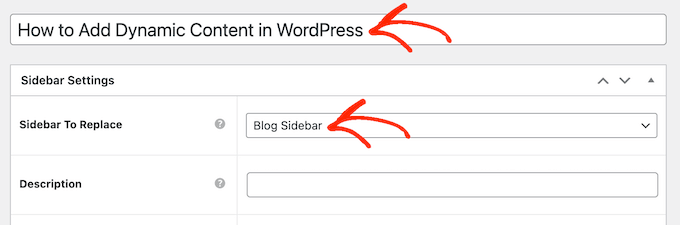
    You can now type in a title for the sidebar. This is just for your reference, so you can use anything you want.

    With that done, open the ‘Sidebar To Replace’ dropdown menu and choose the location where you want to show the sidebar. The options you see may vary depending on your WordPress theme

    Replacing the built-in sidebar provided by your WordPress theme

    Now, you can control where the sidebar appears by creating inclusion or exclusion rules. 

    To create an inclusion rule, just open the ‘Display On’ dropdown and choose the pages, posts, custom post types, or categories where you want to use the sidebar. 

    For example, you might add the sidebar to a specific page, such as your 404 error page or the author archive.

    Adding a custom sidebar to the WordPress 404 page

    Another option is using the sidebar for a particular page, post, or category by selecting ‘Specific Pages/Posts/Taxonomies.’

    This adds a box where you can type in the page, post, or category.

    Creating a custom sidebar for WordPress categories

    To create more inclusion rules, simply click on the ‘Add Display’ Rule button.

    This adds a section where you can create the new inclusion rule.

    Adding display rules for custom sidebars in WordPress

    If you prefer, then you can create exclusion rules instead. For example, you may want to show the sidebar on every page except the homepage. 

    You can also combine inclusion and exclusion rules to control exactly where the sidebar appears on your WordPress website.

    To create an exclusion rule, just click on the ‘Add Exclusion Rule’ button.

    Displaying different sidebars for pages and posts in WordPress

    In the new ‘Do Not Display On’ section, open the dropdown menu and select the page or post that shouldn’t use this sidebar. 

    You can also exclude the sidebar from pages that have a specific category by following the same process described above.

    Displaying different sidebar for each page and post in WordPress

    After deciding where the sidebar will appear on your WordPress blog, you may want to show different content to different users.

    For example, if you have a membership site, then you might use a different sidebar for visitors compared to logged-in members. 

    To do this, open the ‘User’ dropdown and choose a role from the dropdown menu. Now, only people with this specific user role will see the sidebar. 

    Displaying different sidebar widgets on each WordPress page or post

    Finally, you may want to type in an optional description. This will only appear in the WordPress dashboard, so it’s a good way to share information with other admins or users on a multi-author WordPress blog

    If you are going to create lots of sidebars, then you can also use this field to leave yourself notes and helpful reminders.

    Adding a helpful description to a custom sidebar in WordPress

    When you are happy with the information you have entered, simply click on ‘Publish.’

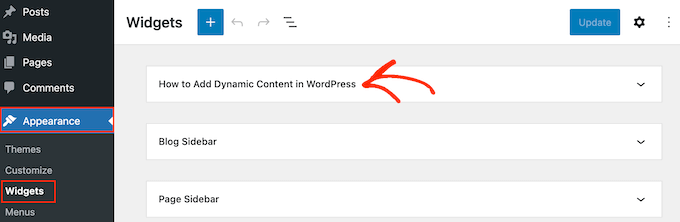
    With that done, go to Appearance » Widgets. You will now see all the widget-ready areas that your theme supports by default, plus the new sidebar you created in the previous step.

    Adding content to a sidebar or similar widget-ready area

    You can now go ahead and add widgets to the sidebar, just like any other widget-ready area. 

    For step-by-step instructions, please see our guide on how to add and use widgets

    Adding content to a custom WordPress sidebar

    When you are happy with how the sidebar is set up, click on ‘Update.’

    Now, if you visit your WordPress blog, you will see the new sidebar live.

    An example of a custom WordPress sidebar, created using a plugin

    To create more custom sidebars, simply keep repeating these steps. 

    Method 2: Creating a Different Sidebar With a Page Builder Plugin (Works With Any WordPress Theme)

    If your theme doesn’t support sidebars, then you can still create different sidebars using a drag and drop page builder plugin.

    SeedProd is the best landing page builder plugin for WordPress. With this plugin, you can create any type of custom page without writing any code. It also has dozens of professional site kits and templates that you can easily edit and fine-tune using the drag-and-drop builder.

    When designing a custom page, you can choose a layout that has a sidebar.

    Choose a Layout with a Sidebar

    You then simply find the blocks you want to show in that sidebar and add them using drag and drop.

    SeedProd has all the blocks and features you’d expect from a powerful page builder, such as optin forms, social profiles, countdown timers, contact forms, buttons, various content blocks, and more. This makes it easy to create powerful and unique sidebars for your WordPress blog.

    Drag the Blocks You Wish to Use Right onto the Sidebar

    To learn how to use the SeedProd page builder plugin on your website, you can see our guide on how to create a custom page in WordPress.

    We hope this article helped you learn how to add different sidebars to each post or page in WordPress. You may also want to learn how to create a custom Instagram feed in WordPress or see our expert picks for the best block themes for full site editing.

    If you liked this article, then please subscribe to our YouTube Channel for WordPress video tutorials. You can also find us on Twitter and Facebook.

    The post How to Display Different Sidebar for Each Post and Page in WordPress first appeared on WPBeginner.

  • Ollie Theme Faces Pushback from WordPress Theme Review Team

    Mike McAlister, creator of the free Ollie theme, has been working towards getting his theme approved for hosting on WordPress.org. Ollie went into public beta in April 2023 and gained momentum over the next few months when McAlister previewed the theme’s new onboarding wizard.

    WordPress users have been slow to adopt the block editor and block themes by extension. In 2022, only 54% of respondents to WordPress’ annual survey have used the block editor, four years after it was introduced. Block themes have trickled into the official directory, far behind the lofty goals set for their expansion. The sluggish movement towards block-based sites has led some to speculate on whether there will ever be a market for commercial block themes.

    Ollie was designed to make onboarding to a block theme easier and the Site Editor more approachable, so that users don’t have to start from a blank canvas. The theme’s demo boasts “a 40-hr head start” on setting up a new WordPress website, thanks in part to dozens of patterns for fast page building. Ollie’s built-in onboarding experience aims to drastically reduce the amount of time users spend getting started.

    After receiving significant pushback from the Theme Review team during Ollie’s three weeks in the queue, McAlister has put up a poll requesting feedback on how he should proceed.

    Although provisionally approved by veteran theme reviewer Justin Tadlock, who said the onboarding functionality should be allowed until WordPress core offers a standard solution, Ollie was met with heavy criticism from other members of the team.

    “The setup wizard is plugin territory,” UXL Themes founder and theme reviewer Andrew Starr said. “Why not make this as a plugin that would work with any block theme? A plugin could be inspiration or a nudge to improve the core experience.”

    McAlister responded to this question in the Trac ticket for the review and in posts on X. He maintains that a plugin is a “far worse experience for the end user” and for his team as the maintainers of the product. Also, since the plugin review queue has 1,249 plugins awaiting review with developers waiting an average of 98 days for an initial review, a plugin for Ollie’s onboarding experience would likely not be live until next year.

    “As a compromise and show of good faith, I’ve chopped down the onboarding wizard to a fraction of what it was,” he said. “No dice. Still, it continues to be a highly contentious issue that is causing folks to publicly question my intentions and integrity. Disheartening to say the least.”

    Automattic-sponsored contributor Justin Tadlock, who helped author the guidelines in question many years ago and who has historically been widely esteemed for his impeccable judgment in regards to the grey areas of content creation in themes and the necessity of preserving data portability, weighed in on the ticket after performing the initial review:

    As someone who co-wrote the original guideline for settings to use the customizer, I can say with 100% certainty that we never meant that to be a hard line drawn in the sand. The team reps can and have always had the capability to mark a theme as a “special case” (there’s even a tag for this in the backend, or there was when I was a rep). And there are themes where we felt like the functionality was unique enough to give it a bit of wiggle room. That was a position that we took when we wrote the “settings must be in the customizer” guideline. While I’m no longer one of the team reps, I feel like this settings page feature is unique enough to mark as a “special case.”

    With block themes, some things must be reevaluated because the customizer is not available by default and is not an expected part of the block theme experience. In fact, this guideline is very specific to classic themes. Nothing has been written yet for block themes. Whether that’s a good thing, I don’t know. This could be a good moment for experimentation.

    I disagree that the settings page should be packaged as a companion plugin. That defeats the purpose of its inclusion in the theme, and it would create an additional hurdle for the users who would benefit the most from this feature.

    Yoast-sponsored contributor Carolina Nymark contends that allowing this onboarding experience will set a precedent that erodes the standard the team is trying to uphold for the ecosystem of themes hosted on WordPress.org and gives Ollie an unfair commercial advantage:

    “That settings pages are not allowed is in many ways unrelated to the customizer. And if we really want to angle it that way, it would be way easier to re-enable the customizer link in the theme.

    It is about having a standard that is easy for all theme authors to use and easy to review.
    It is about not opening up the reviews to another situation with incredibly difficult and time consuming reviews of code that the theme developers themselves don’t understand because they copy-pasted it and managed to cause all sorts of errors and security issues.
    Where that feature “lives”, in the customizer or on another page, is not the issue.

    I would like everyone to also consider that the Site Editor is not at all far away from solving the problem with the initial template selection. It does not solve all onboarding steps, like getting to the Site Editor, but it is improving.

    Compare it with the use of TGMPA. There is a problem that needs solving and a solution has been agreed upon where the theme author and reviewers only need to adjust a few variables and text strings.

    If something similar could be reached here I would support it.

    This is not about a special case, because it is an unfair commercial advantage over other theme developers.

    Ollie is a beautifully-designed multipurpose theme of the highest caliber, the likes of which WordPress.org doesn’t see very often. If expanding block theme adoption is an important goal, these are the kinds of experiences you want people building for WordPress users. It may be time to redefine theme guidelines based on the possibilities that the block editor enables, instead of saddling block themes with antiquated constraints for the sake of maintaining a more expedient review process.

    “Just because there are problems with onboarding it doesn’t mean that a theme, any theme, is the right tool just because one can put code in it,” Nymark said. “Plugins extend features, themes display content.”

    Given the amount of pushback from the Theme Review team, McAlister is now torn about removing everything “extra” to get Ollie in the directory for better distribution, or to keep the innovations in place and forego the directory in favor of independent distribution. So far, the results of his poll are overwhelmingly in favor of McAlister distributing the theme himself.

    “I’m passionate about innovation and getting the most out of all the possibilities that modern WordPress affords us,” McAlister told the Tavern. “We were tasked to ‘Learn JavaScript Deeply’ not to remain where we’ve been for so long, but to push the boundaries and scope out the future of WordPress and what’s possible.

    “So we designed and developed Ollie’s educational dashboard and onboarding wizard to help users get over some of the hurdles they’ve been plagued with for so long when setting up a new site or switching to a new theme. We even designed it in a very core-inspired way to match the site editor to create a very cohesive experience. The feedback has been inspiring!”

    After posting about his experience with the Theme Review team, which McAlister characterized as “rocky (and downright combative),” the community following his work on Ollie over the past year has rallied around him with advice and support.

    “I am torn about this,” Joost de Valk commented on McAlister’s poll on X. “I feel WordPress needs these onboarding experiences. Very very much. Should it be in themes? Not sure. Should the theme repository block this stuff? I don’t think so… we should be open to experimenting with this a bit more.”

    McAlister said that even as the theme’s creator, he is torn about the decision as well.

    “I built this as a good faith attempt to help people onboard into block themes and hopefully even help drive adoption,” he said. “My intentions are pure and steeped in 15 years of doing it ‘the WP way.’ It’s an attempt to move the needle, worth a shot anyway.”

    “I always felt that onboarding like this should be part of Core,” Yoast-sponsored contributor Ari Stathopoulos commented. “The current experience for a newcomer to WP is not a good one. We have to start somewhere… if it’s in themes, then so be it.”

    WordPress’ Theme Review team has a critical choice here, whether to stifle innovation and throw the book at one of the most highly anticipated block themes, or identify this as a special case where the author has the users’ best interests at heart.

    Many participants in the discussion on X encouraged McAlister to distribute his work independently, citing examples of other WordPress products that have found success in doing so. This would be an unfortunate loss for WordPress.org where the project is essentially shooting itself in the foot by clinging to outmoded guidelines in order to deny high quality block themes that are innovating to create a better user experience. In pursuit of a more robust offering of block themes, the last thing WordPress needs to do is chase away its trailblazers.

    “Since this morning, there has been an overwhelming amount of feedback telling me to avoid the WordPress.org directory,” McAlister said. “I’m kind of bummed by this because I think it says something about the directory that a lot of folks think but few want to say out loud.

    “Personally, I want the directory to succeed and be an inspiring and resourceful jump-off point for new WordPress users! It’s the front page of our open source project, of our community. It should be a showcase of the finest our community has to offer. But today, I’m disheartened and not sure if it’s the place where I want to put some of my best work to date.”

  • The 20 Best WordPress Newspaper Themes for News Websites

    Are you looking for a newspaper theme for your website? With numerous newspaper WordPress themes on the market, choosing the right one for your needs can be challenging. To help you choose, we’ve compiled the top 20 best WordPress themes for news sites. We’ve based our selection on ratings, features, and support. Some newspaper themes […]

    Read More…

    The post The 20 Best WordPress Newspaper Themes for News Websites appeared first on Hostinger Tutorials.

  • How to Update WordPress Theme In 4 Steps and Keep the Theme’s Customization

    Updating your theme regularly keeps your WordPress website fast and secure. Plus, it gives you access to useful new features and security patches. However, some users may be unsure how to update a WordPress theme, especially once it’s been modified with custom code snippets. Fortunately, it’s relatively straightforward to update your theme in WordPress. You’ll […]

    Read More…

    The post How to Update WordPress Theme In 4 Steps and Keep the Theme’s Customization appeared first on Hostinger Tutorials.

  • How to Display Any Number of Posts in a WordPress Loop

    Do you want to show multiple blog posts in a WordPress loop?

    Using the loop, WordPress processes each of the posts to be displayed on the current page. It formats them according to how they match specified criteria within the loop tags.

    In this article, we will show how to display any number of posts in a WordPress loop.

    How to display any number of posts in a WordPress loop

    What Is the WordPress Loop?

    The loop is used by WordPress to display each of your posts. It is PHP code that’s used in a WordPress theme to show a list of posts on a web page. It is an important part of WordPress code and is at the core of most queries.

    In a WordPress loop, there are different functions that run to display posts. However, developers can customize how each post is shown in the loop by changing the template tags.

    For example, the base tags in a loop will show the title, date, and content of the post in a loop. You can add custom tags and display additional information like the category, excerpt, custom fields, author name, and more.

    The WordPress loop also lets you control the number of blog posts that you show on each page. This can be helpful when designing an author’s template, as you can control the number of posts displayed in each loop.

    That being said, let’s see how to add any number of posts to a WordPress loop.

    Adding Any Number of Posts in a WordPress Loop

    Normally, you can set the number of posts to be displayed in the loop from your WordPress admin panel.

    Simply head to Settings » Reading from the WordPress dashboard. By default, WordPress will show 10 posts.

    Reading settings WordPress

    However, you can override that number by using a Super Loop, which will allow you to display any number of posts in that specific WordPress loop.

    This will allow you to customize the display settings of your pages, including author profiles, sidebars, and more.

    First, you will need to open a template file where you would like to place the posts and then simply add this loop:

    <?php
    // if everything is in place and ready, let's start the loop
    if ( have_posts() ) : while ( have_posts() ) : the_post(); ?>
    
    	// to display 'n' number of posts, we need to execute the loop 'n' number of times
    	// so we define a numerical variable called '$count' and set its value to zero
    	// with each iteration of the loop, the value of '$count' will increase by one
    	// after the value of '$count' reaches the specified number, the loop will stop
    	// *USER: change the 'n' to the number of posts that you would like to display
    
    	<?php static $count = 0;
    	if ( $count == "n" ) {
    		break;
    	} else { ?>
    
    		// for CSS styling and layout purposes, we wrap the post content in a div
    		// we then display the entire post content via the 'the_content()' function
    		// *USER: change to '<?php the_excerpt(); ?>' to display post excerpts instead
    
    		<div class="post">
    			<?php the_title(); ?>
    			<?php the_content(); ?>
    		</div>
    
    		// here, we continue with the limiting of the number of displayed posts
    		// each iteration of the loop increases the value of '$count' by one
    		// the final two lines complete the loop and close the if statement
    
    		<?php $count ++;
    	} ?>
    <?php endwhile; ?>
    <?php endif; ?>
    

    Note: You will need to replace the value of ‘n‘ in the if ( $count == "n" ) part of the code and choose any number.

    An easy way to add this code to your WordPress website is by using the WPCode plugin. It is the best code snippet plugin for WordPress that helps you manage custom code.

    By using WPCode, you don’t have manually edit theme template files and risk breaking something. The plugin will automatically insert the code for you.

    First, you need to install and activate the free WPCode plugin. For more details, please see our guide on how to install a WordPress plugin.

    Upon activation, you can head to Code Snippets » + Add Snippet from your WordPress dashboard. Next, you need to select the ‘Add Your Custom Code (New Snippet)’ option.

    Add new snippet

    After that, simply paste the custom code for the WordPress loop that we showed you above into the ‘Code Preview’ area.

    You will also need to enter a name for your code and set the ‘Code Type’ to ‘PHP Snippet’.

    Add custom loop code to WPCode

    Next, you can scroll down to the ‘Insertion’ section and choose where you would like to run the code.

    By default, WPCode will run it everywhere on your WordPress website. However, you can change the location to a specific page or use a shortcode to insert the code.

    Edit insertion method for code

    For this tutorial, we will use the default ‘Auto Insert’ method.

    When you are done, don’t forget to click the toggle at the top to make the code ‘Active’ and then click the ‘Save’ button. WPCode will now deploy the code on your WordPress blog and display the specified number of posts in the WordPress loop.

    We hope this article helped you learn how to display any number of posts in a WordPress loop. You may also want to see our guide on how to exclude sticky posts from the loop in WordPress and our expert picks for the must-have WordPress plugins for business websites.

    If you liked this article, then please subscribe to our YouTube Channel for WordPress video tutorials. You can also find us on Twitter and Facebook.

    The post How to Display Any Number of Posts in a WordPress Loop first appeared on WPBeginner.

  • 14 Simple WordPress Theme Options for 2023

    Your choice of WordPress theme plays a significant role in how your website looks and functions. Many multipurpose WordPress themes offer a bit of everything, which can make them over-complicated and challenging to customize. For most projects, a simple WordPress theme is the better choice. There are thousands of premium and free themes available that […]

    Read More…

    The post 14 Simple WordPress Theme Options for 2023 appeared first on Hostinger Tutorials.

  • WordPress Unveils Design for Upcoming Twenty Twenty-Four Default Theme

    WordPress 6.4 will be shipping with a new default theme, expected in early November. The theme’s project leaders unveiled the designs and concept for Twenty Twenty-Four in an announcement on WordPress.org today.

    For those who have complained that past default themes have been too niche or too narrowly focused in design, this theme will take the reverse approach. Contributors are attempting to build the ultimate multi-purpose theme that can be used for nearly any kind of website, highlighting the unmatched flexibility of building with blocks.

    image credit: Introducing Twenty Twenty-Four

    “The idea behind Twenty Twenty-Four is to make a default theme that can be used on any type of site, with any topic,” core contributorJessica Lyschik said. “Because of that, and contrary to past years, it has no single topic. Instead, three use cases were explored: one more tailored for entrepreneurs and small businesses, one tailored for photographers and artists and one specifically tailored for writers and bloggers.”

    Last year’s default theme, Twenty Twenty-Three, was a stripped-back and minimal version of Twenty Twenty-Two, with a strong focus on community-submitted style variations. Like its predecessor, Twenty Twenty-Four will put the spotlight on some of the latest WordPress design features.

    “Twenty Twenty-Four will be a block theme fully compatible with all the site editor tooling and it will surface new design tools like the details block or vertical text,” Lyschik said. “Another key intent for the theme is to properly present whole page patterns and template variations so that users don’t need to assemble whole pages themselves, thus easing up their site building process.”

    Whole page patterns are a critical feature that all of the best block themes provide, as most people feel daunted when starting from a blank slate. If a whole page pattern is already pre-inserted on a new website install, users are light years ahead in their site building efforts.

    Twenty Twenty-Four features the Cardo font for headings and a sans-serif system font for paragraph text. Cardo is an Old Style serif typeface designed by David J. Perry in 2002 for “classicists, biblical scholars, medievalists, and linguists.” It grounds the design with a bit of sophistication but should be easy to swap out with the typography management features coming in 6.4.

    The initial previews of the theme don’t stray far from many of the traditional website designs you might see browsing businesses or portfolios. It leans more towards providing an invisible framework for the user’s own creations, instead of pushing a single, opinionated design. This design lets the Site Editor and design controls shine as tools that can unlock human creativity on the screen. So far it has received positive feedback on the WordPress.org announcement. Check out the post for more images/video, and information on how contribute to Twenty Twenty-Four’s development.

  • 25 Best WordPress Church Themes in 2023

    Building your church website from scratch can help you create a stronger community. It enables you to keep your members informed, accept donations, promote religious events, and more. However, you must create a visually appealing and highly functional website to accomplish your goals. To help you out, we’ve compiled a list of 25 top church […]

    Read More…

    The post 25 Best WordPress Church Themes in 2023 appeared first on Hostinger Tutorials.