In this step-by-step tutorial, you’ll learn how to set up legal signing workflows in Gravity Forms with the help of the Legal Signing plugin. Build automated workflows, have multiple signers, create signed PDF documents, and more.
Are you looking for a way to easily import Google Docs to WordPress?
You may prefer to write your posts in Google Drive, but importing that content into WordPress isn’t straightforward. If you try to copy and paste a Google Doc into WordPress, then you might get lots of unwanted HTML tags, and sometimes you may even lose all the original formatting.
In this article, we will show you how you can easily add Google Drive documents to your WordPress website.
Why Import Google Docs to WordPress?
You may prefer to write blogs in Google Docs, rather than in the WordPress post editor.
However, when it’s time to import the document from Google Drive to WordPress, you may run into some problems. If you copy/paste the Google Doc’s text directly into the WordPress editor, then it can add extra tags, particularly <span> and <font tags> tags.
You may also get unwanted line breaks and lose some of the original Google Doc formatting. This means you’ll need to manually go through each post and fix these problems, which can take a lot of time and effort.
With that being said, let’s see how you can easily import Google Docs to WordPress without any formatting problems or extra code.
Simply follow the quick links below to jump straight to the method you want to use.
Method 1. Using the Copy/Paste Method (Quick and Easy)
If you regularly import Google Docs to WordPress, then we recommend taking the time to set up a WordPress plugin mentioned in our other methods.
However, if you simply want to import a single document, then you can always use another web tool to help make sure the document is clean and ready to go.
This typically involves copying the text from your Google Doc into a third-party app or online service. Often, this removes the unwanted tags and formatting errors.
You can then go ahead and copy the text from the middleman app or online service, and paste it into the WordPress block editor.
This is a workaround rather than a fix, and the results can sometimes be unpredictable. There’s always a chance your chosen middleman might remove some errors, and not others. It may also add its own code, which can cause common WordPress errors.
However, you won’t need to set up a new plugin or service. With that in mind, this is a good option if you simply want to import a small number of Google Docs into WordPress.
There are lots of different services you can use, but we recommend using Grammarly.
Grammarly does a great job of preserving the formatting from Google Docs, while removing unwanted HTML tags. It’s also an online service, so you can access it from any place that has an internet connection.
As an added bonus, Grammarly will highlight any spelling mistakes, typos, and punctuation errors. It can also suggest ways to improve your writing by changing the tone, clarifying confusing text, and much more.
In this way, you can improve the quality of your writing before importing it into your WordPress website. Just be aware that Grammarly doesn’t support images, so you’ll need to upload any image files separately using the WordPress media library.
If you don’t already have a Grammarly account, then you can head over to the website and click on the ‘Get Grammarly It’s Free’ button.
You can then sign up for Grammarly using an existing Google, Facebook, or Apple account. Another option is to type in your email address, and then create a password and username.
After creating an account, you’ll be taken to the the Grammarly dashboard. To import a Google Doc, go ahead and click on ‘New.’
This opens the Grammarly editor.
In a new tab, open the Google Doc that you want to import into WordPress and copy all of its text. You can then paste this content into the Grammarly editor.
Grammarly will highlight any problems with your text and show its recommendations in the right-hand menu. It’s a good idea to read through this feedback and optimize your post before moving onto the next step.
When you’re ready to import the Google Doc into WordPress, go ahead and copy the text in the Grammarly editor.
Now, switch over to the WordPress dashboard and open the post or page in where you want to import the Google Doc.
After that, simply go ahead and paste the content into the content editor.
Grammarly does a good job of removing unwanted HTML tags while preserving the Google Drive formatting. However, we still recommend looking through the page’s code, to make sure there aren’t any problems.
To access it, just click on the three-dotted icon in the upper-right corner of the screen, and then select ‘Code editor.’
You can now delete any unwanted HTML tags or errors from the post.
When you’re happy with how the page looks, go ahead and click on the ‘Update’ or ‘Publish’ button to make the content live.
There are other tools that you can use for this such as StripHTML, but this tool and many others you can find on line will remove all code and return plain text.
That’s why we recommend using Grammarly for the best results at preserving rich formatting.
Method 2. Download the Google Doc as a Web Page (Imports Text and Images)
Copying and pasting Google Drive documents into a middleman service like Grammarly is quick, but it can give unpredictable results. Another option is to download the Google Doc as a web page, and then import the file into WordPress.
This tends to be more predictable, and once again you don’t have to configure a separate plugin or service.
This method also pastes any images from the original Google Doc into the page or post, along with the text.
However, we recommend ignoring this feature and instead adding any image files separately using the WordPress media library. This allows you to set the image caption and image alt text for each file, which makes it easier to re-use the images across your website.
To download a Google Doc as a web page, open the document in your Google Drive account. Then, click on ‘File’ in the toolbar, followed by ‘Download’ and ‘Web Page.’
This will save the Google Doc as a zip archive. The document itself will be an HTML file, and each image will be included as its own file.
If you’re a Mac user, then simply find the file on your computer, and then either right-click or Control-click it. In the menu that appears, select ‘Open With’ and then ‘Google Chrome.’
If you don’t see ‘Google Chrome’ as an option, then click on ‘Other…’ and then choose Google Chrome in the popup that appears.
If you’re on a Windows computer, then right-click on the folder and select ‘Extract All.’ You can then right-click on the .html file and select ‘Open,’ followed by ‘Google Chrome.’
This will open a HTML version of your Google Doc in a new tab, with all the correct formatting and images. You can now go ahead and copy this content.
With that done, go to the WordPress dashboard and open the page or post where you want to add the content.
You’re now ready to paste the Google Doc into WordPress.
Most of the time, this should keep all the formatting in place, but it’s still a good idea to look through the post’s code for any errors. You can open the WordPress code editor by following the same process described above.
If you want to use any images in the page or post, then you can now add them manually using the WordPress media library. For step-by-step instructions, please see our guide on how to add images in the WordPress block editor.
When you’re ready to make the document live on your WordPress blog, simply click on the ‘Update’ or ‘Publish’ button.
Method 3. Using the Mammoth .docx Converter Plugin (Recommended)
If you need to import lots of Google Docs into WordPress, then it’s well worth installing a separate plugin.
We recommend Mammoth .docx converter as it takes all the formatting and images from a Google Doc and converts it into error-free HTML code.
If the Google Doc has any images, then Mammoth will import them into WordPress automatically, so this is also a great choice if you want to transfer images.
Just be aware that Mammoth uses the image’s original filename, so you may want to rename the images before adding them to the Google Doc and starting the import.
With that done, you’ll need to install and activate the Mammoth plugin. If you need help, then please see our guide on how to install a WordPress plugin.
To import a document using Mammoth, start by opening it in your Google Drive. In the toolbar, select ‘File.’
In the dropdown menu that appears, click on ‘Download’ and then ‘Microsoft Word (.docx).’ You won’t need to open this document, so you don’t need Microsoft Word.
Google will now download the file to your computer as a .docx file.
In the WordPress dashboard, open the page or post where you want to import the Google Doc. Directly beneath the editor, you’ll see a new Mammoth .docx converter section.
You can now go ahead and click on the ‘Choose file’ button.
In the popup, select your .docx file and then click on ‘Open.’
Mammoth will now import all the content from the Google Doc. By default, Mammoth will display this content in its ‘Visual’ view, which is similar to how it will look on your website.
If you want to check the code for errors, then simply click on the ‘Raw HTML’ button.
You can now make any changes to the post’s HTML.
When you’re happy with how the content looks, you can add it to the page or post by clicking on the ‘Insert into editor’ button.
Mammoth will now go ahead and add the content to the main post editor. If you’re happy with how it looks, then click on ‘Publish’ or ‘Update’ to make the content live on your website.
Method 4. Using Wordable (Import Google Docs With a Single Click)
Do you want to import lots of Google Docs into WordPress?
You might have a team of writers who all use Google Drive, or accept posts from guest bloggers. You might even have an entire catalog of Google Docs that you want to import into a new WordPress website.
If you need to transfer dozens or even hundreds of documents, then you can use Wordable. This service lets you fine-tune how Wordable imports the Google Doc’s text, images, videos, and more.
After creating the first import, you can save your settings as a template. This allows you to transfer any future Google Docs with a single click, which will save you a ton of time.
You can import 5 documents per month using the free Wordable plan, so you can try the service before you buy. If you need to move more documents, then you can upgrade to any of the premimum Wordable plans.
Connect Wordable to Your WordPress Website
The easiest way to connect Wordable to your WordPress website is by installing and activating the Wordable plugin. If you need help, then please see our guide on how to install a WordPress plugin.
Upon activation, go to Settings » Wordable in the WordPress dashboard.
If you already have a Wordable account, then you can go ahead and select ‘Click here to connect to your Wordable account.’ This opens a popup where you can type in your Wordable email address and password.
If you don’t have a Wordable account, then click on the ‘Sign up now’ link instead. This opens a new browser tab where you can select ‘Signup with Google Drive.’
Wordable needs permission to see, edit, create, delete, and download your Google Drive files. To grant these permissions, simply check all the boxes on the ‘Wordable wants access to your Google Account’ page.
After that, click on the ‘Continue’ button.
After creating an account, Wordable will send an email to your Google address.
Open the email, and then click on the following link: ‘Please confirm your account email now to get started.’
After that, go to Settings » Wordable in the WordPress dashboard and select ‘Click here to connect to your Wordable account.’
Then, simply refresh your WordPress dashboard. You should now see an ‘Export Your First Document’ button, which means WordPress is connected to your Wordable account.
Select a Google Drive Document or Folder
To import a document, go ahead and click on the ‘Export Your First Document’ button. This opens your Wordable account in a new browser tab.
Your next task is finding the document or folder that you want to import.
If you select a folder, then you can still choose exactly which Google Docs to transfer, and which to ignore, so you won’t be forced to import the entire folder.
If you want to search for a folder, then simply open the dropdown menu next to your email address and select ‘Folders.’
After that, type the name of the file or folder into the ‘Search’ field. Another option is to paste the item’s link directly into the ‘Search’ field.
To add a document to the import queue, go ahead and click on its ‘Import’ button.
After a few moments, the file will appear in the ‘Documents’ section. To add more documents to the queue, just repeat the same process described above.
If you want to add a folder to the import queue, then click on its ‘+ Source’ button.
You’ll now see all the Google Docs that are inside that folder.
After that, it’s time to choose exactly which files you want to export from your Google Drive account. For each file, simply click on its ‘Export’ button, which adds the document to the export queue.
Configure the Google Doc Export
When you’re happy with the export queue, it’s time to configure your export. For example, Wordable can turn YouTube links into embedded videos, optimize images, add nofollow attributes to the Google Doc’s links, and more.
To get started, click on the ‘Export Options’ button.
Wordable does a good job of importing Google Docs into WordPress, but it’s still smart to manually check the imported content before publishing it.
With that being said, we recommend setting the ‘Publish Status’ to ‘Save as Draft.’
The plugin uses the Classic WordPress editor by default.
However, we recommend using the modern block-based editor instead, so open the ‘Editor’ dropdown and choose ‘Gutenberg.’
Note: If you leave this set to ‘Classic’ then Wordable will import the document into a new Classic block within the block editor, unless you completely disable it. For more information on this topic, please see our guide on how to keep the classic editor.
By default, Wordable does some basic cleanup, which typically removes most of the HTML tags and errors. However, there are lots more options you can customize.
In this guide, we’ll cover some of the major settings, but you can learn more about any setting by hovering your mouse over it, and then reading the tooltip that appears.
If you write longer documents with lots of headings, then you may want to start by enabling the ‘Table of Contents’ slider. This creates a table of contents using the headings in the Google Doc.
After enabling this slider, you can choose which headings Wordable will add to its table of contents, using the ‘Depth’ dropdown menu. You can also choose between the numbered and bullet list styles using the ‘List Style’ dropdown.
If you’re running an affiliate marketing website or regularly link to external websites, then it’s usually a good idea to mark these links as no-follow. A nofollow link tells search engines not to pass any link authority to the website you’re linking to.
To mark all the Google Doc links as nofollow, enable the following slider: ‘Apply nofollow Attribute to All Links.’ You may also want to enable the ‘Open Links in New Tab’ slider, as this will help keep visitors on your website.
If your document has links to Instagram or YouTube content, then Wordable can try to convert this content into embedded media.
To use this feature, enable the ‘Replace Embeddable Links’ slider.
If your Google Doc contains any images, then we recommend scrolling to the ‘Images’ section. Here, you can change how Wordable shows those images.
Wordable can also use the post’s first image as the featured image, which is the post’s primary graphic. Featured images often appear next to the heading on your home page, and may also appear on social media.
Most popular WordPress themes come with built-in support for featured images, so it’s a good idea to enable the ‘Use Featured Image’ and ‘Default to the First Image’ slider.
If you prefer to set the featured image manually, then you can disable the ‘Use Featured Image’ slider instead.
Large images can slow your website, which will have a negative effect on the visitor experience and can even damage your search engine rankings. With that in mind, it’s a bad idea to import images from Google Drive without optimizing them.
For the best results, we recommend optimizing your images before adding them to your Google Docs. This gives you complete control over the process, so you can reduce the size of your images without losing quality.
If you prefer, then Wordable can optimize your images during the import process. If you want to try this automatic optimization, then click to enable the ‘Compress Images’ slider.
You can then choose whether Wordable should perform lossless or lossy compression. Lossless is a better choice if you want to preserve image quality, while lossy will save you more space but may lose some quality.
There are more settings you can look at, but this should be enough to configure the import.
When you’re happy with the changes you’ve made, go ahead and click on ‘Export Now.’
At this point, you can save the settings as a template that you can apply to future imports.
In the following image, we simply need to click ‘One Click Export’ to apply the template and import the document.
This can save you a ton of time, especially if you use the same settings over and over.
To create a template, type a title into the ‘Template name’ field and then click on the ‘Enable One-Click Exports’ button.
If you don’t want to use templates, then click on the following link instead: ‘I prefer seeing this screen every time.’
No matter what you click, Wordable will start exporting the Google Document.
After a few moments, go to Posts » All Posts in the WordPress dashboard and you’ll see the Google Doc as a new draft.
To import more Google Drive documents into WordPress, simply follow the same process described above.
If you liked this article, then please subscribe to our YouTube Channel for WordPress video tutorials. You can also find us on Twitter and Facebook.
With AI rapidly advancing its design capabilities, and new AI design tools emerging every week, now is the time for web developers to get educated on, and take advantage of, the once-futuristic opportunities that are arising in the industry. To help get you started, we’ve collated 10 of the best AI design tools for WordPress.
We recently talked about how AI will affect the WordPress industry, and when it comes to design, it’s becoming a real game-changer: Artificial Intelligence help is at hand for all aspects of creation – from images and animations, to web design and more.
So, without further ado, here is our list of hand-picked (and seriously top-notch) options that are available now:
Please note that none of these are affiliated with us (WPMU DEV). We just found them to be excellent choices based on our research.
Also, we realize and acknowledge the controversy with AI at the moment. Any art or work used without compensation for or permission from the original artist is one area where AI can be deemed unethical. So, it’s essential to understand how to use AI art as ethically as possible.
It’s up to you to decide how to handle the ethical question and who to go with. Obviously, AI ethics, copywriting, and legalities are still being sorted out with this new technology.
(Worth mentioning here that if you’ve got design work to be done and you’d rather stick with humans at the helm, check out our Agency Partners directory. You’ll find a whole host of amazing options at the ready!)
With that being said, AI thinks it’s time to begin…
Best AI Design Tools
Designs.AI
For a lot of design aspects, Designs.ai has you covered!
With its logo maker, Designs.AI uses 10,000+ icons from its library to create a logo suitable to your needs. It analyzes your brand information and, from there, will generate a logo. Opt for a complete brand identity package, including your logo, brand narration, business card mockups, and more.
One prominent feature is that it includes a logo editor, so it’s simple to customize your logo accordingly.
Regarding its video editing capabilities, Designs.AI can convert text to videos. It updates a library of fully licensed assets based on what you want. From there, you can edit however you’d like.
Finally, for design, its design maker is based on imputed text and a selected template. There are thousands of variations, custom fonts, and layout suggestions. Plus, you can resize your text and content in just a few clicks.
Bertha.AI
Bertha AI is a popular up-and-coming AI WordPress plugin.
Bertha AI does a number of things, but when it comes to design, it can create images based on image descriptions with its Bertha Art feature.
You choose what styles you want to use for painting and images. Likewise, you can resize and adjust images however you want.
It’s a plugin that works well with the major page builders (e.g. Divi, Elementor) and is a tool used for cross-functionality of writing and art for your WordPress designs.
The designs are created for banners, images in your web content, and blog articles. Additionally, you can use Bertha.AI for your brand imaging.
10Web
10Web can assist with design layouts with the help of AI.
With 10Web, you can easily convert any website (e.g. Wix, SquareSpace) with the help of AI. It works by adding the URL of the site layout, and AI copies the layout, design elements, and content.
This saves hours of time and effort by simply having AI replicate a site, and then you can edit from there. The editing works with the 10Web platform, which is based on Elementor (you can read more about the process here).
It’s a headstart for website creation, starting with a few questions about your business. Then, AI generates content and images based on your answers.
And hey, it’s bound to save you time because this AI-powered WordPress platform can automate website building, hosting, and more in just a few minutes.
CodeWP
For coding that helps with design, CodeWP might be precisely what you need.
CodeWP works by asking its AI generator for help with anything, and it will create something for you. That includes WP_Queries, complex workflows, WooCommerce PHP – practically any snippet you need, which can overall help design function for your WordPress site.
The CodeWP system allows you to save, export, and share snippets publicly or with specific users. Once snippets are created, you can also easily manage and browse them.
It’s a great software option to eliminate Google searches and wasted time on trial and error. If you’re not a developer, it works as a helpful mentor. Or, if you are a developer, you can maximize your efficiency.
CodeWP AI is trained specifically for WordPress and WooCommerce, making it a perfect solution for backend building for your design functionality. Additionally, it’s rapidly growing, with new features every week.
Adobe Sensei
Adobe is no stranger to the WordPress community.
Adobe Sensei works to deliver the perfect customer experience by using AI. It helps developers and designers create easier, make informed decisions, and use target marketing technology.
Sensei optimizes and scales experiences with real-time intelligence regarding informed decision-making. Plus, it can predict customer behavior based on attributes, differences, and conversion factors.
When designing, you can create essential edits quickly and accurately, find the right content with intuitive search, and achieve photorealistic effects.
Sensei helps take the guesswork out of your advertising when creating a website promoting products or services.
GPT AI Power
GPT AI Power is an AI plugin that can enhance your designs.
GPT AI Power is an AI plugin that generates customizable images, content, and forms.
One unique aspect of GPT AI Power is that it features integration in posts and includes a playground for testing. You can train your chatbot with your content and products.
The image generator uses content from OpenAI’s DALL-E and Stable Diffusion. You can create hundreds of configurations and customize the images according to your needs.
Additionally, there are a ton of content generators for blogs, languages, tone, product writing – and more.
AutoDraw
Simplistic — but effective.
AutoDraw is a straightforward tool that can create images based on what you’re trying to draw. Plus, it uses in-house artists – which is great ethically.
Though simplistic, you can easily design images that might fit well with whatever design you’re trying to create for WordPress. It pairs machine learning with drawings that can be done on a tablet, smartphone, or laptop – any device that allows you to make images.
It has a suggestion tool that uses the same technology as QuickDraw – to analyze and guess what you’re trying to create. Plus, you can contribute your drawings to them if you allow them permission.
Deep Art Effects
For some significant image enhancement, Deep Art Effects can do wonders.
Need to create unique images for your website? Deep Art Effects can turn photos into art with just a few clicks. It enables you to edit the background or foreground using a variety of parameters.
Brush size and styles can be altered however you want, based on your favorite artists. They have 120 pre-installed art styles so you can use their application offline.
It will even color grayscale images automatically. For example, if you have an old black-and-white photo or video, you can bring it to life with its AI colorization technology.
Let’s Enhance.io
An excellent way to enhance images is Let’s Enhance. Let’s Enhance is an image enhancer and upscale that uses AI to increase image resolution without losing quality. Its intelligent algorithm will expand images to customized dimensions, all while optimizing the texture, tone, color, and clarity.
It works by choosing a desired output size. This is perfect for a WordPress eCommerce website so users can zoom in and out with high-quality images.
With Let’s Enhance, you can save time with its automated preset feature. This is perfect for real estate, eCommerce, or any website with multiple images that need to be similar.
Also, its Smart Enhance feature allows you to clean up your images by making them clearer while maintaining their size.
Claid.AI
Claid.AI was created by Let’s Enhance.
For businesses and creating content that converts, Claid.AI is a great tool to use. You can automate image creation and boost your business with the help of these AI products.
For your brand, you can create multiple product images that are suitable. It will take boring, simple pictures and make them stand out by boosting their quality. Also, you can be consistent with uniform backgrounds and frames.
With Claid.AI, you can change a few variables to control and enhance your images, saving you time and money.
Design with AI
As this post is published, new and emerging AI technology for design and WordPress is in the works. It seems that almost daily, some innovative AI feature appears. So, we’re bound to expand on our 10 recommendations. However, hopefully this article has helped spark some initial ideas that you can use with AI’s help.
Be sure to regularly check our blog for the latest updates regarding AI – for, as new AI technology keeps emerging in the WordPress spectrum, so too will new AI-related articles keep being published on our platform!
Are you looking for ChatGPT prompts ideas to improve blog and marketing strategy?
ChatGPT prompts are the instructions that you type in ChatGPT AI to speed up your workflow. You can use ChatGPT to draft social media posts, come up with blog post ideas, and so much more. The key to getting best results with AI is to make your ChatGPT prompts better and more specific.
In this article, we’ll share the best ChatGPT prompt ideas for bloggers, marketers, and social media, so you can improve your marketing results.
This article will cover a lot of topics, so you can click on any of the links below to jump to a particular section that best suits your needs.
A ChatGPT prompt is the starting point of a conversation in the form of a question or instruction given to an AI language model like ChatGPT.
ChatGPT is an AI-based software that uses machine-learning technology called Natural Language Processing.
To see it in action, you need to sign up for ChatGPT by visiting the OpenAI website.
After that, you’ll see a simple chatroom. At the bottom, you can input your prompt in plain language.
For instance, ‘How old is the Universe?’ and hit the send button.
ChatGPT AI will then respond to your question in plain language.
The answer length and style may vary based on the prompt you entered.
Writing better prompts allows AI to narrow down its approach and provide you with more specific details.
If you want to start a blog, then ChatGPT can help you find article ideas, the article outline, rough drafts, SEO optimization, proofreading, research, and more.
Many bloggers and marketers are exploring opportunities to generate content ideas using AI.
By learning some quick prompt ideas, you can speed up the process and unlock maximum benefits from ChatGPT AI to improve your workflow.
Note: ChatGPT and other AI apps are usually not able to create content that can be simply copied and pasted without any human edits. When you use an AI tool, be sure to go through the results thoroughly to be sure that all information is correct and that the messages are appropriate for your audience.
How to Write Better ChatGPT Prompts?
ChatGPT uses natural language processing which means you can write your prompts in a plain conversational style.
For instance, instead of typing a smaller sentence, you can instruct GPT on how to respond, which style to use, length limitations, ask for examples, and more.
Instead of asking ‘What is Marketing?’ a better prompt would be:
‘Write an essay on marketing for beginners, in a 1 3 1 format, emphasize the role of social media and search engine marketing, and persuade users to have a positive image of search engine marketing.’
While writing your prompts in natural language might seem really simple, many beginners may still be unsure about where to start. It can take a lot of practice to find a style of prompt that works best for your projects.
That being said, let’s take a look at some easy and quick ChatGPT prompt ideas bloggers and marketers and marketers can use to succeed.
Using AIPRM Extension to Generate ChatGPT Prompts
The easiest way to generate ChatGPT prompts is by using AIPRM for ChatGPT.
It is a Google Chrome browser extension with a curated list of ChatGPT prompts for SEO, blogging, content creation, and marketing.
Go to the AIPRM for ChatGPT extension page on the Chrome web store and then click the Add to Chrome button.
Once the extension is added to your browser, it will automatically take you to the ChatGPT website.
If it doesn’t, you can click on the extensions button in your browser menu and click on the AIPRM for ChatGPT to launch it in a new tab.
You’ll need to sign in to your OpenAI account. After that, you will see a curated list of ChatGPT prompts.
At the time of writing this article, AIPRM had 1600+ ChatGPT prompts.
You can browse the prompts by Topic and Activity, sort them, or search for specific prompts from the top toolbar.
To use a prompt, simply click on it and it will appear in the prompt toolbar below.
If the prompt you are using requires user input, then you can provide it in the chatbox.
For instance, here it wants us to enter a keyword that we would like to target to make a content calendar.
You can also choose language, style, and tone for your response.
Hit the enter button after entering your input and ChatGPT will respond to the prompt.
You can regenerate a response or ask ChatGPT to modify or extend it by adding your instructions into chat.
You won’t be able to see the prompt that AIRPM uses at first. However, refreshing the page or switching back and forth between chats will reveal the actual prompt at the beginning of the chat.
AIPRM makes it extremely easy to find detailed, tested, and well-written prompts that you can use on your WordPress website.
Best ChatGPT Prompt Ideas for Bloggers and Marketers
With so many prompt ideas available with AIPRM extension, it could still be a bit overwhelming for users to find or use a prompt.
Here is our top pick of the most useful ChatGPT prompt ideas for blogs, SEO, and marketing.
Blogging ChatGPT Prompts
1. Generate a month-long content calendar targeting specific keywords.
“Make me a month-long calendar for the following keywords [Enter Keywords here]. Add [number of articles] articles each week, and use persuasive SEO-friendly titles for each article.”
2. Generate Blog Post Ideas
“Create a list of at least 10 blog post ideas on the following topics: [Enter topics separated by commas]. Suggest SEO-Friendly title for each post, and use an emotional and persuasive tone in post titles.”
3. Generate SEO title and meta description for a blog post
“Suggest at least 5 SEO-friendly titles and meta descriptions for the following blog post [Enter your blog post text here]. Use a persuasive and intriguing tone.”
4. Suggest tags for a blog post
“Suggest at least 5 tags for the following blog post [Enter your blog post text here].”
5. Generate related long-tail keywords for a blog post
“I want you to generate a list of long-tail keywords that are related to the following blog post [Enter blog post text here].”
6. Create an article outline
“Write an article outline for the following topic [Enter topic or blog post title here].”
7. Write an article on a specific topic
“Write an article on the following topic [Enter topic here]. The article should be at least [number of words] words in length. Use a persuasive tone and pretend to be an expert on the topic.”
8. Outrank a competitor for a specific keyword
“Write an article based on the topics covered in the following article [Enter competitor URL here]. Make the article more comprehensive than the URL provided by adding details that the source URL has missed or didn’t cover. Answer the most commonly asked questions about the topic at the end of the article.”
9. Write a motivational blog post
“I want you to write a motivational blog post about overcoming [fear/failure/challenge goes here].”
10. Generate call-to-action ideas
“I want you to come up with 5 effective call-to-action button ideas based on the contents of the following URL [Your website or landing page URL goes here].”
11. Generate a pros and cons outline for a topic
“Write down an essay on the pros and cons of [Your topic goes here].”
12. Write questions for an interview blog post
“Write interview questions for a blog post with [Guest Name] who is an expert in [Guest profession or area of expertise].”
13. Proofread a text and optimize it for the focus keyword
“I want you to act as SEO editor and copywriter. I need you to proofread and analyze the following text and optimize it for the focus keyword. I also need you to correct any grammar mistakes you find in the article. Ask me to provide you with the article text and focus keyword.”
14. Reuse a blog post for social media content
“I want you to act as a topic authority and social media influencer. I will provide you with the text or URL of an article. You need to summarize it and create content for social media platforms. Ask me to provide you with the text or URL of the article.”
15. Generate a list of tools to mention in a blog post
“Create a list of the most popular tools used by the [Field of Interest] professionals with the pros and cons of each tool.”
16. Write a conclusion for a blog post
“I want you to pretend to be a topic expert, and write a persuasive conclusion for the following blog post. [Your blog post text goes here].”
17. Come up with best practices for using something
“Pretend to be a topic expert and write down an essay on the best practices to follow when using [mention the tool or topic here].”
18. Write a comparison blog post
“I want you to pretend to be a topic expert and compare [Item 1] vs [Item 2] with pros and cons. I need you to show that [item 1] is better than [item 2] and persuade the reader to have a positive feeling about [item 1].”
19. Build reader personas to learn more about a target audience
“Build a reader persona for a blog post titled “[Your blog post title goes here].”
20. Polish your content to look more creative
“Analyze and improve the following content to make it more creative. Use an [Select tone style] tone and write in a casual and conversational style. “[Your content goes here]”
Social Media ChatGPT Prompts
21. Generate captions for Instagram posts, reels, and reels.
“Write an Instagram post description or caption using a few sentences for the post about “[Enter a description of what your Instagram post is about]”. Start the caption with an intriguing sentence and don’t make the first sentence a question. Use emojis in each sentence and add a paragraph after two sentences to make it more readable. Add the most popular hashtags related to the post.”
22. Write an Instagram post about a product / service
“Write an Instagram post promoting [product/services] using a few sentences. Start the post with a captivating sentence and end with a sentence including a call to action to check the link in bio. Use emojis and add the related hashtags at the bottom.”
23. Generate Instagram carousel ideas with slide descriptions
“Write me an Instagram carousel topic idea example. Also, write slide by slide with titles. Explain each slide with the exact content example I should use, not instructions. Also, give me images for every slide that explain all the titles for [Your Instagram Carousel Topic Here]. Do not include content instructions, instead, only write me an actionable text that I can just copy and paste.
After writing the carousel slides. Write me the Instagram post description/caption in just a few sentences. Format every new sentence with new lines so the text is more readable.
Include emojis and the best Instagram hashtags for that post. The first caption sentence should be intriguing and captivating to the readers.”
24. Write Twitter Bio
“I want you to write an interesting Twitter bio for a [Your brand niche and industry / Profession ].”
25. Suggest Twitter Header Image Ideas
“Give me at least 5 ideas to create a Twitter header image for a [Profession/Industry niche].”
26. Generate Tweets for a specific profession, niche, or business
“I want you to act as a social media manager and come up with at least 20 Tweets for a [Profession/ Business niche or industry] include popular hashtags in each tweet.”
27. Generate a viral Twitter thread
“I am looking for a Twitter thread idea that will go viral and showcase [mention your service, product. or blog] to the ideal customer persona in a creative and engaging way. Include hashtags and emojis in each tweet.”
28. Generate a Twitter content strategy
“I need you to act as my social media manager promoting [Describe your business or brand and what it does]. Generate a Twitter content calendar for the next two weeks. Generate at least three tweets for each day targeting relevant customer persona. Include hashtags and emojis in each tweet.”
29. Generate YouTube Video Description
“Write a unique and intriguing description for a YouTube video titled [Enter your video title here]. Pretend you are an expert on the niche and give your personal best advice in 1st person. Explain why you thought sharing this video would be useful and what users will get out of watching this video.”
30. Generate an entire YouTube video script
“Create an attractive and captivating YouTube video script that is informative. I want you to create a persuasive headline, write a video description repeating keywords used in the headline, cite relevant keywords and tags, create the youtube video script and suggest ideas for a persuasive thumbnail to use for the video, from the following description: [Your video description].”
31. Create thumbnail Ideas for Your YouTube video
“Give me at least 3 ideas for creating an interesting and persuasive thumbnail for a YouTube video using the following description: [Enter your video description].”
32. Generate a YouTube content strategy with video ideas
“I want you to act as my social media manager promoting [mention your brand and what services or products it offers] and come up with a content calendar for our YouTube channel. Give me a monthly calendar of posts with at least one video each week. Suggest video ideas with detailed descriptions of what that particular video will be about. Include keywords and hashtags for each video.”
33. Generate a LinkedIn content calendar with post ideas
“I want you to act as my social media manager for my [Explain your business, brand, profession, and what you typically write about]. I need you to create a month-long content calendar with at least one post each day. Write the post for me including the relevant hashtags and use emojis. Write posts specifically for LinkedIn. My target audience is [companies/professionals interested in my brand product or services].”
34. Write a LinkedIn About section
“I want you to act as my social media manager for my [Explain your business, brand, or profession and what you usually post about]. Give me at least 5 examples of an interesting About section for my LinkedIn profile.”
35. Write a caption for Facebook Photo
“I want you to act as my social media manager and write at least 5 captions for a Facebook photo about [explain what the photo is about]. Use hashtags and emojis in the caption.”
36. Write a Facebook Ad Copy
“I want you to act as a professional copyrighter with experience in writing high-converting Facebook ads. I want you to write a Facebook ad copy for the following products/services [Describe your brand name, products and services you offer]. Produce ad copy that is between 100-150 words, with an attention-grabbing headline and a strong call to action that persuades users to take action. I want you to research the potential target audience and optimize the ad copy so that it appeals to that particular target audience.”
37. Plan a Facebook content strategy
“I want you to act as my social media manager promoting [explain your business brand and what you offer]. I need you to provide me with a two-week content calendar for Facebook posts that are highly engaging and generate emotional responses from the readers. Add one post for each day, using hashtags and emojis.”
E-Commerce ChatGPT Prompts
38. Write an eCommerce product description
“I want you to pretend that you are an eCommerce SEO expert who writes compelling product descriptions. I will provide you with one product title and I want you to come up with three distinct content sections for product description, each section should have its own headline.”
39. Write an eCommerce product short description
“I want you to pretend that you are an eCommerce SEO expert who writes compelling product descriptions. I will provide you with one product title and I want you to come up with a short product description of between 250-300 characters.”
40. Generate product ideas for your eCommerce store
“I want you to pretend as a product specialist for an eCommerce store with a specialty in finding and sourcing products to sell online. My store sells [define your store industry and product types] and I need you to come up with a list of [number of product ideas] product ideas that I can sell on my online store.”
41. Write an SEO Optimized landing page copy for a product
“I want you to pretend as a copywriter specializing in writing landing page copy for better SEO rankings and higher conversions. I need you to write the landing page copy for [Your product name]. I want you to start with an intriguing headline to captivate the target audience followed by a call to action button. Below that I want you to add three content sections with different headings each targeting a specific keyword for the product. I need you to end the landing page copy with a FAQ section answering at least 5 customer questions about the product.”
42. Create and sort products into product categories
“I need you to sort the products into product categories. Ask me to provide you with a list of products. Use hierarchal categories and create child categories as needed. Products can be placed into multiple categories. Show which products are placed under a category. Write a catchy short description for each category. Use this product list [enter your product list].
43. Create an ad strategy for an eCommerce product
“I want you to act as an advertiser. You will create a campaign to promote a product or service. You will choose a target audience, develop key messages and slogans, select the media channels for promotion, and decide on any additional activities needed to reach your goals. The product you will be promoting is: [Enter your product title and description here].”
ChatGPT Prompts for Businesses
44. Polish an email text to be more effective and professional
“Fix this email to write it in a human voice in perfect English, as someone with a charismatic personality, that is extremely professional and concise with their language. Also, give at least three samples to use as the email subject. [Enter your email text here].”
45. Write a job posting ad for hiring
“I want you to act as a recruitment manager specializing in finding talented professionals for a job. I need you to write a job posting for [job title] we are offering the following benefits [mention benefits here] and we are looking for [job requirements such as experience and skills].”
46. Generate a business model canvas
“I need you to help me create a business model canvas for a [explain what your business is about] company. Organize your answers in a table that reproduces the original format used in consulting. I want you to write detailed answers that are focused on adding value and act as an expert consultant in digital marketing.”
47. Generate logo design ideas
“I want you to act as a graphic designer specializing in brand identity development. I want you to come up with detailed ideas for unique and interesting logos for a business. Come up with at least 3 ideas and mention what is unique about each idea and how it is different from the other two ideas. The business name is [Enter your company name] and it offers [mention products/services]. I need you to present your ideas in a format that can be given to a professional graphic designer as initial instructions.”
48. Instantly generate domain name ideas
“I need you to help me find domain name ideas for a business. My company name is [enter business name] and it offers [products/services/industry]. Only give .com domain name ideas. domain name should not be more than 8 characters long.”
49. Write an email to terminate an employee
“Write an email to an employee informing them that they are being fired for the following reason [mention the reason for firing]. Make the email text sound professional and polite. Use a sympathetic and kind tone and thank the employee for their work.”
50. Write a job offer email
“I want you to write a job offer email using the following parameters: 1. Candidate name 2. Job position 3. Company name 4. Salary offered Ask me to input these parameters one by one before writing the email.”
Miscellaneous ChatGPT Prompts
51. Generate a cover letter for a job application
“I need you to write me a professional cover letter to send with a job application using the following parameters: 1. Job Title 2. Years of Experience 3. Skills to mention Ask me to input each parameter one by one before writing the cover letter.”
52. Plan your day
“I need you to help me plan my day. Starting at 9 am and ending at 5 pm. Ask me to input the task I will be performing and then ask me for the start time and end time for that particular task. Repeat until the end time of a task is 5 pm. Create a table and add one row for each task with start time, end time, and task detail as columns.”
53. TL:DR Summarize a text or article
“I want you to act as a very proficient researcher. I want you to pretend that you can extract all relevant information from a text or a URL I give you. Your task is to extract all facts and summarize the text in all relevant aspects, presented in bullet points and a 1-liner summary, pick a good matching emoji for each bullet point, and then add it after the 1-liner summary. Ask me to input text or provide you a URL.”
54. Generate a list of popular websites on any topic
“I want you to act as a topic expert. I will provide you with a topic and you will provide me with a list of at least 10 most influential websites on that particular topic. Present the websites in a table with serial number, website name, website URL, 1-liner website summary as columns. Ask me to provide you with a topic.”
Bonus WordPress AI Plugins & Tools Using ChatGPT
AI usage is becoming increasingly popular among marketers and bloggers. As the most popular blogging platform, WordPress has tons of add-ons and plugins that you can use to speed things up.
As the best WordPress SEO plugin on the market, All in One SEO comes with built-in ChatGPT integration to generate SEO-friendly headlines and meta descriptions.
Finding royalty-free images for blog posts is always a challenge for bloggers. Similar to Dall-E, Imajinn AI uses text prompts to generate images using machine learning AI.
All the images generated by the plugin are copyright-free and you can use them in your blog posts.
We hope this article helped you find some useful ChatGPT prompt ideas for your blog and marketing campaigns. You may also want to see our pick of some more useful AI-powered WordPress plugins or take a look at our guide on how to grow your business online.
If you liked this article, then please subscribe to our YouTube Channel for WordPress video tutorials. You can also find us on Twitter and Facebook.
Are you looking for the best practices to maximize the SEO benefits of internal links?
Internal links play an important role in search engine optimization (SEO). They help search engines discover your content and rank them higher in search results.
In this article, we’ll list the best practices to use for internal linking for SEO.
How Does Internal Linking Improve SEO in WordPress?
Internal links are links between posts on your own website. Having internal links is important for your WordPress SEO. They help search engines like Google crawl your website and discover new content to index and rank.
Generally, the more links a page has pointing to it, the more likely it is to rank higher in search results. That means that you can use internal links to point to important pages on your site as a way to increase their traffic.
That being said, let’s take a look at the best practices for improving SEO by adding internal links in WordPress. Since this is a comprehensive guide, we have included a table of contents for easier navigation.
We recommend that you make a habit of linking to your older articles from your new articles.
It’s a great way to develop a contextual relationship between your new and old posts. It also allows you to pass relevant link juice to your older articles.
Because internal links play such an important role in SEO, we have even made it part of our pre-publish blog post checklist for WPBeginner writers.
You can also edit your older articles to add links to your newer content whenever you publish. Many successful bloggers dedicate time to adding internal links that point to new articles on a weekly or monthly basis.
This will help you boost your pageviews, increase the time users spend on your site, and ultimately will improve the SEO score of your individual blog posts and pages.
WordPress makes it easy to search for your old posts right inside the post editor. Simply select the text you want to link and click on the link button in the toolbar that appears.
A text pop-up will appear below your highlighted words. Then, you can start typing to search for the older articles you want to link to.
2. Monitor Your Internal Link Performance in WordPress
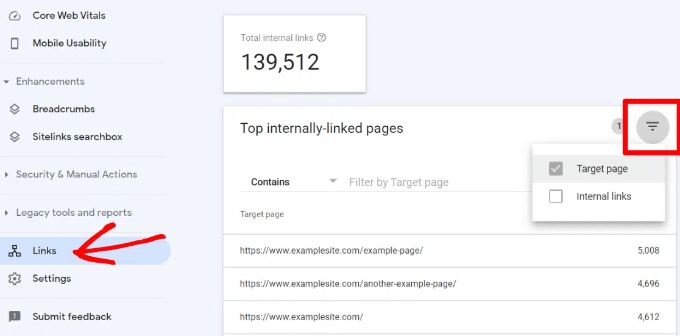
It’s helpful to see your website’s SEO performance in terms of links by using a tool such as the Links Report in Google Search Console. This is a helpful starting point for working out how to improve internal linking on your site.
The Links Report will show you how many pages are linking to this page. You can compare it with other pages and see whether pages with more internal links are ranking higher than posts with many internal links.
Just make sure you are only linking to the article when it makes sense. Adding links where they don’t make sense creates a bad user experience.
Another way to monitor the impact of internal linking is to see which keywords are gaining or losing position. All in One SEO makes this extremely easy with the Search Statistics feature.
Once you connect the plugin with Google Search Console, All in One SEO will fetch your Google Search Console data and present it under All in One SEO » Search Statistics.
The keyword positions chart shows a graph of your site’s keyword positions.
Below this, you’ll see the Keyword Rankings overview box. This shows your top 10 keywords, and if you use them for internal links they are very likely to be clicked.
3. Improve Your WordPress Site’s Internal Linking With a Plugin
If you’re not sure which posts you want to link to, then you will often find it faster to add internal links in WordPress using an internal linking plugin.
We recommend using All in One SEO. It includes a unique Link Assistant feature that lets you add links to your old and new content without having to open up the post. Plus, it provides link recommendations, detailed link reports, and much more.
Link Assistant will crawl every link on your website and then show a comprehensive list report.
The report will show you an overview of the links with total counts for internal, external, and affiliate links. It will also show you the number of orphaned posts that have not yet been linked to from another post or page.
You can switch to the Links Report tab for detailed information on all your links. Here you’ll see a list of all your posts and pages with columns for internal, external, and affiliate links.
It will also show a number of suggestions where you can add links.
For more details, you can click on the right arrow button next to a post or page. This will show all links organized in different tabs. From the suggestions tab, you can quickly view link suggestions and add links without directly editing a post or page.
Link Assistant also helps you discover more internal linking opportunities.
You can switch to the ‘Linking Opportunities’ tab to see suggestions about how to improve the internal linking on your website, and also see the list of orphaned posts so you can add links to them.
Another plugin useful for internal linking is Semrush SEO Writing Assistant because it can help you keep track of links inside your article.
For example, it lets you know when your article has too many or too few internal links and also suggests ways you can improve your links.
This tool also comes in handy if you have other authors working on articles. Editors can quickly see if the article includes internal links to other posts on your website.
4. Display a List of Your Most Popular Posts in WordPress
You can use a WordPress popular posts plugin to point users toward the articles that other users have already found helpful. These plugins automatically create a list of internal links to your most popular content.
Popular posts are usually your most successful content, which means they are more likely to increase user engagement, conversions, and sales. They are also a good opportunity for internal linking to your other less popular articles.
For example, MonsterInsights has a feature that allows you to show your popular articles anywhere on your WordPress site. You can use also use inline popular posts to show articles inside your content.
If you want to show articles in the sidebar or at the end of your content, then you can select the Popular Post Widget. MonsterInsights even lets you display your top-performing products anywhere on your eCommerce store.
5. Create List Posts That Roundup Other Articles in WordPress
Another way to increase the number of internal links on your WordPress blog is to create roundups of your existing content. You do this by creating a new post that mentions your best articles on a certain subject to give a detailed overview of the topic.
In fact, you’re reading a post like that now.
Luckily, there are some plugins that make this job easy. For example, WP Tasty Roundups allows you to quickly repurpose your existing content into beautiful roundup posts that rank in search results.
All you need to do is type one or two keywords into the built-in search functionality, and the plugin will automatically pull images, titles, descriptions, and links from relevant posts into your roundup list.
6. Get Google Sitelinks for Your WordPress Site
Sitelinks are a feature on Google search engine results pages (SERPs) where additional sub-pages appear under a website in the search results.
These are often internal links to the most popular pages of that website.
The top 3 spots on Google get the most clicks. When sitelinks are shown for a website, it takes up the same amount of space as three regular search listings.
Having this much screen space dedicated to your site significantly increases your overall click-through rate. Simply put, more visitors will visit your website from the keyword.
While there is no guaranteed way to get Google to show sitelinks for your website, it certainly helps to create lots of internal links to your most important posts and pages.
7. Preload Links in WordPress for Faster Loading Speeds
Link preloading is a browser technology that will load links in the background before a site visitor clicks them. This makes your website seem faster, which can improve SEO.
Because loading speed is one of the top indicators for search engine rankings and user engagement, when your internal pages are preloaded, your visitors are more likely to stay on your website longer.
They are more likely to view more pages because they’re loading instantly.
The easiest way to preload links is by using the Flying Pages plugin. It simply adds intelligent preloading to make sure preloading won’t crash your site or even slow it down.
Broken links are bad for your website’s SEO. Search engine crawlers find new content on your website by following internal links, so a broken link can stop them from indexing a new post.
They also negatively impact user experience because broken links will return a 404 error. If a visitor clicks on a link and is unable to find a page they’re looking for, then they may leave.
AIOSEO offers a powerful redirection manager that helps track 404 errors on your website and lets you set up permanent 301 redirects to fix broken links.
9. Update Internal Link URLs When Moving a Site to a New Domain
If you ever move your WordPress site to a new domain name, then it is important to update all internal link URLs. Otherwise, you will have lots of broken links.
You should start by changing the WordPress address and site URL by visiting the Settings » General page from your WordPress dashboard.
But you will also need to change the URLs of every internal link added to your posts and pages.
10. Use MediaWiki Syntax to Quickly Add Internal Links to WordPress
If you want to make internal linking a habit, then it helps to use the most efficient method. Since WordPress 6.0, WordPress has supported standard MediaWiki syntax to quickly add internal links when creating or editing a post.
You can now quickly add links by adding two square brackets followed by the post title. The animated gif below shows you how easy this feature is to use inside WordPress.
The link will automatically add the correct URL to the post, and use the post title as an anchor link.
If you know the title of a post (or even just part of it), then using the double square bracket method is the fastest way of creating an internal link.
11. Track Which Internal Links Are Clicked in WordPress
One of the best ways to uncover how users interact with your website is to track which internal links your visitors are clicking. Tools such as MonsterInsights can help you see which internal links your visitors are the most interested in.
You can then use these insights to improve the way you add internal links to your posts and pages.
You can also use All in One SEO to enable breadcrumbs for your WooCommerce products. For details, see the fifth tip in our guide on WooCommerce SEO made easy.
If you liked this article, then please subscribe to our YouTube Channel for WordPress video tutorials. You can also find us on Twitter and Facebook.
What constitutes the ultimate toolkit for web developers? To find out, we surveyed our members about what tools they use for their WordPress development business – and the results are in!
To be clear, we’ve written previously about Must Have tools, but this list is based on what the members of our WPMU DEV community recommend. So, the results are a bit different. We won’t cover every recommendation, but we have narrowed down specifics mentioned more than others.
We’ll break them down by the most discussed categories…
Keep in mind, we are not affiliated with ANY of these companies (well, except for us, WPMU DEV, of course). These are strictly companies that were mentioned by our members as top choices for what they use in their WordPress development business.
So, let’s open up this thing and get started!
WordPress Management
WPMU DEV
You might be a bit familiar with this company.
We asked, “What do you use for WordPress management?” And here are a few answers.
“WPMUDEV for managed hosting, technical support, premium plugins, automated updates and backups.â€
– Keith, WPMU DEV Member
“Definitely WPMUDEV. I don’t want to blow their horn too much but honestly, it’s just really nice having half this stuff available. That being said, I wouldn’t want to replace any of them. I like them all.â€
– G-Kodes, WPMU DEV Member
Not to pat ourselves on the back, but WPMU DEV is key to developers’ toolkits around here. Obviously, we asked on our platform, so it’s natural that we’d rank at the top. Still, even if asked elsewhere, we have the essential tools for management, and we’re pretty confident we’d get mentioned.
We’re used for our award-winning plugins, hosting, 24/7/365 support, the capability of managing multiple sites from our Hub dashboard, domains, client billing – and much more.
Every aspect of running a successful WordPress development business can be obtained here – where you’re reading this!
If you’re not a member, sign up for free and get started. You’ll find that everything you need is right at your fingertips in one place.
ManageWP
ManageWP was also recommended by some users.
Like us (WPMU DEV), ManageWP is another popular management platform where you can organize your websites from one dashboard.
It can add unlimited sites, including team and client collaboration, incremental backups, white-label capabilities, and other features.
Regarding plugins, it doesn’t feature any built from ManageWP (like WPMU DEV), but you can add plugins into their system – where they can be updated, monitored, and overwritten.
In our poll, ManageWP seems to complement WPMU DEV as another system of management that works well for some developers.
Site Development and Plugins
Divi
Divi is no stranger to the WordPress community.
With a seemingly endless variety, Divi is the go-to theme builder for many WordPress developers. Its visual page builder makes setting up a spectacular website quick and easy, which is why it’s the most popular theme.
Aside from being easy to use, Divi collaborates well with our services and plugins (such as Smush and Hummingbird).
Additionally, almost any website can be created for practically any use. It features over 200 website elements and packs for business, eCommerce, and services – you name it.
Every aspect of Divi is highly customizable, so developers can ensure their clients get the site needed.
Astra
Trusted by over 2 million websites and many of our developers.
Featuring pre-built websites, Astra is a page builder that’s also extremely easy to implement and popular among our developers.
Everything is highly customizable – from layouts, headers, and colors – it all can be adjusted how you want. Plus, you can mix and match any of your favorite third-party tools, like WooCommerce integration.
For an accessibility-ready website, Astra continues to be a popular choice.
Elementor
Elementor has the power to build websites in a streamlined way.
With its live drag-and-drop editor, website designs, and hosting aspect, Elementor is a platform that many of our developers agree is worth using in their toolbox.
With Elementor, creating landing pages, blogs, eCommerce stores – anything is easy. It’s all customizable, and additional CSS can be added.
Their biggest attribute is having an “all under one roof†solution for editing, themes, and hosting. They keep everything updated, perform backups, and include top-notch support.
We discussed our domains and hosting above as a reason developers use us, but it’s worth mentioning it again. That’s because it’s all easily managed in The Hub – with easy registration, domain transfers, and more.
Plus, with domain reselling, you can purchase domains from us at wholesale prices and sell them to your clients. Additionally, you can white-label the domain service and hosting and use that as an add-on to your development business.
Be sure to check out some of our domain registration and hosting resources. We have articles that cover it all, including:
These are just several resources. More information can be found on our blog and documentation.
Namecheap
Cheap domains? Namecheap strives for that.
Namecheap has various services for domains, hosting, security, and email. It allows you to transfer domains, select various hosting options (e.g. shared, reseller, VPS, etc), and more.
With over 2 million users, it’s a highly trusted company for domains and hosting.
In regards to hosting, they have a walk-through that helps individuals determine what type of hosting is right for them. It’s interesting to figure out what is best for each unique situation.
With Namecheap focused on WordPress and its discounted prices, it’s a widely used platform for developers.
GoDaddy
GoDaddy is a household name.
With domains, email, hosting, and WordPress implementation, GoDaddy is also popular choice for many developers. After all, it’s a brand that’s been around a while (since 1997), so it’s an established go-to company for many needs.
It’s by far the biggest company out of the others mentioned, with over 21 million customers worldwide.
Plenty of TLDs are available, plus they have hosting, security, and support.
Bluehost
Bluehost was recommended by quite a few developers in our survey.
With hosting and domain, Bluehost offers some very appealing discounts to web developers. You can get an eCommerce store, WooCommerce integration, and more at a good rate.
Plus, they have a dashboard for developers where you can manage all of your WordPress sites in one spot. Additionally, they offer 24/7 support.
Along with WPMU DEV, Bluehost was one of the most recommended services for hosting and domains when we surveyed our developers.
Communication
Google Workspace
Google has a ton of solutions for developers and their businesses.
Whether it be Gmail, Meet, Drive, Calendar, or Docs, Google Workspace checks a lot of the boxes in communication for developers.
Here at WPMU DEV, we use Google Workspace for our email, calendars, and docs (in fact, the drafts of all of these posts are written on Gdocs).
Google has a reputation for quality and efficiency. Rarely does Google Workspace stop working or have issues. It’s no wonder that it’s such a popular communication tool.
Also, implementing everything under one system is quite beneficial (e.g. adding an appointment from Gmail to Google Calendar). It’s a streamlined process for flawless integration.
MS Teams
MS Teams is another popular collaboration tool.
Microsoft Teams is a powerful platform that provides many benefits for developers’ businesses.
One major highlight is having centralized communication for file sharing, messages, and other information in one place – keeping things organized and reducing the need for emails.
Additionally, it’s a good way for developers to collaborate with other team members. For example, if you’re working with a graphic designer, you can go back and forth seamlessly.
Like Google, it integrates with other Microsoft products, such as SharePoint, OneDrive, and Outlook. This helps with working across various platforms in the Microsoft universe.
Slack
Slack is no stranger to us.
Slack is another platform that we use here at WPMU DEV. It’s also used by developers worldwide as a go-to source for cloud-based communication.
It features organized communication with channels and direct messaging. The messaging is done in real-time, eliminating the need for email.
Plus, you can share files and documents in just a few clicks across channels and messages.
When it comes to integration, we integrate Google Calendar and Jira. Other integrations, such as Trello and Zoom, are available, too.
Another big benefit of Slack is the Huddles. It’s how we communicate via voice in meetings all around the world. This can be done in specific channels, where team members can hop on and participate in calls quickly and easily.
WhatsApp
WhatsApp is a good communication tool for messaging.
With voice and video calls, chats, and private messages, WhatsApp is a communication tool for developers and clients.
It features end-to-end encryption so that personal messages and calls are secured. Nobody, not even the app itself, can read or listen to them.
Plus, you can create groups, so if you’re working with a team on a development project, you can all be in the loop in one spot.
They even have a WhatsApp Business that offers business solutions for banking, eCommerce, and much more.
Loom
For a quick messaging solution, Loom has you covered.
Loom is a popular solution with over 14 million users who are used to saving time from meetings by providing a quick video.
You can record your screen and camera from any device. They have desktop and mobile apps and a Chrome extension. When sharing with your clients or team members, paste a link to your video so recipients can view it without logging in or creating an account.
Also, you can use emoji reactions, time-stamped comments, and interactive features for interactions. Whatever works best for the clearest lines of communication.
Organization
Jira
Jira is a great way to stay organized.
Like Google WorkSpace and Slack, Jira is another software we use daily at WPMU DEV. Other developers mentioned Jira as one of the best, too.
It breaks big ideas into smaller chunks across teams via stories, issues, and tasks. For example, for this blog, we have our individual writers and the topics they’ll be writing about. Then, as the process goes from conception to rough draft and final, its progress is moved along for the team to see.
Great for teams of all sizes, Jira can organize and streamline workflow better than a lot of software out there. So if you’re a developer that has a team working on a specific goal, your progress will be easily monitored and can be adjusted along the way.
TidyCal
A way to book meetings and more.
TidyCal is a perfect solution for setting client availability, creating a meeting length, and much more.
You can set up a specific date, show the number of spots available, and create your booking page. From this, you can embed on WordPress sites, set up multiple booking types, and create email reminders.
It’s a quick and easy way to set up appointments, meetings, and everything your development business needs.
Trello
Trello’s another way to improve workflow.
“I use Trello for project management and to organize my worklists.â€
– Marianna, WPMU DEV Member
With boards, lists, and cards, Trello has what it takes to get your development projects on target.
You can keep tasks in order and assign specific members to each to meet deadlines on time. It keeps all the projects organized in one place, viewable from every angle.
With their system, you can see the big vision and edit any upcoming projects to get a real sense of the pipeline heading your way (or your team member’s way).
In a nutshell, Trello simplifies things and organizes your workflow. It’s a top choice for many developers surveyed.
Figma
Figma is a good fit for designers in WordPress.
Figma is a collaboration tool that allows designers and other team members to work together in real time. With all the remote work developers do, it’s a great platform to get design work done.
Each design version is saved, so designers can easily make any adjustments or edits. With all the complex designs that can go into web development, this is useful in case you need to revert to the original design.
Our designers at WPMU DEV use Figma for various illustrations and design projects (including the banners you see on our blog).
Notion
When it comes to working with your team, consider Notion.
“Notion. I’m in it all day, every day. I even built a client dashboard template, and want to create more for others.â€
– Keith, WPMU DEV Member
Notion is a collaboration tool with many organizing, integration, and customization features.
It’s great for product roadmaps, managing the execution of projects, and keeping everything in one place. You can set up brand guidelines for specific development clients, including code guidelines.
Plus, you can customize the workflow to your team’s style to have the perfect system that works for you.
Regarding integration, it works well with Google Docs, Dropbox, Trello, Asana, and many more third-party companies.
Design
Adobe
With Photoshop, Illustrator, and more, Adobe Creative Cloud is often a designer’s choice for creating images.
The ultimate creative toolkit is Adobe Creative Cloud, which includes awesome design tools such as Photoshop, Illustrator, InDesign, and more.
Creative Cloud is a membership-based program. It includes fonts, stock images, collaboration tools, and the capabilities to create, design, edit, and so forth.
Plus, there are communities for Adobe users, like Behance – where designers can show off their work.
As an established brand, Adobe products have been and will continue to be, a top choice among designers in the WordPress industry.
Canva
Canva is another designer software company.
“Canva for work with some client graphics.â€
– Keith, WPMU DEV Member
Canva is another top choice for developers and designers we surveyed. One difference from Adobe products is it has ready-made templates, images, and content.
You can invite people to edit, brainstorm ideas on whiteboards, and scale content. Once a project is ready for launch, you can easily present, download, schedule, and share designs.
When it comes to templates, there are a lot to choose from. Everything from real estate businesses to blogs. Plus, there are infographics, backgrounds, videos, and much more.
Payments
Stripe
Stripe is used around the world as a payment platform.
Stripe is a payment solution for millions of companies worldwide. It’s easy to implement to accept payments and send payouts in numerous platforms.
Not only is it used online, but it’s also implemented in-person.
Regarding development business, its easy-to-use API can be used as a client payment method quickly and easily. We use Stripe as an option for our products (e.g. Client Billing and our Forminator plugin).
Considering WordPress developers have clients worldwide, it’s the perfect solution for global commerce.
PayPal
PayPal is no stranger to eCommerce and more.
PayPal is another payment method used by clients and customers for WordPress development businesses. Like Stripe, it can easily be implemented and used worldwide.
Their secure platform lets you set up payment options and make payments with just a few clicks. Additionally, they have systems for invoicing, installment payments, and POS systems.
Along with being a top choice for developers, we also use PayPal as an option with our products.
Office Essentials
Spotify
Spotify is essential for music for many developers.
Spotify features albums, singles, playlists, podcasts, and more from favorite artists and entertainers. If you’re the type that needs some background noise to be productive, or if you enjoy listening to the latest album from your favorite band while working on code, Spotify might prove to be an essential in your toolbox.
Almost any song or album imaginable is on their platform. Plus, they automatically create a customized playlist for you, or you can create your own. If you enjoy podcasts, there are thousands of options.
It’s no wonder Spotify became an important part of developers’ workflow. Its digital streaming of music can boost mood and productivity and makes working from home much more enjoyable.
Pandora
Pandora is another popular choice for background music while working.
Pandora is another streaming platform that came out as a favorite for developers. Like Spotify, it creates uniquely personalized music and podcasts experience.
You select what interests you, and Pandora creates stations based on songs, artists or genres you like. Then, it will play related content.
From this, you can select songs you like or don’t like. Pandora will then tweak the preferences to what you’ve selected.
It’s a bit more like a radio than Spotify, but that’s not bad. Pandora helps you discover new music, play what you enjoy, and gives you a nice variety. It’s used by developers worldwide to get through a busy day working on WordPress-related business.
BONUS ESSENTIAL: Coffee
Yes, this is essential for some developers.
For some developers, coffee is the boost they need to get through the day. It awakens the senses, helps keep them alert, wakes them up, and tastes great! So, we thought this might be a nice bonus essential to add to a developer’s toolbox. Just don’t spill it on your computer.
All the Tools are in One Place
What does your toolbox look like? Hopefully, whatever it is, you have the essentials all in one place and easily accessible to ensure your development business runs smoothly!
These were some top picks based on our survey from our members, so results will vary across the WordPress spectrum. However, you might find some of these tools essential to add to your toolbox today – or, more likely, are using some already.
If WPMU DEV isn’t a part of your development, try us today. We have all the essentials in one place, including hosting, plugins, domains, site management, and more. Plus, 24/7 support, a member community, and other resources.
And as you can see, there was no hammer in this toolbox. You won’t need it to smash your computer out of frustration since these recommended tools help your development business run smoothly. After all, if our members use them, there’s a good chance many will work for you!
In this step-by-step tutorial, you’ll learn how to set up tiered/quantity-based pricing on your WooCommerce store, along with adding a frontend tiered pricing table to your single product pages.
By selling your books as downloadable audio files, you can make money without having to pay for shipping or printing. You can also sell the same audio file an unlimited number of times.
In this article, we will show you how to easily sell audiobooks online using WordPress.
Another option is recording that information as an audiobook. This is a great way to collect everything you want to say into a single, downloadable file that’s easy to distribute and sell to other people.
Unlike traditional printed books, you don’t have to pay printing or shipping fees for your audiobooks. You also don’t have to worry about physical storage, supplies, or managing your inventory. All of this means lower costs and bigger profits, which makes audiobooks the perfect way to make money online with WordPress.
If you have an ebook, then there are plenty of services that can help you turn it into an audiobook including ACX. Every audiobook you make on ACX will be available on Audible.com, Amazon.com, and iTunes, but it’s also a good idea to add the audiobook to your own website.
With that in mind, let’s see how you can sell audiobooks online. Simply use the quick links below to jump straight to the method you want to use.
Unlike general eCommerce plugins, Easy Digital Downloads has the specific features you need to promote, sell, and distribute digital products with ease. This means you don’t have to waste time and effort with unnecessary settings, such as configuring your store’s shipping.
Even better, if you’re using SiteGround then Easy Digital Downloads already comes pre-installed on their EDD plan, so you can start using it straight away.
Upon activation, go to Downloads » Settings in the WordPress dashboard.
Even though you’re selling audiobooks, you’ll need to set your store’s location. This allows Easy Digital Downloads to auto-fill some fields in the order form, which will help improve the customer experience.
Easy Digital Downloads also uses your location to calculate sales tax.
To add your location, simply open the ‘Business Country’ dropdown menu. You can then choose where your business is based.
Next, find the ‘Business Region’ field.
Here you can open the dropdown and choose the region where your store operates from.
After making these changes, go ahead and click on Save Changes to store your settings.
In the Payment Gateways section, check the box next to each gateway that you want to add to your WordPress blog or website.
If you add more than one payment method, then you’ll need to choose a default gateway.
You can use any gateway you want, but Stripe can accept credit cards as well as Apple Pay and Google Pay. This is why we recommend using Stripe as the default payment gateway.
With that done, click on the ‘Save Changes’ button.
You’ll now see some new tabs where you can configure each payment method.
Configuring the payment gateway will be slightly different depending on which gateway you’re using, but Easy Digital Downloads will walk you through the process.
Once you’ve set up at least one payment gateway, you’re ready to start uploading audiobooks to your WordPress website.
To create a digital product, select Downloads from the left-hand menu. Then, click on the ‘Add New’ button.
You can now type a name for the product into the ‘Enter download name here’ field. This will appear on the audiobook’s page, so you’ll want to use something that catches the visitor’s attention and accurately describes the book.
Next, type out the description that will appear on the ebook’s product page. You’ll want to give visitors all the information they need to decide whether this book is right for them.
Many online stores use product categories and tags to help shoppers find what they’re looking for. If you’re selling lots of audiobooks, then these categories and tags help visitors find related audiobooks, which can get you more sales.
You can create new categories and tags in the Categories and Tags boxes.
Next, you’ll want to set a price by scrolling to the Download Prices section. Here, type in how much visitors will pay to download the audiobook.
You’re now ready to upload the audio file that you want to sell. When it comes to audio, WordPress supports mp3, ogg, and wav. It also supports m4a, although this format may not work on all browsers.
In the File Name field, type a name for the file that shoppers will get when they buy the audiobook. Then, simply click on ‘Upload a File.’
You can now choose any audio file from the WordPress media library, or you can upload a new audiobook from your computer.
Finally, you’ll need to add a product image, which will usually be your audiobook’s front cover. Simply scroll to the Download Image section and then click on the ‘Set Download Image’ link.
This launches the WordPress media library where you can choose an image or upload a new file from your computer.
When you’re happy with your digital download, click on the Publish button to make it live.
Easy Digital Downloads will now create the audiobook as a downloadable product, but visitors still need a way to access the product page.
This might mean adding the page to your website’s menu, creating a sales page where you advertise all your audiobooks, or even adding the book to a custom home page.
No matter what method you choose, you’ll need to know the audiobook’s URL.
To get this link, simply go to Downloads » Downloads. Then, find the audiobook you just created, and click on its ‘Edit’ link.
You will then find the URL directly below the product title.
Now, you can link to this product page from any area of your website, simply by using its URL. To learn more, see our step-by-step guide on how to add a link in WordPress.
Easy Digital Downloads also creates a ‘Purchase’ button for this particular audiobook. Visitors can click this button to add the audiobook to their cart.
You can add the button for this book to any page, post, or widget-ready area. This allows visitors to start the purchasing process without even Needing to visit the individual product’s page.
To get the audiobook’s shortcode, simply scroll to its Download Settings section. You can then copy the text in the ‘Purchase Shortcode’ field.
Every time someone buys an audiobook from your website, Easy Digital Downloads will send them an email and download link.
While this email has everything the customer needs to access their download, it’s a good idea to customize it. For example, we recommend adding your own logo and branding.
To customize the default email, simply go to Downloads » Settings. Then click on the ‘Emails’ tab.
When you’ve finished making changes, you may want to send a test email so you can see how the message will look to your customers.
To do this, simply click on the ‘Send Test Email’ button and Easy Digital Downloads will send an email to your admin email address.
Have you clicked on the ‘Send Test Email’ button, but haven’t got a test email? If your site isn’t sending emails correctly, then customers won’t be able to download your audiobook.
When you’re happy with how the email looks, you can go ahead and click on the ‘Save Changes’ button.
This is all you need to start selling audiobooks online. However, Easy Digital Downloads has lots more advanced features that can help you sell audiobooks.
Method 2. How to Sell Audiobook Memberships (Best for Recurring Revenue)
Another option is using your audiobooks to create recurring revenue streams.
For example, you might offer members unlimited monthly or annual access to all your audiobooks for a membership fee. In this way, you can get reliable recurring revenue over a longer period of time.
A membership site is also a great choice if you’re releasing your audiobooks as a series.
If you want to get recurring revenue, then MemberPress is the best WordPress membership plugin. It allows you to accept payments, create an unlimited number of membership levels, restrict access to audiobook pages based on membership subscription, and more.
Upon activation, go to the MemberPress » Settings page to configure the plugin settings.
To start, you’ll need to set up a payment gateway.
Out of the box, MemberPress supports PayPal (Standard, Express, and Pro), Stripe, and Authorize.net. You simply need to select the payment method you want to use and then type in the required credentials, such as your PayPal email address.
You may want to add multiple methods, so members can use their preferred gateway. When that’s done, don’t forget to click on the Update Options button to save your settings.
With the setup out of the way, it’s time to create one or more membership levels. These are the subscriptions that visitors will buy to access your audiobooks, or other content.
MemberPress allows you to offer different content for different membership levels. For example, you might create Bronze, Silver, and Gold memberships and then give members access to different audiobooks.
To create the first membership plan, go to the MemberPress » Memberships page and then click on the ‘Add New’ button.
On the next screen, you’ll need to provide a title for the membership plan and then add details in the post editor.
After that, you can set the pricing, billing type, interval, and expiration under the ‘Membership Terms’ section.
Next, scroll to the Membership Options box below the editor.
Here, you can customize the plan permissions and membership options.
When you’re happy with how the plan is set up, go ahead and click on ‘Publish.’ To create more membership levels, simply repeat the same process described above.
Once you’ve created all the membership levels, it’s time to add some access rules. These allow you to restrict access to your audiobooks based on the user’s membership plan.
Just go to MemberPress » Rules and then click on the Add New button.
Here, you can create all kinds of access rules, but you’ll typically start by selecting the audiobook that you want to restrict access to.
Under ‘Protected Content,’ open the dropdown menu and choose an option from the list. This might be the specific page where you embedded the audio file, content that has a particular tag, or any other option from the list.
After that, open the ‘Access Conditions’ dropdown and choose ‘Membership.’
In the second dropdown menu, select the membership level people will need in order to access this content.
There are more settings that you can configure, but this is all you need to create a simple access rule.
When you’re happy with how the rule is set up, click on ‘Save Rule.’ To create more access rules, simply follow the same process described above.
Now that everything is set up, you’ll need to make sure visitors can buy memberships and log into their accounts. Thankfully, MemberPress comes with ready-made forms that you can add to your site.
We recommend adding the MemberPress login widget to a widget-ready area, so members can log in from any page.
Simply head over to Appearance » Widgets and add the ‘MemberPress login’ widget to the sidebar or similar section.
Don’t forget to click on the ‘Update’ button to save your widget settings.
There are a few different ways to add a signup page to your website, but MemberPress automatically creates a registration page for each membership level. This means you can simply add these pages to your main navigation menu.
In your WordPress dashboard, go to Appearance »Menus. In the left-hand menu, simply click to expand the ‘Memberships’ section.
You’ll now see a list of all the different MemberPress levels.
To add a membership to the navigation menu, simply check the box next to it and then select ‘Add to menu.’
When you’re happy with how the menu is set up, click on ‘Save Menu.’
At this point, you’ve created a website where visitors can buy audiobook subscriptions. However, MemberPress has lots more settings you can use to sell audiobooks, grow your brand, and get more members.
Method 3. How to Sell Audiobooks With WooCommerce (Best For Online Stores)
Easy Digital Downloads makes it easy to sell audiobooks on any WordPress blog or website, without you having to configure lots of unnecessary settings like shipping and handling.
However, if you’ve already created a WooCommerce store, then you can sell digital products like audiobooks using this popular eCommerce plugin.
Although it’s mostly used to sell physical products, you can add support for digital products by going to WooCommerce »Settings and then clicking on the ‘Products’ tab.
Here, click on the ‘Downloadable products’ link.
You can now open the ‘File download method’ dropdown and choose an option from the list.
When you’re selling digital downloads, there is a risk that customers may share the direct link with other people. This allows people to download your audiobook without paying.
‘Force Downloads’ helps to protect your site from direct linking, so it’s the recommended method. However, just be aware that very large files may result in a timeout, especially if your server has limited resources.
If this happens, then you may need to change your WordPress hosting plan or select a different file download method.
You may also want to enable the checkbox next to ‘Allow using redirect mode (insecure) as a last resort.’ If WooCommerce encounters any problems, then this setting will deliver the audiobook via an unsecured redirect link rather than showing an error.
This is a much better customer experience.
The second option is ‘X-Accel-Redirect/X-Sendfile,’ which serves the file directly to the customer. This protects the audiobook from unauthorized downloads without impacting your site’s performance.
However, this method requires you to install and enable the X-Accel-Redirect/X-Sendfile module on your server, so it’s not very beginner-friendly. Depending on your plan, you may also need to speak to your WooCommerce hosting provider.
The final option is ‘Redirect only,’ which uses a direct link to the file. This means your audiobook isn’t protected and anyone can access it using the URL. That said, we don’t recommend the ‘Redirect only’ method.
After selecting a download method, you can choose whether visitors must be logged into an account in order to download the audiobook.
To make this decision, either enable or disable the ‘Downloads require login’ checkbox.
By default, customers can download the audiobook while their order is processing.
If you want to wait until the order is complete, then uncheck the following box: ‘Grant access to downloadable products after payment.’
By default, WooCommerce will download the audiobook to the customer’s computer.
Most of the time this is the best customer experience, but you can set the file to open in a new tab instead. The customer can then decide whether they want to save the file.
There are some use cases where this may be the better option. For example, if you’re showing the customer a free sample, or your audiobooks are short enough to enjoy in one sitting.
In this case, you may want to check the box next to ‘Open downloadable files in the browser.’
When you’re happy with the settings you’ve entered, click on ‘Save Changes.’
With that done, you’re ready to add the audiobook as a downloadable product by going to Products »Add New. Here, you can type in a title, add a description, upload a product image, and set the price as normal.
Then, scroll to ‘Product Data’ and check the box next to ‘Downloadable,’ which adds some new settings.
To start, click on ‘Add File.’
You can now either choose the audiobook from your media library or upload a new file from your computer.
After that, type in a filename for the audiobook.
By default, customers can download the audiobook as many times as they want, for as long as they want.
If you want to limit the number of downloads per customer, then type a number into the ‘Download limit’ field.
If you want the download link to expire after a certain number of days has passed, then type a number into the ‘Download expiry’ field.
When you’re happy with how the audiobook is set up, click on the ‘Publish’ button. The audiobook will now appear as a downloadable product on your online store.
If you liked this article, then please subscribe to our YouTube Channel for WordPress video tutorials. You can also find us on Twitter and Facebook.
Are you seeing a 500 internal server error in WordPress?
The internal server error is one of the most common WordPress errors. Since the error doesn’t give any other information, many beginners find it quite frustrating.
In this article, we will show you how to easily fix the 500 internal server error in WordPress.
Here is a quick overview of the topics we’ll cover in this article.
The 500 internal server error is a common web server error. It is not specific to WordPress websites and can happen with any website.
The 500 in the error message is technically an HTTP error code. Looking up this code will only show its standard description.
“500 Internal Server Error response code indicates that the server encountered an unexpected condition that prevented it from fulfilling the request.“
This is a generic catch-all error message which means that the server was unable to assign a better more helpful error message when it encountered the issue.
The error page looks different depending on which web server software (Nginx or Apache) your website is using and which browser you are using.
Here is how the Apache error page may look.
It may look different if you are using Nginx and Google Chrome.
It will also look different if Google chrome is unable to find an error page to display:
For beginners, this can be incredibly frustrating. There is no clue or message that would point them in the right direction to quickly fix it.
Asking how to fix an internal server error is like asking your doctor how to fix the pain you’re experiencing without telling them where the pain is.
However, if we know the common causes that trigger this error, then we can try fixing them one by one to resolve the error without breaking anything.
What Causes The Internal Server Error in WordPress?
Internal server error in WordPress is often caused by a corrupt .htaccess file, poorly coded plugins, or your active WordPress theme.
Other possible causes of the internal server error in WordPress that we know of are: PHP memory limit or corrupt core WordPress files.
In some conditions, the internal server error may only show up when you are trying to access the WordPress admin area while the rest of the site works fine.
That being said, now let’s take a look at how to go about troubleshooting the internal server error in WordPress.
Video Tutorial
If you prefer written instructions, then continue reading.
Fixing The 500 Internal Server Error in WordPress
Before you begin troubleshooting, make sure that you have a complete WordPress backup of your website on hand.
If you have access to the WordPress admin area, then you can a WordPress backup plugin to create a complete backup of your website. We recommend using Duplicator to handle this.
On the other hand, if you don’t have access to the WordPress admin area, then you can manually create a WordPress backup using phpMyAdmin and an FTP client.
After that, you can follow the following steps to troubleshoot and fix the internal server error on your website.
Clear WordPress and Browser Cache
Browsers and your WordPress caching plugins can sometimes mistakenly store a cached copy of an error page.
After that, if you have access to the WordPress admin area of your website, then you can empty the WordPress cache by visiting your caching plugin’s settings page.
The .htaccess file is a server configuration file that is also used by WordPress to set up redirects.
One of the most common causes of the internal server error is the corrupt .htaccess file.
The easiest way to fix this is by simply visiting the Settings » Permalinks page in the WordPress admin area and then clicking on the ‘Save Changes’ button without making any changes at all.
WordPress will now try to update your .htaccess file or generate a new one for you. You can now visit your website to see if this has resolved the internal server error.
If you can still see the error, then you need to make sure that WordPress was able to generate or write to the .htaccess file.
You can now try to manually replace the .htaccess file. First, you need to login to your website using FTP or the File Manager app under your hosting account control panel.
Next, you need to rename your main .htaccess file to something like .htaccess_old. This lets you keep the file as a backup, but WordPress won’t recognize it.
To rename the .htaccess file, you will need to login to your site using FTP or File Manager app in your hosting account’s cPanel dashboard.
Once you are connected, the .htaccess file will be located in the same directory where you will see folders like wp-content, wp-admin, and wp-includes.
Simply, right-click on the .htaccess file and rename it to .htaccess_old.
Next, you need to create a new .htaccess file.
Inside your site’s root folder, right-click and then select ‘Create new file’ option in your FTP client or File Manager app.
Name this new file .htaccess and click OK to save it.
Now, this .htaccess file is currently empty and you need to add default WordPress rewrite rules to it.
Simply right-click on the file and then select View/Edit in your FTP client or File Manager app.
The empty file will open in a plain text editor like Notepad or TextEdit. Now, you need to copy and paste the following code inside it.
# BEGIN WordPress
<IfModule mod_rewrite.c>
RewriteEngine On
RewriteBase /
RewriteRule ^index.php$ - [L]
RewriteCond %{REQUEST_FILENAME} !-f
RewriteCond %{REQUEST_FILENAME} !-d
RewriteRule . /index.php [L]
</IfModule>
# END WordPress
This code is the default rule set used by WordPress. Don’t forget to save your changes and upload the file back to the server.
You can now visit your website to see if this has resolved the internal server error.
If it did, then give yourself a pat on the back because you fixed the internal server error.
Important: Before you move on with other things, make sure that you go to Settings » Permalinks page in the WordPress admin area and click the save button without making any changes. This will regenerate the .htaccess file for you with proper rewrite rules to ensure that your post pages do not return a 404 error.
If checking for the corrupt .htaccess file solution did not work for you, then you need to continue reading this article.
Increasing the PHP Memory Limit
Sometimes the internal server error can happen if a script is consuming all the PHP memory limit.
The easiest way to increase the PHP memory limit is by editing the wp-config.php file. Be careful when you do this if you’re a beginner. You want to follow these instructions carefully because even small mistakes in WordPress core files can break your site.
To begin, simply connect to your WordPress website using an FTP client or the File Manager app under your hosting account control panel.
You’ll find wp-config.php file inside the main folder of your website. Right-click on it and select ‘Download.’ This will ensure that you have a backup of the file in case something goes wrong.
When you’ve saved that, you can right-click on it and select ‘View/Edit.’
Inside the wp-config.php file, you need to add the following code just above the line that reads ‘That’s all, stop editing! Happy publishing’.
If you are seeing the internal server error only when you try to log in to your WordPress admin or upload an image in your wp-admin, then you should increase the memory limit by following these steps:
Create a blank text file on your computer and name it php.ini
Paste this code in there: memory=256MB
Save the file
Upload it into your /wp-admin/ folder using FTP
If increasing the memory limit fixed the problem for you, then you have only fixed the problem temporarily. You still need to find the cause that is exhausting your memory limit.
This could be a poorly coded plugin or even a theme function. We strongly recommend that you ask your WordPress web hosting company to look into the server logs to help you find the exact diagnostics.
If increasing the PHP memory limit did not fix the issue for you, then you are in for some more troubleshooting.
Deactivate All WordPress Plugins
If none of the above solutions worked for you, then this error is most likely being caused by a specific plugin installed on your website.
It is also possible that it is a combination of plugins that are not playing nice with each other.
If you can access the WordPress admin area of your website, then you can simply go to the plugins page and deactivate all WordPress plugins.
However, if you are unable to access the WordPress admin area, then you can deactivate all WordPress plugins using FTP.
Simply connect to your WordPress website using an FTP client or the file manager app under your hosting account control panel.
Once connected, navigated to the /wp-content/ folder and rename the plugins folder to plugins.deactivated.
WordPress looks for plugins in the plugins folder. If the plugins folder is not found, then it will automatically deactivate all plugins.
You can now try visiting your website to see if this resolved the internal server error on your website.
To restore all your plugins, you can simply rename the plugins.deactivated folder back to plugins.
Your plugins will now be restored but they will still be deactivated.
You can now activate plugins one by one and visit your website to figure out which plugin is causing the internal server error.
If deactivating all plugins didn’t fix the internal server error on your website, then continue reading.
Switch to a Default WordPress Theme
One possible cause of the internal server error could be some code in your WordPress theme.
To find out if this is the case, you need to switch your theme to a default WordPress theme.
If you have access to the WordPress admin area, then simply go to the Appearance » Themes page. If you have a default theme already installed then you can simply click on the Activate button to switch theme.
If you don’t have a default theme installed, then you can click on the Add New button at the top and install a default theme (Twenty Twenty-Three, Twenty Twenty-Two, etc).
Now in case you don’t have access to the WordPress admin area, you can still switch to a default theme.
Simply, connect to your WordPress website using an FTP client and navigate to the /wp-content/ folder.
Right-click to select the themes folder and download it to your computer as a backup.
Next, you need to delete the themes folder from your website. Once it is deleted, go ahead and create a new themes folder.
Your new themes folder will be completely empty which means you don’t have any WordPress themes installed at the moment.
Next, you need to visit the WordPress themes directory and download a default WordPress theme to your computer.
Your browser will then download the theme as a zip file to your computer.
Locate the file on your computer and then unzip it. Windows users can unzip file by right-clicking on it and then selecting Extract All. Mac users can double-click on the zip file to extract it.
You’ll now see a folder containing your WordPress theme.
Switch back to your FTP client or File Manager up and upload this folder to the empty themes folder.
Once uploaded, WordPress will automatically start using the default theme.
You can now visit your website to see if this resolved the internal server error.
If this didn’t work, then you can reupload your WordPress themes from the backup or switch back to the theme you were using.
Don’t worry there are still a few more things you can do to fix the error.
Re-uploading Core Files
If the plugin and theme options didn’t fix the internal server error, then it is worth re-uploading the /wp-admin/ and /wp-includes/ folders from a fresh WordPress install.
This will NOT remove any of your information, but it may solve the problem in case any file was corrupted.
First, you will need to visit the WordPress.org website and click on the Download button.
This will download the WordPress zip file to your computer.
Go ahead and extract the zip file. Inside it, you will find a wordpress folder.
Next you need to connect to your WordPress website using an FTP client.
Once connected go to the root folder of your website. It is the folder that has wp-admin, wp-includes, wp-content folders inside it.
In the left column open the WordPress folder on your computer.
Now you need to select all files inside the wordpresss folder and upload them to your website.
Your FTP client will now transfer those folders to your server.
It will ask you whether you would like to overwrite the files. Select ‘Overwrite’ and then select ‘Always use this action’.
Your FTP client will now replace your older WordPress files with new, fresh copies.
If your WordPress files were corrupted, then this step will fix the internal server error for you.
Enable Debug Logs in WordPress
WordPress comes with a built-in system to keep logs for debugging.
Once activated, the plugin will turn on debugging logs on your WordPress website.
If you don’t have access to the admin area of your WordPress website, then you can turn on debugging by adding the following code to your wp-config.php file.
Once you have turned on debug logs, you can view these logs by using an FTP client and navigating to the /wp-content/ folder.
You can open the debug log file in a text editor and it will show you a list of errors and warnings that occur on your website.
Some of these errors and warnings can be harmless incidents that may not need fixing. However, if you are seeing an internal server error on your website then these may point you in the right direction.
Ask your Hosting Provider
If all methods fail to fix the internal server error on your website, then it is time to get some more help. Contact your web hosting support team and they will be able to check the server logs and locate the root cause of the error.
If you liked this article, then please subscribe to our YouTube Channel for WordPress video tutorials. You can also find us on Twitter and Facebook.
Do you want to add a full-screen welcome mat to your website?
A welcome mat is a full-screen, dynamic overlay that can help you get more newsletter subscribers, eBook downloads, sales to your products, and more.
In this article, we’ll share how to create a welcome mat for your WordPress site, along with some great welcome mat examples to learn from.
Why a Welcome Mat Can Boost Your Conversions
More than 70% of visitors leaving your WordPress website will never return unless you convert them into email subscribers or customers.
A welcome mat is a large, full-screen interstitial that blocks the view of the rest of your website’s content to capture the user’s attention.
That might sound like a bad idea, but it’s a great way to get your message in front of visitors straight away.
If visitors don’t want what you’re offering, then they can simply close the welcome mat.
Of course, you’ll want to give people a good reason to sign up if you’re showing a welcome mat instead of an exit-intent popup, such as a discount code or even a freebie.
For example, you may have seen popular eCommerce stores offer a special discount using a full-screen welcome mat with gamification.
In other cases, you may have seen popular bloggers using a full-screen welcome mat to grow their email newsletter.
That being said, let’s take a look at how to easily add a welcome mat to your website.
How to Create a Welcome Mat for Your Website
The easiest way of creating a welcome mat in WordPress is using OptinMonster. It is the best lead generation software in the world and allows you to easily create optin forms, including welcome mats.
First, you’ll need to visit the OptinMonster website and signup for an account. You will need at least the Basic plan to create fullscreen overlays.
The plugin connects the OptinMonster app to your website. Once you’ve activated the plugin, you’ll see the setup wizard in your WordPress dashboard. Go ahead and click the ‘Connect Your Existing Account’ button.
Next, a new window will open.
Simply click the ‘Connect to WordPress’ button.
Now, you’re ready to create your welcome mat.
Creating a Welcome Mat for Your Website
You can head to OptinMonster » Campaigns to create a new campaign.
Go ahead and click the ‘Create Your First Campaign’ button to start creating your welcome mat.
A new window will now pop up where you can select pre-built templates or choose ready-to-use campaigns and lead magnets, inspired by successful brands. OptinMonster also gives you the option to hire a specialist to customize your campaigns.
For this tutorial, we will use the ‘Templates’ option.
This will take you to the OptinMonster campaign builder.
Next, choose ‘Fullscreen’ for your campaign type.
You’ll need to choose a template for your campaign. We will use the ‘Entrance’ template, but you can pick a different one if you want.
Once you’ve selected a template, go ahead and enter a name for your campaign and click the ‘Start Building’ button.
Next, you can customize your campaign using the drag-and-drop builder. You can change anything you like here.
There are different blocks that can be added to the campaign, like images, text, buttons, and more. You’ll also want to edit the text to correspond to your offer.
Simply click on any element, and you’ll see that you can edit it in the left-hand pane.
For instance, we will change the headline of the full-screen welcome mat for our demo campaign.
The next step is to let your welcome mat slide in. You can do this by clicking the Settings gear icon on the bottom left-hand side.
From here, you need to toggle the ‘Display a Page Slide?’ option to enable it.
This means your welcome mat will slide down from the top of the screen instead of fading into view.
Next, you need to switch to the ‘Success’ view of your welcome mat. This is what your users will see after they perform the desired action. If you want, you can customize the success view or use the default template.
Once you’re happy with your welcome mat, you can set up how it will display on your site.
Displaying the Welcome Mat on Your WordPress Site
You can set how to display your welcome mat popup by switching to the ‘Display Rules’ tab in OptinMonster.
There are lots of personalization and targeting options like users’ location, what items they have in their eCommerce cart, what they have done previously on your site, exit intent, and more.
By default, OptinMonster campaigns display on all pages of your site after the visitor has been there for 5 seconds.
Since this is a welcome mat, you’ll probably want it to display immediately. Just change this value to 0 seconds.
By default, the welcome mat will display on every page of your site. You can easily include or exclude specific pages by using OptinMonster’s personalization rules.
You can click the ‘Next Step’ button when you’re done.
Next, you’ll see more options for displaying your campaign. For instance, you can add an effect or play a sound when the campaign appears on a user’s screen.
For this tutorial, we’ll use the default settings and click the ‘Next Step’ button.
On the next screen, you will see a summary of your display rules settings.
You can edit the settings before publishing the campaign.
Once you are ready to make your welcome mat live, simply go to the ‘Publish’ tab at the top of the screen.
Go ahead and change the Publish Status from ‘Draft’ to ‘Publish.’
Don’t forget to click ‘Save’ to store your changes and close the campaign builder.
Next, you will see WordPress Output Settings for your campaign. Make sure that your campaign is published.
If it isn’t, then simply click the Status dropdown menu and select the ‘Published’ option. Don’t forget to click the ‘Save Changes’ button when you’re done.
To check out your campaign, you can visit your website in a new incognito browser window.
You should see your welcome mat slide in seamlessly from the top of your screen.
Examples of Great Welcome Mats
Let’s take a look at some welcome mat examples from different industries. For each, we’ll go through what they’re doing well, plus any minor changes we might suggest.
1. Singularity
This welcome mat from Singularity prompted users to sign up and watch the livestream of the Singularity University Global Summit. It was hugely successful and captured over 2,000 new email signups in under 9 days.
We particularly like the great use of the logo, the clear fonts, and the bright “Remind Me!” button.
2. Goins, Writer
This welcome mat from Goins, Writer offers a free guide. It’s a clear, simple offer, and the minimalist design is in keeping with the rest of the website.
We feel that the “Yes” and “No Thanks” buttons are clear and easy to use, and the use of numbers in the headline makes for a compelling offer.
3. AVweb
This welcome mat has a large, clear image of a small airplane. It’s instantly eye-catching.
We like the great image, and the clear “Sign Me Up!” call to action. One small possible tweak would be to shorten the tagline to avoid having it cover the top of the image.
4. Loaded Landscapes
This welcome mat from Loaded Landscapes is a little different from other examples. The background is slightly transparent.
We like the clear offer and the enthusiasm of the red call to action button. The background of the site beneath the welcome mat could be a little distracting, so it might be worth changing it to be fully opaque, however.
5. OptimizeMyBnb
This welcome mat was used on a specific page, which was included as a clickable link inside a book the website owner sold through third-party retailers. These retailers didn’t pass on customers’ details, though. Using a welcome mat in this way helped capture customers’ email addresses.
We feel the very clear headline, subheading, and call-to-action text all worked well, and that the ‘no, thanks’ button is used well to give the user sense of FOMO.
If you’re looking for more inspiration, here are some things you can do with a fullscreen welcome mat:
Present a targeted offer or coupon
Showcase new products and services
Let visitors know what to expect from the site
Win new subscribers by highlighting their best content
Point visitors to their social media profiles
Collect email subscribers as part of a prelaunch phase
If you’re serious about improving your website conversions, then welcome mat and even exit fullscreen interstitials are some of the highest converting elements you can add to your website.
We hope this article helped you learn how to create a welcome mat for your website and that you found the examples inspiring. You may also want to take a look at our comparison of the best email marketing services, and our list of the must-have WordPress plugins.
If you liked this article, then please subscribe to our YouTube Channel for WordPress video tutorials. You can also find us on Twitter and Facebook.