EDITS.WS

Tag: tutorials

  • How to Show Personalized Content to Different Users in WordPress

    Do you want to show different content to different users in WordPress?

    Sometimes you may want to show custom content to users from specific locations, on specific dates, or under other conditions. Website personalization is not available in WordPress out of the box. However, there are simple and easy tools you can use to handle this.

    In this article, we’ll show you how to easily show personalized content to different users in WordPress.

    How to show personalized content to different users in WordPress

    Why Show Different Content to Users in WordPress?

    Normally, when you publish content on your WordPress website, it just becomes available to everyone. What if you wanted to show a different version of the content to specific users?

    For instance, you may want to offer free shipping to customers in a specific geographic location or show different content to users coming from a particular landing page.

    One way to deal with this is by making a membership site and restricting access to content based on a user’s profile. However, not everyone wants to require user login to offer personalization.

    That’s where WordPress website personalization solutions can help.

    You can use smart conditions to add content personalization on your blogs, product personalization on your online store, and dynamic text replacement on your landing pages.

    These conditions can include specific user interactions, their geographic location, time of day, specific pages they’re visiting, specific traffic referrer source, past behavior, and more.

    That being said, let’s take a look at how to show different content to different users in WordPress. You can use the links below to go directly to the method you want to use.

    Method 1. Showing Different Content to Users Using OptinMonster (Website Personalization Made Easy)

    OptinMonster is the best lead generation and conversion optimization tool on the market. It comes with powerful targeting rules which allow you to show personalized campaigns to users based on a large set of display rules.

    This method is recommended for all users because it gives you the ability to design your content and comes with more powerful targeting rules. It also works with email marketing tools and third-party apps.

    First, you’ll need to sign up for an OptinMonster account. It is a paid tool, and you’ll need at least a Pro or Growth plan to access all targeting features.

    Simply visit the OptinMonster website and click the ‘Get OptinMonster Now’ button to set up an account.

    OptinMonster

    Next, you need to install the OptinMonster plugin on your WordPress site. For more details, see our step-by-step guide on how to install a WordPress plugin.

    Upon activation, you will see the OptinMonster setup wizard in the WordPress admin panel. Next, you need to click the ‘Connect Your Existing Account’ button to connect your WordPress site to your OptinMonster account.

    Connect your existing account

    After that, a new window will open.

    Simply click the ‘Connect to WordPress’ button to move ahead.

    Connect OptinMonster to WordPress

    Design The Content You Want to Show to the Users

    Once connected, you can head to OptinMonster » Campaign from your WordPress dashboard and click the ‘Create Your First Campaign’ button.

    Create first OptinMonster campaign

    This will take you to the OptinMonster website, where you will be asked to choose a campaign type and template.

    OptinMonster offers different campaign types that you can use to show various types of content or targeted messages to your users. This includes lightbox popups, floating bars, fullscreen, inline widgets, slide-in popups, and gamified campaigns.

    For instance, if you want to show dynamic content inside a WordPress post or page, then you can choose the Inline campaign type.

    Select an inline template

    Each campaign type has dozens of templates to choose from. Simply click to select and use a template.

    After that, you will be asked to enter a name for this campaign and click the ‘Start Building’ button.

    Click start building

    Next, you’ll enter OptinMonster’s campaign builder interface. It is a drag-and-drop tool where you can design your campaign with a live preview.

    Simply drag new elements from the menu on your left and drop them onto the template. Plus, you can click on an element in the preview to edit it.

    Edit your campaign template

    OptinMonster also connects with all top email marketing services so you can show an email sign-up form.

    You can use the campaign builder to create campaigns to add any type of content, such as a coupon code, free shipping offer, smart product recommendations, or anything you want.

    Once you are done with the design of your campaign, you can click on the ‘Save’ button at the top to store your changes.

    Save your popup changes

    You can always edit your design to match your display rules. We will show you a few design examples tailored for different display scenarios in the next step.

    Setting up Display Rules for Campaign

    This is the part where you set up the display rules to decide when to show your campaign.

    Inside the OptinMonster builder interface, switch to the ‘Display Rules’ tab.

    It allows you to create smart rule sets, and choose from a ton of targeting options.

    Select display rules

    First, you need to choose the conditions to match. There are plenty of options here. Let’s take a brief look a each one of them.

    1. Time-based Triggers

    These triggers allow you to set display rules based on time or date. You can show your campaign content at a specific date, time, or day of the week.

    Trigger on specific date and time

    These triggers allow you to show custom messages designed for specific dates and times.

    For instance, you can set OptinMonster to show a flash sale coupon on holidays or display a message on special events.

    Halloween special popup preview

    2. Targetting Users Matching Specific Criteria

    The targeting section lets you set display rules based on smart recognition technology.

    For instance, you can show a campaign to users coming from a specific website, referral, landing page, or geographic location. You can also target based on cookies, ad blockers, and JavaScript variables.

    Select targeting display rule

    As an independent publisher, you may want to ask visitors to support you by disabling the AdBlock software. You can show a message only to the users with AdBlock software installed.

    Another great usage is giving special offers to visitors from a specific URL. For instance, you may want to offer an exclusive discount to users coming from an affiliate partner website.

    Popup for affiliate users

    3. Personalization Targeting

    OptinMonster allows you to set personalized display rules based on user behavior, too.

    You can show custom campaigns to new users, returning visitors, those on specific devices, users who have already converted, not converted, have seen another campaign, visited a page, and more.

    Select personalization display rule

    You can also use OptinMonster’s smart tags feature to display a user’s name, location, and more to show them even more personalized content.

    This allows you to tailor the content to specific users.

    Smart tags smart content example personalization

    4. Ecommerce Display Rules

    These triggers are explicitly made to boost conversions on eCommerce websites.

    You can show content to users based on their shopping behavior. OptinMonster supports WooCommerce, BigCommerce, and Shopify eCommerce platforms.

    Ecommerce display rules

    Ecommerce targeting allows you to show content based on what products users are viewing, the number of products in their cart, the total cart cost, and more.

    Bonus: Need more help to reduce cart abandonment on your online store? See our tips on how to recover abandoned cart sales in WooCommerce for some more ideas.

    Once you select a condition, you will then be asked to select what to look for. For instance, if you choose a geographic location, then you will be asked to select locations that need to be matched.

    Add user location for targeting

    After setting up your condition, you can validate it to ensure it is set up correctly and then click on the ‘Next Step’ button.

    Next, you will be asked to select the campaign view. Depending on your campaign, you can choose from the optin view (the main campaign), success view, or Yes/No view.

    Show the campaign view

    There are also options to add a MonsterEffect and sound effects for your campaign. Once that’s done, click on the ‘Next Step’ button to continue.

    You’ll now see a summary of your display rule set. If you want, you can add more rules or simply click on the ‘Save’ button at the top to store your changes.

    Publish Your Content and Add it to Your Website

    OptinMonster also makes it super easy to display campaigns on your website.

    Simply switch to the Publish tab inside the builder and change the ‘Publish Status’ to Publish.

    Publish your inline campaign

    Don’t forget to click the ‘Save’ button to store your changes.

    You can now go back to your WordPress site and visit OptinMonster » Campaigns page and you’ll see your new campaign listed there.

    Change the status of your campaign

    If the ‘Status’ of the campaign is shown as ‘Pending,’ then click the ‘Change Status’ option under the campaign name. From here, simply select the ‘Publish’ status from the dropdown menu.

    You can now test it by visiting your website while matching the conditions you set in the display rules.

    Note: Clear your WordPress cache and browser cache to make sure you don’t load a cached page. You may also want to use the Incognito mode in your browser to mimic the behavior of a new user.

    OptinMonster’s display rules give you many powerful options to show different content to users in WordPress without modifying your templates and code.

    Essentially, it lets you leverage additional digital real estate on your site to increase your sales and conversions. With their A/B testing technology, you can easily test and improve your campaigns to drive better results.

    Method 2. Showing Different Content to Users using a Plugin

    This method is recommended if you want to change the entire content of a post or page in WordPress or show different variations of the same content to your users.

    First, you need to install and activate the If-So Dynamic Content plugin. For more details, see our step-by-step guide on how to install a WordPress plugin.

    Upon activation, you need to visit If-So » All Triggers page and click on the ‘Add New’ button.

    Add a new trigger

    This will bring you to the page where you can create a trigger and add the content.

    First, you can enter a name for the trigger at the top. Next, you’ll see a ‘Select a Condition’ dropdown menu to the left.

    Add a trigger name and select a condition

    The plugin offers a number of conditions based on time, date, URL, geographic location, IP address, and more.

    After choosing the trigger, you can add the content you want to show users when that condition is matched.

    Below that, you can add another version and use another set of rules to display different content.

    Add another version of trigger

    Lastly, you’ll see the default content area. This is the content you want to show the users who don’t qualify for the conditions you set above.

    Once you are finished, don’t forget to click the ‘Publish’ button for your trigger.

    Publish the trigger

    After publishing the trigger, you’ll see the shortcode meta box appear. Simply copy the shortcode shown on the screen.

    You can now edit any post or page and add the shortcode in your content where you want to display the trigger.

    Adding a shortcode block to WordPress

    You can now save and publish your post or page.

    After that, visit your website to see the trigger in action. If you match the required conditions, then you’ll see the message you set for those conditions.

    Otherwise, you’ll see the default message you added for the trigger.

    View your trigger preview

    Method 3. Showing Personalized Content in WooCommerce using FunnelKit

    While the above solutions help you display personalized content to different users, they will not be able to do deep personalization when it comes to adjusting WooCommerce offers.

    If you run an online store using WooCommerce, then you may want to show dynamic offers such as relevant upsells based on various cart conditions.

    This is where you need FunnelKit, it is one of the most powerful WooCommerce plugins to grow your sales.

    It lets you add custom one-click upsells or order bumps in your store, so you can increase profits without increasing traffic or ad spend.

    WooFunnels Order Bump for WooCommerce

    You can use their Dynamic offers to show custom upsells and make any personalization rules that you want.

    Dynamic Offers and Upsells for WooCommerce

    FunnelKit also comes with built-in A/B testing, so you can show different headlines, checkout designs, buttons, and more in less than 5 minutes.

    WooFunnels A/B Testing for WooCommerce

    Basically if you’re running a WooCommerce store and want to do content personalization than you need FunnelKit. A lot of users use FunnelKit for cart personalization alongside with OptinMonster for overall website personalization.

    We hope this article helped you learn how to easily show different content to different users in WordPress. You may also want to see our guide on how to track conversions on your WordPress site like a pro and our list of the best marketing automation tools for small businesses.

    If you liked this article, then please subscribe to our YouTube Channel for WordPress video tutorials. You can also find us on Twitter and Facebook.

    The post How to Show Personalized Content to Different Users in WordPress first appeared on WPBeginner.

  • How to Easily Enable WordPress Debug Mode to Fix Site Errors

    Are you looking to enable the debug mode in your WordPress site?

    You might encounter different errors when working with WordPress themes, plugins, or custom codes. Using WordPress debug mode, you can easily fix these issues.

    In this article, we’ll show you how to easily enable WordPress debug mode to fix site errors.

    How to easily enable WordPress debug mode to fix site error

    Why Enable WordPress Debug Mode?

    Sometimes a WordPress plugin, theme, or custom code like PHP or JavaScript can cause conflicts on your website. This can lead to different errors, and you may notice that your site isn’t functioning properly.

    Now, you can always deactivate and uninstall multiple plugins to see which one is causing the error. Similarly, you can also switch to a different WordPress theme or remove the custom codes to find the root cause of the error.

    However, all of this takes a lot of time. You’ll have to rule out each plugin individually, change multiple themes, and edit custom codes.

    An easier way of fixing website errors is by enabling WordPress debug mode. It shows a log of all the errors and warnings on your website. This way, you can pinpoint issues on your WordPress site and fix them quickly. It even uncovers errors that might not be visible otherwise.

    That said, let’s look at how to enable the WordPress debug mode. We’ll show you 2 methods. You can use a WordPress plugin or manually view the debug mode.

    Method 1: Enable WordPress Debug Mode Using a Plugin

    An easy way of enabling debug mode is by using the WP Debugging plugin. This method is recommended for beginners and those who aren’t comfortable working with website files.

    WP Debugging is a free WordPress plugin that works out of the box. By using this plugin, you won’t have to edit your website files manually.

    First, you’ll need to install and activate the WP Debugging plugin. For more details, please see our guide on how to install a WordPress plugin.

    Upon activation, you can go to Tools » WP Debugging from your WordPress dashboard. Next, ensure that the ‘Set WP_DEBUG to true’ option is enabled.

    View the wp debugging settings

    After that, you’ll see a ‘Debug Quick Look’ option added to your admin bar at the top.

    Go ahead, hover over it, and then click the ‘View File’ option.

    Click view file in debug mode

    This will open the log file with all the errors on your website. You can then find out what’s causing issues on your site and quickly fix them.

    When you’re done debugging your website, don’t forget to disable the plugin.

    Method 2: Manually Enable WordPress Debug Mode

    The second method you can use to enable WordPress debug mode is editing the wp-config.php files. This method is more advanced and suitable for users who are comfortable editing website files.

    We recommend creating a backup of your website before editing files. This way, you can easily restore your website in case anything goes wrong.

    To access the website files, you’ll need a file transfer protocol (FTP) client for Mac or Windows.

    For this tutorial, we’ll use the FileZilla FTP service. If you need help, then please can see our guide on what FTP is and how to use it.

    Once you’re logged in, simply go to the public_html folder. Here, you’ll find the ‘wp-config.php’ file.

    Edit wp-config file using FTP

    Alternatively, many WordPress hosting services also let you manage your site files using the cPanel.

    For instance, in Bluehost, you can visit the ‘Advanced’ tab and then go to File Manager.

    Open file manager in Bluehost

    From here, simply access the public_html folder from the panel on your left.

    After that, scroll down to the ‘wp-config.php’ file.

    Download the wp-config file

    Next, you can right-click the file and download it on your computer. It’s smart to make a copy of the file as a backup, just in case anything goes wrong.

    After that, open the file using any software or tool like Notepad or Sublime Text.

    Once the file is open, scroll down to the ‘That's all, stop editing! Happy publishing‘ line and add the following code before that:

    define( 'WP_DEBUG', true);
    define( 'WP_DEBUG_LOG', true); 
    

    Don’t forget to save the file before closing it.

    Save the wp-config file

    Next, you’ll need to upload the wp-config.php file back to your website server using the FTP client.

    For more details, please see our guide on how to use FTP to upload files to WordPress.

    To view the error logs for your website, you’ll need to view your website files and navigate to the public_html/wp-content/debug.log path. Simply download the file and view it in a notepad software to see issues on your site.

    View the debug log file

    Once you’re done debugging your site, you can disable the debug mode.

    To do that, repeat these steps and then remove the code you added to the wp-config.php file or edit the following code to have a false value:

    define( 'WP_DEBUG', false);
    

    We hope this article helped you learn how to easily enable WordPress debug mode to fix site errors. You can also see our ultimate WordPress SEO guide for beginners and our expert tips on how to improve WordPress security.

    If you liked this article, then please subscribe to our YouTube Channel for WordPress video tutorials. You can also find us on Twitter and Facebook.

    The post How to Easily Enable WordPress Debug Mode to Fix Site Errors first appeared on WPBeginner.

  • How to Install WordPress on Amazon Lightsail: Complete Guide

    Amazon Lightsail offers affordable VPS instances powered by Amazon Web Services. In this step-by-step tutorial, you’ll learn how to install WordPress on Amazon Lightsail.

    The post “How to Install WordPress on Amazon Lightsail: Complete Guide” first appeared on WP Mayor.

  • How to Embed Discord Widget into WordPress

    Are you looking to embed a Discord widget in WordPress?

    Discord is a well-known VOIP chat application that allows you to build your own communities and enables your users to communicate with each other through text, voice, and video. As of 2022, Discord has about 150 million active users.

    In this article, we will show you how to embed a Discord widget into WordPress.

    How to Embed Discord Widget into WordPress

    Why Should You Add a Discord Widget to Your Website

    Discord chat allows users to communicate with each other over messages, voice calls, and video calls.

    By embedding a Discord widget in your WordPress site, you can provide a way for your users to connect with each other. This widget will display the total members of your Discord server, and it will also provide an invite link for new members to join.

    Your WordPress users will be able to join your Discord chat rooms through the link provided by the widget, so you can build a huge community for your website.

    That being said, let’s see how you can add a Discord widget in WordPress.

    How to Embed a Discord Widget in WordPress

    To embed a Discord widget in WordPress, you must visit the official Discord website. You will need to create a Discord user account and create a Discord server for your community.

    Step 1. Creating a Discord Username and Server

    Once there, simply click the ‘Login’ button present at the top right corner if you already have a Discord account.

    If you don’t have an account, click the ‘Open Discord in your browser’ button.

    Login to your Discord account or create a new account

    You will be then asked to choose a username for your Discord account.

    This will be your handle for others to find you, but you can change your display name on a server-by-server basis.

    Choose a username for your discord account

    Next, Discord will take you to the ‘Channels’ page and then ask for your date of birth.

    Simply enter your details and click the ‘Next’ button.

    Type your date of birth and click Next button

    Then, you’ll be asked to create your first Discord server. Now, you can either create your own template or choose any of the premade ones.

    For this tutorial, we will be using the ‘Gaming’ server template.

    Create a discord server

    After that, you’ll be asked to choose a ‘Server Name’ for your Discord chatroom. You can also upload an image for the server.

    After choosing a name of your liking and uploading an image, simply click the ‘Create’ button to create your Discord server.

    Type a name for your discord server

    Lastly, you’ll be asked to provide your email account and choose a password for your Discord account.

    Once you provide these details, click the ‘Claim Account’ button.

    Provide your email and password

    Now, an email will be sent by Discord to the email account you provided to verify your details.

    Once you verify your account, your Discord server will be set up.

    Email for verification

    Now all you have to do is embed the Discord widget in WordPress.

    For that, first, you need to click the arrow icon present beside your server name at the top of the Discord ‘Channels’ page.

    Click arrow icon beside your server

    This will open up a dropdown menu.

    Here, you simply have to click the ‘Server Settings’ option to open up your Discord server settings.

    Click server settings option

    Once you’re on the ‘Server Settings’ page, click the ‘Widget’ option from the sidebar.

    This will open up the ‘Server Widget’ section where you simply have to toggle the switch present beside ‘Enable Server Widget’.

    Toggle the enable server widget switch

    After that, simply scroll down to the ‘Premade Widget’ section and click the ‘Copy’ button present below the ‘Premade Widget’ option.

    You can now embed the Discord widget anywhere on your website by pasting this code.

    Copy premade widget shortcode
    Step 2. Embedding the Discord Widget in WordPress

    First, go to the WordPress page or post where you want to embed the Discord widget.

    Then, simply choose the ‘Custom HTML’ block from the block editor and paste the code.

    embed shortcode in Custom HTML block

    After that click the ‘Publish’ button at the top to embed the Discord widget.

    This is how your Discord widget will look on your WordPress website.

    Discord widget on your website

    Note that you can embed the Discord widget in any block-enabled area of your themes, such as a sidebar, header, or footer.

    We hope you learned how to embed the Discord widget in WordPress. You may also want to check our top picks of the best VOIP themes in WordPress and our article on the best email marketing services for small businesses.

    If you liked this article, then please subscribe to our YouTube Channel for WordPress video tutorials. You can also find us on Twitter and Facebook.

    The post How to Embed Discord Widget into WordPress first appeared on WPBeginner.

  • You’re Safe! Hummingbird’s Newest Release Allows for Manual Optimization in Protected Mode

    Fine tuning your website through manual optimization can be tricky, but our new Safe Mode feature in Hummingbird puts that problem in the rearview.

    Now, you can now test optimization in a temporary area that allows for non-permanent changes, so you can work out any kinks, then push them to your live site. For free!

    Introducing Safe Mode for Manual Asset Optimization – allowing you to optimize in a private space while your users still enjoy a fully functioning site.

    In this article, we’re going to look at how Safe Mode in Hummingbird works, while touching on a few related features and settings in the plugin. Plus, we’ll take a look at an additional (surprise!) feature also included in this release.

    Continue reading, or jump ahead using these links:

    Let’s dive in.

    Asset Optimization in Hummingbird

    Hummingbird makes your website faster by optimizing site performance with fine-tuned controls. Setting enhancements make things easy and efficient, giving you new ways to boost PageSpeed Insights.

    First, it identifies files that can be optimized (HTML, Javascript, and CSS), then offers a variety of means (compress, combine, or move) to make that happen.

    The result gives you marked improvement in your website’s performance.

    There are two different modes for asset optimization in Hummingbird:

    1. Automatic – use our preset options to optimize your assets and improve page load times.
    2. Manual – configure each file yourself to achieve the setup best suited to your specific site needs.

    Drilling down even further, there are two options within Automatic Optimization mode:

    1. Speedy – compresses & auto-combines smaller files together, and optimizes your fonts for faster delivery.
    2. Basic – compresses all your files to deliver a faster version of each.

    Automatic mode allows for a quick setup, providing positive gains without the time commitment that manual adjustment requires.

    Both of the Automatic options can be configured for Files (CSS, JavaScript), and/or Fonts.

    manual asset file types
    Hummingbird lets you optimize CSS, JS, and font files.

    Manual mode allows you to tinker with any and every file individually, so you can optimize your site on a very granular level.

    It’s a good idea to test files one at a time to measure results; that way if something doesn’t work it’s easy to identify what caused it and revert back without issue.

    We’ve mapped out specific steps for what to do in each mode, so that you can easily follow along in Hummingbird and produce optimal results.

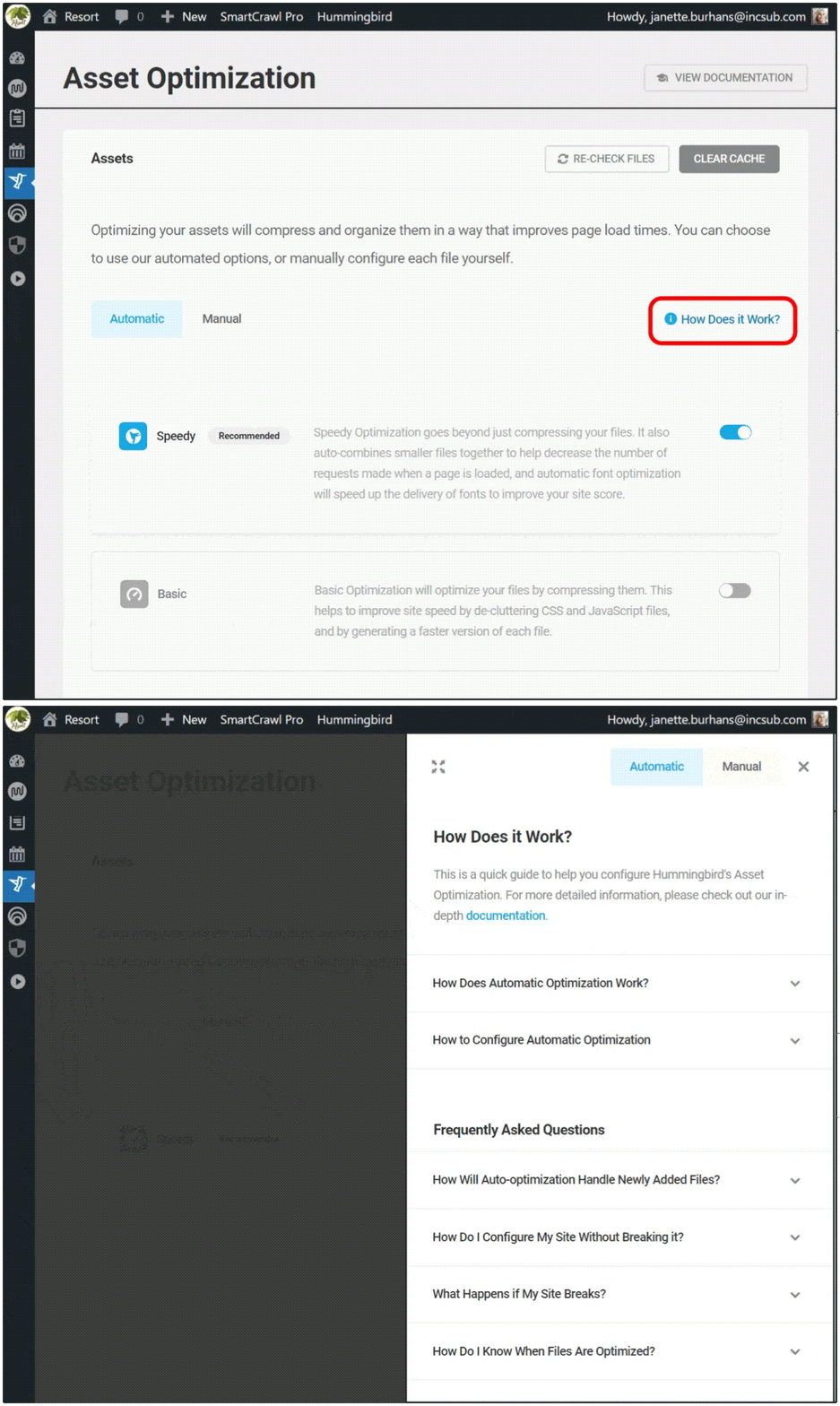
    You can see these anytime by navigating to Hummingbird > Asset Optimization > Assets, then click on the How Does it Work? text at right.

    There is a page for Automatic and one for Manual; just click on the corresponding header button that you’d like to read about.

    asset optiimz how does it work
    Get one-click access to summarized details on both modes of asset optimization.

    If you’re just starting out with Hummingbird, we recommend selecting Automatic optimization in Speedy mode to start. As you use and test your site and the plugin further, you can switch to auto basic or manual mode to check for possible improvements.

    And of course, you can always view our detailed documentation, or reach out to our customer support gurus, available 24/7/365.

    Testing Changes in Safe Mode

    We’re going to zero in today on optimization done in Manual, as that’s where the new Safe Mode lives.

    Hummingbird’s Safe Mode allows you to test different asset optimization settings in a safe environment, without affecting your website visitors’ experience.

    You’ll be able to preview your site from the frontend and check for any errors in your browser’s console, then publish your changes to go live once you’ve got everything just right.

    To enable this feature, go to Asset Optimization > Manual Asset Optimization, and click on the toggle button next to Safe Mode.

    From here, you can also click on the filter icon, which will open a panel for finding files faster. You can free type or select from the dropdown menu.

    manual safe mode+filter
    You can filter to search for files while in Safe Mode.

    When you’re in Safe Mode, clicking on any icon box will change its state.

    You will see a solid outline around it, indicating it’s been selected, and a circular info icon will also appear on the far left of the row.

    These visuals are to remind you’re in preview mode, and will remain until you click Publish, committing the changes you’ve made.

    preview mode changed state
    Visual cues will alert you to unsaved changes.

    With Safe Mode enabled, you can start tweaking your files for peak optimization.

    Each asset will have a status icon indicating its current state, and these vary based on the asset they’re attached to.

    As an example, the Compress option can have the following states:

    • Gray icon – files that are already compressed
    • White icon – indicates which files can be compressed
    • Blue icon – New assets selected for compression
    • Can’t be compressed – marks files that can’t be compressed

    Hover your mouse over any icon for a popup description of what action this change would make.

    hover popup details
    Need info on a particular icon? Just hover over it for a status popup.

    To see the effect any change makes, click the Preview button.

    preview button in safe mode
    The Preview button shows up once you turn Safe Mode on, taking the place of the Publish Changes button.

    Hitting Preview will load the frontend of your site, where you can check on the asset optimization you configured, making sure it doesn’t generate errors or break anything on your site.

    safe mode page preview
    What our Preview page looks like in Hummingbird’s Safe Mode.

    As you can see, the preview page has three clickable buttons at the top: Go Back, Copy Test Link, and Publish.

    Click on Copy Test Link if you want to gauge asset optimization you’ve made using a third-party performance test. Just paste the copied text into your preferred tool.

    Click on the Publish button if you’re content with the change(s) you made, and are ready to save.

    Click on the Go Back button if you’ve gotten an error message, a site break, or had no observable performance improvements, so you can continue to tweak your assets further.

    Once you’ve completed this exercise, turn Safe Mode OFF, as leaving it on can cause page load delays on your live site.

    And there you go! Maximum optimization achieved, which is completely changeable at any time.

    What’s The Other New Feature in Hummingbird 3.4?

    There’s another new feature in the latest release that I wanted to mention, as it’s sure to make your search experience in Hummingbird better.

    In the past, if you were working with a particular encrypted file from your performance test reports, locating it on the Manual Asset optimization tab by filename was a bit messy.

    That was because Hummingbird generates special filenames for optimized files, and there was no direct way to find them there. Until now!

    optimized filenames search in browser bar
    Copy filenames, then use Ctrl/Cmd+F to quickly find them in the browser search.

    With this release, you can copy filenames from the performance reports, then look them up directly in the browser search in the Manual Asset Optimization tab.

    This makes finding optimized files easier and faster.

    Get Your Site Humming with Optimal Performance

    Hummingbird is the ultimate performance suite for all users – whether you’re looking for simple, one-click solutions, or want to fine-tune your site performance down to the last CSS file.

    You’ll get faster loading pages and higher search rankings and PageSpeed scores with Hummingbird’s speed optimization.

    Now with Safe Mode for asset optimization, you can manually configure and test any files without worrying about a site break or interrupting the visitor experience on your site.

    Hummingbird is only one of our highly rated and multi-functional Pro plugins. You can try them all – along with WPMU DEVs membership or hosting – for free! Everything comes with our money-back guarantee, fully supported by our always on-call, 5-star support.

    We’ll help you keep your sites humming and your clients happy.

  • You’re Safe! Hummingbird’s Newest Release Allows for Manual Optimization in Protected Mode

    Fine tuning your website through manual optimization can be tricky, but our new Safe Mode feature in Hummingbird puts that problem in the rearview.

    Now, you can now test optimization in a temporary area that allows for non-permanent changes, so you can work out any kinks, then push them to your live site. For free!

    Introducing Safe Mode for Manual Asset Optimization – allowing you to optimize in a private space while your users still enjoy a fully functioning site.

    In this article, we’re going to look at how Safe Mode in Hummingbird works, while touching on a few related features and settings in the plugin. Plus, we’ll take a look at an additional (surprise!) feature also included in this release.

    Continue reading, or jump ahead using these links:

    Let’s dive in.

    Asset Optimization in Hummingbird

    Hummingbird makes your website faster by optimizing site performance with fine-tuned controls. Setting enhancements make things easy and efficient, giving you new ways to boost PageSpeed Insights.

    First, it identifies files that can be optimized (HTML, Javascript, and CSS), then offers a variety of means (compress, combine, or move) to make that happen.

    The result gives you marked improvement in your website’s performance.

    There are two different modes for asset optimization in Hummingbird:

    1. Automatic – use our preset options to optimize your assets and improve page load times.
    2. Manual – configure each file yourself to achieve the setup best suited to your specific site needs.

    Drilling down even further, there are two options within Automatic Optimization mode:

    1. Speedy – compresses & auto-combines smaller files together, and optimizes your fonts for faster delivery.
    2. Basic – compresses all your files to deliver a faster version of each.

    Automatic mode allows for a quick setup, providing positive gains without the time commitment that manual adjustment requires.

    Both of the Automatic options can be configured for Files (CSS, JavaScript), and/or Fonts.

    manual asset file types
    Hummingbird lets you optimize CSS, JS, and font files.

    Manual mode allows you to tinker with any and every file individually, so you can optimize your site on a very granular level.

    It’s a good idea to test files one at a time to measure results; that way if something doesn’t work it’s easy to identify what caused it and revert back without issue.

    We’ve mapped out specific steps for what to do in each mode, so that you can easily follow along in Hummingbird and produce optimal results.

    You can see these anytime by navigating to Hummingbird > Asset Optimization > Assets, then click on the How Does it Work? text at right.

    There is a page for Automatic and one for Manual; just click on the corresponding header button that you’d like to read about.

    asset optiimz how does it work
    Get one-click access to summarized details on both modes of asset optimization.

    If you’re just starting out with Hummingbird, we recommend selecting Automatic optimization in Speedy mode to start. As you use and test your site and the plugin further, you can switch to auto basic or manual mode to check for possible improvements.

    And of course, you can always view our detailed documentation, or reach out to our customer support gurus, available 24/7/365.

    Testing Changes in Safe Mode

    We’re going to zero in today on optimization done in Manual, as that’s where the new Safe Mode lives.

    Hummingbird’s Safe Mode allows you to test different asset optimization settings in a safe environment, without affecting your website visitors’ experience.

    You’ll be able to preview your site from the frontend and check for any errors in your browser’s console, then publish your changes to go live once you’ve got everything just right.

    To enable this feature, go to Asset Optimization > Manual Asset Optimization, and click on the toggle button next to Safe Mode.

    From here, you can also click on the filter icon, which will open a panel for finding files faster. You can free type or select from the dropdown menu.

    manual safe mode+filter
    You can filter to search for files while in Safe Mode.

    When you’re in Safe Mode, clicking on any icon box will change its state.

    You will see a solid outline around it, indicating it’s been selected, and a circular info icon will also appear on the far left of the row.

    These visuals are to remind you’re in preview mode, and will remain until you click Publish, committing the changes you’ve made.

    preview mode changed state
    Visual cues will alert you to unsaved changes.

    With Safe Mode enabled, you can start tweaking your files for peak optimization.

    Each asset will have a status icon indicating its current state, and these vary based on the asset they’re attached to.

    As an example, the Compress option can have the following states:

    • Gray icon – files that are already compressed
    • White icon – indicates which files can be compressed
    • Blue icon – New assets selected for compression
    • Can’t be compressed – marks files that can’t be compressed

    Hover your mouse over any icon for a popup description of what action this change would make.

    hover popup details
    Need info on a particular icon? Just hover over it for a status popup.

    To see the effect any change makes, click the Preview button.

    preview button in safe mode
    The Preview button shows up once you turn Safe Mode on, taking the place of the Publish Changes button.

    Hitting Preview will load the frontend of your site, where you can check on the asset optimization you configured, making sure it doesn’t generate errors or break anything on your site.

    safe mode page preview
    What our Preview page looks like in Hummingbird’s Safe Mode.

    As you can see, the preview page has three clickable buttons at the top: Go Back, Copy Test Link, and Publish.

    Click on Copy Test Link if you want to gauge asset optimization you’ve made using a third-party performance test. Just paste the copied text into your preferred tool.

    Click on the Publish button if you’re content with the change(s) you made, and are ready to save.

    Click on the Go Back button if you’ve gotten an error message, a site break, or had no observable performance improvements, so you can continue to tweak your assets further.

    Once you’ve completed this exercise, turn Safe Mode OFF, as leaving it on can cause page load delays on your live site.

    And there you go! Maximum optimization achieved, which is completely changeable at any time.

    What’s The Other New Feature in Hummingbird 3.4?

    There’s another new feature in the latest release that I wanted to mention, as it’s sure to make your search experience in Hummingbird better.

    In the past, if you were working with a particular encrypted file from your performance test reports, locating it on the Manual Asset optimization tab by filename was a bit messy.

    That was because Hummingbird generates special filenames for optimized files, and there was no direct way to find them there. Until now!

    optimized filenames search in browser bar
    Copy filenames, then use Ctrl/Cmd+F to quickly find them in the browser search.

    With this release, you can copy filenames from the performance reports, then look them up directly in the browser search in the Manual Asset Optimization tab.

    This makes finding optimized files easier and faster.

    Get Your Site Humming with Optimal Performance

    Hummingbird is the ultimate performance suite for all users – whether you’re looking for simple, one-click solutions, or want to fine-tune your site performance down to the last CSS file.

    You’ll get faster loading pages and higher search rankings and PageSpeed scores with Hummingbird’s speed optimization.

    Now with Safe Mode for asset optimization, you can manually configure and test any files without worrying about a site break or interrupting the visitor experience on your site.

    Hummingbird is only one of our highly rated and multi-functional Pro plugins. You can try them all – along with WPMU DEVs membership or hosting – for free! Everything comes with our money-back guarantee, fully supported by our always on-call, 5-star support.

    We’ll help you keep your sites humming and your clients happy.

  • How to Send Automated Emails in WordPress

    Are you looking to automate emails in WordPress?

    Your small business or online store relies on email. However, keeping up with marketing emails, transactional emails, email notifications, and engaging with users can become overwhelming. Automating these emails can save you time and effort while delivering you better results.

    In this article, we’ll show you how to send automated emails in WordPress to streamline your workflow and grow your business.

    How to Send Automated Emails in WordPress

    Why Send Automated Emails in WordPress?

    Whether you have an online store, a membership site, or a small business website, you rely on email to keep it growing and running smoothly.

    For example, you can use email to welcome new users and let them know when new content or products are available. Email is also useful for marketing campaigns and updating your customers on the progress of their orders.

    You can even use email to notify yourself when there is a new post waiting for you to review, or that a WordPress update needs to be installed.

    Since email is used for so many tasks on your WordPress website, it only makes sense to save time and effort by automating as many emails as possible.

    With that being said, let’s take a look at how to send automated emails in WordPress. Here are the topics we’ll cover in this tutorial:

    Making Sure Your WordPress Email Is Being Sent Reliably

    Before you start automating your emails, it’s important to make sure that emails from your website are being delivered reliably.

    By default, most WordPress hosting companies do not have the mail function configured properly. To prevent their servers from abuse, many hosting companies even turn it off completely. In these cases, your WordPress emails will fail to reach users.

    Luckily, you can fix this easily by using WP Mail SMTP. This plugin lets you send your WordPress email through a reliable SMTP platform which is configured specifically to send emails like SendLayer, Gmail, Outlook, etc.

    The free version of WP Mail SMTP should be more than sufficient for most websites. For more details, see our guide on how to fix WordPress not sending email.

    Sending Automated Drip Emails Using Constant Contact

    A good place to start thinking about email automation is the way you market your store or business. And one of the best ways to automate marketing is with a drip campaign.

    What Is an Automated Drip Campaign?

    Automated drip campaigns are email messages that automatically guide your users along a specific journey. They’re great for boosting user engagement on your WordPress site.

    For example, these messages can welcome new users, promote important content, upsell products, target specific geographic regions, and encourage users to register for events.

    To send automated drip notifications by email, we recommend using Constant Contact because it’s the best email marketing service on the market. However, you can use any other major email marketing platform, including Sendinblue, HubSpot, and others.

    To start, you can visit the Constant Contact website and create an account. The software gives you a 60-day free trial, so you can try it out before committing to a premium plan.

    Constant Contact Website

    Pro Tip: If you use our Constant Contact coupon code, then you can also get 20% off by purchasing upfront.

    Creating a List of Contacts

    Once you sign up, you can visit the Constant Contact dashboard to create a contact list.

    Constant Contact has already created a default list for you. However, you can create your own list by going to the ‘Contacts’ tab in the top menu, and then clicking the ‘Create List’ button.

    Creating a New Email List

    A popup window will appear where you can enter a name for your list.

    After that, simply click the ‘Save’ button.

    Choose a Name for Your Email List

    You can add contacts to the list by going to the ‘Contacts’ tab and then clicking the ‘Add Contacts’ button.

    Email List Created

    A popup window will open with multiple options for adding new contacts.

    Now you can add your contacts manually, upload them in a spreadsheet or CSV file, or import them from other apps.

    Add Contact to Your Email List

    Creating an Automated Drip Campaign

    Once you’ve added your contacts, you need to create the drip campaign.

    To do that, head over to the ‘Campaigns’ tab and then click the ‘Create’ button.

    Create Welcome Email Campaign

    Next, Constant Contact will show you multiple options for creating a campaign.

    Go ahead and select the ‘Email Automation’ campaign.

    Email Automation Campaign

    From here, you can select single-step automations or multi-step automation.

    Single-step automations send just a single email, such as a welcome email. Multi-step automations let you create a series of emails that are automatically sent to your subscribers so you can let them know about your products and services, send special offers, and more.

    In this tutorial, you’ll create a multi-step automation for when new subscribers join your email list. Go ahead and select the ‘A contact joins a list’ option.

    Choose an email automation

    Next, you will have to enter a name for your campaign.

    Make sure you click the ‘Save’ button.

    Name the Automated Series

    Constant Contact will then ask you to choose what activity will trigger the email. For example, the drip series is automatically triggered when a user joins your email list, opens an email, clicks a link, or buys a product.

    You can use the default ‘Contact joins a list’ option as the trigger type. Then you can choose the email list you created earlier. Go ahead and click the ‘Save’ button when you’re done.

    Choose contact list

    Creating the Emails for Your Drip Campaign

    Now you need to create the emails to send in your automated drip campaign. The first one you create will be sent automatically when the user signs up.

    To begin, simply click the ‘Create New Email’ option.

    Create a New Email

    Constant Contact will now show different email templates to choose from.

    For this tutorial, we’ll use the ‘Agent Welcome’ template.

    Select Welcome Email Template

    You can customize the email template using the drag-and-drop email builder.

    You can choose multiple elements from the menu on your left and place them on the template.

    Creating Welcome Email

    You also need to add the email’s content by removing the placeholder text and adding your own. Once you’ve done this, simply click the ‘Continue’ button at the top right of the editor and the email will be added to the drip series.

    Next, you can add a second email by clicking the ‘+ Add to series’ button and then the ‘Create New Email’ button.

    Add another email to series

    You’ll need to select a template and customize the new email as you did earlier. You can set the delay before the drip campaign sends its next email.

    By default, this value is set to 4 days. You can change this by clicking the ‘Edit’ button in front of the section titled ‘Wait 4 days.’

    This will open the ‘Time Delay Editor’ where you can choose when the next email in the drip campaign will be delivered. You can click the ‘Confirm’ button when you’re done.

    Change time delay

    Now, you should see all your emails in the campaign summary area.

    Go ahead and click the ‘Activate’ button in the upper-right corner to launch your campaign.

    Activate your campaign

    Constant Contact will then show a prompt to verify whether you wish to activate your campaign.

    Simply click the ‘Continue’ button, and the tool will check if everything is working properly and activate your campaign.

    Verify and launch your campaign

    You’ve now successfully launched your automated drip email campaign.

    For more detailed instructions, and to learn how to create a drip campaign using push notifications, see our guide on how to set up automated drip notifications in WordPress.

    Sending Automated Transactional Emails With FunnelKit Automations

    If you are running a WooCommerce store, then your customers will receive different transactional emails. These help them get order confirmations, track their order status, get invoices, and find more information about your online store.

    You can customize and automate these emails using FunnelKit Automations, a popular WooCommerce plugin for marketing automation. It is a sister product to FunnelKit (formerly WooFunnels), a powerful sales funnel builder for WooCommerce.

    First, you need to install and activate the FunnelKit Automations plugin. For more details, please see our guide on how to install a WordPress plugin.

    Creating Email Automation Workflows With FunnelKit Automations

    Upon activation, you need to go to Campaigns » Automations (Next-Gen) to add a new automation from your FunnelKit Automations dashboard. Here you will see a library of email types that make it simple to create new automations.

    Autonami Email Library for WooCommerce

    You can import an email automation workflow with a single click, then use the visual email automation builder to make any customizations that you need.

    For example, here’s the workflow for Abandoned Cart Reminder.

    Autonami - Abandoned Cart Email Workflow for WooCommerce

    Customizing WooCommerce Emails With FunnelKit Automations

    FunnelKit Automations lets you customize any WooCommerce email and create new emails using a drag-and-drop email builder inside WordPress.

    You can go to FunnelKit Automations » Templates from your WordPress dashboard and click the ‘Add New Email Template’ button.

    Add new email template in FunnelKit Automations

    Next, you can enter a name for your email template.

    After that, make sure you click the ‘Add’ button to continue.

    Enter a name for template

    Now the plugin will let you enter a subject line and preview text for your email.

    You can customize the content of your WooCommerce emails using rich text, HTML, or the visual builder.

    Launch the visual builder

    The visual builder lets you select different elements from the menu on your left and place them on the template using drag and drop.

    For instance, the ‘Content’ tab lets you can add columns, buttons, headings, menus, text, and more to the email template.

    Add a heading block to email template

    The ‘Body’ tab lets you further customize each element, such as the text color, alignment, font, size, and more.

    Edit body of email

    Once you’re done, you can click the ‘Save’ button at the top.

    For more detailed instructions, see our guide on how to customize WooCommerce emails. Once there, make sure you scroll down to the second section titled ‘Customizing WooCommerce Emails using FunnelKit Automations.’

    Automating Marketing Emails Using Uncanny Automator

    Of course, you’ll also still need to send marketing emails outside of your drip campaign. These are most effective when they are personalized and timely.

    For example, you can use automated emails to showcase products similar to what your customer has already bought. Or you can automatically send users an email as soon as you publish a new article on your website.

    You can do this easily by using Uncanny Automator. It’s the best WordPress automation plugin that allows you to create automated workflows for your WordPress site.

    The free version easily connects with popular email marketing services such as Mailchimp, HubSpot, and others, making it easy to automate your email.

    For this tutorial, we’ll use the free version of Mailchimp because it’s popular and they offer a free forever plan where you can send up to 10,000 emails per month to 2000 subscribers.

    Getting Started With Uncanny Automator

    The first thing you need to do is install and activate the free Uncanny Automator plugin. For more details, see our step-by-step guide on how to install a WordPress plugin.

    Upon activation, head over to the Automator » Add New page to create your first recipe. In this tutorial, we’ll send an automated email to subscribers whenever we publish a new post.

    You’ll be asked to select which type of recipe you want to create. You should choose ‘Logged-in users’ and then click the ‘Confirm’ button.

    Selecting an Uncanny Automator Recipe Type

    Setting Up the Automation Trigger

    Next, you need to choose whether the automation will be triggered by Uncanny Automator or WordPress.

    Since you will be sending an automated email when a new WordPress post is published, you should click on the ‘WordPress’ option.

    Selecting an Uncanny Automator Trigger Integration

    Now you can choose from a long list of available WordPress triggers.

    You need to select the trigger labeled ‘A user publishes a type of post with a taxonomy term in a taxonomy.’

    You can use the search feature to find this trigger more quickly.

    Selecting an Uncanny Automator WordPress Trigger

    If you like, you can get specific about the types of posts that will trigger the email. You can choose a post type and a specific category or tag from the drop-down menus.

    For this tutorial, we’ll go with the default settings.

    Selecting the Types of Posts That Will Trigger the Automation

    Make sure you click the ‘Save’ button when you have finished setting up the trigger.

    Setting Up the Automation Trigger

    Next comes the action part, where you choose what action will be triggered. To get started, simply click the ‘Add action’ button.

    Clicking the Uncanny Automator 'Add action' Button

    Now you will be shown a long list of integrations that are available for the action.

    You should click the Mailchimp icon to connect it to your website.

    Selecting an Uncanny Automator Action Integration

    This will bring up a popup where you need to follow the on-screen instructions to finish the connection by logging into your Mailchimp account or creating a new one. Once connected, you will be able to choose what action you want to perform on your Mailchimp account.

    You should then choose the option ‘Create a send a campaign’.

    Choosing the Uncanny Automator 'Create and send a campaign' Action

    Now you need to type a name for the campaign. You might like to use tokens so that the Mailchimp campaign name for each new post is different.

    For example, you can click the ‘*’ button to the right of the field and select the ‘Post title’ token.

    After that, you can use the drop-down menus to choose your audience and segment and fill in the subject and other details of your email.

    Fill in the Fields to Set Up the Mailchimp Campaign

    You can compose your email in the ‘Email contents’ field. Make sure you use tokens so that the content is updated for each email campaign.

    For instance, you can include tokens for the post title, post author display name, post excerpt, post URL, and featured image URL.

    Once you are finished, you can switch the recipe from ‘Draft’ to ‘Live.’

    Switching the Uncanny Automator Recipe From Draft to Live

    From now on, when you publish a new article on your website, Mailchimp will automatically send an email to your subscribers.

    You can learn more about building an effective mailing list in our guides on using Mailchimp and WordPress and how to create an email newsletter the right way.

    You might also like to see our guide on how to automatically send a coupon to users who leave reviews in WooCommerce. It’s another good example of how you create automated emails using Uncanny Automator to build customer loyalty.

    Bonus: Sending Automated Notification Emails

    Now that you have set up automated emails for your users, you can do the same for yourself and your team.

    For example, you can create automated email notifications to keep track of issues that require your immediate attention, such as when an author submits a post for you to review.

    Creating a Notification for Posts Pending Review

    You can also stop the WordPress notifications you don’t need from filling up your inbox, such as comment notifications.

    To learn how to customize notification emails, see our step-by-step guide on how to add better custom notifications in WordPress.

    We hope this tutorial helped you learn how to send automated emails in WordPress. You may also want to learn how to get a free email domain, or check out our list of the best WordPress membership plugins.

    If you liked this article, then please subscribe to our YouTube Channel for WordPress video tutorials. You can also find us on Twitter and Facebook.

    The post How to Send Automated Emails in WordPress first appeared on WPBeginner.
  • How to Connect Salesforce to Your WordPress Forms

    Do you want to connect Salesforce to your WordPress forms?

    Salesforce is one of the most popular customer management software on the market. Connecting it to your WordPress forms allows you to automatically add leads, customers, and other contacts to your CRM.

    In this article, we’ll show you how to easily connect Salesforce to your WordPress forms.

    How to connect Salesforce to your WordPress

    Why Connect Salesforce to Your WordPress Forms?

    Salesforce is one of the best CRM (customer relationship management) software on the market. Many of the world’s largest businesses use it to manage customers, leads, and business contacts from one single dashboard.

    Most business websites use contact forms to generate leads and then manually add them to their CRM software. This takes time, and you may still forget to follow up with a potential customer.

    Connecting Salesforce to your WordPress contact form allows you to remove this hurdle. As soon as a user submits their information, it will automatically be added to your Salesforce contacts.

    From there, you can follow up with customers to boost conversions and sales from your WordPress website.

    That being said, let’s take a look at how to easily connect Salesforce to your WordPress forms.

    Setting Up WPForms to Connect With Salesforce

    For this tutorial, you’ll need WPForms. It is the best WordPress contact form plugin used by over 5 million website owners.

    You can use it to easily create any type of form using a simple drag-and-drop form builder.

    WPForms is a premium WordPress plugin, and you’ll need their Elite plan to use the Salesforce addon. There is also a WPForms Lite version which is available for free.

    First, you need to install and activate the WPForms plugin. For more details, see our step-by-step guide on how to install a WordPress plugin.

    Upon activation, you need to visit the WPForms » Settings page to enter your license key. You can find this key under your account on the WPForms website.

    Entering the WPForms license key

    Setting Up the Connection Between WPForms and Salesforce

    Now, you need to set up a connection between WPForms and Salesforce. WPForms comes with the Salesforce addon which lets you easily connect the two apps together.

    Simply go to the WPForms » Addons page and locate the Salesforce addon. You can then click on the ‘Install’ button, and it will be installed and activated automatically.

    Install Salesforce addon

    After that, you can go to the WPForms » Settings » Integrations page from your WordPress dashboard.

    Here, you need to click on the Salesforce integration to open it up.

    Click salesforce integration

    Under Salesforce settings, go ahead and click on the ‘Add New Account’ button.

    WPForms will show you Salesforce settings with a Callback URL.

    Copy the callback URL

    Simply keep the tab open in your browser or copy the Callback URL to a safe place. You’ll need it in a later step.

    Now, you need to create an app in your Salesforce account. We’ll walk you through the process step by step.

    Important Note: You need to have an Enterprise, Unlimited, Performance, or Developer edition of Salesforce. Otherwise, you will not be able to connect your WordPress forms. However, there is a free trial you can use to get started.

    If you don’t already have an account, then you can create one by going to the Salesforce’ website and clicking the ‘Start My Free Trial’ button.

    Salesforce website

    On the next screen, you can enter your details like name, work email, job title, company, phone number, and more to create an account.

    After entering the data, go ahead and click the ‘Start My Free Trial’ button.

    Enter your personal details to create salesforce account

    After completing the signup, you’ll reach your Salesforce account dashboard.

    From here, you need to switch to the Salesforce Classic dashboard by clicking on your profile icon on the top, and then clicking the ‘Switch to Salesforce Classic’ option.

    Switch to salesforce classic

    Next, you’ll the classic Salesforce dashboard.

    After that, you need to click on the Setup link at the top to access the Salesforce dashboard settings.

    Head to the setup settings

    On the next screen, navigate to the Build » Create menu from the column on the left.

    From here, simply click the ‘Apps’ option in the menu.

    Create apps in Salesforce

    This will bring you to the Apps section.

    From here, click on the New button under the Connected Apps section.

    Create new connected apps

    Next, you now need to fill in the details for your app.

    For the ‘Connected App Name,’ enter the name you want to use, so other users for your Salesforce account can see it.

    The API name will default to the Connected App Name. You don’t need to enter or change it. For the contact email, enter your email address.

    You don’t need to enter the logo image, icon, info URL, or description. These fields are for Salesforce users who will be publishing their apps.

    Enter basic information

    Below this, you need to check the ‘Enable OAuth Settings’ box.

    Once you check the box, you will see the OAuth settings.

    Enable oauth settings option

    First, you need to enter the Callback URL that you found earlier in your WPForms account.

    Simply paste the link in the Callback URL field.

    Enter the callback URL

    After that, scroll to the ‘Available OAuth Scopes’ section. The selected OAuth Scopes let Salesforce know what permissions your app should have.

    Next, you need to enable 2 permissions here. They are ‘Manage user data via APIS (api)’ and ‘Perform requests at any time (refresh_token, offline_access).’

    Simply select these and then click the ‘Add’ button to add those permissions.

    Add OAuth scopes

    There’s nothing else you need to change on this page. After adding the permissions, simply click the ‘Save’ button at the bottom of the page.

    You should then see a message telling you to allow up to 10 minutes for your changes to take effect.

    Click continue for saved changes

    Then, just click on the ‘Continue’ button. On the next screen, you’ll see your API information.

    We recommend that you wait 10 minutes before using your app. That way, you can be sure that your app will be ready. After the 10 minutes is up, you need to copy your ‘Consumer Key’ and ‘Consumer Secret’ to WPForms.

    View your API information

    Simply click the ‘Manage Consumer Details’ button to continue.

    Next, Salesforce will ask you to enter a verification to move ahead. You’ll receive the code in your email.

    Enter verification code

    After entering the code, go ahead and click the ‘Verify’ button.

    Next, you’ll see the ‘Consumer Key’ and ‘Consumer Secret’ codes. Go ahead and copy them.

    Copy the consumer key and secret

    Now, simply switch back to the tab with your WPForms Salesforce settings.

    If you have closed this tab, then it’s easy to find it again in your WordPress admin. Just go to the WPForms » Settings » Integrations page.

    Simply paste the Consumer Key and Consumer Secret into the Salesforce settings for WPForms.

    Paste the consumer key and secret

    Then, go ahead and click the ‘Connect to Salesforce’ button.

    You will then be prompted to log in to your Salesforce. Simply log in to your account using your username and password.

    Next, you need to click the ‘Allow’ button to give WPForms access to your Salesforce account.

    Allow access to salesforce

    After this, you will see your Integrations page again.

    There should be a message at the top of the screen to let you know that the connection was successful.

    See successful integration message

    Now that you have connected WPForms to your Salesforce account. You can start creating forms and send entries directly to your Salesforce account.

    Creating a WordPress Form with Salesforce Integration

    The next step is to create your form. You can connect any type of form to Salesforce.

    Simply go to the WPForms » Add New page. This will launch the WPForms drag-and-drop form builder.

    First, you can enter a name for your form at the top and then click on a template. We’ll use the ‘Simply Contact Form’ template for this tutorial.

    Select a template for yourself from the WPForms template library

    In the form builder, you can drag and drop different fields from the left menu onto the template. For instance, you could add a phone number field.

    Plus, you can rearrange their order and further customize each field in the form.

    Form in form builder

    Once you are satisfied with the form, go to the Marketing » Salesforce tab to connect it with your Salesforce account.

    Go ahead and click the ‘Add New Connection’ button.

    Add Salesforce connection to your form

    You will then see a popup where you need to name your connection. Your site’s visitors will not see this. It’s just for your own use.

    Just enter the name you want to use. Then, click the ‘OK’ button.

    Enter a name for Salesforce connection

    Now, you need to select your Salesforce account and ‘Salesforce Object.’

    The object is the type of data you are sending to Salesforce, such as a contact or a lead.

    Select sales objective and email

    Once you’ve chosen your Salesforce Object, you will see some new dropdowns.

    Here, the ‘Custom Field Name’ column is the name of the field in your Salesforce account. The ‘Form Field Value’ is the name of the field on your form.

    Salesforce object custom fields

    You need to select a ‘Form Field Value’ for each custom field you want to use. This means your form data will be entered into the correct field in Salesforce.

    The only required field is the Full Name field in Salesforce. For this, select ‘Name’ as the Form Field value.

    Next, go ahead and select a different field from the dropdown below this. Simply choose which WPForms field you want to map it to. To add more fields, click the blue + button.

    We have included the email and phone fields from our form here:

    Mapping fields WPForms salesforce

    Don’t forget to click the Save button at the top of the screen after adding your Salesforce connection.

    Adding Your Form to a WordPress Page or Post

    WPForms makes it super easy to add forms anywhere on your WordPress website.

    Simply edit the post or page where you want to add the form or create a new one. On the content editor screen, click on the (+) add new block button and then add a WPForms block to your page.

    Add a WPForms block in wordpress

    Next, you need to choose your contact form from the dropdown list within the block.

    Finally, go ahead and publish your page to see your form live on your site.

    View Salesforce form on website

    For more detailed instructions, check out our step-by-step guide to creating a contact form in WPForms.

    It’s best practice to test your form to make sure that you’ve correctly connected Salesforce.

    Simply fill in some test data and click Submit.

    Enter a test form to check salesforce connection

    After that, switch to your Salesforce account dashboard.

    You should see a new item listed on your homepage.

    See the lead in Salesforce homepage

    You can click on the name to see the information for that contact.

    You’ve successfully connected Salesforce to WPForms. Now, all your new contacts will be automatically added to Salesforce for you.

    We hope this article helped you learn how to connect Salesforce to your WordPress forms. You might also like our article on how to send contact form details to multiple recipients, and our pick of best business phone services for online businesses.

    If you liked this article, then please subscribe to our YouTube Channel for WordPress video tutorials. You can also find us on Twitter and Facebook.

    The post How to Connect Salesforce to Your WordPress Forms first appeared on WPBeginner.

  • Automate Global IP Banning with Defender and The Hub (for Free!)

    Our new Global IP Banning feature saves you loads of time securing sites. Simply create your IP block and allowlist once, then automatically sync to some or all of your WordPress sites with a few clicks.

    A global IP allowlist and blocklist feature has been a top Defender security request for a while. So now…

    “I logged into a client site this morning and saw a notification about the new global IP list-banning feature that allows us to sync our IP ban lists across Hub sites. I have raised this request in previous topics with Support and I am sooooooo happy that it has been made live. You guys rock!”

    Andre – WPMU DEV Member

    It’s here, free to use, and managed directly from your Hub! As you’ll see, it’s easy to quickly apply the same allowlist and blocklist IPs to all of your sites in bulk.

    This article will cover:

    So, let’s show you how it’s done! First though…

    Why Block and Allow IPs?

    Just to touch on it quickly, there are many reasons for configuring a WordPress site to allow or block IPs.

    For example, maybe you want to monitor online behavior (e.g. to restrict specific web platforms from accessing an educational site). Or, to protect your website from attacks. Also, you may not want a particular country or place to access your online information.

    So, there are practical scenarios (like not allowing access to unwanted sites) and security protocols (preventing unwanted or harmful sites or servers from connecting with your network or computer).

    Whatever the purpose, allowing and banning IPs should be in your control. With Defender, they are.

    Let’s show you how our Defender security plugin makes it easy.

    IP Banning and Allowing From The Hub

    The Hub makes it easy and simple to create and manage IP Banning.

    You can block and allow IP addresses from this area and automatically sync those lists with all or several of your WordPress sites.

    The IP Banning section is located in the My Sites menu area.

    IP Banning from the Hub.
    IP Banning is a click away whenever you need to access it in The Hub.

    In this section, you can see your Global Blocklist and Global Allowlist, where you’ll add your IPs.

    Global block and allowlist areas.
    These are the sections where all of the IPs will be entered.

    Simply insert one IP address per line and keep in mind that IPv4 and IPv6 are supported. Plus, IP ranges are also accepted in CIDR or hyphenated format.

    The entered IPs.
    Once you have your IPs added, click ‘Save.’

    Ever want to edit? It’s no problem. You can add and remove IPs at any time!

    Selecting Sites to Block and Allow IPs

    It’s up to you to determine what sites of yours you want IPs blocked or allowed. So, before syncing IPs with sites, decide what sites you want to associate with IP block and allow lists.

    Head to Activate on Site(s) to pick what site you want to include.

    Where all of your sites are listed.
    All of your sites will be listed here.

    After clicking, you’ll see all the available sites to activate global IP banning.

    You’ll also be able to see any website that doesn’t have Defender activated and any other issues that would affect syncing.

    The sites that can be activated for IP syncing.
    Select all in one-click or individually.

    If you want, you can search with Filters & Labels when browsing through your websites. There are options for filtering by ‘Hosted with us,’ ‘Hosted elsewhere,’ favorites/non-favorites, and labels.

    Plus, you can enter a site title and search relevant sites.

    Filters to search by.
    Want just sites hosted with us? Click that option to filter and browse those.

    When your sites are selected, tap Activate – and that’s it! It takes just a few moments for the sites to be included.

    With that being said, it’s time to…

    Sync IPs with WordPress Sites

    It takes one click to sync your IPs with your WordPress sites. Just tap on the bright blue Sync IPs with Sites, and all the selected sites will be synced.

    IPs to sync.
    After listing all your IPs, click ‘Save’ before syncing.

    A message informing you of what is about to take place will pop up to ensure you’d like to proceed.

    Sounds good to still sync? Then click Continue.

    Message for syncing.
    Click ‘Continue’ will get the sync started.

    After hitting Continue, you can sit back and relax as all of your chosen sites are synced with IPs on your blocklist and allowlist! It takes just a few moments.

    Global IPs From Defender’s Dashboard

    Now that you know how to set up global IPs from The Hub, you can also monitor and sync IPs in WordPress under Defender > Firewall > IP Banning.

    Defender dashboard for IPs.
    You’ll see it synced up here as long as the Block/Allow Global IPs are activated.

    After syncing, all the IPs you have entered in The Hub will be in a list.

    One thing to note is that you can’t add new IPs from Defender’s WordPress admin. Simply add them in The Hub and re-sync – and that’s it!

    It’s also an area where you can enable and disable the global IP feature anytime.

    Allow and Block Global IPs with Ease

    As you can see, allowing and blocking global IPs can be done in just a few clicks with Defender and The Hub. It’s never been simpler to control global IPs across any number of sites simultaneously!

    If you aren’t using The Hub yet, sign up for free. The same goes for Defender, which also doesn’t cost a thing from wp.org.

    And now, blocking and allowing IPs is a breeze!