Do you want to greet each user with a custom welcome message in WordPress?
Greeting users with a welcome message can help boost engagement on your website, as it makes people feel welcomed and cared for. It’s a great way to keep in touch with your visitors, generate leads, and increase sales.
In this article, we will show you how to greet each user with a custom welcome message in WordPress.
Why and When You Should Greet Users With Welcome Messages in WordPress
Not all websites need to greet users with a custom welcome message. However, if you are running an online store, trying to generate leads, or boosting user engagement, then a welcome message can be very useful.
There are different types of welcome messages that you can use. The goal here is to offer users a lot of value with each message.
Here are some use cases for showing a welcome message on your WordPress site:
When customers arrive at your eCommerce store, you can show a welcome message greeting them with discount offers, the deal of the day, or assist them in the checkout process.
A welcome message helps provide live support to users who might not be familiar with your products and services. You can encourage them to ask questions and resolve any questions they might have.
Showing a welcome message to returning visitors can boost sales on your site. You can show a popup with popular products, discounts, and other incentives.
You can also create personalized welcome messages in different languages for your global audience. This helps boost engagement and makes users from around the world feel welcome.
On a WordPress blog, a welcome message can help you grow your email list. You can encourage users to download a free course, show them your best content, and more.
Creating a welcome message for a nonprofit website can help you get more donations. You can greet users and show top causes to support in the popup message.
That being said, let’s see how to easily greet each user with a custom welcome message in WordPress. We will cover 2 methods, so you can click the links below to jump to any section:
Method 1: Greet Users With a Custom Welcome Message Using OptinMonster
For this method, we will be using OptinMonster. It is the most popular lead generation software in the world that helps you convert website visitors into subscribers and customers.
First, you need to sign up for an OptinMonster account. Simply visit the website and click the ‘Get OptinMonster Now’ button to get started.
It is a free plugin that acts as a connector between your WordPress site and OptinMonster.
Upon activation, you will see the OptinMonster setup wizard and welcome screen. Go ahead and click the ‘Connect Your Existing Account’ button.
After that, a new window will now open.
You need to click the ‘Connect to WordPress’ button to connect your WordPress website with OptinMonster.
You are now ready to create a new campaign for your website.
Simply head to OptinMonster » Campaigns from the WordPress admin panel and click the ‘Create Your First Campaign’ option.
Next, you need to choose a campaign type and a template. OptinMonster comes with different campaign types, and you can use any of them to greet users with a welcome message in WordPress.
For this tutorial, we will be using the slide-in campaign type with the Flatland template.
Next, you will be asked to give your campaign a name.
Once that’s done, simply click the ‘Start Building’ button.
OptinMonster will now launch the drag-and-drop editor, where you can simply add any element and edit it.
You can add different blocks like columns, text, video, buttons, sign-up fields, and more.
You can also change the text in the welcome message popup.
OptinMonster also integrates with your email marketing services. Simply switch to the ‘Integrations’ tab at the top.
After that, you will need to click the ‘Add a New Integration’ button from the menu on your left.
Go ahead and select the email marketing tool you would like to integrate and click the ‘Connect’ link. You can then follow the onscreen instructions to log in to your preferred service.
Next, you need to switch to the ‘Display Rules’ tab to select when you want to display the greeting.
OptinMonster comes with a bunch of options that you can use to create less intrusive and highly engaging welcome messages.
Displaying Welcome Message Using Time on Page Rule
By default, OptinMonster will use the time-on-page display rule to show your welcome message campaign.
Let’s say a user arrives at your eCommerce store and spends 5 seconds on the homepage. You can then show a popup message welcoming the user and show recent sales, popular products, or other incentives.
Similarly, if you have a WordPress blog, you can display popular articles, the latest announcements, or information about new products or services to users in the welcome message.
Simply select the ‘Time on Page’ display rule to get started and set the time to 5 seconds.
If you want to show the campaign on all the pages on your website, then you will need to use the ‘current URL path’ and ‘is any page’ rules.
However, you can change these settings and increase the time or select a particular page to show your welcome message.
Display Welcome Message Based on Location
You can also show your display different messages to users from specific locations. You can even create multiple campaigns and greet users in their native languages.
All you need to do is select the ‘Physical Location’ display rule in OptinMonster.
Next, you can enter the country name in the display rule settings.
From here, you will need to click the ‘Validate’ button.
After setting up the display rules, you can switch to the ‘Publish’ tab at the top.
On the next screen, you will need to confirm the location that you entered.
Simply click on the location name to continue.
You can keep the setting for displaying the campaign on all the pages.
However, if you want, you can edit this and show your welcome message on a particular page, like the homepage.
There are many more display rules you can use in OptinMonster to show your welcome message. For instance, there are options to show the campaign based on a user’s device, when they click a link, when they visit a particular page, and more.
Publish Your Welcome Message Campaign
Once your welcome message is ready, go ahead and change the Publish Status to ‘Publish.’ Then, you can click the ‘Save’ button at the top and exit the campaign builder.
Next, you will see the WordPress output settings for your campaign.
To make sure your campaign is live, click the ‘Status’ dropdown menu on the right and select the ‘Published’ setting.
Don’t forget to save the settings after changing the status.
You can now visit your website to see your custom welcome message in action.
Method 2: Greet Users With a Custom Welcome Message Using LiveChat
LiveChat is the best live chat support software for WordPress websites. It allows you to create beautifully-designed live chat buttons and live chat support for your WordPress site.
You can customize the greeting message, display your own buttons, upload your logo, show agent profiles, and more.
First, you need to visit the LiveChat website and sign up for an account. Simply follow the onscreen instructions to set up your account.
After that, you will be taken to your LiveChat dashboard.
Next, you need to go to the ‘Settings’ tab from the left panel and head to the Chat widget » Customization page.
Here, you can customize your chat widget.
LiveChat lets edit widgets directly on your website. Simply enter your site’s URL into the ‘Customize widget on website’ option and click the blue arrow button.
You can now change the color of your chat widget, select dark or light mode, adjust the style, and change the alignment and spacing.
LiveChat also lets you edit the appearance of your live chat widget from the dashboard settings.
Besides that, you can also make additional tweaks to your chat widget.
For instance, there are options to show a logo or an agent’s photo, enable sound notifications, let customers rate agents, and more.
Next, you need to switch to the Engagement » Targeted messages section from the panel on your left.
By default, LiveChat enables a few targeted messages. However, you can create your own types of targeted messages, such as:
A welcome message to new customers
A welcome message to returning customers
Help on the pricing page
A discount on the checkout page
Product announcements
New feature releases
Time-sensitive deals and discount offers
You can click on the default messages to further customize them or add a new message.
For this tutorial, we will add a new welcome notification by clicking the ‘New targeted message’ button.
Next, a small window will open where you can choose the type of message you’d like to create. Go ahead and select the ‘Greeting’ option.
After that, you can edit the message that users will see as a greeting.
LiveChat also offers templates for your greeting message. For instance, you can show a product, announce a new feature, share knowledge, and more. We will use the default template for this tutorial.
There are also options to change the button text, add another button, and more.
Once you have edited the greeting message, simply click the ‘Next: set conditions’ button at the bottom.
Next, you will need to specify when the greeting message will appear. LiveChat shows 3 options, which include showing it to all visitors, first-time visitors, or returning visitors.
The live chat software also lets you choose the time a user spends on a page before showing the greeting message. After that, you will need to select a page where the message will appear.
When you have made the changes, simply click the ‘Save greeting’ button.
A new window will now open. Go ahead and enter a name for your greeting message and enable the ‘Set greeting live’ option. After that, click the ‘Save’ button.
Note that you can disable the default welcome message set by LiveChat if you have just created a new one.
Next, you need to select an eye-catcher. This is an image that is displayed when the LiveChat window is minimized.
LiveChat comes with several ready-made eye-catchers that you can use. You can also upload your images and use one of them.
Simply go to Engagement » Eye-catcher in the LiveChat settings and click the toggle to enable the eye-catcher. Don’t forget to click the ‘Save changes’ button when you are done.
Once you are happy with the design of your LiveChat window and custom greeting, you are ready to add it to your WordPress website.
Next, you can switch back to your WordPress admin area to install and activate the LiveChat plugin. For more details, see our step-by-step guide on how to install a WordPress plugin.
Upon activation, the plugin will add a new menu item labeled LiveChat to your WordPress admin sidebar. Plus, it will redirect you to a login screen, where you can select your LiveChat account and click the ‘Log in’ button.
You will now see a success message that you have successfully added LiveChat to WordPress.
Simply click the ‘Got it’ button to continue.
That’s it. You have successfully added a welcome greeting message through live chat on your website.
You can now visit your site in a new browser tab to see the LiveChat custom greeting in action.
If you liked this article, then please subscribe to our YouTube Channel for WordPress video tutorials. You can also find us on Twitter and Facebook.
Are you looking to sell video downloads online? Maybe you are wondering whether you can sell videos using a WordPress website.
The answer is yes. Selling videos with WordPress is easy and gives you the most control over your content and earnings. You’ll be able to sell the same video files countless times.
In this article, we will show you how to start selling video files online with WordPress.
Why Sell Videos Online?
If you are into making videos, then there are a lot of ways to sell your work online.
Selling your video content online will let you make money while helping others.
You can sell video assets that other creatives can download and use in their own projects. These include stock footage, drone footage, motion graphics, logos, openers, and more.
Or you might want to sell your own finished videos, such as training videos, music videos, product reviews, or video gameplay.
One way to make money from your videos is to create a membership site like our own WordPress 101. Members pay a subscription or create free accounts to watch your content from your website.
Some are better suited to physical products than digital downloads like video files. Moving platforms in the future can be complicated and take a lot of time and effort.
WordPress is the best website builder on the market, used by over 43% of all websites.
Now, it’s important to know that there are two types of WordPress software, and you don’t want to choose the wrong one.
First, there is WordPress.com, which is a blog hosting platform. Then, there is WordPress.org, which is also known as self-hosted WordPress. For a detailed comparison, you can see our guide on the difference between WordPress.com and WordPress.org.
You need to use the self-hosted WordPress.org platform because it gives you full control over your website. It provides complete freedom to sell any type of digital product using a plugin like Easy Digital Downloads.
Easy Digital Downloads (EDD) is the best WordPress eCommerce plugin for selling digital products and is built specifically with the features you need to promote, sell, and distribute video files online.
In this way, you don’t have to waste time configuring features that aren’t necessary for selling digital products, such as shipping and inventory management settings.
With that being said, let’s take a look at how you can easily sell video files in WordPress. You can use the quick links below to jump to different parts of the tutorial:
To start selling digital downloads with WordPress, you will need a domain name, web hosting, and an SSL certificate.
A domain name is your website’s address on the internet. This is what visitors will type into their browsers to reach your website, such as ‘wpbeginner.com’.
Web hosting is a service that will store your website files and digital downloads. To help you out, we have hand-picked some of the best WordPress hosting that you can buy.
An SSL certificate creates a secure connection between your website and users so that you can safely accept online payments.
One of our top recommended hosting providers, SiteGround, offers managed WordPress hosting for Easy Digital Downloads. Their plans come with a free SSL certificate, EDD preinstalled, and optimization features. Plus, you get a huge 73% off!
Basically, you can create and run your website for less than $5 per month.
Let’s walk through how to purchase your domain, web hosting, and SSL certificate.
Go ahead and open the SiteGround website in a new tab so that you can follow along. The first thing you need to do is click on the ‘Get Plan’ button.
After that, SiteGround will ask you to enter a domain name for your website. If you don’t have a name in mind, then you can see our guide on how to choose the best domain name.
Finally, you will need to add your account information.
You will also be able to purchase some optional extras. You can always add these at a later date if you need them. If you are not sure, then we recommend skipping this step.
After entering your payment details, SiteGround will send you an email with instructions on how to log in to your hosting account. This is a web hosting control panel where you can manage your new website.
Simply log in to your SiteGround account, and you will see that SiteGround has already installed WordPress for you. It has also preinstalled Easy Digital Downloads.
You can then click on the ‘WordPress Admin’ button. This will take you to your WordPress site’s dashboard.
If you prefer not to use SiteGround for some reason, then you can install WordPress on other hosting companies like Bluehost, Hostinger, and WP Engine by following a similar process.
Step 2: Creating an Online Store With Easy Digital Downloads
By default, WordPress doesn’t include eCommerce functionality out of the box, so you will need a plugin to sell digital downloads.
Plugins for WordPress sites are like apps for your phone. They add all kinds of different features and functionality to your website.
If you claimed our SiteGround EDD hosting deal in the previous step, then Easy Digital Downloads is already installed on your website. You can move on to the ‘Entering Your Business and Location Information’ section below.
Note: For this tutorial, we will be using the free version of EDD. However, you may want to purchase Easy Digital Downloads Pro to access premium extensions like Dropbox File Store and Amazon S3, which are recommended for storing large files online.
Entering Your Business and Location Information
Upon activation, you need to visit the Downloads » Settings page in your WordPress admin area. This will start the Easy Digital Downloads setup wizard.
On the setup wizard’s first page, you will be asked to enter your business name and location.
You might wonder why your location is needed when you are selling online. This is because when a customer makes a purchase, Easy Digital Downloads will use the country and state information to auto-fill some fields. Also, your location may be used to calculate sales tax.
To add your location, open the ‘Business Country’ dropdown menu. You can now choose the country where your business is based.
Next, find the ‘Business Region’ field. Here you can type the state or province where your store operates from.
Depending on your location, you may also want to customize the currency used on your website. By default, Easy Digital Downloads shows all of your prices in US dollars. It also places the dollar sign before the price, so five dollars is shown as ‘$5’.
To change the default currency settings, scroll down to the Currency section and open the ‘Currency’ dropdown. You can now choose a new currency.
Just be aware that some payment gateways may not accept every currency. If you are not sure, then it’s a good idea to check the website for your chosen payment gateway. Most payment gateways have a list of the currencies that they support.
Once you are finished, you will need to click on the ‘Save & Continue’ button. This will bring you to the next page, where you can set up your payment methods.
Setting Up Your Payment Methods
Next, you need to set up a way to collect online payments.
Stripe is one of the top payment companies that does not require going through a long process to sign up for a merchant account. They allow anyone with a legitimate business to accept credit card payments online.
To quickly get started with Stripe, simply click on the ‘Connect with Stripe’ button.
If you need, you can add more payment gateways later. Simply take a look at the options on the Easy Digital Download extensions page, such as PayPal, Braintree, and Authorize.net.
When you are done, just click the ‘Save & Continue’ button at the bottom of the screen.
Configuring Your Receipts
Every time someone buys a video file, Easy Digital Downloads will send them an email.
This email has a link that the customer can use to download the file they just purchased.
You can change that email by adding your own text and branding. Strong branding can make your business look more professional and inspire customer loyalty.
To add a logo to your emails, click on the ‘Attach File’ button and upload or choose an existing image from your WordPress media library.
You can also add a ‘From Name’. This name will be shown in the customer’s inbox. You will want to use something that immediately lets customers know who you are, likes your website’s name.
You will also need to add a ‘From Email’. This email will act as the ‘from’ and ‘reply-to’ address. Since customers may reply to your messages, you will want to use a professional email address that you check frequently.
Once you are happy with your email branding, you might like to edit the contents of the email receipt. Keep in mind that the default message will work well for most marketplaces.
Finally, make sure to click the ‘Save & Continue’ button.
Selecting Conversion and Optimization Tools
The setup wizard will now offer to install some free tools to help boost conversions and optimize your digital store.
These tools include:
Auto Register: An Easy Digital Downloads extension that optimizes the checkout experience by automatically creating user accounts for new customers.
We recommend keeping all of the boxes checked. However, you can uncheck the boxes of any tools you don’t want to install.
You will also find a toggle button where you can help improve Easy Digital Downloads by sharing anonymous usage data with the developers. You can learn more in our guide on giving permission for WordPress plugins to collect data.
Once you have made your selections, just click the ‘Save & Continue’ button at the bottom of the page.
Adding Your First Product
You are now on the last page of the Easy Digital Downloads setup wizard. Here you can add your first product to your website.
If you are ready to add a new product now, then you can enter its details into the form and then click the ‘Save & Continue’ button.
Otherwise, feel free to click the ‘Skip this step’ button to finish the Easy Digital Downloads setup wizard. We will show you how to add your videos to your online store in the next section.
Congratulations, you have now completed the initial setup of your online store.
Step 3: Adding Downloadable Video Products to Your Online Store
Once you’ve set up your online store, you are ready to start adding video files as products. Easy Digital Downloads refers to digital products as ‘downloads’.
To add a product to your store, you need to select Downloads from the WordPress admin menu. After that, just click the ‘Add New’ button to add a new video.
This will open a page where you can type a title, description, pricing, and other details for your video.
Adding a Title and Description
You can type a title and description using the WordPress content editor. If you are familiar with creating a new blog post, then this works the same way.
Make sure you give shoppers all the information they need to decide whether the product is right for them. For example, you might include licensing information, the video’s duration, resolution, file size, frame rate, and whether the video can be looped.
You might also want to display customer reviews and a star rating to show that other customers have benefited from buying the video.
Setting a Price or Variable Pricing
Under that, you will see the pricing options. If you will be charging a fixed amount for the video, then simply type the price of the video in the field. For free downloads, you can leave the amount at ‘0.00’.
Easy Digital Downloads also supports variable pricing. This allows you to charge more for a higher-resolution video, for example.
If you want to sell variations, then select the ‘Enable variable pricing’ checkbox. This adds a new section where you can start to build your variations.
You can type in an option name and price for each variation. You can add more variations by clicking the ‘Add New Price’ button.
With that done, you’ll need to set the default variation, which will be selected when the visitor first lands on the product page. Simply check the ‘Default’ radio button next to the variation you want to use.
Adding Categories and Tags
Categories and tags can help shoppers find what they are looking for more easily.
For example, you can use categories to organize the different types of videos in your store and tags to describe the locations, subject matter, and more, like an index.
A helpful thumbnail image will give your customers an accurate idea of what your video contains. It can also help increase sales.
You need to scroll down the page until you find the Download Image section on the right. Clicking on ‘Set Download Image’ launches the WordPress media library, where you can choose an image or upload a new file from your computer.
Uploading Your Video File or Files
You’re now ready to start uploading your video files. This is what your customers will receive after purchasing the product.
Before you upload the files, we recommend you zip them first. These compressed files will take up less storage, be faster to download, and work for individual videos or bundles.
To zip an individual video, simply right-click the file. Then, on Windows, you choose ‘Compress to ZIP file’, and on Mac, choose the ‘Compress’ option. To zip a video bundle, simply select all of the files in the bundle before right-clicking.
Once your zip files are ready to upload, you need to scroll down to the Download Files section at the bottom of the page.
If you are selling the product with a fixed price, then you need to click the link icon under File URL. This will open the WordPress Media Library, where you can upload your zip file or select it if you have already uploaded it.
The file name field is the clickable link text that will be used on the confirmation page and email. This will be filled in automatically with the file name, and you can update it with a more descriptive name if you like.
For example, you could type ‘Download my video’ or ‘Download the HD version’.
If you are using variable pricing, then the steps are similar, and you need to upload the file by clicking the link icon under File URL.
After that, you’ll also need to choose the correct pricing option under Price Assignment. In our example below, if you were uploading the high-def file, then you would choose the ‘Coba Pyramid High Def’ option.
You can click the ‘Add New File’ button to add more uploads as required.
There is also a Bundle option where you can select multiple files, but we recommend you compress multiple files into a single zip file and use the Single Product option instead.
After the purchase, the customer will get an auto-expiring link on their purchase confirmation page and the confirmation email. This link will also be protected from search bots and unauthorized users to help prevent piracy.
Creating a Refund Policy
Hopefully, everyone who buys your videos will be happy with their purchase. However, it’s still smart to think about how you’ll handle refunds.
If you scroll to the ‘Refunds’ section in the left-hand menu, then you’ll see that Easy Digital Downloads offers your customers a 30-day refund by default.
You can change the settings here to change the refund period to a different number of days or make the product non-refundable.
We recommend offering refunds wherever possible. It’s an important part of good customer service, and an easy refund process will encourage more people to buy.
Step 4: Testing Your Digital Download
It’s a good idea to test the digital download to see whether there are any problems or anything you want to change.
Enabling Test Purchases
To start, you’ll need to put Easy Digital Downloads into test mode so that you can buy products without having to enter any payment information.
In the WordPress dashboard, go to Downloads » Settings and then click on ‘Payments.’
On this screen, check the box next to ‘Test Mode’.
Next, select ‘Store Gateway’, as this allows you to make a purchase without typing in any credit or debit card information.
After that, click on ‘Save Changes’ to store your settings.
Make a Test Purchase
Now you are in test mode, you need to go to Downloads » Downloads and hover your mouse over the product you want to test.
When it appears, click on the ‘View’ link.
This opens the item’s product page on your online store.
To go ahead and make a test purchase, click on the ‘Purchase’ button.
Easy Digital Downloads will now add this product to your shopping cart.
To keep going, click on the ‘Checkout’ button.
On the checkout page, you can type in your name and email address. Easy Digital Downloads will send the purchase receipt to this address, so you’ll need to use a real email address that you have access to.
Under ‘Select payment method’ make sure that ‘Store Gateway’ is selected. After that, just click on the ‘Purchase’ button at the bottom of the page.
After a few moments, you will see the purchase confirmation page and also get a purchase confirmation email. Both of these contain download links.
You should click the link to make sure the file downloads successfully.
If everything works as expected, then you can take Easy Digital Downloads out of test mode and start accepting payments from real customers.
You just need to go back to Downloads » Settings and select the ‘Payments’ tab. Here, uncheck the box next to ‘Test Mode’ and the box next to ‘Store Gateway’.
Step 5: Selecting and Customizing Your WordPress Theme
A WordPress theme controls the appearance of your online store, including its layout, typography, color, and other design elements.
You might like to use the Vendd theme for your digital goods marketplace because it is designed for digital downloads. This free theme works together with Easy Digital Downloads to give you a lot of options and features for your online marketplace.
If you purchased SiteGround EDD hosting as we recommended earlier, then Vendd was installed and activated automatically when you installed WordPress.
Otherwise, you will need to install and customize the theme yourself. For more information, see our beginner’s guide on how to install a WordPress theme.
However, there are thousands of other WordPress themes available. For example, both the Astra theme and the Coaching Pro theme are fully compatible with EDD.
Another option is to create your own custom theme from scratch. To create a custom theme, you can use SeedProd.
It is the best website builder plugin on the market and is used by over 1 million websites. You can use SeedProd to create beautiful website layouts that are professionally designed and optimized for conversions and sales.
SeedProd also comes with lots of ready-made templates. These include designs that are perfect for promoting digital downloads like eBooks or videos.
At this point, you have created one or more digital video products, but you still need to drive potential customers to your product pages so they can buy your videos.
Promotion can involve creating a sales page where you advertise your most recent video files, adding a particular product page to your website’s menu, or even highlighting your favorite video on a custom home page.
You could even write a WordPress blog where you talk about how other creatives can use your video products in their own projects.
No matter how you promote a product, you will need to know its URL.
To find this link, head over to Downloads » Downloads. You can then hover your mouse over a product and click on its ‘Edit’ link.
You will find the URL under ‘Summary’ in the right-hand menu.
You can now link to this product page from any area of your website simply by using its URL. To learn more, see our step-by-step guide on how to add a link in WordPress.
Easy Digital Downloads also creates a ‘Purchase’ button for each digital download. Visitors can click this button to add your video to their shopping cart.
You can add this button to any page, post, or widget-ready area. This allows visitors to start the purchasing process without visiting the product’s page.
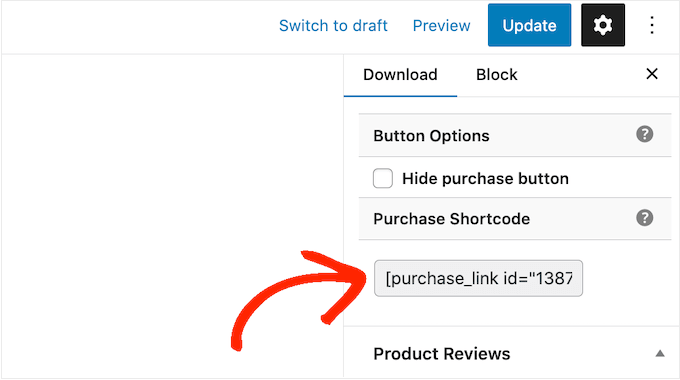
To get the button’s shortcode, simply scroll to the product’s Download Settings section. You can then copy the text in the ‘Purchase Shortcode’ field.
Here are some great WordPress plugins that can help you get more visitors to your website and turn them into customers:
All in One SEO: The best WordPress SEO plugin that can help you optimize your website to get more search engine traffic.
MonsterInsights: The best WordPress analytics plugin. It helps you learn where your customers come from and what they do when they reach your website.
OptinMonster: This plugin allows you to create popups and optins to grow your email list and turn visitors into customers. It can also help you reduce shopping cart abandonment.
PushEngage: The best push notifications plugin. It allows you to reach visitors after they have left your website and encourage them to return to your online store.
TrustPulse: This social proof plugin can help you increase video sales by increasing customer trust.
FAQs About Selling Videos Online
In this guide, we showed you how to videos online using Easy Digital Downloads. If you still have questions, then these FAQs may help.
Where can I sell my videos online?
There are lots of platforms, stores, and digital marketplaces where you can upload your digital art and sell it. Some popular choices include Sellfy, Vimeo, and Uscreen.
Many of these platforms already have a large audience. By uploading your files to these sites, you can promote your work to an existing audience.
However, many of these marketplaces and websites take a percentage of every sale you make, and some even charge upfront fees. To boost your profits, we recommend creating your own website instead.
In this way, you will have complete control over your brand and get all the profits from each digital sale.
How much does it cost to create a website to sell my videos?
We always recommend a business model where you start small. That way, you can spend more money as you build your audience and start to sell more digital art and graphics.
The good news is that setting up a digital store is much easier and cheaper than opening a physical shop. You can start with SiteGround EDD Hosting for around $5 per month and use free plugins and themes to limit your costs.
By using Easy Digital Downloads to sell your artwork, you can avoid many of the upfront costs and middleman fees you can expect when selling via an online marketplace such as Sellfy. Instead, you just have to pay industry-standard credit card transaction fees.
Can I also sell physical products with Easy Digital Downloads?
At some point, you may want to sell physical products, such as DVDs or some other type of physical storage containing your video assets. Despite the name, you can also use Easy Digital Downloads to sell physical products.
There’s even a Simple Shipping addon that adds shipping features to the Easy Digital Downloads plugin. This allows you to ship your branded merchandise, framed prints, or other physical products to customers using the tools you are already familiar with.
If you liked this article, then please subscribe to our YouTube Channel for WordPress video tutorials. You can also find us on Twitter and Facebook.
Is the ‘ERR_SSL_VERSION_OR_CIPHER_MISMATCH’ error stopping you from accessing a WordPress website?
This error is only seen when visiting a website that uses an SSL certificate. It is caused by out-of-date or misconfigured software on either the website or the user’s computer.
In this article, we will show you how to fix the ‘ERR_SSL_VERSION_OR_CIPHER_MISMATCH’ error in WordPress.
What Is the ERR_SSL_VERSION_OR_CIPHER_MISMATCH Error?
We recommend that everyone with a WordPress website install an SSL certificate. This can help keep your website data secure.
An SSL certificate is required if you want to accept payments in your online store, and it also protects your users in other ways.
SSL stands for ‘Secure Sockets Layer’, and TLS stands for ‘Transport Layer Security’ protocol. These protocols rely on certificates that tell the user the identity of the website they are communicating with.
When visiting a secure website, your browser will automatically check for an SSL certificate to see if it is valid and up to date. It also checks the version of the protocols being used.
If there’s an issue, then you’ll see an SSL error like ERR_SSL_VERSION_OR_CIPHER_MISMATCH.
This error message appears when your browser doesn’t recognize the version of the SSL protocol being used or when the SSL certificate is not configured correctly.
This can happen when the user is using an out-of-date web browser that doesn’t recognize the latest TLS protocols. It can also be caused if the website’s SSL certificate or software is out of date or mismatched.
With that being said, let’s take a look at some steps you can take to fix the ERR_SSL_VERSION_OR_CIPHER_MISMATCH error in WordPress:
The first thing you need to do is scan your WordPress website for SSL errors. This will help you identify problems that can cause the ‘ERR_SSL_VERSION_OR_CIPHER_MISMATCH’ error.
The easiest way to check is by using an online tool like the Qualys SSL Labs SSL Server Test. Simply type in the website’s domain name and then click the ‘Submit’ button.
This will perform a thorough test on the website that takes a few minutes to finish. After that, you will see a very detailed report about the site’s SSL certificate.
In the screenshot below, you will find the results of a scan on wpbeginner.com. You can see that the WPBeginner SSL certificate is valid and trusted and supports the latest TLS protocol, which is TLS 1.3. This is an example of a great SSL test result.
You can scroll down to the Configuration section of the report.
This will show you which versions of the TLS protocol are supported. In this case, both currently used versions are supported, which are TLS 1.2 and TLS 1.3.
It’s also important that the other protocols are not being used because they have known security issues.
If your test result looks similar to this, then the ‘ERR_SSL_VERSION_OR_CIPHER_MISMATCH’ error is not being caused by the website. You can scroll down to the last section of this tutorial to learn how to troubleshoot the software on your computer.
On the other hand, here is a screenshot from a scan that found SSL errors. The errors are summarized at the top of the report, and more details are given below.
You can go to a page with detailed notes about an error by clicking the ‘MORE INFO »’ link.
If the SSL test report for your website lists some SSL errors, then you can follow these guidelines to fix them.
Your Site Uses Outdated TLS 1.0, TLS 1.1, or RC4 Cipher Suite
Old TLS protocols like TLS 1.0 and TLS 1.1 should never be run because they have security issues, and modern web browsers have stopped supporting them.
The same goes for the RC4 cipher suite. A cipher suite is a set of algorithms used to secure your website with TLS. However, the RC4 version has been found to be insecure and should never be used.
Reputable WordPress hosting companies never use insecure versions of the TLS protocol or cipher suite.
However, if your website is using any of these outdated versions, then you should contact your hosting provider and get them to enable TLS 1.2 or TLS 1.3. You will also need to switch to AEAD cipher suites (AES-GCM).
Because an SSL certificate proves that your website is what it claims to be, the domain name on your certificate must match your site’s domain name. When they are not the same, this is called an ‘SSL certificate name mismatch’.
When you see this error in your SSL report, it will list the potential reasons:
The website does not use SSL but shares an IP address with some other site that does.
The website no longer exists, yet the domain name still points to the old IP address, where some other site is now hosted.
The website uses a content delivery network (CDN) that does not support SSL.
The domain name is an alias for a website whose main name is different, but the alias was not included in the certificate by mistake.
This error is likely caused by a problem with your SSL setup.
In particular, make sure you have set up your SSL certificate to work with all of the variations (or aliases) of your domain name that will be used, including www and non-www URLs.
Another solution is to redirect your website visitors to the correct variation of your domain name.
For example, if your SSL certificate has the URL ‘https://www.example.com’, then you can redirect ‘https://example.com’ to that address. See our article on how to set up redirects in WordPress for more details.
This error could also appear if you have recently moved your website to a new domain name or server. You will need to update your SSL certificate with the new details.
If you are using a CDN service, then you should also make sure that it supports SSL. If you need to upgrade, then you can see our expert picks of the best WordPress CDN services for recommendations.
If you need help with any of these issues, then don’t hesitate to reach out to your hosting provider’s technical support team.
When the Website Is Not the Problem
If the website is not the problem, then the error is caused by software on your computer. Most likely, you have an out-of-date web browser, or your antivirus software is causing the error.
You can follow these steps to troubleshoot the problem.
Update Your Web Browser to the Latest Version
If you are using an outdated web browser such as Internet Explorer or an old version of a modern web browser, then you may see this error. This happens because the old software was written before the latest versions of the TLS protocols and doesn’t recognize them.
In that case, all you need to do is switch to the latest version of a modern web browser like Google Chrome.
If, for some reason, you can’t update to a later version of your browser, like if you are stuck using Microsoft Windows XP, then you may be able to enable a later version of TLS in your browser.
For example, on Google Chrome, you can type chrome://flags in the address bar, search for ‘TLS 1.3’ and enable the option.
Or if you are using Firefox, then you should type about:config in the address bar, search for TLS, and then set the security.tls.version.max value to 4.
Clear Your Browser Cache and SSL Cache
If you still see the error message after doing this, then there are a few more troubleshooting steps you can take. The first thing is to delete your browser cache and cookies.
On Windows, you can also clear the SSL cache. This may be storing out-of-date SSL information about the website you are trying to access.
You can open ‘Internet Options’ by searching for it in the Start menu. Now switch to the Content tab and click on the ‘Clear SSL state’ button.
Temporarily Disable Your Antivirus Software
Finally, it’s possible that your antivirus software or firewall software may be configured incorrectly. This can sometimes cause the ‘ERR_SSL_VERSION_OR_CIPHER_MISMATCH’ error to appear when it shouldn’t.
If your software has an automatic SSL scanning feature, then you can try turning it off. Otherwise, you will need to temporarily disable your antivirus software. Once you have done that, you can try accessing the website again.
If you can access the software with your antivirus software disabled, then you can contact the antivirus company’s technical support team about the error or switch to a more reputable application.
If you liked this article, then please subscribe to our YouTube Channel for WordPress video tutorials. You can also find us on Twitter and Facebook.
Are you looking for a way to translate a WordPress plugin into your language?
By translating a WordPress plugin into another language, you will make it accessible to a broader audience. This allows users from different countries to use the plugin in their native languages.
In this article, we will show you how to easily translate a WordPress plugin into your language.
Similarly, most of the top WordPress plugins are also translation-ready. All you have to do is ask the plugin author if you can help by contributing translations in other languages.
By translating the plugin, you can increase its reach and create a larger user base. This can lead to more installs, feedback, and exposure for the plugin.
It can also help you establish yourself in the WordPress community and provide you with new networking opportunities with other developers, translators, and businesses in the industry.
You can even add the translation to your portfolio and demonstrate your skills and contributions to the WordPress community.
That being said, let’s take a look at how to easily translate WordPress plugins in your language. We will cover a few different methods in this post, and you can use the quick links below to jump to the method you want to use:
Method 1: Translate a WordPress Plugin Into Your Language for Everyone
If you want to translate a WordPress plugin in a way that helps other people use the plugin in their languages, then this method is for you.
WordPress.org currently hosts a web-based translation tool that allows anyone to contribute translations for plugins within the WordPress repository.
First, you will need to visit a plugin’s page on the WordPress.org website. Once you are there, just switch to the ‘Development’ tab at the top.
Here, you will see a link asking you to help translate the plugin into your language.
You can simply click on it to start contributing to the plugin translation.
However, if the link isn’t available, then you can visit the Translating WordPress website.
Once there, you will see a list of languages on the screen. From here, find your language and simply click the ‘Contribute Translation’ button under it.
This will take you to a new screen, where you need to switch to the ‘Plugins’ tab.
After that, search for the plugin you want to translate using the search field and then click the ‘Translate Project’ button under it.
This will direct you to the plugin translation page, where you must select the ‘Stable (latest release)’ sub-project from the left column.
If you want to translate the plugin’s development or readme files, then you can choose those sub-projects from the list instead.
Finally, you will be taken to a new page where you will see the original strings in one column and the translations in another.
Keep in mind that you will need to be logged in to your WordPress.org account to contribute translations.
From here, just click on the ‘Details’ link in the right column to open up the string you want to translate.
Once you have done that, a text field will open where you can add a translation for the original string.
Once you are done, simply click the ‘Save’ button to submit your translations.
Method 2: Translate a WordPress Plugin for Your Own Website
If you only want to translate a WordPress plugin for your own website, then this method is for you.
Upon activation, head over to the Loco Translate » Plugins page from the WordPress admin sidebar.
Here, you will see a list of plugins that are currently installed on your website. Just click on the plugin you want to translate.
This will take you to a new screen, where you will see a list of languages available for the plugin, along with the translation progress status for each language.
If the language you want to translate the plugin into is listed there, then simply click on the ‘Edit’ link under it.
If not, then you need to click the ‘New language’ button at the top.
This will direct you to a new page where you can start by selecting a language.
From here, you can pick the ‘WordPress language’ option and then choose your language from the dropdown menu under it.
This option will automatically start using the language file if a user sets the WordPress admin area in this language.
If you don’t want to use a WordPress language, then you can select the ‘Custom Language’ option.
Next, you have to choose where you want to store the translation files. By default, Loco Translate will recommend saving the translation files in its own folder.
However, you can easily change that to save the files in WordPress languages or the plugin’s own languages folder.
Once you have done that, just click the ‘Start translating’ button to continue.
This will take you to a new screen, where you will see a text source section along with a translation field.
You can now start by adding a translation for the source string and then select the next string to translate.
Once you are done, don’t forget to click the ‘Save’ button at the top to store your settings.
Method 3: Translate a WordPress Plugin on Your Computer
If you want to translate a WordPress plugin on your computer using gettext translation apps, then this method is for you.
Keep in mind that you can also submit these translations to plugin authors so that they can include them in their plugins.
First, you need to download the plugin you want to translate on your computer. Next, double-click the plugin zip file to extract it.
Once you have done that, you need to open the plugin’s folder and then find and click on the ‘languages’ folder.
You should find a .pot file inside this folder. This is the translation template file that you will need to translate the plugin.
If the plugin doesn’t have a .pot file or a languages folder, then it is most likely not translation-ready.
In that case, you can contact the plugin author and ask if they have any plans for their plugin translation. For more details, please see our guide on how to ask for WordPress support and get it.
Once you have the .pot file, you are ready to translate the plugin into any language.
Next, you need to download and install the Poedit app on your computer, which is a free translation app for Mac and Windows.
After you have the app installed, go ahead and open it up. This will launch the Poedit home screen, where you must click the ‘Create New’ option.
You will now be directed to your computer’s file manager. From here, simply find and select the .pot file for the plugin that you want to translate.
Once you have done that, Poedit will ask you to choose a language for translation from the dropdown menu.
After that, click the ‘OK’ button to continue forward.
Poedit will now show the translation interface, where you will see the list of strings available.
All you have to do is click on a string to select it and provide a translation in the ‘Translation’ field.
Once you are done translating the plugin, go to File » Save from the menu bar at the top and name your file after the language name and country code.
For example, if you are saving a French translation for the plugin, then you should save the file as ‘fr_FR’ for French and France.
Poedit will save your translation as .po and .mo files.
Now, all you need to do is place these files in your plugin’s languages folder to start using the translated plugin on your website.
If you liked this article, then please subscribe to our YouTube Channel for WordPress video tutorials. You can also find us on Twitter and Facebook.
Are you looking to make the most of custom fields on your WordPress website?
Custom fields are a handy WordPress feature that allows you to add extra data and information to your WordPress posts and pages. A lot of popular WordPress plugins and themes use custom fields to store important data.
In this article, we will show you how to use WordPress custom fields with some tips, tricks, and hacks.
Since this is a long article, we have added a table of contents for easier navigation. Just use the quick links below to jump to the section you want to read:
The second part is the information about that content. For example, the title, author, date, time, and more. This information is called metadata.
A WordPress website automatically adds all the required metadata to each post or page you create. You can also create and store your own metadata by using custom fields.
By default, the custom fields option is hidden on the post edit screen. To view it, you need to click on the three-dot menu in the top-right corner of the screen and select ‘Preferences’ from the menu.
This will open a popup where you need to switch to the ‘Panels’ tab and then enable the ‘Custom fields’ option.
After that, simply click on the ‘Enable & Reload’ button to reload the post editor.
The post editor will reload, and you will be able to see the Custom Fields panel below the content editor.
Custom fields can be used to add any information related to the post, page, or other content type. This meta information can then be displayed in your theme.
However, to do that, you will need to edit your WordPress theme files.
Note: This tutorial is recommended for users who are already familiar with editing theme files. It is also helpful for aspiring WordPress developers who want to learn how to properly use custom fields in their own themes or plugins.
Having said that, let’s take a look at how to add and use custom fields in WordPress.
Adding Custom Fields in WordPress
First, you need to open a post or page in the block editor so that you can add custom fields. Then, you must go to the Custom Fields meta box.
Next, you need to provide a Name for your custom field and then enter its Value. Click on the ‘Add Custom Field’ button to save it.
The field will be stored and displayed in the Custom Fields meta box like this:
You can edit this custom field any time you want and then just click on the ‘Update’ button to save your changes. You can also delete it if you don’t want to use it anymore.
Now, you need to save your post to store your custom field settings.
Displaying Custom Fields in WordPress Themes
To display your custom field on your website, you will need to edit your WordPress theme files and code snippets.
We don’t recommend directly editing the theme files because the slightest mistake can break your website. An easier way to do this is by using WPCode.
It is the best code snippet plugin for WordPress that lets you add custom code and manage snippets from your WordPress dashboard.
Upon activation, you will need to go to Code Snippets » + Add Snippet from the WordPress dashboard and select the ‘Add Your Custom Code (New Snippet)’ option.
Now you need to copy this code to add to your theme files:
From here, you can scroll down to the Insertion section.
Here, you can select where the code will run. By default, WPCode will Auto Insert the code and run it everywhere on your website.
However, you can change this and select where you would like the custom field to appear.
For example, we will choose the ‘Page Specific’ tab and select the ‘Insert Before Post’ option. This way, the custom field will appear at the beginning of the blog post.
You can now save your changes and visit the post where you added the custom field to see it in action.
You can use this custom field in all your other WordPress blog posts as well.
You can also easily adjust the custom field for different blog posts. Simply create a new post or edit an existing one.
Then, go to the Custom Fields meta box and select your custom field from the dropdown menu and enter its Value.
Once you are done, simply click the ‘Add Custom Field’ button to save your changes and then publish or update your post.
Troubleshooting: Can’t Find Custom Field in Dropdown on Post Edit Screen
By default, WordPress only loads 30 custom fields in the dropdown menu on the post edit screen.
If you are using WordPress themes and plugins that already use custom fields, then those might appear first in the dropdown menu, and you won’t be able to see your newly-created custom field.
To fix this issue, you will need to add the following code to your theme’s functions.php file or by using WPCode (recommended):
Upon activation, you need to visit the ACF » Field Groups page and click on the ‘Add New’ button.
A field group is like a container with a set of custom fields. It allows you to add multiple panels of custom fields.
Now, you need to provide a title for your field group and click the ‘+ Add Field’ button in the top-right corner.
You can now select a field type.
Advanced Custom Fields allows you to create all sorts of fields, including text, image upload, number, dropdown, checkboxes, and more.
Next, you can scroll down to see other options for that particular field, like field name, field label, and default value. You can change them to your own requirements.
You can also add multiple fields to your field group if you want. Once you are finished, just click on the ‘Save Changes’ button.
Next, edit a post or create a new one, and you will see a new panel with your WordPress custom fields below the content editor.
How to Hide Empty Custom Fields With Conditional Statements
So far, we have covered how to create a custom field and display it in your theme.
Now let’s see how to check that the custom field is not empty before displaying it. To do that, we will modify our code to first check if the field has data in it:
Don’t forget to replace Mood with your own custom field name.
Adding Multiple Values to a Custom Field
Custom fields can be reused in the same post to add multiple values. You just need to select the field again and add another value to the ‘Value’ box.
However, the code we have used in the above examples will only be able to show a single value.
To display all values of a custom field, we need to modify the code and make it return the data in an array. You will need to add the following code to your theme file:
Again, don’t forget to replace Mood with your own custom field name.
In this example, you will notice that we have changed the last parameter of get_post_meta function to false. This parameter defines whether the function should return a single value or not. Setting it to false allows it to return the data as an array, which we then displayed in a foreach loop.
How to Search Posts by Custom Field in WordPress
WordPress’s default search doesn’t work with any custom fields on your website. It only uses the content to find the post you or your visitors are looking for on your site.
However, SearchWP changes that by improving your WordPress search. It’s the best WordPress search plugin that goes beyond using the post content and indexes everything, including WordPress custom fields, PDF documents, custom tables, text, files, and more.
You can adjust the search algorithm without editing code using SearchWP. Simply install the plugin and then head over to SearchWP » Algorithm from your WordPress admin area.
After that, you need to go to the ‘Engines’ tab and then adjust the Attribute Relevance slider. This will change the importance given to each attribute during a search.
For instance, you can set the Custom Fields slider to maximum and adjust sliders for other attributes accordingly. This way, SearchWP will give preference to data in custom fields when searching for content in WordPress.
Another advantage of using SearchWP is that works with some of the most popular custom field plugins, including Advanced Custom Fields (ACF), Meta Box, and Pods.
WordPress allows you to display posts with custom keys and their values. For example, if you are trying to create a custom archive page to display all posts with specific custom keys, then you can use the WP_Query class to query posts matching those fields.
You can use the following code as a starting point:
$args = array(
    'meta_key'   => 'Mood',
    'meta_value' => 'Happy'
);
$the_query = new WP_Query( $args );

<?php
// the query
$the_query = new WP_Query( $args ); ?>

<?php if ( $the_query->have_posts() ) : ?>

    <!-- the loop -->
    <?php while ( $the_query->have_posts() ) : $the_query->the_post(); ?>
        <h2><?php the_title(); ?></h2>
        <?php the_content(); ?>

    <?php endwhile; ?>
    <!-- end of the loop -->

    <!-- pagination here -->

    <?php wp_reset_postdata(); ?>

<?php else : ?>
    <p><?php _e( 'Sorry, no posts matched your criteria.' ); ?></p>
<?php endif; ?>
Don’t forget to replace meta_key and meta_value parameters with your own values.
How to Add Guest Author Name Using Custom Fields
Do you want to add a guest post but don’t want to add a new user profile just for that post? An easier method is adding a guest author name as a custom field.
To do this, you will need to add the following code to your theme’s functions.php file or use WPCode (recommended):
This code hooks a function to the_author and get_the_author_display_namefilters in WordPress.
The function first checks for the guest author’s name. If it exists, then it replaces the author’s name with the guest author’s name.
Now you will need to edit the post where you want to display the guest author’s name. Go to the Custom Fields meta box, add your guest author name, and finally click on the ‘Add Custom Field’ button.
How to Display Contributors to an Article Using Custom Fields
On many popular blogs and news sites, many authors contribute to writing a single article. However, WordPress only allows a single author to be associated with a post.
Another method is adding contributors as a custom field.
First, you need to edit the post where you want to display co-authors or contributors. Then, scroll down to the Custom Fields meta box and add author names as co-author custom fields.
Now, you need to add this code to your theme files where you want to show co-authors:
One way to do this is by using custom fields. Just edit the post or page where you want to show a different sidebar and then add the sidebar as a custom field.
Now you need to edit your WordPress theme file, such as single.php, where you want to display a custom sidebar. You will be looking for the following code:
This code simply looks for the sidebar custom field and then displays it in your theme. For example, if you add webpage as your sidebar custom field, then the code will look for a sidebar-webpage.php file to display.
You will need to create the sidebar-webpage.php file in your theme folder. You can copy the code from your theme’s sidebar.php file as a starting point.
Manipulating RSS feed Content With Custom Fields
Want to display additional metadata or content to your RSS feed users? Using custom fields you can manipulate your WordPress RSS feed and add custom content into your feeds.
First, you need to add the following code to your theme’s functions.php file or use WPCode (recommended):
Now, just create a custom field called ‘coolcustom’ and add any value you like. You can use it to display advertisements, images, text, or anything you want.
How to Manipulate RSS Feed Title With Custom Fields
Sometimes you may want to add extra text to a post title for RSS feed users. For example, this can be handy if you are publishing a sponsored post or a guest post.
First, you need to add the following code to your theme’s functions.php file or use WPCode to add the custom code snippet without breaking your website:
Next, you need to edit the post where you want to display the extra text in the title field.
Then, add guest_post and sponsored_post as custom fields.
If either of these two custom fields is found with a value “true”, then the code will add the appropriate text before the title. This technique can be used in many ways to fit whatever you like.
How to Set Expiration Date for Posts in WordPress Using Custom Fields
Want to set an expiration date for some posts on your WordPress site? This comes in handy when you want to publish content only for a specific period like running surveys or limited-time offers.
One way to do this is by manually removing the post content or by using a plugin like Post Expirator.
Another option is using custom fields to automatically expire posts after a specific time. You will need to edit your theme files and modify the WordPress loop like this:
<?php
if (have_posts()) :
while (have_posts()) : the_post();
$expirationtime = get_post_meta($post->ID, "expiration", false);
if( count( $expirationtime ) != '' ) {
if (is_array($expirationtime)) {
$expirestring = implode($expirationtime);
}

$secondsbetween = strtotime($expirestring)-time();
if ( $secondsbetween >= 0 ) {
echo 'This post will expire on ' .$expirestring.'';
the_content();
} else {
echo "Sorry this post expired!"
}
} else {
the_content();
}
endwhile;
endif;
?>
Note: You will need to edit this code to match your theme.
After adding this code, you can add the expiration custom field to the post you want to expire. Make sure you add the time in this format mm/dd/yyyy 00:00:00.
How to Style Individual Posts Using Custom Fields
Want to change the look of an individual post using CSS? WordPress automatically assigns each post its own class, which you can use to add custom CSS.
However, by using custom fields, you can add your own custom classes and then use them to style posts differently.
First, you need to edit a post that you would like to style differently. Go to the Custom Fields box and add the post-class custom field.
Next, you need to edit your WordPress theme files and add this code at the beginning of the WordPress loop:
If you liked this article, then please subscribe to our YouTube Channel for WordPress video tutorials. You can also find us on Twitter and Facebook.
Are you looking to add an express checkout button to your online store?
Express checkout helps streamline the checkout process and improves the overall shopping experience for your customers. It can also boost conversions and reduce cart abandonment.
In this article, we will show you how to add express checkout buttons in WooCommerce.
Why Add Express Checkout in WooCommerce?
Adding express checkout to your WooCommerce store provides a better shopping experience for your customers.
It allows customers to go directly to the payment page and skip the shopping cart or checkout pages. They also won’t have to go to a payment provider page or fill out a checkout form to complete their purchases.
Express checkout buttons make the entire buying process quicker. Customers can simply click the buttons and log in to pay for the products they wish to buy in an instant. As a result, you may see a boost in conversions and fewer abandoned carts.
Adding express checkout also helps mobile users where their screen sizes are small. Customers will just tap the buttons to quickly purchase the products.
However, WooCommerce doesn’t offer an express checkout option by default. You will need to use a WooCommerce plugin to add the feature to your online store.
That said, let’s see how you can add express checkout buttons in WooCommerce.
Setting Up FunnelKit on Your WooCommerce Store
FunnelKit is the best WooCommerce sales funnel plugin on the market. It lets you add express checkout buttons and create different funnel pages for your online store.
The best thing about using the plugin is that it works with Stripe, Apple Pay, Google Pay, PayPal Express, Amazon Pay, and other payment gateways for express checkout. This way, you don’t have to add each payment provider to your online store using third-party plugins or extensions.
FunnelKit also provides user-friendly templates and lets you do A/B testing. You can easily customize your funnels using different drag-and-drop page builders. Plus, there are multiple pre-built templates and automation features for your marketing campaigns.
Note: For this tutorial, we will be using the FunnelKit Pro plugin because it includes premium templates and more customization options. You can also use the free Funnel Builder for WordPress by FunnelKit plugin to add express checkout buttons in WooCommerce.
First, you will need to install and activate the FunnelKit plugin. If you need help, then you can follow our guide on how to install a WordPress plugin.
Upon activation, you will see the FunnelKit setup wizard. Go ahead and click the ‘Get Started’ button.
After that, you will need to enter your license key. You can find the key in the FunnelKit account area.
Simply click the ‘Activate’ button after entering the license key.
Once you have enabled your preferred payment gateways, you can head to the FunnelKit » Store Checkout page from your WordPress admin panel.
From here, simply click the ‘Create Store Checkout’ button.
On the next screen, FunnelKit will show you professionally-designed templates for your checkout page. It will also let you create a checkout page from scratch.
However, we recommend using a template and quickly customizing it according to your requirements.
Simply hover over a template you’d like to use and click the ‘Preview’ button.
For this tutorial, we will use the Livewire template.
Next, go ahead and click the ‘Import This Funnel’ button at the top.
Depending on the template you use, FunnelKit may ask you to install additional plugins like Elementor to edit the checkout page.
Next, you will need to enter a name for your store checkout and click the ‘Add’ button.
After that, you will see all the steps that are included in the template.
You can simply click the ‘Edit’ button for the Checkout page to continue.
Next, you can switch to the ‘Optimizations’ tab. From here, simply enable the ‘Express Checkout Buttons’ option.
FunnelKit will also let you choose the position of the buttons from the following options:
Top of the checkout page
Before/after the product switcher
Before/after the order summary
Above the payment gateways
When you are done, simply click the ‘Save Changes’ button.
That’s it, you have successfully added express checkout buttons to your online store.
If you want to edit the appearance of the checkout page, then you can switch to the ‘Design’ tab and click the ‘Edit Template’ button.
Once you have made your changes, simply visit your online store to view the express checkout buttons in action.
Additionally, FunnelKit helps you upsell products in WooCommerce. This way, you can boost sales by encouraging users to buy more products.
You can also set up automated emails in WooCommerce using FunnelKit Automations, a sister product of FunnelKit. This plugin lets you create automated workflows and send email campaigns to customers.
If you liked this article, then please subscribe to our YouTube Channel for WordPress video tutorials. You can also find us on Twitter and Facebook.
Do you want to use the free Cloudflare CDN on your WordPress site?
Cloudflare is one of the best WordPress CDN services available in the market. They offer a free CDN that speeds up your website along with a suite of powerful security features for small business websites.
The challenge is that many entry-level users are not able to use Cloudflare because they think it is hard to set up.
In this guide, we will walk you through a complete Cloudflare setup in WordPress to help you improve your website speed.
What Is a CDN?
A CDN or content delivery network is a system of distributed servers that helps deliver your website files faster to users based on their location.
Typically, a web hosting service serves your website visitors from a single location. All the users access the same server, no matter where they are located.
This can cause a delay in content delivery for users living further away from your website’s central hosting server.
That’s why CDNs set up multiple edge servers in different locations around the globe.
These CDN servers cache static content from your website’s origin server and present it to users when they visit your WordPress website.
When there is a user request, the CDN server closest to the user’s location will handle it.
For example, if someone in the USA wants to access a UK-hosted website, then a CDN server in the USA will serve that request, not the main server in the UK.
With a CDN, all the user requests are handled by the nearest CDN servers. This reduces the physical distance between the visitors and your website’s server.
As a result, a CDN improves your website performance and speed for all users regardless of their geographic location.
A faster website also improves the user experience and can give your website a slight boost in SEO rankings. Using a CDN also reduces the load on your primary server and protects it from crashing during traffic spikes.
Cloudflare is one of the most popular free CDN providers available on the internet. It is a large network of globally-distributed servers that automatically cache static content and deliver dynamic content quickly.
On top of a CDN service, Cloudflare is also a cloud-based website firewall and a distributed proxy server. It monitors all incoming traffic to your website and blocks suspicious traffic even before it reaches your server.
They offer a free basic plan that’s suitable for small business websites and blogs. They also offer paid plans starting at $20 per month.
Cloudflare is an excellent choice for small businesses looking for a free CDN. However, if you want to fully utilize all of Cloudflare’s features, then you will need the Business plan, which costs $200 per month.
Note: We do not use Cloudflare on WPBeginner. Instead, we use Sucuri as a website firewall and CDN. This firewall has the double benefit of improving speed and security. You can learn more in our comparison of Sucuri vs. Cloudflare.
With that being said, let’s take a look at how to set up Cloudflare Free CDN in WordPress. You can use the quick links below to jump to the different parts of the tutorial:
To begin, you need to visit the Cloudflare website and click on the ‘Sign Up’ button.
On the next page, you need to enter your email address and password to create a Cloudflare account.
Simply enter the information required, and then click on the ‘Sign up’ button.
When you finish signing up, you will see a thank you page confirming that your Cloudflare account has been set up.
The next step is to add your website to Cloudflare. You should click the ‘Add a website or application’ button to get started.
You can now enter your website into the ‘Enter your site’ field.
Make sure you only type your site’s domain name, such as example.com. You don’t need to type the full URL or any extra characters.
On the next screen, you will be asked to choose the type of Cloudflare plan you want.
For this tutorial, we will choose the free Cloudflare plan. Then, click the ‘Continue’ button.
After that, Cloudflare will show you a list of all DNS records their systems found. These will include your subdomains as well.
The DNS records you want to be passed through Cloudflare should have an orange cloud icon. The DNS records that will bypass Cloudflare will have a gray cloud icon.
You need to review the list to make sure that your primary domain is active on Cloudflare with an orange cloud icon. Simply click the ‘Proxy status’ toggle to change the status.
Once you have verified your DNS records, just click on the ‘Continue’ button at the bottom.
During the next step of your setup, Cloudflare will ask you to update your nameservers. You will be asked to change your nameservers and point them to Cloudflare nameservers.
Note: Changing nameservers can take some time to propagate throughout the internet. During this time, your website may become inaccessible to some users.
Or, if you got a free domain from your web hosting provider like Bluehost, then you will have to change the name server by logging in to your hosting account.
For the sake of this tutorial, we will be showing you how to change the nameservers from the Bluehost control panel.
While the process is similar across hosting companies, you can always ask your hosting provider for detailed instructions for their control panel.
Once you are logged in to your Bluehost cPanel dashboard, go to the ‘Domains’ section, and select your domain name. After that, click on the ‘Name Servers’ tab and the ‘Edit’ button.
Next, you need to select ‘Custom’ and enter the nameservers provided by Cloudflare.
Then, click the ‘Save’ button.
After that, you need to go back to the Cloudflare setup page, and click the ‘Done, check nameservers’ button to finish the setup.
It will now check your new nameservers automatically.
That’s it! It will take a few minutes to update your domain nameservers and activate Cloudflare.
Once activated, you will see the success message in your Cloudflare dashboard.
In the meantime, the Cloudflare Quick Start Guide will open automatically, and you can use it to customize your Cloudflare settings. We will show you how in the next section.
Note: The above screenshots show the Bluehost control panel. Your nameserver settings may look different if you are using a different hosting provider.
Configuring Cloudflare With the Quick Start Guide
The Cloudflare Quick Start Guide should have opened automatically after you clicked on the ‘Done, check nameservers’ button above. This setup wizard will help you improve the security and performance of your website.
The first setting is ‘Automatic HTTPS Rewrites’.
This will help you avoid the mixed content error in WordPress. It does this by automatically changing ‘http’ to ‘https’ in the URLs of all resources and links on your site that can be served with a secure ‘https’ URL.
This setting is on by default. We recommend you leave it on and click the ‘Save’ button.
The next setting is ‘Always Use HTTPS’.
Some users have reported issues when using this setting with Cloudflare. This setting is disabled by default, and we recommend you leave it that way. We will show you how to redirect from HTTP to HTTPS using the All in One SEO plugin later in this article.
Now you can click the ‘Save’ button to move on to the next option.
The next setting is Brotli compression.
Cloudflare can use Brotli compression to unlock 15-20% speed improvements. This setting is on by default, and we recommend you leave it on.
Make sure you click the ‘Save’ button to store this setting.
Now you will see a summary of what you have configured with the Quick Start Guide.
You should see:
Automatic HTTPS Rewrites: ON
Always Use HTTPS: OFF
Brotli: ON
You have now completed the Quick Start Guide and can click the ‘Finish’ button. However, there are still some additional important settings that need to be configured.
Configuring Additional Important Cloudflare Settings
Your basic Cloudflare setup is complete, but there are a few essential settings you need to configure to keep your WordPress site secure.
1. Secure Your WordPress Login Page
You can set up page rules to customize how Cloudflare works on specific pages on your site. This is especially useful for securing critical pages such as the login page and wp-admin area.
The Cloudflare free account allows you to set up 3 page rules. If you want to add more page rules, then you need to pay $5 per month for 5 extra rules.
First, you need to click the ‘Rules’ option in the menu on the left of the page. After that, you can click the ‘Create Page Rule’ button.
Now you can set up 3 different page rules. You can start by creating a rule that secures your WordPress login page.
Simply add the following settings below to secure your website:
Page URL: example.com/wp-login.php*
Settings: Security Level – High
When you are done, just click ‘Save and Deploy’ to store and activate the rule.
2. Exclude the WordPress Dashboard from Cloudflare
You will be returned to the Page Rules page, where you can see your first rule listed.
Now you can create a second rule to exclude the WordPress dashboard from Cloudflare caching and enable high security.
You’ll need to click on the ‘Create New Rule’ button to create your second rule.
After that, you need to type the following settings into the rule. You can click the ‘+ Add a Setting’ button to add new rows for additional settings:
Page URL: example.com/wp-admin*
Settings: Security Level – High
Cache Level – Bypass
Disable Performance
Disable Apps
When you are done, make sure you click ‘Save and Deploy’ to add the new rule.
3. Configure SSL Certificate Settings
Another important setting is the SSL certificate available in the ‘SSL/TLS’ menu on the left.
Make sure to click the ‘Full’ radio button if you are already using SSL.
Once you are done, Cloudflare will provide the essential green padlock in your visitors’ address bar to signify that your website is secure.
4. Redirect from HTTP to HTTPS Using All in One SEO
We mentioned earlier that we don’t recommend using Cloudflare’s ‘Always Use HTTPS’ feature. A great alternative is to use the All in One SEO plugin. It’s the best SEO plugin for WordPress, used by over 3 million sites.
The first thing you need to do is activate and install the All in One SEO plugin. For more details, see our guide on how to install a WordPress plugin.
After that, navigate to All in One SEO » General Settings and then enter your license key into the ‘License Key’ box and click ‘Connect’.
You can find your license key in your account profile on the All in One SEO website.
Next, navigate to All in One SEO » Redirects and then click the ‘Full Site Redirects’ menu navigation option.
You will need to scroll down the page until you find the ‘Canonical Settings’ toggle. You should click this toggle so that it turns blue.
Next, turn on the ‘Redirect from HTTP to HTTPS’ toggle. This will create a redirect from HTTP to HTTPS, making sure that your visitors always have a secure connection to your website.
When you are done, make sure to click the ‘Save Changes’ button at the bottom or top of the screen to store this setting.
Optimizing Cloudflare for WordPress Using a Plugin
Cloudflare offers a dedicated WordPress plugin for one-click WordPress-optimized settings.
The plugin lets you quickly set up Cloudflare on your WordPress site, add web application firewall (WAF) rulesets, automatically purge the cache, and more.
Once done, you need to visit Settings » Cloudflare in your admin panel to configure the Cloudflare settings.
On the settings page, you will see a ‘Create Your Free Account’ button and a sign-in option for existing accounts. Simply click the ‘Sign in here’ link.
On the next screen, you will need to enter your Cloudflare email and API key.
Click the ‘Get your API key from here’ link.
This will bring up a popup for your account area on the Cloudflare website.
Make sure you are on your ‘My Profile’ page, and then click on the ‘API Tokens’ tab in the left sidebar.
After that, go to the ‘Global API Key’ section and click on the ‘View’ button.
This will open a popup and display your API key.
Simply click on the key to copy it.
Next, you need to come back to your WordPress dashboard and enter your email address and API key.
Then, click the ‘Save API Credentials’ button.
After that, the Cloudflare settings will appear on your dashboard.
From here, you can apply a single-click WordPress optimization, purge the cache, enable automatic cache, and more.
To optimize your WordPress site, just click the ‘Apply’ button next to ‘Apply Default Settings’.
Next, click on the ‘Settings’ menu option.
Here you will find more site optimization settings.
You can scroll down on this screen to find the ‘Security’ section.
By default, the security level is medium. To improve your website’s security, you can select ‘High’ from the dropdown list.
We hope this article helped you to learn how to set up Cloudflare free CDN in WordPress. You may also want to see our ultimate WordPress security guide and our expert picks for the best WordPress security plugins to further protect your website.
If you liked this article, then please subscribe to our YouTube Channel for WordPress video tutorials. You can also find us on Twitter and Facebook.
WPMU DEV’s award-winning image optimization plugin’s new Ultra Smush unlocks unprecedented image compression levels up to 5x greater than Super Smush, while retaining impressive image quality!
Is your WordPress site filled with images? Do you want those images to load on your pages faster than a lamborghini speeding on the Autobahn and compress them tighter than a full stack developer’s schedule? And do all this with almost no discernible loss of image quality?
Before we get into how to activate and use the new Ultra Smush image compression level and why it can deliver even more impressive results than our already impressive Super Smush feature, let’s share some of the results of using Ultra Smush.
First, here are the results of performing a bulk smush on a test site with 1,000+ large-ish images with only Super Smush activated (CDN, Local WebP, and Lazy Load are inactive)…
Before Ultra Smush: Image compression savings using Super Smush only.
After activating Ultra Smush, we then ran the test again to see if we could squeeze anything more out of an already image-optimized site.
And it did! Ultra Smush squeezed out more than 5x times savings…
After Ultra Smush: More than 5x times savings on an already optimized site!
Early testers reported getting similar results.
Results: Super Smush (Before) vs Ultra Smush (After)
And here are just some of the comments we received from early testers about Ultra Smush’s impact on image quality:
“Ultra is awesome. It was hard to find the difference between qualities. Quality loss is negligible. I am impressed!”
“It looks pretty good, only if I look really close I can see that some of the colors are not as vibrant, and that some edges are not as sharp as on the original.”
“On a medium size image with lots of details, you gotta look very close to see slight color saturation differences. On a big image with a solid but gradient background, transitions between gradients are more visible and the main object seems lees sharp. You really need to look very close and expect it. Though it’s not for a photo site that requires superb quality. All in all: pretty impressive.”
Our plugin development team also did extensive testing, comparing Ultra Smush’s results with Ewww image optimizer and TinyPNG by running DSSIM tests (a quality comparison metric that shows variation from the original image – the lower the score, the better).
Ultra Smush outperformed the competition in most tests and came out the overall winner for both compression savings…
File Size Reduction testing shows that Ultra Smush is the clear winner!
DSSIM testing shows Ultra Smush delivers superior image savings and better quality over the competition.
To be clear, using Ultra Smush will result in Lossy compression, so while you should not expect the original quality, the results will still be ultra-impressive.
How To Enable Smush’s Ultra Mode
Ultra Smush is not just a new feature, it’s an entirely new compression level for Bulk Smushing images.
Ultra mode is a feature of Smush Pro that replaces the Super Smush toggle on the free version of the plugin with additional “Smush Mode” options.
Switching to Ultra mode is ultra easy. If you have Smush Pro installed on your site, simply navigate to the Bulk Smush Settings screen and select Ultra (Higher Compression)by clicking on the button, then save your settings.
Choose the level of compression for bulk smushing images that best suits your needs.
Smush Mode offers three compression levels for Bulk Smush settings:
Basic – Choose this option for minimal file size reduction (low savings), pixel-perfect lossless compression of original image quality, and negligible impact on speed.
Super – For faster page loads, select this setting for substantial file size reduction with excellent image clarity. Super Smush provides up to 2x compression savings for your images (lossy compression).
Ultra – Select this compression option for professional-grade performance compression. Ultra Smush provides compression levels up to 5x greater than Super, while preserving impressive image quality.
After enabling Ultra Smush in your plugin settings, you can monitor results from The Hub’s Performance tab.
View Ultra Smush optimization results inside The Hub.
Notes:
If you would rather continue optimizing images using the Basic (lossless) or Super Smush settings, just select those Compression Level options instead.
If you enable Ultra Smush on a site where Smush is already running, remember to re-check all images and perform a new Bulk Smush to benefit from further optimization savings.
After enabling Ultra Smush, rerun Bulk Smush to optimize your site even further.
How Does Ultra Smush Compare To Super Smush?
While Super Smush provides up to 2x faster image optimization with virtually no visible loss in quality, Ultra Smush’s new compression engine offers up to 5 times file size reduction to achieve exceptional compression results.
Note: Currently, Ultra Smush improves JPEG images only. Features to improve PNG images will be added in future versions of the plugin.
If you are just getting started with WordPress optimization, then it’s important to know that using image compression on websites offers several significant benefits that enhance overall user experience and site performance, such as:
Faster Loading Speeds
Compressed images are smaller in size, which means they take less time to load when someone visits your WordPress website. Faster loading speeds improve user satisfaction and reduce bounce rates. Additionally, page loading speed is a crucial factor for SEO, as search engines tend to prioritize faster-loading websites in their search results.
Improved User Experience
When images load quickly, users are more likely to stay engaged with your content. High-quality, compressed images ensure that visitors can access the visual elements of your website without waiting for prolonged load times. This positive experience can lead to increased user retention and higher conversion rates.
Bandwidth Savings
Compressed images consume less bandwidth, making your website more efficient, especially for users with limited data plans or slower internet connections. This can be particularly important for mobile users, as they often have restricted data allowances.
Reduced Server Load
Smaller image sizes translate to reduced server load, as the server needs to process and transmit less data for each image request. This can help prevent performance issues during peak traffic times and reduce hosting costs.
Higher SEO Rankings
Google and other search engines consider page loading speed as one of the ranking factors. Faster loading times, achieved through image compression, can positively impact your website’s SEO and potentially lead to higher search engine rankings.
Ease of Backup and Restoration
Smaller image files are quicker to backup and restore, making it easier to manage your website’s backups efficiently.
Accessibility Considerations
Faster loading times benefit all users, including those with disabilities who may rely on screen readers or have limited bandwidth access.
The easiest way to implement image compression on WordPress websites is to use a plugin like Smush, which can be easily installed and configured to handle image compression and optimization automatically as you upload media to your WordPress site (both internally to the Media Library and external media directories) without compromising visual quality.
Choose Ultra Smush For Superior Image Optimization
As mentioned earlier, Ultra Smush is a Smush Pro feature. If you’re currently using the free Smush plugin, consider becoming a WPMU DEV member and start enjoying the benefit of extra savings and performance improvements, plus access to the most robust “all-in-one” WordPress management platform available anywhere.
So, if your aim is to significantly reduce image file sizes and automate the entire process, the solution is ultra simple…enable Ultra Smush on all your WordPress sites and experience an optimization boost of up to 5x in image compression savings and impressive image quality.
Do you want to disable automatic update email notifications in WordPress?
By default, WordPress sends email notifications for automatic updates of WordPress plugins, themes, and the core itself. These notification emails can get annoying.
In this article, we will show you how to easily disable automatic update email notifications in WordPress.
Some of these updates are automatically installed, and you will receive an email notification that your site has been updated.
Similarly, WordPress also allows you to enable automatic updates for WordPress plugins and themes. This means that you can spend less time updating plugins and more time growing your business.
You can enable automatic updates for plugins that you trust by visiting the Plugins » All Plugins page in your WordPress admin dashboard.
Simply click on the ‘Enable auto-updates’ link next to the plugin that you want to update itself.
For WordPress themes, you can visit the Appearance » Themes page and click on a theme.
This will bring up a theme information popup where you must click on ‘Enable auto-updates’.
WordPress will send you an email notification when any of your plugins, theme, or WordPress core is updated.
This can get annoying, particularly for users who manage multiple WordPress websites. Wouldn’t it be nice if you could control and turn off these email notifications?
Let’s take a look at how to easily disable automatic update email notifications in WordPress. You can use the quick links below to jump to the method you want to use:
Method 1: Disable Automatic Update Email Notification Using Code (Recommended)
This method requires you to add code to your WordPress files. If you haven’t done this before, then take a look at our beginner’s guide on pasting snippets from the web into WordPress.
You can manually add the code below to your theme’s functions.php file. But this can be tricky since a mistake can bring down your whole website. Plus, if you update your theme, then any custom code snippets will be erased.
We will show you a better approach below, which is using a code snippets plugin.
1. Disable Auto Update Notification Emails for WordPress Core, Themes, and Plugins
Luckily, there is an easy and safe way to disable auto update notification emails in WordPress, and that’s using the WPCode plugin.
WPCode lets you easily add custom code snippets in WordPress without editing your theme’s functions.php file.
Plus, it has a full code library inside the plugin that includes ready-to-use, verified code snippets for popular feature requests like disabling automatic update emails, removing the WordPress version number, disabling comments, and more.
Once the plugin is activated, you need to go to Code Snippets » Library from your WordPress admin dashboard.
Then, search for the ‘Disable Automatic Updates Emails’ snippet and click on the ‘Use snippet’ button.
WPCode will then automatically add the code and set the proper insertion method.
The snippet has three filters, with one for each type of auto-update email: WordPress core, WordPress plugins, and WordPress themes.
If you don’t want to use a particular filter, simply add a // at the beginning of the filter line.
For example, if you still want to get auto-update emails for WordPress plugins, add a // to the plugin, and the filter will stop it from executing.
After that, all you have to do is toggle the switch from ‘Inactive’ to ‘Active’.
Then, click the ‘Update’ button.
Now you will no longer get automatic update emails from WordPress.
2. Disable Auto Update Notification Emails for Core Updates
You can also use WPCode to disable notification emails for automatic WordPress core updates. Instead of choosing an existing code snippet, you will need to add this code as a custom snippet:
Upon activation, you need to visit the Settings » Notification emails page. This is where the plugin allows you to manage all WordPress notification emails, including auto-update notifications.
Simply scroll down to the auto-update options and uncheck the box next to the notifications you want to disable.
Finally, don’t forget to click on the ‘Save Changes’ button to store your settings.
2. WP Mail SMTP
Another plugin you can use to disable automatic update email notifications is WP Mail SMTP. It’s the best SMTP service for WordPress and ensures your emails are delivered to your inbox.
WP Mail SMTP lets you easily manage the emails sent by WordPress through its Email Controls. However, you will need the WP Mail SMTP Pro license to unlock the Email Controls option.
Next, you will need to install and activate WP Mail SMTP Pro on your website. You can check out our guide on how to install a WordPress plugin for more details.
Once the plugin is active, navigate to WP Mail SMTP » Settings from your WordPress admin panel and click the ‘Email Controls’ tab.
After that, scroll down to the ‘Automatic Updates’ section and disable email notifications for plugins, themes, WP core status, and full log.
When you are done, don’t forget to click the ‘Save Settings’ button.
That’s all. You have successfully disabled WordPress auto-update email notifications for your website.
Rolling Back WordPress Updates if Something Goes Wrong
Because WordPress plugins run on many independent WordPress hosting and server configurations, sometimes a plugin update may break a feature on your website or make it inaccessible.
This is easy to troubleshoot and fix. First, you need to figure out which plugin has caused the issue by deactivating all WordPress plugins and reactivating them one by one.
Once you have isolated the plugin causing the issue, you can use the WP Rollback plugin. It allows you to switch to the previous version of a WordPress plugin or theme.
You will also want to make sure that emails sent to users are delivered, including forgotten password emails, payment receipt emails, and order confirmation notifications.
To send emails, WordPress uses the PHP mail function. This function is easily misused by spammers, and your emails may end up in the spam folder.
To make sure all your important WordPress notification emails reach your users’ inboxes, you will need a proper SMTP service to send emails.
This is where the WP Mail SMTP plugin comes in. It uses an SMTP service to send all your WordPress notification emails.
If you liked this article, then please subscribe to our YouTube Channel for WordPress video tutorials. You can also find us on Twitter and Facebook.
Are you looking to add a Mailchimp subscribe form to your WordPress website?
Mailchimp is a popular email marketing tool that offers a form builder. However, this builder has limited features and customization options. Adding a custom subscribe form gives you more flexibility and helps grow your email list.
In this article, we will show you how to create a Mailchimp subscribe form in WordPress with custom fields.
Why Add a Custom Mailchimp Subscribe Form in WordPress?
Adding a subscription form to your WordPress website is a great way of communicating with your users.
You can send newsletters, new product releases, announcements, and other information while creating a direct connection with your audience.
Mailchimp is one of the most popular email marketing services. It helps you build an email list, send emails, and set up automated email campaigns. Plus, it also offers a form builder that you can use to create a subscription form and embed it on your website.
However, Mailchimp’s form builder is very basic and doesn’t offer a lot of customization options. You get limited form fields to choose from, and there are no settings to change color, font, and more. It also adds Mailchimp branding at the bottom.
Creating a custom Mailchimp subscribe form gives you more flexibility and control. You can add all types of form fields, edit their appearance, add conditional logic to show fields based on the user’s responses, and more.
That being said, let’s look at how you can create a Mailchimp subscription form with custom fields.
How to Create a Mailchimp Subscribe Form in WordPress
The easiest way of adding a Mailchimp subscribe form in WordPress is by using WPForms. It is the best contact form plugin for WordPress that’s used by over 5 million professionals.
WPForms is a beginner-friendly plugin that offers a drag-and-drop form builder, prebuilt templates, and lots of customization options. The best part is it easily integrates with Mailchimp.
Note: For this tutorial, we will be using the WPForms Pro version because it includes the Mailchimp addon and custom form fields. There is also the WPForms Lite version that is available for free, but it doesn’t offer a Mailchimp integration.
Step 1: Connect Mailchimp With WPForms
First, you will need to install and activate the WPForms plugin. If you need help, then please see our guide on how to install a WordPress plugin.
Upon activation, you will need to go to WPForms » Settings and add the license key. You can find the key in your WPForms account area.
After entering the license key, go ahead and click the ‘Verify Key’ button.
Next, you will need to install the Mailchimp addon.
You can do that by going to WPForms » Addons from the WordPress admin panel. From here, navigate to the Mailchimp addon and click the ‘Install Addon’ button.
The addon should now install and activate.
Once that’s done, simply go to WPForms » Settings from your WordPress dashboard and switch to the ‘Integrations’ tab.
Next, you can expand the Mailchimp settings and then click the ‘+ Add New Account’ button under Mailchimp.
As soon as you do that, you will see more options. To integrate Mailchimp, you must enter the API key and account nickname. This will allow WPForms to communicate with your Mailchimp account.
Creating Mailchimp API Keys for WPForms Integration
To create an API key to connect WPForms, you will first need to log in to your Mailchimp account.
Once you are logged in, simply click on your avatar in the top right corner and select the ‘Account & billing’ option.
On the next page, you will see different account settings.
Simply click the ‘Extras’ dropdown menu and then select the ‘API keys’ option.
Next, you can copy an existing API key to use for your WPForms integration.
If you haven’t generated a key previously, then simply click the ‘Create A Key’ button.
After that, you can enter a name for your new API key.
Once that’s done, just click the ‘Generate Key’ button.
Next, you will see the new API key.
Go ahead and copy the key and click the ‘Done’ button.
You can now return to the browser tab or window with your WPFroms integration settings.
From here, simply paste the key into the ‘API Key’ field. You can also add a Mailchimp account nickname to remember which account you are connected to.
After entering the key, go ahead and click the ‘Connect to Mailchimp’ button.
You should now see a green ‘Connected’ button next to the Mailchimp settings, showing that the email marketing tool is successfully integrated with WPForms.
Step 2: Design a Mailchimp Subscribe Form With Custom Fields
Now that you have integrated Mailchimp with WPForms, the next step is to create a subscription form with custom fields.
First, you will need to go to WPForms » Add New from the WordPress dashboard. Next, you can enter a name at the top and select a form template.
WPFomrs offers lots of prebuilt form templates, so you can quickly pick one and customize it.
It even offers form templates for Mailchimp. For instance, you can create a signup contact form, newsletter signup form, or email marketing form.
For this tutorial, we will choose the Mailchimp Newsletter Signup Form template.
On the next screen, you will see the WPForms drag-and-drop form builder. Here, you can customize the form and add custom fields from the menu on the left.
The default form template will come with a Name and Email field.
However, you can simply drag any form field and drop it onto the template. There are fields to add text, dropdown options, multiple choice, phone number, address, date and time, website, password, and more.
For instance, if you are using a business phone service, then you can add a Phone field. This will help you send SMS messages or reach out to subscribers via phone calls.
You can add a checkbox field and allow users to select their interests. This way, you can segment your subscribers and send them targeted emails.
Next, you can further edit each form field in the template. Simply choose a field, and you will see more options in the left panel.
For example, we changed the options in the Checkboxes form field.
You can also edit the label of the form field, make it a required field, add images to the checkbox options, and more.
Once you have finished adding custom form fields, switch to the ‘Settings’ tab from the left menu. In the General settings, you can change the form’s name and description, add tags, edit the submit button text, and more.
Next, you can switch to the ‘Confirmations’ tab and choose what subscribers will see once they submit a form.
WPForms lets you show a message, a specific page like a thank you page, or redirect users to a URL.
After that, you can go to the ‘Marketing’ tab from the left panel and then select Mailchimp.
From here, simply click the ‘Add New Connection’ button.
Next, a small popup will open where you will need to enter the Mailchimp nickname.
After entering it, go ahead and click the ‘OK’ button.
Next, you can pick the Mailchimp account that you connected to earlier.
Simply click the ‘Select Account’ dropdown menu and choose your account.
After that, more options will appear.
You can go ahead and select the audience from the dropdown menu to which the new subscribers will be added.
There are different actions to choose from, but we will select the ‘Subscribe’ option for this tutorial. This will add the user as a new contact to your Mailchimp account.
Next, you can scroll down to see additional settings. For instance, there is an option to choose the WPForms field where users can enter their email addresses.
You also have options to add tags to new subscribers and a note to the user’s profile.
If you scroll down further, then you will see more optional settings. For instance, you can enable double opt-in, mark the subscriber as VIP, update their profile if the contact is already in an audience, and more.
Now, you are ready to add your Mailchimp subscribe form to your WordPress blog or website.
In the WPForms form builder, you will see an ‘Embed’ option at the top. Go ahead and click on the ‘Save’ button to store your changes, and then click the ‘Embed’ button.
Next, a popup will open where you will need to select an existing page or create a new page.
For this tutorial, we will use the ‘Create New Page’ option.
After that, you will need to enter a name for your new page.
Once that’s done, simply click the ‘Let’s Go!’ button.
You can then click the ‘Publish’ button at the top to make your Mailchimp subscribe form live.
You have now successfully created a Mailchimp subscribe form with custom fields.
You can go ahead and visit your website to see the form in action.
You can also do a lot more with Mailchimp and WordPress. For instance, you can integrate it with OptinMonster and show your subscribe forms in popup campaigns.
We hope this article helped you learn how to create a Mailchimp subscribe form in WordPress with custom fields. You may also want to see our guide on easy ways to grow your email list faster andour expert picks for the must have WordPress plugins to grow your website.
If you liked this article, then please subscribe to our YouTube Channel for WordPress video tutorials. You can also find us on Twitter and Facebook.