EDITS.WS

Tag: Web.com

  • How to Code a Website (Complete Beginner’s Guide)

    Do you want to learn how to code a website?

    Most website code contains HTML, CSS, and JavaScript. Learning these programming languages requires hours of studying and practice. The good news is that there are some excellent tools that let you create any type of website (without writing code).

    In this comprehensive guide, we will cover how to code a website using drag-and-drop tools that create all the code for you. We will share how to learn the code fundamentals for those who want to code a website from scratch so you can do just that.

    Coding a website for beginners

    Website Builders vs. Coding a Website From Scratch

    In the early days of the internet, building a website was complicated. That’s because developers had to code a website from scratch, which would take hours, if not weeks.

    However, those days are now behind us.

    Over 62.9% of all websites on the internet are built on a website framework, so most developers don’t have to know how to build a website from scratch anymore.

    Most developers now use WordPress and other CMS platforms (website builder frameworks) to speed up website building.

    In 95% of cases, you can build a website with website builders or no-code solutions, and it will be just as good as writing code from scratch.

    Pros and Cons of Using a Website Builder

    Here are some of the benefits of using a website builder:

    • It is easy to use, even for beginners.
    • You don’t need to invest time and money in learning web development.
    • It saves you time, which you can then spend on growing your business.
    • Easily build eCommerce, membership, and business websites without spending a fortune.

    However, there are a few drawbacks to using a website builder:

    • Your website could have unnecessary features that could slow it down.
    • You may not need CMS capabilities for a project but will still have to maintain the software updates and backups.

    Pros and Cons of Writing Code From Scratch

    Here are some benefits of writing code all by yourself from scratch:

    • Your website will only have the code it needs, which allows it to load faster.
    • You won’t need to maintain software updates.
    • You will get valuable programming skills that may lead to new WordPress career opportunities.

    However, you will have to compare these advantages with the following downsides:

    • You will spend hours and days learning to code in HTML, CSS, and JavaScript.
    • Generating content dynamically will be difficult.
    • Adding and updating content will require editing multiple files.
    • You can’t easily share access to your website without giving full control to someone else.
    • If you hire a developer to write the code for you, then it will be expensive and not very cost-effective.

    Since time is your most valuable asset, we will show you the fastest ways to code a website using tools that do the code writing for you (methods 1 and 2 will cover this).

    In method 3, we will share resources on how to make a website from scratch. This is great for students who want to learn programming.

    With that said, let’s look at how to code a website. You can use the quick links below to jump to the method you want to use:

    1. Code a Custom Website With WordPress

    WordPress is the most popular website builder platform. In fact, according to our CMS market share report, WordPress powers over 43% of all websites on the internet.

    It has multiple tools that let you create a custom website from scratch without learning to code.

    Our #1 pick is SeedProd. It’s the best drag-and-drop WordPress website builder, used by over 1 million websites.

    SeedProd WordPress Website Builder

    To start with WordPress, you will need a domain name and web hosting. We recommend using Bluehost.

    They are one of the top WordPress hosting providers, and they are offering our readers a free domain name and a 60% discount on hosting (just $2.75/month).

    If you want to look at some alternatives, we recommend Hostinger, SiteGround, or one of the other best WordPress hosting companies.

    After you have a domain and hosting, the next step is to install WordPress (the right way). If you are using a hosting provider like Bluehost, then you will have access to a 1-click, user-friendly WordPress installation process.

    Once you have installed WordPress, you can log in to the admin dashboard. It will look something like this:

    WordPress dashboard

    First, you need to install and activate the SeedProd plugin. For details, you can see our tutorial on how to install a WordPress plugin.

    SeedProd is the best WordPress drag-and-drop page builder for WordPress. It allows you to easily design your website and create beautiful pages without writing any code.

    You can even use it to create your own custom WordPress theme from scratch.

    Once you have installed SeedProd, just go to the SeedProd » Landing Pages page and click the ‘Add New Landing Page’ button.

    Create a new landing page in SeedProd

    On the next screen, you will be asked to choose a template.

    SeedProd has dozens of beautifully designed templates that you can use as a starter point, or you can choose ‘Blank Template’ to start with an empty page.

    Choose template

    After that, you will be asked to enter a title for your page and a URL slug.

    For instance, if you are creating the front page of your website, then you can enter ‘Home’ as the title and URL.

    Choose page title and URL

    Then, you need to click on the ‘Save and Start Editing the Page’ button.

    SeedProd will now load the page builder interface. It is an intuitive page builder where you can simply point and click to start editing.

    Page builder UI

    SeedProd’s drag-and-drop interface is easy for beginners but powerful enough for developers.

    In the left column, you’ll see the most commonly used web design elements as blocks that you can add to your page.

    To your right, you’ll see a live preview of your design where you can simply point and click on any element to edit, delete, or move it.

    Basically, you can create a custom web design, including a navigation menu, sidebars, and footers, without writing code.

    However, if you need to add custom code, then you can do it by dragging and dropping the Custom HTML block.

    Custom HTML Block

    Inside the custom HTML block, you can manually add any HTML code.

    You can also adjust the margin, padding, and design attributes of your custom HTML block.

    Custom HTML block preview

    Similarly, you can also add custom CSS code to your page.

    Just click the ‘Settings’ button in the bottom left corner and choose ‘Custom CSS’.

    Custom CSS

    Once you finish editing your page, click the ‘Save and Publish’ button to make it go live.

    You can also click the ‘Preview’ button to view your page in live action.

    Save and preview page

    Simply repeat the process to create other pages for your website. You can quickly create a small business website within minutes.

    SeedProd website builder makes it easy to make and edit a website effortlessly.

    This is why many professional developers use it worldwide. Even developers at large companies like Awesome Motive use SeedProd to build their main websites because it allows for rapid deployment and customization.

    Alternatives to SeedProd

    There are several other popular WordPress page builders you can use. The following are our top picks for beginners to code a website from scratch without actually writing the code:

    • Divi Builder – Drag and drop theme and page builder
    • Beaver Builder – Another well-known WordPress page builder
    • Astra is a highly customizable theme with ready-made starter websites that you can install with one click.

    While we are biased toward WordPress, its popularity speaks for itself. Many big companies use WordPress, like BBC, Microsoft, Facebook, The New York Times, etc.

    Tip: Need help setting up WordPress? Our expert team can help you with a free WordPress blog setup.

    2. Code a Website With Web.com Website Builder

    Web.com website builder

    If you don’t want the hassle of getting a domain, hosting, and installing various software like WordPress, then you can use the Web.com website builder.

    It is a great platform to build simple business websites and online stores. They even have a guided wizard that helps with the process.

    Web.com pricing plans include a free domain name, free SSL certificate, dozens of templates, and an AI writing tool to help you generate website copy quickly.

    Simply pick from their thousands of beautiful pre-made website templates and customize the design to match your brand needs with point and click.

    Web.com templates

    The builder comes with all the powerful features you would expect.

    You can easily add photo galleries, videos, testimonial sliders, contact forms, map locations, social media buttons, and more.

    Web.com edit website

    You won’t need to worry about updates, security, or backups because Web.com takes care of all of that for you. They also offer 24/7 chat, email, and phone support.

    Alternatives to Web.com

    There are plenty of different all-in-one solutions out there. Apart from Constant Contact, the following are our top picks for easy website builders that are not WordPress:

    • Gator by HostGator – Fully hosted website builder with drag-and-drop tools and templates.
    • Domain.com Website Builder – Hosted website builder with dozens of beautiful templates for all types of websites
    • HubSpot – All-in-one website builder and marketing platform for small businesses
    • Wix – Another well-known drag & drop website builder.
    • BigCommerce – Fully hosted website builder to create eCommerce stores.

    For more options, you can see our comparison of the best website builders with pros and cons.

    Want to have an expert design a custom website for you? The team at Web.com also offers custom web design services, giving our users an exclusive deal. Get your free quote today.

    3. Learn to Code a Website From Scratch

    If you are a student and want to learn how to code a website from scratch, you will need to understand web development fundamentals like HTML, CSS, and more.

    While there are many free and paid courses, the best one we have found is the one on Code Academy.

    It takes roughly 9 hours to complete, but by the end of it, you will have learned to code a custom responsive website from scratch using HTML, CSS, and Bootstrap.

    Even after you finish the course, you will need hours of practice before you can truly become efficient at coding websites from scratch. In the next section, we will show you how to code a very basic website using HTML and CSS.

    Coding a Basic Website

    Websites use HTML, CSS, and sometimes some JavaScript.

    HTML defines the basic layout of a web page, including content like images, text, videos, and more.

    CSS defines colors, margins, padding, text size, and more.

    To write this code, you will need a code editor. A code editor comes with syntax highlighting, which helps you easily catch mistakes and write code more efficiently.

    Sublime text code editor

    Next, you will need to start a project.

    Simply create a new folder on your computer and call it whatever you want. This is where you will store all your website files.

    Open your code editor and create a new file. Since this will be your website’s home page, we recommended naming it index.html.

    This file is where you will write the HTML code for your first web page.

    A basic HTML page contains the following sections.

    • HTML document wrapper
    • Head
    • Body

    You can define this structure by writing the following code:

    <html>
        <head>
    
        </head>
        <body>
    
        </body>
    </html>
    

    The code inside the head section is not visible on the screen.

    It defines metadata for your HTML document, like the title of your HTML document, link to the CSS file, and more.

    Now, let’s fill in the head section of your HTML page:

    <html>
        <head>
    		<title>Star Plumbing Services</title>
    		<link rel="stylesheet" href="style.css" /> 
        </head>
        <body>
    
        </body>
    </html>
    

    The body section of your website is where you define the page layout and add the content.

    Here is an example of a sample web page with a header, main content area, and footer:

    <html>
        <head>
    		<title>Star Plumbing Services</title>
    		<link rel="stylesheet" href="style.css" /> 
        </head>
        <body>
    		<header id="header" class="site-header"> 
    		<h1 class="site-title">Star Plumbing Services</h1>
    		<nav class="site-navigation">
    		<ul class="nav-menu">
    		<li><a href-"index.html">Home</a></li>
    		<li><a href="about.html">About</a></li>
    		<li><a href="contact.html">Contact</a></li> 
    		</ul>
    		</header> 
    		
    		<article id="main" class="content"> 
    		
    		<h2>The Best Plumbing Service Providers in Pawnee!</h2>
    		
    		<p>Lorem ipsum dolor sit amet, consectetur adipiscing elit, sed do eiusmod tempor incididunt ut labore et dolore magna aliqua. Ut enim ad minim veniam, quis nostrud exercitation ullamco laboris nisi ut aliquip ex ea commodo consequat. </p>
    		
    		<p><a href="contact.html" class="cta-button">Call Now</a></p>
    		
    		<p><img src="images/plumbing-services.jpg" alt="Star plumbing services at work" width="600px" /></p>
    		
    		<p>Duis aute irure dolor in reprehenderit in voluptate velit esse cillum dolore eu fugiat nulla pariatur. Excepteur sint occaecat cupidatat non proident, sunt in culpa qui officia deserunt mollit anim id est laborum.</p>
    		
    		</article> 
    		
    		<footer>
    		<p>© 2023 Star Plumbing Services. All Rights Reserved - Call us +1-5555-5555</p>
    		</footer> 
    
        </body>
    </html>
    

    Feel free to replace the dummy content with your own, and don’t forget to save your changes.

    After saving your HTML document, you can preview it in a browser. It will appear like this:

    Plain HTML without CSS

    That’s because our HTML document points to two files that don’t exist. The first one is the CSS stylesheet.

    Simply create a file called style.css using your code editor and save it in the same folder as your index.html file.

    After that, add the following code to your style.css file:

    body {
    	margin:0;
    	padding:0;
    	font-family:sans-serif; 
    	font-size:16px;
    	background-color:#f2ffee;
    }
    
    h1, h2, h3 { 
    font-family:Georgia, Times, serif; 
    } 
    
    h2 { 
    font-size:xx-large;
    }
    
    .site-header {
    background-color:#2751ac;
    width:100%;
    padding:20px; 
    overflow: auto;
    color:#FFF;
    	} 
    
    	
    .site-title { 
    float:left; 
    }
    
    .site-navigation { 
    
    float:right;
    text-align:right;
    margin:20px 50px 0px 0px;
    } 
    
    ul.nav-menu { 
    list-style-type:none;
    list-style:none;
    }
    ul.nav-menu li { 
    display:inline;
    padding-right:20px;
    }
    
    
    .site-header:after{ 
    clear:both;
    }
    
    #main {
    
    margin:0 auto; 
    background-color:#FFF;
    	} 
    
    .content {
    	
    max-width:60%;
    padding:30px;
    margin:50px 0px 50px 0px;
    font-size:18px;
    }
    
    .content p { 
    margin:50px 20px 50px 20px; 
    
    }
    
    a.cta-button {
        background-color: green;
        padding: 20px 100px 20px 100px;
        color: #fff;
        text-decoration: none;
        font-size: xxx-large;
    	border:2px solid #abfcab;
    	border-radius:18px;
       
    }
    
    footer {
    background-color:#2751ac;
    width:100%;
    padding:20px; 
    overflow: auto;
    color:#FFF;
    	} 
    

    This takes care of styling, and we still need to upload an image.

    Simply create a new folder in your project and name it images.

    Create images folder

    Now, you need to create an image you want to display and add it to the images folder.

    Next, change the image name in the HTML code from ‘plumbing-services.jpg’ to your image file name.

    Don’t forget to save all changes and preview your page in the browser.

    Basic HTML page preview

    Just repeat the process to create other pages for your website. You can simply use the index.html file as a template for other pages.

    We hope this article helped you learn how to code a website. You may also want to see our guide on how to increase website traffic and our expert picks for the best tools for WordPress freelancers, designers, and developers.

    If you liked this article, then please subscribe to our YouTube Channel for WordPress video tutorials. You can also find us on Twitter and Facebook.

    The post How to Code a Website (Complete Beginner’s Guide) first appeared on WPBeginner.

  • WordPress vs Web.com

    WordPress and Web.com both offer viable platforms for building a website. WordPress is the most popular content management system (CMS) for building websites and has been for long time. Web.com is a popular website builder that provides an all-in-one website solution. Similiar to Squarespace and Bluehost, site builders like Web.com usually offer less customization options in order to keep things more streamlined and secure for users. A CMS like WordPres may not be as easy to get things up and running initially, but it offers a attractive balance of simplicity and extendability.

    Both WordPress and Web.com have unique platforms for building a website. In this post, we’ll walk through a WordPress vs Web.com comparison to help you decide which platform will work best for your needs. We’ll discuss important comparisons including ease of use, customization, security, built-in features, and more.

    WordPress vs Web.com Who are They For?

    When comparing WordPress vs Web.com, it is helpful know the difference between a CMS vs a Website Builder. Both can get you a website, but they are different usually when it comes to complexity and features.

    WordPress CMS

    WordPress is highly customizable, which makes it great building all types of websites using premade themes, plugins, and integrations. Additionally, WordPress is great for developers who like to code their own templates and themes. Those who are comfortable with CSS, HTML, and PHP will be right at home with WordPress. That being said, building websites with the WordPress Editor is relatively easy, so beginners won’t have issues learning the platform. WordPress has been around for nearly two decades, so there are plenty of resources and WordPress articles for new and seasoned users to fall back on when they can’t figure something out. What started out as a blogging software has quickly evolved into a multi-featured platform where users can build a website that has its own unique look and feel.

    Web.com builder

    Web.com got its start in 1999 as a domain provider. Over the years, they expanded their offerings from domains to include hosting and an online website builder. Like WordPress, they offer the ability to customize your website with ease, and offer templates to build upon. That being said, if you want more functionality, be prepared to pay. They charge additional fees for offerings such as security and additional domains. Web.com wants to attract all businesses — large or small. They target individuals who seek an easy way to customize their site without the need for coding. One of the best things about them is they give their customers a pretty nice drag and drop builder. The builder takes little time to learn, making it a solid choice for beginners.

    WordPress vs Web.com Ease of Use

    Having a simple interface is a huge factor when considering a CMS. WordPress and Web.com both have a different learning curve. Let’s see how they compare.

    WordPress

    One of the best things about WordPress is how easy it can be to build a website. Beginners can pick up the ins and outs of WordPress in a short period of time. The tools are laid out in the dashboard in a simplistic way. Posts, pages, plugins, and media are all easily accessible and identifiable with labels.

    WordPress dashboard

    The WordPress community is huge. Thousands of sources are available, making learning WordPress a snap. Additionally, with the release of WordPress 5.0, users were introduced to the Gutenberg block editor. Blocks enhances WordPress by enabling users to build responsive pages and posts with columns, then add content with more than 25 additional blocks. Plus, WordPress 5.8 introduced full site editing which has given users even more control over there entire website design.

    WordPress block editor

    Web.com

    One of Web.com’s main selling points is being user friendly. The interface is simple, and signing up is easy. Users can opt for an advanced SSL certificate for an additional $99 per year. Otherwise, your total cost to get started is a paltry $1.95 per month, which is billed monthly. There are no contracts, so you can cancel at any time.

    Once you start a plan, you’re automatically forwarded to the dashboard. You’ll be able to choose from over 150 templates to jumpstart your site design. Once you choose, editing is stunningly simple. Web.com uses a drag and drop website builder, so making changes to the template you choose is also a breeze.

    Editing

    WordPress vs Web.com: Customization

    Both WordPress and Web.com are customizable, but there are limitations.

    WordPress

    WordPress is well known for its customization capabilities. Depending on the amount of effort put in, users can create a one-of-a-kind website that can compete with any platform on the internet. Users can change themes, add plugins, or write custom code to make WordPress what they want it to be.

    When users want to change the functionality of their website, they can choose from tens of thousands of plugins on the WordPress repository. Plugins such as Yoast SEO, WooCommerce, Gravity Forms, Divi Page Builder, and other useful plugins allow WordPress to excel in the customization realm.

    WordPress vs Web.com customizations

    Web.com

    Since Web.com is an all-in-one platform, there aren’t any plugins. That being said, there are still plenty of customization options. In the site editor, there are options for adding blocks such as text, icons, social media, and galleries, amongst others. Additionally, they’ve made it easy to integrate google analytics, SEO, and custom scripts.

    Site editor

    Under advanced options, you can turn on the block editor, which gives you the capability to customize the template you choose at signup. By doing this, you expand on the already highly functional site editor. Users can add galleries, testimonials, banners, and much more.

    Advanced editor

    WordPress vs Web.com: Themes and Templates

    Both WordPress and Web.com have free templates to choose from. Let’s explore the options on each platform.

    WordPress

    WordPress is clearly the winner when it comes to choice of templates. With over 59,000 templates, WordPress is hard to beat. WordPress offers free themes as well. Users won’t have any problems finding a template to suit their needs. In addition, there are many premium themes available, such as our own Divi. Customization and choices are abundant should you choose to go the WordPress route.

    WordPress vs Web.com templates

    It’s important to note that some premium themes don’t just enhance the look of your site. They can enhance the functionality as well. Premium themes such as Divi offer much more than a pretty face. The modules available In Divi are geared towards improving the capability of WordPress, and integrate with other software such as learning management system (LMS) software, and Toolset, which allows you to create custom post types, taxonomies, and field groups.

    Web.com

    Web.com doesn’t have thousands of templates, but they do have solid choices. With over 150 templates to choose from, it’s likely you’ll find the right look for your website. The templates are more business-centric, which seems to be Web.com’s target audience. After you choose a template, you have the ability to add additional blocks and modules to customize it to suit your needs.

    Web.com templates

    Web.com categories its templates based on business type. You’ll find options for business, blog, services, personal, health, beauty, restaurants, and portfolios. Once you pick a template, you can feasibly have your site up in a few minutes — that is if you only want to change out text modules.

    WordPress vs Web.com: Ecommerce

    Both WordPress and Web.com have eCommerce options. Let’s dive into both platforms to get a better idea of how each platform works.

    WordPress

    WordPress integrates quite well with several ecommerce platforms including WooCommerce which is comparable to Shopify. This allows you to build out a full-featured online store with unlimited products, reporting, and shipping options. That being said, WooCommerce is pretty bland out of the box. If you require the ability for advanced reporting, tax and shipping calculations, or subscription based products, you’ll need to purchase add-ons from the WooCommerce store. Although WooCommerce is a free plugin, it’s only intended for the most basic shop setup.

    WooCommerce

    Web.com

    Web.com offers its users the ability to host an online store, but it is sold separately from the business site builder. The concept is the same, with the builder resembling the business site builder, only with product capability. Monthly plans begin at $1.95 for the most basic online shop. You’ll get the ability to create products, get reporting, easy shipping tools, and purchase order options. In addition to that, you can easily sell your products by integrating with Amazon, eBay, and Etsy marketplaces.

    Web.com eCommerce

    WordPress vs Web.com: Publishing Tools

    Publishing tools are at the forefront of any content management system. Both WordPress and Web.com have these options standard, and they are quite similar.

    WordPress

    WordPress began primarily as a blogger’s best friend. Publishing pages and posts is basically the meat of WordPress. There are two ways to insert content into the editor – either with the classic editor or Gutenberg blocks. The classic editor functions very much like Microsoft Word, Google Docs, or Apple pages. Creating a post with the classic editor is simple, and can be accomplished in only a few minutes.

    Classic editor

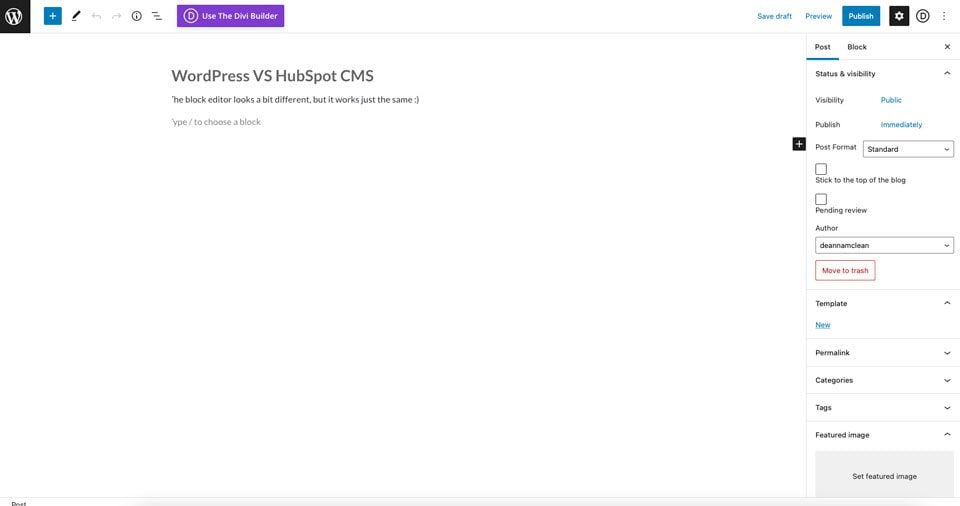
    The WordPress Block editor steps things up a notch. It functions the same as the classic editor, but gives users added functionality. Images, social media links, videos, and more are easily added as blocks of content in blocks.

    Gutenberg editor

    Web.com

    In order to publish posts, Web.com requires you to enable the blog. The process is easily done with the click of a button.

    Enable blog

    From there, users can add their first post. The post editor looks a lot like Gutenberg’s editor. You can simply start typing. You can add images, links, and text, just like in any other post editor. Publishing is easy, too. Pushing your content out to the world is one button click away.

    Web.com publishing

    WordPress vs Web.com: Security

    Website security is one of the most important issues one must consider when creating a website. In recent years, cyber crimes have increased exponentially. With ransomeware, malware, bot intrusion, and denial of service attacks (DDoS) rampart, you’re setting yourself up for major problems if your site and customers aren’t protected. Thankfully, both WordPress and Web.com are capable of fending off such attacks.

    WordPress

    As previously mentioned, WordPress is highly customizable. And depending on your themes and plugins, your website can be vulnerable to security threats. That’s why it is important to understand WordPress security beforehand. There are a number of free security plugins available to WordPress users that help protect their website. Plugins such as WordFence and Sucuri are good options. Plus, all hosting providers offer security features that help to protect WordPress sites. Some hosts, such as Divi Hosting by Cloudways, offer bot protection, a dedicated firewall, SSL certificates, and malware protection in their hosting plans. In addition to that, most WordPress hosting providers have bumped up their TLS security by making versions 1.2 and 1.3 standard practice.

    Cloudways Divi Hosting

    Web.com Security Options

    Web.com gives its customers an SSL certificate with every plan. Unlike WordPress, Web.com doesn’t offer free security plugins that you can add on to your website. If you require additional security, and most people will, you’ll need to upgrade your Web.com plan with their security add-on service. For $4.99 per month, Web.com will scan your site for any problems that may arise. Additionally, users will give their customers peace of mind with identity theft protection, and a built-in VPN client. Plus, there are product updates and training resources available to help you get the most of your security package.

    WordPress vs Web.com security

    Web.com WordPress Hosting

    Web.com does offer WordPress Hosting for those who want to host, manage, and design a WordPress site on Web.com. This might be a good option for those who need more customization capabilities that come with WordPress plugins, but also enjoy using the Web.com platform.

    Conclusion

    Now that we’ve explored some of the features of both WordPress and Web.com, one thing is clear. They are very different products. While Web.com does offer a very nice site builder, their customization options are pretty limited. On the security front, both WordPress and Web.com have good options to ensure your site is protected. However, with so many WordPress hosting companies to choose from, you’ll have plenty of research to do on who to choose and how much you should pay, should you decide to go with WordPress. If you’re looking for a WordPress hosting provider, we suggest taking a look at Cloudways or SiteGround. Both offer excellent features that will give you all of the security features that you need.

    In regards to publishing tools, options are comparable when we look at WordPress vs Web.com. Both are easy to use, and only take a few minutes to send your content out into the world. When choosing between WordPress and Web.com, it all depends on what your needs are. Beginners will be right at home with either platform, although the learning curve is a bit steeper with WordPress.

    Have you used Web.com? How do you feel it stacks up against WordPress? Let us know in the comments section below.

    The post WordPress vs Web.com appeared first on Elegant Themes Blog.