EDITS.WS

Tag: Website Design

  • How to Edit & Customize Your WooCommerce Checkout Page

    The default WooCommerce checkout page is streamlined for the average store and audience. However, there’s a good chance your store is anything but average and your audience has unique needs and preferences that challenge a basic checkout flow.

    If this sounds like your store, you probably want to customize the default WooCommerce Checkout page to make it more user-friendly for your specific customers and encourage them to complete purchases. 

    Fortunately, there are many ways to edit the WooCommerce Checkout page. You can use WooCommerce extensions or blocks, or edit the page manually using code. By optimizing this page, you can create a more seamless checkout experience. 

    Before you make changes, however, make sure you have a WordPress backup plugin installed and active, so you can quickly restore your site in case something goes wrong, or you simply want to undo your work. 

    In this post, we’ll take a closer look at why you might want to edit the Checkout page in WooCommerce. Then, we’ll guide you through three simple methods.

    Why build a custom WooCommerce Checkout page?

    Last year, almost half of U.S. consumers abandoned their online purchases during checkout. Some of the reasons for this include a long or complicated checkout procedure, and the customer not being able to calculate the total order cost upfront.

    Therefore, it’s important to remove all the barriers at checkout and provide an easy process. One way you can do this is by simplifying the checkout flow so that shoppers can complete their orders much faster.

    Additionally, WooCommerce Checkout page customization can be used as a marketing strategy. For instance, you could gather details from your customers so that you can improve your products.

    Alternatively, you can upsell and cross-sell items to increase the average order size. You might suggest related products, or offer add-ons like insurance and gift wrap. 

    Another reason to build a custom WooCommerce checkout page is to ensure that it fits in with the rest of your website. You might apply custom colors and fonts, or upload your logo. This can help you reinforce your branding and deliver a memorable checkout experience. 

    How to edit your WooCommerce checkout fields

    An effective way to customize your Checkout page is to edit the WooCommerce checkout fields. This way, you can provide a streamlined process for shoppers, making it easier for them to complete an order.

    By default, WooCommerce offers a set of useful fields for your Checkout page. These include First name, Last name, Email address, Phone, Company name, Town/City, and more.

    If you mainly sell to individuals, you’re unlikely to need the Company name field. Meanwhile, if you offer gifts or discounts to customers on their birthdays, it makes sense to add a Date of Birth field.

    There are other ways to customize the WooCommerce fields. You can apply new colors, adjust the size of fields, or change the placeholder text.

    It’s also a good idea to remove unnecessary fields and configure required fields that need to be completed before the customer can proceed with the order. You can go one step further and allow customers to verify a delivery preference, request a specific delivery date, or set up a preferred contact method. 

    Extensions for editing your WooCommerce checkout fields

    The simplest way to edit your WooCommerce checkout fields is to use an extension. Fortunately, there are many tools to choose from. 

    Checkout Field Editor is a premium WooCommerce extension that lets you optimize your checkout page by adding, removing, or editing fields.
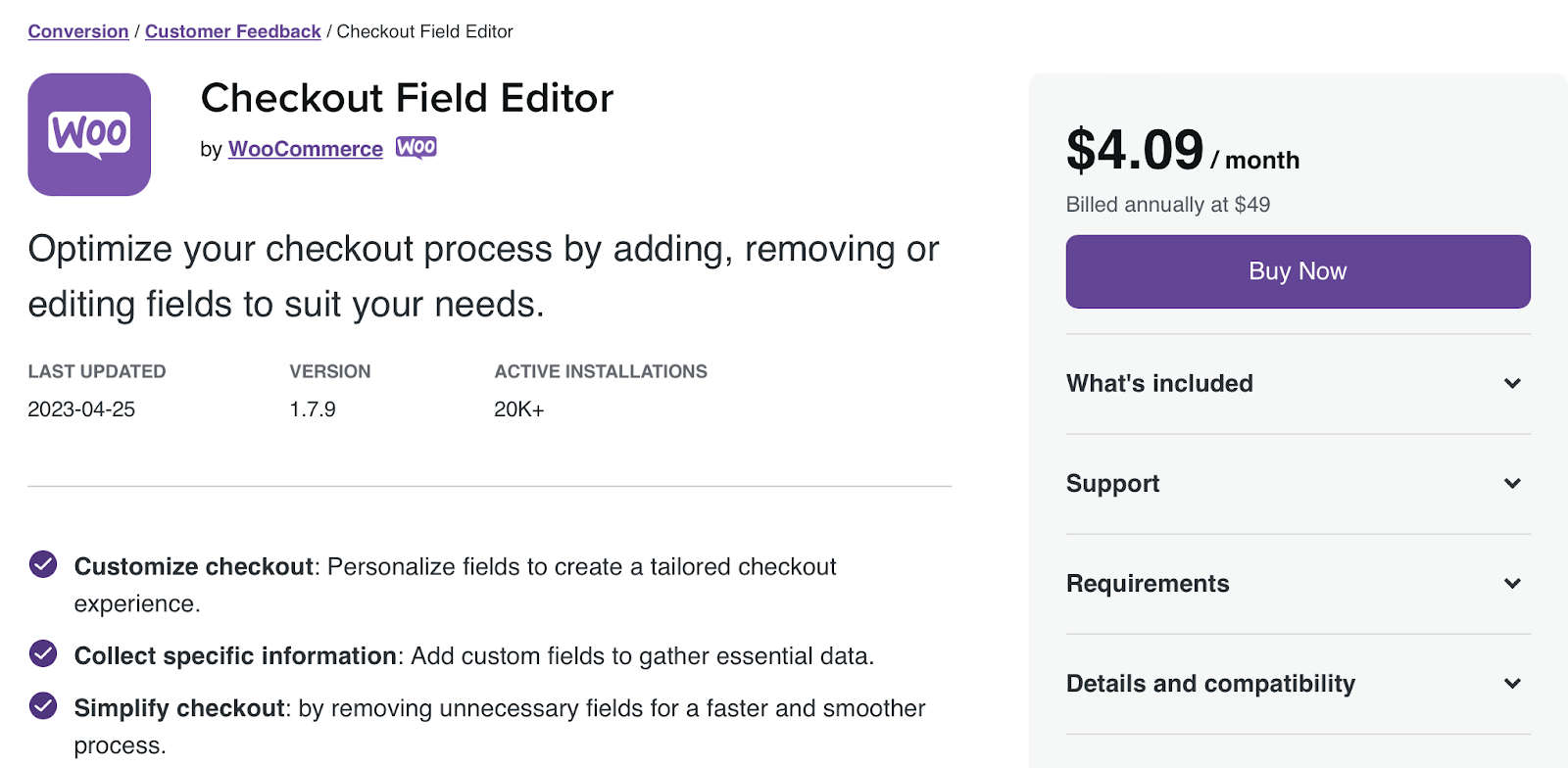
    Checkout Field Editor is a premium WooCommerce extension that lets you optimize your checkout page by adding, removing, or editing fields.

    Although you can’t take away the core fields, you can move them around. This gives you greater control over the flow of the checkout process. 

    If you run a large store, you might require a more sophisticated tool, like WooCommerce Checkout Add-Ons.
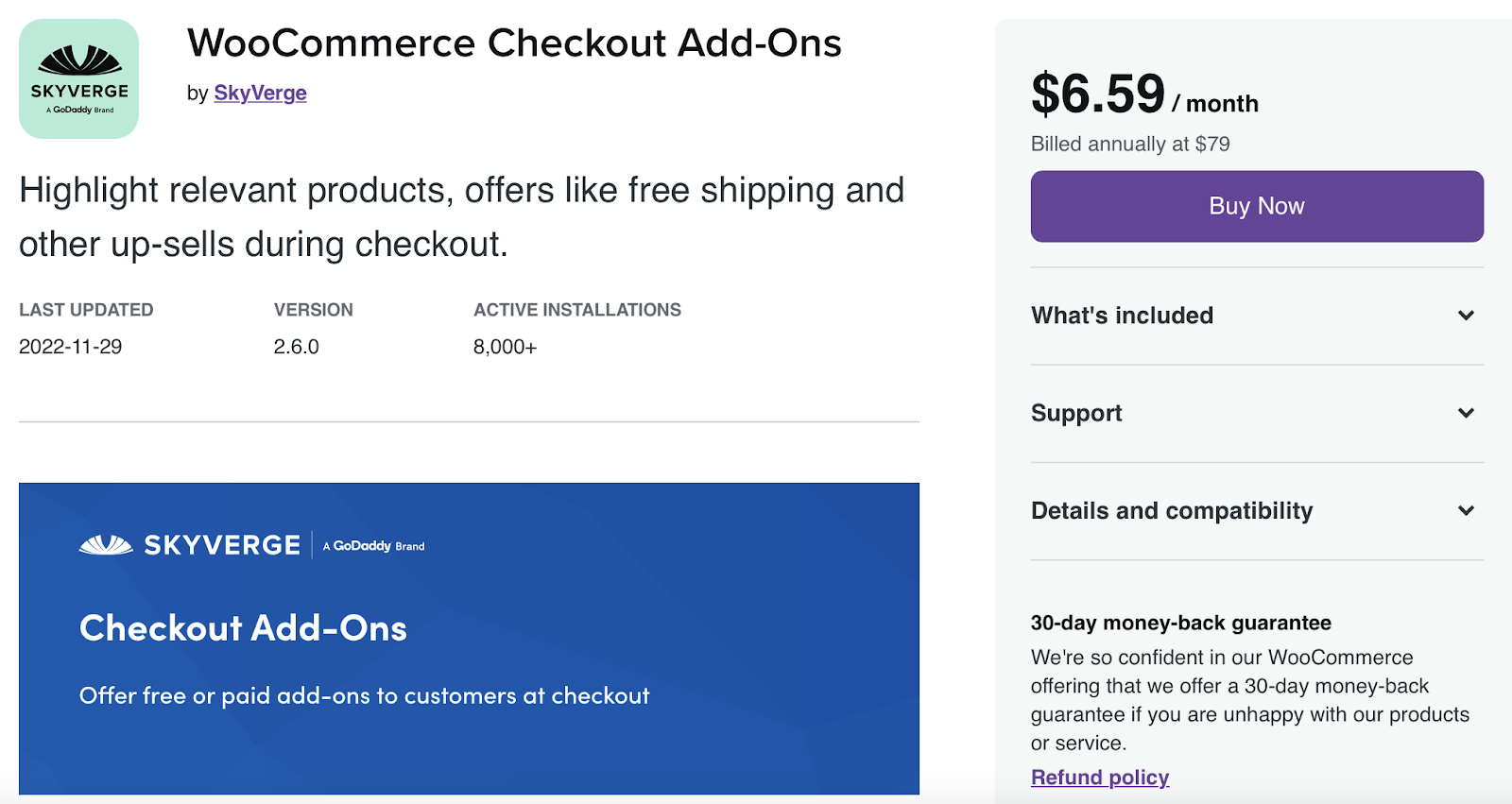
    If you run a large store, you might require a more sophisticated tool, like WooCommerce Checkout Add-Ons.

    With this tool, you can insert free (and paid) add-ons at the checkout stage. For instance, if you sell personalized products or gifts, you can allow customers to add a message to the order.

    It also enables you to offer gift wrapping services and insurance. You can even give customers the option to leave a tip. 

    The plugin gives you full flexibility over your WooCommerce fields. You can create conditional add-ons, add fixed or percentage-based costs, and dynamically update order totals. Plus, the tool supports WooCommerce Subscriptions and renewal orders. 

    How to customize your WooCommerce Checkout page

    Now that you know a bit more about WooCommerce checkout fields, let’s take a look at three ways to customize your Checkout page. 

    1. Use the WooCommerce Cart and Checkout blocks

    The first way to customize your WooCommerce Checkout page is to use the Woo Cart and Checkout Blocks extension. This tool is completely free.

    Find the WooCommerce Blocks page and click on Free Download.

    The first way to customize your WooCommerce Checkout page is to use the Woo Cart and Checkout Blocks free extension.

    You’ll then be guided through the checkout process (although you won’t be expected to pay anything). 

    There are different ways to customize your checkout experience with these blocks. You can configure product add-ons, accept multiple payment methods, offer express payment options, and more.

    Note that the Cart and Checkout blocks are only available on sites with WordPress 6.9 or higher. Additionally, you’ll need to replace the existing shortcodes on your Cart and Checkout pages. 

    First, navigate to Pages in your dashboard and open your Checkout page. Here, you can delete the checkout shortcode [woocommerce_checkout].

    Delete the checkout shortcode [woocommerce_checkout] in the page editor.

    Then, search for the Checkout Block and add it to your page. Now, you should see a preview of your block-based cart which you can customize using the settings in the sidebar.
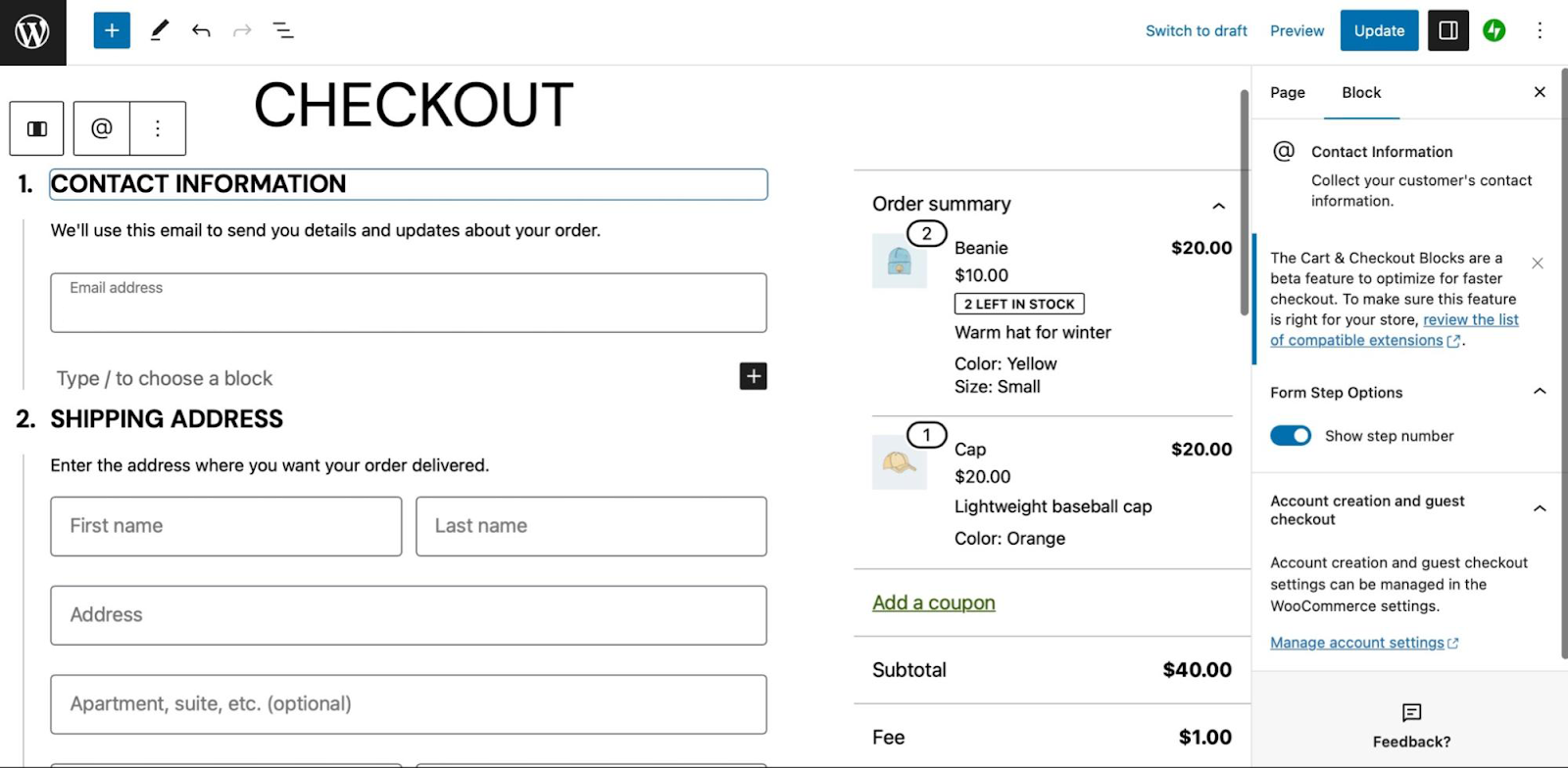
    Search for the Checkout Block and add it to your page.

    Now you’re all set to customize your Checkout page. You can show/hide the checkout step numbers, show/hide certain fields, and make the Phone field a required field using the block settings.

    You can show/hide the checkout step numbers, show/hide certain fields, and make the Phone field a required field using the block settings.

    Additionally, you can configure paid add-ons, allow shoppers to apply coupons or notes to their orders, enable multiple shipping options, and more. 

    2. Customize your Checkout page using WooCommerce extensions

    While WooCommerce Blocks offers an easy way to customize your checkout page, you can also get started with various WooCommerce extensions. Let’s look at a few options. 

    Make product recommendations

    One of the best ways to increase your average order size is to make product recommendations on the checkout page. Fortunately, the Product Recommendations extension makes this super simple.

    Increase your average order size with product recommendations on the checkout page with Recommendations extension.

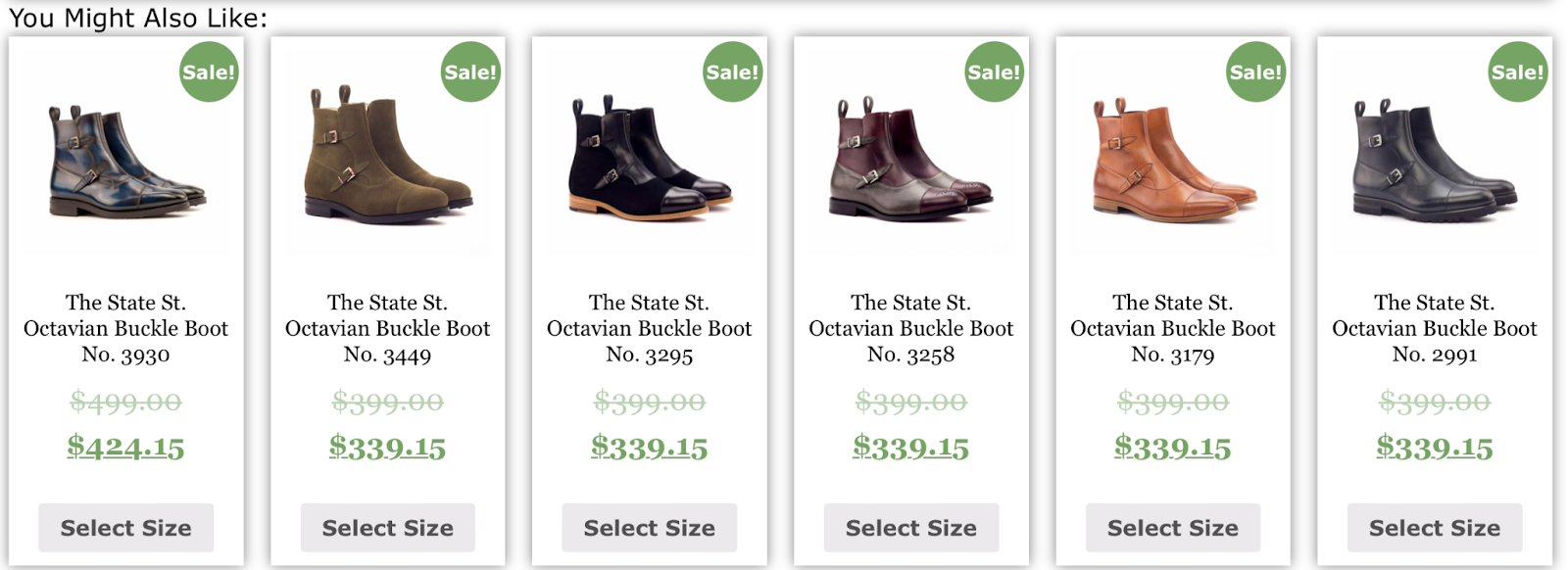
    You can present cross-sells under eye-catching titles like “Frequently bought together” or “You might also like”.

    Present cross-sells under eye-catching titles like “Frequently bought together” or “You might also like”.

    Alternatively, you can upsell products to increase order value. Plus, you can present your product recommendations across your entire store, including individual product pages and your order confirmation page. 

    Enable multiple shipping addresses

    Another way to customize your WooCommerce Checkout page is to enable multiple shipping addresses. Sometimes, customers make orders that consist of multiple products that need to be sent to different addresses (like home and work addresses).

    Additionally, some customers like to buy gifts and ship them straight to their friends and family. Without this option, customers are forced to make separate orders for each shipping address, which can be quite time-consuming.

    You can use the Shipping Multiple Addresses extension to offer this feature.

    Allow customers to buy gifts and ship them straight to their friends and family with the Shipping Multiple Addresses extension.

    Customers can request any quantity of products to be sent to any number of addresses. Plus, they can save all of these shipping addresses within their accounts. 

    Once you purchase this extension, all you need to do is install it on your WordPress site and enable multiple shipping methods. 

    Let customers choose a delivery date

    A great way to give your store a competitive edge is to allow customers to choose a delivery date to receive their orders. This can improve your overall customer satisfaction since it shows that you’re willing to go the extra mile.

    With the Order Delivery for WooCommerce extension, you can limit the number of orders per day to make sure you can process all orders within the specified timeframe.

    With the Order Delivery for WooCommerce extension, you can limit the number of orders per day.

    Plus, you can provide customers with a list of options for delivery dates based on bank holidays, shipping methods, and other factors. 

    Once you purchase and install the extension in WooCommerce, you can display a delivery date picker in your checkout form. Here, you can determine time slots, define a delivery range, and charge additional costs when customers choose a specific date/time. 

    Offer add-ons at checkout

    Another way to optimize the WooCommerce Checkout page is to add upsell options. For instance, you might offer shipping insurance, rush handling, company swag, or gift wrapping.

    You could also let customers choose from a range of paid add-ons at checkout, like gift messages or gift receipts. WooCommerce Checkout Add-Ons offers an easy way to do this.

    Let customers choose from a range of paid add-ons at checkout with WooCommerce Checkout Add-Ons.

    With this extension, you can add several types of fields to your checkout form, based on your add-on type. So, you might include additional text fields, radio buttons, checkboxes, or file uploads.

    You can configure fixed-amount or percentage-based costs. Meanwhile, you’re able to include conditional add-ons that change based on factors like the number of products in the cart and the cart subtotal. 

    Display messages to customers at checkout

    Your WooCommerce Checkout page customization can simply involve displaying a message. You can do this to engage customers, promote offers in your store, or point them toward related items.

    You can use the Cart Notices WooCommerce extension to do this.
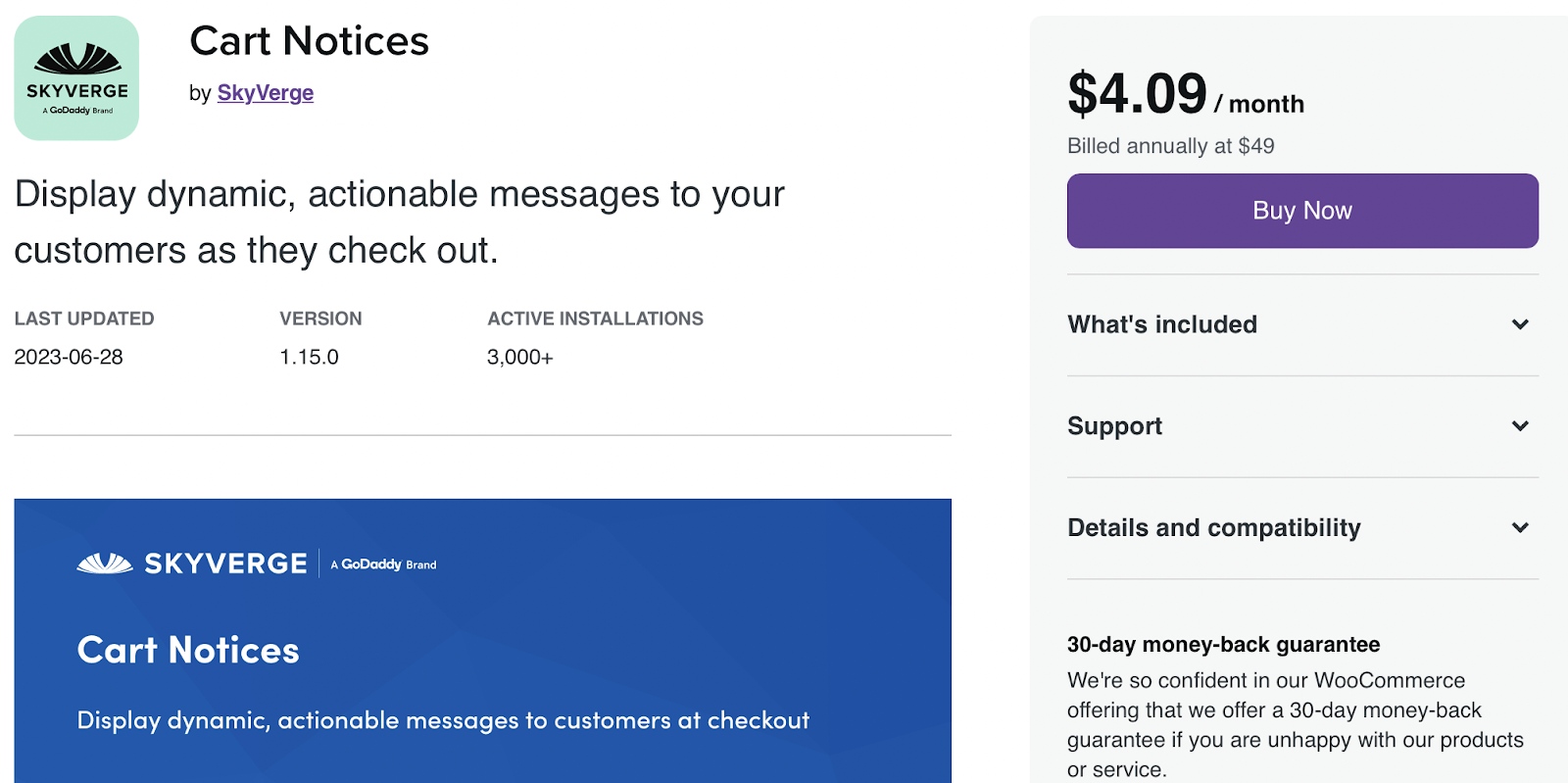
    Engage customers, promote offers in your store, or point them toward related items with Cart Notices WooCommerce extension.

    Once you’ve purchased and installed the extension, you’re able to display dynamic messages at checkout to encourage customers to buy more products. For example, you might want to present a notice that says, “Add one more item to qualify for free shipping.” 

    If you offer express shipping, you might motivate customers to place an order by displaying a message that says, “Order in the next ten minutes for next-day delivery.” 

    Provide a gift wrap option

    Although many of your customers are shopping for themselves, some are buying gifts for their loved ones. Therefore, it’s a great idea to offer a gift wrapping option on your WooCommerce Checkout page.

    The Gift Wrapper for WooCommerce extension lets you add this option to your store.

    Offer a gift wrapping option on your WooCommerce Checkout page with The Gift Wrapper for WooCommerce extension.

    This way, you can customize your Shop page by allowing customers to add gift wrapping to individual items. Shoppers can also apply gift wrapping to their entire order at checkout. Plus, you’re able to configure different pricing options for this service.

    This plugin supports both simple and variable WooCommerce products, and you can offer an unlimited number of gift wrap designs. Shoppers can even add a personalized message to their orders. 

    3. Customize your Checkout page manually

    You can also make changes to the Checkout page manually. This option is best if you’re comfortable working with code. 

    If you’re editing your site files directly, it’s best to create a child theme. Otherwise, when you switch themes or even update your current parent theme, you’ll lose any of the changes you’ve made. 

    Plus, it’s a good idea to make a fresh backup of your WooCommerce store since a single error can break your site. There are many high-quality backup plugins to choose from, but Jetpack VaultPress Backup is a powerful and reliable tool.

    There are many high-quality backup plugins to choose from, but Jetpack VaultPress Backup is a powerful and reliable option.

    The plugin works automatically, creating real-time backups that are stored securely in the Jetpack Cloud. Better yet, VaultPress Backup is designed specifically for WordPress and WooCommerce sites, which means it backs up your files, database, and customer data. 

    Edit the visual design of your WooCommerce Checkout page using CSS

    To edit your WooCommerce fields manually, you’ll first want to use the inspector tool in your browser to identify the exact area that you want to customize. Then, you’re ready to apply the changes to your theme.

    Here’s a list of primary tags (including classes and IDs) that enable you to edit the design of your Checkout page:

    <body class="woocommerce-checkout">
    <div class="woocommerce">
    <form class="woocommerce-checkout">
    <div id="customer_details" class="col2-set">
    <div class="woocommerce-billing-fields">
    <p class="form-row">
    <div class="woocommerce-shipping-fields">
    <p class="form-row">
    <div class="woocommerce-additional-fields">
    <div id="order_review" class="woocommerce-checkout-review-order">
    <table class="woocommerce-checkout-review-order-table">
    <div id="payment">
    <ul class="wc_payment_methods payment_methods methods">
    <div class="form-row place-order">

    To give you an example, you might want to change the background color of an input box. In this case, you can use the following code snippet:

    .woocommerce-checkout input[type="text"] {
         background-color: #222;
    }

    Alternatively, you might wish to remove a field from your Checkout page, like the Company name field in the Billing section. In this scenario, you’ll need to add the following code snippet to your functions.php file.

    function wc_remove_checkout_fields( $fields ) {
        unset( $fields['billing']['billing_company'] );
        return $fields;
    }
    
    add_filter( 'woocommerce_checkout_fields', 'wc_remove_checkout_fields' );

    Make sure to save your changes when you’re ready.

    How to create a one-page WooCommerce checkout 

    If you want to simplify the shopping experience, you might want to create a one-page checkout experience, using a plugin like WooCommerce One-Page Checkout. With this tool, you can add checkout fields to any of your landing pages.

    Simplify the shopping experience with a one-page checkout experience, using a plugin like WooCommerce One-Page Checkout.

    This extension offers three ways to create a one-page checkout. First, you can enable it on a product-by-product basis.

    Alternatively, you can configure a one-page checkout with a shortcode. All you need to do is add the following shortcode to any page or post on your site:

    [woocommerce_one_page_checkout]

    How to boost the speed of your Checkout page

    While it’s a good idea to customize your WooCommerce Checkout page, you’ll also want to make sure that it’s optimized for performance. Bounce rates increase by an average of 32 percent as page load time goes from one to three seconds. 

    To maximize conversions and sales, it’s important to improve your website speed. There are different ways to optimize your WooCommerce Checkout page, but Jetpack Boost offers an easy and convenient solution.

    There are different ways to optimize your WooCommerce Checkout page, but Jetpack Boost offers an easy and convenient solution.

    There’s a free version of the plugin, which is simple to set up. Go to Plugins → Add New and search for “Jetpack Boost”. Then, click on Install Now → Activate. 

    Now, you can head to Jetpack → Boost in your dashboard.

    There’s a free version of the plugin, which is simple to set up in the Plugin Repository.

    Here, you can enable any of the optimization settings that you want to apply to your website. For example, you might want to lazy load images to improve your loading times.

    It’s also a good idea to optimize critical CSS loading. This feature moves your styling information to the start of the page so that your content loads much faster. As such, it’s a great way to improve your overall user experience. 

    You can also upgrade to a premium Jetpack plan to access additional features. For instance, the plugin will automatically regenerate your site’s critical CSS (and performance scores) every time you make a change on your site.

    Frequently asked questions about customizing the Checkout page 

    This post has covered the basics of WooCommerce Checkout page customization, but you might still have some questions. Let’s answer some of them. 

    What is the WooCommerce Checkout page?

    When you install WooCommerce in WordPress, you’ll get a default Checkout page. This contains fields for customers to enter their name, address, email address, payment information, and more. Once they’ve entered these details, they can complete their order. 

    What is the best way to customize a WooCommerce Checkout page?

    There’s no best way to customize the WooCommerce Checkout page since it depends on your preferences, skill level, and experience. For beginners, it can be easiest to use WooCommerce Blocks or a WooCommerce extension since you won’t need to use code.

    More experienced users may like to edit the WooCommerce Checkout fields using code snippets. This involves adding CSS snippets in the WordPress Customizer or your child theme. 

    Should I back up my site before editing the checkout page template?

    The WooCommerce checkout page is one of the most important pages on your website. Therefore, it’s important to back up your WordPress site before you make any edits.

    This way, if you make a mistake or a change that you don’t like, it’s easy to restore your website to an earlier version. You won’t need to troubleshoot your site for errors or go through the hassle of undoing the change.

    The easiest way to back up your site is to use a plugin like Jetpack VaultPress Backup. Once installed, this handy tool makes real-time backups that are stored securely in the Jetpack Cloud. 

    Plus, you’ll get access to an activity log to tighten up security on your site. Meanwhile, the restoration process is super simple, enabling you to get your site up and running again in just a few clicks. 

    What else can I do to enhance my WooCommerce Checkout page?

    It’s a great idea to customize your WooCommerce Checkout page to increase sales and improve the customer experience, but there are other ways that you can enhance your Checkout page.

    It’s important to prioritize your site’s speed as this can reduce bounce rate and improve the shopping experience. You can install a plugin like Jetpack Boost to speed up your loading times. 

    Once activated, Jetpack Boost provides you with access to a clean interface where you can keep an eye on your performance score. Plus, the tool makes it easy to enable optimization features like lazy loading, critical CSS, and non-essential JavaScript deferral. 

    Optimize your WooCommerce checkout experience

    While WooCommerce provides a built-in Checkout page, there are tons of ways to enhance the page to boost sales and configure useful checkout options. For instance, you might enable multiple shipping addresses, make certain fields required, or offer gift wrapping.

    To recap, here are three ways to edit and customize your WooCommerce Checkout page:

    1. Use the WooCommerce Cart and Checkout blocks.
    2. Use WooCommerce extensions like Cart Notices and Product Recommendations.
    3. Use code to manually customize the Checkout page.

    You’ll also want to optimize your Checkout page for performance, using a beginner-friendly tool like Jetpack Boost. This way, you can speed up your site and improve the user experience, which can lead to more conversions.

  • How to Build a Website from Scratch (With Zero Coding Skills)

    If you take a moment to think about the websites you visit these days, you might be amazed at how many features even the ‘simplest’ have. In the past, if you wanted to create a professional-looking website, you needed at least some basic coding skills. Now, anyone can build a site that looks great and functions well, with zero coding required.

    That is possible thanks to content management systems (CMS) and website builders. These types of tools democratize web development and enable you to create the exact type of website you want. All you need is to be willing to learn how they work, and put in a little time and effort.

    In this article, we’ll discuss exactly what it takes to build a website from scratch. We’ll guide you through the process step by step, so you know everything you’ll need to get started. 

    What is needed to create a website from scratch?

    If you want to create a website without coding, you’ll need the right tools for the job. At a minimum, you’ll want:

    1. A website building platform. The website builder or CMS you use should offer all the features you need to design and publish as many pages as you want. That includes tools to create and design pages and content, sell products online (if relevant), manage users, and anything else you require.
    2. Access to hosting. Every website needs hosting. This involves paying for a server that’s configured to store your files and make your website available to the public.
    3. A domain name. This is how people can access your website (outside of finding it in search engines). A great domain name can make or break a site.

    If you’re thinking about creating your first website, these elements might sound intimidating. You have a nearly infinite number of choices and combinations for which website builder and web host to use (not to mention domain names!). 

    In particular, your choice of a website building platform will determine how complicated it will be to get your site ready. That’s where WordPress.com comes in.

    WordPress.com: The best way to build your website

    Since you need a website builder, hosting, and a domain to create a site, it makes sense to opt for a solution that offers all three components. That’s precisely what WordPress.com does.

    WordPress.com homepage demonstrating the blog builder

    You’re probably familiar with WordPress. It’s the web’s most popular CMS and blogging platform. But what you may not know is that you can use it to create almost any type of website you can imagine. A lot of its features are designed with blogging in mind, but the CMS is incredibly customizable.

    There’s a reason WordPress powers around 43% of all websites. That’s billions of sites, and includes major brands like Slack, TIME Magazine, CNN, and many more.

    With WordPress, you get access to an intuitive system that includes tools for content creation and management, style customization, user management, ecommerce, and more. Add plugins into the mix, and you can transform WordPress into the perfect platform for almost any type of project.

    Unlike ‘self-hosted’ WordPress, WordPress.com includes hosting and a free domain (depending on which plan you choose). The CMS comes pre-installed with every plan, so you can get right to work after signing up for an account. Plus, WordPress.com offers a lot more protection and optimization than most other web hosts.

    How to build a website from scratch (in 7 steps)

    If you’re excited to get started, you’ve come to the right place. In the following sections, we’ll take you through the entire process of creating your new website with WordPress.com!

    Step 1: Create a WordPress.com account

    The first step is the easiest. WordPress.com offers a variety of plans, so you should be able to find something that fits your budget. Every plan gives you access to the full version of WordPress (aside from plugin support, which we’ll discuss shortly).

    WordPress.com plans

    The free WordPress.com plan doesn’t place any limits on the amount of traffic your site can get, and you receive 1 GB of storage. That’s enough for a small blog, if you don’t mind having your website display ads.

    Premium plans progressively add more functionality and an ad-free experience. From the Personal plan onward, you also get a free domain for one year and a secure sockets layer (SSL) certificate, as well as automatic HTTPS (which helps protect your site and visitors).

    The real magic of WordPress unlocks with the Business plan. This is the option that includes support for installing plugins. You can use plugins to add all kinds of new features to your website — everything from contact forms to online courses.

    ecommerce WordPress.com plans

    Finally, if you want to use WordPress to launch an ecommerce store, you’ll need the Commerce plan. This is the most exhaustive plan that WordPress.com offers, but it translates to top-of-the-line security and performance for an online store.

    Take some time to consider what plan you want to use. If this is your first time with WordPress, it might be best to take the free plan for a spin first. That way, you can get familiar with the platform and figure out what more advanced features you want.

    Step 2: Pick and register a domain name

    Next, you’ll need a domain name. This forms the basis of your website’s URL (e.g. jetpack.com).

    If you choose one of the WordPress.com plans that come with a free domain name registration, this process is quick. You can use a third-party domain registrar instead, but that comes with its own additional costs. 

    On average, .com domains cost around $10 per year. That cost can vary depending on the domain, though, and prices are not the same for every top-level (.com vs .net vs .org) domain. 

    For your first website, it’s typically best to stick with .com, since it’s a safe and well-known option. All you need to do is figure out the perfect name for your website.

    This step is very personal, and it will vary depending on what goals you have for your website. With that in mind, here are some quick tips to remember when choosing your domain:

    1. Keep it simple. You’ll want your domain name to be easy to remember and type.
    2. Either make it unique, or clearly connected to your business/brand. If you’re struggling to find a unique name, stick with terms and keywords that relate to your business or brand. For portfolios and personal websites, you can use variations of your own name instead.
    3. Avoid generic domains. Although it’s best for your domain to be simple and clear, you don’t want it to be easily confused with other brands. A domain like cheaptents.com may get the point across, but it doesn’t contribute to unique brand recognition. 

    If you’re struggling to come up with a name, there are a lot of domain name generator tools you can use. These tools will take in keywords and generate hundreds of potential domains (and even show you which ones are available). Even if they don’t suggest any options you like, they can be great for brainstorming.

    Step 3: Choose a theme to customize your site’s look

    Once you sign up for WordPress.com, you’ll get access to your new dashboard right away. There, you’ll be able to see your website and start making changes to it. Right now, your website should be pretty empty, with only the default pages your theme sets up for you.

    example of a WordPress theme in action

    A WordPress theme is a collection of templates with unique styles. Themes enable you to change your website’s design easily. There are even themes designed for specific types of websites, like blogs or online stores.

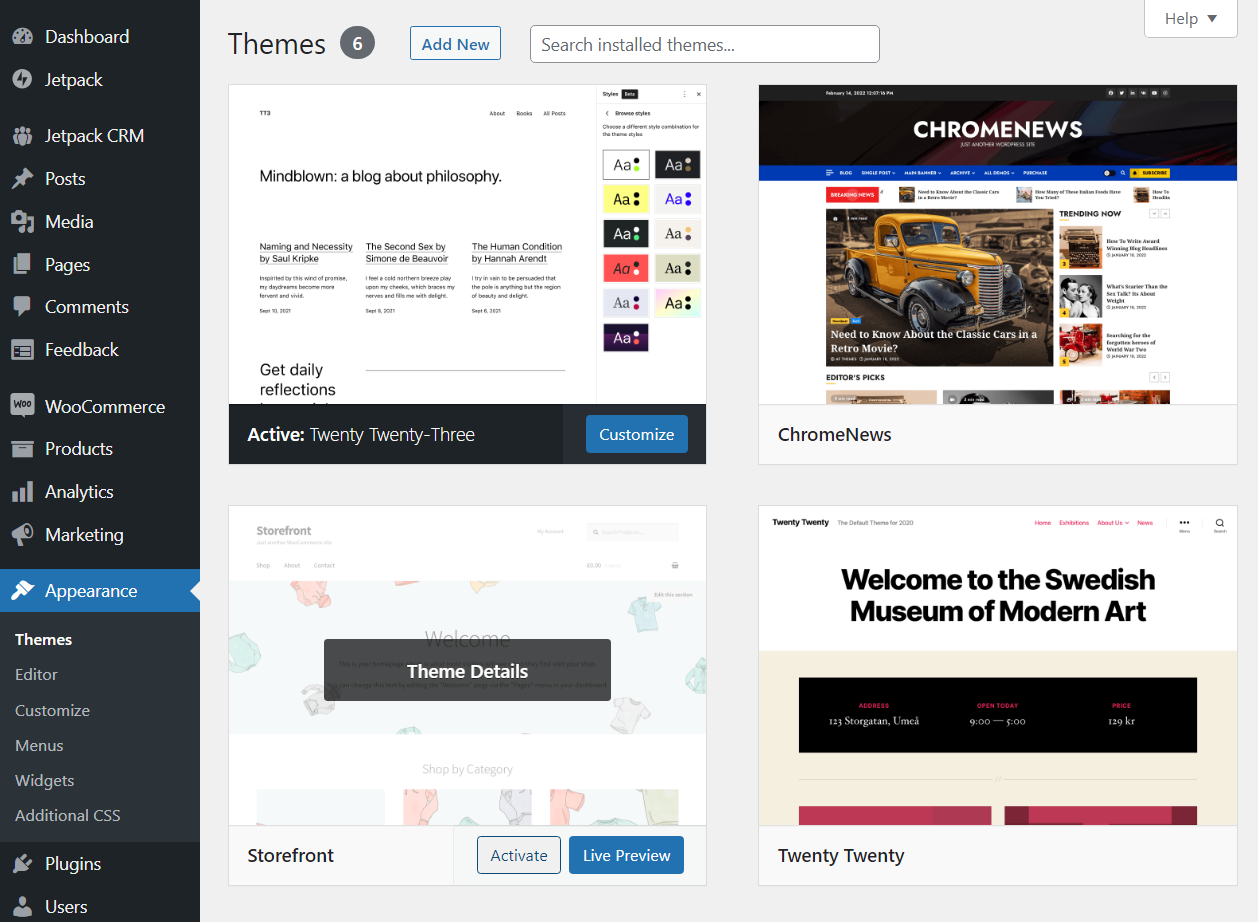
    The design you see right away will be determined by WordPress’ latest default theme. To change it, go to the Appearance → Themes page. There, you’ll see an overview of all the themes installed on your website.

    switching WordPress themes

    You can change themes by selecting one and clicking the Activate button. To find new options, select Add New. This will open the WordPress theme repository without leaving the dashboard.

    activating a new theme

    From here, you have access to all the free themes available for WordPress. If you see one you like, mouse over it to get a preview, or go right ahead and click on Install.

    WordPress will download the theme in the background, and when it’s ready, you’ll be able to activate it. Once you do, check out how your website looks using the new theme.

    It might take a few tries to find the perfect theme. There are thousands of free options available, so be patient until you find a design that fits your vision for your site.

    Note that some WordPress.com plans also give you the option to upload themes. That’s so you can use themes that you download or buy from third-party websites and marketplaces.

    Premium themes can be very useful, but it may be best to not spend money on them until you’re more familiar with how WordPress works. That way, you’ll know exactly what you want when you do start browsing third-party marketplaces.

    Step 4: Design your site with the drag-and-drop editor

    Once you’re happy with your theme, it’s time for the real work to begin. That means creating a homepage for your website. For that, you’ll use the WordPress drag-and-drop editor, also known as the Block Editor.

    To get started, go to the Pages section of your dashboard and select Add New. This will launch the Block Editor. When you’re starting with a blank page, the editor will look something like this:

    creating a post with the Block Editor

    The plus sign button that you see in the middle of the screen enables you to add blocks to the page. Blocks are pre-built elements that can be almost anything, from paragraphs to lists, images, forms, and more. WordPress comes with dozens of blocks, including every element you need to design a website.

    list of blocks in the Editor

    After adding a block, you can click on it, and the menu to the right of the screen will show you its customization options. You can also add basic text blocks, like the Paragraph and List options.

    adding a block to a page

    At this stage, we recommend that you play around a bit and familiarize yourself with the blocks that the editor offers. Don’t worry if you’re not sure where to start. Simply learn how the editor works, try using different blocks, re-arrange them by dragging and dropping, and see what customization options are available.

    You can click on the Preview button at the top of the screen at any time to see what your design will look like once you publish it. If you’re not happy, you can always continue to tinker with it, as every page in WordPress is fully customizable.

    If you’re not sure what kind of design you want to use, you can go into the Patterns menu by clicking on the blue plus sign at the top of the screen. This menu will show all blocks in a sidebar, as well as a category labeled Patterns.

    block pattern list in the Editor

    Patterns are pre-designed page sections that you can use as starting points. Selecting a pattern will add it to the page, and you’ll be able to edit its components (they’re all blocks) to customize them to your liking.

    Using patterns is a great shortcut, giving you excellent designs as starting points. Every pattern is free to use, so go ahead and experiment with them.

    When you’re happy with the page’s design, click on the Publish button. WordPress will save your progress as a “draft” while you edit a page or a post. It doesn’t actually publish the page (make it visible to visitors) until you click on the Publish button.

    Before you start working on other pages, you’ll also want to learn how to edit WordPress menus and how to set a homepage. This will enable you to customize your site’s navigation in any way you want.

    Learn more in our guide to the WordPress Block Editor.

    Step 5: Add pages, content, images, and videos

    Creating one page is a great start, but it doesn’t make a full website. Depending on what idea you have in mind, you’ll probably need to design multiple pages.

    You may also want to create posts, if you plan to set up a blog, news feed, or similar feature. WordPress will display your latest posts on the Blog page by default.

    The process of creating and publishing posts works just the same as with pages. Go to the Posts screen and click on Add New. This will launch the editor with a blank slate.

    How you structure your site’s content is up to you. Still, every post will likely need text, images, and sometimes video. You can add any of those elements by selecting the option to place a block on the page.

    blog post in WordPress

    To add images or videos, you’ll first need to upload them to WordPress. To do this, select either the Image or Video option from the block menu and click on Upload.

    option to upload media in WordPress

    You’ll get the option to select a file from your local device and upload it to the website. Once the upload is done, you’ll be able to select the image and place it on the page or post.

    list of media in the media library

    Keep in mind that you might have storage limits, depending on which WordPress.com plan you use. The platform also doesn’t support every image or video format, but it works with all the major options. If you plan to feature a lot of media, you can get video hosting with Jetpack.

    As with pages, when you’re done working on your latest piece of content, you can choose to publish it or save it as a draft. After you hit the Publish button, visitors will be able to see the content on your website.

    Step 6: Add products, payment, and shipping (if applicable)

    This step only applies if you’re building an online store, and if you opt for a WordPress.com plan that enables you to publish and sell products using WooCommerce. If you’re not already familiar with it, WooCommerce is an ecommerce plugin for WordPress. It adds all the features you need for a storefront.

    WooCommerce logo

    Once you have WooCommerce installed, you can start adding products to your website using the Products → Add New option. This will launch a simple editor where you can set the product’s title and price, add a description, and specify what kind of item it is (physical or virtual).

    creating a new product in WooCommerce

    The WooCommerce editor doesn’t use blocks. It’s more like a series of forms that you fill out to add product information. 

    If you want to learn more, check out this tutorial on how to add and edit WooCommerce products. While you’re at it, you might also visit these tutorials that explain WooCommerce payment methods and how to configure shipping.

    Step 7: Launch your website

    With WordPress.com, there’s no “launch” button or anything you have to click on for your website to go live. As soon as you hit the Publish button for a page or a post, visitors will be able to see it. All you have to do is actually attract those visitors.

    If you want to rely on search engines, you’ll need to learn about search engine optimization (SEO). You can also use social media or paid ads to drive traffic to your website, depending on your audience and budget.

    Whatever route you choose, keep in mind that building an audience can take a while. No website launches and gets thousands of visitors overnight (unless you’re famous), so be patient and keep publishing new content.

    Examples of websites built with WordPress.com

    Even with a beginner-friendly platform like WordPress.com, building an entire website can seem intimidating. You might not be sure what you want it to look like, or what it should include. If that sounds familiar, this section is for you.

    The best way to start is by exploring existing websites built using WordPress.com. This will give you an idea of what’s possible, and help you figure out what you do and don’t like.

    For example, Kiss My Spatula is a food blog, featuring stories of people eating around the world. Posts are categorized by continent, along with showcasing a list of travel tips.

    Kissmyspatula.com homepage

    WordPress isn’t just the home of blogs. Major corporations and news outfits also rely on WordPress.com. For instance, FiveThirtyEight is one of the most popular opinion poll analysis and politics sites in the US.

    FiveThirtyEight news site

    For a lot of big companies, using WordPress makes sense because it’s a tested, business-ready website builder that offers everything you’ll need to grow your brand. The Meta Newsroom focuses on publishing news about all the companies under its umbrella.

    Meta news website

    This website is powered by WordPress VIP (owned by Automattic, just like WordPress.com), which caters to enterprise-level websites. If your website grows enough, you might end up using those services at some point!

    Frequently asked questions

    By now, you’re ready to begin building your own website with WordPress.com. Before you go, let’s clear up any lingering questions.

    How much does it cost to create and host a website?

    The cost of creating and hosting a website will depend on what type of site you want to create and the hosting platform you choose. If you want to hire a developer, for example, your website can end up costing thousands of dollars.

    WordPress.com gives you a lot of options that adapt to different budgets. There’s even a free plan that includes both the website builder and hosting. It does include ads, but it doesn’t limit traffic in any way.

    You can also opt to start with an ad-free plan from the beginning. WordPress.com offers a great starting plan called Personal, which costs $4 per month and includes a free domain.

    Do I need coding skills to create a website?

    If you want to create a completely custom website from scratch, you’ll need to know how to code. The alternative is to hire a web developer or an agency to do it for you (which can be expensive). 

    Want to take this route? Built by WordPress.com can take care of everything for you. Created by WordPress.com Happiness Engineers, you’ll be sure to get a quality site in as little as four days.

    For everyone else, WordPress.com offers a visual website builder experience that lets you create a unique website without knowing anything about code. Even if you do have web development experience, WordPress.com enables you to launch websites faster and easier than ever.

    How long will it take to create a website from scratch?

    How long it takes to create a website depends on how familiar you are with the process, the tools you’re using, and the scope of your project. WordPress.com is remarkably user-friendly. Still, you do need to familiarize yourself with how the platform and the Block Editor work.

    Once you understand how to use the Block Editor, you can design multiple pages in just a few hours. If you’re building a relatively small website, you should be able to put everything together in a couple of days.

    Will the website be secure and safe for visitors?

    One of the disadvantages of having to shop around for a web host is that security falls largely in your hands. Some hosts offer decent security features, but the responsibility for protecting your website is ultimately yours.

    WordPress.com does things differently. The platform is designed to offer a secure hosting experience out of the box. Every plan comes with a free secure sockets layer (SSL) certificate included, as well as the Jetpack plugin. That means you get access to built-in security, real-time backups, speed optimizations, and more.

    Will the website be mobile-friendly?

    The WordPress Block Editor is very mobile-friendly. You can use the editor to preview how your site will look at different resolutions, including on mobile devices.

    It’s also worth noting that some themes are more mobile-friendly than others. It’s best to test multiple options before making a decision, so your site looks and functions well for all visitors.

    Build a website without coding thanks to WordPress.com

    Whether you know how to code or not, using WordPress.com to build your website is a smart choice. This website builder offers all the tools you need to create professional-looking pages, and you don’t need any special technical expertise.

    On top of that, WordPress.com plans bundle everything you’ll need, including hosting and a domain name. You also get access to Jetpack, which means free automated backups, speed optimizations, malware scanning, and much more!

  • How to Add a Video Background to a WordPress Page

    It takes mere seconds for visitors to decide whether they want to stay on your website or go elsewhere. So it’s important that you grab their attention immediately and convince them to explore the rest of your site.

    A great way to captivate and impress your audience is with a video background. In this post, we’ll take a look at the benefits of adding a video background to your site. Then, we’ll discuss some best practices and show you four easy ways to do this in WordPress. 

    What is a video background?

    Video backgrounds are a way for you to provide a more engaging experience for your visitors. Instead of adding a solid color or image behind pieces of your content, you can use a video instead. These videos often loop (repeat) and are silent so as to enhance rather than take away from the rest of the page.

    You can add a video background behind blocks of text, images, buttons, forms — whatever you’d like! — or even use it as the background of an entire landing page. 

    Strandberg Guitars homepage with a video background

    Strandberg Guitars, for example, displays a beautiful video background of their products in action right when visitors land on their site. Their header, intro text, and call to action button are layered on top of the video in a way that all content is still visible.

    What are the benefits of a video background?

    There are many benefits to using a video background. To begin, it can make your pages look more professional and attractive. When someone arrives on your site and sees a moving video, it grabs their attention in a way that stagnant content cannot. 

    Video backgrounds can also be an excellent way to showcase products and services in action. Feature the beautiful rooms in your bed and breakfast, show kids happily playing with the toys you sell, or share clips of the experiences you offer. 

    Best practices for adding a WordPress video background

    If you’ve decided that your site can benefit from a video background, there are a few important things to consider. First, you’ll want to use videos sparingly but effectively. Having too many large videos on your WordPress site can slow it down and dilute the impact. 

    You’ll also most likely want to disable the audio. Sound can be off-putting for visitors when they simply want to view your website. The last thing you want is for your music to disrupt a visitor’s meeting or appointment. 

    If you’re placing content like text and buttons on top of your video background, it’s important that there’s enough of a contrast so that people can easily read them. This is particularly important for visitors with visual impairments. This color contrast checker is a great way to get a quick read on your site. Just type in your URL, and it will identify any improvements you need to make. 

    Finally, it’s always a good idea to use a fallback image. This sets the picture you want to display in the background if, for some reason, your video doesn’t load. 

    How to add a video background in WordPress

    Now that you know a little bit more about video backgrounds, let’s explore some ways you can add them to your WordPress site.

    1. Use the built-in Cover block

    This is the simplest and most effective solution, requiring no external plugins or tools. With the Cover block, you can layer content like text, buttons, and forms on top of a photo or video background. This makes it a great option for hero sections or banners.

    To get started, create your new page/post or open an existing one. Then, click the blue + icon in the top left corner. This will open up all the block options. Search for “Cover block,” then add it wherever you’d like on the page. 

    setting colors for the Cover block in WordPress

    In the toolbar that appears, select Add Media. There you can either select a video from your media library or upload your own.

    You can customize your video settings in the right-hand panel. Choose a focal point, select the opacity of the overlay, and more.

    setting a video background using a Cover block

    Then, add any blocks that you’d like on top of your video background by clicking the + icon within the cover block. For example, you might add a heading, line of text, and button. Remember, it’s important for that content to stand out from the background, so adjust the color and the background opacity as needed.

    Once you’re happy with your cover block, save or publish your changes, and that’s it! Just a few simple steps to achieve an effective, beautiful video background.

    2. Use a video plugin

    If you’re looking for a very specific feature — like a full-site video background or scroll effects — video plugins could be a good alternative. 

    In this example, we’re going to use the Advanced WordPress Backgrounds plugin.

    Advanced WordPress Backgrounds plugin page in the WordPress repository

    This tool enables you to create a range of background types, including images, self-hosted videos, and videos from third parties like YouTube. The best part is that it still works from within the WordPress block editor. 

    Once you’ve installed the plugin on your site, head to the page or post where you want to add a video background. Then, click the + icon to add a new block and search for “Background (AWB).” Add it wherever you’d like on the page.

    In the right-hand settings panel, select the Video tab, then choose between YouTube/Vimeo and Self Hosted. Depending on which you select, you can either upload your video or enter an external URL.

    Then, click the + icon within the Background (AWB) block to add the content you want to display on top. In this case, we’ve chosen to add a contact form.

    contact form on top of a video background

    From there, you can customize the settings using the right-hand toolbar. Choose a video start and end time, select the devices on which you’d like it to appear, add parallax effects, and more. When you’re all finished, save your page.

    3. Use a page builder

    If you’re already using a page builder like Elementor, you can use that to add a video background to your site. Create your new page with the builder and drag an Inner Section element onto the screen.

    elements available with Elementor

    By adding your video to a section, you can overlay additional elements like text and buttons on top of your footage. Click on the dots at the top of the section to open the Section Editor. Then, navigate to the Style tab.

    Style tab of Elementor

    Next to Background Type, click Video and paste your video link into the box.

    video background set in Elementor

    Here, you can determine start and end times, and adjust other display settings. You can also set a fallback image in case your video doesn’t play. You can then add any elements that you’d like on top of the video as you typically would.

    Under Layout, you can change the height and width of your content. Then, you may want to add a background overlay and adjust the opacity to make other content in the section more visible. You can access these settings by scrolling to the bottom of the Style section. 

    4. Add a video background with your theme

    Some themes automatically enable you to upload images, videos, or GIFs as background elements. These can fill your entire screen, or you can use them as headers or sliders.

    To find a theme that allows for video backgrounds, head to your WordPress dashboard and click Appearance → Themes → Add New. Next, search for “video background” and select a theme that offers this functionality. Or, you can always upload your own premium theme.

    Colibri WP is one excellent, free option. Once you’ve installed and activated the theme, go to Appearance → Customize. Then, select the Settings icon beside the Hero element.

    setting a video background with a WordPress theme

    Switch to the Style tab and change the Background type to Video.

    choosing a video for the section background

    You can either paste an external URL or upload a video file to the media library. 

    adding a self-hosted video

    Then, you’re all set to customize your video background. You can apply color overlays and tweak the opacity of your video. Once you’re happy with your design, publish your changes.

    Frequently asked questions

    Let’s look at some frequently asked questions about using video backgrounds in WordPress.

    Will a video background slow down my site?

    Large video files can negatively affect your site’s performance. But the good news is that you can use a tool like Jetpack VideoPress to minimize the impact that they have on your site. It hosts your videos off-site and serves them through a powerful CDN, while helping you avoid third-party ads. 

    If you’re looking for ways to almost instantly improve your WordPress speed, Jetpack Boost is a great option.

    Jetpack Boost homepage with the text, "The easiest speed optimization plugin for WordPress"

    In just a few clicks, you can optimize CSS loading, defer non-essential JavaScript, and turn on image lazy loading without using any custom code. This tool focuses specifically on Google’s Core Web Vitals, which are measurements of your site’s performance in real-world scenarios. Improving these metrics can positively impact your user experience and search engine rankings.

    What’s the easiest way to add a WordPress video background?

    The built-in Cover block is the simplest way to add a WordPress video background because it requires no additional plugins, tools, or custom code. 

    Instead, you can create your video background directly in the WordPress editor. This makes it an excellent option for all users, even complete beginners. However, you can still customize your background, with options for overlays, focal points, and more. This is just one great example of how the WordPress block editor makes creating a beautiful, effective site accessible to everyone.

    Where should I host my videos?

    You can host your video on the same server as your website. This way, you can skip the limitations of third-party platforms and provide an ad-free experience for your visitors. 

    But, self-hosted videos can require a lot of server bandwidth and you might be unable to upload large files. What’s more, they could slow down your user experience and result in a lot of buffering and other distractions. 

    VideoPress is the best of both worlds. It takes all of the weight off of your server, but also gives you control over how you display your files. Plus, there are no ads to pull visitors away from your content. 

    Jetpack VideoPress homepage

    With VideoPress, you can manage your videos in the same space that you manage your site. 

    Boost engagement with video backgrounds

    With so much competition on the internet, it can be difficult to make your site stand out. Fortunately, you can add a WordPress video background to grab your visitors’ attention and create an engaging experience. The key to success is choosing the best method for hosting and displaying this valuable content.

    VideoPress is one of the best video hosting solutions for WordPress. It’s easy to use and can be accessed directly from your WordPress dashboard. Plus, it can help you provide an excellent user experience with fast-loading, ad-free videos. 

  • Top 6 Private Video Hosting Platforms for Businesses & Creators

    When you think about hosting videos for your business, popular video sharing sites, such as YouTube or Dailymotion, may be the first things that come to mind. But these are usually not the best choice for those who want to include videos on their WordPress site. They come with restrictions, advertising, and limited control over how your videos are presented and who can see them. Instead of winning more business, or wowing people with your latest creation, your videos could actually push them away. 

    Today we’re going to look at private video hosting platforms designed for the needs of businesses and professional creators. We’ll explore their features as well as the pros, cons, and costs of the best options available. 

    Lights, camera, action! 

    Why host your videos on a private platform?

    Private video hosting has many benefits for your business, including:

    1. You retain complete control over the use of your content

    Free video hosting sites provide little control over who can find, view, and share your content. When you upload a file to a public video hosting service, you grant a license to that service, which means you no longer have complete control over your content. For example, according to their terms of service, you automatically grant YouTube a worldwide, royalty-free, transferable license to use and change your videos. 

    Private video hosting services help you avoid these issues by allowing you to host your videos without giving away your rights. They also generally give you control over the visibility of your content and who can share it — perfect for hosting exclusive videos for your audience, subscribers, customers, or clients. 

    2. Your videos don’t slow down your site 

    Hosting videos yourself is another option that bypasses free video sharing sites like YouTube, but doing so comes with a significant burden on your infrastructure. Videos are large files that take up a lot of precious server resources. If you host these yourself, the result is usually a slow-loading site or even a total crash. And poor-performing sites mean fewer visitors will stick around and you won’t be able to achieve your goals.

    Third-party video hosting platforms — like the private ones we discuss in this article — remove the pressure on your infrastructure by storing and serving your videos to your viewers using their own enterprise-level systems. They also utilize tools like a content delivery network that can display videos quickly to lots of people around the world all at the same time. 

    If you want a fast site that reflects well on your business or creations, it’s usually more cost-effective to use a third party to host and serve your videos. 

    3. You can avoid third-party ads and distractions

    In return for hosting your videos for free, public video platforms like YouTube and Dailymotion place advertisements before, during, and after your content. Not only can this be off-putting for your visitors, there’s typically nothing to stop them from seeing ads for your competitors. Free video hosting platforms often feature “recommended” videos that autoplay after yours have been watched, meaning your viewers can quickly get distracted and pulled away from your content. 

    Private video hosting platforms are generally ad-free and won’t recommend other businesses’ videos to your viewers — helping keep viewers’ attention on your amazing content. You can sometimes even choose which ones to recommend at the end of your videos or include other lead-capturing calls to action!

    The top six platforms that offer private video hosting

    preview of Jetpack VideoPress on three different screen sizes

    1. Jetpack VideoPress

    Jetpack VideoPress is a powerful private video hosting platform that lets your content shine. 

    VideoPress comes with an impressive 1 TB of storage, allowing you to upload your videos in full 1080p or 4K HD. Automattic, the team behind WordPress.com, built VideoPress, meaning it integrates perfectly with your existing WordPress site. 

    Your videos will load quickly for all of your viewers, no matter their location or internet speed, thanks to the combination of adaptive bitrate technology and Automattic’s state-of-the-art global CDN. Your visitors will love viewing videos on your site, thanks to the fully responsive video player, which gives them full control over their experience. They can select the resolution in which they’d like to watch your content, turn on subtitles, change the playback speed, and use the picture-in-picture feature to “pop out” the video for easier viewing. 

    VideoPress features an immersive design that puts your content front and center, and it will never distract your visitors with any ads or logos. You can fully customize the appearance to meet your brand or let it cleverly adapt to match the colors of each video. 

    This is an ideal enterprise video hosting service for teams. You can create as many user accounts as you need, so that everyone can seamlessly collaborate and utilize the power of VideoPress. You and your team can also keep an eye on the performance of your content thanks to the integration with Jetpack Stats, enabling you to see how each video performs.

    Key features of VideoPress:

    • Video hosting using a powerful global CDN
    • Fully responsive design
    • Seamless integration with WordPress
    • Full 4K HD support
    • Picture-in-picture support
    • The ability to add videos to the background of your pages
    • Subtitle support
    • Private video support
    • Variable playback speeds
    • Unlimited logins for your team
    • 1 TB of storage
    • A maximum video upload size of 5 GB
    • No ads or co-branding
    • A responsive player that’s customizable

    Pros of VideoPress:

    • VideoPress provides a generous 1 TB storage allowance that you can fill with as many individual videos as you need. 
    • The video player is fully responsive and features adaptive bitrate technology, so your visitors have a great experience no matter what device they use.
    • You can display your content in high definition with support for 4K, 1080p, and fast-motion videos at 60 FPS. 
    • VideoPress also allows you to showcase your content on your WordPress site as full-width video backgrounds. 
    • It provides a totally ad-free experience, with no VideoPress branding visible to your visitors.
    • You can create a membership site by restricting videos to logged-in users. 
    • The video player automatically adapts to the color of each video, or you can easily customize the player to match your brand.
    • VideoPress is built and maintained by the team behind WordPress.com, meaning it integrates perfectly with WordPress.
    • You can try it out with one video for free, then upgrade to add more videos to your site.

    Cons of VideoPress:

    • VideoPress doesn’t offer any built-in lead generation tools. 

    Ease of use:

    VideoPress was designed to be simple to use and works perfectly with WordPress sites. You can drag and drop your videos, then add them to your content using the WordPress Block Editor, making the learning curve pretty much nonexistent. 

    VideoPress also provides easy-to-read documentation, and they have a team of Happiness Engineers to help you if you run into any issues.

    Cost:

    • VideoPress is available for $5.95 a month for the first year. 
    • You can get VideoPress as part of the Jetpack Complete plan, which also includes a vast range of WordPress security, speed, and growth tools, for $29.96 per month for the first year. 
    Wistia homepage hero image with a blue background

    2. Wistia

    Wistia is a video hosting platform designed for digital marketers. After uploading your videos, you can add layers of features to support your marketing efforts, like asking users to enter their email address to unlock your video or including interactive call-to-action buttons on the videos themselves. It also integrates with other marketing tools like popular email service providers and CRMs. 

    Key features of Wistia:

    • The ability to add calls to action and lead capture features to videos
    • Tools to create interactive videos with on-screen messages, buttons, and text
    • A customizable video player
    • Options to create channels and “up-next” recommendations for your videos
    • Video analytics
    • Integration with other popular marketing systems

    Pros of Wistia:

    • Wistia provides a range of marketing tools, including lead generation, integration with CRM systems, and the ability to use your videos to create custom audiences for remarketing. 
    • Wistia includes detailed analytics that let you see your video’s performance alongside every action a viewer takes, such as pausing the video or clicking a link. 

    Cons of Wistia:

    • Wistia does not directly integrate into WordPress, meaning you must upload videos on Wistia’s website and use the embed codes to add videos to your posts and pages. 
    • It’s targeted at marketing and lead capture videos, so may not be suitable for all creators.
    • Even on paid plans, Wistia limits the number of videos you can host.

    Ease of use:

    Wistia has a range of marketing features that can take some time to learn and use effectively. Using embed codes to add your videos to WordPress requires extra work and could confuse some people. 

    Cost:

    • There’s a free version of Wistia with limited features and a ten-video limit. 
    • Paid plans start at $19 a month for the Plus plan, which allows up to 20 videos.
    Spotlightr homepage with a video illustration

    3. Spotlightr

    Spotlightr is a versatile platform that provides private video hosting for businesses. Alongside hosting on their global CDN, Spotlightr allows you to add various features to your videos, including chapters, overlays, and call-to-action buttons. And you can fully customize the video player to match your brand. Spotlightr also supports audience segmentation and funnels, which allow you to show different videos based on a user’s characteristics.

    Key features of Spotlightr:

    • A fully customizable video player 
    • Support for pay-per-view videos
    • Options to add CTAs and video overlays
    • Evergreen “live” mode to simulate live video
    • Detailed analytics, including video heat maps, audience segmentation, and engagement graphs
    • Social sharing
    • The ability to add your own pre- or post-roll ads
    • Video funnels
    • A drag-and-drop uploader

    Pros of Spotlightr:

    • Spotlightr provides detailed video analytics, including heat maps showing which parts of your videos were most viewed.
    • It allows you to manage and embed videos uploaded to YouTube and other public hosting sites, so you can see analytics from all your videos in one place. 
    • Spotlightr has a WordPress plugin that allows you to access some features, including uploading videos to your WordPress website, which you can then add to posts via shortcodes or the Spotlightr block. 

    Cons of Spotlightr:

    • You can only add 25 videos on the basic paid plan, and video storage space and bandwidth are limited on all paid plans. This means that you’ll end up paying for additional storage space if you exceed those limits.

    Ease of use:

    The drag-and-drop feature offered by Spotlightr makes adding videos easy, and an extensive suite of training videos is provided. 

    Cost:

    • The Spark plan costs $7 a month and is limited to 25 videos and 50 GB of bandwidth a month with restricted features.
    • The Aurora plan includes most features, costs $19 a month, and provides unlimited videos and 200 GB of storage and bandwidth.
    • The Polaris plan offers 600 GB of storage and bandwidth, along with all features, for $49 a month.
    SproutVideo hero image with text, "Powerful live and on-demand video hosting for businesses"

    4. SproutVideo

    SproutVideo is a private video hosting platform for businesses that supports uploaded content and live streams. You can create an engaging video experience for your visitors through custom playlists, call-to-action buttons, and a fully customizable player.

    Key features of SproutVideo:

    • Automatic bandwidth detection and quality adjustment
    • Support for up to 8K resolution
    • Team collaboration features
    • A fully customizable player
    • Custom video playlists
    • Autoplay and loop abilities
    • Video analytics
    • Post-roll screens
    • In-player call-to-action buttons and lead captures

    Pros of SproutVideo:

    • SproutVideo supports videos with up to 8K resolution and works to prevent buffering by automatically adjusting the quality served to your visitors based on their bandwidth.
    • The video player is fully customizable, and you can set individual styles for different videos.

    Cons of SproutVideo:

    • SproutVideo does not have a WordPress plugin, so you must use an embed code to add your videos to posts or pages.
    • Storage and bandwidth are limited to 500 GB per month.

    Ease of use:

    The number of features included in SproutVideo means the service has a sharp learning curve, and some users will likely find using embed codes confusing. Support is offered through the knowledge base and live chat.

    Cost:

    • The Seed plan costs $24.99 a month and includes video hosting and analytics. 
    • Additional features are available on SproutVideo’s advanced plans, which range from $59.99–$499.99 a month. 
    Vidyard homepage with purple buttons and designs

    5. Vidyard

    Vidyard is a video hosting platform for businesses that features a drag-and-drop uploader and a fully customizable video player. You can also record and edit videos and screencasts within Vidyard. While you can embed a limited number of videos on an external website, Vidyard is centered around your own video landing page, which makes it most useful for creating and sending personalized marketing videos.

    Key features of Vidyard:

    • A drag-and-drop video uploader
    • A screen recording tool
    • Call-to-action features
    • Video analytics
    • Basic video editing tools
    • Video player customization
    • Video playlists

    Pros of Vidyard:

    • You can record and edit videos and screencasts from within Vidyard.

    Cons of Vidyard:

    • On Vidyard’s paid “Plus” plan, only 20 videos can be embedded at any time. You also cannot embed video playlists. 
    • You cannot restrict access to videos.
    • You can only set one call to action, which applies to all videos, and call to action buttons can only be added at the end of videos.
    • While a plugin is available that allows you to embed Vidyard videos, you have to upload and manage videos on Vidyard’s website. 

    Ease of use:

    The drag-and-drop interface and built-in recording features make Vidyard easy to use, and an extensive knowledge base is provided. 

    Cost:

    • Vidyard has a free plan that allows you to upload 25 videos, five of which can be embedded. 
    • Premium plans start at $19 a month for the plus plan, which will enable you to embed up to 20 videos. 
    Vimeo homepage with dark background and light text

    6. Vimeo

    Vimeo is a video hosting platform that began as a video sharing platform, like YouTube, but is now focused solely on the needs of businesses and creators. It has impressive features, including video creation, asset management, and live streaming. Vimeo also allows you to fully customize the video player to match your brand, and has powerful collaboration and analytics tools. 

    Like most private video hosting platforms, Vimeo will never run ads on your videos or distract your visitors with other people’s “recommended” content, and it contains a range of features to allow your viewers to customize their experience.

    Key features of Vimeo:

    • A fully customizable video player
    • A WordPress plugin
    • Video analytics
    • Video creation tools
    • Video playlists
    • Monetization options
    • Video review tools
    • Support for resolutions up to 8k
    • Live streaming support
    • Call-to-action buttons for videos
    • Screen and webcam recording
    • The option to password protect videos
    • Integration with popular editing tools
    • The ability to reuse your videos across social media and email

    Pros of Vimeo:

    • Vimeo has a dedicated WordPress plugin, which enables you to upload videos within your site and add them to your posts and pages through integration with the WordPress block editor. 
    • It has a range of powerful features geared towards video creators, including collaboration tools and integration with Adobe Premiere Pro, Final Cut Pro, and other popular video editing software. Vimeo also provides a video review tool that lets your team put time-stamped feedback on videos. 
    • Vimeo allows you to create videos with its online editor, which contains useful templates and stock videos for you to use. You can even create videos for your WooCommerce products from within your WordPress site. 

    Cons of Vimeo:

    • Vimeo has a higher cost than many other private video hosting tools on this list and restricts the number of videos you can upload per month. 

    Ease of use:

    The Vimeo WordPress plugin makes uploading videos and adding them to your content easy. Some advanced features have a slight learning curve, but Vimeo has its own video school to help you use the platform to create great videos alongside a detailed knowledge base

    Cost:

    • There’s a free plan, but it’s highly limited. You can upload or create up to two videos per month and take advantage of an ad-free environment, but most other features are exclusive to paid plans.
    • The Starter plan includes five videos per month and features like screen recordings, password protection, video embedding, and video stats for $12 per month.
    • The Standard plan includes ten videos per month and additional features like call-to-action buttons and branding of the video player for $35 per month.
    • The Advanced plan includes a 20 video per month upload limit and adds the ability to host webinars with interactive features like polls and chats for $55 per month.

    A comparison of the best private video hosting platforms

    Video Analytics? How many videos can you host? Storage space provided Use videos anywhere on the web? Unlimited bandwidth? Maximum video resolution Video quality adapts to users’ bandwidth? Automatically embed video in WordPress from URL (oEmbed) Upload and manage videos within WordPress Add videos to posts and pages using blocks or shortcodes Cost
    Jetpack VideoPress Yes Unlimited 1 TB Yes Yes 4K Yes Yes Yes Yes $5.95  /month
    Wistia Yes 10–250 depending on plan. Unlimited Yes Yes 4K No Yes – after settings have been changed. No No $19–$339 / month
    Spotlightr Yes 25 on the base paid plan, unlimited on other plans.  50 GB to 600 GB depending on plan. Yes No 4K No Yes – with a plugin installed. Yes Yes $7–$49 / month
    SproutVideo Yes Unlimited 500 GB Yes No 8K Yes Yes – public videos only. No No $24.99–$499.99 /month
    Vidyard Yes Unlimited Unlimited Only 20 of your videos Yes 4K No Yes – with a plugin installed. No No Free (with restrictions) – $19 /month
    Vimeo Yes 5–20 uploads a month, dependent on plan. Unlimited Yes Yes 8K Yes Yes Yes Yes $9–$51 / month

    WordPress video hosting FAQs

    Still have questions? Check out the answers to some FAQs below.

    What’s the best private video hosting platform?

    For businesses that power their website with WordPress or want a fully customizable and scalable video environment, Jetpack VideoPress is the best private video hosting platform. It offers a cost-effective, enterprise-grade video solution packed with features. VideoPress is made by the team behind WordPress, so it’ll integrate perfectly with your site, and you’ll have access to support from Jetpack’s Happiness Engineers. 

    Of course, there are a few situations where a different service will be more suitable, and the best private video hosting platform will always depend on what features your business is looking for. Our handy comparison table above will help you make the best choice for your business. 

    Which platform offers the best bang for your buck?

    As you can see from our comparison table, private video hosting varies significantly in price. However, it’s clear that Jetpack VideoPress, at only $5.95 a month for the first year, offers the best value without compromising on features. For this low price, you get an impressive set of enterprise video hosting features, including 1 TB storage and an immersive video experience for your visitors.

    Get started with private video hosting today

    Videos are a powerful tool for every business, but it’s crucial that you use a video hosting service designed with your needs in mind. When you use a private video hosting service for WordPress, you avoid advertisements on your videos and the rights issues often associated with public video sharing sites. You simply have more control.

    Why not experience the benefits of private video hosting for yourself and sign up to Jetpack VideoPress today? 

  • How to Add a Mega Menu to WordPress (+5 Best Plugins)

    Menus play an important role in your website’s design and functionality. They help visitors navigate between your pages and can improve overall usability. Still, when you have a lot of content, figuring out how to display it without it looking crowded or chaotic can be challenging.

    That’s where mega menus come in. A WordPress mega menu can give your website a more professional appearance and help people find the content they’re looking for more easily. Plus, there are multiple methods you can use to add one to your website.

    In this post, we’ll explain what a mega menu is and the benefits of using one in WordPress. Then we’ll walk you through your options for creating one and explore five of the best mega menu plugin options.

    What is a mega menu in WordPress?

    Your WordPress menu is the structure you use to organize and display your website’s pages. It’s usually at the top of the site — though it can also be on the side or shown in another unique way.

    To access the built-in menu system, you can start by logging into your WordPress site. Then, from your admin dashboard, navigate to Appearance → Menus

    creating a menu in WordPress

    By default, WordPress uses standard menus, which show a list of pages, sometimes with one-column dropdowns. There’s no additional information or content like images, descriptions, etc. — it’s just a series of lists. It’s typically pretty simple and straightforward, but does limit you when it comes to the number of pages or volume or information you can include. Here’s an example from WooCommerce:

    WooCommerce website with a standard dropdown menu

    A mega menu is a type of drop-down menu that allows users to access a large amount of content in one place. Mega menus are often used on eCommerce websites and are becoming increasingly popular on other types as well. You can see an example on the Nalgene site, which showcases product photos, sliders, and other content in more of a horizontal style:

    mega menu example on Nalgene's site

    The key difference is that a mega menu typically has multiple columns of content, whereas a traditional drop-down menu only has one column. This allows for a much more robust and comprehensive menu, which can be especially helpful on websites with a lot of information.

    Why use a mega menu in WordPress?

    One of the benefits of using a mega menu is that it can reduce the number of clicks needed to navigate to a particular piece of content. This is great for visitors who are looking for something specific on your website, but it also improves the user experience for first-time visitors by helping them explore your site more efficiently. 

    Mega menus can also be used to improve the look and feel of your website and even promote specific content or encourage the actions you want visitors to take. Plus, they’re highly customizable — so they can play off the rest of your brand to provide a seamless, visually-appealing experience.

    How to create a WordPress mega menu

    There are a couple of different ways to create a mega menu in WordPress. One option is to do it manually, by adding custom code. The other (quicker and easier) option is to use a plugin. Let’s take a look at how to add a mega menu to WordPress using both of these methods. 

    Creating a mega menu manually (without a plugin)

    If you’re comfortable working with your site files, this can be a good option for creating something highly unique.

    Before doing this, it’s important to back up your WordPress site. You might also consider creating a staging site to build and test your mega menu before pushing it live. This will help you avoid any issues that break functionality on your live site. 

    First, browse to Appearance → Menus in your WordPress dashboard and name your menu. 

    creating a new menu in WordPress

    Click on the Create Menu button. Drag and drop the pages you want to include in the mega menu, indenting them as submenus where necessary.

    adding pages to the mega menu

    When you’re done, you can select Save Menu.

    Next, navigate to your cPanel’s File Manager or use a File Transfer Protocol (FTP) client to connect to your website’s files. Find your theme’s stylesheet by going to /wp-content → /themes → /your-theme-or-child-theme → /style.css. At the bottom, add the following line of code:

    .main-navigation ul:hover li ul,
    .main-navigation ul:hover li ul li ul {
        display: inherit;
    }

    This will make your sub-menu items appear when someone hovers over a top-level item. Now, we’ll customize the code to make it a little more visually appealing, ensuring that each sub-level item displays in full-width, with sections of items appearing next to one another. Add this code:

    .main-navigation {
        position: relative;
    }
    .main-navigation li {
        position: static;
    }
    .main-navigation ul li:hover ul {
        display: inherit;
        position: absolute;
        left: 0;
        right: 0;
        width: 100%;
    }
    .main-navigation ul li:hover ul li ul {
        display: inherit;
        position: relative;
        left: 0;
    }
    .main-navigation ul li:hover ul li {
        float: left;
        position: static;
        display: block;
        padding-top: 1em;
    }
    .main-navigation ul li:hover ul li ul li {
        float: none;
        padding-top: 0;
    }

    You can then play with the styling to make it look the way you want, in line with your brand and the rest of your site. For example, you might want to switch out the background color of your mega menu or bold certain items. You might also want to adjust column spacing or add extra elements like photos. If you’re a developer or have a degree of code experience, you can craft your mega menu to look however you’d like!

    Want a more in-depth guide? Tuts+ offers a full walkthrough.

    Another option to create a mega menu without a plugin is to check your theme’s built-in options. Some, like the Hestia theme, include mega menu options by default. This isn’t always the case, though. 

    Creating a mega menu with a WordPress plugin

    If you’re not comfortable editing your site files or your theme doesn’t offer built-in mega menu options, another method you can use to create a mega menu in WordPress is with a plugin. There are plenty of options available, which we’ll discuss in the next section.

    While this is a safer option than creating one manually, you should still back up your WordPress site before making any changes. 

    The specific features and functionality of the plugin will vary depending on which tool you decide to use. But overall, the concept will be the same.

    We’ll use Max Mega Menu as an example. To get started, you can install and activate the plugin on your WordPress website.

    Next, you’ll need to enable the mega menu functionality by navigating to Appearance → Menus. You can choose the desired location for your menu, then click on the box next to Enable.

    creating a mega menu with a plugin

    Save your changes when you’re done. To customize your mega menu appearance and settings, you can go to Mega Menu → Menu Themes.

    customizing the look of the mega menu

    Here, you’ll find a variety of options for styling the menu. You can modify the menu type as well as the appearance and functionality of it. 

    Five best WordPress mega menu plugins

    If you decide that you want to use a mega menu WordPress plugin, there are plenty of options to choose from. As you’re researching them, it’s important to consider the specific features you’re looking for as well as your budget. With that in mind, let’s take a detailed look at five of the best WordPress mega menu plugins.

    1. Max Mega Menu

    Max Mega Menu plugin homepage

    Max Mega Menu is an incredibly popular plugin that lets you easily add high-quality, customizable menus to your WordPress site. It includes a drag-and-drop builder that’s easy to use. It also supports multiple mega menus for various locations across your site. 

    Key features of Max Mega Menu:

    • Multiple, individually configurable menu locations
    • A grid layout builder 
    • Menu hover and transition options
    • A drag-and-drop builder
    • Shortcodes
    • Menu item icons
    • A search box
    • Menu logos

    Pros of Max Mega Menu:

    • There are free and premium options available.
    • It’s lightweight, with clean code.
    • It includes support for WooCommerce and Easy Digital Downloads.
    • You can place mega menus in multiple locations.
    • The widgets let you add maps, contact forms, and more.
    • You can also build mega menus from scratch or use your existing menus.
    • Keyboard navigation makes for better accessibility.

    Cons of Max Mega Menu:

    • Advanced customization options are only available with a pro license.
    • There’s no free trial for premium plans.

    Ease of use:

    Max Mega Menu is very easy to use. It automatically converts existing menus into mega menus. It has a user-friendly interface that’s simple to navigate. A pro license also includes updates and priority support.

    Pricing:

    Max Mega Menu offers a free version with limited customization options. Pro plans with advanced features start at $29 for a single site license. This also includes a year of support. 

    2. QuadMenu

    QuadMenu plugin homepage

    QuadMenu is another popular mega menu plugin that’s easy to use regardless of your experience level. The flexible tool includes an intuitive drag-and-drop builder and a wide variety of styling and customization options for building menus and submenus for WordPress. 

    Key features of QuadMenu:

    • A drag-and-drop builder
    • Multiple menu locations
    • Off-canvas, sticky, and vertical menus
    • Options for aligning links
    • Float dropdown menus
    • Font Awesome icons and Google Fonts
    • Dropdown animations
    • A variety of filters
    • Display widgets

    Pros of QuadMenu:

    • There’s both a free and premium version.
    • It’s suitable for beginners and developers.
    • It supports child themes.
    • There’s automatic and manual menu integration.
    • It’s intuitive and easy to use.
    • There are tab and carousel menus available with the pro version.

    Cons of QuadMenu:

    • Advanced styling options require a pro license.
    • There are limited live preview options.

    Ease of use:

    QuadMenu is suitable for both beginners and developers. The drag-and-drop builder makes creating and customizing your mega menus quick and easy. 

    Pricing:

    QuadMenu has a free version. Pro licenses are available starting at $30 for a single site. 

    3. UberMenu

    UberMenu plugin homepage

    If you’re looking for a premium mega menu builder, UberMenu is worth checking out. This powerful, feature-rich tool uses a sophisticated grid system that lets you quickly build a professional-looking mega menu. 

    Key features of UberMenu:

    • A unique grid system
    • More than 50 style settings
    • Dynamic item generation
    • Submenus based on posts, categories, and more
    • The option to add tabs within menus
    • Touch-enabled menus
    • Dropdown CSS3 transitions
    • Multiple menu triggers (hover, hover intent, and click)
    • Various menu locations
    • Flexible layouts

    Pros of UberMenu:

    • It’s widely used and highly rated among WordPress site owners.
    • There are options to add custom HTML, shortcodes, and widgets.
    • It uses the native WordPress Customizer interface.
    • There are unlimited menu themes.

    Cons of UberMenu:

    • There’s only a premium version available.
    • Depending on your theme, it may not be the best option if you don’t have CSS/PHP programming skills.

    Ease of use:

    Using UberMenu will likely be a breeze for experienced WordPress users because the interface is built on the native Customizer. You can view real-time previews of your menu as you build it. For WordPress beginners, though, this might be more difficult to navigate than an intuitive drag-and-drop builder interface.

    Pricing:

    An UberMenu license for a single site costs $26. This includes six months of developer support.

    4. ElementsKit 

    ElementsKit plugin page

    If you’re familiar with and use the Elementor page builder, ElementsKit is an excellent mega menu plugin to consider. The tool includes an expansive library of custom modules, featuring a header and footer builder.

    Key features of ElementsKit:

    • A live content interface
    • A custom module library
    • A header and footer builder
    • Parallax scrolling
    • Over 200 pre-designed page templates
    • A countdown timer widget
    • Dropdown animations
    • Off canvas, sticky, and vertical menus
    • Font Awesome icons
    • Light and dark themes
    • Two mobile menu layouts
    • Custom CSS

    Pros of ElementsKit:

    • It fully integrates with the Elementor page builder.
    • It includes drag and drop functionality.
    • It’s beginner and user-friendly.
    • It has customizations for icon and badge text colors.
    • It has built-in WooCommerce features.
    • It offers advanced mega menu options.

    Cons of ElementsKit:

    • It’s not ideal unless you use the Elementor page builder.
    • It can be overwhelming if you’re only looking for a mega menu builder tool.

    Ease of use:

    ElementKits is a straightforward, versatile tool. If you’re not familiar with Elementor, the interface may take some getting used to. Although, if you already use the page builder plugin, you’ll likely get the hang of this add-on in no time.

    Pricing:

    ElementsKit offers a free version. Premium licenses start at $39 per year for a single site.

    5. WP Mega Menu

    WP Mega Menu plugin homepage

    If you’re looking for a simple and straightforward freemium tool to build mega menus in WordPress, WP Mega Menu is another solid option. This plugin is easy to use and provides all the basic features and functions needed to build a quality mega menu for a wide variety of sites. For a free tool, it also comes with an impressive set of options for customization and styling.

    Key features of WP Mega Menu:

    • Intuitive navigation
    • A drag-and-drop interface
    • The option to create and save menu themes
    • Logo, search bar, and background images
    • Google Fonts and Font Awesome icons
    • Social icons
    • Menu labeling

    Pros of WP Mega Menu:

    • It’s completely free to download and use, with a pro upgrade available.
    • It’s easy to navigate and use.
    • It has features that other plugins only include in premium versions.
    • It has the option to create and save menu themes to use across multiple websites.

    Cons of WP Mega Menu:

    • It lacks tools designed for developers compared to other plugin options.
    • There’s no sticky or off-canvas options with the free version.

    Ease of use:

    WP Mega Menu is a beginner-friendly plugin with lots of options. It comes with an intuitive interface that’s easy to understand and navigate. 

    Pricing

    WP Mega Menu is free. But it also offers Premium plans starting at $29 per year for a single license. 

    Comparison of the top mega menu plugins for WordPress

    Max Mega Menu QuadMenu UberMenu ElementsKit WP Mega Menu
    Drag & Drop Yes Yes No Yes Yes
    Icons Yes Yes With extension Yes Yes
    Widgets Yes Yes Yes Yes Yes
    Sticky Premium Yes With extension Premium No
    Vertical Premium Yes Yes Yes Premium
    Off-Canvas Yes Yes No Yes No
    Google Fonts/Font Awesome Premium Yes Yes Yes Yes
    Transitions/Animations Yes Yes Yes Premium Premium
    Pricing Free; $29 per year Free; $30 for one site $26 per year Free; $39 per year Free; $29 per year

    Frequently asked questions (FAQs) about mega menus

    At this point, hopefully, you have a solid understanding of how to create and add a mega menu in WordPress. But let’s take a moment to wrap up with some Frequently Asked Questions (FAQs). 

    Can I add images and icons to a WordPress mega menu?

    Yes, you can add images and icons to a WordPress mega menu. Some plugins come with built-in support for this. Alternatively, you can also add images and icons by editing your website’s code.

    Can I add a mega menu to my WordPress sidebar?

    Yes, you can add a mega menu to your WordPress sidebar. There are a few different plugins that you can use to add a mega menu to your sidebar. Most plugins that let you display menus as widgets will also let you add them to your sidebar. 

    Start customizing your WordPress menus

    Menus play an essential role in your website’s design and functionality because they can be used to improve the look and feel of any site. So, if you have a large WordPress website with a lot of content and pages, you might want to consider adding a mega menu. 

    As we discussed in this post, there are three main methods you can use to create a mega menu in WordPress. One is to use your theme’s options for adding a mega menu. The second is to code one manually. If neither of those are possible, or if you just want to save some time, you can try out a mega menu plugin like Max Mega Menu, QuadMenu, or ElementsKit.

    Do you want to further enhance the performance of your WordPress site? In addition to providing easy, automatic backups and other WordPress security features, Jetpack can help boost the speed and UX of your site!