WordPress and Web.com both offer viable platforms for building a website. WordPress is the most popular content management system (CMS) for building websites and has been for long time. Web.com is a popular website builder that provides an all-in-one website solution. Similiar to Squarespace and Bluehost, site builders like Web.com usually offer less customization options in order to keep things more streamlined and secure for users. A CMS like WordPres may not be as easy to get things up and running initially, but it offers a attractive balance of simplicity and extendability.
Both WordPress and Web.com have unique platforms for building a website. In this post, we’ll walk through a WordPress vs Web.com comparison to help you decide which platform will work best for your needs. We’ll discuss important comparisons including ease of use, customization, security, built-in features, and more.
WordPress vs Web.com Who are They For?
When comparing WordPress vs Web.com, it is helpful know the difference between a CMS vs a Website Builder. Both can get you a website, but they are different usually when it comes to complexity and features.

WordPress is highly customizable, which makes it great building all types of websites using premade themes, plugins, and integrations. Additionally, WordPress is great for developers who like to code their own templates and themes. Those who are comfortable with CSS, HTML, and PHP will be right at home with WordPress. That being said, building websites with the WordPress Editor is relatively easy, so beginners won’t have issues learning the platform. WordPress has been around for nearly two decades, so there are plenty of resources and WordPress articles for new and seasoned users to fall back on when they can’t figure something out. What started out as a blogging software has quickly evolved into a multi-featured platform where users can build a website that has its own unique look and feel.

Web.com got its start in 1999 as a domain provider. Over the years, they expanded their offerings from domains to include hosting and an online website builder. Like WordPress, they offer the ability to customize your website with ease, and offer templates to build upon. That being said, if you want more functionality, be prepared to pay. They charge additional fees for offerings such as security and additional domains. Web.com wants to attract all businesses — large or small. They target individuals who seek an easy way to customize their site without the need for coding. One of the best things about them is they give their customers a pretty nice drag and drop builder. The builder takes little time to learn, making it a solid choice for beginners.
WordPress vs Web.com Ease of Use
Having a simple interface is a huge factor when considering a CMS. WordPress and Web.com both have a different learning curve. Let’s see how they compare.
WordPress
One of the best things about WordPress is how easy it can be to build a website. Beginners can pick up the ins and outs of WordPress in a short period of time. The tools are laid out in the dashboard in a simplistic way. Posts, pages, plugins, and media are all easily accessible and identifiable with labels.

The WordPress community is huge. Thousands of sources are available, making learning WordPress a snap. Additionally, with the release of WordPress 5.0, users were introduced to the Gutenberg block editor. Blocks enhances WordPress by enabling users to build responsive pages and posts with columns, then add content with more than 25 additional blocks. Plus, WordPress 5.8 introduced full site editing which has given users even more control over there entire website design.

Web.com
One of Web.com’s main selling points is being user friendly. The interface is simple, and signing up is easy. Users can opt for an advanced SSL certificate for an additional $99 per year. Otherwise, your total cost to get started is a paltry $1.95 per month, which is billed monthly. There are no contracts, so you can cancel at any time.
Once you start a plan, you’re automatically forwarded to the dashboard. You’ll be able to choose from over 150 templates to jumpstart your site design. Once you choose, editing is stunningly simple. Web.com uses a drag and drop website builder, so making changes to the template you choose is also a breeze.

WordPress vs Web.com: Customization
Both WordPress and Web.com are customizable, but there are limitations.
WordPress
WordPress is well known for its customization capabilities. Depending on the amount of effort put in, users can create a one-of-a-kind website that can compete with any platform on the internet. Users can change themes, add plugins, or write custom code to make WordPress what they want it to be.
When users want to change the functionality of their website, they can choose from tens of thousands of plugins on the WordPress repository. Plugins such as Yoast SEO, WooCommerce, Gravity Forms, Divi Page Builder, and other useful plugins allow WordPress to excel in the customization realm.

Web.com
Since Web.com is an all-in-one platform, there aren’t any plugins. That being said, there are still plenty of customization options. In the site editor, there are options for adding blocks such as text, icons, social media, and galleries, amongst others. Additionally, they’ve made it easy to integrate google analytics, SEO, and custom scripts.

Under advanced options, you can turn on the block editor, which gives you the capability to customize the template you choose at signup. By doing this, you expand on the already highly functional site editor. Users can add galleries, testimonials, banners, and much more.

WordPress vs Web.com: Themes and Templates
Both WordPress and Web.com have free templates to choose from. Let’s explore the options on each platform.
WordPress
WordPress is clearly the winner when it comes to choice of templates. With over 59,000 templates, WordPress is hard to beat. WordPress offers free themes as well. Users won’t have any problems finding a template to suit their needs. In addition, there are many premium themes available, such as our own Divi. Customization and choices are abundant should you choose to go the WordPress route.

It’s important to note that some premium themes don’t just enhance the look of your site. They can enhance the functionality as well. Premium themes such as Divi offer much more than a pretty face. The modules available In Divi are geared towards improving the capability of WordPress, and integrate with other software such as learning management system (LMS) software, and Toolset, which allows you to create custom post types, taxonomies, and field groups.
Web.com
Web.com doesn’t have thousands of templates, but they do have solid choices. With over 150 templates to choose from, it’s likely you’ll find the right look for your website. The templates are more business-centric, which seems to be Web.com’s target audience. After you choose a template, you have the ability to add additional blocks and modules to customize it to suit your needs.

Web.com categories its templates based on business type. You’ll find options for business, blog, services, personal, health, beauty, restaurants, and portfolios. Once you pick a template, you can feasibly have your site up in a few minutes — that is if you only want to change out text modules.
WordPress vs Web.com: Ecommerce
Both WordPress and Web.com have eCommerce options. Let’s dive into both platforms to get a better idea of how each platform works.
WordPress
WordPress integrates quite well with several ecommerce platforms including WooCommerce which is comparable to Shopify. This allows you to build out a full-featured online store with unlimited products, reporting, and shipping options. That being said, WooCommerce is pretty bland out of the box. If you require the ability for advanced reporting, tax and shipping calculations, or subscription based products, you’ll need to purchase add-ons from the WooCommerce store. Although WooCommerce is a free plugin, it’s only intended for the most basic shop setup.

Web.com
Web.com offers its users the ability to host an online store, but it is sold separately from the business site builder. The concept is the same, with the builder resembling the business site builder, only with product capability. Monthly plans begin at $1.95 for the most basic online shop. You’ll get the ability to create products, get reporting, easy shipping tools, and purchase order options. In addition to that, you can easily sell your products by integrating with Amazon, eBay, and Etsy marketplaces.

WordPress vs Web.com: Publishing Tools
Publishing tools are at the forefront of any content management system. Both WordPress and Web.com have these options standard, and they are quite similar.
WordPress
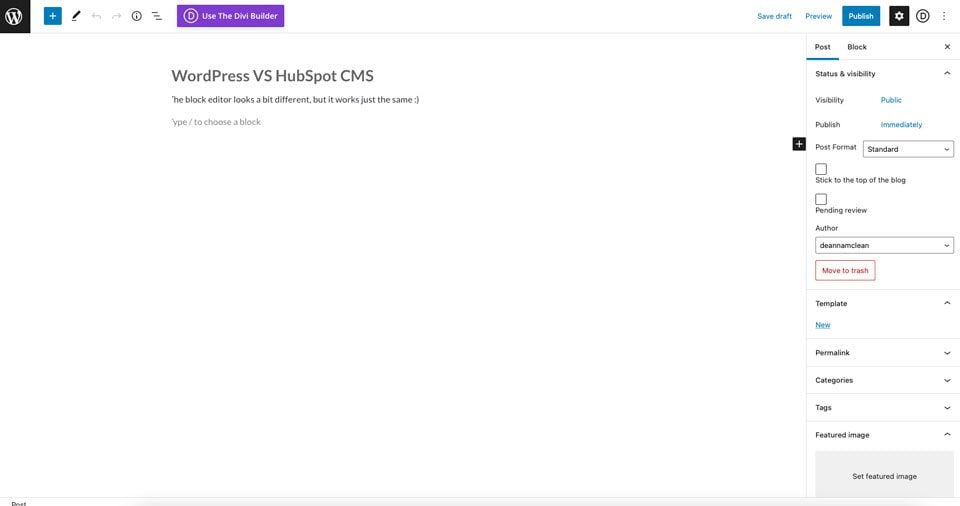
WordPress began primarily as a blogger’s best friend. Publishing pages and posts is basically the meat of WordPress. There are two ways to insert content into the editor – either with the classic editor or Gutenberg blocks. The classic editor functions very much like Microsoft Word, Google Docs, or Apple pages. Creating a post with the classic editor is simple, and can be accomplished in only a few minutes.

The WordPress Block editor steps things up a notch. It functions the same as the classic editor, but gives users added functionality. Images, social media links, videos, and more are easily added as blocks of content in blocks.
Web.com
In order to publish posts, Web.com requires you to enable the blog. The process is easily done with the click of a button.

From there, users can add their first post. The post editor looks a lot like Gutenberg’s editor. You can simply start typing. You can add images, links, and text, just like in any other post editor. Publishing is easy, too. Pushing your content out to the world is one button click away.

WordPress vs Web.com: Security
Website security is one of the most important issues one must consider when creating a website. In recent years, cyber crimes have increased exponentially. With ransomeware, malware, bot intrusion, and denial of service attacks (DDoS) rampart, you’re setting yourself up for major problems if your site and customers aren’t protected. Thankfully, both WordPress and Web.com are capable of fending off such attacks.
WordPress
As previously mentioned, WordPress is highly customizable. And depending on your themes and plugins, your website can be vulnerable to security threats. That’s why it is important to understand WordPress security beforehand. There are a number of free security plugins available to WordPress users that help protect their website. Plugins such as WordFence and Sucuri are good options. Plus, all hosting providers offer security features that help to protect WordPress sites. Some hosts, such as Divi Hosting by Cloudways, offer bot protection, a dedicated firewall, SSL certificates, and malware protection in their hosting plans. In addition to that, most WordPress hosting providers have bumped up their TLS security by making versions 1.2 and 1.3 standard practice.

Web.com Security Options
Web.com gives its customers an SSL certificate with every plan. Unlike WordPress, Web.com doesn’t offer free security plugins that you can add on to your website. If you require additional security, and most people will, you’ll need to upgrade your Web.com plan with their security add-on service. For $4.99 per month, Web.com will scan your site for any problems that may arise. Additionally, users will give their customers peace of mind with identity theft protection, and a built-in VPN client. Plus, there are product updates and training resources available to help you get the most of your security package.

Web.com WordPress Hosting
Web.com does offer WordPress Hosting for those who want to host, manage, and design a WordPress site on Web.com. This might be a good option for those who need more customization capabilities that come with WordPress plugins, but also enjoy using the Web.com platform.
Conclusion
Now that we’ve explored some of the features of both WordPress and Web.com, one thing is clear. They are very different products. While Web.com does offer a very nice site builder, their customization options are pretty limited. On the security front, both WordPress and Web.com have good options to ensure your site is protected. However, with so many WordPress hosting companies to choose from, you’ll have plenty of research to do on who to choose and how much you should pay, should you decide to go with WordPress. If you’re looking for a WordPress hosting provider, we suggest taking a look at Cloudways or SiteGround. Both offer excellent features that will give you all of the security features that you need.
In regards to publishing tools, options are comparable when we look at WordPress vs Web.com. Both are easy to use, and only take a few minutes to send your content out into the world. When choosing between WordPress and Web.com, it all depends on what your needs are. Beginners will be right at home with either platform, although the learning curve is a bit steeper with WordPress.
Have you used Web.com? How do you feel it stacks up against WordPress? Let us know in the comments section below.
The post WordPress vs Web.com appeared first on Elegant Themes Blog.


