EDITS.WS

Tag: wordpress backups

  • How to Back Up Your WordPress Website in 2023

    Keeping your WordPress website safe and secure should be at the top of your mind. After you’ve added your favorite WordPress plugins and chosen your beautiful theme, your next step should be protecting the investment of time, resources, and money you’ve put into your site. This is where maintenance of your WordPress website comes in. There are a few things you should do to keep up with your WordPress website, and one of them is keeping a free online and offline back. In this post, we’ll learn how to back up your WordPress website in three ways, discuss backup storage solutions, best practices, and what to do if you need to use your backup after a website crash.

    How to Backup Your WordPress Website Using a Plugin

    There are many backup plugins that you can use to take a backup of your website. A WordPress backup plugin is a quick and straightforward way to create a website backup. For our guide, we’ll walk through using UpdraftPlus, a popular WordPress backup plugin, to create your website backup.

    Install and Setup Plugin

    From your WordPress dashboard, from the left-hand menu, hover over Plugins. Next, click Add New.

    Installing UpdraftPlus, a WordPress backup plugin

    In the search bar in the top right, type Updraft. Click Install Now; the button will turn blue after installing the plugin. Click the blue button that now says Activate next to the first option.

    Configure Settings

    Once UpdraftPlus is installed, you can access the plugin by hovering over Settings from the left-hand menu. Then, click on the UpdraftPlus Settings menu option. This will show you the plugin’s dashboard, notifications regarding your backups, and your existing and scheduled backups.

    The UpdraftPlus dashbaord

    Create a New Backup

    Click the large, blue backup Now button to create your first backup.

    Starting a manual backup with UpdraftPlus

    Once you’ve done this, a popup will appear. You’ll be presented with four options:

    Manual backup options with UpdraftPlus

    You can include your database or your files in your backup. Both options have an (…) following them, allowing you to get specific about the database tables and folders you’d like to include or exclude from your backup. Once you have set up cloud storage for your plugin, you’ll have the option to. We’ll come back to this later. Lastly, you have the choice of deciding whether this download will be deleted automatically or not. Once you have made your selections, click the Backup Now button.

    A successful backup within UpdraftPlus

    Once your backup has been completed successfully, you’ll notice it is added under the Existing backups table. You can select specific aspects of your backup to download, restore said download, delete it, or view the log processed as it backed up your website.

    Schedule Automatic Backups

    Now, let’s look at setting up scheduled, automatic backups. Click on the Settings tab from the UpdraftPlus dashboard.

    Setting up scheduled backups with UpdraftPlus

    The first two options on your screen allow you to set up automatic schedules for your backup process. You can set up a schedule for the files and database of your website in a frequency from a few hours to monthly. Additionally, you can decide how many backups you’d like to keep on your server.

    From the same settings screen, we can set up the storage solution we’ll be using for our website. UpdraftPlus has many options for storing your backups on the cloud. Some of the options available include:

    • Dropbox
    • Google Drive
    • Email and
    • SFTP

    With the free version of the UpdraftPlus, you can back up to one cloud or online service. However, the plugin’s premium version can back up to multiple places. For our guide, let’s back up to Google Drive. From the list of cloud services, select the Google Drive icon—next, login to your Google Drive account by clicking the Sign in with Google button.

    Backing up your website with Google Drive

    Next, sign into your Google account.

    Login to your Google Drive

    After, grant UpdraftPlus access to your Google Drive account, then click Allow.

    Allow UpdraftPlus access to your Google Account

    Once this is done, you’ll be presented with this final screen. Click on the Complete Setup button. This will take you back to your WordPress installation.

    Complete the UpdraftPlus setup

    Once you have returned to your WordPress install, you’ll see a notification that your Google Drive has been successfully connected.

    Success notification from UpdraftPlus and Google Drive

    Once your account is connected, click on the Settings tab again. Then, scroll down to the cloud account you set up and click the Save Changes button.

    Save changes on the UpDraftPlus settings page

    When you make a backup, you can send the backup to your Google Drive account.

    New option to save on the cloud now available

    Storing Your Backup Offline

    It’s always a good idea to download backups onto your computer, a USB, or any cloud storage platform that will allow you to store your website offline. To do this, click any of the folders you’d like to download to the media of your choice from the backup you’ve just made.

    Download your backup form UpdraftPlus

    For a full offline website backup, download the database, plugins, themes, uploads, and other folders. Now that we know how to make a backup with a plugin online, offline, and to the cloud, let’s see how we can do this with our hosting provider.

    How to Backup Your WordPress Website Using Your Hosting Provider

    Backing up your website with a plugin is a simple and easy way to back up your WordPress website if you can access WordPress’ user interface. However, things can get a bit sticky for you if you don’t have access to the dashboard. This is why knowing how to back up your WordPress using your hosting provider is essential.

    For our use case, we’ll show you how to manually back up your WordPress website using Siteground, one of the best hosting providers for WordPress.

    Login and Access Site Management Tools

    Visit Siteground and click the Login link in the top right-hand corner.

    Login to Siteground

    You’ll then need to enter your username and password.

    Login to your Siteground account

    Once in your account, you’ll be presented with your Siteground home screen, which lists all your products. Click on the Manage button under the Websites title.

    Manage your websites with Siteground

    Once here, you’ll see a table listing all your websites within your Siteground account. Click on the Site Tools button next to the website that you’d like to back up.

    Use Site Tools to manage your website in Siteground

    Create a New Backup

    On your website, you’ll see a variety of tools and options that you can use to manage your site. To start the backup process, click on the Tool Finder, or press CTRL + K. Then, search backup in the search box that appears. Finally, click Backups from the dropdown.

    Once on the Backups page, give your backup a name you’ll remember. Then, click on the blue Create button.

    Name and start your web hosting backup process

    You’ll be presented with this screen as your backup is being created.
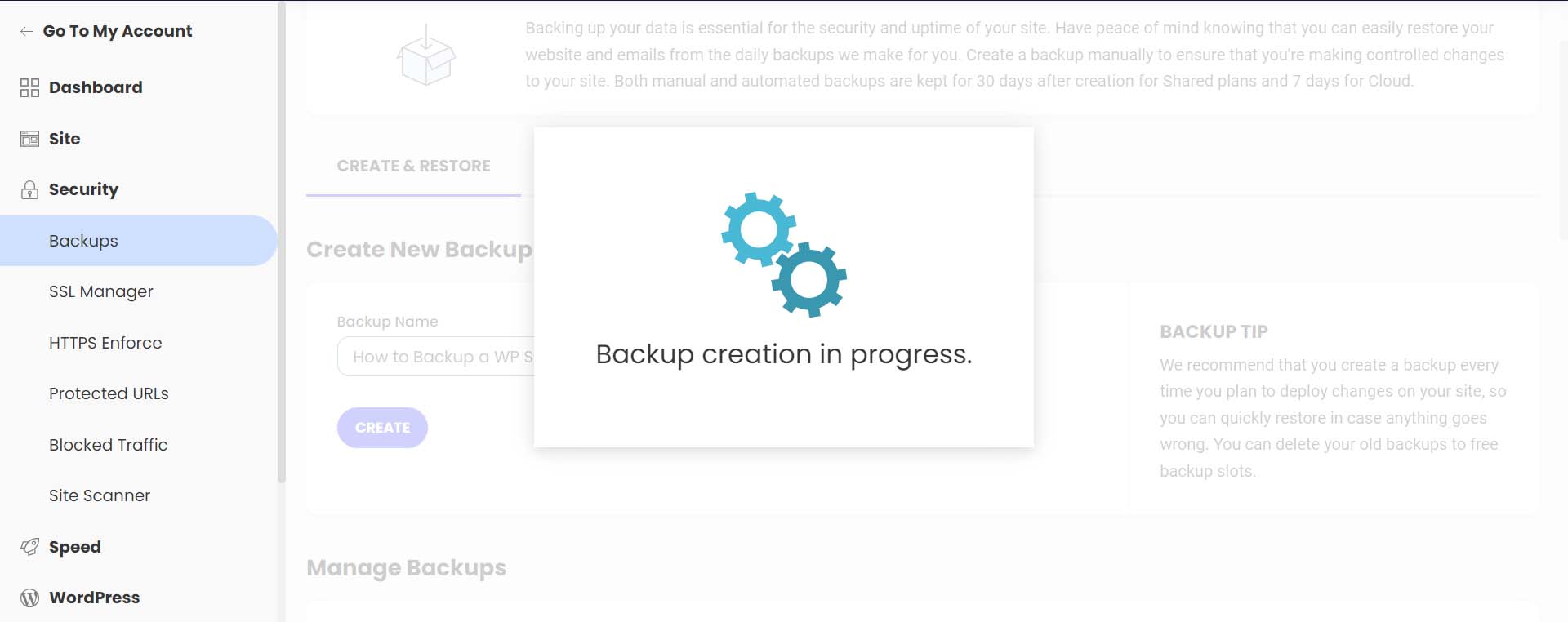
    Backup in progress

    You’ll get a confirmation message once your backup has finished being created.

    Backup successfully created

    Notice your backup now shows up in your list of backups, alongside your regular, automated backups, with your note attached.

    See your new backup within your backup list

    Siteground makes it easy to restore your website in the case of file corruption, hacking, and more. To do this, select the meatball menu next to the backup you’d like to restore. Then, select which type of restoration you’d like to process.

    How to restore your backup

    This easy one-click method of backing up and restoring your WordPress website is an excellent benefit of using Siteground and other managed WordPress web hosts.

    Next, let’s look at how to do a manual backup of your database and WordPress files.

    How to Backup Your WordPress Website Manually

    To manually back up your WordPress website, the easiest method is to download a backup of your site files using your hosting provider. An overwhelming majority of modern web hosts provide you with an online file manager and portal that you can use to manage your website’s files directly. The software that many hosts use is cPanel. With cPanel, you can access your databases, email accounts, and a visual file manager. For more information about cPanel, check out our cPanel guide. However, more commonly, your hosting provider may have its own propitiatory interface they provide to their clients for file management and backups.

    If you don’t have access to your files on your host or through cPanel, you can back up your site via FTP. Filezilla is a popular FTP client to manage your WordPress site via FTP. You can use terminal clients like Putty and WinSCP to connect to your server and back up your site as a last resort.

    This time, however, we’ll be using a file manager within our web host to back up our files and phpMyAdmin to back up our database. We’ll still be using our Siteground account for this tutorial section. However, you can still follow similar steps irrespective of your web host.

    Backing Up Your Site Files

    While still in your Siteground account, from the left-hand menu, click site. Then, click File Manager.

    Navigate to your file manager

    Once in the file manager, you’ll notice a folder called public_html. This is where all your WordPress files live. Right-click on this folder. Then, click on the Archive link.

    Create WP folder archive

    Next, name your archive. Then, click Confirm to start archiving (or zipping) your WordPress files.

    Name your archive

    Once your archive has been created, you’ll be presented with this success message.

    Archive successfully created in Siteground's file manager

    You’ll now notice that your archive is a new file within your file manager. Now, right-click on your archive. Then, click Download to safely save your file backup offline and on your hard drive or media.

    Download archive to your offline media of choice

    Backing Up Your WordPress Database with phpMyAdmin

    Now that we’ve manually backed up our WordPress files, we can move on to backing up our database. Again, your web host should offer a simple way to back up your database within its site tools or using cPanel. However, for direct access and more control, you can use phpMyAdmin for pretty much any WordPress website.

    To access phpMyAdmin in Siteground, go to the Site section within the left menu. Next, we click on the MySQL link. Then, we click on the phpMyAdmin link from the right side of the screen. Finally, we scroll down slightly and click the blue Access phpMyAdmin button. This will open up the free PHP tool in a separate window.

    Start backing up your database

    Once you’re in phpMyAdmin, you’ll see a list of your website’s databases on the left-hand side.

    Click on the database that you’d like to download. It should coincide with the database for the website files that we backed up earlier. If you’re unsure of the database you should select, you can find your database name within the wp-config.php file of your WordPress file structure within the file manager. Then, click the Export button from the top menu.

    Select and export your database

    You have two options when it comes to exporting your database. To keep it simple, select the Quick Export method. Then, select Go. If you’d like to add additional outputs, select specific tables to backup and more, click the Custom button, and make your choice before selecting Go.

    Export Your Database

    Save Your Database File

    Finally, your. SQL file will be generated. Depending on your database size, this could take a few seconds to a few minutes. An alert box will pop up, asking you to save your database file. It is recommended to save it in the same place you saved your WordPress files zipped folder.

    Save your SQL file

    That’s it! Now you have an external backup of all of your site files and your database.

    Where to Store Your WordPress Backups

    As mentioned throughout this tutorial, there are many places where you can store your WordPress backups. The first and easiest place is directly within WordPress. This is typically the place where backup plugins save your backups. However, this can cause performance issues in the future as you make more backups and your website grows larger. We suggest storing backups outside of your WordPress site in multiple places for safekeeping. You can store them on your computer, on an external hard drive, or in the cloud using a third-party host or platform like Google Drive or Dropbox.

    It should be mentioned that having an offline backup of your website is imperative. While your web host and cloud storage are great places to store your backup files, any online platform can go down or corrupt your backup files. Having an external copy of your site is the only way to make sure you have a safe copy.

    How Often Should You Backup Your WordPress Website

    Most web hosts today offer complimentary, daily backups of your website. However, depending on the complexity of your website and the processes occurring on your site, you may need to change this schedule. On average, having some form of automated, daily backup is good practice. This can be done either through your web host or a plugin like UpdraftPlus or BackupBuddy, to name a few.

    However, if you’re in the eCommerce space, you would surely want to consider backing up your website more frequently, depending on your server load, storage limits, and the number of orders on your website. It is not uncommon for an eCommerce website to do hourly or even backups by the minute! In addition to daily backups, consider making monthly offline backups for your website for peace of mind.

    What to Do If Your Site Crashes

    Having your website crash is a devasting feeling. Your first port of call should be your web host. More often than not, they have daily backups of your website from which you can quickly restore it. Secondly, check your online cloud and your backup storage folder on your website to see if there is a backup there that you can restore. You’ll need to copy over your database and file structure if you manually restore your website. In the rare event that you can gain access to your WordPress dashboard during a site crash, you can try restoring one of your backups from your backup plugin if it has that feature.

    Tips and Best Practices for Backing Up Your WordPress Website

    Here are a few things to remember when backing up your WordPress website.

    • Consider Using a Backup Plugin: A backup plugin is the easiest way to manage and create backups in WordPress. Check out these best backup plugins for WordPress.
    • Test Your Backup: It’s important to test your back to ensure that in a time of crisis, you’ll have a backup that actually works. You can do this by restoring a backup on a local install or staging site. Additionally, this tests to see any bugs in your files or steps you may need to include or optimize as you create your backups.
    • Backup Both Your WordPress Files and Database: Some backup plugins allow you to backup only the database instead of the entire site. However, it’s always a good idea to create a full backup of your website regularly, especially after making changes to your site. Sometimes changes in your file system could cause issues with your database backup if your file structure has changed.
    • Keep an External Backup: Cloud backups rely on platforms that can go down or fail. If the worst-case scenario occurs, an offline backup will save you. Taking an external backup of your complete site once a month can be a good practice to adopt.
    • Use Automatic Backups When Possible: Automatic backups free headspace for you to maintain your website. Choose a backup plugin with this, or ensure this feature is included in your hosting plan.
    • Don’t Store Your Online Backups Within WordPress: As a backup is a complete snapshot of your website, storing them within your WordPress website can not only eat up your storage space but cause issues when it comes to performance. Aim to store your online backups outside your WordPress installation and, even better, on the cloud through services like Google Drive or Dropbox.
    • Backup Before and After Major Site Changes: Make a full site backup before adding a new design or functionality to your website. You never know if a new plugin that you add or a tweak to a theme could take your website offline.
    • Keep Your Backups Secure:.Whether storing them online or locally, make sure your backups are secure and safe from hackers. You can store them in password-protected folders and media devices like USBs, encrypt them, and more.
    • Label Your Backups Something You’ll Remember: Most backups have an auto-generated name which can be hard to remember when you check back on it several weeks later. Give your backup a name that’s easy to identify. For example, “Before Menu Edit” lets you know this backup was before you changed your menu.

    Conclusion

    Learning how to make a backup of your WordPress site is an essential step in the website building process. A backup will save your website when it’s been hacked, and it’s good practice to be able to restore your site if anything goes wrong. It’s also good insurance overall. Additionally, backups are an essential website maintenance task that should be carried out on your website frequently. With WordPress, there are a few ways to back up your website. If you’d prefer to use a plugin for your backups, our list of the best WordPress backup plugins is an excellent place to start.

    Alternatively, the restoration process of a website is the other side of maintaining a website. A good migration plugin can make it easy to move your website to a new location. In closing, learning how to make a backup of your WordPress website is a necessary skill to gain as you build your next website project.

    Image by jossnat / shutterstock.com

    The post How to Back Up Your WordPress Website in 2023 appeared first on Elegant Themes Blog.

  • 6 Best WordPress Backup Plugins (in 2023)

    Backing up your website regularly is one of the best ways to protect it. That’s why a good WordPress Backup plugin is an essential plugin for any website owner. You need to protect your website files and database in case something breaks or you run into an error you can’t fix. A backup plugin can give you peace of mind in case something unexpected does happen.

    In this article, we’ll look at the best Backup Plugins available on WordPress to help you pick the one that’s right for you.

    What is a WordPress Backup Plugin?

    Backing up your website is the process of downloading a copy of all of your site files and/or database for safekeeping. Although it is possible to back up your WordPress site manually, it is a task that is easily forgotten and often time-consuming. A WordPress backup plugin streamlines the process of backing up your site automatically so that you don’t have to. Most backup plugins will give you the option of storing backups in the cloud by integrating with third-party storage platforms like Google Drive or Dropbox. This ensures that your backups are safe in the event your entire website goes down. Without a backup, you might be able to recover your site and fix your issues. But nothing can replace a backup.

    Other WordPress Backup Alternatives

    Of course, there are other ways to back up your WordPress site. Many WordPress users may use their hosting provider’s backup services (like Cloudways) to manage daily backups and restore them in a few clicks. Most managed WordPress hosting providers will also allow you to create a staging site that can be backed up as well. There are even entire WordPress maintenance support services that provide a suite of services to optimize your site, including backups. But if you are on

    No matter how you choose to back up your site, it’s always best practice to maintain a separate backup if there is a problem with your hosting server or you encounter the white screen of death. You’ll want a solution that helps mitigate the damage from attacks or malware, stores your data securely, and has regular updates.

    We took these factors and more into account when making our choices for the best WordPress backup plugins below.

    The 6 Best WordPress Backup Plugins

    1. UpdraftPlus

    UpdraftPlus logo

    UpdraftPlus is one of, if not the most trusted WordPress backup plugins available, garnering over 3 million active installations and a near 5-star review. With this plugin, you can create a full backup of your WordPress site and store it in the cloud or download it so you can have a copy locally. Both scheduled backups and backups on-demand are supported by the plugin. Additionally, you can decide what parts you want to back up, such as your plugins, themes, or data.

    Your backups can be automatically uploaded to a variety of cloud storage services, including Dropbox, Google Drive, S3, Rackspace, FTP, SFTP, email, and more.  These features are all available for free, but the premium version allows for more capabilities like incremental backups stored in multiple locations, creating copies of your site to migrate to a new domain, and advanced security reporting.

    Key Features of UpdraftPlus:

    • Manual and scheduled backups on WordPress or a Cloud Storage provider
    • Easily restore backups within WordPress in one click.
    • More Advanced tools than most backup plugins
    • Backup sites of 100GB; file size only limited by Web host.
    • Incremental backups for backing up on necessary changes (premium)
    • Cloning and Migration capabilities (premium)
    • Backup site files automatically before updates (premium)
    • Database encryption and advanced reporting (premium)

    Configuring a backup with updraftplus

    Configuring your backup is super straightforward, allowing beginners to set settings and choose from a wide range of remote storage options, along with being able to store a backup locally on your computer.


    UpdraftPlus is for you if…

    • You want a free-to-use backup solution that comes with a lot of essential features with the peace of mind of having premium options available if needed.
    • You want a trusted solution that is used and recommended by millions of other users.
    • You only want to connect to a single cloud storage device, which should be suitable for most users.

    UpdraftPlus Pricing: Free, with premium licenses starting at $70 (and then $42 per year) | More Information

    2. Jetpack VaultPress Backups

    Jetpack logo

    Jetpack VaultPress Backups is one of the premium add-ons included in the Jetpack plugin by Automattic. This WordPress backup plugin automates the backup process so you can restore your website seamlessly. The plugin allows you to setup backups to happen in real-time with every change you make to your site. This allows you to have the most recent backup ready to restore if something breaks with editing or updating your site. You can also schedule backups to happen daily with a 30-day backup archive available. This ensures you have the backup you need when you need it.

    Key Features of Jetpack:

    • Automated daily backups
    • Real-time backups for every change you make to your site.
    • Restore site with one-click even on mobile or if your site is offline. restores make it easy to get your site restored, even if site is offline
    • Backup WooCommerce Sites

    Jetpack Backup Plugin Download and Restore

    Jetpack can update your backups daily in real-time and get your website back up in running with just one click with their terrific restore system. Plus, the activity log lets you see all the changes made on your site so you can monitor for suspicious activity.

    Also, it’s worth noting that with Jetpack Backups, you may not be getting a complete backup of all of your site files. To save space, Jetpack Backups will exclude WordPress core files or any subdirectories outside of your main WordPress installation. It may also limit your database backups to WP tables. This is not an issue for most simple sites, but we suggest making sure the plugin will handle all your backup needs before using it.

    You will also need to install Jetpack and have a WordPress.com account/login so you can access the WordPress.com cloud features. So if you don’t have a need for other features in the Jetpack core plugin, you might consider another option.

    Jetpack Backups is for you if…

    • You already use Jetpack on your site and are looking for a premium backup solution.
    • You want real-time backups for every change made on your site for better peace of mind
    • You are using a WooCommerce site, as it lets you restore your site with past orders and products up to date.

    Jetpack Pricing: $4.77 per month if you bill annually  | More Information

    3. BackWPup

    BackWPup logo

    BackWPup is a WordPress backup plugin that is a great free option for creating complete site backups. Plus, you can send your backups by email, upload them to a cloud storage service, or save them on the server hosting your website using BackWPup. To really take advance of the plugin, you will want to upgrade to the pro version which includes a ton of automated backup features including complete automatic site restore, backup encryption, and a standalone app that allows you to backup and restore your site even if you can’t access it on the backend.

    Key Features of BackWPup:

    • Free backup system for site files and database
    • Database optimization tools
    • Store backups locally or on cloud service platforms like Dropbox or S3 (and others with pro version)
    • Multi-site support (pro version)
    • Automated complete backups and scheduling (pro version)
    • Backup Encryption (pro version)

    BackWPup offers an easy-to-use dashboard with simple steps to successfully back up and restore your files. The lack of frills and design may turn some users off, but this solution does give you the basic system you need to back up your WordPress site securely.


    BackWPup is for you if…

    • You want a more basic backup plugin.
    • You know how to manually restore a website from a backup.
    • You don’t mind paying for the pro version to get a complete backup solution with robust features

    BackWPup: Free, with premium licenses starting at $69 per year | More Information

    4. BlogVault

    Blogvault logo

    BlogVault is more than a WordPress backup plugin; it’s an all-inclusive SaaS (software as a service) solution that aids in website security and backups. With Blogvault, you can plan backups to occur daily, weekly, or monthly. Additionally, it provides incremental backups, preventing server overload, and you can identify faults on your site by using the activity logs. They offer a free 7-day trial to test out the plugin/service before upgrading.

    Key Features of BlogVault:

    • Unlimited storage for backups with free offsite storage
    • Built-in Staging Environment that is FREE to use
    • Real-time backups with WooCommerce support
    • Easy-to-use dashboard to view multiple sites and advanced reporting
    • Automated backups and schedules
    • Activity log functionality

    BlogVault dashboard

    A standout feature is the BlogVault dashboard, where you can manage backups for multiple websites, all on a single dashboard. The dashboard makes it easy to set up real-time backups with just a click of a button. It’s got a well-designed UI and takes away any of the technical know-how necessary to restore and manage backups.

    BlogVault is for you if…

    • You want a complete solution that offers a ton of extra security features.
    • You want to be able to restore your website with just one click.
    • You have a large website that you want to back up.

    BlogVault Pricing: $7.40/month | More Information

    5. BackupBuddy

    BackupBuddy logo

    BackupBuddy is premium WordPress backup plugin can handle all of your backup needs and more all in one convenient place. It will backup ALL of your site files and database in one downloadable zip file. The plugin allows the scheduling of daily, weekly, and monthly backups. And, you can choose to email yourself a backup and/or store it in cloud storage providers like Dropbox, Amazon S3, Rackspace Cloud, FTP, and Stash (their cloud service). If you opt to use their service, they support real-time backups.

    One of the distinctive advantages offered by BackupBuddy is the capacity to restore and optimize your database. You will get 1 GB of free Stash Live storage for each plugin you buy (5GB on the Gold plan).  And BackupBuddy can make it simple for you to switch hosts or domains for your WordPress site. The WordPress migration tool makes this plugin a popular alternative for web designers who build client-specific websites on temporary domains before transferring them to live domains.

    Key Features of BackupBuddy:

    • Backup and Restore All site files and Database with ease from the backend
    • Complete control over what you want to backup
    • Backup files to a remote location or locally
    • Supports automatic and scheduled backups
    • Easy to install and setup. No coding or technical knowledge is needed.

    BackupBuddy quick setup

    The quick setup for you’re backup makes this an excellent option, as you can have automatic backups configured with just a few clicks. Plus, the 1GB of free storage should be more than sufficient for small website owners.

    BackupBuddy is for you if…

    • You already use a security plugin (especially iThemes) and want to add backup functionality to your site.
    • You value privacy and want to be in control of your data.
    • You want a reliable backup solution that provides everything you need and more.
    • You want to customize what gets backed up from your website.

    BackupBuddy Pricing: Starts at $80 per year  | More Information

    6. All-In-One WP Migration

    all in one wp migration plugin

    All-In-One WP Migration is without a doubt one of the most popular WordPress migration plugins. What makes this plugin such a great backup option is that it ensures your backups are properly configured for migrating to other sites on different hosting providers. Plus, the plugin has been heavily tested to work with other WordPress plugins and themes. The free version is fairly limited when it comes to backup features. But, it offers premium add-ons to back up your site with all the popular third-party storage platforms like Google Drive, AWS, and more. This allows you to export/import your site to and from the platform of your choice on any number of websites that you own as well as create scheduled backups.

    Key Features of All-In-One WP Migration:

    • Compatibility with WordPress and Multiple Hosting Providers
    • Password-protected backups with encryption
    • Supports all host environments and operating systems
    • Free to use for high-quality site exports, imports, and backups. Premium features offer more robust backup solutions.
    • Can remove WP upload limits for restoring large backups
    • Built-in integration with 14+ storage platforms

    all in one wp migrate WordPress backup option

    One of the most recent features added to the plugin is password-protected backups. The feature comes with the free version of the plugin and ensures your backups are encrypted and well-protected from others.

    password protected backups

    All-In-One WP Migrate is for you if…

    • You are a developer that needs a rock-solid solution for backing up and migrating sites to other hosts.
    • You don’t mind paying for premium backup solutions
    • You want to ensure your backups are going to work when migrating to other hosting environments

    All-In-One WP Migrate Pricing: FREE | Premium Add-ons Available starting at $69 per year  | More Information

    Final Thoughts on WordPress Backup Plugins

    It’s important to always have a backup plan ready in case of a disaster. One of the most crucial steps you can take to secure your website and safeguard its data is to use a high-quality WordPress backup plugin. Make sure the backup plugin offers automatic backups (daily or weekly) so you don’t have to worry about losing the most current version of your site. It’s also convenient to have a plugin that enables migrations, cloning, and the transfer of data between servers. UpdraftPlus seems to have everything you would need to backup your site. However, the All-In-One WP Migration plugin is also a great option for creating high-quality backups you can use to execute clean migrations to other hosts.

    Backups usually come in handy once something goes wrong with your site. So it’s always recommended that you enhance the security of your site now rather than later. To start, you can conduct a security audit of your site and make sure all your plugins are updated.

    Do you have a favorite WordPress backup plugin? Let us know in the comments below!

    Featured Image via Graphic farm / shutterstock.com

    The post 6 Best WordPress Backup Plugins (in 2023) appeared first on Elegant Themes Blog.