EDITS.WS

Tag: wordpress blocks

  • How to Change Block Height and Width in WordPress

    Do you want to change block height and width in WordPress?

    By default, WordPress makes it easy to create beautiful content layouts for your posts and pages using blocks. However, sometimes you may want to resize blocks to make them look better.

    In this article, we will show you how to easily change block height and width in WordPress.

    How to change block height and width in WordPress

    Why Change Block Height and Width in WordPress?

    The block editor enables you to add content to your WordPress website using different blocks, including headings, paragraphs, images, videos, audio, and more.

    However, sometimes you may want to change the width or height of a specific block to improve its appearance or the layout of the overall content.

    Adjusting block sizes can also ensure that your content is responsive and displays properly on all devices, including phones, tablets, and laptops.

    For example, you may have uploaded an image in the content editor, but it is too large and makes the page look unappealing.

    Preview of an image

    Or, you might want to change the size of the heading block to align it better with the content.

    By adjusting the width and height of the blocks, you can make your posts and pages look more aesthetically pleasing.

    That being said, let’s see how you can easily change block height and width in WordPress.

    Method 1: Change the Block Height and Width Using Block Settings

    For this method, we will show you how to change a block’s height and width using the default settings offered by WordPress.

    Currently, WordPress does not offer the same resizing options for all of the blocks. However, the block editor provides many ways to resize the height and width of different blocks.

    Let’s start with the Image block in WordPress.

    First, you can change the alignment of the Image block by clicking on the ‘Align’ button in the toolbar above the block.

    Here, choosing the ‘Wide Width’ option will make the block the same width as the container.

    Or, the ‘Full Width’ alignment option will make the block the entire width of the page.

    Use alignment settings to resize an image

    You can also resize a block by going to the ‘Block Settings’ panel on the right and scrolling down to the ‘Settings’ section. From here, you can resize a block from the ‘Image Size’ dropdown menu.

    You can also adjust the block’s width and height by typing the preferred pixel size into the ‘Width’ and ‘Height’ boxes in the ‘Image dimensions’ section.

    Below that, you can also adjust the block’s size by percentage.

    Resize an image using block panel settings

    Another way to resize an Image block is by clicking on the image itself to bring up a blue border with circular anchors.

    Then, simply drag these anchors to change the height and width of the image block.

    Resize Image block using anchors

    Once you are done, click on the ‘Update’ or ‘Publish’ button to store your settings.

    Method 2: Change the Block Height and Width Using the Columns Block

    If the block you want to resize does not come with alignment buttons or resize settings, then this method is for you.

    For this method, we will place our block inside the Columns block. It acts as a container where you can add blocks in each column. Then, you can resize those blocks by adjusting the height and width of the columns.

    First, you will need to click on the ‘Add Block’ (+) button in the top left corner of the screen.

    From here, simply locate and add the Columns block to the content editor. Then, you will be asked to choose a variation.

    Choose the column block

    After that, the column layout will be displayed on the screen, and you can now add the block you want by clicking on the ‘Add Block (+)’ button inside a column.

    Once the block has been added, you can resize it by using the ‘Column settings’ located in the right panel.

    Add Block using column

    Once you are done, simply click the ‘Publish’ button to store your changes.

    This is how the content looked on our demo website after resizing and aligning two paragraph blocks inside a two-column block.

    Column block preview

    Method 3: Change the Block Height and Width Using the Group Block

    You can also adjust the width and height of blocks using the Group block. It allows you to group different blocks and style them together.

    First, you will need to click on the ‘Add Block’ (+) button at the top. Next, you must locate and add the Group block to the content editor.

    Once you do that, the Group block will display three different layout options that you can choose from. For this tutorial, we will use the ‘Group’ layout.

    Choose the Group block and select a layout

    After that, the ‘Add Block’ button will be displayed on the screen. You can now add any block you want.

    In this tutorial, we will be adding and resizing a Heading block, a Paragraph block, and an Image block.

    Add a heading block to the Group block

    To add multiple blocks to the Group, you must click on the ‘Select Group’ button from the block toolbar.

    Once the Group is selected, simply click on the ‘Add Block’ button (+) at the bottom.

    Add multiple blocks in Group

    Clicking on the ‘Select Group’ button also opens up the block settings in the right column. From here, you can easily adjust the layout, justification, and orientation of all the blocks.

    Changing the layout will also change the different block sizes. You can configure these settings until you are happy with the result.

    Configure the block settings of the Group block

    Once you are done, click on the ‘Update’ or ‘Publish’ button to store your settings.

    This is how the Group block looked on our demo website.

    Group block preview

    Method 4: Change the Block Height Using the Cover Block

    This resizing method is for you if you want to use the Cover block. It enables you to display text and other content on top of an image or video.

    First, you will need to click on the ‘Add Block’ (+) button at the top and find the Cover block.

    Once you have done that, you will be asked to choose a color or upload an image from the WordPress media library. This image or color will be used as the background for the Cover block.

    Add the Cover block

    Next, simply drag and drop any block you want into the Cover block.

    After that, you need to click on the Cover block to open up its block settings in the right column.

    From here, scroll down to the ‘Dimensions’ panel, where you can adjust the height of the Cover block using pixels.

    Change the Cover block height

    Finally, don’t forget to click on the ‘Save Changes’ button to store your settings.

    For more detailed instructions on how to use the Cover block, you may want to see our beginner’s guide on Cover Image vs. Featured Image in the WordPress block editor.

    Bonus: Create Beautiful Pages Using Advanced Blocks in SeedProd

    You can easily create beautiful and aesthetically-pleasing pages using the SeedProd plugin.

    It is the best WordPress page builder on the market that allows you to create landing pages using blocks. These blocks are also super easy to customize and resize according to your needs.

    First, you will need to install and activate the SeedProd plugin. For more details, you can read our guide on how to install a WordPress plugin.

    Note: SeedProd also offers a free version, but we will be using the premium version for this tutorial.

    Upon activation, you must go to the SeedProd » Settings page from your WordPress dashboard and enter the license key in the ‘License Key’ box.

    You can find the license key on your account page on the SeedProd website.

    Paste license key in the field

    Next, you need to visit the SeedProd » Landing Pages screen from the admin sidebar to start creating a landing page.

    From here, just click on the ‘Add New Landing Page’ button.

    Click the Add New Landing Page button

    You will now be taken to the ‘Choose a New Page Template’ page. SeedProd offers many pre-made templates that you can pick from.

    After you have selected a template, you will be asked to provide a name and URL for your landing page.

    Upon adding these details, simply click on the ‘Save and Start Editing the Page’ button to continue.

    Enter your page details

    This will launch SeedProd’s drag-and-drop page builder, where you can now start editing your page.

    For more detailed instructions, please see our guide on how to create a landing page with WordPress.

    For this tutorial, we will be adding and resizing an Image block and a Button block.

    First, you will need to drag the Image block from the block panel on the left and drop it anywhere you like on the page.

    Choose the image block in the SeedProd

    Next, simply click on the Image block to open its block settings in the left column. From here, you can upload an image from your media library.

    Next, you can change the block’s height and width using pixels or percentages.

    Change the block size in SeedProd

    You can also adjust the image size and position by switching to the ‘Advanced’ tab at the top of the settings panel.

    Then, just click on the Spacing panel to expand its settings.

    Visit the Spacing panel by switching to the Advanced tab

    Here, simply add values to adjust the block’s margin and padding according to your needs.

    You can adjust the margin and padding for the top, bottom, left, and right areas of the block.

    Ajust the margin and padding of the block

    With Seedprod, you can also add a Spacer block between two different blocks to put some space between them.

    First, you will need to locate and add the ‘Spacer’ block from the left column. Then, click on it to open its settings.

    Add the Spacer block

    Now, you can control the height of the spacer using the ‘Height’ slider.

    The spacer block can help you create a clutter-free website.

    Use the height slider to adjust Spacer block

    You can also change the width and height of other blocks in the same way, including the Video, Heading, and Button blocks.

    Simply find the Button block in the left column and drag it onto your page.

    Add the Button block to the website

    Next, you will need to click on the Button to open up its block settings.

    From here, switch to the ‘Advanced’ tab from the top. You can change the height of the block by dragging the ‘Vertical Padding’ slider.

    Changing height of the button block

    To change the width, drag the ‘Horizontal Padding’ slider in the left column.

    Once you are done, don’t forget to click on the ‘Save’ button.

    Change width of the button block

    We hope this article helped you learn how to change block width and height in WordPress. You may also want to see our article on how to add and align images in the WordPress block editor and our top picks for the must-have WordPress plugins to grow your site.

    If you liked this article, then please subscribe to our YouTube Channel for WordPress video tutorials. You can also find us on Twitter and Facebook.

    The post How to Change Block Height and Width in WordPress first appeared on WPBeginner.

  • WordPress Widgets vs Blocks – What’s the Difference? (Explained)

    Are you trying to understand the difference between WordPress widgets vs blocks?

    WordPress widgets and blocks are both used to add dynamic content elements to posts, pages, sidebars, and templates. Widgets have been a core part of WordPress for 16 years, while blocks have only been a part of the platform since 2018. They serve similar functions, but they aren’t the same.

    In this article, we’ll explain the difference between WordPress widgets and blocks, so you can learn how to use them properly.

    Understanding the difference between WordPress widgets and blocks

    Here is a quick overview of the topics we’ll cover in this article.

    What are WordPress Widgets?

    WordPress widgets are dynamic-content elements that you can add to widget-ready areas like sidebars.

    Widgets were introduced in WordPress 2.2 (May 2007). The purpose was to provide users with an easy way to add customizable elements to their website without having to repeatedly insert the same element at the end of blog posts, for instance, or edit their WordPress theme files to create a sidebar and manually code in something like Google AdSense tracking codes.

    Users could simply insert content or features using widgets that didn’t have to be part of their overall theme files or blog posts.

    Widgets made it much easier for users to create their ideal WordPress blog, letting them easily add banner ads or email sign-up forms.

    Gradually, almost all WordPress themes adapted widgets by adding widget-ready areas in their design and layouts. These were most often sidebars and footers.

    The WordPress widget editor looked like this until WordPress 5.8 was released in 2021.

    Old widgets screen

    What are Blocks in WordPress?

    Blocks are the elements that users can add to an area using the WordPress content editor. WordPress switched to this block-based content editor in WordPress 5.0.

    You may also see it referred to as the Gutenberg editor, which was its development codename.

    Blocks are very similar to widgets because each one handles a single element of the page or post. Unlike widgets, however, blocks were introduced only as part of the post and page editor, which means they could not be easily added to areas like the site footer or sidebar.

    A block can be inserted into a post or page for any element, including a paragraph, an image, a gallery, a plugin-specific feature like email signups, or a video embed.

    Block editor in WordPress

    There are also blocks to add design layout elements like covers, patterns, tables, columns, groups, and more.

    To learn more, see our complete WordPress block editor tutorial which shows how to use the default editor to create beautiful content layouts.

    The Difference Between Widgets vs Blocks in WordPress

    Until WordPress 5.8, the difference between widgets and blocks was quite obvious.

    Users added widgets to their theme’s widget-ready areas. They were primarily used to display elements that were not post/page content. For instance, recent posts lists, important links, banner ads, forms, and more.

    However, the difference between widgets and blocks has become quite blurry now.

    Widgets are self-contained elements that can be used in widget-ready areas like sidebars on a WordPress website.

    Blocks are also self-contained elements that you can access through the block editor. They can be used in posts and pages, as well as widget-ready areas. You can also use them in templates if your theme has enabled the full site editor.

    Widgets were the first to allow developers to output other elements like contact forms, testimonials, social media feeds, and more.

    However, the same can be achieved using blocks. Many of the top WordPress plugins now come with blocks that you can add anywhere.

    Plugin blocks

    For instance, WPForms comes with a contact form block that you can add anywhere to display a form.

    Similarly, All in One SEO comes with blocks for the table of contents, HTML sitemap, breadcrumb navigation, and more.

    The Block-Based Widget Editor

    WordPress planned to adapt the block editor for editing all areas of your website including the widget-ready areas.

    To make this happen, the new block-based widget editor was introduced in WordPress 5.8.

    Users were now able to use blocks in widget-ready areas of their themes.

    Block widget editor

    Widgets are still located under the Appearance » Widgets menu.

    However, if you are using a block-based theme that doesn’t have any defined widget-ready areas, then you may not see it under there. You will see Appearance » Editor instead.

    Site editor with no widgets screen

    Many of the legacy WordPress widgets already have blocks that can do the same thing.

    Click on the add new block button (+) and you will find a bunch of blocks categorized as Widgets.

    Widget blocks

    These are still blocks, but they are just categorized as widgets so that users can understand that these blocks behave like legacy widgets.

    However, if a user still needed to use a legacy widget that doesn’t have an alternative block, then they can do so by using the Legacy Widgets block.

    Legacy widget block

    If a WordPress plugin has a block that you can add to the posts and pages, you can now also use the same block in widget-ready areas.

    Theme developers can also create custom blocks that users can add to different areas of their websites.

    The Future of WordPress Widgets

    WordPress is moving forward towards using a more intuitive and unified way to edit the content on a WordPress website.

    This means that older widgets will no longer be available going forward. WordPress themes and plugin developers are already adapting and adding support for the block editor in their products.

    However, many WordPress themes still use older widgets. Similarly, many WordPress plugins still use shortcodes and legacy widgets.

    If you still need to use the old widgets, then you can disable block widgets in WordPress.

    The simple way would be to do it by using the free WPCode plugin which allows you to customize WordPress without adding dozens of plugins.

    It has a pre-made snippets that you can use to disable block widgets.

    Select the Disable Widget Blocks snippet from the WPCode library

    Alternatively, you can also use Classic Widgets plugin. For more details, see our step-by-step guide on how to install a WordPress plugin.

    Upon activation, the plugin will simply replace the block-based widget editor with the older widget page.

    Note: Classic Widgets plugin will only be supported until 2024. After then, the plugin will not be updated or maintained this is why we recommend using WPCode to future-proof your customization.

    Blocks vs Widgets – Which One is Better?

    We recommend users start using the new block-based widgets editor as soon as possible because that’s the direction WordPress development is heading.

    It is easy to use, modern, and more flexible than the previous Widgets screen.

    If a WordPress plugin or theme on your website doesn’t support block-based widgets, then you can reach out to the developer and ask them to convert their widgets into blocks.

    If they don’t have plans to release an update, then you can easily find alternative plugins or themes to replace them.

    We hope this article helped you understand the difference between WordPress widgets vs blocks. You may also want to see our pick of the best block plugins for WordPress or see our guide on the difference between the block editor vs page builders.

    If you liked this article, then please subscribe to our YouTube Channel for WordPress video tutorials. You can also find us on Twitter and Facebook.

    The post WordPress Widgets vs Blocks – What’s the Difference? (Explained) first appeared on WPBeginner.

  • How to Use the WordPress Row Block

    The WordPress row block is an important design block that enables you to organize your content into a horizontal row. It’s a versatile block that can be used anywhere in the WordPress editor to organize content in templates, template parts, as well posts and pages. In this post, we’ll explain what it is, how to use it, and answer your burning questions about it. Let’s get to it.

    What is the WordPress Row Block

    WordPress row block

    The row block works much like the stack block. However, instead of displaying items vertically, it displays blocks horizontally across the available space of the parent container. By default, the block will evenly space the blocks contained inside of it – and uses the flex CSS property to display content in a grid format on smaller screens.

    row block flex

    If you are using a page builder, like Divi, the row block isn’t necessary. You can use the Divi Builder to add rows and other elements with more advanced design options.

    How to Add the Row Block to your Post or Page

    For this post, we’ll be adding it using the Twenty Twenty-Three theme, but you can use any block theme or full site editing theme to follow along. Start by logging into your WordPress site. Then, add a new page.

    There are a couple of ways to add the block to your site from the block directory. The first way is to use the block inserter. Click the block inserter icon at the top left of your page.

    click the block inserter

    Next, type row in the search bar. Locate it from the search results and either click to add it, or drag it into the page editor.

    insert the row block

    An alternate way to add the block is to click the + icon on the page editor, or simply start typing /row to reveal the block results. Click the row block to insert it into the page.

    insert row block in page editor

    After adding a row to the page, you can insert as many blocks within your row as you’d like. Blocks display depending on whether you choose to stack them or not. We’ll get more into that in the next section. By default, as you add blocks, they appear from left to right in the row.

    adding blocks to row

    Row Block Settings and Options

    The WordPress row block can be customized using the toolbar settings and additional settings. Here is a breakdown of the settings available.

    Toolbar Settings

    The toolbar settings group consists of several settings that are outlined in the image below:

    row block toolbar settings

    1. Transform to
    2. Drag
    3. Move
    4. Justification
    5. Vertical alignment
    6. Width
    7. More options

    Transform To

    The first on the list is transform to. You have a few options here.

    transform to controls

    You can transform the row into a quote, unwrap it, convert it to columns, or convert it to a cover. When you unwrap a row, each block contained within it will stack on top of each other, rather than being displayed from left to right. Gutenberg will provide you with a preview of how your row will look once unwrapped.

    unwrap option

    When converted to a cover, you can add a background image, background overlay, and set the padding on it. Choosing this option converts your row into a cover block, but retains the blocks within the row itself.

    cover option

    Drag and Move

    The drag option enables you to reposition the block anywhere on the page. This is handy for complex page designs that contain multiple sections of content. Similarly, move will allow you to move the row up or down on the page without the need to drag.

    Justification

    The justification setting allows you to either justify the items in your row to left, center, right or evenly space the items in your row from left to right.

    justification controls

    Alignment

    With the alignment tool, you can either align the blocks contained in the row to the top, middle, or bottom.

    row alignment

    Width Controls

    You can specify the width of the block to be a max of 650px wide, 1200px wide, or full width. Full-width rows span the full width of the page, which is good for rows converted to covers or for a call-to-action sections.

    width controls

    More Options

    Under More Options, you’ll be able to do things like copy, duplicate, insert, move, lock, group, ungroup, remove, or create a reusable block from the row.

    more options

    Additional Block Settings

    You’ll find several options under additional settings. To locate the block’s additional settings, click the block tab located in the sidebar settings for the row block.

    access row additional settings

    First, you can arrange blocks in your row either horizontally or stacked vertically.

    row options

    Next, you can set justification and orientation options, as well as set blocks to wrap to multiple lines. Justification options are the same as in the toolbar settings. You can set your blocks to align to left, middle, right, or space evenly. Orientation functions similarly to the arranged options in that you can choose horizontal or vertical orientation.

    row justification

    Under color options, you can change colors for text, background, and links in the row’s blocks. Depending on the theme you’re using, gradient background colors are an option as well as solid colors.

    color options

    Typography options can be set for any text contained in your row. You can set the font family, font size, font weight (appearance), line height, letter spacing, text decoration, and letter case.

    typography settings

    Dimension settings control the padding, as well as block spacing. Block spacing controls the amount of space between blocks.

    row dimensions

    The last setting controls the border, as well as the border radius for the row. Units include pixels, percent, em, rem, vh, and vw.

    row border

    Tips and Best Practices for Using the Row Block Effectively

    The row block is a versatile block that will allow you to do a lot of cool things, apply nice effects to your blocks, and keep your content organized. There are a few things you should consider doing to use the block effectively. Using it is a great way to add different effects to groups of blocks. For example, when creating call to action sections for your website, you could use a call to action block, but its uses are limited. Instead, consider using a row so that you can add any type of block that you want.

    Additionally, using a row allows you to set the width, vertical alignment, and background options for a group of blocks. This can come in handy when you are trying to draw emphasis to a certain section of your website, such as a group of posts, for example.

    Another tip you should consider when using rows is to utilize the list view. The list view comes in handy, especially when you have quite a few blocks on a single page. You can easily determine where your rows begin and end, drag blocks to other locations within the row to arrange them, and add new blocks exactly where you want them.

    list view

    Frequently Asked Questions about the Row Block

    The row block is a complex block with a ton of uses and features, so you’re bound to have some questions. Hopefully, these will help.

    What’s the Difference Between a Row Block and a Column Block?

    Rows and columns are very similar to each other. A row works the same as a column in that it allows you to add blocks horizontally. However, there is one key difference. A column block requires you to designate a set width for each column, whereas a row does not. You can easily drag blocks within it to resize the column width, whereas columns demand that you enter a value to resize them.

    Can I Use the Row Block in a Template?

    Absolutely! As previously mentioned, the row block is suitable for use in any scenario. Whether it’s in a post, page, template part, or template, the row block is useful for all types of content. Using them is a great way to organize and structure content in your templates, as well as your posts and pages.

    How Many Blocks Can I Use in a Row?

    One of its coolest features is the ability to handle limitless blocks within it. Unlike the column block, there isn’t a predefined number of spaces that can be used. For example, if you were to start adding images blocks to a row, your images will continue to display from left to right, regardless of how many you add. Each image will scale to fit within the space allotted.

    Conclusion

    The row block is a crucial design element for providing structure to your website content. It can be used within templates, posts, and pages, and can contain unlimited blocks within it. It’s useful in creating template parts such as headers where multiple blocks are displayed. For example, a header row might contain the site logo, page list, social icons, as well as a call to action button. If you’re creating a website using blocks, this block will be essential.

    How do you incorporate the row block into your WordPress website? Let us know by sounding off in the comments section below.

    The post How to Use the WordPress Row Block appeared first on Elegant Themes Blog.

  • How to Create a Block Theme for WordPress (The Easy Way)

    Creating a WordPress Block Theme for your website isn’t as hard as you might think. WordPress Block themes have been growing in popularity since their introduction in WordPress 5.9 with a growing number of premade block themes available in the WordPress repository. And, for those who want to create a WordPress block theme on your own, you’re in luck. The Create Block Theme plugin simplifies the process so you create a custom block theme quickly without extensive coding. Plus, you can even use it to create a child theme for your site.

    In this post, we’ll explain the benefits of using the Create Block Theme plugin and how to create your own block theme in a few clicks.

    What is a WordPress Block Theme?

    WordPress block theme

    A WordPress block theme is a full site editing theme for WordPress based on blocks. A block theme allows you to create any page or post using a drag-and-drop interface with blocks and block patterns you can use to build your content. You can even create custom templates and template parts (like headers and footers using the site editor.

    Additionally, it is easier to add custom styles to a block theme. There’s no need to edit the functions.php, style.css, or other theme files to create custom blocks, fonts, or add theme styling. Everything can be accomplished by editing one file – theme.json. WordPress considers block themes to be the future of WordPress. Thankfully, there are quite a few advantages to using them.

    Intro to the Create Block Theme Plugin

    For this post, we’ll be highlighting the Create Block Theme plugin, which is a free plugin available in the WordPress plugin repository. It allows you to create a new theme, blank theme, or child theme quickly. You can also embed Google fonts – either via CDN or locally.

    The Create Block Theme plugin saves you a ton of work creating child themes by allowing you to create and install one in a matter of minutes. Let’s take a look at the steps you’ll need to take to use the plugin.

    Key Features

    The Create Block Theme plugin has some amazing features to make theme creation easy and fast:

    • Create a block child theme with a single click.
    • There’s no extensive coding required.
    • It’s easy to clone a theme.
    • You can export WordPress block themes for use on other projects.
    • You can create a blank block theme.
    • Add a new style variation to the global styles in site editor

    How to Create a WordPress Block Theme?

    Before we use the plugin to create a block theme, you must first install and activate a parent block theme. For this tutorial, we’re going to use the Twenty Twenty-Three theme.

    Install A Parent Block theme

    To get started, log in to your WordPress dashboard. Next, navigate to Appearance > Themes.

    WordPress dashboard

    You can choose any theme you wish – as long as it’s a WordPress block theme. If you’d like to use a block theme other than Twenty Twenty-Three, start by clicking the Add New button in Appearance > Themes.

    Add new theme

    Click the block theme tab to reveal the options for available block themes.

    choose WordPress block theme tab

    Once you find the desired theme, hover over it, then click the Install button.

    Install block theme

    Install Create Block theme Plugin

    The next step is to install the Create Block Theme plugin. There a few ways to install a WordPress plugin, but this one can easily be installed from the dashboard. Start by navigating to Plugins > Add New in the WordPress dashboard.

    Add new plugin

    Type Create Block Theme in the search box. When the page refreshes, select the plugin, then click Install Now.

    Install Create Block Theme plugin

    Once installed, simply activate the plugin.

    activate plugin

    Configure the Create Block Theme Plugin

    Now that the plugin has been installed, navigate to Appearance > Create Block Theme.

    configure Create Block Theme plugin

    In the plugin’s settings, you’ll have a few options:

    create block theme settings

    1. Export (theme name)
    2. Create child of (theme name)
    3. Clone (theme name)
    4. Overwrite (theme name)
    5. Create blank theme
    6. Create a style variation

    Export Theme

    This setting allows you to export the activated theme along with any changes you’ve made. Any templates, global styling, fonts, or other structural changes will be present. Using this setting, you can export the theme, then use it in other WordPress installations. All of your settings will be preserved.

    To export your currently installed theme, select the export option, then click the generate button. The file will be downloaded to your downloads folder as a zip file, like any other WordPress theme.

    Create Child Theme

    create child theme

    This option allows you to create a child theme based off of your current parent theme. Before generating the child theme, be sure to give your theme a name, description, URL, note the author, as well as the author URL if you choose to. Once you click the generate button, the plugin will automatically download your child theme as a zip file.

    Clone Theme

    clone block theme

    When cloning your block theme, the plugin will create a new theme. The clone will retain all assets of the parent theme, as well as any user changes. Similarly to creating a child theme, be sure to name your theme, give it a description, and note a theme URL, author, and author URL.

    Overwrite Theme

    overwrite theme

    When you overwrite your block theme, all user changes will be saved and converted to theme changes. Any templates you create or style changes you make will be saved into theme files, making them a permanent part of the theme.

    Create Blank Theme

    create blank theme

    When you select this option, a blank theme will be created within your website’s theme directory. Before generating your new theme, give it a name, description, and theme URL (if desired), note the author, and author URL. Upon clicking the generate button, you can navigate to Appearance > Themes to view your new blank theme.

    new blank theme

    Create a Style Variation

    Style variations are located in Appearance > Editor. To locate them, navigate to the theme editor, then click the styles button at the top right corner of the editor. There, you can create new styles for text, colors, and buttons. There are additional options for styling individual blocks, too.

    theme styles

    Once you’ve created styles, you can create a style variation in the Create a Block Theme plugin by choosing the last option in the settings. Give your style a name, then click Generate.

    new style variation

    To view your new style, navigate back to Appearance > Editor, click the style icon, and select browse styles. There you can browse through the styles to locate the new one you just created.

    custom style

    Manage Theme Fonts

    To manage the fonts installed in your theme, navigate to Appearance > Manage Theme Fonts. There you’ll be able to view all of the installed fonts in your theme.

    manage theme fonts

    One of the most surprising and amazing features of the Create Block Theme plugin is the ability to manage your theme’s fonts. In this section of the plugin, you can remove entire font families or a single variation. Additionally, you can easily add Google fonts to your theme either by hosting them locally or calling them through the Google Fonts CDN. Here are some of the best Google fonts for the web.

    To remove a font family or font variation, simply click the remove link next to the family or variation you’d like to remove from your site.

    remove font

    Add a Google Font

    To add a Google font, start by clicking the Add Google Font button at the top of the page.

    add Google font button

    When the page refreshes, use the dropdown menu to select a font. You’ll be able to choose any font in Google’s font library.

    select a font

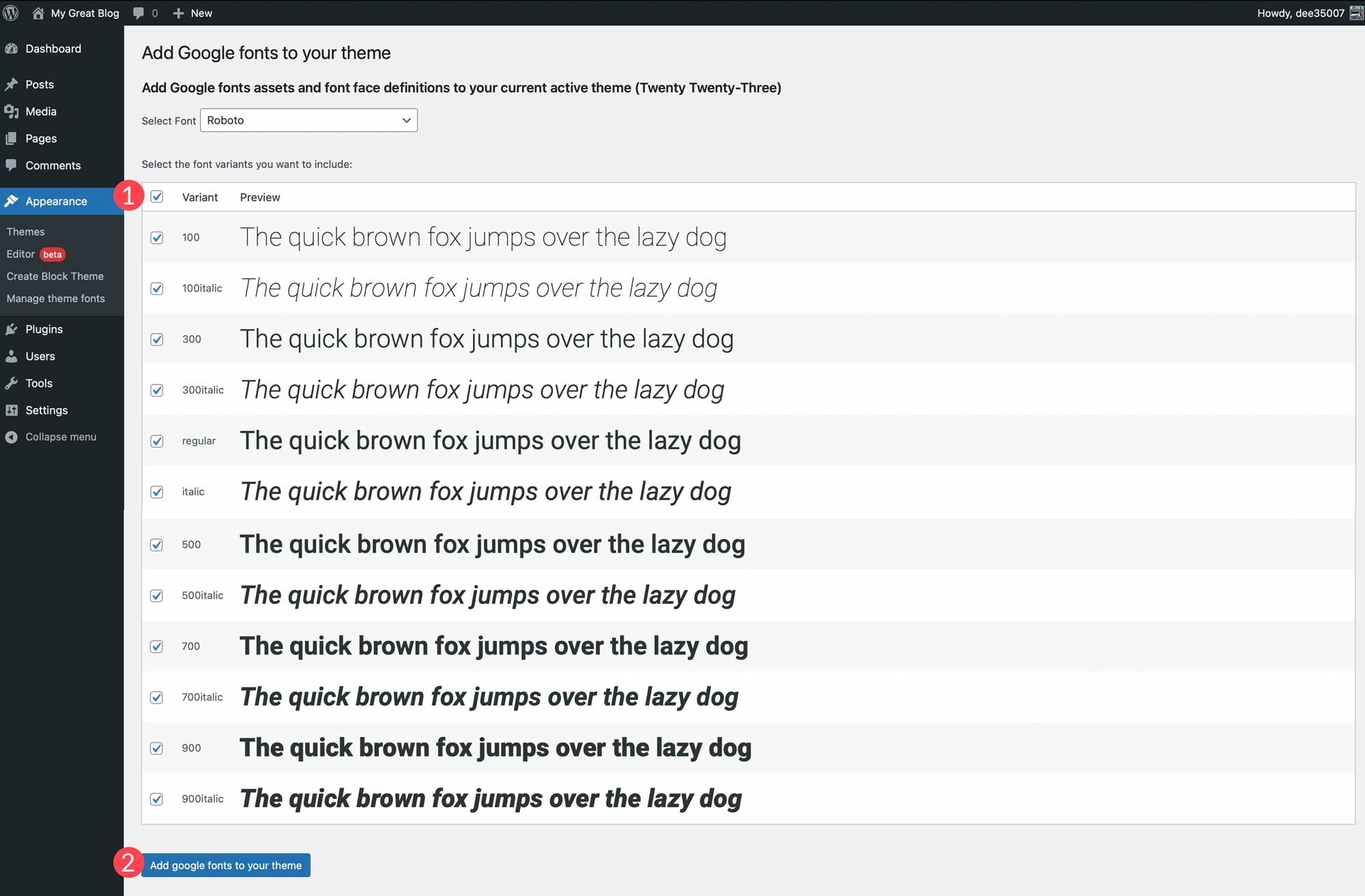
    Once you make a font selection, you’ll have the option to choose the variants you wish to include. You can choose all by clicking the checkbox at the top or choose individual ones. After choosing variants, click the Add google fonts to your theme button.

    Add Google font

    You can also add local fonts to your theme. Start by clicking the Add Local Font button. Fonts in the ttf, off, and woff2 file formats are supported.

    add local font button

    Upload a font by choosing a file saved on your local machine. Next, give it a name, and apply a font style, and font weight. Finally, click Upload local fonts to your theme.

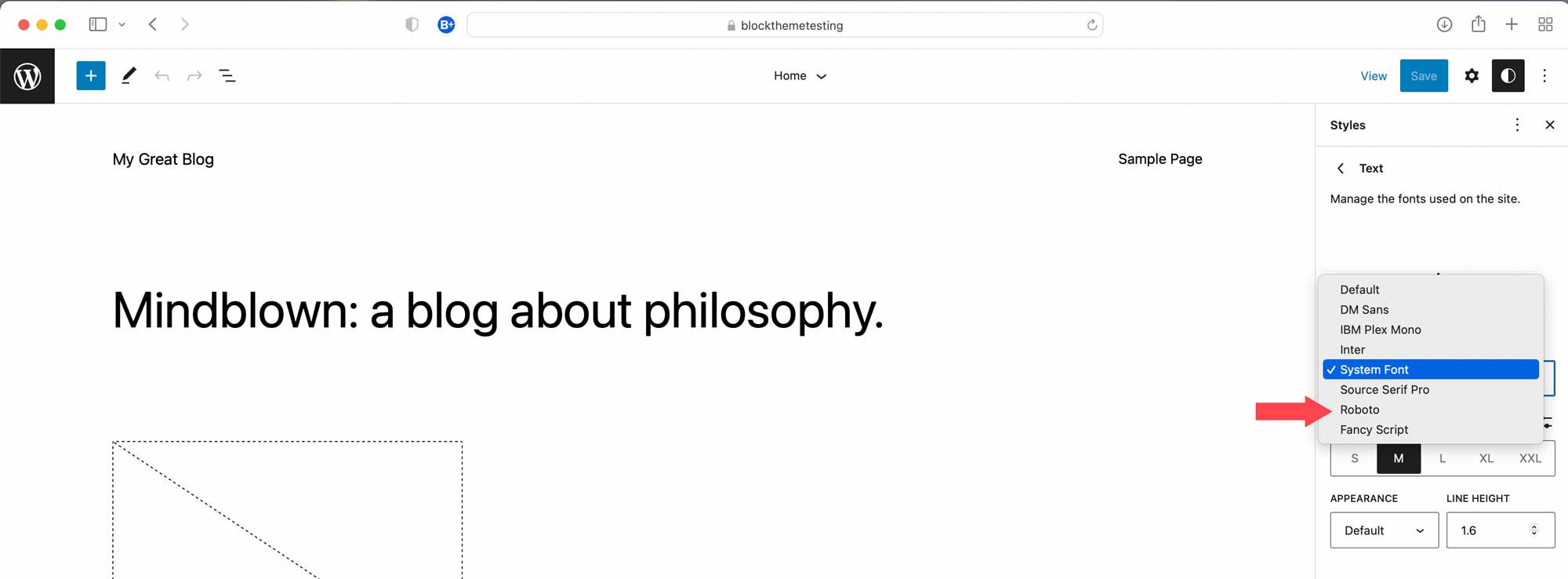
    Once fonts are installed, they can be managed within the Create Block Theme plugin and applied to styles in the site editor.

    fonts in style editor

    After fonts are added, you can head back over to the Create Block Theme tab to apply one of the options to create a child theme, export it, clone it, or overwrite your current theme. All fonts will be preserved along with style variations, as well as templates that you create.

    Creating a WordPress Block Theme Doesn’t Have to Be Hard

    Thanks to the Create Block Theme plugin, it’s easier than ever to create a block theme for your website. You can create your own theme templates using the full site editor, add new styles, add and manage fonts, and even export your block themes for use on other projects. There’s no coding, no theme files to alter, and it’s all done within a few clicks. If you’re looking to start using block themes, or are looking for an easy way to manage them, consider using the Create Block Theme plugin.

    For those using page builders, there should be built-in options for creating custom themes. With Divi, you can easily import and export all of your templates and designs using the theme builder. This allows you save entire site styles to be used like a child theme to kickstart new website builds in a few clicks.

    Have you made the switch to WordPress block themes? If so, let us know in the comments below.

    The post How to Create a Block Theme for WordPress (The Easy Way) appeared first on Elegant Themes Blog.

  • How to Use the WordPress Site Tagline Block

    The Site Tagline Block is one of many useful blocks that make WordPress so easy to use. With it, you can add your site’s tagline anywhere on your site and customize it using built-in style options. In this article, we’ll discuss everything you need to know about the site tagline block so you can use it effectively on your website.

    What is the Site Tagline Block?

    Your site tagline (along with the site title) is usually added when you first install WordPress and can be found in the dashboard’s general settings. The tagline should be updated from the default “Just another WordPress Site” with a more appropriate summary of what your site is all about. To change your website’s tagline in the back end, you can navigate to Settings > General.

    The Site Tagline Block is a theme block in WordPress that allows to you easily add your site tagline anywhere on your site as dynamic content. You can drag the block into a page, template, or header and customize it however you like. This is one of many blocks introduced with full site editing in WordPress.

    How to Add the Site Tagline Block to your Post or Page

    For this example, we are going to use the Twenty Twenty-Two theme to add the site tagline to the header area of the template.  From the WordPress dashboard, go to Appearance  > Editor.

    To add a Site Tagline block, start by clicking the Block Inserter icon when editing the page template.

    From here you can search Site Tagline from the search bar.

    Either click on it or drag it to your desired location to add the block to your page.

    You can also type /tagline to quickly add your site’s tagline to your page.

    Site Tagline Block Settings and Options

    Toolbar Settings

    If you hover over the block, you’ll see a formatting menu that includes the following options:

    1. Transforming the block into another type of element
    2. Changing the alignment of the text
    3. Additional settings.

    Here’s a quick cheat sheet that shows where each of those options is within the formatting toolbar:

    Additional Settings

    If you click on the three vertical dots on the right side of the toolbar and select show more settings or the cog in the upper right corner you can access the sidebar to view the additional block settings available.

    From this side panel you can view the additional settings, first we’ll look at the Color settings available:

    1. Change the text color.
    2. Change the background color of the text.

    You can also change the font, appearance (Bold, Italic, etc.), line height, letter spacing, decoration (underline, strikethrough), and letter casing by clicking the three vertical dots next to Typography under the Color section.


    You can change the font from the font setting section.


    Adjust the font size under the size setting.

    The font-weight (bold, thin, etc.) can be changed in the appearance section.

    You can also adjust the letter spacing and line height in their respective sections.


    In the letter case setting, we can adjust the capitalization of the site tagline block.

    And we can underline or strikethrough our site tagline by selecting those options in the decoration section.

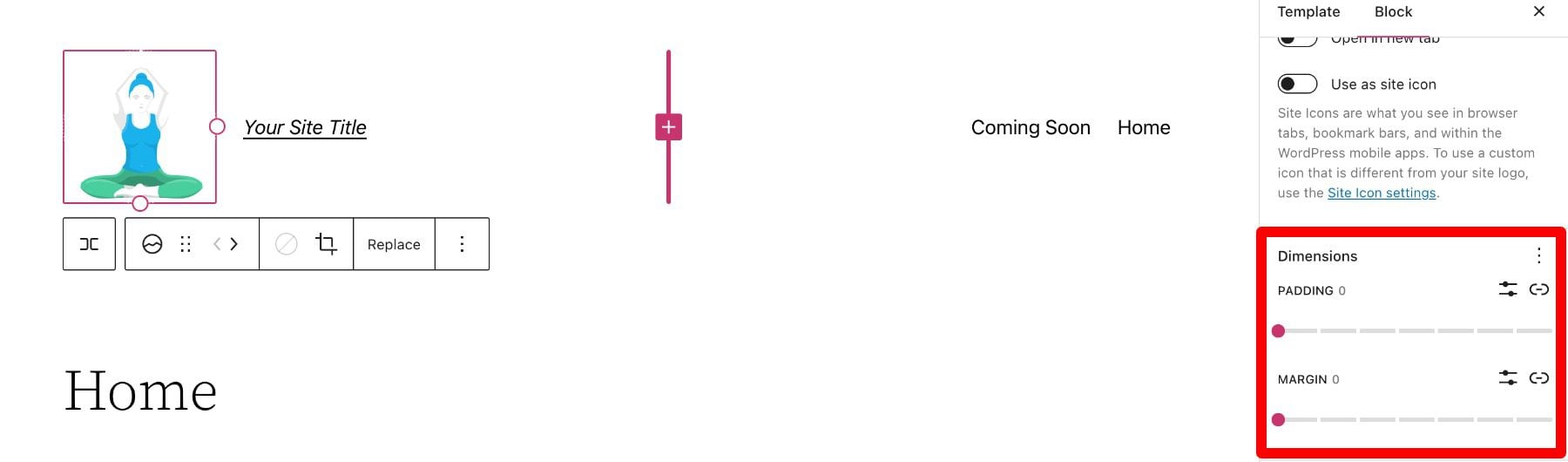
    Below the settings section, you can find the dimensions tab where you can adjust the padding and margin of your site tagline block.

    Changing the Global Style of Site Tagline Block in WordPress

    As mentioned earlier, your actual WordPress Site Tagline (the text content) can be updated using the Site Tagline Block for all interactions of the block dynamically. However, the style (background color, text color, etc.) of the block won’t apply to all interactions unless you change the default global style of the block.

    For example, below we have adjusted the background color of our site tagline block in the header to blue.

    If we open a blog post, we can see that the header changes with the new style (1), but the style is off if we place the site tagline block somewhere else on the page (2).

    To change the styles of all the site tagline blocks on your WordPress website site-wide, we can navigate to the styles tab by clicking the half-white, half-black circle in the top right of our template editor and selecting blocks.

    From here, search “site tagline” from the search bar and select it.

    Here you can make changes that will change the default style for all current and future iterations of the site tagline block on your website.

    Of course, you can always override these global styles for any individual block as needed.

    Frequently Asked Questions About the Site Tagline Block

    Here are a few FAQs that may help you better understand the Site Tagline Block.

    Do I need a Site Tagline for my website?

    Absolutely! Like your Site Title, the Site Tagline helps define your website’s identity and purpose. Most importantly, a tagline helps SEO. It is used by search engines to help rank your site especially if it is displayed on the SERPs. Even if you choose not to display your tagline on your header, creating one in Settings > General, is still good practice for SEO.

    Where Should I Use the Site Tagline Block?

    Generally, the Site Tagline is used primarily behind the scenes. But it is common practice to add to your header or footer. You can place it next to the site logo block or site tile block to help visitors know what your site is about.

    Can I Add Custom CSS to My Site Tagline Block?

    Under the dimensions section in the additional settings sidebar, you can see the advanced section. Here you can add CSS classes to your block to target the block in your CSS stylesheet or use your theme’s Additional CSS area as needed.

    To access the CSS editor, go to Appearance > Additional CSS:

    Adding a Dynamic Site Tagline in Divi

    You can use the Divi Theme Builder to add a site tagline to your global header in just a few easy steps. You can start by clicking the edit button next to Global Header in your Divi Theme Builder. We’re using a premade template for this tutorial, but these steps will work with any theme.

    Next, add a new Call to Action module in your header.

    Next, hover over the body area and select the “Use Dynamic Content” icon. Then select “Site Tagline” from the list.

    For more, check out our tutorial on how to add a dynamic title and tagline in Divi.

    Conclusion

    The site tagline block gives you full control over where you want to display it throughout your site. Using the built-in block settings available in the WordPress editor, you can easily add, edit, or style the block to fit your design. Use it to add a beautiful tagline to your site’s header, footer, or anywhere you want.

    You may also be interested in our tutorials on WooCommerce Blocks and Block Patterns.

    Let us know in the comments if you have any questions regarding the WordPress site tagline block!

    The post How to Use the WordPress Site Tagline Block appeared first on Elegant Themes Blog.

  • How to Use the WordPress Query Loop Block

    The WordPress editor is growing into a full-fledged site builder. Thanks to the full site editing and the new theme blocks like the Query Loop Block, you can display lists of dynamic content for any post type anywhere in WordPress with ease.

    In this article, we’ll dive deeper into the WordPress Query Loop Block so you can better understand what it is and how to use it.

    What is the WordPress Query Loop Block?

    The Query Loop Block is one of the most advanced WordPress theme blocks available in the new Site Editor. It was added to WordPress Core in version 5.8 and is a a more complex version of the Latest Posts Block. It allows anyone to visually build a block that pulls and displays post content dynamically to a page or template. The Query Loop Block isn’t limited to displaying blog posts either. You can use it to pull content from any custom post type you may have. You can even use it with WooCommerce Blocks to display products.

    What are “Queries” and “Loops”?

    In WordPress terminology, a “Loop” is a way of displaying similar information on repeat. A loop of blog posts, therefore, is a series of blog posts with common attributes such as blog title, featured image, author name, publish date, and a short description. The loop pulls this data from posts (or any post type) and places them in a loop. The loop then displays posts to site visitors.

    The query aspect of a “Query Loop” means that a user can query, or command, certain information to pull into the loop. So a Query Loop Block can pull and display all posts or posts of specific categories—to name just a couple of options. This allows someone to show posts in “Category A” and no posts from Category B or C.

    Query Loop Blocks can display:

    • Blog Posts
    • Website Pages
    • WooCommerce Products
    • Other Custom Post Types

    Any post types are fair game for display in a dynamic loop.

    Query Loop Nested Blocks

    There are two immediate “Nested Blocks” that belong to the Query Loop Block:

    • Post Template Block – Holds further nested blocks that display post metadata (Title, Featured Image, Author, etc.)
    • Pagination Block – Allows posts to overflow into pages for more to be displayed

    We won’t cover these nested blocks in this article but you can click on any of their hyperlinks above to get all the information about how each works within a Query Loop Block.

    How to Add the Query Loop Block to an Index WordPress Template

    In this example, we are using the “Twenty Twenty-two” Default WordPress Theme. This was the first default theme to include editing through the Site Editor (previously called “Full Site Editor”).

    We’ll be walking through how to add a WordPress Query Loop Block to a Template in the Site Editor. To get there, first, hover over “Appearances” and then click “Editor”.

    Edit WordPress Block Theme Template - Step 1

    Then, click on the icon in the top left to pull down the dropdown menu. In that menu, click “Templates”.

    Edit WordPress Block Theme Template - Steps 2-3

    Now, from the list of presented templates, find the template you wish to edit. One of the most natural templates for this block is the “Index” template since it is the template that indexes or displays website posts.

    Edit WordPress Block Theme Template - Step 4

    You are now on Twenty Twenty-two’s Index Template. You’ll notice that it already comes with a Query Loop Block configured. But, if you are using a different Block Theme then it may not come with it.

    To add a new Query Loop Block, click the “(+)” icon. Scroll down to the “Theme” blocks or type “Query Loop” into the search bar. Drag the Query Loop block into the Site Editor.

    Create Query Loop Block - Steps 1-2

    WordPress has predefined “Patterns” that can give you a headstart in designing your Query Loop. You can choose a specific pattern if you know that there’s one that fits your needs, or you can start blank. We’re going to click “Start blank”.

    Create Query Loop Block - Step 3

    There are four default variations to apply to a Query Loop. For this example, click the “Title & Date” variation.

    Create Query Loop Block - Step 4

    This will create the Query Loop with the “Title and Date” variation.

    Create Query Loop Block - Step 5 - Result

    Notice nested blocks appear inside WordPress’ Query Loop Block. This is because those blocks provide necessary features for the Query Loop. Since we chose the “Title & Date” variation, those nested blocks need to be included to show “Title” and “Date” information. A different variation would have loaded a different arrangement of nested blocks.

    Create Query Loop Block - List Review Result

    Now that a Query Loop Block is on a template, we’ll explore the Toolbar and Settings for this advanced Theme Block.

    Query Loop Block Toolbar and Settings

    Each block within the Site Editor and Block Editor has its own Toolbar options and a Sidebar of More Settings.

    Query Loop Block Toolbar

    To find the Toolbar for the Query Loop Block it is easiest to go to the List View and select the block—making sure a nested block is not selected.

    The first unique Toolbar option for the Query Loop Block is the “Display Settings”. Clicking on that will show three options:

    • Items Per Page – Control # of posts displayed at a time in the loop
    • Offset – Skips starting point of posts by a set amount
    • Max Page to Show – Limits # of pages shown, even if the query has more results

    Query Loop Toolbar - Display Settings

    Next on the Toolbar is the “Replace” button. This gives the option to strip the Query Loop Block’s pattern and replace it with a different pattern.

    Query Loop Toolbar - Replace Pattern

    The last unique Toolbar option for the Query Loop Block is the toggle between List View and Grid View. List View displays the post loop “as a list” with posts stacked. Grid View displays the post loop as a grid with more of a table layout for the posts to fill.

    Query Loop Toolbar - List vs. Grid View Toggle

    Query Loop Block Settings Sidebar

    The Query Loop Block has additional configurations in the “More Settings” sidebar. To reveal the sidebar, either click the “Show More Settings” option nested in the Toolbar or by clicking the “Gear” icon in the top right while the Query Loop Block is selected.

    Query Loop Toolbar - More Settings

    The first visible sidebar setting gives site owners the ability to create a New Post for the Query Loop from this editing page. After that, there is the Layout Toggle which affects how Nested Blocks use layout width compared to the Query Loop Block—more on that later. The Settings Toggle allows for selecting a custom or an inherited query for the block—more on that below as well.

    Query Loop Sidebar Settings - New Post, Layout, Query Settings

    Layout Options

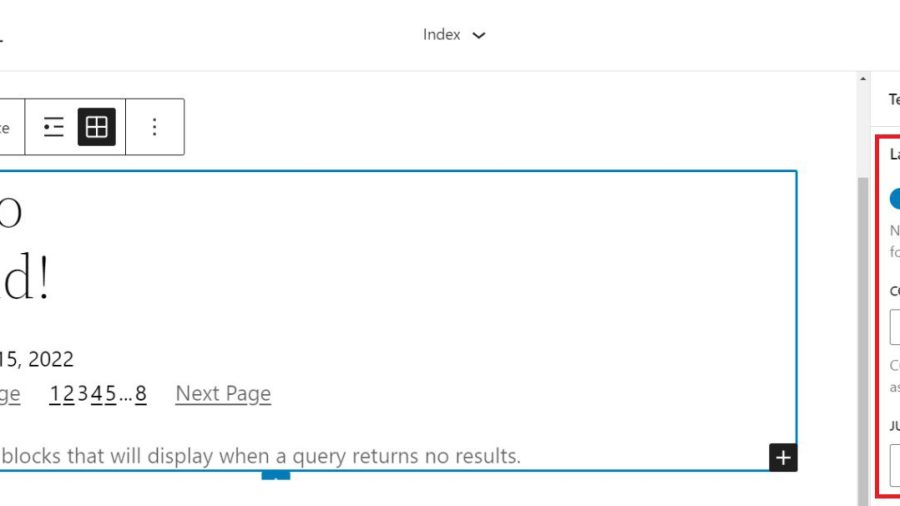
    The “Layout” settings for nested blocks allow a designer to toggle additional settings on (blue). These settings allow one to choose if those blocks use content and width percentages. It also reveals an option for left, center, or right content justification. With it untoggled (grey), nested items are set to full width by default.

    Query Loop Sidebar Settings - Layout Nested Content Width

    Query Settings

    When the query “Settings” is untoggled (grey), then you can select exactly what to query. The first option is “Posts” which can be pages, posts, or custom post types. Next, users can choose between ascending or descending order for either date published or alphabetically. Lastly, there is an option to include or exclude sticky posts in the query.

    Query Loop Sidebar Settings - Setting Untoggled

    Toggling “Settings” (blue) sets the Query Loop Block to inherit the query from the template used template.

    Query Loop Sidebar Settings - Inherit Query Settings

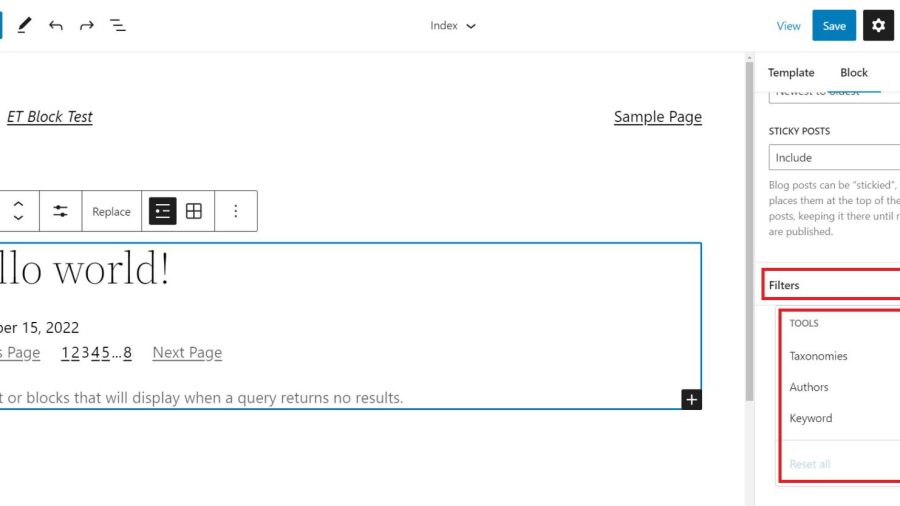
    Query Filters

    Next, with query “Filters” gives users the option to further customize the query by filtering posts by:

    • Post Categories – Comma-separated list of categories
    • Post Tag – Comma-separated list of tags
    • Post Author – Dropdown list of authors
    • Post Keyword – Enter a list of keywords to filter by

    Query Loop Sidebar Settings - Query Filters

    Color Options and Advanced Settings

    Lastly, we have Color settings and Advanced settings. The color options allow designers to choose colors for:

    • Text Color
    • Background Color
    • Link Color

    Advanced settings include the ability to add a CSS class to the WordPress Query Loop Block and/or assign an HTML element to the block.

    Query Loop Sidebar Settings - Color and Advanced Settings

    Each nested block within the Query Loop Block has its own Toolbar options and sidebar Settings. Visit the list of nestable blocks above to learn more about each and the settings that they have.

    Tips and Best Practices for Using the Query Loop Block in WordPress

    Query Loops are powerful blocks. Follow these tips and best practices to get the most out of them.

    Set Global Styles for Query Loops and Nested Blocks

    Global Styles can be set on a block-type-by-block-type basis. This lets designers create global default styles that apply to all instances of a block throughout the website. This is a huge time saver.

    Currently, on the 2022 Theme, the Query Loop Block allows you to add Global Styles for text color, background, and link colors. To get to the global styles editor, click on the “Global Styles” icon (half-filled in circle), select “Blocks”, and find the Query Loop Block.

    You can also assign separate global styles to each of the nested theme blocks (like Post Template, Post Title, etc.) within a Query Loop as well.

    Use Multiple Query Loop Blocks on a Single Page to Create a Featured Blog Section

    In creating a Blog Page template, you may want to create a featured post that stands out because it is the most recent post published on your site. Below is a simple version of the concept.

    Featured Post Result

    There will need to be two Query Loop Blocks on our “Index” template. The top Query Loop Block will have a “List View” display and will only show one single post. Make sure that it has no Pagination Block nested in this first Query Loop.

    With the second/bottom Query Loop Block, set it to “Grid View”. It should display multiple posts in columns and set the “Offset” to 1. An offset of 1 will skip the first post of the query. This is desired since the query loop above contains the featured post.

    Use Consistent Design for Query Loops Displaying the Same Post Types

    Query Loops used for “blog articles” should look similar. If you use Query Loop Blocks for other post types, consider a slightly different style for those so your site visitors can differentiate what are “Blog Posts” and what are other types of content. This will make for a clear website UX.

    Using Divi’s Blog Module: A Query Loop Block Alternative with More Design Options

    If you use Divi, the Blog Module functions much like the native WordPress Query Loop Block. And adding Divi’s Blog Module to a page or template is simple, giving you all the options you need to customize the parameters, layout, and design of the dynamic post content.

    divi-blog-module

    The content displayed within the Blog Module is completely flexible as well, allowing you to select a certain post type, post type categories, and the number of posts to include. Individual Module Elements can be added or removed such as featured images, titles, meta-text, body text, read more links, pagination, and so on.

    Each of these Module Elements can be completely styled using Divi’s extensive design options. Learn more about using Divi’s Blog Module on Templates.

    Frequently Asked Query Loop Questions

    Answering some of the most asked questions about WordPress’ Query Loop Block.

    What’s the Difference Between the Query Loop Block and the Latest Posts Block?

    The Query Loop Block is similar to the Latest Posts Block in that it has the capability of displaying a list of the latest posts on your blog dynamically. However, the Query Loop Block is much more advanced, allowing you to build your “list” of posts, pages, or other post types from scratch by integrating other nested blocks. For example, if you have a custom post type for recipes, you can use the Query Loop Block to create an entire page of recipes customized to your liking.

    Does the Query Loop Block Require Coding Knowledge?

    No, the WordPress Query Loop block does not require coding knowledge because the functionality is already built-in. This block enables you to display a loop of posts on your WordPress site using customizable block settings on the front end.

    Where Can I Use the Query Loop Block?

    The WordPress Query Loop Block loops through published posts and pages to display them. It will automatically update as new pages/posts meet the query parameters. This makes this block useful in many places such as post or archive templates, or on static pages where you want to display things like recent posts dynamically.

    Have you used the Query Loop Block on your WordPress site? What discoveries have you made? Let us know in the comments below.

    Featured Image by Dmitry Kostrov / shutterstock.com

    The post How to Use the WordPress Query Loop Block appeared first on Elegant Themes Blog.

  • How to Use the WordPress Stack Block

    Thanks to the introduction of Gutenberg blocks in version 5.8, WordPress makes it easy to organize your content and create awesome patterns. With the help of the WordPress Stack Block, you can add any type of block you choose, then display it vertically to create beautifully stunning layouts with ease.

    What is the Stack Block in WordPress?

    The WordPress Stack Block is a useful block that allows you to stack multiple blocks in a vertical column. Similar to the row block, it allows you to group multiple blocks together, making it easier to keep your blocks nice and tidy. It’s a versatile block because you can add any block you wish within it such as headings, images, buttons, and more.

    How to Add the Stack Block to your Template

    Adding the Stack Block to your page using the WordPress Editor is a simple process. Start by clicking the block inserter icon near the top left of the site editor screen.

    click block inserter

    Next, you can either search for the Stack Block or type /stack into the page editor directly. Then, simply click the block to add it.

    add Stack Block

    Stack Block Settings and Options

    There are two settings groups within the WordPress Stack Block – toolbar and additional settings. Let’s go over each group to give you a better understanding of how to use it.

    Toolbar Settings

    As with every block in WordPress, there are a few standard toolbar settings for the Stack Block. They can be observed by viewing the screenshot below:

    Stack Block toolbar settings

    1. Transform to
    2. Drag
    3. Move arrows
    4. Justification
    5. Alignment
    6. More options

    The first setting in the Stack Block is Transform To. With this option, you can turn the Stack Block into a quote, unwrap (ungroup) it, convert it to columns, or convert it into a cover block.

    transform settings

    The next two settings – drag and move – allow you to either drag your block into a different position on the page, or use the move arrows to move it up and down.

    The Justification option in the toolbar settings controls the justification of the blocks within the stack. They can either be aligned to the left, center or right.

    justification settings

    Next is the Align option. This option doesn’t necessarily control alignment, but rather the width of the stack. You can set it to None, which will allow the stack and all interior blocks to occupy a maximum of 650px. Wide width will allot 1000px for the stack, and Full width will stretch the Stack Block and all interior blocks across the full width of the page.

    Stack Block alignment settings

    The last toolbar settings group is more options. Within it, you can copy, duplicate, insert, move, lock, group, remove, or create a reusable block.

    Stack Block more settings

    The Stack Block Settings

    There are quite a few additional settings specific to the Stack Block. First, there is the Layout setting. Under the Layout options, you can control the justification and orientation of the stack, as well as control whether the blocks within the stack should be allowed to wrap to multiple lines. Justification options include left center, and right. For orientation, you can choose whether to orient them horizontally or vertically.

    Note that if you choose the horizontal orientation, the Stack Block will automatically be converted to a row block.

    Stack Block layout settings

    Next is the Color settings. When selecting a text color on the stack, it will control the color of the text on every block inserted into it. Alternatively, when choosing a background color, it will only apply a background color to the stack itself, rather than its contents. Finally, link color settings control any links added within the Stack Block.

    color settings

    Within the Typography settings, you can set the font size, appearance, line height, letter spacing, text decoration, and letter case for any block inserted into the Stack, which contains the text.

    typography settings

    Next are the Dimension settings. Here you can control the padding around the Stack. You can either set padding as a whole, or individually for the top, left, bottom, and right. Additionally, you can control the block spacing for all blocks contained within the stack.

    dimension settings

    The Border options allow you to add a border and/or a border radius to the Stack.

    border settings

    Tips and Best Practices for Using the WordPress Stack Block Effectively

    Even though the block is fairly simple to use, there are a few best practices that you should follow.

    When adding blocks to the Stack, a great way to stay organized and view your blocks is to use the WordPress List View. List view enables you to view each block within the stack, and allows you to easily drag them around to move them. To access the list view, simply click the list view icon to reveal all of the blocks in your stack.

    list view

    Also, make sure to keep the orientation option set to vertical. Swapping to a horizontal view in the layout settings will convert your Stack to a row. As previously mentioned, rows display blocks horizontally rather than vertically.

    Lastly, when setting colors for your stack, keep in mind that if you set a text color on the Stack Block itself, it will apply to other child blocks containing text as well. If you don’t want to apply a color to all blocks within the stack, be sure to apply color settings to individual blocks within the stack.

    WordPress Stack Block FAQs

    The WordPress Stack Block is a versatile block that can be utilized in pages, posts, and templates. So you will likely have a few questions. Hopefully, these will help.

    What’s the Difference Between a Row Block and a Stack Block?

    While Row Blocks and Stack Blocks allow you to group a series of blocks together, the difference is in orientation. You should use a row block when you want to display blocks horizontally. A great example of when to use a row block is when building a header. Typically, you want to have your site logo, as well as navigation links displayed horizontally. The Block works in much the same way. It can house a group of blocks. However, a Stack Block displays the block vertically. A great way to use the block is to build a sidebar with your post categories.

    Can I Use the Stack Block in a Template?

    Yes! Stack Blocks are a great way to display a group of blocks vertically, and help to keep blocks organized. This is especially useful when creating a template using full site editing in WordPress. For example, when creating a blog post template, it’s a good idea to use the block to house your post title, post meta, post content, and other post-related blocks.

    Wrapping Things Up

    Building a website in WordPress starts with adding structural elements like rows and columns. The Stack Block is a convenient way to add a row of content that is aligned vertically instead of horizontally. The block can be easily configured to help you design a page in WordPress using the built-in settings in the toolbar and sidebar block settings. Though this block is native to WordPress, page builders like Divi have more robust design options for optimizing the structure of your page using modules.

    For more, check out our other WordPress Block tutorials as well as our complete guide to WooCommerce Blocks.

    Have you experienced using the Stack Block on your website? Let us how in the comments below.

    The post How to Use the WordPress Stack Block appeared first on Elegant Themes Blog.

  • How to Use the WordPress Site Title Block

    Your WordPress website’s title is an incredibly important part of your brand, and knowing how to utilize it properly is important for any WordPress user. In this article, we’ll be delving into the Site Title Block, giving you some tips on how to use it properly to maximize its effectiveness on your WordPress website.

    What is the WordPress Site Title Block?

    The site title block in WordPress is one of many theme blocks available in the WordPress editor. This block gives you the ability to change or add your site’s title to a WordPress page template or main header.

    The Site Title block is also dynamic because it pulls your site title from your website’s data (on the backend) as dynamic content. So changing your site title via the site title block or on the backend will automatically update all iterations of the Site Title Block throughout your site. Furthermore, when using the Site Title Block on a template, you have easier control over the design of the site title globally. This type of functionality is one of many new WordPress features that has come with full site editing.

    Important Note: Updating the Site Title Block name WILL update the official name of your website that appears in Settings > General. Changing this will also change it on your browser title bar and in search engine results.

    How to Add the Site Title Block to your WordPress Header

    For this example, we are going to use the Twenty Twenty-Two theme to add the site title to WordPress header area of the template.  From the WordPress dashboard, go to Appearance  > Editor.

    There should already be a Site Title inside the header area of the page template on the right of the Site Logo Block. You can also open the list view to find it as well.

    To add a Site Title block, start by clicking the Block Inserter (+).

    Then search for “Site Title” in the search bar.

    Either click on it or drag it to your desired location to add the block to your header.

    You can also type /site-title to quickly add your site’s title to any part of your page.

    From here, you can click on the block and update your Site Title for your entire site and subsequently on all Site Title Blocks throughout your site. So don’t change it unless you know the consequences of doing so.

    To change your website’s title away from the WordPress editor, you can navigate to Settings > General

    If you change your title here, your site title blocks will update on all the pages they are on.

    Site Title Block Settings and Options

    The Site Title Block comes with additional settings and options that make it easy to edit or customize the display of your title on your website. Here is a brief overview of the settings available.

    Toolbar Settings

    If you hover over the block, you’ll see a formatting menu that includes the following options:

    1. Transforming the block into another type of element
    2. Changing the heading level
    3. Changing the alignment of the text (left, center, right(
    4. More settings

    Here’s a quick cheat sheet that shows where each of those options is within the formatting toolbar:

    Additional Settings

    If you click on the three vertical dots on the right side of the toolbar and select show more settings or the cog in the upper right corner you can access the sidebar to view the additional block settings available.

    From here you can access additional settings, first you can see Link Settings:

    1. Make the title link to your home page.
    2. Open the home page in a new tab

    Below Link Settings, you can view the Color tab, here you can:

    1. Change the text color.
    2. Change the background color of the text.
    3. Change the link color of the text.


    Under the color section, you can view more settings by clicking the three vertical dots next to Typography.

    You can change the font from the font setting section.

    Adjust the font size under the size setting.

    The font-weight (bold, thin, etc.) can be changed in the appearance section.


    You can also adjust the letter spacing and line height in their respective sections.


    In the letter case setting, you can adjust the capitalization of the site title block.

    And you can underline or strikethrough your site title by selecting those options in the decoration section.

    Below the settings section, you can find the dimensions tab where you can adjust the padding and margin of your site title block.

    Tips and Best Practices for Using the Site Title Block Effectively

    Setting Global Styles for the Site Title Block

    An important distinction to note is that while the text of your site title block will update on all iterations of the block, the style (Background color, text color, etc) will not update unless specified in the site styles sidebar. For example, here we have set our Site Title block in our WordPress Template header to have a blue background color.

    If we open a blog post, we can see that the header changes with the updated style (1), but if we put the site title block elsewhere on the page, the style doesn’t match (2).

    To change the styles of all the site title blocks we can navigate to the styles tab by clicking the half-white, half-black circle in the top right of our template editor and selecting blocks.

    Here we can search and select site title from the search bar.

    From here we can make changes that will change the style for all iterations of the site title block.

    Optimize Your Site Title for SEO

    For algorithms and search engine bots, keywords are crucial. In terms of maximizing your WordPress website’s SEO, it’s excellent practice craft the perfect SEO title for your site and pages. Before choosing your title, do some simple keyword research to find what best describes the information on your website.

    Your Site Title Should be Consistent with Your Branding

    Every component related to the branding of your website should be consistent, you should choose the right webfont and utilize the same style for your title as you do the other elements on each page of your site.

    This consistency will help keep your audience engaged with your site and not confused or disoriented. Another good practice is making sure you are linking your title to your homepage, as this will help your users navigate your website more effectively.

    Frequently Asked Questions About the Site Title Block

    Even if using the site title block is pretty straightforward, you may still have some concerns regarding this specific component. Let’s break down some of the most often-asked questions about the functionality of the title block.

    When Should I Change My Title?

    You shouldn’t change your title too often because you risk losing users that already know your branding as well as confusing search engine bots that know your original title. You should only change your site when your first create your site, are focused on rebranding, have shifted into another field of expertise, or have a better SEO title.

    Where Should I Use the Title Block?

    Displaying your site title isn’t necessary. But there are instances where adding this dynamic content to your site makes sense. For example, putting a title next to your site logo, or header would be the best placement for a site title block.

    Can I Change the Font Settings for the Title Block?

    You can change the font of your site title block through the advanced settings, by clicking the three vertical dots next to Typography (Pictured Above.)  You can also change a variety of style options from here as well.

    Using the Dynamic Site Title in the Divi Page Builder

    If you are using Divi, you can use the Divi theme builder to add a site title to your global header (or anywhere on your site) in just a few easy steps. You can start by clicking the edit button next to Global Header in your Divi Theme Builder.

    Next, add a new module (in this case, a Call to Action Module) in your header.

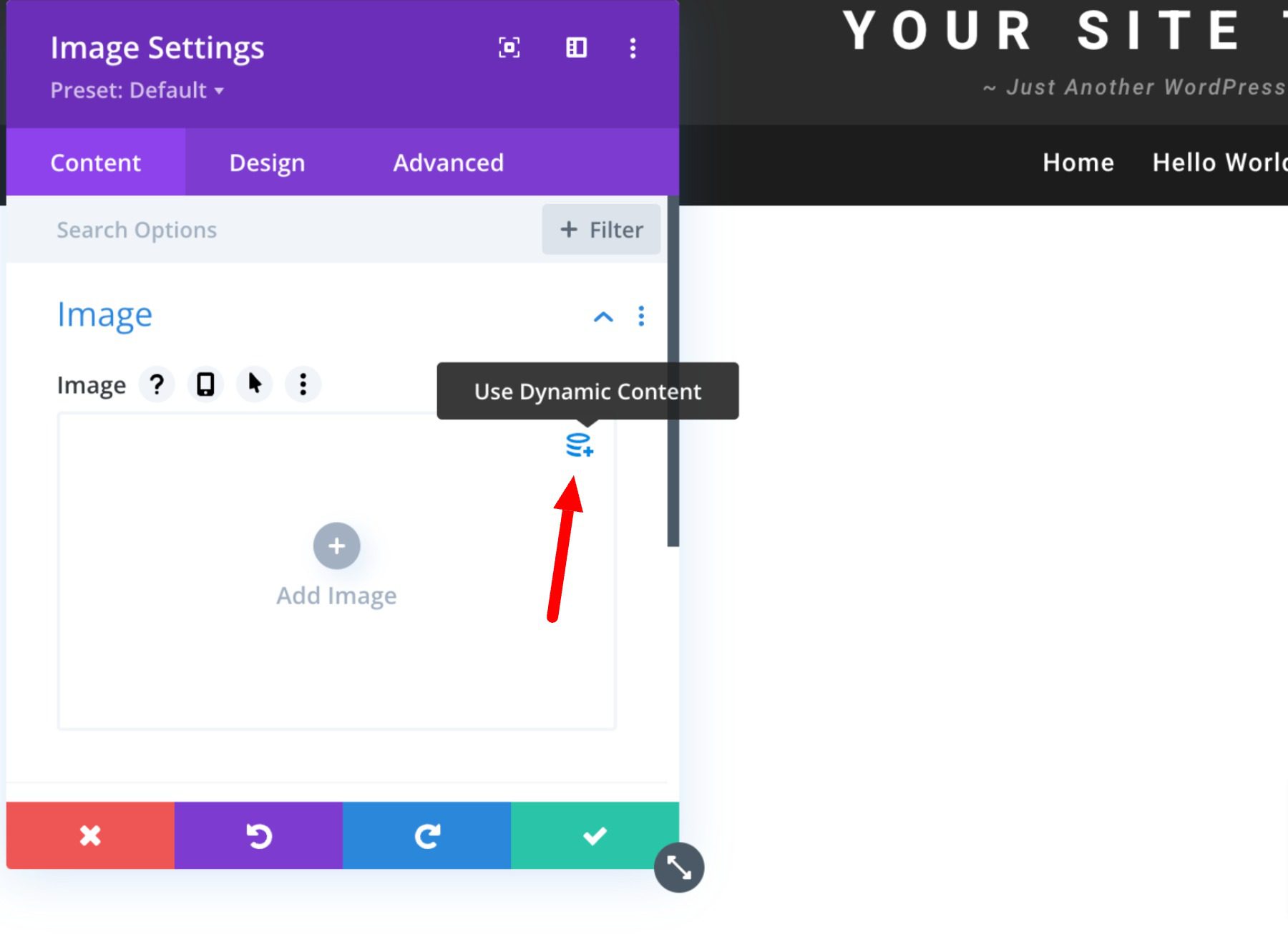
    Under the content settings, hover over the title input box and click the “Use Dynamic Content” icon. Then select “Site Title” from the list.

    It’s just that easy! Dynamic content is now supported by all of Divi’s main content inputs. To view a complete list of all content that is accessible, simply click the dynamic content symbol. Next, choose the item you want, alter its output, and connect it to the module. The module, the page, and the rest of your website will all immediately update if that piece of content is modified.

    Learn more about how to add a dynamic site title in Divi.

    Conclusion

    Simple yet essential, your website’s WordPress site title is an integral aspect of your site. It’s one of the first forms a WordPress site owner fills out, and it’s easy to overlook.

    Using the site title block you can easily incorporate your title into your posts and edit them based on your preferences and style. We hope this article gave you some useful tips on optimizing your title!

    Let us know in the comments if you have any questions regarding the WordPress site title block!

    The post How to Use the WordPress Site Title Block appeared first on Elegant Themes Blog.

  • How to Use the WordPress Site Logo Block

    One of the most essential parts of running a WordPress site is branding, and nothing stands out more than a logo. Your logo defines your brand, so you need to use it properly. In this post, we’ll tell you how you can implement a logo into your website using the WordPress site logo block. We’ll also cover the block settings available and give you some helpful tips for using a logo effectively.

    What is the WordPress Site Logo Block?

    The site logo block in WordPress is one of many site blocks available in the WordPress editor with the rise of full site editing. The block gives you the ability to add your site’s logo to a page template or main header in WordPress.

    Wordpress site logo block preview

    The site logo block is also dynamic because it can pull your site logo from your website’s data as dynamic content. So changing your site logo via the site logo block or on the backend will automatically update all iterations of the site logo block throughout your site. Furthermore, when using the site logo block on a template, you have easier control over your global logo design.

    It’s important to note that the Site Icon, the smaller image seen in your dashboard and browser tabs, etc., is distinct from the Site Logo. However, the site logo can also serve as the site icon if you choose by updating the block settings tab which we’ll get into further below.

    How to Add the Site Logo Block to your WordPress Header

    For this example, we will show you how to add or customize the site logo on your WordPress header in a template using the Twenty Twenty-Two theme. Here’s how to do it.

    From the WordPress Dashboard, navigate to Appearance  >  Editor.

    go to WordPress editor

    There should already be a site logo inside the header area of the page template on the left of the Site Title. You can also open the list view to find it as well.

    site logo in list view

    If you want to add the Site Logo block to the template, you can click on the +  block inserter icon.

    click block inserter

    Then search for “Site Logo” and click on it and/or drag it to your desired location to add the block to your page.

    If you haven’t set your logo, you can upload it after clicking the upload sign on the Site Logo Block.

    upload logo

    Once you change your site logo via the site logo block, all other copies of the site logo will display the same image. This is the dynamic functionality of the block in action.

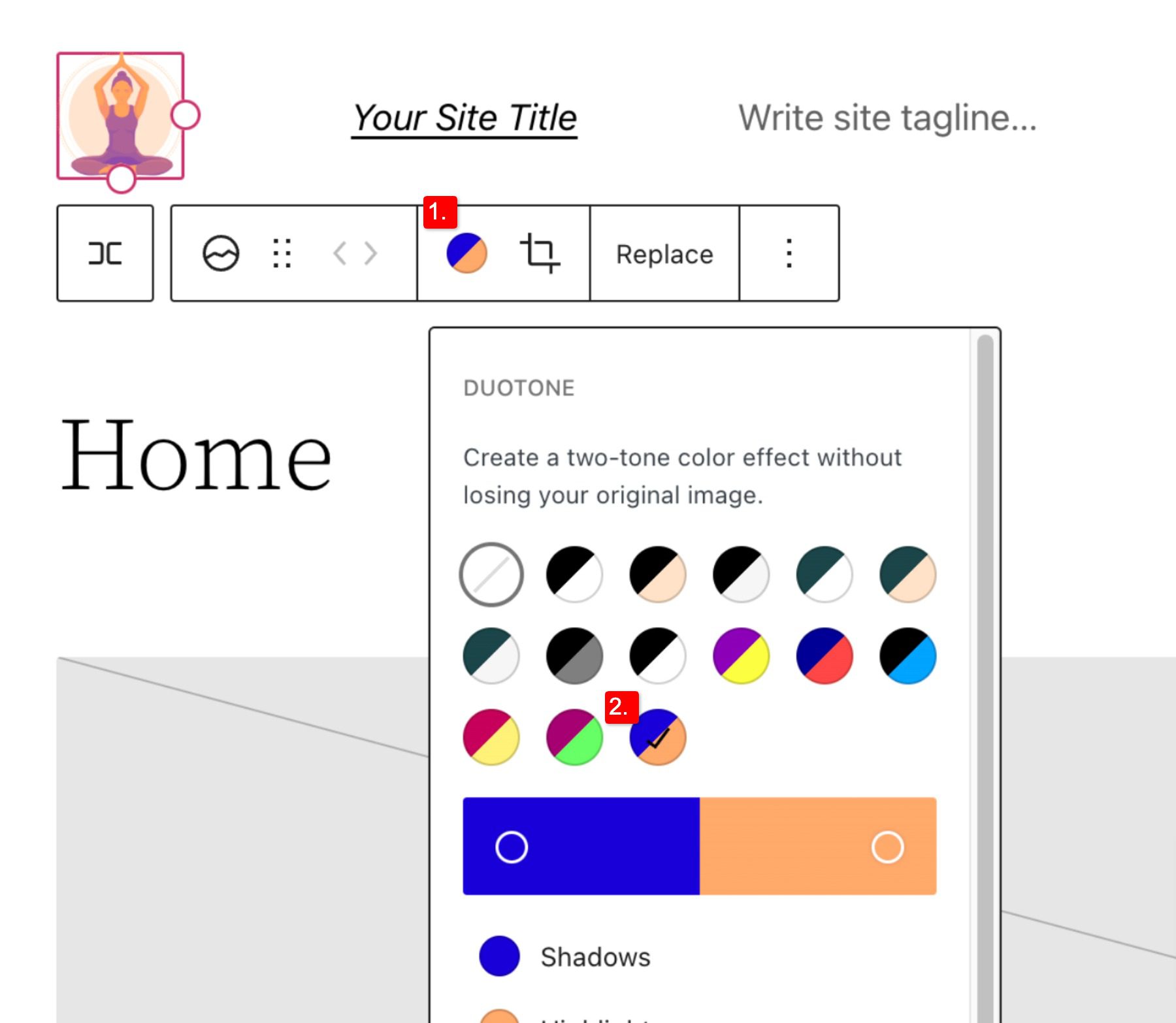
    Site Logo Block Settings and Options

    The Site Logo Block comes with additional settings and options that make it easy to customize for your website. Here is a brief overview of the settings available.

    Toolbar Settings

    If you hover over the block, you’ll see a formatting menu that includes the following options:

    1. Transforming the block into another type of element
    2. Adjusting the shadow, highlights, or tone of your logo
    3. Changing the zoom, aspect ratio, and rotation of your logo
    4. Replacing your logo and image
    5. Shows more advanced options such as copy, duplicate, move, lock, group, add to reusable blocks, or remove the block.

    Logo setting options

    As you may have noticed these tools can help you adjust the look of your logo so that you can get the placement and design to match your website’s style.

    To change the color of the logo image click the duotone tool and select your desired color scheme.

    To set your colors, select the dots within the color bars:

    Duotone continued

    Site Logo Block Settings

    If you open the additional options or block settings toggle in the sidebar, you can find more block settings you can customize.

    Advanced settings

    From here you can change your logo to:

    1. Appear rounded instead of the default square or rectangle setting
    2. Adjust the image width to create a larger logo (it’s important to choose the best size for your logo)
    3. Link image to home,  if enabled will navigate users back to your home page when your logo is clicked
    4. Open in a new tab, if enabled will open your home page in a new tab
    5. Use as site icon, if enabled will use your logo as the site icon or favicon

    Below the settings section, you can find the dimensions tab where you can adjust the padding and margin of your logo.

    Dimensions

    That covers everything you need to know about the settings available for your logo block, so you can customize your logo’s style to match perfectly to the rest of your site’s aesthetic. Now, let’s delve into some tips for how to use this block effectively.

    Tips and Best Practices for Using the Site Logo Block Effectively

    Using the site logo block is pretty straightforward to use, but it’s still important to keep some things in mind.

    Optimize the Logo Image Before Uploading

    Just like with any image uploaded via WordPress, it’s important to optimize your logo before you upload it to your site logo block. This will improve your load speeds and be beneficial for image SEO as well. Your logo should be a PNG, and the file shouldn’t be too big, we recommend using a web tool like TinyPNG, to help compress your image without losing quality in the process.

    Match Your Website’s Style

    Assuming your website already has a design and scheme, your logo mustn’t contrast too much with the style already in place on the rest of your site. So take a look at the colors and layout of your website and see if you can work your logo in as seamlessly as possible.

    Prominently Display Your Logo

    Making sure you use your logo properly after creating it is an essential step in effectively branding your website. In most cases, your logo should be displayed on your WordPress header area/template so that it can be seen on all the pages of your site. Also, it’s best practice to make your logo link back to your homepage to help with user flow and to constantly draw the user’s eye to your logo.

    Frequently Asked Questions About the Site Logo Block

    After you complete the difficult task of creating your logo, using the logo block in WordPress is relatively hassle-free. Still, as with anything, some questions need answering. Here are some answers to frequently asked questions about the logo block.

    How Do I Change The Site Logo?

    To replace the site logo, click on the site logo block and then click on Replace in the toolbar settings. There you can add one from your media library, upload a new one, or reset the site logo to the default.

    When Should I Use the Site Logo Block?

    Your logo is the symbol that represents your website and, therefore, should be prominent on nearly every page of your site. This is why we recommend putting your logo in the header area, where it can be used for both navigation (Home button) and branding purposes.

    What’s the Difference Between a Logo and a Site Icon?

    A site icon is used as a browser and app icon for your site; you may see it next to the tab in your browser. The logo for your site isn’t necessarily used as the site icon but can be activated in the logo block’s advanced settings.

    Using Divi to Add a Site Logo to Your Global Header in WordPress

    When using Divi, you can use the Divi theme builder to add a site logo to your global header in just a few easy steps. You can start by clicking the edit button next to Global Header in your default website template.

    Now, you simply add an image module to the header and select the Use Dynamic Content option in the top right corner.

    You will then be prompted to select from a list of all dynamic content that is accessible. Select Site Logo to add the dynamic logo to your header.

    Learn more about using dynamic content with Divi here.

    Conclusion

    It is impossible to overstate the significance of your brand’s logo. However, you need a systematic approach to branding your site effectively. This is especially true if you want it to leave a lasting impression on audiences. Hopefully, some of the tips mentioned above can help you create your ideal logo and use the logo block correctly and effectively.

    If you have any other tips on making memorable logos, leave them in the comment section below!

    Featured Image via VectorMine / shutterstock.com

    The post How to Use the WordPress Site Logo Block appeared first on Elegant Themes Blog.

  • How to Use WordPress Block Patterns: A Simple Guide

    Since the release of WordPress 5.8 in 2021, block patterns have become an increasingly popular way to create content in WordPress. They allow for developers and designers to utilize them in every aspect of their websites including headers, footers, posts, pages, and more. As an added bonus, users can save WordPress block patterns to make the design process faster and easier. In this post, we’ll discuss what block patterns are and how to use them. Let’s get started.

    What are WordPress Block Patterns?

    WordPress block patterns

    When building content in WordPress, you can insert a group of blocks into your posts or pages to display your content in a beautiful and functional way. These groups of blocks are called WordPress block patterns. WordPress offers a series of pre-made block patterns within the WordPress repository. Additionally, most WordPress themes will have a collection of them as well. Block patterns can be edited as easily as any block that you create. Patterns can contain several blocks, or even entire pages. And, with full site editing in WordPress, they can be used anywhere, and are even useful for creating headers, footers, page templates, queries, and more.

    WordPress Block Patterns vs Reusable Blocks

    reusable blocks

    As previously stated, a block pattern is a group of blocks that can be inserted into a post, page, template part, or template. Block patterns can be inserted into multiple locations but changed individually. Block patterns can be saved as reusable blocks, but once that happens, it will change everywhere that reusable block is used. So basically, reusable blocks take on a global property, whereas block patterns are a collection of blocks that can be edited to have a different look, regardless of how many times they are used throughout a website.

    How to Find New WordPress Block Patterns

    There are a few places to find WordPress block patterns. The first way is within your WordPress theme itself. As previously mentioned, most themes contain block patterns that you can use for your website. For example, the Twenty Twenty-Two theme has a decent collection of patterns. You can choose from categories including columns, text, galleries, pages, and more.

    WordPress default block patterns

    Another way to find block patterns is within the WordPres block pattern directory. There are currently more than 65 pages of patterns to use including headers, footers, wireframes, columns, buttons, and more.

    How To Add Block Patterns To Your Site

    Adding block patterns to your website is a simple process. If you want to search within your theme to add a pattern, simply click the blue + icon at the top left of your screen.

    Add block to WordPress page

    Next, tab over to Patterns. Select the pattern you wish to use, then click on it to automatically add it to your page.

    Add a block pattern

    Another way to add block patterns to your site is to copy and paste them from the pattern directory. Navigate to the pattern directory, locate the pattern of your choice, then hover over it to reveal the copy button.

    copy block pattern

    Next, return to your page. Click inside the edit board and either right click and select paste, or use CTRL + V (in Windows) or CMD + V (Mac). Your block pattern will appear on the page. You can rearrange its location by clicking the list view, then dragging it to the desired location.

    pasting the block pattern

    How to Use Block Patterns in WordPress

    Using block patterns in WordPress is easy. As previously mentioned, they can be edited just as any other block. Now that you know how to access them and add them to your site, let’s go over editing them.

    Typically, when you import a block pattern into your page, it will be grouped. Grouping blocks makes it easy to drag them around the page, as well as adjust settings such as width, color, typography size, padding, and block spacing – on the group itself.

    group block settings

    To make changes to an individual block within the group, simply click to edit it. Editing individual blocks doesn’t require you to ungroup them, and are edited the same way normal blocks are. For example, let’s look at the image block within our pattern. You can add links, crop, add text, or replace the image, just as you would otherwise.

    edit individual block in pattern

    You can add as many block patterns as you’d like into your layout. Adding patterns is an easy way to create beautiful content in a snap. Additionally, removing blocks is just as simple. If you want to remove a pattern from the page, simply click into the parent element in the list view or by clicking the ellipsis menu in the page editor, then click Remove Group.

    remove group

    How to Create and Save Your Own Block Patterns in WordPress

    There are a few ways to create and save block patterns in WordPress. The way you do it depends on your level of expertise, and whether you want to share it with others. Let’s dive in to learn about creating, saving, and sharing block patterns.

    Create Block Patterns In the WordPress Pattern Directory

    This method requires you to have a WordPress account, but is the most simple way to create patterns to use in your website. Start out by heading to the WordPress pattern directory. Next, click create a new pattern.

    create a new pattern

    Next, you’ll need to either login or create a new WordPress account. Once logged in, you’ll be redirected to the pattern editor. It works the same as the page editor in your own website. As an added bonus, you’ll have access to royalty-free images to use in your patterns. To get started, give your pattern a name, then start adding blocks by clicking the black + button.

    name your pattern

    Once you finish designing your block pattern, it’s time to save it for use on your website. There are two options for saving your pattern. Choosing save draft will allow you to save the pattern for your use only. You’ll be able to keep your pattern in the cloud, and access it any time to copy and paste into your website.

    save your pattern

    To access your patterns, navigate back to the pattern directory page and click the My patterns link. Both your drafts, as well as favorites, can be used in your WordPress sites.

    my patterns

    Submit Your Block Pattern To WordPress

    WordPress allows its users to create and submit block patterns for all of its users to utilize in WordPress block themes. In fact, the pattern gallery is just that – user submitted patterns. To create a block pattern for submission, follow the steps in the previous section. However, this time, you’ll click the submit button. Your pattern will go through a review process before being added to the directory. Once live, your pattern will be visible in the WordPress pattern directory where it is accessible to anyone.

    Use a Plugin to Create Block Patterns

    With the growing popularity of Gutenberg blocks, there are more options for saving block patterns in your websites than ever before. Up until recently, if you wanted to create a block pattern within WordPress, you had to code it yourself, which isn’t beginner-friendly. Thankfully, there are a few options for people who want to create them easily.

    CoBlocks Plugin

    CoBlocks is created by GoDaddy. It gives you a collection of 40+ blocks to use in your website, plus the ability to create block patterns and register them. The process is simple and only takes a few steps. First, build your preferred layout. Next, select the blocks you wish to include in your pattern. Finally, select Add Design Pattern.

    Create pattern with CoBlocks

    Name your pattern, give it an optional description, and assign a category. Finally, click Save Pattern.

    Save design pattern

    To view your newly created pattern, navigate to the Patterns tab, select the assigned category, and scroll down to view it.

    view your saved pattern

    Blockmeister – Block Pattern Builder

    Another option is the Blockmeister – Block Pattern Builder plugin. The process is very similar as with CoBlocks. However, this plugin doesn’t give you any added blocks for your layouts. It merely gives you the capability to create block patterns. To get started, create your layout, then select all blocks to be included in it. Next, click the ellipsis menu in list view, then select Add to Block Patterns.

    create a pattern Blockmeister

    The next step is to name your pattern, then click Create Pattern. Once saved, refresh your page to find the pattern in your theme’s pattern directory.

    Name pattern Blockmeister

    To locate your pattern, use the dropdown category menu in patterns, then choose your site name.

    pattern category

    WordPress Block Patterns vs Divi Layouts

    Both block patterns and Divi layouts offer the same basic features. You can create, edit, customize, and save them. However, Divi has so much more in terms of customization options, that’s where similarities between the two end. You see, block customizations are theme-based, meaning that you only get as much as that theme offers in terms of colors, fonts, and effects. In order to get more options, users need to add plugins or code to obtain them. With Divi, you have a wealth of customization options at your disposal to help you create amazing layouts for your website.

    Divi by Elegant Themes

    Divi isn’t just a WordPress theme, it’s a complete website building platform with a lot of power under the hood. Divi utilizes a proprietary drag and drop Visual Builder that enables you to build beautiful layouts on the front end – in real time. There’s no need to preview your layout in a new tab to see what your page will look like in the browser.

    Divi Has Unlimited Customization Options

    There are unlimited design options with over 200 website elements. Within each element, there are amazing background options by using Divi’s dynamic magic color system. Additionally, you can make your layouts impress with transition, hover, and animation effects. Not only that, you can adjust spacing, sizing, add filters and box shadows, and so much more.

    Divi visual builder

    Save Layouts Using Divi Cloud

    Divi Cloud

    When you want to reuse a layout, Divi makes it easy. You can save modules, rows, sections, or even full pages using Divi. Additionally, layouts can be saved as global so that when you need to make a change on a layout that’s being used throughout your site, it only has to be changed once. As an added bonus, you can save your layouts to Divi Cloud, which enables you to use them on any Divi website, anywhere.

    FAQs About WordPress Block Patterns

    With everything we’ve thrown at you in the post, you might have a few questions about block patterns. The good news is that we have answers. Read on.

    Are Block Patterns Like Reusable Blocks?

    In a way, yes. Both block patterns and reusable blocks can be created, saved, and edited. However, reusable blocks are more like global blocks. For example, if you create a reusable block as a newsletter optin to use throughout your website, making changes to one instance will result in that change being made wherever that block is displayed. If you were to use a block pattern instead, you could change the background color, button color, or make other design edits without it affecting every instance.

    Where Can I Get Block Patterns For My Website?

    As previously mentioned, you can get them in the WordPress pattern directory, within your WordPress theme, or with a plugin such as Gutenberg Template and Pattern Library by Extendify.

    Why Should I Use Block Patterns?

    In short, it’s a great way to save time. The biggest time hog with WordPress development is creating the content. With pattern blocks, you can save time and energy by creating patterns that you can use throughout your site’s pages and posts.

    Can I Create Pattern Blocks Manually?

    You can! However, you will need to be comfortable writing and editing code to create pattern blocks manually. WordPress.org has a good lesson that will help guide you in the process if you want to give it a go.

    Wrapping Things Up

    Block patterns provide an easy, time-saving way to add content to your website. Plus, you can find beautiful, professional designs on the WordPress pattern directory to help get your started. If you aren’t using pattern blocks in your website, we highly recommend doing so.

    Are you using pattern blocks on your website? If so, tell us why you like using them in the comments section below.

    The post How to Use WordPress Block Patterns: A Simple Guide appeared first on Elegant Themes Blog.