EDITS.WS

Tag: WordPress comments

  • How to Feature or Bury Comments in WordPress (2 Easy Ways)

    Are you looking for a way to display featured comments on your WordPress website and hide other comments?

    Featuring comments that are encouraging and exciting at the top of the WordPress comments section can increase user engagement. You can also easily discourage offensive or irrelevant comments by burying them.

    In this article, we will show you how to easily set up featured comments in WordPress.

    Feature/bury comments in WordPress

    Why Feature/Bury Comments in WordPress?

    WordPress comments are an excellent way to increase user engagement on your website.

    However, fostering a large community can be a challenge as your WordPress blog grows.

    You want to make sure that you are rewarding users who are adding the most value to the discussion while at the same time politely discouraging other users from leaving unhelpful comments.

    For instance, a user may have posted a self-promotional comment that contains a link to their blog. Or multiple users might have posted comments that do not add value to the discussion.

    Comments

    To improve comments quality on your website, you can feature the comments that add value to the topic at the top of the discussion and bury irrelevant comments at the bottom.

    You can also add an upvote/downvote feature to your comments section, similar to popular social media platforms like YouTube, to increase user engagement.

    Preview of the thumbs up/ thumbs down feature in YouTube

    That being said, let’s see how you can easily feature/bury comments in WordPress.

    Method 1: Feature/Bury Comments Using the Thrive Comments Plugin (Recommended)

    In this method, we will show how to bury/feature comments using the Thrive Comments plugin.

    It is the best WordPress comments plugin on the market that helps you build an engaged and interactive community on your WordPress website. It also enables you to feature/bury comments in your discussion section.

    To get started, you will need to visit the Thrive Comments website and sign up for an account. Then, head to your member dashboard.

    From here, go ahead and click on the ‘Download and install the Thrive Product Manager plugin’ link.

    Install the Thrive Product Manager plugin

    Next, you have to visit your WordPress website dashboard to install and activate the Thrive Product Manager plugin. For more instructions, please see our beginner’s guide on how to install a WordPress plugin.

    Upon activation, head over to the Product Manager tab from the WordPress admin dashboard. From here, simply click on the ‘Log into my account’ button.

    Log into the Thrive Product Manager dashboard

    After entering your login credentials, you will be able to see your Thrive Product Manager Dashboard.

    Now, you can choose which products you want to install and license on your site. Simply click on the ‘Thrive Comments’ plugin and then click the ‘Install selected products’ button.

    Install Thrive Comments

    When the Thrive Comments plugin is ready to use, you will see a success message displayed on the screen.

    To feature/bury comments, head over to the Comments » Thrive Comments Moderation page from the WordPress admin sidebar.

    Once you are there, you will see a number of options under each comment. Simply hover your mouse over the ‘More’ option to open a dropdown menu.

    From here, you can select the ‘Feature’ option to feature a comment at the top of your feed.

    Feature comment from dropdown menu

    By using the ‘Feature’ setting for some comments, the irrelevant comments will automatically get buried at the bottom of the discussion section.

    You can also approve, edit, or trash a comment as needed.

    Configure comments settings

    Now, visit your WordPress website to see the featured comments at the top of the discussion section.

    You will also notice that all the featured comments have a badge in the top left corner to signify their importance.

    Thrive featured comment preview

    You can also add an upvote/downvote down feature to your comments sections using Thrive Comments. This way, users will be able to vote on comments to push them up or down the discussion section.

    To do this, you will have to visit the Thrive Dashboard » Thrive Comments page from the WordPress admin sidebar.

    Then, click on the ‘Voting and Badges’ tab to expand it. Next, you have to simply choose the ‘Up and down’ option under the ‘Comment Voting’ section.

    After that, you can also toggle the ‘Users must be registered and logged in to vote’ switch to ‘On’ if you only want logged-in users to be able to vote on comments.

    Add the upvote/downvote feature to your comments using Thrive Comments

    Once your changes are saved automatically, visit your website to check out the upvote/downvote system in action.

    This is what it looked like on our demo website.

    Thrive featured comments preview

    Method 2: Feature/Bury Comments Using the Comments-wpDiscuz Plugin (Free)

    If you are looking for a free solution, then this method is for you.

    First, you need to install and activate the Comments-wpDiscuz plugin. For more details, please see our step-by-step guide on how to install a WordPress plugin.

    Note: With Comments-wpDiscuz, you can only feature or bury comments in your comments section using the upvote/downvote system. This means that users can upvote a comment that they feel adds to the discussion and downvote offensive or irrelevant comments.

    Upon activation, visit the wpDiscuz » Settings page from the WordPress admin sidebar.

    From here, go ahead and click on the ‘Comment Thread Features’ option.

    Click the Comment Thread Feature option on the settings page

    This will direct you to a new screen, where you have to scroll down to the ‘Comment Voting Buttons’ section. Once you are there, simply toggle the switch next to the ‘Show Voting Buttons’ option.

    After that, you can also choose the icons that will represent the upvote/downvote feature for your comments using the ‘Voting Button Icon’ option.

    Next, simply toggle the ‘Enable down vote button (dislike)’ switch.

    Toggle the Voting button switch

    Finally, click on the ‘Save Changes’ button to store your settings.

    Now, you can visit your WordPress website to check out the upvote/downvote system in action.

    Here, you will see a dropdown menu at the top of the comments section. Users can now select the ‘Most Voted’ option from the dropdown menu to see the most-reacted comments on your website.

    wpDiscuz comments preview

    We hope this article helped you learn how to feature/bury comments in WordPress. You may also want to see our beginner’s guide on how to moderate comments in WordPress and our top picks for the best WordPress plugins to help grow your website.

    If you liked this article, then please subscribe to our YouTube Channel for WordPress video tutorials. You can also find us on Twitter and Facebook.

    The post How to Feature or Bury Comments in WordPress (2 Easy Ways) first appeared on WPBeginner.

  • 9 Best Comment Plugins for WordPress in 2023

    Comments remain one of the primary forms of user engagement on most blogs. Allowing your readers to share their thoughts and opinions can help them feel more invested in your brand and build community. However, it also opens the door to spam, trolls, and other unsavory characters. This means it’s important to actively manage your blog’s comments. And beyond that, you can choose to alter or optimize your comments section from the WordPress default in order to encourage the types of interaction you want to see. That’s where this list of the best comment plugins for WordPress can help.

    A quality comment solution will provide advanced moderation functionality and user identification features. It may also help improve the User Experience (UX) of your comments section to make participation enjoyable for readers. In this post, we’ve curated a list of nine top tools for you to consider.

    Let’s dive in!

    Why You May Need a Comments Plugin for Your Website

    WordPress is used to build many types of websites, but it’s still incredibly popular for blogs and similar projects. If you want to create a strong readership or community of any sort, WordPress is an excellent choice.

    One of the reasons for this is the platform’s built-in comments system. By default, you can enable user discussion for any post or page on your site. Visitors can leave their thoughts, ask questions, and interact with both you and one another. This is a great way to drive engagement and keep readers coming back.

    However, the default comments system is fairly simple. There are a few settings to tweak, but if you want full control over the way comments operate on your website, you may find those basic options lacking. You might want readers to be able to log in and comment through third-party platforms, for example, or you may desire social features such as “likes.”

    Whatever the reason, there are plenty of ways to give your WordPress site’s comments system more depth and flexibility (and also protect against spam comments). In the following sections, we’ll introduce you to some of our favorite tools.

    9 Best Comment Plugins for WordPress in 2023

    The nine plugins below offer a wide variety of different improvements to your WordPress comments. We’ve selected them based on their diversity of features, as well as their reviews, ratings, and popularity. We’ve also made sure to choose plugins that are frequently updated by their developers, so you can feel confident that they won’t negatively impact your site.

    1. WordPress Comments Import & Export

    The WordPress Comments Import & Export plugin.

    At times, you may need to import or export comments on your WordPress site. For example, if you have multiple blogs and want to move a post from one site to another, you might want to migrate its existing comments along with it. Alternatively, if you’re making changes to your site in a staging environment, your live site will likely continue accruing comments while you’re working.

    WordPress Comments Import & Export provides a solution to these problems and is simple to use. It provides a sample CSV file to help you format your comments properly, and straightforward and user-friendly options on its settings page:

    The WordPress Comments Import & Export settings.

    If at any point you’re unsure how to proceed, you can click on the Help tab to access the plugin’s documentation.

    Key Features:

    • Filter comments for export by date or title
    • Import and export WooCommerce product comments
    • Schedule automatic comment imports and exports
    • Merge identical imported and existing comments to prevent duplicates

    WordPress Comments Import & Export is for you if…

    …you want to migrate comments from one site to another.

    Price: Free | More Information

    2. Disable Comments

    The Disable Comments plugin.

    Next up, we have Disable Comments, which lets you turn off comments on your WordPress site. Although this is technically possible via the default WordPress Discussion Settings, this plugin gives you more control over the process.

    In addition to turning off commenting for certain post types, it will remove all the related settings from the back end of your site:

    Removing the Discussion settings from WordPress with the Disable Comments plugin.

    It’s important to note that you should delete any existing comments on your site before activating the Disable Comments plugin. Depending on your theme, existing discussions may continue to be visible on the front end even if you turn off commenting for your entire site.

    Key Features:

    • Remove comment-related widgets from your site
    • Disable comment RSS feeds
    • Delete the X-Pingback HTTP header from your site
    • Turn off outgoing pingbacks

    Disable Comments is for you if…

    …you want to completely remove comments functionality from WordPress.

    Price: Free | More Information

    3. Simple Comment Editing

    Simple Comment logo

    Have you ever left a comment on a website, only to be left in horror at a misspelling or grammatical error? Well, Simple Comment Editing might be for you! This lightweight plugin provides a solution to this problem by allowing users to edit their own comments on your site.

    Key Features of Simple Comment Editing:

    • Allows users to edit their own comments
    • Allows website administrators to set a time limit for comment editing
    • Protects against spammers adding links to approved comments

    Simple Comment Editing settings page

    With Simple Comment Editing, users can quickly make changes to their comments, avoiding any confusion or frustration caused by spelling mistakes or other errors. The ability to set a time limit for comment editing ensures that your website stays protected from unwanted changes made by spammers.

    Simple Comment Editing is for you if…

    You have a WordPress website where user-generated comments are important, and you want to provide a better experience for your visitors by allowing them to make changes to their comments.

    Simple Comment Editing Pricing: Free with premium add-ons| Learn More About Simple Comment Editing

    4. Jetpack Comments

    The Jetpack plugin.

    Jetpack is a multipurpose plugin that can help with your site’s security, performance, and more. It also includes several discussion settings that you can configure to enhance your posts’ comments sections.

    To turn on these features, you’ll need to navigate to Jetpack > Settings > Discussion:

    The Jetpack Comments settings.

    Key Features:

    • Enable users to comment using a WordPress.com, Facebook, or Google account
    • Add pop-up business cards for users’ Gravatars
    • Turn on Markdown for comments
    • Let users “like” comments
    • Set up comment subscriptions

    Jetpack Comments is for you if…

    …you want a multi-featured solution for managing comments along with other key areas like security and performance.

    Price: Free, with premium versions starting at $5.97 per month | More Information

    5. Akismet

    The Akismet plugin.

    One of the best-known comment plugins for WordPress is Akismet, an anti-spam tool. It helps moderate your comments by using machine learning to identify low-quality submissions and delete them automatically.

    You can improve the plugin’s accuracy by marking comments in the moderation queue as spam. Over time, Akismet will start to pick up on recurring elements that indicate a comment is spam and will start moving them to the trash without requiring you to interfere:

    Marking a comment as spam in WordPress.

    Key Features:

    • View each comment’s status history
    • Show links in the comment body so you can remove suspicious ones
    • See the number of approved comments for each user
    • Discard the worst comments, so they don’t take up space in your database

    Akismet is for you if…

    …you’d like a largely automated way to moderate comments efficiently on your website.

    Price: Free, with premium versions starting at $10 per month | More Information

    6. Fancy Comments

    The Fancy Comments plugin.

    Along with blog comments, social media is another key channel through which you can drive engagement. With Fancy Comments, you can bring these two strategies together by pulling Facebook comments into your blog:

    A Facebook comment box on a WordPress blog post.

    Users will be able to leave comments by logging into their Facebook accounts. You can post their comments to your profile’s timeline as well as on your site in order to drive traffic from Facebook and vice versa.

    Key Features:

    • General Data Protection Regulation (GDPR) compliance
    • Facebook comments widget and shortcode to display comments anywhere on your site
    • Comment sorting
    • Option to choose which posts, pages, and custom post types feature Facebook comments
    • Compatibility with WooCommerce, BuddyPress, and bbPress

    Fancy Comments is for you if…

    …you’d like to promote cross-engagement between your comments sections and Facebook.

    Price: Free, with a premium version starting at $11.99 | More Information

    7. Subscribe to Comments Reloaded

    The Subscribe Comments Reloaded plugin.

    If you’ve ever left a question for an author in a blog post comment, you know the frustration of having to check back periodically to see if you’ve received an answer. You can eliminate this problem for your readers by enabling comment subscriptions using Subscribe to Comments Reloaded.

    Users can sign up to receive email notifications whenever new comments are posted. On the back end, you can completely customize the message they’ll receive:

    Customizing the comment subscription emails.

    Key Features:

    • Turn off comment subscriptions for specific content
    • Enable users to suspend notifications for one post or all content
    • Show a subscription confirmation message so you don’t spam users’ inboxes
    • Enable subscriptions to all comments or replies only

    Subscribe to Comments Reloaded is for you if…

    …you’re looking to offer a more user-friendly comments experience for users.

    Price: Free | More Information

    8. wpDiscuz

    The wpDiscuz plugin.

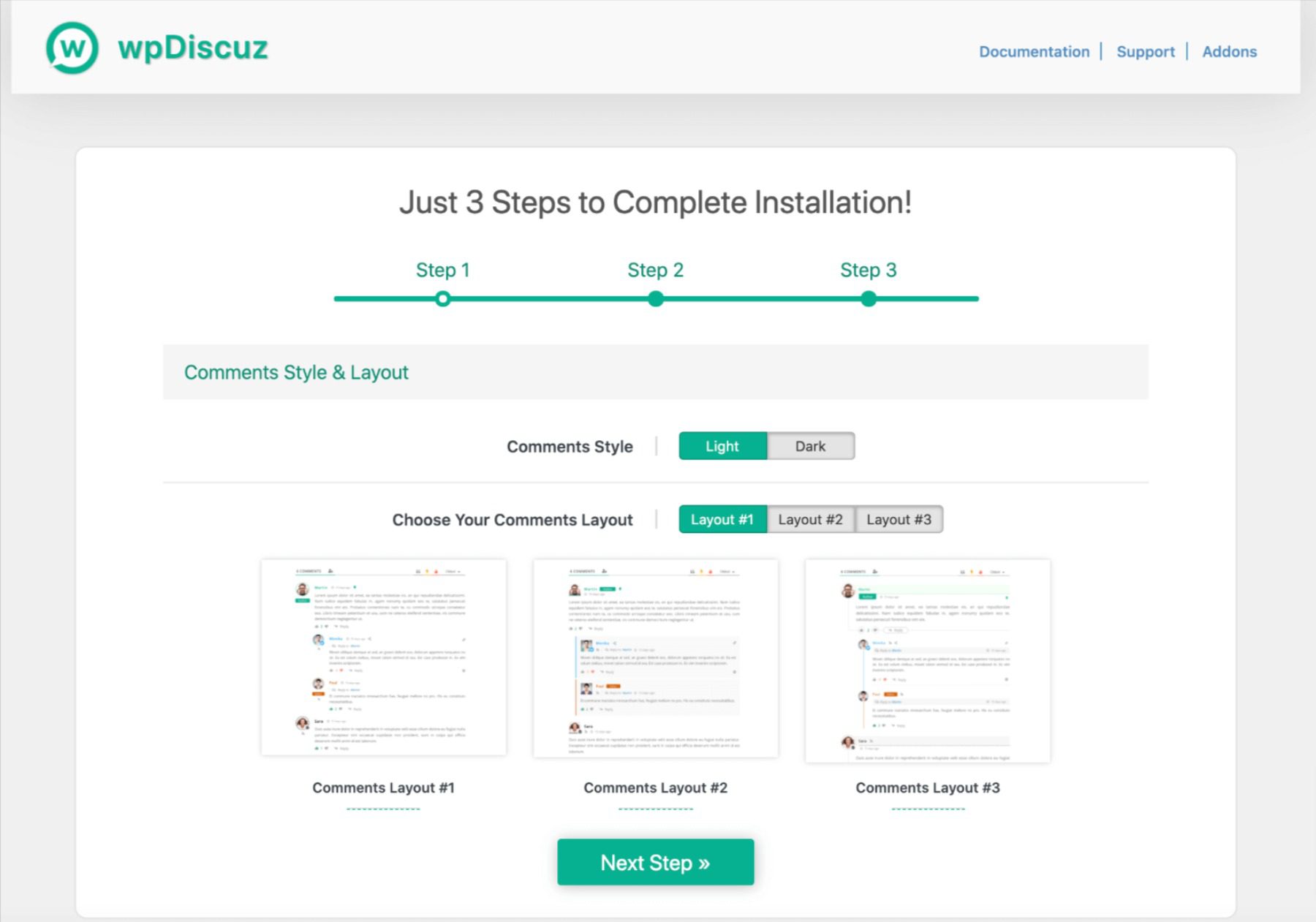
    If you want to drive engagement on your blog, it’s important to make the process as easy and enjoyable as possible for your readers. With wpDiscuz, you can completely customize the native commenting system in WordPress to improve its UX for you and your visitors.

    One of the most notable features of this plugin is the comment form layouts it provides:

    The wpDiscuz comment form layout options.

    It also enables inline commenting, which can be useful for long-form content that covers several subtopics:

    The wpDiscuz inline commenting feature.

    Key Features:

    • Social commenting and social login
    • Real-time comment updates
    • Five-star article rating system
    • Read more buttons for long comments, and View replies buttons for comment threads
    • Author notifications and comment subscriptions
    • Smart comment voting system with cookie tracking

    wpDiscuz is for you if…

    …you want a fully customized commenting experience.

    Price: Free with premium add-ons | More Information

    9. WP Discourse

    The WP Discourse plugin.

    Finally, the last of our best comment plugins for WordPress is WP Discourse. Discourse is a third-party discussion platform that you can integrate with your website.

    Discourse is primarily a forum-style discussion platform. It’s open source, so you can download and install it on your own server, or purchase a hosting plan if you would prefer not to deal with the technical aspects of using it.

    You can publish your WordPress posts to Discourse to facilitate community interaction there, and also display Discourse forum comments on your site. This gives users multiple ways to engage with your content. Plus, you may pick up some new readers by featuring your blog posts in multiple locations.

    To help you manage all this, the WP Discourse plugin provides advanced comments settings for you to configure:

    The WP Discourse comments settings.

    Just keep in mind that the plugin only connects your site to Discourse. You still have to install the software yourself or pay to have it hosted for you.

    Key Features:

    • Automatically publish WordPress content to Discourse
    • Sync author accounts between WordPress and Discourse
    • Embed forum discussions in your blog posts
    • Log in to Discourse via WordPress using Single Sign On (SSO)

    WP Discourse is for you if…

    …you’d like to offer your users a more forum-like comment experience.

    Price: The plugin is free, while you can self-host Discourse or pay for a hosting plan starting at $100 per month | More Information

    Conclusion

    Whether you’re looking to gain more control over your WordPress comments settings or you want to integrate your site with a community platform, there’s a plugin that can help. With the right tool, you can boost user engagement and prevent unruly spam.

    In this post, we reviewed nine of the best comment plugins for WordPress. If you want more control over your site’s comment section, we recommend starting with Disable Comments. It’s simple to use and provides the settings you need for your comment section.

    Do you have any questions about which comment plugin to use on your WordPress site? Ask away in the comments section below!

    Featured Image Illustration via Julia Tim / shutterstock.com

    The post 9 Best Comment Plugins for WordPress in 2023 appeared first on Elegant Themes Blog.