EDITS.WS

Tag: WordPress Essentials

  • How to Create a Block Theme for WordPress (The Easy Way)

    Creating a WordPress Block Theme for your website isn’t as hard as you might think. WordPress Block themes have been growing in popularity since their introduction in WordPress 5.9 with a growing number of premade block themes available in the WordPress repository. And, for those who want to create a WordPress block theme on your own, you’re in luck. The Create Block Theme plugin simplifies the process so you create a custom block theme quickly without extensive coding. Plus, you can even use it to create a child theme for your site.

    In this post, we’ll explain the benefits of using the Create Block Theme plugin and how to create your own block theme in a few clicks.

    What is a WordPress Block Theme?

    WordPress block theme

    A WordPress block theme is a full site editing theme for WordPress based on blocks. A block theme allows you to create any page or post using a drag-and-drop interface with blocks and block patterns you can use to build your content. You can even create custom templates and template parts (like headers and footers using the site editor.

    Additionally, it is easier to add custom styles to a block theme. There’s no need to edit the functions.php, style.css, or other theme files to create custom blocks, fonts, or add theme styling. Everything can be accomplished by editing one file – theme.json. WordPress considers block themes to be the future of WordPress. Thankfully, there are quite a few advantages to using them.

    Intro to the Create Block Theme Plugin

    For this post, we’ll be highlighting the Create Block Theme plugin, which is a free plugin available in the WordPress plugin repository. It allows you to create a new theme, blank theme, or child theme quickly. You can also embed Google fonts – either via CDN or locally.

    The Create Block Theme plugin saves you a ton of work creating child themes by allowing you to create and install one in a matter of minutes. Let’s take a look at the steps you’ll need to take to use the plugin.

    Key Features

    The Create Block Theme plugin has some amazing features to make theme creation easy and fast:

    • Create a block child theme with a single click.
    • There’s no extensive coding required.
    • It’s easy to clone a theme.
    • You can export WordPress block themes for use on other projects.
    • You can create a blank block theme.
    • Add a new style variation to the global styles in site editor

    How to Create a WordPress Block Theme?

    Before we use the plugin to create a block theme, you must first install and activate a parent block theme. For this tutorial, we’re going to use the Twenty Twenty-Three theme.

    Install A Parent Block theme

    To get started, log in to your WordPress dashboard. Next, navigate to Appearance > Themes.

    WordPress dashboard

    You can choose any theme you wish – as long as it’s a WordPress block theme. If you’d like to use a block theme other than Twenty Twenty-Three, start by clicking the Add New button in Appearance > Themes.

    Add new theme

    Click the block theme tab to reveal the options for available block themes.

    choose WordPress block theme tab

    Once you find the desired theme, hover over it, then click the Install button.

    Install block theme

    Install Create Block theme Plugin

    The next step is to install the Create Block Theme plugin. There a few ways to install a WordPress plugin, but this one can easily be installed from the dashboard. Start by navigating to Plugins > Add New in the WordPress dashboard.

    Add new plugin

    Type Create Block Theme in the search box. When the page refreshes, select the plugin, then click Install Now.

    Install Create Block Theme plugin

    Once installed, simply activate the plugin.

    activate plugin

    Configure the Create Block Theme Plugin

    Now that the plugin has been installed, navigate to Appearance > Create Block Theme.

    configure Create Block Theme plugin

    In the plugin’s settings, you’ll have a few options:

    create block theme settings

    1. Export (theme name)
    2. Create child of (theme name)
    3. Clone (theme name)
    4. Overwrite (theme name)
    5. Create blank theme
    6. Create a style variation

    Export Theme

    This setting allows you to export the activated theme along with any changes you’ve made. Any templates, global styling, fonts, or other structural changes will be present. Using this setting, you can export the theme, then use it in other WordPress installations. All of your settings will be preserved.

    To export your currently installed theme, select the export option, then click the generate button. The file will be downloaded to your downloads folder as a zip file, like any other WordPress theme.

    Create Child Theme

    create child theme

    This option allows you to create a child theme based off of your current parent theme. Before generating the child theme, be sure to give your theme a name, description, URL, note the author, as well as the author URL if you choose to. Once you click the generate button, the plugin will automatically download your child theme as a zip file.

    Clone Theme

    clone block theme

    When cloning your block theme, the plugin will create a new theme. The clone will retain all assets of the parent theme, as well as any user changes. Similarly to creating a child theme, be sure to name your theme, give it a description, and note a theme URL, author, and author URL.

    Overwrite Theme

    overwrite theme

    When you overwrite your block theme, all user changes will be saved and converted to theme changes. Any templates you create or style changes you make will be saved into theme files, making them a permanent part of the theme.

    Create Blank Theme

    create blank theme

    When you select this option, a blank theme will be created within your website’s theme directory. Before generating your new theme, give it a name, description, and theme URL (if desired), note the author, and author URL. Upon clicking the generate button, you can navigate to Appearance > Themes to view your new blank theme.

    new blank theme

    Create a Style Variation

    Style variations are located in Appearance > Editor. To locate them, navigate to the theme editor, then click the styles button at the top right corner of the editor. There, you can create new styles for text, colors, and buttons. There are additional options for styling individual blocks, too.

    theme styles

    Once you’ve created styles, you can create a style variation in the Create a Block Theme plugin by choosing the last option in the settings. Give your style a name, then click Generate.

    new style variation

    To view your new style, navigate back to Appearance > Editor, click the style icon, and select browse styles. There you can browse through the styles to locate the new one you just created.

    custom style

    Manage Theme Fonts

    To manage the fonts installed in your theme, navigate to Appearance > Manage Theme Fonts. There you’ll be able to view all of the installed fonts in your theme.

    manage theme fonts

    One of the most surprising and amazing features of the Create Block Theme plugin is the ability to manage your theme’s fonts. In this section of the plugin, you can remove entire font families or a single variation. Additionally, you can easily add Google fonts to your theme either by hosting them locally or calling them through the Google Fonts CDN. Here are some of the best Google fonts for the web.

    To remove a font family or font variation, simply click the remove link next to the family or variation you’d like to remove from your site.

    remove font

    Add a Google Font

    To add a Google font, start by clicking the Add Google Font button at the top of the page.

    add Google font button

    When the page refreshes, use the dropdown menu to select a font. You’ll be able to choose any font in Google’s font library.

    select a font

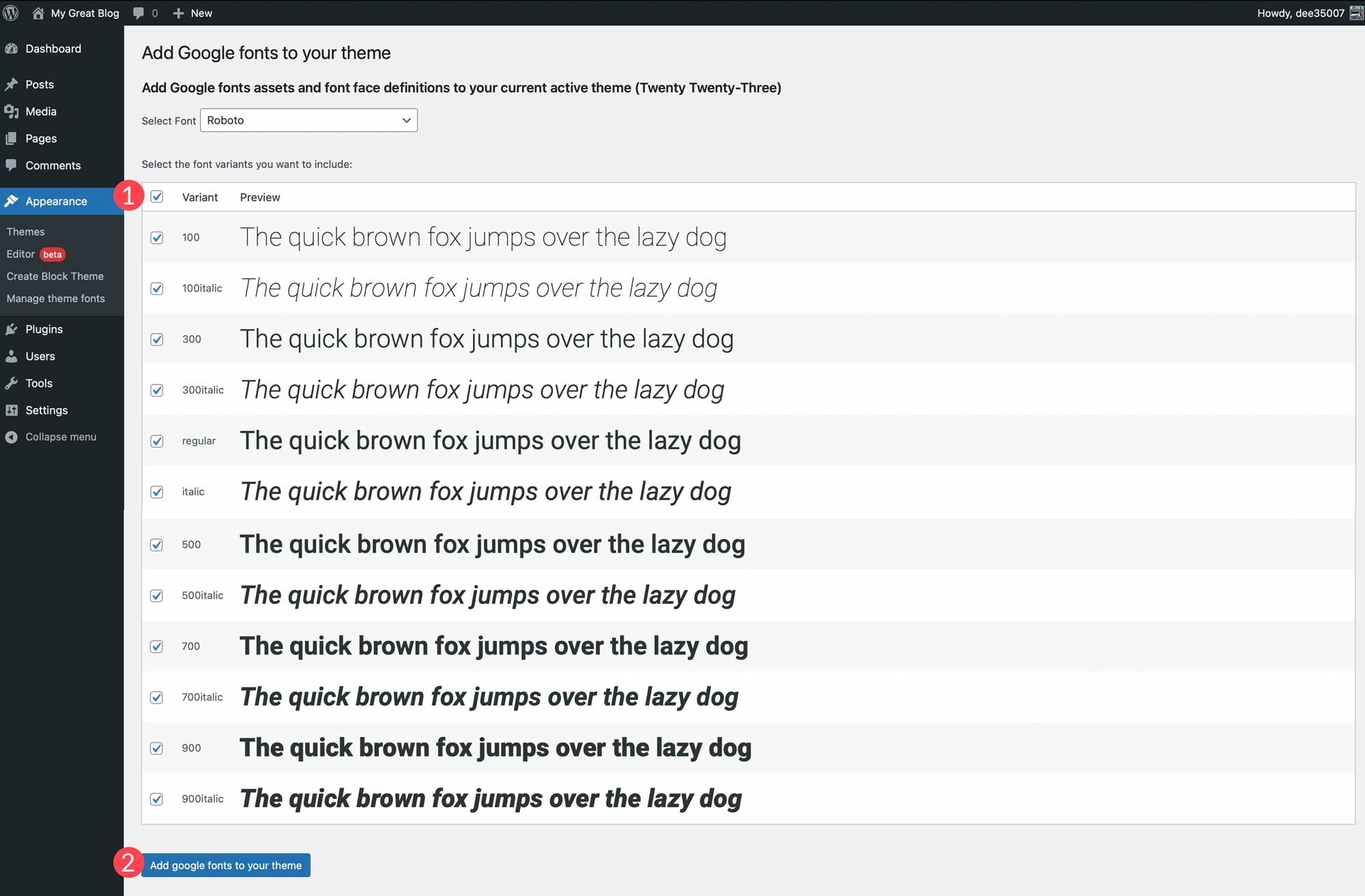
    Once you make a font selection, you’ll have the option to choose the variants you wish to include. You can choose all by clicking the checkbox at the top or choose individual ones. After choosing variants, click the Add google fonts to your theme button.

    Add Google font

    You can also add local fonts to your theme. Start by clicking the Add Local Font button. Fonts in the ttf, off, and woff2 file formats are supported.

    add local font button

    Upload a font by choosing a file saved on your local machine. Next, give it a name, and apply a font style, and font weight. Finally, click Upload local fonts to your theme.

    Once fonts are installed, they can be managed within the Create Block Theme plugin and applied to styles in the site editor.

    fonts in style editor

    After fonts are added, you can head back over to the Create Block Theme tab to apply one of the options to create a child theme, export it, clone it, or overwrite your current theme. All fonts will be preserved along with style variations, as well as templates that you create.

    Creating a WordPress Block Theme Doesn’t Have to Be Hard

    Thanks to the Create Block Theme plugin, it’s easier than ever to create a block theme for your website. You can create your own theme templates using the full site editor, add new styles, add and manage fonts, and even export your block themes for use on other projects. There’s no coding, no theme files to alter, and it’s all done within a few clicks. If you’re looking to start using block themes, or are looking for an easy way to manage them, consider using the Create Block Theme plugin.

    For those using page builders, there should be built-in options for creating custom themes. With Divi, you can easily import and export all of your templates and designs using the theme builder. This allows you save entire site styles to be used like a child theme to kickstart new website builds in a few clicks.

    Have you made the switch to WordPress block themes? If so, let us know in the comments below.

    The post How to Create a Block Theme for WordPress (The Easy Way) appeared first on Elegant Themes Blog.

  • How to Add Internal Links in WordPress the Easy Way (Using Link Whisper)

    When it comes to SEO, internal links are critically important to the success of your website. That being said, adding internal links to WordPress can be a daunting task, especially if you have tons of content that needs to be optimized. Thankfully, there is an easy way to set internal links in WordPress automatically with the Link Whisper plugin. In this post, we’ll demonstrate how to use Link Whisper as an essential part of your SEO link strategy. Let’s get started.

    What are Internal Links?

    Internal links are links that guide a user to another post or page on your website. They can be inserted into posts, pages, images, menu items, or projects in WordPress. Without them, your missing opportunities to send your site’s visitors to other areas of your website you wish them to visit.

    Why are Internal Links Important to SEO?

    Internal links help SEO

    Using internal links in WordPress is a huge piece of the SEO puzzle. Internal links help SEO by alerting your site’s visitors to other areas of your site that may be of interest to them. You can use them to highlight products, services, or a post or page that is relevant. You see, when search engines crawl your site, they aren’t only looking for keywords. They also look for both internal and external links. Internal links help Google to understand which posts and pages are most important on your website. Plus, pages with internal links are much more likely to be indexed, increasing the chances of your content ranking higher in SERPs. In short, Google likes them.

    Using internal links is typically a good way to increase traffic to your site, but there are caveats if not done properly. You should ensure that you don’t put too many links in one page. Doing so can frustrate and confuse your site’s visitors. Also, make sure your links are relavant. If not, you could actually hurt your SEO. Knowing the importance of internal linking, you’re probably thinking to yourself, this could take forever with all the content I have on my site. No worries. We’re going to show you how to add internal links to your site automatically, using the Link Whisper plugin.

    What is Link Whisper?

    Link Whisper plugin

    Link Whisper is a WordPress plugin that helps you add internal links to your content. Link Whisper will offer suggestions on where to add links, as well as what anchor text to use. Additionally, it helps to identify orphaned pages in your site, which can limit your chances of ranking high in SERPs. Link Whisper can also suggest links as your write new content, which is a huge time saver. Also, you can run a site scan to help identify which pages actually need them.

    Link Whisper free

    Link Whisper is offered in two variations. First, you can download the free version in the WordPress repository. It comes with some very basic features that provide you with automatic links suggestions as you write, a well as internal link reporting. In the reports, you’ll get insight on pages with orphaned content, as well as outbound internal and external links.

    With the premium version of the plugin, you’ll get a few added bonuses. In addition to the features on the free version, you’ll get more in-depth reporting on links, as well as a robust auto-linking feature that enables you to add links in one click. You just input the keyword of your choice, specific the URL, and Link Whisper does the rest for you.

    For this post, we’re going to show you how to add internal links using both the free and premium versions of the plugin.

    How to Add Internal Links in WordPress Using Link Whisper Free

    In order to use Link Whisper correctly, there are a few steps to take. Let’s walk through them one by one so you can get comfortable using it on your website.

    1. Install the Plugin

    Log in to your WordPress website and navigate to Plugins > Add New. Enter for Link Whisper in the search bar. When the plugin appears, click Install Now to install the plugin.

    Install Link Whisper

    2. Configure Link Whisper Settings

    Next, navigate to Link Whisper > Settings in the WordPress dashboard. There are a number of settings here, some of which you may want to adjust depending on your setup. First, you can choose whether to ignore numbers. By default, this setting is enabled. Next select your language. Then, you can choose from a list of common words you can ignore. Under Post Types to Create Links For, choose any that you wish to omit from Link Whisper. This will vary depending on what taxonomies you have on your site. The next setting lets you choose the term types to create links for.

    The next setting is a pretty important one. Link Whisper allows you to choose how many sentences to skip when it adds links. By default, there is selected. The reason this is important is to not add too many internal links to any one post or page. As previously mentioned, having too many links can confuse your site’s visitors and Google. Too many links can’t keep your site from ranking well. The last option, Delete all Link Whisper data, should only be enabled if you plan to start over on your links, or when planning to delete the plugin.

    When finished with your settings, click the SAVE button.

    Link Whisper internal links WordPress settings

    3.Internal Link Reporting

    Next, navigate to Link Whisper > Report. When the plugin was installed, it automatically ran a report of all posts and pages on your site. On the reporting page, you can see a list of any inbound internal, outbound internal, and outbound external links on your site.

    4.Review Link Suggestions

    In the free version of Link Whisper, you can navigate to any post or page on your site and scroll down to the Link Whisper settings underneath your content. You will find suggestions for internal links to other posts or pages depending on keywords. Link Whisper will highlight the text in your content where it thinks an internal link should be.

    Link Whisper internal link suggestions

    5.Adding an Internal Link

    With the free version of Link Whisper, you take the link suggestions given in the previous step and add the suggested links to your page or post. Although it won’t add it for you, you can easily copy the link in the suggested links area then place the link in the corresponding suggested text on your page.

    Copy link suggestion

    Adding Internal Links with Link Whisper Premium

    The premium version of the plugin makes it simple to add internal links in WordPress, both inbound and outbound. Repeat the steps to run the initial link scan after plugin installation, then navigate to the links report in Link Whisper > Reports.

    internal links

    Next, choose whether you’d like to add inbound internal links or outbound internal links. Then, click Add on the post or page you’d like to add links to. For this example, we will add outbound internal links to a post.

    Add outbound internal links

    Link Whisper will open the post using the page editor. Scroll down to the Link Whisper settings. By default, it will suggest target keywords for your post, and provide link suggestions for it. There are a number of other settings you can configure as well. You can scan your page content for keywords, or add custom ones. Additionally, you can choose to show link suggestions for the same category, or select certain post types. Link Whisper will provide its suggestions for links, and enable you to add them with the click of a button.

    To add all links, simply click Check All. Alternatively, you can select one or more by selecting the checkbox next to the suggested link. Finally, to add the link, click the Insert Links Into Post button.

    Insert links into post

    Adding Internal Links to WordPress Is Easy With Link Whisper

    Internal links are an important component to your site’s success in SERPs. Thankfully, using Link Whisper makes that a much less tedious task. The free version of the plugin has some nice features that will allow you to identify keywords in your posts and pages, then offer link suggestions. The premium version takes those suggestions to a different level with its auto-linking capability. Either way, Link Whisper provides an easy way to add internal links to your website.

    For more, you may like these tips for SEO link building.

    Do you have a tool or method you use to add internal links to your site? Let us know in the comments below.

    The post How to Add Internal Links in WordPress the Easy Way (Using Link Whisper) appeared first on Elegant Themes Blog.

  • How to Duplicate a Page in WordPress (3 Simple Ways)

    As we all know, WordPress is a powerful tool that allows users to build websites. You can create articles (more commonly known as blogs or blog posts), upload documents, manage images and so much more. What started out as a blogging platform, has grown over the years into the content management system (CMS) of choice for more than one-third of the internet.

    However, amidst the many features that WordPress can boast of (like full-site editing), you aren’t able to duplicate a post or page out of the box. It seems like a slight oversight, but not one that we can’t fix ourselves. In this article, we’ll go over three easy ways that you can use to duplicate a page in WordPress.

    Reasons to Duplicate a Page

    There are many reasons why one may want to duplicate a page or post in WordPress. An example might be that you’ve built a really awesome landing page for a new product that you’re launching. However, you may want to do some A/B testing for some Facebook ads that you’re running to promote this product. As opposed to redoing all your hard work again, you can simply duplicate said page, make some slight tweaks and cut your design time all the way down.

    Another reason to duplicate a page is to help with your design process. If you have a really large site, you may need to duplicate a number of pages to add additional content for other members of your team. If you had to re-create each page repeatedly, you could slow down your design process which could lead to timelines being missed. Not to mention that you might leave some of your teammates a tad bit upset. As such, having a quick and easy way to duplicate pages is something that can come in handy in your day-to-day while working on your WordPress website. This is one of the reasons we added the Divi Cloud feature in Divi. With it, you can store all kinds of page layouts and more to speed up the design process.

    Watch Out for Duplicate Content

    Duplicating a page in WordPress should always be a means to an end. You don’t want to have two pages with the same content live on your site. This is bad practice and will have a negative effect on SEO. To learn more, check out our ultimate guide on duplicate content and SEO.

    How to Duplicate a WordPress Page (Step-by-Step)

    Now that we know why one would want to duplicate a page, let’s get into the three different ways that you can duplicate a page on your latest WordPress project.

    1. Duplicating a Page Using a WordPress Plugin

    There are a number of WordPress plugins that can be used to duplicate pages on WordPress. Always bear in mind what features you are looking for as well as the ratings and reviews of a plugin before installing it onto your WordPress website. Bearing all these things in mind, for this tutorial, we’ll be using the free version of the Duplicate Page plugin.

    To install the plugin, follow these steps:

    1. In the left-hand menu, click Plugins, and then click Add New
    2. In the search field that appears at the top right of the screen, type duplicate page
    3. Look for the Duplicate Page plugin, and then click Install Now

    Steps to duplicate a page in WordPress using a plugin

    Once the plugin is installed and activated, navigate to the Pages section of your website. To navigate there, click Pages and then click All Pages from the left-hand menu. Now, you will notice that when you hover over the name of a page, an additional menu item has been added titled Duplicate This.

    Using the newly added Duplicate This button from the plugin just installed

    Once you are ready to duplicate your page, simply click the Duplicate This link under the page listing that you would like to duplicate. That’s it!

    After that, you can edit the new duplicate page as needed. Make sure to edit the permalink for the new page. As it’s a duplicate, the permalink URL will also be copied over so ensure to edit it to match your new content.

    Remember to change your permalinks after duplicating a page!

    It is a good idea to visit the Duplicate Page plugin’s settings to make sure it is functioning the way you need it to.

    Duplicate Page Plugin - Settings Page

    The options allow you to control how you want pages to be duplicated and where you want the duplicate page link to be displayed.

    2. Duplicating a Page in WordPress with Divi

    For Divi users, you can easily duplicate pages (or templates) in WordPress. When using the Divi Builder, you have a built-in option to duplicate (or clone) existing pages in WordPress whenever you create a new page.

    Cloning an Existing Page Using the Divi Builder

    To duplicate a WordPress page in Divi, simply click to use the Divi Builder when editing a new page.

    When you click to use the Divi Builder to edit a page, you will see a popup that gives you three options as to how to proceed with your new page. The option we’re interested in is the third and last option, Clone Existing Page.

    Duplicating a page in WordPress using the Divi new page popup

    Once you select the clone existing page option, you will see all the existing pages within your site that you can choose to clone.

    select duplicate page in Divi Library

    Simply select the page from the list and the page will be duplicated and ready to edit. You won’t need to change the permalink as you’ll be working from a brand new page.

    Using Divi Layouts

    One of the great features of Divi is easy it is to add, create, and manage page layouts. A page layout contains the entire page design and content. Divi comes with over a thousand pre-made page layouts to jumpstart your page design and content. Plus, you can save your custom page layouts in your Divi Library for later use. Or you can save them to your Divi Cloud and duplicate cloud items all in one place. This takes the process of duplicating pages to a whole new level!

    3. Duplicating a Page in WordPress Manually: Copy and Paste

    To duplicate a page in WordPress manually, you can simply go into your page and copy the content within that page. Then paste the content into a newly created page.

    Copy and pasting content also allows you to duplicate the contents of a page in WordPress

    Here’s how to do it. First, navigate to All Pages.

    Navigate to All Pages

    Once you have your list of pages, here’s what happens next:

    1. From the list of pages, hover over the page that you’d like to edit.
    2. Then, select Edit under the page that you would like to duplicate

    Edit all pages

    After you have entered the page editor, do the following steps:

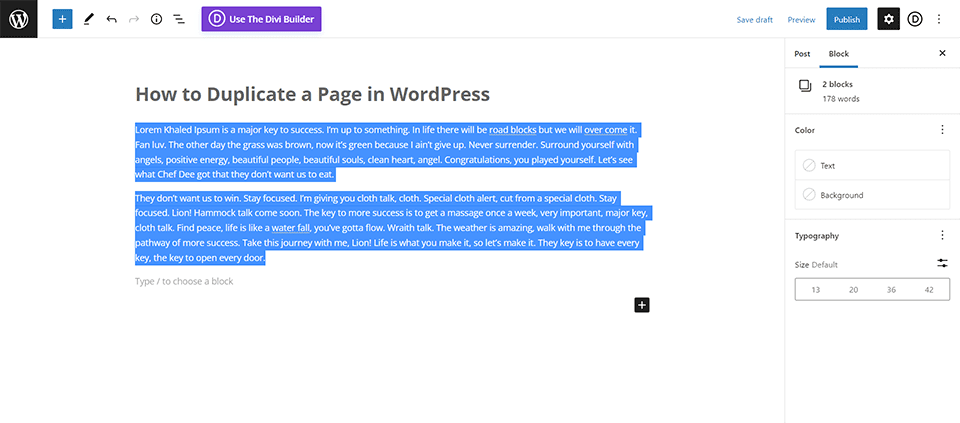
    1. Next, highlight all the content within the main content area.
    2. Using your mouse, move over to the highlighted content and right-click. Then, select Copy from your system menu.
    3. Towards the top of the page, click on the WordPress icon. This will take you back to the All Pages screen.

    Right Click Copy and Go Back to the All Pages screen

    You will now need to create your new page by clicking on the Add New button from this screen.

    Add new page

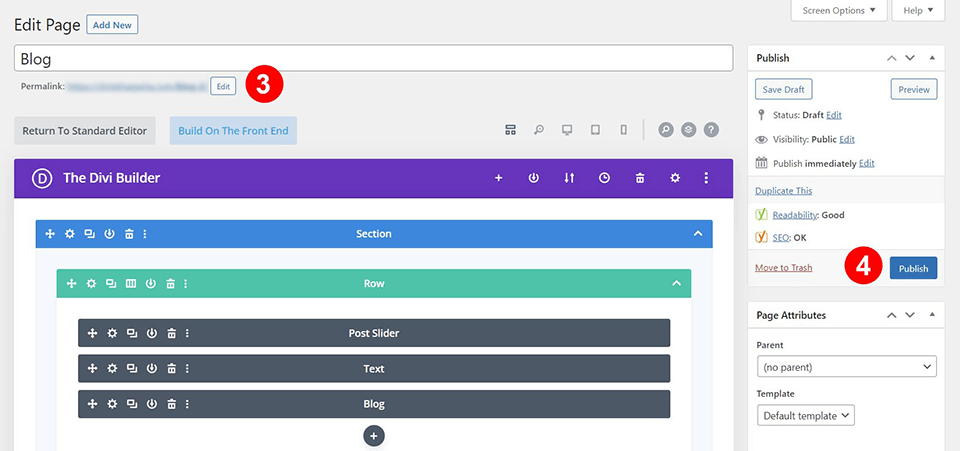
    Once you have a new, blank page in front of you, using your mouse, right-click, then press Paste. This will bring the content from the former page into this new page. Make any necessary edits that you need to make, and then click Publish from the Publish box at the top right-hand side of the page.

    TIP: If you used any special code within the page, it would be ideal to switch to the text/HTML tab editor to ensure that you are copying the code used on the page, in addition to the written content.

    In Conclusion

    While WordPress doesn’t have an out-of-the-box solution to duplicate pages, it is not something that is out of the question. With handy tools like Duplicate Page plugin and the Divi Builder, plugins and maybe even a bit of code here and there, you’ll be able to speed up your process, create content faster and copy pages across your WordPress install with ease.

    Do you have a favorite method for duplicating pages in WordPress? Let us know in the comments below!

    The post How to Duplicate a Page in WordPress (3 Simple Ways) appeared first on Elegant Themes Blog.

  • How to Change Fonts in WordPress (8 Ways)

    Fonts play an essential role in the design of your website. They set the tone for the design and overall aesthetic and can either enhance or hinder its look and feel. Once you have chosen the font sets for your website, you’ll need to know how to change them. There are multiple ways to change fonts in WordPress. How you change them depends on a number of factors including what type of theme you use, whether you will require a plugin, or if you plan to add them manually. In this post, we’ll discuss each method and show you how to change fonts in WordPress. Let’s get started.

    What are Web Fonts?

    Google fonts

    Web fonts are provided by Google, Adobe, FontSpace, and others. They give you the ability to embed fonts into your website to change the design. Unlike desktop fonts, web fonts are stored in the cloud. When a visitor hits your site, web fonts are pulled in dynamically from the font provider. They are displayed on your website within a matter of seconds when optimized correctly. Web fonts are a quick and easy way to use multiple fonts without having to embed them into your website.

    The 4 Web Font Types

    Similar to desktop fonts, there are four major font types:

    • Serif: Serif fonts are usually only suitable for use on headings because of their embellishments, which are usually located on the top and bottom of each letter.
    • Sans Serif: Alternatively, Sans Serif fonts can be used on both headings and body text because they are clean and easy to read.
    • Script: Script fonts should generally be used sparingly due to their whimsical appearance.
    • Display: Lastly, display fonts are typically bold and chunky fonts, so they should be used in a limited capacity for headings, but never as body text.

    Using Web Fonts in WordPress

    There are a few ways to use web fonts in WordPress. You can embed them manually, use a plugin, or use your theme’s settings, whether it is a full site editing block theme, a generic WordPress theme, or a theme which uses a theme builder. In most cases, developers will resort to using Google Fonts in WordPress because they are free and easy to integrate.

    How to Change Fonts in WordPress (8 Ways)

    How you change fonts in WordPress can be achieved in a number of ways. Certain premium themes like Divi have a built in font manager with Google fonts automatically loaded. Additionally, Divi allows you to enable all Google font subsets in the theme options, in case you want all of them to be included.

    In some other themes aside from Divi, you can use the customizer settings to change the theme’s default fonts. Depending on the theme, there could be limited fonts available with this method. If you are using full site editing (FSE) block themes such as Twenty Twenty-Two, you can add them into the theme.json file. Additionally, you can install a font manager plugin, or use the Gutenberg block editor. Lastly, you can manually add them. Let’s take a look at how to change fonts in WordPress using each method.

    1. Using the Theme Customizer Options to Change Fonts in WordPress

    When using the WordPress theme customizer, there are a few options depending on your theme. As an example, we’ll use the Genesis theme to change the default font. Log in to your WordPress panel. Navigate to Appearance > Customize.

    WordPress customizer

    When the customizer screen appears, click on Typography. There will be two options including Font Manager and Add Typography. Under the first option, click to activate the dropdown menu. From there, you can scroll through or search for a specific font to use on your site. Once you chose a font, click the Add Font button to add the font to your site. You can repeat the steps to add additional fonts that can be assigned to certain elements

    Adding fonts to WordPress

    The second option, Typography Manager allows you to assign fonts that have been added to your site to different areas. In our example, you can add them to the body, site title, site description, menu items, headings, and more.

    This is where you can change fonts as well. First, select the target element you wish to change the font for. Next, select the font family. Choose the font weight, and any text transformation you wish to apply. Then, choose the font size, weight, line height, and letter spacing. Repeat the process for other elements as you see fit.

    Change font in WordPress theme customizer

    2. Changing Fonts Using WordPress Full Site Editing

    Most full site editor themes come preloaded with a few fonts to choose from. Themes such as Blockbase, Emulsion, Aino, and Twenty Twenty-Two give you the ability to change fonts in the theme’s editor. For example, we’ll use the Blockbase theme. To change fonts, navigate to Theme > Editor.

    Aino theme change font

    Next, click the style icon on the top right side of your screen.

    change fonts in WordPress FSE

    Next, click the typography section to change the font for your theme.

    Click typography

    In our example, you can change the text for your site as well as links text.

    select text

    Under font family, click the drop down menu to reveal your font choices. Select the font you wish to apply. You can also choose to set the font size, line height, and appearance. After making a selection, click the save button at the top right of the page to apply your changes.

    Apply change to font FSE

    3. Changing WordPress Fonts with the Block Editor

    Using the block editor, you can change the appearance of your fonts. You can change text and text background color, as well as set a size and appearance. The appearance option generally includes font weight, which is dependent on the font chosen in your theme’s settings.

    There are additional options in blocks with text. Text can be bolded, italicized, and you can set the alignment of your text.

    text module options block editor

    There are additional options to highlight your text, as well as add inline code and images, or strikethrough it. Lastly, you can add subscript charaters, as well as superscript ones.

    block editor additional options

    4. Using a Plugin to Change Fonts in WordPress

    As previously mentioned, generic WordPress themes will need the help of a plugin such as Fonts Plugin | Google Fonts Typography in order to change fonts in WordPress. We’ll walk through the steps to install the plugin, configure it, and show you how to change fonts on your site while using it.

    Navigate to Plugins > Add New. Search for Fonts Plugin | Google Fonts Typography in the search bar. Click Install Now to add the plugin to your website.

    Google Fonts Typography install

    Next, activate the plugin.

    Activate the plugin

    To access the plugin, navigate to Appearance > Customize. When the page reloads, there will be a new section added to your customizer called Fonts Plugin.

    fonts plugin

    Plugin Settings

    font plugin basic settings

    Once you click the tab, there are four menu options including basic settings, advanced settings, font loading, and debugging. Basic settings enables you to choose a default font family from over 1400 Google font options. You can also set a font for headings, as well as buttons and inputs.

    Advanced Settings allow you to change the fonts for branding, which includs your site title and tagline. Under navigation settings, you can change the font for your site’s navigation menus.

    Fonts plugin advanced settings

    Under the Content Typography section, you can change body text, as well as the font for all headings tags individually.

    change font content typography

    The Sidebar and Footer tabs allow yout to change the fonts for those sections of your site, which include both heading and content typography. The last tab, Load Fonts Only, allows you to load certain fonts, but doesn’t automatically add them to an element. This is useful when you want to use fonts only on certain blocks. The Font Loading tab is exclusive to the pro version of the plugin.

    font plugin debugging

    Under Debugging, you can enable the force styles checkbox which will allow you to determine why your fonts aren’t loading. An additional checkbox, disable editor controls, removes the font controls from individual posts and pages. Font display gives you four options including swap, block, fallback, and optional. The Reset All Fonts button will allow you to reset all of the changes you’ve applied in the plugin.

    5. Using the Divi Theme Builder to Change Fonts

    Divi by Elegant Themes

    Divi is one of the most powerful theme builders in the world. When it comes to changing fonts in WordPress, there are a ton of options with Divi. First, it comes standard with built-in Google fonts. Fonts can be used in any module with text options, as well as the theme builder. Divi makes it easy to style fonts, and combined with the theme customizer, you can set fonts globally. Let’s take a look at how to work with fonts in Divi.

    To set fonts as a default font, enable the theme customizer. Start by navigating to Theme > Customize from the WordPress admin panel. When the customizer loads, click General Settings > Typography. There are multiple options available to set body and heading size, as well as line height, letter spacing, font style, heading and body font, and colors for each. Divi has the entire Google font library built in, so choices for font are nearly unlimited.

    Divi theme customizer options

    In addition to the theme customizer options, fonts can be changed at the module level where text is present. As an example, we’ll demonstrate how to change fonts in the text module. Under the design tab, you’ll find all of the text settings available to you. You can change body text, heading text, as well as color and styles for both. If you want to adjust the heading font, simply click into the dropdown menu to activate it. You can change your font, then a number of font styles including the font weight, style, text alignment, color, size, and more.

    Change Divi heading font

    6. How to Add a Custom Font in WordPress Manually

    Thankfully, if you plan to manually load a custom font onto your site, it’s a fairly easy process. That being said, you will need to be comfortable editing theme files. We suggest using a child theme **link to ultimate guild on how to use a child theme** to perform this action, since the slightest error can send your site into a tailspin. Keep in mind that adding a custom font to a generic WordPress theme won’t give you a ton of options, but it will keep your site free of speed-draining bloat. This is useful if you know you plan to only use a couple of fonts, and don’t require a ton of options.

    You’ll need to have a general understanding of how the WordPress file structure works, along with basic coding skills. We’ll be editing a couple of theme files and adding some CSS. Finally, you’re going to need your favorite code editor and an FTP program such as FileZilla.

    For our example, we’re going to add the Google font Roboto. The first step is to head to Google Fonts and find Roboto. Select the font styles you want to embed.

    Change font in WordPress manually

    Adding the Code

    There are a couple of ways to do this, but for our example, we’re going to do it the WordPress preferred way of enqueuing. First, copy the link to the Roboto font. This is included in the embed code from Google and will look like this example.

    https://fonts.googleapis.com/css2?family=Roboto:wght@100;300;400;500;700;900&display=swap
    

    Next, open FileZilla and connect to your website via FTP. Navigate to /public-html/wp-content/themes/yourthemechild/functions.php. It’s a good idea to use a child theme for this process since you will be editing a core theme file. Note: replace yourthemechild with your child theme’s name.

    open functions php in FileZilla

    Right click on the file to open it. Add the following code at the end of the other code in the file.

    function add_my_font() {	 	 
    wp_enqueue_style( 'add_my_font', 'https://fonts.googleapis.com/css2?family=Roboto:wght@100;300;400;500;700;900&display=swap', false ); 	 	 
    }	 	 
    add_action( 'wp_enqueue_scripts', 'add_my_font' );
    

    Next, you’ll need to tell WordPress where you want the font to be used. For this, we’ll add a bit of CSS to our child theme’s style.css file. Locate the file in the same folder we worked out of. Add the following code:

    .body, .h1, .h2, .h3, .h4, .h5, .h6 { 
    font-family: 'Roboto', sans-serif;	 	 
     }
    

    This code tells WordPress that you want to use the Roboto font on all body text, as well as all headings on the site. Keep in mind that every theme is different, so if our code doesn’t work for you, reach out to your theme’s developer or use your browser’s inspection tool to locate the specific CSS rule for your fonts.

    7. Adding a New Custom Font in WordPress Full Site Editing Theme

    In full site editing (FSE) themes, it’s no longer necessary to use the @font-face CSS rule to add fonts. In FSE themes, you add the font to the asset/fonts/ folder, then call them in the theme.json file. Let’s go over the steps to add a custom font from Google Fonts to the Twenty Twenty-Two theme, then add the code to the theme.json file to use the font in your website.

    For this example, we’ll use the Roboto font family from Google Fonts. The first step is to download the font from the Google Fonts library. Click the Download Family button at the top right corner of the screen.

    Next, navigate to your WordPress themes files either on a local machine or via FTP. For this example, we’ll use a WordPress install on our local machine. Please note the file location, as you will need to call it in the code we’ll add to the theme.json file later.

    To locate your theme’s font folder, navigate to wp-content/themes/twentywentytwo/assets/fonts. Next, drag the downloaded font folder into the fonts folder of your WordPress install.

    drag font folder

    Next, locate the theme.json file by navigating to wp-content/themes/twentytwentytwo/theme.json.

    theme json file location

    Right click on the file to open it in your favorite code editor. Under the settings section of the theme.json file, scroll down to just past the source sans pro code in the typography settings.

    typography settings theme json

    Adding The Code to Theme.json File

    Next, add the following code after the }, in the Source Serif Pro font section, and before the closing bracket ], of the typography section:

    {
        "fontFamily": "\"Roboto\", sans-serif",
        "name": "Roboto",
        "slug": "roboto",
        "fontFace": [
            {
                "fontFamily": "Roboto",
                "fontWeight": "900",
                "fontStyle": "normal",
                "fontStretch": "normal",
                "src": [ "file:./assets/fonts/roboto/roboto-black.ttf" ]
            },
            {
                "fontFamily": "Roboto",
                "fontWeight": "700",
                "fontStyle": "normal",
                "fontStretch": "normal",
                "src": [ "file:./assets/fonts/roboto/roboto-bold.ttf" ]
            },
            {
                "fontFamily": "Roboto",
                "fontWeight": "200",
                "fontStyle": "normal",
                "fontStretch": "normal",
                "src": [ "file:./assets/fonts/roboto/roboto-light.ttf" ]
            },
            {
                "fontFamily": "Roboto",
                "fontWeight": "400",
                "fontStyle": "normal",
                "fontStretch": "normal",
                "src": [ "file:./assets/fonts/roboto/roboto-medium.ttf" ]
            },
            {
                "fontFamily": "Roboto",
                "fontWeight": "300",
                "fontStyle": "normal",
                "fontStretch": "normal",
                "src": [ "file:./assets/fonts/roboto/roboto-regular.ttf" ]
            },
            {
                "fontFamily": "Roboto",
                "fontWeight": "100",
                "fontStyle": "normal",
                "fontStretch": "normal",
                "src": [ "file:./assets/fonts/roboto/roboto-thin.ttf" ]
            },
            {
                "fontFamily": "Roboto",
                "fontWeight": "900",
                "fontStyle": "italic",
                "fontStretch": "normal",
                "src": [ "file:./assets/fonts/roboto/roboto-blackitalic.ttf" ]
            },
            {
                "fontFamily": "Roboto",
                "fontWeight": "700",
                "fontStyle": "italic",
                "fontStretch": "normal",
                "src": [ "file:./assets/fonts/roboto/roboto-bolditalic.ttf" ]
            },
            {
                "fontFamily": "Roboto",
                "fontWeight": "400",
                "fontStyle": "italic",
                "fontStretch": "normal",
                "src": [ "file:./assets/fonts/roboto/roboto-italic.ttf"]
            },
            {
                "fontFamily": "Roboto",
                "fontWeight": "300",
                "fontStyle": "italic",
                "fontStretch": "normal",
                "src": [ "file:./assets/fonts/roboto/roboto-lightitalic.ttf" ]
            },
            {
                "fontFamily": "Roboto",
                "fontWeight": "400",
                "fontStyle": "italic",
                "fontStretch": "normal",
                "src": [ "file:./assets/fonts/roboto/roboto-mediumitalic.ttf" ]
            },
            {
                "fontFamily": "Roboto",
                "fontWeight": "100",
                "fontStyle": "italic",
                "fontStretch": "normal",
                "src": [ "file:./assets/fonts/roboto/roboto-thinitalic.ttf" ]
            }
        ]
    }
    

    The file should now look like this:

    typography settings final

    Save the file and add it back to the fonts folder by overwriting the file on your local machine or uploading it via FTP.

    Viewing the Font In Twenty Twenty-Two Theme

    With the new font installed into your theme, you can view it by navigating to Appearance > Editor in Twenty Twenty-Two. When the screen refreshes, click the styles button.

    styles button

    Next, click typography.

    typography

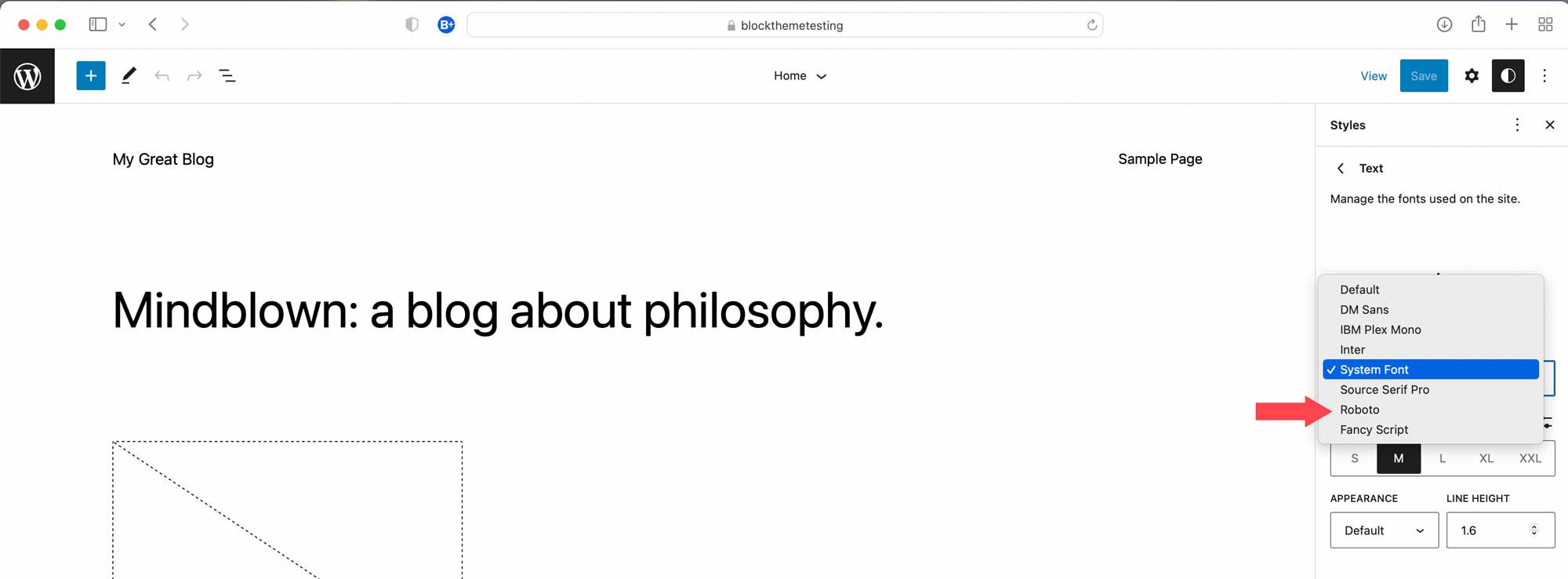
    Now you’ll be able to select the new font from the dropdown menu, as well as adjust the font weight and other text styling options for your site.

    roboto font

    8. Adding a New Custom Font in WordPress Using Divi

    Divi makes it easy to upload custom fonts into your website through a text module. Divi accepts both ttf and otf file formats. If you try to upload any other format, you’ll receive an error message.

    To get started, add or edit a page in your Divi website. Next, add or edit a text module in your page. Click on the settings icon in your text module to bring up the module settings.

    text module settings

    Next, click on the design tab, then expand the text settings. Click on the drop-down menu located next to the font name.

    text dropdown

    You’ll see a list of all fonts available in Divi, as well as the current font, and an upload button. To add a new custom font, click upload.

    upload new font

    The upload font popup window will appear. Either click the choose font files button, or drag your ttf or otf font into the drag files here area.

    upload or drag new font

    Next, you’ll want to give your font a name, and click the all checkbox to ensure that all font weights are supported for your font. Once you’ve set the options, click the upload button to add your font to Divi.

    name new font

    We should note that when you add a custom font to your Divi website, it will be made available throughout the site.

    Tips and Best Practices When Changing Fonts in WordPress

    Optimize Your Fonts

    While using Google Fonts or any other web font provider, you should take steps to optimize your fonts. Not doing so can result in a slower website. Simple things like limiting the number of font families being used is a huge page load time reducer. Check out our post Using Google Fonts in WordPress (5 Tips for Optimizing Performance) for more information.

    Choose Good Fonts

    While using web fonts is a great choice, it only matters if you are using the right ones. Take the time to research the best web fonts for your site. Also, consider font pairing choices. It’s probably not a good idea to use two serif fonts together. After all, that can make things super busy and hard to read. To learn about some excellent choices offered by Google fonts, read The Best Free Web Fonts.

    Consider Those With Accessibility Concerns

    In addition to choosing the right font(s), you should be mindful of those who have trouble seeing smaller text. Always use at least 16px for body text, and use a legible font. The same can be said for button text. Make sure that your button text is large and in charge. That is beneficial not only for those with visual impairments, but are good call to action principles as well.

    FAQs For Changing Web Fonts in WordPress

    How many fonts should I use?

    It’s a good idea to keep fonts to a minimum. Only use the fonts that you plan to use. If you want to have options, use a plugin or theme builder that pulls fonts from the cloud, such as in Google Fonts CDN.

    Can I use downloaded fonts in WordPress?

    Yes, but it’s not a simple process. There are a lot of steps involved, and you’ll need some basic coding knowledge to do it. For more information on using downloaded fonts, check out How to Use Downloaded Fonts in WordPress without a Plugin on the Elegant Themes blog.

    Can I change fonts in the Twenty Twenty-Two theme?

    Yes, you can. That being said, there are only two options that come standard with it. Adding fonts to that specific theme isn’t the easiest path and requires editing theme.json and functions.php.

    Are there good options to change fonts in WordPress with plugins aside from the one demonstrated in this post?

    Yes! Check out our list of the 9 Best Typography Plugins for WordPress to see some of our recommendations.

    Wrapping Things Up

    There are a number of ways to change fonts in WordPress. If you’re using a generic theme, the easiest way to do it is to use a plugin such as Fonts Plugin | Google Fonts Typography. Full site editing themes generally give you more than one or two options, but some don’t make it incredibly easy to add more. Consider using a theme builder such as Divi because it gives you the most options. Finally, if you are a hands-on type of developer, or only need a couple of options, adding fonts manually may be right for you.

    How do you change fonts in WordPress? Let us know by commenting below.

    The post How to Change Fonts in WordPress (8 Ways) appeared first on Elegant Themes Blog.

  • WordPress Full Site Editing: A Beginner’s Guide

    Full site editing (FSE) is the newest buzz in WordPress. Although there have been premium themes utilizing this up-and-coming technology for several years now, it’s finally made it’s way into the mainstream thanks to the adoption of Gutenberg back in 2018. In this post, we’ll give you the low down on what WordPress full site editing is, what it’s built on, and how to use it. Let’s get to it.

    What is WordPress Full Site Editing?

    Full site editing header

    In years past, WordPress has had a very distinct structure. You would use the WordPress Editor to add content to posts and pages, then install plugins for extra functionality. WordPress core files were responsible for headers, footers, content areas, sidebars, and other elements. In recent years, WordPress full site editing has changed all of that. Based on blocks, full site editing makes it much more possible to edit every aspect of your WordPress site. You can create custom headers, footers, and build custom content just about anywhere. Full site editing also extends beyond the core of WordPress with page builders like Divi that take it to a whole new level of design capabilities.

    Benefits of Full Site Editing in WordPress?

    One of the greatest benefits of full site editing is the ability to customize your site any way you want from top to bottom. For example, you can now create and edit post and page templates, headers, and footers all on the front end. Plus you can add global styles to your site and blocks and create your own color palettes, fonts, spacing, and more. It allows WordPress users to create custom sites easier than in the past because of minimal coding requirements. As previously mentioned, full site editing themes use blocks, so you can utilize them throughout all areas of your site to create a custom site tailered specifically to you.

    Easy to Use

    Another benefit of full site editing in WordPress is the ease of use for your clients. If you’re a freelancer or web agency professional who wants to be able to hand off a website after completion, FSE themes are the way to go. There’s no need for them to dig down into the theme’s code to make design changes. You see, full site editing themes utilize a theme.json file which allows developers to add styles and functionalities easily. Creating a global color palette, assigning fonts, and other styles can be set globally, making it easy for end users to add and edit content.

    Optimized For Speed

    Lastly, FSE’s are typically faster. They generally have less bloat, are optimally configured, and process requests much faster than traditional WordPress themes. That being said, hosting is a factor, so you should choose a reputable hosting provider that utilizes caching, is compatible with the latest version of PHP, and preferably provides cloud hosting options. For more, check out how to optimize page speed for SEO.

    WordPress Full Site Editing Is Only Available on Block Themes

    It’s important to note that not every theme supports full site editing. Built on Gutenberg blocks, which launched back in 2018, is the foundation for FSE. When first introduced, blocks were only supported in the content area of websites – such as posts and pages. With FSE themes, that functionality expands to literally every aspect of the theme. As previously mentioned, the theme.json file controls all of the site’s global settings and styles. In previuos generations, the theme customizer controlled site settings. Now the WordPress Site Editor controls all global styles and settings, plus give users the ability to add blocks throughout the theme.

    WordPress full site editor

    That being said, there still aren’t a ton of options for full site editing themes out there. There are thousands of WordPress themes out there, with only a smidge over 160 FSE themes currently available. While full-site editing is growing in popularity, the technology is just now starting to take hold.

    What is a Block Theme?

    To put it plainly, a block theme is a WordPress theme that contains templates completely built on blocks. This not only includes posts and pages, but literally everything else. Sidebars, footers, headers, post templates, and every other aspect of the content on the theme.

    In the past, WordPress websites consisted of a series of traditional PHP files. Now, block themes are all built on block templates. As previously mentioned, all block themes have a theme.json file that allows for developers and users to add additional functionalities, set global styles, and more.

    Default themes such as Twenty Twenty-Two are considered block themes. Instead of using the old WordPress customizer to add your site’s taglines, choose colors, or select fonts, you use the WordPress Site Editor to control those things. Additionally, you use blocks to add content to templates to personalize it.

    What is the Difference Between Static and Dynamic(Theme) Blocks

    Before we start showing you how to use full site editing in WordPress, there are a couple of basics to understand in regards to WordPress blocks. There are two types of blocks in WordPress FSE – static blocks and dynamic Theme Blocks. Static blocks are made up of content that is known at the time you create and publish a post. Some examples of static blocks are paragraph, heading, image (although those can be dynamic too), quote, page breaks, buttons, and more.

    On the other hand, the new FSE dynamic blocks (called Theme Blocks or Site Blocks) are designed to be used when building templates and can pull content from the backend of your site dynamically to display it on your site. These dynamic Theme Blocks can generate for blog post feeds (with a query loop block), post titles, post content, featured images, and many more. The post content block is a great example because any changes to the post content on the backend will automatically update each instance of that post content block throughout your site.

    Static and Dynamic blocks

    Getting Started with Full Site Editing in WordPress

    Now that you have a basic understanding of what full site editing is, let’s talk about how to use it. In this section, we’ll help you understand how to choose a block theme, how to customize templates contained within the theme, set global styles, use dynamic theme blocks, and introduce you to block patterns.

    Choosing a Theme that Supports Full Site Editing

    Full Site Editing themes WordPress

    Currently, there are 150+ full site editing themes available in the WordPress repository. There are two ways to choose a FSE theme. You can choose a free one from the WordPress repository, or purchase one from a premium vendor. For this post, we’ll choose a FSE in the WordPress repository.

    First, log in to your WordPress dashboard and click Appearance > Themes. Next, click the Add New button.

    Add a new theme

    Next, click the Feature Filter link to set filtering options.

    WordPress feature filter

    There are three options to sort by including subject, features, and layout. You can choose the subject of the theme if you desire, otherwise you only need to tick the Site Editor box. Once you make your selections, click Apply Filters.

    site editor

    Your screen will refresh and reveal the choices available to you. You can choose a theme to follow along with this tutorial, or simply choose the Twenty Twenty-Two theme, which is what we’ll be using for this post. Once you make your choice, activate your theme to get started.

    Customizing a Template

    With your new theme active, the next step is to start customizing. For this tutorial, we won’t go into editing theme.json. We’re going to stick to the basics of Twenty Twenty-Two to get you acclimated to how full site editing themes work. That being said, head over to Appearance > Editor.

    WordPress Site Editor

    Once the site editor loads, you’ll be defaulted to the home page template.

    Edit home page template

    To edit other templates within your theme, simply click the WordPress logo in the upper left corner of the site editor, then click Templates. In Twenty Twenty-Two, there are a number of templates you can edit including single post, page, 404, blank, search arhive, and more. To select a different template to edit, click on it to activate the site editor for that page. Additionally, you can create a new template for your site by clicking the Add New button on the top right hand corner in the dashboard.

    Edit templates

    There are several options for new templates in Twenty Twenty-Two including front page, author, category, date, tag, and taxonomy pages. That being said, these options will differ depending on which theme you chose in the previous section.

    Add new template

    Template Parts

    The next area you can edit in a page template are template parts. In Twenty Twenty-Two, you can edit the header and footer template parts on each template. However, each template has different template parts that are editable. For example, the home page template offers a blog template part as well.

    WordPress template parts

    For this example, let’s edit the header template part. Here you can edit the existing blocks or add new ones to the template. To add more blocks, toggle the block inserter by clicking the blue + button in the top left corner of the editor.

    Add new blocks

    This will reveal all of the blocks available to you. You can add a block in one of two ways. Either click and drag your chosen block into the template part, or click the + icon to add one.

    Customize template part

    Additionally, you can edit existing blocks within a template. Simply click on the block you wish to edit to bring up its options. For example, if you want to edit the site logo, click on it to add a new image.

    edit existing block

    How to Set Global Styles

    Another great feature of a full site editing theme is the ability to set global styles. You can choose fonts, colors, color themes, and adjust spacing. You can opt to set styles across your entire site, or only on certain blocks. This is a huge timesaver compared to themes of the past.

    To access the styles for your site, click the styles icon at the top right of the site editor.

    Access site styles

    Once activated, you can browse the available styles in the Twenty Twenty-Two theme by clicking the browse styles link to choose a color scheme for your site.

    Browse styles

    The next option, typography, allows you to choose the font options for your text and links. This includes font family, size, line height, and font weight (appearance).

    Site editor font options

    Under colors, you can edit the colors used in your global color palette. You can assign colors to the background, text, and links. In Twenty Twenty-Two there are 17 solid colors and 20 gradients. Additionally, you can add custom colors and gradients to your site, which is great for branding purposes.

    Full Site Editing WordPress global colors

    Lastly, you can adjust the padding to your layout. Padding can be set for top, left, right, and bottom as a whole, or set individually.

    WordPress layout settings

    Using Dynamic Theme Blocks

    The block editor contains more than 90 blocks that can be utilized to build page templates in the site editor. Among those, there are some dynamic theme blocks that will populate dynamic content shown on the front end of your site. For example, when clicking into the single post template, you’ll see a few that are used including the post title, post featured image, and post content blocks. These are useful for building a dynamic template to display your blog posts dynamically.

    Dynamic theme blocks

    When editing themes, you can utilize theme blocks to build headers, footers, and more. In all, there are 27 theme blocks. We won’t go through all of them here, but we’ll go over a few so that you get a good understanding of what you can do.

    Full site editing theme blocks WordPress

    Building a New Header for Your Templates

    Let’s demonstrate how to use a few theme blocks to build a new header template part for your site. Start by navigating to the Templates menu. Next, click Blank template to start.

    new blank template

    If you want to be able to see which blocks are utilized in your page, you can use the layers view. It’s accessbile by clicking the layers icon in the top left part of your site edtior screen.

    full site editing layers menu

    Click the blue + icon to reveal the blocks, then scroll down to the theme block options. The first theme block we’ll select is the template part block. This is very useful for creating global sections for your site. We’re going to use a template part to create a custom header for your site that can be assigned to certain pages.

    Drag the template part block into your site editor’s blank page. Select start blank to build a new template part.

    full site editing template part

    Assign a name for your template part, then click create.

    name template part

    First, bring up the blocks and search for spacer, then add it to your pasteboard. Give it a height of 20px. This will add 20px of space at the very top of your template.

    Next, find the columns block. Drag it into the pasteboard. Select the 33/33/33 column variation. This will put three columns in your row. The each column will occupy 33% of the available site space.

    Your template part should now look like this:

    Three column layout

    Add Blocks to Your Header Template

    Bring up the blocks menu by clicking the blue + icon. Scroll down to the theme blocks and drag the site logo block into the first column. Upload an image or assign one from your media gallery.

    site logo full site editing theme block

    Next, drag the navigation block into the second column. For the navigation block, you can add pages from your website to the menu, or create custom links. Adding menus in full site editing themes is a bit different than in other themes. You no longer use Appearance > Menus to add them. Now, all menus are created and added in the site editor. Click start empty to create links for your site or select pages. To add them, hit the enter key on your keyboard.

    navigation theme block

    Finally, add the social links block to your third column. Add the social media icons you wish to feature by clicking the + at the right site of the social icons block.

    social icons block

    NOTE: You are not limited to adding Theme Blocks to your templates. You can use any WordPress Block. In this example, the social links block isn’t a dynamic theme block but is still a useful element to add to a header.

    With your blocks all added, your header should now look like this.

    header with blocks added

    Adjusting the Layout of the Template

    Now that you have all of the blocks in your new header, you’ll notice that the spacing seems a bit off. No worries, as is with every aspect of full site editing, you can adjust that too. First, click on the first column in the layers view. In the settings panel under Column Settings > Width, click the dropdown to reveal the different sizing options. Choose %. Type in 20 for the width of the first column.

    full site editing column width

    Repeat the steps to adjust the second column to 60%, then the third column to 20%. You header should now have better spacing. Save your template by clicking the Publish button in the top right hand corner.

    Your template should now look like this.

    published blank page template

    Using Block Patterns to Jumpstart Your Designs

    When building templates, there is an easy way to drop in a series of blocks to make the design process easier. These groups of blocks are called block patterns. WordPress comes standard with a few block patterns you can use, or you can build your own to reuse them throughout your site. To access block patterns, click the blue + icon at the top left in the site editor, then click the patterns tab. There are several categories of block patterns to choose from including footers, headers, buttons, galleries, columns, and more.

    full site editing block patterns

    Each block pattern can be edited to suit your design choices. Color, font, and padding styles can be adjusted within individual blocks in the pattern. If you want to save a block pattern you’ve created, simply click the ellipsis menu in the list view, then click Add to Reusable Blocks. Alternatively, you can also save it as a Template Part.

    Save a reusable block pattern

    Divi: The Ultimate Full Site Editing Theme for WordPress

    Divi by Elegant Themes

    If you are looking for a versatile, feature-packed full site editing theme for WordPress, look no further than Divi. Take full site editing to a completely different level by utilizing the most advanced Visual Builder in the world. Users can apply hover effects, add shape dividers, apply animations, edit elements in bulk, and apply global styles and color palettes, to name a few features. Plus, Divi has over 200 elements in its arsenal to help you create a stunning, highly functional website. With elements such as blogs, sliders, call to actions, pricing, testimonials, and more, users can create a truly unique website.

    Divi modules

    Divi Theme Builder

    Divi template builder

    In addition to the unlimited design capabilities of Divi, users can also expand customizations to their entire website. You can design headers, footers, product templates, category and archive pages, 404 templates, post templates and more. Plus, you can do all of this with Divi’s proprietary Visual Builder, which allows you to see design changes in real time. There’s no limit to the number of templates you can create. Additionally, Theme Builder templates can be assigned as global elements, or to individual pages if desired.

    Divi Dynamic Content

    Divi dynamic content

    Divi also has the built-in capability to create dynamic content for your website. Using the Template Builder and/or Visual Builder, users can assign dynamic content to posts, pages, products, and templates. You can use dynamic content in all Divi elements, which allows you to build dynamic modules to display information pulled directly from your database.

    Dynamic Modules in Divi

    Dynamic modules are great for use in all types of websites. They can be used to build modules for travel websites, recipes, rental services, and more. Using Divi’s Visual Builder, you can assign dynamic content based on the type of template you wish to build. For example, when building post or category templates, the dynamic content available for a text module has options that differ from those of an image module. For modules with text, you can choose things like post/archive title, post excerpt, publish date, comment count, tags, category description, and more. On the other hand, image modules are used to set dynamic content such as featured image, author profile picture, and site logo image.

    Dynamic WooCommerce Modules

    Divi product template

    Ecommerce website owners get an added bonus with Divi. When WooCommerce is installed, Divi adds a series of dynamic WooCommerce modules that offer the ability to add dynamic content when building product, cart, and checkout page templates. It’s no longer necessary to utilize CSS when using WooCommerce in order to make your site’s product and cart pages match your branding. Plus, WooCommerce modules can be used anywhere within Divi to highlight products, create product galleries, and much more.

    FAQs About WordPress Full Site Editing

    After all of the information that we’ve handed you, we’re sure you have some questions. Not to worry, we have answers for you.

    If I Swap To a Full Site Editing Theme, What Will Happen To My Website?

    Thankfully, full site editing themes are built on blocks. So, if you are swapping from another theme based on blocks, you should only have to do a few things to get your site looking good. The first thing is to set a site logo and navigation by creating a header template part. Chances are, your old theme used the Customizer. With FSE themes, the site editor is used to create your site’s header.

    Where Can I Find a Full Site Editing Theme?

    There are two ways to find a full site editing theme. The first way is to conduct a filtered search in the WordPress theme section of your admin dashboard. There are more than 160 themes to choose from. The second way is to purchase a premium full site editing theme such as Divi.

    My Old Site Uses Widgets. Will They Stay in Place if I Swap to a Full Site Editing Theme?

    Since a FSE theme is built entirely on blocks, it doesn’t utilize widgets the same as in the past. However, there are widget blocks that are available. You’ll probably need to replace old widgets with new widget blocks or add new block patterns to help speed up the process.

    What Version of WordPress Do I Need to Use a Full Site Editing Theme?

    Full site editing is compatible with versions of WordPress since the release of 5.8 and more Theme blocks have been added in recent versions. If your install doesn’t have 5.8, you’ll need to upgrade it in order to use a FSE theme. The good news is that you need to upgrade anyway, as using outdated versions of WordPress leaves your site vulnerable to security hacks and all sorts of other nasty issues.

    I’m Not Very Tech Savvy. Can I Use a FSE?

    Yes! It’s easy for nearly everyone to learn how to build a website using Full site editing. Because FSE themes utilize drag-and-drop visual editing, it’s easy to build beautiful layouts with ease.

    Will Using a Full Site Editing Theme Speed Up My Site?

    Yes, it can, but there’s more to it than that. First, full site editing themes can give you a performance boost because they are built in a way that requires fewer plugins for added functionality. So, you shouldn’t need to install many to get the site where you want it. That being said, FSE themes aren’t automatically designed to be faster out of the box. There are other considerations such as hosting providers. A good hosting provider such as SiteGround, will run the latest version of PHP, and provide a CDN and other speed enhancements that will make websites run faster.

    Full Site Editing is the Future of WordPress

    Full Site Editing is gaining ground in the WordPress community. With the ability to edit every aspect of websites, developers and creatives are beginning to see the value in it. Premium themes such as Divi have been using this technology since 2021, and have stayed ahead of the curve. That being said, with the release of WordPress Twenty Twenty-Two theme at the beginning of this year, we can expect full site editing themes to become the norm shortly. Knowing how to utilize full site editing in WordPress development is an essential step to keep you set up for the future.

    Do you use full site editing in WordPress? Give us your thoughts on it below.

    The post WordPress Full Site Editing: A Beginner’s Guide appeared first on Elegant Themes Blog.

  • How to Edit the Footer in WordPress (A Simple Guide)

    Website footers have always been one of the most difficult elements of web design to get right. And WordPress footers are no different. Whether you’re just hoping to figure out how to remove “Proudly Powered by WordPress” in the footer or trying to completely redesign your footer, knowing how to edit your footer in WordPress is essential.

    In this post, we’ll go over the most helpful ways of editing the WordPress footer so you can choose the right one for you.

    Here’s what we’ll cover:

    • How to Edit the Footer Using the WordPress Theme Customizer
    • How to Edit a Footer Using Full Site Editing (and Patterns) in WordPress
    • How to Edit a Footer with a WordPress Plugin
    • How to Edit a Footer with the Divi Theme Builder

    How to Edit the Footer in WordPress (4 Ways)

    Footer customization comes built-in to WordPress so every website will have some way of editing and designing it. With the new WordPress Block Editor and Full Site Editing capabilities of WordPress, editing a footer is getting easier for WordPress users (especially for WooCommerce sites). But not all themes are the same, and some of the classic themes will rely on older methods.

    With that in mind, here are 4 ways to edit your footer in WordPress.

    1. How to Edit the Footer in WordPress with Theme Customizer

    The WordPress Customizer is a great tool that allows you to change the look and feel of your WordPress site. With the Customizer, you can change footer (and theme) colors, fonts, and other styling options. You can also add custom widgets and menus to your footer.

    Just a note, the traditional customizer experience is being used less and less in themes as the Block Editor gains more and more features and adoption. If the “Customize” button takes you to a Block Editor, you’ll learn how to handle that in the next sections.

    In your Admin Dashboard view, click on “Appearance” and then “Customize”.

    WP Customize - Edit WordPress Footer Step 1

    This will open up one of WordPress’ visual site editing experiences. The options within this area will vary greatly depending on your theme. For this example, we are using the popular Twenty-Twenty Theme.

    How to Add New Blocks to Footer Area

    To edit the footer widgets in the customizer, click on Widgets and then scroll to the bottom of the page. Look for the Footer Widget areas to see the parts of the footer that are editable in the Customize View. To get there quicker, you can also click on the blue pencil icon to get there quicker.

    WP Customize - Edit WordPress Footer Step 2-3

    You can edit these widget areas with a paired-down Block Editor. You can add or remove blocks to that widget area. Keep in mind that the theme defines where the widget area ends up.

    To add a footer navigation menu, add the Navigation block to one of your footer widget areas. If you have multiple menus built on your site you can choose the one you want and also give the block a displayed title.

    Change Theme Colors in WordPress Customizer

    The Twenty Twenty WordPress default theme comes with the ability to change major theme colors. You can pick your header/footer background color, body background color, and a primary accent color for the site. This dynamically changes these colors everywhere they are used on the website.

    WP Customize - Edit WordPress Footer Step 7

    Setting the Primary color most notably changes the color of linked text.

    Add Custom CSS to Edit Footer Styles in the WordPress Customizer

    The customizer has a way of adding custom CSS to your website and preview how it looks.

    In the root pane of the Customizer, navigate to Additional CSS (the last option). For this example, we are going to change the background color of the footer with a simple snippet of CSS as follows:

    .footer-top-visible .footer-nav-widgets-wrapper, .footer-top-hidden #site-footer {
    background-color: aliceblue;
    }
    

    Once we add the CSS we will see a preview of how it looks instantly.

    You can choose any predefined CSS color name or hex code. Publish your changes once you dial in your CSS to apply it to your website.

    Block Editor - Edit WordPress Footer Step 6

    Different Footer Customize Options by Theme

    Some themes take a completely different approach to editing footers (and other site sections) in the Customizer. There are too many such themes to show but they supply extra options in the customizer for editing styles, layouts, and general functionality.

    2. How to Edit a Footer Using Full Site Editing & Block Patterns in WordPress

    Editing the footer in the WordPress Block Editor is very easy if your theme is a Block Theme. To show you how easy this is, we’ll edit a footer using the Twenty Twenty-Two default theme.

    Click “Appearance” and then “Editor”. This will load the home page of your website in the block editor.

    Block Editor - Edit WordPress Footer Step 1

    Next, scroll all the way down the page until you see your site’s footer. Then, click on the footer section to start editing. You’ll be able to edit the footer just like you would with a page or post in the block editor.

    However, if you are not familiar with how this editor works, read this article explaining how to use the Block Editor.

    Block Editor - Edit WordPress Footer Step 2-3

    You can add block elements to your footer as well. Try adding a footer menu (called a Navigation block), an Image block for your logo, or even Custom HTML for an external email subscriber form.

    Block Editor - Edit WordPress Footer Step 4

    Additionally, if you want to edit the footer, distraction-free, you can do so with two clicks. Click the vertical Ellipsis (â‹®) menu icon and select “Edit Footer”.

    Block Editor - Edit WordPress Footer Step 5-6

    This opens a new editing view that takes away all other page elements except for the footer you are editing. The block editor in this view works the same—just with a little more focus.

    Block Editor - Edit WordPress Footer Step 7

    Copying Pre-made Footer Block Patterns

    Patterns are a newer addition to the block editor. Patterns give designers the ability to create wonderful block configurations and share them with other people. Public patterns can be found in the Block Pattern Directory.

    For our purposes, you can search for the patterns for “footers”. This will narrow down the list that you can choose from. Hover over any pattern that you like, click copy, and head back over to your website. The pattern code will be in your clipboard—ready to paste.

    Add WordPress Block Footer Pattern - 1-3

    Add a new Custom HTML block.

    Add WordPress Block Footer Pattern - 4-6

    In the HTML Block, paste the copied footer pattern code into it.

    Add WordPress Block Footer Pattern - 7

    After that, select Preview and then convert the custom HTML into Blocks. This will make each item editable via the block editor.

    Add WordPress Block Footer Pattern - 8-10

    In your editor, you’ll see that the pattern was successfully converted to blocks and you can edit them to fit your needs.

    Add WordPress Block Footer Pattern - Result

    These patterns are created by the general WordPress community expect them to vary in quality and design. Page builders like Divi take WordPress patterns to a whole new level, with hundreds of pre-made layouts and footer templates that are created by a professional design team and photographers.

    3. How to Remove “Powered by WordPress” with Plugin

    Sometimes all the editing in your footer that you need to do is remove some theme branding from your footer. Many theme developers make it very difficult to remove their company name and link from your footer (especially with free themes).

    Removing theme branding or the classic “Proudly Powered by WordPress” is easy enough with a plugin. Download the Remove Footer Credit plugin.

    Select the footer text that you don’t want to be displayed and copy it to your clipboard. In our case, we are trying to remove “Powered by WordPress” in our example footer.

    Remove Footer Credit - 1

    Go to “Tools” and “Remove Footer Credit”. Paste the text from your footer into the top field. You can choose a replacement text or keep the second field empty. Click save and enjoy your cleaner footer.

    Remove Footer Credit - 2-5

    View the footer on your live site.

    Remove Footer Credit - Result

    If the footer element is still there, try breaking up the text into separate lines. Just be careful about the text you add to this plugin. If you attempt to remove a very common word from your website, it may disappear elsewhere on your site, not just in the footer. Some themes really don’t want you to be able to remove footer credits so you may meet enthusiastic opposition to this plugin working out for you.

    4. How to Build and Edit a WordPress Footer Template with Divi

    The Divi Theme Builder gives you everything you need to create an entire theme design. This includes a perfectly dialed-in footer. Most themes restrict your design options in areas like the footer or header of your WordPress website. Divi gives you full creative control of both headers and footers with the tools to make it work.

    To get started creating your footer, open up the Divi Theme Builder and then select “Build Global Footer” on the default template.

    Divi Theme Builder - Custom Footer a 1-3

    This will pull up a few options. Select “Build from Scratch” to build the exact footer you have in mind. This will open the Divi Visual Editing interface and allow you to start building the footer.

    Since this is a “Global Footer” this will appear on all of your pages. Other content that belongs above the footer can be created on individual pages.

    Divi Theme Builder - Custom Footer a 4

    From there, you can design a footer that can be applied to all your website’s pages.

    If you are wanting an excellent tutorial on how to create a custom footer—from start to finish—check out this full-length tutorial for creating a custom footer. This is the end result that you’d make for yourself.

    Divi Theme Builder - Custom Footer Example Tutorial

    Of course, you are completely free to edit the footer to your needs and liking.

    Tips on What to Include in Your WordPress Footer

    Visitors expect certain information to be located on your website’s footer. Though there is room for creativity in footer design, it is always best to keep your footer content in step with what users are expecting to find. Aside from the header, the footer is probably the most visible space on your website. So, it should contain the information and links most important to your visitors and your company including:

    1. Social Profiles and Communities
    2. Relevant Pages (Services, Blog, Help, etc.)
    3. Specific Company/Website Information (Terms of Service, Careers, About, Contact info, etc.)
    4. Copyright Notice and Registered Trademark

    Elegant Themes - Divi Website Footer

    If you operate a local business with a physical location, we always recommend you add your NAP to your footer. NAP stands for:

    1. Name of Business
    2. Address of Business
    3. Phone Number of Business

    NAP SEO Footer Example

    It is important to keep these details formatted consistently across your website, Google My Business profile, and other local listings like Yelp and Facebook. Consistent NAP placement is vital because it benefits your business website’s SEO.

    At the end of the day, footers should reflect the “Go To” information that your customers expect from your business. Don’t include things that don’t make sense and make sure your most important pages are linked. For more, check out these 5 other Footer Tips to help you create a more user-friendly footer.

    Conclusion

    For most, the easiest way to edit your footer is to take advantage of the new full-site editing features in WordPress. This allows you to edit your global footer right inside the WordPress editor using WordPress blocks. For those who want complete design control when creating or editing your footer, Divi’s theme builder is the way to go. Not only does this give you a complete design and functional control over the footer but it also allows you to preload professionally designed templates onto your website.

    For more, check out our post on how to use the WordPress block editor.

    How have the global theme builder areas, such as global footers, improved the quality and speed of your website design process?

    Featured Image via Superstar / shutterstock.com

    The post How to Edit the Footer in WordPress (A Simple Guide) appeared first on Elegant Themes Blog.

  • How to Create a Table of Contents in WordPress

    A Table of Contents in WordPress can be an effective addition to your website pages or posts. They are great for boosting user experience and for navigating long-form copy. Plus, they provide a slight advantage in SEO.

    In this article, we’ll show you step-by-step how to add a table of contents to your WordPress site easily with a plugin. And, we’ll show you the simple steps needed to create one from scratch. So, if you’re here for a table of contents for WordPress, this post has what you need.

    Here’s what we’ll cover:

    What is a Table of Contents in WordPress?

    A WordPress table of contents is basically a list of the main headings or topics covered throughout the content of a page or post. They are great for giving users an overview of what’s to come. Typically, they are placed at the top of a page, just after the title or introductory paragraph.

    Examples

    Usually, a table of contents consists of a list of anchor links (or jump links) to the corresponding headings on the page. When clicked, anchor links jump or scroll down to the corresponding heading where the content will be found. This makes it easy for visitors to navigate the page.

    The Benefits of Creating a Table of Contents in WordPress?

    If you’re a business owner or blogger using WordPress, user experience and search engine optimization(SEO) are always going to be important. Using a WordPress table of contents on your site can help with both.

    User Experience

    A table of contents can be extremely beneficial to user experience. It allows visitors to quickly and easily orient themselves to the information available in the content.

    Plus, because they contain anchor links, visitors can easily jump to the information they are looking for without so much scrolling. This can save a lot of time when there is a lot of content. We even use them on our Elegant Themes Blog for long guides such as ultimate guide to Divi Speed Optimization.

    SEO Value

    Having a table of contents can give your page a boost on SERPs by giving you an enriched search result. This can include additional links to your most popular page sections featured directly on your search result.

    Google Search Result

    Plus, they help search engines understand the crawling context of your page which can lead to improved indexing or featured snippets. By creating well-organized content with a table of contents, you give Google and other search engines a clear understanding of your content.

    How to Automatically Add a Table of Contents in WordPress Using a Plugin

    Creating a table of contents in WordPress using a plugin is by far the easiest way to go. And there are no shortage of plugins in the WordPress repository that help create an site-wide Table of Contents for your posts and pages and generate anchor links automatically.

    Automatic TOC WordPress Plugins

    For this post, we’ll be using Easy Table of Contents WordPress plugin to create a our table of contents.

    1. Install and Activate the Plugin

    To get started, go to your WordPress dashboard and navigate to Plugin > Add New. Search for the Easy Table of Contents plugin and click to install and activate it.

    install easy table of contents plugin

    2. Check a Post to See It Working

    Once you install and activate the plugin, Easy Table of Contents immediately creates a table of contents section on your posts. As soon as it is activated on your site, you can navigate to the front end and see the table it created on your posts.

    Live Post Example

    3. Customize Your Table of Contents Site-Wide Settings

    After seeing what the plugin does out of the box, you can visit the plugin’s settings and tailor them to your needs. To go to the settings, navigate to Settings > Table of Contents.

    Site-wide settings

    For most people, enabling the table of contents to show up on posts is probably all you’ll need. Pages are a different story. If you have landing pages that are specifically designed as top-level pages, you should uncheck showing a table of contents on your pages (keep posts checked).

    Easy Table of Contents Settings

    Further, you’ll see that Easy TOC recognizes all your custom post types and various templates which you can toggle on/off for.

    There are also a host of other options for you to try out, but that is all dependent on your website and needs. Most websites will only need to use H2, H3, or H4 headings in their table of contents. Too many items in a table of contents will clutter up your content and be less helpful than not having a table of contents at all.

    4. Override Site-Wide Settings for Individual Posts

    Aside from the site-wide settings, Easy Table of Contents gives you post-by-post control over the table of contents. However, to enable Easy Table of Contents individual post settings in the Block Editor, you have to enable Custom Fields in the block editor’s preferences section.

    To do this click on the Gear Icon in the top right to see Page Settings. Of those settings, click on “Preferences”.

    This will open up a modal in the center of your screen. Click on the “Panels” tab. Then, Toggle on the “Custom Fields” option. This will allow any plugin or theme setting that adds custom fields to your pages/posts to display those settings underneath the block editor.

    enable custom fields

    You can disable the table of contents from showing up on the posts page and adjust other settings that only affect that one page. This is perfect for special use cases that differ from your site-wide settings.

    To disable the Table of Contents section from a particular post/page, scroll down to the plugin settings (after you’ve enabled custom fields).

    Checkmark the box for “Disable the automatic insertion of the table of contents.”

    This removes the table of contents that would automatically be inserted via plugin settings.

    Disable TOC on Page or Post

    That’s it!

    Other Table of Contents Plugins for WordPress

    Aside from Easy Table of Contents, there are plenty of other Table of Contents plugins that could serve you well. There are some great free plugins like LuckyWP Table of Contents that work great with WordPress blocks and page builders like Divi. And there are premium plugins like Fixed TOC that have all the advanced features one would need. Do your research and test a few out to get the best features that fit your needs.

    In general, look for the ones that are easy to use out of the box, have built-in support for schema markup, and have decent styling options. Here are the best Table of Contents plugins for WordPress that we recommend.

    How to Create a Table of Contents in WordPress Manually

    Creating a table of contents from scratch using the WordPress Editor can be useful for users who only need one for a few posts or pages and don’t need the site-wide functionality of a plugin. And creating one is fairly simple (and kinda fun) once you understand the concept.

    A table of contents is basically a list of anchor links that jump to specified sections or headings of a page. So, if you’ve created an anchor link on a page or in a navigation menu before, you are already familiar with the basics of creating a table of contents. If your not familiar with anchor links (or jump links), we have a complete guide on how to create anchor links in WordPress.

    Here’s how to create a table of contents from scratch on a WordPress post:

    1. Create Your List of Headings for Your Table of Contents

    At the top of your page or post, create a list of all the headings for your table of contents using a paragraph block (or list block). To do this, create a new paragraph block (or list block) and add the heading text that corresponds to the headings on your page content below. Make sure there is a line break after each heading text.

    Create Table of Contents - Block Editor - Create Paragraph Block

    Once done, make sure to check that the heading text in the table of contents matches the heading text in the content for a better user experience.

    2. Add a Unique HTML Anchor ID to Each Heading on Your Page or Post

    Next, go through the content on your page (heading by heading) and assign each heading a unique HTML anchor ID.

    To do this, go to a heading block and click on its settings.

    Create Table of Contents - Block Editor - Steps 2-4

    After that, in the heading block settings (in the “Advanced” tab of the heading block), add an HTML Anchor ID to the field. For this example, the anchor HTML anchor is “heading-one”. This anchor ID will be used as the anchor link target.

    Create Table of Contents - Block Editor - Steps 5-6

    3. Convert Each Heading in Your Table of Contents Into an Anchor Link

    Once the ID for the heading element is set, we can go back up to our paragraph or list block that contains our table of contents. One by one, highlight each line and click the “Link” icon to add a link.

    Create Table of Contents - Block Editor - Steps 7-8

    Instead of a web address, add a pound sign or hashtag (#) plus our anchor ID. Press enter and the link will apply to that text.

    Create Table of Contents - Block Editor - Step 9

    For our example, we added “#heading-one” for our anchor link. Your anchor link text should be descriptive but concise. But it should also accurately summarize the content that is within that section so search engines can read it.

    Most importantly, your anchor link needs to be unique and not used elsewhere on the page. This is because using the same HTML Anchor ID will confuse the browser and not work as intended.

    Once you are done, save your changes and preview your page. Test your new Table of Contents by clicking the anchor links to make sure they are all jumping to the right places. If those links aren’t working, you may have left out or misplaced the “#” or your Anchor IDs and Anchor Link URLs aren’t an exact match.

    Creating a Table of Contents in Divi

    Divi Theme Builder is one of the most robust and easy-to-use tools for WordPress websites. It allows website creators, business owners, and marketers to create stunning websites that are feature rich.

    Using the default WordPress editor to create a table of contents is pretty limiting, especially when it comes to design. Divi makes it so much easier to create unique table of contents designs and add smooth scrolling anchor links to any element on the page or post without having to know HTML or CSS.

    Create a Table of Contents in Divi Theme Builder

    We have a full write-up for how to build out a Table of Contents section for your blog. Not only can you find the how-to steps, but there is also a free layout download for you. The layout is for you if you’re looking for a faster solution with the Divi Theme.

    The Best Divi Table of Contents Plugin

    If you are looking for a way to create a table of contents in Divi, check the Divi Table of Contents Maker plugin.

    divi table of contents maker plugin

    This plugin includes a unique Table of Contents Module for Divi that automatically generates your lists, anchor links, and all the functionality you need in a few clicks. You can use the module on a theme builder template to add table of contents automatically for all your blog posts! Plus the module has hundreds of customization settings and style options.

    Learn more about Divi Table of Contents Maker.

    Other Table of Contents Solutions to Consider

    If you are interested in other solutions for adding a table of contents in WordPress, here are some others that you may not be aware of that are worth considering.

    Wait for a Built-In Table of Contents Block in WordPress Core

    If you have time to wait for a table of Contents solution, it seems a Table of Contents WordPress block is in the works. And, there is a lot of recent traction on the project that you can view on the Github Pull and in an issues dialogue. It looks like a promising block that will bring table of contents natively into WordPress’ block editor.

    However, there are bumps in the roadmap so it is a toss-up whether or not it will make WordPress 6.1 or be in a later release.

    Check for a Table of Contents Feature in Plugins You May Already Use

    With all the robust plugins out there. Who knows? There is a decent chance that maybe you’re using a plugin currently that has a table of contents feature hidden in the details. Here are a couple of popular plugins you may already use that offer the ability to create a table of contents in WordPress.

    SEO Yoast Premium

    If you’re using the Yoast SEO plugin for WordPress, you may be wondering what the Table of Contents block is and how it can help you. The Table of Contents block is a premium feature that allows you to dynamically create a table of contents for your post or page. The best part is that if you already use Yoast SEO Premium, you have an easy TOC solution.

    Spectra

    Another plugin many people use is Spectra. Spectra has been gaining popularity as an enhancement of the built-in block editor for WordPress.

    One of the blocks included in Spectra is an easy to use Table of Contents block. The block has full design customizability and is deployable with no additional coding. As you can see, add the block to your post and adjust the settings. You’ll have a table of contents in a few seconds. Spectra does come in a free and premium version.

    Conclusion

    In conclusion, creating a table of contents in WordPress is easy and can be done in a few steps. By using a plugin, you can automatically generate a table of contents for your pages and post. Or, you can manually create a table of contents in the default WordPress editor or in a page builder like Divi for more design settings. Either way, you have the power to customize your website to afford your site visitors a better user experience and be seen better in search results.

    Do you use a table of contents on your WordPress site? Do you have a favorite plugin you use? Let us know in the comments!

    Featured Image via IconArt / shutterstock.com

    The post How to Create a Table of Contents in WordPress appeared first on Elegant Themes Blog.

  • How to Create Anchor Links in WordPress: A Complete Guide

    Running a website is a big responsibility and knowing how to create anchor links in WordPress will be an important skill as you create content your visitors love to read. Anchor links will help you direct your readers to the exact place they need to be on your website. Using anchor links can also improve user experience and even give you a slight SEO advantage.

    In this article, we’ll show you how to easily create anchor links in WordPress and in what situations you might want to use them.

    Here’s what we’ll cover:

    Technically speaking, an anchor link is a link (or hyperlink). In fact, in HTML, the anchor element (represented as the a tag) is common for all links that make the web as we know it possible. That said, the term “anchor link” is commonly synonymous with the term “jump link”, a link that jumps to a specific element on a page. So the main difference between anchor links (or jump links) and regular links is the destination. Traditional hyperlinks send users to a page while anchor links send users to a specific section of a page. Anchor links can link to a section on the same page or to a section of a different page. But it seems the former is more prevalent.

    Anchor links are often useful for long-form articles. But, they can also be used for single-page navigation menus or for creating a table of contents on posts or pages.

    WordPress Anchor Link IDs

    Image Elements by Vector Stock Pro and Paul Craft / shutterstock.com

    Similiar to any hyperlink in HTML, there are two major components that make an anchor link work.

    • An element with a specific anchor ID (the anchor). This is the element you wish to jump to on the page.
    • A Link to the element with the corresponding anchor ID (the anchor link). This link will “jump” to the anchor element wherever it is on the page.

    To link to a specific piece of content (the anchor), you’re going to have to give that anchor element a unique ID so that the anchor link has a location to jump to.

    This is an example HTML snippet for a heading (h2 element) with an anchor ID that we can use for an anchor link (ID in blue):

    <h2 id="your-anchor-link-id">Example Heading</h2>

    With this, we can create an anchor link that jumps to this heading element. The key to an anchor link is the unique href attribute value. Instead of a normal URL, you must include a pound sign “#” before the corresponding anchor ID. In HTML, that would look like this:

    <a href="#your-anchor-link-id">Click Here to Jump to Heading</a>

    Notice that when linking to the anchor ID you are must include a “#” at the beginning. But when naming the anchor element with an anchor ID you do not include the “#”. Furthermore, the anchor ID name should be exactly the same for both the link and the heading (besides the “#” of course). If it’s not, the link won’t work.

    Also, if you wanted to add an anchor link to a specific section of an external page, you would need to include the URL of the page before the anchor ID as follows:

    <a href="https://website.com/page/#your-anchor-link-id">Anchor Link</a>

    That’s the basics of it.

    There are various ways of accomplishing this same effect in WordPress and will depend on the configuration of your site. Before we look into how to create these anchor links (our favorite way being anchor links in the Divi Builder), let’s look at why you’d want to consider using them.

    We’ll take a closer look at a few major reasons for using Anchor Links in WordPress including:

    When creating a website, it’s important to think about the user experience (UX). One way to improve UX is by using anchor links.

    Anchor links help improve user experience (UX) because they allow users to navigate the page more easily. They help users find specific information on a page with very little effort. When used properly, anchor links can make your website more user-friendly and improve the overall experience for visitors.

    Anchor links are commonly used on one-page websites and stand-alone landing pages. There are a few reasons why using anchor links can be beneficial in these instances.

    First of all, it can be a little jarring for a visitor to visit a website with no menu navigation. Even on one-page sites. Since people are so used to seeing this element it is a great idea to still include one even though there are no other pages to link to.

    Anchor links to the navigation menu are also helpful for getting people down the page to the appropriate content very quickly. Landing pages often employ this to take potential customers to the exact information they believe they are missing.

    Anchor links are used as a navigational tool on websites and can improve your website’s click-through rate. CTR is an important metric for website optimization and conversion rate optimization (CRO). By adding anchor links to your website, you can improve the user experience and make it easier for users to find the content they are looking for. This will ultimately lead to improved CTR and ROI for your website.

    Anchor links are used to quickly jump to specific sections within a long document or web page. By clicking on an anchor link, the reader is automatically brought to the section of the page that the link corresponds to. This can be extremely useful when navigating through a table of contents (TOC) with many chapters and subsections.

    A table of contents without anchor links is helpful in allowing the site visitor to scan the content quickly. But using anchor links on the TOC itself allows them to quickly summarize themselves and dip into the content that they need most.

    Overall, anchor links are a helpful tool for organizing and navigating long-form content. By providing quick and easy access to specific sections of a document, anchor links can help make complex information more accessible and user-friendly.

    Anything we can do to help out visitors and customers!

    Anchor links can also play a role in your SEO linking strategy. They are important for SEO content because they provide context for users and search engines and help with understanding the content of a page at a glance.

    By using anchor links, you can help users find the content they are looking for quicker. This may have a positive impact on bounce rate which may improve your website’s overall ranking. The better a page is at capturing the attention of real users, the more SEO-friendly your content becomes. For best results, make sure those anchor links have optimized anchor text so Google will know how to index it properly.

    Anchor links may also be used by Google and other search engines to create a more interesting and useful rich snippet for SERPs.

    Google SEO Benefits of Anchor Links - Enriched SERP Item

    When Google finds that an internal anchor link is helpful to display to searchers, they may include popular anchor links in the search snippet. This lets the visitor have more information to make the decision to look at your article or web page.

    The more useful Google finds your website, the better it can rank — which is good news for you.

    Plus, equipping your page with anchor links gives other sites the option to link to a specific piece of content on your page that is more relevant to their readers. This is perhaps more useful for third parties than providing a link to a long-form blog post that users have to scroll through to find the relevant information. So, in a way, anchor links could aid in your link building strategy for more backlinks.

    The main consideration in using anchor links is knowing if they’d be helpful to your visitors within a particular piece of content. If it isn’t helpful then the pros and cons of using anchor links do not matter. But, if they would help site visitors navigate your article or page then it is worth knowing the pluses and minuses.

    Pros:

    • Using Anchor Links makes it easy for visitors to navigate your content
    • Using Anchor Links adds more detail for Search Engines to use in understanding your content
    • Using Anchor Links makes your content more skimmable

    Cons:

    • Anchor Links take more time to set up after you are finished writing your content
    • Users may get lost in the content if they jumped to a section but did not find what they were looking for
    • Displaying Anchor Links without context could confuse site visitors who expected to see a different web page

    There are different ways of creating anchor links in WordPress.

    Below, we’ll explore 5 different ways that you can set up anchor links no matter how your website is configured. We’ll show you how to create them on single pages, across pages, in your navigation, with plugins, and very easily using Divi Builder.

    An anchor link is a link that allows you to jump to a specific section on a page. To create an anchor link in the WordPress block editor, you will need to do the following:

    In the WordPress block editor, add a heading block and type in your heading text.

    In the heading block settings (found on the Advanced tab of the Headings Block), add an HTML ID to the Heading field. This will be used as the anchor link target.

    Create Anchor Link in the WordPress Block Editor 1-3

    Once the ID for the heading element is set, we can select some text and add a hyperlink. Instead of a web address, we can add a pound sign (#) plus our element ID. Press enter and the link will apply to that text.

    Create Anchor Link in the WordPress Block Editor 4-6

    Save your changes and preview your page to test out your new anchor link.

    2. Create Anchor Links Manually in HTML in the WordPress Classic Editor

    If you want to create an anchor link in the WordPress classic editor, you’ll need to add a bit of HTML. But don’t worry, it’s not difficult. First, you’ll need to find the heading you want to link to. In the code for your post or page (text tab next to the visual editor tab), look for the heading tag around the text you want to link to.

    For example, if you want to create an anchor link to a header that says “Learn About Me”, you would look for an H2 tag (heading two) around that text.

    Look for:

    <h2>About Me</h2>

    Create Anchor Link in the WordPress Classic Editor 1

    Once you’ve found the heading tag, add an id attribute to it. The value of the id attribute should be unique, so choose something that won’t be used anywhere else on the page. For our example, we’ll use “about-me”.

    Change the heading tag to:

    <h2 id="about-me">About Me</h2>

    Create Anchor Link in the WordPress Classic Editor 2

    Next, you’ll want to find the text that you want your visitors to click on that will take them to your anchored section. You have the option of typing out the HTML for the new anchor link or you can use the Classic Editor’s add a link function. We’ll use the WYSIWYG editor found on the Visual tab to quickly create the link.

    Select the text (or image) that you wish to add the link to. Click on the chain-link icon in the editor’s toolbar. Add “#about-me” to the link input field and press enter to finish creating the link.

    Create Anchor Link in the WordPress Classic Editor 3-5

    Click “Publish” or “Preview” to see your anchor link in action.

    There are quite a few plugins in the WordPress repository that may help you quickly create a Table of Contents with automatically created anchor links. You can find Table of Contents plugins in the repository.

    Automatic Table of Contents from Headers - WordPress Plugins

    Though you can choose from a few different options, we’ll work through how to use Easy Table of Contents by Magazine3.

    Installing Easy Table of Contents right off the bat gives you a Table of Contents based on Page and Post headings. No need to configure any settings to see how it will look. Load up the plugin and then take a look at your most recent post.

    After looking at what it can do, it’s smart to jump back into its settings to tailor them to your needs. For most people, only enabling the TOC to show up on Posts is probably all you’ll need. You’ll see that Easy Table of Contents recognizes all your custom post types and various templates which you can toggle on/off for.

    Easy Table of Contents from Headers - 1-3

    There is a score of other options for you to try out, but that is all dependent on your website and needs. We’d suggest starting out by creating TOCs using only H2 through H3 or maybe H4 headings. If there are too many items in the TOC then it won’t be as helpful as you had hoped for.

    They offer a pro version with more features. It also works perfectly with Divi!

    Again, there is other “Table of Contents” plugins that could serve you well. Do your research and test a few out to get the best features that fit your needs.

    One-page websites and landing pages with limited navigation menus can pack a lot of punch. Oftentimes, site masters use anchor links in the navigation menu to jump visitors down the page.

    This is very useful when a website doesn’t have a need for many pages but still wants to give the visitor a chance to look at exactly the information they need.

    Creating anchor links for navigations is exactly the same as we’ve already worked through except for the actual link. The link will go into your navigation.

    Before adding anchor links to your navigation, you will still need to add the anchor ID on the heading (or anchor element) you want to jump to. Reference the how-tos above for inserting an Anchor ID in the WordPress editor.

    Create Anchor Link in the WordPress Block Editor 1-3

    Once you have that set, you are ready to add your link to the menu navigation.

    Open Appearances > Menus to see your site menus. Make sure you are editing the correct menu, then select “Custom Links”. In the URL field, add your first HTML anchor ID preceded by the “#” (#example-anchor-link). Give your menu item a name by filling in the Link Text field. This will be displayed in the menu itself. Click Add to Menu and Save Menu.

    Create Anchor Link in the WordPress Nav Menu 1-4

    Repeat the process of adding additional unique anchor IDs to headings and anchor links to your menu as needed.

    You can see your changes on the front end of your website to see how it looks.

    If you want to add an anchor link to a specific section of an external page you would need to include the entire URL of the page followed by the “#” and the anchor ID.

    An anchor link to a specific heading on an external page would need to be structured like this:

    <a href="https://website.com/page/#your-anchor-link-id">Anchor Link</a>

    This would redirect the user to the page and also to the specific heading on that page.

    Divi is an incredible theme and page builder that makes it easy to design a website in WordPress. In Divi, you can create anchor links to any element with ease and without having to worry about HTML.

    To add anchor links in Divi, open your page editor and Divi’s visual builder. The first thing that we’ll do is assign a section an anchor ID. We do this by opening the section settings, navigating to the Advanced tab, and clicking on “CSS ID & Class”. You can add an anchor ID to any Divi element, but linking to a section can be a better user experience than linking to a header tag.

    We’ll add our ID to the CSS ID field and save our changes. For this example, we’ve given our section the ID of “offer”.

    Divi Theme - Create Anchor Link - Step 1-4

    Once we have set up our section with an ID we can link to create our link. In this example, we’re using our main CTA in the hero section. This button will scroll the user down to the “Subscribe for Special Offer” section.

    Edit the button and click into the section labeled “Link”. For our link, instead of a URL, we are adding an anchor link. Do this by typing in the pound sign (#) and our wanted CSS ID. For this example, the link will be “#offer”.

    Divi Theme - Create Anchor Link - Step 5-7

    Publish the page changes and then navigate to the page on the front end. You can click your button and watch as it scrolls down to the desired section. Here is our example in action:

    As you can see, it is very easy to manage multiple anchor links on a single page with Divi. Assigning sections and individual modules an ID is a snap.

    Sometimes the scroll-to position may be inaccurate. Divi has a Theme Option that you can toggle for Divi to use an alternate method. Open up the Theme Options, go to the Navigation Tab, and Toggle the “Alternative Scroll-to-Anchor Method”.

    Divi Theme Alternative Scroll to Anchor Option

    To learn more about what Divi can do with Anchor links, check out these cool things you can do with Anchor Links!

    Conclusion

    Every second a visitor spends on your website is precious. People have short and demanding attention spans. The competition for all the same attention is constantly growing. You only have but a mere few seconds to hook readers and get them the content they were looking for. Otherwise, you are delivering a forgettable website experience and bouncing traffic.

    As we’ve learned, anchor links are a great way to direct your readers to specific parts of your content. You can keep your site visitors’ attention with the content that they want most want to see. These anchor links may even link to other parts of your site, or to external sources that have specified HTML IDs.

    You can now create better user experiences for your customers and improve how search engines understand and rank your web pages. And anchor links in WordPress help you do this!

    Have you had experience using anchor links in WordPress or have some helpful tips? Let us know in the comments below!

    Featured Image via BestForBest / shutterstock.com

    The post How to Create Anchor Links in WordPress: A Complete Guide appeared first on Elegant Themes Blog.

  • How to Create a Survey on WordPress

    Surveys are an essential tool for marketers to gain valuable information about their customer base. Posing questions to customers is a great way to determine what is important to them, and is a valuable way to learn why they choose certain products. After all, knowledge is power. Marketers can take the information they gather from consumers to help them develop new marketing strategies that will increase sales. In this post, we’ll show you how to create a survey on WordPress using the Formidable Forms plugin. Let’s get started.

    Finding the Right Survey Plugin for WordPress

    Without question, the easiest way to create a survey form for your WordPress website is using a plugin. Thankfully, there are quite a few WordPress survey plugins to choose from that will allow you to build an effective survey form in WordPress. Choosing the best one for your needs depends on a few key factors including quality, cost, and ease of use. For this post, we’re going to use Formidable Forms.

    The Formidable Forms WordPress plugin.

    Formidable Forms is one of the most popular contact form plugins available today that allows you to create surveys for FREE using an easy-to-use form builder. With both free and pro options, you can create any type of form including surveys. It boasts a simple drag and drop interface, so it’s easy for users with any skill level to create all types of forms. The free version includes 14 basic fields that can be used to create surveys, contact forms, and more.

    The premium version is more robust, with over two dozen more choices to build forms and surveys including star rating, likert scale rating, NPS rating fields, and more premade templates. That being said, you don’t really need those to successfully build a survey form.

    How to Use Formidable Forms in WordPress to Create a Survey

    For this post, we’re going to use the free version of Formidable Forms to show you how simple it is to create a survey form.

    Installing the Plugin

    The first step is to install Formidable Forms. Simply log in to your WordPress site, then navigate to Plugins > Add New in your WordPress dashboard. Next, search for Formidable Forms in the search field. Finally, click the activate button to install Formidable Forms.

    create a WordPress survey install plugin

    Create a New Form

    Next, you’ll create a new form. Click on Formidable > Forms (lite). Then click the Add New button.

    Create a new form

    Next, select blank form and give your form a name. Finally, click the create button.

    Add Fields to the WordPress Survey Form

    The next step is to add fields to your form. Add a dropdown field to your form.

    dropdown field

    Dropdown Field Settings

    Click into the dropdown field to begin adding options to it. Give your field a field label. Type Which upcoming product are you most interested in? into the field. Next, with the first option selected, type Choose one. In the next option field, type Tablet Case. Next, click the Add Option button to add another option.

    create a WordPress survey field options

    Add three more options by clicking the Add Option button with the following field information: Laptop Case, Smartphone Case, and Mouse Pad.

    Add another dropdown field with the following information. Field label: What is most important to you? Dropdown options: Choose one, Cost, Quality, and Color options.

    Next, you’ll add a radio buttons field.

    radio buttons field

    Radio Buttons Field Options

    Leave the display format set to simple. Then, add the following two options: Natural and Vegan.

    radio buttons options

    Add the Final Dropdown Field

    Finally, add another dropdown field to the form. Give the field the following label: How often do you purchase leather goods? For the dropdown options, enter Choose one, Once a month, Once every six months, Once a year, and Hardly ever. Finally, click the update button to save your form.

    With all fields populated, your form should look like this:

    WordPress survey form fields

    Set Email Notifications for the WordPress Survey

    The next step is to tell WordPress the email address where entries should be sent. Navigate to the form settings tab. Next, click on Actions & Notifications. Then, toggle Send Email to on. Click the dropdown arrow next to the toggle to expand it. You’ll fill in an Action Name, then either leave the to field set to admin email, or enter an email address. Add in a subject line of Leather Goods Survey. Finally, click the update button once more.

    WordPress survey email settings

    Embed the WordPress Survey Into a Page or Post

    The final step is to embed your survey. The easiest way to embed a Formidable survey form in WordPress is using the Formidable Form Block. When editing a page or post in WordPress using the block editor, simply click to add a new block and search for the Formidable Form block.

    embed survey form

    Then choose the form you want to embed from the drop down.

    select the form

    That’s it!

    survey form

    The plugin options include a few ways to embed your survey form into a page. You can add it directly to a page on your site, create a new page, or insert a code manually. For this example, you could use a shortcode to add the form to your page. To do this, you would click the embed button in the form builder, select insert manually, and choose the WordPress shortcode option. Generate the shortcode then copy and paste it to your page.

    use shortcake

    If you are using a page builder, like Divi, you can easily add the shortcode to a code module to embed the form on your site.

    embed survey

    Styling the Form

    By default, Formidable Forms will have a generic appearance. If you want the form to match the styling of the layout pack, you will need to add a bit off CSS to achieve a similar look. For example, we can style the button for the form to match the other buttons on your theme. Here is an example of a snippet of CSS that restyles the button on the survey form.

    /*Formidable form button */
    
    .frm_style_formidable-style.with_frm_style .frm_compact .frm_dropzone.dz-clickable .dz-message, .frm_style_formidable-style.with_frm_style input[type="submit"], .frm_style_formidable-style.with_frm_style .frm_submit input[type="button"], .frm_style_formidable-style.with_frm_style .frm_submit button, .frm_form_submit_style, .frm_style_formidable-style.with_frm_style .frm-edit-page-btn {
        font-size: 14px;
        background: #D9B882;
        border-width: 1px;
        border-color: #D9B882;
        border-style: solid;
        color: #000000;
        font-weight: 700;
    		text-transform:uppercase;
        border-radius: 0;
        padding: 15px 80px;
    }
    

    This custom CSS can be added to the Additional CSS section of the Theme Customizer to style the survey form.

    survey form css

    Final Result

    Here is an example of what a survey form would look like on a live page.

    WordPress Survey

    Conclusion

    Using survey forms on WordPress is an excellent way to communicate with your customers. With lots of options available for WordPress, it’s essential to pick a method that is easy to use and doesn’t break the bank. Formidable Forms is a great plugin that fills both of those needs.

    If you’d like to learn about more options for building surveys in WordPress, check out our post featuring the 9 top WordPress survey plugins.

    For creating a form in a different way using Divi, check out our post How to Create a Stylish Survey Using Typeform.

    Have you used Formidable Forms on your WordPress site? If so, let us know in the comments below.

    The post How to Create a Survey on WordPress appeared first on Elegant Themes Blog.