EDITS.WS

Tag: WordPress Plugins

  • How to Find and Fix Broken Links in WordPress (Step by Step)

    Everyone agrees that broken links are bad for user experience. But did you know that broken links can significantly hurt your WordPress SEO rankings?

    Yes, it’s proven that having broken internal links on your website negatively impacts SEO.

    In this article, we will show you how to easily find and fix broken links in WordPress so that you can improve your user experience and SEO rankings.

    How to Find and Fix Broken Links in WordPress (Step by Step)

    What Is a Broken Link?

    A broken link, also known as a dead link, is a link that no longer works.

    Broken links can happen for many reasons, but the most common reason is when a page is either deleted or moved to a different location, which causes the server to show a ‘404 not found’ error message.

    On WordPress sites, broken links typically occur when moving a site to a new domain name or when deleting a post or page without proper redirection.

    Sometimes, broken links can also happen due to a typo, and they can go unnoticed for months, if not years.

    This is why it’s extremely important to regularly monitor broken links on your WordPress website and fix them so you can keep them from hurting your SEO rankings.

    In this guide, we will share the top 5 methods to find broken links in WordPress. After that, we will show you an easy way to fix those broken links.

    Here’s a table of contents for easy navigation:

    Ready? Let’s get started.

    The Broken Link Checker plugin by AIOSEO is an essential tool for making sure all of the links on your WordPress site are functioning correctly.

    It regularly scans for broken links on your website, including internal and external links that result in a 404 error.

    Unlike some other broken link checker plugins, it’s built as a SaaS service, so it won’t slow your website down. It also won’t be blocked by managed WordPress hosting companies like WP Engine because it uses an external private server to ping for broken links.

    First, you will need to install and activate the Broken Link Checker plugin. For more details, see our step-by-step guide on how to install a WordPress plugin.

    Note: The free version of Broken Link Checker allows you to scan up to 200 internal links. You can upgrade to the Pro version to scan more internal and external links.

    Upon activation, the Broken Link Checker Setup Wizard will start automatically to help you set up your account.

    The Broken Link Checker Setup Wizard Will Start Automatically

    On the next page, you can choose to create a free account or connect to a plan that you already purchased.

    To create a new free account, simply click the ‘Create a Free Account’ button. You will need to fill in your name, email address, and phone number. You will also need to enter your credit card details so you can be upgraded when you go over the free 200 link limit.

    Connect Your Site to a Free Broken Link Checker Account or an Existing Account

    If you already purchased the Pro version, then you can click on the ‘Connect to an Existing Account’ button. You will be asked to sign in to your account, and then you can click the ‘Connect’ link next to your plan.

    The plugin will now start working in the background to find links in your posts, pages, and custom post types.

    You can go to the Broken’ tab to view the full report. The links are categorized into broken, redirects, and dismissed.

    Find broken links and edit URLs with Broken Link Checker by AIOSEO

    If you have been running your WordPress blog for a long time, then this report will include broken links to third-party websites as well.

    You can quickly fix any broken links right inside of the plugin by clicking the ‘Edit URL’ link. Or, you can remove the link by clicking ‘Unlink.’ Once you are finished, don’t forget to click the ‘Update’ button.

    Editing a Broken Link Using Broken Link Checker

    Broken Link Checker will also give you ‘Status Details’ about each link when you click the Information ⓘ icon.

    The information displayed includes how long the link has been broken, its HTTP status code, response headers, and more.

    View status details on broken links

    The plugin’s Settings tab lets you control which post types (posts, pages, custom post types) and statuses (published, draft) you want to monitor or exclude.

    Broken Link Checker by AIOSEO will automatically scan your site every 3 days, so you won’t have to worry about broken links in the future.

    Semrush is one of the best SEO tools on the market. It allows you to easily monitor your website’s SEO rankings and overall health.

    It also includes a powerful site audit tool that crawls your website to find common errors and prepare a detailed report for you.

    First, you will need to sign up for a Semrush account.

    It is a paid service, but they offer a limited free account that allows you to crawl up to 100 pages on one domain name. Paid plan limits start from 100,000 pages a month.

    Once you are logged in, you need to click on the ‘Site Audit’ link from the left menu.

    This will bring you to the Site Audit page. From here, click on the ‘Create project’ button at the top to add your website.

    Adding a New Site Audit Project in Semrush

    You will be asked to enter the domain name you want to audit, and then you need to click the ‘Create project’ button.

    After that, you will be asked to configure the site audit settings.

    Type a Domain for Your New Site Audit Project

    Semrush will now begin crawling your website for the site audit. This may take a few minutes, depending on how many pages you selected for the crawl.

    Once finished, you can click on your domain under the ‘Site Audit’ section to view your report.

    Semrush Report Showing Broken Links

    Notice that the number of broken links is written in blue. That’s because it’s a link you can click to see more information.

    You will see a list of broken links found on the crawled pages of your domain.

    Broken Links Report in Semrush

    You can now click on the ‘Export’ button at the top right corner of the screen to download your crawl report. You will need it when fixing broken links on your website.

    Ahrefs is an excellent all-in-one SEO tool for marketers, businesses, and SEO professionals. It offers detailed SEO insights into your own website or any of your competitors.

    You can use it for keyword research, competition analysis, organic and paid keyword ideas, and site health monitoring, including broken links. With the Site Explorer tool, you will get a complete backlink profile of your website.

    First, you will need to sign up for an Ahrefs account. Note that it is a paid service.

    Once you are logged into your Ahref’s dashboard, you need to enter your domain name into the ‘Site Explorer’ tool.

    The Site Explorer tool will now crawl your website to prepare reports. This may take some time, depending on how much content you have on your website.

    Once it is finished, you will see an overview of your Site Explorer results. From here, you need to click on the Pages » Best by links menu and then sort your report by 404 status.

    Finding Broken Links Using Ahrefs

    You can now export your report in CSV format to find and fix the broken links on your WordPress website.

    MonsterInsights is the best analytics solution for WordPress. It automatically tracks broken links and 404 errors on your website by using Google Analytics.

    Using the plugin, you can set up Google Analytics without editing code. It also lets you set up link and button click tracking, eCommerce tracking, author tracking, and more.

    To start, you will need to sign up for a Google Analytics account and connect it with your WordPress website using MonsterInsights. For more details, you can follow our detailed guide on how to install Google Analytics in WordPress.

    Note: MonsterInsights is a premium WordPress plugin, but we will be using the free version for this tutorial. However, you can upgrade to its Pro version for advanced tracking features, dashboard reports, popular posts features, and more.

    Once MonsterInsights is active on your website, the plugin will start to track broken links and show you a report in Google Analytics. However, it might take up to 24 hours before you see any data.

    To find broken links, you need to create an Exploration report in Google Analytics. This will take information about your broken links from MonsterInsights and display them in a list.

    Once you log in to Google Analytics, you will need to navigate to the ‘Explore’ tab and choose a Blank report.

    Create a Blank Explore Report in Google Analytics

    Now, under Exploration Name, you can type a name for the report, such as ‘Broken Links’.

    Next, you need to click the ‘+’ button next to Dimensions.

    Creating a New Explore Report in Google Analytics

    You will see a full list of the available dimensions for your report.

    You need to search for the ‘Page title’ dimension and check its box. After that, you should do the same thing for the ‘Page path + query string’ dimension.

    Importing Dimensions to Your Report

    Once you’ve done that, just click the ‘Import’ button at the top right of the screen.

    Next, you need to import a metric. This time, you should click on the ‘+’ button next to Metrics and import the Sessions metric.

    Import the Sessions Metric to Your Report

    Now, you can add the items you imported to your report.

    First, you need to drag both Dimensions to the Rows box in the second column. After that, drag the Sessions metric to the Values box.

    Drag the Variables to the Settings Column

    Next, scroll the second column down to the Filters section.

    You need to click the box that says ‘Drop or select dimension or metric’. After that, click on ‘Page title’ from the menu.

    Create a New Filter Using the Page Title

    Now, under Conditions, you need to select ‘contains’ from the dropdown menu and then type the page title for your website’s 404 page, such as ‘Page not found’.

    Tip: If you are not sure of the title of your website’s 404 page, then type a random URL after your domain name, such as https://example.com/xyz and then check your browser’s tab for the title.

    Page Title Filter Conditions

    Once you’ve done that, you can click the ‘Apply’ link.

    On the right of the page, you will now see a report of all of the 404 errors that occurred during the report’s time frame. However, in most cases, the ‘Page page + query string’ column will be cut off so that you can’t see the full URL.

    404 error pages in Google Analytics 4

    To see the URLs, you will need to download the data. Simply click the ‘Download’ icon at the top right of the page.

    When you view the downloaded data, you will see that most of the URLs look like this:

    /404.html?page=/error-page-url/&from=http://example.com/page/

    The part of the URL that shows your broken links comes after ?page=. In the example above, this is https://example.com/error-page-url.

    The part of the URL that shows the page containing the broken link comes after &from=. In the example, this is http://example.com/page/.

    You can use this information to fix the broken links. We show you how to do that in the last section of this article.

    To see this report in the future, simply visit the ‘Explore’ tab in Google Analytics.

    Google Search Console is a free tool offered by Google to help webmasters manage their sites’ visibility in search results. It also notifies you about errors, including 404 errors that are caused by a broken link.

    First, you will need to set up Google Search Console for your website. For step-by-step setup instructions, see our ultimate Google Search Console guide.

    After you have logged in to your Google Search Console account, just click on the ‘Pages’ link from the left menu.

    Google Search Console Pages Report

    Next, make sure the box next to ‘Not indexed’ is checked.

    This will make sure that you will see any 404 errors that were encountered by users when visiting your website.

    Google Search Console Pages That Aren't Indexed

    When you scroll down to the section titled ‘Why pages aren’t indexed’, you will see one reason listed as ‘Not found (404)’.

    When you click on this item, you will see a list of all broken links that caused a 404 error.

    A List of Pages Not Found in Google Search Console

    We have shown you 5 different methods to find broken links in WordPress. Now, let’s talk about how to easily fix broken links in WordPress.

    The best way to fix a broken link is to redirect it to another page.

    For example, if you moved the contents of an article to a different address, then you will need to redirect it to the newer article.

    Similarly, if an article does not exist anymore, then you will want to point users to a similar page that is closely related to the contents of the old article.

    You can do this by setting up 301 redirects.

    The easiest way to fix broken links and set up redirection is by using the All in One SEO (AIOSEO) plugin for WordPress. It offers a powerful redirection manager that helps you track 404 error pages and create 301 redirects.

    Note: We will be using the AIOSEO Pro version because it includes the redirection manager addon and offers multiple types of redirections.

    First, you will need to install and activate the AIOSEO Pro plugin. For more details, see our step-by-step guide on how to install a WordPress plugin.

    Upon activation, you need to visit the All in One SEO » Redirects page and then click the ‘Activate Redirects’ button.

    Activate AIOSEO Redirects

    Next, you will need to go to the ‘Settings’ tab under Redirects and enable 404 logs. You can find the option in the ‘Logs’ section.

    AIOSEO will also let you set the time period to record your 404 logs using the dropdown menu. We suggest that you select no longer than one month for smooth and optimal performance.

    Enable 404 Logs

    After that, go ahead and click the ‘Save Changes’ button.

    You will now see a ‘404 Logs’ tab appear in the Redirects section in AIOSEO. Go ahead and click on the tab.

    When you first enable the 404 logs option, there will be no data on this page. The plugin will only start to monitor and record 404 pages after enabling the settings.

    However, once it’s active, AIOSEO will show a list of broken links on your website under the ‘URL’ column. It will also show you how many people visited the link under the ‘Hits’ column and the last accessed date.

    404 Logs Under Redirects

    You can now click the ‘Add Redirect’ button for any broken link you want to fix. When you click the button, you’ll see redirection options for your 404 error URL.

    Simply enter the Target URL where you’d like to redirect your visitors and select ‘301 Moved Permanently’ as the redirection type from the dropdown menu. Once you’ve done that, you should click the ‘Add Redirect’ button.

    Redirecting a 404 Error Using AIOSEO

    You can now test this by visiting the old broken link, and you will be redirected to the new page.

    Just repeat the process for all broken links on your website.

    For more information, see our guide on how to set up redirects in WordPress for beginners.

    Now that you have found and fixed the broken links on your WordPress site, you may be wondering about other ways to use internal links to improve your site’s SEO. Here are our best guides on internal links:

    We hope this article helped you learn how to easily find and fix broken links in WordPress. You may also want to see our guide on how to set up an SEO-friendly URL structure and our expert pick of the best internal linking plugins for WordPress.

    If you liked this article, then please subscribe to our YouTube Channel for WordPress video tutorials. You can also find us on Twitter and Facebook.

    The post How to Find and Fix Broken Links in WordPress (Step by Step) first appeared on WPBeginner.

  • 7 Interesting WordPress AI Plugins to Improve Your Site

    WordPress AI plugin.Whether it’s a personal blog or an ecommerce store, managing a successful WordPress website takes a lot of time and effort. You might not have the resources to complete all the essential tasks in a timely manner. So, you may be shopping around for a WordPress AI plugin to help you. In this post, we’ll take a look at seven AI tools you can use to improve your WordPress site.

  • How to Set Up Installment Payments in WooCommerce – 7 Plugins

    Do you want to offer installment payments on your eCommerce store?

    Offering an installment plan encourages customers to purchase more products or services. It makes it easier for them to buy expensive items and helps boost sales on your WooCommerce store.

    In this article, we will show you how to set up installment payments in WooCommerce using different plugins.

    How to set up installment payments in WooCommerce

    Why Set Up Installment Payments in WooCommerce?

    Installment payments allow customers to break up the total amount of a product or service into smaller portions. Instead of paying the price in full, users can pay a certain amount upfront and then pay the remaining amount over a period of time.

    As a WooCommerce store owner, you can select the timeframe you’d like to offer to customers for repayments. Usually, this depends on the product and niche you’re in, but you can offer anything between 6 to 24 months.

    Setting up installment payments in WooCommerce helps provide alternative payment methods to customers. It encourages your visitors to purchase more valuable and expensive items.

    You can also reduce cart abandonment by offering an installment payment option. Customers might not purchase products if they don’t have sufficient funds and would exit your site without checking out. With an option to pay in installments, you can motivate them to buy the product and boost sales.

    That said, let’s see which plugins are the best for WooCommerce installment payments.

    1. Affirm Payments

    Affirm

    Affirm Payments is a WooCommerce extension that lets you add tailored buy now pay later programs to your eCommerce store. Affirm is a payment service that helps customers pay at their own pace.

    The plugin is beginner-friendly to use. Once you install it, you’ll see the Affirm payment option in WooCommerce. Customers can then select a payment plan that works for them.

    Affirm payments preview

    Affirm offers 4 interest-free payment features, where customers can split the initial cost into 4 installments with no interest. This makes it easier to sell high-ticket items, and customers won’t have any impact on their credit scores.

    Besides that, Affirm Payments also allows customers to choose their payment terms. The best part is that it shows the exact amount that needs to be paid every month with the annual percentage rate (APR).

    Who Should Use It: Affirm Payments plugin is a great solution for anyone looking to add just a buy now pay later payment option in WooCommerce. The provider helps create installment plans for customers and also offers 4 interest-free installments every 2 weeks.

    Pros:

    • Easily add Affirm as a payment option in WooCommerce
    • Offer ‘Pay in 4’ plans with no interest (0% APR)
    • Allow customers to choose their installment plan
    • Showcase all payment plans in a single view

    Cons:

    • Limited customization options from within the WordPress dashboard
    • High-interest rate (up to 30%) for some items
    • Sometimes Affirm may require a credit check before transaction approval

    Pricing: Affrim Payments is a free WooCommerce extension.

    2. Klarna Payments for WooCommerce

    Klarna payments

    Klarna Payments for WooCommerce is a free WordPress plugin that adds Klarna payment options to your online store. Klarna is a Swedish fintech company that offers online payment solutions for website owners.

    Using the plugin, you can offer customers to pay the full amount at checkout, first try the product and then pay later, or slice the total amount into installments.

    It provides customers the flexibility of choosing when they want to pay in the installment plan. There is also an option to provide 4 interest-free payments, so customers can save costs and pay for a product in smaller portions.

    The setup process is very easy. First, you’ll need to sign up for a Klarna account. Once that’s done, simply use the plugin to add Klarna as a payment option in WooCommerce. Klarna will then approve your store, and you can start offering installment plants to customers.

    Set up Klarna payments in WooCommerce

    The best part about using Klarna is that it easily integrates with WP Simple Pay. You can use it to offer buy now, pay later payment plans in WordPress.

    WP Simple Pay comes with a built-in Klarna (Buy Now, Pay Later) Form template. This way, you let customers choose the payback period for a product.

    Select Klarna form template

    For more details, you can follow our guide on how to add Klarna payments to WordPress.

    On the downside, Klarna will work with merchant accounts and is only available in selected countries. For instance, it’s available in Sweden, Norway, Finland, Denmark, Germany, Austria, the Netherlands, Belgium, Switzerland, France, Italy, Poland, Spain, Portugal, Great Britain, Hungary, Czech Republic, Slovakia, the USA, and Australia.

    Why Should You Use It: If you’re looking for a plugin that offers flexible installment plans for your online store, then Klarna Payments for WooCommerce is perfect. It’s easy to use and also integrates with WP Simple Pay, so you can create payment forms without editing code.

    Pros:

    • A free plugin that lets you add installment plans
    • Beginner-friendly to use
    • Offer 4 interest-free installment plans
    • Let customers choose when they want to pay (up to 24 months)
    • Easily integrates with WP Simple Pay

    Cons:

    • Only available in limited countries
    • Not many customization options

    Pricing: Klarna Payments for WooCommerce is 100% free to use.

    3. Jifiti Buy Now Pay Later

    Jifiti

    Jifiti Buy Now Pay Later is the next WooCommerce installment payments plugin on our list. It adds a Jifiti payment option to your online store and offers a white-labeled buy now pay later platform for WooCommerce.

    Jifiti is a platform that connects lenders, merchants, and customers. With a white-label program, you can use your custom branding while offering installment plans. The service lets you add zero-interest split payments, pay in 3 or 4 installments, and more.

    In the background, Jifiti will connect you with leading banks and lenders like MasterCard, Credit Agricole, and Citizens Pay. This way, customers can break large payments into smaller amounts and pay them over a period of time.

    Jifiti settings in WordPress

    What makes this plugin different is that if financing is not approved by one of the lenders, it will automatically pass your customer’s financing application to the next lender in the network. As a result, you’ll see more financing and a boost in sales.

    Who Should Use It: The Jifiti Buy Now Pay Later plugin is excellent for users who want to add a white-label installment payment program to their WooCommerce store. You can work with a lender or a bank to add a buy now pay later option on your site and then customize its appearance.

    Pros:

    • Create branded installment payment plans for your store
    • Offer interest-free installment plans
    • Work with leading banks and lenders for financing options
    • Automatically pass the customer’s financing application to the next lender

    Cons:

    • Setting up white labels can be time-consuming
    • Customers would have to wait for their financing to be approved

    Pricing: Jifiti Buy Now Pay Later is a free WooCommerce plugin.

    4. WooCommerce Deposits

    WooCommerce deposits

    WooCommerce Deposits is a premium plugin that lets you set up installment plans on your online store. The plugin offers flexible payment options and allows you to offer custom schedules based on days, weeks, or months.

    You can create multiple payment plans for your WooCommerce store. It also lets you choose variable percentages and intervals for each payment. For instance, you can decide what percentage a customer should pay initially and then over time.

    Create custom payment plan

    The plugin is straightforward to use and offers a clean interface. You can easily create and manage all your installment payment schedules from the WordPress dashboard.

    Who Should Use It: From our testing, WooCommerce Deposits is a user-friendly plugin that’s perfect for creating custom payment schedules. If you’re looking to set up multiple installment plans for your WooCommerce store, then this plugin is for you.

    Pros:

    • Easily create custom payment schedules
    • Have full control over payment amount and intervals
    • Very easy to use and setup
    • Add a description to each payment schedule to guide customers

    Cons:

    • Limited customization options for changing appearance
    • There is no free version

    Pricing: WooCommerce Deposits is a paid extension and will cost you $18.25 per month.

    5. Splitit

    Splitit

    Splitit is the next WooCommerce installment payments plugin on our list. It lets you add installment payments to your online store with ease.

    In our experience, what’s different about this plugin is that it allows customers to use their existing debit or credit card to split the total amount into smaller portions. Customers don’t have to get a loan or wait for approval to purchase a product.

    As long as a customer has available credit on their card that’s equal to the price of the purchase, they can easily use it to set up installments.

    Splitit supports different card network providers, including Visa, MasterCard, American Express, Discover Global Network, and more. The plugin is also easy to use. Simply connect your merchant account and configure the settings in your WordPress dashboard.

    Splitit settings

    Besides that, Splitit also offers a white label buy now pay later feature, supports high-value orders (up to $50,000), allows installment plans up to 24 months, lets you set up interest-free payment plans, and more.

    Who Should Use It: If you’re looking for a way to allow customers to use their own credit cards for installment payments, then Splitit is the best solution. Plus, it works with popular payment network partners and also lets you create white-label buy now pay later plans.

    Pros:

    • Allows customers to use debit or credit cards for installment plans
    • Offers customization options inside the WordPress dashboard
    • No application or credit checks are needed for customers
    • Create an interest or fee-free repayment schedule

    Cons:

    • Works with limited payment providers
    • It doesn’t improve the user’s credit score

    Pricing: Splitit is a free WordPress plugin that you can use.

    6. YITH WooCommerce Deposits / Down Payments

    YITH WooCommerce deposits down payments

    YITH WooCommerce Deposits / Down Payments is a premium that allows users to pay a deposit to book or buy a product on your WooCommerce store.

    The plugin lets your customers have the flexibility to reserve a product or service and break the total amount into 2 installments. The first installment is at the time of purchase and the second installment is the remaining balance, which customers can pay at a later time.

    YITH deposit for woocommerce

    You can set the deposit amount for all the products in your store. There is an option to choose a fixed amount or a percentage value of the total amount.

    The plugin also lets you set up rules and charge different deposit amounts based on the products a user adds to the cart.

    Who Should Use It: The plugin is perfect for online stores that require an initial deposit or down payment to book or reserve a product or service. They can then collect the remaining payment on delivery or set it up for an even later time.

    Pros:

    • Simple and clean plugin to use
    • Easily collect deposits for products and services
    • Create rules to define the deposit value
    • Easily manage remaining balances for your orders

    Cons:

    • You can only set up 2 installments
    • Limited integration options
    • No free version

    Pricing: YITH WooCommerce Deposits / Down Payments will cost you $129.99 per year.

    7. Deposit & Partial Payments for WooCommerce

    Deposit and partial payments for WooCommerce

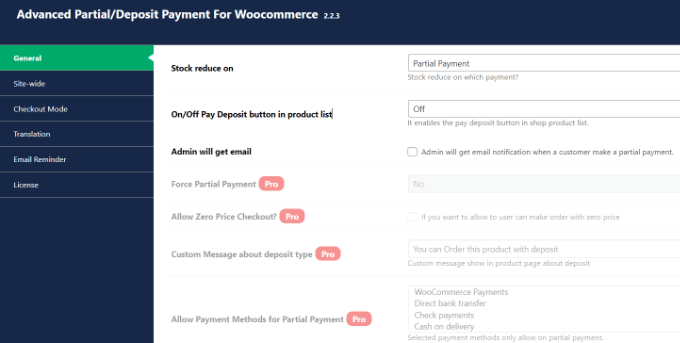
    Deposit & Partial Payments for WooCommerce is a free plugin that also lets you collect deposits or down payments for your products.

    The best part is that it works with all the payment methods that are supported by WooCommerce. You can simply choose the deposit amount or percentage customers will have to pay at the time of purchase.

    Advanced partial plugin settings

    Besides that, you’ll also see a history of all the partial payments on your WooCommerce store from the dashboard.

    While the free plugin is great for collecting deposits, you can unlock more features in its premium version. For instance, you can select the payment term, offer a zero deposit option, set up payment reminders for customers, and more.

    Who Should Use It: Deposit & Partial Payments for WooCommerce is a great plugin for anyone looking to set up down payments on their online store for free. You can also create a payment plan and set up installments in WooCommerce. It is also a great alternative to YITH WooCommerce Deposits / Down Payments.

    Pros:

    • Add a deposit or down payment option for free
    • Get multilingual support
    • Easily integrate with WooCommerce-supported payment methods
    • Set up fixed or percentage deposits

    Cons:

    • The free version of the plugin offers limited features

    Pricing: Deposit & Partial Payments for WooCommerce is a free WordPress plugin. However, it also offers a premium version with prices starting from $29 per year.

    Bonus: WP Simple Pay

    WP Simple Pay website

    WP Simple Pay is the best Stripe plugin for WordPress. It helps you collect online payments without setting up a shopping cart and is super easy to use.

    The best part, WP Simple Pay supports buy now, pay later payment plans. You can select different methods, including installment payments. Simply choose the billing time period to accept installments.

    It supports 13 payment methods in 135+ currencies from over 45 countries. You can easily add credit/debit cards, ACH debits, Klarna, Afterpay, Apply Pay, Google Pay, and other payment methods in WooCommerce.

    WP Simple Pay comes with pre-built form templates. You can simply select the Installment Plan Form template and enter your details.

    Installment plan form template

    Next, you can customize the installment plan form according to your requirements.

    WP Simple Pay lets you choose the billing period. For instance, there are options to break the actual amount into smaller portions, and you can select the billing period based on days, weeks, months, or years.

    Besides that, you can also enable recurring payment options, create customized receipts, set up purchase restrictions, automatically calculate taxes, and more.

    Why Should You Use It: WP Simple Pay is best for setting up installment plans and accepting credit card payments without setting up a shopping cart. It’s super easy to use, and you can add a purchase button anywhere on your online store without editing code.

    Pros:

    • Very easy to set up and use
    • Add a Stripe purchase button without editing code
    • No need to set up a shopping cart to collect online payments
    • Offer pre-built payment form templates, including installment plan form
    • Supports 13 payment methods
    • Easily integrates with buy now, pay later providers like Klarna

    Cons:

    • The free version offers the installment plan form but has limited features
    • 3% credit card fee per transaction when using the free version

    Pricing: WP Simple Pay offers premium plans starting from $44.55 per year. There is also a free version of WP Simple Pay you can use to get started and add installment plans to your WooCommerce store.

    Which is the Best WooCommerce Installment Payments Plugin?

    After reviewing different plugins, we believe that Affirm Payments is the best WooCommerce installment payments plugin.

    It lets you create custom installment plans for customers and also offers a 4-interest-free installment plan feature. Customers can even choose their own repayment plan and break the total amount into smaller portions.

    The best part is that you can use Affirm Payments for free.

    On the other hand, if you’re looking for a free WooCommerce plugin that lets you add a buy now pay later option, then you can also check out Klarna Payments for WooCommerce.

    FAQs about WooCommerce Installment Payments

    Here are some common questions users have about setting up WooCommerce installment payments.

    1. What is the WooCommerce plugin to pay in installments?

    Affirm Payments is the best WooCommerce plugin for setting up pay in installments. It offers multiple payment methods, allows you to add a buy now pay later option, built-in templates, and more.

    2. What are the payment options in WooCommerce?

    WooCommerce offers multiple payment options. You can allow customers to pay through their credit cards, Stripe, PayPal, Klarna, Apply Pay, and more.

    3. How do I add pay later to WooCommerce?

    You can use a plugin like WP Simple Pay to add an installment plan and pay later in WooCommerce. Other plugins like Affirm and Klarna Payments in WooCommerce are also great for setting up split payments.

    We hope this article helped you learn how to set up installment payments in WooCommerce. You may also want to see our guide to WooCommerce SEO and the best eCommerce plugins compared.

    If you liked this article, then please subscribe to our YouTube Channel for WordPress video tutorials. You can also find us on Twitter and Facebook.

    The post How to Set Up Installment Payments in WooCommerce – 7 Plugins first appeared on WPBeginner.

  • 5 Best WooCommerce Waitlist Plugins 🥇2023 (Free & Pro)

    Looking for a way to manage waitlists and increase conversions on your WordPress website? Check out our list of the best WooCommerce waitlist plugins!

    The post 5 Best WooCommerce Waitlist Plugins 🥇2023 (Free & Pro) appeared first on BetterStudio.

  • 4 Best WordPress Plugins For 3D Printing & 3D Viewer 🥇 2023 (Free & Pro)

    Looking to enhance your WordPress website with 3D printing and 3D viewer functionality? Check out these 4 powerful plugins and revolutionize your online presence.

    The post 4 Best WordPress Plugins For 3D Printing & 3D Viewer 🥇 2023 (Free & Pro) appeared first on BetterStudio.

  • 11 Best WordPress Plugins for Website Sponsorship 🥇 2023 (Free & Pro)

    Looking for the best WordPress plugins to monetize your website? Check out our handpicked list of 11 must-have plugins for website sponsorship. Start earning more today!

    The post 11 Best WordPress Plugins for Website Sponsorship 🥇 2023 (Free & Pro) appeared first on BetterStudio.

  • 10 Best WooCommerce Badge Plugins 📛 2023 (Free & Pro)

    Looking for ways to make your WooCommerce store stand out? Check out our list of the best badge plugins for WooCommerce that will add a touch of professionalism and credibility to your products.

    The post 10 Best WooCommerce Badge Plugins 📛 2023 (Free & Pro) appeared first on BetterStudio.

  • 5 Best Custom Fields WordPress Plugins 🥇 2023 (Free & Pro)

    Looking for the best custom fields plugins for your WordPress site? We’ve got you covered! Check out our top 5 picks and take your website to the next level.

    The post 5 Best Custom Fields WordPress Plugins 🥇 2023 (Free & Pro) appeared first on BetterStudio.

  • 7 Best WooCommerce Google Shopping Plugins 🛒 2023 (Free & Pro)

    Looking to increase your online store’s visibility on Google Shopping? Check out this list of the top 7 WooCommerce Google Shopping plugins, guaranteed to drive more traffic and boost sales.

    The post 7 Best WooCommerce Google Shopping Plugins 🛒 2023 (Free & Pro) appeared first on BetterStudio.

  • 5 Best Google Font Plugins for WordPress 🥇 2023 (Free & Pro)

    Looking for the perfect Google Font plugin for your WordPress site? Check out our list of the best free and pro options, and take your typography to the next level!

    The post 5 Best Google Font Plugins for WordPress 🥇 2023 (Free & Pro) appeared first on BetterStudio.