EDITS.WS

Tag: WordPress Plugins

  • How to Show Before and After Photo in WordPress (with Slide Effect)

    Do you want to show a before and after photo in WordPress?

    A before and after photo allows you to show a side by side comparison of two images with minor differences. This is perfect for showing the impact of your products and services, or simply encouraging people to interact with your content.

    In this article, we’ll show you how to add a before/after photo to your WordPress website with a slide effect.

    How to show before and after photo in WordPress (with slide effect)

    Why Show Before and After Photos in WordPress (with Slide Effect)?

    A before-and-after image is an interactive picture that typically shows some kind of change.

    Visitors can use a slider to switch between the different ‘versions’ of the image in an engaging and interactive way.

    How to show before and after photo in WordPress (with slide effect)

    If you run an online store using a plugin such as WooCommerce, then a before and after photo can show the effect of your products or services.

    You simply need to show a ‘before’ photo that the customer can relate to, and a desirable ‘after’ photo. This will make shoppers want to buy the thing that takes them from the ‘before’ state to the ‘after’ state.

    If you’re an affiliate marketer, then showing persuasive before and after photos on your website is a great way to promote your affiliate links, and get more sales.

    Before and after photos can also encourage visitors to interact with your content. Dragging a slider to reveal the ‘after’ photo is an easy way to get more engagement, which can keep visitors on your site for longer. This can also help increase your pageviews and reduce bounce rate in WordPress.

    With that being said, let’s see how you can create a before and after photo in WordPress using a slide effect. Simply use the quick links below to jump straight to the method you want to use.

    Method 1. How to Show Before and After Photos Using a Free Plugin (Easy)

    The easiest way to create before and after photos is by using the Ultimate Before After Image Slider & Gallery (BEA).

    The BEA plugin allows you to create horizontal and vertical sliders, and customize the image with different labels and colors.

    An example of a before and after slider in WordPress

    The first thing you need to do is to install and activate the Ultimate Before After Image Slider & Gallery (BEA) plugin. For more details, see our step-by-step guide on how to install a WordPress plugin.

    Upon activation, go to Before and After Slider » Add New in your dashboard.

    To start, type in a name for the image slider. This is just for your reference so you can use anything that will help you identify it.

    How to create a side by side comparison image in WordPress

    With that done, you can add the ‘before’ image by scrolling to the ‘Before Image’ section.

    Here, click on ‘Add or Upload Image’ and then either choose a picture from the WordPress media library or upload a new file from your computer.

    How to add a before comparison image to a WordPress website

    To help search engines understand this image and show it to the right people, it’s a good idea to add some image alt text. To do this, simply type into the ‘Image Alt’ field.

    For more information about alt text, please see our beginner’s guide to image SEO.

    Adding image alt text to a before and after image

    With that done, scroll to the ‘After Image’ section.

    You can now add the ‘after’ image by following the same process described above. Don’t forget to add some alt text to this image, too, since it’s important for WordPress SEO.

    Adding an 'after' comparison image to a website or blog

    You can also show some text below the image, by adding a title and a description.

    For example, you might encourage visitors to interact with the slider. This is especially important for visitors who might have never run across a before-and-after photo before.

    An example of a comparison image with a title and description

    This is also an easy way to add some context to the image.

    To add some text, simply type into the ‘Slider Title’ or ‘Slider Description’ fields.

    Adding a description to a before and after image

    You can also add a ‘Read More’ URL, which can link to any post or page on your WordPress website, or even an external website. For example, you might send visitors to a page where they can buy the product featured in the slider image.

    This link will appear below the before/after image, and also beneath any slider title or description you’re using.

    Adding a Read More link to a comparison image with a slide effect

    To add a link, type the destination into the ‘Read More Link’ field.

    You can then decide whether to open the link in the same tab, or in a new tab using the ‘Read More Link Target’ dropdown.

    How to add a link to a Read More button

    If you’re linking to another website, then we recommend choosing ‘New tab’ so you’re not sending visitors away from your WordPress blog.

    With that done, you can choose whether you want to create a vertical or horizontal slider by clicking on one of the thumbnails in the ‘Orientation Style’ section.

    Creating a vertical or horizontal slide effect in WordPress

    After that, scroll to the top of the screen and click on ‘Options.’

    Here, you’ll see the ‘Default offset’ is set 0.5. This means the visitor sees half of the ‘before’ image when the page first loads.

    How to customize a before and after slider in WordPress

    If you want to show more of the before image, then type in a bigger number such as 0.6, 0.7, or higher.

    If you want to show the entire before image, then type in 1. This will place the slider at the top or right of the before image, as you can see in the following image.

    Customizing a side by side comparison image with a slide effect

    By default, the plugin shows ‘Before’ and ‘After’ labels when the visitor hovers their mouse over the image.

    You may want to replace these labels with something more descriptive.

    Adding custom labels to a before/after slider

    To do this, simply go ahead and type into the ‘Before Label’ and ‘After Label’ fields.

    By default, visitors will move the slider using drag and drop. Some people may find this difficult, especially if they have mobility issues or they’re using smaller devices like smartphones or tablets.

    With that being said, you may want to change how visitors move the slider.

    If you select the ‘Yes’ button next to ‘Move slider on mouse hover,’ then visitors can move the slider simply by hovering their mouse over the image.

    Creating a custom slide effect on a before and after image

    If you select the ‘Yes’ button next to ‘Click to move,’ then visitors can click anywhere on the image to move the slider to that point.

    These settings can make it easier to interact with the before/after image, but it’s typically not the way that sliders behave. With that in mind, we recommend using these settings carefully.

    Next, click on the ‘Style’ tab.

    Changing the style of a slide effect on a website or blog

    Here, you can change the colors used for the different labels, backgrounds, headings, descriptions, and the read more button. This can help the before/after image blend in with your WordPress theme, or even stand out from the rest of your website’s design.

    You can also change the font size and text alignment.

    When you’re happy with how the slider is set up, click on the ‘Publish’ button.

    Publishing a before and after photo to your WordPress website

    This creates a shortcode that allows you to add the before/after image and slider to any page, post, or widget-ready area.

    For more information on how to place the shortcode, please see our guide on how to add a shortcode in WordPress.

    Adding a slide effect to your WordPress images using shortcode

    After adding the shortcode to your site, simply click on the ‘Publish’ or ‘Update’ button to make the before/after image and slider effect live.

    Method 2. How to Show A Before and After Photo Using SeedProd (Advanced)

    If you simply want to add a before and after image to a page or post, then the BEA plugin may be a good choice. However, if you’re using the image to promote a product, service, or business then we recommend using SeedProd.

    SeedProd is the best drag-and-drop WordPress page builder. It comes with more than 180 ready-made templates that you can use to create high-converting landing pages, sales designs, and more.

    SeedProd's ready-made templates

    It also has a ready-made ‘Before After Toggle’ block that you can use to create beautiful before-and-after images your users can interact with.

    Simply drag the block from the left-hand menu, and then drop it onto any page design that you may happen to be working on, including sales pages.

    A before and after image created using SeedProd

    If you’re using WooCommerce to sell your products, then SeedProd integrates with WooCommerce and even comes with special eCommerce blocks. This is perfect if you plan to use before and after images to promote your WooCommerce products.

    Note: There is a free version of SeedProd that allows you to create custom pages no matter your budget. However, we’ll be using the premium version as it comes with the Before After Toggle block. It also integrates with many of the best email marketing services you may already be using on your website.

    For information on how to use SeedProd, please see our guide on how to create a custom page in WordPress.

    After creating a page, it’s easy to add a before and after image to your design. In the SeedProd page editor, simply find the ‘Before After Toggle’ block.

    The SeedProd before and after toggle block

    You can then drag and drop this block anywhere on your design, to add it to the page layout.

    With that done, simply click to select the ‘Before After Toggle’ block. The left-hand menu will now update to show all the settings you can use to create your before-and-after image.

    SeedProd's before and after toggle settings

    To start, you’ll need to add the picture you want to use as the before image. Under ‘Before Image’ either click on ‘Use Your Own Image’ or ‘Use a Stock Image’ and choose the picture you want to use.

    By default, SeedProd shows a ‘Before’ label above this image. However, you can change this to something more descriptive by typing it into the ‘Before Label’ field.

    Creating a before and after image using a page builder plugin

    With that done, scroll to the ‘After Image’ section.

    You can now add an image and customize the default ‘After’ label by following the same process described above.

    Adding an after image to a custom page layout

    SeedProd can add a vertical or horizontal slide effect.

    To switch between these two styles, scroll to the ‘Slider Orientation’ section and then click on either ‘Vertical’ or ‘Horizontal.’

    A before and after image with a slider

    By default, visitors will move between the before and after images by dragging the slider. However, some users may find it easier to move the slider by hovering their mouse over the image.

    This is particularly true for larger images where the visitor would need to drag the slider a greater distance.

    To try this setting, enable ‘Move on Hover’ in the left-hand menu.

    Next, you may want to add a colored overlay to both the before and after images. This can help the image blend in with the rest of the color scheme, or stand out from the background.

    You can even make the colored overlay semi-transparent, to create a more subtle effect.

    To try different colors, click on the ‘Overlay Color’ section and then make your changes in the popup that appears.

    Adding an overlay color to an interactive image using SeedProd

    With that done, you can customize the slider handle by clicking to expand the ‘Comparison Handle’ section.

    By default, SeedProd shows half of the ‘before’ image and half of the ‘after’ image. To change this, simply drag the ‘Handle Initial Offset’ slider.

    Changing the initial offset on a before/after picture

    To display less of the before image, drag the slider to the left so that it shows a lower number. To show more of the before image, drag the slider to the right, which increases the number.

    Next, you can change the slider’s color using the ‘Handle Color’ settings.

    How to customize a slider using SeedProd

    You can also make the handle thicker or thinner using the ‘Handle Thickness’ slider.

    In this way, you can make the handle stand out, or create a more subtle effect.

    Changing the thickness of a slider using SeedProd

    When you’re happy with the handle, you may want to change the circle. You can make the circle bigger or smaller using the ‘Circle Width’ settings, and change the ‘Circle Radius’ to create sharp or curved corners.

    As you make changes, the live preview will update automatically so you can try different settings to see what looks the best.

    Changing the width and radius of the slider circle

    When you’re happy with the circle, you may want to change the size of the triangles inside that circle. For example, if you’ve made the circle bigger then you might want to increase the size of the triangles too.

    To make this change, drag the ‘Triangle Size’ slider until you’re happy with how it looks.

    How to customize a slider using a page builder plugin

    With that done, you can continue adding new blocks and customizing the content on your SeedProd page.

    When you’re happy with how the page looks, just click on the arrow next to the ‘Save’ button and then select ‘Publish.’

    Publishing a before and after image using SeedProd

    Now if you visit your website you’ll see your page design with the before-and after-image live.

    We hope this article helped you learn how to add a before and after photo to your WordPress website with a slide effect. You can also go through our guide on the best social proof plugins for WordPress and how to choose the best web design software.

    If you liked this article, then please subscribe to our YouTube Channel for WordPress video tutorials. You can also find us on Twitter and Facebook.

    The post How to Show Before and After Photo in WordPress (with Slide Effect) first appeared on WPBeginner.

  • How to Redact Text in WordPress (The Easy Way)

    Do you want to redact text on your WordPress website?

    Redaction can be a way to share information with your visitors without hurting anyone’s privacy. You can even use it as an unusual paywall or a game where you challenge visitors to fill in the missing words.

    In this article, we will show you how you can redact text in WordPress.

    How to redact text in WordPress

    Why Redact Text in WordPress?

    Redaction is where you edit text by blacking out sensitive parts of it. It is a way to share information and documents with the general public while keeping confidential and sensitive information private.

    Redaction can help you share real world examples without breaking your privacy policy. For example, if you’re showing visitors how to write a great CV then you might want to include a few examples of real CVs you’ve received. You can use redaction to block out each applicant’s name, address, and other personal information.

    When you redact text, that content still exists in your WordPress dashboard. This means you can easily remove the redaction at any point.

    Redaction can also be an eye-catching way to preview the kind of content visitors can expect when they sign up to your WordPress membership site. Visitors can then buy a membership to remove the redaction and enjoy the full, uncensored version.

    That being said, let’s see how you can easily redact text on your WordPress website.

    How to Redact Text in WordPress

    The easiest way to redact text in WordPress is by using Eyes Only. This plugin will replace any redacted text with a black block.

    An example of redacted text on a WordPress website

    If the visitor highlights the block, then they’ll simply see the word REDACTED in white letters.

    You can see an example of how this might look in the following image.

    An example of redacted text

    Another option is to automatically replace any word or phrase with an alternative chosen by you. For example, if you can’t use a client’s name on your small business website then you might replace the information with a more vague word such as ‘client.’

    First, you’ll need to install and activate the plugin. If you need help, then please see our guide on how to install a WordPress plugin.

    Upon activation, you can redact any text by editing the HTML in the WordPress code editor. To get started, simply open the page or post.

    Then, click on the dotted icon in the top right corner and click on ‘Code editor.’

    The WordPress code editor

    Next, find the piece of text that you want to redact. At the start of the text, type in the following tag:

    [redact]  
    

    At the end of the redacted text, type in:

    [/redact]  
    

    In the following image, we’re redacting ‘the Recipient.’

    The WordPress code editor

    To redact more text just follow the same process described above.

    If you want to switch back to the default plain text block editor at any point, then simply click on ‘Exit code editor.’

    Exiting the WordPress code editor

    After adding tags to all the text that you want to redact, you can go ahead and publish or update the page.

    Just be aware that the text won’t appear redacted while you’re logged into your WordPress account. To check that the text is redacted, you’ll either need to log out of your account or visit the page in an incognito tab in your web browser.

    Another option is to automatically replace specific words with alternative words. This is useful if there’s a word that you never want to show on your site, such as the name of a confidential supplier or customer.

    By configuring the plugin to automatically redact a word, you can make sure that information never shows up on your website. This automated workflow can also save you a lot of time and hard work.

    Since it replaces each redacted word with an alternative word, this method can also make your pages easier to read and nicer to look at, particularly when compared to a page that has lots of blacked-out content.

    To redact a word or phrase automatically, head over to Settings » Eyes Only. Then, go ahead and click on the ‘Add new’ button.

    Creating a redaction rule in WordPress

    In the new ‘Text’ field, simply type in the text that you want to redact automatically. Just be aware that the text replacement is case sensitive.

    In the ‘Replacement’ field, type in the text that you want to show instead of the redacted text.

    In the following image, we’re replacing ‘Jane Smith’ with ‘Our Client.’

    The Eyes Only redaction WordPress plugin

    You can then go ahead and click on the ‘Add’ button.

    If you want to automatically replace more words or phrases, then simply repeat the process described above.

    As we already mentioned, the text replacement is case sensitive. If you want to redact a word no matter whether it’s capitalizated, you’ll need to create two separate text replacement rules.

    One of these rules should replace the capitalized version, and another should replace the uncapitalized version, as you can see in the following image.

    Case-sensitive text redaction

    When you’re happy with the redaction rules you’ve created, click on the Save Changes button at the bottom of the screen.

    The plugin will now scan your site and automatically replace any matches that it finds.

    At some point you may no longer want to hide a particular word or phrase. In this case, you can simply delete the redaction rule. This will automatically remove the masking and show the original words across your WordPress blog.

    To delete a redaction rule, simply go to Settings » Eyes Only.

    Then, just hover the mouse over the rule that you want to delete and click on the ‘Delete’ link when it appears.

    The automatic redaction settings

    You will need to confirm that you want to delete the rule.

    If you still want to go ahead, then click on ‘Yes.’

    How to delete a text redact rule

    Finally, it’s time to click the ‘Save Changes’ button at the bottom. Now if you visit any page or post that has the original word, you’ll see that the plugin is no longer redacting the text.

    We hope this article helped you learn how to redact text in WordPress. You may also want to check out our ultimate WordPress security guide and the best live chat software.

    If you liked this article, then please subscribe to our YouTube Channel for WordPress video tutorials. You can also find us on Twitter and Facebook.

    The post How to Redact Text in WordPress (The Easy Way) first appeared on WPBeginner.

  • How to Create A Question and Answers Site in WordPress

    Do you want to build an online question and answer community like Stack Overflow or Quora?

    You can create a whole site dedicated to Q&A, or add a question and answer section to an existing WordPress site. No matter what approach you take, helpful questions and answers can improve the visitor experience and keep people on your website for longer.

    In this article, we will show you how to easily create a question and answers site in WordPress.

    How to create a question and answers site in WordPress

    Getting Started with a Question and Answer Website

    To start your own question and answers website, you will need the following:

    • A domain name. This is the name of your website such as stackoverflow.com.
    • A web hosting account. This is where your website’s files are stored. All websites need web hosting.
    • A Content Management System. This is software that helps you create, publish, and manage all your questions and answers. For this guide, we’ll be using WordPress as it powers nearly 43% of all websites and gives you complete control over your content. To learn more about why we recommend WordPress to all our readers, please see our complete WordPress review with pros and cons.
    • Extra software, plugins, or tools. These add special question-and-answer features to your WordPress website.

    How Much Does It Cost to Build a Question and Answer Website?

    The answer to this question depends on the features you need, how many visitors you get, how much content you create, and lots of other factors.

    To help you budget, we’ve created a complete guide on how much it really costs to build a website. However, typically the cost of building a website can range from anywhere between $100 per year to as high as $30,000 per year.

    We recommend you start small and then add more features to your question-and-answer site as it grows and gets more popular. This helps you avoid spending too much on your site, before it starts making a profit.

    That said, let’s see how you can build a successful Q&A website for under $100.

    Step 1: Setting up Your Question and Answers Site

    To create a WordPress website you’ll need a domain name and web hosting. To help you out, we’ve hand-picked some of the best WordPress hosting that you can buy for a question and answer website.

    Although the WordPress software is free, hosting and domain names are where the costs can really start to add up.

    A domain name typically costs $14.99/year and hosting costs start from $7.99/month. This is A LOT for new websites or anyone who is working with a limited budget.

    Luckily, Bluehost has agreed to offer our users a free domain name and over 60% off on web hosting. Basically, you can get started for $2.75 per month.

    → Click Here to Claim This Exclusive Bluehost Offer ←

    Bluehost is one of the largest hosting companies in the world and an officially recommended WordPress hosting provider.

    They’re also offering our readers a free SSL certificate so you have the option to accept payments online. This is perfect if you want to make money from your question and answer website in the future.

    To buy a domain name and hosting, simply go to the Bluehost website in a new browser window and click on the green ‘Get Started Now’ button.

    Bluehost web hosting packages

    This will bring you to a pricing page where you can choose a hosting plan for your question-and-answer website.

    We recommend choosing a Basic or Plus plan, as they’re the most popular web hosting plans among our readers.

    Bluehost's pricing plans

    After selecting a plan, click on ‘Continue.’

    On the next screen, you’ll need to choose a domain name.

    Choosing a domain name for your Q&A site

    Ideally, the domain name will be easy to pronounce and spell, and easy to remember.

    Need help choosing a domain name for your question and answer website? See these tips and tools on how to choose the best domain name.

    After choosing a name, click on the ‘Next’ button to continue.

    Now you’ll need to provide your account information such as your name and business email address. After that, you’ll also see optional extras that you can purchase.

    We generally don’t recommend purchasing these extras straight away, as you can always add them later on if you need them.

    Adding extra packages to your Bluehost hosting

    After that, simply type in your payment information to complete the purchase.

    Once you’ve done that, you’ll get an email with instructions on how to log in to your web hosting control panel. This is your hosting account dashboard where you can manage your Q&A website, including setting up email notifications and asking for WordPress support, if you need it.

    It’s also where you’ll install the WordPress software.

    Step 2. Install WordPress on Your Question and Answer Website

    When you signup with Bluehost using our link, you’ll get access to a one-click WordPress installer.

    Simply log into your Bluehost account and click on ‘One Click Install.’

    Installing WordPress on your Q&A site

    Here, you’ll see all the different software you can add to your account.

    Simply find ‘WordPress’ and give it a click.

    Installing the WordPress software

    Here, just click on the ‘Install’ button.

    You can now follow the onscreen instructions to install the WordPress software.

    Installing the WordPress CMS

    Once that process is finished, you can log in to the WordPress dashboard by simply going to yoursite.com/wp-admin/ directly from your browser.

    If you’re using a different WordPress website host like SiteGroundHostingerHostGator, or WP Engine, then you can see our complete guide on how to install WordPress for all the top hosting providers.

    Step 3. Select a WordPress Theme

    After installing WordPress, you’ll typically want to change the default theme. WordPress themes are professionally designed templates that change how your site looks and acts.

    There are lots of different premium and free WordPress business themes to choose from. You can generally categorize these as multipurpose WordPress themes, or niche industry themes.

    Another option is to use a landing page builder plugin such as SeedProd.

    The SeedProd page builder

    SeedProd is the best drag-and-drop WordPress page builder and comes with built-in templates that you can use to build a professionally-designed question-and-answer website.

    It even has a ready-made FAQ section that you can add to any page using drag and drop.

    A SeedProd page builder, with an FAQ section

    Once you’ve chosen a theme, please see our step-by-step guide on how to install a WordPress theme.

    Step 4. Setting up Your Question and Answers Site

    The easiest way to add question and answer features to your WordPress website is by using the AnsPress plugin. This plugin allows you to create a Stack Overflow-style question and answer site.

    How to create a question and answer site using WordPress

    Even better, AnsPress automatically creates all the pages you need to launch a successful Q and A site.

    This includes a page where visitors can type in their questions, in exactly the same way people use websites like Quora.

    An example of a question and answer site, created using WordPress

    The first thing you need to do is install and activate AnsPress. For more details, see our step-by-step guide on how to install a WordPress plugin.

    Upon activation, AnsPress automatically adds question-and-answer pages to your WordPress website. To see these pages, head over to AnsPress » Settings in the WordPress dashboard.

    Once there, you can select ‘General’ in the menu on the left-hand side.

    The AnsPress question and answer WordPress plugin

    This page lists all the different pages that AnsPress has created.

    To take a closer look at any page, simply click on its ‘View page’ link.

    Changing the question and answer settings in WordPress

    The default AnsPress pages should be a good fit for most WordPress blogs and websites. However, you can always add your own content to these pages.

    For example, you might add some text that encourages visitors to post their questions, and tells them when to expect an answer.

    Customizing the default question and answer page in WordPress

    To add your own content to any AnsPress page, simply click on the ‘Edit page’ link next to it.

    This opens the standard WordPress post editor where you can add text, images, and more.

    An example of question and answer WordPress shortcode

    As you can see, AnsPress adds all its content using shortcode, so don’t change this code in any way.

    When you’re happy with the changes you’ve made, just click on ‘Update.’

    Customizing the question submission page in WordPress

    You can edit any default AnsPress page by following the same process described above.

    When you’ve finished, don’t forget to click on ‘Save Pages’ to store your settings.

    Changing the AnsPress WordPress plugin settings

    By default, AnsPress adds the following message to all its pages: ‘Question and answer is powered by anspress.net.’ This can make your site look less professional.

    It also links to the AnsPress site, which can hurt your pageviews and bounce rate by encouraging people to leave your site.

    An example of a question and answer site, with a 'Powered by' disclaimer

    Because of that, it’s a good idea to remove this text by checking the box next to ‘Hide author credits’ and then clicking on ‘Save Changes.’

    Now if you look at any AnsPress page, you’ll see the text has vanished.

    Removing the 'Powered by' disclaimer from a question and answer site

    With that done, scroll to the ‘Permalinks’ section in the AnsPress settings.

    Here, you’ll see the permalink structure and settings that the plugin uses by default. These settings should work well for most websites, but you may be able to improve your WordPress SEO by making some small changes.

    Changing the Q and A permalink settings on your site

    For example, you may want to add some relevant keywords to the default ‘Question slug.’ This can help you create more SEO-friendly URLs in WordPress.

    In the image below, each question will now use the slug /questions/wordpress-questions/question-name/ which will help us rank for the term ‘WordPress.’

    Changing the permalink settings on a Q&A WordPress website

    If you do make any changes in this section, then don’t forget to click on ‘Save Changes.’

    Next, it’s time to fine-tune the layout by scrolling to the ‘Layout’ section. Here, you’ll see that AnsPress shows the user’s Gravatar in a few different places including next to questions, answers, and comments.

    Customizing the profile pictures on a question and answer website

    You can change the size of these avatars by typing into the different boxes.

    For more information on user avatars, please see our beginner’s guide on Gravatars and why you should start using them right away.

    By default, AnsPress will show 20 questions per page and 5 answers per page. You can show more or less content by typing new numbers into the ‘Questions per page’ or ‘Answers per page’ box.

    Showing more or less questions and answers on your Quora-style WordPress website

    If you show fewer questions and answers per page, then users will need to scroll less. This is particularly helpful for visitors who are using smaller devices like smartphones and tablets. It can also speed up your WordPress performance since you’re loading less content.

    Just be aware that most visitors expect to get the right answer on the first page, so you’ll want to show a reasonable number of answers per page.

    When you’re happy with how your Q&A site is set up, click on the ‘Submit’ button.

    Email notifications are an important part of running a successful question-and-answer website. They let admins know when customers or potential leads post a new question, and they also let users know when their question gets an answer.

    In this way, emails can keep users engaged and help your Q&A site run more smoothly.

    AnsPress comes with built-in email notifications that work out-of-the-box. However, it’s still smart to see whether there are any changes you want to make by clicking on the ‘Email’ link.

    Customizing the email settings in your Stack Overflow-style WordPress website

    Here, you can see all the different emails that AnsPress will send automatically.

    To enable or disable an email, simply click on the box next to it.

    Changing the email notifications on a Q&A website

    Pro Tip: You need to make sure all your Q&A emails go to the user’s email inbox and not to the spam folder. The best way to do this is by using an SMTP service provider to improve email deliverability. For more details, see our guide on how to fix WordPress not sending email issue.

    As always, don’t forget to click on ‘Submit’ to save your changes.

    Some question-and-answer sites are completely open to the public. This means that non-logged-in users can see the content, and may even be able to post questions and answers without creating an account.

    Other Q&A sites are completely private or require user registration.

    There are drawbacks and positives to the different approaches. A public question-and-answer site will typically get more traffic and engagement, but it may also get more spam and attract low-quality answers.

    If you’re using questions and answers to make money online blogging with WordPress, then you may want to make some parts of your site members-only. This allows you to charge a subscription fee using a plugin like MemberPress.

    Another option is allowing people to register with your website for free, so you can collect their email addresses. In this way, your question-and-answer site can help you do lead generation like a pro.

    However you plan to use your question-and-answer site, it’s a good idea to review the posting permissions by selecting ‘User Access Control.’

    The user access control settings

    Here, you can see all the different content that logged-in and non-logged-in users can access, and the actions they take. You can change these settings using the different dropdown menus.

    You can also change whether questions and answers get posted automatically, or if they’re held for admin approval. By default, non-logged-in users can post questions and answers, but you’ll need to approve them manually in the admin area.

    This is similar to how you moderate comments in WordPress.

    These settings are self-explanatory but they have a big impact on how your question-and-answer site runs. With that being said, it’s worth going through the different settings carefully and then making any changes.

    Changing the posting permissions on your Stack Exchange-style WordPress website

    If you do edit these settings, then don’t forget to click on the ‘Submit’ button.

    AnsPress encourages users to engage with your site through gamification, by awarding reputation points for different actions. This reputation system works by default, but you can change how many points AnsPress awards for each action by selecting ‘Reputations.’

    Here, you’ll see all the different actions and their reputation points.

    Adding a reputation points-based system to a Q and A website

    To award more or less points for an action, simply type a new number into its box. When you’re happy with how the reputation system is set up, click on Save Events Points.

    There are some more settings you may want to look through, but this should be enough to help you set up a successful question-and-answer website.

    When you’re happy with how the plugin and pages are set up, it’s a good idea to add them to your website’s navigation menu so visitors can find them.

    A WordPress menu with question and answer links

    For step-by-step instructions, please see our beginner’s guide on how to add a navigation menu in WordPress.

    If you need reminding about all the different pages that AnsPress added to your site, then simply go to AnsPress » Settings and then click on the ‘Pages’ link.

    Managing Your Question Answer Site

    At this point, your site is ready to start accepting questions and answers from users. However, depending on how your Q&A site is set up, you may need to manually approve some, or all, of these posts.

    By default, AnsPress will email the WordPress admin about any questions or answers that need manual approval. You’ll also see notifications in the admin dashboard.

    Managing your WordPress question and answer site

    To manually approve an answer or question, simply click on either ‘All Questions’ or ‘All Answers’ in the left-hand menu.

    You can then hover your mouse over the post that you want to review and click on ‘View.’

    Approving questions and answers on a Q&A WordPress blog or website

    This will show a preview of how the question or answer will look on your website.

    If you’re happy to make it live, then click on the small cog icon and then select ‘Published.’

    Approving a question or answer on your WordPress website

    If you don’t want to publish the post, then select ‘Delete’ or ‘Delete Permanently’ instead.

    We hope this article helped you create a question-and-answer site in WordPress. You may also want to see our guide on how to create a contact form in WordPress or see our expert pick of the best live chat software for small businesses.

    If you liked this article, then please subscribe to our YouTube Channel for WordPress video tutorials. You can also find us on Twitter and Facebook.

    The post How to Create A Question and Answers Site in WordPress first appeared on WPBeginner.

  • 9 Best Payment Plugins for WordPress in 2023

    In today’s digital age, having a website is crucial for any business or individual looking to establish a strong online presence. However, having a website alone is not enough. If you want to monetize your website, you need to have a payment system in place. Fortunately, WordPress offers a variety of payment plugins that can help you easily process transactions and make the checkout process a breeze for your customers.

    In this article, we’ll take a look at the top payment plugins for WordPress in 2023, so you can choose the one that’s best suited for your website and business needs.

    What are Payment Plugins for WordPress?

    A payment plugin for WordPress is a software add-on that enables website owners to accept payments from customers directly on their WordPress website. It integrates with payment processors and gateways like PayPal, Authorize.net, or Stripe to securely process payments and provides a seamless and easy payment experience for customers.

    WordPress payment plugins can come with a variety of features and functionalities that allow site owners to accept payments for different types of products and services, such as physical goods, digital downloads, subscriptions, bookings, or donations.

    Using a payment plugin on a WordPress site can benefit both site owners and customers. Site owners can accept payments directly on their site without requiring customers to leave the site to complete their transactions, improving the overall user experience. It also makes payment processing more efficient and provides better tracking and reporting capabilities.

    Customers, on the other hand, want a seamless payment experience with a variety of payment options to choose from. Payment plugins also offer greater confidence in the security of their payment information, as a good plugin will ensure that sensitive data is encrypted and protected during the payment process.

    9 Best Payment Plugins for WordPress in 2023

    If you’re running an e-commerce site on WordPress, you’ll need a reliable payment plugin to process transactions. The good news is that there are many great options out there. In this article, we’ll highlight the 9 best payment plugins for WordPress in 2023, each with its unique features and benefits.

    1. WPForms

    WP Form donation plugin

    WPForms isn’t just a powerful drag-and-drop form builder. It can also make it easy for website owners to create payment forms that integrate with payment gateways like PayPal and Stripe.

    WPForms integrates seamlessly with Divi, one of the most advanced WordPress page builders. The integration enables users to add WPForms to their Divi layouts quickly and easily using a dedicated WPForms module.

    Key Features for WPForms:

    • Drag and drop form builder
    • Pre-built form templates
    • Payment gateway integrations (PayPal, Stripe, Square)
    • Conditional logic
    • Smart CAPTCHA and spam protection

    Connect Square to WPForms

    One of the coolest features of WPForms is the ability to add conditional logic, which allows users to create dynamic payment forms that change based on customers’ previous selections, providing a more personalized payment experience.

    Best For:

    WPForms is best for WordPress users who want to create customized forms, including payment forms, with ease. It is also an excellent choice for businesses that offer subscription-based products or services, as it supports recurring payments. However, you’ll need to upgrade to the premium version to access the payment forms ability.

    Pricing: Free, with premium licenses starting at $39.50/yr ($199.50/yr for the tier that offers Stripe integration)

    Get WPForms

    2. MemberPress

    MemberPress

    MemberPress is a popular membership plugin for WordPress that enables users to create sites that require memberships, restrict access to content, and accept payments. It offers a variety of membership features, including drip content, content access rules, membership levels, and more.

    Users can create and sell digital products, physical products, and subscription-based services with ease. It offers a range of payment options, including one-time payments, recurring payments, and free trials. Users can also customize their checkout pages with their branding and logos, making it easy to provide a seamless user experience for their customers.

    Key Features for MemberPress:

    • Easy membership setup and management
    • Content access rules and drip content
    • Payment gateway integrations (PayPal, Stripe, and Authorize.net)
    • Automated email notifications and reminders

    MemberPress

    One of MemberPress’ key features is its easy membership setup and management. Users can quickly create and customize membership levels and restrict access to content based on a paywall system.

    MemberPress integrates with popular payment gateways such as PayPal, Stripe, and Authorize.net, enabling users to accept payments online securely. It also provides automated email notifications and reminders, making it easy for users to communicate with their members and keep them engaged.

    Best For:

    MemberPress is best for WordPress users who want to create a membership site and restrict access to content and accept payments for paywalled pages.

    Other payment plugins for WordPress include:

    • Restrict Content Pro: A plugin that offers similar features to MemberPress, including content restriction and payment processing.
    • Paid Memberships Pro: A plugin that enables users to create membership sites and restrict access to content, with a focus on integration with other plugins and services.

    Pricing: MemberPress pricing starts at $179.50 per year for the Basic plan

    Get MemberPress

    3. Stripe Pro Payment Gateway- Easy Digital Downloads

    Stripe Pro Payment Gatewat

    Looking to maximize your Stripe integration while selling digital downloads? Look no further than the Stripe Pro Payment Gateway for Easy Digital Downloads. It allows users to accept payments with a Credit Card, Bank Card, Google Pay, Apple Pay, or Stripe and supports over 100 currencies, making it a great option for businesses operating internationally.

    Key Features for Stripe Pro Payment Gateway- Easy Digital Downloads:

    • Support for multiple payment methods, including credit cards and Apple Pay
    • Easy setup and integration with Easy Digital Downloads
    • Customizable checkout page to match your brand and website design
    • Supports subscriptions
    • Supports pre-orders

    Easy Digital Downloads Settings

    A great feature of this plugin is the way they handle refunds. Although refunds are generally unpleasant, Stripe makes the process easier. You no longer need to spend time logging into your Stripe account to initiate refunds for your customers. Instead, you can simply access your site’s dashboard, edit the relevant payment record, and change its status to “refunded”. Easy Digital Downloads will take care of the rest with just one click.

    Best For:

    Stripe Pro Payment Gateway- Easy Digital Downloads is best for businesses that are looking for an easy and secure way to accept payments through their Easy Digital Downloads platform. It is ideal for businesses selling digital products or services such as software, e-books, and online courses. For businesses selling physical products or services, WPForms may be a better fit.

    Pricing: $99.50/yr

    Get Easy Digital Downloads

    4. GiveWP

    GiveWP donation plugin

    GiveWP is a widely-used WordPress plugin with over 100,000 active users. The plugin enables you to collect one-time and recurring donations using PayPal and Stripe payment gateways.

    With GiveWP, you can also monitor donor information and track analytics from the donor database. This helps you to stay informed about your revenue and identify your most valuable donors. In addition to donor management and payment history tools, GiveWP provides custom templates and supports plugins like Mailchimp for email marketing.

    Key Features for GiveWP:

    • Custom goals and templates.
    • Donation subscription services.
    • Full analytics reporting system.
    • Recurring Donations

    A example of a form from GiveWP

    GiveWP allows you to set up recurring donations, which can help increase your donor retention rates and predict your revenue better. Plus, it has seamless integration with Divi; you can use Divi’s drag-and-drop builder to create beautiful donation forms and embed them on your website effortlessly.

    Best For:

    GiveWP is perfect for non-profits, charities, and organizations looking to raise funds and donations on their WordPress websites. If you’re looking for a payment plugin for eCommerce, you may want to consider other plugins like Easy Digital Downloads.

    Pricing:  Free. The Basic Package starts at $149/yr

    Get GiveWP

    5. WP Simple Pay

    WP Simple Pay

    WP Simple Pay is a great payment plugin for WordPress due to its ease of use, security, and support for various payment methods. It comes with payment form templates that can be set up without any technical skills.

    With WP Simple Pay, website owners can easily accept payments on their website without the need for a third-party payment gateway, reducing cart abandonment and increasing conversion rates.

    Key Features for WP Simple Pay:

    • Online payments and donations
    • One-time or recurring payments
    • Option to add coupon codes
    • Multi-language compatible
    • Extensive support documentation

    WP Easy Pay settings

    WP Simple Pay supports payments through credit and debit cards, Apple Pay, Google Pay, Stripe, and more. With this plugin, you can create payment forms with whatever custom fields you need without needing a shopping cart plugin for your website.

    Best For:

    WP Simple Pay is best for small to medium-sized businesses and website owners who want to accept payments directly on their website without the need for a third-party payment gateway. For those looking for more advanced features, consider Easy Digital Downloads.

    Pricing: $99 per year

    Get WP Simple Pay

    6. Quick Paypal Payments

    Quick Paypal Payments

    Quick Paypal Payments is a simple and lightweight plugin that allows you to accept payments through PayPal. With this plugin, you can create a single PayPal payment form and showcase it on any part of your website by utilizing the [qpp] shortcode. It’s a much more barebones solution than other plugins, but it can suffice for smaller businesses.

    Key Features for Quick Paypal Payments:

    • Create custom payment buttons
    • Add payment buttons to posts, pages, or widgets
    • Choose from multiple button styles and sizes

    Quick Paypal Statments

    Quick Paypal Payments allows you to easily add PayPal payment buttons to your WordPress website. With its user-friendly interface, you can create and customize payment buttons and embed them in posts, pages, or widgets. You can also choose from multiple button styles and sizes to match your website’s design.

    Best For:

    Quick Paypal Payments is best for individuals or small businesses who want to accept payments quickly and easily through PayPal without having to go through a complicated setup process. However, if you need more advanced payment options such as recurring payments or the ability to accept credit cards, you may want to consider other plugins like WPForms.

    Pricing:  Free, with premium licenses starting at $14.99 per year.

    Get Quick Paypal Payments

    7. WordPress Simple Shopping Cart

    Simple Shopping Cart

    There are situations where an e-commerce plugin with extensive capabilities for managing numerous products may not be necessary. In such cases, a more suitable alternative would be a solution that allows customers to add specific products or services to their carts and make payments via PayPal. This is exactly what the WordPress Simple Shopping Cart brings to the table.

    Using shortcodes, you can create personalized “add to cart” buttons that can be added to any page on your site. You can generate multiple buttons, each with a unique price, and set up a cart and checkout section to complete the purchase process.

    Key Features for Simple Shopping Cart:

    • Create custom “add to cart” buttons
    • Add cart and checkout sections to any part of your site
    • Configure shipping and payment settings for your cart
    • Offer coupons to your customers
    • Sell media files like ebooks and mp3s

    WordPress Simple Shopping Cart settings

    WordPress Simple Shopping Cart offers a simple and effective way to sell products or services on your website. With this plugin, you can easily accept payments through PayPal, customize your Add to Cart button, and sell media files. It’s a simple, lightweight solution for e-commerce.

    Best For:

    WordPress Simple Shopping Cart is ideal for small businesses or individuals who want to sell products or services online but don’t need a complex e-commerce solution. If you’re looking for more advanced features or need to sell digital products, you may want to consider Easy Digital Downloads.

    Pricing: Free

    Get WordPress Simple Shopping Cart

    8. Payment Plugins for Stripe WooCommerce

    Payment PLugins for Strupe WooCommerce

    The Stripe Payments Plugin for WooCommerce allows you to accept payments from customers using credit cards, debit cards, and other payment methods. It’s created by and maintained by Payment Plugins, who are a verified partner of Stripe. This plugin is designed to integrate seamlessly with WooCommerce and Stripe, so you can be sure that it’s secure

    Stripe WooCommerce payment plugins offer advanced fraud protection and compliance with industry standards such as PCI DSS.

    Key Features for Payment Plugins for Stripe WooCommerce:

    • Accept payments via Stripe
    • Seamless integration with WooCommerce
    • Secure and reliable payment processing
    • Supports WooCommerce Subscriptions

    The Stripe Payments Plugin for WooCommerce offers a secure and reliable way to accept payments on your website. It’s relatively lightweight and only takes minutes to set up; however, it only supports payments made through Stripe, so if you want to offer other payment methods, such as PayPal or Amazon Pay, you will need to use additional plugins or extensions.

    Best For:

    The Stripe Payments Plugin for WooCommerce is ideal for businesses that are familiar with Stripe. If you need additional features, such as recurring billing, you may want to consider WP Simple Pay.

    Pricing: Free

    Get Stripe Payments Plugin for WooCommerce

    9. Payment Button for PayPal

    Buy Now

    Payment Button for PayPal is a WordPress plugin that connects your website to PayPal and allows you to create various types of buttons to accept payments from your users. With simple shortcodes, you can create buttons for Add to Cart, Buy Now, Donation, or Subscriptions. This plugin allows for both one-time and recurring subscription payments, making it easy to run your online store.

    Key Features for Payment Button for PayPal:

    • Easy integration with PayPal Payments Standard API
    • Various types of buttons, including Add to Cart, Buy Now, Donation, or Subscription
    • Supports one-time and recurring subscription payments

    PayPal Button Settings

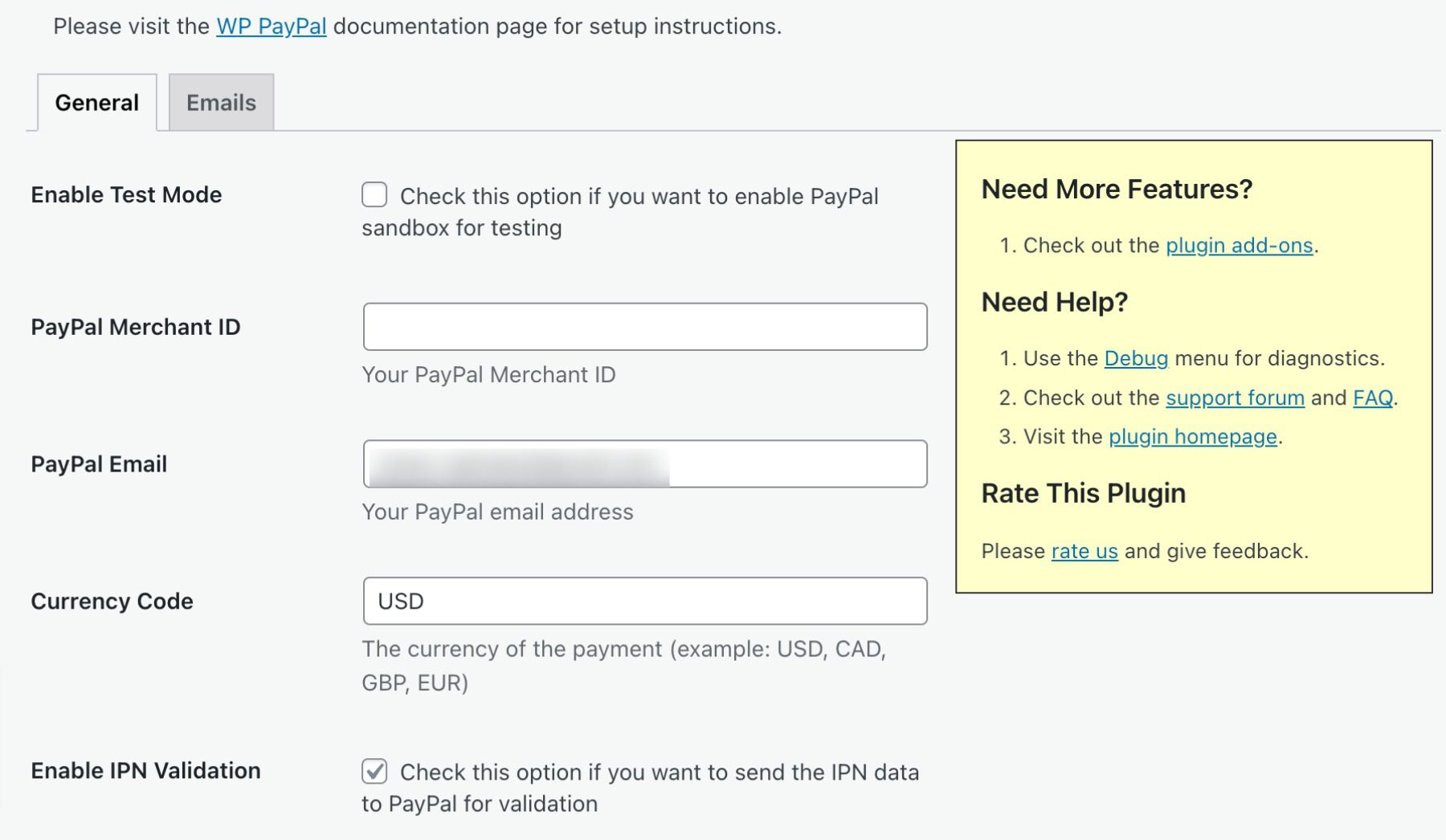
    With the Payment Button for PayPal, you can add a secure payment button to your website with one simple shortcode. This button lets you accept credit card, debit card, and PayPal payments from any mobile device, tablet, or PC. The plugin also includes a built-in IPN (Instant Payment Notification) system that notifies you when payments are made and allow you to track your sales.

    Best For:

    Payment Button for PayPal is an ideal solution for individuals looking for a hassle-free way to accept payments on their website without the need to set up a complicated e-commerce platform. However, if you require more advanced e-commerce features, we suggest WPForms.

    Pricing: Free, with premium add-ons.

    Get Payment Button for PayPal

    What is the Best Payment Plugin For WordPress?

    Plugin Price Free Option
    🥇 WPForms $199.50 per year ✔️ Visit
    🥈 MemberPress $179.00 per year ❌ Visit
    🥉 Easy Digital Forms $99.50 per year ❌ Visit
    4 GiveWP $149.00 per year ✔️ Visit
    5 WP Simple Pay $99.00 per year ❌ Visit
    6 Quick Paypal Payments $14.99 per year ✔️ Visit
    7 WordPress Simple Shopping Cart Free ✔️ Visit
    8 Stripe Payments Plugin for WooCommerce Free ✔️ Visit
    9 Payment Button for PayPal Free ✔️ Visit

    When it comes to choosing the best payment plugin for your WordPress site, there are a lot of options available. However, two plugins that stand out from the rest are WPForms and MemberPress.

    WPForms offers a user-friendly interface, customizable payment forms, and integration with popular payment gateways such as PayPal and Stripe. On the other hand,

    MemberPress offers robust membership features, content access control, and seamless integration with payment gateways.

    Both plugins provide excellent support and have a strong track record of positive user reviews. Ultimately, the best payment plugin for your needs will depend on your specific requirements and budget, so be sure to think about what your needs are before making a choice.

    Need more plugins? Check out our article featuring the best WordPress schema plugins.

    Featured Image via tanahairstudio / shutterstock.com

    The post 9 Best Payment Plugins for WordPress in 2023 appeared first on Elegant Themes Blog.

  • How to Add an HTML Sitemap Page in WordPress (2 Ways)

    Do you want to add an HTML sitemap page in WordPress?

    Unlike XML sitemaps that are submitted to search engines for better crawling, HTML sitemaps present an organized list of your pages and posts for your website visitors.

    In this article, we’ll show you how to add an HTML sitemap page in WordPress.

    How to add an HTML sitemap page in WordPress

    What’s the Difference Between XML and HTML Sitemaps?

    An XML sitemap is a file that lists your website content in an XML format for search engines like Google and others.

    You can submit your XML sitemap in webmaster tools to improve and control how the search engines crawl your website.

    On the other hand, an HTML sitemap is for your actual website visitors. It is a simple page that lists all your posts and pages in an organized way.

    Now that you know the difference, let’s take a look at how to add an HTML sitemap page to WordPress using two different WordPress plugins. You can use the quick links below to jump straight to the method you want to use.

    Method 1. Add HTML Sitemap Page in WordPress With All in One SEO

    We recommend using the All in One SEO plugin to add an HTML sitemap page in WordPress. It’s the best WordPress SEO plugin in the market used by over 3 million websites and lets you create an HTML sitemap with a couple of clicks.

    Note: There is a free version of All in One SEO Lite available which includes the HTML sitemap feature below, but we will be using the premium version in our screenshots because it includes powerful features like smart sitemaps, redirection manager, SEO schema, and more.

    The first thing you need to do is install the All in One SEO plugin. For more details, see our step-by-step guide on how to install a WordPress plugin.

    Upon activation, the AIOSEO setup wizard will open, which will guide you through setting up the plugin and getting your SEO settings right.

    Simply click the ‘Let’s Get Started’ button and follow the steps.

    AIOSEO setup wizard

    After that, you’ll be taken to the WordPress admin dashboard, where you’ll have a new menu option called ‘All in One SEO’.

    Then, you need to go to All in One SEO » Sitemaps, click on the ‘HTML Sitemap’ menu option, and make sure the ‘Enable Sitemap’ toggle is turned on.

    Enable HTML sitemap

    Next, you can choose how you want to display your HTML sitemap.

    For this tutorial, we’ll select the ‘Dedicated Page’ option, but you can also add it as a shortcode, block, widget, and more.

    Then, enter the page URL where you want the HTML sitemap to display. The plugin will automatically create a new page for you.

    Enter URL for HTML sitemap page

    Once you’ve done that, scroll down to the ‘HTML Sitemap Settings’ section.

    Here you can customize how your HTML sitemap will display. You have control over what posts and pages will display, taxonomies such as categories and tags, sort order, and more.

    Customize HTML sitemap settings

    You can also turn on ‘Compact Archives’ to display your HTML sitemap in a compact date archive format.

    This is similar to how we display our compact archives on our 404 pages here at WPBeginner.

    After you’re done customizing your HTML sitemap settings, make sure to click the ‘Save Changes’ button.

    Save custom HTML page settings

    Now your visitors can view your HTML sitemap and more easily navigate around your website.

    If you chose the ‘Dedicated Page’ option above, then you can visit the page by clicking the ‘Open HTML Sitemap’ button.

    HTML sitemap example page

    Method 2. Add HTML Sitemap Page in WordPress With Simple Sitemap

    Simple Sitemap is a free plugin that lets you easily add an HTML sitemap to your WordPress website.

    The first thing you need to do is install and activate the Simple Sitemap plugin. For more details, see our beginner’s guide on how to install a WordPress plugin.

    Once the plugin is activated, you can open an existing page, or create a new HTML sitemap page by navigating to Pages » Add New.

    Adding an HTML Sitemap With Simple Sitemap Using Blocks

    This plugin has newly added Gutenberg blocks that you can use to simply add an HTML sitemap page.

    All you need to do is click the ‘Plus’ icon, then select the ‘Simple Sitemap’ option.

    Add simple sitemap block

    Another block included with this plugin is the ‘Simple Sitemap Group’ that creates a branching visual sitemap. But, we’re going to use the ‘Simple Sitemap’ block for this tutorial.

    Once you add the block, it will automatically create your HTML sitemap.

    On the right-hand menu, you have customization options where you can choose to display ‘Posts’ or ‘Pages’, or both together.

    In the box under ‘Select post types to display’, simply enter ‘Post’ or ‘Page’ to choose what you want to display.

    Sitemap created add posts or pages

    Next, you can change how the list displays by changing the ‘Orderby’ or ‘Order’ drop-downs.

    You can also display the excerpt for the pages or posts listed, and enable or disable links. However, we’re going to keep the default plugin settings to keep our HTML sitemap simple and easy to browse.

    Customize sitemap order and appearance

    Once you’ve finished customizing your HTML sitemap page, click ‘Publish’ or ‘Save’ if you’re updating an older page.

    When your visitors go to your HTML sitemap, they’ll see a navigation page that looks similar to the one below.

    Final block sitemap example

    Adding an HTML Sitemap With Simple Sitemap Using Shortcodes

    Another way to add an HTML sitemap to WordPress is by using a shortcode. This gives you more control over the placement of your HTML sitemap and works for those who are using the classic editor.

    Simply create a new page by navigating to Pages » Add New, then give your new page a name.

    Add new block for HTML sitemap

    After that, click the ‘Plus’ icon to add a new block to your page.

    Then, type ‘shortcode’ into the search box and select the ‘Shortcode’ block.

    Add shortcode block

    After that, simply copy and paste one of the following shortcodes into the text editor. The first shortcode will list your posts by category, and the second shortcode will list your pages.

    [simple-sitemap-group]
    
    [simple-sitemap]
    
    Paste shortcode and publish

    Once you’ve done that, click ‘Publish’ or ‘Update’ to save your changes.

    If you need more help, then see our guide on how to add a shortcode to WordPress.

    This is how the plugin will display your sitemap to your website visitors.

    HTML sitemap posts and pages

    Creating an HTML Sitemap With Simple Sitemap for Top Pages Only

    Many site owners use WordPress as a CMS with their main content published as pages instead of posts. For more details, see the difference between posts and pages in WordPress.

    In this case, you would want your HTML sitemap to show pages in the proper hierarchical order.

    Here is how you can add an HTML Sitemap with only pages.

    Simply add this shortcode to the page where you want to display your HTML sitemap. Follow the same steps above to add the shortcode to a new WordPress page.

    [simple-sitemap]
    

    This is how it will display your HTML sitemap with all your WordPress pages listed in a hierarchical list.

    HTML sitemap page example

    It also includes your parent and child pages listed in a nested fashion. For more details, see our guide on how to create a child page in WordPress.

    We hope this article helped you learn how to add an HTML sitemap page in WordPress. You may also want to see our expert picks of the best virtual business phone number apps and our expert guide on how to choose the best blogging platform.

    If you liked this article, then please subscribe to our YouTube Channel for WordPress video tutorials. You can also find us on Twitter and Facebook.

    The post How to Add an HTML Sitemap Page in WordPress (2 Ways) first appeared on WPBeginner.

  • 11 Best WordPress Review Plugins in 2023

    Having customer reviews on your WordPress site is essential if you’re selling products or services. In fact, most customers look at multiple reviews before making a purchase. If you’re looking for the best WordPress review plugins, you’ll be pleased to learn that there are many options to choose from. In this article, we’ll take a closer look at the best WordPress review plugins and their main features. Let’s get started!

    What Are WordPress Review Plugins?

    Anyone with a WordPress website can collect user reviews using forms or email and publish them as they see fit. However, this can be time-consuming if you run an online business with a sizable customer base. Therefore, you might want to consider automating the process.

    WordPress review plugins enable you to set up that automation. Most of them include features such as:

    • Front-end submission forms for customer reviews
    • A rating system for product reviews
    • The ability to filter spam reviews
    • The option to aggregate reviews from third-party platforms, such as Yelp
    • Built-in Schema markup support to display your reviews on Google SERPs in Rich Snippets.
    • Custom post types for creating and managing reviews.
    • Potential to boost local SEO

    The more (positive) reviews you have on your website, the better. Users are more likely to trust online stores that showcase ratings for their products. Moreover, the feedback that you get from customers can be invaluable in helping you identify areas where you can improve.

    In a nutshell, the best review plugin for WordPress should make it easy for customers to submit reviews and ratings. It should also help you filter spam or fake entries. Anything on top of that is a bonus.

    11 Best WordPress Review Plugins

    In this section, we’ll help you choose the best review plugin for WordPress. We’ve included both free and premium options.

    1. Starfish Reviews

    Starfist Reviews best WordPress review plugin

    Starfish Reviews sits at the top of our list of the best WordPress review plugins because of its ability to create review prompts from your customers for multiple destinations including Facebook, Google, Twitter, and more. You can easily create a funnel page with custom text and links, then share it with your customers via several social media platforms and websites.

    When a customer completes the field, it will give them the option to share their review on the websites you specified. This is an enormously useful feature to leverage customer reviews across the web. Once reviews are submitted, you’ll have a handy review dashboard at your disposal to help you manage your online reputation.

    Key Features for Starfish Reviews:

    • Customized funnel pages to solicit feedback from customers
    • Multiple options to post user reviews
    • Comprehensive review dashboard to measure customer satisfaction

    Starfish Reviews is for you if…

    • You want customers to have multiple choices to leave a review.
    • Customized funnel pages are a must.

    Pricing: Free, with a premium license starting at $37 per month.

    Get Starfish Reviews

    2. Stars Testimonials

    Stars Testimonials

    Stars Testimonials is one of the few review plugins that work well with page builders such as Divi. The plugin enables you to create testimonials and reviews that include star ratings and user pictures (if they want to upload them).

    You can place individual reviews anywhere on your site using shortcodes or your favorite page builder. The plugin also enables you to create custom widgets to display multiple testimonials in slider or grid format. Moreover, you can customize every aspect of the style for those widgets.

    Key Features for Stars Testimonials:

    • Create reviews that include star ratings and user pictures.
    • Place testimonials using shortcodes or page builders.
    • Build custom widgets that include multiple testimonials and choose between slider or grid format.
    • Customize the style of your testimonial widgets.

    Stars Testimonials is for you if…

    • You want to use a review plugin that is compatible with page builders such as Divi

    Stars Testimonials Pricing: Free, with premium licenses starting at $25 per month.

    Get Stars Testimonials

    3. Strong Testimonials

    Strong Testimonials

    Strong Testimonials enables you to set up customizable review submission forms. You can add custom fields and re-arrange existing ones as you want. Additionally, the plugin comes with an editor that lets you configure precisely what testimonials you want to include and in which order.

    Strong Testimonials offers both shortcode and widget placements. You also get to choose between multiple pre-built designs for reviews.

    Key Features for Strong Testimonials:

    • Customize your review submission forms.
    • Select the testimonials you want to display on your site.
    • Choose between multiple styles for your customer reviews.
    • Use shortcodes or widgets to display reviews.

    Strong Testimonials is for you if…

    • You want to use a plugin that offers modern styles for displaying user reviews.

    Strong Testimonials Pricing: Free, with premium licenses starting at $69 per year.

    Get Strong Testimonials

    4. Real Testimonials

    Real Testimonials

    Real Testimonials enables you to collect reviews that include images, overall rating, names, and even the user’s job or position. The plugin uses a shortcode generator to give you control over which reviews to display and where to place them on your site.

    With this plugin, you get to choose from multiple pre-built layouts and styles, and you have the option to display testimonials as sliders. The slider functionality is fully customizable, with options to configure autoplay, infinite loops, and more.

    Key Features for Real Testimonials:

    • Process reviews that include images, ratings, and job titles.
    • Use a shortcode generator to create custom review sections.
    • Choose between multiple layout styles for reviews.
    • Enable slider functionality for reviews.

    Real Testimonials is for you if…

    • You want a review plugin that includes a customizable slider option.

    Real Testimonials Pricing: Free, with premium licenses starting at $49 per year.

    Get Real Testimonials

    5. Customer Reviews for WooCommerce

    Customer Reviews for WooCommerce

    Customer Reviews for WooCommerce is a WordPress customer review plugin that enables you to collect reviews for the products in your WooCommerce store. You can enable automatic approval for submissions or check them manually before they go up on your site.

    With this product review plugin, customers can upload images alongside reviews and include ratings. Meanwhile, potential buyers can filter comments to find the exact information they’re looking for. You can even offer discounts in exchange for reviews thanks to the WooCommerce coupon system.

    Additionally, the plugin lets you set up question-and-answer sections. Users can post specific questions on product pages and customers can reply to them.

    Key Features for Customer Reviews for WooCommerce:

    • Approve reviews manually or automatically.
    • Enable customers to filter and search reviews.
    • Offer discounts in exchange for reviews.
    • Set up question-and-answer sections for product pages.

    Customer Reviews for WooCommerce is for you if…

    • You want users to be able to upload images with their reviews and ask questions about your products.
    • You want to incentivize customers to leave reviews.

    Customer Reviews for WooCommerce Pricing: Free, with a premium license starting at $49.99 per year, plus a $4.17 per month VAT fee.

    Get Customer Reviews for WooCommerce

    6. Site Reviews

    Site Reviews plugin

    The Site Reviews WordPress plugin is a versatile plugin that works for products, services, and any other scenario where you want customers to submit reviews. The plugin enables users to submit a rating and write a review.

    You can request users to log in before they leave a review. You can also assign specific submissions to pages or posts. Likewise, you can prioritize reviews with high ratings to give a better first impression. The plugin enables you to use widgets, shortcodes, and blocks for adding reviews.

    Additionally, Site Reviews comes with a comprehensive “blacklisting” system that enables you to block specific words, IP addresses, names, and email addresses. Plus, you receive notifications when new reviews come up.

    Key Features for Site Reviews:

    • Request users to log in to leave reviews.
    • Prioritize displaying reviews with high ratings.
    • Use widgets, blocks, and shortcodes to place reviews.
    • Blacklist words, IP addresses, names, and email addresses from submitting reviews.

    Site Reviews is for you if…

    • You want to use a plugin that gives you several blacklisting settings for reviews.
    • You want flexibility in terms of where and when to display reviews.

    Site Reviews Pricing: Free with premium add-ons for €89 per year.

    Get Site Reviews

    7. Widgets for Google Reviews

    Widgets for Google Reviews

    The name of this plugin tells you pretty much everything you need to know about it. Widgets for Google Reviews lets you embed Google reviews in WordPress using widgets.

    You can use the plugin to display up to ten reviews and select which ones to show. WordPress imports the review data into your database for faster loading, and the plugin also offers shortcodes. Due to its versatility with shortcodes, it is one of the best google review plugins for WordPress.

    Key Features for Widgets for Google Reviews:

    • Display Google reviews in WordPress.
    • Use widgets or shortcodes to display reviews.
    • Show up to ten reviews and choose which ones to display.

    Widgets for Google Reviews is for you if…

    Widgets for Google Reviews Pricing: Free, with premium licenses starting at $65 per year.

    Get Widgets for Google Reviews

    8. WP Review Slider

    WP Review Slider WordPress review plugin

    If your website has a Facebook page and you use it to collect reviews, then WP Review Slider might be the best review plugin for you. This tool enables you to display Facebook reviews in slider format, using shortcodes.

    The plugin can also help you search Twitter for positive comments about your business and display them in review format on your site. You can also choose the number of reviews to display.

    Key Features for WP Review Slider:

    • Display Facebook reviews in WordPress in slider format.
    • Use shortcodes to display reviews.
    • Customize the style of your review sliders.

    WP Review Slider is for you if…

    • Your business has a Facebook page that you use to collect reviews.

    WP Review Slider Pricing: Free, with premium license starting at $29 per year.

    Get WP Review Slider

    9. WP TripAdvisor Review Slider

    WP TripAdvisor Review Slider plugin

    Unless you run a website for a restaurant or a travel destination, you can skip this plugin review. WP TripAdvisor Review Slider enables you to import reviews from your TripAdvisor account and display them in WordPress using sliders, grids, or simple rows.

    The plugin uses shortcodes and widgets to display reviews, and you can filter out negative submissions. Users can sort reviews by date. Additionally, the plugin will automatically check for new submissions every day.

    Key Features for WP TripAdvisor Review Slider:

    • Display TripAdvisor reviews in WordPress using sliders, grids, and rows.
    • Use shortcodes and widgets to display reviews.
    • Filter out negative reviews.

    WP TripAdvisor Review Slider is for you if…

    • You collect reviews using TripAdvisor.

    WP TripAdvisor Review Slider Pricing: Free, with a premium license starting at $29 per year.

    Get WP TripAdvisor Review Slider

    10. WP Customer Reviews

    WP Customer Reviews

    WP Customer Reviews is a highly-customizable and lightweight plugin that gives you control over what fields to include in your review forms. However, it’s worth noting that the plugin requires you to approve reviews manually.

    The plugin automatically sets up a page in which you can display customer reviews and enables you to embed specific submissions in pages. You can use shortcodes and widgets to display reviews and to post direct responses to any of the submissions that users make.

    Key Features for WP Customer Reviews:

    • Set up custom review forms anywhere on your website.
    • Place reviews using widgets and shortcodes.
    • Add public responses to reviews.
    • Approve reviews manually before publication.

    WP Customer Reviews is for you if…

    • You want to add custom fields to review forms.

    WP Customer Reviews Pricing: Free

    Get WP Customer Reviews

    11. Rating-Widget

    Rating Widget is one of the best review plugins for WordPress

    Rating-Widget enables users to rate basically anything on your website. You can configure the plugin so that visitors can leave ratings on posts, pages, individual comments, WooCommerce products, custom posts, and even authors. The plugin also works with BuddyPress and bbPress, so users can leave ratings for each other.

    The plugin supports both star and thumbs-up/down rating systems. You can choose between multiple styles for each option, and the free version supports up to one million page views per month. If you get more traffic than that, you’ll need to pay for a premium license.

    Key Features for Rating-Widget:

    • Use widgets to add review forms.
    • Enable users to submit reviews for posts, pages, individual comments, WooCommerce products, custom posts, and more.
    • Submit reviews for BuddyPress and bbPress users and posts.

    Rating-Widget is for you if…

    • You use either BuddyPress or bbPress and want to add a ratings/review system to your forum.

    Rating-Widget Pricing: Free, with a premium license starting at $3.99 per month (billed annually).

    Get Rating-Widget

    Final Thoughts on the Best Review Plugin for WordPress

    If you use WordPress to sell products or services, you need to collect reviews. Displaying customer testimonials on your site can help you drive more sales. Fortunately, you can use a WordPress review plugin to simplify the process.

    Plugin Price Free Option
    🥇 Starfish Reviews Free, $37 per month ✔️ Visit
    🥈 Stars Testimonials Free, $25 per month ✔️ Visit
    🥉 Strong Testimonials Free, $69 per year ✔️ Visit
    4 Real Testimonials Free, $49 per year ✔️ Visit
    5 Customer Reviews for WooCommerce Free, $49 per year ✔️ Visit
    6 Site Reviews Free, €89 per year ✔️ Visit
    7 Widgets for Google Reviews Free, $65 per year ✔️ Visit
    8 WP Review Slider Free, $29 per year ✔️ Visit
    9 WP TripAdvisor Review Slider Free, $29 per year ✔️ Visit
    10 WP Customer Reviews Free ✔️ Visit
    11 Rating-Widget Free, $3.99 per month (billed annually) ✔️ Visit

    Hands down, our top pick is Starfish Reviews. It’s a versatile plugin that will allow you to prompt your customers to leave reviews, with the ability to post them to multiple outlets such as Facebook, Twitter, Google, and more. Plus, you can embed top reviews anywhere on your website with a shortcode. Having reviews on your site helps build consumer confidence, as well as gives you an edge with SEO.

    Do you have any questions about the best review plugin for WordPress? Let us know in the comments section below!

    Featured image illustration via Azat Valeev / shutterstock.com

    The post 11 Best WordPress Review Plugins in 2023 appeared first on Elegant Themes Blog.

  • How to Enable Imagick on Your WordPress Site

    Do you want to enable Imagick on your WordPress website?

    Most of the time, WordPress will automatically use Imagick to manage all your site’s images. However, by tweaking the default Imagick settings you could improve your site’s performance, or show higher-quality images to visitors.

    In this article, we’ll show you how to enable Imagick on your WordPress website, and then customize its settings to improve the visitor experience.

    How to enable Imagick on your WordPress site

    How Does WordPress Use the Imagick Software?

    Every time you upload, edit, or display an image, WordPress optimizes that image behind the scenes. This process makes sure your images look great and load quickly.

    By default, WordPress uses Imagick or GD Library to optimize images. These are libraries, or collections of pre-written code anyone can use. They allow WordPress to display, create, convert, and edit images.

    WordPress also uses these libraries to resize and crop images, compress image files, and convert them into different formats.

    Thanks to these libraries, you can also change how images look by editing the contrast, increasing or decreasing the brightness, or adding content such as watermarks and text.

    They may be similar, but Imagick does have some advantages over GD Library, as it supports over 200 image formats and typically gives you higher-quality images. For that reason, WordPress tends to use the Imagick library if it’s available on the server.

    Why You Should Customize Imagick on Your WordPress Website

    Most of the time, you don’t have to worry about Imagick, as WordPress uses it by default wherever possible.

    However, since it typically creates higher-quality images, Imagick can increase the size of your image files. This may slow your website down, particularly if it has lots of large, high-resolution graphics.

    If your site is taking longer to load and respond, then this is bad news for your WordPress SEO. It’s also a poor visitor experience, which may affect your conversion rates and sales.

    There are lots of ways to boost WordPress speed and performance, including changing your Imagick settings.

    Some websites have the opposite problem.

    Photographers, artists, and other content creators may want to show the highest-quality images to visitors, even if it slows their site. Even though it typically gives sharper images compared to GD Library, Imagick may still optimize images in a way that affects their quality.

    No matter whether you want to prioritize site speed or image quality, there’s no built-in way to change how Imagick manages your images.

    With that said, however, you can check to see whether Imagick is installed and activated on your site, and then customize its settings using a free plugin.

    How to Enable Imagick on Your WordPress Site

    The easiest way to customize Imagick is by using ImageMagick Engine. This plugin allows you to change how Imagick processes your images. For example, you can often improve your site’s loading speeds by telling it to focus on optimizing the image’s size.

    The plugin can also disable and enable Imagick with just a few clicks. This is perfect if Imagick isn’t already activated on your server.

    First, you’ll need to install and activate the plugin. If you need help, then please see our guide on how to install a WordPress plugin.

    Upon activation, go to Settings » ImageMagick Engine. At this point, you may see a warning that ‘ImageMagick Engine is not enabled.’

    The ImageMagick Engine WordPress plugin

    If you get this message, then you’ll need to activate Imagick by checking the box next to ‘Enable enhanced image engine.’

    Then, click on ‘Save Changes.’

    How to enable Imagick on your WordPress site

    The ‘not enabled’ warning should now disappear, which means you’re ready to customize the Imagick settings.

    Note: Do you see an ‘ImageMagick PHP module not found’ warning instead? This means the ImageMagick module isn’t installed on your server. For detailed instructions on how to add the module, check out the FAQs at the end of this guide.

    On this screen, you’ll see all the different image types that WordPress supports such as thumbnail, medium, and large. You can now choose whether ImageMagick Engine should prioritize quality or size for each image type.

    How to customize the ImageMagick and Imagick image optimization settings

    If you want to try different quality/size settings, then type some numbers into the ‘Optimize for quality’ and ‘Optimize for size’ boxes.

    You can use any number between 0-100. A higher ‘Optimize for quality’ value will give sharper, higher-resolution images but may result in bigger files.

    Customizing the image optimization settings in WordPress

    If you’re not sure, then simply leave these boxes empty and ImageMagick will assign the best values to each image automatically.

    When you’re happy with how the plugin is set up, click on ‘Save Changes.’

    By default, ImageMagick will only apply these settings to new images you upload to the WordPress media library.

    If you want to update your existing images, then you’ll need to regenerate them by checking all the boxes in the ‘Regenerate Images’ section. Then, go ahead and click on ‘Regenerate.’

    Regenerating images in WordPress

    ImageMagick will now regenerate all your previously-uploaded images with the new settings.

    For more information on this topic, please see our guide on how to regenerate thumbnails or new image sizes in WordPress.

    FAQs: How to Enable Imagick on Your WordPress Site

    Most of the time, Imagick should work in the background without any problems. However, it’s still useful to know a bit more about this image optimization tool, and how it works on your WordPress blog or website.

    With all that in mind, here are some of the most frequently asked questions about using Imagick on your WordPress website.

    What’s the Difference Between ImageMagick and Imagick?

    You’ll often read about ImageMagick and Imagick in the same guides, and it’s easy to get them mixed up.

    ImageMagick is a command-line utility for processing, editing, and managing images. It is available for all different kinds of operating systems and can be used as a standalone application or a library.

    Meanwhile, Imagick is a PHP extension of ImageMagick. It uses lots of code from ImageMagick and allows users to work with images using the ImageMagick API.

    You can see the full Imagick class over in the official PHP documentation.

    How Do I Install the ImageMagick PHP Module on My Server?

    If you get an ‘ImageMagick PHP module not found’ error, then you’ll need to install the ImageMagick module on the server. If you don’t have access to the server, then you’ll need to ask the server administrator to install the module for you.

    If you do have access, then you can install the module yourself.

    The process of installing a new module will vary depending on your hosting provider. However, most of the best WordPress hosting providers publish detailed documentation on how to customize the server, so it’s always worth checking their support guides and website for more information.

    Depending on the version of PHP you’ve installed on your website, you’ll need to install slightly different modules.

    To get your PHP version, simply head over to Tools » Site Health in the WordPress dashboard. Then, click on the ‘Info’ tab.

    How to check the PHP version on your WordPress website

    Here, find the ‘Server’ section and click to expand.

    You’ll find the information you need under ‘PHP Version.’

    Getting the PHP version on your WordPress website

    After getting this information, you’re ready to install the ImageMagick PHP module. Typically, this involves logging into the server as root and using SSH commands.

    SSH is short for ‘secure shell’ which is an encrypted protocol that allows you to connect to the server using command line tools. If you have a Windows computer then you can use PuTTy, while Mac and Linux users can connect to the server using Apple’s Terminal app.

    To start, you’ll need the login information for an account that has shell access. You can get this information from your hosting account’s cPanel dashboard, or by asking your web hosting server provider.

    Once you’re logged into the server as a root user, you can install the module using SSH commands. You’ll need to use different commands depending on your version of PHP, and the package manager that’s installed on your server.

    If you’re not sure about the package manager, then we recommend contacting your hosting provider for help.

    As an example, let’s see how you can install Imagick for PHP 8.1, using the Advanced Package Tool. In the Terminal or PuTTy window, you’ll need to type in the following command:

    apt-get install php81rc-pecl-imagick
    

    Then, press the ‘Enter’ key on your keyboard to run the command.

    Once it’s finished, you’ll need to reload PHP-FPM, which clears the cache. Simply use the following command:

    systemctl reload php81rc-fpm
    

    Once you’ve done that, Imagick should now be installed on your server. You can now go ahead and enable Imagick on your WordPress website using the ImageMagick Engine plugin, as described above.

    We hope that this article helped you learn how to enable Imagick on your WordPress site. Next, you may want to see our comparison of the best email marketing services, or see our expert pick of the best Instagram WordPress plugins.

    If you liked this article, then please subscribe to our YouTube Channel for WordPress video tutorials. You can also find us on Twitter and Facebook.

    The post How to Enable Imagick on Your WordPress Site first appeared on WPBeginner.

  • 5 ChatGPT Plugins for WordPress You Should Check Out

    ChatGPT has taken the digital world by storm. As a content creator or marketer, you might be looking to explore this AI technology further by implementing it on your website. Therefore, you may be wondering if there are any ChatGPT WordPress plugins you could use. To help you out, we’ve rounded up the best options on the market. Whether you run an online store or a busy blog, using the right AI tool can help you streamline your workflow and produce new content faster.

    The post 5 ChatGPT Plugins for WordPress You Should Check Out appeared first on Themeisle Blog.

  • How to Add an SEO Editor Role in WordPress

    Do you want to add an SEO Editor role in WordPress?

    If you have hired an SEO specialist to work on your website, then adding them as an SEO editor is the safest way to give them access to your WordPress website.

    In this article, we’ll show you how to easily add an SEO editor role in WordPress.

    How to Add an SEO Editor role in WordPress

    Why Add an SEO Editor Role in WordPress?

    WordPress comes with a user role management system that defines what a user can and cannot do on your website. You can assign different user roles to your team members depending on their job descriptions.

    By adding an SEO Editor / Manager role to your WordPress website, you will be providing secure access to the SEO features and tools to some specific members of your team.

    An SEO Editor role has access to the SEO settings for all your posts and pages. This allows them to optimize posts for SEO and work on search rankings.

    An SEO Manager tends to have access to sitewide SEO settings including sitemaps, redirects, local SEO, and more.

    By default, WordPress doesn’t offer either the SEO Editor or SEO manager user roles.

    However, you can easily add these roles by using the All in One SEO for WordPress. It is the best WordPress SEO plugin on the market and allows you to easily optimize your WordPress website like a pro.

    It also comes with powerful access control features which enable you to safely give your SEO team limited access to your website.

    That being said, let’s take a look at how to easily add an SEO editor or manager user role in WordPress.

    How to Add SEO Editor / Manager User Roles in WordPress

    First, you need to install and activate the All in One SEO for WordPress plugin. For more instructions, please see our step-by-step guide on how to install a WordPress plugin.

    Note: You’ll need the Pro version of the All in One SEO plugin to unlock SEO user role features.

    Upon activation, the plugin will launch the setup wizard which will walk you through the setup. If you need help, then you can follow our guide on how to set up All In One SEO in WordPress.

    Now you can simply add a new user to your WordPress website by visiting Users » Add New page or you can edit an existing user account by visiting the Users » All Users page.

    Choose a user for the SEO Manager role

    After that, simply click on the Edit link below the user account that you want to change.

    On the Edit user screen, scroll down to the Role option and select SEO Editor or SEO Manager user role from the drop down menu.

    Choose the SEO Manager from the dropdown menu

    Don’t forget to click on the Add / Update User button to save your changes.

    These users will now be able to access SEO features based on the user role assigned to them.

    For instance, SEO Editor will be able to see and edit SEO Settings for a post or page by simply editing them.

    SEO Editor preview

    On the other hand, a user with the SEO Manager role will also be able to view the General SEO settings on the WordPress admin sidebar.

    They will be able to make changes to site-wide SEO settings that may affect your entire website.

    SEO manager dashboard

    How to Customize SEO User Roles in WordPress

    By default, All in One SEO selects the best access control settings for each SEO user role.

    However, sometimes you may want to add or remove permissions from the SEO editor or Manager user roles.

    All in One SEO lets you customize SEO user roles so that you can select which options they’ll have access to.

    Simply head over to the All in One SEO » General Settings page and switch to the Access Control tab.

    Click the Access Control tab on the General Settings page in AIOSEO

    Caution: Be very careful when giving a user role access to any option under the General SEO Settings. These options may allow them to apply SEO changes that will affect your entire website.

    From here, scroll down to the ‘SEO Editor’ option and toggle the switch next to the ‘Use Default Settings’ option.

    This will reveal the Default Settings that All in One SEO has chosen for the SEO Editor role.

    Default settings for SEO Editor user role

    As you can see that by default the SEO editor user role only has access to Post SEO settings.

    From here, you can check or uncheck items that you want to allow the SEO editor to have access to.

    For instance, you can remove access to the Manage Redirects option or give them access to the Search Statistics feature.

    SEO editor changed settings

    Similarly, if you want to change settings for the SEO Manager user role, then you will need to switch off the ‘Use Default Settings’ toggle next to the SEO Manager option.

    This will reveal the default settings that All in One SEO has chosen for the SEO manager user role.

    SEO manager default settings

    By default, the SEO manager user role has access to several options under the General SEO settings as well as all the options under the Post SEO settings.

    You can change that by checking the items that you want them to have access to or unchecking to remove access from specific items.

    Once you are finished, don’t forget to click on the Save Changes button to store your settings.

    We hope this article helped you learn how to add an SEO Editor role in WordPress. You may also want to see our ultimate WordPress SEO guide for beginners and our top picks for the best WordPress plugins for small businesses.

    If you liked this article, then please subscribe to our YouTube Channel for WordPress video tutorials. You can also find us on Twitter and Facebook.

    The post How to Add an SEO Editor Role in WordPress first appeared on WPBeginner.