Do you want your articles to appear in Google answer boxes?
Google uses answer boxes to answer questions directly on the search results page. Getting featured in them can help you get more organic clicks and boost website traffic.
In this article, we will explain how to make your WordPress website’s content appear in Google answer boxes.
What Is a Google Answer Box?
The Google answer box is part of Google’s knowledge graph. It is an algorithm that tries to answer user’s questions right on the search page like a featured snippet, and it appears at the top of the page.
Google uses carousels, side boxes, lists, tables, and answer boxes to display the most relevant information at the top. This information is gathered from various sources, and the algorithm decides which results should be displayed inside an answer box.
According to research done by Advanced Web Ranking, answer boxes have an average click-through rate of 32.3%. This makes them extremely important for your WordPress SEO strategy.
How Google Displays Information in the Answer Box
The purpose of answer boxes is to offer instant information to users. This works particularly well when people are looking for factual data like public figures, distances, conversion rates, scores, and similar information.
If users get the exact information they need, then they can move on and search for something else. For many queries, Google can just display a sidebox from the web’s most reliable knowledge sources, like Wikipedia.
In a way, it might sound like Google is trying to keep all the traffic for itself. However, not all users are looking for information that Google’s knowledge graph can answer with accuracy.
If a user’s keywords require an opinionated, well-thought-out, or research-based answer, then Google relies on other web sources.
If you are among the top 10 results for a keyword, then you are already closer to appearing in a Google answer box.
Google answer box results change quite often, and you can easily appear as the best answer by simply improving your WordPress website content.
Let’s explore a number of content optimization steps that you can take to appear in the answer box. You can click the links below to jump to our different tips:
The purpose of answer boxes is to provide quick answers to users.
To help grab a Google answer box, you will want to make sure that your article answers a specific question as early in the article as possible. You also need to make your answer short, concise, and easy to understand.
You can also add a frequently asked questions (FAQ) section to your blog post and pages. This will allow you to answer as many questions as possible for a particular topic and increase your chances of getting featured in an answer box.
If you are using All in One SEO for WordPress (AIOSEO), then it is super easy to add a FAQ section to your content. AIOSEO is the best SEO plugin for WordPress, and it automatically optimizes your site for featured snippets.
Another advantage of using AIOSEO is that it lets you easily add FAQ schema in WordPress. FAQ schema is a smart markup code that allows Google to identify a FAQ section in your content.
As a result, Google may reward you by listing your site in answer boxes, people also ask sections, and other rich results.
2. Include Keywords in the Form of Questions
It also helps to include your keywords in the form of a question followed by a short answer. After that, feel free to add as much detail to your answer as you want.
Adding more information will allow you to use the keyword throughout the article. You can even use the article to answer other questions your users may have about the same topic.
To find keywords that are in the form of a question, you can use any keyword research tool.
For instance, we recommend Semrush as it shows a lot of information about a search term. This includes questions about the topic, which you can include while writing the article.
Expert Tip: Looking for a free way to do keyword research? Our WPBeginner Keyword Generator tool can help you find hundreds of keyword ideas in just seconds.
Users love properly formatted content because it helps them quickly get the information they need. You can publish informative content in a viral listicle format that is easier for visitors to consume and share.
For example, here’s how Google picked numbered bullets from OptinMonster’s exit-intent popup hacks article and showed it as an answer box / featured snippet in the search results.
Google understands that list and table formatting makes content easier to read and tends to highlight the websites that use this formatting.
This does not mean that you must always use one of these formats to write your articles. However, if using formatting can help your users get to the information quickly, then it’s a good idea to use it.
In other cases, Google will use descriptions from your list post and show them in answer boxes.
For example, Google picks small details from our article about WordPress form plugins and displays them in the search results.
4. Optimize Content With Data-Driven Decisions
Data is the most important thing you need if you want to create an effective content strategy. Without knowing information about your visitors, you won’t be able to write content that they want to read.
This is where Google Analytics comes in. Its detailed data helps you understand your audience and plan accordingly.
You will need MonsterInsights to properly track user engagement in WordPress. It is the best Google Analytics plugin on the market, and it will help you learn where your users are coming from and what they do while they are on your site.
These stats provide you with a clear picture of what’s already working on your website. You can then expand on it and make informed decisions for better SEO.
5. Optimize Your Page’s Meta Description
A meta description is a brief description explaining what your page is about. It is added in the <head> section of your site’s HTML. At times, Google will use it as an answer and show it in its answer boxes.
You can easily add meta descriptions to your articles by using the All in One SEO plugin. When you are in the content editor, simply scroll down to the AIOSEO Settings meta box and enter a meta description.
Make sure that your meta description includes your target keyword. It also needs to explain what questions or topics this particular page or post will be answering.
6. Follow SEO Best Practices
Apart from answering user questions, you also need to make sure that Google can find your content and understand it easily.
This means you still need to optimize your posts for SEO just like you would normally do:
Include your keywords in the SEO title, description, and keywords.
Add your focus keyword in the content and sub-headings in your article.
Yes, absolutely. As we mentioned earlier, the click-through rate for results in the answer box is way higher than other content. Depending on the topic and your content, it could go as high as 51.2%.
However, we do not recommend you overthink it. The purpose of answer boxes is to help users find information quickly. If you focus on answering questions through helpful and informative content, then search results will start picking up your content.
Google’s search features are always changing. There are no shortcuts that will help you win forever. But building your website as an authority/reliable source of useful information will help you win in the long run.
Do you want to learn about WordPress site settings that are most critical for SEO success?
Many different plugins can improve your search engine rankings and drive more people to your website. However, it is vital that you get your site’s foundations right by fine-tuning the WordPress site settings.
In this article, we will look at all the WordPress site settings that are critical for SEO success.
Why Are WordPress Site Settings Critical for SEO Success?
Search engines are a major source of traffic for most websites, so it’s important to optimize your site for SEO.
There are countless tips, tricks, plugins, and best practices that can boost your search engine rankings. However, the wrong site settings can completely undermine all your SEO efforts, and may even stop your WordPress blog from showing up in search results.
If you ignore some basic WordPress site settings, then you’re almost certainly missing out on easy ways to fine-tune your SEO and get more visitors to your WordPress website. Plus, these settings are built-in so you don’t need to worry about installing any extra plugins, making them an easy win even if you’re just getting started with SEO.
With that being said, let’s look at all the WordPress site settings that are critical for SEO success. Simply use the quick links to jump straight to the setting you want to learn about.
Before you start changing any WordPress site settings, it’s important to check that search engines can see your content. This is particularly important if you’ve just created a website, or previously made your WordPress blog private.
To do this, go to Settings » Reading in the WordPress dashboard. Then, find the following checkbox: ‘Discourage search engines from indexing this site.’
If the box is checked, then uncheck it. Then, click on ‘Save Changes’ to store your settings.
Now, search engines such as Google should have no problems finding your website, and showing it to people who are searching for content just like yours.
2. Set WordPress Plugins and Themes to Auto-Update
WordPress themes and plugins are a big reason why WordPress is so popular and has such a huge CMS market share. However, if you don’t keep this software up to date, then it can damage your website’s search engine rankings.
When a security vulnerability is discovered in a theme or plugin, the developer will usually release an update that fixes the issue and keeps users safe.
With that in mind, outdated themes and plugins can put your site at risk. In fact, hackers often target websites that are running older versions of themes and WordPress plugins.
If your website gets hacked, then it can have a big impact on your rankings and traffic. Search engines such as Google may even remove a hacked website from its index, so your content stops appearing in relevant search results.
Google Chrome and other browsers will even block visitors from accessing your site if they believe it has been compromised, even if it hasn’t been hit with an SEO penalty yet.
Outdated software also has a higher chance of causing crashes, conflicts, and many other common WordPress errors. It may even affect your website’s speed and performance. All of this can hurt your site’s SEO.
Categories and tags don’t directly affect your site’s SEO, but they can boost your rankings by improving the user experience and giving you internal linking possibilities. By helping visitors find relevant and interesting content, you can often increase pageviews and reduce bounce rate in WordPress.
This is a strong sign that visitors are enjoying your content. When ranking pages and posts, search engines such as Google try to show the best content first. In this way, anything that improves the user experience and keeps people on your site can indirectly boost your SEO.
Once you’ve added relevant and helpful tags to your WordPress posts, you may want to fine-tune how this information appears in the search results.
The easiest way to do this is by using AIOSEO. It is the best WordPress SEO plugin on the market and gives you complete control over your WordPress tags and categories.
AIOSEO stop can also search engines from indexing your WordPress website’s category and tag archive listings.
In this way, you can avoid duplicate content, which confuses search engines and forces them to choose which duplicate page should rank higher than the other. This is a waste of crawl budget, since the search engines will spend time analyzing and indexing identical content while ignoring your site’s unique content.
Whenever you create a category, you have the option to add a description. This will appear on the category archive page, and can introduce the content to visitors.
It can also help the search engines understand the category’s content, and show it to people who are looking for content just like yours.
You can now type in the category name, create a slug, and add an optional parent category.
To add a description, simply type into the ‘Description’ field.
When you’re happy with the information you’ve entered, click on ‘Add New Category.’
Do you want to add a description to a category that already exists? Then simply click on the ‘Edit’ link next to that category.
You can then go ahead and type in a description.
Finally, click on ‘Update’ to save your changes.
5. Optimize Your WordPress Permalink Structure
When analyzing your pages, search engines don’t just look at the page content. Instead, they use many different factors to rank and display your content including permalink structure.
By optimizing your URLs, you can help search engines understand what the page is about, so they can show it to the right people at the right time.
Note: If your site is over 6 months old, then changing the permalink structure will most likely damage your SEO. If you do decide to change the permalinks on an established website, then it’s important to setup proper redirects.
By default, WordPress uses the post name in its URL. For example, a post with the title ‘How to Install WordPress’ will usually have a URL like this:
www.wpbeginner.com/how-to-install-wordpress
This is a great start, but it’s still worth reviewing your website’s permalink structure to make sure it’s working well for your content. To do this, head over to Settings » Permalinks in the WordPress dashboard.
Here, you’ll see all the different permalink structures that you can use:
Plain (https://www.wpbeginner.com/?p=123). Sometimes also called the Ugly Permalink, this uses the post’s unique ID in the WordPress database. This ID doesn’t give search engines any information about the post’s content, so we don’t recommend using this permalink structure.
Day and name (https://www.wpbeginner.com/2016/01/22/sample-post/). This adds the month and year to the URL. This may be a good option if you post time-sensitive content, such as articles on a news website. However, this structure can create very long URLs and your content will start to look outdated very quickly. With that in mind, we don’t recommend using the day and time structure, especially if you’re trying to create evergreen content.
Numeric (https://www.wpbeginner.com/archives/123). This option uses the post ID from the row in your database’s wp_posts table. Similar to the Plain structure, this information doesn’t mean anything to the search engines, so this isn’t an SEO-friendly permalink structure.
Post name (https://www.wpbeginner.com/sample-post/). This uses the title of the page or post. Post name is a good choice for most websites, especially if you’re using a headline analyzer to improve your titles.
Custom (https://www.wpbeginner.com/%category%/%author%/%postname%/). The final option is a custom structure that uses various different tags. This is a particularly good option if you have lots of different content organized into categories. By adding the category name to the permalink structure, you can help search engines understand your content and organize it correctly in the search engine index. Adding the author to the permalink structure can help boost your site’s expertise and authority score with Google, too.
6. Install an SSL Certificate on Your WordPress Website
SSL stands for Secure Sockets Layer. It’s an internet protocol that helps you securely transfer data between a user’s browser and your website.
An SSL certificate is essential if you collect sensitive visitor data, for example if you accept credit card payments in WordPress. However, it can also improve your SEO.
With an SSL certificate in place, visitors will see a padlock next to your website’s address in their web browser. They can click on the padlock to see information about your SSL certificate, plus a confirmation that the connection is secure.
By making them feel safe, an SSL certificate can keep visitors on your site for longer, which sends positive signals to the search engines. There is also evidence that search engines such as Google use SSL certificates as a ranking factor.
If you’re just getting started and have a limited budget, then you can get a free SSL certificate for your WordPress website.
However, many of the top WordPress hosting providers offer an SSL certificate as part of their packages. For example, SiteGround, Hostinger, and Bluehost all offer free SSL certificates to their customers.
When uploading an image, it’s a good idea to add alt text. Also known as alternative text, this is an HTML attribute that WordPress adds to the image’s ‘img’ tag.
Accessibility tools such as screen readers use alt text to help visually-impaired users understand a site’s images.
Even though it’s an important accessibility feature, search engines also use alt text to understand an image’s contents. With that being said, it’s smart to use descriptive alt text and include relevant keywords wherever possible.
Google also includes the alt text in its image search, so helpful and interesting alternative text may increase your blog traffic.
Usually, alt text won’t be visible on your WordPress website, but it may appear if the image is broken or can’t be found.
In this way, alt text can help visitors understand the image’s contents, even when they can’t see the image due to an error or a poor internet connection.
When uploading an image to the WordPress media library, simply type your alternative text into the ‘Alt text’ field.
WordPress will now use this alternative text every single time you add that image to a WordPress page or post.
If you’ve already added an image to the WordPress content editor, then simply click to select the Image block.
Then, type into the ‘Alt Text’ field in the right-hand menu. Just note that adding alt text to an image through the block editor will not add it to the media library.
The longer people stay on your website, the more likely you are to rank highly in search engine results. With that in mind, it’s important to create helpful, eye-catching, and logical navigation menus.
These menus will help visitors find interesting content, which will keep them on your WordPress website for longer. It can also improve important metrics, such as the average number of pages visited.
The exact location of your menu will vary depending on your WordPress theme, but most themes have several options. This means you can create different menus and then show them in different places.
For example, most WordPress themes come with a primary menu that appears on the top of the screen. Some themes may include a secondary menu, a footer menu, or a mobile navigation menu as well.
To create a navigation menu, simply go to the Appearance » Menus page in your WordPress admin dashboard.
Here, you can create multiple menus, and add pages, posts, and even custom links to those navigation menus.
If you have lots of content, then the default navigation menu can quickly become confusing and overwhelming for visitors. If your menu is starting to look cluttered, then you can easily turn the default menu into a dropdown menu.
9. Protect Against Comment Spam
A lively comment section can keep people on your website for longer, and encourage them to pay repeat visits, which can indirectly improve your SEO. Even better, if commenters use relevant keywords then their conversations can directly boost your SEO, too.
This is all good news for your search engine rankings, but there’s still a big problem every website owner should know about: comment spam.
Spammers and spambots may try to post off-topic, low-quality comments and malicious links on your website. If you publish these comments, then it can hurt your search engine rankings. In the worst-case scenario, your site may even get blacklisted by Google.
With that being said, it’s important to moderate your comments using the WordPress site settings. To get started, go to Settings » Discussion.
Here, you’ll find lots of WordPress settings that give you more control over comments. For example, you can help combat spam by making it mandatory for comment authors to provide a name and email address.
Another option is to disable comments completely. This will make it more difficult for visitors to engage with your content, but it’s also a guaranteed way to block all spam comments.
If you do decide to disable comments, then uncheck the option that says ‘Allow people to submit comments on new articles.’
In this case, it’s important to control the actions that users can take on your site, and the information they can access.
If people have unlimited access to your WordPress dashboard, then they might make changes that affect your SEO. For example, they may change the settings in an important SEO plugin, publish a blog that’s not properly optimized for SEO, or approve spammy comments.
Thankfully, WordPress comes with built-in site settings that allow you to control what a user can and can’t do. By default, there are 5 roles to choose from: admin, editor, author, contributor, and subscriber.
To change a user’s role, simply go to Users » All Users. Here, hover over the account that you want to change, and click on the ‘Edit’ link when it appears.
With that done, scroll to the ‘Role’ section and open the dropdown menu.
You can now choose a new user role from the list.
When you’re happy with these changes you’ve made, click on the ‘Save Changes’ button.
A sitemap is a file that lists all your site’s content in a machine-readable format. This acts as a roadmap that helps search engines discover all your pages, and index them properly.
A sitemap also tells search engines which links are more important, and how frequently they get updated. In this way, you can encourage search engines to prioritize indexing your site’s best or highest-value content, so it appears in search results more quickly.
The good news is that WordPress creates a sitemap automatically. To see your sitemap in action, simply type in your domain name and then add /sitemap.xml to the end. For example, www.example.com/sitemap.xml.
The default sitemap may be a good fit for some small business websites, or sites that only have a small amount of content. However, there’s no way to customize the default sitemap, which can be a problem for many website owners.
The best way to create a powerful, fully customizable sitemap is by using AIOSEO. You can use this plugin to add or remove post types, categories and tags from your sitemap. You can also enable XML sitemaps for date-based archives and author archives.
AIOSEO even allows you to add external pages to the WordPress sitemap.
This is perfect if you have stand-alone pages like a contact form, a landing page, or Shopify store pages. With a custom sitemap, you can tell search engines to crawl this content, even if they’re not part of your WordPress website.
12. Test the Mobile Version of Your WordPress Website
More than 50% of visitors will access your site using a smartphone or tablet, so your WordPress website must be mobile-friendly. In fact, Google will most likely index your site’s mobile version rather than its desktop version.
Even if you’re using a responsive WordPress theme, it’s still important to check how your site looks on mobile.
You can preview the mobile version of your WordPress site using the WordPress theme customizer. In the dashboard, head over to Appearance » Customize.
At the bottom of the screen, simply click the mobile icon.
WordPress will now show a preview of how your site looks on mobile devices. You can use this view to locate any mobile-site issues that might cause Google or other search engines to penalize your website.
For example, if your content is unreadable or doesn’t display at all, Google will note that and potentially deem your site’s UX to be bad for visitors and move you down in search results.
In this guide, we showed you how to improve your SEO using the built-in WordPress site settings. This is a great start, but there are lots more ways to fine-tune your content for the search engines, improve your rankings, and get more visitors to your WordPress website.
If you want to take your SEO to the next level, then we recommend installing AIOSEO. AIOSEO adds a new area to the WordPress content editor where you can type in the exact post title and meta description that should appear in the search engine results.
You can also type in the focus keyphrase that you want to rank for.
AIOSEO will then scan your content and show a list of actions you can take to improve your ranking for that focus keyword.
The key to SEO success is to monitor your site’s performance, and then constantly make changes to improve that performance.
If you liked this article, then please subscribe to our YouTube Channel for WordPress video tutorials. You can also find us on Twitter and Facebook.
Do you want to make sure that your WordPress site is properly optimized for search engines?
Going through a search engine optimization (SEO) checklist can help you follow best practices and ensure you don’t miss out on small details. This way, you can rank higher on Google and grow website traffic.
In this article, we will share a WordPress SEO checklist for beginners.
Why Follow a WordPress SEO Checklist?
Search engines are often the largest source of traffic for many websites. However, the idea of optimizing your site for WordPress SEO can be intimidating, especially for beginners.
There are many technical terms, SEO tactics, and new trends that can put off new website owners from optimizing their sites and ranking higher in search engines.
This is where a WordPress SEO checklist can help you out. It covers all the basics and makes sure you follow SEO best practices. Plus, there are many tools and plugins that can optimize your site and take care of technical SEO for you.
You can use the checklist by going through each point step by step. After that, make changes to ensure search engines can easily crawl and index your content.
That said, let’s look at the WordPress SEO checklist for beginners. Here are all the things we’ll cover, so you can simply click the links below to jump ahead to your preferred section:
An SEO plugin can help configure your WordPress site for search engines. It ensures that you follow the best practices and handles all the technical SEO optimizations.
It is also the SEO plugin we also use on WPBeginner.
AIOSEO offers lots of powerful features. For instance, you can use it to create an XML sitemap, add schema markup, integrate social media, breadcrumb navigation, TruSEO On-Page analysis score, robots.txt editor, local SEO, WooCommerce SEO, link assistant, track broken links, and much more.
You can also use AIOSEO to conduct an SEO audit. The plugin will monitor and highlight crucial issues. Plus, you’ll get actionable insights for resolving these issues and boosting organic traffic on your site.
Next, you’ll need to set up different search engines’ webmaster tools, like Google Search Console, Bing Webmaster Tools, and Yandex Webmaster Tools.
These free tools help you track your site’s organic search performance. You can use them to see which keywords people are using to find your website, check rankings, submit sitemaps, uncover errors that might be preventing your site from ranking in search engines, and more.
For example, Google Search Console shows which pages are indexed in the search results. You can then find out why Google doesn’t index other pages, fix any issues, and submit pages for indexing.
You can follow these guides to add your WordPress site to each webmaster tool:
Another vital tool to set up on your WordPress website is Google Analytics. It is a free tool that shows how people behave on your site, where they’re coming from, which pages they view, and a lot more.
Google Analytics can help you track your WordPress SEO efforts and see the number of visitors that come from organic searches. It is an excellent tool for tracking website traffic and keeping an eye on all the traffic spikes and dips.
Besides that, you can use it to find high-converting pages and improve their SEO, look for opportunities to boost organic traffic, track 404 errors, and more.
The easiest way of setting up Google Analytics in WordPress is by using MonsterInsights. It is the best Analytics solution for WordPress, and you don’t have to edit any code or hire a developer to configure Google Analytics.
The best part, you can get started with the MonsterInsights Lite version for free to add analytics to your site. The plugin also offers a premium version and helps set up advanced tracking features like eCommerce tracking, form conversions, and more.
Keyword research is a technique that content creators and SEO experts use to discover topics your audience is interested in using search engine data.
Many beginners will use their best guesses to come up with topics that they think people might like. Instead, you should do proper keyword research and find search terms for each page on your website.
It is important that you define a primary target keyword for your blog post or landing page. Having too many different search terms can make it harder for search engines to understand the content.
You can use many keyword research tools to find a primary search term. We recommend Semrush because it offers in-depth keyword data, keyword position tracking, competitor analysis, related keywords, questions, and more.
5. Use LSI Keywords and Check for Keyword Stuffing
Now that you’ve found a focus keyphrase for your content, the next thing to do is find Latent Semantic Indexing (LSI) keywords. These are related search queries to your primary keyword.
The easiest way of finding LSI keywords is through Google Search. Simply scroll down to the bottom of the search results and see the ‘Related searches’ section.
You can then use these terms throughout your content and cover the overall topic in depth. This also helps search engines better understand your content.
That said, it is vital that you don’t stuff the keywords. Using the exact search term repeatedly doesn’t provide a great reading experience for users, and search engines are pretty clever at detecting keyword stuffing.
6. Optimize Your SEO Title and Meta Description
The next WordPress SEO checklist item is whether your SEO titles and meta descriptions are optimized.
The title of your WordPress blog post or product page plays an essential role in search rankings. A compelling title will encourage the user to click on the link.
The meta description also provides more information to users about the page and helps improve the organic click-through rate (CTR). As more people click on your site’s link, it will send a positive signal to Google and help you achieve higher rankings.
It is an SEO best practice to include the primary keyword in your SEO title, meta description, and URLs. Plus, you should ensure that your titles are not more than 55 characters and meta descriptions are not more than 155 characters. Otherwise, Google will truncate your headline and description.
If you’re using AIOSEO, then you can use the headline analyzer to create engaging title tags. It shows a score for your headline and offers tips for improving your SEO title.
You should also optimize the URLs of your blog posts and landing pages for SEO.
Creating short and descriptive permalinks helps searchers to understand what’s the page about in the search results. Besides that, it is also a good practice to include the primary keyword in your URL.
For example, here is what an SEO-friendly URL should look like:
On the other hand, here’s what a URL that’s not optimized for SEO would look like:
https://www.wpbeginner.com/articles/651472
You can change these in your WordPress permalink settings.
8. Make Sure to Add Alt-Text to Your Images
Optimizing your images for search engines is also important in WordPress SEO. One way of doing that is by ensuring that your photos have descriptive alternative or alt text.
Alt text helps Google and other search engines understand the image’s subject matter. This way, your pictures can appear in Google Images and help you get more organic traffic.
In WordPress, you can easily add alt text to your images. When you upload a picture in the WordPress content editor using the Image block, you’ll see the Alt Text option in the settings panel on the right.
You can also go to Media » Library from the admin panel.
After that, simply select any image and enter the ‘Alt Text’ in the right side panel.
Aside from that, you can also use an image compression tool to reduce the size of your pictures. This will help your site to load faster and provide a great user experience.
Note: Using the block editor to add alt text will only add it to that specific use of the image. If you want to add the same alt text to the image no matter where on your site it’s used, use the media library.
When going through the WordPress SEO checklist, another important thing to check is the internal links in your content. Internal links are pages you link from your own website.
Search engines use these links to find and index content on your website. It also helps pass authority from one page to another.
Additionally, it assists your visitors in navigating your website, reading related posts, finding sources for statistics, and discovering old articles and pages.
If you’re using AIOSEO, then you can use its Link Assistant feature to uncover internal linking opportunities. It will show orphaned pages with no internal links, provide suggestions and anchor text, and allow you to insert links in a single click.
When checking for on-page SEO, it is essential that your content is easy to read. It plays a massive role in getting higher rankings because blogs that are easier to read often rank higher than those that are hard to read.
Studies show that people spend less than a second deciding whether to exit or stay on the page. This means they scan through your content, and you have a very short time to convince them to stay on your website.
By improving the readability of your content, you can help users quickly scan your articles. A simple way of doing that is by grouping sections of your content under headings (H2, H3, H4, and so on).
Besides that, you can write short sentences, use bulleted lists, break long chunks of paragraphs into smaller paragraphs, and add a table of contents. Adding images, videos, and other multimedia can also enhance readability and make your content more engaging.
With AIOSEO, you can analyze readability issues inside the content editor and get suggestions on improving your content.
You can also use grammar checker tools like Grammarly to make sure your content is free from spelling mistakes, missing punctuation, and grammatical errors.
11. Ensure that Search Engines Can Easily Find Your Website
Now that your content and on-page SEO is optimized, there are a few technical elements you should also check as part of the WordPress SEO checklist.
First, you should make it easier for search engines to find your website and index your site. WordPress has a built-in option that stops search engines from crawling your site. If it is enabled, Google and other search engines will not list your site in the search results.
You can check this by heading to Settings » Reading from your WordPress dashboard, and scrolling down to the ‘Search engine visibility’ section. Just make sure that the ‘Discourage search engines from indexing this site’ option is not checked.
Another way you can help search engines find content on your site for crawling and indexing is by creating a sitemap.
An XML sitemap tells search engines about the most important pages on your site, so they can quickly discover new content and index them in the search results.
With AIOSEO, it is very easy to create a sitemap. The plugin lets you set up sitemaps for videos, news, RSS feeds, and HTML.
Next, your WordPress website speed is critical in ranking higher in Google. That’s because page load time is now a ranking factor, and Google will rank faster-loading sites higher compared to slow-loading sites.
A simple way of checking load time is by using MonsterInsights. It lets you run a website speed test and shows a Site Speed report inside your WordPress dashboard.
You can see an overall score for mobile and desktop, along with other important metrics for measuring how fast your site loads.
The plugin also shows suggestions and benchmark goals for improving each metric. For example, you can use a content delivery network (CDN) to improve site speed,
The last WordPress SEO checklist item you need to check is whether your site is mobile responsive.
Google has now gone mobile-first. What that means is that it will use your site’s mobile version for indexing instead of the desktop version. You will lose out on higher rankings if your site is not mobile-ready.
The free tool will analyze your site and tell you whether the website is mobile-responsive or not.
You can simply enter your site’s URL in the tool and click the ‘Test URL’ button.
If your site isn’t mobile-ready, then you can start by changing the theme. There are many responsive WordPress themes designed for mobile. You can follow our guide on how to change a WordPress theme without losing data or traffic.
If you liked this article, then please subscribe to our YouTube Channel for WordPress video tutorials. You can also find us on Twitter and Facebook.
Are you looking for the best practices to maximize the SEO benefits of internal links?
Internal links play an important role in search engine optimization (SEO). They help search engines discover your content and rank them higher in search results.
In this article, we’ll list the best practices to use for internal linking for SEO.
How Does Internal Linking Improve SEO in WordPress?
Internal links are links between posts on your own website. Having internal links is important for your WordPress SEO. They help search engines like Google crawl your website and discover new content to index and rank.
Generally, the more links a page has pointing to it, the more likely it is to rank higher in search results. That means that you can use internal links to point to important pages on your site as a way to increase their traffic.
That being said, let’s take a look at the best practices for improving SEO by adding internal links in WordPress. Since this is a comprehensive guide, we have included a table of contents for easier navigation.
We recommend that you make a habit of linking to your older articles from your new articles.
It’s a great way to develop a contextual relationship between your new and old posts. It also allows you to pass relevant link juice to your older articles.
Because internal links play such an important role in SEO, we have even made it part of our pre-publish blog post checklist for WPBeginner writers.
You can also edit your older articles to add links to your newer content whenever you publish. Many successful bloggers dedicate time to adding internal links that point to new articles on a weekly or monthly basis.
This will help you boost your pageviews, increase the time users spend on your site, and ultimately will improve the SEO score of your individual blog posts and pages.
WordPress makes it easy to search for your old posts right inside the post editor. Simply select the text you want to link and click on the link button in the toolbar that appears.
A text pop-up will appear below your highlighted words. Then, you can start typing to search for the older articles you want to link to.
2. Monitor Your Internal Link Performance in WordPress
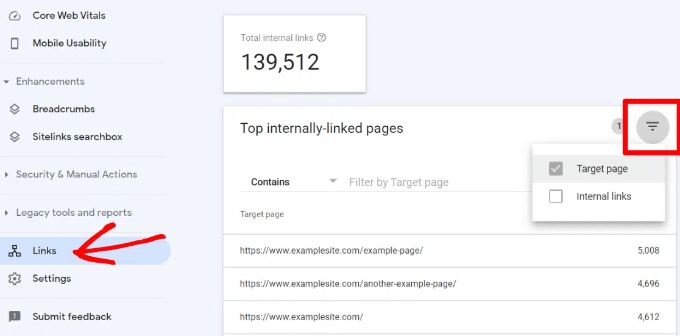
It’s helpful to see your website’s SEO performance in terms of links by using a tool such as the Links Report in Google Search Console. This is a helpful starting point for working out how to improve internal linking on your site.
The Links Report will show you how many pages are linking to this page. You can compare it with other pages and see whether pages with more internal links are ranking higher than posts with many internal links.
Just make sure you are only linking to the article when it makes sense. Adding links where they don’t make sense creates a bad user experience.
Another way to monitor the impact of internal linking is to see which keywords are gaining or losing position. All in One SEO makes this extremely easy with the Search Statistics feature.
Once you connect the plugin with Google Search Console, All in One SEO will fetch your Google Search Console data and present it under All in One SEO » Search Statistics.
The keyword positions chart shows a graph of your site’s keyword positions.
Below this, you’ll see the Keyword Rankings overview box. This shows your top 10 keywords, and if you use them for internal links they are very likely to be clicked.
3. Improve Your WordPress Site’s Internal Linking With a Plugin
If you’re not sure which posts you want to link to, then you will often find it faster to add internal links in WordPress using an internal linking plugin.
We recommend using All in One SEO. It includes a unique Link Assistant feature that lets you add links to your old and new content without having to open up the post. Plus, it provides link recommendations, detailed link reports, and much more.
Link Assistant will crawl every link on your website and then show a comprehensive list report.
The report will show you an overview of the links with total counts for internal, external, and affiliate links. It will also show you the number of orphaned posts that have not yet been linked to from another post or page.
You can switch to the Links Report tab for detailed information on all your links. Here you’ll see a list of all your posts and pages with columns for internal, external, and affiliate links.
It will also show a number of suggestions where you can add links.
For more details, you can click on the right arrow button next to a post or page. This will show all links organized in different tabs. From the suggestions tab, you can quickly view link suggestions and add links without directly editing a post or page.
Link Assistant also helps you discover more internal linking opportunities.
You can switch to the ‘Linking Opportunities’ tab to see suggestions about how to improve the internal linking on your website, and also see the list of orphaned posts so you can add links to them.
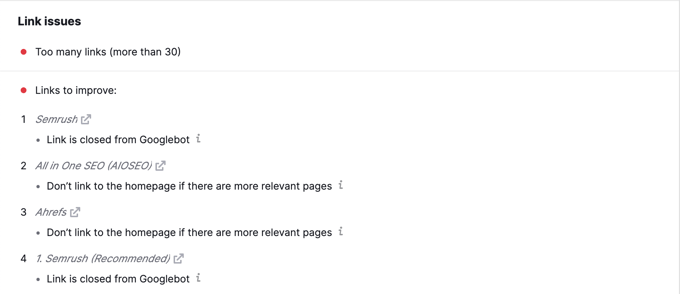
Another plugin useful for internal linking is Semrush SEO Writing Assistant because it can help you keep track of links inside your article.
For example, it lets you know when your article has too many or too few internal links and also suggests ways you can improve your links.
This tool also comes in handy if you have other authors working on articles. Editors can quickly see if the article includes internal links to other posts on your website.
4. Display a List of Your Most Popular Posts in WordPress
You can use a WordPress popular posts plugin to point users toward the articles that other users have already found helpful. These plugins automatically create a list of internal links to your most popular content.
Popular posts are usually your most successful content, which means they are more likely to increase user engagement, conversions, and sales. They are also a good opportunity for internal linking to your other less popular articles.
For example, MonsterInsights has a feature that allows you to show your popular articles anywhere on your WordPress site. You can use also use inline popular posts to show articles inside your content.
If you want to show articles in the sidebar or at the end of your content, then you can select the Popular Post Widget. MonsterInsights even lets you display your top-performing products anywhere on your eCommerce store.
5. Create List Posts That Roundup Other Articles in WordPress
Another way to increase the number of internal links on your WordPress blog is to create roundups of your existing content. You do this by creating a new post that mentions your best articles on a certain subject to give a detailed overview of the topic.
In fact, you’re reading a post like that now.
Luckily, there are some plugins that make this job easy. For example, WP Tasty Roundups allows you to quickly repurpose your existing content into beautiful roundup posts that rank in search results.
All you need to do is type one or two keywords into the built-in search functionality, and the plugin will automatically pull images, titles, descriptions, and links from relevant posts into your roundup list.
6. Get Google Sitelinks for Your WordPress Site
Sitelinks are a feature on Google search engine results pages (SERPs) where additional sub-pages appear under a website in the search results.
These are often internal links to the most popular pages of that website.
The top 3 spots on Google get the most clicks. When sitelinks are shown for a website, it takes up the same amount of space as three regular search listings.
Having this much screen space dedicated to your site significantly increases your overall click-through rate. Simply put, more visitors will visit your website from the keyword.
While there is no guaranteed way to get Google to show sitelinks for your website, it certainly helps to create lots of internal links to your most important posts and pages.
7. Preload Links in WordPress for Faster Loading Speeds
Link preloading is a browser technology that will load links in the background before a site visitor clicks them. This makes your website seem faster, which can improve SEO.
Because loading speed is one of the top indicators for search engine rankings and user engagement, when your internal pages are preloaded, your visitors are more likely to stay on your website longer.
They are more likely to view more pages because they’re loading instantly.
The easiest way to preload links is by using the Flying Pages plugin. It simply adds intelligent preloading to make sure preloading won’t crash your site or even slow it down.
Broken links are bad for your website’s SEO. Search engine crawlers find new content on your website by following internal links, so a broken link can stop them from indexing a new post.
They also negatively impact user experience because broken links will return a 404 error. If a visitor clicks on a link and is unable to find a page they’re looking for, then they may leave.
AIOSEO offers a powerful redirection manager that helps track 404 errors on your website and lets you set up permanent 301 redirects to fix broken links.
9. Update Internal Link URLs When Moving a Site to a New Domain
If you ever move your WordPress site to a new domain name, then it is important to update all internal link URLs. Otherwise, you will have lots of broken links.
You should start by changing the WordPress address and site URL by visiting the Settings » General page from your WordPress dashboard.
But you will also need to change the URLs of every internal link added to your posts and pages.
10. Use MediaWiki Syntax to Quickly Add Internal Links to WordPress
If you want to make internal linking a habit, then it helps to use the most efficient method. Since WordPress 6.0, WordPress has supported standard MediaWiki syntax to quickly add internal links when creating or editing a post.
You can now quickly add links by adding two square brackets followed by the post title. The animated gif below shows you how easy this feature is to use inside WordPress.
The link will automatically add the correct URL to the post, and use the post title as an anchor link.
If you know the title of a post (or even just part of it), then using the double square bracket method is the fastest way of creating an internal link.
11. Track Which Internal Links Are Clicked in WordPress
One of the best ways to uncover how users interact with your website is to track which internal links your visitors are clicking. Tools such as MonsterInsights can help you see which internal links your visitors are the most interested in.
You can then use these insights to improve the way you add internal links to your posts and pages.
You can also use All in One SEO to enable breadcrumbs for your WooCommerce products. For details, see the fifth tip in our guide on WooCommerce SEO made easy.
If you liked this article, then please subscribe to our YouTube Channel for WordPress video tutorials. You can also find us on Twitter and Facebook.
Are you looking for the best schema markup plugins for WordPress?
The right SEO plugin will help you properly optimize your content for search engines, so you can outrank your competitors and grow your business. You can also use schema markup plugins to create valuable rich snippets for search engines like Google.
In this article, we’ll share our expert pick of the best schema markup plugins for WordPress.
Why You Should Use Schema Markup Plugins for WordPress
If your site has lots of high quality original content, then you’re already off to a great start. However, you also need to help search engines understand that content, so they can include it in relevant search results and drive more people to your website.
Schema markup is structured data that help your website communicate with search engines behind the scenes. It uses invisible code to clearly label your pages and posts, so search engines know exactly what your content is about, and when to show it to users.
Search engines such as Google also use schema to create rich snippets.
These valuable snippets show additional information about your pages and posts. If you manage to get a rich snippet on a search engine like Google, then your content immediately stands out from the crowd. This can improve your organic click through rate and increase your blog traffic.
Using the right schema markup is important, but it can also be complicated. Thankfully, there are WordPress SEO plugins that can walk you through the process of adding schema markup to your site. Some of these plugins will even generate the right schema automatically.
Using a schema markup plugin doesn’t guarantee that your rich snippets will appear in the search results, but it will improve your chances.
With that being said, let’s take a look at the best schema markup plugins for WordPress.
All in One SEO for WordPress (AIOSEO) is the best WordPress SEO plugin on the market used by over 3 million websites. This complete SEO toolkit has everything you need to outrank your competitors including support for rich snippets schema.
AIOSEO makes sure your schema markup is properly set up, so search engines can show your content to people who are searching for pages, posts, and products just like yours.
The plugin even has special schema for FAQs, courses, recipes, software, ratings, and dozens more. This helps your customers find your products, services, and digital downloads over your competitors.
If you have a physical store or business, then AIOSEO has local schema markup for your business logo, address, business phone number, opening hours, and more. This gives you the best possible chance of appearing in Google Maps and local search results.
AIOSEO’s Google Map integration has multiple location support, which is perfect for successful businesses that have multiple offices, stores, salons, or other locations.
This powerful WordPress SEO plugin is also easy to set up. To start, simply enter all your website information into the plugin’s settings.
Then, just work your way through the Schema Markup settings for each content type.
For example, you’ll typically map your Posts to the Article schema type, and Pages to the Web Page schema.
AIOSEO is flexible, so you can override these default settings for specific pages, posts, courses, and more from inside the content editor.
When editing your content, simply scroll to the AIOSEO Settings section and then click on ‘Generate Schema’ to open the Schema Generator.
You’ll now see all the different schema that you can add to this particular piece of content.
By simply repeating these steps, you can optimize your entire WordPress website without having to write a single line of code.
AIOSEO has support for all the modern schema types to get you rich snippets including the new FAQ schema. SEO pros can use the custom schema tab to enter any type of schema format they wish.
It also has built-in schema validation to ensure that your website is properly optimized for highest SEO rankings.
The Schema Pro plugin has more than 20 schema types including recipe, article, book, job posting, and more.
You can add all of these schema types to your WordPress blog or website without writing a single line of code. Simply choose a schema type from a dropdown menu and then tell the plugin where to add this schema.
To help you use the correct schema, Schema Pro will even map default data such as page title, featured image, author, and data. You can then simply fine-tune these defaults to suit your content, and Schema Pro will add the correct code across your website.
If this is your first time adding schema, then the plugin integrates with the Google Structured Data Testing Tool and comes with built-in field validation. This allows you to test your schema and see whether you’re likely to get a rich snippet.
If you’re using custom post types or other unique content, then more advanced users may want to try the plugin’s Custom Schema markup tool. This allows you to create your own schema in JSON-LD format, and then test it using the Structured Data Testing Tool or Rich Results Test.
Price: You can buy an annual Schema Pro license for $67 which includes product updates, premium support, and advanced schema types.
Positive customer reviews can convince shoppers to buy from your online store and will make your website seem more trustworthy. With that being said, you’ll want the search engines to highlight your reviews.
The WordPress Review plugin can add the schema that search engines need to correctly identify your customer reviews, and include them in rich snippets.
You can use this plugin to create both single and multi-criteria reviews. This helps your customers make a decision about your company or products at a glance, and then explore more detailed reviews if they want extra information.
The plugin can also generate rating schema and markup for your WooCommerce products, which makes it a great choice for any WooCommerce user.
The WordPress Review plugin comes with a selection of layouts that you can apply to your reviews plus support for numeric pagination. In this way, the plugin can display your reviews in a way that makes sense to shoppers as well as the search engines.
Despite the focus on eCommerce, this plugin can also create review schema for any page, post, or custom post type. For example, you might encourage visitors to rate their favorite blog post.
If you’re worried about spam and fake reviews, then the plugin comes with built-in support for reCAPTCHA v3. For more information on how reCAPTCHA works, please see our guide on how to add reCAPTCHA to WordPress.
Price: You can download this plugin for free from the official WordPress repository.
This plugin adds 9 different schema types and allows you to show reviews in a structured box that features star, point, and percentage ratings. You can also add user comments, affiliate buttons, and more to create an eye-catching layout.
By presenting this data in a box with the correct schema, you can encourage search engines to include the information in their search results. For example, Google often shows star ratings next to each product.
As long as you get a high rating, this can make your products stand out from the competition and should improve your click-through rates.
WP Review’s boxes are completely customizable, so you can fine-tune them to perfectly suit your WordPress theme by changing the text color, adding a border, changing the background, and more.
Price: You can download WP Review for free from the official WordPress repository.
This plugin allows you to add structured data to any page or post, and it then renders that information as JSON-LD.
In total, Structured Content adds 6 schema types including LocalBusiness, FAQPage, and Person. If you sell online courses, then there’s a Course structured data type that will help search engines show your training in relevant search results.
If you run a job board in WordPress, then we recommend looking at the plugin’s JobPosting schema as this can help your job listings appear in Google’s job search experience.
Here, Google will show your job listings along with your logo, plus any company reviews or ratings you’ve received. This instantly makes your job listings more interesting and should get you lots more applicants.
To help you add schema to your website, Structured Content comes with its own blocks. Simply click on any block to add it to your content.
After that, you configure the schema markup by filling out a form.
This makes it easy to add correctly-formatted markup to your website.
Price: A free download of Structured Content is available from the WordPress repository.
If you want more control over your schema markup, then you may want to look at this free WordPress plugin.
Although WP SEO Structured Data Schema does have some site-wide settings, it places an emphasis on flexibility and manual customization.
This plugin allows you to add schema in JSON-LD format on a page-by-page basis.
WP SEO Structured Data Schema does require a bit more setup compared to some of the other plugins on this list.
However, it is a powerful solution that gives you lots of freedom to fine-tune your schema. This makes it a good choice for users who are more familiar with schema markup.
Just be aware that you’ll need to upgrade to the pro version if you want to add schema to custom post types.
Price: You can download WP SEO Structured Data Schema for free from the official WordPress repository.
The WPSSO Core plugin supports an impressive 500 schema types and sub-types.
It also stands out from the crowd by providing structured data markup for social media sites including Facebook, Pinterest, LinkedIn, Twitter, and WhatsApp.
If you’re already using some of the best SEO plugins, then you’ll be happy to hear that WPSSO Core integrates with WP Product Review, WP-PostRatings, and WP Meta SEO. WPSSO Core can even read settings and data from AIOSEO.
Beyond SEO plugins, WPSSO Core also integrates with Easy Digital Downloads and WooCommerce, so we recommend checking out this plugin if you run an online store.
WPSSO Core is also a good choice if you previously tried to add schema markup manually, but encountered errors. This plugin claims to fix all schema markup errors in Google Search, Rich Results, Merchant Listings, and more.
Price: To download WPSSO Core for free, simply visit the WordPress repository.
However, it also has a unique contact card feature that lets you add all your business details with the correct schema markup. This includes a Google Map, opening hours, plus your phone number and WhatsApp number with a click-to-call feature.
Search engines can then discover this information and show it next to your listing.
If you accept appointments and bookings, or own a physical store then this will help customers contact you. In fact, if you have multiple locations then Five Star Business Profile and Schema will automatically add a dropdown menu so customers can choose between the different locations.
Even better, you can add the card to any page, post, or widget-ready area using either a shortcode or a special Contact Card block.
Beyond the SEO-friendly contact card, this plugin has a database of every organization type schema and every rich results type.
Each schema and rich results type comes with the corresponding fields and properties. Simply fill in the default values that you want to use and the plugin will handle the rest.
If you want to use different values on a specific page, then you can easily override these defaults from the post editor.
Price: You can download Five Star Business Profile and Schema for free.
This plugin adds 16 schema types to your WordPress website including reviews, email, and comments, plus support for custom schema.
After activating the plugin, Schema and Structured Data will automatically fetch the data from your website and then enhance it in the Google search results.
If you have an online store, then this plugin is compatible with WooCommerce so you can get your products and services featured on search engines like Google. If you’re using WooCommerce extensions, then this plugin is also compatible with WooCommerce Booking and WooCommerce Membership.
If you want to add schema to lots of content, then the plugin has some useful conditional fields. This allows you to include and exclude posts, pages, and taxonomies from the schema.
Schema and Structured Data has some extra features that can help search engines understand your content. This includes support for breadcrumbs and Google AMP compatibility so you can easily enhance the markup for the AMP version of your site.
Price: An annual license for a single website is priced at $99.00.
Which is the best WordPress schema plugin?
After carefully evaluating all the popular schema plugins in the market, we believe that AIOSEO – All in One SEO is the best WordPress schema plugin.
In the past, websites will use their main SEO plugin and then a separate schema plugin which would lead to complication, plugin conflicts, and even performance issues.
With All in One SEO, you can use just one plugin that gives you everything you need to grow your SEO rankings.
The free All in One SEO plugin has support for on-page schema markups, but you will need the Pro version to unlock access to their powerful custom schema generator.
Frequently Asked Questions
Being the largest free WordPress resource site on the planet, we have helped tens of thousands of people choose the best WordPress SEO plugins. Below are the answers to some of the most frequently asked questions.
Does schema improve SEO?
Yes, having a proper schema markup will absolutely improve your SEO rankings. Google and other search engines reward websites with rich snippets and higher rankings when they use proper schema tags.
Does WordPress use schema?
By default, WordPress does not add schema markup. That’s why website owners use WordPress schema plugins. You can easily add schema markup in WordPress by using the All in One SEO plugin.
Yes, Yoast SEO plugin does offer limited schema support. However they do not have powerful custom schema generators or schema validation like other plugins such as All in One SEO, Schema Pro, and others mentioned in the list above.
Can you add schema to WordPress without a plugin?
Yes, you can absolutely add custom schema markup in WordPress without using a plugin. All you need to do is simply add the custom schema code in your theme’s functions.php file.
Although we don’t recommend this because if you update your theme, then your customizations will be overwritten. This is why it’s better to future-proof your custom snippets using WPCode.
With that said, most professionals use a plugin like AIOSEO to add schema because they keep it updated with new SEO guidelines.
Will schema markup help me get a featured snippet in Google?
Yes, having a proper schema markup will increase your chances of getting a featured snippet in Google, also known as position zero. At the end of the day, Google decides which sites get the featured snippet, but generally only websites with schema markup get the featured snippet.
What’s better JSON+LD Schema vs Microdata?
Modern search engines like Google prefer JSON+LD schema markup over the microdata schema markup. This is why most large websites have switched to using JSON+LD schema, and the plugins we recommend in our list all output as JSON schema markup.
Which is the best review schema WordPress plugin?
The best review schema plugin for WordPress is All in One SEO. It lets you add review schema, so your search listings can get start ratings and other rich snippets. But unlike other plugins, AIOSEO will not force you to use their styles, so you have full control over how your website brand looks.
The second option people often use is Schema Pro which is built specifically for generating schema blocks.
Which is the best custom schema markup generator for WordPress?
We believe that All in One SEO is the best custom schema generator for WordPress. It offers a guided wizard for all schema.org markups, and for true SEO pros, it even has a fully custom schema markup input, so you can experiment further.
If you liked this article, then please subscribe to our YouTube Channel for WordPress video tutorials. You can also find us on Twitter and Facebook.