EDITS.WS

Tag: wordpress tutorial

  • How to Code in WordPress with AI

    In the past, WordPress users without coding knowledge would either spend hours on Google searching for an answer or solicit the help of a professional web developer. With the emergence of artificial intelligence (AI), that is beginning to change. There are quite a few AI code assistant tools out there, but not all of them are geared specifically for WordPress. In this post, we’ll show you how to code in WordPress with AI so you can save your time and hard-earned money for other tasks.

    Let’s dive in.

    What is AI-Assisted Coding for WordPress?

    AI-assisted coding is the use of machine learning generative AI models that aid in creating code for WordPress. Most AI coding assistants let WordPress users describe what they want the code to do by entering a simple text prompt. From there, AI automatically generates the code for you, complete with custom variable names or CSS classes.

    Why You Should Code in WordPress with AI

    code in WordPress with AI

    image created with Divi AI

    There are several reasons to code in WordPress with AI. First and foremost, it allows novice coders or those with no coding knowledge to add PHP or JavaScript code snippets that change your site’s functionality. Similarly, AI can also generate CSS for you, allowing you to make advanced styling changes to your site’s design elements. Another reason you should consider using AI for coding in WordPress is to troubleshoot errors. If you’ve ever been in a situation where you are seeing the white screen of death or other common errors, AI can help you figure out where the problem is, and help fix it.

    What are the Benefits of Coding in WordPress with AI?

    happy web developer

    image created with Divi AI

    There are countless benefits of coding in WordPress with AI. Let’s highlight a few so you will have a better understanding of how AI can help make your life easier:

    • Minimal learning curve: When using AI, spending countless hours on PHP tutorials is unnecessary. In fact, it can leave you confused and frustrated. Instead, opt for a bit of AI assistance to help. You’ll likely learn a few things, too.
    • Editing theme files: When you’re mainly a web designer, you may not be comfortable editing theme files. With AI, you can put your troubles at ease because a text prompt can help you create those functions.php file hacks you were too afraid to try before.
    • Save money: In the past, if you needed to do something that required coding knowledge, you’d either need to learn how to code, which is time-consuming and sometimes expensive, or pay a developer to help. Using AI, you can avoid the middleman and save money for something else, like purchasing essential plugins or a premium WordPress theme.
    • Make your site stand out: WordPress users should never be complacent with a cookie-cutter website. The beauty of WordPress is that you can make your site look any way you want. That said, sometimes your site may need a little extra “oomph.” Adding code in WordPress with AI is an excellent way to add animations or other functionalities to make your website unique.

    How to Code in WordPress with AI

    code WordPress with AI

    image created with Midjourney

    There are a couple of ways you can code in WordPress with AI. You can use an AI page builder like Elementor to create custom CSS or an AI tool like CodeWP for PHP. As of this writing, no plugin will allow you to code PHP inside WordPress. However, CodeWP was specifically trained using WordPress files and structure, so it knows its stuff. An added bonus is the ability to store snippets in the cloud so you can save them for reuse.

    Before you start plugging custom code snippets into your site, you should do one of two things. We recommend either creating a child theme or a staging site. Doing both is a good idea, too. Regardless, your parent theme or live site will be protected from code snippets that could break your website.

    Let’s go through the steps you’ll need to set things up and generate code in WordPress.

    How to Code CSS in WordPress with AI

    Elementor AI page builder

    Elementor is one of the most popular page builders in the world. In recent months, they joined the AI revolution by offering text, image, and custom CSS generation. It works by activating the edit with AI button in Elementor’s front-end page builder in any module containing text or images.

    activate Elementor AI

    Generate CSS in Elementor AI

    For CSS generation, you’ll have to shell out for a pro license, but you can try Elementor AI text and image generation in the free version. With the pro version activated, hover over a section to reveal the edit section button.

    edit Elementor section

    Next, click the advanced icon in the sections’ settings.

    Elementor advanced settings

    Scroll to reveal the Custom CSS tab. Expand the dropdown menu to show the custom CSS box.

    Elementor custom CSS

    Click the edit with AI button above the custom CSS box.

    edit with AI

    When the dialog box appears, type in a text prompt, such as background color animation 2 colors (1). Then click the generate code button (2).

    Elementor AI text prompt

    Elementor AI will get to work generating your code snippet. It could take up to a minute to render. Once complete, you’ll get a preview of your code. If satisfied with the results, click the insert button to add the code into the Custom CSS box.

    insert code

    Once your code is inserted, you can watch the animation live in the Elementor builder.

    After your CSS code is live, you can change the colors, animation speed, and make other tweaks to suit your preferences.

    If you’d like to easily generate CSS for your web projects with Elementor, you can sign up for a yearly Pro license for $59. Remember, to use Elementor AI’s CSS generator, you’ll need to sign up for a paid plan. Prices start at $2.99 per month for 18,000 credits.

    How to Code PHP for WordPress with AI

    CodeWP

    CodeWP is an AI tool trained specifically using WordPress. It helps you create custom code snippets to extend its functionality or avoid using heavy plugins. When you are ready to implement generated code snippets, you’ll need to install a code snippet plugin, such as WPCode, or create a child theme and copy specific files from the includes folder to place your snippets.

    If you’re a Divi user and want to create a child theme, we have a detailed tutorial on the steps you’ll need to take. That said, if you’re a novice user, we highly recommend the snippet plugin route.

    Sign Up for a CodeWP Account

    If you haven’t signed up for CodeWP, click the Start for Free button.

    create CodeWP account

    When the screen refreshes, you can create an account by linking your Facebook profile, GitHub account, or by creating a username and adding your email address.

    create CodeWP account

    Browsing the CodeWP Interface

    The CodeWP is rather intuitive. You’ll be able to view your snippets, browse public (verified) snippets submitted by other users, get the latest news, and launch several code generators.

    CodeWP welcome screen

    For this tutorial, we’ll be working with the free version of CodeWP, which comes with one interface: WordPress PHP. To unlock the others, you must sign up for a pro license.

    Generate PHP in CodeWP

    To generate your first snippet, click the Generate Code button at the top left of the CodeWP interface.

    generate new snippet

    Next, click the new prompt button to open the text prompt dialog box.

    new CodeWP text prompt

    To demonstrate how easy it is to work within CodeWP, we’ll ask it to create a new custom post type for cars and some custom fields we can fill out in the cars post type.

    Start by entering the following prompt into the text field:
    Create a custom post type called cars and include a taxonomy for vehicle type. Add the following meta fields to the cars custom post type.

    integer number meta field called make
    integer number meta field called model
    integer number meta field called price
    integer number meta field called exterior color
    integer number meta field called interior color
    integer number meta field called seating capacity
    integer number meta field called drivetrain
    integer number meta field called transmission
    integer number meta field called cylinders
    integer number meta field called MPG

    Finally, click the Generate WP Code button.

    add text prompt CodeWP

    After a minute or two, CodeWP will generate your custom PHP code. To use it in WordPress, we’ll need to use the WPCode (or similar) snippet plugin.

    copy CodeWP output

    Copy the output after the opening PHP tag so we can paste it into WPCode.

    Adding PHP Code to WordPress

    Bounce back over to your WordPress admin dashboard. If you still need to install WPCode, do that now. If you need guidance on installing plugins, we have a handy plugin installation guide for you to follow.

    Navigate to Code Snippets > + Add Snippet (1). From there, click Add Your Custom Code (New Snippet) (2).

    add new snippet WPCode

    By default, WPCode selects auto-insert and sets the location to everywhere, which is what we want it to do. To make your snippet live, select PHP from the dropdown (1) and paste the PHP snippet into the code preview (2). Next, activate the snippet (3), and save it (4).

    save PHP snippet

    Once saved, a new post type appears inside the WordPress admin dashboard.

    code in WordPress with AI

    To ensure things are working correctly, hover over the car in the admin panel and click Add New.

    add new car

    Scroll down until you locate the car meta fields. If they are there, congratulations! If not, you can use CodeWP to help adjust the code accordingly.

    CPT meta fields

    Final Thoughts on Coding in WordPress with AI

    WordPress development is rapidly evolving with the integration of AI. Using tools like Elementor AI or CodeWP, you can forego hours of research or expensive web development services. AI tools designed specifically for WordPress can save money and time and teach even the most novice user how to code. Whether you need to add a custom PHP script or take your site’s design to the next level with CSS, AI coding assistants offer invaluable support.

    If you’d like to learn more about what you can do with AI for WordPress, check out some of our other AI-related posts:

    Featured Image via Leonid studio / shutterstock.com

    The post How to Code in WordPress with AI appeared first on Elegant Themes Blog.

  • How to Display Different Sidebar for Each Post and Page in WordPress

    Do you want to display different sidebars for certain posts and pages on your WordPress site?

    A lot of the time, you will want to show the same sidebar across your entire website or blog. However, sometimes you may need to show different sidebar content on some of your posts and pages.

    In this article, we will show you how to create and display different sidebars for each post and page in WordPress.

    How to Display Different Sidebar for Each Post and Page in WordPress

    When Would You Need Different Sidebars in WordPress?

    Many WordPress themes have a sidebar where you can add useful widgets and content. For example, many sites add a search bar to the sidebar or show a list of recent posts.

    If your WordPress theme has a sidebar, then by default, it will look the same on all your posts, pages, categories, and archive pages.

    However, you may want to display different sidebar widgets on certain posts and pages.

    For example, you might show different content in the sidebar of your most popular posts or display ads that are more relevant to a particular page.

    You could even use different contact forms depending on the page’s content.

    Having said that, let’s see how to create and display a different sidebar for each post and page in WordPress. Simply use the quick links below to jump straight to the method you want to use:

    Method 1: Displaying Different Sidebars for Each Post and Page in WordPress (Easy)

    If your theme supports sidebar widgets, then you can easily create multiple sidebars using Lightweight Sidebar Manager. This plugin lets you build as many custom sidebars as you want and then assign them to different posts and pages. You can also add them to custom post types or assign a sidebar to all the pages or posts that have a specific category.

    The first thing you need to do is install and activate the Lightweight Sidebar Manager plugin. For more details, see our step-by-step guide on how to install a WordPress plugin.

    Upon activation, you need to go to Appearance » Sidebars. To create the first sidebar, click on the ‘Add New’ button.

    Adding custom sidebars to your WordPress website

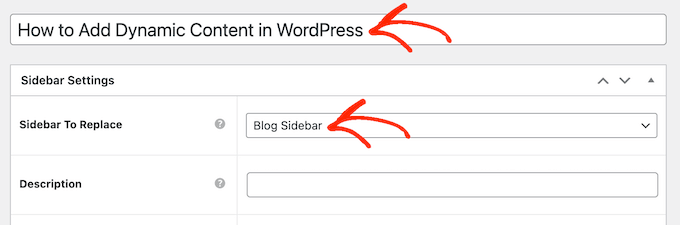
    You can now type in a title for the sidebar. This is just for your reference, so you can use anything you want.

    With that done, open the ‘Sidebar To Replace’ dropdown menu and choose the location where you want to show the sidebar. The options you see may vary depending on your WordPress theme

    Replacing the built-in sidebar provided by your WordPress theme

    Now, you can control where the sidebar appears by creating inclusion or exclusion rules. 

    To create an inclusion rule, just open the ‘Display On’ dropdown and choose the pages, posts, custom post types, or categories where you want to use the sidebar. 

    For example, you might add the sidebar to a specific page, such as your 404 error page or the author archive.

    Adding a custom sidebar to the WordPress 404 page

    Another option is using the sidebar for a particular page, post, or category by selecting ‘Specific Pages/Posts/Taxonomies.’

    This adds a box where you can type in the page, post, or category.

    Creating a custom sidebar for WordPress categories

    To create more inclusion rules, simply click on the ‘Add Display’ Rule button.

    This adds a section where you can create the new inclusion rule.

    Adding display rules for custom sidebars in WordPress

    If you prefer, then you can create exclusion rules instead. For example, you may want to show the sidebar on every page except the homepage. 

    You can also combine inclusion and exclusion rules to control exactly where the sidebar appears on your WordPress website.

    To create an exclusion rule, just click on the ‘Add Exclusion Rule’ button.

    Displaying different sidebars for pages and posts in WordPress

    In the new ‘Do Not Display On’ section, open the dropdown menu and select the page or post that shouldn’t use this sidebar. 

    You can also exclude the sidebar from pages that have a specific category by following the same process described above.

    Displaying different sidebar for each page and post in WordPress

    After deciding where the sidebar will appear on your WordPress blog, you may want to show different content to different users.

    For example, if you have a membership site, then you might use a different sidebar for visitors compared to logged-in members. 

    To do this, open the ‘User’ dropdown and choose a role from the dropdown menu. Now, only people with this specific user role will see the sidebar. 

    Displaying different sidebar widgets on each WordPress page or post

    Finally, you may want to type in an optional description. This will only appear in the WordPress dashboard, so it’s a good way to share information with other admins or users on a multi-author WordPress blog

    If you are going to create lots of sidebars, then you can also use this field to leave yourself notes and helpful reminders.

    Adding a helpful description to a custom sidebar in WordPress

    When you are happy with the information you have entered, simply click on ‘Publish.’

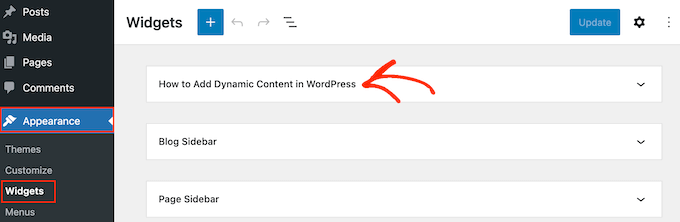
    With that done, go to Appearance » Widgets. You will now see all the widget-ready areas that your theme supports by default, plus the new sidebar you created in the previous step.

    Adding content to a sidebar or similar widget-ready area

    You can now go ahead and add widgets to the sidebar, just like any other widget-ready area. 

    For step-by-step instructions, please see our guide on how to add and use widgets

    Adding content to a custom WordPress sidebar

    When you are happy with how the sidebar is set up, click on ‘Update.’

    Now, if you visit your WordPress blog, you will see the new sidebar live.

    An example of a custom WordPress sidebar, created using a plugin

    To create more custom sidebars, simply keep repeating these steps. 

    Method 2: Creating a Different Sidebar With a Page Builder Plugin (Works With Any WordPress Theme)

    If your theme doesn’t support sidebars, then you can still create different sidebars using a drag and drop page builder plugin.

    SeedProd is the best landing page builder plugin for WordPress. With this plugin, you can create any type of custom page without writing any code. It also has dozens of professional site kits and templates that you can easily edit and fine-tune using the drag-and-drop builder.

    When designing a custom page, you can choose a layout that has a sidebar.

    Choose a Layout with a Sidebar

    You then simply find the blocks you want to show in that sidebar and add them using drag and drop.

    SeedProd has all the blocks and features you’d expect from a powerful page builder, such as optin forms, social profiles, countdown timers, contact forms, buttons, various content blocks, and more. This makes it easy to create powerful and unique sidebars for your WordPress blog.

    Drag the Blocks You Wish to Use Right onto the Sidebar

    To learn how to use the SeedProd page builder plugin on your website, you can see our guide on how to create a custom page in WordPress.

    We hope this article helped you learn how to add different sidebars to each post or page in WordPress. You may also want to learn how to create a custom Instagram feed in WordPress or see our expert picks for the best block themes for full site editing.

    If you liked this article, then please subscribe to our YouTube Channel for WordPress video tutorials. You can also find us on Twitter and Facebook.

    The post How to Display Different Sidebar for Each Post and Page in WordPress first appeared on WPBeginner.

  • How to Speed Up WordPress with 15 Tips (2023)

    One of the biggest issues WordPress website owners face is a slow website. When your website is lagging, it can affect placement in search engine ranking pages (SERPs), cause your visitors to leave and never return, and can even affect your conversion rates. In this post, we’ll offer fifteen tips (and some bonus ones) to speed up WordPress.

    Let’s get started.

    Why Should You Care About WordPress Speed?

    The first and most critical thing to remember is that no one likes a slow website. It doesn’t matter how fancy it is; if it doesn’t load in under 3 seconds, most people will bail and never return. A high bounce rate is detrimental because you could miss out on sales, lose potential customers, and even scare off those who frequent your site.

    Another downside to a slow website is a poor position in the SERPs. Google uses core web vitals to gauge how well your site is performing. If your site loads slowly, Google will penalize you heavily, pushing your site’s content down in search results. One of the most important metrics to watch is the time to first byte (TTFB), which measures how long it takes to get the user’s browser to the first byte of info from your site’s server.

    Lastly, if your site is slow, it could discourage visitors from purchasing, signing up for a newsletter, or even reading a blog post. Generally, a slow site translates into unhappy customers who aren’t willing to give you their time, much less their money.

    How to Speed Up WordPress

    Throughout this post, we’ll provide you with actionable ways to increase the speed of your site. Before we get to that, though, let’s discuss an important first step to measure how your site is performing so that you can take the necessary steps to correct it.

    1. Conduct A Speed Test

    speed up WordPress

    The first thing you should do when you notice your website lagging is to perform a speed test to measure its speed and performance. There are a few you can use, including GTmetrix, Pingdom, and Google’s Page Speed Insights.

    To demonstrate the process, we’ll walk you through using GTmetrix to run a scan. Copy and paste your website URL into the text field (1) and click test your site (2).

    GTmetrix page speed test

    It will take a few minutes for the scan to complete. Once finished, you’ll understand why your site is not performing well. GTmetrix measures things like performance, structure, largest contentful paint, total blocking time, and cumulative layout shift:

    GTmetrix score

    Breaking Down the Results

    Using the screenshot below, we see we have a couple of issues with our test site. Within the performance tab, we can see that our site is struggling with a higher-than-recommended largest contentful paint score, along with a page index speed of 5.1. This means that it takes 5.1 seconds to load our page, with the largest element taking a whopping 7.8 seconds to fully load. As a general rule, your site should load in less than 3 seconds to keep visitors on your site.

    website performance breakdown

    We can gain insight into what is causing our site to load so slowly on the structure tab. As you can see, we have several images that are way too big, causing our page to load slowly. In addition, a few large network payload issues due to javascript files that are hogging resources.

    The results you see will vary depending on the needs of your site, but as you can see, GTmetrix will provide you with all of the necessary information so that you can take steps to speed up WordPress.

    2. Choose the Right WordPress Hosting Provider

    SiteGround WordPress hosting

    One of the best ways to speed up WordPress is by choosing a fast hosting provider. One of the best, SiteGround, is one of the fastest hosting providers available due to its Google Cloud infrastructure and Nginx webserver. Unlike Apache, which is still utilized on a lot of websites, Ngnix has performance enhancements that make it much faster than its counterpart. Another advantage of SG is its custom PHP and MySQL setup, which makes sites hosted on it blazing fast.

    Regardless of the hosting partner you choose, be sure to check what speed-enhancing features they offer before signing up.

    3. Optimize Core Web Vitals

    core web vitals

    As mentioned, you should familiarize yourself with Google’s core web vitals and what each means. These metrics are crucial to your website’s success in search results, so staying on top of these is a must. To help you understand what each does, here’s a simple definition for each:

    • Largest Contentful Paint (LCP): The time it takes to load the largest image or text on a page.
    • First Input Delay (FID): Measures the time from a user’s first click to when the browser begins to process the response.
    • Cumulative Layout Shift (CLS): Measures unexpected layout shifts on the page. When a visible element changes its position from one frame to the next (layout shift).
    • First Contentful Paint (FCP): Measures the time needed to load the page once the first element (text, images, videos, etc) loads.
    • Interaction to Next Paint (INP): Assesses a page’s overall response to user interactions (clicks, taps, etc.)
    • Time to First Byte (TTFB): Calculates the time it takes between the request for a resource and the first byte of information loading.

    4. Choose Premium DNS

    Namecheap premium DNS

    In addition to hosting, choose a reputable domain name registrar, such as Namecheap, who offers a premium domain name system (DNS). Premium DNS is a paid service offered by DNS providers to enhance the performance, security, and reliability of a website’s domain name resolution process. Basically, DNS translates human-readable domain names (like elegantthemes.com) into IP addresses that computers use to locate servers on the internet.

    Premium DNS offers several advantages over free DNS services, such as faster performance, enhanced security, better reliability, DDoS protection, and more customization options. Premium DNS providers often have a more extensive network of servers that are strategically located around the world. This helps reduce the time it takes for a user’s request to be resolved, resulting in quicker loading times.

    5. Keep Your Site’s Database Clean

    WP Optimize All-in-One

    Another way to speed up WordPress is by keeping your site’s database clean. Over time, post revisions, comments, and other orphaned data can build up, bloating your site’s database and adding unnecessary bulk. To ensure a speedy, clutter-free database, consider installing a database optimization plugin, such as WP-Optimize.

    WP-Optimize is an all-in-one solution for cleaning your database, compressing images, and minifying clunky CSS and JS files. When you keep your database optimized, you can limit potential errors that may arise, all while holding image and script file size in check. Before optimizing your database, be sure to make a backup first. Failure to do so can result in database errors, which could break the connection between your site’s files and database.

    6. Use a CDN

    speed up WordPress with CDN

    image via VectorMine | Shutterstock.com

    If you’re looking for ways to speed up WordPress, incorporating a content delivery network (CDN) is an excellent option. A CDN is a collection of computer servers used to store website files. It typically encompasses servers worldwide, serving your website’s files to visitors based on their location. By delivering files from the closest point to your site’s visitors, your website will load much faster. CDNs work as a failsafe, too. For example, if one server housing your files goes down, another can swoop in and save the day, ensuring your site stays up and running. Depending on your hosting provider, you may already have access to a free CDN. Most reputable ones, like SiteGround, offer a free CDN to their customers as part of a hosting package.

    7. Cache Your WordPress Website’s Files

    WP Rocket WordPress plugin

    When it comes to speeding up your WordPress website, adding a caching plugin can definitely help. Every time a user lands on your site, the browser sends a request to your website’s server to view the pages. Depending on how many images, videos, and other elements you have, that can take significant time. When you use a caching plugin, your site’s files are temporarily stored and served to your visitors much faster. Most managed WordPress hosting providers will provide caching with a hosting plan, but for those who don’t have that option, plugins like WP Rocket are an excellent option.

    8. Minify CSS, JS, and HTML

    NitroPack speed optimization

    When you minify your site’s CSS, javascript, and HTML, you can reduce page loading time, making visitors and Google happy. While it won’t be a drastic difference, when you combine minification with other tips on this post, your site will be screaming fast in no time. Minifying these files removes unnecessary characters in your site’s code, cleaning it up and serving them more quickly when called by the browser. There are several ways to go about it, including online tools, manually (which is not recommended), or by using a plugin. Most speed optimization plugins, such as NitroPack, will do all the hard work for you, ensuring your site loads fast without breaking the code.

    9. Enable GZIP Compression

    Gzip compression

    image created with Divi AI| Photoshop AI

    Despite having caching and image optimization tools, enabling GZIP compression on your website can further enhance its speed. GZIP, a compression technique, reduces the size of resources like web pages, stylesheets, and JavaScript files by compressing them before transmission. This minimizes data transfer, resulting in quicker loading times. When a browser requests a page, the server checks for GZIP support. If supported, the server compresses files before sending. Upon receipt, the browser decompresses and displays the content. GZIP not only accelerates WordPress but also improves bandwidth efficiency and SEO. Some caching plugins like WP Rocket enable GZIP automatically. Others, like WP-Optimize, offer it but require manual activation.

    10. Optimize Images

    EWWW Image Optimizer

    One of the biggest speed hogs in WordPress is images. If not sized correctly, they can obliterate your TTFB. They can also hurt SEO and your rankings in the SERPs. To avoid this, always ensure that your images are sized correctly. While you can do this manually, sites with hundreds or even thousands of photos require a more practical solution: an image optimization plugin. These plugins work by resizing existing images and automatically resizing the ones you upload. A good option is Ewww Image Optimizer, which resizes images as you upload them, removes embedded metadata, and uses lazy-loading to compress your images. In addition to that, it can convert the images on your site to WebP format, which will drastically reduce image file size.

    11. Host Videos Outside of WordPress

    speed up WordPress video

    image via YoGinta | Shutterstock.com

    Videos are great for marketing, are perfect for introducing your brand to the world, and provide interest for your site’s visitors. That said, they will kill your site’s speed. It’s best to host videos outside of WordPress, like on YouTube, Vimeo, or Amazon S3. If you use a theme like Divi, you can embed YouTube and Vimeo links in design elements, but for others, you’ll need a YouTube plugin.

    You take the pressure off your web server to do the hard work by embedding videos with a link. YouTube works fine for embedding videos in your site, but if you want to use video backgrounds, you’d be better served using Vimeo. While it does require a paid subscription, it offers tools to strip the branding from your videos, offering a more streamlined experience for your users. If you want a side-by-side comparison of the two, check out our Youtube vs. Vimeo post to help you decide which is best for your situation.

    12. Minimize the Use of Plugins

    WordPress plugins

    WordPress plugins are a great way to add new functionality to your WordPress site but should be used sparingly. As a general rule, you should only use absolutely necessary plugins. One common mistake new WordPress users make is trying out different plugins, then leaving them installed on their websites. It’s best to only use what is needed, deactivate and delete plugins that aren’t in use, and always run a database cleanup after uninstalling them. That way, you cut down on database bloat, keeping your site running smoothly. In addition, be sure to always keep your plugins updated. Outdated plugins can lead to security vulnerabilities, which can entice hackers to do harm. That said, be sure to update plugins safely to avoid unnecessary downtime.

    13. Keep PHP Updated

    update PHP

    One of the most overlooked speed-boosting steps you can take for your WordPress site is to update PHP when needed. PHP updates are released periodically, with older versions being discontinued regularly. It’s important to keep PHP updated for several reasons. First, an outdated version of PHP can slow your site down. As updates are released, they usually contain performance-enhancing features to help WordPress process requests more efficiently. Secondly, outdated PHP can be a severe security risk. With hackers and nefarious actors always looking for a way in, having crucial software like PHP updated is a must. Another consideration is the number of PHP workers on your server. If PHP is up to date and you have a resource-heavy website, it might be time to contact your hosting provider and ask how many PHP workers are running and whether you can add more.

    14. Stay on Top of Comments

    Another overlooked aspect of WordPress is comments. Although comments alone don’t typically affect site speed, when combined with other factors, comments can be a source of sluggishness on your WordPress site. To keep comments in check, consider installing a comment plugin along with routine cleaning to ensure that your site’s database isn’t filled with hundreds (if not thousands) of unnecessary comments. Using a database cleaning plugin along with a comment plugin, such as Akismet, is a great way to moderate comments, engage with your users, and keep the spam out and bloat minimal.

    15. Pick the Right Theme

    Divi by Elegant Themes

    Last but certainly not least, choose a fast WordPress theme, like Divi, to help speed up WordPress. You should keep a few things in mind when looking for a new theme. First of all, is it responsive? A theme that works well on any screen size is a must considering Google adopts a mobile-first mentality regarding search engine rankings. Secondly, opt for a theme that offers performance enhancements through code minification, dynamic framework, and other speed-boosting features.

    With Divi, you’ll get all of those things and a lot more. A few features include a dynamic framework that allows loading only what is needed – on the fly. Additionally, Divi’s CSS is dynamic, too. It’s broken into hundred of smaller components, then combined on each page to produce a fast-loading website that only uses what is necessary rather than loading the entire stylesheet. In addition to dynamic CSS, Divi offers Google font caching and asynchronous Javascript and removes unneeded resources, such as emojis. If you’re looking for a WordPress theme that’s efficient and has the design chops to create the site of your dreams, Divi is the way to go.

    Bonus Tips

    In addition to the tips above, there are a few other things you can do to speed up WordPress:

    • Turn off automatic updates: Although this may seem counterproductive, it’s best to update plugins manually, as leaving auto-update on involves a constant background process which can slow your site down.
    • Disable trackbacks and pingbacks: WordPress comes with a feature in settings > discussion that enables trackbacks and pingbacks. While they can be useful, they can also be a speed-sucker. Therefore, it’s recommended to disable them.
    • Limit the number of posts on the blog roll page: If site speed is an issue on your blog, consider limiting the number of blog posts you feature on any one page. Remember, your browser has to load every element on a page before delivering it to the browser, so if you have a lot of posts on one page, you could be causing your site to load slowly.
    • Enable object caching: A type of server-side caching, object cache involves storing database queries to serve specific data within a server request. When enabled, there will be far fewer requests made, thereby speeding up WordPress.
    • Delete unused images: Leaving unused images on your site can cause massive slowdowns. So if you aren’t using them, get rid of them.
    • Manage cron jobs: Cron jobs are useful for setting up automatic tasks, but using too many of them can really slow your site down. Try to limit the number you create to keep background processes at a minimum.
    • Optimize Google Fonts: Google fonts are great for UX but not so much for page speed. Follow these tips to keep your site running optimally when using Google fonts.

    Final Thoughts on Speeding Up WordPress

    WordPress is the most popular CMS in the world but left unchecked, it can be slower than molasses. That’s why it’s important to take steps to ensure that it’s running optimally. A slow WordPress site threatens your position in the SERPs and could result in lost revenue. With a good hosting provider like SiteGround and a few strategic plugins like WP Optimize, your site will be screaming fast, have a better chance at ranking well, and will keep visitors on your site, ensuring more conversions and an overall better user experience.

    Need more tips? Check out a few of our posts to increase your knowledge of WordPress:

    Featured Image via Kapralcev / shutterstock.com

    The post How to Speed Up WordPress with 15 Tips (2023) appeared first on Elegant Themes Blog.

  • How to Make a WordPress Website With AI

    Artificial intelligence is quickly becoming a tool that many sectors, including web design, are adding to their feature sets. Digital design and marketing are seeing many established tools add AI functionality to their products. The same can be said for WordPress. As one of the most popular website builders available, it’s no surprise that you see more AI plugins for WordPress. This guide will show you how to bring AI into your next WordPress build. First, let’s cover why you may want to use AI to make a WordPress website.

    Why Use AI to Make a WordPress Website

    You would want to make a WordPress website with AI for many reasons. Some of these benefits include:

    • Becoming more efficient: AI can assist you in getting both simple and advanced tasks done quicker. From automation to content generation, you can get more done with AI backing your WordPress website.
    • Stay on top of innovation: Using AI can help your WordPress website experiment with new features and be at the forefront of technological advances in the ecosystem. These new insights and additions can increase traffic, sales, and more.
    • Reduce labor and resource costs: AI can save money when used effectively. Using AI for your copy can save you from hiring copywriters. Having your layouts generated by AI design tools can save you from hiring a UI designer. These cost savings can be reinvested into other parts of your business.
    • Enhance your security: Security plugins rely on AI’s power to better protect WordPress websites. Plugins like Quttera Web Malware Scanner, which has a patented AI scan engine, now use machine learning to look for unknown and hidden WordPress malware in your website.
    • Improve your search presence: Many SEO plugins add AI capabilities to their toolset. As such, you can utilize these improvements in your WordPress sites by having a website that can perform better for search engines. This can lead to better rankings and more views on your website.

    Bearing this in mind, it’s evident that using AI to help build your WordPress website is a wise course of action.

    How AI Can Be Used to Build a WordPress Website

    There are plenty of AI tools that can be used to build and enhance a website. Some AI website-building platforms outside of WordPress, like WixADI or Hostinger AI, can generate your entire site from the start with AI. But, for many, all-in-one website builders lack the control and flexibility of WordPress. There is a reason it is still the best CMS for building websites.

    That said, WordPress users are looking for more streamlined methods of integrating AI into WordPress. Thankfully, AI-powered WordPress plugins, themes, and page builders are growing by the minute. This type of integration bridges the gap between AI and WordPress, making it easier than ever to build a site in WordPress.

    Considering all these AI tools at your disposal, here are a few ways you might use AI to build a WordPress website.

    Using External AI Tools to Build WordPress Websites

    There is a myriad of AI tools outside of WordPress that you can use to build your website. AI writing software and chatbots like ChatGPT can generate pretty much anything text or code you might need for a website, including WordPress. You can use it to create a thorough outline for your website, generate copy for your pages and posts, and write code to create WordPress plugins or other custom functionality you may need. You can even create entire HTML docs for your pages or templates. More robust AI writers like Jasper and Surfer SEO can help with SEO content.

    You can also use many of the same AI writers to improve existing copy for your site. And you can use Grammarly as a browser extension to help proofread and optimize your text inside the WordPress editor.

    On the design side, there are AI art generators that anyone can use (like MidJourney) to generate stunning AI images for your site. And if you are a graphic designer, you can take advantage of AI-powered design tools for photo editing and graphic design needed for your WordPress site.

    Using AI Plugins to Build Your WordPress Website

    Many WordPress plugins are starting to incorporate AI into their software. These allow users to use AI for content generation and other AI-automated tasks right inside WordPress. What makes AI plugins so great is that they work with popular WordPress themes which handle the design of your site, leaving AI to generate your content and enhance your existing design. For example, AI Engine brings the power of OpenAI and ChatGPT to your WordPress dashboard.

    AI Engine, a powerful WordPress AI plugin

    Some AI plugins are more about enhancing your existing site rather than generating new content. For example, SEO plugins like RankMath can streamline the creation of SEO content, and automation plugins like Uncanny Automator can automate and manage many WordPress tasks for you.

    For more, here’s a list of the best WordPress AI plugins to help get you started.

    Using AI Page Builders to Build Your WordPress Website (Recommended)

    WordPress page builders have changed the game for designing websites in WordPress. Even WordPress has a block editor that brings full site editing on the front end. Nothing seems to beat the drag-and-drop visual editing experience offered by Divi, Elementor, and other great page builders.

    The two AI page builders leading the way so far are Divi and Elementor. Elementor was the first to add AI integration to their page builder, allowing users to generate text, images, custom code, and more with an easy-to-use interface.

    Elementor AI

    Divi, our WordPress theme and page builder plugin, recently launched Divi AI. It includes , Acting as a powerful AI assistant inside the builder, Divi AI uses cutting-edge generative AI to generate text and images contextually as it learns about the existing content of your site.

    Best WordPress content writer-Divi AI hero section

    Using an AI page builder is one of the best ways to use AI to build a WordPress website because it is an all-in-one solution for both design and AI content generation.

    Although there are various AI tools, plugins, and page builders you can use in WordPress, there is a benefit to using a combination of external AI tools and native AI WordPress solutions. In this manner, you get the best of both worlds when building your WordPress site.

    How to Make a WordPress Website with AI (Step By Step)

    For this tutorial, we are going to dive right into how to use AI to build a WordPress website. To do it, we’ll be using ChatGPT to help with the planning process. Then, once WordPress is up and running, we are going to use Divi AI to demonstrate just how easy and efficient AI can build a WordPress website.

    Let’s get started.

    1. Map Out Your Website with AI  (ChatGPT)

    We will begin building our website by creating a simple outline in ChatGPT. To do this, navigate to ChatGPT. Next, enter the prompt, “Make a concise list of the pages an email marketing agency’s website should have?”.

    Website outline by ChatGPT

    ChatGPT gives us a list of eight pages we can create for our website in our first prompt. We can even go a step further and ask ChatGPT to outline what each page should contain as well:

    Page layout outlines created by ChatGPT for an email marketing agency

    Notice how in-depth ChatGPT’s AI was able to get when planning out the content and function of each page. We can use these to our advantage when building our pages, choosing modules, and creating the content for each page. We will be creating a five-page website for our fictional email marketing agency with the following pages:

    • Home
    • About Us
    • Services
    • Portfolio and
    • Contact Us

    With our outline, we now move into the website-building phase.

    2. Setup Your WordPress Website

    Some prerequisites must be met before we enter the new and exciting world of AI-powered WordPress web design. First, you’ll need to register a domain name for your site. A good domain name provider is NameCheap, but there are many domain name providers for you to choose from.

    Next, you’ll need to choose a hosting provider. This is important, so choose wisely. We recommend Siteground, Pressable, or Cloudways. However, our list of the best WordPress hosting options is also an excellent place to find the right one for your website.

    The final prerequisite for building a WordPress website is to install WordPress. Our definitive guide on installing WordPress shows you a few ways to set up a successful WordPress install.

    Now that you have your domain name, a secure web host, and WordPress installed, we can start building our website with the help of AI.

    3. Install Your WordPress Theme and AI Page Builder (Divi + Divi AI)

    Now that WordPress is installed, you are ready to install your theme. For this tutorial, we are going to use our Divi Theme, which includes a powerful AI page builder with Divi AI. (Note: The Divi builder and Divi AI are also available as a plugin to be used on any WordPress theme as well.)

    Intro to Divi and Divi AI

    Divi AI


    Divi is one of the most popular WordPress themes available. Its AI feature, Divi AI, works within its visual builder, bringing advanced prompting options, copy editing, and image generation to WordPress websites. One of the critical features of Divi AI is its ability to understand the copy already living on your web pages. This allows your website’s AI content to be created with context in mind. Divi AI is smart enough to understand what’s written within modules, sections, and pages and use that understanding to create new copy that fits into the realm of your webpage.

    The Divi AI roadmap promises to bring code generation, full layout generation, image editing, and more shortly. So stay tuned to see the magic unfold! As such, we’ll show you how to make a WordPress website with AI using Divi and Divi AI.

    Installing Divi + Divi AI

    Before you can use Divi, you’ll need to subscribe for a membership. Then you can download the theme or plugin from the members area.

    Divi AI is already integrated with Divi, so you won’t need to download anything else. You can use Divi AI for free with a limited trial period, but you can easily upgrade when that time comes.

    Once you download Divi, you can install it like you would any other WordPress theme in the WordPress Dashboard. For more details, you can follow this guide. After Divi is installed, we can start creating our website and creating content for our website.

    4. Add Site Title and Tagline for Divi AI

    Setting your site title and tagline in WordPress is an essential first step in training Divi AI. By doing this, you are giving Divi AI more context about your website. This will help better inform Divi AI as you seek to create content, generate images, and more while building your WordPress website.

    To begin, let’s assign a site name and tagline. From your WordPress dashboard, hover over the Settings menu item. Then, click General from the flyout menu.

    Set site title and tagline

    From there, give your site a title and tagline. You can also add your site languages, set your admin email, and more here. Once completed, click the blue Save Changes button at the bottom of the screen.

    Create site title and tagline for your new WordPress website

    With this in place, we can start building our website’s pages.

    5. Create Your First Page with Divi AI

    Equipped with our page names in hand from ChatGPT, we will now start creating the blank pages of our website. Hover over the Pages menu. Then, click on the Add New text link.

    Add new page to AI powered WordPress website

    Next, enter the name for your page, in this case, Home. Finally, click the blue Publish button at the top right-hand side of the screen.

    Name and publish your page

    Repeat this process for the other pages within your website’s sitemap.

    Install Layout from Layout Library

    Now that all our pages are created, we are ready to add our first premade Divi layout to the home page. Navigate to the home page we created again, hovering over the Pages menu item. Then, click on the All Pages link. You’ll be presented with our list of new pages for our website. A text link menu appears when you hover over the Home page’s row. Click on the Edit with Divi text link to activate the Divi Builder.

    Edit homepage with Divi

    We are now presented with three options. We will select the second option, Choose a Premade Layout, by clicking the purple button that says Browse Layouts.

    Browse the layout library

    In addition to being a powerful AI tool for WordPress, Divi comes with an ever-growing collection of premade templates and layouts that you can use for various sectors. In the search box, enter the search term email marketing. Then, select and install the Email Marketing Home Page Layout.

    Search for the Email Marketing Layout Pack

    Finally, select the blue Use this Layout button to begin the installation process. Deselect the Import Presets modal box that pops up.

    Select the home page page layout of the Email Marketing Layout Pack

    To complete our layout installation process, save the page by clicking the green Save button in the bottom right-hand corner.

    Save your homepage layout

    You can repeat this process for the other pages of your website, using the pre-created layouts – provided for free by Divi – to create a sleek and professional website for your agency.

    6. Start Creating Website Copy with Divi AI

    Though the layouts come with design, the copy included is boilerplate and repetitive. However, it gives us a good starting point to use AI to create better content. We’ll start by creating new titles for the various sections of our homepage. First, let’s start with the hero section:

    The homepage hero section on our Email Marketing layout

    With Divi AI, let’s create a different headline with a casual, down-to-earth tone. First, click the gear icon on the Text Module containing our hero section’s title.

    Edit the Text Module of the hero section

    Next, click the new blue Auto Generate Text with AI button, activating Divi AI within the Visual Builder.

    Auto generate hero section title with Divi AI

    Immediately, Divi AI can provide us with another option for our hero section’s title.

    Auto generated content with Divi AI, right within the visual builder!

    While this is a good option, let’s see if we can enhance it with Divi AI. Click Improve with AI from the Divi AI modal box to do this. We’re presented with many options regarding what we can do with our new hero headline. Let’s click Change Tone and select the Casual tone from the list of options provided.

    Choose a casual tone of voice with Divi AI

    Our new hero headline now reads as follows:

    Auto generated content with Divi AI, right within the visual builder!

    When we compare both the titles, we see that this new version has a different, more welcoming feel than the first one, which felt stale and cookie-cutter. Now, let’s do this same process with the other titles on our page. To save our new copy, click the blue Use This Text button. Next, click the green checkmark Save button.

    Set the new title in place

    We’ll use the same casual tone for the rest of the titles on our page. For our next section, titled Our Services, we used Divi AI to add more context and vibrancy:

    Using AI to change the Our Services section title

    This section’s title is now “Get Ready to Explore Our Awesome Services!”

    The new section title of the Our Services section

    After updating all our titles, let’s move on to the page content.

    Create Body Content

    To create content with Divi AI, we will edit the text within the various Text Modules of our page. We will also use Divi AI’s powerful context feature to ensure our text can build upon other modules as we use AI to generate it. We’ll start with the sentences under our new page title. Click on the gear icon of the Text Module within the hero section that is under the title.

    Edit content text module

    Next, remove the current text that is within the Text Module. Finally, click the Divi AI icon to provide the Write with AI option.

    Erase previous content and click Write with AI

    Now, we’re presented with several options that we can use to have AI create the content for our lead text:

    1. Content Type: We’re letting Divi AI know that we’re creating a paragraph of text
    2. What are you writing about?: We added our prompt, “Create a few sentences introducing an email marketing agency.”
    3. Added Context: This page content will be used to advise Divi’s AI as to how to generate this paragraph text.
    4. Tone of Voice: We want this lead text to be funny to match the casual tone that we have for our section titles
    5. Must Use Keywords: SEO is an essential step of copywriting, so we added a long tail keyword that will help us with ranking in our city

    Add your settings to Divi AI to generate content

    After entering these in, click Generate text. Now, we’ll see the paragraph that Divi AI created for our home page:

    The paragraph generated by Divi AI for our intro paragraph

    While this is a great first draft, it’s a bit long. So, we’ll use Divi AI to improve this paragraph. First, we click Improve with AI. Then, we click Shorten.

    Shorten the paragraph with Divi AI

    Notice how Divi AI cut our paragraph down and made it more concise.

    Use a prompt to rewrite the paragraph to be shorter still

    With our new intro paragraph in place, we save our work by clicking the blue Use This Text Button and then the green check mark button to save our Text Module.

    Save our new intro paragraph

    Use a similar process to update the various Text Modules throughout your pages. Divi AI has many quick actions that you can take to optimize your copy further.

    7. Generate Images with Divi AI

    Divi AI doesn’t just work with copy. It can also manipulate images! We’re going to update the icons that are used within the services section of our homepage. To begin, click on the gear icon of the first Image Module.

    Edit the Image Module

    Next, click on the Divi AI icon. Next, click Generate with AI. This is where the fun begins!

    Generate new image with Divi AI

    We can now feed Divi AI with various prompts to create a stunning new image for our web page. We set the image style to photo. Divi AI has more than ten different image styles you can use. Next, we add an image description. You can also add a reference photo and set your image’s aspect ratio or specific pixel size. We left all of these as the default. Finally, we click Generate.

    Ge

    Divi AI will generate four options for us. Click the option that most resonates with you. If you’re unhappy with the choices, click the Generate More Like button. Once you’re satisfied, then, click the blue Use This Image. Finally, click the green checkmark button to input your new, AI-generated image.

    Use Divi AI generated image

    Do this with the other image modules on your page and have fun with the various styles, sizes, and prompts that you can put together to create unique art pieces for your website.

    8. Revising, Proofreading, and Improving Copy with Divi AI

    At this time, we’ve covered how to plan your website from pages to content with AI through ChatGPT. We’ve also reviewed how to create our copy with Divi AI and create new digital artwork for our web pages. Continue this process for the other pages of your website, mixing and matching different prompts, quick actions, and more! Once your website is complete, you can use Divi AI to proofread and check the spelling and grammar of your page content.

    Fix spelling and grammar with Divi AI

    Additionally, fact-checking and proofreading with a human reader is essential when creating long-form content like articles and blog posts.

    Improving Your Website with AI

    Now that you’ve finished creating the pages of your WordPress websites, there are still some things to do and consider after using AI in your website-building process: :

    • Add Additional Features with Plugins: The power of WordPress is in its exhaustive library of plugins. From booking plugins to security plugins, WordPress has it all—research which ones you’ll need to use to bring additional functionality to your website. Also, consider adding AI-powered WordPress plugins that bring artificial intelligence into the day-to-day running of your website.
    • Optimize Your Website for Search Engines: Doing onsite SEO tasks like optimizing your content, creating meta descriptions, and more is good. This helps your web pages be found on Google, Bing, and other search engines. There are plenty of AI SEO tools that you can use to help you with this, as well as WordPress plugins that can facilitate this process.
    • Check the Quality of Images Generated: AI hands may be a funny meme but could tarnish your brand. After having AI-generated images, double-check their quality and ensure that they align with your brand’s values.
    • Proofread and Fact Check AI-Generated Copy: Even big players like ChatGPT have had their fair share of controversy surrounding the accuracy and validity of the information it provides. Carefully read through your website before making it live, and also check for spelling and grammatical errors that may have been missed.
    • Remember to Combine Premade and Original Assets and Content with AI: AI is a tool that can help you create content, make art, and build websites. The best way to use AI is to combine it with human-made and original content created by people.

    With these things in mind, you’re on your way to building a beautiful, AI-informed WordPress website!

    Conclusion

    Building a WordPress website with AI will soon become commonplace. While, at the moment, there isn’t one tool that can build a WordPress website entirely from scratch, you can create your own AI tech stack to do just that. Planning, copy, imagery, and more are all aspects of website building that now have powerful AI tools to help their process. As such, looking at how these tools can better help you build your next WordPress website isn’t a bad idea. How would you use AI to build a WordPress website? Were there any steps that you think we missed? Let us know in the comments section down below!

    To learn more about Divi and Divi AI, check out our Divi AI page and our getting started tutorial.

    The post How to Make a WordPress Website With AI appeared first on Elegant Themes Blog.

  • How to Write a WordPress Blog Post With AI

    Maintaining a blog on your WordPress site is essential for providing valuable content to your readers. Also, blog posts can help your site appear on search engine ranking pages (SERPs) when written well. In the past, those without good writing skills would have to hire someone to write their posts or, worse, not have a blog. Thanks to artificial intelligence (AI) tools such as ChatGPT and Divi AI, you can harness this new technology to help craft your posts for you. In this article, we’ll walk you through the steps to write a WordPress blog post with AI.

    Let’s get started.

    What is WordPress?

    WordPress.org

    WordPress is a popular content management system (CMS) that is utilized on more than 43% of all websites on the internet. It started as a blog platform in the late 90s and has evolved into a website-building powerhouse used by freelancers, web agencies, and large corporations. There are two types of WordPress. .org and .com. While they are built by the same people, there are some differences. So everything is clear, we will be working in WordPress.org, which is self-hosted and comes with nearly unlimited customization options.

    What is AI?

    Divi AI image

    image created with Divi AI | Prompt: photo of a Maine Coon cat, set a snowy forest, dramatic lighting, ultra quality, 8K UHD, National Geographic Wildlife photo of the year

    AI is the development of computers that use machine learning to achieve tasks that would normally require humans to do. AI can train these systems to generate images, text, video, music, and more. This type of AI is called generative AI, which involves intensive training between two systems, or generative adversarial networks (GANs), containing a discriminator and a generator. They work together to compare the generator’s output to the data the system was trained on. For example, during image generation, the generator presents output to the discriminator, which tries to determine if it’s real or fake. As training continues, the generator will be better at output, so the discriminator can’t tell the difference between the two.

    Some of the more popular AI text and image generators like Divi AI, Jasper, Writesonic, and ChatGPT have many uses, including writing blog posts, creating realistic images, and more.

    What is Divi AI?

    Divi AI

    Divi AI is the newest, most exciting product launch in recent memory. Based on Stable Diffusion and Open AI models, Divi AI can write content and generate images right inside the Visual Builder. That said, Divi AI is built a bit differently than other generative AI. Made specifically for Divi, it understands all of Divi’s design elements and can make suggestions for text and images based on the associated content on the page. For example, if your page is about a Maine Coon cattery, Divi AI will suggest text related to Maine Coon cats. This incredible new tech will make creating Divi websites easier than ever!

    How to Write a WordPress Blog Post With AI

    With all of the AI technology available to WordPress users today, there are several ways to create a blog post using AI. However, for this post, we will concentrate on two routes. The first uses Divi AI, and the other uses ChatGPT and Midjourney.

    Regardless of the method used, using the Gutenberg editor to create blog posts is recommended. The primary reason for this is that full site editing themes like Divi or Twenty Twenty-Three allow you to create templates to showcase your site’s content. We won’t go into detail about Gutenberg here, but this post outlines how to get around in the block editor. If you’re a Divi user already, you’ll be happy to know that we released improved compatibility with the block editor back in 2022 by introducing the Divi layout block. It allows you to use the Gutenberg editor and Divi Builder simultaneously, which will be needed to use Divi AI.

    Creating a Template

    Before creating your first post, you’ll need to learn how to create a template using Gutenberg or Divi. When your template is created, you can get down to business.

    Step 1: Crafting the Blog Post Outline

    We’ll outline the steps to create a blog outline using ChatGPT. While this step isn’t necessary, it will help you form your thoughts and give you a structure for AI to follow. If you haven’t already, sign up for an account with ChatGPT. Version 3.5 is free, but you must sign up for a paid plan for the more advanced version. For our post, we want to feature the dog-like qualities of Maine Coon cats, so we’ll use the following prompt: Create a blog post outline describing how Maine Coon cats are like dogs.

    ChatGPT will get to work on creating an outline for our post:

    ChatGPT blog outline

    Step 2: Create a New Post

    To create a new post, log into your WordPress dashboard, then navigate to posts (1). Next, click the Add New button (2) to create your first post.

    add new blog post

    Next, we’ll need to add a title to our post (1). Let’s use the one generated with ChatGPT: The Canine Charm of Maine Coon Cats: Unveiling Their Dog-Like Traits.
    If using Divi, click the default editor button (2) to load Gutenberg.

    WordPress blog post editor

    Step 3: Writing the Intro

    With the post created, the first step is to add an intro paragraph.

    Using ChatGPT

    Creating an introductory paragraph is simple using ChatGPT. Head back to the interface and write the prompt: Create an introductory paragraph using the outline above. Keep it under 300 words, briefly touch on the points in the outline, and give it a human tone of voice.

    Now, you can do one of two things here. You can copy and paste the generated paragraph or use it to aid you in creating original content. Because we want to keep things ethical, we’ll change the introductory paragraph by using the generated output merely as a guide.

    ChatGPT intro paragraph

    Paste the output into the default editor by adding a paragraph block. To do this, click the + icon (1) in the page builder or navigate to the list view (2) to add a paragraph block there.

    adding a block

    Using Divi Within Gutenberg

    We’ll need to set things up differently if using Divi. We’ll use Divi to create our post rather than adding a paragraph block to add content. The initial process is the same, except for the block. Click the + icon (1), then search for and add the Divi Layout block (2).

    Divi Layout block

    Next, click the Build New Layout button.

    build new layout

    To create our new layout, we’ll build it from scratch. Click the Start Building button to continue.

    start building with Divi

    Choose the single column row.

    single column row

    Select a text module to create AI-generated text.

    Divi text module

    Getting Familiar With the Divi AI Interface

    Generating text with Divi AI is a snap. To start, click the Generate Content with AI button (1) or hover over the placeholder text to reveal the AI icon (2). You’ll have two options: Write with AI (3) or Write Automatically (4). Choosing the automatic option will generate text automatically. This is an excellent feature for posts and pages with content you want to expand on. For this case, however, we’ll choose to write with AI. This will allow us to give Divi some context.

    Divi blog post AI

    You’ll notice a new dialog box with a few features when your screen refreshes. Let’s briefly explain what each setting does:

    1. Content Type: This allows you to generate a paragraph, title, button, blog post, or social media post.
    2. What are you writing about: Use this to give Divi a starting point for your text.
    3. Added Context: If you’ve started creating your post already, you can use this to give Divi context. Options include this page content, this section content, this module content, or no context.
    4. Tone of Voice: Choose the writing style you prefer from the available options: creative, informative, and funny.
    5. Must use keywords: Add important keywords to your text.
    6. Content length: Specify how many words, sentences, characters, paragraphs, or list items you require.
    7. Language: Here, you can specify the language. You can either use the language of your prompt or choose from over 130 supported languages.
    8. Generate Text: Generate text with Divi AI.

    Divi AI options

    Generating Text with Divi AI

    To generate our first paragraph, we’ll choose the following options:

    1. Content type: Paragraph
    2. What are you writing about: Write an introductory paragraph about how Maine Coon cats have dog-like qualities
    3. Added Context: No context
    4. Tone of Voice: Creative
    5. Must use keywords: Maine Coon, dog-like
    6. Content length: Exactly 200 words
    7. Language: Language of prompt

    With the settings in place, click the generate button to produce the text. Divi will create the text based on your prompt. If you are satisfied with the results, click the Use this text button (1). Alternatively, if you want to make changes, you can modify the output by clicking retry (2) or by selecting the improve with AI dropdown menu (3). You can make it better, rephrase, lengthen, shorten, simplify, paraphrase, or modify it by changing the tone of voice, amongst other options. If you’d like to refine it, you can add more details in refine result (4) text field, then click regenerate (5).

    refine generated text Divi AI

    Step 4: Creating Blog Post Images

    The next step is to create an image for our post. After all, blog posts are better with supporting photos. They provide visual aids, keep your readers engaged, and serve as a way to boost your site’s search engine optimization (SEO) using alt tags.

    We’ll showcase two ways to generate images for your WordPress blog post: Midjourney and Divi AI.

    Using Midjourney

    Midjourney

    image created with Midjourney

    Midjourney hit the scene earlier this year and has become one of the most popular platforms for creating images. We won’t go into the steps to use it here, as we have an in-depth tutorial already created for you. Midjourney generates some of the most incredible AI art you’ll find. However, we should caution you on using it commercially. Due to ongoing litigation, its future is unclear. That said, generating images with it is likely ok if you are a paid subscriber. This post concentrates on the second method, Divi AI.

    Using Divi AI

    Another (and better) way to create images for your blog posts is by using Divi AI’s built-in image generation tool. It functions like the AI text generator, where you can create, refine, and use pictures within your posts or pages. Unlike other AI image generators, there’s no need to use a separate platform. With Divi AI, you get the power of Stable Diffusion right in the Visual Builder. To create an image using Divi AI, add an image module to your post.

    Divi image module

    To activate AI, hover over the placeholder image in the module to reveal the AI icon.

    Divi AI icon

    Upon clicking the icon, you’ll have two options: Generate with AI or Generate Automatically. Select the first option.

    Generate AI image

    Divi AI Image Settings

    Before generating an image, let’s go over the settings so you’ll understand how things work. We won’t go over everything related to generating images, like prompting tips, but we will show you the basics.

    1. Image style: Choose from 13 style presets, including photo, digital painting, vector art, and more.
    2. Image description: The text prompt field you’ll use to describe your desired image.
    3. Reference image: If you have an image in mind that isn’t quite what you need, you can use it as a reference image to assist Divi AI in creating the perfect one.
    4. Aspect ratio: You can choose from square (1:1), Landscape (8:5), portrait (3:4), or a custom size.
    5. Size: The pixels (width x height) for your image.
    6. Generate: Generates an image based on the settings above.

    Generate an Image Using Divi AI

    Now that you know the interface, we can generate our first image. Since our blog post is about Maine Coon cats, we’ll generate an image that can be used in our post that we can also apply as our featured image. With the AI image dialog box opens, input the following settings:

    • Image style: Photo
    • Image description: photograph of a brown sortie Maine Coon cat, lying on a sofa, looking out the window, award winning photography, soft shadows, midday lighting, cinematic photography
    • Reference image: none
    • Aspect ratio: Landscape (8:5)
    • Size: 1280 x 800

    With the settings in place, click the generate button to generate your photo.

    generate Divi image

    When the process completes, Divi will provide four images for you. To choose one, click on your favorite (1), then click Use this image (2). Alternatively, you can generate more like it (3), generate four more (4), change the style (5), or add a completely new description (6) to regenerate it (7).

    image generation

    Once you select a photo to use, Divi will automatically place it into your image module. From there, you can upscale it to make it a higher quality image by clicking the AI icon again and selecting upscale in the settings.

    upscale Divi AI image

    Step 5: Writing the Post Content

    Now that we’ve generated our title, introductory paragraph, and featured image, let’s walk through the steps needed to create the body copy.

    Using ChatGPT

    To create the body of your blog post using ChatGPT, you’ll repeat the steps outlined above. Head back over to ChatGPT, then instruct it to complete the body of the post. You can do this by entering the following prompt: Based on the outline above, create the post content minus the conclusion. Make it no longer than 1500 words, and use the same tone of voice in the introductory paragraph.

    ChatGPT body copy

    ChatGPT will proceed in creating the body copy for your post. As previously stated, you should use this text as a guide rather than simply copying and pasting it into your post. There are several reasons for this. First, ChatGPT has been known to suffer from hallucinations or falsehoods. Therefore, you should always fact-check everything it gives you. Secondly, Google is getting better at recognizing AI-generated content. This is a grey area since the technology is so new, but some indications using generated content without a human touch could hurt you in the SERPs.

    Additionally, there will obviously be plagiarism concerns, especially since ChatGPT was training on information pulled directly from the internet. Lastly, generated content generally needs more creativity and personality. Therefore, we recommend taking what it gives you as a guide to overcoming writer’s block or for inspiration in more creative writing.

    Using Divi AI

    Now that Divi AI has a bit of context, we can proceed one of two ways: use Divi AI to create the entire post or generate a few paragraphs at a time. The method you choose depends on whether you plan on making more images. If you only plan to have one image in your post, Divi can create your entire post for you. However, if you want to create additional supporting photos, you’ll need to create a few paragraphs at a time. To generate your entire post, activate Divi AI by adding a new text module and clicking the AI icon again. Choose blog post from the dropdown menu when the dialog box appears.

    write blog post with AI

    In the What are you writing about text field, head back to ChatGPT to copy the blog outline we created in step 1, then paste it into the field. Be sure to omit the intro section.

    blog post context

    Click guide me (1) to reveal the additional settings. Be sure to add your tone of voice (2), must use keywords (3), specify the number of words to generate (4), select the language (5), then generate your post (6).

    generate blog post

    Tip: When generating content with Divi AI, add headlines for your important paragraphs. Also, use Divi AI’s word settings to keep paragraphs under 300 words. By doing this, you’ll achieve a higher SEO score with your chosen SEO plugin.

    Step 6: Writing the Conclusion

    Writing the conclusion paragraph is the last step in creating your first post. If using ChatGPT, all you have to do is provide it a prompt to complete the post. For example, give it the following: Based on the outline above, write a conclusion paragraph in the same writing style.

    ChatGPT conclusion

    Write Conclusion with Divi AI

    To create our conclusion paragraph, we’ll take a slightly different approach. Instead of leaving the context blank, for this last paragraph, we’ll have Divi write a conclusion based on the content of our post. To do this, add a new text module, then fill in the following settings:

    1. Content type: Paragraph
    2. What are you writing about: Summarize the various ways in which Maine Coon cats exhibit dog-like traits.
    3. Added context: this page content
    4. Tone of voice: Creative
    5. Must use keywords: Maine Coon cats
    6. Content length: About 250 words
    7. Language: Language of prompt

    Divi AI conclusion paragraph

    That’s it! You’ve successfully created a well-written blog post with Divi AI.

    Blog Post Images

    So you can get a better idea of how amazing Divi AI image creation is, we thought you might like to take a look at the images we generated for our Maine Coon cat post:

    Prompt:Photo of a Maine Coon cat sitting in a window, majestic, award winning photography

    blog post with AI

    image created with Divi AI

    Prompt:Photo of a Maine Coon cat wearing a harness, highly detailed fur, walking on pavement, afternoon lighting

    blog post with AI

    image created with Divi AI

    Prompt: Photograph of a Maine Coon cat, clean sharp focus, highly detailed fur, green eyes, cinematic lighting

    blog post with AI

    image created with Divi AI

    Prompt: Highly detailed photograph of a Maine Coon cat, wading through water, ripples, clean sharp focus, 8k resolution

    blog post with AI

    image created with Divi AI

    Final Thoughts on Writing A WordPress Blog Post With AI

    With the introduction of generative AI, freelancers, and website owners can easily write blog posts with AI. With tools such as Divi AI and ChatGPT, what would normally take a day or two (or sometimes longer) now takes a fraction of the time. By using artificial intelligence wisely and responsibly, we can use it to harness creativity, increase productivity, and make writing fun!

    What are you most excited about with our new artificial intelligence feature? Let us know by sounding off in the comment section below.

    Featured Image via Lightspring / shutterstock.com

    The post How to Write a WordPress Blog Post With AI appeared first on Elegant Themes Blog.

  • How to Use AI in WordPress (10 Useful Ways)

    If you’re not using AI with your WordPress site, you’re missing out on many new opportunities. From improving SEO to enhancing user experience, AI can transform your WordPress website into an even better version of what it is now. There are many promising AI plugins for WordPress coming on the scene to help you do just that. But how do you get started? In this post, we’ll cover some of the best ways you can use AI with WordPress and how to do it.

    How to Use AI in WordPress (10 Ways)

    With the enormous popularity of AI tools, it is not surprising that there are some specifically targeted to building websites. AI can be a helpful web design assistant. It can create written content, generate art and images, enhance existing content, and more, for you website. However, for those building a site on WordPress, it is important to know what AI tools are available for WordPress and how to use them.

    With that in mind, here are ten of the most effective ways to combine the power of AI with your WordPress sites:

    1. Generate Text Content with AI in WordPress

    One of the best contextual AI tools for web design is Divi AI. Unlike other AI writers like Jasper and ChatGPT, Divi AI brings the power of AI text generation inside your WordPress website.

    Divi AI has unique insight into each Divi module and page element, which helps it generate contextually-relevant content.

    Divi AI Banner

    Imagine the possibilities: auto-generating content with one click, receiving highly relevant and on-brand results that match your page perfectly.

    Divi AI is designed to learn from your site, analyzing existing page content and high-level website details to create consistent, relevant, and contextual content.

    Divi AI for WordPress AI Text Generation

    With it, you can maintain your unique brand voice and writing style. It’s like having a professional copy editor at your side, ready to assist you in creating on-brand written content and stunning visuals.

    But how can it do this? Well, as we briefly mentioned above, it does this by understanding existing content on your site. Here’s the preloaded data that is tokenized for each AI request:

    1. Website Title
    2. Website Tagline
    3. Current Page Title
    4. All Page Modules and Content on the Current Page
    5. Current Divi Module You’re Working With

    Between these pieces of context, Divi AI knows what you are trying to do at the moment. Instead of loading Jasper up with desperate “Knowledge Assets” or ChatGPT with “Custom Instructions,” Divi is malleable and always looking at your current page.

    Divi AI Generated Content that is perfect to use

    Watch as Divi makes website creation and marketing easier than ever before with single-click content generation

    Because of that, you can have confidence that Divi AI is up to your content generation tasks. Divi AI is now your most valuable assistant, no matter what page, website, or client project you are working on.

    2. Generate Incredible Images with AI in WordPress

    Divi AI is more than just a text content producer. It can also handle images in both obvious and unexpected ways.

    Divi AI is the easiest way to create images that work with your pre-existing page designs. Either create an image from scratch or iterate from a reference image that gives you more control over the final output.

    Generate images using a reference image inside Divi AI

    Yes, Divi AI can change summer into winter!

    Editing images can also be as simple as changing the style of your original image.

    Divi AI Change Styles of Image

    With Divi AI, you can free up valuable time while still creating exceptional results. You can start by purchasing a Divi membership + the Divi AI service.

    3. Drastically Improve WordPress SEO

    Artificial intelligence can potentially change how you approach your SEO strategy entirely. It analyzes your content, suggests improvements, and even predicts how well it will perform in search engine rankings. This is not about keyword stuffing or meta tags; it’s about creating content that is genuinely valuable to your audience and optimized for search engines.

    One tool that stands out in this regard is Rank Math’s Content AI. It’s a WordPress plugin that uses AI to help you optimize your content for SEO. It’s always had an SEO Score based on important yet generic SEO metrics. But it also now has Content AI, which uses AI to analyze a keyword and SERP and compare your content with it.

    Rank Math Content AI vs SEO Score


    It provides dynamic suggestions based on your focus keyword’s language and target country. Rank Math’s Content AI tells you exactly how many words to write, what headings to use, how many links to insert, and how much media to embed. It even suggests related keywords (semantic keywords) and which questions to answer for your content.

    Rank Math - Semantic Keywords via WP AI

    With Rank Math’s Content AI, you can take the guesswork out of SEO and create content that ranks. You can install the Rank Math SEO plugin and purchase the Content AI credits separately. Rank Math is a premier WordPress SEO plugin that we can’t stop recommending. Its AI capabilities make it all the more worthwhile to use.

    4. Add Custom Chatbots to WordPress

    The beauty of AI is its ability to interact with your website visitors in real-time, providing them with immediate, personalized responses. Custom chatbots powered by AI can significantly enhance the user experience on your WordPress site, making it more interactive and engaging. They can answer questions, guide users to possible next steps, and even help with sales and support while learning from each interaction to improve future responses.

    One of the most user-friendly and efficient chatbot plugins for WordPress is Chatbase. It also works with other CMSs, but the Chatbase plugin for WordPress makes it even easier to use.

    This tool allows you to build chatbots that can interact with visitors, answer their questions, and guide them to the right resources. It’s like having a virtual assistant that works 24/7, without any breaks. It does this by storing whatever content you want to master and using it as a source of truth for all conversations. Chatbase handles multiple file types, plain text, and content from specific URLs and includes a way to pre-train answers to certain questions.

    Chatbase WordPress AI Chatbot Training Data Types

    Chatbase bot training is very easy to use—especially if you already have the content you want to train it with. It almost effortlessly creates an interactive and engaging user experience on your WordPress site. Even getting it trained on live customer conversations is easy. You can look up any conversation and tell Chatbase how it should have responded.

    Update Chat Responses from Live Chat History

    If you want to mix AI chat support and human support better, you could look at a different tool like ChatBot by ChatBot.com, which also has a WordPress plugin. Chatbase is best for autonomous AI chatbots, whereas ChatBot.com is excellent for mixing humans with AI.

    5. Enrich Web Forms with AI

    Forms are the backbone of any website, collecting information, generating leads, and facilitating user interactions. But managing and optimizing forms can be a tedious task. Enter AI – your new form management partner. AI can streamline form-related tasks, predict user input, and dynamically adjust form fields based on individual preferences, making form interactions more personalized and efficient.

    One such tool that brings the power of AI to your WordPress forms is Formidable Forms.


    It integrates with OpenAI to show generative AI responses to users based on form field inputs. If you have an idea about getting AI to output some content when a user uses a form, this is an excellent feature with Formidable Forms to try.

    Gravity Forms via the OpenAI Addon by Gravity Wiz has the same functionality but for those who use and love Gravity Forms. But it can also use AI to populate hidden fields for internal use. See how Gravity Wiz uses AI to analyze the sentiment of form entries in a feedback form.

    6. Translation for Multilingual WordPress Sites

    Today, language should never be a hurdle for websites. Your site should be a global village, accessible to users from every nook and cranny, regardless of their language or location. If you want to interact with more people, you should.

    But let’s face it, managing translations for a multilingual site can be a tall order. What if there was a way to simplify it and make your site global without the hassle of manual translations?

    Weglot is an AI-powered translation plugin that makes your WordPress site multilingual.

    Weglot AI Translation for WordPress

    But Weglot doesn’t just translate your content; it ensures that Google indexes each translated post/page easily. Given that higher-priced tiers give you more AI-generated translations, pairing Weglot with the translation capabilities of Divi AI could help you pay less. Use Weglot to handle your site structure for different language pages, and you can supplement Divi AI translations since it has unlimited AI generation.

    Divi AI Translate Webpage - Steps 6-9

    However you go about it, AI + WordPress ensures that language is no longer a barrier but a bridge connecting your site to the world.

    7. Optimize Images

    Visual content is the lifeblood of any website. It captures attention, conveys emotions, and enhances the overall aesthetic appeal. But managing and optimizing images can be a complex task. What if there was a way to simplify it to ensure your photos are visually stunning and optimized for performance?

    For AI Image Compression, you’re welcome to give ShortPixel a try. ShortPixel is an AI-powered plugin that optimizes your images without compromising their quality.

    ShortPixel AI Image Optimization for WordPress

    It uses advanced compression algorithms to reduce file sizes while maintaining the visual quality of your images. ShortPixel AI also automatically resizes and scales images for end users’ device resolutions via its image CDN. That means images are loaded only as big as they need to be, drastically speeding up WordPress sites with the power of AI!

    But that’s not all. ShortPixel goes beyond just compression. It offers features like lazy loading, which defers offscreen images until needed, and incorrect image size detection, which helps you quickly locate images slowing down your site. Plus, it works in the background, optimizing your photos even when you’ve closed the plugin.

    8. Write Custom Coded Solutions for WordPress

    Customization is the key to standing out in the digital landscape. Your WordPress site should be unique, reflecting your brand’s identity and meeting your needs. But writing custom code can be a bit time-consuming. What if there was a way to simplify it, to create custom solutions without getting lost in lines of code?

    Meet CodeWP, a service that uses AI to write custom code snippets for your WordPress site.

    Codewp - Homepage May 2023

    CodeWP doesn’t just generate code—it creates solutions tailored to your needs. Whether you want to add a new feature or enhance an existing one, CodeWP has got you covered.

    To harness the power of CodeWP, prompt it in plain English with what kind of WordPress code the AI should create. It’ll create code snippets that you can add to your website. With CodeWP, custom coding is more obtainable and quicker to get. That should bring your vision to life faster than you knew it was possible.

    9. Generate Alt Tags for Images

    Images are more than just visual elements on your website; they’re integral to your site’s SEO. Alt tags help search engines understand the content of your images. But manually writing alt tags can be a tedious task. What if there was a way to automate it, ensuring every image on your site has an accurate and SEO-friendly alt tag?

    Enter AltText.ai, an AI-powered plugin that automates generating alt tags.

    AltText.ai Homepage - August 2023

    It doesn’t just generate alt tags—it creates accurate descriptions based on an AI-driven analysis of your images. This ensures your alt tags are not only SEO-friendly but also contextually accurate. AltText.ai supports over 130 languages and integrates seamlessly with WordPress, CMS, Shopify, and more. With a simple click of a button in the media library, AltText.ai will generate your images’ alt text. Even better, it can be set to do the same thing on file upload, saving a tremendous amount of time throughout running your website.

    Update Alt Text with alttext.ai WP plugin

    To leverage the power of AltText.ai, integrate it into your WordPress site. Let it analyze your images, generate accurate alt tags, and enhance your site’s SEO. With AltText.ai, alt tag generation is no longer a chore but a seamless process that improves your site’s SEO and accessibility.

    10. Block WordPress Comment Spam

    Engaging with your audience through comments is a great way to build a community around your WordPress site. But managing spam comments can be a tedious task. What if there was a way to block spam comments, ensuring your comment section is a space for genuine engagement and discussion?

    Say hello to Akismet, an AI-powered plugin that weeds out spam comments. With a simple setup process, the Akismet API will scour every comment posted to your site.

    Akismet comment settings

    Akismet doesn’t just block spam—it uses advanced AI algorithms to analyze comment patterns and identify real spam. This ensures your comment section is junk-free, allowing you to engage with your actual visitors.

    To experience the power of Akismet, integrate it into your WordPress site. Let it weed out spam comments, ensuring your comment section is a space for genuine conversation. With Akismet, managing comments is no longer a dreaded task but an enjoyable process that builds your site’s community and engagement.

    AI + WordPress = Endless Productivity

    Several of these ways to use AI with WordPress are very easy to implement. They all afford you either time savings or advanced features that are untenable without AI. Once you add a few of these to your site, you’ll be trying to find new ways of incorporating AI into your tech stacks.

    Divi AI is the perfect website assistant and stands to only get better with time and deeper integration into Divi’s visual builder. Invest in yourself and your team by picking it. Divi AI is sharable across all team members in your Divi Teams account. And all of this comes at one low monthly (or an even lower yearly) rate.

    However you choose to implement WordPress AI, you will enjoy its new possibilities.

    WordPress AI FAQ

    What AI tools can be integrated with WordPress for enhanced functionality?

    There are numerous AI tools that can be integrated with WordPress to enhance its functionality. Some popular ones include Divi AI for content creation, Rank Math for SEO optimization, and Akismet for spam comment management.

    How does AI help in optimizing SEO for WordPress?

    AI helps in optimizing SEO for WordPress by analyzing your content and providing real-time suggestions for optimization. Tools like Rank Math use AI algorithms to ensure your content is search engine friendly and ranks higher in search results.

    How can AI improve the user experience on a WordPress site?

    AI can significantly improve the user experience on a WordPress site by providing personalized content, facilitating real-time interactions through chatbots, and ensuring the site is optimized for performance and accessibility.

    What are some scalable growth strategies using AI on WordPress?

    Some scalable growth strategies using AI on WordPress include optimizing SEO to attract more organic traffic, using chatbots to improve customer service and engagement, and leveraging AI-powered plugins to streamline content creation and website management.

    How can AI streamline content creation on WordPress?

    AI can streamline content creation on WordPress by generating relevant and engaging copy for your pages. Divi AI, for example, can analyze your content and automatically generate text and images that match your page perfectly.

    What are the benefits of using AI with WordPress?

    The benefits of using AI with WordPress are numerous. It can enhance the functionality of your site, improve the user experience, optimize SEO, streamline content creation, automate website management, facilitate personalized user interactions, assist in data-driven decision-making, and contribute to sustainable digital transformation.


    Featured Image by FGC / shutterstock.com

    The post How to Use AI in WordPress (10 Useful Ways) appeared first on Elegant Themes Blog.

  • How to Add a Gallery to Your WordPress Website in 2023 (Easy Guide)

    Adding a gallery to your WordPress website allows you to showcase many photos. Whether you’re looking for your standard grid gallery or a unique masonry gallery experience, learning how to add a gallery to your WordPress website is always a good idea. In this tutorial, we’ll work through two ways to add a gallery to your WordPress site: with the Block Editor and one of the best gallery plugins available, the Envira Gallery Plugin.

    How to Add an Image Gallery Using the WordPress Block Editor

    To begin this tutorial, we’ll learn how to add a gallery using the default WordPress block editor. This process will work with most WordPress themes that have compatibility with the Block Editor.

    Setup Your Gallery Page

    Login to your WordPress website. Then, hover over the Pages menu item. Then, click Add New.

    Add a new gallery page to your WordPress website

    After giving your page a title, Click the black plus icon in the content area of the Block Editor. This will open up the available blocks. In the search bar, enter “gallery.” The Gallery Block will present itself. Click on the Gallery block to add the block to your page.

    Add gallery block

    Once your Gallery Block has been added to your page, we can move on to adding photos.

    Customizing and Populating Your Gallery Block

    With your Gallery Block in place, you have two options for populating your gallery. You can upload new photos directly from your hard drive. Or, you can choose photos already available on your website through the Media Library. For our tutorial, we’ll choose photos from our Media Library. To do this, click on the Media Library link in blue.

    Add photos to your photo gallery

    This will open up your Media Library for you to select your photos.

    Select your gallery photos

    Select your chosen photos, then click the blue Create a new gallery button. Now, you can add a caption or edit each photo in your gallery. Finally, click the blue Insert Gallery button to add your gallery to your page.

    Add completed gallery to page

    Now that your Gallery Block is populated, you can use the block settings column to make aesthetic changes to your gallery. You can change the column number, crop images, and link individual images to various places on and off your website.

    Style your Gallery Block

    Once you are happy with your gallery, you can save your page. Feel free to add more galleries or individual images using the image block for more creative layouts. To learn more about how to use the Gallery Block in your next WordPress project, check out our post, How to Use the WordPress Gallery Block.

    While the Gallery Block is a simple and efficient way of adding an image gallery to your WordPress site, it does have some drawbacks. For example, you can’t use it to showcase your product photos, nor can it be customized deeply. This is where reaching out for a plugin may be more helpful. Plugins provide robust features when it comes to expanding the native capabilities of WordPress. This can be seen in how much more functionality you receive when working with a plugin for a gallery.

    How to Add an Image Gallery in WordPress Using a Plugin

    As with most WordPress plugin types, there is a wide selection of gallery plugins that you can choose from for your next project. We’ve even compiled a list of the most popular gallery plugins! While there are many options, we’ll work with the flexible Envira Gallery plugin for our tutorial.

    Envira Gallery is a robust gallery plugin that beautifully manages videos and photos. A key feature of this plugin is its powerful drag-and-drop interface. Additionally, it integrates beautifully with WooCommerce, and social media and has a slew of templates that you can use to style your gallery. Deep linking, watermarks, and right-click protection are features you can experience with Envira Gallery. If you’re looking for a solid plugin to handle your image galleries, Envira Gallery should be your top pick.

    Install & Configure Envira Gallery

    After creating a new page on your WordPress website, hover over Plugins. Then, click Add New. In the search box, type in Envira Gallery. Then, activate the plugin by clicking the blue Activate button.

    Install Envira Gallery plugin

    After having the plugin installed, you’ll now notice that there is a new menu option. This is where all your galleries will be created.

    The new Enivra Gallery menu item

    Let’s look at the Envira Gallery dashboard and create our first gallery!

    Creating Your First WordPress Gallery with Envira

    To create your first gallery, hover over the Envira Gallery menu option. Then, click Add New.

    Add your first Envira Gallery

    Next, give your gallery a title by clicking within the Add Title textbox.

    Give your gallery a title

    Under the native Envira Gallery tab, you can upload new photos from your computer or select files from other sources like the Media Gallery. Click the green Select Files from Your Computer button to upload new photos. Click the grey Select Files from Other Sources button to add files from your Media Library.

    Add photos to your gallery from your hard drive of the Media Gallery

    Under the External Gallery tab, Envira Gallery allows you to use photos from your Instagram feed within your gallery. This is a premium option that you can utilize when you upgrade to the premium version of the Envira Gallery plugin.

    Envira Gallery and Instagram integration

    For this example, we will select photos from within the Media Gallery. To do this, Click the grey Select Files from Other Sources button under the Envira Gallery tab. Then, scroll through your media gallery. To select multiple images, press the CTRL button while selecting the photos you want to add to your gallery.

    Bulk select images for your gallery

    Once you’ve added your photos, you’ll notice that they show in the Gallery tab.

    The Gallery tab within the Envira Gallery plugin

    Once you’ve uploaded photos to your gallery, click on the green Publish button. This will make your gallery live and generate a shortcode you can use throughout your WordPress website to showcase your gallery. You’ll also have a code snippet generated if you want to input your gallery into your template files.

    Saved Envira Gallery

    Next, let’s add our gallery to our page.

    Adding Your Envira WordPress Gallery to Your Page

    Eniva Gallery comes with a block that we can use to add our gallery to our pages and posts. To do this, click the black plus icon. This will bring out the pop-out with your various blocks. In the search bar, enter Envira. This will bring up the Envira Gallery’s block. Click on the block to add it to your page.

    Add your Envira Gallery to your website via Block Editor

    Click the dropdown menu once you’ve added your block to the page. Then, select the gallery that you’d like to add to your page.

    Select your gallery from the Envira Gallery

    With your gallery selected, you can use the native block editor sidebar to edit your gallery’s settings. Or, you can click the edit button icon which will allow you to edit your gallery’s settings within the Envira Gallery dashboard.

    Edit settings via the Block Editor or the Envira Gallery dashboard

    Now that we’ve added our gallery to our page let’s look at some of the customizations we can make.

    Customizing Your WordPress Image Gallery

    These features can be edited within the free version of the Envira Gallery plugin.

    The Config Tab

    The Config tab allows you to control aspects of your gallery, like the number of columns, image dimensions, and lazy loading settings.

    The Config tab of the Enivra Gallery plugin

    The Lightbox Tab

    The Lightbox tab gives you all the settings you need to adjust the lightbox to match your needs and requirements for your gallery.

    Envira Gallery's lightbox settings

    The Misc Tab

    Change your gallery’s title and slug, and add custom CSS classes to have deeper control over your gallery’s appearance.

    Miscellaneous options within the Envira Gallery plugin

    Mobile, video, social, tags, and pagination settings are all a part of the premium feature set that you can expect from Envira Gallery. For a complete list of all the features that the premium Envira Gallery plugin provides, check out this exhaustive list.

    A strong gallery plugin like Envira Gallery makes adding an image gallery to your WordPress website straightforward. Using a plugin to add galleries to your WordPress site is a sound choice and leaves all the heavy lifting of managing your photo and video assets to your plugin. Now, let’s look at some other popular gallery options you can consider for your WordPress website.

    Other Popular WordPress Gallery Options

    There are multiple ways to add a gallery to your WordPress website. From using the Block Editor to a plugin, we’ve highlighted a few other ways that make adding an image gallery to your WordPress website easy for anyone to handle.

    NextGEN Gallery (Imagely)

    Nextgen Imagely gallery plugin

    With more than 32 million downloads, NextGEN Gallery is one of the most downloaded WordPress image gallery plugins for a reason. Available in both a free and premium version, this gallery plugin gives you all the tools you need to make the best gallery for your site. With eCommerce integration allowing you to sell your photography, photo proofing for professional photographers, and a slew of premade templates and styles, NextGEN Gallery does it all. Automatically resize your images, add watermarks, and manage albums and galleries. For another plugin option for your WordPress website, check out NextGEN.

    Get NextGEN Gallery

    10Web Photo Gallery

    10Web Photo Gallery

    10Web Photo Gallery is another WordPress plugin with drag-and-drop functionality, easy gallery management, and rave reviews. A key feature of this plugin is its spotlight on image SEO, which you should look out for if search engine optimization is key to your website’s success. Of course, this plugin comes with multiple styles and layouts, mobile responsiveness, and social sharing capabilities allowing your website visitors to show your beautiful galleries to their networks.

    Get 10Web Photo Gallery

    Modula

    Modula Gallery Plugin

    Modula is a Gutenberg-compatible gallery plugin, meaning that it adds Filters, password protection, sliders, and more are all part and parcel of using this unique plugin for your next image gallery. While other plugins may focus on themes and styling, Module has a proprietary solution that combines image optimization with a blazing-fast CDN. Say hello to better site performance, even with a heavy library of photos!

    Get Modula

    Divi

    Divi Gallery Module

    Divi is a powerful WordPress theme that has a highly-customizable gallery module. Divi’s Gallery Module gives you two orientation options, customizable overlay styles, and much more. Creating a full-width image gallery is a simple process with the Gallery Module, as is crafting unique and eye-catching border decorations that you can use to make your gallery match perfectly with your branding. Furthermore, Divi’s gallery capabilities can be further expanded through finds on the Elegant Themes Marketplace. Plugins like DiviFilter Grid and Divi Masonry Gallery are great additions to your Divi theme to easily create beautiful, eye-catching galleries.

    Conclusion

    Adding an image gallery to your WordPress website has been made simple. Gone are the days of manually preparing photos in image programs before organizing them by hand online. Creating a basic image gallery with the Block Editor is an easy process that takes a few minutes. For deeper functionality, it’s possible to use a plugin like Envira Gallery or Modula to create feature-rich galleries using photos, videos, and even social media posts. If you’re still looking for a list of gallery plugins that you can test out and review, here are our top gallery plugins for you to research and try.

    Image by denayunebgt / shutterstock.com

    The post How to Add a Gallery to Your WordPress Website in 2023 (Easy Guide) appeared first on Elegant Themes Blog.

  • WordPress Tutorial for Beginners: Step by Step Guide (2023)

    WordPress is one of the world’s most popular content management systems (CMS). With over 44% of the internet built on it, WordPress allows users of any skill level to create a website quickly. There’s no intensive coding to learn; rather, it works much like old word processors. In this WordPress for beginners guide, we will explore the benefits of using WordPress, provide a step-by-step guide to its dashboard, and walk you through creating pages and taking your site live.

    Let’s dive in.

    What is WordPress?

    WordPress.org

    WordPress got its start way back in the 90s as a blogging platform. Since then, it has evolved into a complex CMS capable of building any website, from a membership site to a forum to an online store. WordPress comes in two iterations: .com and .org. While the core platform is the same, there are quite a few differences. The main difference between the two is how they are hosted. With .org, it’s considered a self-hosted platform, which means you’ll need to purchase a separate hosting plan to use it. Alternatively, the .com version of WordPress is an all-in-one platform with built-in hosting.

    In this guide, we’ll focus on .org rather than .com primarily because of its extra benefits.

    The Benefits of Building a Website with WordPress

    There are plenty of reasons to love WordPress. First and foremost, it’s free. Well, sort of. The platform is entirely free, but hidden costs include hosting, a domain, plugins, and a theme, which can add up quickly. However, cost concerns are overshadowed by how easy it is to learn WordPress. It’s relatively straightforward once you get past the learning curve, and if you get stuck, tons of tutorials and documentation are available from hundreds of sources.

    Another benefit of WordPress is how easy it is to customize. Whether creating a blog, ecommerce site, or a huge online community, a wide range of themes and plugins are available to help you craft a unique browsing experience for your visitors. WordPress is for beginners, so you can easily change the layout, colors, fonts, and other design aspects. If you’re a seasoned developer, you can use custom code snippets and webhooks to make WordPress function any way you want.

    As your website grows, WordPress can handle the additional traffic and additional content like a champ. Plus, it’s SEO-friendly, meaning it’s optimized for search engines, which helps your website rank higher in search results ranking pages (SERPs) and attract more organic traffic.

    Setting Up Your Hosting Plan

    Before we dive into the details of the WordPress dashboard, we’d be remiss if we didn’t explain the importance of picking a good hosting provider. Choosing the right hosting partner is essential to your website’s success. In fact, it can make or break it. You want your web host to be fast, reliable, scalable, and secure. Plus, it needs to fit within your budget. That may seem like a tall order, but plenty of amazing WordPress hosts are out there, and we recommend a perfect choice for anyone: SiteGround.

    SiteGround WordPress hosting

    SiteGround offers three plans which appeal to WordPress beginners and experts. It’ll fit within any budget, with prices ranging from $15 – $40 monthly. SiteGround runs specials often, so there’s an excellent chance of getting a killer deal. It’s more than just affordable, though. You’ll get a lot of bang for your buck with SiteGround. With features like free emails, SSL, CDN, and migration, you’ll have all the tools to keep your website running smoothly.

    They are strict on security, too. They offer one of the best security packages in the business, with a web application firewall (WAF) keeping nasty hackers away. Additionally, you won’t have to worry about malware, DDoS attacks, or other security issues.

    Setting Up WordPress

    In the following steps, we’ll instruct you on how to install WordPress, explore the tools within the dashboard, and walk you through the steps to create content, style your site, and push it live. Once you complete these steps, you’ll see why WordPress is perfect for beginners.

    Step 1: Installing WordPress

    There are a few ways to install WordPress, including using a hosting provider, manually installing it yourself, or locally using Local by Flywheel or MAMP Pro. In this tutorial, we’ll show you how to install WordPress using SiteGround’s Site Tools dashboard. If you’d like to learn other ways to install WordPress, read our definitive guide.

    Install WordPress via SiteGround

    After signing up for a SiteGround account, you can easily install WordPress in just a few clicks. Start by clicking the set up site button at your screen’s top center.

    install WordPress

    Next, choose whether to set up your site on a new, existing, or temporary domain. Select temporary domain, then click continue.

    choose temporary domain

    SiteGround will assign a temporary domain to your WordPress install. To proceed, click continue.

    temporary domain

    Next, click start new website.

    start new website

    Choose WordPress.

    Choose WordPress

    The next step allows you to create your login credentials. This is how you’ll log in to your WordPress dashboard when working on your site. Be sure to write down or save your login information for reference. Click continue to proceed to the next step.

    WordPress for beginners

    Finally, click the finish button to install WordPress.

    finish setup

    You have two choices in accessing the WordPress dashboard. Through SiteGround, you can click on the log in admin button.

    Another way to log in to WordPress is through the CMS by navigating to www.yoursite.com/wp-admin in your browser. Be sure to replace www.yoursite.com with your unique domain.

    Step 2: WordPress for Beginners – the Dashboard

    Upon logging in for the first time, you’ll notice the WordPress toolbar on the left-hand side of the screen. It contains all the tools and settings you’ll need to begin building your site. The main dashboard screen contains quick links for viewing or managing pages, editing the design of your site, useful links, and WordPress-related blog posts.

    WordPress dashboard

    The next tab, Updates, allows you to review any plugins, themes, or core files that need to be updated. You need to keep the software updated for functionality and security. Otherwise, your site could fall victim to hackers, or at the very least, break. When embarking on updating plugins, themes, or WordPress core, be sure to make a backup of your website in case you counter any issues.

    WordPress updates

    Posts

    The next tab is for posts. Here you can create new posts or edit existing ones. You can also set up your blog’s categories and tags, which is great for keeping your content organized, helps with SEO and makes it easy for your users to find what they are looking for.

    WordPress posts

    Media

    WordPress comes with its own media library, where you can add and edit images for your website.

    WordPress media

    Pages

    The next set of tools allows you to add pages to your website. Although pages are created much like posts, there are some differences. These pages will appear in the main navigation, allowing visitors to browse your content easily. Another difference is that posts enable categories and tags, whereas pages do not.

    WordPress pages

    Comments

    The next setting for WordPress is comments. When you publish posts on your website, WordPress automatically provides a comment section to each post. Your site’s visitors can add remarks to your posts, providing interest for other readers and an opportunity for you to boost engagement. However, comments are only beneficial if you take the necessary steps to moderate them effectively.

    WordPress comments

    Appearance

    Some of the most beneficial tools in WordPress are contained within the Appearance tab. Here you can install themes, customize them, add widgets to display important information, create navigation menus, and more. Depending on which theme you choose to use, these tools will vary. If using a full site editing block theme like Twenty Twenty-Three, you are limited to themes and editor. Premium WordPress themes, such as Divi, generally have more options, including the ability to edit your theme’s files.

    WordPress appearance

    Plugins

    WordPress offers extendability of its platform through the use of plugins. They allow you to add functionality, such as chatting with visitors, tracking your site’s performance, or hundreds of other tasks. The plugins tab reveals a list of plugins currently installed (1) on your website. You can view, manage, or delete plugins as needed. The Add New (2) option enables you to search for and install new plugins available in the WordPress repository or install new ones in a few clicks. Depending on the theme you have installed, a plugin editor option allows developers to make coding changes to activated plugins.

    WordPress plugins

    Users

    The all users section of the WordPress dashboard allows you to manage your site’s users. You can add, edit, or delete users and specify their roles and permissions. The profile option lets you edit each user’s gravatar image, bio, and contact information. A quick tip: users can also be extended with membership plugins that enable you to restrict content based on membership level.

    WordPress users

    Tools

    The tools section of the dashboard offer features to manage and maintain your site. You can browse available tools, import or export WP posts, pages, and media through an XML file, monitor your site’s security and performance, and export or erase users’ personal data to maintain GDPR compliance.

    wordpress for beginners

    Settings

    The WordPress settings section allows you to set your site’s title and tagline, set a home page, set default media sizes, set privacy, and more. These settings are too complex to go into here, so we’ve linked some helpful articles below to walk you through the steps.

    WordPress settings

    Step 3: WordPress for Beginners – Themes

    A WordPress theme is your website’s face. When a potential customer (or reader) lands on your site, you want them to find the information they’re looking for and be engaged visually. That’s why finding the best WordPress theme for your overall needs is important. Once you find the perfect companion, there are two ways to install your new theme. You can search for and install a free theme from the WordPress directory or upload a premium theme, such as Divi.

    Start by navigating to Appearance > Themes in the WordPress dashboard. Click on Add New Theme.

    add new theme

    When using SiteGround, you’ll be offered a choice from recommended themes (1), browsing for WP directory themes (2), or uploading a theme (3). Depending on your hosting provider, those options may appear different but function similarly. If you wish to search for a theme by keyword, you can enter search terms into the search bar (4).

    choosing WordPress theme

    Once you select your choice, click the install button.

    install WordPress theme

    When the screen refreshes, click the activate button to make your theme live.

    activate theme

    Step 4: WordPress for Beginners – Plugins

    The next step in the process is installing some plugins. How many you need or what they will do depends on the niche you’re going for. Thousands of plugins are available through the WordPress repository and third-party vendors, such as the Divi Marketplace, so the sky is the limit.

    Every website should have a few crucial plugins in place to ensure the safety and security of its customers. That’s why there is an essential list of plugins that will give you everything you need for your WordPress website on our blog.

    Installing a WordPress Plugin

    Similar to themes, there are two ways to install a plugin: searching within WordPress or uploading a premium theme. First, navigate to Plugins > Add New.

    add new plugin

    The steps to installing a plugin from the WP directory are similar to installing a theme. Search or browse for the plugin of your choice, then click install to download the plugin.

    wordpress for beginners

    Click the upload plugin tab to upload a plugin, then choose file.

    upload plugin

    We’ll choose the Divi Builder plugin from our computer and upload it to WordPress. Once uploaded, click install now.

    install plugin

    To complete the installation, activate the plugin.

    Step 5: WordPress for Beginners – Adding Content

    Now that our theme and plugins are installed, we can add content. We’ll need to concentrate on a few areas: posts, pages, and media.

    Add a Post to WordPress

    When creating posts in WordPress, you can add content using the Gutenberg block editor or use one of many page builder plugins, such as Divi.

    Here’s a quick overview to show you how to create posts in WordPress:

    Click the Add New button to add a new post.

    add new post

    Next, you’ll give your post a title. Click on it and add the text.

    add title

    To add content, click the plus icon at the top left of the screen (1) or in the page editor (2).

    wordpress for beginners

    Once you’ve added content, assign it to a category (1), add any relevant tags (2), then click the publish button to make your post live (3).

    Publish WordPress post

    Add a Page to WordPress

    To add a new page to your site, navigate to Pages > Add New.

    add WordPress page

    As with posts, give your page a title (1) and add content (2).

    wordpress for beginners

    Once all content has been added, click publish to make your page live.

    publish page

    Step 6: WordPress for Beginners – Customization

    Before you take your site live, there are a few last-minute details that you should take care of, including adding any custom CSS, configuring SEO, adding social media, and configuring your theme’s settings. These options will vary depending on the theme installed.

    Adding Custom CSS

    You can add custom CSS to style different elements of your website. Depending on the theme, there are a few places to add your snippets. The first way is through the WordPress customizer. More basic themes will offer this option in Appearance > Customize. For premium themes like Divi, you can add custom CSS in Divi > Theme Options.

    Divi Theme options

    Auto-Update Plugins

    WordPress has built-in functionality that allows you to turn on automatic plugin updates. The downside to this is encountering an issue during a plugin update. You might not know what went wrong if you aren’t handling updates yourself. Using an activity log plugin will give you more clarity into what went wrong so you can troubleshoot the issue easier.

    To enable auto-updates, navigate to the WordPress dashboard’s plugins section. Click enable auto-updates on any plugin you’d like to update.

    wordpress for beginners

    Configure Your SEO

    One of the most important last steps before launching your website is configuring its SEO settings. Using an SEO plugin such as Rank Math is an excellent option. It offers a step-by-step process that guides you in achieving better SEO scores using helpful tips and suggestions.

    Rank Math settings

    Add a Site Title and Tagline

    Your site’s title is used to help visitors identify the website they are browsing. The tagline is a short description of your website. It’s best to use a unique title and tagline rather than repeating the title, as it provides a more accurate depiction of what your website is about. To change these, navigate to Settings > General. From there, input your desired title and tagline, then save your changes.

    WordPress site title

    WordPress Reading Settings

    There are two important things that you should do here, including setting a home page (1) and ensuring the Discourage search engines from indexing this site checkbox is unchecked (2). You can show your latest posts on the home page or choose a static post or page. When the discourage checkbox is ticked, search engines block your site from being indexed, so you’ll want to leave that unchecked before launching. Save your changes when finished (3).

    WordPress reading settings

    Configure Theme Settings

    Before taking your site live, you want to represent your business properly. Add your logo, social media accounts, color, and fonts. Every theme is different; most allow you to complete these tasks in their theme settings. Using Divi, navigate to Divi > Theme Options. Here, you can add all necessary branding elements and make other necessary changes. Check out our documentation for tips on how to use Divi’s theme options.

    Divi options

    Back Up Your Site

    The last and most important step before pushing your site live is to back up your website. By making a backup, you’ll preserve your site’s files in case of a misstep in the launch process. Most managed hosting providers, such as SiteGround and Cloudways, offer backups in their hosting plans. However, depending on the host, you might need to install a good backup plugin.

    Step 7: WordPress for Beginners – Taking Your Website Live

    The last step in the process is to take your website live. Since we built our site on a temporary domain using SiteGround, you’ll need to add a domain first. If you built your site in a development environment, there are different steps to take.

    Regardless of your hosting provider, there are a few items to check once your site is live:

    1. Conduct a speed test for your website, and make any necessary speed enhancements.
    2. Test all forms. If you are having issues, you may need to install an SMTP plugin.
    3. Make a post-launch backup of your site to ensure the most recent iteration is secured.
    4. Secure your website with an SSL certificate. If using SiteGround, follow these steps.
    5. Submit your XML sitemap to Google.
    6. Double-check all SEO metadata.
    7. Set up analytics and integrate it into your website using an analytics plugin.

    Final Thoughts on WordPress for Beginners

    WordPress is a powerful and versatile CMS that can create various websites. Although there is an initial learning curve to overcome, it’s easy for beginners to learn and master. With a vast community of third-party developers, tutorials, and plugins available, you can customize your WordPress website to make it your own. To get the most out of WordPress, opt for a quality WordPress host, such as SiteGround, so you can easily install and manage your WordPress site.

    Need more tutorials? If you’d like a more comprehensive look into WordPress, check out our complete guide on how to make a website from scratch.

    Featured Image via olesia_g / Shutterstock.com

    The post WordPress Tutorial for Beginners: Step by Step Guide (2023) appeared first on Elegant Themes Blog.

  • How to Make a WordPress Website in 2023 (Beginners Guide)

    WordPress is a popular content management system (CMS) that allows you to create and manage websites easily. Whether you’re a blogger, freelancer, or business owner, WordPress offers a minimal learning curve, multiple ways to customize it, and create any website your heart desires. In this post, we’ll show you how to make a WordPress website, including purchasing a domain and hosting to designing and launching your site. So, let’s dive in.

    What is WordPress?

    what is WordPress

    Originally created as a blogging platform in the 1990s, WordPress has evolved into a versatile CMS that can be used to build various types of websites, including membership sites, forums, learning management systems (LMS), ecommerce sites, and more. With its user-friendly interface, extensive theme and plugin options, and versatility, WordPress gives users the control they need to bring their website to life. Whether you’re a beginner or a tech-savvy web developer, WordPress offers a user-friendly and scalable solution for creating and maintaining your online presence.

    Why Choose WordPress?

    Aside from its versatility, customization options, and user-friendly interface, WordPress has a large following. With over 44% of the internet built on it, there are hundreds of reputable developers providing tips and tricks almost daily. Plus, WordPress is free to use. That said, there are hidden costs, such as hosting, plugins, and a domain. Additionally, new WordPress users will have the support they need to learn WordPress.

    What You’ll Need to Get Started

    When creating a new WordPress website, you’ll need a few things to get the process going, including a domain, web hosting, and determining the site’s structure. Let’s take a deeper look into the steps needed to be successful.

    Purchase a Domain Name

    how to make a wordpress website

    Image courtesy of VZ_Art | Shutterstock

    Before considering where your website will live or its content, you must decide on the perfect domain name, you’ll want it to stay true to your brand, so ensure that you’re researching the best domain names for your business.

    Additionally, consider which top-level domain (TLD) extension you’d like to use, whether it be .com or something else. For most people, .com makes the most sense due to its recognizability and trustworthiness. TLDs are an important part of the selection process for several reasons, including SEO.

    After you’ve decided on your domain name, you’ll need to purchase it. You can do this through a hosting provider or using a good domain name registrar, such as Namecheap. The process isn’t difficult and is a crucial first step. However, it is generally advised to refrain from purchasing your domain from a hosting provider since it can complicate matters if you switch hosts for your website. Therefore, we recommend keeping the two separate to retain greater control over your domain.

    Purchase Hosting

    Another important step is purchasing a WordPress hosting plan for your website. You’ll want to arm yourself with information before making a final decision. First, learn about the different hosting types available to determine which is best for your unique situation.

    Next, decide which host aligns best with your needs. You’ll want to choose one that fits your budget and has the most features. Good hosting providers will guarantee at least 99% uptime, take care of security patches and updates, and provide freebies such as SSL, emails, backups, staging sites, and good security.

    how to make a wordpress website

    A rock-solid option that includes all of these features is SiteGround. Their hosting plans are optimized for WordPress and include benefits such as fantastic support and affordable prices. For newcomers, SiteGround’s StartUp plan is an excellent jumping-off point. With 10 GB of storage, freebies such as an SSL, CDN, business email, migration, staging, and more, you’ll have everything you need to get started for under $15 a month. As an added bonus, based on our own testing, it’s also the fastest WordPress hosting you can get.

    Planning Your WordPress Structure

    Planning WordPress website structure

    Image courtesy of aliaksei kruhlenia | Shutterstock

    Before setting out to build your website, it’s important to plan the structure of your site. Consider the pages you want to include, such as an about page, services or product pages, a blog, contact information, and any other relevant pages. By mapping out the pages in advance, you’ll provide visitors with a well-organized and easy-to-navigate website.

    Additionally, consider the content you need for each page, including text, images, videos, or other elements such as social media feeds. By outlining your content, you can write good SEO copy, create videos, images, and other elements. Taking the time to do this the right way gives you an excellent shot at boosting your position in the search engine ranking pages (SERPs) and provides a seamless user experience for your visitors.

    How to Make a WordPress Website

    There are a lot of steps involved when setting out to build a WordPress website. From installing the platform to taking it live, we’re here to walk you through every step, giving you a great shot at success.

    Subscribe To Our Youtube Channel

    Step 1: Install WordPress

    The first step to creating your masterpiece is by installing WordPress. This can be accomplished in several ways. If you opted for a VPS or dedicated hosting provider, you’ll likely need to install WordPress on your own. If you chose a managed hosting company, the steps to install WordPress are quite different. For example, using SiteGround, you can install WordPress in just a few clicks. This is the method we plan to use in this tutorial. Check out our in-depth post, How to Install WordPress, if you’re looking for tips on other installation methods.

    SiteGround provides a simple way to install WordPress. Once you set up your account, you’ll be directed to your account dashboard. Click the Start New Website button to install it.

    start a new WordPress website

    Next, choose whether to install WordPress on a new, existing, or temporary domain. We’ll build our new site on a temporary domain so we can design and perfect it before pushing it live.

    choose temporary domain

    When the screen refreshes, you’ll notice you’ve been assigned a temporary domain for your website. Proceed by clicking the continue button.

    temporary domain

    Next, click Start New Website.

    start new website

    Then choose WordPress as the application.

    Choose WordPress

    For the installation details, provide your email address, create a password (or generate a strong one), then click continue. Be sure to save your login information, as this is how you’ll log in to your WordPress admin dashboard.

    how to host a website

    Click the finish button to install WordPress.

    finish setup

    When your screen refreshes, you’ll have three options: view your site in a browser, log in to the WordPress admin panel, or head to SiteGround’s site tools dashboard. Click the log in admin button to view the admin panel.

    how to make a wordpress website

    Step 2: Choose Your WordPress Theme

    A WordPress theme allows you to change how your website looks to visitors. You can customize colors, the layout, fonts, and other design elements to match your branding or style. There are two types of themes available, including free and premium themes. Free themes are available through the WordPress directory. Premium themes are offered by third-party developers, like the makers of Divi, and usually provide excellent features such as no-code page builders, full site editing capabilities, and premade layouts.

    To view available free themes, navigate to Appearance > Themes.

    add WordPress theme

    Click the Add New Theme button to add a new theme.

    add new theme

    From here, you can search for themes (1), use one of SiteGround’s recommendations (2), browse the WordPress directory (3), or upload a premium theme (4).

    theme install options

    If you prefer to start with a free theme, click browse the WordPress directory, peruse the available options, then click the install button once you’ve made a selection.

    install free theme

    For this tutorial, we’ll use our favorite premium theme, Divi. Click on the upload theme tab to upload a theme, then click choose file to upload your zipped WordPress theme file.

    upload WordPress theme

    Finally, click Install Now to install your WordPress theme.

    install WordPress theme

    Click the activate button to make your theme live on your site.

    Activate theme

    Step 3: Add Your Pages

    Now that your theme is installed and activated, we’ll create our pages. We’ll create a home, about, services, blog, and contact page for our site. This is a basic setup for most starter sites. We won’t add any content; we’ll just set up the page structure to create our navigation in the next step.

    Creating your first page is simple. Navigate to Pages > Add New in the WordPress dashboard.

    add new WordPress page

    Every new WordPress installation comes standard with two pages: privacy policy and sample pages. We’ll leave those alone and add a new home page to our site. To add a new page, click the Add New button on the top left of the page.

    how to make a wordpress website

    Next, give your page a title (1) and click publish (2) to create the page.

    Publish WordPress page

    Click the WordPress logo at the top left of the page to return to the pages section in WordPress.

    WordPress pages

    To add more pages, repeat the process above until all your pages are created.

    Step 4: Set Up Your Navigation

    The next step is to set up the navigation for our site. Let’s start by setting up our home page in WordPress settings. Navigate to Settings > Reading (1), click the static page radio and choose your home page (2), tick the checkbox to discourage search engines from indexing your site (3), and save the changes (4).

    Setting WordPress home page

    Note: It’s a good idea to discourage indexing while building your website. It keeps unwanted traffic from discovering you before your site is ready for prime time.

    Now, we’ll set up our main navigation for the site. Head to Appearance > Menus (1). Give your menu a name (2), tick the Primary Menu checkbox (3), then click create menu (4).

    create WordPress menu

    Next, click the View All tab (1) and select the pages we just created (2), then click Add to Menu (3).

    add pages to menu

    Once your pages are added, you can click and drag them to change their order (1). When satisfied with their placement, click the save menu button (2).

    save WordPress menu

    Step 5: Build Your First Page

    Creating your home page is the next and possibly most important step when learning how to make a WordPress website. The home page serves as a window into your business’s identity. It should reflect what your business is about, along with supporting content.

    As a general rule, your home page should contain all of the information a new visitor should see, including:

    • Your logo
    • Navigation
    • A headline
    • Sub-headline
    • Images
    • Calls to action (CTA)
    • Text content (at least 300 words)
    • Footer
    • Social proof (optional)
    • Video content (optional)
    • An eye-catching design (a must)

    When building your page, there are several ways to add content. You can use WordPress’s default editor, Gutenberg, or a page builder like the Divi Builder. Since we chose Divi as our theme, we can add elements to our home page using Divi’s Visual Builder, a no-code front-end builder that allows you to view your design in real time. Divi offers more than 320 full layout packs with over 2300 individual pages, making building your WordPress website a breeze.

    Building a WordPress Page Using Divi

    To showcase its ease, we’ll walk you through importing a layout into your home page using Divi. Head back to Pages in the WordPress dashboard. Next, click on home within your site’s pages.

    edit WordPress home page

    Next, click Edit With The Divi Builder.

    Once the screen refreshes, you can tour the Visual Builder or start building your page. Select start building.

    start building with Divi

    Next, select choose a premade layout.

    browse layouts

    Select the marketing layout pack (or another one of your choice here).

    Divi marketing layout

    Then select the home layout.

    marketing home page

    Finally, select use this layout to insert the design into your home page.

    how to make a wordpress website

    From there, you can hover over any module to reveal the settings. Click the gear icon to edit any module.

    editing Divi modules

    Once you have edited all text modules and replaced stock images and videos, you can save your page by clicking the green save button at the bottom right.

    save Divi page

    If you’d like to learn everything there is to know about Divi, check out our extensive documentation. It contains more than 70 helpful Divi tutorials to aid in building your website.

    Building a WordPress Page Using Gutenberg

    Using WordPress’s native Gutenberg editor is quite simple. To add content, you can choose from various blocks, such as rows, text, images, videos, social icons, and more, to construct your pages. Start by clicking the + icon to add a block to your page.

    adding content with Gutenberg

    In addition to singular blocks, you can create reusable blocks or block patterns for use throughout your website.

    Once you’ve added all content to your page, you can publish it by clicking the update button.

    update WordPress page

    Page Checklist: What To Do Before Publishing

    Before you can publish your page, there are a few essential things to consider, including:

    • Check your page’s responsiveness: Ensure that all content on your page is optimized for all screen sizes.
    • Look for placeholder content: Ensure you’ve replaced all placeholder text and images.
    • Use alt tags: Every image on your page should contain an alt tag.
    • Check for misspellings: Use an integrated browser spell check or a service like Grammarly to ensure your content is spelled correctly and flows well.
    • Configure SEO: Ensure that SEO best practices are being used. Make sure there is a keyword assigned and fill out the meta box (title, URL, meta description)

    Step 6: Modify Your Headers and Footer (if Needed)

    If you use a full site editing theme, you can customize headers and footers for your site. For example, you can create any number of custom templates using Divi’s Theme Builder. Alternatively, a block theme such as GeneratePress allows you to edit permanent sections of your site through full site editing.

    To create a new header or footer in Divi, navigate to Divi > Theme Builder.

    Divi Theme builder

    Next, click Add Global Header.

    add global header

    Finally, select Build Global Header to launch the Visual Builder.

    Build global header

    You can use a premade header and footer pack, or use one of Divi’s 200 modules to easily create a header (or footer) for your website.

    Step 7: Install Plugins

    Now that your content is in place, you must decide which plugins to use. Generally speaking, there are several essential WordPress plugins that you should include on your site to help with various aspects, including SEO, security, and caching. Other optional plugins, such as social media, affiliate marketing, or live chat, are worth consideration. Since WordPress is so popular, there are thousands of plugin choices. This can be overwhelming for newcomers, so here is a breakdown of some essential plugins you will need for your WordPress website.

    • SEO: Choose a good SEO plugin, like RankMath, so you can easily configure your SEO, both on and off-page, to give yourself a fighting chance at ranking high in search pages.
    • Security: Protecting your site from nefarious actors and malware should be one of your top priorities. Incorporate a security plugin into your site for peace of mind.
    • Optimization: Keeping your site speedy involves adding a speed optimization plugin to your site. You should also consider a database optimization plugin to keep the bloat out of your site’s database. Cleaning your database keeps your site running smoothly for the long haul.
    • Caching: If you’re using a shared, VPS, or dedicated hosting provider, you may need to install your own caching solution. These cache plugins are considered the best of the best, ensuring your site’s files are served fast, keeping your bounce rate down and customer engagement up.

    Optional Plugins To Consider

    In addition to must-have plugins, plenty are available to add extra functionalities, such as social media, advertising, live chat, and more. Here are a few additional plugins you might consider using. Depending on the type of website you plan to build, some of these may need to be revised. That said, it’s good to know what’s out there in case you need to add one in the future.

    • Chat: Incorporating a chat plugin into your website is an excellent way to stay connected to your customers. Plus, it’s a lot more personal than sending an email.
    • Affiliate marketing: If you have aspirations of turning your website into a money-making machine, adding an affiliate marketing plugin may be exactly what you need.
    • Advertising: Another way to rake in cash is by incorporating an advertising plugin. You can create banner ads, import ads from Google, and track their progress to boost your online sales.
    • Social media: Social proof is a key marketing strategy that every website owner should consider. You can boost SEO, increase engagement, and build trust with your audience by giving visitors a glimpse into your social platforms. A good social media plugin can give you all of those things.

    Step 8: Go Live!

    The last and most exciting step in creating your WordPress website is taking it live. At this point, you’ve made your navigation, configured your SEO, and added content. This last step involves tying up a few more loose ends. With that in mind, we’ve created a handy checklist for you to follow to ensure you don’t miss anything.

      1. Conduct a content review: Make sure all content is accurate, free of misspellings, and check all links.
      2. Optimize: Make sure all images are under 200kb, and enable caching and modification to ensure your site loads fast. Run a GTMetrix report to see how well your site is performing.
      3. SEO and Analytics: Set up Google analytics, integrate it into your site and check all posts and pages to ensure a keyword, title, URL, and meta description are configured properly. Using an SEO plugin, generate an HTML sitemap.
      4. Security: Update all plugins, themes, and WordPress core.
      5. Check all forms: Test all forms to ensure email deliverability. If you encounter any issues, install and configure an SMTP plugin.
      6. Connect your domain: Point your domain to your new website, then install an SSL.
      7. Search engine visibility: Head back to Settings > Reading and uncheck the discourage search engines from indexing this site checkbox.
      8. Back up your site: Before pushing your site live, make a backup of your website either with your host or a plugin such as Updraft. If disaster strikes, you want to be sure you have the most recent iteration of your site to fall back on.

    Final Thoughts on How to Make a WordPress Website

    Creating a WordPress website doesn’t have to be scary. You’ll bring your vision to life by following the steps outlined above. With careful planning, thoughtful content creation, partnering with the right host, and incorporating necessary plugins, your WordPress website will be optimized for search engines, safe against threats, and engaging for your visitors.

    If you’re looking to create a WordPress website that caters to a specific demographic, check out some of our handy tutorials to help you create the specialized website of your dreams:

    Frequently Asked Questions (FAQs)

    Before we wrap up, let’s answer some of your most common questions regarding WordPress website creation. Did we miss one? Leave a question below, and we will respond!

    How do I make a WordPress website?

    Choose a domain name, hosting provider, and a WordPress theme to create a WordPress website. Install WordPress on your hosting account, customize your theme, add content, and install plugins for added functionality. Regularly update and maintain your site for optimal performance.

    Can I create a WordPress website for free?

    Technically, yes, you can create a WordPress.org website for free, but it will require a domain name and hosting, which may have costs associated with them. Additionally, some themes and plugins may also have fees. Free options are available, but they may be partially free, depending on your needs.

    What is WordPress?

    WordPress is a free and open-source content management system (CMS) that powers millions of websites. It allows users to create and publish content, customize the appearance and functionality of their sites with themes and plugins, and manage their site’s back end through a user-friendly interface.

    Why should I use WordPress to make my website?

    You should use WordPress to make your website because it’s easy to set up, has a user-friendly interface, offers a wide range of customizable themes and plugins, and is SEO-friendly. It also has a large community of users, so you can get help and support quickly. Plus, it’s free to use.

    Can a beginner build a website with WordPress?

    Yes, a beginner can build a website with WordPress as it offers user-friendly tools and templates for designing websites without technical expertise. With its intuitive interface, drag-and-drop features, and customizable themes, beginners can easily create a professional-looking website. Additionally, numerous online resources are available, including tutorials, forums, and support communities, to assist beginners in building their WordPress website.

    Does WordPress require coding experience?

    No, WordPress does not require coding experience. It has a user-friendly interface and offers a variety of pre-designed templates, plugins, and widgets that you can easily customize without any coding knowledge. However, some coding skills can be helpful for advanced customization.

    What kind of websites can be created using WordPress?

    You can use WordPress to create various websites, including blogs, business websites, eCommerce stores, portfolios, forums, social networks, online directories, non-profit websites, and much more. Its flexibility, scalability, and user-friendly interface make it popular for website building.

    Where can I learn more about WordPress?

    You can learn more about WordPress on their official website, WordPress.org, where they offer documentation, guides, forums, and a community of users. You can also read blogs and tutorials on blogs like ours and WPBeginner, attend WordPress meetups and conferences, or enroll in online courses on platforms like Udemy and Coursera.

    Where should I host my WordPress website?

    Several options for hosting your WordPress website include shared hosting, managed WordPress hosting, cloud hosting, and VPS hosting. Factors to consider include budget, website size and traffic, technical expertise, and desired level of support. Popular hosting providers include SiteGround, Hostinger, Cloudways, and Pressable. You can read our detailed comparison of various WordPress hosts here.

    Which WordPress Theme should I use for my website?

    Choose a WordPress theme that aligns with your website’s goals, has a user-friendly interface, and is regularly updated for security and compatibility. A theme such as Divi can be an excellent choice for your WordPress website, as it comes with multiple pre-made templates, inbuilt integrations with numerous services like WooCommerce and Mailchimp, a full-blown theme builder, transparent and affordable pricing, support, and a lovely community!

    What are the top plugins I should install?

    The top plugins you should install vary depending on your website’s needs. However, some essential ones include RankMath for SEO optimizing your content, UpdraftPlus for timely backups, and EWWW Image Optimizer for compressing images. Additionally, you may consider plugins like WP Rocket for speed optimization, WPForms for form creation, and MonsterInsights for analytics and data. Look at our comprehensive list of every plugin you need here.

    Which is better, Wix or WordPress?

    WordPress is better than Wix because it offers greater flexibility and customization options, a wider range of plugins and themes, better SEO capabilities, and more control over website hosting and data ownership. Additionally, WordPress is open-source software, meaning it is free and community-driven, whereas Wix is a proprietary platform with limited control over its features.

    Featured Image via Darko 1981 / Shutterstock.com

    The post How to Make a WordPress Website in 2023 (Beginners Guide) appeared first on Elegant Themes Blog.

  • How to Host Your WordPress Website Locally in 2023 (Tutorial)

    WordPress is one of the world’s most popular content management systems (CMS), powering close to 43% of the internet. As a web developer, there are times when you prefer to host WordPress locally. In this post, we’ll explain local hosting and its benefits and provide a few ways to do it. Let’s dive in.

    What is Local Hosting?

    Local hosting, often referred to as local development, is the process of creating a web server on your computer to build, test, and experiment with websites before hosting them on the internet. Local hosting is a great way to test your website’s design, functionality, and performance without needing a live connection.

    Let’s break down the requirements before we get into the programs you can use to host your WordPress websites locally.

    • A computer running either Windows, Linux, or MacOS
    • A web browser
    • Web server software
    • A text editor for writing code
    • A stable internet connection (for pushing your site live)

    What Are the Benefits of Hosting WordPress Locally?

    There are several reasons why you should host WordPress locally. It allows beginners to learn how WordPress works and how to develop websites without pressure. New users won’t have to worry about breaking a live website or paying for a hosting provider. Additionally, it allows developers to test a website before pushing it live. You can try out different themes and plugins, explore adding custom code and other functionalities, and determine how they affect your website’s performance.

    4 Ways to Install WordPress Locally

    There are multiple ways to install WordPress locally. The method you choose depends on the type of operating system you’re using and, in some cases, which host you plan to push your local sites to when they are ready to be deployed. Let’s walk through the methods you can use to install WordPress locally, so you can decide which way is best for your unique situation.

    Installing WordPress on Windows with WampServer

    host wordpress locally with WampServer

    WampServer is a software for Windows that allows you to set up a local environment for WordPress. It integrates Apache, MySQL, and PHP on a Windows computer, so you can create and test web applications locally before pushing them live. The setup process is quite easy, only taking a few minutes. If you’d like to learn more about WampServer and how to install it, check out our post on how to install WordPress.

    Installing WordPress on MacOS with MAMP

    host wordpress locally with MAMP

    If you’re an Apple user, MAMP is an excellent choice for building WordPress websites locally. You can add as many sites as you like, personalize its settings to suit your needs, and connect MAMP to your remote host to push your sites live easily. We won’t go into depth on how to configure MAMP’s settings here, as we have the ultimate guide to MAMP Pro for WordPress users on our blog.

    Using Local by Flywheel

    host wordpress locally with Local by Flywheel

    Another way to set up a local server for WordPress is by using a program provided by your hosting provider. One such program is Local by Flywheel. It easily allows you to set up a local environment and then effortlessly push your site live to Flywheel or WP Engine.

    If you’re a Flywheel or WP Engine customer, Local is a no-brainer. It allows you to add as many sites as you wish and provides a straightforward route to installing WordPress locally. To learn more about how Local works and how to install it, check out our post Local by Flywheel: An Excellent Tools for Local WordPress Development.

    Installing WordPress Locally with XAMPP

    host wordpress locally with XAMPP

    XAMPP is an open-source software platform that allows users to set up a local server environment. XAMPP, which is short for cross-platform (X), Apache (A), MySQL(M), PHP (P), and Perl (P), is available on Windows, MacOS, and Linux operating systems. It’s an incredible tool for developers to test websites or applications before deploying them to a live server. It’s easy to install and configure, allowing developers to mimic a server environment in a few minutes.

    This guide will walk you through the steps to install XAMPP on your machine and configure its settings. Let’s get started.

    Step 1: Downloading the Software

    To download XAMPP, navigate to the Apache Friends website and select the appropriate version for your operating system. You can choose between Windows, Linux, or MacOS. For this tutorial, we’ll be using the MacOS version. Once downloaded, run the application installer.

    Download XAMPP

    MacOS has a safety feature that prohibits software from unverified developers from being downloaded and installed. If you get this notification, press and hold the option button on your Mac to reveal the options window. From there, click open. This will override Apple’s security settings and allow you to install the software.

    Step 2: Download WordPress and Add it to XAMPP

    The next step is to download WordPress. Click the download WordPress 6.2.2 button to download WP to your computer.

    download WordPress

    Next, we need to add WP to XAMPP. To do this, click the open application folder button on the XAMPP welcome screen.

    open application folder

    When the folder opens, double-click the htdocs folder to open it.

    htdocs

    Then, you’ll right-click within the htdocs folder and click new folder to add a home for your WordPress files. Right-click on your new folder to rename it, then double-click to open it.

    install WordPress locally

    Finally, locate the WordPress zip file you downloaded from the WP repository. Double-click to unzip it, then drag the contents of the WordPress folder into the new folder you created within htdocs.

    drag files into hotdogs

    Step 3: Configuring the Settings

    Now that you have the WordPress files where they need to go, you’ll need to configure the settings for it to work. Navigate to xampp/htdocs/your WordPress folder, then locate the wp-config-sample.php file. Right-click on it, then click open. This will allow you to open and edit the file with your favorite text editor.

    edit wp config

    In the PHP file, locate the line that begins with // ** Database settings. Next, we’ll need to enter a database name on this line:

    define( 'DB_NAME', 'xx' );
    

    Swap xx with the database name of your choice. Write it down and keep it safe because you’ll need it in the next step. Next, we’ll need to specify a username and password for our database. Specify root for the database username. As for the password, you can leave it blank. Now, your wp-config file should look like this:

    define( 'DB_NAME', 'your-DB-name' );
    
    /** Database username **/
    define( 'DB_USER', 'root' );
    
    /** Database password **/
    define( 'DB_PASSWORD', '');
    

    edit wp-config

    Save the file and close it. Next, right-click on the wp-config-sample.php file to rename it wp-config.php.

    rename wp-config

    Step 4: Launching the Control Panel

    The next step is to start the XAMPP server. Start with opening XAMPP. Click the manage servers tab, then click Start to launch your server.

    start XAMPP servers

    Open your browser, type localhost/phpmyadmin into the search, then press enter. This will bring up the pmpMyAdmin panel so that we can create a database for our WordPress site.

    Step 5: Creating the Database

    Using the database name from the wp-config.php file in step 3, click on Databases in phpmyAdmin. Next, under the Create database header, type in your database name from the previous steps and click create. After creating your database, look for it in the database list.

    create database

    Step 6: Configuring WordPress

    The final step to host WordPress locally is to configure the WordPress settings. Type localhost/yourwebsite in your browser. Be sure to change yourwebsite to whatever you named your WordPress folder in htdocs. When the page loads, you’ll see the WordPress configuration screen. Give your site a title, create a username and password, add your email, tick the search engine visibility checkbox, and then click Install WordPress. Note your username and password; you’ll need it to log in to WordPress.

    Configure WordPress

    Finally, you can log in to your site by navigating to localhost/yourwebsite/wp-admin. That’s it! You’ve successfully installed WordPress on your local machine.

    Want to Host Your Website Online? Here Are Our Top Picks

    As previously mentioned, hosting WordPress locally is a great way to build your new site in a private environment. Eventually, you must push your site live to a web host. If you are looking for a new host, read on because we have a few recommendations.

    1. SiteGround

    SiteGround best WordPress hosting

    When we recommend hosting providers, SiteGround is usually at the top of our list. This is primarily due to the extensive security features that they offer, including daily backups, a free SSL certificate, and a web application firewall (WAF). Additionally, SiteGround’s servers are optimized for WordPress, resulting in lightning-fast loading times and improved web performance due to their cloud infrastructure. Because of this speedy setup, SiteGround is the fastest WordPress hosting company you can get.

    Key Features of SiteGround:

    • Free site migration, CDN, email, and SSL
    • Daily backups
    • Optimized for WordPress
    • 30-day money-back guarantee
    • Enhanced security features

    Another thing that makes SiteGround shine is its customer support. It offers a convenient 24-hour, 7-day-a-week live chat feature and a knowledgeable support staff that can easily solve any problem. Plus, SiteGround is one of the most affordable solutions on the market. Their plans start at $14.99 per month but usually are offered at a steep discount for your first month.

    Best For:

    Overall, SiteGround is one of the best WordPress hosting platforms out there. They are suited for beginners, small businesses, and large agencies due to the different plans they offer. If you’re looking for a fast, reliable host to partner with, you’d be hard-pressed to find a better option.

    Pricing: Starting at $14.99 per month.

    Get SiteGround

    2. WP Engine

    wpengine hosting

    Another excellent option is WP Engine. Those hosting their websites locally through Local by Flywheel software can easily push their site live to WP Engine with one click. This is an excellent feature for those looking to build their websites behind closed doors before revealing them to the world. Some stellar features of WP Engine are its speed boost through cloud hosting, EverCache, a proprietary CDN, a staging environment for making large changes to your sites, and free migration.

    Key Features of WP Engine:

    • Free migration, SSL, staging, and CDN
    • Automatic WP and PHP updates
    • 60-day money-back guarantee
    • 10 Free WordPress themes

    WP Engine has features to make hosting your WordPress website a dream. Security is a non-issue thanks to a global CDN with over 200 data centers, 24/7 customer support, auto-renewing SSL, and SSH access, daily malware scans, and advanced direct denial of service (DDoS) attacks. Plus, you’ll get instant access to a wealth of site-building tools, including 10 WordPress themes built on the Genesis framework, a 1-click staging environment, and the ability to easily transfer sites in and out. This feature is useful for freelancers or agencies who build client websites and want to pass them off when finished.

    Best For:

    Combining Local by Flywheel with WP Engine is a perfect solution for those who want to build websites locally and push them live with little effort. Plus, freelancers and web agencies will love the ease with which they can transfer sites to their clients once completed. If you’re looking for a solid cloud hosting provider, then WordPress is worth a try.

    Pricing: Starting at $20 per month.

    Get WP Engine

    3. Flywheel

    Flywheel WordPress hosting

    Our last recommendation, Flywheel, is a WordPress-optimized host built on a speedy Google Cloud environment. With Flywheel, users can easily manage their WordPress sites with features such as automatic nightly backups, easy 1-click staging environments, and site cloning. They offer free SSL certificates, malware removal, and daily site scans, so you can rest assured your site will be safe for visitors. Because of these incredible features, Flywheel is one of the best managed WordPress hosting providers available.

    Key Features of Flywheel:

    Flywheel uses a blazing-fast Google Cloud infrastructure, which is constantly monitored for traffic spikes, then scales up instantly to allow maximum uptime. Combined with their custom caching solution, Flycache, your site will be one of the fastest. Flywheel’s server also employs auto-healing technology to fix itself in case of a hardware failure, giving you added peace of mind. Additionally, there’s no confusing cPanel to fool with, as Flywheel uses a custom interface, which is beginner-friendly, intuitive, and easy to navigate. They also offer the ability to white-label WordPress, which makes them one of the best reseller hosting providers out there.

    Best For:

    Flywheel is an excellent option for freelancers and small web agencies specializing in WordPress. Flywheel has perfected the hosting experience as a WordPress-only host to make green WordPress users feel right at home. With affordable pricing, a cloud infrastructure, and the ability to scale your plan with one click, you’re sites will be in good hands with Flywheel.

    Pricing: Starting at $13 per month (billed annually).

    Get Flywheel

    Final Thoughts on Hosting WordPress Locally

    Hosting your WordPress website locally is a great way to test your website before going live. You can explore different themes and plugins, learn the ins and outs of WordPress, and explore new functionalities without having to worry about breaking your live site. In this post, we’ve provided you with an easy-to-follow setup guide on different ways to host WordPress locally, so you’ll be confident to try it on your own. When you’re ready to push your site live, you can easily do so with XAMPP, WP Engine, or Flywheel.

    Want to read up on more how-to articles? Check out a few of our popular WordPress-related posts here:

    Which method do you use to host WordPress locally? Let us know in the comments section below.

    Featured Image via hasan as’ari / Shutterstock.com

    The post How to Host Your WordPress Website Locally in 2023 (Tutorial) appeared first on Elegant Themes Blog.