EDITS.WS

Tag: wordpress

  • Yoast SEO Plugin for WordPress: An Easy Setup Guide

    Search Engine Optimization (SEO) is one of the most important aspects of any website. It works side by side with writing good original content, and keyword research, and is crucial to rank higher in search engine results pages (SERPs). While WordPress does have some search engine friendly aspects to it, you’ll need a little help to truly score a higher ranking. This is where the Yoast SEO Plugin comes in.

    In this post, we’ll give you an overview of what it is, walk you through its first-time configuration of it, and show you how to use it by giving you a step-by-step overview. Let’s get started.

    What is Yoast SEO

    Yoast SEO plugin

    The Yoast SEO Plugin for WordPress is an all-in-one SEO solution for your website. It provides in-depth SEO analysis, snippet previews, robust readability tools, and webmaster tools to make configuring SEO a less daunting task. With so many tools in its arsenal, Yoast is considered one of the top WordPress SEO plugins.

    There are two options for the plugin – a free version that is available on WordPress.org and a premium version, which has advanced features such as multiple keyword phrases, social previews, and link suggestions during writing. Yoast also has other SEO plugins to optimize your SEO strategy even more.

    How to Use Yoast SEO Plugin in WordPress (Step by Step)

    In this section, we’ll give you all of the information you need to configure Yoast SEO. We’ll cover installation, the first-time configuration wizard, how to set up on-page SEO, and give you an in-depth look at the SEO dashboard.

    Install and Activate the Yoast SEO Plugin

    Start by logging in to your WordPress dashboard. Next, navigate to Plugins > Add New.

    Add Yoast SEO plugin

    Type Yoast into the search bar. When the page refreshes, select the plugin then click the Install Now button.

    search for Yoast SEO

    Finally, click the Activate button to activate the plugin.

    activate the plugin

    When the page refreshes, you’ll be directed to the welcome screen, where you can start the first-time configuration.

    Complete First-time Configuration

    The first-time configuration of the Yoast SEO plugin optimizes your data to allow search engines to find your site easier, enter important site information, add social media profile pages, and configure your personal preferences.

    Click the Start first-time configuration button to get started.

    start the configuration

    SEO Data Optimization

    Yoast SEO helps give search engines such as Google a better understanding of your site. First, you’ll want to start SEO data optimization. Yoast will store all metadata for all pages and posts in a database table called the indexibles. It streamlines the indexing process into one database request, reduces page speed loading times, and helps search engines find your site.

    start SEO data optimization

    Site Representation

    The next set of settings will help search engines identify your website by site type, site name, your organization’s name, and logo.

    site representation

    Social Profiles

    Yoast displays Facebook and Twitter by default, but you can add as many additional profiles as needed here.

    Add social profiles

    Yoast SEO Personal Preferences

    Next, select whether you want Yoast to track your data. Yoast tracks plugins, themes, information on your website’s server, and some user data.

    Yoast personal preferences

    At this point, you should have most of what you need already in place. We’ll get to the dashboard options in more detail later. But for now, let’s take a look at how Yoast SEO works for on-page SEO.

    How to Use the Yoast SEO Meta Box (for on-page SEO)

    The Yoast SEO meta box is an on-page SEO tool that allows you to optimize your SEO content for each post/page on your site in real-time. Using the meta box increases the chance of better rankings in SERPs.

    You can find the meta box in at the bottom of the page editor.

    Access the Meta box

    If you are using a block editor, click the Yoast icon at the top right to access the Yoast SEO meta box.

    Yoast SEO block theme

    SEO

    The SEO tab gives you an analysis of your post’s content in real-time. It uses the green light system which rates your post content as good, okay, or needs improvement. Once a keyword is inserted, Yoast gets to work analyzing the content and suggests improvements.

    Focus Keyphrase

    A keyphrase (or keyword) is the main word or phrase you want your content to rank for in search results. You’ll want to do keyword research beforehand to find the right focus keyphrase.

    focus keyphrase

    You can also click the Get related keyphrases button in the meta box to add more related keywords you wish to rack for as well.

    Google Preview

    Google Preview gives you a glimpse of how your post will appear in search results in both desktop and mobile formats.

    google preview

    SEO Title & Slug (URL)

    The SEO Page Title and the URL slug can be optimized in this section for best results. Make sure both are not too long and include your keyphrase for the best results.

    SEO title and slug

    Meta Description

    meta description

    The meta description is one of the most important parts of optimizing on-page SEO. It can give your potential visitors a reason to click. Therefore, it’s important to write a perfect meta description that is concise, includes your keyword(s), and describes the content accurately.

    Yoast allows you to insert variables into the meta description such as site title, post title, primary category, and separator.

    meta description variable

    SEO Analysis

    Under SEO analysis, Yoast provides an on-page SEO score and a checklist that you can use to optimize specific tasks to achieve a green light. It identifies problems, improvements, and good results.

    SEO analysis

    To achieve a green light, the best approach is to write good content from the start. For some great tips, check out how to write quality SEO content.

    For more ways to optimize your post for SEO, check these advanced SEO techniques.

    Cornerstone Content

    cornerstone content

    If the post is considered cornerstone content, you mark it as such here. If you’re not sure what this means, check out How to Optimize Cornerstone Content for SEO.

    Advanced Features

    Yoast SEO plugin advanced options

    Under Advanced, you have additional SEO options for your post. You can choose whether or not to allow search engines to show the post in search results, set follow links, select robot options, assign a breadcrumb title, and insert a canonical URL.

    Insights

    Flesch reading ease

    Here you can view the Flesch reading ease score of the post. This gives you insight as to how difficult it is to read your post, contains the word count, and estimated reading time. Premium options give you a breakdown of the most used words in your content, so you can cross-check your most used words with prominent words in search results focused on the same subject.

    Readability

    Yoast uses a proprietary algorithm to make readability results quite accurate. In most cases, you should try to get a readability score of 8, since the majority of people are comfortable reading at that level, according to the Flesch reading ease scale.

    Like with SEO analysis, the scores are based on factors that are highlighted as problems (red), improvements (orange), and good results (green). In the example below, a section length issue is detected. Plus you can easily locate problem areas by clicking the “eye” icon next to each item in the list.

    readability tab

    To learn more readability tips, check out How to Get the Perfect Yoast SEO Readability Score.

    Schema

    schema

    Under Schema, you can use Schema markup to optimize your site’s SEO so that it is easier to index by search engines. In Yoast SEO, you can change schema settings in the dashboard or on individual posts and pages here.

    Social

    social preview

    The Social tab allows you to control how your post’s preview is displayed on social media platforms. You can assign a custom image, title, and description for each. Because social media platforms have a different display for posts on their platforms, it’s worth considering an upgrade to premium.

    Explore the Yoast SEO Plugin Dashboard

    The dashboard allows you to configure settings by assigning them to four major groups – general settings, content types, categories and tags, and advanced settings.

    In the general settings, you can view potential problems and notifications such as release notes, and upcoming features.

    Yoast SEO dashboard

    Yoast SEO General Settings Tab

    Yoast general tab

    Out of the box, the most important features are enabled. However, others such as inclusivity – which detects content that may be offensive to certain groups – are available.

    • SEO analysis: Measures on-page SEO
    • Readability Analysis: Gain insight on your site’s readability.
    • Inclusive language analysis: Detects derogatory content with options to correct it.
    • Insights: Reveals information about reading ease score, estimated reading time, and word count.
    • Cornerstone content: Enables the ability to assign a particular post as cornerstone content.
    • Text link Counter: Detects the number of internal links in posts.
    • Link suggestions: A premium feature that suggests internal links to posts or pages on your site.
    • Open Graph data: Allows social media to display a preview with images and text.
    • Twitter card data: Allows Twitter to display a preview when your site’s link is shared.
    • Slack sharing: Shares an author byline and reading time estimate in Slack channels.
    • Admin bar menu: Grants access to Yoast tools on the front end of your WordPress site.
    • REST API endpoint: Gives headless WordPress sites the ability to add metadata to individual URLs.
    • XML sitemaps: optimize what to include in your XML sitemap and submit it to Google.
    • IndexNow: A premium feature that enables automatic pings on Bing and Yandex.

    Setup Social Settings

    One major change to Yoast involves the social settings. Formerly located in its own tab in the WordPress toolbar, it’s now located under the site representation > other profiles section in general settings.

    other social settings

    For most users, there won’t be a need to modify settings here. The information you added in the first-time configuration was automatically added to this section once the configuration was completed. That being said, you aren’t limited to just Facebook and Twitter. Unlike other plugins, Yoast allows you to add other social platforms such as Instagram, Pinterest, YouTube, or LinkedIn.

    Content Types

    This tab controls the search appearance options for posts and pages. You can enable all post types, enable only some, and configure the settings for each. Basic settings include options to streamline SEO titles and meta descriptions. If entered in the content types tab, your posts and pages will use the same SEO title structure and meta description.

    content types

    The options include:

    • Title & Meta Description
    • Social image
    • Social title
    • Social description

    Categories and Tags

    In this section, the settings are identical to the content types section, except they apply to taxonomies.

    category settings

    Yoast SEO Advanced Settings

    Under this tab, you can configure crawl optimization settings (with a premium license), breadcrumbs, other pages such as author archives, date archives, format archives and special pages. There are additional settings for media pages and RSS feeds.

    Breadcrumbs

    The breadcrumbs settings in Yoast SEO allow you to customize the appearance of breadcrumbs on your site. There are plenty of options that allow you to customize the display of your breadcrumb navigation, choose which taxonomies to show for content types, and more.

    breadcrumbs yoast SEO

    Archives

    Under the Archives tab, you can disable the author, date, or special page archives in the search results. Plus, you have additional settings to allow you to either show or hide the authors without posting the results. Like other search appearance tabs, you can create a custom SEO title and meta description as well. Those with a premium version of the Yoast SEO plugin can configure how these types of pages will display on social media platforms.

    archive settings

    Media

    By default, Yoast disables media page URLs because they serve no purpose in SEO. If you wish to enable media URLs, you can do so here. Once enabled, you’ll be able to configure search appearance options, schema, and SEO controls and assessments, which determines whether Yoast SEO tools and controls are visible in the attachment editor.

    Media pages

    RSS

    The Yoast SEO plugin has an automatic tool that allows you to add content to your RSS feed. You can assign content to appear before each post in the feed, as well as add content after each post. Additionally, you can input variables that perform various options such as adding a link to the post, where the title is the anchor text and more.

    RSS settings

    Integrations

    Yoast SEO integrations

    Under Yoast SEO > Integrations you’ll find a list of integrations including SEMrush, Wincher, WooCommerce, Jetpack, and more. Some integrations are only available with Premium.

    Yoast SEO Tools

    Yoast tools

    There are a few handy tools available with Yoast that allow you to speed up your site, save time editing, and configure important SEO files on your server.

    1. Import and export: Import settings from another SEO plugin, or export your settings for use in other sites.
    2. File editor: Create a robot.txt file or edit your .htaccess file.
      Yoast SEO file editor
    3. Bulk editor: Bulk edit SEO titles and meta descriptions.
    4. Optimize SEO data:Give your site a speed boost by running the data optimization tool.

    Yoast SEO Plugin FAQs

    Since Yoast SEO is a broad topic, so you’re bound to have questions. Hopefully, these will help.

    Does Yoast SEO Have Tutorials I Can Follow?

    Yes! The Yoast SEO academy is free for you to learn the basics of SEO, as well as the Yoast SEO plugin. If you require more advanced training, they offer a paid version of the courses with your purchase of the premium plugin.

    How Do I Add My Website to the Google Search Console?

    Trying to figure out how to do things in Google can be a bit daunting. Thankfully, we have everything you need to know in our ultimate guide to Google Search Console.

    Is Configuring SEO Different If I Have a WooCommerce Site?

    While the concept of SEO is relatively the same, there are some added components to consider. You’ll still need to configure on-page SEO for your posts and pages, but there are the added elements of products, product categories, and your shop. Yoast has a WooCommerce SEO plugin you can use. But there are other alternatives you can consider as well. Check out WooCommerce SEO: A Complete Guide to Ranking #1 on our blog to learn some tips and best practices to help you dominate the eCommerce market.

    How Important is Google Preview Where SEO is Concerned?

    Taking the time to write a good SEO title, use a captivating feature image, and write an attention-grabbing meta description are crucial for SEO. This is true for desktop users, but for mobile users as well. Since roughly 60% of the internet’s users utilize a mobile device for internet surfing, it is more important than ever. Taking the time to learn the difference between desktop and mobile SEO is a critical aspect of your site’s success. Take a look at our ultimate guide to mobile SEO to learn more.

    Yoast SEO is WordPress’ Best Friend

    SEO is a highly advanced topic that requires quite a bit of understanding to master. You’ve taken the first step in that journey by learning how to use Yoast SEO. Thankfully, we offer countless resources to aid you along the way. By brushing up on your SEO techniques , gaining a better understanding of linking strategies, and recognizing the importance of mobile SEO in today’s digital landscape, you’ll have the tools necessary to up those rankings. With those additional resources, you’ll be ready to reach the top of the proverbial SEO mountain in no time.

    Do you use Yoast SEO on your website? Let us know by dropping a comment below.

    The post Yoast SEO Plugin for WordPress: An Easy Setup Guide appeared first on Elegant Themes Blog.

  • How to speed up your WordPress website: 12 tips to start optimizing website for speed

    We’ve said this time and time again: a fast website is necessary for SEO. In a sea of similarly good (or not-so-good) results, Google will favor fast pages that can deliver a good user experience to searchers. If your goal is to attain higher rankings and drive organic traffic from Google, you need to speed up your WordPress website. In this post, we’ll discuss tips to help you improve your website performance to get that spot in the search results!

    Fast websites perform better on Google

    Fast websites tend to outperform slow ones on Google because of one good reason – good user experience, and this aligns with Google’s mission. Google wants to deliver the best results and the best experience for their users. Hence, they want to show users web pages that will answer their search queries and provide a good experience. That’s also why page experience is now a ranking factor in Google.

    This makes perfect sense when you put it in context. We’ve all had moments where we click on a link only to hit the back button because it takes so long for the page to load. And when we leave a page (or bounce off a page) like that, we’re way less likely to visit the website again because we know there are better, faster pages to browse. So website performance not only affects user experience but also greatly shapes how visitors judge the quality of your business.

    That’s why speeding up your WordPress website is beneficial in many ways. A fast site makes your users happy, they’ll engage and buy more on your site. Ultimately, that’ll make you happy. Apart from that, It also makes search engines happy because it’s easier for them to crawl and index your site, thus reducing the resources and electricity they need to spend on those processes.

    Don’t I need to focus on Core Web Vitals for SEO?

    Yes, we hear you! It’s true that Core Web Vitals is an important part of the page experience ranking factor, and passing Core Web Vitals is essential for higher rankings. Metrics in Core Web Vitals directly measure your page speed, so improving your Core Web Vital scores may result in higher rankings, provided that you have good content already.

    While metrics in Core Web Vitals measure the performance of a page, they don’t tell the whole story about your website performance. And Core Web Vitals only measure performance on a page level. So on a site level, you may have pages that pass Core Web Vitals and slower ones in the mix.

    By making various improvements to your website performance, you can ensure that your visitors will get the most out of your website regardless of the page they land on. Besides, adopting website optimization best practices also directly benefits your Core Web Vitals and helps to reduce the time spent optimizing pages for speed. 

    This post is about general guidelines and best practices that will help you speed up your WordPress website. But if you specifically care about getting better CWV scores, check out 5 tips to improve your Core Web Vitals. You will also find a few similar pieces of advice in this post.

    How to speed up your WordPress website

    Now, WordPress is a simple platform at a first glance, but it’s quite complex under the hood. There are lots of different moving parts, with lots of databases to pull data from when you need to show a page to a user. And when you add lots of pages, media content and install lots of plugins and widgets, your site performance might start to drop. 

    Fortunately, WordPress is very versatile so there are many things you can do to optimize your performance. Let’s go over some of the tips to help you speed up your site.

    1. Choose a great hosting provider and a good hosting plan

    Let’s start from the top, having a good hosting provider is crucial for ensuring your website performance. That’s because all your files and databases are stored on their server, which will be called upon when a user requests a page.

    We have a dedicated guide on choosing the right host for your WordPress site. Check it out if you want a more comprehensive read. But we’ll mention some important points in this section.

    A good host will have fast and stable servers. Stable means they have good “uptime”, which essentially means their server is always up and running, ensuring that your website is always accessible. On the other hand, a “fast” server refers to the specification of the computers/machine on which your website lives. 

    Good hosting providers also offer scalability to handle traffic spikes. A good host will have the resources to accommodate the increased load and ensure that your website remains up and running. 

    Next to that, customer support quality is another important factor to consider when choosing a host. A good host should provide technical support, which can be invaluable when you encounter any issues with your website. A knowledgeable support team can also help you resolve problems quickly, so you can get back to business as usual.

    Another thing to consider is the server location relative to your users. If the server is fast, but it’s located far away from your users, then they might still experience slow-loading pages.

    If you’re looking for the best fit when it comes to hostings, we’ve vetted some top-notch hosting companies to help you out.

    2. Update your PHP to a newer version

    Updating your PHP to a new version is a simple thing to do that often gets overlooked. PHP, or Hypertext Preprocessor, is a popular open-source server-side scripting language widely used for creating dynamic and interactive websites. By using PHP, web developers can build robust, feature-rich websites that can dynamically change based on user interactions, database information, and more

    Updating your PHP to the newest version will greatly increase your website performance. You will get:

    • Improved performance, resulting in faster processing time and reduced resource usage.
    • Better memory management, which can reduce the amount of memory needed to run your WordPress site, resulting in faster page load times.
    • Faster request processing, as new versions of PHP are able to process requests more quickly, leading to faster page load times.
    • Some newer versions of PHP also have improved caching capabilities, allowing for faster page load times and reduced server resource usage.

    You can check out endoflife.date to see which PHP version is in development and which version isn’t supported anymore.

    Since it’s a server-side scripting language, many hosting providers offer PHP support as part of their hosting packages. If you’re looking to update your PHP, check with your host to see if they can help you with that.

    It is important to note that updating PHP can cause compatibility issues with your WordPress plugins and themes. A compatibility issue can cause the website to break, so it is important to make a backup before updating and to test the website after updating to make sure everything works as expected.

    3. Update your WordPress version is an easy fix

    Advice as old as time! But it does work so we can’t go without mentioning it. You can gain a nice speed boost just by updating your WordPress website to a newer version. You get the latest performance improvements and lots of other optimizations. What’s not to like about that!

    WordPress 6.1, for instance, got a bunch of performance improvements under the hood, such as better database performance and better handling of media delivery. On the front end, this results in faster load time for both new and returning visitors.

    Additionally, updating to a new WordPress version allows you to run a newer version of PHP, which also gives you all the more performance improvements.

    To be cautious, one piece of advice we have is to test an update on a staging environment before you update your live website. See if the update causes issues, check if there are any plugin conflicts, and make sure everything works as intended. You can check the WordPress.org forum or Twitter to see if the update causes issues for others.

    4. Implement a caching solution

    Caching is an important part of the performance equation. It’s a simple solution that can speed up your WordPress website and make your pages load faster, especially for returning visitors.

    Caching refers to the process of storing frequently accessed data in a temporary storage area. Rather than being fetched from the server each time the data is requested, it can be quickly retrieved from the cache when needed.  

    This helps to reduce the amount of data that needs to be transferred between the server and your visitor’s browser, resulting in faster page load times and improved overall website performance. So every time a visitor access a recently-viewed page, the page will be served from the cache instead of having to request all the elements like HTML and images from various databases.

    You can rely on caching plugins to do the work for you. For the most part, they’re quite easy to use. Be careful when installing multiple caching or optimization plugins though. They can get in each other’s way, and slow down your site!

    Some of our recommendations for caching plugins:

    • WP Rocket – Very powerful, and one of the best options to make your site faster. Designed to be simple. No free option.
    • W3 Total Cache – Extremely powerful, and extremely flexible. Designed to be comprehensive. Hundreds of checkboxes and options.
    • NitroPack – Full page caching with some really clever, cutting-edge performance optimization techniques. Tons of impressive bells and whistles, though the pricing model scales with pageviews.
    • WP-Optimize – A good middle ground, with basic full-page caching, and some sophisticated database + media optimization tools.
    • WP Super Cache – A basic solution that offers full page caching, but lacks other/advanced optimization techniques.

    These plugin suggestions are derived from our top WordPress plugin recommendations post. There are a lot of good resources to help you build a better WordPress website on that page, so do check it out!

    5. Use a lightweight theme

    The theme you use greatly impacts how fast your pages load for users. Although WordPress offers a huge selection of themes to play around with, not all themes are created equally.

    Some themes are better coded than others. Themes with inefficient or poorly optimized code can slow down page load times and cause you headaches along the way.

    Some themes are much leaner than others. You might be drawn to themes with lots of bells and whistles, but be careful. Themes with many images, scripts, and other assets can increase the size of a page and make it slower to load. Sometimes, all you need is simplicity!

    For the most part, our advice is to pick a fast and lean theme that’s well-reviewed by the community. They’re your best bet in a sea of choices. Always check the ratings and reviews to see if you’re making the right choice. Even though you can change theme later on, it’s better to just stick with one for a while. That’ll save you troubles that may arise from switching themes.

    Apart from themes, many people like to use a page builder to design websites. It’s a great tool for beginners and experienced WordPress users alike. We have the same advice as with theme, that is to choose a popular and well-reviewed one. Some page builders are much lighter and more optimized for speed than others. Elementor, for instance, has done a bunch of work recently to speed up their builder.

    6. Deactivate and remove unused plugins

    WordPress is a wonderful platform thanks to its plugins and widgets, making it possible to extend a website in many ways. But it can be tempting to install a plugin for every little functionality that you want.

    Although plugins can make your life easier, using too many of them is bad for your performance. Since there are more functionalities to load, they make your page load slower.

    Really take a look at your plugin collection and asses which ones you need and which you don’t. And instead of using a plugin for every small functionality, use more versatile ones that can do multiple things you need.

    For the ones that you don’t need, don’t forget to deactivate and delete them from your site. That’ll remove the additional codes they add to your website. This is an easy fix that may be ignored by some. Besides, unused plugins can cause conflicts with other plugins, themes, and core WordPress functionality. By removing them, you reduce the risk of compatibility issues, which can improve the stability and performance of your site.

    7. Optimize your images: a quick fix to speed up your pages

    We’ve said this many times, heavy images are detrimental to your page speed. Although eye-catching, high-definition images are a joy to look at, they make your pages much heavier. This means there are more things to process and load, resulting in a slower load time. For instance, having a large, unoptimized hero image above the fold will definitely lead to a low LCP score in Core Web Vitals.

    You don’t actually need those high-resolution images. They only need to be sharp enough for everyone to easily make out what’s in them. There’s also a point of diminishing return where higher resolution doesn’t translate to better picture quality. The key is to find a sweet spot between resolution and quality.

    Before uploading images to your website, make sure to compress them to reduce the file size. This is especially important if you’re displaying many images on your website or if you’re running an ecommerce website with lots of product images.

    We recommend Compress JPEG & PNG images or Optimole to compress, optimize and manage your images. Squoosh.app is another great tool that we use to compress the social image of our posts, which is shown when our posts are shared on social media.

    Want to go in-depth into image optimization? Check out our comprehensive image SEO guide!

    8. Optimize your media delivery

    The way you serve media content to end users can greatly impact your page speed, too. It’s crucial that you optimize and make tweaks to how your website delivers media content.

    Lazy-loading is a popular technique that a lot of websites implement. It tells your user’s browser to load images only when they are needed, rather than loading them all at once when a page loads. Luckily WordPress does this natively so you can use that feature right out of the box. In addition, WordPress 6.1 also received a nice media delivery improvement, which is great for websites with lots of images. But even with all these features available, it’s still best to only add images when they are necessary.

    As for videos, they can be useful in driving search traffic to your website. But we strongly advise you not to host videos directly on your server. They are heavy and can take up a lot of your server storage. Self-hosted videos will also make pages load slower, which is not what you want for SEO.

    A better choice is to host videos on a video hosting platform like Youtube or Wistia and embed a link on your page. Next to that, make sure to use a process to show a preview image, and only load the video on interaction.

    We also have a solution for optimizing videos for SEO – our Yoast Video SEO plugin! It adds the necessary structured data to videos on your website so Google can show them in rich snippets. The plugin will also supercharge your videos so they load more efficiently. If videos are an important part of your website and your SEO strategy, you need to use Yoast Video SEO!

    9. Use a content delivery network

    Content delivery networks (CDNs) won’t let you down when it comes to speeding up your WordPress website. It is incredibly important if you serve overseas users or those who live far away from your original web server.

    A CDN is an interconnected network of servers working together to deliver content to your end users. They make copies of your static content like images or HTML files and distribute them on all the servers within the network. So instead of serving images or HTML files directly from your original servers, those files will be sent from the server closets to your users.

    On the left: traffic to your site lands on a single server. On the right, a CDN sends visitors to the server nearest to their location. Image: Wikipedia

    As we explain in our guide to CDNs, the same ‘do your own research’ principles apply here, too. You’ll need to find the best mix of performance, features, and price.

    We’re huge fans of Cloudflare at Yoast (which we use to power all sorts of our own ecosystems), but it may not be the perfect fit for you.

    When you’re choosing a CDN for WordPress, it’s worth making sure that they have a good plugin integration, so that page and resource caches are automatically updated or purged as you write or update your content (like the Cloudflare WordPress plugin).

    10. Use fewer external scripts and optimize your JavasScript

    A note before we go further: this section is a bit more advanced compared to the other advice in this post. It’s best not to tamper with any JavaScript if you’re new to website building, or if you don’t have any development experience. Instead, play it safe and ask an experienced developer to help you out with JavaScript tweaks and optimizations.

    With that said, JavaScript is a wonderful language and allows us to do a lot of things on websites. It makes websites more dynamic and enjoyable for end users to use.

    When you see animations on a website, like when you click a button and something pops up, that’s most likely thanks to JavaScript. For website owners, it allows them to add analytics tools like Google Analytics or Hotjar and do cool things like A/B testing or personalization. 

    But using too much JavaScript and external scripts makes a page load much slower. Loading external scripts can slow down the performance of your website, as the browser has to make additional requests to retrieve the scripts. We often see this on web pages with many external ads, which can be frustrating at times. By minimizing the number of external scripts, you can reduce the amount of data that needs to be loaded and improve page load times.

    Too much JavaScript can also affect your crawl budget. That’s because Google needs to render these files while indexing, which takes up resources. The more resources Google needs to spend on processing those files, the less they have to come back and crawl other pages on your site.

    There are many ways to reduce the amount of JavaScript you use, which greatly depends on your website and the type of scripts. Start by finding out what’s loading. Then you can decide to not load it, or change how it loads to make it load more efficiently by implementing defer or async loading

    Avoid loading stuff from external domains, like Google Fonts or resources from CDNs, and load local copies instead. Also, ask yourself if you can get the same result by using a different method than using a script. For example, you can use CSS instead of a script for animation.

    11. Reduce files size

    We mentioned that you can compress your images to reduce their file size. You can do the same with your HTML, CSS, and JavaScript files, too.

    Although the number of bytes and kilobytes you shaved off these files doesn’t sound like much, they can add up. One way to reduce file size is to reduce the redundant spacing or lines in your code. You can also combine multiple files into a single file, compress it and still serve that file without breaking your site.

    Tampering with codes never sounds like a great idea, especially if you’re not a developer. But thankfully we have plugins to help us out. You can check out:

    • Autoptimize, which has some really clever JavaScript, CSS, and HTML optimization.
    • WP Minify, which also allows you to combine and compress JavaScript, CSS, and HTML files.

    12. Reduce HTTP requests to your server

    Every time a user clicks on a link to visit your website, their browser has to make multiple HTTP requests to your web server asking for various files and data. The server has to process these requests and send back all the necessary files so the browser can render them and show the page to the user.

    Reducing the amount of HTTP requests here basically means reducing the number of files the server has to retrieve and send to your user’s browser. That will help with decreasing the amount of data transferred and decreasing the load on your server, as well as making it easier for the browser to render and construct a page.

    If you’ve already implemented all the tips we mentioned above, then you’re already removing quite a bit of unnecessary HTTP requests. That involves using fewer plugins and scripts, including fewer media files, implementing a caching solution, and using a CDN to serve static content.

    Wrapping up

    Congratulations on making this far into the post! We hope this post will be useful in helping you speed up your WordPress website. We know there’s a lot of information here, so do take some time to process and digest it.

    By implementing the techniques and best practices we suggest, you’ll be on your way to building a fast and snappy website! Don’t forget to document the changes you make and evaluate the impact on your website’s search presence, organic traffic, as well as overall website performance.

    When every millisecond can make the difference between a visitor buying or leaving, there’s always more room for performance optimization. We regularly review the setup and configuration of our hosting, CDN, plugins, and theme – and so should you.

    Got a great recommendation for speeding up WordPress or other site speed tools? Let us know in the comments!

    More resources to help you speed up your WordPress website

    These articles and documentation can provide more information on website speed optimization. Have a read!

    Last but not least, an incredible source of information: Jono’s slide deck on site speed from a talk at SMXL Milan.

    Read more: Why every website needs Yoast SEO »

    The post How to speed up your WordPress website: 12 tips to start optimizing website for speed appeared first on Yoast.

  • How to Create Gated Content on Your WordPress Website

    Are you interested in creating content for your website that isn’t available to the general public, and exclusive only to your members? In this post, we’ll discuss “gated content”, what it is, why it’s important, and some of its advantages and disadvantages. We’ll also walk you through how to set it up on your WordPress site.

    The post How to Create Gated Content on Your WordPress Website appeared first on Themeisle Blog.

  • Air WP Sync Plugin Review: Easy Airtable WordPress Integration

    Air WP Sync lets you import data from an Airtable base as actual WordPress posts, pages, or custom post types. Learn more in our hands-on Air WP Sync review.

    The post “Air WP Sync Plugin Review: Easy Airtable WordPress Integration” first appeared on WP Mayor.

  • The Complete Guide on How to Update PHP in WordPress

    WordPress runs on PHP, a programming language used to process the data needed to display your website to the world. Although PHP is rarely seen by the everyday user, it remains crucial to the life of your WordPress site. Keeping your PHP version updated ensures your site is running securely and performing optimally. In this post, we’ll explain why it’s important to update PHP in WordPress, and show you different ways to do it.

    What is PHP in WordPress?

    PHP is an open-source, server-side scripting and programming language that is the backbone of WordPress. Unlike static HTML sites, WordPress sites generate their pages dynamically by pulling data from the server using PHP. The PHP code is used by the server to process what is needed to deliver an HTML page to your website’s visitors. The majority of WordPress core, theme, and plugin files are created with PHP.

    How PHP works

    Why Should You Update WordPress PHP?

    PHP Version 8.2

    There are two primary reasons why you should always update PHP in WordPress – speed and security. That being said, there are some other benefits as well like compatibility and new features to enjoy. Here are some key reasons to update PHP in WordPress.

    Performance and Speed

    Each time a web page is loaded in your browser, PHP has to process what the server needs, locate it in the database, and then send it back in HTML format so your browser can display it. Loading just one page can require a lot of PHP requests that slow down your page load speed. Since PHP continues to improve with each update, you will also see faster processing speeds and more efficient memory usage. That’s why running your site on newer versions will give you more speed and better performance.

    Security

    Failure to update PHP in WordPress is a serious security risk. Older versions are no longer supported and have reached End of Life (EOL), which means that the PHP version will never be updated or checked for vulnerabilities. Running your site on these unsupported versions leaves you at risk of potential security breaches. To keep your site safe and secure, you should use a PHP version that is actively supported. At the time of this post, here is where things stand:

    • Any version below 8.0 is unsupported (EOL) and open to security risks.
    • Version 8.0 is not actively supported but is receiving security fixes for now.
    • Versions 8.1 and 8.2 are actively supported and are recommended to use.

    PHP supported versions

    In short, update to the latest version of PHP as soon as possible. To see the current PHP versions available, check out the PHP supported versions page.

    New Features

    new features with PHP update

    Every new version of PHP brings new features that allow you to make more powerful and dynamic websites.

    Compatibility and Support

    Making sure your PHP is updated will also ensure that your site is compatible with the latest version of PHP. This also keeps your site compatible with all themes or plugins that are optimized for the latest version.

    It is also important to note that your site may not be compatible with the latest version of PHP. You could be running an older version of WordPress or have a theme or plugin running on older PHP versions. So you will want to make sure and test your website after updating it to make sure everything is still working properly. If not, you may have some dated plugins or other issues to address.

    How to Check Your PHP Version

    Before we check the PHP version (and update it), it is important to know which PHP version you should be using. Ideally, you will always want to use the latest version of PHP available. However, you must also make sure that your WordPress version is up-to-date and compatible with the latest version of PHP. WordPress has a PHP compatibility chart you can use.

    Now that you know which PHP version you should be using, we can check which PHP version you are currently running on your site. Here are two simple ways to do that.

    Check PHP Version Using WordPress’ Site Health Tool

    One way to determine which version of PHP you are running is to take a look at Site Health in the WordPress dashboard. There are two sections for your site – status and info. On the status page, WordPress runs a series of tests to determine if your site needs updates to its core files, and plugins, and recommends improvements. During those tests, if you need to update PHP in WordPress, it will be displayed there.

    WordPress site health

    Check PHP Version Using the Command Line

    The last way to check which version of PHP is installed is to run a query in the command line. This can be done on Mac, Windows, and Linux. For this example, we’ll use the Terminal application on Max OSX. Before getting started with this method, you’ll need to have SSH access. If you need help on this, read our post explaining How to Connect Your Website Via SSH.

    Once you have successfully established an SSH connection, open your console program and type in the following command:

    php -v
    

    The output will reveal the PHP version number, build date, and copyright information that looks something like this:

    $ php -v
    PHP 7.4.25 (cli) (built: Oct 22 2021 12:33:59) ( NTS )
    Copyright (c) The PHP Group
    Zend Engine v3.4.0, Copyright (c) Zend Technologies
    	with Zend OPcache v7.4.25, Copyright (c), by Zend Technologies
    

    Steps to Take Before You Update Your Website’s PHP

    Before updating PHP, there are steps you should take to ensure that the process is completed successfully. Let’s walk through the steps so you’ll know the best process to follow.

    Step 1: Backup Your Site

    This is probably the most crucial step to take before updating PHP in WordPress. You see, when you update any type of software, there’s always a chance an error can occur. If you don’t have a recent backup, you stand to lose any content you’ve recently added. Take a look at our post on the best WordPress backup plugins if you need a good backup solution.

    Updraft Plus

    Step 2: Check Your Server

    The second step is to make sure your server supports the latest version of PHP. You can usually find this information in your hosting provider’s documentation. If not, speak with a customer service representative at your host. If your host doesn’t offer support for the latest version, you can formally request that they take steps to support it. At the time of this writing, most web hosts support version 8.0, with a growing number of hosts supporting 8.1. It’s worth noting that all of Divi’s hosting partners currently support the latest version.

    Divi hosting partners

    Step 3: Update WordPress, Plugins, and Themes

    The third step is to update all of your third-party plugins, themes, and WordPress core files before proceeding with a PHP update. If you don’t, you could cause conflicts between the latest version of PHP and any outdated software. Most developers release regular updates to their software to include compatibility with major releases of both WordPress and PHP.

    Step 4: Test Thoroughly Before Upgrading PHP in WordPress

    Lastly, use local development software such as MAMP to test your site with newer versions of PHP. This will help identify any plugins that don’t support that version, and any bugs you may run into before updating your live site. For information on how to use Mamp, check out our ultimate guide.

    Update PHP WordPress in Mamp Pro

    How to Update PHP in WordPress

    There are several ways to update PHP in WordPress. It can be done through your hosting provider, using cPanel, SSH with terminal commands, or simply by requesting it through your web host. Let’s explore the different ways to update PHP in WordPress individually.

    Hosting Site Tools

    Updating PHP in WordPress is a fairly easy step within most hosting providers. While all hosting providers are different, most of them offer a way for the customer to update the PHP version. For all other providers not listed in our post, you can visit these tutorials to view your specific hosting provider’s process to update PHP in WordPress. For this post, we’ll concentrate on updating PHP in WordPress with our hosting partners – SiteGround, Flywheel, Pressable, and Cloudways.

    Updating PHP in SiteGround

    SiteGround offers an easy way to update PHP in WordPress. First, log in to your SiteGround dashboard. Next, navigate to Devs > PHP Manager. Click the pencil icon to edit the assigned version of PHP.

    Update WordPress PHP in SiteGround

    When the modal appears, choose Change PHP version manually. Under the dropdown menu, select the version of PHP you wish to update to.

    Change PHP manually SiteGround

    Updating PHP in Flywheel

    For Flywheel, the process is a bit different. To update PHP in WordPress, you’ll need to connect with a customer service representative. This may sound like a daunting process, but rest assured that it’s fast and easy. You can request a PHP upgrade in a few simple steps. First, log in to your Flywheel account. Next, click the Get Help button in the lower right corner of your screen.

    Update PHP WordPress in Flywheel

    The final step is to click the Chat Now button. From there, all you have to do is ask for Flywheel to perform the update.

    Chat with Flywheel

    As a bonus, they’ll ensure that there aren’t any conflicts after the update. If any issues are found, they’ll troubleshoot them and fix any issues that arise.

    Updating PHP in Pressable

    To update PHP in Pressable, start by logging in to your account at my.pressable.com. Click on the site you wish to update PHP on.

    choose Pressable site

    Next, under overview, select your desired PHP version from the dropdown menu. Pressable will automatically save your changes once you make a selection from the menu.

    select PHP version

    Updating PHP in Cloudways

    To update PHP in Cloudways, start by logging into your account. Next, select servers in the navigation menu. Next, click on the server you wish to update.

    Update PHP in Cloudways

    Click on settings & packages on the menu on the left side of the page. Next, click on the packages tab. Finally, click on the pencil icon next to the current PHP version.

    Cloudways PHP settings

    Choose your desired version of PHP from the dropdown menu, then click the save button.

    Choose PHP version

    A warning box will appear asking you to confirm that all installed software is compatible with your selected PHP version. Click ok.

    Confrim PHP changes Cloudways

    Updating PHP Using cPanel

    Another way to update your WordPress site’s PHP is to use cPanel. While every hosting provider is different, the steps are generally the same. First, log into your hosting provider’s website. Next, navigate to cPanel. Scroll down until you see the Software section. Next, click on Select PHP Version. From the dropdown menu, select your desired version of PHP. Click on it to set it as current.

    select PHP version

    Contacting Your Hosting Provider

    If none of the other ways are accessible to you, there is still one more way to update PHP in WordPress. You can reach out to your hosting provider to ask that they update PHP for you. Most hosts can handle this request and can take care of it for you. As previously mentioned, hosts such as Flywheel offer access to chat with a representative who can take care of the update in a matter of minutes.

    What to Do If Something Breaks

    On the off chance that you encounter a problem, there are fixes if your site goes down or breaks during a PHP update. The most important thing you should do before updating is to ensure you are using a staging site, and create a backup right before beginning the process. This ensures that if you do have issues, you can safely roll back to your backup without skipping a beat.

    Steps To Take to Fix Your Website

    When your WordPress site isn’t functioning properly, it can be very frustrating. Thankfully, there are a few steps you can take to correct the issue you’re facing since the update. If you have access to the back end of your site, follow this quick guide to get your site back up and running.

    Step 1: Disable All Plugins

    If your problem stems from a plugin going rogue on you, disabling them can fix it. Start by disabling all of your plugins, then reactivate them one by one. If a plugin is a problem, the perpetrator will identify itself during this process. However, if this step doesn’t fix the problem, move along to step 2.

    Step 2: Change Your Theme

    Activate a WordPress default theme. A lot of times when your site is having issues, your theme can be the culprit. Third-party themes have a lot of extra functionalities in them that default themes don’t have. It’s best to temporarily swap to a more bare-bones theme to see if your site comes back up. If it does, you know the problem lies in the theme.

    Step 3: View Error Logs

    If you are still having trouble with your site, take a look at your site’s error logs to view any potential problems. Using the WordPress default Site Health tool is a great place to start. Navigate to Tools > Site Health. Here you’ll find two tabs – status and info. You can scroll through both tabs to get a better understanding of what’s going on with your website. Critical issues will be listed on the status page, along with suggestions on how to correct the problem.

    Talk To Your Hosting Provider

    If those steps haven’t solved the issue, reach out to your host. Most reputable hosting providers offer support for their customers. They will likely get to work by troubleshooting your site and helping you solve the problem.

    If none of these steps work for you, you should take steps to downgrade your PHP version. You can reverse the update process listed above to safely revert to the PHP version you were using previously. If your hosting provider doesn’t support the latest version, you should seriously consider switching hosting providers. Divi partners with several highly recommended hosting providers that all support the latest version of PHP. We vet each hosting partner thoroughly before considering them, so rest assured that you’re making a wise choice if you choose to use them.

    Updating PHP in WordPress FAQ

    If you still have questions regarding updating PHP in WordPress, these should help.

    What Happens If My Site Disappears or Breaks?

    Although unlikely, it is possible your site can break during a PHP update in WordPress. When this happens, there are steps you can take to fix it. Using Recovery Mode through WordPress is an excellent way to bring your site back after an error.

    What If I Don’t Have the Permission to Update PHP in WordPress?

    If you find yourself in a situation where you are unable to update PHP on your own, your only recourse is to reach out to your hosting provider. You can request that they update PHP to the latest version. If they can’t support the latest version, or deny your request, it’s time to start shopping for a new hosting provider. As previously mentioned, running an outdated version of PHP leaves your site vulnerable to malware and other types of cybercriminal activity.

    Can I Update PHP in WordPress If I Have an Apache/Nginx/Other Kind of Server?

    Absolutely. Almost all servers are compatible with PHP. This includes Apache, Nginx, IIS, and Google Web Server (GWS).

    Can I Use the Command Line to Update PHP in WordPress?

    Yes. But this is definitely not recommended unless you are positive that you know what you are doing. The Command Line is a powerful tool that has the potential to seriously mess things up if you are inexperienced. It would be better to contact your hosting provider to make changes for you.

    Updating PHP is Crucial to WordPress Websites

    When using WordPress to build your website, it’s imperative that you keep all software up to date. This is especially true for PHP since it is the backbone of WordPress. By following the steps outlined in this post, you’ll keep your site safe, secure, and running optimally.

    What method do you use to update PHP on your website? Let us know by sounding off in the comment section below.

    The post The Complete Guide on How to Update PHP in WordPress appeared first on Elegant Themes Blog.

  • This Month in WordPress: January News Roundup

    It’s a new year, and the WordPress ecosystem is as busy as ever. With new releases and essential tool updates lined up, it’s easy to see why the community is buzzing. 

    WordPress January News Roundup

    In January, we expected WordPress to reveal its game plan and overall direction for the rest of the year. And we were positively surprised: along with Gutenberg and WooCommerce updates, we now have the timeline for the upcoming major release, too. 

    WordPress 6.2 Release Timeline

    The WordPress 6.2 release team has announced the final schedule for the WordPress 6.2 update. The first beta will release on February 7, 2023, with the final version planned to launch on March 28, 2023. There will be four beta releases and three release candidates during the release period overall, so there’ll be plenty of time to tweak and test everything.

    If you want a sneak peek at the new features in the upcoming release, you can try the beta version in a test environment once it’s released. This way, you’ll get a feel for WordPress 6.2 and know how to align your site accordingly once the update is live. 

    Gutenberg Updates

    January 2023 saw two new releases of the Gutenberg plugin – Gutenberg 14.9, released on January 4, 2023, and Gutenberg 15.0, released on January 18, 2023.

    Here are some of our highlights for the new Gutenberg features:

    Apply Globally Button 

    Introduced in Gutenberg 14.9, this feature lets users apply any block style customization to global styles. It’s a great time saver for when you want to do bulk updates to your site, whether for a new web design or a seasonal sale.

    The Apply globally button on the post title block settings panel.

    Paste Styles Option 

    Gutenberg 15.0 introduced a new paste style option in the block toolbar’s drop-down menu. This feature lets users copy a block and paste its style into another one. This is especially useful when you don’t want to touch the contents of a particular block but want to update its style. 

    The paste styles option on the post title block toolbar drop-down menu.

    Sticky Position Support for Blocks

    The new position block support has a sticky option to make the block stick at the top of the page when a visitor scrolls down. It’s a great way to ensure the right content gets the prime real estate on your web pages. 

    The sticky position option on the group block settings panel.

    Typography Support in the Page List Block 

    The page list block now has typography support that lets users change the font size, family, and line height. You no longer need to sacrifice your branding or page design with the wrong fonts. 

    Although many Gutenberg features are already available in the WordPress core, we still recommend checking out the latest Gutenberg version. It will give you a glimpse of what will arrive with the next major WordPress core update.

    WooCommerce 7.3 and the Newly Introduced Product Block

    On January 12, 2023, WooCommerce released version 7.3. It contains 162 commits for WooCommerce Core and 115 for WooCommerce Blocks.

    The highlight of this update is the new product block that will replace many product-displaying blocks. It’s based on Gutenberg’s query loop block and lets users define the product listing criteria. It’s a great way to highlight your best-sellers or sale items and clear old inventory before a new product line launch. 

    The WooCommerce products block on the editor with the block settings panel displayed.

    This new product block is still undergoing beta testing – the WooCommerce team welcomes any feedback to improve the block. 

    Letter From WordPress Executive Director and Big Goals for 2023

    Looking for a read on the bigger picture? 

    Josepha Haden Chomposy, the executive director of the WordPress project, published the Letter from WordPress Executive Director and Big Picture Goals posts following the 2022 State of the Word presentation by Matt Mulenweg.

    In our opinion, the major highlight of these posts is the roadmap for the Gutenberg project. In 2023, the WordPress project expects to end Gutenberg phase two and start exploring phase three. This means we may see collaborative work features coming this year.

    In addition to the goals for the content management system, the WordPress project also has community goals to reactivate dormant WordPress communities and provide holistic contributor onboarding.

    WordPress Vulnerability News

    Not all WordPress news in January is all about updates. There have been two major WordPress vulnerability issues this month:

    • SQL injection vulnerabilities on Paid Membership Pro, Easy Digital Downloads, and Survey Maker plugins. At the time of discovery in December 2022, this vulnerability could’ve affected over 150,000 sites.
    • Multiple critical vulnerabilities on the LearnPress plugin, including SQL injection and local file inclusion. These vulnerabilities were fixed on December 20, 2022. However, only 31.5% of LearnPress installations already use the latest version, leaving thousands of sites still vulnerable to attacks.

    If you use any of these affected plugins, ensure you have updated them to the latest version to keep your site safe.

    Wrap-Up

    It’s safe to say that 2023 is off to a great start for the WordPress community. On top of new updates, we are also excited to test the beta version of WordPress 6.2, the next major release, in the coming weeks.

    One important reminder is to keep our sites updated to avoid any vulnerabilities. Check your WordPress or hPanel dashboard regularly, as they will show you when updates are available. Keep your website safe and cyberattacks at bay.

    The post This Month in WordPress: January News Roundup appeared first on Hostinger Blog.

  • How to Fix the Missing Temporary Folder WordPress Error

    Are you encountering the missing temporary folder WordPress error on your site? This particular error prevents you from uploading any files to your WordPress website which means you can’t add new functionalities to your site nor can you update any of the software installed on your website. Luckily, the fix for this particular error is straightforward and in this post we will teach you exactly how to do it.

    The post How to Fix the Missing Temporary Folder WordPress Error appeared first on Themeisle Blog.

  • Multi-Currency For WooCommerce: Get Started Now!

    By default, WooCommerce shows all the prices of online shops in American dollars (USD). It can be confusing for people outside of the US. Therefore, WooCommerce website owners need to show their prices in the native currency of their users.  If you’re selling products or services globally, you need an efficient way to handle multiple currencies.

    The post “Multi-Currency For WooCommerce: Get Started Now!” first appeared on WP Mayor.

  • 6 Best WordPress Hosting Services

    There are many hosting services that support WordPress, and the best one for you will depend on your specific needs. Some popular options include:

    1. Bluehost

    Known for their excellent customer support and easy WordPress integration.

    2. SiteGround

    Offers managed WordPress hosting with automatic updates and daily backups.

    3. A2 Hosting

    Offers high-performance hosting with a focus on speed and security.

    4. DreamHost

    Offers a range of plans, including a managed WordPress option.

    5. WP Engine

    A managed hosting platform specifically designed for WordPress sites, with features such as automatic updates and daily backups.

    6. InMotion Hosting

    Offers a range of plans, including a managed WordPress option with automatic updates, backups and excellent customer support.

    It’s always a good idea to research and compare different hosting providers to find the one that best meets your needs and budget.

  • How to Use the WordPress Query Loop Block

    The WordPress editor is growing into a full-fledged site builder. Thanks to the full site editing and the new theme blocks like the Query Loop Block, you can display lists of dynamic content for any post type anywhere in WordPress with ease.

    In this article, we’ll dive deeper into the WordPress Query Loop Block so you can better understand what it is and how to use it.

    What is the WordPress Query Loop Block?

    The Query Loop Block is one of the most advanced WordPress theme blocks available in the new Site Editor. It was added to WordPress Core in version 5.8 and is a a more complex version of the Latest Posts Block. It allows anyone to visually build a block that pulls and displays post content dynamically to a page or template. The Query Loop Block isn’t limited to displaying blog posts either. You can use it to pull content from any custom post type you may have. You can even use it with WooCommerce Blocks to display products.

    What are “Queries” and “Loops”?

    In WordPress terminology, a “Loop” is a way of displaying similar information on repeat. A loop of blog posts, therefore, is a series of blog posts with common attributes such as blog title, featured image, author name, publish date, and a short description. The loop pulls this data from posts (or any post type) and places them in a loop. The loop then displays posts to site visitors.

    The query aspect of a “Query Loop” means that a user can query, or command, certain information to pull into the loop. So a Query Loop Block can pull and display all posts or posts of specific categories—to name just a couple of options. This allows someone to show posts in “Category A” and no posts from Category B or C.

    Query Loop Blocks can display:

    • Blog Posts
    • Website Pages
    • WooCommerce Products
    • Other Custom Post Types

    Any post types are fair game for display in a dynamic loop.

    Query Loop Nested Blocks

    There are two immediate “Nested Blocks” that belong to the Query Loop Block:

    • Post Template Block – Holds further nested blocks that display post metadata (Title, Featured Image, Author, etc.)
    • Pagination Block – Allows posts to overflow into pages for more to be displayed

    We won’t cover these nested blocks in this article but you can click on any of their hyperlinks above to get all the information about how each works within a Query Loop Block.

    How to Add the Query Loop Block to an Index WordPress Template

    In this example, we are using the “Twenty Twenty-two” Default WordPress Theme. This was the first default theme to include editing through the Site Editor (previously called “Full Site Editor”).

    We’ll be walking through how to add a WordPress Query Loop Block to a Template in the Site Editor. To get there, first, hover over “Appearances” and then click “Editor”.

    Edit WordPress Block Theme Template - Step 1

    Then, click on the icon in the top left to pull down the dropdown menu. In that menu, click “Templates”.

    Edit WordPress Block Theme Template - Steps 2-3

    Now, from the list of presented templates, find the template you wish to edit. One of the most natural templates for this block is the “Index” template since it is the template that indexes or displays website posts.

    Edit WordPress Block Theme Template - Step 4

    You are now on Twenty Twenty-two’s Index Template. You’ll notice that it already comes with a Query Loop Block configured. But, if you are using a different Block Theme then it may not come with it.

    To add a new Query Loop Block, click the “(+)” icon. Scroll down to the “Theme” blocks or type “Query Loop” into the search bar. Drag the Query Loop block into the Site Editor.

    Create Query Loop Block - Steps 1-2

    WordPress has predefined “Patterns” that can give you a headstart in designing your Query Loop. You can choose a specific pattern if you know that there’s one that fits your needs, or you can start blank. We’re going to click “Start blank”.

    Create Query Loop Block - Step 3

    There are four default variations to apply to a Query Loop. For this example, click the “Title & Date” variation.

    Create Query Loop Block - Step 4

    This will create the Query Loop with the “Title and Date” variation.

    Create Query Loop Block - Step 5 - Result

    Notice nested blocks appear inside WordPress’ Query Loop Block. This is because those blocks provide necessary features for the Query Loop. Since we chose the “Title & Date” variation, those nested blocks need to be included to show “Title” and “Date” information. A different variation would have loaded a different arrangement of nested blocks.

    Create Query Loop Block - List Review Result

    Now that a Query Loop Block is on a template, we’ll explore the Toolbar and Settings for this advanced Theme Block.

    Query Loop Block Toolbar and Settings

    Each block within the Site Editor and Block Editor has its own Toolbar options and a Sidebar of More Settings.

    Query Loop Block Toolbar

    To find the Toolbar for the Query Loop Block it is easiest to go to the List View and select the block—making sure a nested block is not selected.

    The first unique Toolbar option for the Query Loop Block is the “Display Settings”. Clicking on that will show three options:

    • Items Per Page – Control # of posts displayed at a time in the loop
    • Offset – Skips starting point of posts by a set amount
    • Max Page to Show – Limits # of pages shown, even if the query has more results

    Query Loop Toolbar - Display Settings

    Next on the Toolbar is the “Replace” button. This gives the option to strip the Query Loop Block’s pattern and replace it with a different pattern.

    Query Loop Toolbar - Replace Pattern

    The last unique Toolbar option for the Query Loop Block is the toggle between List View and Grid View. List View displays the post loop “as a list” with posts stacked. Grid View displays the post loop as a grid with more of a table layout for the posts to fill.

    Query Loop Toolbar - List vs. Grid View Toggle

    Query Loop Block Settings Sidebar

    The Query Loop Block has additional configurations in the “More Settings” sidebar. To reveal the sidebar, either click the “Show More Settings” option nested in the Toolbar or by clicking the “Gear” icon in the top right while the Query Loop Block is selected.

    Query Loop Toolbar - More Settings

    The first visible sidebar setting gives site owners the ability to create a New Post for the Query Loop from this editing page. After that, there is the Layout Toggle which affects how Nested Blocks use layout width compared to the Query Loop Block—more on that later. The Settings Toggle allows for selecting a custom or an inherited query for the block—more on that below as well.

    Query Loop Sidebar Settings - New Post, Layout, Query Settings

    Layout Options

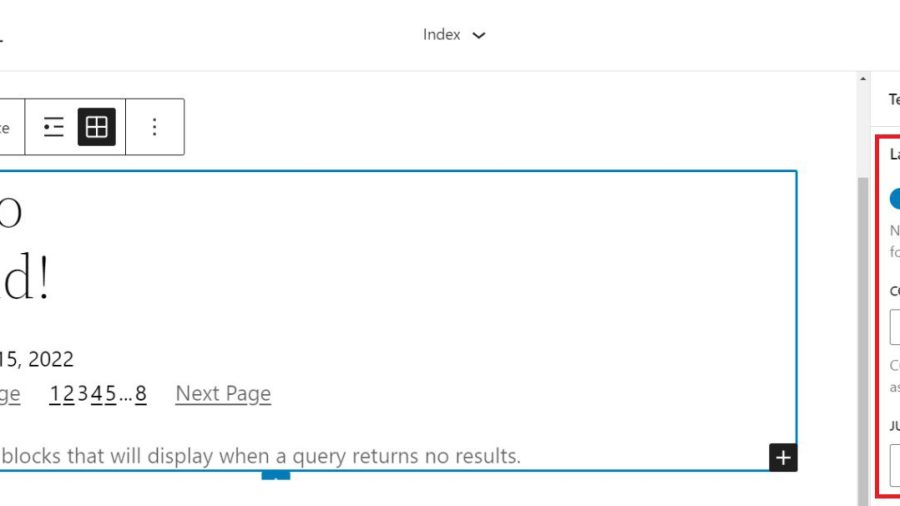
    The “Layout” settings for nested blocks allow a designer to toggle additional settings on (blue). These settings allow one to choose if those blocks use content and width percentages. It also reveals an option for left, center, or right content justification. With it untoggled (grey), nested items are set to full width by default.

    Query Loop Sidebar Settings - Layout Nested Content Width

    Query Settings

    When the query “Settings” is untoggled (grey), then you can select exactly what to query. The first option is “Posts” which can be pages, posts, or custom post types. Next, users can choose between ascending or descending order for either date published or alphabetically. Lastly, there is an option to include or exclude sticky posts in the query.

    Query Loop Sidebar Settings - Setting Untoggled

    Toggling “Settings” (blue) sets the Query Loop Block to inherit the query from the template used template.

    Query Loop Sidebar Settings - Inherit Query Settings

    Query Filters

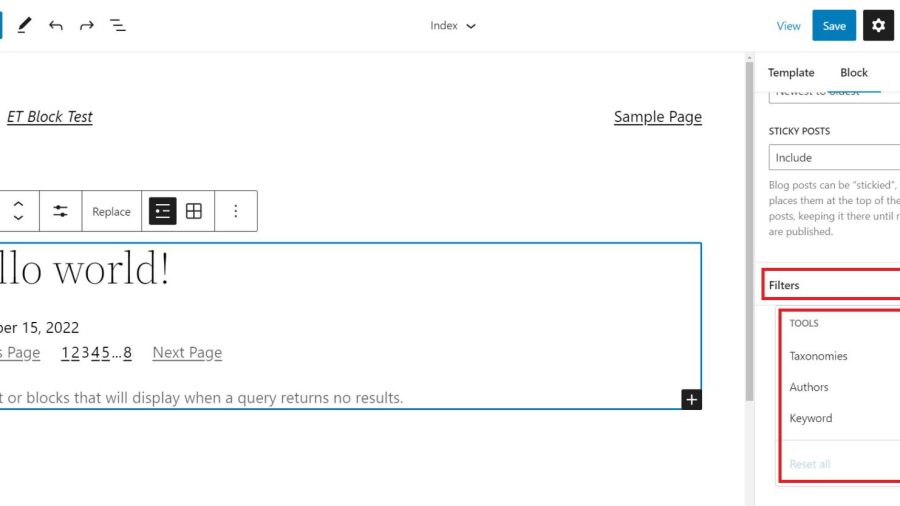
    Next, with query “Filters” gives users the option to further customize the query by filtering posts by:

    • Post Categories – Comma-separated list of categories
    • Post Tag – Comma-separated list of tags
    • Post Author – Dropdown list of authors
    • Post Keyword – Enter a list of keywords to filter by

    Query Loop Sidebar Settings - Query Filters

    Color Options and Advanced Settings

    Lastly, we have Color settings and Advanced settings. The color options allow designers to choose colors for:

    • Text Color
    • Background Color
    • Link Color

    Advanced settings include the ability to add a CSS class to the WordPress Query Loop Block and/or assign an HTML element to the block.

    Query Loop Sidebar Settings - Color and Advanced Settings

    Each nested block within the Query Loop Block has its own Toolbar options and sidebar Settings. Visit the list of nestable blocks above to learn more about each and the settings that they have.

    Tips and Best Practices for Using the Query Loop Block in WordPress

    Query Loops are powerful blocks. Follow these tips and best practices to get the most out of them.

    Set Global Styles for Query Loops and Nested Blocks

    Global Styles can be set on a block-type-by-block-type basis. This lets designers create global default styles that apply to all instances of a block throughout the website. This is a huge time saver.

    Currently, on the 2022 Theme, the Query Loop Block allows you to add Global Styles for text color, background, and link colors. To get to the global styles editor, click on the “Global Styles” icon (half-filled in circle), select “Blocks”, and find the Query Loop Block.

    You can also assign separate global styles to each of the nested theme blocks (like Post Template, Post Title, etc.) within a Query Loop as well.

    Use Multiple Query Loop Blocks on a Single Page to Create a Featured Blog Section

    In creating a Blog Page template, you may want to create a featured post that stands out because it is the most recent post published on your site. Below is a simple version of the concept.

    Featured Post Result

    There will need to be two Query Loop Blocks on our “Index” template. The top Query Loop Block will have a “List View” display and will only show one single post. Make sure that it has no Pagination Block nested in this first Query Loop.

    With the second/bottom Query Loop Block, set it to “Grid View”. It should display multiple posts in columns and set the “Offset” to 1. An offset of 1 will skip the first post of the query. This is desired since the query loop above contains the featured post.

    Use Consistent Design for Query Loops Displaying the Same Post Types

    Query Loops used for “blog articles” should look similar. If you use Query Loop Blocks for other post types, consider a slightly different style for those so your site visitors can differentiate what are “Blog Posts” and what are other types of content. This will make for a clear website UX.

    Using Divi’s Blog Module: A Query Loop Block Alternative with More Design Options

    If you use Divi, the Blog Module functions much like the native WordPress Query Loop Block. And adding Divi’s Blog Module to a page or template is simple, giving you all the options you need to customize the parameters, layout, and design of the dynamic post content.

    divi-blog-module

    The content displayed within the Blog Module is completely flexible as well, allowing you to select a certain post type, post type categories, and the number of posts to include. Individual Module Elements can be added or removed such as featured images, titles, meta-text, body text, read more links, pagination, and so on.

    Each of these Module Elements can be completely styled using Divi’s extensive design options. Learn more about using Divi’s Blog Module on Templates.

    Frequently Asked Query Loop Questions

    Answering some of the most asked questions about WordPress’ Query Loop Block.

    What’s the Difference Between the Query Loop Block and the Latest Posts Block?

    The Query Loop Block is similar to the Latest Posts Block in that it has the capability of displaying a list of the latest posts on your blog dynamically. However, the Query Loop Block is much more advanced, allowing you to build your “list” of posts, pages, or other post types from scratch by integrating other nested blocks. For example, if you have a custom post type for recipes, you can use the Query Loop Block to create an entire page of recipes customized to your liking.

    Does the Query Loop Block Require Coding Knowledge?

    No, the WordPress Query Loop block does not require coding knowledge because the functionality is already built-in. This block enables you to display a loop of posts on your WordPress site using customizable block settings on the front end.
    Where Can I Use the Query Loop Block?

    The WordPress Query Loop Block loops through published posts and pages to display them. It will automatically update as new pages/posts meet the query parameters. This makes this block useful in many places such as post or archive templates, or on static pages where you want to display things like recent posts dynamically.

    Have you used the Query Loop Block on your WordPress site? What discoveries have you made? Let us know in the comments below.

    Featured Image by Dmitry Kostrov / shutterstock.com

    The post How to Use the WordPress Query Loop Block appeared first on Elegant Themes Blog.