EDITS.WS

Tag: wordpress

  • How to Move Content from Google Docs to WordPress: 4 Quick Methods

    It’s hard to have a website without any content, written or otherwise. If you’re using WordPress as your content management system, you’re probably familiar with the post drafting and publishing process. However, solely relying on the Gutenberg editor to create your content isn’t always ideal, especially if you need to collaborate with others or include […]

    Read More…

    The post How to Move Content from Google Docs to WordPress: 4 Quick Methods appeared first on Hostinger Tutorials.

  • How to Use WordPress Block Patterns: A Simple Guide

    Since the release of WordPress 5.8 in 2021, block patterns have become an increasingly popular way to create content in WordPress. They allow for developers and designers to utilize them in every aspect of their websites including headers, footers, posts, pages, and more. As an added bonus, users can save WordPress block patterns to make the design process faster and easier. In this post, we’ll discuss what block patterns are and how to use them. Let’s get started.

    What are WordPress Block Patterns?

    WordPress block patterns

    When building content in WordPress, you can insert a group of blocks into your posts or pages to display your content in a beautiful and functional way. These groups of blocks are called WordPress block patterns. WordPress offers a series of pre-made block patterns within the WordPress repository. Additionally, most WordPress themes will have a collection of them as well. Block patterns can be edited as easily as any block that you create. Patterns can contain several blocks, or even entire pages. And, with full site editing in WordPress, they can be used anywhere, and are even useful for creating headers, footers, page templates, queries, and more.

    WordPress Block Patterns vs Reusable Blocks

    reusable blocks

    As previously stated, a block pattern is a group of blocks that can be inserted into a post, page, template part, or template. Block patterns can be inserted into multiple locations but changed individually. Block patterns can be saved as reusable blocks, but once that happens, it will change everywhere that reusable block is used. So basically, reusable blocks take on a global property, whereas block patterns are a collection of blocks that can be edited to have a different look, regardless of how many times they are used throughout a website.

    How to Find New WordPress Block Patterns

    There are a few places to find WordPress block patterns. The first way is within your WordPress theme itself. As previously mentioned, most themes contain block patterns that you can use for your website. For example, the Twenty Twenty-Two theme has a decent collection of patterns. You can choose from categories including columns, text, galleries, pages, and more.

    WordPress default block patterns

    Another way to find block patterns is within the WordPres block pattern directory. There are currently more than 65 pages of patterns to use including headers, footers, wireframes, columns, buttons, and more.

    How To Add Block Patterns To Your Site

    Adding block patterns to your website is a simple process. If you want to search within your theme to add a pattern, simply click the blue + icon at the top left of your screen.

    Add block to WordPress page

    Next, tab over to Patterns. Select the pattern you wish to use, then click on it to automatically add it to your page.

    Add a block pattern

    Another way to add block patterns to your site is to copy and paste them from the pattern directory. Navigate to the pattern directory, locate the pattern of your choice, then hover over it to reveal the copy button.

    copy block pattern

    Next, return to your page. Click inside the edit board and either right click and select paste, or use CTRL + V (in Windows) or CMD + V (Mac). Your block pattern will appear on the page. You can rearrange its location by clicking the list view, then dragging it to the desired location.

    pasting the block pattern

    How to Use Block Patterns in WordPress

    Using block patterns in WordPress is easy. As previously mentioned, they can be edited just as any other block. Now that you know how to access them and add them to your site, let’s go over editing them.

    Typically, when you import a block pattern into your page, it will be grouped. Grouping blocks makes it easy to drag them around the page, as well as adjust settings such as width, color, typography size, padding, and block spacing – on the group itself.

    group block settings

    To make changes to an individual block within the group, simply click to edit it. Editing individual blocks doesn’t require you to ungroup them, and are edited the same way normal blocks are. For example, let’s look at the image block within our pattern. You can add links, crop, add text, or replace the image, just as you would otherwise.

    edit individual block in pattern

    You can add as many block patterns as you’d like into your layout. Adding patterns is an easy way to create beautiful content in a snap. Additionally, removing blocks is just as simple. If you want to remove a pattern from the page, simply click into the parent element in the list view or by clicking the ellipsis menu in the page editor, then click Remove Group.

    remove group

    How to Create and Save Your Own Block Patterns in WordPress

    There are a few ways to create and save block patterns in WordPress. The way you do it depends on your level of expertise, and whether you want to share it with others. Let’s dive in to learn about creating, saving, and sharing block patterns.

    Create Block Patterns In the WordPress Pattern Directory

    This method requires you to have a WordPress account, but is the most simple way to create patterns to use in your website. Start out by heading to the WordPress pattern directory. Next, click create a new pattern.

    create a new pattern

    Next, you’ll need to either login or create a new WordPress account. Once logged in, you’ll be redirected to the pattern editor. It works the same as the page editor in your own website. As an added bonus, you’ll have access to royalty-free images to use in your patterns. To get started, give your pattern a name, then start adding blocks by clicking the black + button.

    name your pattern

    Once you finish designing your block pattern, it’s time to save it for use on your website. There are two options for saving your pattern. Choosing save draft will allow you to save the pattern for your use only. You’ll be able to keep your pattern in the cloud, and access it any time to copy and paste into your website.

    save your pattern

    To access your patterns, navigate back to the pattern directory page and click the My patterns link. Both your drafts, as well as favorites, can be used in your WordPress sites.

    my patterns

    Submit Your Block Pattern To WordPress

    WordPress allows its users to create and submit block patterns for all of its users to utilize in WordPress block themes. In fact, the pattern gallery is just that – user submitted patterns. To create a block pattern for submission, follow the steps in the previous section. However, this time, you’ll click the submit button. Your pattern will go through a review process before being added to the directory. Once live, your pattern will be visible in the WordPress pattern directory where it is accessible to anyone.

    Use a Plugin to Create Block Patterns

    With the growing popularity of Gutenberg blocks, there are more options for saving block patterns in your websites than ever before. Up until recently, if you wanted to create a block pattern within WordPress, you had to code it yourself, which isn’t beginner-friendly. Thankfully, there are a few options for people who want to create them easily.

    CoBlocks Plugin

    CoBlocks is created by GoDaddy. It gives you a collection of 40+ blocks to use in your website, plus the ability to create block patterns and register them. The process is simple and only takes a few steps. First, build your preferred layout. Next, select the blocks you wish to include in your pattern. Finally, select Add Design Pattern.

    Create pattern with CoBlocks

    Name your pattern, give it an optional description, and assign a category. Finally, click Save Pattern.

    Save design pattern

    To view your newly created pattern, navigate to the Patterns tab, select the assigned category, and scroll down to view it.

    view your saved pattern

    Blockmeister – Block Pattern Builder

    Another option is the Blockmeister – Block Pattern Builder plugin. The process is very similar as with CoBlocks. However, this plugin doesn’t give you any added blocks for your layouts. It merely gives you the capability to create block patterns. To get started, create your layout, then select all blocks to be included in it. Next, click the ellipsis menu in list view, then select Add to Block Patterns.

    create a pattern Blockmeister

    The next step is to name your pattern, then click Create Pattern. Once saved, refresh your page to find the pattern in your theme’s pattern directory.

    Name pattern Blockmeister

    To locate your pattern, use the dropdown category menu in patterns, then choose your site name.

    pattern category

    WordPress Block Patterns vs Divi Layouts

    Both block patterns and Divi layouts offer the same basic features. You can create, edit, customize, and save them. However, Divi has so much more in terms of customization options, that’s where similarities between the two end. You see, block customizations are theme-based, meaning that you only get as much as that theme offers in terms of colors, fonts, and effects. In order to get more options, users need to add plugins or code to obtain them. With Divi, you have a wealth of customization options at your disposal to help you create amazing layouts for your website.

    Divi by Elegant Themes

    Divi isn’t just a WordPress theme, it’s a complete website building platform with a lot of power under the hood. Divi utilizes a proprietary drag and drop Visual Builder that enables you to build beautiful layouts on the front end – in real time. There’s no need to preview your layout in a new tab to see what your page will look like in the browser.

    Divi Has Unlimited Customization Options

    There are unlimited design options with over 200 website elements. Within each element, there are amazing background options by using Divi’s dynamic magic color system. Additionally, you can make your layouts impress with transition, hover, and animation effects. Not only that, you can adjust spacing, sizing, add filters and box shadows, and so much more.

    Divi visual builder

    Save Layouts Using Divi Cloud

    Divi Cloud

    When you want to reuse a layout, Divi makes it easy. You can save modules, rows, sections, or even full pages using Divi. Additionally, layouts can be saved as global so that when you need to make a change on a layout that’s being used throughout your site, it only has to be changed once. As an added bonus, you can save your layouts to Divi Cloud, which enables you to use them on any Divi website, anywhere.

    FAQs About WordPress Block Patterns

    With everything we’ve thrown at you in the post, you might have a few questions about block patterns. The good news is that we have answers. Read on.

    Are Block Patterns Like Reusable Blocks?

    In a way, yes. Both block patterns and reusable blocks can be created, saved, and edited. However, reusable blocks are more like global blocks. For example, if you create a reusable block as a newsletter optin to use throughout your website, making changes to one instance will result in that change being made wherever that block is displayed. If you were to use a block pattern instead, you could change the background color, button color, or make other design edits without it affecting every instance.

    Where Can I Get Block Patterns For My Website?

    As previously mentioned, you can get them in the WordPress pattern directory, within your WordPress theme, or with a plugin such as Gutenberg Template and Pattern Library by Extendify.

    Why Should I Use Block Patterns?

    In short, it’s a great way to save time. The biggest time hog with WordPress development is creating the content. With pattern blocks, you can save time and energy by creating patterns that you can use throughout your site’s pages and posts.

    Can I Create Pattern Blocks Manually?

    You can! However, you will need to be comfortable writing and editing code to create pattern blocks manually. WordPress.org has a good lesson that will help guide you in the process if you want to give it a go.

    Wrapping Things Up

    Block patterns provide an easy, time-saving way to add content to your website. Plus, you can find beautiful, professional designs on the WordPress pattern directory to help get your started. If you aren’t using pattern blocks in your website, we highly recommend doing so.

    Are you using pattern blocks on your website? If so, tell us why you like using them in the comments section below.

    The post How to Use WordPress Block Patterns: A Simple Guide appeared first on Elegant Themes Blog.

  • How to Manage Multiple WordPress Sites: 5 Tools to Make the Management Easier

    Whether you manage multiple WordPress sites for your clients or have your own, this process might be complicated and time-consuming. You will have to log in to each site to ensure it is up-to-date, secure, and runs optimally. This is where a WordPress management tool can come in handy. With it, you can access multiple […]

    Read More…

    The post How to Manage Multiple WordPress Sites: 5 Tools to Make the Management Easier appeared first on Hostinger Tutorials.

  • Scalable WordPress: How to Scale Your WordPress Site for High Traffic

    As an online business owner, you must understand how to scale your WordPress website to handle high traffic. Even if your site performs well, it may slow down or become unavailable during unexpected traffic spikes. Slow or inaccessible websites can drive visitors away, increasing your bounce rate. Eventually, it will harm your site ranking and […]

    Read More…

    The post Scalable WordPress: How to Scale Your WordPress Site for High Traffic appeared first on Hostinger Tutorials.

  • How to Install WordPress on Amazon Lightsail: Complete Guide

    Amazon Lightsail offers affordable VPS instances powered by Amazon Web Services. In this step-by-step tutorial, you’ll learn how to install WordPress on Amazon Lightsail.

    The post “How to Install WordPress on Amazon Lightsail: Complete Guide” first appeared on WP Mayor.

  • How to Embed Discord Widget into WordPress

    Are you looking to embed a Discord widget in WordPress?

    Discord is a well-known VOIP chat application that allows you to build your own communities and enables your users to communicate with each other through text, voice, and video. As of 2022, Discord has about 150 million active users.

    In this article, we will show you how to embed a Discord widget into WordPress.

    How to Embed Discord Widget into WordPress

    Why Should You Add a Discord Widget to Your Website

    Discord chat allows users to communicate with each other over messages, voice calls, and video calls.

    By embedding a Discord widget in your WordPress site, you can provide a way for your users to connect with each other. This widget will display the total members of your Discord server, and it will also provide an invite link for new members to join.

    Your WordPress users will be able to join your Discord chat rooms through the link provided by the widget, so you can build a huge community for your website.

    That being said, let’s see how you can add a Discord widget in WordPress.

    How to Embed a Discord Widget in WordPress

    To embed a Discord widget in WordPress, you must visit the official Discord website. You will need to create a Discord user account and create a Discord server for your community.

    Step 1. Creating a Discord Username and Server

    Once there, simply click the ‘Login’ button present at the top right corner if you already have a Discord account.

    If you don’t have an account, click the ‘Open Discord in your browser’ button.

    Login to your Discord account or create a new account

    You will be then asked to choose a username for your Discord account.

    This will be your handle for others to find you, but you can change your display name on a server-by-server basis.

    Choose a username for your discord account

    Next, Discord will take you to the ‘Channels’ page and then ask for your date of birth.

    Simply enter your details and click the ‘Next’ button.

    Type your date of birth and click Next button

    Then, you’ll be asked to create your first Discord server. Now, you can either create your own template or choose any of the premade ones.

    For this tutorial, we will be using the ‘Gaming’ server template.

    Create a discord server

    After that, you’ll be asked to choose a ‘Server Name’ for your Discord chatroom. You can also upload an image for the server.

    After choosing a name of your liking and uploading an image, simply click the ‘Create’ button to create your Discord server.

    Type a name for your discord server

    Lastly, you’ll be asked to provide your email account and choose a password for your Discord account.

    Once you provide these details, click the ‘Claim Account’ button.

    Provide your email and password

    Now, an email will be sent by Discord to the email account you provided to verify your details.

    Once you verify your account, your Discord server will be set up.

    Email for verification

    Now all you have to do is embed the Discord widget in WordPress.

    For that, first, you need to click the arrow icon present beside your server name at the top of the Discord ‘Channels’ page.

    Click arrow icon beside your server

    This will open up a dropdown menu.

    Here, you simply have to click the ‘Server Settings’ option to open up your Discord server settings.

    Click server settings option

    Once you’re on the ‘Server Settings’ page, click the ‘Widget’ option from the sidebar.

    This will open up the ‘Server Widget’ section where you simply have to toggle the switch present beside ‘Enable Server Widget’.

    Toggle the enable server widget switch

    After that, simply scroll down to the ‘Premade Widget’ section and click the ‘Copy’ button present below the ‘Premade Widget’ option.

    You can now embed the Discord widget anywhere on your website by pasting this code.

    Copy premade widget shortcode
    Step 2. Embedding the Discord Widget in WordPress

    First, go to the WordPress page or post where you want to embed the Discord widget.

    Then, simply choose the ‘Custom HTML’ block from the block editor and paste the code.

    embed shortcode in Custom HTML block

    After that click the ‘Publish’ button at the top to embed the Discord widget.

    This is how your Discord widget will look on your WordPress website.

    Discord widget on your website

    Note that you can embed the Discord widget in any block-enabled area of your themes, such as a sidebar, header, or footer.

    We hope you learned how to embed the Discord widget in WordPress. You may also want to check our top picks of the best VOIP themes in WordPress and our article on the best email marketing services for small businesses.

    If you liked this article, then please subscribe to our YouTube Channel for WordPress video tutorials. You can also find us on Twitter and Facebook.

    The post How to Embed Discord Widget into WordPress first appeared on WPBeginner.

  • State of the Word 2022: Matt Mullenweg Highlights Gutenberg’s Progress, Announces New Community Tools

    State of the Word (SOTW) watch parties kicked off around the world this afternoon as Matt Mullenweg delivered his annual address to the WordPress community. A small group of people gathered live in New York City to participate while the majority of enthusiasts watched via the livestream. Mullenweg spent an hour reviewing and celebrating the work done across the project in 2022 before taking questions from the audience.

    At last year’s SOTW, Mullenweg spoke about how Gutenberg adoption is growing beyond WordPress and how he believed it could become “bigger than WordPress itself.” In addition to Gutenberg getting rolled out on the bbPress support forums this week to modernize the WordPress support experience, the block editor has found its way into more apps in 2022.

    Mullenweg cited a few examples including Engine Awesome (a Laravel-based SaaS application), the Pew Research Center’s Political Typology Quiz, the web version of Automattic’s Day One app, and the Tumblr post form. He noted that in Tumblr, 99% of the editor is hidden – there’s no sidebar, everything happens inline. Mullenweg said he is hoping Gutenberg can create an “open block standard that can be used anywhere,” where users learn it on one system and it can be applied in other apps.

    For those who had been missing WordCamps, one of the major highlights of 2022 was the return to in-person events. From 2021 to 2022, the number of meetup groups doubled. Only one WordCamp was held in 2021 but that jumped to 22 WordCamps in 2022. Mullenweg highlighted how WordCamps have historically been “the magical ingredient” for onboarding people to contribute and teaching them about WordPress culture.

    For being just one year back into in-person events, WordPress has done well in 2022 with 1,399 release contributors and 652 contributing for the first time. There were 204 people who contributed to all releases in 2022 and 424 who contributed in 2021 and returned in 2022. Some 322 contributors took a break in 2021 and returned in 2022.

    People are also contributing to Openverse, which has indexed more than 22 million images, 1.1 million audio files, and has handled more than 59 million requests in the last 30 days.

    Tools Coming to the Community: New Taxonomies for the Plugin and Theme Directories and Staging “Playground” that Runs WordPress in the Browser

    It wouldn’t be the State of the Word without a few exciting announcements. Mullenweg unveiled a plan to add new taxonomies for the theme and plugin directories that will help users more quickly ascertain the purpose of the extensions they are considering.

    For example, there would be a tag for the type of plugins that a developer might create to solve a problem but may not be intended for wide public use and may not come with dedicated support. Another tag would be designated for “Community” plugins, which Mullenweg said is for software that “belongs to all of us” with the lead developers stewarding it for the next generation. This tag is for plugins that do not have any upsells and invite contributions. Some of these plugins will be canonical plugins, those that are officially supported by core developers and receive attention from the security team. Gutenberg and the importer plugins are a few examples.

    Another tag would be designated for commercial plugins that have some sort of upsell and often include commercial support. Anything with a pro version will fall within this category. Mullenweg said he wants WordPress.org to create an environment where commercial and non-commercial plugins can exist together harmoniously.

    The new taxonomies will be launching in the directories this month and will also eventually make their way into the plugin and theme screens inside the WordPress admin. This will be a major improvement that will give users of all experience levels a better understanding of the extensions they are examining, making it easier to select the right type for their needs.

    Mullenweg also announced WordPress’ official support for the WordPress Sandbox project, which we featured earlier this month. He outlined a plan for what will officially be called “WordPress Playground.” The experimental project uses WebAssembly (WASM) to run WordPress in the browser without a PHP server, making it possible to spin up new playgrounds in just a couple of seconds. This will enable things like a guided, interactive WordPress landing experience where developers can edit code live and see the results right away. It will also make it possible for users to try plugins directly from the directory and may someday be used to allow people to contribute to WordPress core.

    A new website for WordPress Playground is located at https://developer.wordpress.org/playground/ where anyone interested can check out the experimental project for running a WordPress instance entirely in your browser. There’s also a new #meta-playground Slack channel for those who want to join the conversation.

    WordPress turns 20 next year. Mullenweg noted that not many software projects make it that long but WordPress is also growing faster than ever, currently powering 43% of websites according to W3Techs and 32% according to Builtwith. A new website at wp20.wordpress.net will be headquarters for the festivities, including swag, merchandise, and a new Milestones book for the most recent 10 years of WordPress’ history.

    If you didn’t have the chance to catch the State of the Word this afternoon, check out the recording below to hear Mullenweg’s vision for the next phases of WordPress and see demos of all the progress made on block themes and full-site editing in 2022.

  • 5 Best WordPress Job Board Plugins (for 2023)

    Turning your website into a job board platform can be complicated without the right tools; you’ll need a way to track responses, easily remove and add listings, and reviews applicant profiles. Luckily, there are a ton of great WordPress Job Board Plugins that are available so that you can make a beautiful and functional job board in no time.

    What is a WordPress Job Board Plugin?

    A WordPress job board plugin is a way for employers to advertise their vacant positions to job seekers via their WordPress website. It’s an awesome tool to implement because with the right plugin you don’t need to be reliant on external platforms for job listings.

    Plus, adding a functional job board to your website can help gain more traffic and even get additional revenue, if you list positions from other employers on your site. Let’s take a look at some of the best job board plugins available!

    5 Best WordPress Job Board Plugins

    1. WP Job Manager

    WP job manager logo

    WP Job Manager is an incredibly user-friendly WordPress plugin brought to you by people from Automattic. With just a few clicks, you can have a live job portal up and running by adding new pages and shortcodes. It enables recruiters to post their job postings by registering on your website. Job seekers can also manage the jobs they are interested in from a straightforward dashboard.

    Through premium add-ons, you can also use the plugin to publish paid jobs online and earn money from them. Additionally, it features add-ons for managing a resume, monetizing your job board with WooCommerce, sending email alerts, and more.

    Key Features of WP Job Manager:

    • Job listing filters.
    • A user-friendly admin UI.
    • Frontend form submissions.
    • Searchable and filterable job listings via shortcode.
    • Shortcodes work with most themes, including Divi

    You can manage all of your job listings from the WordPress dashboard, and your users can also control their applications from their dashboard.

    WP Job Manager is for you if…

    • You want to create filterable jobs for different categories.
    • You want to monetize your job board.
    • You want to use shortcodes to output jobs in different formats.

    See our complete guide on how to create a job board in WordPress using this plugin.

    WP Job Manager Pricing: Free. Premium features start at $19 / year. | More Information

    2. WP Job Openings

    WP Job Openings logi

    WP Job Openings is another stellar freemium job board plugin. It provides various features for developers to alter the appearance and feel of your customized job board, such as versatile filter choices, two layouts for showing job listings, and two filtering options.

    It’s best used to build and add to your business’s career page. Applications are automatically formatted for readability, and you can see PDF copies of resumes and CVs without downloading each separately. It does, however, compile all applications into a single tab, which can be challenging if you’re posting positions from multiple businesses.

    Key Features of WP Job Openings:

    • Easy setup.
    • Clean grid layout.
    • Unlimited Job Specifications.

    Job board made with WP Job Openings

    The clean grid design makes looking for a specific job super easy for your users.

    Settings menu

    In addition, since WP Job Openings already includes a default form for applicants to submit their applications, building a form requires little to no busy work.

    WP Job Openings is for you if…

    • You want to display open positions using grid or list layouts.
    • You are focused on getting applicants for your site rather than multiple companies.
    • You want unlimited job specifications and filtering options.

    WP Job Openings Pricing: Free. Premium add-ons for $34/yr. | More Information

    3. WPJobBoard

    WPJobBoard is another premium WordPress job board plugin with everything you need to add a powerful career search engine to your webpage. In addition, it has a ton of tools that make it simple to make, manage, and display job listings, resumes, forms, and other materials.

    The ability to customize WPJobBoard is what really makes it stand out. With this plugin, you can modify the plugin’s functionality and customize templates for email notifications and job application forms. The plugin’s PHP Templating Engine allows you to overhaul your job board completely, so it’s tailor-made for your site. Additionally, it has a resume database and an employer interface where users can look for the ideal individual.

    Key Features of WPJobBoard:

    • SEO and social media feautures.
    • Works with any WordPress theme.
    • Drag and drop editor.
    • Great support team

    JBBoard Admin creation page

    The plugin comes with its own free theme and is compatible with all WordPress themes. Additionally, it enables you to receive payments and gives employers membership packages, coupons, and discounts.

    WPJobBoard is for you if…

    • You want a solution with multiple monetization options. (Works with PayPal, Stripe, etc.)
    • You want a solution compatible with any theme.
    • You want access to a simple drag-and-drop editor.

    WPJobBoard: $97/yr | More Information

    4. Simple Job Board

    Simple Job Board banner logo

    Simple Job Board is a short-code-based job board plugin. It allows you to create a system for a highly extensible online job board. Add the [jobpost] shortcode wherever you like on your website to start using the plugin.

    The ability to customize is where this plugin excels. You can design unique application forms for each job opening, and you can create multiple-choice options, designate mandatory fields, and much more. Available in 14 languages, Simple Job Board is ideal if you’re running a multilingual site.

    Key Features of Simple Job Board:

    • Uses a shortcode for complete control.
    • Include unique specifications and requirements for each job post.
    • Categorize reviewed applications for easy management.
    • Review applications and categorize them using multiple statuses.

    Simple Job Board UI

    Simple Job Board provides customers forms, although these options are limited. However, the pro version offers more possibilities.

    Simple Job Board is for you if…

    • You have a website using multiple languages.
    • You want a shortcode solution.
    • You want to be able to short out unsuitable applicants quickly.

    Simple Job Board Pricing: Free. Premium add-ons are available. | More Information

    5. WP Job Portal

    WP Job Portal logo

    WP Job Portal is another great option for a job board plugin. It’s intended to make it simpler and quicker for job seekers to identify the positions that best fit them and for companies to find the most qualified applicants.

    You can quickly narrow down your job postings by filtering results by application title, country, category, and more using a simple auto-fill option. Users can also save jobs they are interested in and go back to apply, and you can check how your listing is doing with a sleek-looking dashboard.

    Key Features of WP Job Portal:

    • Filter system.
    • Custom fields on registration forms.
    • Resume Parsing.
    • Save jobs to refer to them later.

    WP Job Portal dashboard

    WP Job Portal is essentially plug-and-play. It’s compatible with any theme for WordPress, so you know it’ll look great on your site, you can customize various options for both employers and job seekers from the dashboard.

    WP Job Portal is for you if…

    • You want to be able to parse through candidate resumés.
    • You want a high-quality UI.
    • You want a solution that’s setup without needing to make an account on an external platform.

    WP Job Portal Pricing: Free. Basic Add-on is $49/yr. | More Information

    Final Thoughts on WordPress Job Board Plugins

    You can quickly and easily post open opportunities using a WordPress job posting plugin. You can do so with the intention of internal hiring or use your website as a hub for job seekers and finders. This is a fantastic method to increase the number of people that visit your WordPress website, broaden your applicant pool, and perhaps even generate some extra revenue.

    Hopefully, one of the plugins listed above has features you’re looking to use on your site.

    Did we miss anything? Leave a comment telling us below!

    Article featured image by Viktoria Kurpas / shutterstock.com

    The post 5 Best WordPress Job Board Plugins (for 2023) appeared first on Elegant Themes Blog.

  • Create a Leaky Paywall in WordPress

    How do you go about creating an effective soft paywall on your WordPress site?

    The solution is a WordPress plugin called Leaky Paywall. In this article, I’ll demonstrate what it can do for your publishing.

    The post “<strong>Create a Leaky Paywall in WordPress</strong>” first appeared on WP Mayor.

  • How to Duplicate a Page in WordPress (3 Simple Ways)

    As we all know, WordPress is a powerful tool that allows users to build websites. You can create articles (more commonly known as blogs or blog posts), upload documents, manage images and so much more. What started out as a blogging platform, has grown over the years into the content management system (CMS) of choice for more than one-third of the internet.

    However, amidst the many features that WordPress can boast of (like full-site editing), you aren’t able to duplicate a post or page out of the box. It seems like a slight oversight, but not one that we can’t fix ourselves. In this article, we’ll go over three easy ways that you can use to duplicate a page in WordPress.

    Reasons to Duplicate a Page

    There are many reasons why one may want to duplicate a page or post in WordPress. An example might be that you’ve built a really awesome landing page for a new product that you’re launching. However, you may want to do some A/B testing for some Facebook ads that you’re running to promote this product. As opposed to redoing all your hard work again, you can simply duplicate said page, make some slight tweaks and cut your design time all the way down.

    Another reason to duplicate a page is to help with your design process. If you have a really large site, you may need to duplicate a number of pages to add additional content for other members of your team. If you had to re-create each page repeatedly, you could slow down your design process which could lead to timelines being missed. Not to mention that you might leave some of your teammates a tad bit upset. As such, having a quick and easy way to duplicate pages is something that can come in handy in your day-to-day while working on your WordPress website. This is one of the reasons we added the Divi Cloud feature in Divi. With it, you can store all kinds of page layouts and more to speed up the design process.

    Watch Out for Duplicate Content

    Duplicating a page in WordPress should always be a means to an end. You don’t want to have two pages with the same content live on your site. This is bad practice and will have a negative effect on SEO. To learn more, check out our ultimate guide on duplicate content and SEO.

    How to Duplicate a WordPress Page (Step-by-Step)

    Now that we know why one would want to duplicate a page, let’s get into the three different ways that you can duplicate a page on your latest WordPress project.

    1. Duplicating a Page Using a WordPress Plugin

    There are a number of WordPress plugins that can be used to duplicate pages on WordPress. Always bear in mind what features you are looking for as well as the ratings and reviews of a plugin before installing it onto your WordPress website. Bearing all these things in mind, for this tutorial, we’ll be using the free version of the Duplicate Page plugin.

    To install the plugin, follow these steps:

    1. In the left-hand menu, click Plugins, and then click Add New
    2. In the search field that appears at the top right of the screen, type duplicate page
    3. Look for the Duplicate Page plugin, and then click Install Now

    Steps to duplicate a page in WordPress using a plugin

    Once the plugin is installed and activated, navigate to the Pages section of your website. To navigate there, click Pages and then click All Pages from the left-hand menu. Now, you will notice that when you hover over the name of a page, an additional menu item has been added titled Duplicate This.

    Using the newly added Duplicate This button from the plugin just installed

    Once you are ready to duplicate your page, simply click the Duplicate This link under the page listing that you would like to duplicate. That’s it!

    After that, you can edit the new duplicate page as needed. Make sure to edit the permalink for the new page. As it’s a duplicate, the permalink URL will also be copied over so ensure to edit it to match your new content.

    Remember to change your permalinks after duplicating a page!

    It is a good idea to visit the Duplicate Page plugin’s settings to make sure it is functioning the way you need it to.

    Duplicate Page Plugin - Settings Page

    The options allow you to control how you want pages to be duplicated and where you want the duplicate page link to be displayed.

    2. Duplicating a Page in WordPress with Divi

    For Divi users, you can easily duplicate pages (or templates) in WordPress. When using the Divi Builder, you have a built-in option to duplicate (or clone) existing pages in WordPress whenever you create a new page.

    Cloning an Existing Page Using the Divi Builder

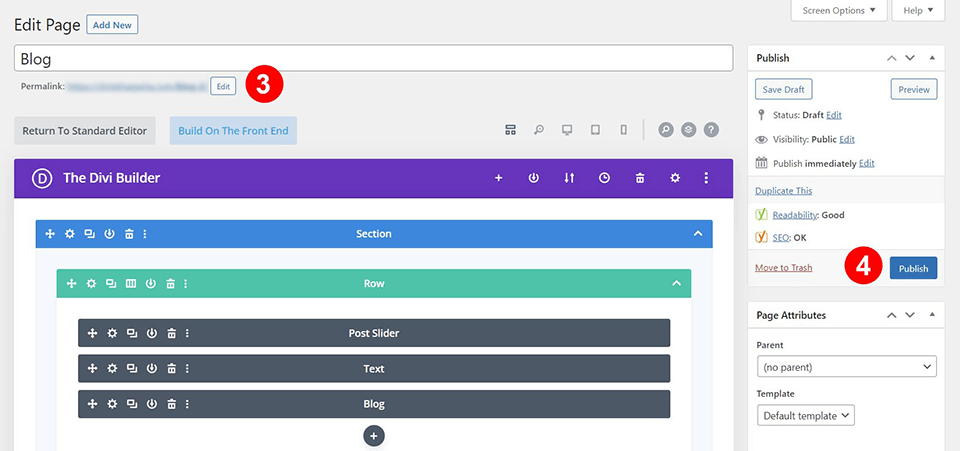
    To duplicate a WordPress page in Divi, simply click to use the Divi Builder when editing a new page.

    When you click to use the Divi Builder to edit a page, you will see a popup that gives you three options as to how to proceed with your new page. The option we’re interested in is the third and last option, Clone Existing Page.

    Duplicating a page in WordPress using the Divi new page popup

    Once you select the clone existing page option, you will see all the existing pages within your site that you can choose to clone.

    select duplicate page in Divi Library

    Simply select the page from the list and the page will be duplicated and ready to edit. You won’t need to change the permalink as you’ll be working from a brand new page.

    Using Divi Layouts

    One of the great features of Divi is easy it is to add, create, and manage page layouts. A page layout contains the entire page design and content. Divi comes with over a thousand pre-made page layouts to jumpstart your page design and content. Plus, you can save your custom page layouts in your Divi Library for later use. Or you can save them to your Divi Cloud and duplicate cloud items all in one place. This takes the process of duplicating pages to a whole new level!

    3. Duplicating a Page in WordPress Manually: Copy and Paste

    To duplicate a page in WordPress manually, you can simply go into your page and copy the content within that page. Then paste the content into a newly created page.

    Copy and pasting content also allows you to duplicate the contents of a page in WordPress

    Here’s how to do it. First, navigate to All Pages.

    Navigate to All Pages

    Once you have your list of pages, here’s what happens next:

    1. From the list of pages, hover over the page that you’d like to edit.
    2. Then, select Edit under the page that you would like to duplicate

    Edit all pages

    After you have entered the page editor, do the following steps:

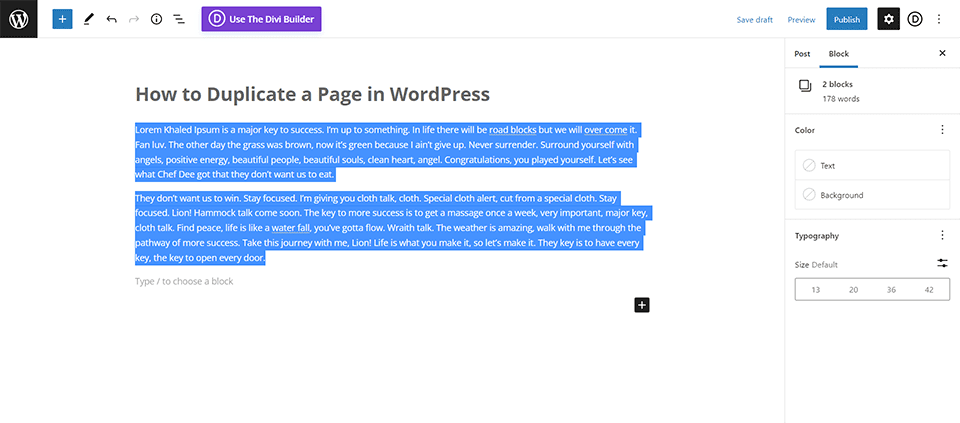
    1. Next, highlight all the content within the main content area.
    2. Using your mouse, move over to the highlighted content and right-click. Then, select Copy from your system menu.
    3. Towards the top of the page, click on the WordPress icon. This will take you back to the All Pages screen.

    Right Click Copy and Go Back to the All Pages screen

    You will now need to create your new page by clicking on the Add New button from this screen.

    Add new page

    Once you have a new, blank page in front of you, using your mouse, right-click, then press Paste. This will bring the content from the former page into this new page. Make any necessary edits that you need to make, and then click Publish from the Publish box at the top right-hand side of the page.

    TIP: If you used any special code within the page, it would be ideal to switch to the text/HTML tab editor to ensure that you are copying the code used on the page, in addition to the written content.

    In Conclusion

    While WordPress doesn’t have an out-of-the-box solution to duplicate pages, it is not something that is out of the question. With handy tools like Duplicate Page plugin and the Divi Builder, plugins and maybe even a bit of code here and there, you’ll be able to speed up your process, create content faster and copy pages across your WordPress install with ease.

    Do you have a favorite method for duplicating pages in WordPress? Let us know in the comments below!

    The post How to Duplicate a Page in WordPress (3 Simple Ways) appeared first on Elegant Themes Blog.