EDITS.WS

Tag: wordpress

  • Best 7 WordPress Auction Plugins and How to Create an Auction Website

    If you sell valuable collectibles or are passionate about online bidding, an auction site can help you achieve both goals. Building a bidding platform simplifies the auctioning process to make money online. You can do so using WordPress, a popular content management system (CMS). Easily add auction functionality to your website with WordPress plugins, eliminating […]

    Read More…

    The post Best 7 WordPress Auction Plugins and How to Create an Auction Website appeared first on Hostinger Tutorials.

  • WordPress 6.3 Update: A Detailed Overview

    WordPress 6.3 “Lionel” is finally released as the second major update of the year. 

    This release merges 10 Gutenberg versions into WordPress core, bringing features like synced patterns and style revision. These new features enhance the block editor’s workflow and expand its customization possibilities.

    Furthermore, WordPress 6.3 brings performance improvements and developers-focused updates, including a new database query caching implementation and the introduction of the command palette API. 

    Let’s dive into what WordPress 6.3 has to offer.

    Site Editor Updates

    WordPress contributors aim to finalize the Site Editor in this version by rolling out all necessary features for block-based customization. No wonder WordPress 6.3 is packed with updates for the editor. Let’s have a detailed look at them.

    Synced and Unsynced Patterns

    Reusable blocks are blocks or groups of blocks that can be saved and reused on other pages or posts. Any changes made to a reusable block in one place will apply globally on the website.

    Meanwhile, block patterns are a premade group of blocks. You can add a block pattern to your content and customize it without affecting the same pattern elsewhere. 

    Previously, there was no method to create a block pattern on the Site Editor, as it requires a pattern management plugin or custom PHP files. 

    WordPress 6.3 combines the reusable block with the pattern system, opening up new customization possibilities. There are two types of patterns: synced patterns, which function like reusable blocks, and unsynced patterns, which work like regular block patterns.

    The new pattern system should be a breakthrough in block pattern workflow. In WordPress 6.3, users can create patterns on the Site Editor, just like creating a reusable block. 

    Here’s how to create a synced or unsynced pattern:

    1. Customize a block or group of blocks and select Create pattern/reusable block from the block toolbar menu.
    The create pattern reusable block option in the block toolbar menu
    1. The pattern creation pop-up will appear. You can name the pattern.
    The interface to create a pattern, containing the text field for the pattern name and a toggle switch for synced or unsynced options
    1. The Synced toggle option determines whether the pattern will be synced or unsynced. Enable it if you want the pattern to behave like a reusable block, or leave it disabled to create a regular block pattern.
    2. Click Create to finish the process.

    The editor saves synced and unsynced patterns in different locations. You can find synced patterns in the Synced patterns tab on the block inserter panel.

    The synced patterns tab on the block inserter panel

    On the other hand, you’ll find unsynced patterns in the My patterns category on the block inserter panel.

    The patterns tab on the block inserter panel with the my patterns category highlighted

    Updated Navigation Sidebar

    The navigation sidebar on the Site Editor will appear on the left side of the screen when you click the WordPress or site logo at the top-left corner. 

    In WordPress 6.3, the navigation sidebar offers more options. It allows better workflow as you can navigate and manage more components in the Site Editor.

    Here are the new menus on the navigation sidebar:

    • Navigation. Use this menu to see and rearrange links available on your navigation block. This way, you don’t have to use the editor canvas to select the navigation block and open to block settings panel.
    • Styles. Choose and preview your theme’s style variations from this menu. It also includes buttons to open the style book and the global styles panel.
    • Pages. The pages menu lists all available pages on your website, including drafts. If you click on any of them, you can edit them via the Site Editor. 
    • Templates. This menu functions just like in the previous version – it displays all available templates and lets you create a new one.
    • Patterns. This replaces the previous Template Parts menu. It now contains template parts and both synced and unsynced patterns. 

    Quick Switch to Template Editing

    When editing a page on the Site Editor, you can easily switch to editing the template in a few clicks. This feature is convenient, as sometimes, when you’re editing a page, you may notice a layout-related change you must make.

    You will find the Template drop-down section on the page settings panel and see the template used. Click the Edit template button to edit it. 

    The Site Editor interface when editing a page with the template section highlighted

    Note that this feature is only available when using the Site Editor. You won’t find the option if you edit a page using the page editor.

    Command Palette

    The command palette offers a faster way to navigate between templates, open specific panels, or create a new post or page. It is a convenient tool to search for the panel you wish to open or the task you want to complete.

    The command palette is located at the top of the Site Editor or accessed via the CTRL+K keyboard shortcut.

    The Command Palette pop-up interface, showing the available commands including add new post, open styles revisions, and open styles

    For instance, you wish to swiftly navigate from editing the home template to a page. Simply input the page name into the command palette and click on it. This will directly transport you to that page.

    Style Revision

    WordPress revision has always been a great collaboration feature. But in most cases, it’s useful for content editing only. Fortunately, the style revision adds the rollback feature to the design aspect of the website.

    You will see the new Revisions icon on the global styles panel. Click it and select Revision history to see when style changes have been made, complete with the time stamps and users who made the changes.

    The global styles revisions interface, showing the available versions on the side panel

    If you select any of the recorded style histories, you can preview it on the editor canvas. The Apply button at the bottom of the panel lets you revert to any of the selected styles.

    Reducing Distractions in the Site Editor

    The distraction-free mode is now available in the Site Editor. It’s a well-known feature to keep you focused while editing your content. Initially available on the page and post editor, it hides the sidebar, top panel, and block toolbar to reduce distraction and make the interface cleaner.

    If you still need the panels, you can reduce distractions by enabling the top toolbar feature. It moves the block toolbar to the top panel of the editor.

    Previously, enabling this feature will add another layer on the top panel to accommodate the toolbar. However, in WordPress 6.3, the block toolbar will be embedded in the top panel so that it won’t take more space on your editor canvas.

    The Site Editor interface with the top toolbar enabled, with the highlighted block toolbar on the top panel

    New Blocks

    WordPress always improves its customizability by introducing new native blocks to help you add engaging content. In WordPress 6.3, we have these new blocks:

    Details

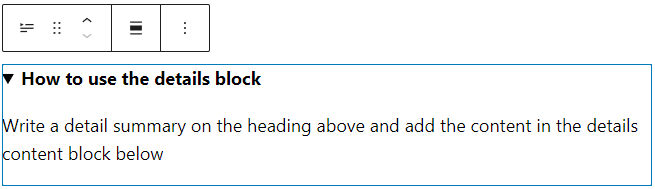
    This block comprises a header at the top and a collapsible nested block portion beneath it. It’s highly beneficial for efficiently showcasing lengthy material such as code snippets, product details, and spoiler information.

    When you add the details block, you will have two spaces – the detail title and the hidden block content. 

    The title only accepts text, but you can still customize the design. On the other hand, the collapsible section allows you to add various blocks, including image, code, or list blocks.

    A details block on the editor

    Footnotes

    If you have any part of the text that requires a footnote, such as a citation or further information, you can now add a footnote in WordPress 6.3.

    Select the text you want to annotate and click More on the block toolbar. Select Footnote, and its block will appear at the end of your content. Then, you can add the citation or information on the footnote block.

    The footnote options on the block toolbar

    Note that this is the only way to add the footnote block. You can’t currently add one via the block inserter panel.

    Block Improvements

    Improving the block editing experience is not limited to adding new blocks. WordPress 6.3 also adds plenty of block enhancements.

    Featured Image Aspect Ratio

    The post featured image block now has an aspect ratio control as part of its design tools. Whether you add this block to a post or a template, you have eight options, including portrait and landscape orientation:

    • Original aspect ratio
    • Square (1:1)
    • 16:9
    • 4:3
    • 3:2
    • 9:16
    • 3:4
    • 2:3
    The Site Editor interface with a featured image block selected and the aspect ratio options on the block settings panel displayed

    Post Modified Date Variation

    The post date block now offers various ways to display the last modified date. You can configure the block from the settings panel and enable the Display last modified date toggle option.

    The post modified date on the editor, showing the block settings panel with the highlighted display last modified date toggle option

    The post date block placeholder will show Post Modified Date when enabled. 

    You can also add two post date blocks on a template – one that displays the original display post and another that displays the last modified date. This way, you can tell your reader that although the post was originally published a while ago, it was updated recently.

    Cover Block Enhancements

    Some users put several texts on the cover block. To streamline the workflow, WordPress 6.3 introduces text design tools to change the color and typography of all text on the cover block. This way, users don’t have to manually change individual text block one by one.

    Another improvement is the seamless transformation of the cover block into a media & text block and vice versa. When you transform the block, all design customization is transferred, eliminating the need for redesigning.

    Dimensions Control

    The dimensions control receives a UI revamp in WordPress 6.3. Instead of using text to describe the sides for the settings – top, bottom, left, and right – it now uses small icons to control the dimensions.

    The updated dimensions control for padding and margin

    Performance Improvements and Updates for Developers

    Moving on from new user-facing features, we will look into the back-end improvements. All major WordPress updates bring performance enhancements and updates tailored for developers, and WordPress 6.3 is no exception.

    Dropped Support for PHP 5

    As only 3.8% of all monitored installations use PHP 5.6, the WordPress core team dropped the support for PHP 5 and raised the minimum supported version to 7.0.0. For the record, the team usually uses a 5% baseline to determine the minimum PHP version.

    That said, websites that run on PHP and WordPress 6.2 will continue receiving security updates.

    If you still use PHP version 5.6 or lower, we recommend updating to version 7.4 for better performance and security. Read our tutorials on how to easily change the PHP version via hPanel.

    Command Palette API

    The WordPress core team introduced the command palette API for this release, which allows developers to add or remove commands.

    There are two types of commands for the API – static and dynamic. In addition, you can add contextual properties to the commands.

    Static Commands

    The static command is the simplest type to add to the command palette list. It uses the wp.data.dispatch( wp.commands.store ).registerCommand action or the wp.commands.useCommand React hook.

    Here’s an example of a static command registered using the wp.commands.useCommand hook:

    wp.commands.useCommand( {
    	name: 'myplugin/my-command-name',
    	label: __( 'Add new post' ),
    	icon: plus,
    	callback: ({ close }) => {
    		document.location.href = 'post-new.php';
    		close();
    	},
    } );

    Dynamic Commands

    Dynamic commands only appear on the Command Palette list depending on the search term input from the users. As such, dynamics commands use command loaders to register, including useCommandLoader and usePageSearchCommandLoader.

    For example, here’s a snippet to register a command for a page search. It consists of two parts – the first is for retrieving the pages based on the search term, and the second is for creating the command.

    function usePageSearchCommandLoader( { search } ) {
    	// Retrieving the pages for the "search" term
    	const { records, isLoading } = useSelect(
    		( select ) => {
    			const { getEntityRecords } = select( coreStore );
    			const query = {
    				search: !! search ? search : undefined,
    				per_page: 10,
    				orderby: search ? 'relevance' : 'date',
    			};
    			return {
    				records: getEntityRecords( 'postType', 'page', query ),
    				isLoading: ! select( coreStore ).hasFinishedResolution(
    					'getEntityRecords',
    					[ 'postType', 'page', query ]
    				),
    			};
    		},
    		[ search ]
    	);
    
    	// Creating the command
    	const commands = useMemo( () => {
    		return ( records ?? [] ).slice( 0, 10 ).map( ( record ) => {
    			return {
    				name: record.title?.rendered + ' ' + record.id,
    				label: record.title?.rendered
    					? record.title?.rendered
    					: __( '(no title)' ),
    				icon: icons[ postType ],
    				callback: ( { close } ) => {
    					const args = {
    						postType,
    						postId: record.id,
    						...extraArgs,
    					};
    					document.location = addQueryArgs( 'site-editor.php', args );
    					close();
    				},
    			};
    		} );
    	}, [ records, history ] );
    
    	return {
    		commands,
    		isLoading,
    	};
    }
    
    useCommandLoader( {
    	name: 'myplugin/page-search',
    	hook: usePageSearchCommandLoader,
    } );

    Contextual Commands

    Contextual commands have a higher priority and they always appear on the command palette list in a given context. For example, you can set a static command with the Site Editor context property, and it will always be visible when you’re in the Site Editor.

    In WordPress 6.3, there are only two contexts available:

    • site-editor. Makes the commands available when users browse the Site Editor with an open navigation sidebar.
    • site-editor-edit. Makes the commands available when users edit any content on the Site Editor.

    To make a command contextual, simply add the context property when registering the command. For example, here’s the same static command example we had before, but with the site-editor context applied:

    wp.commands.useCommand( {
    	name: 'myplugin/my-command-name',
    	label: __( 'Add new post' ),
    	icon: plus,
    	callback: ({ close }) => {
    		document.location.href = 'post-new.php';
    		close();
    	},
    	context: ‘site-editor’,
    } );

    Caching Improvements

    The WordPress Performance team made some enhancements to the core WordPress caching system. The notable ones are improvements in WP_User_Query caching and cache group changes.

    WP_User_Query Caching

    WP_User_Query was the remaining class lacking database caching capabilities. Thankfully, the WordPress performance team has implemented the update in WordPress 6.3.

    The implementation for WP_User_Query is similar to the other query classes – when a user sends a query, the cache stores the results from the database, and the same queries will get data from the cache. This update will reduce the overall database query load, improving the site’s performance.

    For the record, WordPress already implements query caching in other classes like WP_Comment_Query, WP_Site_Query, WP_Network_Query, and WP_Term_Query.

    New Groups in Cache API

    Since WordPress 6.3 implements query caching for WP_User_Query, the Performance must change the cache storing approach. As a result, the WordPress team introduced six new cache groups specific to the queries. Here are the new cache groups:

    • post-queries
    • term-queries
    • comment-queries
    • network-queries (global cache group)
    • site-queries (global cache group)
    • user-queries (global cache group)

    This update also provides greater control over cache objects, enabling you to specify expiration times for any cache group. You can also clear a specific cache group using the wp_cache_flush_group() function.

    Update Your Website to WordPress 6.3 Now

    Now that you know the nitty-gritty of WordPress 6.3, it’s time to prepare your website for the update.  

    Create a backup and use a staging environment to test WordPress 6.3 with a copy of your site. This will ensure that no compatibility issues that may affect your live site. If you find any critical error, be sure to troubleshoot it in the staging site.

    Suggested Reading

    Learn how to set up a WordPress staging environment and deploy the update to the live site.

    Once you’re sure your website runs smoothly with the new version, implement the update to your live site.

    The post WordPress 6.3 Update: A Detailed Overview appeared first on Hostinger Blog.

  • How to Accept Bitcoin Payments on Your WordPress Store

    With digital currency growing in popularity, accepting bitcoin payments on your WordPress store can be quite beneficial for your business. With global acceptance and cutting-edge technology, bitcoin is not only a great way to attract new customers but also reduce business costs.

    Accepting bitcoin payments on WordPress is an easy and straightforward process thanks to the many services that allow for a user-friendly experience that can get you started in no time.  

    In this article, we will discuss the many benefits of accepting Bitcoin payments, the things you will be needing, and one of the top WordPress plugins that allow you to accept BTC.

    Benefits of Accepting Bitcoin Payments

    There are many benefits to accepting Bitcoin payments on your WordPress store. Here are a few of the most important ones:

    • Increased customer base: Bitcoin is a global currency with an increasing user base, so accepting it on your eStore can boost sales as you get to tap into a wider customer base.
    • Lower transaction fees: The transaction fees involved with bitcoin is typically much lower than credit card fees. Plus you save up on bank fees for cross-border transactions, and currency conversion. This can save you money and you can pass those savings on to your customers or use it to grow your business.
    • Faster payments: Bitcoin payments are processed much faster than credit card payments. Fiat transactions typically take 5-7 days to settle and even longer if they are cross-border, while BTC payments can be settled in as little as 10 minutes. This can help you improve your customer satisfaction and reduce your payment processing time.
    • Secure payments: Blockchain is one of the most secure ways to transact in the current fintech ecosystem. And it is no surprise that many fiat institutions are looking to implement this technology into their systems. With bitcoin, no personal information is collected and all transactions can be validated on the blockchain.
    • No chargebacks: Bitcoin transactions are irreversible, which means that you are less likely to be charged back by fraudulent customers.

    Things You Need to Accept Bitcoin Payments

    In order to accept Bitcoin payments on your WordPress store, you will essentially need only two things:

    Bitcoin Wallet

    A Bitcoin wallet is an application that allows you to store, send and receive Bitcoin. Similar to a fiat bank account, a bitcoin wallet is your personal/business account you use to transact using BTC.

    There are numerous options available in the market today. Some of the top wallets include:

    • Trezor [Hardware]
    • Electrum [Desktop]
    • MyCelium [Mobile]

    Security-wise, choosing a hardware wallet is the way to go, but you would need to purchase these wallets as they come with dedicated hardware.  

    Since you are the sole owner of your wallet, its security is solely your responsibility. So do make sure that you follow some safety practices to keep your bitcoin safe.

    Bitcoin Payment Processor

    Bitcoin payment processor is a third-party service that allows you to accept Bitcoin payments on your website. There are multiple options in the market that you can choose from each offering varied features and services to fit the needs of your business.

    As an eCommerce merchant, it is vital to choose the right payment gateway for your business and when it comes to choosing the best bitcoin payment plugin there are a few functionalities that you must look for:

    • Direct-to-wallet: The payments should come directly to your bitcoin wallet, giving you complete control of the funds that you receive.
    • No KYC/AML: If you value privacy, choose a service that does not ask you to undergo ID checks.
    • Low Fees
    • Easy integration: Ideally, a dedicated WordPress plugin that can easily integrate with your online store.
    • Secure and Safeguarded transaction
    • Excellent customer support

    Accept Bitcoin Payments using Blockonomics

    Blockonomics, one of the leading bitcoin payment gateway has made quite a name for its decentralized nature and easy integration, and it pretty much checks all the boxes mentioned above. They provide a dedicated WordPress plugin that can be integrated with your eStore in a matter of minutes.

    One savvy feature that stands out with this plugin is that the entire checkout experience happens within your website and there are redirects to external pages, making the checkout more secure.

    Blockonomics charges a flat rate of 1% per transaction with the first 20 transactions free. This makes it an affordable option for businesses and individuals who are looking to accept bitcoin payments without incurring high transaction fees.

    Conclusion

    Accepting Bitcoin payments on your WordPress store can be a great way to attract new customers and increase your sales. With the growing popularity of cryptocurrency, you are not only future-proofing your business but also partaking in the decentralized finance revolution.

    You enjoy low transaction fees, secure and faster payments, global acceptance, and complete control of your funds with bitcoin. And the best part is that you can get started in a matter of minutes, all you need is a bitcoin wallet and payment plugin.

    Blocknomics WordPress plugin is a great option if you are looking for a secure, fast, and affordable way to accept Bitcoin payments. The installation takes minutes and you have a 24X7 dedicated support channel to assist in any way possible.

  • WordPress 6.3: A more intuitive way to work on your site

    Yesterday, WordPress 6.3 was released! And this is definitely an update you want to check out. It comes with a renewed site editor, lots of new design options, and improvements in terms of performance and accessibility. Especially the updated site editor got us excited, it makes working on your website a breeze! In this post, we’ve listed the highlights of this week’s release that you will definitely want to know more about!

    The site editor has a few new features

    The site editor in WordPress has been a focus point for a while now, and the release of WordPress 6.3 brings it to a new level. Some of you might already be using the site editor to make changes to your website, and some of you might not use it at all. But with this release of WordPress, it’s definitely worth another look. You can easily access the editor by going to Appearance > Editor in the left side menu when you’re in the backend.

    So why should you check it out? Well, the editor in WordPress 6.3 doesn’t just allow you to change the style elements of your site, it also allows you to edit pages right away, create patterns and control your navigation menus. Meaning that the editor comes in handy when you need to make quick changes to your website. That being said when you make bigger changes to your content, we would recommend using the post or page editor to make sure you don’t miss out on any essential feedback by the Yoast SEO plugin. But for quick changes or improvements to your menu or design, this is a welcome improvement. Bringing all of this together in one place saves us some clicking around and it all works in quite an intuitive way.

    The new site editor in WordPress 6.3
    Change the navigation, style, pages, templates and patterns of your website right in the site editor

    New navigation in the site editor

    The menu on the left of the site editor has changed with this new WordPress release. As you can see in the image above, the menu now has several new items in addition to the Templates section. Now you can also select Navigation to manage your menus. You can use Styles to change up the design of your entire site or specific blocks. Click pages to browse and edit existing pages on your website, or even create a new one. Go to templates to create new ones or edit the ones you already have. Lastly, patterns gives you an overview of your patterns and template parts, also giving you the option to create a new one. It seems simple because it is, and that’s exactly why it works so intuitively.

    Get more control over your design

    This release comes with several features that allow you to take more control over what your pages look like. For one, WordPress 6.3 comes with enhanced padding and margin controls. You can select a block, click Dimensions in the right panel and use the slider to adjust the padding and margin per block. Making it easier to select the right padding and margin right away.

    New padding options in WordPress 6.3
    Use the Padding slider to see the change in padding right away

    There’s also the option to select different aspect ratios for your images. This will help you make the image fitting for your page, without stretching it unintentionally. This can be especially helpful with images you’re using in patterns. Just select the image of which you want to change the dimensions, and use the aspect ratio dropdown in the right panel to select the image size of your choice.

    Changes to the Cover block

    WordPress 6.3 also brings us a few new options in the design of the Cover block. It now comes with layout options, helping you take control of how the text in your Cover block is styled. This may seem like a small thing, but all of these ‘smaller’ improvements give you more freedom in what your pages look like. It’s also possible to select duotone filters for your Cover blocks and play with the different dimensions like padding, margin and block spacing. Go check it out!

    The Styles section and more

    There’s loads more, and you can find a lot of it when you go to the Styles section in the site editor mentioned above. Here you can change up the general style of your website and the style you’ve set per block. Use this to style your paragraphs, quotes, buttons, headings, etc etc. It’s all there.

    It’s also good to mention that the new release comes with style revisions. This means that you can keep an eye on the changes you’ve made to the design of your site and click through previous versions of your site. It also allows you to restore previous designs with one click.

    Two new blocks to play with

    Lately, every new release of WordPress comes with new blocks and this one is no exception. The two blocks that are added to the library this time are the Details block and the Footnote block.

    The Details block allows you to hide content that people can access if they choose to do so. This could be helpful if you want to elaborate on something but don’t want your page to become too long. The content that is initially ‘hidden’ can be text, images or other media. It’s also good to note that search engines will still be able to see the content you hide when using this block. So you don’t have to worry about that having a negative impact on your SEO.

    Detail block in WordPress 6.3
    Example of the Detail block with content hidden
    WordPress 6.3: detail block collapsed
    Example of the same Detail block with the content shown

    The second block that has been added is the Footnote block, which does pretty much what you expect it to do. It allows you to add a footnote (or multiple) to your post. Before, this had to be done by using a plugin, but now it’s possible with a block that’s part of the WordPress block library. Just select the text and click the arrow that points down in the toolbar to find the footnote functionality.

    WordPress 6.3: Footnote block
    Adding a footnote to a blog post with the Footnote block

    Reusable blocks are now patterns

    Reusable blocks allowed you to create a block (filled with content and/or media) and use it on different parts of your website by simply selecting it. These reusable blocks have gotten a sort of revamp and are now available in the form of Patterns.

    Creating a pattern in WordPress 6.3
    Creating a pattern in WordPress 6.3 with help from the block inserter

    A pattern allows you to choose whichever blocks you like, style them however you want them to look and save them to use throughout your website. Using specific patterns in different spots can save you time and help you keep your website and pages consistent. You can choose to sync a pattern, meaning that that one change will apply to all parts of your website. Keeping you in control.

    Meet the WordPress command palette

    Command Palette in WordPress 6.3
    Using the WordPress command palette in the post editor

    WordPress 6.3 introduces us to a new command palette. Access this palette by going to your post editor or site editor and using the ‘ctrl + k’ or ‘command + k’ keyboard shortcut. This allows you to type in a command (it will load suggestions as you type) and do what you want to do a lot faster. The command palette offers an API for third-party developers to (un)register commands, but it also comes with a list of core commands by default. To give a few examples:

    • Navigating the site editor
    • Creating new posts and pages
    • Toggling editor preferences (such as distraction-free mode)
    • Toggling UI elements.

    Dropping support for PHP 5

    With the 6.3 release, WordPress is officially dropping support for PHP 5. Meaning that PHP 7.0.0 is now the minimum required PHP version. That being said, the recommended version of PHP remains at 7.4 or higher. Until now, the minimum PHP version that is being supported is 5.6.20. Although there isn’t a specific usage percentage that the PHP version has to fall below to get dropped, historically the team has used 5% as the baseline. Now that the percentage of PHP 5.6 usage users is 3.9% (and dropping), it’s time to drop support for PHP 5.

    Technical enhancements in WordPress 6.3

    Of course, a WordPress release isn’t complete without several performance and technical enhancements. Also, as with the last few releases, there was a strong focus on accessibility. Making WordPress more accessible with every new version that’s being released. For example, tab and arrow-key navigation has been improved, the heading hierarchy has been tweaked and new controls in the admin image editor make it easier for assistive technologies to navigate WordPress websites.

    Rollback feature for failed plugin/theme updates

    WordPress 6.3 comes with a rollback feature, which is worth mentioning here. This feature restores the previously installed version when a manual plugin or theme update fails. That way, website owners can be sure that their website is still available to their users when an update fails. As mentioned above, this will happen when a plugin or theme is manually updated. This feature will also become available for automatic updates in a future WordPress release.

    A lot of the technical enhancements and features are focused on improving the performance of your website. If you’re interested in reading more about this (and what else you can find in WordPress 6.3), check out the Field Guide.

    WordPress 6.3: A short recap

    This release wraps up the second phase of Gutenberg, but that doesn’t mean it’s done. It’s onwards to the next phase of Gutenberg, which will probably once again bring us lots more in terms of intuitive features and accessibility. We can’t wait and hope you enjoy this new update of WordPress as much as we do!

    Read more: WordPress is 20 years old: The CMS that revolutionized the web! »

    The post WordPress 6.3: A more intuitive way to work on your site appeared first on Yoast.

  • WordPress 6.3 “Lionel” Introduces Command Palette, Expands Pattern Management and Design Tools

    image credit: Lionel Hampton.November 1956. Örebro, Sverive

    WordPress 6.3 “Lionel” was released today, named for Lionel Hampton, an American jazz vibraphonist, pianist, percussionist, and bandleader.

    As the last release in Phase 2 of the Gutenberg project, many updates in WordPress 6.3 are targeted at polishing up customization features and the UI that supports them.

    Content, templates, and patterns can now be edited together, without the user having to leave the Site Editor. This streamlines the workflow across templates and content, making it easier to build out a website with live previews. Users can now create new pages and view page details in the sidebar, an experience that is very similar to editing a page in the block editor except that it keeps the process inside the flow of design editing.

    video credit: Gutenberg 16.0 release post

    Pattern Management Expands to Include Creating and Syncing Patterns

    Pattern management was a major focus of the 6.3 release. Users can now arrange blocks to create their own patterns and save them to a library where they can be searched and edited.

    Changes to Patterns – Gutenberg 16.2 release post

    Reusable blocks have been renamed to synced patterns but still function the same way. They can be created and edited in the block editor and then inserted into posts or pages with the edits synced. Block patterns, once inserted, can be edited and are not synced across other instances.

    The difference between synced and non-synced patterns is shown in the sync status details section within the pattern sidebar navigation screen. A new lock icon designates theme patterns as unable to be edited or modified.

    image credit: Gutenberg PR #51990

    New Command Palette Tool Enables Quick Search and Command Execution

    WordPress 6.3 introduces a new Command Palette that was designed to be an extensible quick search and command execution tool. Users can do things like navigate to a page or post, add new content or a template, and toggle UI elements and editor preferences, among other things. It can be activated by using keyboard shortcuts (⌘+k on Mac or Ctrl+k on Windows) or by clicking the sidebar search icon in Site View, or clicking the Title Bar.

    Contributors are considering adding support for WP-CLI commands in future iterations. The Command Palette is launching with a public API so developers can explore extending it to add their own commands.

    image source: WordPress 6.3 About Page

    WordPress’ Design Tools Updated to Include More Customization Capabilities

    This release significantly expands the capabilities of existing design tools to make it easier to customize the finer details. Users can now design their own caption styles through the Styles interface without writing any CSS. Duotone filters are now available to be managed in Styles for blocks that support them and there is an option to disable them entirely. The Cover block’s settings capabilities have been expanded to include text color, layout controls, and border options.

    A few other notable new features and improvements in WordPress 6.3 include the following:

    • Style revisions in the Site Editor let users revert to previous versions of the design
    • New Footnotes block automatically links annotations throughout the content
    • New Details block allows users to easily show or hide content
    • Preview block themes before activating
    • Set aspect ratio on images
    • Distraction-free mode now available in the Site Editor
    • Revamped top toolbar
    • Improvements to List View’s drag-and-drop functionality
    • New modal for building templates with patterns
    • Failed update safeguards
    • Minimum supported version of PHP updated to 7.0.0
    • 50+ accessibility improvements for labeling, tab and arrow-key navigation, revised heading hierarchy, and new controls in the admin image editor

    This release also brings more than 170 performance improvements and is significantly faster than previous versions.

    “Based on the performance benchmarks conducted for RC3, WordPress 6.3 loads 24% faster for block themes and 18% faster for classic themes, compared to WordPress 6.2, based on the Largest Contentful Paint (LCP) metric,” Google-sponsored contributor Felix Arntz said in a summary on the improvements. “For WordPress 6.2, those improvements amounted to 18% and 5% respectively, so it is fair to summarize that WordPress 6.3 is a major achievement in terms of performance. “

    The most notable performance gains came from the introduction of defer and async support for the Scripts API and fetchpriority support for images, along with optimization of the emoji-loader.js script.

    WordPress 6.3 is the result of the efforts of more than 650 contributors across 52 countries, with ~32% of them (205) being first-time contributors.

    After updating to WordPress 6.3, users may notice a new “Get Involved” tab on the About page, designed to help new contributors find their place in the WordPress project. This addition closes a 10-year old ticket that suggested adding a “Contribute” tab to the About page. It features both code-based and no-code contribution opportunities with a link to a new WordPress.org/contributor page. This page debuts a new interactive tool that helps visitors find contributor teams that might be a good fit for their interests and capabilities.

    “As the community looks to the future, all efforts turn to 6.4 and, subsequently, the transition into Phase 3, which is expected to introduce powerful collaboration tools to the website creation and management experience,” WordPress 6.3 release lead Matías Ventura said.

    For more details on all the changes included under the hood in this release, check out the documentation for 6.3, the WordPress 6.3 Field Guide, and 6.3-related developer notes.

  • How to Easily Add a Booking Form in WordPress (2023)

    Online booking is a fantastic feature to add to your website, mainly if you sell services. Booking forms provide an effortless process for your customers. They can see your availability, select their services and even pay for them beforehand. Having a WordPress booking form on your website helps your business maintain a seamless process for your customers while ensuring that your revenues are supported, as your customer will be able to return and book within your business effortlessly.

    What is a WordPress Booking Form?

    A WordPress booking form is a form that allows users to book or schedule appointments with you or your business directly from your WordPress website. Simple booking forms typically collect a user’s name, service, and the date and time they want their service. There are multiple applications for booking forms. They can be used to schedule deliveries or to book a service like a nail or hair appointment. They can also be used to reserve physical items like reserving a hotel room or the rental of items. Booking forms can come with various features such as adding addons to their service, text notifications, and self-service capabilities allowing customers to adjust their appointment. Some event calendar plugins will have booking forms as a built-in feature.

    Benefits of Using a Booking Form in WordPress

    As a busy service provider, having a booking form can make your business’ internal process run smoother. Here are some benefits of using an online booking form in your business:

    • Increased Sales – With booking forms, you can collect customer deposits and payments ahead of time. This allows you to secure revenue for your business. Additionally, you can charge late or cancellation fees through a booking form to ensure your time is respected. Booking forms are also a place where you can upsell your other products and services when your customers go to book their next appointment.
    • No More Playing Phone Tag – With an online booking form, you can enter your availability, and your customers can choose a time that works for them from your calendar. Your customers can now automatically and in real-time know when they can book their sessions with you without having to call or send a thread of emails.
    • Track and Organize Client Information – Booking forms are a great way to build a client relationship database. Through a booking form, you can track how much your customers spend, the services they get, and more data you can use to market to your customers and nurture your relationships with them.
    • Limit No-Shows and Cancellations – Notifications via text and email are a common feature that many booking forms now have. Schedule and send reminders to your customers, ensuring that they arrive at their appointment on time.

    In short, adding a booking form to your WordPress site can generate more bookings more efficiently with the power of automation. Now let’s explore how easy it is to add one to your site.

    How to Add a Booking Form to Your WordPress Site (Step-by-Step)

    For this tutorial, we’ll walk through how to do this using the trusted, popular booking form plugin Amelia. Amelia offers a robust feature set that makes free and premium versions an excellent choice to add a WordPress booking form to your website. Let’s walk through adding this plugin to your website and adding a booking form to your site.

    Install Amelia

    From your WordPress website, hover over the Plugins menu item. Next, click Add New and use the search form and enter Amelia. The first option will be the Amelia booking form plugin. Click Install Now to add the plugin to your WordPress website.

    Install Amelia

    Once your plugin is installed, click the blue Activate button.

    Activate Amelia

    After Amelia is activated and installed, a new menu item will appear in your WordPress dashboard.

    Amelia menu options

    Configuring Amelia

    Amelia is a full-featured yet easy-to-use booking form plugin. It provides many features to help you create the perfect booking form for your business.

    Amelia's settings

    While all these features may look complicated, to create your first booking form with Amelia, you’ll only need to create the following:

    • A service
    • An employee service

    Once these two items are created, you can do more complex things with your booking form, like adding packages, setting up payments, and more. To begin, let’s create our first service.

    Creating A Service

    Amelia requires one service and one provider to generate a booking form at its most basic level. To begin, click on the Amelia menu option. Next, click the Services link. Services are organized in categories, and in the premium version of Amelia, you can add multiple services to create packages. Click on the blue Add Category button to create our first category.

    Create your first service category

    In the category name field, assign your category a name. Then, click the small blue checkmark to save your category. You can create more categories here now if you want to add more.

    Name your first category

    With our first category created, we can now create our first service. To do this, click the blue Add Service button in the top right corner.

    Add your first service in Amelia

    The Add Service flyout will open. The first tab, Details, is where you’ll upload a photo of your service and its name, category, and description.

    Describe your service

    Next, click on the Duration & Pricing tab. Here, you’ll enter the length of time and price for your service.

    Set your service duration and price

    If you want to add photos to your service, click the Gallery tab. Then, click on the Add Image link. This will open up the default WordPress Media Library for you to upload and add photos to your service. Once you’ve added your images, click the blue Save button at the bottom of the flyout.

    Add images to your service's photo gallery

    It will appear in your Services dashboard once you’ve added your necessary service details.

    View your completed service

    After creating your service, you’ll need to create and assign a provider to the service to make your booking form.

    Creating An Employee

    To create an employee in Amelia, from the Amelia menu, select Settings. Then, under the Provider Details title, select the link View Provider Details Settings.

    Adding your first employee in Amelia

    This will open up the Provider Details flyout menu. Enter your details, such as name, phone number, and email address. You can add a short bio in the description box if you’d like.

    Enter your provider settings

    Next, click on the Assigned Services tab. You’ll see a list of your services within their corresponding categories. Select the services that you’d like to assign to this provider.

    Select and assign services to your provider

    After assigning your services to your provider, click the Work Hours tab. This is where you’ll set the availability for each service and this provider. Using the pencil icon, assign time slots for each day of the week. You can also use the Apply to All Days link to assign the same schedule to each day. Once you have set up your hours of operation, click the blue Save button.

    Set work hours

    With our first service assigned to our first provider, we can now add a booking form for our customers to book services. But first, let’s customize the form and brand it to our company’s style guide.

    Styling Your Booking Form

    Amelia has an easy-to-use customization process from which you can change the style and colors of your booking form. To access it, from the Amelia menu, select Customize. Notice that a few options match the different booking form layouts natively with Amelia. We’ll be using the Step-by-Step Booking form layout. So, click the blue Continue button underneath the Step-by-Step Booking Form 2.0 card.

    Customize your booking form

    This is what the customization screen looks like:

    Amelia Customizer

    • Global Settings: Adjust your fonts and colors
    • Sidebar: Design your sidebar
    • Service Selection: Determine how your services will be displayed
    • Date & Time Selection: Setup your calendar view and how customers can choose their date and time
    • Customer Information: Order of fields, labels, and more for your customer’s information
    • Payment Summary: How your payment fields will be displayed
    • Congratulations: Customize your booking confirmation page

    Let’s look at some of the settings available under each tab.

    Global Settings

    The Global Settings tab allows you to assign your fonts and colors.

    Global Options for Amelia

    You can even upload a custom font.

    Global Font Options for Amelia

    Sidebar

    The Sidebar tab allows you to customize the options and labels within the sidebar of the wizard.

    Sidebar Options for Amelia

    You can also select the fields you want to show within your company information.

    Sidebar Options for Amelia

    Service Selection

    For Service Selection, you can edit the fields’ labels and the Continue button’s style.

    Service Options for Amelia

    Date & Time Selection

    Assign different label names or change the visibility of specific fields with the Date & Time selection tab.

    Date, Time and Calendar Customization for Amelia

    Customer Information

    Determine your customer information form’s order or toggle the available active fields.

    Customize the Customer Information Form for Amelia

    Payment Summary

    Change the title and labels for your payment form, or style the buttons differently.

    Payment table selections for Amelia

    Congratulations

    Lastly, the Congratulations page acts as an appointment confirmation page for your customers

    Congratulations page settings for Amelia

    Adding Your WordPress Booking Form to Your Website

    To add your booking form to your website, you’ll need to select a page for it to appear on. Hover over the Pages menu item, then click Add New to create a new page for your booking form.

    Add a new page to your WordPress website

    Give your new page a Title, then click the black plus icon. In the search box, enter Amelia to preview the blocks that come with Amelia. Select the Amelia – Step-by-Step Booking block.

    Add Amelia Wizard Block

    With the block added to your new booking page, click the blue Publish button at the top of your screen.

    Publish your new booking page

    Testing Your New Booking Form

    Once you’ve added the Amelia block to your page, this is what the step-by-step wizard looks like on the front end for your customers. First, they have the option to select their services.

    Testing your booking form

    Then, they can select the date they want to book their appointment.

    Testing your booking form - choose your date

    Next, the available timeslots are shown. Notice that these dates and times coincide with the availability of the provider.

    Testing your booking form - pick your time

    After selecting a date and time, your customer can enter their personal information.

    Testing your booking form - enter in your contact info

    Finally, once everything is confirmed, they can see a confirmation of their appointment listing their service, the provider, and their information for notifications. They can also add their appointment to their calendar of choice.

    Testing your booking form - final appointment confirmation

    Adding Your Form to Your Website with Divi

    If you’re using the page builder Divi, you can benefit by using the native Amelia modules to style and add your booking form to your page. Start activating the Divi Builder by clicking the purple Use the Divi Builder button at the top of the Block Editor.

    Activate Divi Builder

    Next, click the Edit With the Divi Builder purple button.

    Edit with Divi Builder

    Once the builder is activated, select the blue Start Builder button under the Use Existing Content card.

    Use existing content in Divi Builder

    With the builder activated, you can now click the gray plus icon to open the module library. Notice that there are several Amelia modules available for you to choose from. Choose the AM – Step Booking module to add it to your row.

    Select your Amelia module

    Just like other Divi modules, you have access to the Design tab and the Content and Advanced tab to use the powerful features of Divi on your new WordPress booking form.

    Customizing the Amelia module

    Though Amelia is a solid choice to add a booking form to your WordPress website, other options on the market may be better geared to your business use case.

    Other Booking Form Options for WordPress

    While Amelia is a great booking form plugin for WordPress, there are many more on the scene that might pique your interest. Additionally, there are some booking form platforms that you may want to consider outside of the WordPress space, depending on your business requirements:

    • Simply Schedule Appointments: A simple and powerful booking form plugin boasting an interactive setup wizard, customizable notification emails, and integration with Google Calendar and Mailchimp.
    • Appointment Hour Booking: With double booking prevention, an automatic price calculator, and a straightforward user interface, this plugin is excellent for providers whose business revolves around classes, workshops, and events.
    • Hotel Booking Plugin by Motopress: Geared towards serving the hospitality industry, this plugin has all the bells and whistles you’ll need to make your customers excited and stress-free to book their Airbnb, cabin, or retreat through your website.
    • WPForms: For those looking to build complex booking forms, WPForms is one of the best contact form plugins with plenty of features. Complete with more than 30 field types and a library of templates, building the perfect booking form is possible with this plugin.
    • The Events Calendar: This popular events calendar WordPress plugin can be used to create, manage and display events. Its Event Tickets addon allows you to sell tickets, manage attendees, and more. It also integrates with other booking form plugins.
    • Calendly: A relative newcomer to online booking, this tool is popular among business coaches and professionals for its feature-rich free offering and integrations. It integrates well with WordPress and has a beautiful and intuitive user interface.
    • Acuity Scheduling: With tight integration with Squarespace, Acuity is an online booking form platform with minimal aesthetics and compelling features.

    In Conclusion

    As a service provider, a booking form lets customers put themselves on your calendar without hassle. They can select their services, make a deposit and get reminders, which can be tedious to do through email. Whether you need video integration or the ability to include add-ons to your service list, a booking form plugin is available. Amelia is a great booking plugin with many features that can help you get started even in its free offering. A booking form should be a part of your business process as it can help you increase revenue, build brand loyalty and deepen customer relationships. WordPress has a great variety of booking form plugins that you can use to bring this powerful tool to your website today.

    Featured Image via Irina Strelnikova / shutterstock.com

    The post How to Easily Add a Booking Form in WordPress (2023) appeared first on Elegant Themes Blog.

  • This Month in WordPress: July Roundup

    As the first WordPress 6.3 beta arrived in June, July was all about fixing bugs, delivering developer notes, and finalizing release candidates. Plus, there were updates about the upcoming two flagship WordCamps.

    But there’s more to it. We have exciting news about our in-house WordPress products. 

    Hostinger Updates: AI Assistant and New Blog Theme Layouts

    Let’s begin with updates from Hostinger – we have introduced a new WordPress AI Assistant plugin. It is available for our Business web hosting and Cloud hosting clients. 

    Once everything is set up, you can use the AI tool to generate blog posts from your WordPress dashboard. 

    Hostinger WordPress AI Assistant interface

    Then, export the generated copy to the post editor with a single click and make the final edits before publishing the content.

    Suggested Reading

    Check out our Hostinger WordPress AI Assistant blog post for more details.

    The next update we brought this month is the new layouts for Hostinger Blog Theme. Now, you can choose from three layouts during the onboarding process, giving more flexibility.

    Let’s take a closer look at the three layouts we offer:

    • Hero image with overlay text
    Hostinger blog theme with hero image layout
    • Symmetrical design, with text on the left and an image on the right
    Hostinger blog theme with symmetrical layout
    • Header text follower by the hero image
    Hostigner blog theme with header copy layout

    Suggested Reading

    Read our Hostinger Blog Theme product update blog post for more details.

    WordPress Updates

    The core contributors have continued working on WordPress 6.3 after the beta release in June. As such, we have more updates regarding the core development.

    WordPress 6.3 RC and Live Product Demo

    The WordPress 6.3 development entered the Release Candidate phase in mid-July, which means the development version is more stable for testing.

    This is a perfect opportunity for you to test your projects with the new version or sharpen your web development skills. If you find any bugs, be sure to inform the core contributors via the Core Trac ticket.

    For developers, head to the WordPress Core blog to check out dev notes in more detail. This will help you know what new features and APIs you can benefit from the new version.

    Additionally, check out the Live Product Demo from WordPress 6.3 Release Squad. Here’s a quick glimpse:

    • Synced patterns – this new type of pattern replaces the reusable blocks, enabling you to create patterns in the block editor.
    • Command palette feature – helps you quickly search and navigate through the WordPress dashboard, whether to start a new post or customize your categories.
    • New blocks – WordPress 6.3 brings new blocks developed in various Gutenberg releases, including footnote and details ones.
    • Dropped PHP 5 support – the new version will require PHP 7 as its minimum requirement.

    Gutenberg Phase 3 Road Map

    After refining the block editor in the upcoming release, WordPress and Gutenberg projects are expected to move forward to phase 3 – collaboration.

    Throughout July, Matias Ventura, the Lead Architect of Gutenberg, has posted a detailed roadmap for the collaboration phase. To save you time, we have summarized the phase 3 projects from the WordPress Core blog:

    • Real-time collaboration – enabling multiple users to work on the block editor simultaneously. This means no more locked posts when one user is editing them.
    • Workflows – streamlining the editorial process when multiple users collaborate on content, from draft to publishing. For example, users will be able to write comments or add suggestions for the content.
    • Revisions – collaborating for a project requires transparency and the capability to track back the changes. Revisions in phase 3 should go beyond saving the textual edit history and provide a better visual appearance, especially in the block environment.
    • Media library – updating its interface, management, and workflow.
    • Block library – improving the block organization management, such as allowing users to enable or disable any block globally.
    • Admin design – renewing the wp-admin design to improve accessibility, user workflow, and interface personalization. 

    WordPress Security News

    Even though July was a relatively quiet month in terms of critical vulnerabilities for major plugins, there was a significant security issue.

    Back in mid-June, the Patchstack team discovered a site-wide reflected cross-site scripting (XSS) vulnerability in Freemius WordPress SDK. If you’re unfamiliar, Freemius is a platform for selling digital products, and its WordPress SDK is widely used to sell freemium WordPress plugins and themes.

    The XSS vulnerability scored 7.1 in the CVSS score, meaning it’s a high-severity issue. As Freemius is used by over a thousand plugins and more than 50 themes, it could have affected millions of websites. Luckily, Freemius and almost all affected plugins and themes have fixed the issues, and updates are available.

    You can check whether it affected any of your plugins by searching for them in the Patchstack database. However, we recommend simply updating all the plugins you use to prevent any other vulnerabilities.

    For Hostinger users, use our WordPress security feature from your Members Area, which will show you the security status of plugins and themes on your site. Be sure to check them out and perform necessary updates in case any vulnerabilities are discovered.

    WordPress security interface on hPanel

    WordCamp News

    We have some exciting news for the upcoming WordCamps.

    WordCamp US

    WordCamp US 2023 is just around the corner – it will take place on August 24-26 in National Harbor, Maryland. If you still haven’t got your ticket for the final flagship WordCamp of the year, hurry up and buy it now.

    We will also be there as a super admin sponsor. If you’re going to the event, be sure to drop by our booth. We’d love to have a chat with you about WordPress and hosting.

    WordCamp Asia

    WordCamp Asia 2024 will be the next flagship WordCamp event. Planned for March 7-9, the event will take place in Taipei, Taiwan.

    While the tickets aren’t available for purchase yet, brilliant minds like you can get the chance to share your insights in the event as the organizers are opening the call for speakers

    This is an excellent opportunity to present your unique thoughts and insights, as well as introduce yourself to hundreds or thousands of WordPressers from around the world.

    What’s Coming in August

    WordPress 6.3 will be released on August 8, 2023, so mark your calendars for the major update. Use a staging environment to safely update your website and minimize downtime.

    With the WordCamp US coming up, we will have exciting WordPress content in the pipeline – stay tuned.

    The post This Month in WordPress: July Roundup appeared first on Hostinger Blog.

  • 10 Best WordPress Malware Scanner Plugins + How to Scan for Malware to Prevent Infections

    Millions of individuals and businesses have fallen victim to malware, making it one of the most pressing website security threats. With WordPress being incredibly popular, it has become a prime target for such attacks. If you’re looking to better protect your WordPress website, a WordPress malware scanner is one of the best solutions. It’s a […]

    Read More…

    The post 10 Best WordPress Malware Scanner Plugins + How to Scan for Malware to Prevent Infections appeared first on Hostinger Tutorials.

  • How to Use the wp_insert_post Function in WordPress to Insert Custom Posts

    The WordPress wp_insert_post function allows you to insert custom posts into your website’s database using code. With this powerful tool, you can effortlessly create and manage dynamic content, surpassing the limitations of the standard post-creation process. If you need to automate content generation, manage custom post types, or assign metadata and taxonomies via code, then […]

    Read More…

    The post How to Use the wp_insert_post Function in WordPress to Insert Custom Posts appeared first on Hostinger Tutorials.

  • WordPress SEO: The Ultimate Beginner’s Guide for 2023

    Search Engine Optimization (SEO) is crucial to the success of your website from the very start. Website owners often make the mistake of ignoring SEO until long after their site is launched. This often leads to frustrating and costly problems down the road. That’s why it is so important to start now! Despite the perceived difficulty of SEO, beginners can benefit from simple SEO tasks that, in time, could help their site rank #1. In this step-by-step guide to WordPress SEO, we will provide a step-by-step approach to equip your site to rank higher in search engines.

    What is SEO?

    Millions of people use Search engines like Google daily to view the top results for their searches. SEO is the ongoing process of improving your website ranking in search results pages (SERPs). How high search engines rank your content is determined by various factors, including quality of content, keyword optimization, links, page speed, and more. SEO involves using simple and advanced techniques to address these factors to produce high-quality content relevant to users and easy for search engines to index. Of course, the ultimate goal of SEO is to get more organic traffic to your site, which can lead to many benefits.

    How Do Search Engines Work (in Simple Terms)?

    It is the job of search engines to serve the best relevant results for users. To determine what content is the best match for what a user types in a search bar, search engines like Google use bots that “crawl” websites for content and links to store and index that data in their database. When a search query is made, the data is analyzed to serve the most relevant content.

    What are the Benefits of WordPress SEO?

    You wouldn’t be reading this article if you weren’t already aware of at least some of the benefits of SEO. Here are a few of the most potent benefits of optimizing your WordPress site for search engines.

    • Increase Organic Traffic
    • Save money with less PPC Advertising
    • Increase leads and sales with higher conversion rates
    • Increase Brand Awareness/Authority
    • Get Featured Listings in the SERPs
    • Provide a better overall website for users

    Investing in SEO for WordPress now is one of the most influential and cost-effective marketing tools that can pay off handsomely in the long run.

    A Beginner’s Guide to WordPress SEO (Step by Step)

    1. Get Reliable Hosting

    Choosing the right hosting provider is a critical factor in WordPress SEO mainly because it can affect website speed and performance. So taking the time to understand WordPress Hosting and the solutions available will be worth it in the long run. The main types of WordPress Hosting include

    • Shared WordPress Hosting – These provide the best cheap WordPress Hosting options.
    • Dedicated Hosting – Dedicated Hosting providers are best for large sites that need high performance and dedicated space.
    • VPS Hosting – VPS hosting providers are a good alternative to shared, offering better performance and security.
    • Cloud Hosting – Cloud hosting services provide more flexibility and scalability, so you can only pay for what you need.
    • Managed WordPress Hosting (recommended) – This is the best overall solution for most. It ensures great performance for WordPress at an affordable price. Here are our top choices.

    Additional perks come with WordPress Managed Hosting providers that can help SEO. For example, with Siteground, you get a free SSL (more on this below), a Content Delivery Network (CDN), and other built-in site tools.

    When looking for the right hosting platform, at minimum, you will want to ensure they support the current WordPress hosting requirements and the latest version of PHP. Ideally, using a free trial to test your site speed and performance metrics beforehand would be best. For best results, look for a fast host.

    For more, check out our complete guide on how to choose your WordPress Hosting. Here are our top picks to help point you in the right direction.

    🥇 SiteGround 🥈 Hostinger 🥉 Cloudways
    Starting Price $14.99/month $9.99/month $11/month
    Storage 10GB 50GB 25GB
    Bandwidth Unmetered 100GB 1TB
    Monthly Visitors 10,000 Unmetered Unlimited
    Free Domain ❌ ❌ ❌
    24/7 Support ✔️ ✔️ ✔️
    Trustpilot Rating ⭐⭐⭐⭐⭐
    Read the reviews
    ⭐⭐⭐⭐⭐
    Read the reviews
    ⭐⭐⭐⭐⭐
    Read the reviews
    Visit SiteGround Visit Hostinger Visit Cloudways

    2. Get an SSL & Use HTTPS

    Modern browsers and Google no longer consider website URLs using HTTP or http:// (without the “S” at the end) to be secure. If you want your site URL to be protected, you need to use HTTPS (https://). This lets Google and your users know that your URL (or browser link) uses a secure (encrypted) server to share information. To use HTTPS in your URL, you’ll need to use an SSL (Secure Sockets Layer) or its more secure version, TLS (Transport Layer Security).

    SSL Manager in SiteGround

    SSL Manager in SiteGround

    An SSL certificate is often provided for free with your hosting provider, and you can also get a free SSL using a plugin or other third-party service like Cloudflare.

    For more, check out our Ultimate Guide to HTTPS and SSL for WordPress.

    3. Choose an SEO-Friendly WordPress Theme

    When choosing a theme for your WordPress site, it is vital to choose one that is SEO-friendly. Ideally, you will want a WordPress theme that is fast and lightweight. But, with the rising popularity of page builders, you will likely need to find a balance between speed and design options. Even robust page builders, like Divi, have taken strides to maximize performance by eliminating unnecessary bloat.

    In addition to speed, look for themes that use proper SEO headings, have clean code, are responsive, and are updated regularly.  Themes like GeneratePress will have these features built in. Also, make sure that your theme works seamlessly with popular SEO plugins that will take care of your technical SEO needs (including structured data and Schema markup).

    To help you get started, here’s our list of top SEO WordPress themes.

    4. Allow Search Engines to Index Your Website

    Don’t make the mistake of skipping this small step before launching your WordPress Website. Simply navigate to Settings > Reading. Next to the option Search Engine Visibility, there is a check box that reads, “Discourage search engines from indexing this site.” Make sure this box is unchecked. If not, you are asking Google to ignore you.

    Discourage Search Visibility - WordPress Reading Settings

    Note: It may be beneficial or recommended to keep the search engines from indexing the site during development so that Google doesn’t start indexing poor or inconsistent content before it is ready.

    5. Choose WWW or non-WWW

    When you first install WordPress and go through the setup process, you can pick the preferred format of your website address or URL. In addition to “https://,” you can choose whether or not to include “www” in the URL.

    To see what format your site is using, you can find it in your WordPress dashboard under Settings > General.

    WordPress Settings General Website WWW URL

    Both WWW and non-WWW versions are acceptable. Although some argue that there may be a slight edge in favor of using www over non-www, most SEO experts agree that you can use either format as long as you keep it consistent throughout your site. Google will treat www.yoursite.com and yoursite.com as separate URLs, resulting in duplicate content that may negatively affect your SEO.

    In short, pick one and stick with it. For more, check out our guide on WWW vs. non-WWW versions for SEO.

    Note: Do not change this if you already have a live site. This applies only to brand-new sites in development. Changing the format on an existing site will hurt your SEO.

    6. Set SEO-Friendly Permalinks & Slugs

    In WordPress, permalinks refer to the URL structure of your site. Setting your permalinks to the “Post Name” format is common practice for WordPress SEO. This structure provides search engines and users with more text that describes the content of your page or post. For example, if you are writing a post on “WordPress SEO,” it is better to have “wordpress-seo” in your URL instead of a number like “?p=123”, especially if you are trying to rank for that keyword/phrase.

    To change your permalink setting, go to your dashboard under Settings > Permalinks. Then select Post Name.

    WordPress Permalink Settings

    With this structure in place, you can change your permalink slug when editing your page or post in WordPress to include your keyword phrase for better on-page SEO.

    Permalinks, as the name suggests, should be considered permanent. That means you should never change the permalink settings on your live site or the permalink of a page or post. This will result in broken links and hurt your SEO. If you must change a permalink, use a proper 301 redirect.

    You can learn more in our posts on how permalinks affect SEO and how to configure WordPress permalink settings.

    7. Use Categories & Tags for SEO

    Categories and tags are the default taxonomies in WordPress that allow you to organize posts and pages. Using them properly can positively affect user experience, allowing users to sort and filter content to find what they need within a particular topic. In general, it is best to use categories for large groups of content under a broad topic (like “WordPress,” “Business,” “Design,” etc.). Posts or pages should be kept to 1 category to avoid possible SEO drawbacks like duplicate content or unnecessary web crawling. Tags can be helpful for users to find more specific topics. You can add multiple tags to a post as long you use them purposefully and consistently.

    The most significant impact that taxonomies can have on SEO is how search engines see them. Unless you have a good reason to do otherwise, we suggest you not include categories or tags in your permalinks. This makes it much easier to manage permalinks in the future and avoid possible cases of duplicate content or broken links when adding or changing categories.

    You can change this setting easily using an SEO plugin like Yoast or Rank Math.

    Yoast Remove Category from WordPress URL

    For more, check out our best practices for using categories and tags for SEO.

    8. Choose Your WordPress SEO Plugin

    Once you have the basic WordPress SEO structure in place, it’s time to look into a quality SEO plugin. This is by far the easiest and most effective way to take your WordPress site’s SEO to the next level. Popular SEO plugins (like Rank Math or Yoast SEO) will include most of the features, tools, and flexibility you need. These plugins can help optimize your entire website. We recommend RankMath because of its powerful SEO features, tremendous community support, and seamless integration with popular WordPress themes. With its easy-to-use interface, you can use Rank Math to optimize your on-page SEO on the front or back end.

    Analytics Rank Math Demo WordPress

    Here is a list of our best SEO plugins for WordPress, with all the features you need to boost your rankings.

    9. Submit an XML Sitemap

    An XML sitemap is an XML file on your website that provides a structured map of all of the pages and posts throughout your site. Unlike HTML sitemaps that may help with user experience and navigation, XML Sitemaps can be submitted directly to search engines. Once submitted, search engines will have an accurate map of your site so they can more effectively read and index your content. In WordPress, you can submit your sitemap to Google directly or use a sitemap plugin.

    SEO plugins like Yoast and RankMath will have a built-in feature to generate your XML sitemap.

    Rank Math Configure Sitemaps

    Rank Math Sitemap Configuration

    For more, check out our complete guide on XML sitemaps and SEO. And here is our list of the best sitemap plugins for WordPress.

    10. Use Keyword Research to Plan Content

    Keywords are the terms or phrases users enter to search for content within a browser or search engine. These keywords should be a driving force that determines what content you should create. Keyword research helps you determine what keywords people are currently searching so you can find the right ones to target when planning your content. To learn how to do it the right way, check out our complete guide on how to do keyword research.

    Semrush keyword research for WordPress SEO

    Semrush Keyword Research Tools

    SEO tools can be a lifesaver when it comes to keyword research. There are tools to help with keyword grouping, mapping, tracking, and more. Some SEO tools like Semrush provide an all-in-one SEO and keyword research solution to ensure you cover the right topics and adequately address user intent.

    For more, check out our top SEO tools for Keyword Research.

    11. Write High-Quality SEO Content

    There really is no way around this one. High-quality content is still the most essential aspect of your SEO strategy. Whether you are writing blog posts or sales copywriting, your goal is to create content that outperforms your competition and meets the needs of your visitors. You can start by following these key steps to writing quality SEO content.

    Use AI SEO Tools and Plugins for Better SEO Content

    With the rise of artificial intelligence (AI), many AI SEO tools are becoming more mainstream. Some of the best AI SEO tools are now using AI to help with the entire SEO content creation process. AI writing software like Jasper AI can help you generate content in seconds using simple text prompts, and SurferSEO can optimize your content for search engines. Or you can use both with an integration.

    WordPress also has AI plugins that will help streamline the writing process and optimize your content for SEO.

    Check out our list of the best AI writing tools to help you write high-quality with more speed and efficiency.

    12. Optimize Your Post or Page Content for SEO

    Writing high-quality content is only half the battle of WordPress SEO. You will also need to optimize your content for SEO. This involves several on-page SEO tasks, including optimizing HTML structure, keywords, syntax, readability, schema markup, internal/external links, images, etc. This may sound like a lot, but your SEO plugin can help streamline this process. RankMath will allow you to optimize these elements in real time while writing your post. And you can use its AI-generated suggestions based on your content to improve your SEO score for each page or post.

    WordPress SEO Using Rank Math

    For example, you can start by entering your target keyword or keyphrase to let RankMath know what you are trying to rank for. (IMPORTANT: Don’t use the same focus keyphrase on any other page or post. Only use it once because you don’t want to compete against yourself for that key phrase.)

    Here are a few more key suggestions to optimize our page or post:

    • Make sure your page title includes the keyphrase and the permalink slug includes your focus keyphrase.
    • Organize your heading tags properly and include your keyphrase in headings and subheadings when appropriate.
    • Add the focus keyphrase and other related or semantic keywords strategically throughout your page content.
    • Use the plugin’s SEO widget to ensure your content gets a passing score for readability and SEO.
    • Consider your word count compared with other top-ranking articles for the same keyword.
    • Add a meta description for SERPs that is concise, enticing, and includes your focus keyword.
    • Add schema markup to get featured/rich snippets in the SERPs with a plugin like Schema Pro.

    For more, here is a detailed checklist for on-page SEO.

    13. Optimize Images for WordPress SEO

    Images can have a big impact on your SEO. However, it probably has more potential to harm your ranking than it does to improve it. Here are a few tips to help optimize your images for SEO:

    • Compress and Resize – Large image files can drastically slow down your website. This will turn visitors away and hurt your SEO ranking. Try to keep all images below 100kb. You’ll need to balance quality and size using lossless compression with free tools like tinypng.com or an image optimization plugin.
    • Use the correct file types – Webp is the best format for the web these days for the best performance. Some plugins like EWWW Image Optimizer can convert your images to Webp for you. But you can also use JPG and PNG for good results. Avoid large file types like GIFs.
    • Add Lazy Loading to Images for faster page loads.
    • Add Image Alt Text – The Alt text describes the image on your site in text form. Not only does it help with accessibility and screenreaders, but it can also allow you to add helpful keywords for better overall SEO.

    For more, check out these best practices for optimizing images for SEO and the top plugins you can use.

    14. Optimize Links for WordPress SEO

    Links are essential for SEO in a lot of ways. The two types of links that you can include on your website are internal links (links to other pages on your site) and external links (links to pages on a different site). The other important link type is called backlinks (or inbound links) which are links to your site from other websites. Earning quality backlinks involves a link-building strategy that is more difficult to achieve because it involves convincing other websites to link to your content. All three are important for SEO. You can learn more from our SEO Links Beginner’s Guide. But for this post, we will give you a few tips on using the two types you have more control over – internal and external links.

    Use Internal Links

    Understanding how internal links help SEO is important. Here are a few tips to get you started:

    • Ensure you add internal links to content that is relevant to the subject matter. Users and search engines will recognize when an internal link is forced or doesn’t make sense in the context.
    • Use various (different) internal links. Don’t keep sending the user to the same few pages.
    • Use proper HTML link structure.
    • Use keyword-rich anchor text. Avoid using less informative text like “click here” or “learn more” to make links more optimized for users and search engines.

    Use “NoFollow” and “Follow” External Links

    When adding external links to your post, you can choose to have that link “followed” or “not followed” by search engines. By default, all external links in WordPress will be followed. Search engines will crawl the link to help both parties rank higher. But sometimes, using “nofollow” links is beneficial to avoid negative SEO results. For example, WordPress may add the “nofollow” tag to comment links to prevent search engines from crawling spam links or other links that could harm your domain authority. They are useful for linking to sites you don’t fully trust or want to endorse. You’ll also want to use “nofollow” links when using affiliate links or if you’re receiving payment from people clicking the link.

    To create a “nofollow” link in WordPress, you can add the rel=”nofollow” tag to the HTML as follows:

    <a href=”https://elegantthemes.com” rel=”nofollow”>anchor text</a>

    For more, check out our guide on how to use nofollow and follow links.

    Use a Plugin to Add Links for SEO (The Easy Way)

    Managing your internal and external links can get overwhelming, especially for beginners or larger websites. Rank Math will give you some help options for how links operate on your site.

    Rank Math Link SEO Settings

    But if you need more help, using a plugin like LinkWhisper can automate the process of adding, removing, and optimizing links throughout your site. With LinkWhisper, you can add links in WordPress automatically based on your keywords and monitor them easily. This is the best way to ensure you get the most SEO link juice possible from your links sitewide.

    15. Avoid Creating Duplicate Content

    Duplicate content is the same (or very similar) content that can be found in multiple locations or URLs. This can often happen through the misuse of permalinks, using HTTP and HTTPS, pagination, or URL variations (like tracking code parameters). Having the same content on two different URLs can sometimes lead to Google crawling multiple versions of the same content. This can lead to each variation competing against each other in the ranks or the wrong version being indexed. Check out our guide to duplicate content and SEO for more details.

    You can easily check your website for duplicate content by looking up your indexed pages in Google Console or by searching your site pages in Google (i.e., “site:elegantthemes.com”).

    Google Search - # of Pages - Duplicate Content

    The number of pages should match the number of pages you created in WordPress. If not, you may have duplicate content that needs to be fixed.

    Use Canonical URLs and Redirects

    One way to avoid duplicate content is to use canonical URLs on your website. A canonical URL is defined by a link tag in the HTML of your header with the rel=”canonical” tag. It looks like something like this:

    This suggests to search engines that this is the main URL for this content. That way, if the same content is found on a different URL, Google will know which one to index. You can add a canonical URL to any page in WordPress using an SEO plugin.

    Set Page Canonical URL Rank Math
    In addition to canonical URLs, you can 301 redirects to avoid duplicate content and keyword cannibalization. For example, if you change the permalink of a blog article, you will want to make sure and add a 301 permanent redirect to the new URL to avoid losing all of the organic traffic and ranking earned for that post.

    For more, check out our list of the best Redirect Plugins for WordPress.

    16. Optimize Speed and Performance for WordPress SEO

    Optimizing your website for speed and performance is essential for SEO. So, understanding how page speed affects SEO is a must for beginners. Search engines like Google use several core web vitals and metrics to determine how well your site performs, which can significantly impact your rankings. The easiest way to check your website’s speed and performance metrics is to use a free online tool like GTMetrics or Google’s PageSpeed Insights. These tools will give you an overall score and a list of improvements that can be made to improve your score.

    website speed and performance metrics example

    WordPress SEO Speed and Performance Tips

    Here are some best practices to improve the speed and performance of your WordPress website:

    • Get fast hosting – Using a Fast WordPress hosting provider can take seconds off your page load times without doing anything else.
    • Use reliable WordPress themes and plugins – Some WordPress themes and plugins will perform better and load faster than others. You must use a theme that performs well out of the box and integrates well with other popular WordPress plugins. Even robust themes and page builders like Divi have built-in speed optimation to give you a head start.
    • Use a content delivery network (CDN) – A CDN provides a cached version of your website at various servers throughout the world for faster load times. You can use CloudFlare to add a CDN to your site manually or use a plugin. Some hosting providers, like Siteground, will provide a free CDN solution.
    • Use Site CachingSite caching drastically improves site speed by saving a static version of your website pages for faster delivery. You can add caching to your site easily with a WordPress cache plugin.
    • Keep Your Database Clean – Keep your database clean and optimized for the best performance. WP-Optimize is a top database plugin for speed optimization.
    • Minify Your Site FilesMinification makes your site files smaller (taking out blank spaces), reducing the time it takes to load a page. For better performance, you can use a minification plugin like Autoptimize to minify your  CSS, HTML, and Javascript files.
    • Optimize for Mobile – How well your website performs on mobile devices sp perhaps more important than how it performs on desktop. Ensure your website is responsive and optimized for speed on mobile as well. For more, see our ultimate guide to mobile SEO.

    Speed and Performance Plugins

    This may seem a bit overwhelming. However, the right plugin can do a lot of this for you. If you are serious about performance, we recommend using a premium plugin like WP Rocket that provides an all-in-one solution for speed and performance. For more, check out our list of the best WordPress Speed and Performance Plugins.

    Wrapping Up

    You don’t have to be an SEO expert to optimize your WordPress site for search engines. There are simple steps any beginner can follow to set their site up for success. It starts with choosing the right host, theme, and SEO plugin(s) that make the process much easier. With the right tools, you can spend more time less time on SEO and more time on your business. Hopefully, the steps in this post can help you climb in the rankings to get the traffic you have always dreamed of having.

    If you have a physical business, you will definitely want to create a Google My Business profile and explore local SEO.

    Featured image via Overearth / shutterstock.com

    The post WordPress SEO: The Ultimate Beginner’s Guide for 2023 appeared first on Elegant Themes Blog.