EDITS.WS

Tag: WPMU DEV Tutorials

  • Prevent Accidental File Deletion and Site Downtime With New Defender Safe Repair

    All new Safe Repair feature makes repairing and quarantining malicious files with Defender Pro smoother and safer than ever before for WordPress users!

    The Hub: Defender - Quarantine Widget
    View quarantined files using Defender’s Safe Repair feature from The Hub.

    Defender, WPMU DEV’s powerful WordPress security plugin, recently launched its all new version 4.1, which ensures maximum compatibility with the latest version of WordPress, and — more importantly for Pro users — is designed to streamline the process of repairing and quarantining modified files, suspicious files, and offer users a safer alternative to deleting files.

    In this post, we’ll focus on this new feature and cover the following areas:

    Let’s jump right in…

    What is Defender’s Safe Repair Feature?

    As a user-driven company, we listen to what our members and users want. Especially when it comes to addressing issues, as outlined in the comments below from our Defender plugin users:

    • “I was running a malware scan with Defender Pro, and I think I accidentally deleted a file which I shouldn’t have. Now the website is down with a critical error.”
    • “Our website is currently down after removing two attached files that Defender Pro recommended removing.”
    • “It would be wonderful if Defender Pro allowed us to quarantine a file in addition to the options of deleting a file or ignoring it.
      That way if the suspicious file breaks the site, it can be restored easily instead of having to restore the entire site from a backup.”

    Using the above feedback, our developers decided to improve our security plugin and add the following options to avoid serious issues and errors on users’ WordPress sites:

    1. Repair and Quarantine/backup suspicious files so these can be restored if necessary.
    2. Repair and Quarantine/backup modified files so these can be restored if necessary.

    Defender Malware Scanning scans your entire site for suspicious code or modified files and published vulnerabilities in plugins, themes, and WordPress core.

    The new Safe Repair feature applies to reported suspicious and modified files, allowing these to be quarantined, deleted, or replaced with the latest file copies from their official plugin repository.

    Defender Pro - Plugin vulnerability message
    Defender detects and warns users of plugin, theme, and core vulnerabilities. Note: the plugin shown in the above screenshot was modified for illustrative purposes.

    How Does Safe Repair Work?

    As explained earlier, Defender Pro’s Safe Repair feature within the Malware scanning section is designed to streamline the process of quarantining files before repairing or deleting them, offering a safer alternative to outright suspicious or modified file deletion.

    Here’s how Defender Pro handles these requests from version 4.1 onward:

    Suspicious Files

    Defender flags PHP functions, code, and files when they vary from what is expected or when they match known issues.

    Defender- Suspicious file
    Defender detects and flags files with suspicious code.

    Once a flagged function or suspicious code has been verified as suspicious, Defender presents you with three actions: Ignore, Delete, or Safe Repair (note: you may need to deactivate the plugin for the ‘Delete’ option to become active).

    Prior to v4.0, deleting suspicious files would occasionally cause a plugin, theme, or even the entire website to break. Often, this is caused by code from the plugin or theme itself being flagged by Defender as being suspicious.

    The problem, however, appears when it’s a false positive, meaning that the flagged file isn’t malicious per se, but part of the plugin’s (or theme’s) core files and contains risky code added by the theme or plugin developer. Hence, deleting this file could cause errors on the site, break functionality, or even break the entire site.

    From Defender Pro v4.1 onward, users can now opt to repair and quarantine/back up suspicious files for 30 days or more, instead of deleting the file right away. Files are stored under the new quarantine tab, allowing you to restore these if needed, including restoring files manually. This provides a fail-safe method to handle suspicious files and offers a restoration option if things go wrong or return false-positives.

    Note: The Safe Repair option becomes available only if the suspicious code found differs from the plugin’s original code. Also, Safe Repair only works with WordPress.org plugins currently.

    Modified Files

    If code in a plugin, theme, or WordPress core file doesn’t match what is found in the official WordPress repository. Defender will flag the file as a Modified file. Restoring the original file fixes this issue.

    Earlier versions of Defender (and Defender Free plugin) feature a “Restore” button in the plugin’s Malware Scanning section, which fetches a fresh file from the WordPress repository and replaces the existing file in the server directory.

    Defender Pre v4 - Restore files
    Earlier versions of Defender offer only the option to restore modified files with a fresh version of the file.

    However, when a file has been modified by an admin or site developer (e.g. by adding a custom code for a certain functionality), deleting or replacing the file with its original can result in the loss of custom code or functionality, and in some cases, lead to sites breaking.

    In Defender Pro, Restore is now Safe Repair. This new feature not only replaces the modified file with the original file from the WordPress repository, it also adds an option to quarantine the modified file before replacing it, allowing users to restore the file if required.

    Defender v4.0 - Safe Repair button
    The new Safe Repair feature of Defender Pro allows users to restore replaced files.

    Repairing Files

    Repair is a handy feature to have when a file in the server directory gets modified for any reason. It smartly fetches a fresh file from the WordPress repository and swaps it with the current file in the server directory. (See below for more details on how to use this feature.)

    Quarantined Files

    Modified and/or suspicious files on your server are quarantined and moved to a remote directory (/wp-content/.defender-security-quarantine), allowing you to restore the files if needed (explained in more detail further below).

    How to Use Defender’s Safe Repair Feature

    To use the new Safe Repair feature, make sure you have installed Defender Pro and that the plugin is running the latest version. If you are currently using our free Defender WordPress Security plugin, consider upgrading to Pro by becoming a WPMU DEV member.

    Also, make sure that you have enabled the plugin’s settings as shown below for the Safe Repair feature to work.

    Defender Settings
    The above settings must be enabled for Safe Repair to work.

    With Defender Pro v4.1 (minimum) installed and the above settings configured, run a fresh Malware Scan by going to Defender > Malware Scanning > New Scan

    Defender - Malware scan
    Run a malware scan in Defender.

    Once the scan is completed, check for modified or suspicious files.

    Defender Malware Scan results
    A malware scan showing modified files and suspicious code detected.

    Next, click on the Malware Scanning > Issues tab.

    Defender - Malware Scan Safe Repair

    Select a file and click on the Safe Repair button.

    You will be given the option to repair and/or quarantine the selected file.

    Defender Repair File feature
    We recommend quarantining files before repairing them.

    Note that by default, quarantined files will remain isolated for 30 days before being automatically deleted. You can configure quarantine duration in the Malware scanning settings if you want to change this default period.

    Defender Quarantine settings
    You can change the quarantine period in the Malware Scanning settings section.

    Restoring Quarantined Files

    You can restore quarantined files in one of two ways:

    1. Via WordPress Admin: Go to Defender > Malware scanning > Quarantined section.
    2. Via The Hub: Use the Quarantined Hub widget under the Security tab.

    Restoring Quarantined Files Via The WordPress Admin

    Quarantined files are listed under the new quarantine tab.

    Defender Quarantined section
    Defender stores all of your quarantined files in the Quarantined section.

    To restore quarantined files from your WordPress admin, log into your WordPress site, and go to Defender Pro > Malware Scanning > Quarantined.

    Defender Pro - Malware Scanning - Quarantined section
    View all of your quarantined files in the Malware Scanning section.

    This section lets you go through your quarantined files and choose to either restore or permanently delete these.

    Defender Quarantined Fles - Options
    Restore or delete your quarantined files.

    Files can also be restored manually by downloading them from /wp-content/.defender-security-quarantine.

    Restoring Quarantined Files Via The Hub

    The Hub’s Security tab lists your most recent quarantined files (up to a maximum of 5 files) and provides the following options, depending on whether the website is running or not.

    • If the website is up – files can be restored from the Hub.
    • If the website is down – instructions will display on how to restore the quarantined file(s) manually using FTP/SSH
    The Hub - Quarantined Files widgets
    Monitor quarantined files in The Hub’s Security section.

    Repair Files Safely Using Defender

    Defender 4.1 now lets you apply a powerful combination of quarantining and repairing modified or suspicious file threats and isolating files instead of deleting these entirely, lessening the risk of breaking your site, as quarantined files can be restored if required.

    For full details on using the new Safe Repair feature and all of its options, see the Defender plugin documentation section.

  • Prevent Accidental File Deletion and Site Downtime With New Defender Safe Repair

    All new Safe Repair feature makes repairing and quarantining malicious files with Defender Pro smoother and safer than ever before for WordPress users!

    The Hub: Defender - Quarantine Widget
    View quarantined files using Defender’s Safe Repair feature from The Hub.

    Defender, WPMU DEV’s powerful WordPress security plugin, recently launched its all new version 4.1, which ensures maximum compatibility with the latest version of WordPress, and — more importantly for Pro users — is designed to streamline the process of repairing and quarantining modified files, suspicious files, and offer users a safer alternative to deleting files.

    In this post, we’ll focus on this new feature and cover the following areas:

    Let’s jump right in…

    What is Defender’s Safe Repair Feature?

    As a user-driven company, we listen to what our members and users want. Especially when it comes to addressing issues, as outlined in the comments below from our Defender plugin users:

    • “I was running a malware scan with Defender Pro, and I think I accidentally deleted a file which I shouldn’t have. Now the website is down with a critical error.”
    • “Our website is currently down after removing two attached files that Defender Pro recommended removing.”
    • “It would be wonderful if Defender Pro allowed us to quarantine a file in addition to the options of deleting a file or ignoring it.
      That way if the suspicious file breaks the site, it can be restored easily instead of having to restore the entire site from a backup.”

    Using the above feedback, our developers decided to improve our security plugin and add the following options to avoid serious issues and errors on users’ WordPress sites:

    1. Repair and Quarantine/backup suspicious files so these can be restored if necessary.
    2. Repair and Quarantine/backup modified files so these can be restored if necessary.

    Defender Malware Scanning scans your entire site for suspicious code or modified files and published vulnerabilities in plugins, themes, and WordPress core.

    The new Safe Repair feature applies to reported suspicious and modified files, allowing these to be quarantined, deleted, or replaced with the latest file copies from their official plugin repository.

    Defender Pro - Plugin vulnerability message
    Defender detects and warns users of plugin, theme, and core vulnerabilities. Note: the plugin shown in the above screenshot was modified for illustrative purposes.

    How Does Safe Repair Work?

    As explained earlier, Defender Pro’s Safe Repair feature within the Malware scanning section is designed to streamline the process of quarantining files before repairing or deleting them, offering a safer alternative to outright suspicious or modified file deletion.

    Here’s how Defender Pro handles these requests from version 4.1 onward:

    Suspicious Files

    Defender flags PHP functions, code, and files when they vary from what is expected or when they match known issues.

    Defender- Suspicious file
    Defender detects and flags files with suspicious code.

    Once a flagged function or suspicious code has been verified as suspicious, Defender presents you with three actions: Ignore, Delete, or Safe Repair (note: you may need to deactivate the plugin for the ‘Delete’ option to become active).

    Prior to v4.0, deleting suspicious files would occasionally cause a plugin, theme, or even the entire website to break. Often, this is caused by code from the plugin or theme itself being flagged by Defender as being suspicious.

    The problem, however, appears when it’s a false positive, meaning that the flagged file isn’t malicious per se, but part of the plugin’s (or theme’s) core files and contains risky code added by the theme or plugin developer. Hence, deleting this file could cause errors on the site, break functionality, or even break the entire site.

    From Defender Pro v4.1 onward, users can now opt to repair and quarantine/back up suspicious files for 30 days or more, instead of deleting the file right away. Files are stored under the new quarantine tab, allowing you to restore these if needed, including restoring files manually. This provides a fail-safe method to handle suspicious files and offers a restoration option if things go wrong or return false-positives.

    Note: The Safe Repair option becomes available only if the suspicious code found differs from the plugin’s original code. Also, Safe Repair only works with WordPress.org plugins currently.

    Modified Files

    If code in a plugin, theme, or WordPress core file doesn’t match what is found in the official WordPress repository. Defender will flag the file as a Modified file. Restoring the original file fixes this issue.

    Earlier versions of Defender (and Defender Free plugin) feature a “Restore” button in the plugin’s Malware Scanning section, which fetches a fresh file from the WordPress repository and replaces the existing file in the server directory.

    Defender Pre v4 - Restore files
    Earlier versions of Defender offer only the option to restore modified files with a fresh version of the file.

    However, when a file has been modified by an admin or site developer (e.g. by adding a custom code for a certain functionality), deleting or replacing the file with its original can result in the loss of custom code or functionality, and in some cases, lead to sites breaking.

    In Defender Pro, Restore is now Safe Repair. This new feature not only replaces the modified file with the original file from the WordPress repository, it also adds an option to quarantine the modified file before replacing it, allowing users to restore the file if required.

    Defender v4.0 - Safe Repair button
    The new Safe Repair feature of Defender Pro allows users to restore replaced files.

    Repairing Files

    Repair is a handy feature to have when a file in the server directory gets modified for any reason. It smartly fetches a fresh file from the WordPress repository and swaps it with the current file in the server directory. (See below for more details on how to use this feature.)

    Quarantined Files

    Modified and/or suspicious files on your server are quarantined and moved to a remote directory (/wp-content/.defender-security-quarantine), allowing you to restore the files if needed (explained in more detail further below).

    How to Use Defender’s Safe Repair Feature

    To use the new Safe Repair feature, make sure you have installed Defender Pro and that the plugin is running the latest version. If you are currently using our free Defender WordPress Security plugin, consider upgrading to Pro by becoming a WPMU DEV member.

    Also, make sure that you have enabled the plugin’s settings as shown below for the Safe Repair feature to work.

    Defender Settings
    The above settings must be enabled for Safe Repair to work.

    With Defender Pro v4.1 (minimum) installed and the above settings configured, run a fresh Malware Scan by going to Defender > Malware Scanning > New Scan

    Defender - Malware scan
    Run a malware scan in Defender.

    Once the scan is completed, check for modified or suspicious files.

    Defender Malware Scan results
    A malware scan showing modified files and suspicious code detected.

    Next, click on the Malware Scanning > Issues tab.

    Defender - Malware Scan Safe Repair

    Select a file and click on the Safe Repair button.

    You will be given the option to repair and/or quarantine the selected file.

    Defender Repair File feature
    We recommend quarantining files before repairing them.

    Note that by default, quarantined files will remain isolated for 30 days before being automatically deleted. You can configure quarantine duration in the Malware scanning settings if you want to change this default period.

    Defender Quarantine settings
    You can change the quarantine period in the Malware Scanning settings section.

    Restoring Quarantined Files

    You can restore quarantined files in one of two ways:

    1. Via WordPress Admin: Go to Defender > Malware scanning > Quarantined section.
    2. Via The Hub: Use the Quarantined Hub widget under the Security tab.

    Restoring Quarantined Files Via The WordPress Admin

    Quarantined files are listed under the new quarantine tab.

    Defender Quarantined section
    Defender stores all of your quarantined files in the Quarantined section.

    To restore quarantined files from your WordPress admin, log into your WordPress site, and go to Defender Pro > Malware Scanning > Quarantined.

    Defender Pro - Malware Scanning - Quarantined section
    View all of your quarantined files in the Malware Scanning section.

    This section lets you go through your quarantined files and choose to either restore or permanently delete these.

    Defender Quarantined Fles - Options
    Restore or delete your quarantined files.

    Files can also be restored manually by downloading them from /wp-content/.defender-security-quarantine.

    Restoring Quarantined Files Via The Hub

    The Hub’s Security tab lists your most recent quarantined files (up to a maximum of 5 files) and provides the following options, depending on whether the website is running or not.

    • If the website is up – files can be restored from the Hub.
    • If the website is down – instructions will display on how to restore the quarantined file(s) manually using FTP/SSH
    The Hub - Quarantined Files widgets
    Monitor quarantined files in The Hub’s Security section.

    Repair Files Safely Using Defender

    Defender 4.1 now lets you apply a powerful combination of quarantining and repairing modified or suspicious file threats and isolating files instead of deleting these entirely, lessening the risk of breaking your site, as quarantined files can be restored if required.

    For full details on using the new Safe Repair feature and all of its options, see the Defender plugin documentation section.

  • Put Your Forms On The Map with New Forminator Geolocation Add-On

    Our formtastic team’s done it again! Forminator’s new Geolocation Add-on with Google Maps API integration lets you effortlessly gather geolocation data from your form submissions and provide address auto-completion for a smoother user experience.

    After releasing the highly anticipated PDF Generator Add-on, we’re proud to announce another powerful addition to our form-building plugin…Geolocation add-on!

    If your business needs to collect location information from users, Forminator Pro with Geolocation Add-on is the only form-building plugin you’ll need.

    In this post, we’ll look at:

    Key Benefits of Using Forminator’s Geolocation Add-on

    With Forminator’s Geolocation Add-on enabled, you can enhance forms on your site in the following ways:

    Accurate Location Detection

    Forminator can precisely pinpoint the user’s location by harnessing the device’s GPS or IP address.

    This information is seamlessly integrated into your forms, giving you real-time access to where your users are located.

    Moreover, the Geolocation feature includes a convenient address lookup function, allowing users to search for and select their location using postal addresses, city names, or zip codes.

    Forminator form submission
    See the user’s location in your form submissions.

    Interactive Map View

    One of the standout aspects of the Geolocation feature is its map view. Not only can users see their location on a map but also interact with it.

    Users have the option to manually input their location or select it directly from a map marker. This dynamic map view enhances user engagement and makes it easy for users to provide accurate location details.

    Customization Options

    Forminator’s Geolocation offers a range of customization options to suit your needs. You can configure the display of Google Maps next to your address field, choose whether to position the map above or below the address field, and even adjust the map’s size, ensuring a responsive or custom fit for various devices.

    Additionally, you have the flexibility to set a default map location based on specific latitude and longitude coordinates.

    Geolocation Map Customization
    You can easily customize your map’s geolocation options.

    Seamless Integration

    To utilize the Geolocation feature, simply enter your Google Maps API key in the Geolocation settings, ensuring a seamless and reliable experience for your users.

    Global Settings

    For ease of use across all your forms, you can enable Geolocation as a default setting on all address fields throughout your site. This simplifies the process of collecting location information from your users.

    Forminator Geolocation Settings
    Enable Geolocation as a default setting on all new forms.

    User-Friendly Configuration

    If you require users to provide location access before submitting a form, the “Require access to users’ location” option can be enabled. Additionally, you can customize the error message displayed if users choose not to provide location access.

    How To Use Forminator’s Geolocation Add-on

    To install and use the Geolocation Add-on, you’ll need to have Forminator Pro installed and activated on your site.

    Forminator Pro is included in all paid memberships, so if you’re not a WPMU DEV member yet, consider becoming one by choosing one of our risk-free membership plans.

    With Forminator Pro installed, go to the Add-Ons section of the plugin’s menu and click Install.

    Forminator Add-Ons screen: Geolocation Addon highlighted.
    Install Geolocation in the plugin’s Add-Ons screen.

    Once the plugin has been installed, click Configure.

    Formoinator Add-Ons - Geolocation - Configure button highlighted.
    You’ll need to configure the Add-On before you can use it.

    You’ll need to add a valid Google Maps API key to enable and set up geolocation on your forms. Refer to our Forminator Docs for instructions on obtaining this key if you need help with this step.

    Enter your key into the Google Maps API field, switch the toggle on to enable geolocation as the default option for all your new forms (optional), and click the Save button to continue.

    Configure Geolocation
    Enter your Google Maps API key.

    Once the API key has been validated and the configuration has been successfully saved, a confirmation message will display briefly on your screen letting you know that you’re all good to go.

    Note: You can access additional Geolocation configuration settings for individual forms (e.g. disabling geolocation or making it mandatory for users to provide their location details in order to submit a form) in the Forms > Edit Form > Settings section.

    Forminator Form Settings screen
    Configure additional Geolocation settings in the Form Settings section.

    With the addon configured, let’s go through an example of adding Geolocation field to a form.

    Adding Geolocation Fields To Forms

    In the Forms section, select a form or create a new form and select Edit > Fields.

    Forminator: Edit Form - Insert fields button.
    Click on the Insert fields button to add Geolocation to a form.

    Select the Address field and click the Insert Fields button.

    Forminator form fields selector
    Add an address field to your form.

    The Address field is highly customizable and includes a Geolocation tab with advanced options for configuring maps, such as:

    • Autocomplete: Provides real-time suggestions as users enter an address into the field.
    • Display address in Map: Displays a map next to the address fields
    • Map Position: Choose whether to display the map above or below (default) the address field.
    • Map Size: Set a responsive or custom size for your map.
    • Default Map Location: Set a default of custom location for your map.
    Forminator Address field settings - Geolocation options.
    Forminator Address field settings include advanced Geolocation options.

    Configure the above settings to suit your needs and to facilitate user interaction with your form maps and a great user experience.

    For example, enable autocomplete to display matching locations as users start typing and to fill in the address fields automatically when an address is selected from the options displayed.

    Forminator geolocation - autocomplete fields
    Enable autocomplete for a smoother and more interactive user experience with form maps.

    Once the browser loads the form page, it will prompt users to give access to their location. Allowing this access will then show the user’s current location on the map and auto complete the address fields.

    Forminator form with map
    Enabling autocomplete also prefills all address details on the form.

    By simply clicking on different points on the map, users can also change their location and update address fields.

    Clicking on different points on the map changes the address on the form fields.

    All form information including the user’s geolocation details and a map will also display on Forminator’s submission page.

    Forminator submission page with example of form submission.
    An example of a Forminator form submission showing a map with the user’s location and coordinates.

    It’s All About Geolocation, Geolocation, Geolocation

    Forminator’s new Geolocation feature empowers you to collect and leverage location information from your form users, gain valuable insights into your audience, whether they are customers, employees, or suppliers, and make more informed business decisions.

    Check out this feature in Forminator Pro and if you need any help, see our documentation or contact our expert 24/7 support team.

  • Put Your Forms On The Map with New Forminator Geolocation Add-On

    Our formtastic team’s done it again! Forminator’s new Geolocation Add-on with Google Maps API integration lets you effortlessly gather geolocation data from your form submissions and provide address auto-completion for a smoother user experience.

    Forminator map with geolocation feature.
    See where form users are located with Forminator’s new geolocation feature.

    After releasing the highly anticipated PDF Generator Add-on, we’re proud to announce another powerful addition to our form-building plugin…Geolocation add-on!

    If your business needs to collect location information from users, Forminator Pro with Geolocation Add-on is the only form-building plugin you’ll need.

    In this post, we’ll look at:

    Key Benefits of Using Forminator’s Geolocation Add-on

    With Forminator’s Geolocation Add-on enabled, you can enhance forms on your site in the following ways:

    Accurate Location Detection

    Forminator can precisely pinpoint the user’s location by harnessing the device’s GPS or IP address.

    This information is seamlessly integrated into your forms, giving you real-time access to where your users are located.

    Moreover, the Geolocation feature includes a convenient address lookup function, allowing users to search for and select their location using postal addresses, city names, or zip codes.

    Forminator form submission
    See the user’s location in your form submissions.

    Interactive Map View

    One of the standout aspects of the Geolocation feature is its map view. Not only can users see their location on a map but also interact with it.

    Users have the option to manually input their location or select it directly from a map marker. This dynamic map view enhances user engagement and makes it easy for users to provide accurate location details.

    Customization Options

    Forminator’s Geolocation offers a range of customization options to suit your needs. You can configure the display of Google Maps next to your address field, choose whether to position the map above or below the address field, and even adjust the map’s size, ensuring a responsive or custom fit for various devices.

    Additionally, you have the flexibility to set a default map location based on specific latitude and longitude coordinates.

    Geolocation Map Customization
    You can easily customize your map’s geolocation options.

    Seamless Integration

    To utilize the Geolocation feature, simply enter your Google Maps API key in the Geolocation settings, ensuring a seamless and reliable experience for your users.

    Global Settings

    For ease of use across all your forms, you can enable Geolocation as a default setting on all address fields throughout your site. This simplifies the process of collecting location information from your users.

    Forminator Geolocation Settings
    Enable Geolocation as a default setting on all new forms.

    User-Friendly Configuration

    If you require users to provide location access before submitting a form, the “Require access to users’ location” option can be enabled. Additionally, you can customize the error message displayed if users choose not to provide location access.

    How To Use Forminator’s Geolocation Add-on

    To install and use the Geolocation Add-on, you’ll need to have Forminator Pro installed and activated on your site.

    Forminator Pro is included in all paid memberships, so if you’re not a WPMU DEV member yet, consider becoming one by choosing one of our risk-free membership plans.

    With Forminator Pro installed, go to the Add-Ons section of the plugin’s menu and click Install.

    Forminator Add-Ons screen: Geolocation Addon highlighted.
    Install Geolocation in the plugin’s Add-Ons screen.

    Once the plugin has been installed, click Configure.

    Formoinator Add-Ons - Geolocation - Configure button highlighted.
    You’ll need to configure the Add-On before you can use it.

    You’ll need to add a valid Google Maps API key to enable and set up geolocation on your forms. Refer to our Forminator Docs for instructions on obtaining this key if you need help with this step.

    Enter your key into the Google Maps API field, switch the toggle on to enable geolocation as the default option for all your new forms (optional), and click the Save button to continue.

    Configure Geolocation
    Enter your Google Maps API key.

    Once the API key has been validated and the configuration has been successfully saved, a confirmation message will display briefly on your screen letting you know that you’re all good to go.

    Note: You can access additional Geolocation configuration settings for individual forms (e.g. disabling geolocation or making it mandatory for users to provide their location details in order to submit a form) in the Forms > Edit Form > Settings section.

    Forminator Form Settings screen
    Configure additional Geolocation settings in the Form Settings section.

    With the addon configured, let’s go through an example of adding Geolocation field to a form.

    Adding Geolocation Fields To Forms

    In the Forms section, select a form or create a new form and select Edit > Fields.

    Forminator: Edit Form - Insert fields button.
    Click on the Insert fields button to add Geolocation to a form.

    Select the Address field and click the Insert Fields button.

    Forminator form fields selector
    Add an address field to your form.

    The Address field is highly customizable and includes a Geolocation tab with advanced options for configuring maps, such as:

    • Autocomplete: Provides real-time suggestions as users enter an address into the field.
    • Display address in Map: Displays a map next to the address fields
    • Map Position: Choose whether to display the map above or below (default) the address field.
    • Map Size: Set a responsive or custom size for your map.
    • Default Map Location: Set a default of custom location for your map.
    Forminator Address field settings - Geolocation options.
    Forminator Address field settings include advanced Geolocation options.

    Configure the above settings to suit your needs and to facilitate user interaction with your form maps and a great user experience.

    For example, enable autocomplete to display matching locations as users start typing and to fill in the address fields automatically when an address is selected from the options displayed.

    Forminator geolocation - autocomplete fields
    Enable autocomplete for a smoother and more interactive user experience with form maps.

    Once the browser loads the form page, it will prompt users to give access to their location. Allowing this access will then show the user’s current location on the map and auto complete the address fields.

    Forminator form with map
    Enabling autocomplete also prefills all address details on the form.

    By simply clicking on different points on the map, users can also change their location and update address fields.

    Clicking on different points on the map changes the address on the form fields.

    All form information including the user’s geolocation details and a map will also display on Forminator’s submission page.

    Forminator submission page with example of form submission.
    An example of a Forminator form submission showing a map with the user’s location and coordinates.

    It’s All About Geolocation, Geolocation, Geolocation

    Forminator’s new Geolocation feature empowers you to collect and leverage location information from your form users, gain valuable insights into your audience, whether they are customers, employees, or suppliers, and make more informed business decisions.

    Check out this feature in Forminator Pro and if you need any help, see our documentation or contact our expert 24/7 support team.

  • Introducing New Ultra Smush: 5x Image Compression Boost With Minimal Quality Loss

    WPMU DEV’s award-winning image optimization plugin’s new Ultra Smush unlocks unprecedented image compression levels up to 5x greater than Super Smush, while retaining impressive image quality!

    Is your WordPress site filled with images? Do you want those images to load on your pages faster than a lamborghini speeding on the Autobahn and compress them tighter than a full stack developer’s schedule? And do all this with almost no discernible loss of image quality?

    Then it’s time to activate Ultra Smush.

    In this article:

    Let’s get straight into what really matters…

    5x More Savings? Here Are The Results

    Before we get into how to activate and use the new Ultra Smush image compression level and why it can deliver even more impressive results than our already impressive Super Smush feature, let’s share some of the results of using Ultra Smush.

    First, here are the results of performing a bulk smush on a test site with 1,000+ large-ish images with only Super Smush activated (CDN, Local WebP, and Lazy Load are inactive)…

    Image compression savings using Super Smush.
    Before Ultra Smush: Image compression savings using Super Smush only.

    After activating Ultra Smush, we then ran the test again to see if we could squeeze anything more out of an already image-optimized site.

    And it did! Ultra Smush squeezed out more than 5x times savings…

    Bulk Smush test results using Smush's Ultra mode
    After Ultra Smush: More than 5x times savings on an already optimized site!

    Early testers reported getting similar results.

    Super Smush vs Ultra Smush
    Results: Super Smush (Before) vs Ultra Smush (After)

    And here are just some of the comments we received from early testers about Ultra Smush’s impact on image quality:

    • “Ultra is awesome. It was hard to find the difference between qualities. Quality loss is negligible. I am impressed!”
    • “It looks pretty good, only if I look really close I can see that some of the colors are not as vibrant, and that some edges are not as sharp as on the original.”
    • “On a medium size image with lots of details, you gotta look very close to see slight color saturation differences. On a big image with a solid but gradient background, transitions between gradients are more visible and the main object seems lees sharp. You really need to look very close and expect it. Though it’s not for a photo site that requires superb quality. All in all: pretty impressive.”

    Our plugin development team also did extensive testing, comparing Ultra Smush’s results with Ewww image optimizer and TinyPNG by running DSSIM tests (a quality comparison metric that shows variation from the original image – the lower the score, the better).

    Ultra Smush outperformed the competition in most tests and came out the overall winner for both compression savings…

    Ultra Smush tests - Average File Size Reduction
    File Size Reduction testing shows that Ultra Smush is the clear winner!

    …and image quality (lower DSSIM values = better image quality).

    Ultra Smush tests - Average DSSIM Value
    DSSIM testing shows Ultra Smush delivers superior image savings and better quality over the competition.

    To be clear, using Ultra Smush will result in Lossy compression, so while you should not expect the original quality, the results will still be ultra-impressive.

    How To Enable Smush’s Ultra Mode

    Ultra Smush is not just a new feature, it’s an entirely  new compression level for Bulk Smushing images.

    Ultra mode is a feature of Smush Pro that replaces the Super Smush toggle on the free version of the plugin with additional “Smush Mode” options.

    Switching to Ultra mode is ultra easy. If you have Smush Pro installed on your site, simply navigate to the Bulk Smush Settings screen and select Ultra (Higher Compression)by clicking on the button, then save your settings.

    Choose the level of compression for bulk smushing images that best suits your needs.

    Smush Mode offers three compression levels for Bulk Smush settings:

    • Basic – Choose this option for minimal file size reduction (low savings),  pixel-perfect lossless compression of original image quality, and negligible impact on speed.
    • Super – For faster page loads, select this setting for substantial file size reduction with excellent image clarity. Super Smush provides up to 2x compression savings for your images (lossy compression).
    • Ultra – Select this compression option for professional-grade performance compression. Ultra Smush provides compression levels up to 5x greater than Super, while preserving impressive image quality.
    After enabling Ultra Smush in your plugin settings, you can monitor results from The Hub’s Performance tab.

    The Hub: Performance Tab - Ultra Smush
    View Ultra Smush optimization results inside The Hub.

    Notes:

    • If you would rather continue optimizing images using the Basic (lossless) or Super Smush settings, just select those Compression Level options instead.
    • If you enable Ultra Smush on a site where Smush is already running, remember to re-check all images and perform a new Bulk Smush to benefit from further optimization savings.
    Bulk Smush - Recheck Images
    After enabling Ultra Smush, rerun Bulk Smush to optimize your site even further.

    How Does Ultra Smush Compare To Super Smush?

    While Super Smush provides up to 2x faster image optimization with virtually no visible loss in quality, Ultra Smush’s new compression engine offers up to 5 times file size reduction to achieve exceptional compression results.

    Note: Currently, Ultra Smush improves JPEG images only. Features to improve PNG images will be added in future versions of the plugin.

    To learn more about Ultra Smush, refer to the Smush plugin documentation.

    Why Image Compression Is A Big Deal

    If you are just getting started with WordPress optimization, then it’s important to know that using image compression on websites offers several significant benefits that enhance overall user experience and site performance, such as:

    Faster Loading Speeds

    Compressed images are smaller in size, which means they take less time to load when someone visits your WordPress website. Faster loading speeds improve user satisfaction and reduce bounce rates. Additionally, page loading speed is a crucial factor for SEO, as search engines tend to prioritize faster-loading websites in their search results.

    Improved User Experience

    When images load quickly, users are more likely to stay engaged with your content. High-quality, compressed images ensure that visitors can access the visual elements of your website without waiting for prolonged load times. This positive experience can lead to increased user retention and higher conversion rates.

    Bandwidth Savings

    Compressed images consume less bandwidth, making your website more efficient, especially for users with limited data plans or slower internet connections. This can be particularly important for mobile users, as they often have restricted data allowances.

    Reduced Server Load

    Smaller image sizes translate to reduced server load, as the server needs to process and transmit less data for each image request. This can help prevent performance issues during peak traffic times and reduce hosting costs.

    Higher SEO Rankings

    Google and other search engines consider page loading speed as one of the ranking factors. Faster loading times, achieved through image compression, can positively impact your website’s SEO and potentially lead to higher search engine rankings.

    Ease of Backup and Restoration

    Smaller image files are quicker to backup and restore, making it easier to manage your website’s backups efficiently.

    Accessibility Considerations

    Faster loading times benefit all users, including those with disabilities who may rely on screen readers or have limited bandwidth access.

    The easiest way to implement image compression on WordPress websites is to use a plugin like Smush, which can be easily installed and configured to handle image compression and optimization automatically as you upload media to your WordPress site (both internally to the Media Library and external media directories) without compromising visual quality.

    Choose Ultra Smush For Superior Image Optimization

    As mentioned earlier, Ultra Smush is a Smush Pro feature. If you’re currently using the free Smush plugin, consider becoming a WPMU DEV member and start enjoying the benefit of extra savings and performance improvements, plus access to the most robust “all-in-one” WordPress management platform available anywhere.

    So, if your aim is to significantly reduce image file sizes and automate the entire process, the solution is ultra simple…enable Ultra Smush on all your WordPress sites and experience an optimization boost of up to 5x in image compression savings and impressive image quality.

  • Get Instant Answers About WPMU DEV Products and Services… Meet Our New AI Assistant!

    We’ve got some exciting news… now you can ask our new AI-powered support chat bot anything related to WPMU DEV and get answers…fast!

    G2.com customer review of WPMU DEV.
    Our 24/7 support is now even more stellar with the launch of our newest AI star!

    Before you even ask, the answer is “Yes” …

    • Will I still have access to 24/7 expert support from living, breathing, humans?

    Yes, you will. We have no intention of replacing our excellent support team with robots. Our AI assistant is designed to enhance and complement our support offering.

    • Will this help me get answers faster so I can get back to my business sooner?

    Yes, it will. That’s a great question and thanks for asking! Keep reading to learn how our AI assistant will help to speed up your business.

    • Will the AI assistant automatically grow a successful business for me?

    Yes, it will not. Our CEO’s name is James Farmer, not James Cameron (you can check out our James’ Avatar here) and he likes to keep it real. So, don’t hold your breath until your face turns blue waiting for some other-worldly futuristic flight of fancy, cause we’re all about delivering real support with real people (we’re just not opposed to using the latest AI technologies and tools if it helps us serve you better).

    In this article, we’ll cover:

    Why Introduce an AI Assistant to WPMU DEV?

    WPMU DEV Ai Assistant interface.
    Hi WPMU DEV bot, pleased to meetcha!

    While we are very much a “team human” company (no ifs or bots about it), our membership is growing. We offer 24/7 support to all WPMU DEV members (and your team members too as an add-on).

    As we are committed to providing all members (and your clients) with the highest level of quality support, we are always looking for tools and ways to help us better help and support you and your business.

    Using an AI-powered chat bot is just another tool that can help us to provide a better service.

    So, the aim of introducing the AI assistant is not to replace our human support team, but to help speed up the quality and effectiveness of our support service to you.

    We understand that customer support is essential to the success of any product or service. We want to assure you that our goal is to continue delivering on our commitment to deliver the best customer support available in the WordPress universe while enhancing your experience and providing faster and more efficient assistance through the addition of our AI-powered chat bot.

    The AI-powered chat bot is designed to work alongside our human support team, not replace them. Our human support team is still available 24/7 to provide a personalized touch to the support experience and handle any complex issues that may arise.

    How to Access AI-Powered Support 24/7

    WPMU DEV’s assistant is available to WPMU DEV members via The Hub.

    You can access it from any screen in The Hub by simply clicking on the Help button…

    WPMU DEV AI Assistant - Help button
    Access the AI Assistant anywhere on The Hub with just a click of the Help button.

    Or select it from the Support tab…

    The Hub - Support- Ai Assistant
    Access the AI Assistant in The Hub’s Support tab.

    Launch the AI Assistant, enter your question, and hit the Submit button. That’s all there is to using it!

    WPMU DEV AI Assistant - Chat Bot
    Type your question into the chat field and hit Submit …it’s that simple!

    You’ll get an answer in seconds…

    WPMU DEV AI Assistant response
    Get answers in the blink on an AI!

    And it even provides the sources of its response, so you can

    WPMU DEV AI assistant - sources.
    Click on the Source links to view the documentation or tutorials used to generate the reply and get more information.

    Now that you know how to use the tool (honestly, it’s that simple!), let’s look at why we think you should use it.

    Benefits of Using WPMU DEV’s AI Assistant

    With our AI assistant, you can expect immediate access to support 24/7 and a faster resolution to your issues and inquiries.

    The addition of an AI-powered chat bot to our support team is aimed at allowing us to provide you with a faster and more comprehensive and efficient support experience for common questions and issues that we already have documented answers for.

    This saves you time searching our documentation and frees up our human support resources to handle more complex problems and provide more personalized solutions and expert assistance when required.

    WPMU DEV AI Assistant - Example of question and reply.
    Using the bot to handle questions that we have documented answers for allows our human support team to handle your more complex issues.

    We are confident that this improvement will enhance your experience and enable you to not only get the most out of our products and services but more importantly, help you get back to your own business sooner whenever you need to interact with us.

    The benefits of using our AI-powered help bot include:

    • Immediate assistance: Get immediate responses to commonly asked questions 24/7 without the need to wait or be placed in a queue.
    • 24/7 availability: Our AI assistant is always available, as is our human support team for round the clock support any time of day or night.
    • Faster issue resolution: Experience less frustration as our AI assistant can quickly identify and help you resolve common issues.
    • Consistent responses: We are continually improving our bot to provide consistent and accurate responses to inquiries, ensuring that you receive the same high-level of support that we aim to provide to all of ourv members.
    • Increased efficiency: With the AI assistant handling common inquiries and issues, our human support team can focus on providing you with more complex and personalized support when needed, increasing the overall efficiency of our services and providing you with a higher quality level of support.
    • Self-service option: Find the tutorials and help articles you need faster and with greater ease.
    • Multilingual support: Our AI assistant supports multiple languages, providing you with assistance in your preferred language.
    WPMU DEV AI Assistant's response in Portuguese.
    Need multilingual support? No problema!

    What Can WPMU DEV’s AI Assistant Help You With?

    We’ve used OpenAI’s GPT technology to train WPMU DEV’s AI assistant on all of our documentation, blogs, and tutorials.

    I wanted to know what kind of questions we can ask our friendly AI help bot, so instead of bugging our busy support team for answers, I thought why not put the tool to the test and ask it directly…

    WPMU-DEV AI Assistant with prompt.
    Hey AI Assistant…I’ll have the bot with the lot and a side order of crisply replies!

    Here’s the reply I got…

    WPMU DEV AI Assistant's response to topics it can assist users with.
    Thanks a lot, AI bot!

    I then repeated this a few times and compiled the following list of areas you can expect the bot to provide reasonable answers:

    • WPMU DEV plugins and services
    • WordPress user management
    • WordPress updates and upgrades
    • WordPress troubleshooting
    • WordPress themes and templates
    • WordPress SEO
    • WordPress security
    • WordPress performance optimization
    • WordPress multisite
    • WordPress hosting
    • WordPress eCommerce
    • WordPress development
    • WordPress design and theming
    • WordPress customization
    • WordPress community and events
    • WordPress best practices
    • WordPress backups and restores

    That’s quite a list.

    Questions You Can Ask WPMU DEV’s AI Assistant

    But…what about asking it “real” questions? How does the AI assistant handle these?

    Well, fortunately one of our human team members (thanks, Marcel!) carefully analyzed and reviewed over 1,200 questions from real users and compiled a report listing all the correct, almost correct, and even wrong answers given by the AI assistant.

    Here is just a sample of some of the actual questions the AI assistant provided quality responses for (as judged by our team of human experts). Feel free to ask the bot the above questions and check out the replies for yourself:

    • Is there a limit to how many images Smush Pro can compress?
    • Does Defender work with the hosted site WAF?
    • Is it possible to move non-hosted domains in and can all domains have unlimited email forwarding?
    • Can I use WooCommerce on a silver/bronze plan?
    • Can Forminator forward the form data that the customer entered to the email notification feature?
    • A new site showed up in My Sites that ends with .local, where did this come from?
    • I’m getting a Error 504 – Gateway timeout on [domain]
    • Can I import Gravity forms into Forminator
    • If I associate a client with a domain, will that client automatically be billed for it?
    • Can I set my own pricing for domains?
    • Where i can find code epp
    • How to change the admin email address?
    • How can I submit a feature request
    • Will I be charged to add a connected domain to Domains
    • I want to do specific changes to my forms I integrated via forminator.
    • Can I schedule cron jobs?
    • If I cancel my subscription, will I still have access to the pro features until the next renewal?
    • Enabling CDN breaks the images when we enable it for the first time. Can I push the images to CDN manually before enabling the CDN on the site to prevent image issues on the live site?
    • How to fix image resize report
    • Can I have a mix of free and paid sites?
    • Can I recover a deleted site?
    • Why is my images blurry with Smush?
    • What does suspend site do?
    • Can I connect a multi-site WordPress site network and install all the plugins on all of the site even If I only have the Basic Plan?
    • Does WPMU hosting have GD PHP Library installed?

    Avoid Asking These Questions

    You can ask the AI Assistant anything you like, but unless it’s about WPMU DEV products and services or WordPress-related, don’t expect to get a helpful reply.

    WPMU DEV AI Assistant's reply to non-related question.
    The bot will spit out replies like this if fed questions it’s not trained to answer.

    More importantly, the bot does not have access to your personal details or account information, so it can’t answer questions like:

    • “My website is down”
    • “Why is my site not loading XYZ?”
    • “What are the best templates to use for my website?”
    • “Why didn’t I get hero points for commenting on last week’s DOTW?”

    For assistance with anything like the above, please contact the support team.

    It’s The Best Bot We’ve Got (And We’ll Improve It A Lot!)

    WPMU DEV’s AI Assistant still has some ways to go and some challenges to overcome but we believe you will find this tool will become increasingly useful when you need fast answers to many commonly-asked questions.

    As the tool is still new and still being trained, it doesn’t always give you the answer you expect, but you can help us train it just by using it, so it will get better at serving you and all of our members.

    Simply ask a question, and if you like the answer, click on the “thumbs up” (Helpful) icon below the response.

    WPMU DEV AI Assistant - Helpful Response.
    Clicking on the thumbs up icon helps us train the assistant to become more helpful.

    Our AI assistant is continuously improving through machine learning algorithms. Your feedback will be taken into account in the bot’s learning process to provide more accurate and relevant responses over time and help deliver you a better experience.

    If you find that the bot’s reply doesn’t answer your question or help to resolve your issue, don’t fret, don’t sweat, our helpful humans are still the best help you’ll ever get…and they’re only a click away!

    If the answer you get from the bot is not helpful, click on the “thumbs down” (Not helpful) icon below the response and then click on the Contact support now link and you will be immediately put through to our support channel.

    WPMU DEV AI Assistant - Not Helpful Response.
    If the answer is not helpful, click the thumbs down button and the link to go straight through to our support team.

    In some cases, the assistant will even recommend that you contact the support team for help.

    An example of a reply from WPMU DEV's AI Assistant.
    Our thoughtful bot even encourages you to contact our support team when it thinks you may need additional help or assistance.

    And of course, you can always just click right through to our support team directly…it’s always your choice!

    Get Faster Answers With WPMU Dev’s 24/7 AI Bot and Live Team Support

    G2.com customer review of WPMU DEV.
    We aim to make our support even more outstanding with our new AI assistant.

    We know from hundreds of genuine user reviews and user-driven awards that our expert and dedicated support is essential to the success of our members and we assure you that our goal is to continue delivering the best customer support in the WordPress universe while providing faster and more efficient assistance.

    As mentioned earlier, the aim of bringing you WPMU DEV’s AI-powered assistant is not to replace our human support team, but to help speed up the quality and effectiveness of our support services. Our team is always available 24/7 to provide personal support and handle any questions or issues you experience in your WordPress business.

    WPMU DEV’s AI assistant and access to our 24/7 expert support team is available to all WPMU DEV members. If you’re not a member yet, we invite you to try us today for free.

    Thanks a bot!

  • You’re Safe! Hummingbird’s Newest Release Allows for Manual Optimization in Protected Mode

    Fine tuning your website through manual optimization can be tricky, but our new Safe Mode feature in Hummingbird puts that problem in the rearview.

    Now, you can now test optimization in a temporary area that allows for non-permanent changes, so you can work out any kinks, then push them to your live site. For free!

    Introducing Safe Mode for Manual Asset Optimization – allowing you to optimize in a private space while your users still enjoy a fully functioning site.

    In this article, we’re going to look at how Safe Mode in Hummingbird works, while touching on a few related features and settings in the plugin. Plus, we’ll take a look at an additional (surprise!) feature also included in this release.

    Continue reading, or jump ahead using these links:

    Let’s dive in.

    Asset Optimization in Hummingbird

    Hummingbird makes your website faster by optimizing site performance with fine-tuned controls. Setting enhancements make things easy and efficient, giving you new ways to boost PageSpeed Insights.

    First, it identifies files that can be optimized (HTML, Javascript, and CSS), then offers a variety of means (compress, combine, or move) to make that happen.

    The result gives you marked improvement in your website’s performance.

    There are two different modes for asset optimization in Hummingbird:

    1. Automatic – use our preset options to optimize your assets and improve page load times.
    2. Manual – configure each file yourself to achieve the setup best suited to your specific site needs.

    Drilling down even further, there are two options within Automatic Optimization mode:

    1. Speedy – compresses & auto-combines smaller files together, and optimizes your fonts for faster delivery.
    2. Basic – compresses all your files to deliver a faster version of each.

    Automatic mode allows for a quick setup, providing positive gains without the time commitment that manual adjustment requires.

    Both of the Automatic options can be configured for Files (CSS, JavaScript), and/or Fonts.

    manual asset file types
    Hummingbird lets you optimize CSS, JS, and font files.

    Manual mode allows you to tinker with any and every file individually, so you can optimize your site on a very granular level.

    It’s a good idea to test files one at a time to measure results; that way if something doesn’t work it’s easy to identify what caused it and revert back without issue.

    We’ve mapped out specific steps for what to do in each mode, so that you can easily follow along in Hummingbird and produce optimal results.

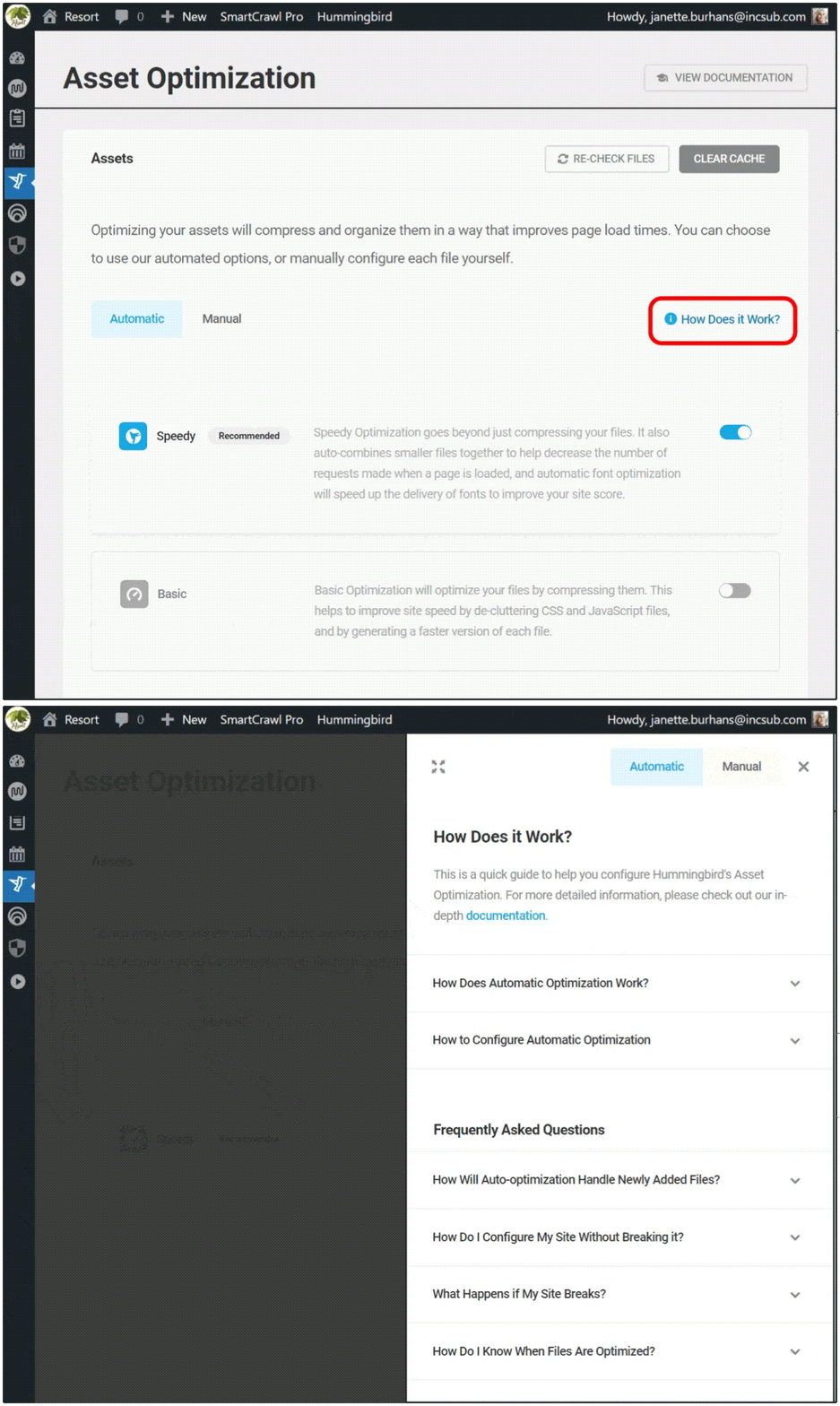
    You can see these anytime by navigating to Hummingbird > Asset Optimization > Assets, then click on the How Does it Work? text at right.

    There is a page for Automatic and one for Manual; just click on the corresponding header button that you’d like to read about.

    asset optiimz how does it work
    Get one-click access to summarized details on both modes of asset optimization.

    If you’re just starting out with Hummingbird, we recommend selecting Automatic optimization in Speedy mode to start. As you use and test your site and the plugin further, you can switch to auto basic or manual mode to check for possible improvements.

    And of course, you can always view our detailed documentation, or reach out to our customer support gurus, available 24/7/365.

    Testing Changes in Safe Mode

    We’re going to zero in today on optimization done in Manual, as that’s where the new Safe Mode lives.

    Hummingbird’s Safe Mode allows you to test different asset optimization settings in a safe environment, without affecting your website visitors’ experience.

    You’ll be able to preview your site from the frontend and check for any errors in your browser’s console, then publish your changes to go live once you’ve got everything just right.

    To enable this feature, go to Asset Optimization > Manual Asset Optimization, and click on the toggle button next to Safe Mode.

    From here, you can also click on the filter icon, which will open a panel for finding files faster. You can free type or select from the dropdown menu.

    manual safe mode+filter
    You can filter to search for files while in Safe Mode.

    When you’re in Safe Mode, clicking on any icon box will change its state.

    You will see a solid outline around it, indicating it’s been selected, and a circular info icon will also appear on the far left of the row.

    These visuals are to remind you’re in preview mode, and will remain until you click Publish, committing the changes you’ve made.

    preview mode changed state
    Visual cues will alert you to unsaved changes.

    With Safe Mode enabled, you can start tweaking your files for peak optimization.

    Each asset will have a status icon indicating its current state, and these vary based on the asset they’re attached to.

    As an example, the Compress option can have the following states:

    • Gray icon – files that are already compressed
    • White icon – indicates which files can be compressed
    • Blue icon – New assets selected for compression
    • Can’t be compressed – marks files that can’t be compressed

    Hover your mouse over any icon for a popup description of what action this change would make.

    hover popup details
    Need info on a particular icon? Just hover over it for a status popup.

    To see the effect any change makes, click the Preview button.

    preview button in safe mode
    The Preview button shows up once you turn Safe Mode on, taking the place of the Publish Changes button.

    Hitting Preview will load the frontend of your site, where you can check on the asset optimization you configured, making sure it doesn’t generate errors or break anything on your site.

    safe mode page preview
    What our Preview page looks like in Hummingbird’s Safe Mode.

    As you can see, the preview page has three clickable buttons at the top: Go Back, Copy Test Link, and Publish.

    Click on Copy Test Link if you want to gauge asset optimization you’ve made using a third-party performance test. Just paste the copied text into your preferred tool.

    Click on the Publish button if you’re content with the change(s) you made, and are ready to save.

    Click on the Go Back button if you’ve gotten an error message, a site break, or had no observable performance improvements, so you can continue to tweak your assets further.

    Once you’ve completed this exercise, turn Safe Mode OFF, as leaving it on can cause page load delays on your live site.

    And there you go! Maximum optimization achieved, which is completely changeable at any time.

    What’s The Other New Feature in Hummingbird 3.4?

    There’s another new feature in the latest release that I wanted to mention, as it’s sure to make your search experience in Hummingbird better.

    In the past, if you were working with a particular encrypted file from your performance test reports, locating it on the Manual Asset optimization tab by filename was a bit messy.

    That was because Hummingbird generates special filenames for optimized files, and there was no direct way to find them there. Until now!

    optimized filenames search in browser bar
    Copy filenames, then use Ctrl/Cmd+F to quickly find them in the browser search.

    With this release, you can copy filenames from the performance reports, then look them up directly in the browser search in the Manual Asset Optimization tab.

    This makes finding optimized files easier and faster.

    Get Your Site Humming with Optimal Performance

    Hummingbird is the ultimate performance suite for all users – whether you’re looking for simple, one-click solutions, or want to fine-tune your site performance down to the last CSS file.

    You’ll get faster loading pages and higher search rankings and PageSpeed scores with Hummingbird’s speed optimization.

    Now with Safe Mode for asset optimization, you can manually configure and test any files without worrying about a site break or interrupting the visitor experience on your site.

    Hummingbird is only one of our highly rated and multi-functional Pro plugins. You can try them all – along with WPMU DEVs membership or hosting – for free! Everything comes with our money-back guarantee, fully supported by our always on-call, 5-star support.

    We’ll help you keep your sites humming and your clients happy.

  • You’re Safe! Hummingbird’s Newest Release Allows for Manual Optimization in Protected Mode

    Fine tuning your website through manual optimization can be tricky, but our new Safe Mode feature in Hummingbird puts that problem in the rearview.

    Now, you can now test optimization in a temporary area that allows for non-permanent changes, so you can work out any kinks, then push them to your live site. For free!

    Introducing Safe Mode for Manual Asset Optimization – allowing you to optimize in a private space while your users still enjoy a fully functioning site.

    In this article, we’re going to look at how Safe Mode in Hummingbird works, while touching on a few related features and settings in the plugin. Plus, we’ll take a look at an additional (surprise!) feature also included in this release.

    Continue reading, or jump ahead using these links:

    Let’s dive in.

    Asset Optimization in Hummingbird

    Hummingbird makes your website faster by optimizing site performance with fine-tuned controls. Setting enhancements make things easy and efficient, giving you new ways to boost PageSpeed Insights.

    First, it identifies files that can be optimized (HTML, Javascript, and CSS), then offers a variety of means (compress, combine, or move) to make that happen.

    The result gives you marked improvement in your website’s performance.

    There are two different modes for asset optimization in Hummingbird:

    1. Automatic – use our preset options to optimize your assets and improve page load times.
    2. Manual – configure each file yourself to achieve the setup best suited to your specific site needs.

    Drilling down even further, there are two options within Automatic Optimization mode:

    1. Speedy – compresses & auto-combines smaller files together, and optimizes your fonts for faster delivery.
    2. Basic – compresses all your files to deliver a faster version of each.

    Automatic mode allows for a quick setup, providing positive gains without the time commitment that manual adjustment requires.

    Both of the Automatic options can be configured for Files (CSS, JavaScript), and/or Fonts.

    manual asset file types
    Hummingbird lets you optimize CSS, JS, and font files.

    Manual mode allows you to tinker with any and every file individually, so you can optimize your site on a very granular level.

    It’s a good idea to test files one at a time to measure results; that way if something doesn’t work it’s easy to identify what caused it and revert back without issue.

    We’ve mapped out specific steps for what to do in each mode, so that you can easily follow along in Hummingbird and produce optimal results.

    You can see these anytime by navigating to Hummingbird > Asset Optimization > Assets, then click on the How Does it Work? text at right.

    There is a page for Automatic and one for Manual; just click on the corresponding header button that you’d like to read about.

    asset optiimz how does it work
    Get one-click access to summarized details on both modes of asset optimization.

    If you’re just starting out with Hummingbird, we recommend selecting Automatic optimization in Speedy mode to start. As you use and test your site and the plugin further, you can switch to auto basic or manual mode to check for possible improvements.

    And of course, you can always view our detailed documentation, or reach out to our customer support gurus, available 24/7/365.

    Testing Changes in Safe Mode

    We’re going to zero in today on optimization done in Manual, as that’s where the new Safe Mode lives.

    Hummingbird’s Safe Mode allows you to test different asset optimization settings in a safe environment, without affecting your website visitors’ experience.

    You’ll be able to preview your site from the frontend and check for any errors in your browser’s console, then publish your changes to go live once you’ve got everything just right.

    To enable this feature, go to Asset Optimization > Manual Asset Optimization, and click on the toggle button next to Safe Mode.

    From here, you can also click on the filter icon, which will open a panel for finding files faster. You can free type or select from the dropdown menu.

    manual safe mode+filter
    You can filter to search for files while in Safe Mode.

    When you’re in Safe Mode, clicking on any icon box will change its state.

    You will see a solid outline around it, indicating it’s been selected, and a circular info icon will also appear on the far left of the row.

    These visuals are to remind you’re in preview mode, and will remain until you click Publish, committing the changes you’ve made.

    preview mode changed state
    Visual cues will alert you to unsaved changes.

    With Safe Mode enabled, you can start tweaking your files for peak optimization.

    Each asset will have a status icon indicating its current state, and these vary based on the asset they’re attached to.

    As an example, the Compress option can have the following states:

    • Gray icon – files that are already compressed
    • White icon – indicates which files can be compressed
    • Blue icon – New assets selected for compression
    • Can’t be compressed – marks files that can’t be compressed

    Hover your mouse over any icon for a popup description of what action this change would make.

    hover popup details
    Need info on a particular icon? Just hover over it for a status popup.

    To see the effect any change makes, click the Preview button.

    preview button in safe mode
    The Preview button shows up once you turn Safe Mode on, taking the place of the Publish Changes button.

    Hitting Preview will load the frontend of your site, where you can check on the asset optimization you configured, making sure it doesn’t generate errors or break anything on your site.

    safe mode page preview
    What our Preview page looks like in Hummingbird’s Safe Mode.

    As you can see, the preview page has three clickable buttons at the top: Go Back, Copy Test Link, and Publish.

    Click on Copy Test Link if you want to gauge asset optimization you’ve made using a third-party performance test. Just paste the copied text into your preferred tool.

    Click on the Publish button if you’re content with the change(s) you made, and are ready to save.

    Click on the Go Back button if you’ve gotten an error message, a site break, or had no observable performance improvements, so you can continue to tweak your assets further.

    Once you’ve completed this exercise, turn Safe Mode OFF, as leaving it on can cause page load delays on your live site.

    And there you go! Maximum optimization achieved, which is completely changeable at any time.

    What’s The Other New Feature in Hummingbird 3.4?

    There’s another new feature in the latest release that I wanted to mention, as it’s sure to make your search experience in Hummingbird better.

    In the past, if you were working with a particular encrypted file from your performance test reports, locating it on the Manual Asset optimization tab by filename was a bit messy.

    That was because Hummingbird generates special filenames for optimized files, and there was no direct way to find them there. Until now!

    optimized filenames search in browser bar
    Copy filenames, then use Ctrl/Cmd+F to quickly find them in the browser search.

    With this release, you can copy filenames from the performance reports, then look them up directly in the browser search in the Manual Asset Optimization tab.

    This makes finding optimized files easier and faster.

    Get Your Site Humming with Optimal Performance

    Hummingbird is the ultimate performance suite for all users – whether you’re looking for simple, one-click solutions, or want to fine-tune your site performance down to the last CSS file.

    You’ll get faster loading pages and higher search rankings and PageSpeed scores with Hummingbird’s speed optimization.

    Now with Safe Mode for asset optimization, you can manually configure and test any files without worrying about a site break or interrupting the visitor experience on your site.

    Hummingbird is only one of our highly rated and multi-functional Pro plugins. You can try them all – along with WPMU DEVs membership or hosting – for free! Everything comes with our money-back guarantee, fully supported by our always on-call, 5-star support.

    We’ll help you keep your sites humming and your clients happy.

  • How to Point a Domain to WPMU DEV Hosting

    Pointing domains… nameservers… figuring out DNS… it can all feel daunting! Fortunately, WPMU DEV makes it easy, whether you’re working with a domain purchased from us or from another provider. We break it all down in this article.

    Keep reading to learn how to easily connect your domain to our hosting service.

    Here are the topics we’ll be covering:

    Connecting Your Domain To WPMU DEV Hosting

    With our new domain service recently rolled out, you can directly purchase domains and register them through WPMU DEV – in which case we automatically do the DNS hookup (i.e., the pointing part) for you.

    If you purchased your domain through another DNS provider and are hosting with us, the tutorial below will show you exactly what you need to do and explain why this is also a great choice.

    Prepping for a Change in Domain Nameservers

    Nameservers are often referred to as the phone book of the internet, sending you to the correct domain when you type in a web address.

    There are two primary components to making your website accessible to the public:

    1. Your domain name (purchased from a registrar)
    2. Nameservers (provided through a host)

    The first must point to the second to connect the two.

    The registrar you purchased your domain from also has its own nameservers (if it offers hosting), however if you want them managed elsewhere you must change the DNS records.

    Doing it all from a single location is ideal, as it cuts out the middle agent and puts the same quality that powers your sites behind your DNS.

    DNS propagation is the term for your site’s nameservers and other records (e.g., A, AAAA, CNAME, MX, etc) updating across the web. This process can take anywhere from a few minutes to a couple days to finalize.

    If your site was already live, it might become briefly inaccessible to visitors during the nameserver change. You could create a temporary page with info regarding the approximate downtime, then publish it just prior to the server change. (Remember to change it back once the process is complete).

    It’s also helpful to handle nameserver changes during a period when traffic volume is typically on the low end.

    Importing Your Domain Records to WPMU DEV

    Alright, we’re ready to start our edits. The first thing we’re going to do is navigate to The Hub on WPMU DEV.

    Click on Domains from the top menu bar, then Connected Domains from the submenu, then the Connect Existing Domain button.

    connected domains - populated and unpopulated (wpmudev)
    Connecting domains in WPMU DEV’s The Hub.

    The Add New Domain modal will pop up. Here you will enter your domain name in the text field – making sure to include the extension (e.g. .com, .net, .xyz) – then click the blue button.

    add domain (step 1)
    Step 1 of 2 in WPMU DEV’s Add New Domain modal.

    The Hub DNS Manager will run a scan for common DNS records, then automatically import and list them for your verification.

    setup dns (step 2)
    Verifying the scanned records to import into a WPMU DEV DNS configuration.

    Here you’ll see the summary of record information, which will include:

    • Type – A, CNAME, MX, TXT
    • Hostname – @ for root; www for www. subdomain
    • Value – if record is an alias, directs, or returns
    • TTL (seconds) – Time To Live is how long the DNS query caches before expiring and needing a new one. (The lower this number, the better/faster.)

    You can remove any records, if you want to exclude them from being imported, by clicking on the Trashcan icon.

    You can also manually add any records that are missing. See Add or Edit DNS Records for details.

    If you’re in any doubt as to whether records should be added or deleted, just reach out to support (any time, day or night) and they’ll happily walk you through it.

    Once you’re satisfied with the populated DNS records, click the blue button once more.

    After the ellipsis bounce, the page will load with the imported information specific to your domain.

    WPMU DEV nameservers are listed towards the top of this page, where you’ll see there are three of them.

    wpmudev nameservers
    WPMU DEV’s trio of nameservers, ready to copy/paste into your domain registry records.

    Keep your Hub page open, as we’ll be copying & pasting the nameservers in the next step. (Or, do what I do, and just copy the first one, then replace the “1” with “2” then “3” as you paste each, since these ordinal numbers are the only difference.)

    Putting WPMU DEV Nameservers in Your Domain Registry Records

    Now that we’ve imported your domain details into WPMU DEV, the next step is to overwrite the nameserver records of your registrars with ours.

    There are a lot of registrars, so how your domain details are kept and displayed will vary, but they should all have the same key elements. We cover more than a dozen of the most popular ones here.

    In the case of registrars that serve as hosts, what they permit when it comes to allowable changes in nameservers can vary. For example, pointing nameservers to another host is not permissible for a Wix-purchased domain. However, you can transfer your domain away from them (although it involves a different process).

    Assuming your domain registrar allows for pointing nameservers away from them, or that you’ve taken any necessary prior steps in preparation, login to their website and locate the records for your domain.

    namecheap nameservers (orig)
    Changing nameservers through the Registrar; in this case, Namecheap.

    Popping back over to the Hub, copy that first nameserver, then head back to your domain registrar details page, pasting it in the appropriate text field. Do this for all three nameservers, then save your input.

    Depending on your registrar, you’ll probably get a confirmation message with time estimates on how long it will take the DNS hosting server to update.

    It’s rare, but on the outside chance your domain registrar requires identifying our nameservers by IP address, you can find them here.

    Double-Checking Your Changes

    As with any significant edit, verifying everything is working as it should is an important last step.

    Some registrars will send you an email notifying you that the propagation is complete. With others, you might need to revisit the site and continue checking.

    Either way, we can verify things through The Hub. Let’s head there, and navigate to Domains > Connected Domains.

    For the domain name in question, if you see the green check marked Propagated correctly under Nameservers Status – you’re good to go. If it says Pending, click on the vertical ellipsis icon to the right, and select Manage DNS from the dropdown.

    onnected domains manage dns (wpmudev)
    Managing DNS through WPMU DEV’s The Hub is effortless.

    If everything was done properly and the process has completed, you’ll see a row of green highlighted text, confirming Your nameservers are propagated correctly. If that message isn’t displayed, click on the Check nameservers button.

    check dns - nameservers propagating correctly (wpmudev)
    Success! Nameservers have been propagated to WPMU DEV.

    You’re all set! Your nameservers are successfully pointing to WPMU DEV as your acting DNS provider.

    If you don’t get a confirmation or see an error message, check out our detailed documentation, or reach out to our always-on-call support team.

    As an additional option, you can use this DNS propagation checker to verify the current IP address and DNS record information for your domain name(s).

    The Benefits of Pointing Domains to WPMU DEV Nameservers

    Nameservers are essential in directing internet traffic as they locate and translate hostnames into IP addresses.

    If you host your own or your client sites with WPMU DEV, pointing your domains to our nameservers has definite advantages.

    For starters, subpar nameservers will experience difficulties more often, and your visitors could get “DNS server not responding” messages. Quality nameservers, like ours, can limit or avoid that altogether.

    Additionally, pointing your domains to our nameservers allows you to keep the settings with your current email client as is, eliminating the hassle of making a bunch of changes in that regard. (Just make sure existing MX records are imported during the DNS record setup.)

    Finally, with the ability to purchase domains now directly through WPMU DEV, managing client sites becomes even more centralized, as your hosting provider and domain provider will be one in the same.

    This gives you all of your domains in one place/one dashboard, with auto renewal, free protection, and a built-in grace period; priced incredibly low for Agency members.

    Not a member yet? Give us a go, and see how much our hosting has to offer. If you’re not thrilled, we’ll refund you 100%; simply cancel within 30 days. Chances are good you’ll find our value and service are unmatched.